It’s no surprise that discussions around SharePoint vs Google Drive keep surfacing in IT circles. Both platforms promise seamless file storage, sharing, and collaboration — so it’s only natural that users ask, “Is SharePoint like Google Drive?”
At first glance, these tools may seem to serve the same purpose, but the real difference lies in their depth and intent. Google Drive is built around simplicity and individual productivity, while SharePoint is designed for enterprise-level collaboration, structured workflows, and document governance. So when people ask, “Does Google have a SharePoint equivalent?” or “What’s the Google version of SharePoint?” — the answer isn’t quite as straightforward as it seems.
In this article, we’ll break down Google Drive vs SharePoint from a professional perspective. You’ll see where each shines, where it falls short, and which platform better fits your team’s goals — whether you’re managing personal files, collaborating across departments, or building enterprise-grade document systems.
We’ll also explore the Google equivalent to SharePoint (and whether it truly exists), highlight practical use cases, and share expert insights on how to enhance your SharePoint environment with specialized solutions.
By the end, you’ll have a clear view of how Google Drive and SharePoint compare — and how to make the smarter choice for your organization.
Overview: SharePoint vs Google Drive
When people ask questions like “Is SharePoint like Google Drive?” or “What’s the Google equivalent of SharePoint?”, the short answer is yes — both deal with cloud storage and collaboration. But the long answer is what matters. While Google Drive focuses on accessibility and simplicity, SharePoint is a robust enterprise platform built to power structured collaboration, governance, and workflow automation. Let’s take a closer look at each.
What Is SharePoint?
SharePoint is Microsoft’s enterprise-grade platform for document management, collaboration, and business process automation. It serves as an internal company portal, a centralized data hub, and a foundation for building and managing complex workflows.
Key features include:
- Document management: Centralized storage, version control, and granular access permissions.
- Collaboration: Co-authoring, commenting, and real-time communication across teams.
- Team workspaces: Custom sites and libraries for projects, departments, or cross-functional initiatives.
- Process automation: Configurable workflows for document approval, notifications, and task reminders.
- Microsoft 365 integration: Deep interoperability with Teams, Outlook, Word, Excel, and Power Automate — making SharePoint a natural core of the Microsoft ecosystem.
Because it’s part of Microsoft 365, SharePoint goes far beyond being “just” a cloud drive. It’s a scalable, customizable, and secure enterprise platform used by mid-sized and large organizations where structure, compliance, and efficiency truly matter. In other words, it’s much more than the Google Drive SharePoint comparison suggests — it’s the backbone of modern digital workplaces.
Learn more about SharePoint in our blog: collection of articles on SharePoint Online
What Is Google Drive?
Google Drive, on the other hand, is Google’s cloud storage solution designed for storing, sharing, and editing files in real time. It’s intuitive, lightweight, and built for quick collaboration rather than heavy enterprise management.
Core capabilities include:
- Universal file storage: Save and access files of any type through the web, mobile, or desktop apps.
- Real-time editing: Work together on Google Docs, Sheets, and Slides simultaneously with instant syncing.
- Google Workspace integration: Seamless connection with Gmail, Google Meet, and Google Calendar for effortless collaboration.
- Simple sharing controls: Grant view, comment, or edit rights in just a few clicks — ideal for small teams and fast-moving projects.
Google Drive shines in simplicity. It’s the go-to tool for individuals, students, and small teams who need quick, reliable cloud storage and easy collaboration without complex setup or governance policies.
However, when comparing Google Drive vs SharePoint, the distinction becomes clear: both offer file storage and co-authoring, but SharePoint delivers a full-scale enterprise environment for managing content, workflows, and permissions — while Google Drive focuses on ease of use and straightforward teamwork.
So, if you’ve ever wondered “Does Google have a SharePoint equivalent?” — the honest answer is: not exactly. There’s no true Google version of SharePoint. Drive is simpler by design, while SharePoint is built to handle the complexity of modern enterprise collaboration.
Comparing SharePoint vs Google Drive Across Key Parameters
When you dig deeper into the Google Drive vs SharePoint discussion — or ask “Is SharePoint like Google Drive?” — it becomes clear that they cater to different needs. The following comparison helps highlight where each tool excels and where they diverge.
| Parameter | SharePoint | Google Drive |
| Purpose | Enterprise collaboration platform for large-scale projects, document management, and workflow automation. | Cloud storage for personal use or small teams, optimized for file sharing and quick collaboration. |
| Access Management | Advanced, flexible permission settings with granular control over users, groups, and content. | Simple sharing controls with view/comment/edit rights; easy to grant access but limited granularity. |
| Integration | Deep integration with Microsoft 365 ecosystem: Teams, Outlook, Word, Excel, Power Automate. | Integrated with Google Workspace: Docs, Sheets, Slides, Gmail, Meet, Calendar. |
| Data Structure | Sites, document libraries, lists — highly customizable for different business needs. | Folder and file system, designed for ease of navigation and simplicity. |
| Scalability | Built for medium to large organizations with complex needs and compliance requirements. | Primarily targeted at individuals, small teams, and SMBs. |
| Automation | Extensive workflow capabilities — approvals, notifications, business process automation via Power Automate. | Minimal automation capabilities, mostly limited to basic scripting and third-party add-ons. |
It’s worth noting that while there is no direct SharePoint equivalent in Google, combining Google Drive with Google Workspace apps can work as a lightweight alternative for basic collaboration needs. However, when it comes to enterprise-scale governance, structured workflows, and complex permission management, there simply is no true Google equivalent to SharePoint.
For teams asking “Does Google have a SharePoint equivalent?”, the answer is nuanced: Google Drive covers some aspects of document collaboration, but it does not match SharePoint’s depth as a corporate collaboration platform.
Strengths and Weaknesses of SharePoint vs Google Drive
When evaluating Google Drive vs SharePoint, it’s not just about features — it’s about strengths, trade-offs, and what your organization truly needs. This section explores the advantages and limitations of each, helping you decide which fits your scenario best.
Advantages of SharePoint and Google Drive
Advantages of SharePoint
✅Advanced customization and flexible permission settings
SharePoint allows granular control over access to sites, libraries, and documents — a major point in the SharePoint vs Google Drive debate. This flexibility is essential for organizations where different teams or departments require distinct access rights. Integration with Active Directory ensures centralized security management.
✅Centralized corporate data management
As a true enterprise platform, SharePoint serves as a single hub for corporate documents, reducing risk of data loss and improving governance. This advantage makes it stand out when comparing Google Drive SharePoint capabilities.
Learn more: SharePoint Communication Site: Improve Communication and Teamwork
✅Integration with Microsoft Teams and Office
SharePoint integrates seamlessly with Teams, Word, Excel, and Power Automate, enabling employees to work within a unified ecosystem without switching platforms. For many, this integration is the core reason why SharePoint outperforms any Google version of SharePoint.
✅Support for business processes and automation
With Power Automate, SharePoint enables advanced workflows like approvals, notifications, and reminders — far beyond what the Google equivalent to SharePoint offers. This makes it indispensable for organizations with complex workflows.
Advantages of Google Drive
✅Simplicity and intuitive interface
Google Drive is easy to adopt without training, making it a strong candidate when users ask “Is SharePoint like Google Drive?” Its clean design is a key reason some consider it the Google version of SharePoint for basic collaboration.
✅Free storage in the basic version
Every Google account includes free storage (usually 15 GB), making it ideal for personal use or small teams.
✅Fast web-based access
No heavy setup required; users can access files directly from any device.
✅Seamless real-time collaboration
Multiple users can edit documents simultaneously, comment, and track changes — a strength often highlighted in Google Drive vs SharePoint discussions.
Weaknesses of SharePoint and Google Drive
Weaknesses of SharePoint
✅Complex deployment and configuration
Unlike Google Drive, SharePoint requires configuration, training, and ongoing administrative support. This complexity is a key difference in the Google Drive SharePoint comparison.
✅Higher cost
SharePoint comes as part of Microsoft 365, and its licenses plus implementation cost more — making it less attractive for small teams compared to a Google equivalent in SharePoint.
✅Requires specialized support
For custom scenarios, SharePoint demands expertise in Microsoft 365 administration, something Google Drive users rarely need.
Weaknesses of Google Drive
⚠️Limited access management
Permissions are set only at the folder or document level, lacking SharePoint’s advanced controls.
⚠️No business process automation
For many, this confirms why there’s no true Google equivalent to SharePoint.
⚠️Reliance on internet connection
Core functions depend on connectivity, which can be a limitation despite offline syncing.
These strengths and weaknesses show why the debate around SharePoint vs Google Drive is about much more than storage — it’s about scale, control, and capability. For teams asking “Does Google have a SharePoint equivalent?”, the answer is clear: Google Drive can be part of the solution, but it’s not a full replacement for SharePoint’s enterprise-grade platform.
| Platform | Advantages | Disadvantages |
| SharePoint | – Advanced customization and granular permission settings. – Centralized corporate data management. – Integration with Microsoft Teams, Office, and Power Automate. – Support for structured workflows and business process automation. – Enterprise-grade security and compliance controls. – The real strength in SharePoint vs Google Drive comparisons — designed for large-scale corporate needs. | – Complex deployment and configuration. – Requires initial training and administrator support. – Higher licensing and implementation costs. – Steeper learning curve for end users. – For those asking “Is SharePoint like Google Drive?”, complexity is a key difference. |
| Google Drive | – Simple, intuitive interface requiring minimal training. – Free storage tier (usually 15 GB). – Quick access via web browser without heavy setup. – Seamless real-time collaboration with Docs, Sheets, and Slides. – Accessible from any device with internet connection. – Often perceived as the Google version of SharePoint for basic document collaboration. | – Limited access management (permissions only at document/folder level). – No advanced workflow or business process automation. – Not suited for complex corporate environments. – Dependent on stable internet connection for full functionality. – Shows why there’s no true Google equivalent to SharePoint in enterprise scope. |
Use Cases: When to Choose SharePoint vs Google Drive
When specialists ask “Is Google Drive or SharePoint better?”, the honest answer is: it depends entirely on what you’re trying to achieve. Both tools shine in different contexts. The key to understanding SharePoint vs Google Drive is matching each platform to the right scenario — from simple document sharing to enterprise-level collaboration.
When to use Google Drive
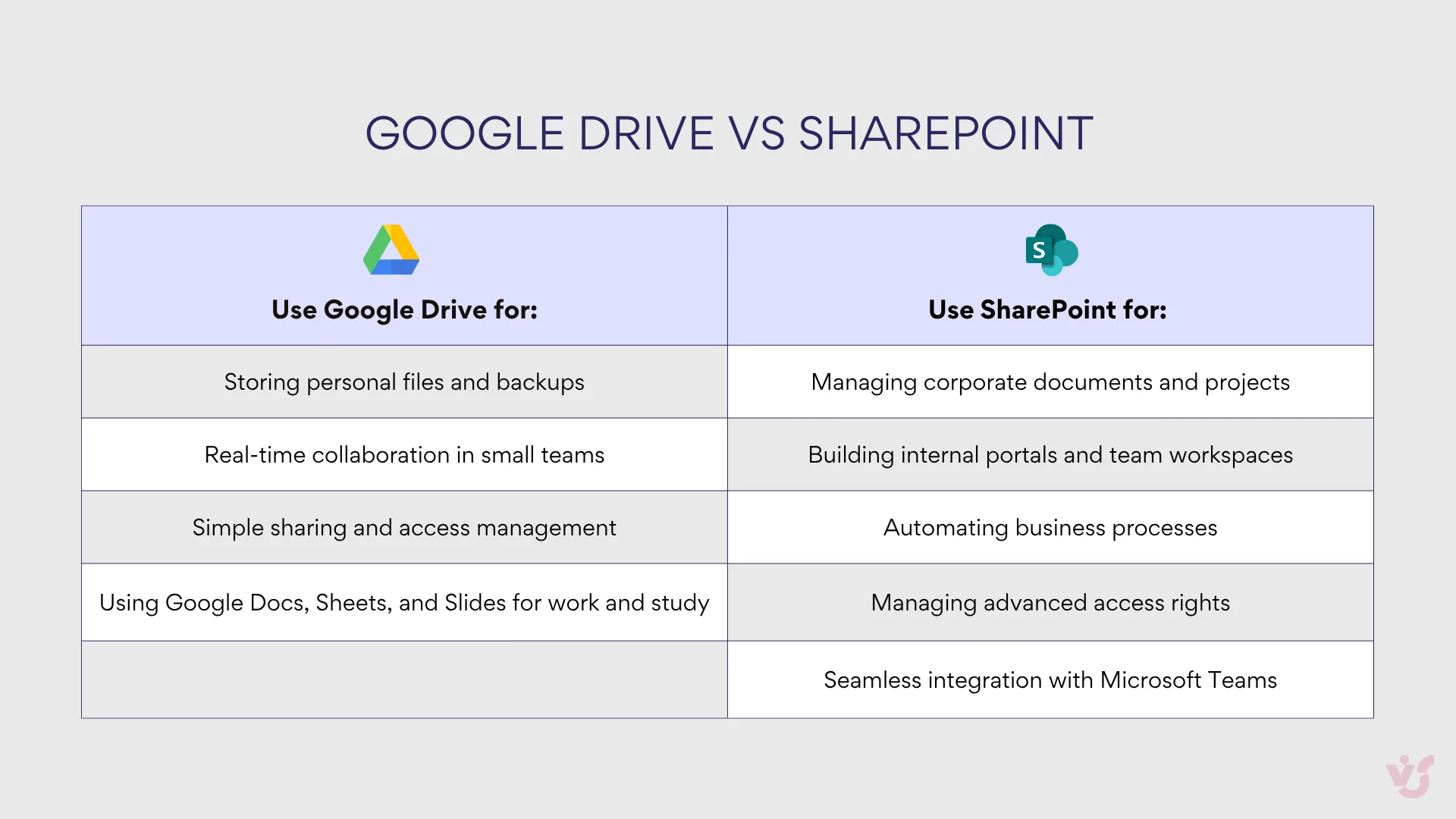
1. Storing personal files and backups
Google Drive is perfect for keeping personal documents, photos, notes, and projects in the cloud. It’s ideal as an always-available backup — your files stay synced and accessible across devices. For most users, this simplicity is what makes them view it as the Google version of SharePoint for individuals.
2. Real-time collaboration in small teams
Small groups can work on the same Google Doc or Sheet simultaneously, seeing each other’s edits live. Whether it’s a study project, a shared report, or brainstorming creative ideas, Drive makes teamwork effortless.
3. Using Google Docs, Sheets, and Slides for work and study
Because Google Drive integrates seamlessly with Google Workspace apps, users can create, edit, and share documents without installing extra software. Common examples include:
- Building a presentation together in Google Slides.
- Managing budgets in Google Sheets.
- Writing a research paper collaboratively in Google Docs.
These native tools make Drive the easiest Google equivalent to SharePoint for teams who prioritize accessibility and simplicity over corporate-level structure.
4. Simple sharing and access management
A document owner can grant access to colleagues or clients via link — no complex setup needed. This flexibility is perfect for freelancers, educators, and small businesses that don’t need enterprise-level permission systems.
When to use SharePoint
1. Managing corporate documents and projects
SharePoint is designed for centralized document storage across departments and projects. Version control, metadata, and access permissions make it ideal for structured enterprise content management. When it comes to governance and control, there’s simply no Google equivalent of SharePoint.
2. Building internal portals and team workspaces
With SharePoint, organizations can create full-featured intranet portals where employees access company news, internal resources, and shared libraries. Teams can have dedicated sites with tasks, calendars, and dashboards — all connected within the Microsoft 365 ecosystem.
Learn more: Intranet SharePoint: Building Process and Use Cases
3. Automating business processes
Through Power Automate, SharePoint supports workflow automation: document approvals, notifications, task routing, and more. This is crucial for organizations with complex or repetitive procedures. In this area, Google Drive SharePoint comparisons clearly highlight the gap — Drive simply doesn’t offer the same automation depth.
4. Managing advanced access rights
SharePoint’s permission model allows admins to define access at site, folder, or document level. Sensitive files can be shared only with specific departments or users, ensuring compliance and preventing data leaks.
5. Seamless integration with Microsoft Teams
SharePoint acts as the file backbone for Teams, enabling smooth collaboration directly from chats and channels. Together, they form a unified workspace — a major strength in the Google Drive vs SharePoint debate.
Explore Our Use Cases


👉Is Google Drive or SharePoint better? The choice between SharePoint vs Google Drive depends on your goals:
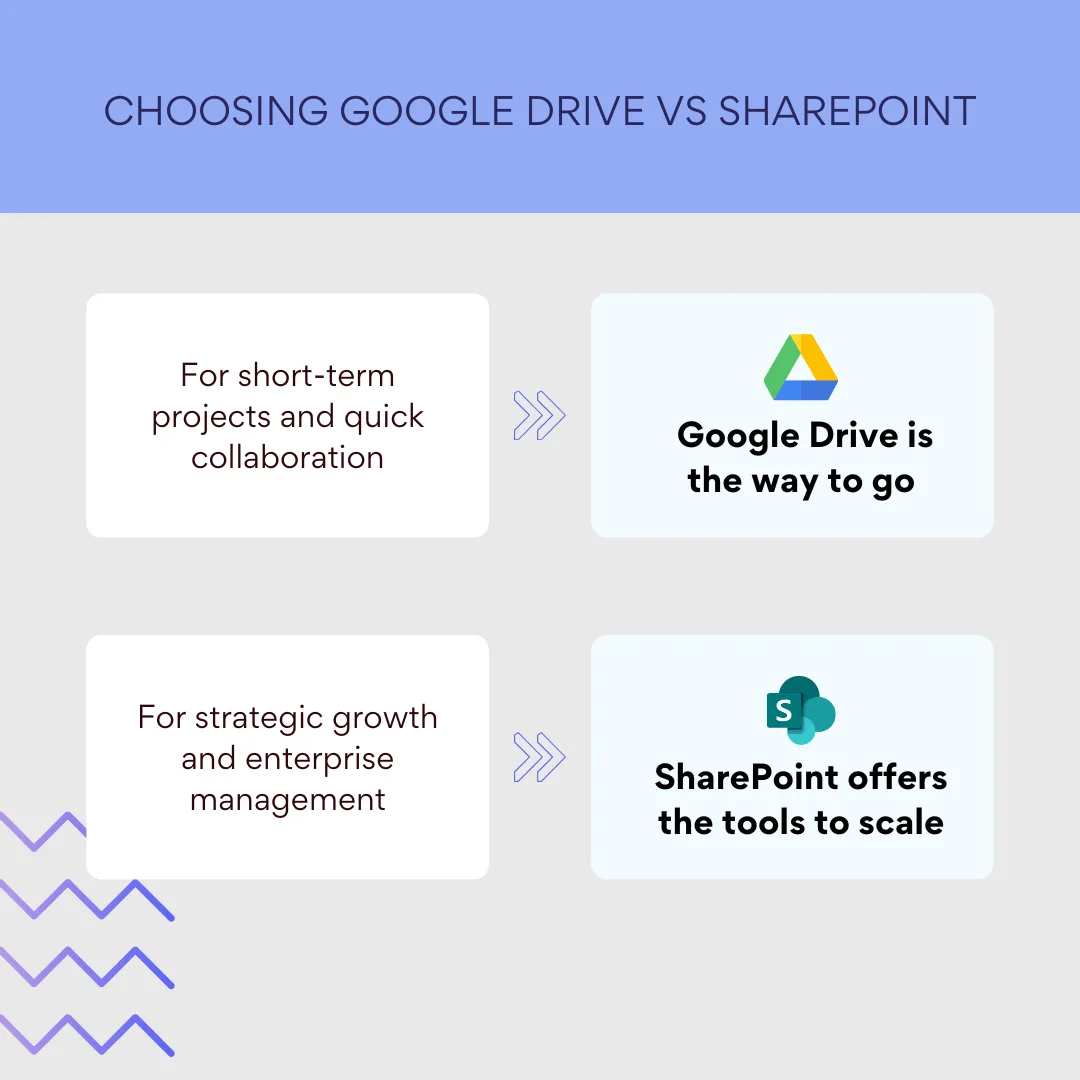
- If you need simple storage, easy sharing, and quick collaboration in a small team — choose Google Drive. It’s intuitive, fast, and free in its basic version.
- If you need enterprise-level structure, automation, security, and scalability, SharePoint is the clear winner.
There’s no one-size-fits-all Google equivalent to SharePoint, but Google Drive with Workspace apps can serve as a lightweight alternative for smaller, more flexible teams. For enterprises, however, SharePoint remains the unmatched platform for managing documents, workflows, and collaboration at scale.
Comparison table: when to use SharePoint vs Google Drive
| Scenario / Feature | Google Drive | SharePoint |
| Primary purpose | Personal storage, small-team collaboration | Enterprise content management and project collaboration |
| Best for | Individuals, freelancers, small teams | Medium to large organizations |
| Core Tools | Google Docs, Sheets, Slides (Google Workspace) | Microsoft 365, Teams, Outlook, Power Automate |
| Access management | Simple link-based sharing | Advanced role-based permissions and security policies |
| Collaboration style | Real-time co-editing in Docs and Sheets | Structured team workspaces, controlled access |
| Automation & workflows | Minimal automation (basic add-ons only) | Powerful workflow automation (approvals, notifications, integrations) |
| Integration ecosystem | Google Workspace (Docs, Gmail, Meet) | Microsoft 365 (Teams, Outlook, Planner, Power Apps) |
| Data structure | Folders and files | Sites, libraries, and lists |
| Scalability | Ideal for small or growing teams | Optimized for large-scale corporate environments |
| Security & compliance | Basic access control | Enterprise-grade compliance and governance |
| Offline work & sync | Works offline via Google Drive for Desktop | Deep Windows integration and OneDrive sync |
| Ease of use | Extremely intuitive for beginners | Requires initial setup and admin configuration |
| Equivalent concept | Google equivalent to SharePoint for basic collaboration | Full corporate platform, no direct Google equivalent |
| Example use case | Collaborative presentation in Google Slides | Company intranet with document workflows and permissions |
Migration Between SharePoint and Google Drive
Modern organizations often consider switching between platforms — for example, from SharePoint to Google Drive or vice versa — when changing their IT ecosystem, optimizing costs, or after a merger or acquisition.
However, migration is not just about copying files. Since SharePoint and Google Drive have fundamentally different architectures, permission models, and integrations, the process requires careful planning and execution.
Migration possibilities
Technically, migration between SharePoint and Google Drive is possible in both directions:
- From SharePoint to Google Drive — for companies moving to Google Workspace and seeking a simpler cloud-based collaboration tool.
- From Google Drive to SharePoint — for organizations adopting Microsoft 365 and needing enterprise-grade document management and security.
There are several tools that facilitate this process:
- Built-in migration tools from Microsoft and Google.
- Third-party solutions such as AvePoint, CloudFuze, Mover, and Cloudsfer, which help transfer large data volumes while maintaining folder hierarchy and metadata.
It’s important to note that a “one-to-one” migration is impossible — the architecture of SharePoint vs Google Drive is different.
SharePoint uses sites, libraries, and lists, while Google Drive relies on folders and files. Therefore, a successful migration requires strategic planning and compatibility checks.
Potential challenges
Despite the available tools, migration between Google Drive and SharePoint can introduce several challenges:
⚠️Loss of structured data
SharePoint data is organized into sites, document libraries, and lists — often connected to workflows and automation. When transferring data to Google Drive, this structure may flatten into simple folders and files, causing the loss of logical relationships.
⚠️Access permission issues
SharePoint supports highly granular permissions — down to document or group level — while Google Drive offers a simpler “view/comment/edit” model. This difference may require manual reconfiguration of access rights after migration.
⚠️Integration limitations
Documents and processes connected to Microsoft Teams, Power Automate, or Office apps won’t function properly after migrating to Google Workspace. Likewise, teams switching from Google Drive to SharePoint may lose native integrations with Docs, Sheets, and Meet.
Because of these differences, migration between the platforms requires thorough testing, documentation, and staff training.
Migration recommendations
1. Plan before starting
Conduct a data audit — identify which files need to be transferred, and which can be archived. Define critical business processes and documents that must be preserved.
2. Choose the right tool
For smaller migrations, manual export and import may work. For enterprise environments, use specialized migration tools that can maintain metadata, version history, timestamps, comments, and permissions.
3. Run a pilot migration
Before moving everything, perform a test migration on a limited set of files. Verify that folder structures, access rights, and document integrity are maintained.
4. Communicate with employees
Inform staff about the upcoming changes and provide clear guidance on how to work in the new environment — whether moving from Google Workspace to SharePoint or from SharePoint to Google Drive.
5. Provide post-migration support
After migration, monitor for errors such as lost permissions or missing files. Offer user support and training to ensure smooth adaptation.
How to Choose Between SharePoint and Google Drive
Choosing between SharePoint and Google Drive isn’t just about comparing features.
It’s about understanding your goals, the scale of your organization, and how structured your internal processes are.
There’s no universal answer — the right choice depends on whether your priorities lie in simplicity and speed or in scalability and enterprise control.
For large organizations and complex processes — SharePoint wins
If your company operates across multiple departments or even continents, SharePoint is the clear leader.
It’s not just a document library — it’s a corporate collaboration platform built for structure, governance, and control.
Typical scenarios where SharePoint outperforms Google Drive:
- Managing corporate intranets and internal portals where different teams need personalized workspaces.
- Centralized document management with fine-tuned access permissions and version control.
- Automation of business processes, approvals, and workflows through tools like Power Automate.
- Seamless integration with Microsoft Teams, Outlook, and Office 365 applications.
Example:
A multinational enterprise uses SharePoint to run its internal portal, where every department — HR, finance, R&D — has its own secure site. Yet all documents are accessible through a unified structure, with governance and versioning handled automatically.
When specialists ask, “Is SharePoint like Google Drive?” — the answer is: not really. While Google Drive is great for sharing files, SharePoint is designed for managing an entire digital workspace — projects, workflows, permissions, and compliance.
For individuals and small businesses — Google Drive shines
When simplicity and speed matter more than enterprise-level control, Google Drive becomes the smarter choice.It’s intuitive, accessible, and perfect for teams that want to collaborate instantly without complex setup.
Best use cases for Google Drive vs SharePoint:
- Personal file storage — photos, notes, and personal projects.
- Collaboration between students, teachers, or freelancers.
- Small businesses or startups prioritizing speed and ease of use over deep customization.
- Quick file sharing through links without advanced permission management.
Example:
A small creative studio of 10 people uses Google Drive to co-edit presentations, store visuals, and share ideas in real time. They don’t need the structure and governance of SharePoint — agility and simplicity are what drive their productivity.
When someone asks, “Does Google have a SharePoint equivalent?” — the answer is that Google Drive with Google Workspace can serve as a lightweight version. But while the Google equivalent to SharePoint supports basic collaboration, it lacks the enterprise backbone and process automation Microsoft provides.
Using both platforms together
Many companies find that the ideal solution isn’t choosing between Google Drive or SharePoint — but combining them. Both tools can coexist, each serving its own purpose within the organization.
Common hybrid scenarios:
- Google Drive — for personal files, external collaboration, or quick content sharing with contractors and clients.
- SharePoint — for corporate content management, internal communication, and project documentation.
Example:
A consulting firm stores its internal documents, contracts, and project archives in SharePoint, while client presentations and temporary drafts live in Google Drive for easy external sharing. This hybrid approach allows teams to benefit from the Google version of SharePoint flexibility while maintaining enterprise-grade security where it’s needed most.
Choosing what fits: simplicity vs power
In the end, the SharePoint vs Google Drive debate comes down to priorities:
| If your focus is… | Go with… | Why |
| Quick setup, minimal cost, and ease of use | Google Drive | Perfect for individuals and small teams who need to start collaborating instantly. |
| Long-term scalability, enterprise security, and workflow automation | SharePoint | Ideal for organizations that require structured processes, compliance, and deep Microsoft 365 integration. |
There isn’t a single “best” option — but understanding whether you need the simplicity of Google Drive or the enterprise control of SharePoint will point you toward the right platform for your team.
Specialized Virto Solutions for SharePoint
When comparing SharePoint vs Google Drive, it’s important to remember that SharePoint isn’t just a document storage system — it’s an entire enterprise ecosystem. While Google Drive focuses on straightforward file sharing, SharePoint can be customized and extended to meet the unique needs of any organization.
Out of the box, SharePoint offers powerful core functionality — document libraries, permissions, workflows, and team sites — but in real-world corporate environments, that’s often just the beginning. That’s where Virto Software’s specialized SharePoint solutions come in.
Virto’s apps and web parts extend SharePoint’s standard features, helping companies simplify file management, task tracking, and project collaboration — while making the user experience smoother and more intuitive. In other words, if the Google version of SharePoint covers basic teamwork, Virto + SharePoint turns that concept into a fully mature, flexible corporate platform.
Virto Solutions for SharePoint Online
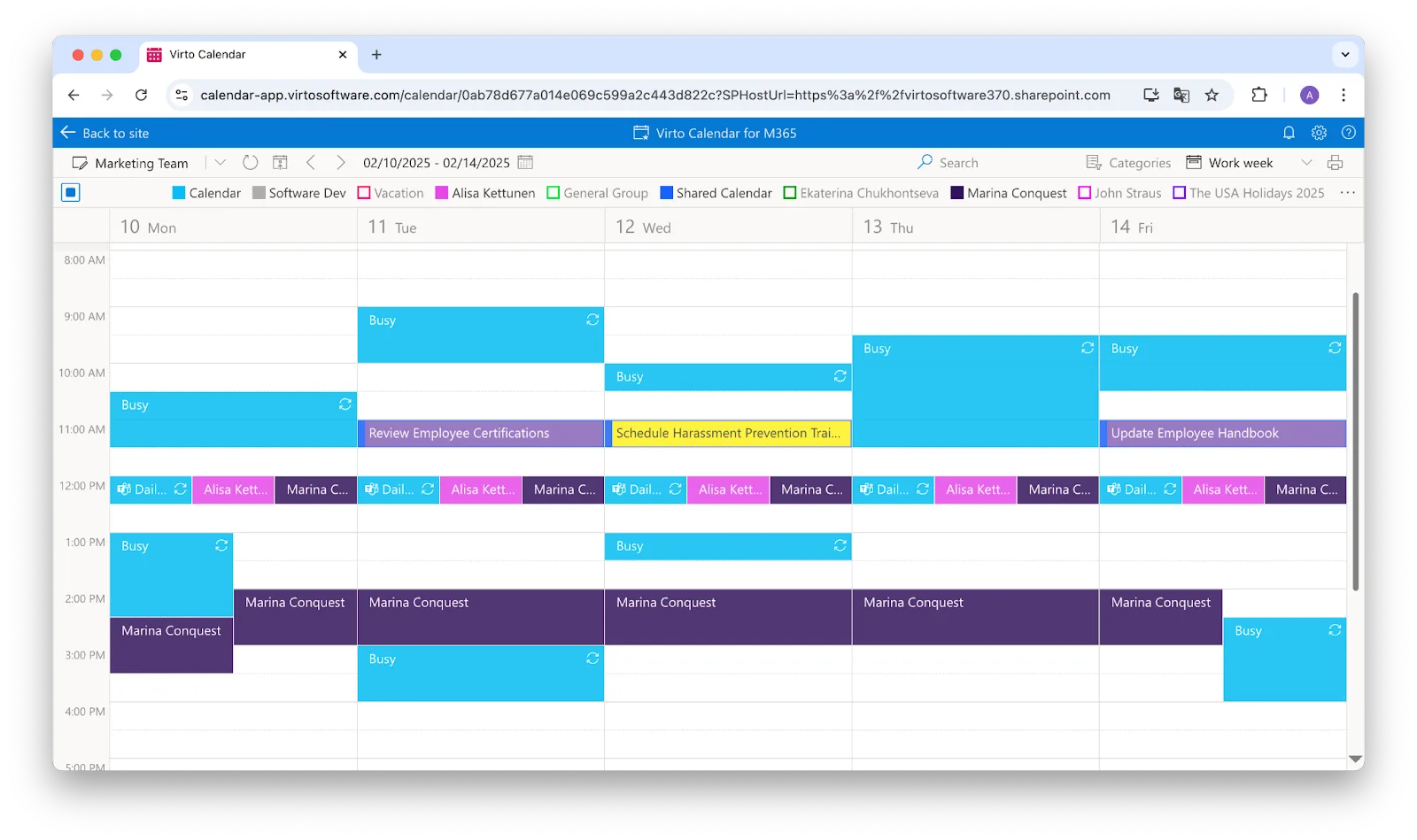
Virto Calendar App — Advanced Calendar Management in SharePoint
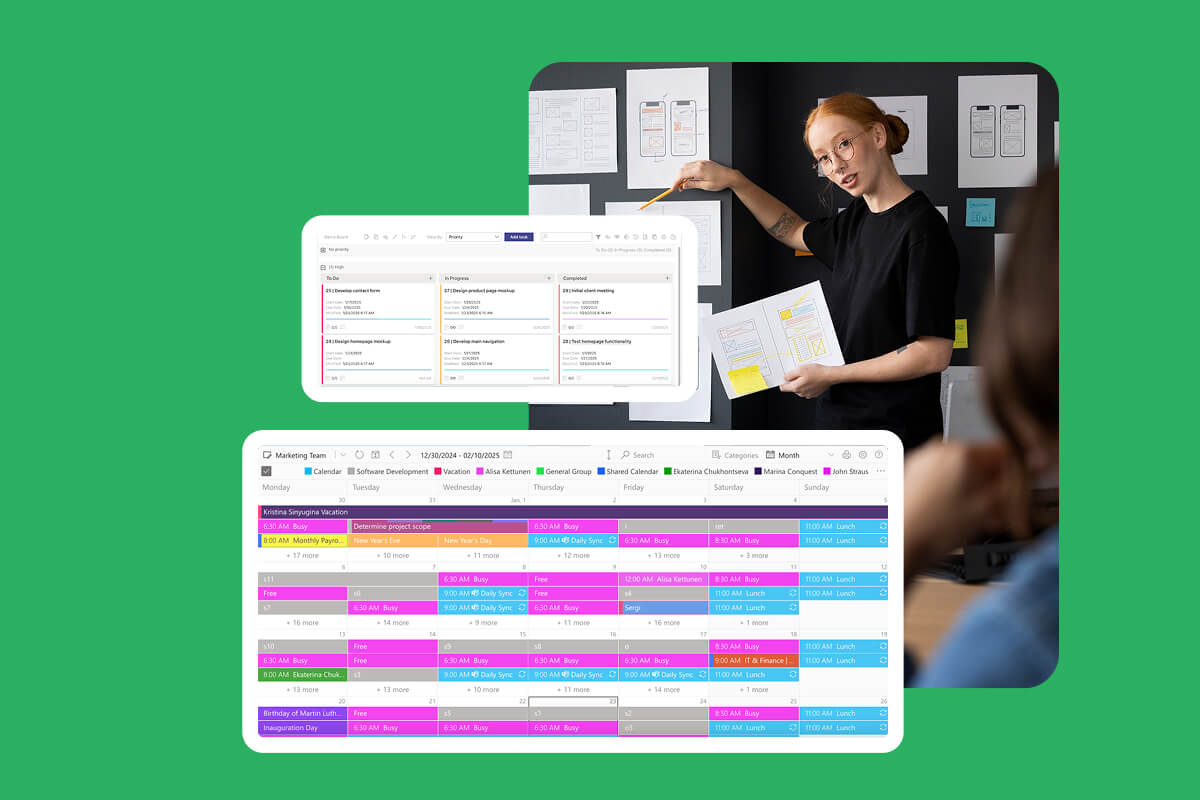
This app delivers richer, more flexible calendar functionality than the default SharePoint options. It merges data from multiple sources — Outlook, Exchange, and Microsoft Teams — into a single unified calendar. Perfect for planning meetings, managing events, or coordinating cross-department schedules.
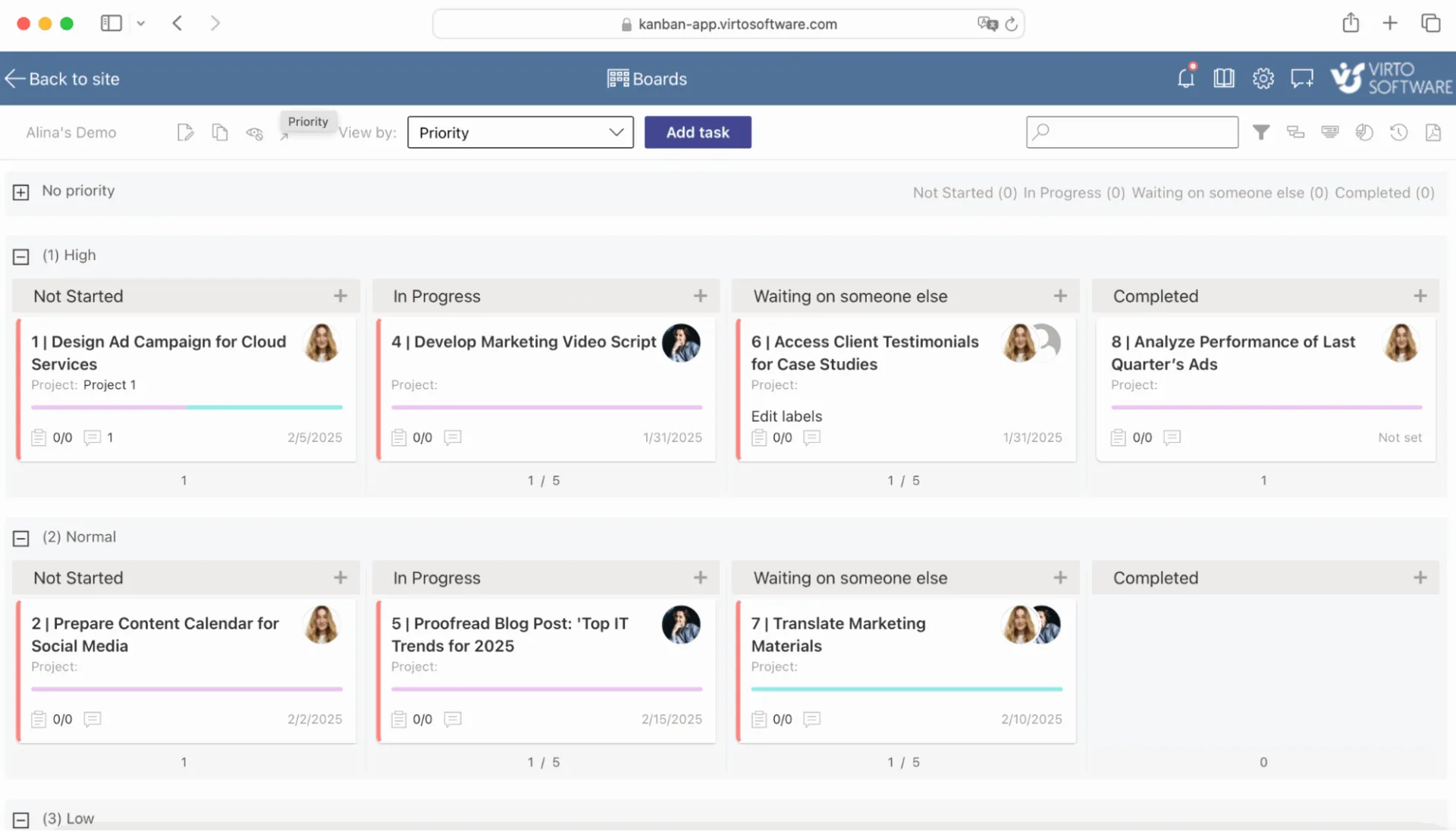
Virto Kanban Board App — Visual Task Management in SharePoint and Teams
Turn your SharePoint or Teams environment into a fully interactive Kanban workspace.Track progress, assign tasks, and visualize workflow in real time. Especially valuable for Agile or Scrum teams who want transparency and visibility without leaving the Microsoft ecosystem.
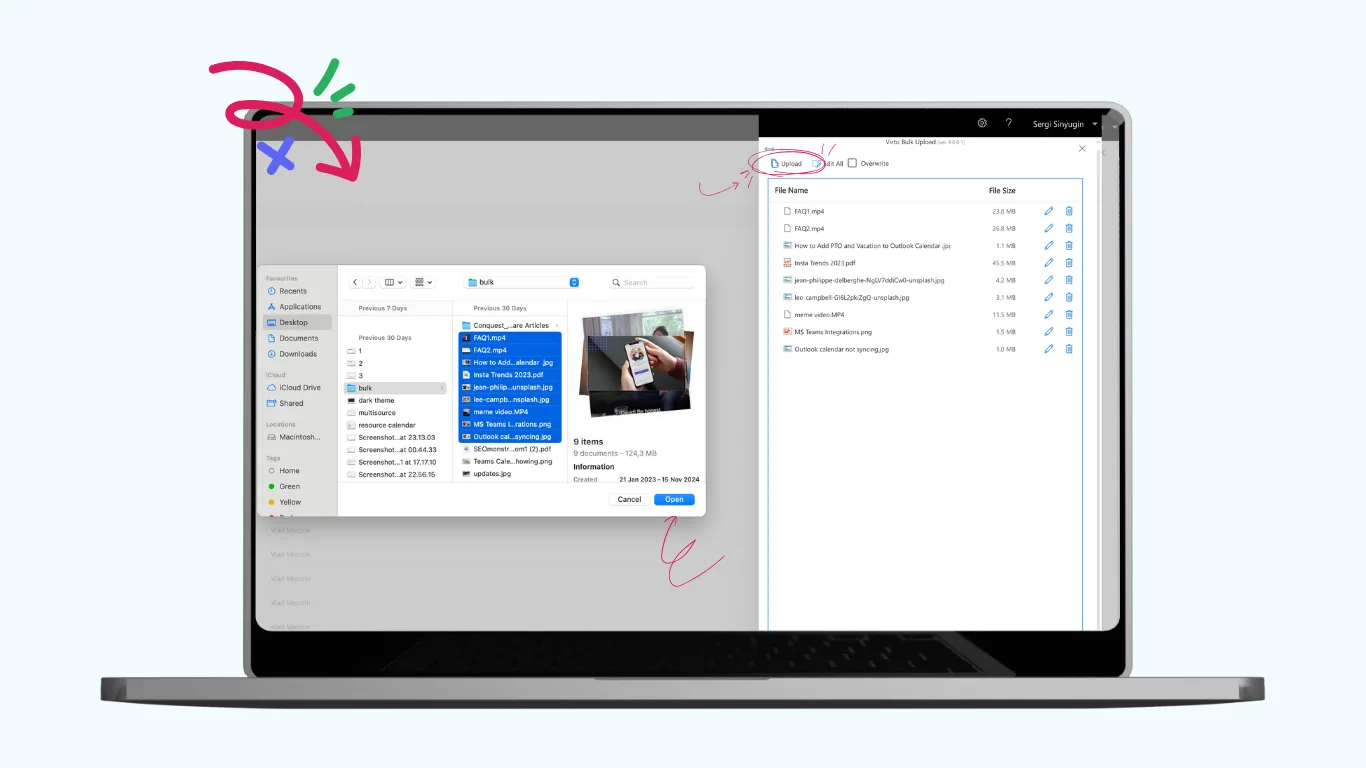
Virto Multiple File Upload App — Streamlined Bulk Uploads
Overcomes the limitations of standard SharePoint uploads. With drag-and-drop functionality, users can upload dozens of files simultaneously to the right document library. This saves hours when transferring archives, onboarding new projects, or preparing bulk content.
With these apps, SharePoint Online moves far beyond being a Google Drive SharePoint equivalent — it becomes a deeply integrated collaboration hub.

Virto Calendar
Consolidate events from SharePoint, Exchange, Google, and more into one calendar view for simplified planning.

Virto Kanban Board
This tool transforms team collaboration through visual task management for consistent stage-by-stage progress.

Virto Multiple File Upload App
Efficiently upload and manage multiple files and folders in SharePoint with customizable settings.
Virto Solutions for SharePoint On-Premises
Virto Calendar Web Part — Enhanced Corporate Scheduling
A feature-rich alternative to the default SharePoint calendar.
Supports color-coded events, multi-calendar aggregation, and multiple viewing modes (day, week, month, year).
Ideal for companies that rely on precise scheduling inside secure, on-premises environments.

Virto Calendar
Merge events from multiple sources like Exchange, Google, and SQL into unified calendar view.
Virto Kanban Board Web Part — Enterprise Project Management Inside SharePoint
Provides a powerful visual tool for managing tasks and workloads directly within SharePoint.
Managers can assign owners, monitor deadlines, and track team progress in a clear, intuitive format.
Perfect for HR, marketing, and IT departments that need visual transparency across ongoing workflows.

Virto Kanban Board
Streamline task management: Visualize projects with color-coded boards for efficient workflow tracking.
Virto Gantt Chart Web Part — Project Planning and Visualization
Allows teams to build detailed Gantt charts right inside SharePoint.
Essential for long-term project planning, tracking dependencies, and monitoring milestones.
Highly relevant for PMOs, construction companies, and manufacturing teams.

Virto Gantt Chart
Simplify project tracking in SharePoint using a flexible Gantt chart, enabling detailed task oversight.
Virto Multiple File Operations Web Part — Bulk File Management Made Simple
Simplifies large-scale file management tasks: move, copy, delete, or edit multiple files simultaneously.
Reduces repetitive manual work and improves document governance in corporate libraries.

Virto Multiple File Operations
Execute a wide array of file actions—upload, download, delete, copy, move, check-in, approve, and edit.
Why Virto makes the difference
While Google Drive vs SharePoint comparisons often focus on basic file storage, the reality is that SharePoint, enhanced by Virto Software solutions, offers capabilities that go far beyond what the Google equivalent to SharePoint can achieve.
If Google Drive covers your essential collaboration needs, SharePoint with Virto transforms that foundation into a customizable enterprise platform — tailored for scalability, compliance, and complex workflows.
With Virto’s specialized apps, SharePoint becomes not only more powerful but also more human — faster to use, easier to manage, and far better aligned with how modern teams actually work.
Conclusion
The choice between SharePoint vs Google Drive ultimately depends on your goals and organizational needs.
- Google Drive is ideal for simplicity, personal use, or small-team projects where fast collaboration and ease of access are priorities.
- SharePoint is built for corporate environments, offering structured workflows, enterprise-level permissions, and deep integration with Microsoft 365.
It’s important to remember that there is no direct Google equivalent of SharePoint. While Google Drive can cover basic collaboration, it cannot replicate the full scope of SharePoint’s capabilities.
For organizations looking to maximize efficiency, productivity, and usability, SharePoint combined with Virto applications becomes a highly flexible and powerful platform.
With Virto, SharePoint evolves from a corporate file storage system into a tailored enterprise ecosystem — transforming the way teams manage documents, projects, and workflows.
In the SharePoint vs Google Drive debate, the right choice is about scale, complexity, and long-term goals: simplicity and speed with Google Drive, or enterprise-grade power and flexibility with SharePoint — especially when enhanced with Virto solutions.
Explore official Microsoft resources:
Or take a deeper dive with our blog articles: