A purchase order (PO) approval workflow is the control rail for how money leaves the business. Done well, it enforces who can commit spend, at what limits, and under which conditions—so purchases align with budgets, policies, and contracts. That guardrail delivers three outcomes leaders care about: tighter cost control, better budget adherence, and lower risk. Approvers see the context they need before they say “yes.” Finance gets a clean audit trail. And procurement knows each PO was reviewed at the right level before it hits a supplier.
Many teams feel the pain of getting there. Typical issues include:
- Manual email approvals that disappear into inboxes, with no single place to see status or who’s blocking a request.
- Lost or incomplete applications—missing quotes, specs, or compliance documents that force rework.
- Limit violations when requesters or approvers don’t see the correct thresholds, departments, or budget owners.
- Delays from unclear routing rules or escalations that never trigger, which slows projects and frustrates suppliers.
Automation fixes the visibility gap and the bottlenecks. With a well-designed workflow, requests route to the right approvers based on amount, category, and cost center; attachments are required up front; approvers get clear, actionable notifications; and overdue approvals escalate automatically to keep things moving. The result is transparent status tracking, faster cycle times, and stronger control without extra email back-and-forth.
There’s no one “standard” PO workflow, though—and that’s important. The right configuration depends on your company’s goals, approval hierarchy, purchasing policies, and compliance requirements. A marketing-led organization might optimize for speed with tight thresholds and lightweight documentation. A regulated manufacturer will emphasize segregation of duties, multi-stage routing, and retention policies. Your design choices should reflect those realities.
This article explains, in plain terms, what a purchase order approval workflow is, the key steps and best practices, and how to configure and automate it in Microsoft 365/SharePoint. We’ll show how to build approvals with Power Automate, where Teams Approvals fits for simple one-step decisions, and how to extend controls and visibility using VirtoSoftware—particularly the Virto Workflow Automation App and related tools for reminders and required artifacts.
General Overview of the Purchase Order Approval Workflow
(PO) approval workflow is the control system that decides who can commit spend, under which limits, and with what evidence. It exists to stop avoidable costs, keep purchases within budget, and reduce financial and compliance risk. The workflow also creates an audit trail—who approved what, when, and why—which is essential for accountability and later reconciliation.
Purchase order approval workflow: steps and participants
Before we dive into steps, here’s the context: a PO workflow is not one-size-fits-all. The shape of your process depends on your goals, approval hierarchy, purchasing policies, and regulatory obligations.
What is the PO approval process?
Think of the purchase order approval process as the gate between a purchasing request and a legally binding order. The workflow ensures every PO is complete, justified, and approved by the right roles before it’s sent to a supplier. In Microsoft 365/SharePoint, this typically runs on top of a SharePoint list or library record with required attachments (quotes, specs, contracts) and routes approvals through Power Automate. For simple one-step decisions, Teams Approvals can be used, while multi-stage routing belongs in Power Automate.
👉 What’s the difference between the ‘PO approval process’ and the ‘purchase approval process’? ‘Purchase approval’ usually means approving the intent to buy—often a purchase requisition—so the business agrees the spend is necessary, budgeted, and policy-compliant before committing. ‘PO approval’ comes later and approves the actual purchase order—the supplier, items, quantities, prices, and terms—authorizing the commercial commitment; some organizations merge these, but in a two-step process it’s PR first, then PO.
What is the workflow of a PO?
Here’s the typical path from request to order placement. Your exact sequence may vary, but the building blocks are consistent:
- PO initiation: The requester (initiator) creates a PO record with the supplier, description, category, quantity, price, cost center, and delivery details. Required attachments (e.g., quotes/specs) are captured up front to avoid rework.
- Budget and data review: Basic validations check coding, tax/VAT fields, and budget availability. If your organization uses purchase requisitions (PRs), note the distinction: PR approval validates the intent to buy; PO approval validates the commercial commitment you’re about to place with the supplier. The PO workflow begins when the PO document is created—sometimes referencing an already approved PR.
- Multi-level approval routing: Rules route the PO based on amount thresholds, category (IT, services, CAPEX/OPEX), project, or cost center. Routing can be linear (one after another) or parallel (e.g., budget owner and IT security review at the same time).
- Compliance checks: Additional steps may verify preferred supplier status, contract alignment, rate/volume conformance, funding source restrictions, and—where needed—credit, ethics, or data security checks.
- Final approval and order placement: Once all approvers sign off, the PO is released to the supplier. The system logs the audit trail and locks the commercial terms.
- Tracking, escalations, and changes: Overdue approvals escalate automatically to keep work moving. Change requests to the PO (price, quantity, dates) follow the same governance.
Here are the key participants and the decisions or checks each performs as a PO moves from initiation to order placement:
| Role | Primary checks/decisions | Typical handoff |
| Initiator/requester | Completes PO data; adds required quotes/specs/SoW | Submits to budget owner or category route |
| Budget owner | Confirms funding, necessity, plan alignment | To line management/finance based on thresholds |
| Line management | Approves within operational limits | To procurement/finance as rules require |
| Procurement | Validates supplier, contract terms, category policy | To compliance/finance or final approver |
| Financial control/compliance | Enforces limits, tax/VAT fields, segregation of duties | To final approval and release |
| IT process administrator | Maintains routing rules, thresholds, escalations | Continuous governance of the flow |
📌 Implementation note for Microsoft 365: when flows start from SharePoint lists or libraries, you can initiate approvals directly from the item/file. The SharePoint connector includes a Create an approval request for an item or file action, which is handy for PO records and their document sets.
Key elements and differences in approval workflows
Here’s a quick orientation before we compare variants: every PO workflow needs clear rules, complete supporting evidence, and a way to see status at any time.
Key elements
These are the core building blocks every PO approval needs for control, speed, and a clean audit trail:
- Governance rules—who approves which amounts, categories, and exceptions.
- Required artifacts—quotes/specs, contract references, SoWs, and compliance documents captured at creation.
- Routing logic—linear or parallel paths triggered by thresholds, categories, risk flags, or supplier status.
- Budget controls—visibility of current budget and commitments for the relevant cost center/project.
- SLA timers & escalations—automatic nudges for overdue approvals; clear escalation paths.
- Segregation of duties—the requester can’t be the final approver; sensitive categories require independent checks.
- Audit trail & reporting—immutable log of decisions, timestamps, comments, and attached evidence.
Key differences between workflows
Workflows vary by the drivers below—amount, category, and risk—which determine routing and the depth of review:
- By amount threshold—higher values add levels (e.g., manager→director→CFO).
- By procurement category—IT, services, and CAPEX often introduce parallel reviews (security, legal, architecture). OPEX may be lighter if within policy.
- By risk level—new suppliers, sensitive data access, or export-controlled items trigger compliance steps.
- Linear vs parallel approvals—linear keeps order simple; parallel shortens cycle time when independent reviews can happen at once.
| Driver | Typical trigger | Review pattern | Example outcome |
| Amount threshold | PO value crosses set bands | Adds levels (manager→director→finance) | High-value CAPEX adds finance sign-off |
| Category | IT, services, CAPEX vs OPEX | Parallel category reviews | IT&security assess software requests |
| Risk level | New supplier/sensitive data | Compliance checks | Credit & sanctions screening added |
| Routing mode | Work can be independent | Parallel instead of serial | Faster cycle time, same control depth |
Use cases and process scenarios
To make this practical, start with the smallest viable flow, then scale only where risk or policy demands it.
When a simple flow is relevant:
- Small purchases below the threshold—single-level approval by the budget owner.
- Urgent purchases—accelerated approval path with a mandatory post-facto review and clear documentation.
- Low-risk categories—automatically skip certain steps when predefined conditions are met (e.g., preferred vendor under a framework agreement).
When a complex flow is required:
- CAPEX and large purchases—multi-level approvals, parallel branches (IT, security, legal as needed), required attachments (quotes/specs) and budget-owner sign-off, plus three-way match downstream (PO, goods receipt, invoice).
- Services and consulting—contract review, SoW scope confirmation, rate/volume checks, and limit control for time-and-materials.
- Purchases from new suppliers—extended compliance and credit risk checks, including onboarding verifications and sanctions screening.
- Regulated or sensitive spend—added segregation of duties, data-handling reviews, and retention rules.
- Cross-entity or multi-currency—finance oversight for tax, FX, and intercompany requirements.
These scenarios illustrate the principle: keep straightforward buys fast and visible, while ensuring higher-risk or higher-value purchases get the depth of review they require. As you implement in Microsoft 365/SharePoint, design routing and evidence requirements to match these patterns, and use timed escalations to prevent overdue approvals from stalling critical work.
Configuring and Implementing a Purchase Order Approval Workflow
Getting from “we need approvals” to a reliable, auditable process takes three phases: understand today, design tomorrow, and prove it in a pilot before scaling. The details below map cleanly to Microsoft 365/SharePoint with Power Automate and, where useful, Teams Approvals for simple one-step decisions.
What are the key steps in an approval workflow?
Here’s the path at a glance; we’ll walk through each phase so you can implement with confidence.
1. Preparation and diagnostics
Before you automate anything, document how work actually flows today and where it gets stuck.
Map the current process: Put the current workflow on one page so everyone agrees on where it starts, where it ends, and what triggers each step:
- Sketch the path from PO creation to order placement. Mark every handoff and decision.
- Note where PR (purchase requisition) ends and PO begins. PR approval confirms intent; PO approval confirms the commercial commitment you’ll send to the supplier.
- List required artifacts at each step: quotes/specs, SoW, contract reference, vendor onboarding docs.
Find bottlenecks and waiting points: Now look for friction: pauses, rework, and unclear handoffs that slow approvals:
- Where do approvals pile up? Which roles are the slowest?
- How often do requests bounce back for missing data or attachments?
- Are escalations working, or do overdue approvals sit idle?
Capture “before” metrics: Record a baseline so you can prove the pilot improved speed and control:
- Average cycle time (request to final approval).
- % of overdue approvals (missed SLA timers).
- % returned for revision (incomplete or incorrect submissions).
- Segment by category (IT, services, CAPEX/OPEX) and by amount band; the outliers will guide your first fixes.
Inventory your tools and data: List the systems and data the workflow relies on so configuration matches how people actually work:
- SharePoint lists/libraries where PO records live, plus required columns and content types.
- Email and chat templates currently used for approvals.
- Any ERP touchpoints for three-way match (PO–receipt–invoice) later in the process.
2. Designing a target framework
With a baseline in hand, define the rules, evidence, and timings that will keep spend controlled without slowing the business.
Set KPIs and SLAs (step by step): Start by defining what success looks like and how quickly each step should happen:
- Choose KPIs: approval cycle time, % on-time approvals, % straight-through (no rework), exception rate.
- Set SLAs per role or step (for example, 24 hours for budget owner, 48 hours for legal).
- Define escalation timing for overdue approvals and who the escalation goes to.
Determine threshold amounts and a role matrix: Next, translate policy into concrete numbers and named owners:
- Create amount bands (e.g., ≤$5k budget owner; $5k–$25k budget owner + director; >$25k add finance).
- For categories (IT, services, CAPEX), add reviewers like security, architecture, or legal.
- Keep segregation of duties: the initiator can’t be the final approver.
Model statuses and transitions: Define the states a PO can be in and how it moves between them:
- Common statuses: Draft → Submitted → In review → Changes requested → Approved → Released to supplier.
- Add transitions for urgent fast-track with mandatory post-facto review.
- Define delegation rules (out-of-office alternate) and escalation rules (time-based and condition-based).
Lock in required artifacts up front: Prevent rework by requiring evidence at the moment of submission:
- Make key attachments mandatory at submission (quotes/specs, contract or SoW).
- If evidence is missing, block submission with a clear message rather than sending it to approvers.
Design routing logic: Decide how approvals flow based on risk, amount, and category:
- Linear for simple buys; parallel for independent checks (e.g., budget owner and IT security at the same time).
- Conditional branches by risk (new supplier, sensitive data, export control).
- Exception paths with extra approval instead of bypassing the process.
Microsoft 365 implementation notes: Here’s how to implement the design in SharePoint and Power Automate:
- In Power Automate, use SharePoint as the trigger (“When an item is created/modified”).
- For approvals, use the Approvals connector and—when your flow starts from SharePoint items/files—the SharePoint action Create an approval request for an item or file to tie decisions to the PO record.
- Use Teams Approvals only for simple, one-step decisions; multi-stage routing belongs in Power Automate.
- Plan reminders and escalations as timers in your flow; word messages so approvers see amount, category, supplier, due time, and a direct link to the item.
Where VirtoSoftware helps: These tools simplify rules, reminders, and document handling:
- Virto Workflow Automation App to centralize rules, thresholds, and conditional routes in a maintainable UI.
- Virto Alerts & Reminders to drive on-time decisions with scheduled nudges and overdue escalations.
- Virto Multiple File Upload to collect required attachments at submission and reduce rework.
📍Important side note: retirement of SharePoint workflows. If you’re still using classic SharePoint workflows, plan your transition now. In SharePoint Online, SharePoint 2010 workflows were disabled for new tenants on Aug 1, 2020 and removed from existing tenants on Nov 1, 2020—they no longer run at all. SharePoint 2013 workflows are next: they were turned off for new tenants on Apr 2, 2024 and will be fully retired on Apr 2, 2026 for existing tenants. Microsoft’s guidance is to migrate these automations to Power Automate (or another supported orchestration). For SharePoint on-premises, SharePoint Designer 2013 is deprecated and supported with SharePoint Server Subscription Edition only until July 14, 2026; after that, SPD is out of support (you can continue to author SharePoint 2013-style workflows with Visual Studio, but plan a long-term move). Running end-of-life workflow tech also increases security and support risk over time, especially on exposed servers—another reason to modernize.
3. Pilot and scaling
Prove the design with one category, learn fast, then roll out with confidence.
Pick a focused pilot: Prove the approach in one area before expanding:
- Choose a high-volume, moderate-risk category (e.g., standard IT hardware or marketing services).
- Limit the approver set so feedback loops are quick.
- Train requesters and approvers with short, role-based guides and a 15-minute demo.
Launch checklist: Use this checklist to confirm everything is ready for go-live:
| Checklist item | Why it matters |
| PO card fields | Ensures complete context for decisions |
| Validation rules | Blocks bad data; reduces rework |
| Routing rules | Predictable paths; fewer violations |
| SLA timers & escalations | Keeps items moving on time |
| Notification templates | Clear asks; fewer follow-ups |
| Reporting | Visibility of queues and bottlenecks |
| Audit trail | Defensible record for finance/audit |
Practical rules and thresholds: A few clear guardrails keep the process lean and enforceable:
- Start with three amount bands and expand only if risk demands it.
- Define “urgent” strictly (e.g., safety or outage risk) and require post-facto review within 48 hours.
- Auto-skip steps for low-risk scenarios (preferred supplier under a framework, amount below set band) but record the reason in the audit trail.
Predefined approval chains and automation: Template common paths and automate the routine work:
- Build reusable chains per category (IT hardware, software, facilities, professional services).
- Automate routine tasks: request completeness check, duplicate supplier warning, budget snapshot, scheduled reminders, and auto-closure of stale drafts after X days.
- For out-of-office, enable delegation and auto-reassignment to keep SLAs intact.
Scale thoughtfully: Roll out in waves and monitor the metrics:
- Add categories in waves; monitor KPIs for two weeks before adding the next wave.
- Hold weekly retros with approvers and requesters to remove friction.
- If you integrate with ERP later, keep the PO audit trail and attachments in SharePoint synchronized so three-way match and audits are straightforward.
- Optional note: if your organization uses mobile approvals (e.g., Dynamics 365 Supply Chain or similar), make sure the same routing, evidence, and SLA rules apply on mobile to avoid policy drift.
Outcome to expect: After the pilot, you should see shorter cycle times, fewer returns for revision, and far fewer overdue approvals. Lock in the gains by publishing the role matrix and routing rules, keeping notification templates crystal clear, and reviewing SLAs quarterly as spend patterns change.
👉 Are there any differences between these three: purchasing approval process, purchasing workflow, and purchasing workflow process? Yes—mostly in scope. The purchasing approval process is the subset focused on authorizing spend (often reviewing a requisition and then a PO against budget, policy, and thresholds). A purchasing workflow is the broader, end-to-end flow from request through approvals, PO creation, ordering, goods receipt, and handoff to invoicing. “Purchasing workflow process” is usually just a redundant way of saying “purchasing workflow” and, in most contexts, means the same broader lifecycle rather than only approvals.
Automating Purchase Approval Order Workflow
Automation replaces ad-hoc email threads with a governed, measurable process. In Microsoft 365/SharePoint, that means driving approvals from list or library items, using Power Automate for multi-stage routing (and Teams Approvals for simple one-step decisions), and enforcing required data and deadlines so requests move without babysitting.
Benefits and limitations
Before we add tools, it helps to name what breaks in manual workflows—and what automation actually fixes.
Pain points of a manual process: These are the common failure modes of email-driven approvals—why work goes missing, slows down, or becomes hard to audit:
- Lost or buried emails; no single place to see status or who’s blocking a request.
- No unified queue; each approver tracks their own messages and spreadsheet notes.
- Long downtimes at each stage because reminders and escalations are ad hoc.
- Audit difficulties—missing context, fragmented comment history, and unclear timing.
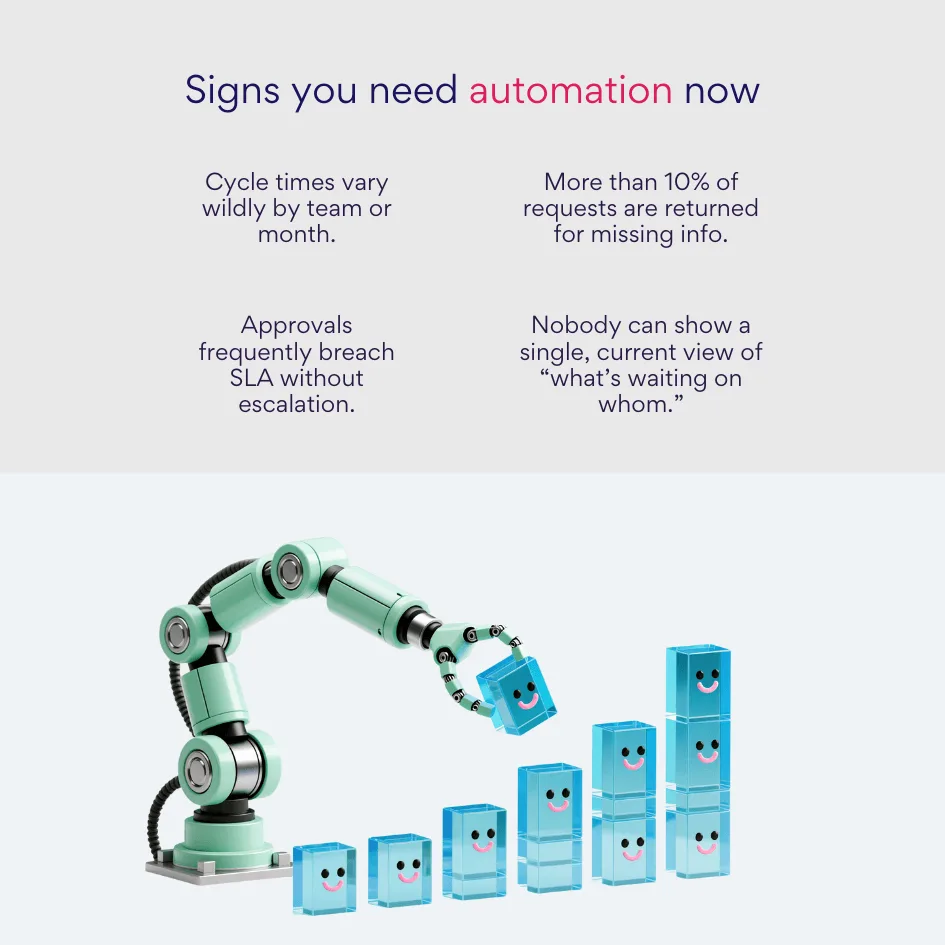
How automation helps: Automation closes those gaps with required data, timed approvals, and clear ownership so requests move predictably:
- Reduced cycle time—automatic notifications on submit, clear due dates on each step, and time-based escalations for overdue approvals.
- Data quality—required fields and attachments at submission, validations for coding and limits, and duplicate detection.
- Transparency and auditability—an action log tied to the PO item, version history, and SLA reports that show where time is spent.
- Scalability—consistent, reusable rules across departments and categories without rewriting the process each time.
Limitations and risks to plan for: Keep these trade-offs in mind so your rollout stays realistic and supportable:
- Initial complexity—translating policies into rules, thresholds, and approval matrices takes focused setup.
- Human bottlenecks—one busy approver can still stall work if you don’t plan delegation and calendars.
- Training and support—users need short, role-based guidance, especially where exception paths exist.
Automation of process steps in practice
Here’s the order most teams follow—start where the manual effort is most expensive, then layer in sophistication.
What to automate first, and why: Start where the manual effort is highest and the payoff is immediate: completeness checks, routing, and reminders.
- Data validation at submission—block incomplete requests and prevent rework by requiring fields and attachments up front.
- Notifications and reminders—standardize request, approval, change-request, and escalation messages so work keeps moving.
- Routing by threshold and category—ensure the right people see the right requests without manual forwarding.
From manual to automated: the transition: Replace the most error-prone steps with rules and timers, then expand gradually as confidence grows:
- Identify the steps with the most back-and-forth (missing data, who approves next, overdue follow-ups).
- Replace those with required fields, required attachments, and automatic routing rules.
- Add SLA timers; if an approval is overdue, escalate and log it automatically.
- Keep simple one-step decisions in Teams Approvals; send multi-stage paths through Power Automate.
Example rules and how each one “closes” a step: Use these rules to translate policy into workflow logic—each one removes a specific source of delay or rework.
- Threshold amounts with multi-level approvals
Rule: ≤$5k budget owner; $5k–$25k budget owner + director; >$25k add finance.
Closes: Removes ambiguity about “who approves” and prevents limit violations.
- Parallel IT/security approvals for relevant categories
Rule: If category = software or data-handling, trigger parallel IT security and architecture reviews.
Closes: Cuts idle time by removing serial dependencies where reviews are independent.
- Mandatory fields, attachments, and limit checks
Rule: Require supplier, category, cost center, amount/FX, tax fields, and quotes/specs or SoW; validate against policy limits.
Closes: Stops incomplete requests at the door; avoids change-request loops later.
- Budget threshold rules and routing
Rule: Route by cost center/project with visibility to current budget and remaining funds; block if budget-owner sign-off is missing.
Closes: Ensures budget accountability before commitment.
- Automatic escalations for overdue approvals; automatic closure of SLA tasks when conditions are met
Rule: If an approval exceeds its SLA, notify the approver, then escalate to the delegate or next level after a defined grace period; auto-close stale tasks when the item is withdrawn or superseded.
Closes: Prevents silent stalls and clears dead tasks from queues.
Tooling tips for Microsoft 365: Wire the process using SharePoint and Power Automate, keeping decisions attached to the PO item for full traceability.
- Triggers: SharePoint “When an item is created or modified.”
- Approvals: Use the Approvals connector for routing; when starting from SharePoint, the SharePoint action Create an approval request for an item or file keeps decisions attached to the PO item.
- Reminders & escalations: Timer actions in Power Automate; include due time, amount, category, and a direct link to the item.
- Simple vs complex: Teams Approvals for single approver decisions; Power Automate for rules, thresholds, and parallel branches.
Where VirtoSoftware adds leverage: These apps simplify maintenance and boost adoption with configurable routing, reminders, and required-artifact checks.
- Virto Workflow Automation App—centralize approval chains, thresholds, conditional routes, and delegation rules without editing each flow.
- Virto Alerts & Reminders—schedule nudges and escalations to reduce overdue approvals and keep SLAs on track.
- Virto Multiple File Upload—collect and validate required artifacts at submission to improve first-time quality.
Result: Automating these steps yields faster cycle times, fewer returns for revision, and a clean audit trail. Start with validation and notifications, add routing and escalations, then expand to parallel reviews and exception paths as your categories demand.
👉 What’s a purchase order approval system? A purchase order approval system is software that routes POs to the right people based on rules (amount, category, cost center), validates data and required attachments, timestamps every decision, and syncs with your finance/ERP stack so approvals are fast, controlled, and fully auditable.
Errors and Complexities in the Purchase Order Approval Workflow and How to Avoid Them
Even strong approval designs can falter if policy isn’t encoded, evidence is optional, or routing relies on email. This section shows where things usually break, what that costs, and how standardization plus automation in Microsoft 365/SharePoint—and, for on-premise, VirtoSoftware’s workflow tools—keeps approvals fast, accountable, and audit-ready.
Where errors happen (and why)
Before the fixes, here’s the pattern you’ll see in most organizations:
- Requests often start with missing data or attachments, which creates avoidable rework.
- Coding mistakes—wrong cost center, tax/VAT field, or supplier—slip through because validations aren’t enforced at submission.
- Routing stalls when thresholds and approver matrices live in a policy PDF instead of the system, and serial routing is used where independent reviews could run in parallel.
- Compliance checks for new or sensitive suppliers happen late or not at all.
- Finally, with no step-level SLAs or escalations, approvals go overdue quietly and nobody can see the queue or who’s blocking a request.
Consequences of errors
When the workflow falters, delays compound: requests bounce back and forth, cycle times stretch, suppliers lose patience, and project milestones slip. Financial exposure grows as approvals miss thresholds and purchases drift off contract. Meanwhile, decisions scattered across email slow audits and erode trust in the numbers.
How to prevent and fix issues
The cure is to encode policy as system rules and let automation enforce it at the moment of work:
- Require key fields and attachments up front and block submission when evidence is missing; this eliminates most “please resend” loops.
- Route by amount, category, and cost center with clear segregation of duties, and use parallel reviews where checks are independent.
- Add per-step SLAs with timed reminders and automatic escalations for overdue approvals; close stale tasks when an item is withdrawn or superseded.
- Keep the action log, versions, and comments on the SharePoint item so status and evidence live in one place.
In Microsoft 365, multi-stage routing belongs in Power Automate; use Teams Approvals only for one-step decisions. When flows start from SharePoint items or files, tie decisions directly to the record with the SharePoint action to create an approval on the item/file—this keeps history and evidence together.
Where VirtoSoftware fits—cloud and on-premise
If you’re on Microsoft 365, the Virto Workflow Automation App adds a large library of no-code actions (well over two hundred) that extend what your flows can do—useful for richer validations, directory updates, and notifications.
If you’re on SharePoint on-premise, the Virto Workflow Automation Web Part covers three needs that commonly block scale:
- Workflow Activities—a kit of 200+ no-code activities that extend SharePoint Designer workflows (email, list/permission/document/AD actions), giving you the building blocks to encode policy without custom code.
- Workflow Scheduler—runs workflows automatically on a timetable at site or site-collection scope, ideal for escalation sweeps, periodic budget checks, or nightly data hygiene.
- Workflow Status Monitor—a single view to track workflow states across lists and items, with filtering and the ability to start/stop/terminate, which simplifies support and audit prep.
Together, these on-premise components let you enforce rules (e.g., block approval if required attachments are missing or budget-owner sign-off isn’t recorded), schedule escalations, and monitor outcomes without writing custom code.
Examples of corrections and efficiency gains
Before the examples, a quick note: each correction ties a specific failure to a simple control.
- Missing quotes/specs cause rework → make attachments mandatory at submission with clear prompts; returns for revision drop and first-pass approvals rise.
- “Who approves this?” emails slow things down → encode thresholds and category-specific reviewers; routing becomes predictable and limit violations fade.
- Silent stalls in inboxes → add SLAs with reminders and escalation after a short grace period; overdue approvals surface and move.
Most PO workflow problems are predictable: implicit rules, optional evidence, and manual follow-ups. Standardize the policy, require complete data at submission, route by thresholds and category (using parallel reviews where it makes sense), and automate reminders and escalations for overdue approvals. Keep the record of decisions on the item so reporting and audits are easy. In Microsoft 365, Power Automate plus the VirtoSoftware apps expand what you can validate and automate; in SharePoint on-premise, the combination of Workflow Activities, Scheduler, and Status Monitor gives you the same discipline without custom development.
Purchase Order Approval Software Solutions and Tools
Choosing the right stack is about balancing control, speed, and maintainability. Below are pragmatic options—from full-suite procurement platforms to SharePoint-based builds—plus where VirtoSoftware extends what Microsoft 365 and SharePoint can do.
Third-party solutions
Before we dive into SharePoint, it helps to anchor expectations with a few widely used procurement suites. These tools are powerful, but they come with cost and implementation overhead—so it’s worth being clear on what you gain.
- Coupa: Coupa centralizes sourcing, purchasing, and invoicing, with supplier collaboration built in (e.g., suppliers can receive POs and generate invoices from the Coupa Supplier Portal). It supports automated approvals and strong spend analytics; trade-off: subscription cost and program-level rollout effort. (coupa.com)
- SAP Ariba: Ariba offers configurable approval processes that add approvers dynamically based on document data and category, making it suitable for complex enterprises; complexity and integration work are the usual considerations. (learning.sap.com)
- Oracle Procurement (Cloud / E-Business): Oracle routes POs using workflow rules tied to accounting segments (cost center, intercompany, etc.), and has long-standing workflow tooling; the flip side is governance to maintain those rules over time. (oracle.com)
SharePoint (includes Power Automate approvals and—optionally—Teams Approvals for simple scenarios)
If your organization already runs Microsoft 365, SharePoint is often the fastest, lowest-TCO way to stand up PO approvals because you’re using existing infrastructure, identity, and security/compliance services.
Why SharePoint fits this job: At its core you need a secure place for documents, structured metadata, automation, and permissions—precisely what SharePoint provides. Document libraries hold all PO files and evidence; lists track structured data such as amount, vendor, status, and approvers; and M365 security/compliance keeps access governed.
💡 Learn moreaboutn SharePoint document & content management:
- Optimize Your Business with SharePoint Document Management
- Best Practices for SharePoint Document Management, Library, Folder Structure and Security
- How to Create and Manage a SharePoint Document Library
- SharePoint Content Management: Features, Benefits & Best Practices
Approvals and recent updates: For multi-stage routing, use Power Automate’s modern Approvals (“Start and wait for an approval”). When your flow starts from a SharePoint item or file, you can now use the SharePoint connector’s Create an approval request for an item or file action to bind the decision to the record—useful for status and audit. Keep one-step decisions in Teams Approvals; send complex ones through Power Automate.
💡 Learn more about SharePoint automation:
- Create and test an approval workflow with Power Automate
- SharePoint Automation: Best Practices, Use Cases and Recommended Tools
- SharePoint Workflows: How to Create and Use Them
A short, step-by-step guide: Before the steps, map the process and thresholds so the build follows policy.
- Plan and design. Define stages, thresholds, and roles (e.g., if Amount > X then add finance).
- Create the data structure. Set up a PO library for documents and a list for requests with columns such as Amount, Status, Approver, Submission date. (SharePoint supports large lists/libraries if you expect volume.)
- Configure automation. Trigger on “item created/modified”; add Approvals; use the SharePoint Create approval request for an item or file action; update status fields; send notifications; include required attachments in approval cards.
- Test and launch. Pilot with a small group, refine messages and SLAs, and train requesters/approvers.
| Step | Configure | Outcome |
| Plan & design | Stages, thresholds, roles | Policy translated into rules |
| Data structure | PO library; request list & columns | One record+files per PO |
| Automation | Triggers, Approvals, SharePoint “Create approval request for an item or file”, status updates | Routed, auditable decisions |
| Test & launch | Pilot, refine SLAs/messages, training | Confident go-live and adoption |
Automating a purchase order workflow using VirtoSoftware products
Standard SharePoint tools work, but teams often want richer routing, better visuals, and easier maintenance. VirtoSoftware adds those layers without custom code.
SharePoint Online & Microsoft 365: Before the list, a quick note: these apps sit on your existing SharePoint/M365 tenant and extend automation, reminders, and file handling.
- Virto Workflow Automation App for SharePoint Online & Microsoft 365—adds a broad library of no-code actions to build conditional routes, escalations, and helper steps, which reduces flow complexity for PO logic.
- Virto Calendar App for SharePoint Online & Microsoft 365—overlays calendars from SharePoint lists, Outlook, and others so you can visualize approval SLAs and review windows (a Teams edition also exists if you want the view inside Teams).
- Virto Multiple File Upload App for SharePoint Online & Microsoft 365—streamlines bulk evidence collection at submission time (quotes, specs), improving first-time quality.
- Virto Alerts & Reminder App for SharePoint Online & Microsoft 365—builds scheduled alerts and overdue nudges with templates, helping keep SLAs on track.
SharePoint on-premises: If you’re on SharePoint Server, VirtoSoftware provides on-prem components that mirror the same control but run in your datacenter.
- Virto Workflow Automation Web Part—a bundle that combines: Workflow Activities (a large kit of no-code actions for SharePoint Designer workflows), Workflow Scheduler (runs workflows on a timetable), and Workflow Status Monitor (a single view of all workflows and their state). Together they let you encode rules, schedule escalations, and monitor outcomes without custom development—useful in tightly controlled, on-prem environments.
- Virto Form Designer (on-prem)—drag-and-drop form customization for cleaner PO request screens.
- Virto Notifications & Alerts Web Part—scheduled reminders and alerting to reduce overdue approvals.
- Virto Calendar Web Part—aggregated calendar views for deadlines and review slots.
- Virto Multiple File Operations—bulk file actions to speed evidence handling in libraries.
Explore VirtoSoftware Apps & Web Parts

Workflow Automation
Enhance SharePoint with 270+ no-code workflow activities for easy, customized automation.

Virto Calendar
Consolidate events from SharePoint, Exchange, Google, and more into one calendar view for simplified planning.

Virto Alerts & Reminder
Integrated within your daily tools like Microsoft Teams, the app ensures you stay ahead of all tasks and meetings.
Selection and implementation recommendations
To pick the right path, first align with your platform reality and IT policy. Suites like Coupa/Ariba/Oracle make sense when you want end-to-end procurement with deep supplier collaboration and you’re ready for a broader transformation program. If you already standardize on Microsoft 365 and need a governed PO approval fast, SharePoint plus Power Automate is usually the most economical starting point; add Teams Approvals only for simple one-step decisions.
Before the checklist, a quick approach that works in most organizations: start small, prove the gains, then layer sophistication.
- Phase 1 (baseline). Build the core in SharePoint/Power Automate with thresholds, required attachments, and SLAs.
- Phase 2 (visibility). Add the Virto Calendar App (SharePoint Online) or Calendar Web Part (on-prem) to visualize deadlines; publish live queues and overdue views.
- Phase 3 (governance at scale). Add reminders/escalations (Virto Alerts & Reminder) and, where needed, extend routing logic with Virto Workflow Automation (Online) or the Workflow Automation Web Part bundle (on-prem) for scheduled sweeps and centralized monitoring.
The outcome you’re aiming for is consistent rules, complete evidence at submission, time-bound approvals, and a single record of decisions—all delivered on the platform your team already uses.
Practical Scenarios with VirtoSoftware Products
These examples show how to translate policy into working approvals using SharePoint Online & Microsoft 365—with on-premises equivalents noted afterward. Each scenario keeps bullets to a minimum and focuses on what you configure, why it matters, and which VirtoSoftware tools help most.
Fast procurement below the threshold
When the amount is small and the supplier is known, the goal is speed without losing traceability. In SharePoint Online, create a PO item with the required fields and route it to a single budget owner in Power Automate. Add time-bound visibility so nothing quietly expires in an inbox.
Before the short list, here’s the idea: keep the workflow one step long, but make the deadline and status obvious to the requester and approver.
- Calendar visibility & reminders. Surface the due date in a shared calendar and send a reminder four hours before the SLA. The Virto Calendar App for SharePoint Online & Microsoft 365 overlays calendar sources into one view, while the Virto Alerts & Reminder App schedules targeted nudges for overdue/coming due items.
Result: single-level approvals finish quickly, and both parties can see the clock without manual chase emails.
💡 Learn more about the importance of having an alert app when native SharePoint alerts are retiring: SharePoint Alerts Retirement: Impact, Risks & Alternatives
IT equipment procurement
IT hardware and software introduce category reviews (architecture, security) and stricter evidence. Run those reviews in parallel to reduce idle time, and block submission if specs or quotes are missing.
Before the configuration notes: use parallel approvals for independent checks and enforce completeness at the door.
- Parallel approvals & required attachments. Use Virto Workflow Automation App to model conditional routing based on category and amount; it adds a broad set of no-code actions that simplify complex rules. Pair it with Virto Multiple File Upload App so requesters attach specifications and quotes in one step—improving first-time quality.
Result: IT and security review simultaneously; approvers see complete specs; the PO moves once, not back and forth.
CAPEX purchases
Large, capitalized buys deserve multi-level routing, budget discipline, and a stronger audit trail. Keep the experience manageable by visualizing key dates and automating management updates.
Before the essentials list: design the route by amount bands, add finance sign-off, and make status/reporting visible to leadership.
- Multi-level routing, audit trail, and management rhythm. Use Virto Workflow Automation App for thresholds and parallel branches; expose decision dates in the Virto Calendar App; send weekly summaries with Virto Alerts & Reminder App to a management group mailbox or Teams channel.
Result: approvals happen at the right levels, leadership sees what’s coming due, and the audit trail lives on the SharePoint item.
On-premises equivalents
If you run SharePoint Server, you can deliver the same control inside your datacenter. Virto bundles the core building blocks into the Virto Workflow Automation Web Part, which combines three components:
- Workflow Activities—a large kit of no-code actions for SharePoint Designer workflows (list/document, email, permissions, directory tasks), letting you encode rules without custom code.
- Workflow Scheduler—runs workflows on a timetable (hourly/daily/weekly) for escalation sweeps and housekeeping.
- Workflow Status Monitor—a consolidated view of workflow states across sites/lists to track, filter, and intervene during support or audits.
Round out the build with the Notifications & Alerts Web Part for scheduled reminders, the Virto Calendar Web Part to visualize due dates, Form Designer to streamline PO input screens, and Multiple File Operations for bulk evidence handling. Together, these cover reminders, calendars, forms, and high-volume file tasks entirely on-premises.
How the three sample scenarios map on-premises (briefly):
- Fast procurement below the threshold: single-step workflow using Activities; due date visible in Virto Calendar Web Part; reminder via Notifications & Alerts.
- IT equipment procurement: parallel branches in Activities; enforce attachments at submission with tailored forms; bulk evidence updates via Multiple File Operations.
- CAPEX: multi-level approvals using Activities; weekly digest via Notifications & Alerts; portfolio view in Virto Calendar Web Part; monitor runs in Workflow Status Monitor (part of Virto Workflow Automation).
Across cloud and on-premises, the pattern is the same: encode routing and evidence requirements, make deadlines visible on a calendar, and automate reminders and summaries so overdue approvals surface early and move without manual nudging. The cited Virto apps and web parts provide those pieces on the platform you already use.
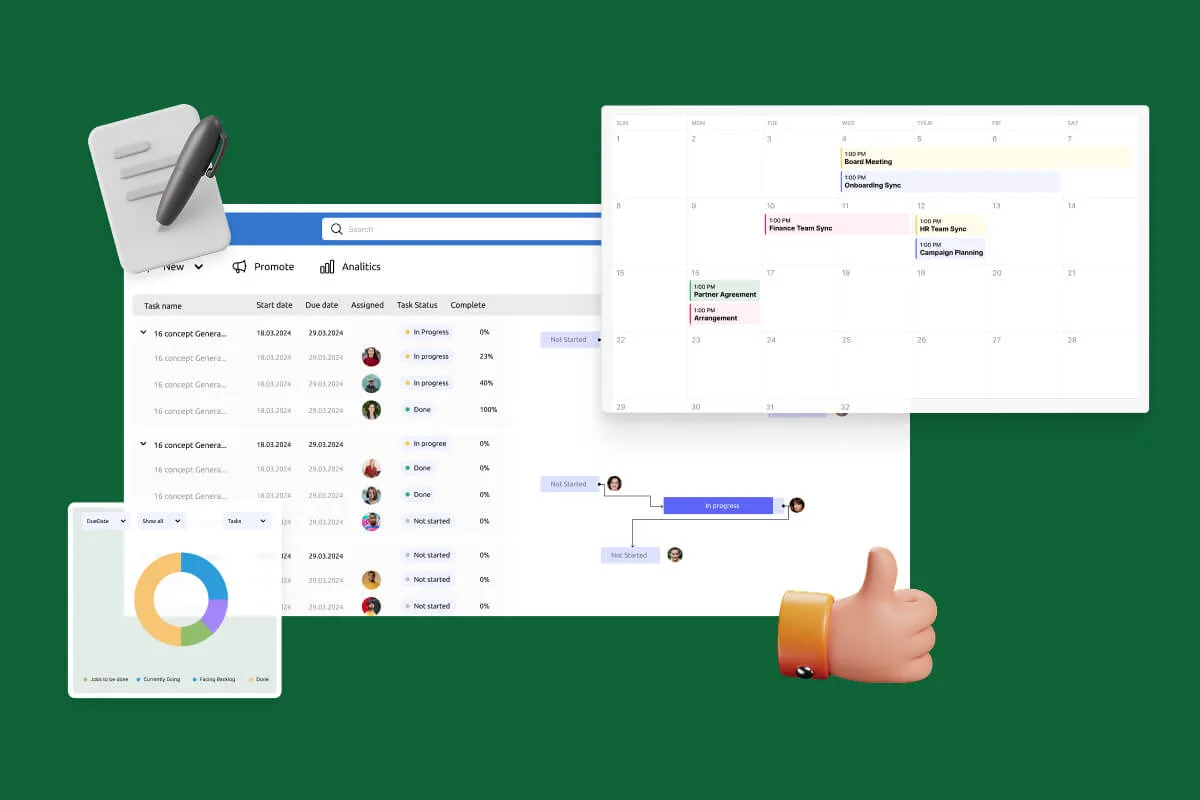
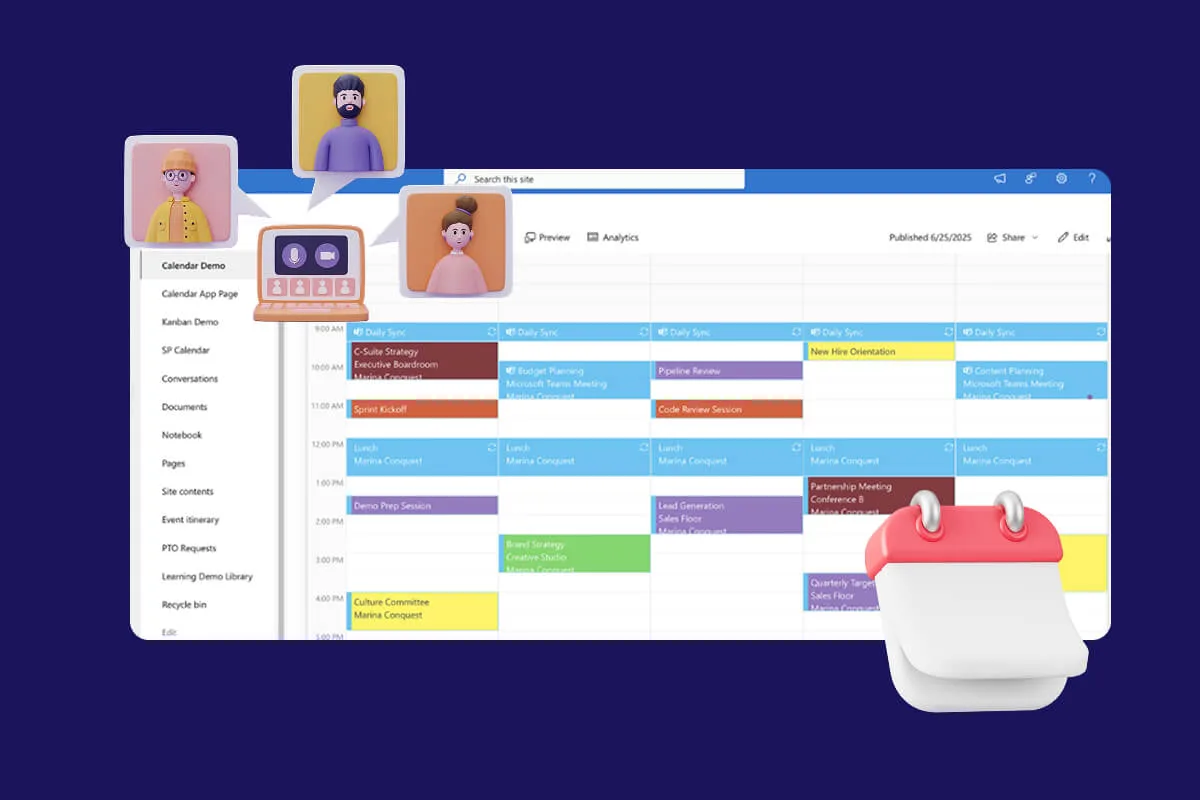
Explore VirtoSoftware Use Cases

Conclusion on PO Approval Workflows
A well-configured purchase order approval workflow keeps spending on plan, moves decisions faster, and documents every step so audits are straightforward. When rules, thresholds, and evidence requirements are encoded in the system—rather than left to email—the result is budget control, approval speed, transparency, and policy compliance.
Manual PO approvals rarely hold up under pressure. SharePoint gives you the right foundation—document libraries, lists, permissions, and Power Automate—for building governed workflows that match your policies. Recent capabilities, such as the SharePoint action to create an approval request directly on an item or file, make it even easier to keep decisions tied to the record.
VirtoSoftware rounds out the build with ready-made components for both environments. In Microsoft 365, apps like Virto Workflow Automation, Virto Calendar, Virto Alerts & Reminder, and Virto Multiple File Upload extend routing, visualization, notifications, and evidence capture. On-premises, the Virto Workflow Automation Web Part (combining Workflow Activities, Workflow Scheduler, and Workflow Status Monitor) plus companion web parts for notifications, calendars, forms, and bulk file operations deliver the same discipline inside your datacenter.
If you’re evaluating your own process, start by mapping where requests stall, what gets sent back for missing information, and which approvals go overdue. Then apply targeted changes—first required fields and attachments, then routing rules and escalations, and finally calendars and reporting. To see these capabilities in action, schedule a demo or install a free trial of the apps from our site.
Additional resources:
- Set up and use a purchase approval workflow – Business Central | Microsoft Learn
- Approve and confirm purchase orders – Supply Chain Management | Dynamics 365 | Microsoft Learn
Relevant pages:
- Boost Your Workflow with Kanban Swimlanes: Best Practices and Top Applications
- Enterprise Document Management Software and Systems Guide
- Kanban Manufacturing: Benefits, Implementation and Examples
- How to Create and Use a Budget Calendar for Smarter Planning
- Regulatory Compliance Management Software
- Payroll Calendar Guide with Schedules, Templates, and Tools