Microsoft 365 calendar is more than a place to drop meeting invites. It’s a scheduling system that sits on Exchange Online and shows up in Outlook, Teams, and SharePoint so people can plan their own time, coordinate with colleagues, and surface team schedules where work actually happens. Used well, it covers day-to-day personal planning, team visibility, and organization-wide scheduling—from project stand-ups to room bookings.
Yet many users are unsure which calendar they’re looking at or should be using. Is it their personal mailbox calendar, the group calendar tied to a Microsoft 365 Group, or a resource calendar for a room or piece of equipment? The interfaces look similar, the entry points vary by app, and permissions differ just enough to cause friction. That confusion often leads to fragmented practices: some events live in a channel calendar, others in someone’s personal calendar, and room bookings float around in separate threads.
For IT and admins, the story isn’t simpler. Different calendar types are created and governed in different places, with separate controls for sharing, privacy, and lifecycle. Add hybrid work patterns—varied work hours, multiple time zones, and a mix of in-person and virtual meetings—and it’s easy for an organization to miss out on features it already pays for.
When calendars aren’t set up or used consistently, teamwork suffers. People double-book rooms, miss channel meetings, or can’t see key availability. Project timelines slip, status updates scatter across tools, and teams spend time chasing information that should have been visible on a shared calendar.
This article is a practical guide to fix that. We’ll introduce the main Microsoft 365 calendar types—personal, group, and resource—explain how they differ, and show how to configure each one correctly for teamwork. By the end, you’ll know which calendar to use for which job, how to set the right permissions, and how to surface calendars in Outlook, Teams, and SharePoint so your organization plans together instead of in parallel.
Microsoft 365 Calendar Basics
Think of Microsoft 365 calendar as the scheduling layer of your tenant. It stores events in Exchange Online and then shows those events wherever people work—Outlook, Teams, and SharePoint—so personal planning and team coordination live in one place.
What is Microsoft 365 calendar
Here’s what this part covers in plain terms. First, we define what Microsoft 365 calendar actually is, then point to where users access it across desktop, web, and mobile.
📖 For more information on Microsoft 365 calendars and their management, please see: Microsoft 365 Calendars: A Practical Guide to Managing Multiple M365 Calendars
Does Microsoft 365 have a calendar?
Yes—Microsoft 365 includes a full calendar service. It isn’t a standalone app you install; it’s a capability powered by Exchange Online. You interact with it through different interfaces:
- Outlook (desktop and web): the primary way most people create and manage meetings.
- Outlook mobile apps (iOS/Android): the same mailbox calendar on your phone.
- Microsoft Teams: the Calendar surface shows your Outlook/Exchange meetings and lets you schedule Teams meetings; channels can have a Channel calendar for team-visible meetings.
- SharePoint: calendars can be surfaced on sites using the Group calendar web part or shown as list calendar views for lightweight scheduling.
Behind the scenes, Exchange Online handles storage, sync, permissions, and availability, so changes made in one place appear everywhere else.
💡 Before we compare names, it helps to separate the platform from the app you click.
What is the difference between Microsoft calendar and Outlook calendar?
Use this simple mental model to avoid confusion—then we’ll spell out what each term means:
- Microsoft 365 calendar is the system: it includes personal calendars (in user mailboxes), group calendars (in Microsoft 365 Groups), and resource calendars (rooms/equipment). It lives in Exchange Online and is surfaced across Microsoft 365.
- Outlook calendar is the user interface for that system. Outlook—on the web, desktop, or mobile—is a window into your calendars; it isn’t a separate calendar service.
In short, treat Outlook calendar as the window, and Microsoft 365 calendar as the house that contains every room: personal, group, and resource.
💡 With that model in mind, the feature set makes more sense.
Key features of Microsoft 365 calendars
Here’s a quick tour of the core capabilities—and where they appear across Outlook, Teams, and mobile.
- Scheduling meetings and events. Create one-off or recurring events, invite people, add rooms/equipment, and make any meeting an online Teams meeting with join details.
- Sharing and access rights. Share your calendar with coworkers and control what they see. Modern permission levels include: Can view when I’m busy, Can view titles and locations, Can view all details, Can edit, and Delegate. Teams and group calendars inherit their own sharing context to keep team events visible.
- Sync across devices. Because Exchange Online is the backend, edits in Outlook on the web show up in desktop Outlook, Teams, and Outlook mobile automatically.
- Integration with tasks and email.
- Turn emails into calendar items directly from Outlook.
- Connect work with tasks: Microsoft To Do tasks sit alongside your scheduling in Outlook, and Planner plans provide a Schedule view; you can publish a plan to an iCalendar feed to see that schedule in Outlook if needed.
- The result is a single place to view time commitments, meetings, and task timelines together.
Together, these capabilities make Microsoft 365 calendar a practical system for time management and teamwork—not just a meeting invite tool.
Calendar Types in Microsoft 365
Microsoft 365 offers several calendar types that serve different planning needs. Understanding what each type is for—and where it appears—prevents duplicate work, missed invites, and confusion about “where the truth lives.”
| Calendar type | Best for | Where it shows | How it’s created | Key limitations |
| Personal (mailbox) | Individual scheduling, 1:1s, interviews | Outlook (all), Teams (your Calendar) | Comes with mailbox | Not intended for team-wide visibility |
| Shared personal | Manager–assistant, small working group | Outlook (all) | User creates & shares | Tied to one mailbox; owner changes can break access |
| Microsoft 365 group | Team/department schedules, project rituals | Outlook (under the group), Teams (channel meetings via Channel calendar) | Create a Group/Team | Not in the main Teams Calendar by default |
| Resource (rooms/equipment) | Booking rooms, devices, labs | Outlook room picker | Admin creates resource mailbox | Governed by booking policies; not for general events |
| SharePoint (list/calendar view) | Page-local timelines on intranet | SharePoint page | SharePoint list + calendar view | Doesn’t sync to Outlook; Events web part no recurrence |
| ICS subscription | External read-only dates (holidays, industry) | Outlook (web/new Windows, desktop/mobile after sync) | Subscribe to .ics | Read-only; refresh on publisher’s schedule |
| Planner (iCal overlay) | Visualizing plan timelines in Outlook | Outlook (read-only) | Publish plan to iCal & subscribe | One-way; edits still done in Planner/To Do |
Personal calendar (Exchange Online personal calendar)
This is the calendar every user gets with their mailbox. It’s stored in Exchange Online and shows up consistently in Outlook for Windows/Mac, Outlook on the web, Outlook mobile, and in Teams (your Calendar view shows this same mailbox calendar).
A personal calendar is best for your own schedule: focus time, 1:1s, interviews, reminders, and meetings where you are the organizer. Scheduling Assistant lets you check colleague availability, add rooms/equipment, and make any meeting a Teams meeting. Modern options such as work hours & location help coworkers see when you’re in-office or remote.
Use for:
- Maintaining a personal schedule
- Planning work and personal activities
- Coordinating meetings with colleagues using availability and suggested times
Setup notes & tips:
- It exists by default—no admin work required.
- If you need others to manage your calendar, use sharing/delegation (next section) instead of sending private .ics links.
- Avoid putting team-wide events here; they won’t be visible to the whole group.
Shared personal calendar
Sometimes an individual’s calendar needs to be visible or managed by someone else—think manager+assistant, a project lead with a coordinator, or a helpdesk rotation owner.
Sharing uses clear permission levels: Can view when I’m busy, Can view titles and locations, Can view all details, Can edit, and Delegate. “Delegate” adds send-on-behalf actions and meeting processing, which is ideal for assistants.
Use for:
- A manager whose assistant schedules on their behalf
- Small working pairs or small groups that need edit access
Limitations:
- Not meant for large teams—ownership is tied to one person’s mailbox.
- If the person leaves or their mailbox changes, access patterns break.
Setup notes & tips:
- Prefer “Delegate” for true assistant scenarios; use “Can edit” for peers.
- Keep sensitive events private or use limited details sharing where appropriate.
📖 Learn more from official sources:
- Share your calendar in Outlook
- Share and access a calendar with edit or delegate permissions in Outlook (new Outlook)
Group calendar (Microsoft 365 group calendar)
When you create a Microsoft 365 Group (and any standard Team built on it), a group mailbox and calendar are created automatically. This is the shared calendar for the team or project.
Group calendars appear in Outlook (desktop and web) for members of the group. In Teams, channel meetings surface through the Channel calendar tab—this is a team-visible view of meetings scheduled in that channel. The main Teams Calendar remains your personal calendar.
📖 Learn more about group calendars in our respective guides: Creating and Managing Group Calendars in Outlook: The Full Guide
Use for:
- Project teams planning sprints, milestones, and recurring rituals
- Department working groups that need a shared place for team events
- Scheduling channel-based Teams meetings so they’re visible to everyone in the team
Limitations:
- Group calendars aren’t shown in the main Teams Calendar by default; add a Channel calendar tab or pin Outlook on the web as a website tab if you want a shared view inside Teams.
- External guests may have limited visibility depending on tenant settings.
Setup notes & tips:
- Create the group/Team first—membership controls access automatically.
- For channel meetings, schedule from the channel so the event lands in the right shared context.
📖 Learn more about channel calendars from official sources:
- See all your meetings in Microsoft Teams (Create a channel calendar)
- Get started with the new calendar in Microsoft Teams
SharePoint calendar (lists and apps)
SharePoint gives you site-based ways to show dates to an audience that’s already visiting a page. There are two common patterns:
- Group calendar web part: surfaces the Outlook group’s events in a list-style view on a modern page.
- List with calendar view: a SharePoint list with date columns presented as a calendar for light scheduling needs.
Use for:
- HR and operations (vacations, PTO, office closures)
- Project pages (milestones, cutover windows)
- Corporate events on the intranet home page
Limitations:
- Modern list calendar views don’t sync to Outlook. Classic “Connect to Outlook” isn’t supported in the new Outlook.
- The Events web part doesn’t support recurrence; use a group calendar when you need repeatable events.
💡 Use a Group calendar when you need repeatable events.
Setup notes & tips:
- Prefer the Group calendar web part when the source of truth is the Outlook group calendar.
- Use list calendar views for lightweight, page-local timelines that don’t need invites.
📖 Learn more from official sources:
Resource calendar
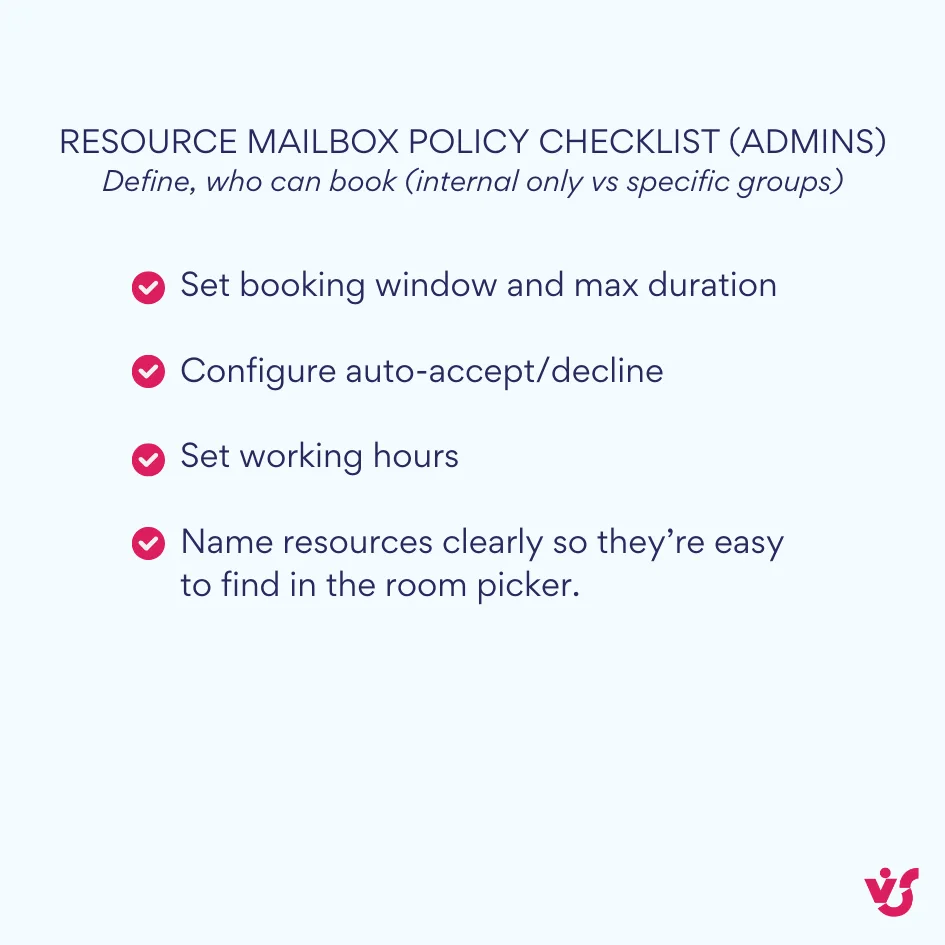
Rooms and equipment have their own mailboxes and calendars managed in the Exchange admin center. Policies can auto-accept or decline requests, prevent conflicts, and enforce booking windows.
Use for:
- Meeting rooms, company cars, loaner laptops, AV kits
- Facilities that require approval or specific rules
Benefits:
- Automatic conflict prevention and consistent rules
- Clear ownership by IT/facilities rather than individuals
Setup notes & tips:
- Define booking policies up front (work hours, max duration, who can book).
- Name resources clearly so they’re easy to find in the room picker.
📖 Learn more from official sources: Manage resource mailboxes in Exchange Online.
ICS and third-party calendars
You can subscribe to external calendars via .ics to bring in holidays, industry events, or partner schedules. Subscriptions are added in Outlook on the web/new Outlook (Add calendar→Subscribe from web).
| Source | Add where | Write/edit from Outlook? | Refresh model |
| ICS feed (external) | Outlook (web/new Windows) → Subscribe from web | No (read-only) | Publisher-controlled polling |
| Planner plan (iCal) | Planner → Publish iCal → subscribe in Outlook | No (read-only) | Exchange polls the published feed |
| SharePoint list calendar view | SharePoint page | Not applicable | Page-local; no Outlook sync |
| Group calendar web part | SharePoint page (pulls Outlook group) | Edit in Outlook/Teams | Real-time from Exchange Online |
Use for:
- Public holidays across regions
- Trade shows, release calendars, vendor blackout dates
Limitations:
- Read-only and refresh on the provider’s schedule; not instant.
- The link can be broadly accessible—share carefully.
- Teams itself can’t subscribe to ICS; if you need it visible in Teams, pin Outlook on the web as a tab.
Setup notes & tips:
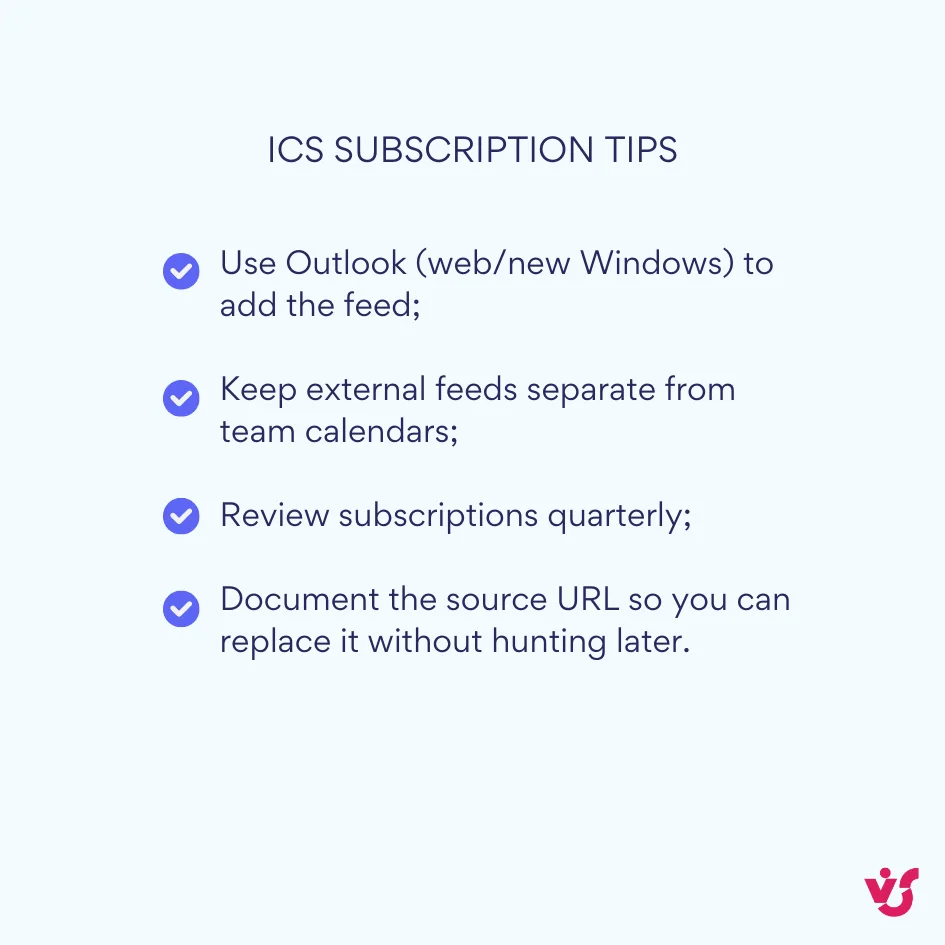
- Keep external feeds separate from team/group calendars to avoid clutter.
- Periodically review subscriptions to remove stale feeds.
📖 Learn more from official sources: Import or subscribe to a calendar in Outlook on the web
Planner integration
Tasks often drive meetings and deadlines. Planner offers a Schedule view in the app, and you can publish a plan to an iCalendar feed to see that schedule in Outlook.
Use for:
- Project teams aligning tasks with milestones and meetings
- Visualizing task timelines alongside other calendars
Limitations:
- The iCal connection is one-way and read-only—changes in Outlook don’t edit tasks.
- For day-to-day task work, stay in Planner/To Do; use the calendar view for visibility.
Setup notes & tips:
- Use buckets/labels in Planner so the Schedule view is meaningful.
- Publish to Outlook only for plans that benefit from broad date awareness.
📖 Learn more from official sources: See your Planner schedule in Outlook calendar
Putting it all together
Each calendar type solves a different problem. Pick the right one for the job, and you’ll reduce noise while improving visibility.
- Personal & shared: individual scheduling and assistant workflows.
- Group & SharePoint: team/department coordination, milestones, and intranet visibility.
- Resource management: reliable booking of rooms and equipment without conflicts.
- ICS integration: enrich with external dates like holidays and industry events.
- Planner overlay: connect task timelines to the calendar view people already check.
Up next, we’ll show the exact setup steps for each.
Pick the right calendar type:
- Group calendar: when team/department events need shared ownership and recurring rituals.
- Channel calendar: when meetings belong to a specific Teams channel and need in-channel visibility.
- Personal calendar: when it’s your own schedule, 1:1s, or private holds.
- Shared personal calendar: when a small crew (e.g., manager–assistant) needs quick co-ordination.
- Resource calendar (room/equipment): when you’re booking rooms/devices with auto-accept and policies.
- Shared mailbox calendar: when a generic mailbox (front desk/ops) should own and maintain events.
- SharePoint Events (list+web part): when you need an intranet page timeline; no Outlook sync, no recurrence.
- Group calendar web part: when you want to surface a group’s Outlook calendar on SharePoint pages.
- ICS subscription: when overlaying external holidays/industry dates; read-only.
- Planner→Outlook (iCal): when you want plan tasks visible on a calendar; read-only.
Setting up Microsoft 365 Calendars
Before you change settings or create new MS calendars, it helps to know where to open the calendar in each app and what features are available in the current interfaces.
Outlook calendar settings
Outlook is the primary window into your Microsoft 365 calendar. The exact path depends on which Outlook you’re using, so start by opening the calendar where you work most.
Where to find the calendar
- New Outlook for Windows / Outlook on the web: Open Outlook and select Calendar from the left rail. (The new Outlook for Windows now mirrors the web experience.)
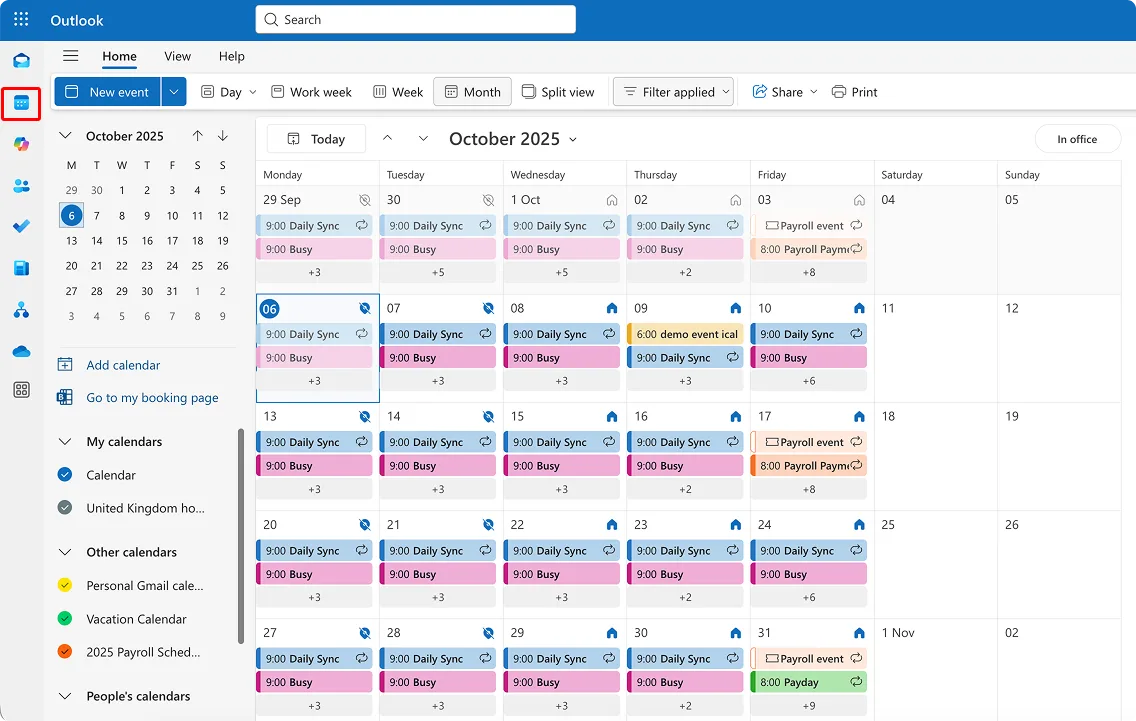
- Classic Outlook for Windows (legacy desktop): Select Calendar from the navigation bar (bottom or left, depending on your layout).
- Outlook for Mac: Choose Calendar in the left sidebar.
- Outlook mobile (iOS/Android): Tap the Calendar icon in the bottom navigation.
💡 A quick tour of what you can do once you’re there will save time later.
Core actions you’ll use every day:
- Create events and appointments. Click or tap a time slot → New event. Add attendees, a room, and Teams meeting details.
- Make it recurring. In the event form, choose Repeat and set daily/weekly/monthly rules, end dates, or custom patterns.
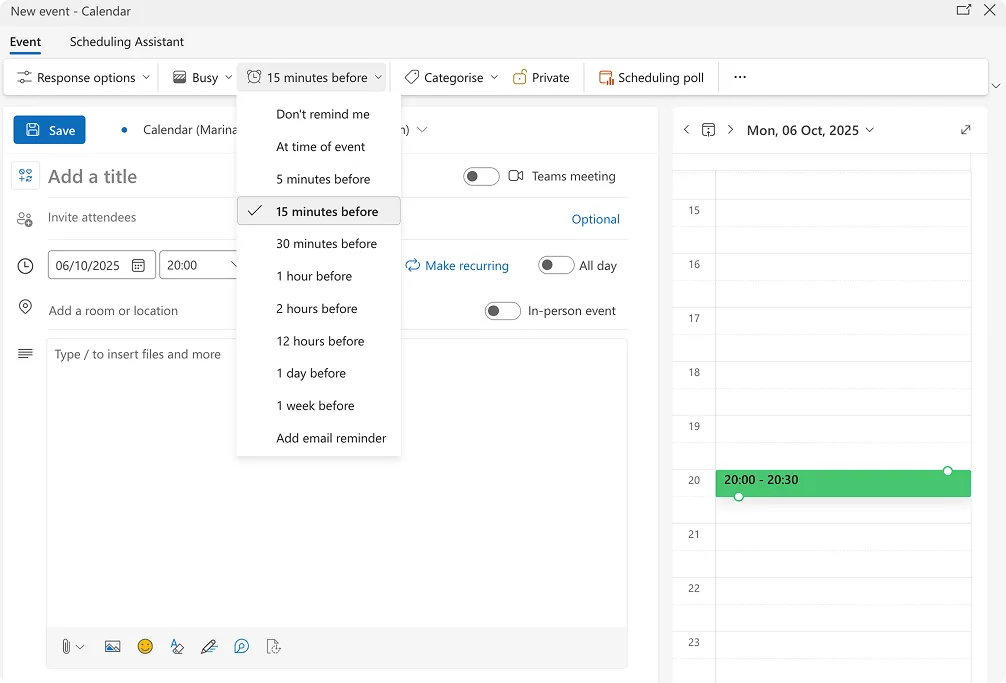
- Set reminders. Pick a reminder time (e.g., 15 minutes) so Outlook and your phone notify you before the meeting.
- Color-code with categories. Apply categories to group related meetings—use a consistent scheme across your team if possible.
- Add a Teams meeting in one click. Turn on Teams meeting in the event. Join details and conferencing dial-ins are added automatically.
- Use Scheduling Assistant. See attendee availability, find a room, and pick a time that works for everyone.
- Set work hours & location. In Outlook settings, define your per-day work hours and whether you’re in office or remote so coworkers schedule you appropriately.
💡 Sharing and delegation let other people see or manage your calendar when needed.
📖 Learn more: Set your work hours and location in Outlook
Delegate calendar access (step by step)
- New Outlook for Windows / Outlook on the web
- Go to Calendar → Share (or Sharing and permissions).

- Enter the person’s name.
- Choose a permission level (see levels below).
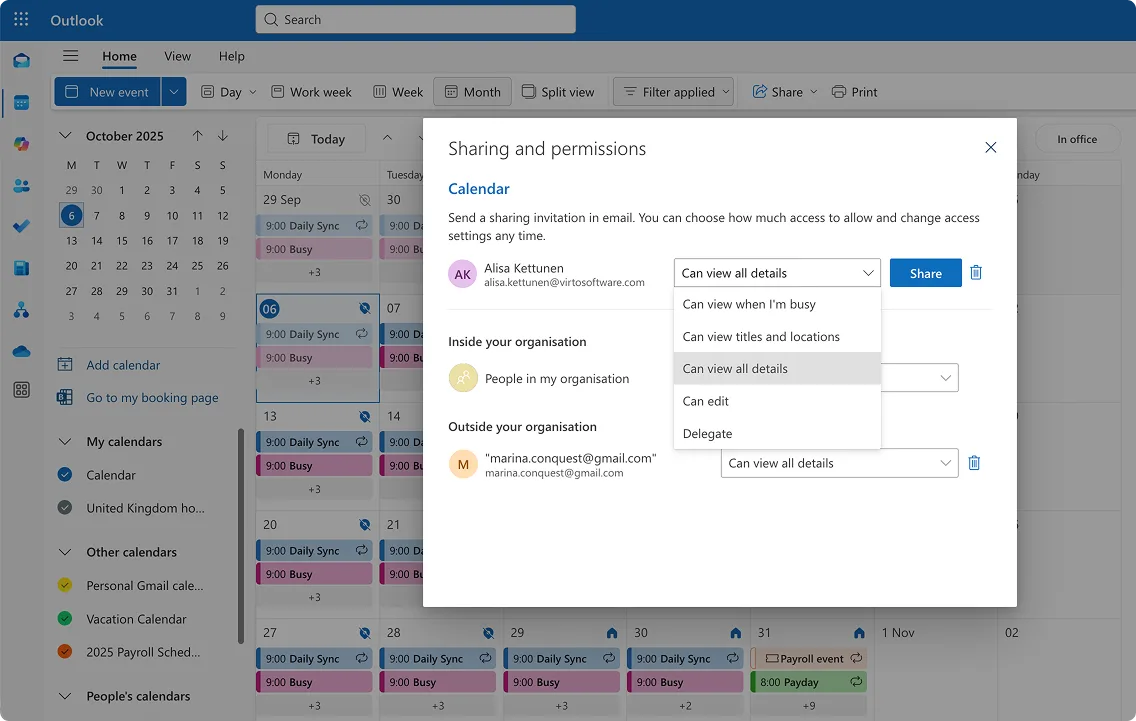
- Share.
- Classic Outlook for Windows (legacy desktop)
- In Calendar, right-click your calendar → Properties (or Sharing Permissions).
- Add the person.
- Choose their permission level.
- OK to save.
Permission levels:
- Can view when I’m busy — free/busy only, no details.
- Can view titles and locations — subjects and locations are visible.
- Can view all details — full read access.
- Can edit — create and edit events.
- Delegate — edit plus meeting processing and send-on-behalf; best for assistants.
💡 Tip: Keep sensitive items private or use limited-detail sharing when required.
Shared calendar
Sometimes you need a calendar that isn’t tied to a whole team but also isn’t just one person’s private schedule. That’s where an Office 365 shared calendar (a secondary calendar you create and share) fits.
Create a shared calendar:
- Outlook on the web / new Outlook: Calendar → Add calendar → Create blank calendar → name it → create. Open the new calendar → Share → add people and set their permission levels.
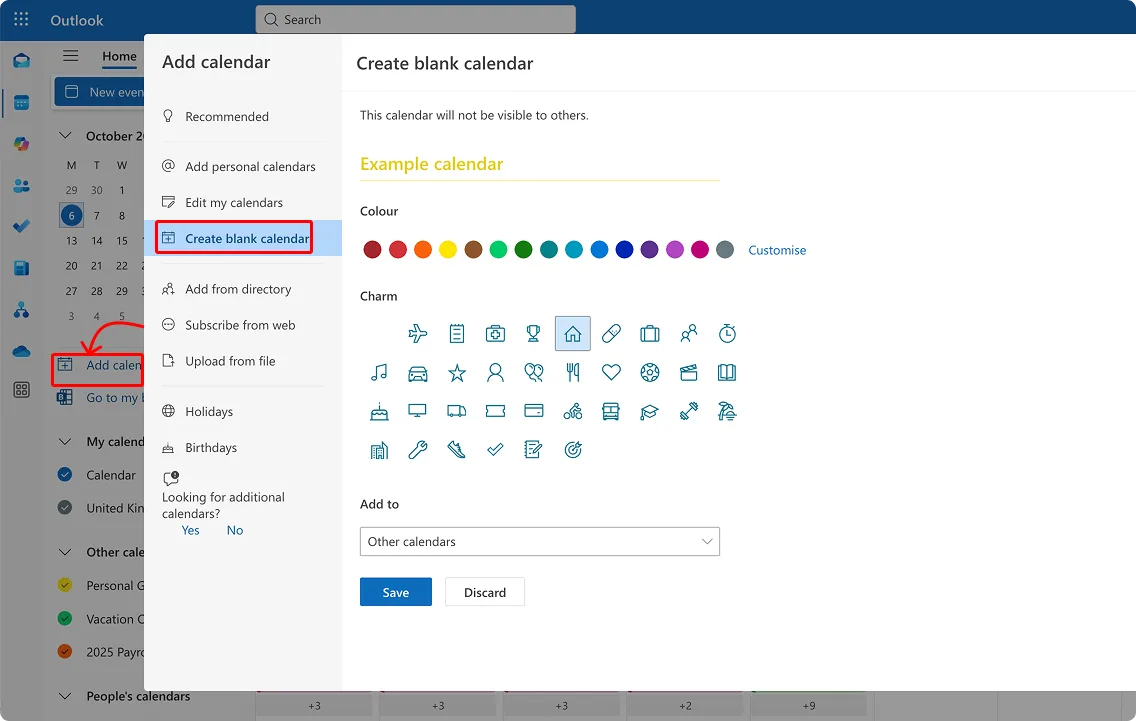
- Classic Outlook for Windows: In Calendar, create a new calendar under My Calendars → right-click → Sharing Permissions → add people and set access.
Share an existing personal calendar:
- Share your primary calendar the same way: Share → choose people → set permission levels. This is common for manager–assistant scenarios.
Good use cases:
- A manager shares their calendar with an assistant (use Delegate).
- A small project trio uses a Microsoft 365 shared calendar to track interviews or on-call shifts.
Shared vs group calendar—what’s the difference?
Use this quick contrast to decide where your events belong—team-wide scheduling goes one way, personal or assistant workflows go another.
- A shared calendar is created manually by a user and shared selectively with specific people.
- A group calendar is created automatically with a Microsoft 365 Group and is available to all group members by default.
Microsoft 365 group calendar
For team-level scheduling, use the calendar that comes with a Microsoft 365 Group (and by extension, a standard Team).
How it’s created: Create a Microsoft 365 Group (or a Team). The group mailbox and calendar are created automatically:
- Option A — create the group in Outlook (recommended for visibility in Outlook)
- Open Outlook on the web or the new Outlook for Windows → Groups → Create group (or New group).
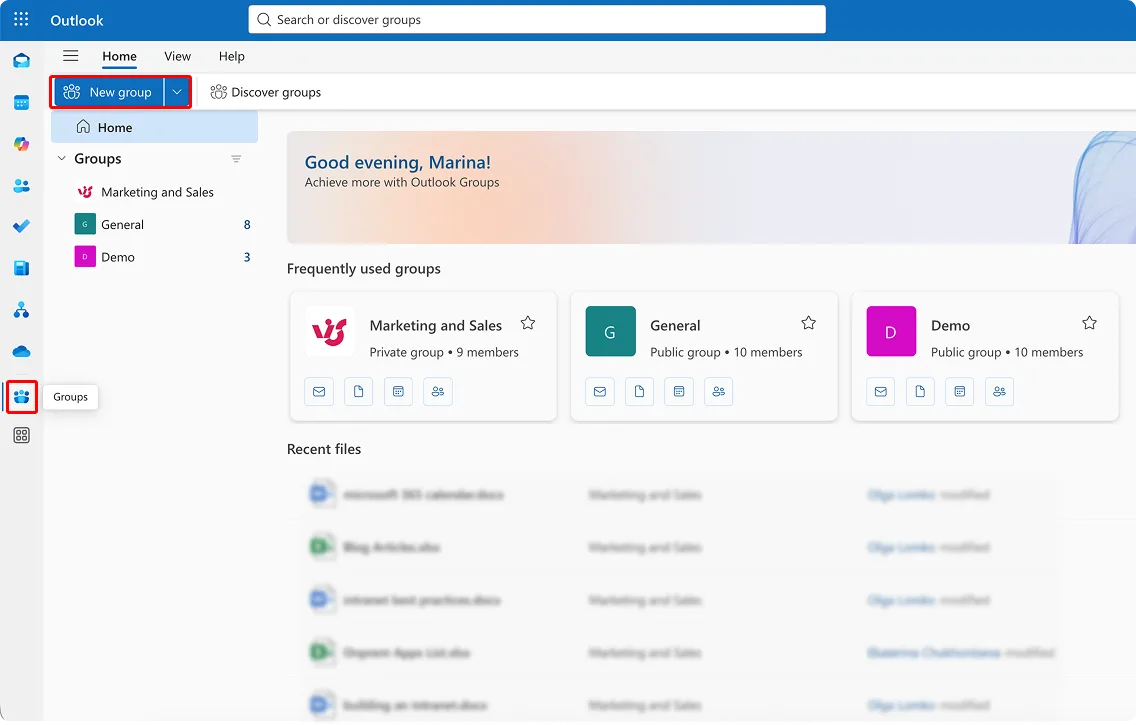
- Name the group, choose privacy (Public or Private), add owners/members, and finish setup.
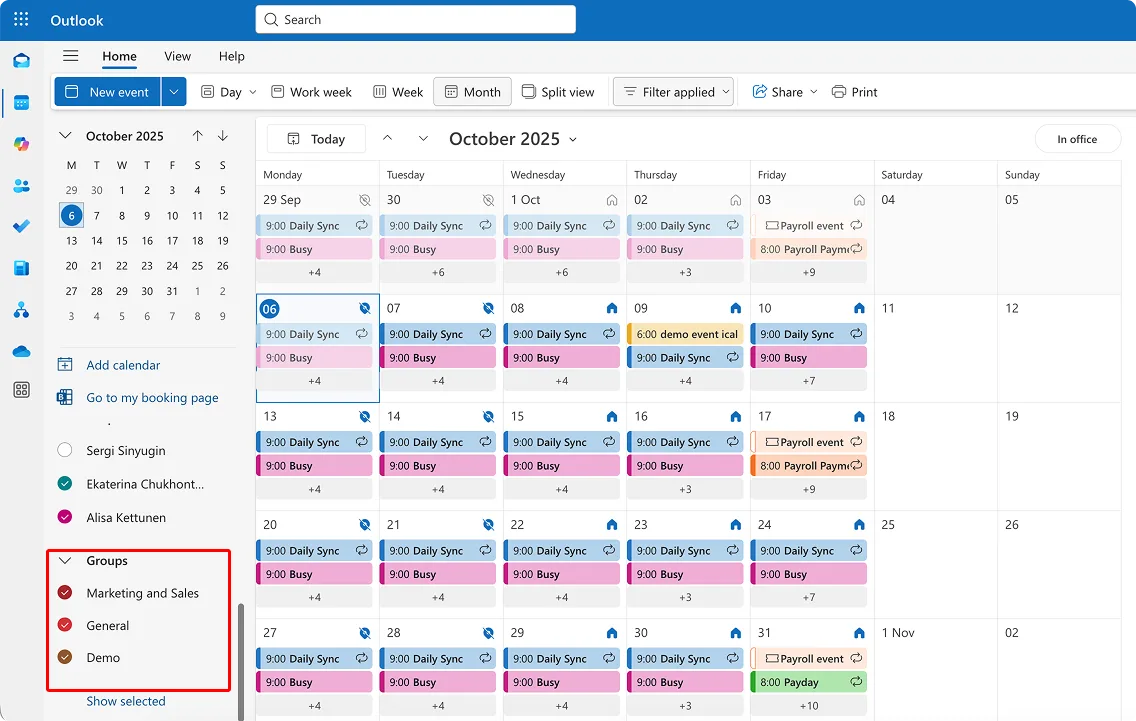
- In Outlook, open Groups in the left pane → select your group → Calendar (or Events; make sure to tick ‘Follow in inbox’ to be able to view group events from your calendar) to use the shared calendar
- Option B — create a team in Microsoft Teams
- In Teams, Create or join a team → Create a team (from scratch or from an existing group).
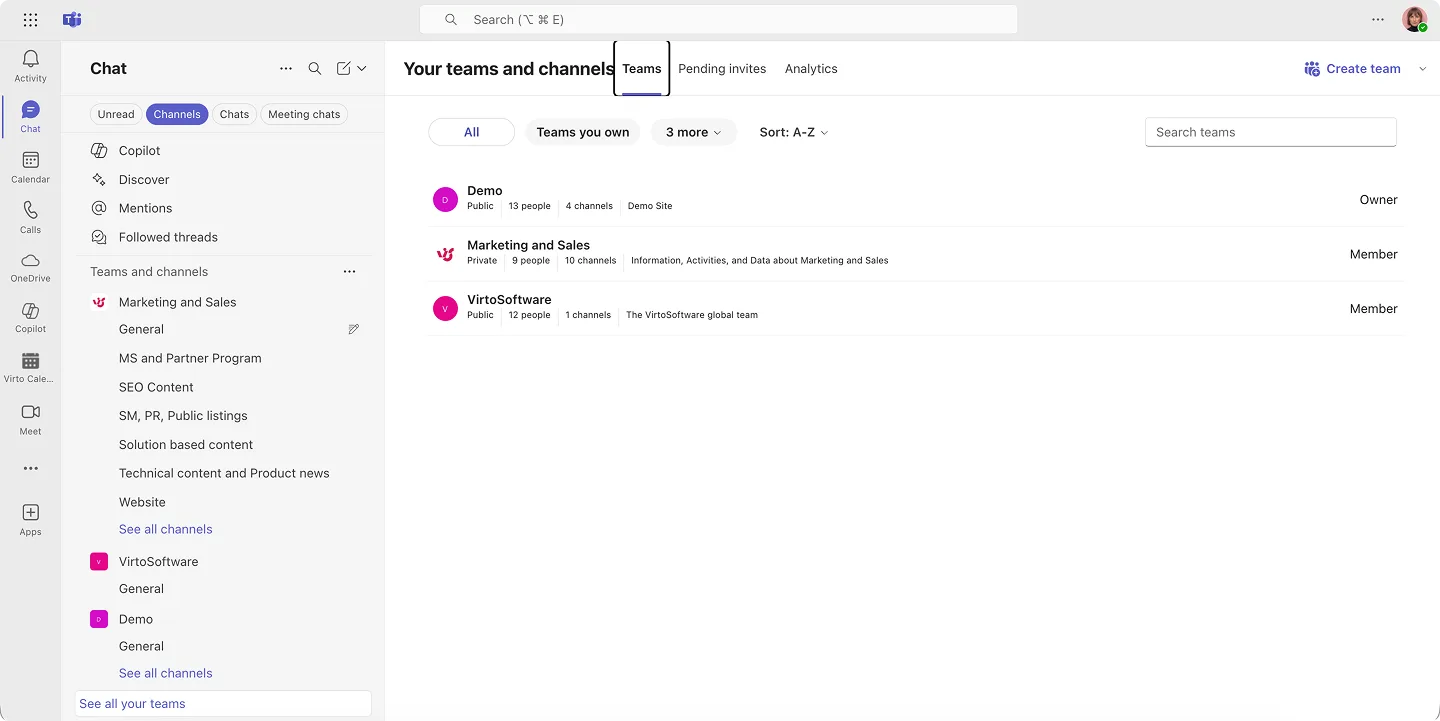
- Teams creates/associates a Microsoft 365 group behind the scenes, including a group mailbox and calendar. Note: when the group originates from Teams, the group mailbox is hidden from Outlook by default; admins can unhide it with Set-UnifiedGroup -HiddenFromExchangeClientsEnabled:$false if they want it visible in Outlook.
Some tenants restrict who can create Microsoft 365 groups. If you don’t see Create group, your admin may have limited this; they can allow specific users/groups via Microsoft Entra ID policy.
❗Don’t confuse a shared mailbox with a Microsoft 365 group. A shared mailbox also has an M365 shared calendar, but it’s meant for shared email identities (like info@) rather than team workspaces.
📖 Learn more from official sources:
| Creation path | Visibility in Outlook | Teams behavior | Notes |
| Create in Outlook (Group) | Shown under Groups for members | Channel meetings shown via Channel calendar | Recommended for Outlook-centric visibility |
| Create in Teams (Team) | Group mailbox/calendar hidden by default | Channel meetings visible in Channel calendar | Admins can unhide with Set-UnifiedGroup -HiddenFromExchangeClientsEnabled:$false |
Where it shines:
- Scheduling team meetings, sprint rituals, and department events.
- Tracking project deadlines where everyone needs the same view.
- Channel-based meetings that automatically stay visible to the team.
💡 Tip: If you want the full Outlook group calendar inside Teams, pin Outlook on the web as a Website tab. The Channel calendar is best for channel-specific meetings.
📖 Learn more about Microsoft 365 groups here: What Are Microsoft 365 Groups and How to Use Them
Integration with Teams and SharePoint
Your calendars show up where collaboration happens. Here’s how they connect today.
Teams:
- Your Outlook calendar appears in the Teams Calendar automatically; meetings scheduled in Outlook show here as well.
- Use a Channel calendar tab to display channel meetings for a team.
- For a full group calendar view, pin Outlook on the web in a tab or app.
💡 Channel meetings: Visible in the channel for everyone; they appear on a person’s calendar only if you add them as attendees or they choose Add to calendar.
SharePoint:
- Use the Group calendar web part to display Outlook group events on a modern page.
- Use a list with a calendar view for lightweight timelines that live only on the page.
- Note: Modern SharePoint calendars don’t sync to Outlook. The old Connect to Outlook from classic sites isn’t supported in the new Outlook.
💡 Tip: For intranet pages like HR or Corporate Comms, the Group calendar web part provides a consistent source of truth without duplicating events.
| Task | Do it here | Notes |
| Create/edit events, add Teams meeting, color-code | Outlook (web/new Windows/desktop/mobile) | Primary interface; changes sync everywhere |
| View/schedule team channel meetings | Teams → Channel calendar tab | Channel meetings are visible to the team; personal calendars live in Teams Calendar |
| Show a team calendar on an intranet page | SharePoint → Group calendar web part | Pulls Outlook group events into a page |
| Add external (ICS) calendars | Outlook (web/new Windows) → Add calendar → Subscribe from web | Read-only; provider controls refresh cadence |
| See Planner tasks on a calendar | Planner → Publish iCal → subscribe in Outlook | One-way overlay for awareness |
Setting up notifications and syncing
Reliable alerts and consistent sync prevent missed meetings and double work. Set them once and they’ll follow you across devices.
Alerts and reminders:
- Outlook (web/new Outlook/desktop): in the event form, set a Reminder time. In Settings → Notifications, choose toast/banners and sounds.
- Teams meeting reminders: Teams sends join notifications before the start time; you can fine-tune Teams notifications in Settings → Notifications.
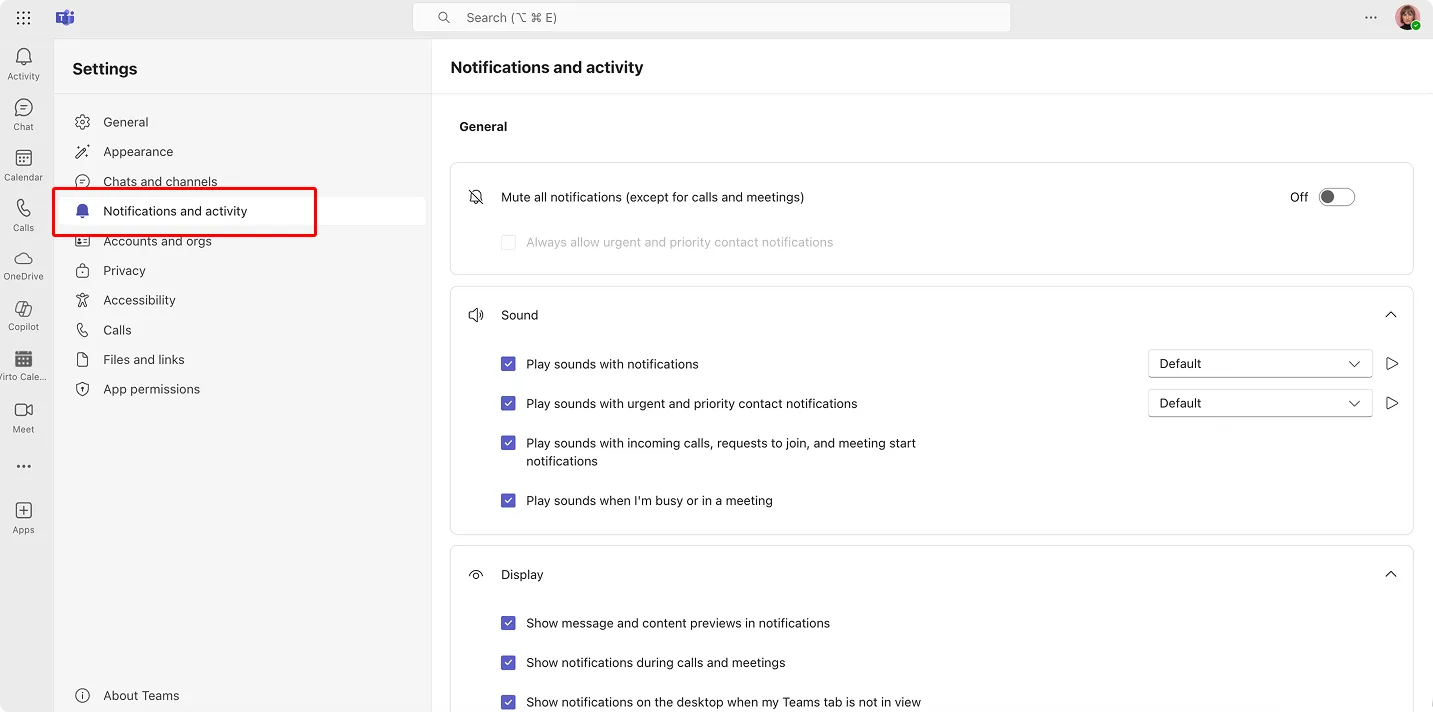
- Outlook mobile: ensure notifications are enabled for the app in iOS/Android settings and inside Settings → Notifications in Outlook.
Sync across devices:
- Use the same work account in Outlook desktop, web, and mobile—Exchange Online keeps calendars in sync automatically.
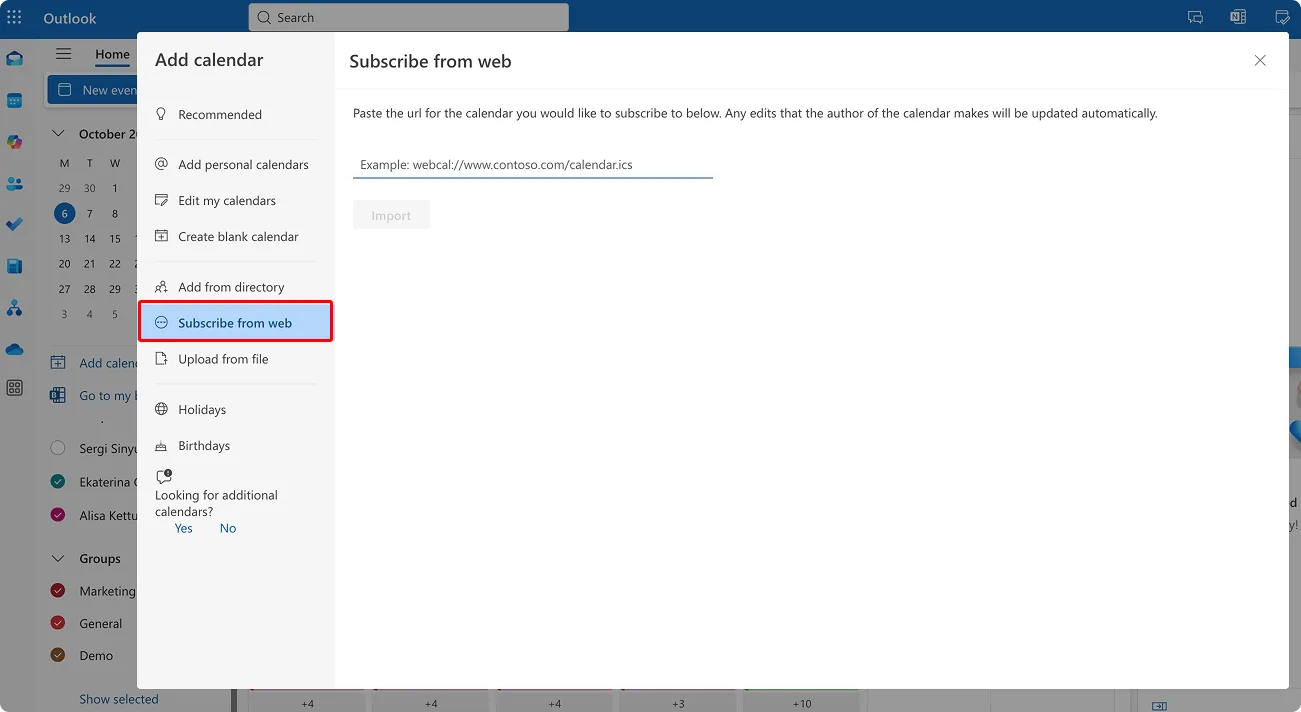
- If you subscribe to ICS feeds, add them in Outlook on the web/new Outlook → Add calendar → Subscribe from web. ICS is read-only and refreshes on the provider’s schedule.
- For Planner plans you want to see in Outlook, publish the plan to an iCalendar feed from Planner, then subscribe in Outlook (read-only).
💡 ICS feeds: Add them in Outlook (web/new Windows). Teams doesn’t subscribe directly—pin Outlook on the web as a tab if you need that view inside Teams.
Health checks:
- Verify time zone and work hours & location in Outlook settings so Scheduling Assistant suggests sensible times.
- If a device stops syncing, re-authenticate the account in Outlook mobile or clear and re-add the profile in the app.
📖 For more information on syncing, please refer to the following guides:
- Troubleshooting Outlook Calendar Sync Problems: Quick Fixes Inside
- Outlook and Teams Calendars Syncing: A Troubleshooting Guide
- How to Seamlessly Sync MS Teams and Outlook Calendars
Quick recap
Here’s the condensed playbook for dependable scheduling across Outlook, Teams, and SharePoint:
- Use Outlook to create events, set reminders, color-code, and add Teams meetings.
- Use sharing/delegation for small, person-centric scenarios; use a group calendar for team scheduling.
- Surface calendars in Teams with Channel calendar tabs, and in SharePoint with the Group calendar web part.
- Configure notifications once and rely on Exchange Online to keep everything in sync across desktop, web, and mobile.
Real-world implementation scenarios
Microsoft Office calendars shine when you map them to everyday work. Below are common setups that teams ask for, with concrete tools and guardrails based on how the platform works today.
For employees: a unified dashboard
People rarely live in one calendar. Most juggle a personal mailbox calendar, one or two group calendars, and perhaps an ICS feed for holidays. The goal is a single view.
Start by opening Outlook—desktop, web, or the new Outlook for Windows—and select the calendars you want to see side by side or overlaid. In Teams, the Calendar shows your personal Outlook 365 calendar; add Channel calendar tabs in key channels for team-visible meetings. For intranet-style visibility, surface the group’s schedule on a SharePoint page using the Group calendar web part.
Why this works:
- One place to see personal meetings, team events, and key dates.
- Changes sync everywhere because Exchange Online is the backend.
- Optional: publish a Planner plan to iCal and subscribe in Outlook to see task timelines (read-only).
Example setup:
- Personal mailbox calendar + project team’s group calendar + company holidays via ICS. Everything appears in Outlook on the laptop and phone. Work hours&location help coworkers pick sensible times.
For HR: vacation and business trip calendar
HR needs a clear picture of who’s out and when. You also want the schedule visible without spamming everyone with invites.
Use a SharePoint page for visibility and a group calendar as the source of truth:
- Create or use an existing Microsoft 365 Group (e.g., “HR-Operations”) and manage absences as all-day events on the group calendar.
- Embed that calendar on the HR site with the Group calendar web part.
- If you need a request flow, collect time-off requests with a SharePoint list or form and have a Power Automate flow add approved entries to the group calendar.
Benefits:
- Transparent scheduling so teams plan vacations without overlap.
- Approved absences appear in Outlook and Teams for relevant people.
- No reliance on classic SharePoint “Connect to Outlook” (not supported in the new Outlook).
For project managers: calendar with milestones and resources
Projects need milestones, ownership, and the availability of people and rooms.
Combine three pieces:
- M365 group calendar for the project team’s meetings and milestones.
- Planner for tasks—use the Schedule view. Publish the plan to iCal and subscribe in Outlook if you want those dates visible on the calendar (one-way/read-only).
- Resource calendars for rooms or equipment booked through the room picker with conflict policies set by IT.
Example:
- For a product launch, the group calendar holds planning ceremonies and key deadlines; Planner tracks workback tasks; rooms are reserved through resource mailboxes so test labs and briefing rooms don’t double-book.
For executives (C-suite): strategic annual calendar
Leaders need the big picture, not every stand-up. Create a high-level group calendar (e.g., “Executive Office”) with only strategic items: board meetings, quarterly reviews, major launches, investor events.
Make it easy to consume:
- Keep event details concise; link to supporting decks in SharePoint.
- Share with view access to all directors; give delegate rights to executive assistants.
- Pin the calendar as a Website tab in the leadership Team or simply favorite it in Outlook.
Outcome
- A single place to track the company’s critical path, visible in Outlook and Teams, without cluttering personal calendars.
For departments: group calendars:
Every department can own a Microsoft 365 Group (often the same one used for the Team). Use its group calendar for anything the whole department should see.
Examples:
- Marketing: campaign flights, content drops, webinars.
- IT: release windows, change freezes, maintenance windows.
- Sales: SKO, quarter-end checkpoints, key customer events.
Why this scales:
- Membership controls access; no manual sharing list to maintain.
- Events are visible in Outlook; channel-specific meetings surface via Channel calendar tabs in Teams.
- For intranet visibility, embed via the Group calendar web part.
For IT and administrators: resource and access management
IT shapes the experience by defining bookable resources and sensible permissions.
Resource calendars:
- Create room and equipment mailboxes in the Exchange admin center.
- Set booking policies: who can book, maximum duration, auto-accept rules, working hours.
- Train users to select rooms/equipment from the picker instead of free-typing locations.
Access and governance:
- Standardize permission levels for personal calendars: encourage Can view when I’m busy by default; use Delegate for assistants.
- Prefer group calendars for team-wide visibility rather than sharing one person’s calendar to many people.
- Review ICS subscriptions periodically; they’re read-only and refresh on the publisher’s schedule.
Operational payoff:
- Fewer double-bookings, clearer ownership, and calendars that continue to work when people change roles.
Putting scenarios into practice
Choose the calendar type that matches the audience:
- Employee dashboard: personal+selected group calendars, with optional ICS.
- HR: group calendar surfaced on SharePoint; approvals via forms/flows.
- Projects: group calendar+Planner schedule+resource mailboxes.
- Executives: focused group calendar with delegate management.
- Departments: group calendar per team; Channel calendars for channels.
- IT/Admin: define resource mailboxes and consistent sharing policies.
Next, we’ll map calendar best practices so you can move forward with confidence.
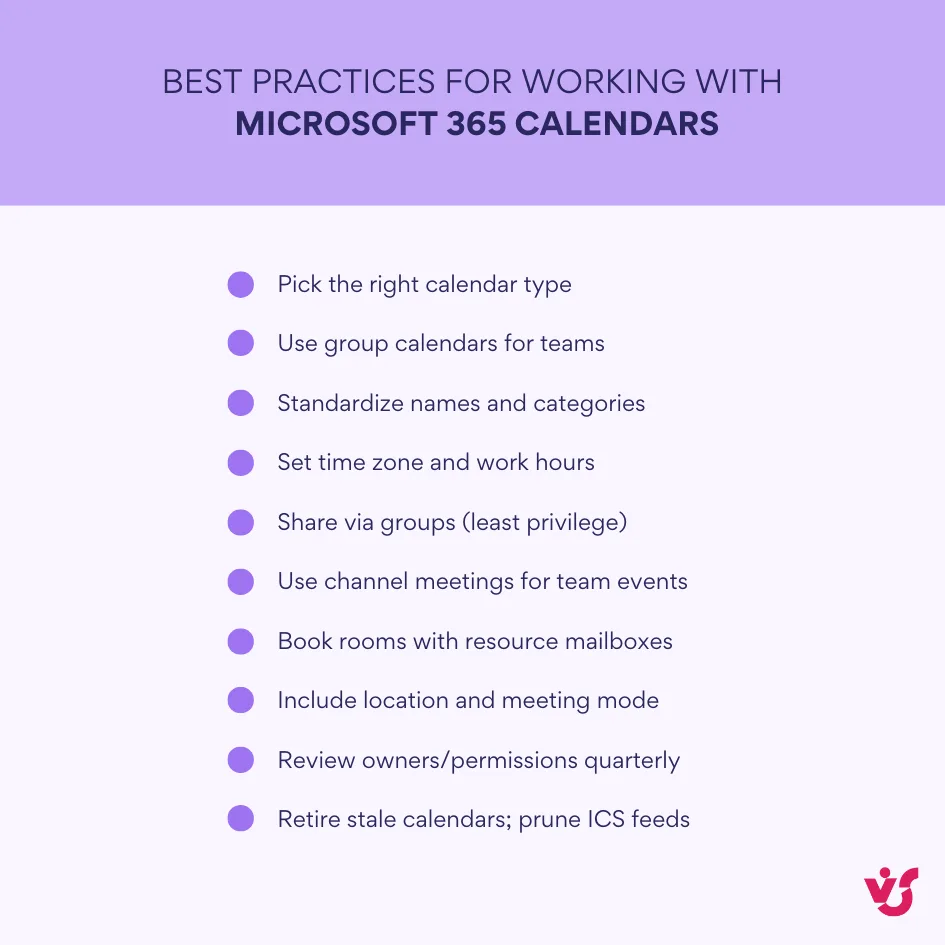
Microsoft 365 calendar best practices
Good calendars don’t happen by accident. The tips below help you keep schedules clear, permissions sane, and resources conflict-free—across Outlook, Teams, and SharePoint.
Creating separate calendars for projects
When every project invite lands on someone’s personal calendar, things get messy fast. Give each project its own shared place so team time doesn’t drown individual time.
How to do it:
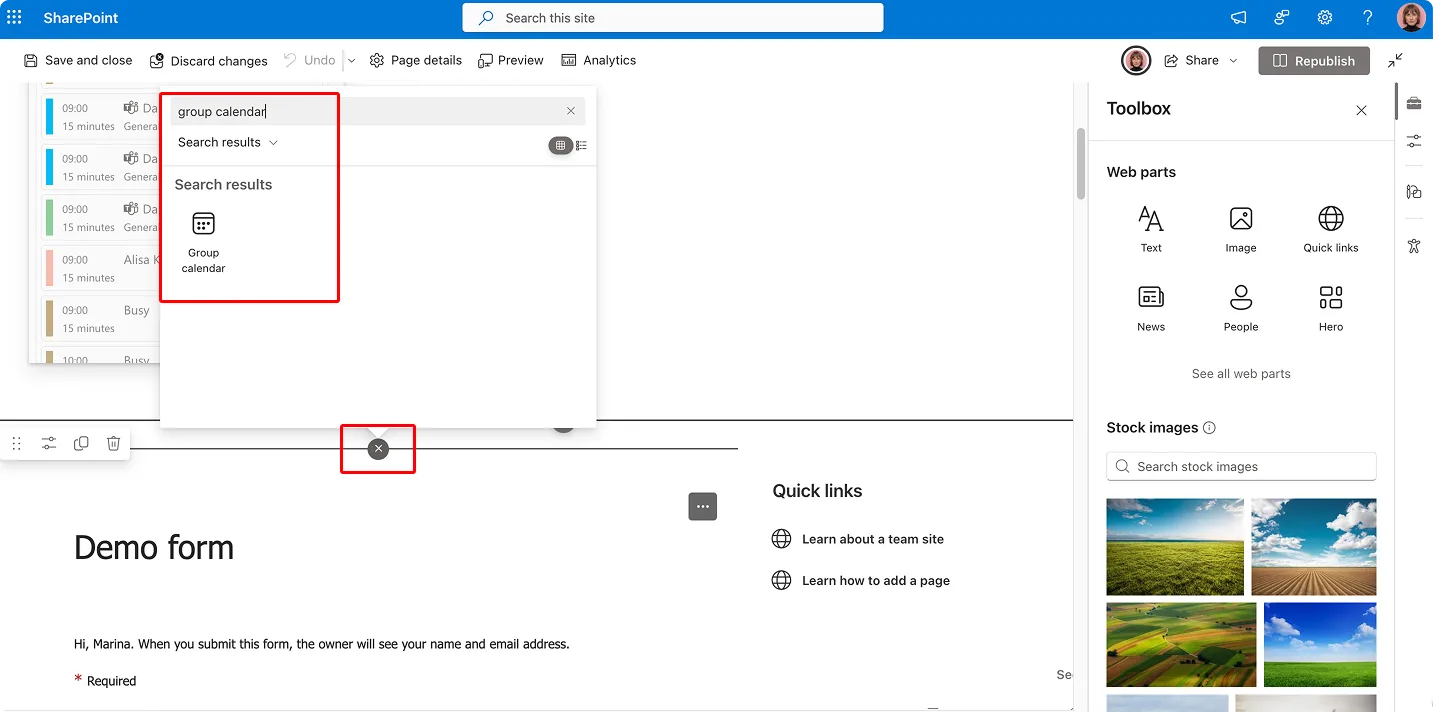
- Create a Microsoft 365 group for the project (or use the existing Team). Its group calendar becomes the shared project calendar.
- For “announce-only” visibility on a SharePoint page, surface the group’s events with the Group calendar web part. Use a SharePoint list with a calendar view only for lightweight timelines that don’t need invites.
Why it helps:
- Clear separation of personal vs team commitments.
- Easier handover and continuity if people change roles.
- Cleaner task management, since project dates aren’t buried in personal calendars.
Tips:
- Use a naming convention (e.g., “Proj-Launch-Q4-2025”) so calendars are easy to find.
- Archive or hide the group when the project ends to reduce clutter.
Using group calendars instead of manual sharing
Manually sharing one person’s calendar with a big audience doesn’t scale. Membership changes, access drifts, and the calendar vanishes when the owner leaves.
Do this instead:
- Create or use the department’s Microsoft 365 group calendar. Everyone in the group gets the right access automatically in Outlook; channel meetings surface via Channel calendar tabs in Teams.
Benefits:
- Fewer access errors and less admin work.
- Automatic visibility in Outlook and Teams without maintaining a long sharing list.
- A single source of truth for team events.
When a shared personal calendar still makes sense:
- Manager+assistant scenarios where Delegate access is needed.
- Very small ad-hoc groups with short-lived needs.
Centralizing resource management through resource calendars
Rooms, vehicles, loaner devices, and labs should never be booked on a human’s calendar. Use resource mailboxes so Exchange Online enforces rules for everyone.
How to set it up (admins):
- In the Exchange admin center, create room or equipment mailboxes.
- Configure policies: who can book, booking windows, max duration, working hours, and auto-approve/decline behavior.
Why it helps:
- Automatic conflict prevention.
- Fair, transparent access to shared assets.
- Clear reporting on utilization.
User tip:
- Always pick rooms/equipment from the room picker in Outlook; don’t free-type the location field.
Connecting ICS calendars for global events
External schedules matter—public holidays, industry conferences, vendor blackout periods. Bring them in as .ics subscriptions so people schedule with context.
How to add:
- In Outlook on the web/new Outlook: Add calendar → Subscribe from web. Paste the ICS link and name it.
- Keep in mind: ICS is read-only and refreshes on the publisher’s schedule. Teams itself can’t subscribe; if you need it visible in Teams, pin Outlook on the web as a tab.
Use cases:
- Multinational holiday calendars.
- Sector-wide event calendars (trade shows, Apple/Google release weeks).
Regularly check access rights and calendar relevance
Calendars age. People leave, projects close, access lingers.
Governance checklist (quarterly):
- Remove or hide unused calendars (finished projects, stale department calendars).
- Review permissions on personal and group calendars. Keep external access to view only and only where necessary.
- Prune ICS feeds that no longer add value.
- Confirm time zones and work hours & location are set correctly for key roles.
Benefits:
- Less noise, better privacy, and faster scheduling.
Use categories and color coding
Color is a powerful cue. A simple scheme makes large calendars readable at a glance.
Practical scheme:
- Green: internal meetings
- Red: external or customer meetings
- Blue: project events
- Purple: personal/focus time
Tips:
- Agree team-wide meanings for a handful of colors. Too many categories backfire.
- Categories sync across Outlook clients, so the scheme follows people from desktop to mobile.
📖 For more on color-coding and categorization, please refer to the following guides:
- Why You Need to Color-Code Your Calendar: 3 Science-Backed Tips
- Optimize Your Work Calendar: Explore Categories Ideas for Google, Outlook, and MS Teams
Integration with Planner and To Do
Tasks and time belong together. Use Microsoft’s task tools so dates don’t live in spreadsheets.
How to align:
- Manage tasks in Planner (teams) and To Do (personal). Use Planner’s Schedule view for timelines.
- If visibility in Outlook helps, publish the plan to an iCalendar feed and subscribe in Outlook. Remember: it’s one-way/read-only.
- In Outlook, show My Day to view To Do tasks alongside your calendar.
💡 Planner → Outlook: Publish the plan to iCal and subscribe in Outlook for a read-only schedule overlay.
Result:
- One interface for meetings, deadlines, and personal tasks—without duplicating entries.
📖 For more information on Planner, please visit:
- Microsoft Planner Premium: Boost Productivity & Collaboration
- Explore Microsoft Planner 2024: What’s New for Task Management
- How to Use Microsoft Planner in Teams for Task Management
- Microsoft Planner: Organize and Manage Tasks Easily
Use access and security policies
Consistency beats ad-hoc decisions. Set standards so sharing is predictable and safe.
Policy starter set (admins):
- Default personal calendar sharing: Can view when I’m busy tenant-wide.
- Assistants: use Delegate; peers: Can edit only when justified.
- Team events: use group calendars by default; avoid mass sharing of a personal calendar.
- External users: restrict to view at most, and only where required.
Outcome:
- Fewer accidental changes and a clear trail of ownership.
📖 For more information on security, permissions, governance in Microsoft apps, please see the following guides:
- Microsoft Teams Governance for Enhanced Collaboration and Security
- Best Practices for SharePoint Document Management, Library, Folder Structure and Security
- Ensuring Microsoft Teams Security: Key Insights & Privacy Policies
- How to Manage Microsoft Teams Permissions Effectively
- Configuration & Management of SharePoint Permissions: A Complete Guide 2025
Regular auditing and employee training
Even good setups drift over time. Short refreshers keep everyone effective.
What to cover in training:
- Which calendar to use when (personal vs group vs resource).
- How to share safely and when to delegate.
- Booking rooms/equipment the right way.
- Using Channel calendar tabs in Teams and the Group calendar web part in SharePoint.
Audit signals to watch:
- Overlapping bookings for the same room.
- Large personal calendars shared with many viewers (replace with a group calendar).
- Stale projects still visible on department pages.
Payoff:
- Higher digital fluency, fewer scheduling errors, and calendars people actually trust.
Advanced capabilities with VirtoSoftware apps
Getting calendars right isn’t about piling on more tools. It’s about building smarter views—the right mix of sources, layouts, and permissions—so each role sees exactly what it needs, where it works.
Virto Calendar App for Microsoft Teams & Microsoft 365
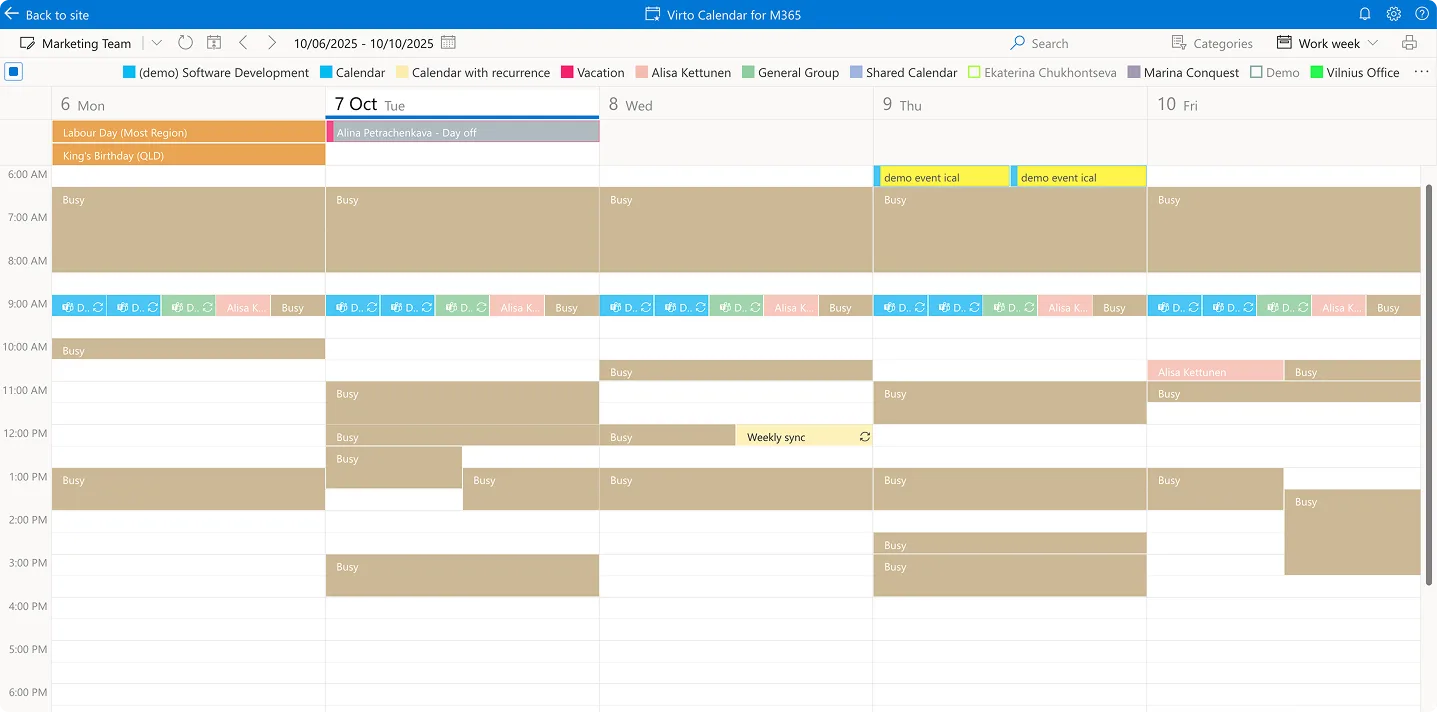
Before we dive in, keep in mind the goal: pull many calendars into one clear view without breaking security or duplicating data.
Improve Your Management with VirtoSoftware

Virto Shared Calendar
Virto Shared Calendar is a standalone web app and Microsoft Teams-integrated solution designed for simple event management with tagging, color-coding, and anonymous sharing.
What it does:
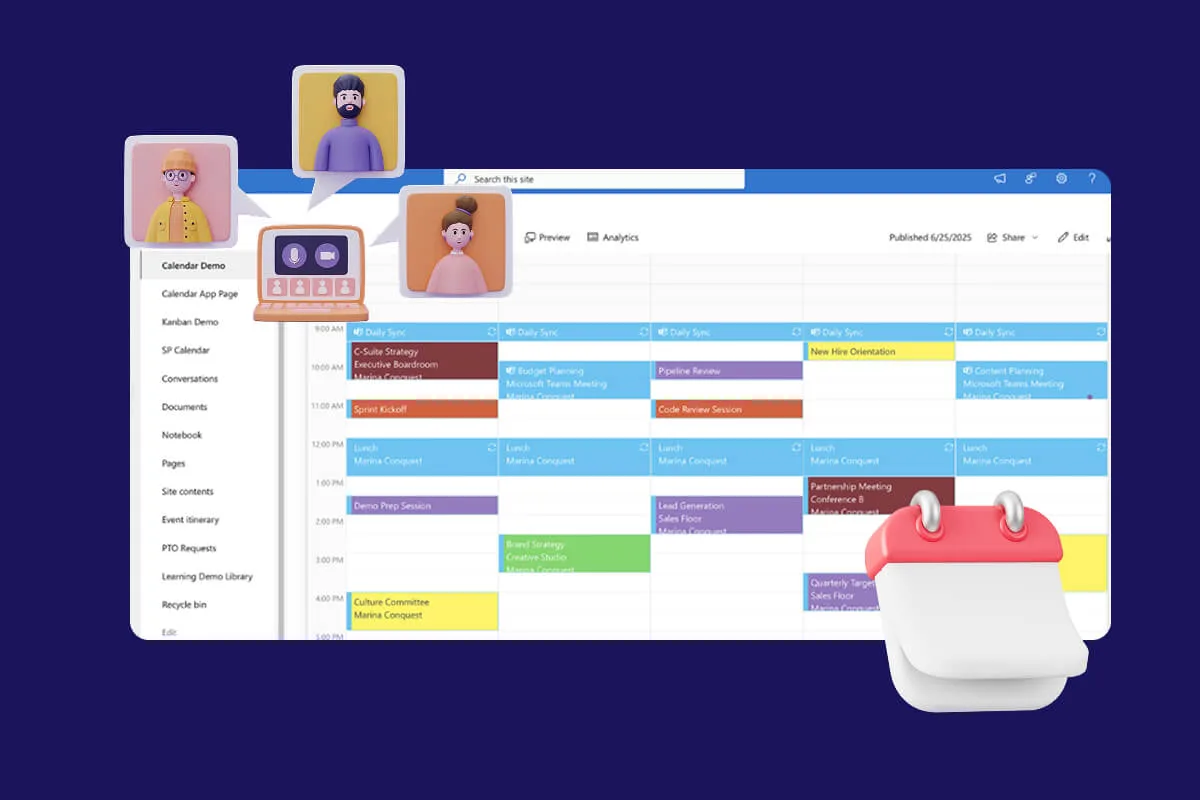
- Overlay multiple calendars in one place. Virto Calendar lets you layer “unlimited” Microsoft 365 and web calendars (including Google and iCal) inside Teams so people see personal, group, room, and external dates together.
- Flexible visualization. Users can switch among day, week, month, year, flat year, quarter, task/Gantt-style, and overlaid views, with color coding for fast scanning.
- Works across Teams and SharePoint. The same calendar can be used in Teams and surfaced on SharePoint/SharePoint Online, giving a single hub for planning on pages or in channels.
- Enterprise sign-in and delegated access. The app requests delegated permissions only from an authorized user in your tenant, aligning with Microsoft’s sign-in model.
Virto Shared Calendar App
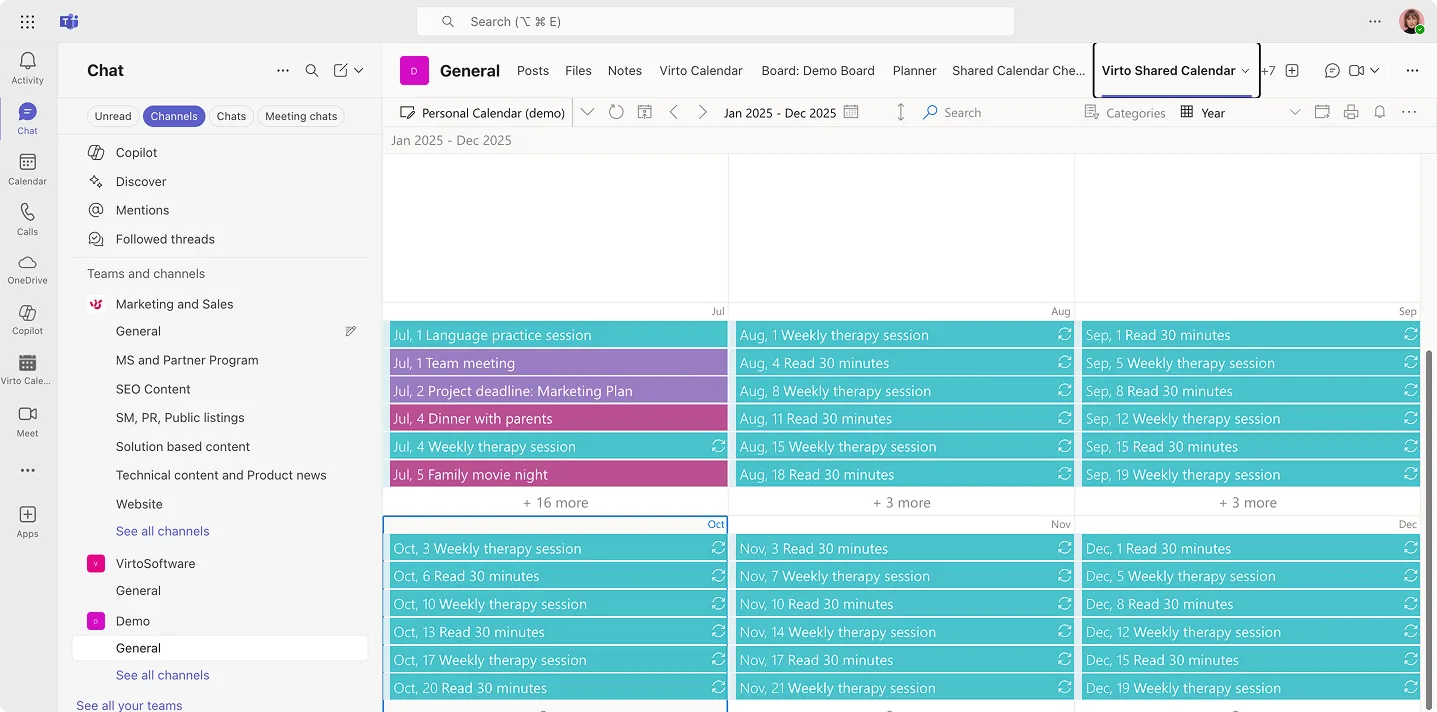
A lightweight calendar for Microsoft Teams and the web that focuses on shared team schedules without overlay complexity. Create events with tags and color-coding, embed the calendar in a Teams channel, set granular view/edit permissions, and share read access externally via anonymous links—no Microsoft account required. It’s built for quick, straightforward scheduling rather than aggregating multiple calendars (that’s what Virto Calendar is for).
Improve Your Management with VirtoSoftware

Virto Calendar
Consolidate events from SharePoint, Exchange, Google, and more into one calendar view for simplified planning.
Where it fits:
If you’d otherwise script simple scheduling or access tweaks, this app lets you handle them in a clean UI: add events, control who can change them, and keep everyone in sync across devices—inside Teams or in a standalone web app.
📖 Learn more about the VirtoShared calendar here:
- Virto Calendar App vs. Virto Shared Calendar: Guide on Virto Scheduling Solutions
- Introducing Virto Shared Calendar: Effortless Scheduling for Teams, Clients, and Beyond
Why these apps matter (and how they fit your governance)
A short bridge: the point isn’t replacing Microsoft 365 calendars—it’s curating them.
- Many sources, one pane of glass. Overlay personal, group, resource, SharePoint list, and external calendars so teams plan from a single, trusted view.
- Views that match the job. Switch among day/week/month/year/task layouts and use color coding so HR, PMs, and execs can each browse the same data at the right zoom.
- Built to live where people work. Pin in Teams for channels and meetings; add to SharePoint pages for intranet visibility. No extra “where do I look?” steps.
- Security you can vet. Delegated permissions and a Microsoft-published App Certification entry help admins validate how access works before rollout.
Explore VirtoSoftware Use Cases

Bottom line
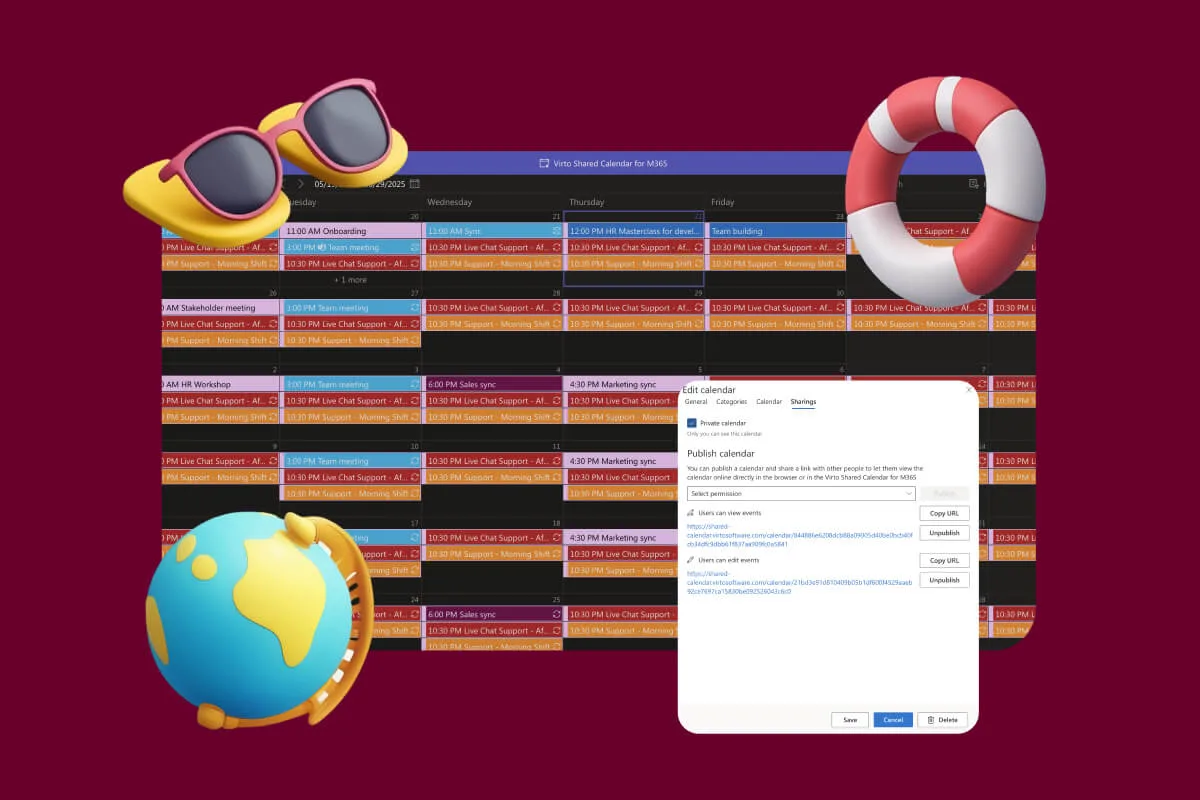
VirtoSoftware’s calendar apps don’t replace Microsoft 365 calendars—they shape them into role-aware, color-coded dashboards your teams can actually use. If you need to see Exchange calendars, SharePoint dates, room bookings, and external .ics feeds in one clean interface, these apps give you the controls to do it without breaking permissions or creating copies.
Conclusion on the Office 365 Calendar
Microsoft 365 calendar isn’t one calendar—it’s a multi-level system that spans personal, shared, group, and resource calendars. Because everything lives in Exchange Online and surfaces in Outlook, Teams, and SharePoint, you can tailor the setup to match real business needs: personal scheduling for individuals, shared/delegated calendars for assistants, group calendars for teams and departments, and resource calendars for rooms and equipment.
Configured well, these pieces lift productivity and transparency. People see the right events, rooms don’t double-book, and leaders get clean visibility into what matters. Configured poorly, work fragments across personal calendars, access drifts, and teams miss information that should have been obvious.
VirtoSoftware apps help you go further. By layering multiple calendars into role-based views—without breaking permissions—you turn the Microsoft 365 calendar backbone into a central hub for work. Teams get color-coded, filterable views; HR and PMs get dashboards that mix events, milestones, and resources; IT keeps security and governance intact.
Schedule a demo or start a free trial of the Virto Calendar apps from our site and build the unified calendar views your teams have been asking for.
Below are extra resources to help with context and related areas:
Official Microsoft resources
- Welcome to your Outlook calendar
- Shareable online calendar app
- Introduction to the Outlook Calendar
- Calendar sharing in Microsoft 365
- Outlook for everyday email and calendars
- Create additional calendars
Relevant pages
- How to Create and Use a Budget Calendar for Smarter Planning
- Top Teams Calendars for Small Business in 2025
- What Is a Cross Platform Calendar and How to Choose the Best One
- The Ultimate Guide to Public Calendar: Tools, Use Cases, and Sharing Tips
- Shareable Calendar Explained: Benefits, Tools, and Use Cases