In modern business, sharing documents, calendars, and other resources is the engine of everyday productivity. People rarely work alone; projects move when files are easy to find, permissions are clear, and collaborators can contribute without friction. Microsoft 365 is built for this reality. Its sharing model—spanning SharePoint, OneDrive, Outlook, and Teams—makes teamwork faster and more convenient by putting the right access in the right hands at the right time.
You’ll still hear “Office 365” used to describe certain subscription plans, but the platform is Microsoft 365. Within it, sharing is more than sending a link. It’s a set of controls that determine who can view or edit content, how long access lasts, whether downloads are allowed, and what’s audited. That matters for every team, and it’s critical in remote and hybrid environments where coworkers, partners, and clients often sit outside your corporate network. Features like organization-wide links, “specific people” links, and external collaboration options cover day-to-day needs, while Microsoft Entra ID handles guest accounts and cross-tenant connections for deeper, ongoing collaboration.
This article is a practical guide to setting up and using Microsoft 365 sharing the right way. We’ll explain link types and permissions, show how Teams, SharePoint, and OneDrive work together, and call out guardrails such as Microsoft Purview DLP, auditing, and expiration policies. You’ll also see best practices you can apply immediately—simple steps that reduce risk while keeping work moving. Finally, we’ll highlight where third-party applications integrated with Microsoft 365 and Teams can add value, such as advanced shared calendars, task boards, and targeted notifications that round out the native experience.
Overview of Sharing Capabilities in Microsoft 365
Before we dive into each app, keep this in mind: Microsoft 365 uses the same modern sharing experience almost everywhere. When you generate a link, you can choose who it works for (anyone, people in your org, specific people), set an expiration date, and—when using “Anyone” links—add a password. View-only links can also block download, and Word for the web offers a review-only mode that lets people comment and suggest changes without altering the source.
OneDrive: personal storage for day-to-day sharing
OneDrive is your personal, work-backed cloud drive. It’s ideal for drafting proposals, keeping research, and sharing a specific file or folder with named colleagues. Because OneDrive belongs to the individual, you stay in control: you decide exactly who can view or edit and you can stop sharing at any time. The same link options described above apply here, which makes it easy to time-box access or prevent downloads when you only want someone to take a look.
A quick bridge to team spaces: when your document outgrows a one-to-one share and needs a broader audience, move it to SharePoint so ownership and lifecycle sit with the team—not a single person.
SharePoint: team sites and document libraries
SharePoint powers the team side of file management. Each site provides document libraries, pages, and permissions that map to real departments and projects. Store working files here when multiple people need ongoing access, version history, and governance. From the same sharing dialog you can grant view or edit rights to entire groups, set expiration for links, or publish content broadly inside your organization.
SharePoint also underpins Teams files. Channel documents live in the team’s SharePoint site, so they inherit its permissions, metadata, and compliance settings. Files dropped into one-to-one or small group chats are stored in the sender’s OneDrive, which keeps ad-hoc exchanges lightweight while preserving control.
As collaboration becomes more conversational, you’ll want to work where the discussion is happening.
Microsoft Teams: conversations with files built in
Teams brings chat, meetings, and files together so people can co-author without context-switching. In channels, you’ll see a Files tab that surfaces the SharePoint library behind the team. In chats, shared files are coming from OneDrive. Either way, you can open, co-edit, and adjust sharing without leaving Teams. The link options are the same you saw earlier: choose who can access, set expirations, add a password for “Anyone” links, and use view-only with Block download when you need read-only collaboration. For cross-tenant work that goes beyond a quick share, organizations can invite guests with Microsoft Entra ID or connect tenants via shared channels—topics we’ll cover in a later section.
One quick question tends to come up, so let’s answer it head-on.
Does Office 365 have file sharing?
Yes. File sharing is built into Microsoft 365 (you’ll still see “Office 365” in some plan names). Whether a document sits in OneDrive, SharePoint, or appears inside Teams, you can share it, set the right level of access, and revoke it later. The same controls—recipient scope, expiration, passwords for “Anyone” links, Block download, and review-only in Word for the web—give you a consistent, secure way to collaborate across the suite.
How Do I Share My Office 365 with Others Internally & Externally?
Sharing works best when you’re clear about who sits inside your organization and who doesn’t. The rules, defaults, and safeguards differ, so start by deciding whether a person is an internal user or an external collaborator.
The difference between internal and external sharing Microsoft 365
Think of internal access as “on the network” and external access as “invited in with limits.”
Internal access. This is for employees signed in with your corporate Microsoft 365 account. It covers everyday work such as sharing from OneDrive, co-authoring in SharePoint libraries, and collaborating in Teams channels and shared folders. Most access is inherited automatically: add someone to a Microsoft 365 group or a Team and they receive the corresponding SharePoint permissions without extra steps. The platform records what happens—version history, who shared with whom, and changes to access—so owners can review and, if needed, roll back.
To keep internal sharing safe and tidy, use the modern link controls wherever you share: set an expiration date, require a password when you choose an “Anyone” link, and prefer view-only with Block download when you only want people to read. In Word for the web, Review mode lets colleagues comment and suggest without altering the source.
External access. This is for clients, contractors, and partners who don’t have an account in your tenant. There are two main patterns:
- Link-based sharing for quick exchanges. You can scope links to specific people, your organization, or anyone on the internet. Add an expiration date; for “Anyone” links, add a password. Use view-only with Block download if you don’t want the file stored elsewhere.
- Guest collaboration for ongoing work. Create a guest in Microsoft Entra ID using Entra External ID (B2B collaboration) so the person signs in and your policies apply. For cross-tenant teamwork in Teams without creating guests, use shared channels with B2B direct connect. Note that shared channels do not allow traditional guests.
External users are deliberately limited. They can read or edit content you share but cannot manage libraries, change site settings, or access areas they weren’t granted.
Restrictions and rules on how to share Microsoft 365
Once you know who’s internal and who’s external, apply a few simple rules to stay secure without slowing work.
- Keep internal simple. Add people to the right Microsoft 365 group or Team and let permissions inherit. Avoid ad-hoc personal shares when the content really belongs to a team site.
- Treat external like a contract. For one-time transfers, share with the narrowest scope that works, set a clear expiration date, and for public-scope links add a password. Prefer view-only with Block download and, in Word for the web, use Review when you only want comments and suggestions.
- Choose the right model for longer projects. Instead of distributing public links, add partners as Entra ID guests or connect tenants with shared channels so access is sign-in based and auditable.
- Match policy to your industry. Highly regulated organizations—financial services, healthcare, government—often disable broad external sharing, limit it to invitations only, or enforce stricter defaults such as shorter link expirations.
- Monitor what happens. Use Microsoft Purview Audit (Unified audit log) to review SharePoint and OneDrive sharing events and rely on Entra ID audit logs for guest invitations and directory changes. This gives owners and admins a complete trail of who accessed what and when.
How to Share Office 365 Files and Documents
This section is hands-on. We’ll walk through the basic steps in OneDrive, SharePoint, and Teams, then explain the permission options you’ll use every day.
Sharing Office 365 files and folders
Start with where the file lives. Personal work usually begins in OneDrive; team work belongs in SharePoint and shows up in Teams.
Share from OneDrive (files and folders)
Use this when you’re sharing a draft or a specific file from your personal workspace with named people.
- Open OneDrive on the web or in File Explorer/Finder (via the OneDrive sync client).
- Select the file or folder and choose Share.
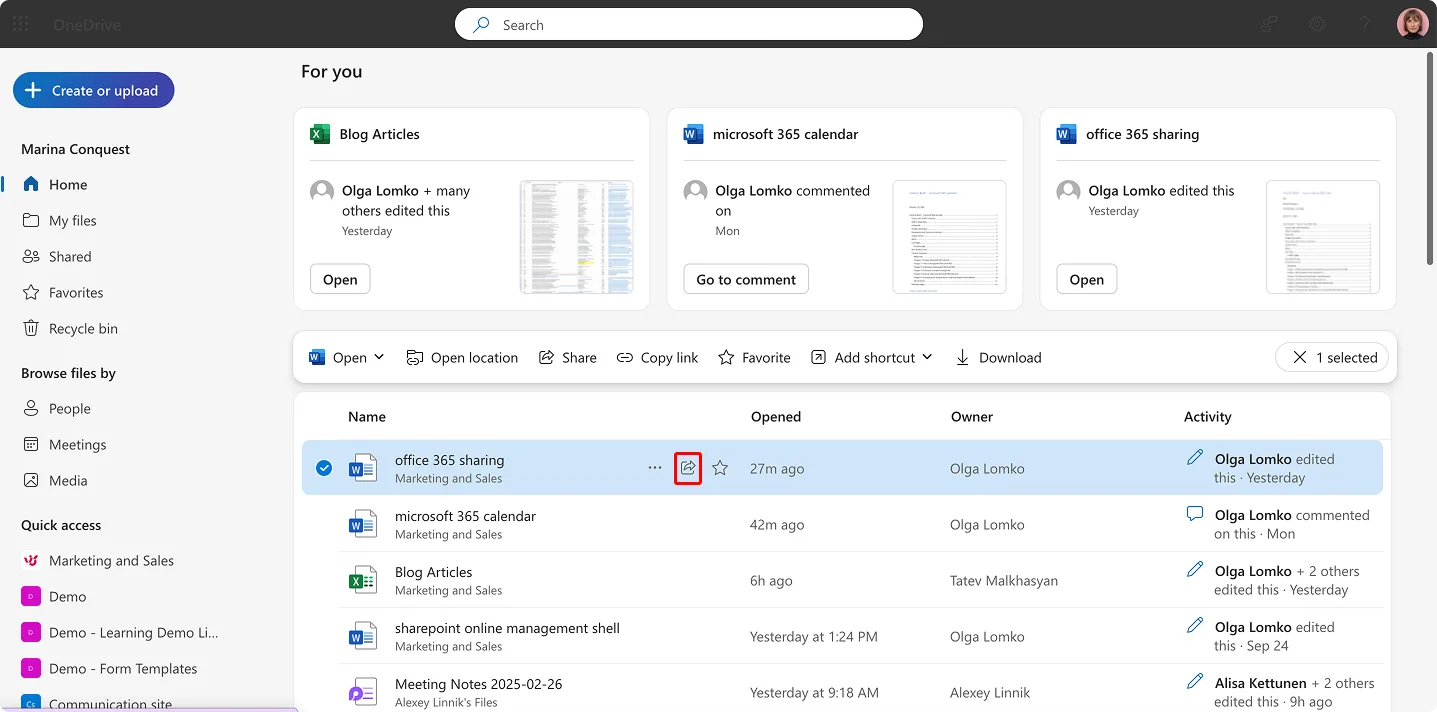
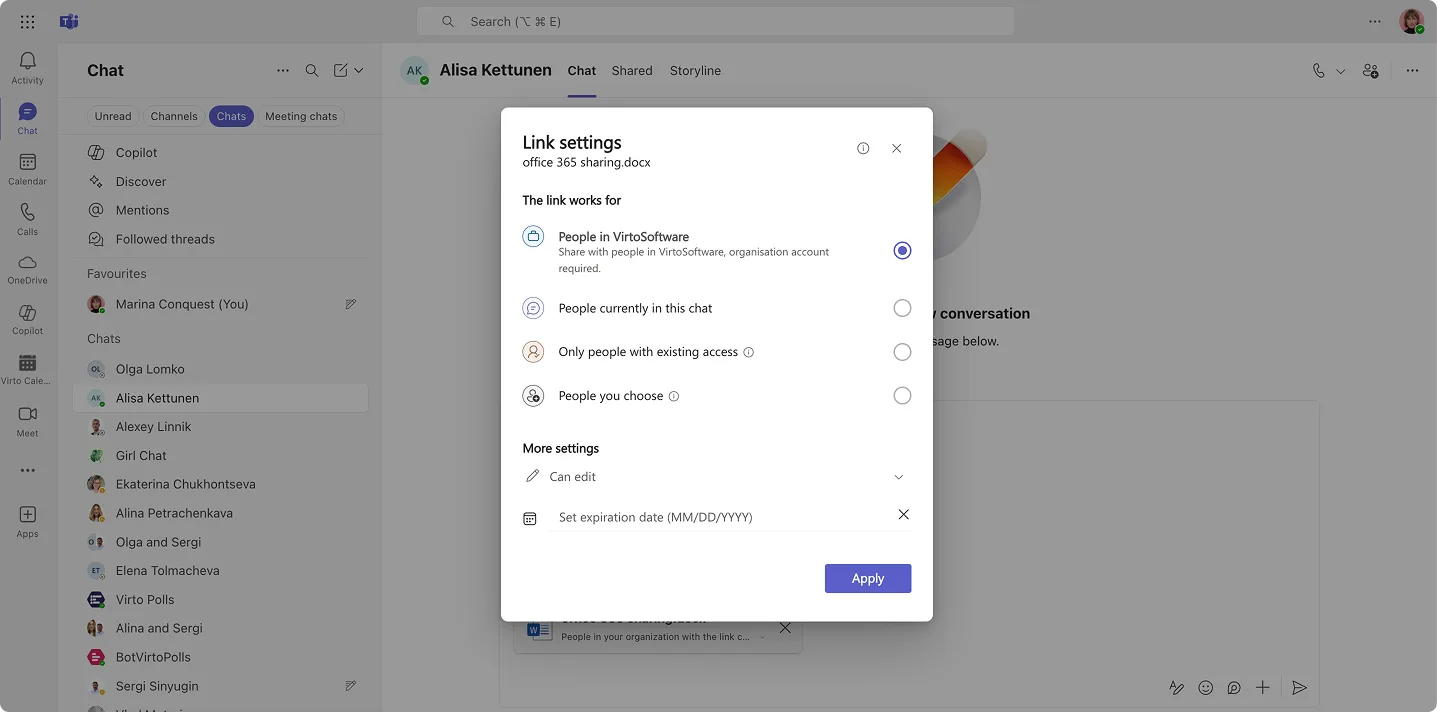
- Pick who the link should work for (available in Link settings): Specific people, People in your organization, or Anyone (if allowed by policy).
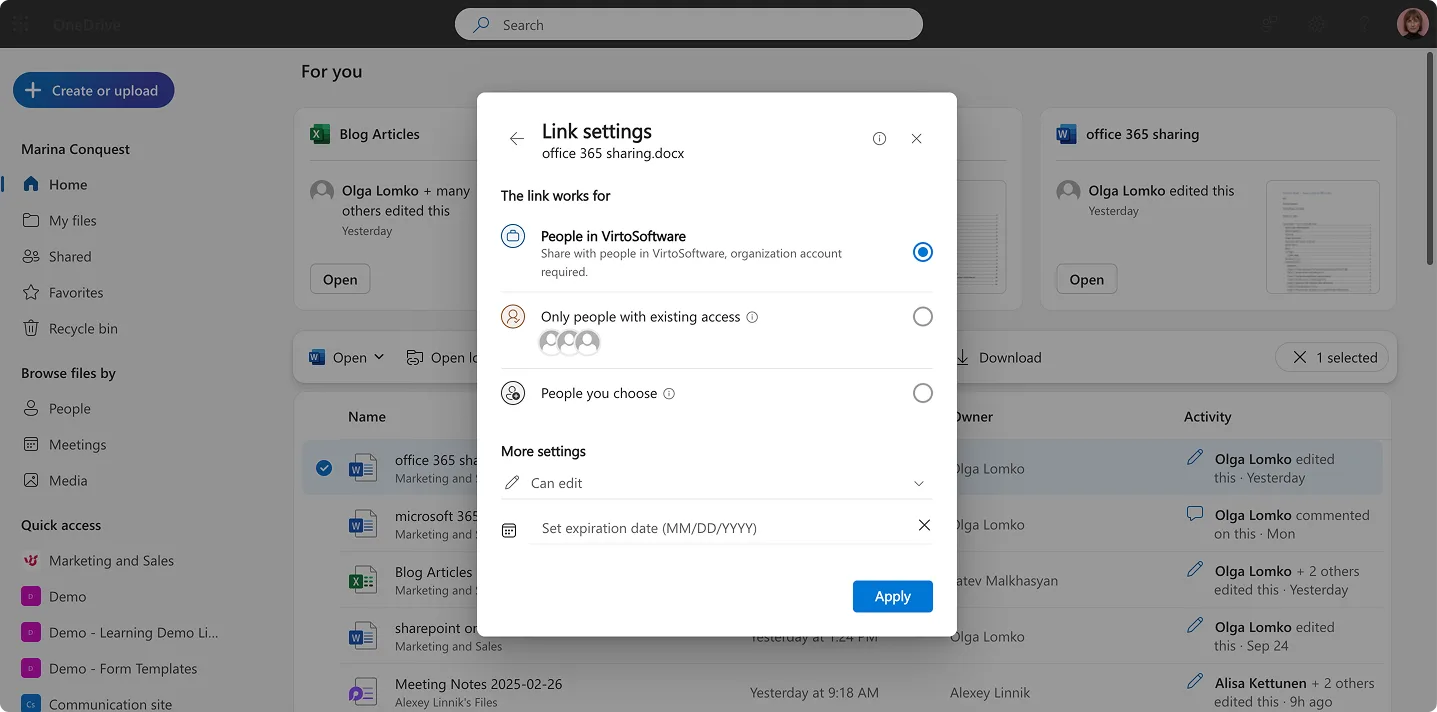
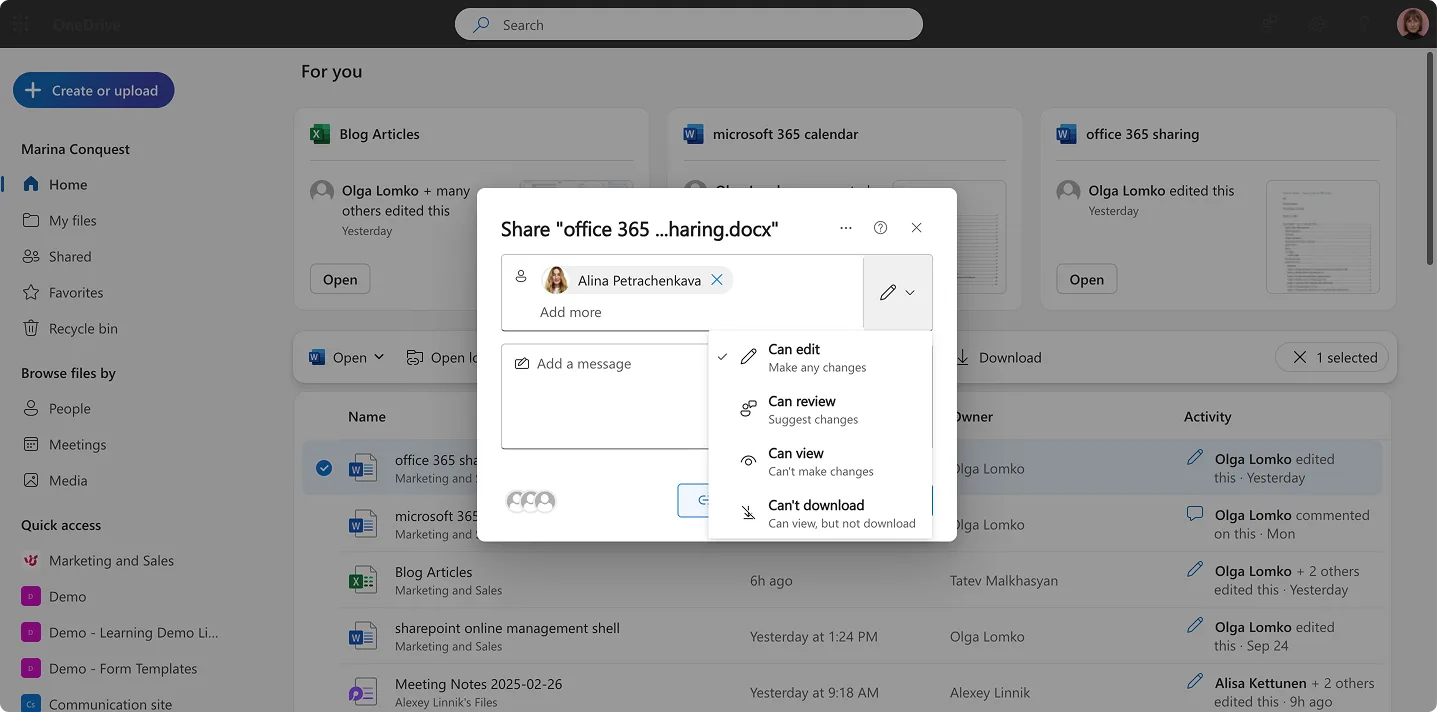
- Set permissions: Can view or Can edit. For read-only shares, enable Block download to keep the file in the browser. In Word for the web, choose Open in review mode so others can comment and suggest without changing the source.
- Add an expiration date for time-boxed access. If you’re using an Anyone link, add a password. (Your admin may set defaults or limits here.)
- Send the invitation by email or Copy link and paste it into chat or mail.
Tip: if a document is becoming a team asset, move it to the appropriate SharePoint library so ownership and lifecycle aren’t tied to one person’s OneDrive.
Share from SharePoint (libraries and sites)
Use this when the content belongs to a team or project and should inherit the site’s groups, versioning, and governance.
- Open the site’s Document library.
- Select the item and choose Share or Copy link.
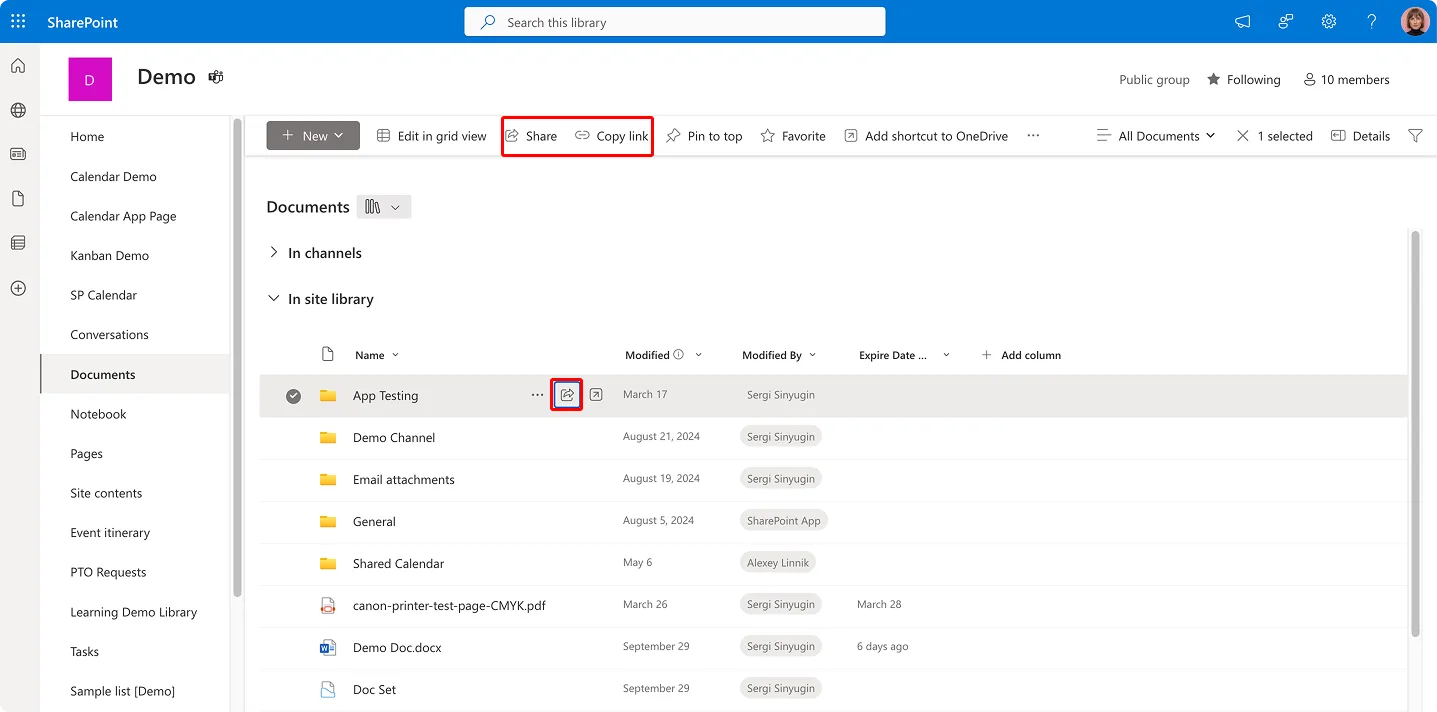
- Choose the audience (specific people, your organization, or anyone—if permitted) and set Can view or Can edit. Use Block download for view-only shares and add an expiration date; add a password when the scope is Anyone.
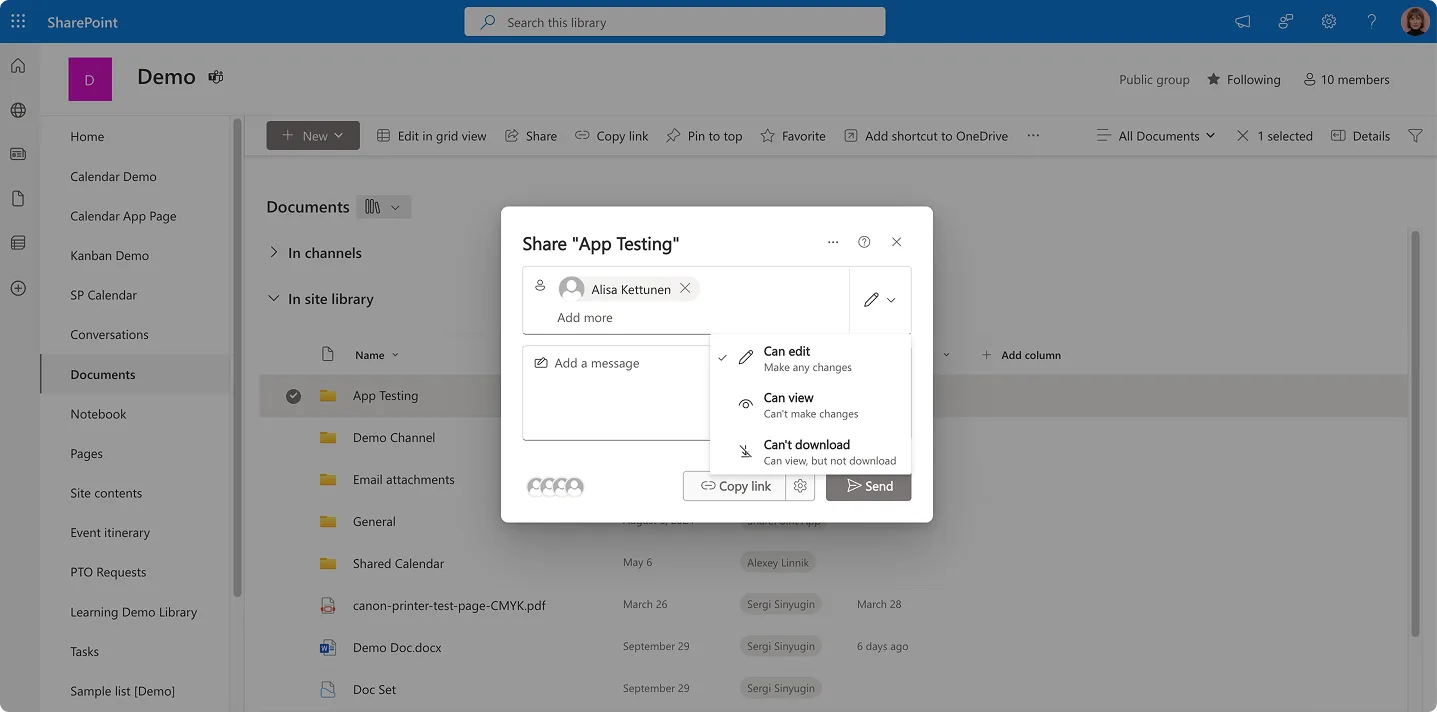
- For ongoing access, manage people via Site permissions and site groups (Owners, Members, Visitors) rather than granting file-by-file rights. It’s easier to keep order and audit later.
Share in Microsoft Teams (channels and chats)
Share right in the conversation so channel members or chat participants open the latest file in context with the correct access.
- Channels. Go to the Files tab, upload or create a document, then use Share. Channel members already inherit access from the team’s SharePoint site. Remember: channel files live in that SharePoint site.
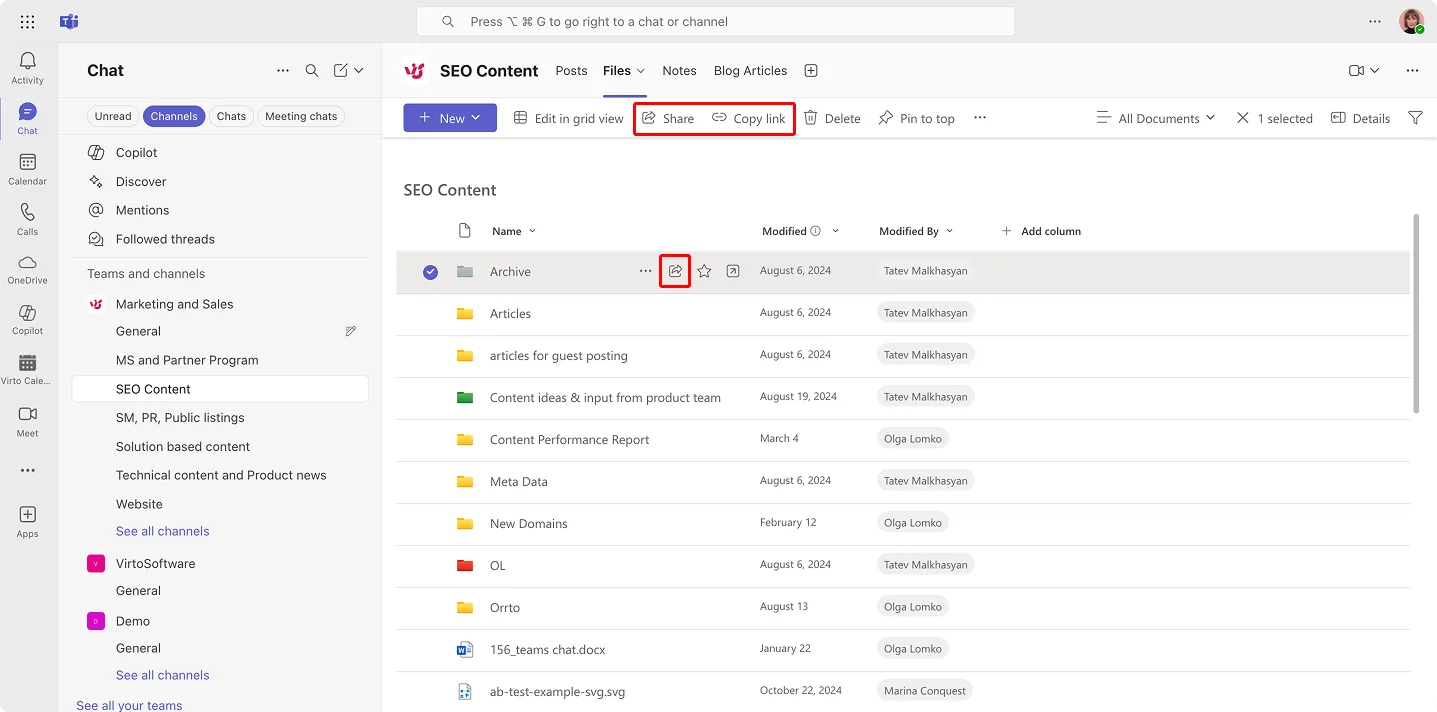
- Chats. Attach from OneDrive or upload from your computer, then by clicking on the attached file, set Can view or Can edit. Files shared in chats are stored in the sender’s OneDrive.
- Working with external participants. Make sure the team allows external collaboration and add partners as guests when the relationship is ongoing. For cross-tenant work without creating guests, use shared channels with B2B direct connect as described earlier.
A quick check before you send: confirm the link audience shown in the sharing dialog matches your intent. It’s the fastest way to prevent accidental oversharing.
Access level settings
With the mechanics out of the way, here are the controls you’ll use to set the right level of access.
- View only. Recipients can open the file but not change it. Use Block download to keep it in the browser and avoid copies circulating.
- Can edit. Recipients can co-author in real time, add comments, and save changes. In Word for the web, Review mode lets people propose edits you can accept or reject.
- Expiring access. Set an expiration date so links close automatically on a specific day. For public-scope links (Anyone), add a password to add friction for unintended recipients.
- Manage access. On the file’s details pane, choose Manage access to revoke links, change a person from edit to view, or remove someone entirely. You’ll also see sections like Links giving access and Direct access to understand how a person can reach the file.
- Versioning and history. Libraries track versions so you can compare changes or restore a previous version if something goes wrong. This works alongside co-authoring, so collaboration stays safe and reversible.
Use these options consistently and you’ll keep sharing simple for colleagues while protecting your content from drift.
👉Can multiple people use the same Microsoft Office account? No—accounts aren’t meant to be shared; each person should sign in with their own account and license. Home users can share a Family subscription so everyone gets their own sign-in.
Security and Access Control for Office 365 Share
Strong collaboration starts with strong safeguards. This section shows why permissions matter, where to manage them, and which built-in protections keep shared content safe.
Why permission management is important
Sharing without control is risky. If a link is broader than intended or a folder inherits the wrong rights, sensitive files can slip outside the company. The result can be data leaks, regulatory exposure (think GDPR or HIPAA), and real financial impact. Good permission hygiene—clear owners, the right groups, and time-boxed access—reduces that risk while keeping work moving.
How to manage permissions and access levels
With the “why” covered, here’s where you actually set and monitor access.
- Microsoft 365 admin center. Admins set tenant and site defaults, turn external sharing on or off, and review sharing policies. For visibility, use Microsoft Purview Audit (Unified audit log) to track SharePoint and OneDrive sharing events, and Entra ID audit logs to see guest invitations and directory changes.
- Per-item settings in OneDrive and SharePoint. Owners control access right where the file lives. Use the modern sharing dialog to choose the audience (specific people, your org, or anyone—as allowed by policy), set view or edit, and apply Block download for read-only shares. Add an expiration date to close access automatically; for public-scope links (Anyone), add a password. In Word for the web, Review mode lets people comment and suggest without altering the original.
- Identity and security policies in Microsoft Entra ID (formerly Azure Active Directory). This is where you manage guests, conditional access, MFA, and cross-tenant collaboration settings. For ongoing work with partners, prefer Entra External ID (B2B collaboration) or shared channels with B2B direct connect so access is sign-in-based and governed.
👉Can I add another user to my Office 365 account? Yes. In a business subscription, an admin can add a user in the Microsoft 365 admin center, assign a license, and place them in the right groups or Teams. From there, access follows your org’s policies, and their activity appears in Purview Audit and Entra ID logs.
Data protection methods
Now let’s look at the controls that protect data even when links are in play.
- Expiring access. Set an end date on links so temporary collaborators lose access automatically when the work is done.
- Password-protected public links. When policy allows Anyone links, add a password to reduce the risk of unintended forwarding. Pair this with Block download if recipients only need to read.
- Microsoft Purview data loss prevention (DLP). DLP policies scan content for sensitive info (for example, payment card numbers) across SharePoint, OneDrive, and Teams chats/channels. Depending on your rules, sharing can be blocked, users can be warned, or an approval workflow can be triggered.
- Multi-factor authentication (MFA). Require a second factor at sign-in so a stolen password alone can’t grant access. Many organizations combine MFA with conditional access policies (e.g., require MFA outside trusted networks).
Why is there no access?
If you or a colleague can’t share—or a recipient can’t open a link—one of these is usually the cause.
- External sharing is turned off. Admins can disable external access for the entire tenant or for specific sites.
- A DLP policy is blocking the share. Microsoft Purview DLP can prevent external sharing when a file contains protected data.
- Library or site settings restrict sharing. A SharePoint library can limit external access regardless of the file’s setting.
- The user lacks a license or permission. Without the right plan or group membership, sharing options may not appear.
- Industry requirements. Banks and insurers commonly prohibit external sharing of financial documents. Government agencies often block links leaving the domain. Healthcare organizations subject to HIPAA restrict files with patient data. Project teams sometimes flip files to view-only to preserve a control version. Remember: channel files live in the team’s SharePoint site and chat files live in the sender’s OneDrive, so site or personal settings also apply.
A quick troubleshooting flow helps: check the link audience, confirm the person’s group membership, review site/library sharing settings, and if needed, look at Purview Audit and Entra ID logs to see exactly what was blocked and why.
Practical Office 365 Sharing Scenarios
These examples show how people actually work day to day. For each scenario, you’ll see what to do, why it helps, and the small settings that keep collaboration tidy and secure.
Real-time collaborative editing of documents
When someone asks, “Can multiple people edit a document in Office 365?” the answer is yes—co-authoring is one of Microsoft 365’s biggest wins. In Word, Excel, and PowerPoint on the web and desktop (with files stored in OneDrive or SharePoint), teammates can open the same file at once, see each other’s cursors, add comments, and watch changes appear in real time. Version history runs in the background so you can compare edits or restore a previous version if needed.
To keep things controlled while you collaborate, share with Can edit and, when you only want suggestions, open Word for the web in Review mode so changes are proposed rather than applied.
Next, let’s look at planning time together, not just editing files.
Scheduling meetings and sharing calendars
Sharing isn’t only about documents. Outlook and Exchange let you share your calendar so coworkers can see availability, propose times, or even manage meetings for you. Permissions are simple: Can view, Can edit, or Delegate; for broad visibility, you can also publish a view-only HTML/ICS link. Because Teams is wired to your Exchange calendar, you can schedule meetings directly in a channel or chat and keep the discussion, files, and meeting invite in one place.
If you manage complex schedules—multiple teams, rooms, and project timelines—third-party apps like Virto Calendar can roll up many calendars into one view and add features such as color-coding and resource booking.
Once your calendar is under control, the next hurdle is moving big files around without clogging inboxes.
Sending large files without email attachments
Attachment size limits are a pain. Microsoft 365 sidesteps them by sending links to files in OneDrive or SharePoint instead of copying the file into email. You keep a single source of truth; recipients always open the latest version, and you can change or revoke access later.
Here’s the quick pattern:
- Save the file to OneDrive or a team’s SharePoint library.
- Choose Share and pick the audience (specific people, your organization, or anyone—if policy allows).
- Set Can view or Can edit. For read-only shares, turn on Block download.
- Add an expiration date so the link closes automatically. If you use an Anyone link, set a password.
- Send the invite or Copy link into your email or chat.
This approach is perfect for presentations, videos, zipped archives, CAD files—anything heavy or frequently updated.
Sometimes you don’t need ongoing collaboration, just short-term access for a partner. Here’s how to do that safely.
Temporary access for clients and contractors
For time-boxed work—say, a vendor reviewing assets for a week—share from OneDrive or SharePoint with Specific people, set Can view or Can edit, and include an expiration date. If your policy permits Anyone links, add a password and consider Block download to keep files in the browser.
This keeps control with you: access ends automatically, and you can see and manage who has the link. For larger projects that last months, graduate to a team space—store materials in a SharePoint library, add partners as guests in Microsoft Entra ID, or connect tenants with shared channels in Teams—so access is sign-in based and easy to audit.
👉Why can’t I share my Office 365? Your organization may have external sharing disabled, a DLP or conditional access policy could be blocking it, the SharePoint site/library might restrict sharing, or you might lack the required permission or license.
Recommendations and Tips for Microsoft Office Share
Good sharing etiquette keeps work moving without creating cleanup later. Use the guidelines below as a quick operating manual for your team.
Setting access levels
Start with the least access that still lets people do their job, then widen only when needed.
- Grant the minimum necessary access. For external collaborators, prefer view only unless they must edit. For internal colleagues, separate roles: editors in the working group, everyone else on view.
- Use time-boxed links. If access is temporary, add an expiration date so it closes automatically. When policy allows public-scope links (Anyone), add a password. For read-only scenarios, turn on Block download; in Word for the web, use Review mode to collect tracked suggestions instead of direct edits.
- Review who has access. On any file’s details pane, open Manage access to switch people from edit to view, remove old links, and confirm the audience.
With levels in place, decide whether to share at all—and where the content should live.
When to share and when to restrict
Be selective. Share only what advances the work.
- Share when it’s needed for a project. If someone needs to read or contribute, share the narrowest thing that helps: a file rather than a whole folder, a folder rather than a whole site.
- Avoid sharing personal or critical documents. Contracts, HR files, and sensitive plans should stay in controlled locations with strict permissions.
- Pick the right home. Team content belongs in SharePoint so ownership and lifecycle are centralized. Personal drafts and ad-hoc notes belong in OneDrive. (Remember: Teams channel files live in the team’s SharePoint site; chat files live in the sender’s OneDrive.)
Once you’ve chosen what to share and where, streamline the way people work with it.
Tips for optimizing collaboration
Small habits make sharing cleaner and faster for everyone.
- Use Teams instead of emailing files. Post or co-edit right in the channel or chat so everyone opens the latest version and permissions follow the workspace.
- Assign access via groups. Use Microsoft 365 Groups or security groups to grant permissions in bulk. It’s easier to audit and simpler when people join or leave.
- Organize libraries. Use clear naming, folders (or metadata) for major categories, and pin key documents. A tidy library saves more time than any search trick.
- Store corporate documents in SharePoint. Put policies, procedures, and project deliverables in the team site so they inherit governance, retention, and versioning.
- Help people stay on top of changes. Turn on file and page alerts where it matters, and consider purpose-built add-ons such as Virto Notifications & Reminders for targeted alerts in Teams. For schedule-heavy teams, Virto Calendar can roll up many calendars into one view; for execution work, a visual board like Virto Kanban helps track tasks linked to shared files.
Even good tools can be used poorly. Here are pitfalls to avoid.
Mistakes to avoid when share Microsoft Office
Steer clear of these common issues to keep collaboration safe and sane.
- Lack of structure. A random pile of files wastes time. Agree on a simple folder or metadata scheme and stick to it.
- Excessive permissions. “Everyone can edit” invites accidental changes. Keep editors few, give most people view rights, and use expiring links for temporary access.
- Storing critical data without protection. Use passwords on public-scope links, enable Block download for read-only shares, and enforce Microsoft Purview Data Loss Prevention (DLP) policies across SharePoint, OneDrive, and Teams.
- Ignoring training. Make sure people know the difference between Specific people, People in your organization, and Anyone links, and how to check Manage access.
- Parking team files in personal OneDrive. Move long-term, shared work to the team’s SharePoint site to avoid orphaned content when employees change roles.
- Never reviewing old shares. Schedule a quick quarterly sweep of high-value libraries: remove stale links, confirm group membership, and verify that expirations and policies still make sense.
Follow these practices and you’ll keep sharing fast for colleagues, controlled for admins, and safe for the business.
Advanced Capabilities & Microsoft Office Sharing with VirtoSoftware Apps
Native Microsoft 365 tools cover the basics. When your scenarios get more complex—multiple calendars, structured approvals, targeted notifications—VirtoSoftware apps extend Teams and SharePoint without changing how you already share files and control access.
Plan time with the Virto Calendar and the Virto Shared Calendar
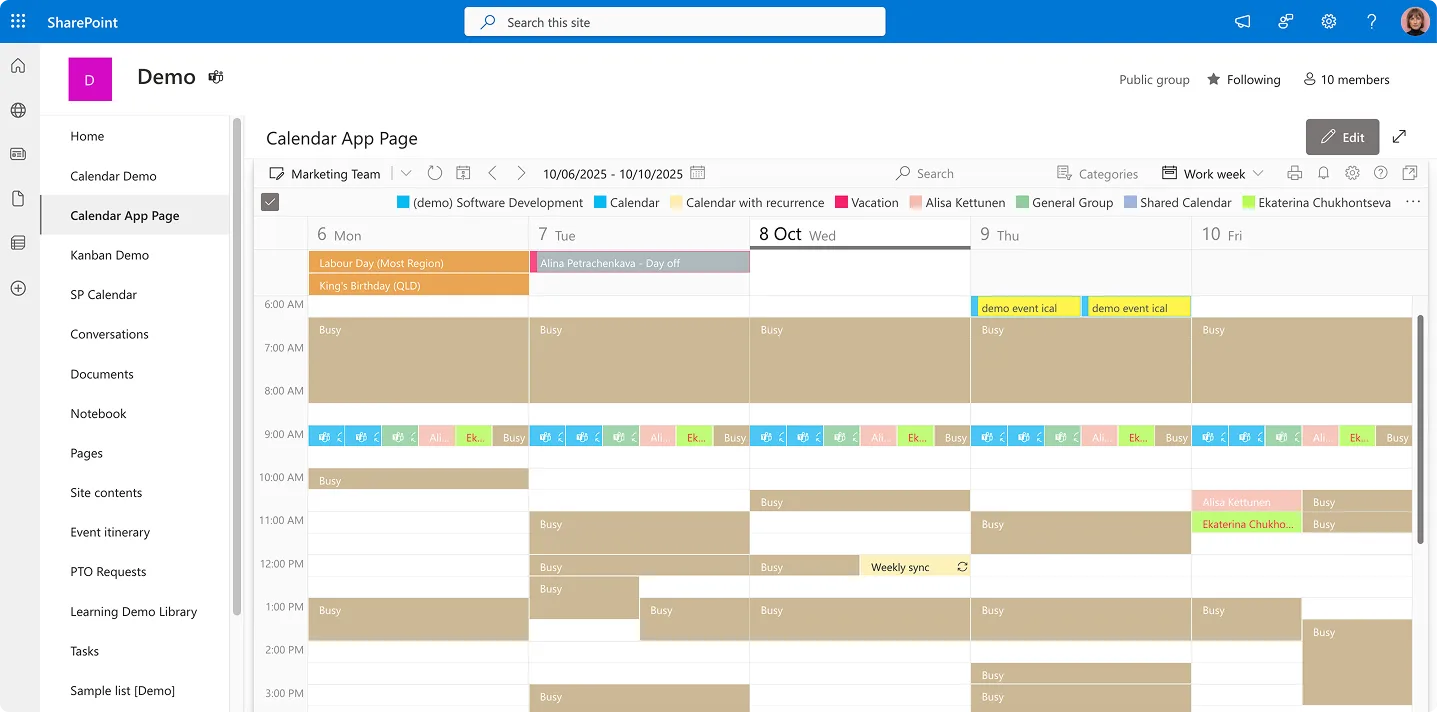
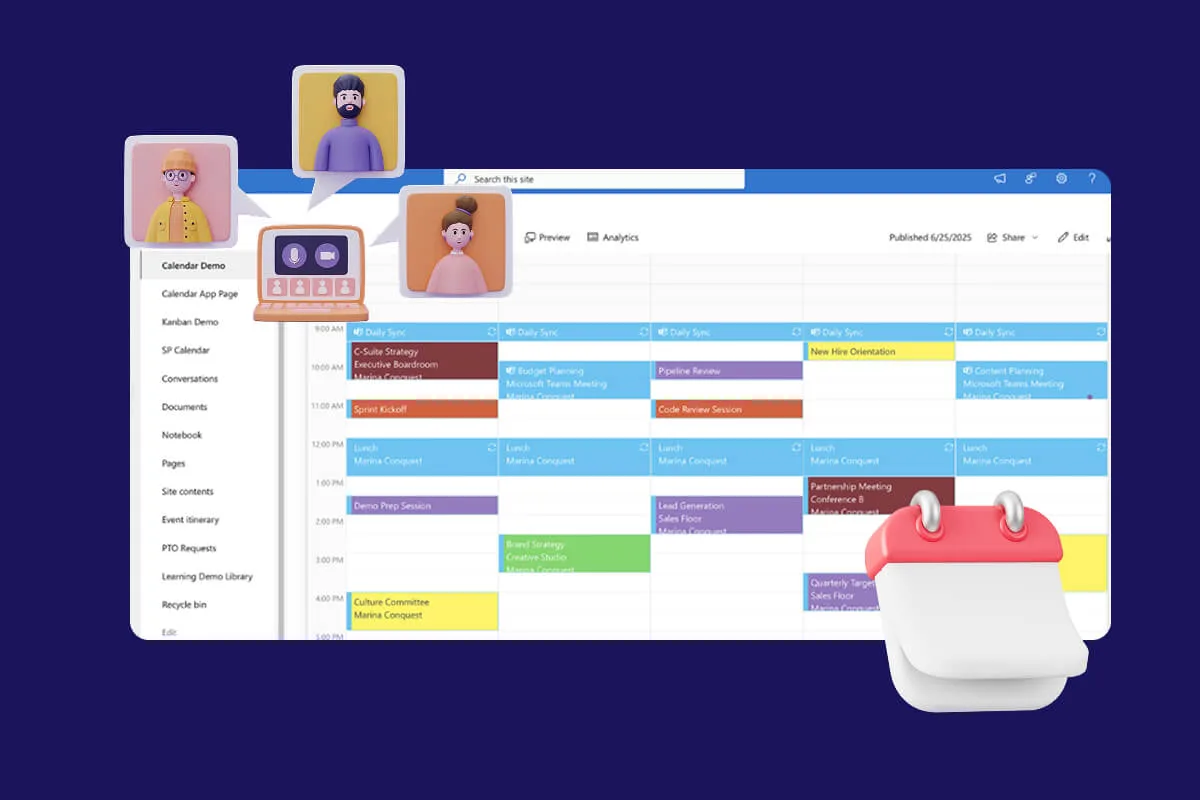
If your team needs a single place to see all key dates, Virto Calendar embeds a powerful calendar inside Teams and SharePoint, with multiple views and tight integration to Microsoft 365 workspaces. You can place the calendar in a channel, keep planning in context, and avoid switching apps.
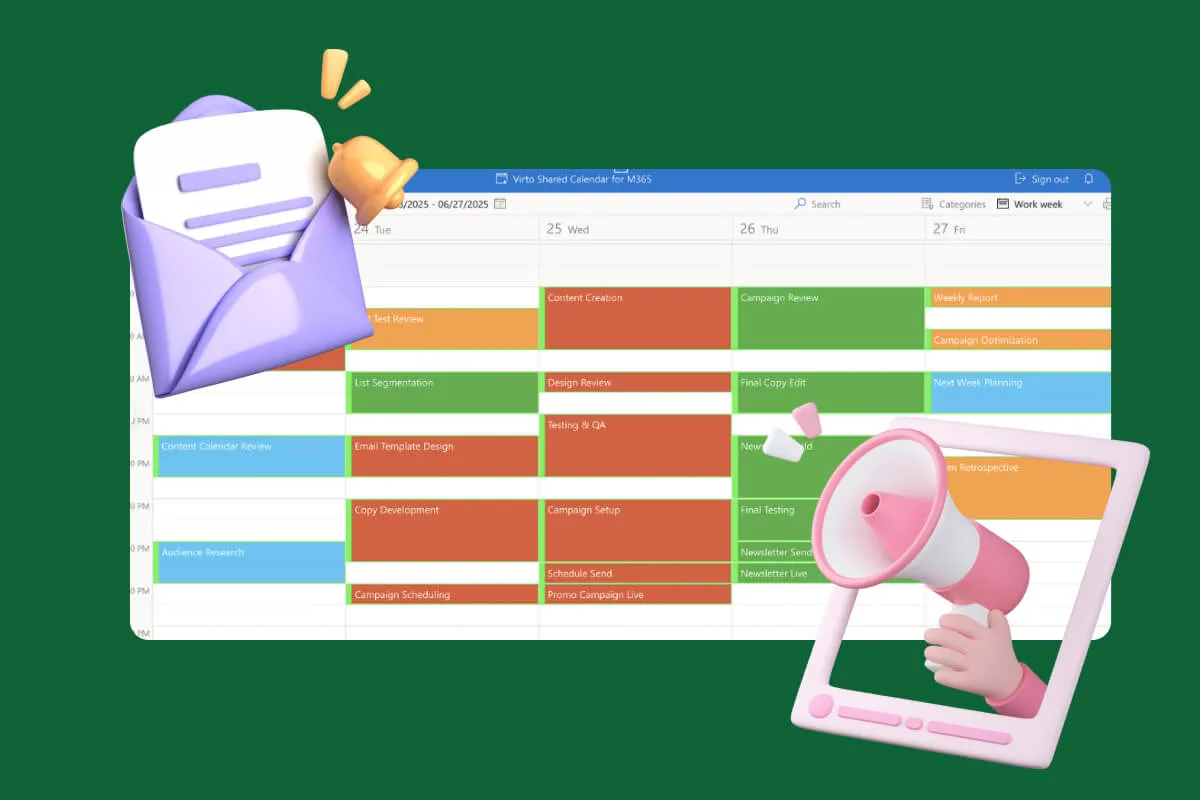
For lightweight schedules—like a customer-facing rollout plan—Virto Shared Calendar focuses on speed and clarity: quick event creation, color-coded tags, and the option to share a read-only link with people outside your tenant (no Microsoft account required). It runs in Teams or as a standalone web app, which is handy when partners aren’t in your directory.
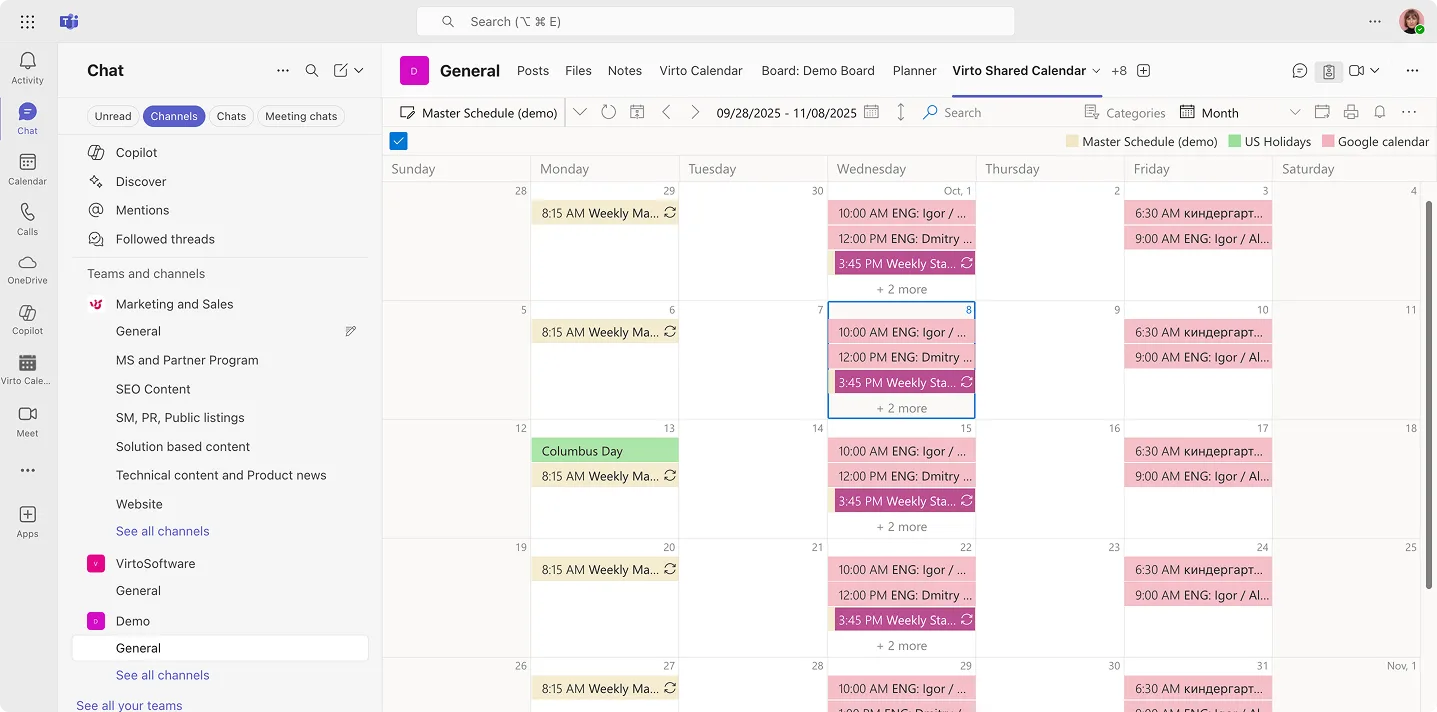
How this helps sharing: calendars live where work happens (Teams/SharePoint), while access follows your Microsoft 365 model—use standard Outlook/Exchange permissions for internal audiences and publish view-only links when you need broader visibility; for simple external viewing without accounts, use Virto Shared Calendar’s anonymous link feature.
Next, let’s pair dates with delivery by organizing tasks around the documents you share.
Explore VirtoSoftware Apps

Virto Shared Calendar
Virto Shared Calendar is a standalone web app and Microsoft Teams-integrated solution designed for simple event management with tagging, color-coding, and anonymous sharing.

Virto Calendar
Consolidate events from SharePoint, Exchange, Google, and more into one calendar view for simplified planning.

Virto Kanban Board
This tool transforms team collaboration through visual task management for consistent stage-by-stage progress.
Run projects with the Virto Kanban board
Virto Kanban Board adds a visual task board to Teams. You can pin the board as a tab, track work by columns and swimlanes, and keep conversations, files, and tasks together. Because boards draw data from SharePoint, you get version history, permissions, and auditing on the underlying items—so task links to docs inherit the same sharing controls you use elsewhere.
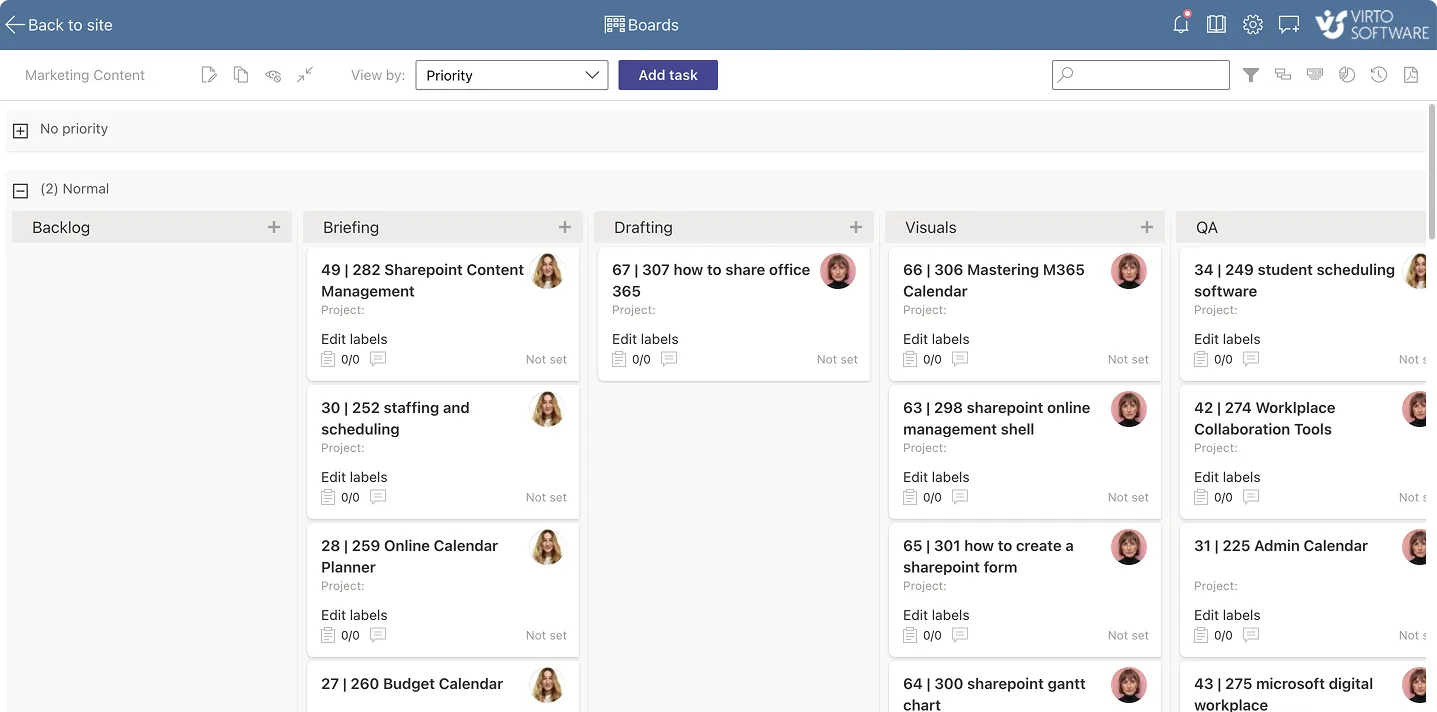
Practical impact: instead of emailing files, attach or link them to the card in the team’s channel. People open the latest version, and you can still use view/edit permissions, expiring links, and (for public-scope links) passwords when you share supporting documents.
Once work is organized, make sure people never miss changes or deadlines.
Keep people on track with Virto Notifications & Reminders
Virto Notifications & Reminders (also called Virto Alerts & Reminders for SharePoint and Microsoft 365) sends instant or scheduled alerts right into Teams channels (or SharePoint if we’re talking of Virto Alerts). You can trigger messages on list changes, upcoming due dates, or calendar events, and use templates to keep alerts readable. This reduces “file-chasing” and keeps the team focused on the next action.
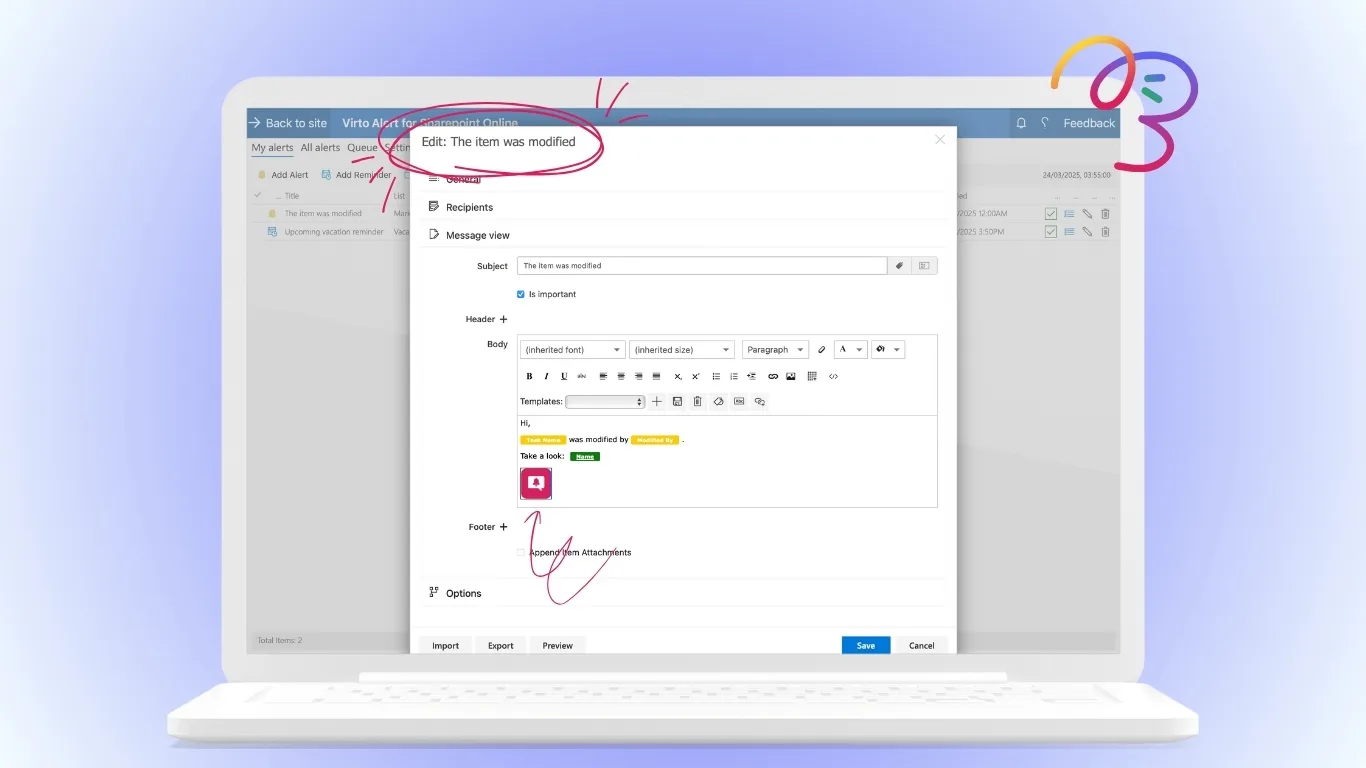
Tie-in to sharing: alerts point back to the item or document stored in SharePoint/OneDrive, so recipients open the single source of truth. Your existing link options still apply (e.g., view-only with Block download, expiration for time-boxed access, and passwords on Anyone links when policy allows).
Finally, replace ad-hoc spreadsheets and email attachments with structured inputs that respect site permissions.
Collect structured data with the Virto Form Designer.
Virto Form Designer for SharePoint Online lets non-developers build polished, permission-aware forms on top of SharePoint lists and libraries—drag-and-drop fields, embed forms on pages, and control who sees or edits specific fields. Submissions land in SharePoint, where they benefit from your retention, versioning, and sharing rules.
Why it matters for sharing: instead of sending spreadsheets back and forth, you share a form (or page) inside your site. Contributors enter data without getting broad edit rights to a document library, which lowers the risk of accidental changes and keeps everything auditable.
What this means for your governance model
All of these apps work inside Teams/SharePoint, so they respect your Microsoft 365 foundations—group-based access, co-authoring, versioning, and auditing. When links are involved, keep using the same good habits you set earlier: narrow the audience, use view-only with Block download for read-only cases, add expirations to time-limit access, and add passwords on Anyone links when policy permits. That way, you gain richer planning, tasking, alerts, and data capture without introducing new risks.
Explore VirtoSoftware Use Cases

Conclusion on How to Share Office 365
Office 365 sharing is the foundation of teamwork. When files, calendars, and spaces are shared with the right people, work moves faster and decisions get made sooner.
Set access deliberately and stick to best practices—least-privilege permissions, expiring links, review-only where appropriate, and sign-in–based collaboration for longer projects. Taken together, these habits raise productivity while protecting data.
For complex scenarios, VirtoSoftware apps extend what Microsoft 365 already does well. Use Virto Calendar/Shared Calendar for roll-ups and schedule visibility, Virto Kanban Board for execution, Virto Notifications & Reminders for targeted alerts, and Virto Form Designer to collect structured inputs without passing spreadsheets around. All of them live inside Teams/SharePoint and respect your existing governance.
Want to see these tools in action? Schedule a demo or download free trial versions from our site: virtosoftware.com.
In the meantime, peruse additional resources to learn more:
Official Microsoft resources:
- Share your Microsoft 365 Family or Premium subscription
- Manage Microsoft 365 Family subscription sharing
Relevant pages on our blog: