The workplace has changed. Remote work isn’t experimental anymore. Distributed teams span continents, freelancers juggle multiple clients across time zones, and project-based work demands coordination that paper planners simply can’t deliver.
This shift has created a genuine need for online planning tools. People aren’t just looking for a place to jot down appointments. They need visual systems that help them plan tasks, coordinate with team members, track deadlines, and maintain clarity about what needs to happen when. Both individuals managing their personal commitments and teams running complex projects need tools that work from anywhere, sync automatically, and support collaboration without creating friction.
This article examines what online calendar planners actually are, how different groups use them, what features matter most, and how to choose the right one for your specific situation. You’ll find comparisons of popular solutions, practical selection criteria, guidance on using templates to accelerate your planning, and information about specialized tools designed for corporate environments.
The goal is straightforward: help you understand your options and make an informed choice about which calendar planner will actually solve your problems.
What Is an Online Calendar Planner
An online calendar planner is a digital tool that lets you schedule tasks, meetings, events, and deadlines in a calendar view that you can access from any device connected to the internet. These tools run as web services, mobile apps, or desktop applications, and they store your planning data in the cloud rather than on a single device.
The scope of these planners varies considerably. Some serve individual users tracking personal appointments. Others support entire teams coordinating shared projects. The planning functionality itself ranges from simple date tracking to multilevel task hierarchies with dependencies, milestones, and resource allocation.
Paper planners require manual entry, live in one physical location, and offer no backup if you lose them. Online planners solve these problems through several technical advantages. They sync automatically across every device you use—your work computer, personal laptop, tablet, and phone all display the same current information. Changes save automatically and propagate to all your devices within seconds. The software sends reminders based on your preferences, allows you to edit events without erasing and rewriting, and lets you share specific calendars or events with other people who need visibility.
Built-in phone calendars like Apple Calendar or the default Android calendar app handle basic scheduling adequately. Specialized online planners offer additional capabilities that matter for more complex planning scenarios. These include visual displays with customizable timelines, the ability to attach files and links to events, sophisticated recurring event patterns, integration with productivity ecosystems like email and task managers, and template systems that speed up repetitive planning.
The distinction matters because different tools serve different needs. A simple calendar works fine for tracking doctor appointments and birthday reminders. Complex project coordination requires tools with deeper functionality.
💡 Learn more about calendar management and calendar apps in our dedicated guides:
- Project Management Calendar: Your Guide to Planning Projects Efficiently
- Choosing the Right Interactive Calendar: A Complete Comparison Guide
- Guide to Corporate Event Calendar Creation and Management in 2025
- Discover the Best Time Blocking Tools for Optimal Calendar Management in 2025
- Project Calendar Mastery: Tools Comparison & Expert Guide for 2025
- Master Your Time: The Ultimate Guide to Business Calendars & Top Apps of 2025
What Is an Online Calendar Planner Used For?
Online calendar planners serve distinct purposes across different contexts. Understanding these use cases helps clarify what functionality you actually need versus what sounds appealing in marketing materials.
Personal planning
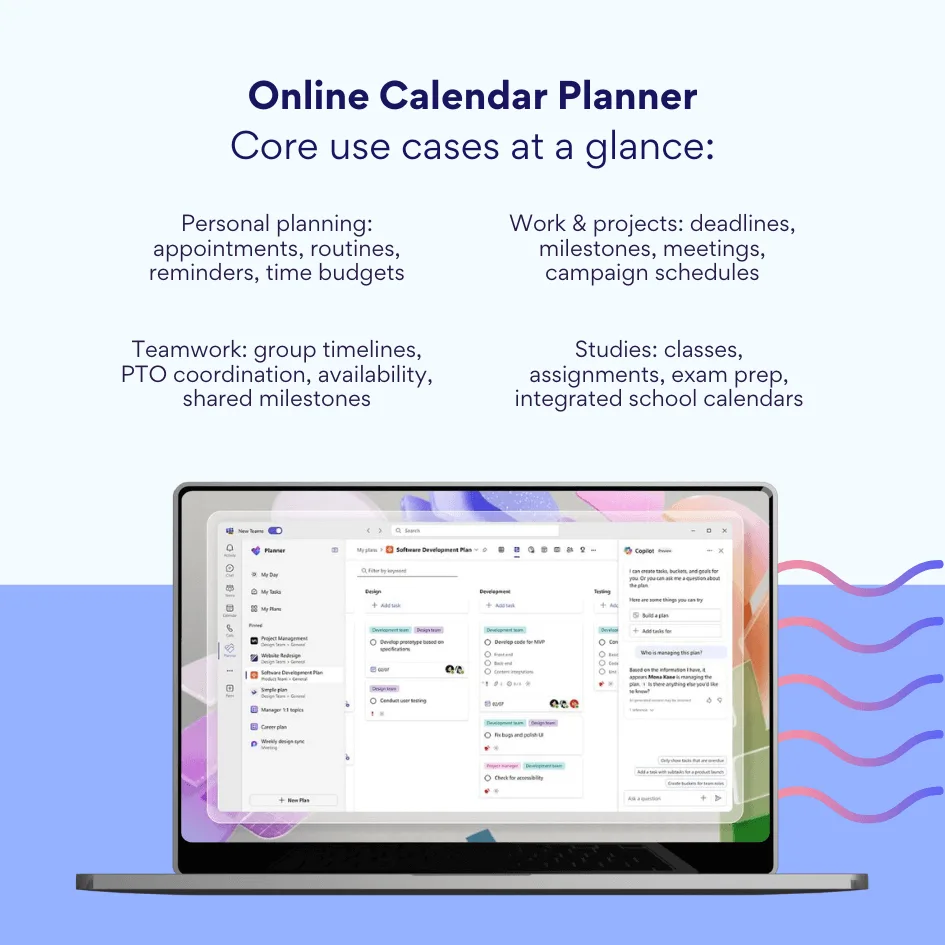
Individuals use online calendar planners as digital scheduling systems for their daily lives. The typical applications include booking appointments with healthcare providers, specialists, and service professionals; tracking personal commitments like social events and family obligations; maintaining routines and habit tracking for activities like exercise, meditation, or reading; and managing time budgets to ensure adequate allocation across different life areas.
Recurring events and reminders prove particularly valuable here, ensuring people don’t miss regular commitments like weekly grocery shopping, monthly bill payments, or daily medication schedules.
Work and projects
In professional settings, planners help people visualize project deadlines and milestone dates, assign tasks with specific due dates to themselves or team members, record scheduled meetings and client calls, and plan marketing campaigns with multiple coordinated activities. This functionality becomes essential for remote work and distributed teams where shared visibility into timelines prevents misalignment and missed deadlines.
Studies
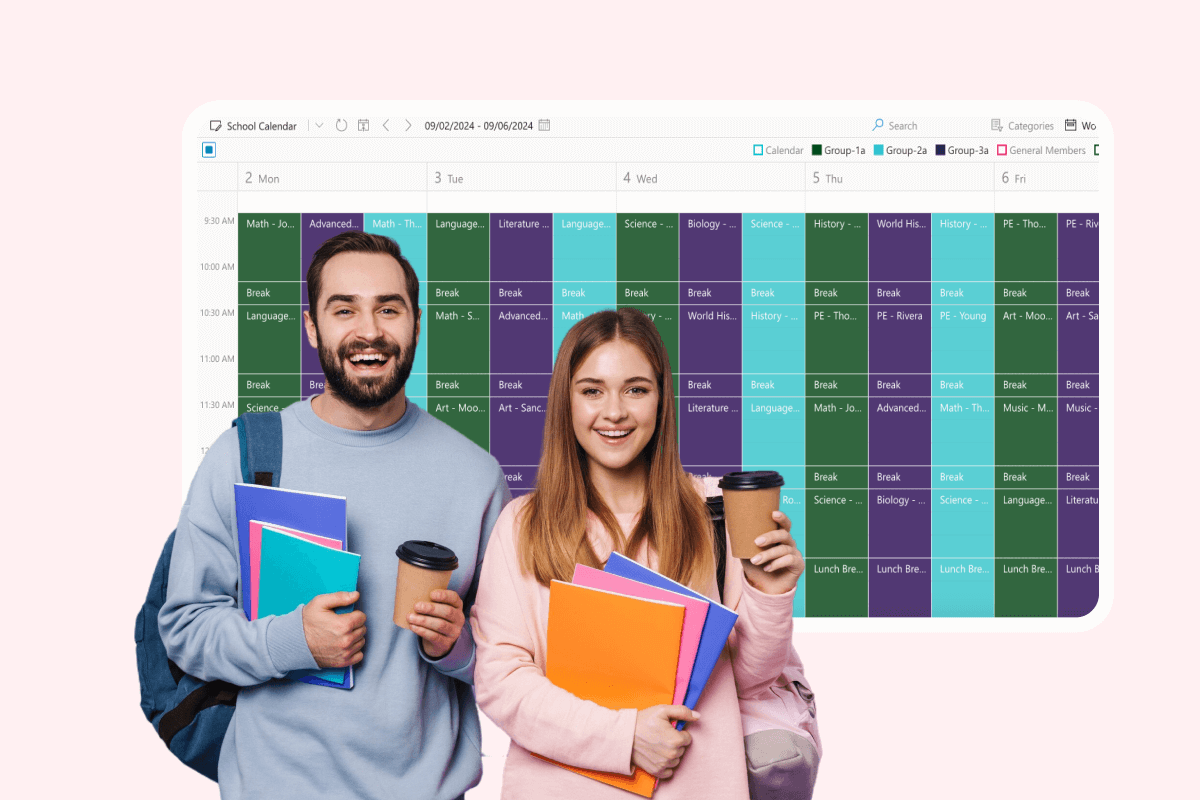
Students and educators rely on planners to organize their academic commitments. Students schedule class sessions and lectures, track deadlines for assignments and projects, break down exam preparation into daily study blocks, and sync personal calendars with institutional academic calendars. The ability to integrate multiple calendars in one interface helps students see both their academic and personal commitments together, which proves crucial during intense periods like exam season when workload management makes the difference between success and burnout.
Teamwork
When multiple people collaborate on shared objectives, calendar planning becomes a coordination tool. Teams use planners to schedule group meetings and align on common deadlines, coordinate vacation periods and time off requests, track project phases so all participants understand current status, and maintain visibility into teammate availability and capacity.
The value here lies in reducing coordination overhead. Instead of chains of emails asking “when are you free next week,” a shared calendar shows availability at a glance. Some specific team applications demonstrate the scope of what’s possible.
Marketing teams create content calendars that plan blog posts, social media publications, email newsletters, webinar events, and promotional campaigns. Each piece of content gets scheduled with preparation time, approval stages, and publication dates.
- Creative agencies use schedulers to track campaign phases from initial brief through design iterations, client approvals, and final launch.
- Startups plan development sprints, feature releases, user testing sessions, and demo presentations.
- Small teams with numerous competing priorities benefit from visual timeline planning that shows what’s happening when.
- Educational institutions create schedules for class sessions, exam periods, extracurricular activities, faculty consultation hours, and assignment submission deadlines.
These examples show that planning tools serve coordination needs that extend well beyond “remember when my dentist appointment is.”
Key Features a Good Online Calendar Planner Should Have
Not all calendar planners offer the same capabilities. Certain features prove essential for productive planning, while others add convenience for specific use cases. Understanding what matters helps you evaluate options effectively.
Support for different views: month, week, day
View flexibility ranks among the most important planning parameters. Different planning horizons require different visual perspectives.
- Monthly views provide overview clarity for long-term planning, showing patterns and gaps across several weeks.
- Weekly views distribute tasks across days while maintaining context about the broader week.
- Daily views enable precise time management with hour-by-hour or even minute-by-minute scheduling.
| View | Best for | Typical granularity | Pros | Trade-offs |
| Month | Long-range planning | Weeks & major dates | Pattern spotting; gaps & clusters are clear | Low detail for busy days |
| Week | Balancing workload | Days & half-days | Distributes tasks across the week | Can hide long-term conflicts |
| Day | Deep focus | Hours & minutes | Precise time blocking; realistic pacing | Easy to lose big-picture context |
This flexibility matters because planning requirements change based on context. Someone planning a quarter’s worth of content needs monthly perspective. Someone managing a busy workday with back-to-back meetings needs hourly detail. The ability to switch between these views without losing information or context keeps planning efficient.
Color-coding tasks and events
Visual categorization through color-coding allows rapid identification of event types without reading details. Assign distinct colors for work-related tasks, social engagements, and health appointments to quickly understand time allocation and identify scheduling conflicts. This system reduces cognitive load when scanning a busy calendar. You can determine at a glance whether Tuesday is dominated by meetings (red), personal commitments (blue), or project work (green).
Advanced implementations let you color-code based on multiple criteria: parent project, current status, or custom field values. This flexibility accommodates different organizational schemes without forcing everyone into the same categorization approach.
Setting reminders and recurring events
Reminders prevent missed commitments, especially for events that don’t occur with regular frequency. Customizable notification preferences allow different alert types for professional and personal engagements, with options for sound choices, timing, and even color coding. You might want a 24-hour email reminder for client presentations but only a 15-minute popup for informal team check-ins.
Recurring task support eliminates redundant data entry for regular commitments. Weekly team meetings, monthly reports, quarterly reviews, and annual evaluations all need to happen on predictable schedules. Flexible recurrence patterns include daily, weekly, monthly, and custom intervals, with options to specify end dates or occurrence counts. This saves substantial time and prevents the common error of forgetting to schedule the next instance of a repeating event.
Support for multiple users and collaboration
Team planning requires shared visibility and coordinated access. Essential collaboration features include calendar sharing with granular permission controls, the ability to see colleague availability without viewing private event details, tools for scheduling shared events that find mutually available time slots, and commenting or discussion threads attached to specific events.
| Collaboration feature | Why it matters | Practical example |
| Share with permissions | Right people see the right details | Show “busy” only for private events |
| Availability views | Faster scheduling, fewer emails | Find a slot all attendees can make |
| Comments/notes on events | Decisions live with the meeting | Capture agenda + outcomes in one place |
| Time-zone handling | Distributed teams avoid mishaps | Invite sends in recipient’s local time |
In Google Workspace environments, teammates can subscribe to each other’s calendars with options for unified views or side-by-side comparisons. This visibility prevents double-booking and helps teams understand capacity constraints. Privacy controls let you show busy/free status without revealing why you’re unavailable.
Integration with email, tasks, and messaging apps
Effective calendar planners function as part of a productivity ecosystem rather than isolated tools. Critical integrations include synchronization with email platforms like Gmail and Outlook, connectivity with task management systems, and hooks into messaging platforms for notifications and quick event creation.
Gmail automatically detects dates and times in email messages and offers to add events directly to your calendar, capturing flight confirmations, hotel reservations, and meeting invitations without manual data entry. This reduces friction and ensures important commitments get scheduled even when you’re processing large email volumes.
Mobile app and synchronization across devices
Planning only works when you can access your schedule regardless of location or device. Automatic synchronization ensures that smartphones, tablets, laptops, and desktop computers all display current information, with changes propagating within seconds. This mobility proves essential for making commitments on the go rather than noting them down to enter later.
The synchronization must be reliable and bidirectional. Changes made on your phone during a commute should appear on your desktop when you reach the office. Events added via the web interface should show up in your mobile app immediately.
Accessing a calendar via link or embedding it in other services
External collaboration often requires sharing schedules with people outside your organization. Professional scheduling systems include appointment booking features that create shareable pages where others can view available time slots and book meetings based on your preferences. This eliminates the coordination overhead of email exchanges to find mutually available times.
Export functionality and embeddable widgets allow integration into other platforms. You might embed a publication calendar in your company intranet, share a project timeline on a client portal, or export event data to external reporting systems. Standard format support (iCal, ICS files) ensures compatibility across different tools and platforms.
Overview of Popular Online Planning Tools
The calendar planner market includes numerous options with different strengths, pricing models, and target audiences. Understanding what each tool does well helps match your requirements to appropriate solutions.
Google Calendar—free online calendar planner
Google Calendar provides free, intuitive scheduling that integrates directly with Gmail and other Google Workspace applications. The tool handles personal appointments and basic work coordination well.
Features include customizable event reminders, appointment scheduling pages for booking time with others, secondary time zone display for remote collaboration, and the ability to mark events private while sharing your calendar.
The platform works best for individuals and small teams already using Gmail who need straightforward scheduling without advanced project management capabilities. Calendar sharing with varying permission levels supports team coordination, while device synchronization ensures access from computers, tablets, and smartphones.
The free pricing makes it accessible, though Google Workspace subscriptions unlock additional features for business users.
💡 Learn more about Google calendar and related issues in our guides:
- How to Fix Google Calendar Not Syncing with Outlook
- Merging and Managing Multiple Calendars: Simplified Steps for Google & Outlook
- Optimize Your Work Calendar: Explore Categories Ideas for Google, Outlook, and MS Teams
- Adding Teams Calendar to Google Calendar: A Quick Tutorial
Can Google Calendar be used as a planner?
Google Calendar functions as a basic planner, particularly when combined with Google Tasks and Keep for note-taking. The system handles scheduling, reminders, and simple task tracking adequately for personal use and uncomplicated work scenarios.
However, the tool has limitations in task visualization and advanced project planning. You cannot create task dependencies, visualize project timelines with Gantt-style views, or manage complex resource allocation. The calendar shows when things happen but doesn’t provide sophisticated tools for planning how work flows through stages or how different activities relate to each other.
For people who need a straightforward digital replacement for a paper planner, Google Calendar works well. For teams managing multifaceted projects with numerous dependencies and milestones, dedicated project management tools with calendar integration prove more effective.
Outlook Calendar
Outlook Calendar serves as Microsoft 365’s scheduling component, integrating tightly with Teams, SharePoint, and other Microsoft productivity tools. The platform particularly suits corporate environments already committed to the Microsoft ecosystem.
Recent enhancements include background event notifications that alert users even when Outlook isn’t open, the ability to pin folders for quick access, and customizable folder icon colors for visual organization. The scheduling assistant displays recipient availability using color coding to show working remotely, busy, out of office, and working hours status, which streamlines meeting coordination.
Time zone management allows users to view calendars in different time zones and send invitations in the recipient’s local time, addressing coordination challenges for distributed teams. Integration with LinkedIn proves particularly valuable for sales and recruitment professionals who need to maintain professional relationship context alongside scheduling.
For organizations using Microsoft 365, Outlook Calendar provides the natural choice. The deep integration with email, Teams meetings, and SharePoint resources creates a cohesive environment where scheduling connects directly to communication and document collaboration.
💡 Learn more about Outlook and Teams calendars in our guides:
- Outlook Calendar Delegate Access: A Complete Guide
- Merging Outlook Calendars Easily: Full Instructions Here
- Troubleshooting Outlook Calendar Sync Problems: Quick Fixes Inside
- How to Create a Shared Calendar in Microsoft Teams: Guide, Tips, Security Issues
- Microsoft Teams Calendar: Setup, Sharing, and Channel View
- How to Use and Manage Microsoft Teams Channel Calendar
Notion Calendar
Notion Calendar functions as a standalone application that integrates with Notion databases, allowing users to view tasks and project timelines alongside traditional calendar events. The tool emerged from Notion’s 2022 acquisition of the Cron calendar app and launched as Notion Calendar in January 2024..
Recent updates include direct status updates from the calendar interface, advanced recurring booking links, and AI-powered meeting notes for Business plan subscribers. Two-way synchronization means events created in Notion Calendar automatically update connected databases, and changes to database items reflect in the calendar view.
The platform works well for individuals and teams already using Notion who want calendar visualization of their database items. Integration with both Google Calendar and Apple Calendar allows consolidation of multiple scheduling systems in one interface. However, the tool doesn’t automatically schedule tasks or provide daily planning features found in dedicated project management systems.
Trello with Calendar Power-Up
Trello provides visual project management through boards, lists, and cards. The Calendar Power-Up adds calendar views showing cards with due dates in weekly or monthly formats. Users can drag and drop cards between calendar days to adjust due dates, and the system supports iCalendar feeds for synchronization with external calendars.
Third-party extensions like Planyway enhance calendar functionality with daily, three-day, weekly, and monthly layouts, support for recurring cards, checklist item visualization, and filtering by team members or labels. Content teams commonly use Trello for editorial calendars, organizing publication schedules through stages from drafting through approval to publication.
The platform suits teams who primarily organize work visually and need calendar perspective on deadlines without requiring sophisticated resource management or dependency tracking. The free tier includes basic calendar functionality, though premium features require paid subscriptions.
ClickUp online planning calendar
ClickUp recently revamped its calendar tool to integrate tasks, documents, chats, and meetings in a single interface, incorporating technology from its 2024 acquisition of Hypercal. The Calendar view offers daily, weekly, monthly, and custom time periods with drag-and-drop rescheduling, task filtering, and the ability to create events by clicking time slots.
AI-powered features include automatic time blocking that schedules tasks based on your existing commitments and priority levels, plus integrated meeting note-taking with searchable transcripts. Color-coding options let you categorize tasks by parent list, current status, or custom dropdown field values.
Synchronization with Google Calendar, Outlook, and other external calendars keeps all events and tasks in one accessible location. The platform provides comprehensive project management capabilities beyond basic scheduling, including task dependencies, workload management, and multiple view options like Gantt charts and timelines.
ClickUp serves teams that need both calendar planning and extensive project management functionality. The free plan includes unlimited calendar views, though advanced features require paid subscriptions starting at reasonable per-user pricing.
| Tool | Standout strengths | Best for | Less ideal for |
| Google Calendar | Tight Gmail/Workspace integration; easy sharing | Individuals & small teams on Google | Complex dependencies/resource planning |
| Outlook Calendar | Deep Microsoft 365 & Teams tie-in | Corporate M365 environments | Non-Microsoft stacks |
| Notion Calendar | Calendar + database linkages; two-way sync | Notion-centric workflows | Auto-scheduling or heavy PM |
| Trello (+ Calendar) | Visual boards + simple date views | Editorial & lightweight project timelines | Formal resource management |
| ClickUp | Calendar + PM (dependencies, workloads) | Teams needing PM + scheduling | Minimalist personal planners |
How to Choose the Right Online Calendar Planner
Selecting a calendar planner requires matching your actual needs to tool capabilities rather than choosing based on feature lists or popularity. This section provides a systematic approach to evaluating your requirements and identifying suitable solutions.
What is the best online calendar planner?
No universal “best” calendar planner exists because different users have fundamentally different requirements. The optimal planner for a solo freelancer managing client appointments differs dramatically from what a marketing team coordinating multi-channel campaigns needs.
The most successful calendar planners combine usability with appropriate feature depth. They don’t overwhelm simple use cases with unnecessary complexity, yet they scale to handle more sophisticated planning when requirements grow. Integration with your existing tools matters more than having every conceivable feature built in.
Determine calendar purpose and user count
Start by clarifying what you need the calendar to accomplish. Personal planning for appointments and individual commitments requires different functionality than work project coordination or team scheduling. Write down the primary purpose: tracking personal time, managing individual work projects, coordinating team activities, or planning organizational initiatives.
Then identify how many people need to interact with the calendar.
- Solo use simplifies requirements since you control all data entry and don’t need permission management or shared viewing.
- Small teams of three to ten people need coordination features but can manage with simpler tools.
- Larger organizations require more sophisticated access controls, multiple calendar support, and integration with enterprise systems.
| User type | Must-have features | Useful extras |
| Solo/personal | Reminders, recurring events, mobile sync | Simple task list, habit templates |
| Freelancer/small team | Shared calendars, availability, labels | Booking links, lightweight approvals |
| Microsoft 365 teams | Outlook/Teams integration | SharePoint embeds, enterprise templates |
| Google Workspace teams | Gmail/Drive integration | Appointment scheduling pages |
| Multi-client agency | Multi-calendar views, client-safe sharing | Content/calendar templates, reporting export |
Identify required features
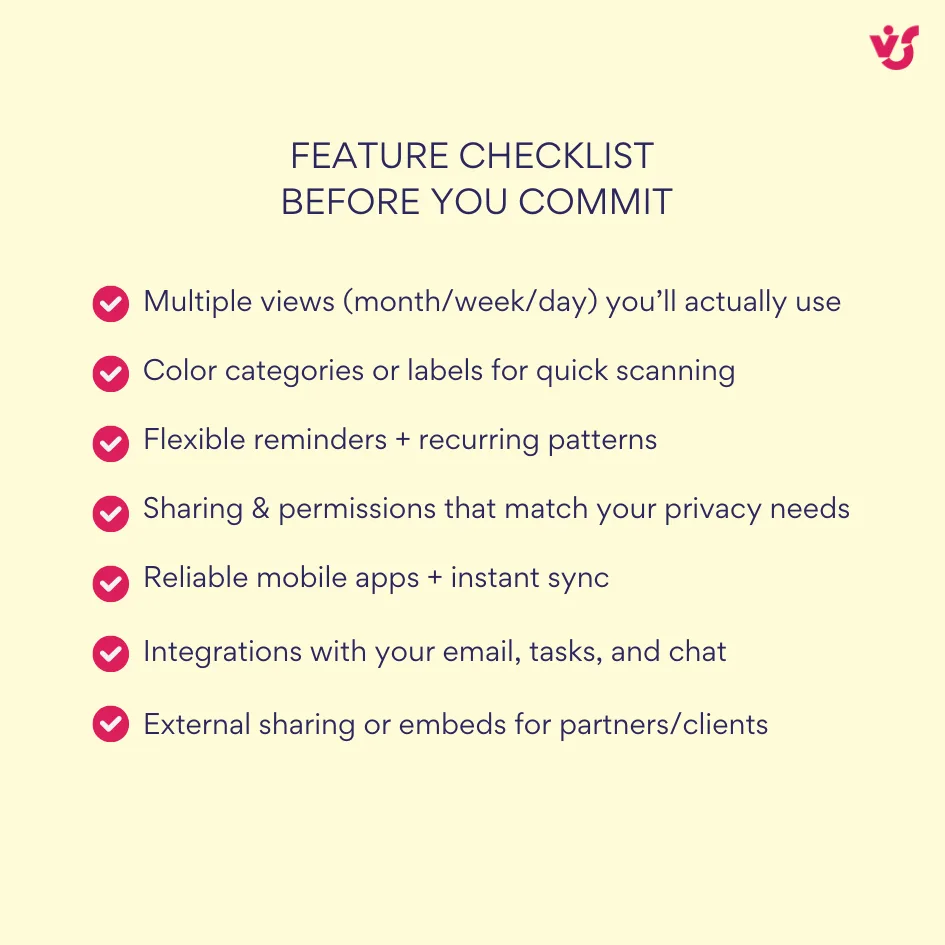
Review the feature categories discussed earlier and determine what’s essential versus what’s merely convenient. Essential features are capabilities you’ll use regularly that directly support your core use cases. Nice-to-have features add polish but aren’t mandatory for basic functionality.
For example, if you coordinate schedules across time zones, time zone display and conversion become essential. If everyone works in the same location, that feature provides minimal value. If you manage recurring weekly meetings, robust recurrence patterns matter. If every event is unique, simple recurrence suffices.
Consider reminder requirements, collaboration needs, view preferences, and integration dependencies. Do you need mobile access? Must the calendar sync with email? Do you require approval workflows for shared events? Create a prioritized list of required capabilities.
Compare multiple platforms through trial use
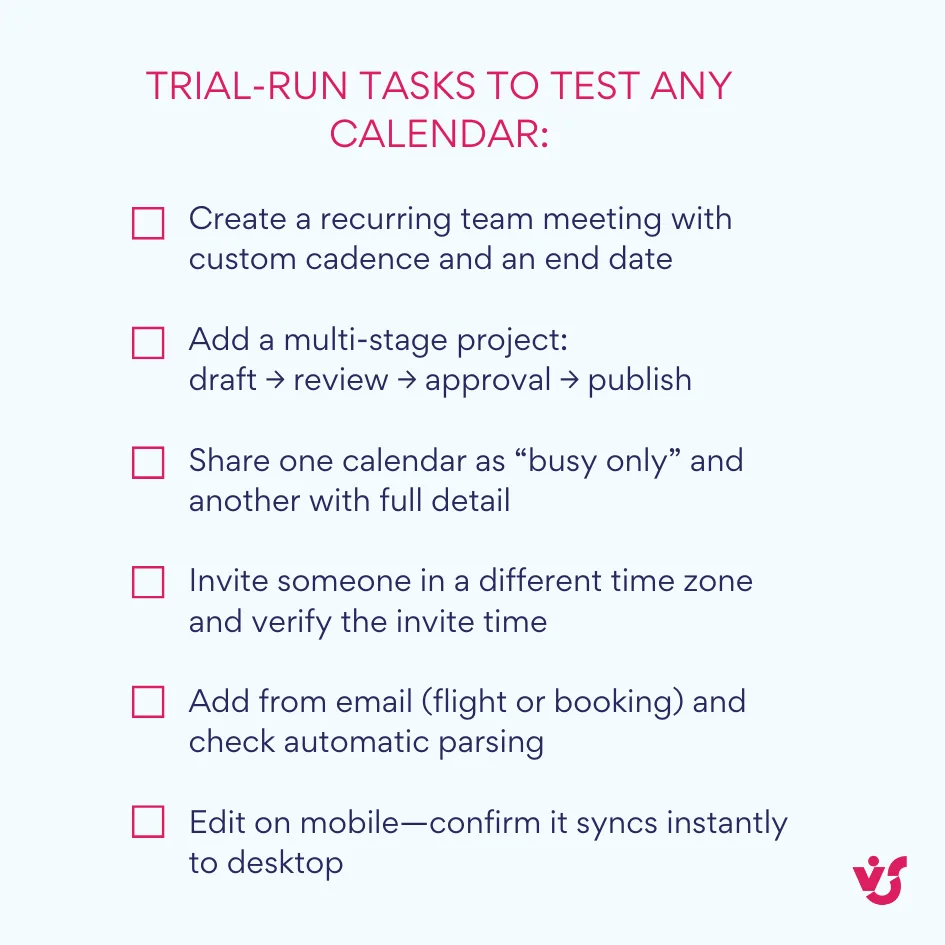
Don’t commit based solely on feature comparison charts. Actually use two or three platforms that seem appropriate. Most calendar planners offer free tiers or trial periods specifically so potential users can evaluate fit.
Set up realistic scenarios that mirror your actual use cases. Create sample events with the complexity you typically handle. Try the scheduling workflows you’ll use frequently. Test the mobile experience if you plan to access the calendar from phones or tablets. Evaluate how the tool handles your typical edge cases and exceptions.
Pay attention to friction points during this trial period. If you find yourself fighting the interface or unable to accomplish tasks that should be straightforward, that tool probably isn’t the right fit regardless of how impressive its feature list looks.
Verify necessary integrations
Modern work involves multiple tools that need to communicate. Verify that potential calendar solutions integrate properly with your essential systems.
For Microsoft 365 users, Outlook Calendar integration is fundamental. Teams working in Google Workspace need reliable synchronization with Google Calendar. If you use specific project management tools, task managers, or communication platforms, confirm the calendar connects effectively with those systems.
Some integrations work through native platform connections. Others require third-party middleware or API configurations. Understand what setup effort the integrations demand and whether you have the technical capacity to implement them.
Selection recommendations by user type
Different user categories benefit from different tools based on typical workflow patterns and requirements.
For personal planning, Google Calendar works exceptionally well, particularly combined with Google Tasks for simple to-do tracking. The free tier provides adequate functionality for most individual use. Notion serves people who want their calendar integrated with a broader personal knowledge management system, though the learning curve is steeper. Apple Calendar suits iOS ecosystem users who prioritize simplicity.
Freelancers and small teams benefit from tools that balance simplicity with professional features. ClickUp provides robust project management alongside calendar functionality, suitable for consultants managing multiple client projects. Calendar.com offers intuitive scheduling with analytics and meeting booking capabilities without enterprise complexity. Notion works for knowledge workers who need calendar visibility into project databases.
Teams embedded in the Microsoft 365 ecosystem should prioritize Outlook Calendar for its native integration with Teams, SharePoint, and Office applications. For more sophisticated team calendar management with project grouping, event filtering, and multi-calendar consolidation, Virto Calendar App and Virto Shared Calendar extend Microsoft 365’s native capabilities specifically for team coordination scenarios.
Organizations using Google Workspace naturally gravitate toward Google Calendar, which provides adequate team coordination when supplemented with Google Tasks or third-party project management tools for complex initiatives
Online Calendar Planner Templates
Templates accelerate calendar setup by providing pre-configured structures for common planning scenarios. Rather than building scheduling frameworks from scratch, templates offer tested organizational patterns you can customize for specific needs.
Why use templates
Templates save substantial time during initial setup. Instead of manually creating recurring event blocks, category systems, and structural elements, you start with functional frameworks that already include standard components. This acceleration matters most when launching new planning initiatives or adapting calendars for different projects.
Beyond time savings, templates simplify planning by suggesting proven organizational approaches. They demonstrate how to break complex processes into manageable stages, set appropriate milestone intervals, and structure recurring activities. This guidance proves valuable when you’re organizing an unfamiliar type of work.
Templates also enhance consistency across teams. When everyone uses the same structural framework, people immediately understand calendar organization, know where to find information, and can make updates without extensive instruction. This shared understanding reduces coordination overhead.
Many platforms allow saving customized templates for reuse, enabling automation of repetitive planning processes. Create a template for monthly content calendars, quarterly campaign planning, or academic terms, then duplicate it whenever you need that structure again without manual reconstruction.
Content calendar templates
Content marketers, editors, and publishers use content calendar templates to plan written materials, videos, podcasts, and other media. These templates typically organize by week or month, showing publication dates, content formats, distribution channels, and production stages.
A typical content calendar template includes fields for content title, assigned creator, draft deadline, review due date, approval status, publication date, distribution channels, and performance tracking. Color coding might distinguish blog posts from social media content from email newsletters. Status indicators show whether content is in ideation, drafting, review, approved, or published states.
Marketing teams often extend content calendars to include promotional activities, tracking when blog posts launch alongside corresponding email campaigns, social media promotion, and paid advertising. This consolidated view prevents conflicting messages and ensures coordinated launches.
| Content Title | Type | Author/Creator | Draft Deadline | Review Date | Approval Date | Publish Date | Distribution Channels | Status | Notes |
| 10 Tips for Remote Work | Blog Post | Sarah | Jan 15 | Jan 18 | Jan 20 | Jan 22 | Blog, LinkedIn, Email | In Progress | Target 1,500 words |
| Product Demo Video | Video | Mike | Jan 20 | Jan 23 | Jan 25 | Jan 27 | YouTube, Website | Planning | 3-5 minutes |
| Customer Success Story | Case Study | Emma | Jan 18 | Jan 22 | Jan 24 | Jan 26 | Blog, Sales Materials | Draft | Interview scheduled |
| Weekly Newsletter | Tom | Jan 21 | Jan 22 | Jan 23 | Jan 24 | Email List | Not Started | Curate top 5 articles |
Status Options: Not Started | Planning | In Progress | Draft | In Review | Approved | Published | Archived
Marketing calendar templates
Marketing calendar templates plan campaigns, product launches, events, and promotional activities across multiple channels. They typically span monthly or quarterly periods, showing major initiatives, preparatory stages, execution dates, and post-campaign analysis periods.
These templates often include launch dates for new products or features, advertising flight periods, content publication schedules, webinar or event dates, email campaign sends, and social media promotion windows. Dependencies become visible: creative development must complete before advertising launches, landing pages must exist before promoting signup links.
Larger campaigns benefit from templates showing phases: strategy and planning, creative development, approval cycles, production, pre-launch activities, launch, ongoing optimization, and results analysis. Each phase gets time allocation that reflects realistic completion requirements.
| Campaign/Initiative | Type | Start Date | End Date | Owner | Budget | Key Activities | Channels | Goals/Metrics | Status | Dependencies |
| Q1 Product Launch | Product Launch | Feb 1 | Mar 15 | Jennifer | $25,000 | Teaser campaign, Launch event, Follow-up | Email, Social, PR | 500 signups | Planning | Product dev completion |
| Spring Sale | Promotion | Mar 10 | Mar 31 | Alex | $10,000 | Email sequence, Social ads, Landing page | Email, Facebook, Instagram | $50K revenue | Not Started | Creative approval |
| Webinar Series | Lead Gen | Feb 15 | Apr 30 | Maria | $5,000 | 6 webinars, Promotion, Follow-up | Email, LinkedIn, Website | 300 registrants | In Progress | Speaker confirmation |
| Brand Awareness Campaign | Awareness | Jan 20 | Feb 28 | David | $15,000 | Display ads, Content, Influencer collab | Display, Blog, Instagram | 1M impressions | Active | Creative ready |
Campaign Types: Product Launch | Promotion | Lead Generation | Awareness | Event | Content Series | Partnership
Study calendar templates
Students use study calendar templates to organize academic commitments across terms or semesters. Templates typically show class schedules, assignment due dates, exam periods, project milestones, and study blocks allocated for preparation.
A comprehensive study template includes regular class meeting times, assignment submission deadlines with preparation periods working backward from due dates, exam schedules with multi-week study periods, group project check-ins, office hours availability, and personal study sessions for each course. Color coding by course or assignment type provides visual clarity.
Students managing multiple courses benefit from templates that calculate total weekly workload, preventing overcommitment during heavy deadline periods. The calendar makes scheduling conflicts visible: two major exams in one week signal the need for adjusted study planning.
| Course/Subject | Activity Type | Assignment/Topic | Due Date | Study Start Date | Priority | Estimated Hours | Completed | Grade/Status | Notes |
| Biology 201 | Exam | Midterm Exam – Chapters 1-5 | Feb 15 | Feb 8 | High | 15 hours | ☐ | — | Study group on Feb 12 |
| History 305 | Essay | Renaissance Art Analysis | Feb 20 | Feb 5 | High | 20 hours | ☐ | — | 2,500 words, 5 sources min |
| Mathematics 202 | Problem Set | Calculus Problem Set #4 | Feb 10 | Feb 7 | Medium | 4 hours | ☐ | — | Office hours Wed 2pm |
| English 101 | Reading | Novel: “1984” (Chapters 1-10) | Feb 12 | Feb 5 | Medium | 6 hours | ☐ | — | Discussion in class |
| Chemistry 210 | Lab Report | Titration Lab Report | Feb 18 | Feb 15 | Low | 3 hours | ☐ | — | Use lab template |
Priority Levels: High | Medium | Low
Activity Types: Exam | Essay | Problem Set | Reading | Lab Report | Project | Presentation | Quiz
Personal habits and goals calendar templates
Habit tracking templates help people maintain consistent personal development activities. These calendars schedule daily routines, exercise sessions, learning activities, creative work, and other recurring commitments that support long-term goals.
Templates might include morning routines with specific time blocks, workout schedules showing which activities happen which days, language learning sessions, reading time, meditation or mindfulness practices, meal planning periods, and sleep schedules. The structure reinforces consistency while allowing flexibility for weekly adjustments.
Goal-oriented templates add milestones and progress checkpoints. A fitness goal template might show workout sessions building toward a specific event date, with strength benchmarks and endurance assessments at regular intervals. A writing goal template could schedule daily writing time with word count targets and draft completion milestones.
| Habit/Goal | Category | Frequency | Time/Duration | Target Days | Week 1 | Week 2 | Monthly Goal | Progress Notes |
| Morning Run | Fitness | 4x per week | 6:00 AM, 30 min | Mon, Wed, Fri, Sat | ✓✓✓✓ | ✓✓✗✓ | 16 runs | Feeling stronger |
| Read Books | Learning | Daily | 8:00 PM, 30 min | Every day | 7/7 | 6/7 | 2 books | Finished book 1 |
| Meditation | Wellness | Daily | 7:00 AM, 15 min | Every day | 5/7 | 7/7 | 28 sessions | Using Headspace app |
| Learn Spanish | Learning | 3x per week | 7:30 PM, 45 min | Tue, Thu, Sat | ✓✓✓ | ✓✗✓ | 12 lessons | Completed Unit 3 |
| Meal Prep | Health | 1x per week | Sunday, 2 hours | Sunday | ✓ | ✓ | 4 sessions | Trying new recipes |
| Journal Writing | Wellness | 5x per week | 9:00 PM, 20 min | Mon-Fri | 4/5 | 5/5 | 20 entries | Very therapeutic |
| Side Project | Career | 3x per week | Variable, 1 hour | Mon, Wed, Fri | ✓✗✓ | ✓✓✓ | 12 hours | Portfolio website |
Categories: Fitness | Wellness | Learning | Health | Career | Finance | Relationships | Creativity
Tracking: ✓ = Completed | ✗ = Missed | Numbers = Days completed out of target
Working with templates across platforms
Notion users access extensive template galleries with calendar database structures adaptable to content planning, project management, academic scheduling, and personal organization. The platform’s flexible database views let you display the same underlying data as a calendar, table, board, or timeline depending on what perspective you need at a given moment.
ClickUp provides both built-in calendar templates and allows creation of custom templates with tasks, statuses, and date associations. Teams can save any calendar configuration as a template for instant replication when starting similar projects. Template libraries exist for content calendars, sprint planning, marketing campaigns, and event management.
Google Sheets hosts numerous user-created calendar templates that people adapt for Google Calendar or other services. While these lack the native integration of platform-specific templates, they offer high customization flexibility and work across different calendar systems.
Many services support template duplication with single-click copying for subsequent time periods. Create a comprehensive February content calendar, then duplicate it for March and adjust specific dates and topics. This pattern works especially well for recurring processes like monthly content production, regular campaign cycles, or academic terms with similar structures each semester.
VirtoSoftware provides specialized calendar templates designed for corporate scenarios within Microsoft 365 environments. These templates address common business planning needs like project timelines, marketing campaign schedules, team availability calendars, and resource booking systems, all structured to work effectively within Teams and SharePoint integration contexts.
Virto Shared Calendar App as an Online Planning Calendar Tool
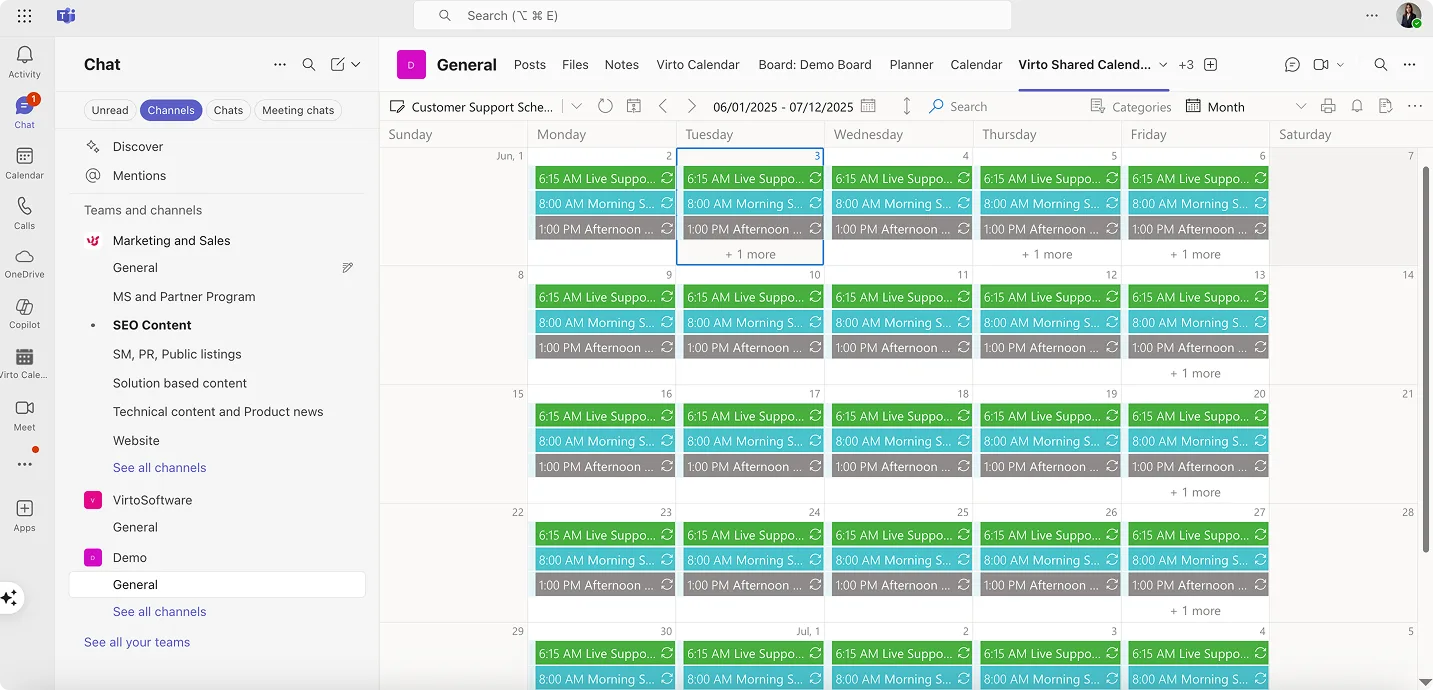
The Virto Shared Calendar app operates as a corporate calendar solution within Microsoft Teams and as a standalone web application. Organizations already using Microsoft 365 gain a scheduling tool that fits directly into their existing productivity environment without requiring separate systems or account management.
The app is built for straightforward event creation. This focused approach suits teams that need basic yet reliable scheduling coordination rather than advanced calendar consolidation from multiple sources.
📍 For teams requiring calendar overlay capabilities, the Virto Calendar App might be a better choice—it also handles merging multiple calendars (SharePoint, Outlook, Exchange, Google, iCal, Apple) into unified views. See the difference here.
| Capability | Virto Shared Calendar | Virto Calendar App |
| Primary purpose | Simple team scheduling in Teams or web app | Overlay & consolidate multiple calendars |
| Data sources | Create/manage calendars in the app | Merge SharePoint, Outlook/Exchange, Google, iCal, Apple |
| External sharing | Anonymous view links for non-Microsoft users | Available; used for unified multi-source views |
| Best fit | Fast event creation, clear team visibility | Unified views across many sources & sites |
Explore VirtoSoftware Apps

Virto Shared Calendar
Virto Shared Calendar is a standalone web app and Microsoft Teams-integrated solution designed for simple event management with tagging, color-coding, and anonymous sharing.

Virto Calendar App
Maximize efficiency with this calendar app, featuring comprehensive scheduling and customizable views.

Virto Calendar
Consolidate events from SharePoint, Exchange, Google, and more into one calendar view for simplified planning.
Core functionality for team scheduling
The Virto Shared Calendar app supports managing multiple calendars across projects, teams, and client relationships. Users can create separate calendars for different initiatives, then customize each with tags and color categories appropriate to that calendar’s purpose. This separation keeps distinct workstreams organized while maintaining central access to all schedules.
Real-time collaboration means team members see updates instantly as colleagues create or modify events. Changes propagate immediately without manual refresh or synchronization delays. This immediacy proves essential for dynamic work environments where schedules shift frequently and people need current information to make commitments.
Work happens natively in Microsoft 365 without switching tools. Users open and manage calendars directly in Microsoft Teams channels or in the standalone web app. Keeping everything where people already communicate reduces context switching and supports faster coordination.
Teams highlight what matters using tags and colors to focus attention on relevant events rather than displaying everything at once. A project manager might use a milestone tag to track critical dates for active initiatives. A resource coordinator might label entries by skill set to simplify availability checks.
Anonymous access for external collaboration
A differentiating capability allows sharing calendars with external stakeholders who don’t have Microsoft accounts. Clients, vendors, partners, and other outside participants can view shared calendars through access links without authentication requirements. This frictionless sharing proves valuable when coordinating with organizations using different technology platforms or when providing schedule visibility to individuals who don’t warrant full system access.
The feature solves a common coordination problem: how to show project timelines or availability schedules to external parties without adding them to your tenant, purchasing additional licenses, or requiring they maintain Microsoft accounts. Share a link, and recipients see the calendar through their web browser.
When sharing externally, follow standard information-handling practices. Choose which calendars are appropriate to expose, and avoid publishing confidential project details. Client-facing schedules showing availability or publication dates are well suited to anonymous viewing, while sensitive internal plans should remain internal.
Practical applications of Virto Shared Calendar
Below are practical ways teams put Virto Shared Calendar to work.
Marketing agencies
For agencies coordinating content and campaigns, Virto Shared Calendar keeps schedules client by client and easy to scan.
- Use separate calendars per client for content schedules, review deadlines, publication dates, and campaign launches.
- Team members rely on tags and colors to surface their own tasks.
- Clients get anonymous, read-only links to upcoming content without seeing internal stages or other clients.
Production teams
For end-to-end production, Virto Shared Calendar maps each stage and owner so slippage is visible early.
- Track each phase—from filming to editing to publishing—with clear owners and due dates.
- Shared visibility exposes bottlenecks early and prevents downstream teams from blocking time unnecessarily.
Project managers
For cross-initiative planning, Virto Shared Calendar gives stakeholders a calendar view they’ll actually use.
- Plan monthly or quarterly milestones across multiple initiatives.
- Cover major milestones, reviews, deliverables, and resource windows without heavier project tools.
Customer success and professional services
For post-sale work, Virto Shared Calendar keeps every account aligned without adding process overhead.
- Schedule onboarding, training sessions, and renewal checkpoints with separate calendars per account.
- Tags like onboarding, QBR, and renewal make it easy to scan what’s due this week.
- Anonymous links provide clients read-only visibility, cutting back-and-forth and aligning expectations.
Education and nonprofits
For programs and communities, Virto Shared Calendar publishes key dates while keeping internal plans private.
- Share event calendars for volunteers and parents—sign-ups, rehearsals, deadlines—without exposing internal notes.
Explore VirtoSoftware Use Cases
Conclusion on Online Calendars and Planners
A good calendar planner online serves functions that extend well beyond simple appointment tracking. They provide coordination infrastructure for distributed teams, visual systems for managing complex project timelines, and organizational frameworks that help people maintain control over increasingly demanding schedules.
Choosing appropriate calendar tools requires honest assessment of actual needs rather than aspirational feature accumulation. Solo practitioners managing personal appointments need different solutions than marketing agencies coordinating multi-client campaigns. Technical teams working primarily in Google Workspace have different requirements than corporate departments committed to Microsoft 365 ecosystems.
The selection process benefits from systematic evaluation: clarify primary purposes, identify truly necessary features, test multiple options with realistic use cases, and verify integration with existing tools. Templates accelerate implementation and promote consistent patterns across teams. The right calendar planner reduces scheduling friction, provides shared visibility into commitments, and helps people focus on productive work rather than coordination overhead.
For organizations using Microsoft 365, Virto Shared Calendar App offers corporate scheduling that integrates directly with Teams, Outlook, and SharePoint. The tool provides team calendar management, external sharing without account requirements, and customizable organization without complexity that obscures basic scheduling functions. It represents one of multiple solutions worth considering based on your specific environment and requirements.
- Schedule a quick demo call to explore Virto Shared Calendar and ask questions
- Install a free trial version of the app to test functionality for yourself
Calendar planning tools solve real coordination problems when matched appropriately to actual needs. Start with clear requirements, evaluate options methodically, and select tools that reduce friction rather than adding it.
Further reading:
- Shared Calendar App for Microsoft Teams by Virto Software
- Master Schedule Management: Take Control of Your Team’s Planning with Virto Magic
- Work Schedule Calendar: Templates, Tools & Best Practices
- Best Teams Calendar Apps for Personal Use 2025 | Complete Guide
- Top Microsoft Teams Calendars for Small Business in 2025
- Cross Platform Calendar Apps That Work Across All Devices