SharePoint’s classic “Alert me” feature is on its way out. Microsoft has started a phased retirement: alert expiration begins rolling out from October 2025, new alert creation is blocked for all tenants from January 2026, and the feature is fully removed in July 2026. If you rely on alert emails to track files or list items, this timeline matters.
What replaces alerts depends on how much control you need. For lightweight notifications tied to a single list or library, SharePoint’s built-in rules can email specific people when items change, and they work across lists and libraries. For anything more flexible, Power Automate is Microsoft’s recommended path. There’s also a turnkey option: VirtoSoftware’s Alerts & Reminders app for Microsoft 365. We’ll compare all three, highlight where Microsoft’s built-ins fall short, and show why VirtoSoftware often provides the cleaner, faster answer.
This article gives you a pragmatic plan: assess where alerts exist today, choose the right replacement, and roll out changes with clear user communication—so you can move with confidence and no surprises.
SharePoint Alerts: Why They Were Used and What Changed
Classic SharePoint alerts gave everyday users a simple way to stay on top of changes to files and list items, and they quietly powered countless processes. With Microsoft retiring alerts in SharePoint Online, it’s worth pausing to recap why alerts mattered and what’s changed.
For a quick snapshot of the SharePoint Alerts retirement — what’s changing, why it matters, and which alternatives you should consider — check out this short video summary before exploring the sections below.
What are SharePoint alerts and why do they matter
Classic SharePoint alerts were a built-in way to subscribe to changes in a library, list, folder, or single item and receive automatic notifications. Out of the box they primarily sent email; in some configurations admins also enabled SMS. This made it easy for non-technical users to track activity without building workflows.
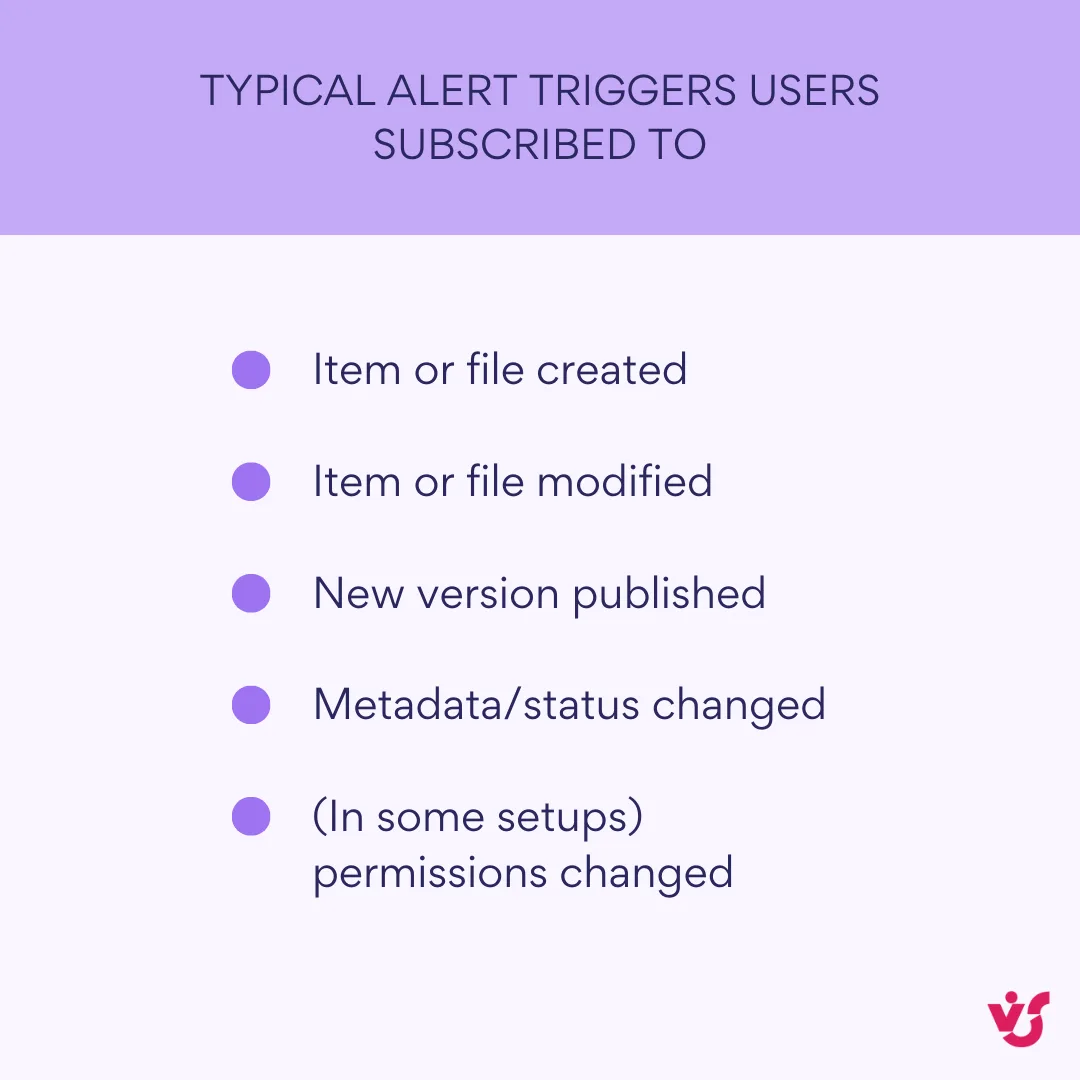
👉Can you get alerts from SharePoint? Yes—until retirement completes, classic alerts still function in SharePoint Online, and you can set up notifications today with SharePoint rules, Power Automate, and VirtoSoftware Alerts & Reminder App (more on those later). On-premises SharePoint can continue using classic alerts per farm configuration.
Why organizations relied on alerts:
- Document and task change tracking. Users learned immediately when a file or list item was added or edited, which reduced duplicates and version mix-ups.
- Version awareness. Teams in legal, finance, and engineering used alerts to know when a new version appeared so they could review and sign off promptly.
- Lightweight management signals. Managers watched key lists and libraries to see when deadlines shifted or new records landed, then acted quickly.
What has changed: are SharePoint alerts being retired?
Microsoft has officially started retiring SharePoint alerts in SharePoint Online. The rollout includes turning off new alert creation for all tenants and full removal in July 2026. Microsoft’s rationale: customers are “better served by modern notification solutions” based on Power Automate or SharePoint rules—newer, (supposedly) more flexible approaches that align with the rest of Microsoft 365.
| Date | What happens | Impact | Action to take |
| Oct 2025 | Alert expiration begins rolling out | Existing alerts start expiring on a rolling basis | Inventory alerts; prioritize high-impact ones |
| Jan 2026 | New alert creation blocked (all tenants) | Can’t create new classic alerts | Stand up rules/flows for new needs |
| Jul 2026 | Classic alerts removed | Legacy alerts stop working | Complete migration and decommission |
Why is Microsoft removing SharePoint alerts?
- Legacy mechanism with limited customization. Classic alerts send basic emails and don’t offer the templating, branching, or integrations most teams now expect. Microsoft points administrators to Power Automate for advanced scenarios.
- Emphasis on modern tools. The retirement notice explicitly recommends Power Automate and rules as the path forward for notifications.
- Consolidation across Microsoft 365. Microsoft is standardizing event handling and notifications around common platforms rather than maintaining overlapping, legacy features.
One important scope note: the retirement announcement applies to SharePoint Online. Microsoft’s documentation for SharePoint Server (for example, 2016/2019/Subscription Edition) still describes creating and managing alerts on-premises, which are governed by your own farm configuration. In other words, on-prem environments aren’t covered by the cloud retirement notice.
Microsoft Sharepoint Alerts Retirement: Implications and Risks for Business
If you don’t replace alerts, users will lose a familiar way to stay on top of changes.
Key implications
Before you choose a replacement, consider how the retirement will show up in day-to-day work. These are the effects teams will feel first.
- Risk of missing important updates: Without alerts, employees won’t be proactively notified when a document, task, or list item changes. Unless they check libraries manually, you invite delays, version conflicts, and stalled approvals.
- Need to redesign notification processes: Many organizations leaned on out-of-the-box alert emails. Now you’ll need to rebuild lightweight notifications with SharePoint rules or move richer scenarios to Power Automate and Teams/Outlook. That means revisiting who needs to know what, when, and via which channel.
- Increased burden on IT and admins: Standing up alternatives—whether quick rules or automated flows—lands on IT. Expect discovery work (inventory current alerts), solution design, security review (who can receive what), and change management.
- Critical for teams that use SharePoint as a workspace or tracker: If SharePoint lists power tasks, issues, or project registers, losing alerts removes a key “nudge” for status changes, new assignments, and file updates. You’ll want an immediate replacement—either rules for simple email notices or flows that post to Teams, send templated emails, or both.
What to do next
Decide in advance which tool will replace each legacy alert so you preserve visibility and team cadence:
- Use rules for straightforward, per-list or library emails to named recipients.
- Use Power Automate when you need flexible logic, Teams posts, customized emails, or cross-site triggers.
- Consider third-party solutions if you need centralized management, HTML templates, scheduling, or tenant-wide oversight with minimal build effort.
What Is the Alternative to SharePoint Alerts?
There isn’t a single drop-in replacement. As mentioned, you’ve got three practical paths—SharePoint rules for quick, per-list notifications; Power Automate for flexible workflows and cross-app routing (including Teams/Outlook); and third-party apps like VirtoSoftware’s Alerts & Reminder App if you want reliable alert features without building flows yourself.
SharePoint rules (lists and libraries)
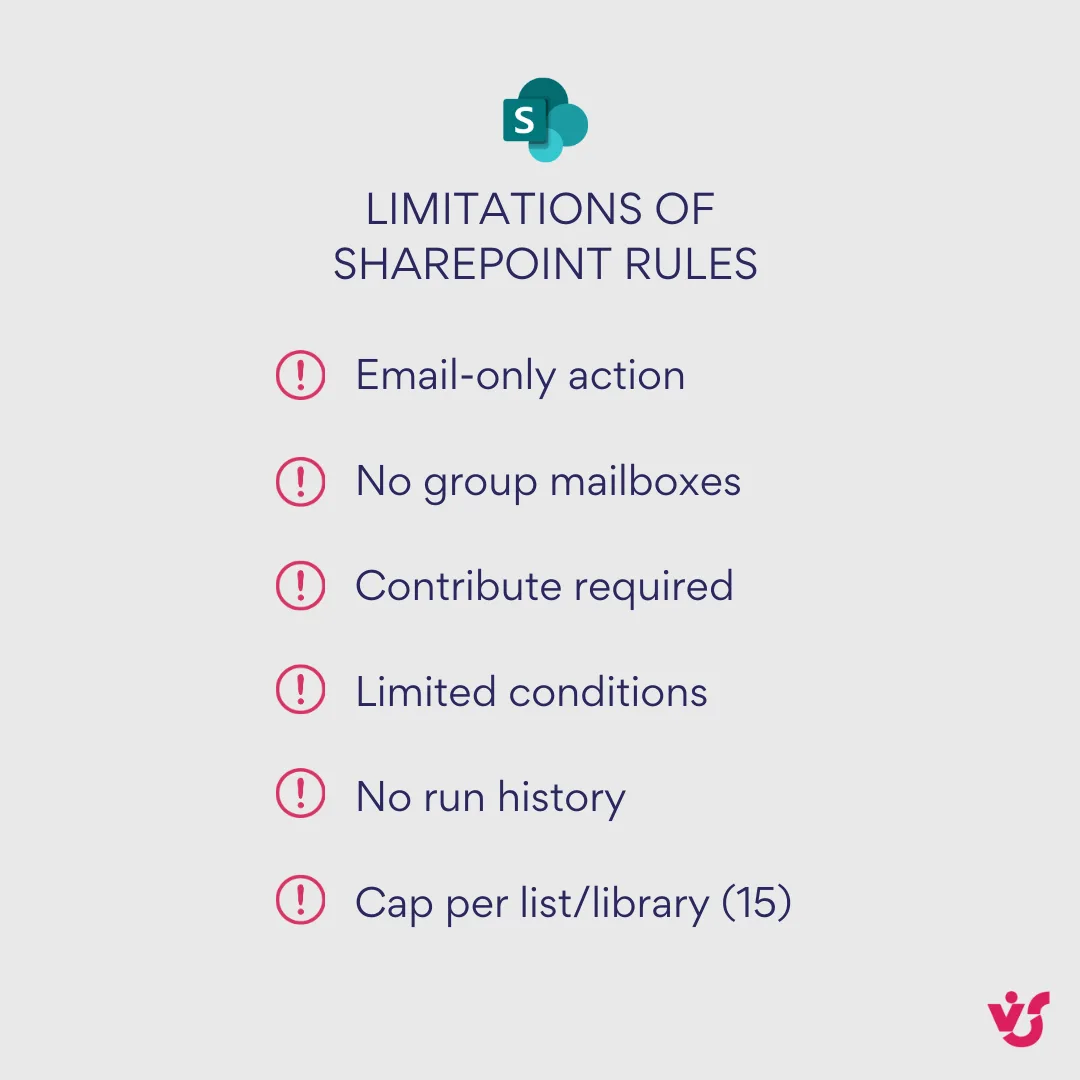
A built-in option for simple notifications. Rules watch a list or library and email selected people when a condition is met (for example, when an item is created or modified). You create them from Automate → Rules → Create a rule in Microsoft Lists, SharePoint, or Teams; choose a trigger, set the condition, and pick recipients. Rules are intentionally basic—great for quick wins, but light on filtering and customization. They send email, and the recipient picker does not support group mailboxes.
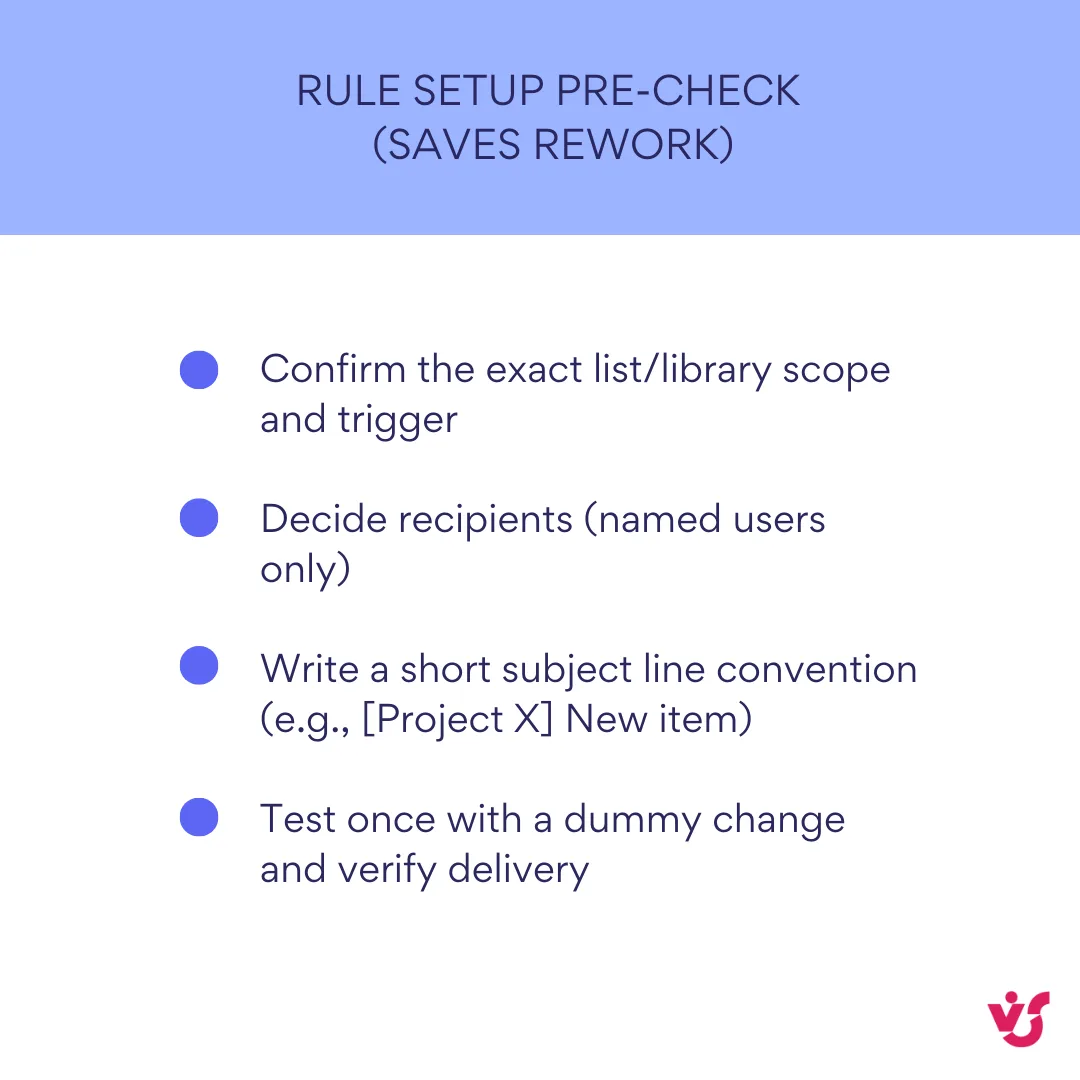
- How to use it (at a glance): Open the list or library → Automate → Rules → Create a rule → Pick a trigger (e.g., item modified) → Define condition → Choose who to notify → Create.
- When to choose it: straightforward, per-list notifications to named users with minimal setup.
- Mind the limits: max of 15 rules per list/library; basic conditions only; email-only action; no HTML templating; group mailboxes not supported.
💡 Learn more here: Create a rule to automate a list or library – Microsoft Support
Power Automate
Microsoft’s primary recommendation for replacing classic alerts. With SharePoint triggers (item/file created or modified) you can send customized emails, post to Teams, branch logic, and integrate across Microsoft 365. There are ready-made templates (e.g., “send an email when a new item is added”), and you can add Teams actions to post messages or cards to channels and chats.

- How to use it (at a glance): Build a flow with a SharePoint trigger → Add conditions (if needed) → Add actions (send email, post to Teams) → Test and refine.
- Pros: flexible logic; Teams/Outlook integration; reusable patterns.
- Cons: setup time and some automation know-how, which can be a hurdle for small teams.
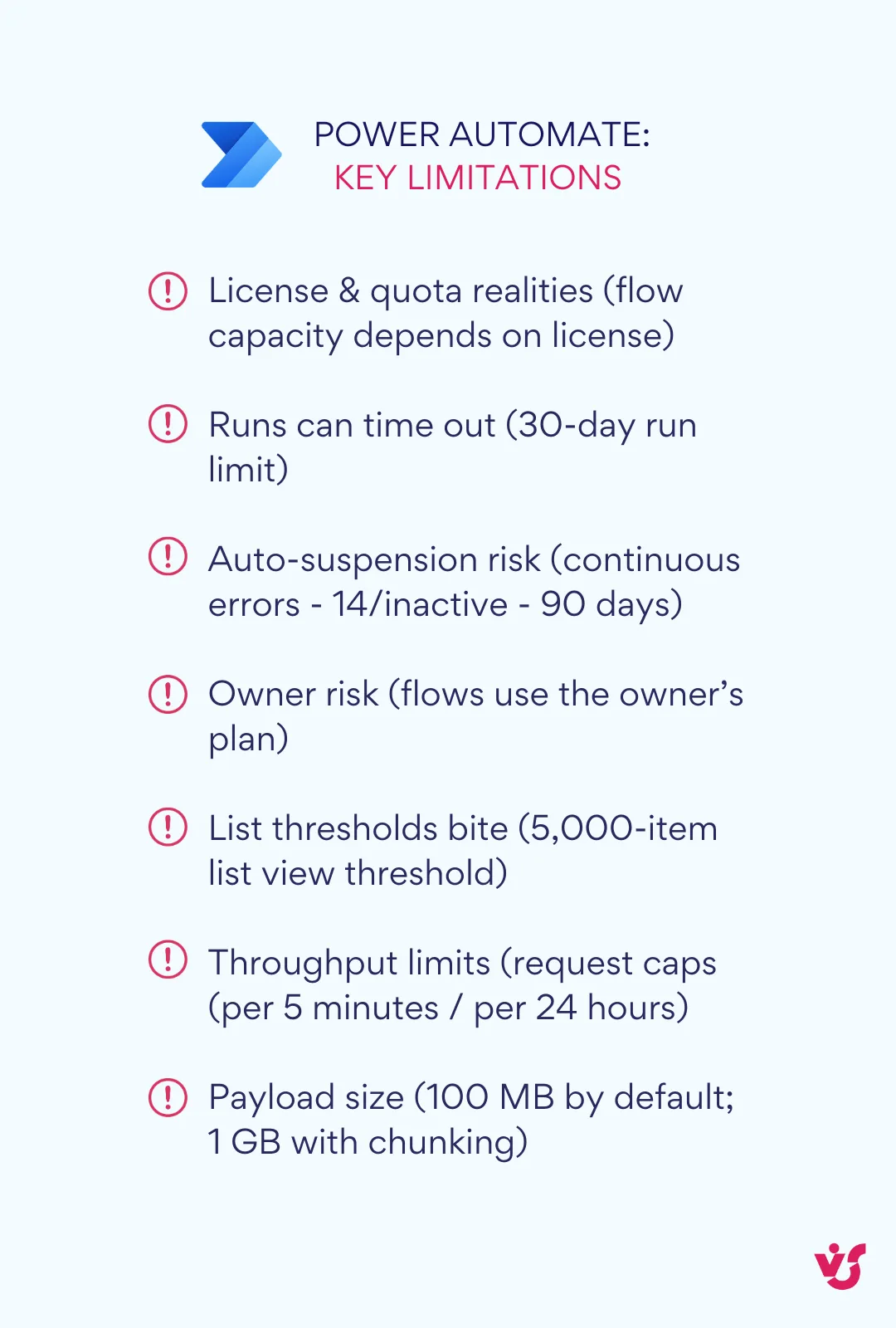
💡 Learn more here:
- Send an email when a new item is created or modified in a SharePoint list | Microsoft Learn
- Send a message in Teams using Power Automate
Notifications via Teams and Outlook
You can route SharePoint events to Teams and Outlook using Power Automate. Teams actions let a flow post messages to channels or chats; Outlook/email actions handle rich, targeted emails that land where users already work. If helpful, you can use Outlook inbox rules to organize those messages on arrival.
| Option | Teams channel/chat | Scheduling/reminders | HTML templates | |
| SharePoint rules | ✓ | — | — | — |
| Power Automate | ✓ | ✓ | ✓ (with actions) | ✓ |
| Virto Alerts & Reminder | ✓ | ✓ | ✓ (built in) | ✓ |
When to choose it: you want activity to surface in Teams conversations and users’ inboxes without asking them to check SharePoint manually.
Learn more here:
- Send a message in Teams using Power Automate
- Manage email messages by using rules in Outlook – Microsoft Support
Third-party solutions
Dedicated apps fill the gap for advanced scenarios, and VirtoSoftware’s Alerts & Reminders for Microsoft 365/SharePoint Online is a standout option. It delivers centralized alert management with HTML-templated emails, dynamic conditions, flexible schedules and date-based reminders, escalation paths, and targeted delivery to individual users or groups—including optional posting to Teams—all wrapped in admin-friendly controls. If you’d rather configure than build and maintain flows, it’s a strong candidate to shortlist. We’ll examine how it works in detail later in this guide.
- Pros: rich features with minimal build time; enterprise-grade options
- Cons: vendor evaluation and security/compliance review required.
👉 So, what is replacing SharePoint alerts? Microsoft points to Rules and Power Automate. For serious notification control, use VirtoSoftware Alerts & Reminder App.
Comparison of SharePoint alerts alternatives
Here’s a quick side-by-side to help you choose.
| Criteria | SharePoint rules (lists & libraries) | Power Automate | Virto Alerts & Reminder app |
| What it is | Built-in, per-list/library email notifications | Cloud automation with SharePoint triggers and 365 actions | Dedicated notification/reminder app for SharePoint Online & M365 |
| Typical setup time | Minutes | Hours to days (depends on logic) | Minutes to hours (configure, not build) |
| Delivery channels | Email only | Email, Teams, more 365 apps | Email, Teams (plus scheduling) |
| Triggers | Item/file created/modified (basic) | Broad SharePoint triggers + conditions | List/library changes, date-based timers, schedules |
| Conditions & filters | Basic | Advanced branching, variables, expressions | Advanced, UI-driven filters and schedules |
| Email customization | None (plain, fixed format) | High (HTML emails, dynamic content) | High (HTML templates, branding) |
| Reminders & escalations | Not supported | Buildable with timers/logic | Built-in reminders and escalations |
| Recipients | Named users only (no group mailbox) | Users, M365 groups, dynamic targets | Users, groups, channels (plan-dependent) |
| Teams notifications | Not native | Yes (post to channels/chats) | Yes (send to channels) |
| Governance & visibility | Per list/library; minimal history | Per-flow; admin needs flow inventory | Centralized admin view, send history (plan-dependent) |
| Skills required | Site owner/contributor | Power user/admin with automation skills | Admin/power user; minimal scripting |
| Best for | Quick, lightweight alerts on a single list/library | Flexible workflows, cross-site logic, multi-app routing | Enterprise-grade alerts, reminders, and central management without custom flows |
| Key limitations | No templates, no Teams, basic logic, per-list cap | Can sprawl; maintenance overhead; learning curve | Licensed app; vendor evaluation and rollout planning |
| Cost/licensing | Included | Included (standard M365 connectors) | Additional license |
How to pick
- Choose rules when you need a fast, per-list email nudge and nothing more.
- Choose Power Automate when you need logic, templates, Teams posts, or cross-site orchestration.
- Choose Virto Alerts & Reminder when you want built-in reminders/escalations, HTML templates, Teams delivery, and centralized oversight without building and maintaining many flows.
| Scenario | Best fit | Why | Setup effort |
| Single list needs simple email | Rules | Fast, no build | Minutes |
| Cross-site + Teams + logic | Power Automate | Flexible routing/branching | Hours–days |
| Reminders, escalations, admin view | Virto app | Built-in schedules, templates, oversight | Minutes–hours |
Virto Alerts & Reminder App—Ultimate SharePoint Alerts Retirement Alternative
One practical, secure alternative is the Virto Alerts & Reminder App for SharePoint Online and Microsoft 365. It covers the classic alert use cases and goes further with date-based reminders, Teams delivery, HTML email templates, and admin-friendly controls. In short, you keep the familiar “notify me when something changes” pattern while adding modern automation options.
💡Did you know? Leaders like Disney, Sony, NATO, NASA, and FedEx rely on VirtoSoftware for enterprise-grade SharePoint apps that follow Microsoft security standards.
What the product is
Virto Alerts & Reminder is a purpose-built notification and reminder app for Microsoft 365. It listens to changes in SharePoint lists and libraries (and M365 calendar data), then delivers notifications on your schedule with customizable content. It’s designed for business users and admins who want rich alerts without hand-building flows.
What tasks it solves
Here’s how the app delivers value in day-to-day work. It gives teams precise control over what gets flagged, adds time-based reminders and escalations, and routes updates through Microsoft 365 so people see them where they already work:
- Flexible notification settings. Create alerts for list, library, or document changes with precise conditions (for example, when a task’s status changes or a new file is uploaded). Triggers and “immediate to custom” schedules are supported.
- Reminders and escalations. Configure date-driven reminders and escalation paths if work sits unattended—repeat sends or notify a manager automatically to keep items moving. Queueing and sent-email history are available on higher tiers.
- Deep Microsoft 365 integration. Deliver alerts to Teams channels and Outlook email; target specific users or groups; optionally watch iCalendar feeds alongside SharePoint data.
- Advanced customization. Use HTML-based templates with rich formatting, images, and links so messages are clear and on-brand.
- Admin controls for scale. Browse tenant alerts and manage them centrally (plan-dependent), with enterprise-grade security noted in the plan descriptions.
| Use case | Feature |
| Track document/list changes | Condition-based alerts |
| Keep work moving | Date-based reminders + escalations |
| Notify where people work | Teams + Outlook delivery |
| On-brand messages | HTML templates |
| Operate at scale | Centralized management (plan-dependent) |
Key benefit. Because it operates independently of classic SharePoint Alerts, the app will continue to function after Microsoft retires Alerts in SharePoint Online—so critical task, document, and notification flows stay intact.
Where it adds value
Here are the everyday scenarios where it makes the biggest difference—keeping updates visible, nudging work forward with timely reminders, and coordinating smoothly across locations:
- Document management. Teams get timely, branded notifications on check-ins, edits, and version changes—no digging through libraries to see what moved.
- Task coordination. Date-based reminders and escalations keep owners and approvers accountable, helping projects close on time.
- Distributed and hybrid teams. Posting to Teams and sending targeted emails reduces the chance of missed updates and keeps everyone aligned, wherever they work.
Virto Alerts & Reminder isn’t just a like-for-like replacement—it’s a next-level tool that blends the simplicity of classic notifications with modern scheduling, formatting, routing, and administration. If you want to preserve your SharePoint-centric workflows while improving the efficiency of Microsoft 365 processes, this fits the brief.
Improve Your Project Management with Virto Apps

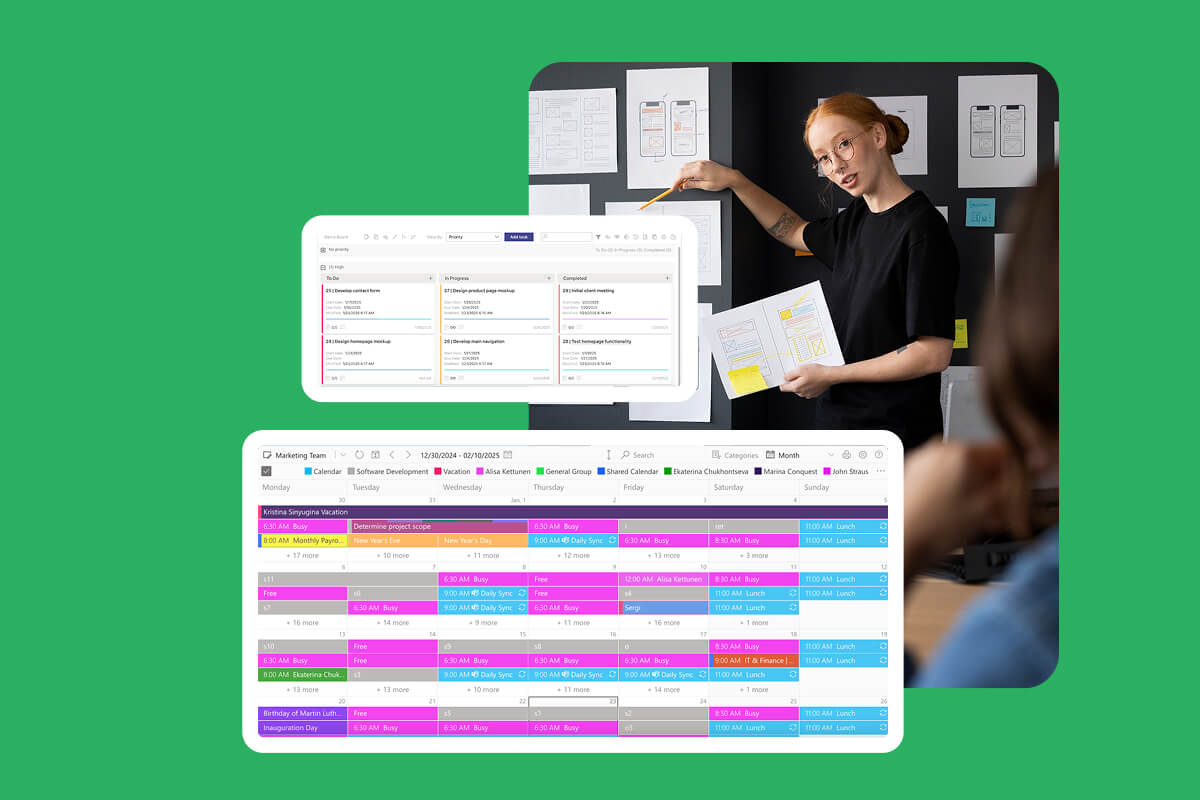
Virto Calendar
Consolidate events from SharePoint, Exchange, Google, and more into one calendar view for simplified planning.

Virto Alerts & Reminder
Integrated within your daily tools like Microsoft Teams, the app ensures you stay ahead of all tasks and meetings.
What Businesses Should Do Now
If your teams still rely on classic SharePoint alerts, don’t wait. Planning now avoids a scramble later.
Practical steps to prepare
Use this sequence to move methodically: take stock, test the alternatives, and choose a default approach your teams can support:
- Assess your dependency on alerts: List the processes that depend on notifications—document updates, task lists, approvals, and deadlines. Identify which alerts are business-critical, which are nice-to-have, and which can be retired. This gives you a migration backlog tied to impact.
- Test Microsoft’s built-in alternatives: Pilot SharePoint rules for simple, per-list notifications and Power Automate for anything that needs routing, formatting, or delivery to Teams/Outlook. Note who needs to be notified, the trigger conditions, and whether email, Teams, or both work best.
- Decide on a third-party option where needed: If you require HTML-templated messages, reminders and escalations, group targeting, or tenant-level oversight without building flows, shortlist a dedicated app such as Virto Alerts & Reminder for Microsoft 365. Use it where rules or basic flows fall short.
Why an early transition helps
Shifting early preserves continuity and gives you time to refine replacements. The benefits are immediate:
- Avoid missed updates. Users keep receiving timely change notices instead of checking libraries manually.
- Protect productivity and process reliability. Approvals, reviews, and handoffs continue without interruption as alerts retire.
Reduce IT strain. Migrating in phases lets admins replace high-impact alerts first, refine patterns, and avoid emergency fixes as the retirement dates approach.
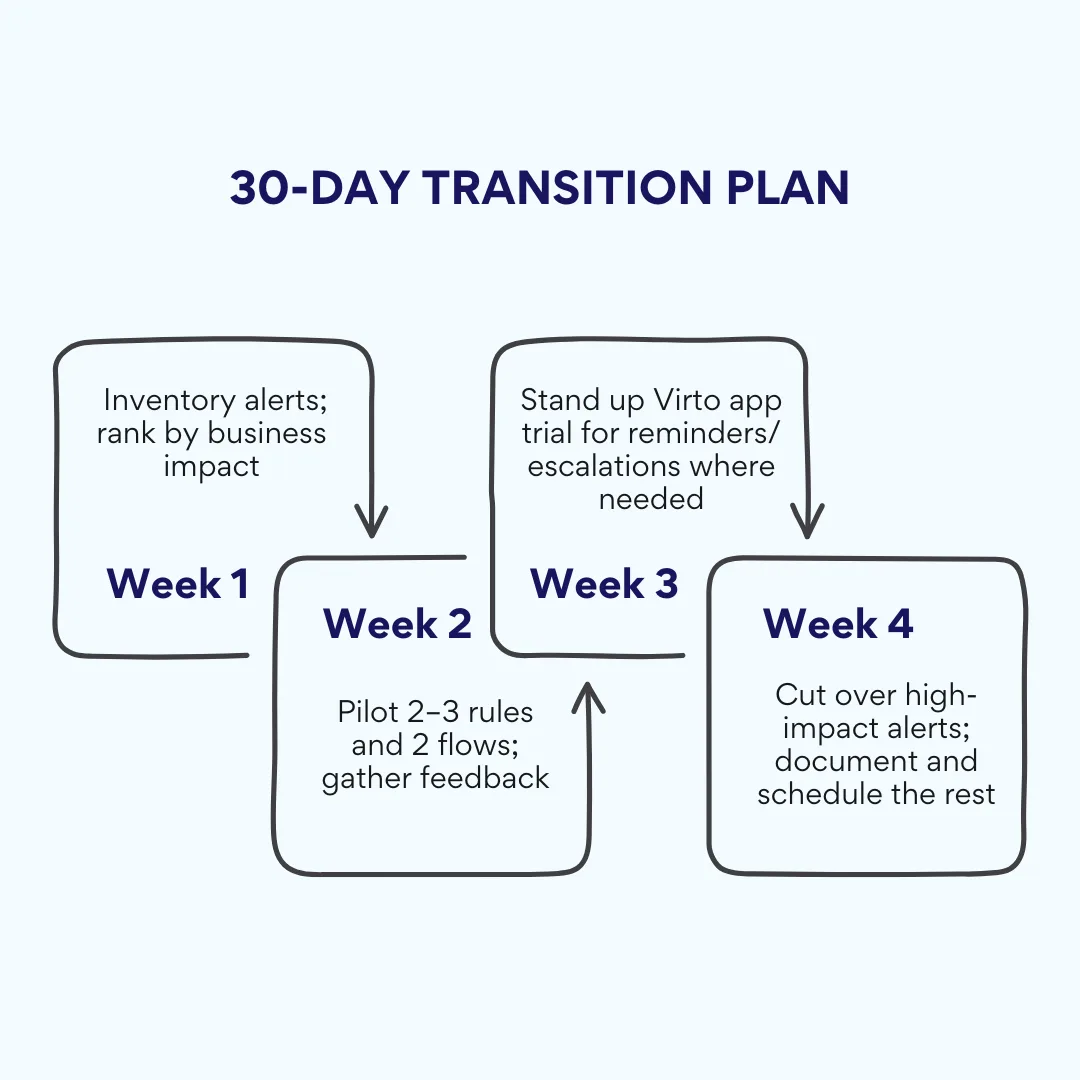
Bottom line: map what you have, match each alert to the right replacement, and start piloting now. That way your SharePoint-centric work stays visible, accountable, and on schedule when classic alerts finally switch off.
Check VirtoSoftware Use Cases

Conclusion on SharePoint Online Alerts Retirement
SharePoint alerts are leaving, but convenient notifications in SharePoint don’t have to. Microsoft is retiring classic alerts in SharePoint Online and steering customers to modern options, with full removal scheduled for July 2026.
Microsoft’s built-in alternatives—rules for simple cases and Power Automate for richer routing—cover many needs. For most businesses, though, starting with a reliable, configurable tool saves time and avoids half-measures.
Virto Alerts & Reminder App is a proven option that fully replaces classic alerts and adds what teams actually ask for: reminders, escalations, HTML-templated emails, and delivery to Teams and Outlook—all managed through configuration rather than building flows. It keeps your existing SharePoint work patterns intact while modernizing how notifications are sent.
Plan your transition now so you don’t lose visibility or slow down approvals as the retirement dates approach. Map your current alerts, pick the right replacement for each, and pilot before cutover.
Interested in seeing it live? Schedule a demo or start a free trial of Virto Alerts & Reminder from the product page.
Official Microsoft resources:
- SharePoint Alerts retirement – Microsoft Support
- SharePoint Alerts retirement | Microsoft Community Hub
- SharePoint Alerts retirement | Microsoft Community Hub
Supplementary material:
- SharePoint Overview: Your Ultimate Guide to Collaboration and Document Management
- Building and Managing a SharePoint Extranet for Your Organization
- Best Practices for SharePoint Document Management, Library, Folder Structure and Security
- The Ultimate Guide to SharePoint Limitations in 2025: Online vs On-Premises