The digital workplace is now the norm for hybrid and distributed teams. Employees expect to work from anywhere, on any device, without sacrificing productivity or connectivity.
Microsoft 365 streamlines this transition, offering a unified platform for communication, storage, automation, and management. Instead of juggling fragmented solutions, organizations can leverage Microsoft’s integrated ecosystem—where Teams connects to SharePoint, Outlook syncs with Planner, and Power Automate bridges workflows across apps, all without complex integrations.
This article shows you how to build an effective digital workplace with Microsoft 365, highlights its key components and benefits, and shares real-world examples you can adapt. You’ll learn not just what Microsoft’s digital workplace can do, but how to implement it strategically to fit your team’s needs and business goals.
Remember, Microsoft’s digital workplace works best with thoughtful setup, user adoption strategies, and targeted extensions. Let’s dive into how to make it truly effective for your organization.
What is Digital Workplace Microsoft?
The digital workplace is an integrated digital environment that brings together all the tools employees need to perform daily tasks: communication, collaboration, document management, data access, planning, process automation, and compliance with security policies. This goes beyond simply moving traditional office functions online. A properly designed digital workplace creates new possibilities for how work gets done, enabling asynchronous collaboration across time zones, real-time co-editing of documents, and automated workflows that eliminate repetitive manual tasks.
The digital workplace focuses heavily on the employee experience. The question isn’t whether your team has access to digital tools, but how quickly they can find the information they need, how easily they can collaborate with colleagues, and how effectively they can accomplish their objectives regardless of their physical location. When employees spend less time searching for files, waiting for email responses, or switching between incompatible applications, they can dedicate more energy to meaningful work that drives business results.
Microsoft’s digital workplace is not a single product, but an ecosystem of interconnected Microsoft 365 solutions designed for flexible work. This ecosystem integrates Teams, SharePoint, Outlook, OneDrive, Planner, Power Automate, and more into a unified experience. The platform works in the cloud or hybrid configurations with on-premises elements, offering ready-made infrastructure for teams of all sizes to work scalably and securely.
👉 What is Microsoft’s digital workplace? The Microsoft digital workplace is an ecosystem built on Microsoft 365 that provides access to communication, document management, calendaring, collaboration, and business process automation tools through a single digital platform. Each component shares the same user directory, security policies, and data architecture, which means information flows between applications without requiring manual data entry or complex synchronization processes.
Key components
The digital environment from Microsoft consists of several interconnected elements that work together to create a comprehensive workspace:
- Cloud applications (Microsoft 365) provide the foundation for anywhere, anytime access. Employees can reach documents and workspaces from any location in the world, work from different devices including PCs, tablets, and smartphones, and co-edit files in real time with colleagues. The cloud architecture ensures that everyone always works with the most current version of documents and data.
- Communications and interaction happen primarily through Microsoft Teams for group chats, video meetings, and project channels, while Outlook handles corporate email and calendar management. Teams has evolved into the central hub for teamwork, unifying chat, meetings, calling, and collaboration in a single interface. Yammer serves as an internal social network for company-wide communication and knowledge sharing, particularly useful for large organizations that need to maintain culture and information flow across departments.
- Content and knowledge management centers on SharePoint, which stores documents, hosts knowledge bases, powers company intranets, and creates dedicated project spaces. SharePoint continues to be the foundation for content management and collaboration, powering experiences in Teams, OneDrive, and across Microsoft 365. Organizations can flexibly configure site structures and access permissions to match their specific workflow requirements. Common scenarios include corporate portals, document libraries, and company-wide bulletin boards.
- Automation and digitalization of processes rely on the Power Platform, particularly Power Automate for automating repetitive tasks like notifications and document routing, and Power Apps for building internal business applications without coding expertise. The major trend for 2024-2025 is the deep infusion of AI and Copilot to make development and automation more accessible and powerful. These tools integrate directly with Teams and SharePoint, allowing organizations to automate workflows within their existing work environment.
- Security and compliance are managed through Microsoft Compliance Center for security policies, data leak prevention, and auditing, along with Intune for corporate device management and access control. The platform supports regulatory requirements including GDPR, HIPAA, and industry-specific compliance standards. This integrated approach to security means that policies apply consistently across all applications and data sources, reducing the complexity of maintaining secure operations across multiple tools.
| Component | Primary function | Example tools | Key benefits |
| Cloud applications | Anywhere, anytime access | Microsoft 365 apps | Real-time co-editing, device flexibility |
| Communications & interaction | Team messaging, meetings | Teams, Outlook, Yammer | Centralized conversations, integrated scheduling |
| Content & knowledge management | Document storage, intranets | SharePoint | Searchable repositories, controlled access |
| Process automation | Task and workflow automation | Power Automate, Power Apps | Reduced manual work, error prevention |
| Security & compliance | Data protection, access control | Microsoft Purview, Intune | Regulatory compliance, consistent security |
Benefits of the Microsoft Digital Workplace
Organizations that adopt Microsoft’s digital workplace see improvements across many areas. As teams get comfortable with the integrated tools, these benefits grow—boosting efficiency, collaboration, and workflow optimization. Recognizing these gains helps set clear expectations and measure success.
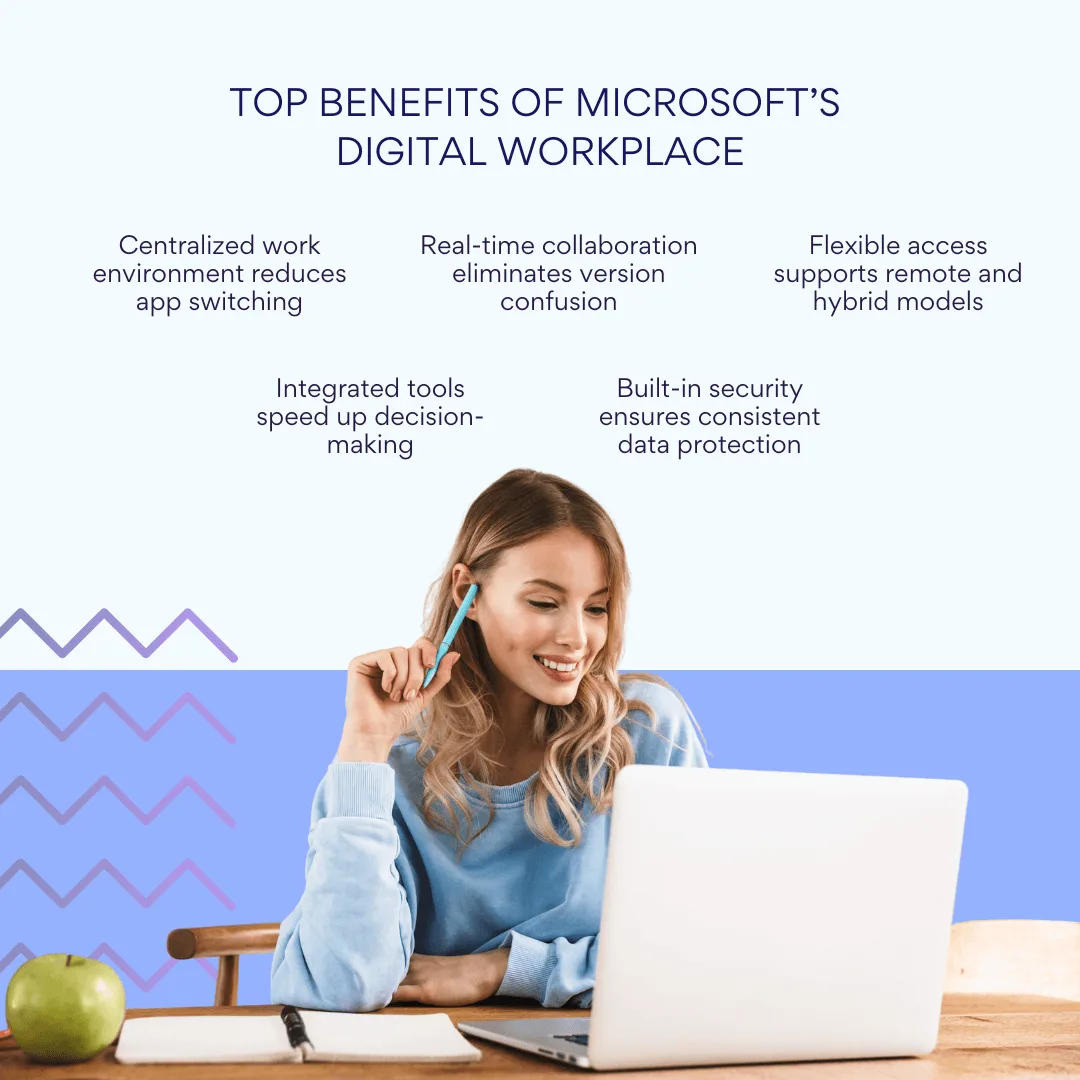
Increased productivity and speed of work
The Microsoft digital workplace allows employees to work faster and more efficiently by centralizing information and tasks in a single environment. Instead of switching between dozens of different applications throughout the day, employees can access everything they need through Microsoft 365’s integrated suite. Teams serves as the hub where they can chat with colleagues, join video meetings, access shared files, and manage tasks without ever leaving the application.
Real-time co-authoring of documents creates immediate productivity gains. Multiple employees can work on the same presentation, spreadsheet, or document simultaneously, seeing each other’s changes as they happen. This eliminates the traditional email chains where different versions of files get passed back and forth, often resulting in confusion about which version contains the most recent updates. When everyone works from the same live document, projects move faster and decision-making becomes more collaborative.
The integration between applications further accelerates work processes. An email discussion in Outlook can become a Teams meeting with a single click. A conversation in Teams can generate a Planner task that appears in everyone’s Outlook calendar automatically. Files shared in any Microsoft application are immediately available across the entire platform, so employees don’t waste time searching for information or asking colleagues to resend attachments.
Improved communication and collaboration
Microsoft’s digital workplace facilitates communication between employees, particularly in distributed or international teams where traditional face-to-face interaction isn’t possible. Teams enables persistent conversations through channels dedicated to specific projects or topics, ensuring that important discussions don’t get lost in email threads or forgotten after meetings end.
Video calls and screen sharing in Teams make remote collaboration feel more natural and productive than traditional conference calls. A significant 2025 update introduces a real-time speech-to-speech interpreter in meetings, making multilingual collaboration easier for global teams. Participants can speak in their native language while others hear the conversation in their preferred language, removing language barriers that previously limited effective collaboration.
SharePoint creates a centralized knowledge base where teams can store important information, procedures, and project documentation. This shared repository means that new team members can quickly get up to speed on ongoing projects, and experienced employees can find the information they need without interrupting colleagues with questions. The search functionality across SharePoint allows people to locate relevant documents and discussions even when they don’t remember exactly where the information was stored.
These tools work together to maintain context across different types of communication. A project discussion that starts in Teams can reference documents stored in SharePoint, generate follow-up tasks in Planner, and schedule review meetings in Outlook, all while keeping the conversation thread intact so participants can trace decisions back to their original context.
Flexibility and support for hybrid work
Microsoft 365 is designed to support flexible work scenarios whether employees are in the office, working from home, or traveling. The cloud architecture and mobile applications ensure that team members can access their data and complete tasks from any location and on any device. This flexibility has become essential as many companies have adopted hybrid work models where employees split their time between office and remote locations.
For hybrid teams, Microsoft Places, an AI-powered solution available with a Teams Premium license, helps coordinate in-office days by providing recommendations based on team schedules and meeting needs. This tool analyzes when team members will be in the office and suggests optimal days for collaborative work, ensuring that in-person time is used most effectively.
The platform maintains consistency across different work environments. An employee can start a document on their office computer, continue editing it on their tablet during their commute, and finish the work on their home laptop in the evening. All changes sync automatically, and colleagues can see updates regardless of which device or location they’re working from.
👉 What is the Office 365 digital workplace? Office 365 digital workplace refers to Microsoft’s cloud-based ecosystem that creates a unified work environment through integrated applications like Teams, SharePoint, Outlook, and OneDrive. It enables employees to collaborate, communicate, and access company resources from anywhere using any device, supporting both remote and hybrid work models. The platform combines communication tools, document management, task coordination, and process automation in a single, secure environment that scales with organizational needs. Rather than using separate applications for different work functions, Office 365 creates an interconnected digital workspace where information flows naturally between different tools and team members can work together regardless of their physical location.
Centralized management and security
Microsoft’s digital workplace helps ensure data security, particularly important when employees work from various locations and personal devices. The platform provides comprehensive security controls that work consistently across all applications and data sources, reducing the complexity that often comes with managing multiple separate systems.
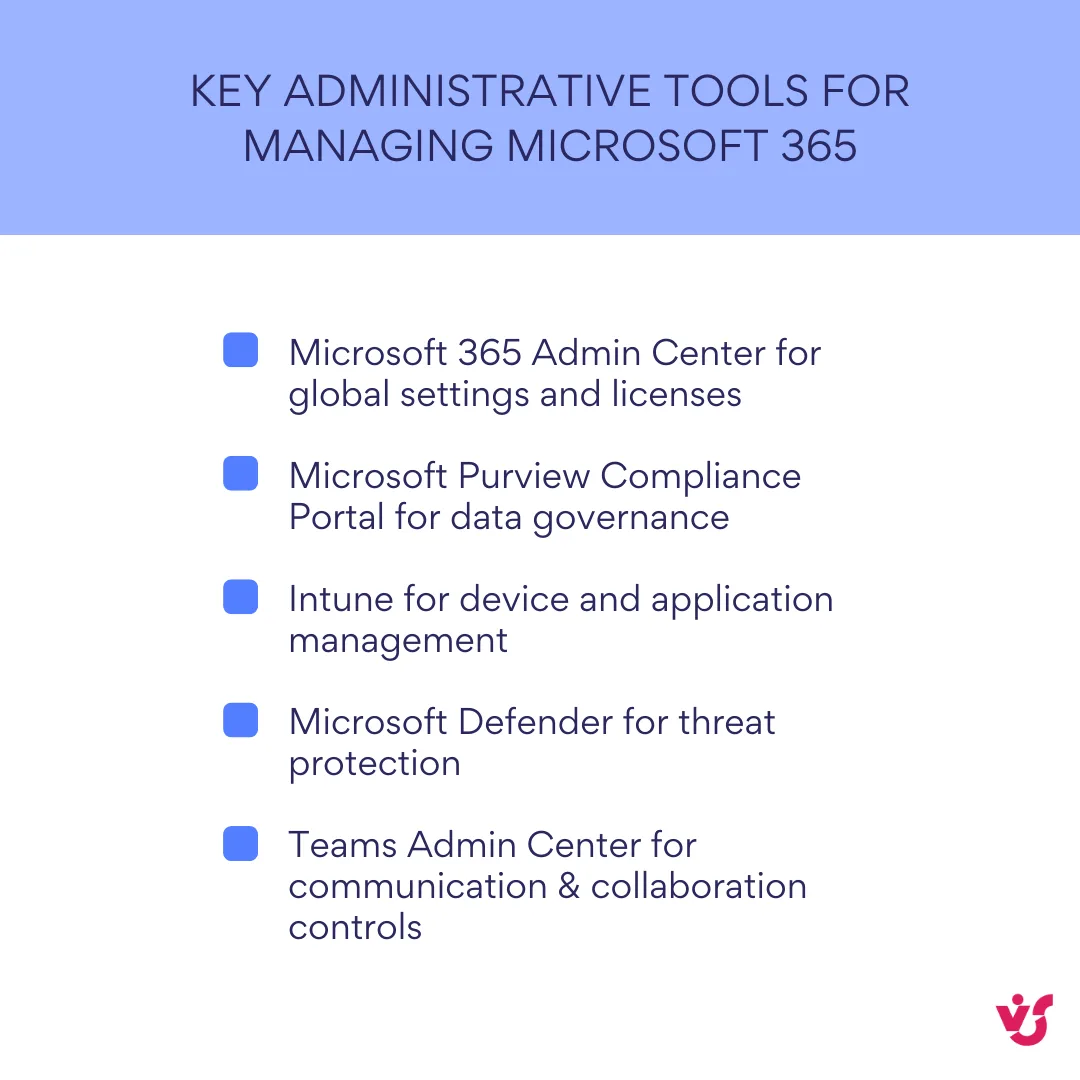
Organizations can configure security and compliance policies through the Microsoft Purview compliance portal (formerly the Microsoft 365 Compliance Center), controlling how sensitive information is shared, stored, and accessed. Device management through Microsoft Intune allows IT departments to enforce security policies on both corporate and personal devices that access company data. Access control operates at granular levels within SharePoint, Teams, and OneDrive, so administrators can ensure that confidential information only reaches authorized personnel.
The entire system complies with modern security standards including data encryption, data loss prevention (DLP), multi-factor authentication (MFA), and comprehensive auditing. As of 2026, Exchange Online will permanently remove support for Basic Authentication with SMTP AUTH, requiring more secure OAuth-based connections for applications and devices, further strengthening the security posture.
Automation and integration of business processes
Power Automate and Power Apps enable companies to automate repetitive actions, reducing manual labor and minimizing errors that typically occur with routine tasks. Organizations can create automated workflows for common processes like vacation requests, expense approvals, document reviews, and customer notifications without requiring programming expertise from their staff.
Examples of effective automation include automatic notifications when new tasks are assigned or documents are uploaded, processing of applications and requests through simple custom applications, and integration between Microsoft 365 and external systems like CRM or ERP platforms.
AI flows represent a significant advancement, enabling the automation of complex business processes with less need for detailed specifications, and these flows can adapt to changing scenarios and data sources.
This automation capability improves not only internal processes but also customer-facing interactions. Companies can create workflows that automatically update customer records when contracts are signed, send personalized follow-up emails based on customer behavior, or generate reports that combine data from multiple systems without manual intervention.
Extensibility through ecosystem and partner products
Despite its rich functionality, Microsoft’s digital workplace can be further expanded using third-party solutions that integrate fully with Microsoft 365. This extensibility becomes particularly valuable for organizations with specialized requirements that go beyond the standard features of the core platform.
VirtoSoftware products enhance specific aspects of the Microsoft ecosystem:
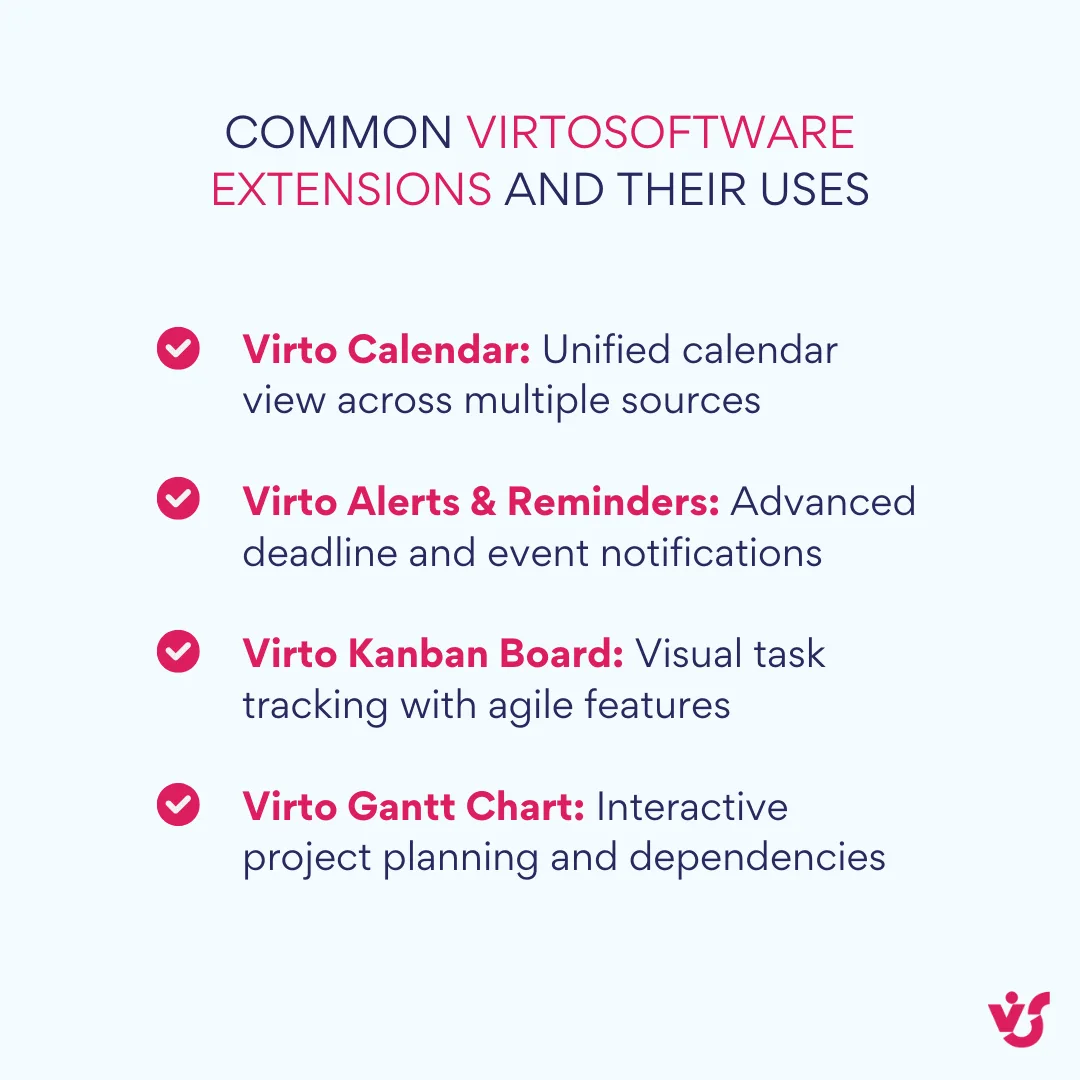
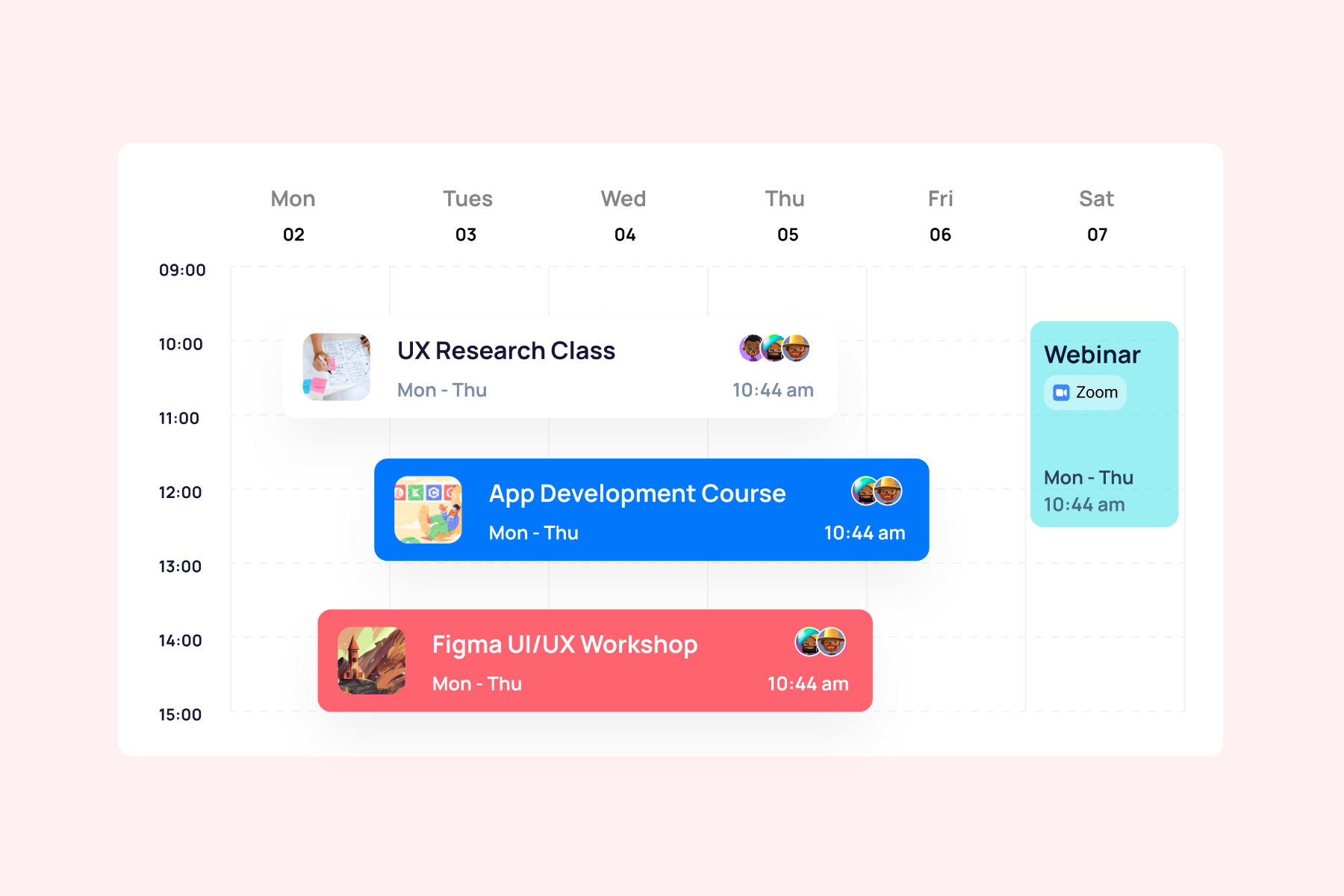
- Virto Calendar combines Teams, Outlook, SharePoint and other calendars into a single interface, providing teams with a comprehensive view of all scheduled events, meetings, and deadlines.
- Virto Alerts & Reminders creates an advanced notification system that helps control deadlines and keeps teams informed about important updates.
- Custom workflows through VirtoSoftware solutions allow organizations to quickly implement specialized automation scenarios that address their unique business requirements.
These tools prove especially relevant for companies with special requirements for flexibility, visualization and process management. Organizations can enhance their digital workplace without expensive custom development, using ready-made solutions that integrate naturally with their existing Microsoft 365 environment.
Scalability and adaptation to business
Microsoft solutions scale easily from small teams to corporations with thousands of employees. The flexible licensing structure and architecture of Microsoft 365 allows organizations to increase functionality as their business grows, adding new users, applications, and features without requiring major infrastructure changes or system migrations.
Organizations can fine-tune roles, access rights, and automation for each department or team, ensuring that different groups get the tools and permissions they need without overwhelming them with unnecessary features. A marketing team might focus heavily on SharePoint for content management and Teams for creative collaboration, while a finance team might emphasize Excel integration, Power BI for reporting, and stricter security controls for sensitive financial data.
Support for corporate standards and integration with other systems
Microsoft 365 integrates with external systems including CRM platforms, ERP solutions, business intelligence tools, and financial services. This integration capability makes Microsoft’s digital workplace part of a unified digital infrastructure, allowing organizations to maintain a single source of data and consistent standards across all their business systems.
The platform supports standard protocols and APIs that enable connections with virtually any enterprise software, ensuring that adopting Microsoft’s digital workplace doesn’t require abandoning existing investments in other business-critical applications. Instead, these systems can work together, often with automated data synchronization that eliminates duplicate data entry and reduces the risk of inconsistencies between different business systems.
Microsoft Digital Workplace Platforms and Their Capabilities
Microsoft’s digital workplace is a powerhouse of interconnected platforms, each designed for a specific purpose but seamlessly working together. Knowing the unique strengths and latest upgrades of each tool empowers organizations to choose and configure the right mix for peak productivity. With tight integration across the ecosystem, data and workflows flow effortlessly, driving collaboration and efficiency at every step.
Basic Microsoft solutions for the digital workplace
The foundation of Microsoft’s digital workplace consists of interconnected solutions that create a flexible, scalable workspace for employees. Each component serves specific functions while maintaining tight integration with the others, ensuring that information flows naturally between different types of work activities.
| Tool | Core function | Notable 2025 update |
| Teams | Hub for communication & collaboration | Real-time meeting interpreter, movable presenter toolbar |
| SharePoint | Content management & intranets | AI SharePoint Agents for content expertise |
| Outlook | Email, calendar, task coordination | Pin & snooze emails, tighter Teams/Planner integration |
| Power Platform | Low-code apps & automation | Co-authoring for canvas apps |
| Loop | Real-time collaborative components | Personal workspace & redesigned interface |
Microsoft Teams functions as the central hub for communication and collaboration. The interface seamlessly integrates personal and team communications with threaded conversations and streamlined file sharing. Teams supports chats, video calls, work channels, calendars, and extensive integration with other applications, allowing employees to manage most of their daily work without switching between different programs.
The platform includes advanced meeting capabilities that support modern hybrid work requirements. Collaborative meeting notes allow real-time agenda and task updates by all channel members, ensuring that decisions and action items are captured accurately during discussions. The presenter toolbar is now movable for better control during presentations, giving presenters more flexibility in how they manage their content and audience interaction.
Teams integrates directly with SharePoint, Outlook, and Planner for managing tasks and files without requiring users to learn separate interfaces or remember where different types of information are stored.
👉Learn more about effective work in MS Teams in a dedicated section on our blog: Microsoft Teams Blog: Best Practices, Tips, Ideas
SharePoint Online serves as the corporate knowledge and content repository, providing the underlying infrastructure for document storage, collaboration, and information management across the entire Microsoft 365 ecosystem. Organizations use SharePoint to create company intranets, document libraries, wikis, and dedicated digital workspaces tailored to specific projects or departments.
SharePoint Agents, a significant new feature, allow users to create specialized AI agents that are experts on the content within specific SharePoint sites and documents. These agents can answer questions about stored information, summarize documents, and help users locate relevant content more efficiently than traditional search methods.
The platform supports sophisticated content management features including role-based access controls, version control, co-authoring capabilities, and automated workflows. Document library approvals are now available worldwide, simplifying review processes for organizations that require formal approval workflows for important documents.
Outlook and Exchange Online handle email communication, calendar management, and task coordination across the organization. The new Outlook for Windows features a modern interface and tighter integration with other Microsoft 365 apps, making it easier for users to move between different types of work without losing context.
Recent updates include the ability to pin important emails to the top of your inbox and “snooze” emails to have them reappear at a later time, helping users manage their attention and prioritize urgent communications. Integration with Teams and Microsoft Planner means users can manage tasks directly from their email interface, and schedule meetings that automatically include relevant participants and resources.
👉Learn more about Outlook in a dedicated section on our blog: Microsoft Outlook Blog: Best Practices, Tips, Ideas
Power Platform encompasses Power Automate, Power Apps, Power BI, and Power Virtual Agents, providing low-code solutions for automation and custom application development. Copilot is integrated across the platform, allowing users to build and edit apps and flows using natural language rather than requiring traditional programming skills.
Power Automate creates automated flows between applications, sends notifications, updates data, and integrates with external systems. Power Apps enables the creation of internal applications without code, useful for processes like equipment requests, employee onboarding, or inventory management. Power BI visualizes corporate analytics on interactive dashboards, while Power Virtual Agents creates chatbots for employee support and process automation.
A key new feature is real-time co-authoring for canvas apps, allowing multiple developers to work on an application simultaneously, which significantly speeds up development cycles for organizations building custom solutions.
Microsoft Loop introduces a new approach to collaboration through unified Loop components including tables, lists, and tasks that update in real time and synchronize across Teams, Outlook, and Word. Loop received a significant redesign with a more streamlined user interface and a new URL, making it easier for teams to access and manage their collaborative content.
A key 2025 update is the introduction of a personal workspace for each user, which functions similarly to OneDrive for governance and lifecycle management, while maintaining shared Loop workspaces for team collaboration. This dual approach gives users both personal space for individual work and collaborative environments for team projects.
Loop simplifies cross-team collaboration and information sharing by ensuring that updates made in one application automatically appear in all other locations where the same Loop component is used.
👉 Learn more about Loop in a dedicated piece on our blog: What Is Microsoft Loop? Features, Benefits, and How to Use It
Integration of additional solutions
Microsoft provides powerful digital workspace infrastructure, but real-world business conditions often require more flexibility, visibility, and automation than the standard platform provides. Organizations can extend Microsoft 365 capabilities with additional solutions that integrate natively with the existing ecosystem, avoiding the complexity and cost of custom development.
VirtoSoftware solutions integrate directly with SharePoint, Teams, and Outlook to simplify workflows and increase transparency of team interactions. These tools address specific gaps that many organizations encounter when implementing Microsoft’s digital workplace.
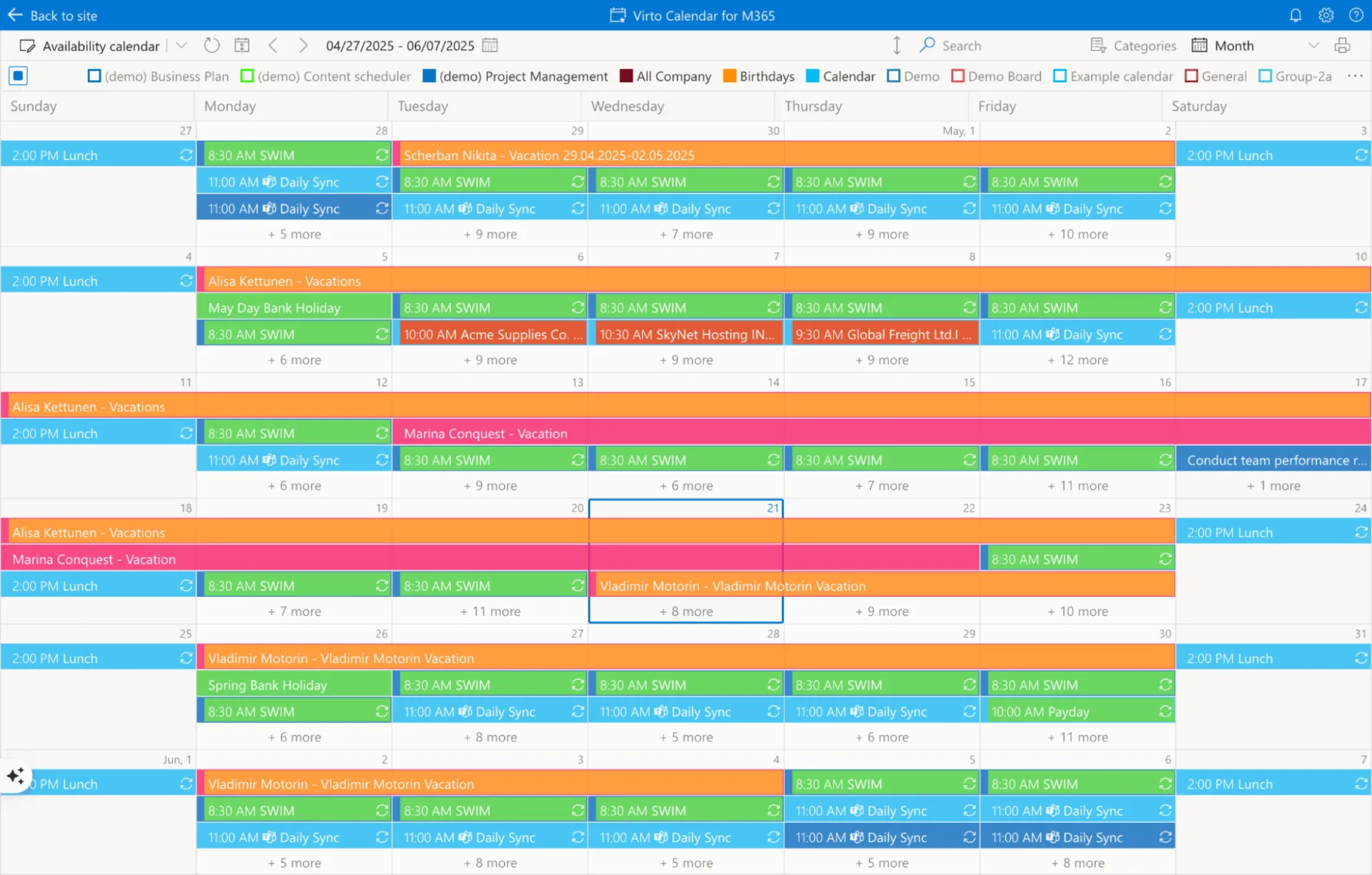
Virto Calendar App combines calendars from different sources including Teams, Outlook, SharePoint, Exchange, Google Calendar, iCal, Apple Calendars, and Planner into a single visual interface, allowing teams to see a comprehensive view of events, meetings, and tasks across their entire organization. The application supports color coding, categories, filtering, event templates, and display options in different formats including day, week, month, and schedule views. This unified calendar view helps teams coordinate more effectively, especially in organizations where different departments use different scheduling systems, and extends beyond the Microsoft ecosystem to include external calendar sources for complete schedule visibility.
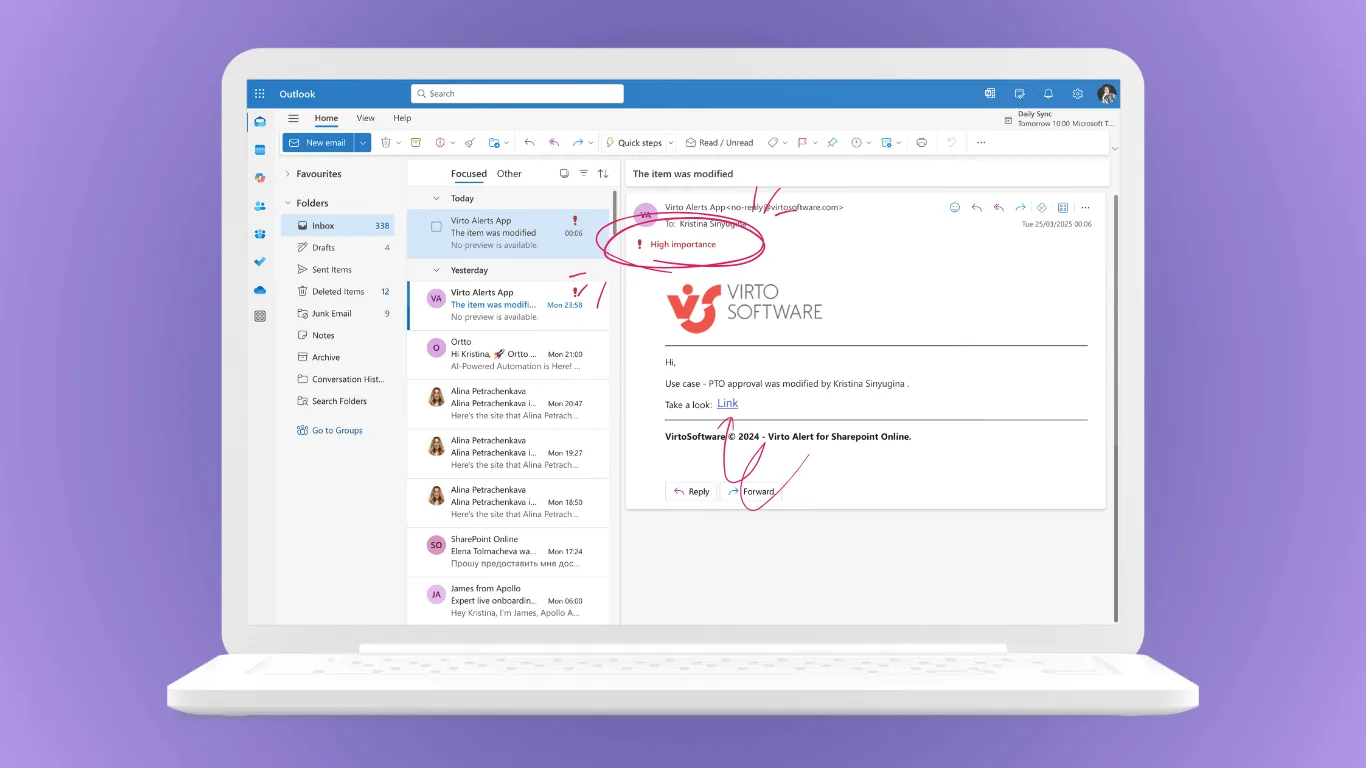
Virto Alerts & Reminder App (and Virto Notifications & Reminders App for Teams) enables flexible reminders and notifications for events, tasks, or deadlines from SharePoint, Teams, or Outlook that go beyond the basic notification capabilities built into Microsoft 365. The application automates SharePoint notification emails for changes in M365 calendar events or SharePoint lists, and supports custom workflows such as automatic notifications to management when specific documents are uploaded or reminders to teams about approaching deadlines. Organizations can create sophisticated notification rules using date-based reminders with versatile scheduling options that target specific users or groups. The app creates visually appealing notifications using HTML-based templates with text styles, images, tabs, and links, and can send alerts to both email and Microsoft Teams channels to ensure important information reaches the right people at the right time.
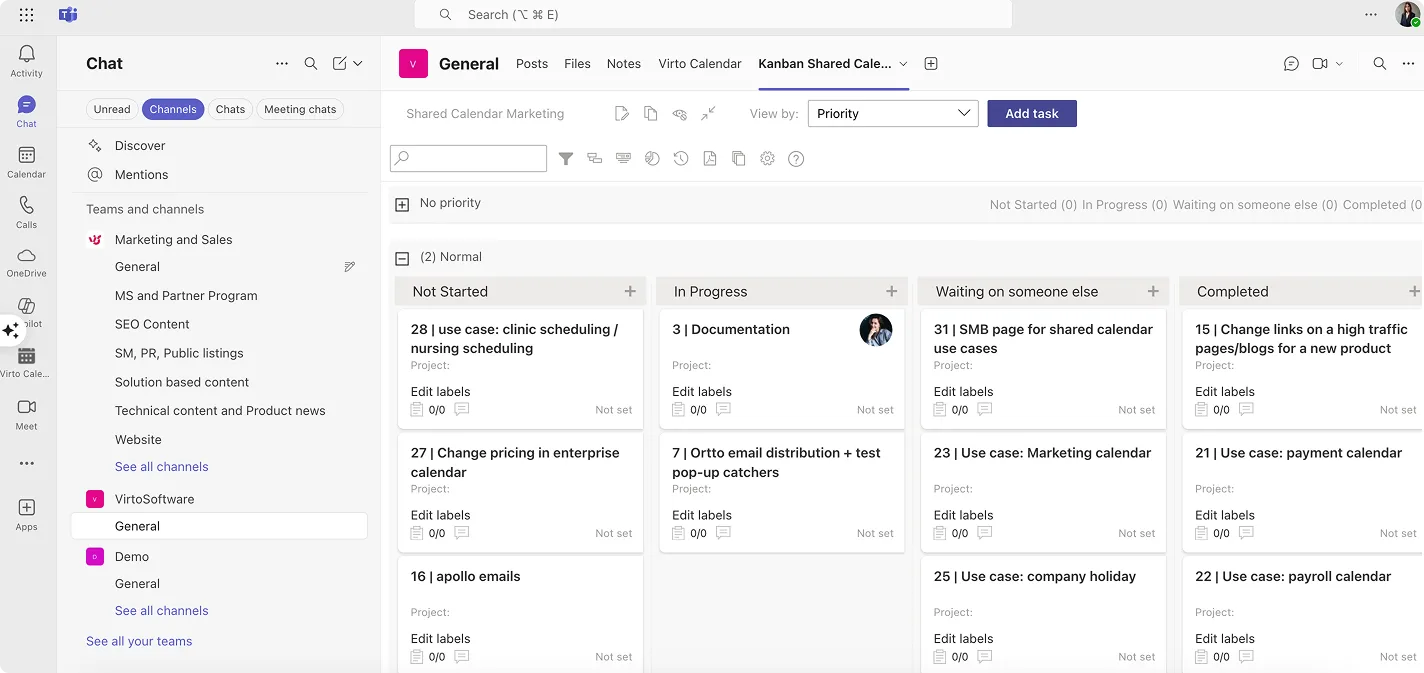
Virto Kanban Board App visualizes tasks in Kanban board format directly within SharePoint or Teams, helping teams track statuses, monitor progress, distribute workload effectively, and manage tasks using intuitive drag-and-drop functionality. The application is highly customizable, allowing teams to tailor boards with swimlanes, categorization, color-coding, and subtasks to match their specific workflows. Additional features include WIP (Work in Progress) limits and flexible charts for workflow analysis and productivity optimization. This visual approach to task management works particularly well for teams that prefer agile methodologies or need to see work progress at a glance, providing comprehensive project tracking capabilities within the familiar Microsoft 365 environment.
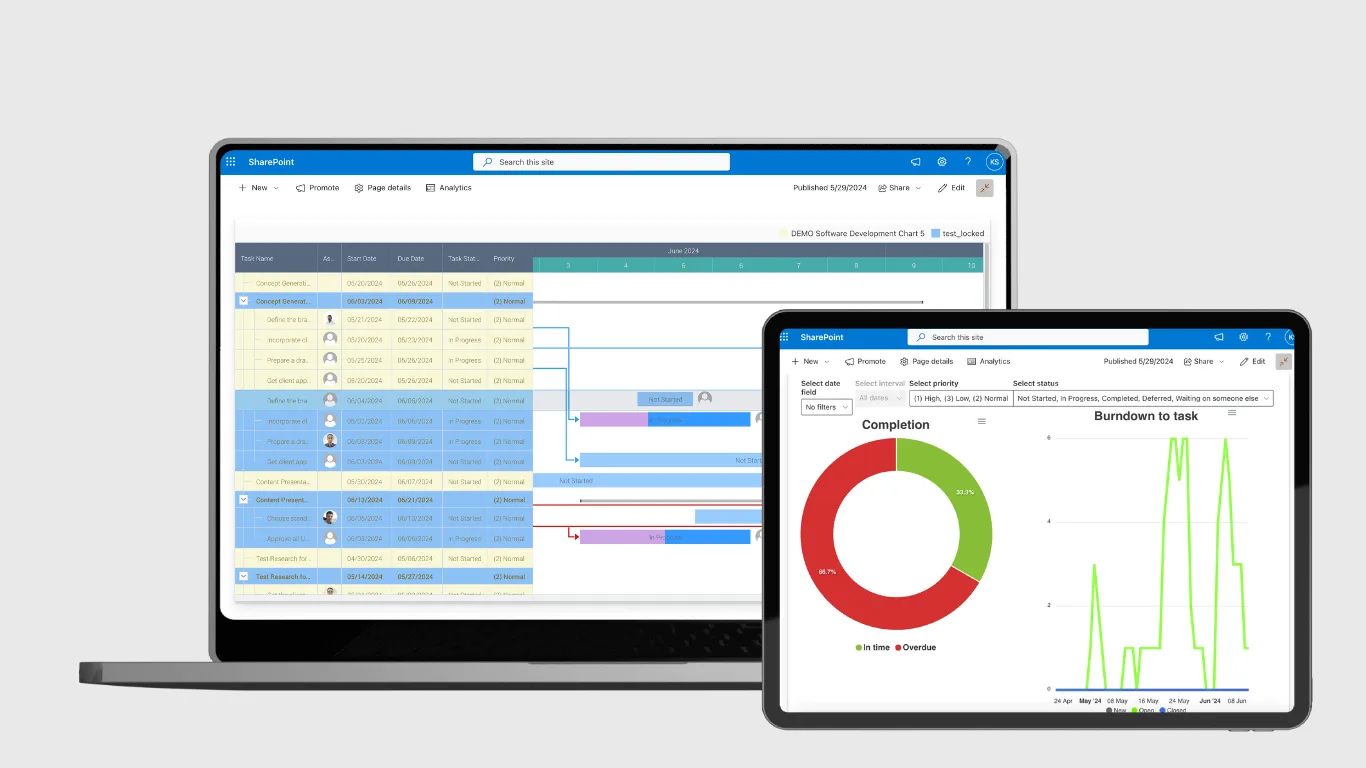
Virto Gantt Chart App provides visual project planning and task dependency management using Gantt charts with full integration into Microsoft 365. Project managers can plan timelines, track dependencies, and monitor progress without requiring separate project management software, keeping all project information within the familiar Microsoft environment. The application allows direct editing, adding dependencies, and setting milestones within the Gantt chart for dynamic project tracking, and includes template export and import features to save time on similar projects. This comprehensive solution enables real-time project visualization and interactive adjustments while maintaining data integrity and adapting to project growth across industries.
These extensions allow organizations to build customized digital platforms without expensive custom development, using ready-made solutions that integrate naturally with Microsoft 365. This approach proves especially relevant for companies with distributed teams, extensive documentation requirements, intensive meeting schedules, or complex project activities that need more sophisticated management tools than the standard Microsoft offerings provide.
Managing the Microsoft Digital Workspace
Rolling out Microsoft’s digital workplace takes more than setup—it demands ongoing, strategic management of access, security, content, and workflows. Teams that get it right see faster adoption, tighter security, and lasting productivity. Success comes from blending smart configuration with change management that empowers people to work differently.
Centralized management through Microsoft 365 Admin Center and Microsoft Teams Admin Center
Microsoft provides comprehensive administrative panels that allow organizations to manage all aspects of their digital workspace from centralized locations. The Microsoft 365 Admin Center handles user management, license allocation, security settings, access policies, and integrations across the entire platform. Administrators can quickly grant and revoke access permissions, monitor platform usage, and receive detailed reports on how different teams utilize various applications and features.
The Teams Admin Center focuses specifically on Teams messaging, calling, application policies, and security configurations. Administrators can create team and channel templates that standardize how new projects get organized, manage access to apps and connected services, and configure calling policies for organizations that use Teams as their primary phone system. This centralized approach ensures consistent policies across all teams while allowing flexibility for different departments to customize their specific workflows.
These administrative tools provide real-time visibility into platform usage, security incidents, and performance metrics. IT departments can identify potential issues before they affect productivity, track adoption rates for new features, and make data-driven decisions about which additional applications or training might benefit their organization.
Security and compliance management
Microsoft’s digital workplace includes sophisticated tools for ensuring security across all applications and data sources. Microsoft Defender for Office 365 provides protection against phishing attempts, malicious attachments, and dangerous links that could compromise organizational security. The system analyzes email content, file attachments, and web links in real time, blocking threats before they reach users.
| Feature | Purpose | Example capability |
| Defender for Office 365 | Threat protection | Real-time scanning of emails & attachments |
| Microsoft Purview Compliance | Data governance | Automated data classification & policies |
| Intune | Device management | Remote wipe, conditional access |
| Conditional Access & MFA | Identity protection | Role-based sign-in rules |
| Data Loss Prevention (DLP) | Prevent sensitive data leaks | Policy-based blocking of risky sharing |
Microsoft Purview Compliance helps organizations meet regulatory requirements including GDPR, HIPAA, and industry-specific compliance standards through automated data classification, auditing capabilities, and policy enforcement. The platform can automatically identify sensitive information like credit card numbers or personal health information, apply appropriate protection policies, and track how this data gets accessed and shared throughout the organization.
Intune manages both corporate and personal devices that access company data, including security policy enforcement, remote data wiping capabilities, and the ability to block access from compromised devices. This becomes particularly important for organizations with hybrid work models where employees access company information from various locations and personal devices.
Conditional Access and Multi-Factor Authentication (MFA) provide flexible access control based on specific conditions including user location, device type, and role within the organization. Administrators can require additional authentication steps for sensitive applications while allowing streamlined access for routine tasks, balancing security requirements with user productivity.
Maintaining structure and content
Organizations can effectively manage content in their digital workspace through SharePoint’s hierarchical structure and content management capabilities. Setting up a logical site hierarchy with departmental, project, and team sites ensures that information stays organized and accessible as the organization grows. Document libraries can be configured with templates, appropriate access levels, and version control to maintain consistency and prevent unauthorized changes to important documents.
Power Automate enables automation of document publishing and approval processes, ensuring that content moves through review cycles efficiently without manual intervention. Organizations can create workflows that automatically route documents to appropriate reviewers, send notifications when approvals are needed, and publish finalized content to the correct locations.
Metadata and navigation systems help structure content using tags, columns, and filters that make information easier to find and organize. SharePoint’s search functionality can locate relevant documents across the entire platform, even when users don’t remember exactly where specific information was stored.
Virto Calendar App provides centralized calendar management for all departments and projects, particularly valuable in large organizations with distributed structures where different teams need to coordinate their schedules and meeting times effectively.
👉 Learn more about effective document management & collaboration in SharePoint in our dedicated articles on the blog:
- SharePoint Workflows: How to Create and Use Them
- SharePoint Secure File Sharing: Methods, Best Practices, and Advanced Tips
- How to Create and Manage a SharePoint Document Library
- Master SharePoint Notifications: A Guide to Customizing Alerts
- SharePoint Form: Everything You Need to Know About Creating and Using Forms
- SharePoint Site Types Explained: Choosing the Right Site for Your Needs
Organizing tasks and workflows
Microsoft provides several integrated tools for task management and workflow coordination. Planner handles basic task management within teams, allowing project managers to assign work, set deadlines, and track progress using visual boards and charts. Microsoft To Do manages individual tasks and personal to-do lists with integration to Outlook, ensuring that personal productivity aligns with team objectives.
Power Automate automates approval processes, notifications, and data transfer between different systems, reducing the manual work required to keep projects moving forward. Loop and Teams enable real-time task interaction within the context of ongoing discussions, so decisions and assignments happen naturally during conversations rather than requiring separate task management sessions.
For organizations with higher project complexity and visual task management needs, additional tools enhance the standard Microsoft capabilities. Virto Kanban Board App provides task status tracking in Kanban board format directly within Teams or SharePoint, offering more sophisticated project visualization than the basic Planner interface.
Virto Gantt Chart App enables visual planning of deadlines and task dependencies, allowing project managers to oversee multiple projects simultaneously and understand how delays in one area might affect other work streams. Virto Alerts & Reminders App automatically sends notifications about task deadlines, project milestones, and status changes, with support for recurring reminders and custom notification rules.
This combination of tools makes task management more transparent, visible, and predictable, particularly important in highly interdependent work environments where delays in one area can cascade through multiple projects.
Check Out VirtoSoftware Apps for Better Collab in M365
Virto Calendar
Consolidate events from SharePoint, Exchange, Google, and more into one calendar view for simplified planning.

Virto Kanban Board
This tool transforms team collaboration through visual task management for consistent stage-by-stage progress.
Virto Alerts & Reminder
Integrated within your daily tools like Microsoft Teams, the app ensures you stay ahead of all tasks and meetings.
User support and training
Microsoft 365 supports digital literacy development through built-in learning resources including Microsoft Learn and in-application learning dashboards that help users discover new features and capabilities. The platform provides contextual help and guided experiences that appear when users encounter new features, reducing the learning curve for advanced functionality.
Organizations can designate local administrators and Power Users who help their teams adapt to new tools and troubleshoot common issues without requiring intervention from central IT departments. This distributed support model ensures that help is available quickly when teams encounter problems or want to explore new ways of working.
SharePoint enables the creation of internal portals with frequently asked questions, video instructions, and step-by-step guides tailored to the organization’s specific workflows and policies. Teams can access training materials that explain how to work with calendars, files, tasks, and notification systems within the context of their actual work rather than generic tutorials.
Additional applications from VirtoSoftware feature intuitive interfaces that require minimal training and often include ready-made templates and instructions that help teams get started quickly. These tools are designed to feel familiar to users already comfortable with Microsoft 365, reducing the additional training burden when organizations decide to enhance their digital workplace capabilities.
👉 What is a Microsoft workplace? A Microsoft workplace is a digital work environment built on Microsoft’s suite of productivity and collaboration tools, primarily Microsoft 365, that integrates communication, file storage, task management, and business applications into a unified platform. It encompasses both the technology infrastructure and the user experience that enables teams to work effectively whether they’re in the office, at home, or distributed across multiple locations. As we’ve discussed, the Microsoft workplace combines familiar applications like Teams, Outlook, SharePoint, and Excel with cloud services, security features, and automation tools to create a comprehensive ecosystem for modern business operations. This integrated approach allows organizations to manage everything from daily communications and document collaboration to complex business processes and compliance requirements through a single, cohesive digital environment.
Microsoft Digital Workplace Implementation Examples
The following scenarios show how organizations of all sizes and industries can harness Microsoft’s digital workplace to tackle everyday challenges and boost productivity. While hypothetical, these examples highlight how Microsoft 365’s tools combine in practical ways to streamline operations, solve real business problems, and empower teams to work smarter.
| Scenario | Industry/Org type | Main challenges | Microsoft 365 solutions used | Key outcomes |
| Hybrid team coordination | Consulting firm | Scheduling & document access | Teams, SharePoint, Virto Calendar | Better resource allocation |
| International marketing | Global tech | Cross-region campaign tracking | Teams, SharePoint, Virto Kanban | Aligned launch timelines |
| IT service management | Manufacturing | Service request visibility | Intune, Power Apps, Compliance Center | Faster issue resolution |
| Small business ops | Accounting | Client scheduling | Teams, Planner, Virto Shared Calendar | Reduced scheduling conflicts |
| Healthcare practice | Medical group | Compliance & coordination | Teams, SharePoint, Power Automate | Improved patient care flow |
Scenario 1: Hybrid team coordination
Consider a consulting firm with 150 employees that needs to support teams splitting time between client sites, home offices, and corporate headquarters. In this scenario, employees would struggle to coordinate schedules, access current project documents, and maintain communication across different locations and time zones.
Such an organization could implement Teams as their primary communication platform, creating dedicated channels for each client project with integrated file sharing through SharePoint. Project managers would use the collaborative meeting notes feature to ensure that decisions and action items get captured accurately during client calls, regardless of which team members can attend in person.
Outlook integration would handle scheduling across multiple time zones, while Power Automate could manage vacation request workflows that automatically update project schedules and notify relevant team members about coverage arrangements. The firm might implement Virto Notifications & Reminders to ensure that approaching project deadlines don’t get overlooked when team members work from different locations.
Virto Calendar integration could combine all team events and meetings in one interface, providing project managers with visual workflow displays that show resource allocation and potential scheduling conflicts across multiple client engagements. This unified view would help the firm optimize billable time and avoid overcommitting team members.
Scenario 2: Marketing department in an international company
Imagine a global technology company’s marketing department operating across four continents, managing product launches, content campaigns, and regional marketing initiatives that require coordination between creative teams, product managers, and regional sales organizations.
The department could use Teams with division into dedicated channels for different product lines and geographic regions. Creative briefs, brand guidelines, and campaign assets would be stored in SharePoint with careful permission controls to ensure that regional teams can access appropriate materials while maintaining brand consistency across all markets.
Task management might combine Planner for basic project tracking with Outlook integration for deadline management. Campaign planning could rely on Virto Shared Calendar to visualize campaign timelines, product launch dates, and regional marketing events in a single view that helps identify potential conflicts or coordination opportunities.
Virto Alerts & Reminders could provide automated notifications about approaching campaign deadlines, ensuring that creative reviews, translation requirements, and regional customization work happens on schedule. The marketing team might use Power Automate to handle vacation and business trip processes, automatically updating project timelines and reassigning responsibilities when team members are unavailable.
Centralized task management through Virto Kanban Board in Teams could give the global marketing director visibility into campaign progress across all regions, making it easier to identify bottlenecks and redistribute resources when needed.
👉 Learn more about the difference between Virto Calendar and Virto Shared Calendar here: Virto Calendar App vs. Virto Shared Calendar: Guide on Virto Scheduling Solutions
Scenario 3: IT service management
Picture a mid-sized manufacturing company’s IT department supporting 800 employees across three facilities, managing everything from help desk tickets to infrastructure upgrades and security compliance. The team would need better visibility into service requests, more efficient incident response, and improved documentation of solutions and procedures.
Device management could operate through Intune, allowing the IT team to enforce security policies, deploy software updates, and remotely troubleshoot problems across all corporate devices. The team might implement Power Apps to create a custom support ticket system that integrates with their existing asset management database, providing technicians with complete equipment history when responding to service requests.
Documentation and knowledge sharing could happen through SharePoint, where the IT team would maintain troubleshooting guides, configuration procedures, and vendor contact information. The search functionality would help technicians quickly locate solutions to common problems without interrupting colleagues or escalating issues unnecessarily.
Compliance monitoring could operate through the Microsoft Compliance Center, where the IT director would track security policy adherence, review audit logs, and generate reports for management and external auditors. Automated workflows might notify the security team when policy violations occur, enabling rapid response to potential security incidents.
👉 What is an example of a Microsoft modern workplace? Scenarios discussed in this section demonstrate that Microsoft’s modern workplace adapts to different organizational needs while maintaining consistent security, compliance, and integration benefits. The key lies in thoughtful configuration that matches the platform’s capabilities to specific business requirements rather than forcing organizations to change their fundamental work processes.
Scenario 4: Small business operations
Consider a regional accounting firm with 25 employees wanting to modernize their operations without major technology investments or extensive staff training. The firm would need better client communication, more efficient document sharing, and improved project tracking for tax preparation and audit engagements.
The implementation could focus on ease of setup using Microsoft templates and minimal customization. Teams would provide client communication through dedicated channels for each major client, with file sharing handled through integrated SharePoint libraries. The firm might use basic Planner functionality for tracking engagement progress and deadline management.
Virto Shared Calendar could serve as a visual hub for client meetings, tax deadlines, and staff vacation schedules, giving the managing partners a comprehensive view of firm capacity and client commitments. The calendar integration would help identify potential scheduling conflicts during busy seasons and ensure adequate staffing for client deadlines.
The firm could avoid development costs by using standard Microsoft 365 configurations with minimal customization. Training would focus on core functionality rather than advanced features, allowing staff to become productive quickly while leaving room for additional capabilities as the firm grows and becomes more comfortable with the platform.
Scenario 5: Healthcare practice coordination
Envision a multi-location medical practice with 120 staff members needing to coordinate patient care, manage clinical documentation, and maintain compliance with healthcare regulations while supporting both in-person and telehealth appointments.
Teams could enable secure communication between clinical staff across different locations, with dedicated channels for different specialties and administrative functions. SharePoint would store clinical protocols, training materials, and administrative documents with strict access controls that ensure only authorized personnel can view sensitive information.
The practice might use Power Automate to manage appointment confirmations, prescription refill requests, and insurance verification workflows that reduce administrative burden on clinical staff. Custom Power Apps applications could handle patient intake forms and post-visit surveys, integrating with their existing electronic health records system.
Compliance management through Microsoft Purview would ensure that patient information handling meets HIPAA requirements, with automated monitoring and alerting when potentially non-compliant activities occur. The system would maintain detailed audit logs that support regulatory compliance reporting and quality assurance reviews.
Check Out the Use Cases from VirtoSoftware for Enhanced Collaboration and Team Management


How to Choose a Microsoft Digital Workspace Platform
Choosing the right digital workplace goes beyond features and price—it demands a clear look at user adoption, integration, and scalability. Many organizations underestimate this complexity and run into problems down the line. The best results come from a thorough evaluation that balances technical needs with culture, workflows, and readiness for change.
Microsoft offers flexible options, from basic Microsoft 365 to full-scale enterprise solutions with advanced security and automation. Finding the right fit means weighing today’s needs against tomorrow’s growth.
Selection criteria
When choosing a digital platform for an organization, several key factors determine how well the solution meets current and future business needs. These criteria help organizations evaluate whether Microsoft’s digital workplace aligns with their operational requirements and strategic objectives.
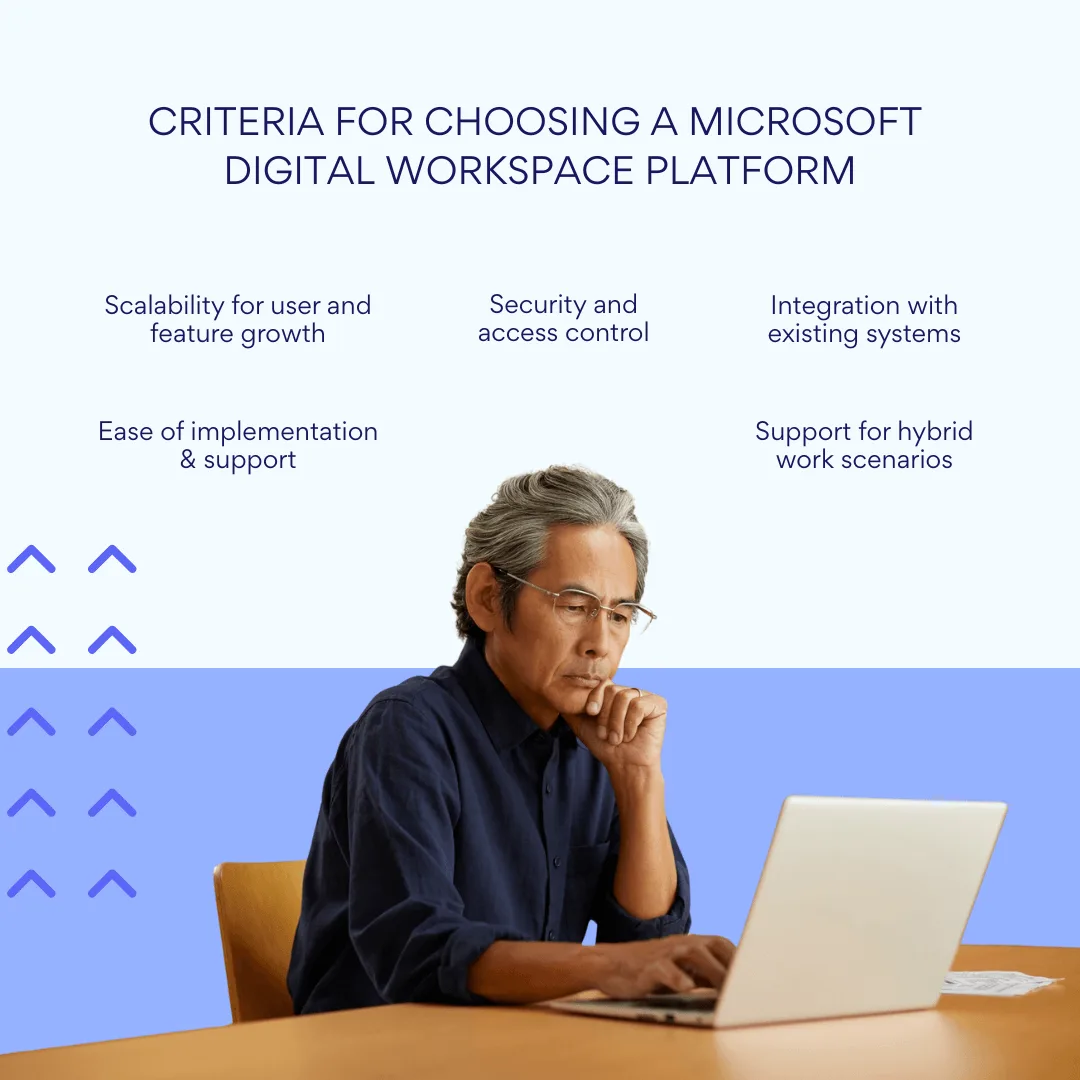
- Scalability encompasses the ability to expand the system as the company grows, supporting everything from adding new users and creating additional sites to implementing new applications and features. Microsoft 365’s architecture handles both small teams and large corporate structures with branches and distributed departments, providing consistent performance and functionality regardless of organization size. The platform’s subscription-based licensing model allows organizations to adjust their feature set and user count as their needs evolve without requiring major infrastructure investments.
- Security and access control require built-in mechanisms for differentiating access rights, such as the sophisticated policy controls available in SharePoint and Teams. Organizations need support for multi-factor authentication, conditional access based on user location and device type, and comprehensive data encryption both in transit and at rest. The platform must comply with industry standards including GDPR, HIPAA, and sector-specific regulations. Microsoft’s integrated security approach ensures that policies apply consistently across all applications rather than requiring separate security configurations for different tools.
- Integration with current systems determines how effectively the platform works with applications already in use, including ERP systems, CRM platforms, and business intelligence tools. Microsoft 365 provides extensive APIs and ready-made connectors through Power Automate that enable automation scenarios between different systems without custom programming. The platform’s native integration with familiar tools like Outlook, Teams, OneDrive, and Excel reduces training requirements and helps employees maintain their existing work patterns while gaining new capabilities.
- Ease of implementation and support involves the availability of detailed documentation, training materials, and a robust partner ecosystem for customizations and ongoing support. Microsoft provides comprehensive resources through Microsoft Learn, community forums, and certified partner networks. The centralized administration through Microsoft 365 Admin Center simplifies ongoing management, allowing IT teams to maintain the system without requiring specialized expertise in multiple different platforms.
- Support for hybrid scenarios includes the ability to combine cloud and on-premises components, such as using SharePoint On-Premise alongside cloud-based Teams, and ensuring consistent functionality across different types of devices including PCs, tablets, and smartphones. The platform must support remote, office, and hybrid work arrangements without compromising productivity or data access. Microsoft’s cloud-first architecture with hybrid connectivity options provides flexibility for organizations with varying infrastructure requirements.
Why Microsoft 365 is a popular choice
Microsoft 365 has become the foundation for digital workspaces in thousands of organizations worldwide because it addresses the fundamental challenges that businesses face when trying to modernize their work environment.
| Reason | Explanation |
| Comprehensive ecosystem | All core tools in one integrated suite |
| High security standards | Unified policies, advanced threat protection |
| Strong integrations | Built-in connectors for major enterprise platforms |
| Partner product ecosystem | Extensions like Virto apps for customization |
| Scalable architecture | Fits small teams to global enterprises |
- A ready-made ecosystem for any scenario includes all essential tools for modern business operations: communications through Teams, email and calendars via Outlook, content management with SharePoint, and automation capabilities through the Power Platform. This comprehensive approach works for various organizational scenarios including project-based work, document-intensive processes, internal communications, and complex task and schedule management. Organizations can implement a complete digital workplace without integrating multiple vendors or managing complex compatibility issues between different systems.
- High level of security provides unified security policies across all applications and data sources, with continuous updates and monitoring managed by Microsoft’s security teams. The platform includes advanced threat protection tools, comprehensive data encryption, and extensive support for regulatory compliance requirements. Enhanced security measures include the permanent removal of Basic Authentication support and increased external recipient rate limits, demonstrating Microsoft’s ongoing commitment to platform security.
- Integration with other enterprise platforms supports connections to popular business systems including SAP, Salesforce, ServiceNow, and Jira without requiring custom development work. Power Automate and Power BI enable organizations to build custom integrations and generate reports using visual interfaces rather than traditional programming approaches. Native support for Microsoft Graph API and Azure Active Directory simplifies connections with external services while maintaining consistent security and authentication policies.
- Expand capabilities through partner products addresses the reality that many organizations need more flexibility and specialized functionality than any single platform can provide. Partner products like those from Virtosoftware enhance specific aspects of the Microsoft ecosystem without requiring organizations to abandon their existing investment or learn entirely new systems.
Virto Calendar, Virto Notifications & Reminders, Virto Kanban Board, and Virto Gantt Chart solutions integrate directly with Microsoft 365 to provide enhanced project management, visual planning, and communication capabilities. These tools help organizations customize their work environment for specific business needs without requiring expensive custom development or complex system integrations.
Organizations can transform a standard Microsoft 365 workspace into a customized digital platform that addresses their unique operational requirements while maintaining the security, reliability, and integration benefits of the underlying Microsoft infrastructure. This approach provides both immediate productivity benefits and long-term flexibility as business needs evolve and new requirements emerge.
The combination of Microsoft’s comprehensive platform with targeted enhancements from specialized partners offers organizations the best of both worlds: enterprise-grade infrastructure and tools tailored to their specific work patterns and industry requirements.
Conclusion on Digital Workplace Microsoft
The Microsoft digital workplace delivers key benefits that matter for modern organizations: flexibility to support various work scenarios, scalability that grows with your business, robust security that protects sensitive information, and seamless integration that connects your existing systems. These advantages make Microsoft 365 an attractive foundation for organizations looking to modernize their work environment without disrupting their core business operations.
Microsoft provides a comprehensive foundation that can be adapted and scaled to meet diverse business needs. Whether your organization needs basic collaboration tools for a small team or sophisticated enterprise-grade solutions for thousands of employees, the platform’s modular architecture allows you to implement exactly what you need while maintaining room for future expansion.
Additional products like Virto Calendar, Virto Notifications & Reminders, Virto Kanban Board, and Virto Gantt Chart applications allow you to transform a standard Microsoft 365 workspace into a customized digital platform that addresses your specific operational requirements. These specialized tools enhance the core platform’s capabilities without requiring expensive custom development or complex system integrations.
The most effective way to understand how these solutions can benefit your organization is to experience them directly. Consider scheduling a quick demo call or installing free trial versions of these applications from our website to see how they integrate with your existing Microsoft 365 environment and address your specific workflow challenges.
For deeper insights into the digital workplace Office 365 capabilities, explore these official Microsoft resources:
- Digital Workplace Framework
- Digital Workplace Essentials consulting services
- Frontline digital transformation resources
- Modern workplace support documentation
Additionally, peruse our blog and website for practical implementation guidance and best practices:
- Top MS Teams personal calendars integration strategies
- Group scheduling optimization techniques
- Cross-platform calendar management solutions
- Global team coordination strategies
These resources provide both Microsoft’s official guidance and practical insights from organizations that have successfully implemented enhanced digital workplace solutions to improve their team productivity and collaboration effectiveness.