Kanban boards have earned their reputation as the ultimate tool for visualizing workflows and boosting productivity. For SharePoint enthusiasts, a SharePoint Kanban board isn’t just a nice-to-have—it’s a way to bring clarity and efficiency directly into the platform you already rely on.
Whether you’re exploring a Kanban board in SharePoint, evaluating SharePoint Kanban features, or experimenting with third-party integrations, the goal is the same: turn your projects into a transparent, easy-to-manage workflow. A well-implemented Kanban in SharePoint lets teams track tasks in real time, spot bottlenecks, and keep everyone aligned without leaving the SharePoint ecosystem.
In this guide, we’ll walk you through setting up a Kanban board SharePoint style, compare built-in and external options, troubleshoot common issues, and show how professional tools can take your Kanban SharePoint setup to the next level. If you want to master visual project management inside SharePoint, this article is your roadmap.
Start here if you are new to Kanban: 16 Best Kanban Board Examples for 2026: Practical Guidance and Expert Recommendations
What Is a Kanban Board and Why Use It in SharePoint
Before we dive into the mechanics, let’s be real: teams need more than lists and calendars—they need clarity. That’s where a SharePoint Kanban board comes in. A Kanban board in SharePoint turns scattered tasks into a single visual workflow, giving developers, project managers, and teams instant insight into what’s in progress, what’s blocked, and what’s next. By combining the visual power of Kanban in SharePoint with SharePoint’s native lists, libraries, and integrations, teams can keep work flowing smoothly without jumping between apps.
Now, let’s break down the Kanban concept and see why it works so well in a SharePoint environment.
The Kanban concept
At its core, Kanban is all about visual task management. Tasks are represented as cards that move across columns, each reflecting a stage in the workflow. Each card corresponds to an individual task, which can be updated, assigned to team members, tracked, and commented on as it progresses.
The main idea behind Kanban is to visualize the flow of work while limiting the number of active tasks at any given time. This ensures teams stay productive without getting overwhelmed. Although Kanban originated in manufacturing, it has since become a staple in digital and office environments, helping organizations manage projects flexibly while maintaining control over processes.
More on how it works:
- Agile Kanban & Scrum Board for Efficient Project Management
- Boost Your Workflow With Kanban Swimlanes: Best Practices and Top Applications
Benefits of using a Kanban board in team work
Kanban boards in SharePoint offer a range of advantages that make this method universally appealing:
☑️Process transparency – Everyone on the team can see the current status of tasks and monitor project progress in real time.
☑️Visual control – Tasks are displayed clearly, making it easier to spot bottlenecks and workload imbalances.
☑️Increased team engagement – Each team member sees how their contributions impact the overall outcome.
☑️Management flexibility – Adding new tasks, changing priorities, or adjusting workflow stages is simple and intuitive.
☑️Higher productivity – By limiting the number of active tasks, teams stay focused on what truly matters.
☑️Fewer mistakes and missed steps – Visual monitoring ensures no tasks or critical stages are overlooked.
The visual nature of a Kanban board in SharePoint is especially beneficial for teams juggling multiple projects simultaneously, keeping work organized and transparent at a glance.
Why SharePoint is ideal for a Kanban board
SharePoint is a robust enterprise platform that already provides many of the building blocks needed to implement a Kanban SharePoint system: lists, libraries, calendars, and customizable views. Users can create their own SharePoint Kanban boards using Task Lists or Custom Lists, displaying tasks by status, assignee, or due date.
Centralized data storage and integration with Microsoft tools like Teams, Outlook, and Excel make task management in SharePoint highly connected and streamlined.
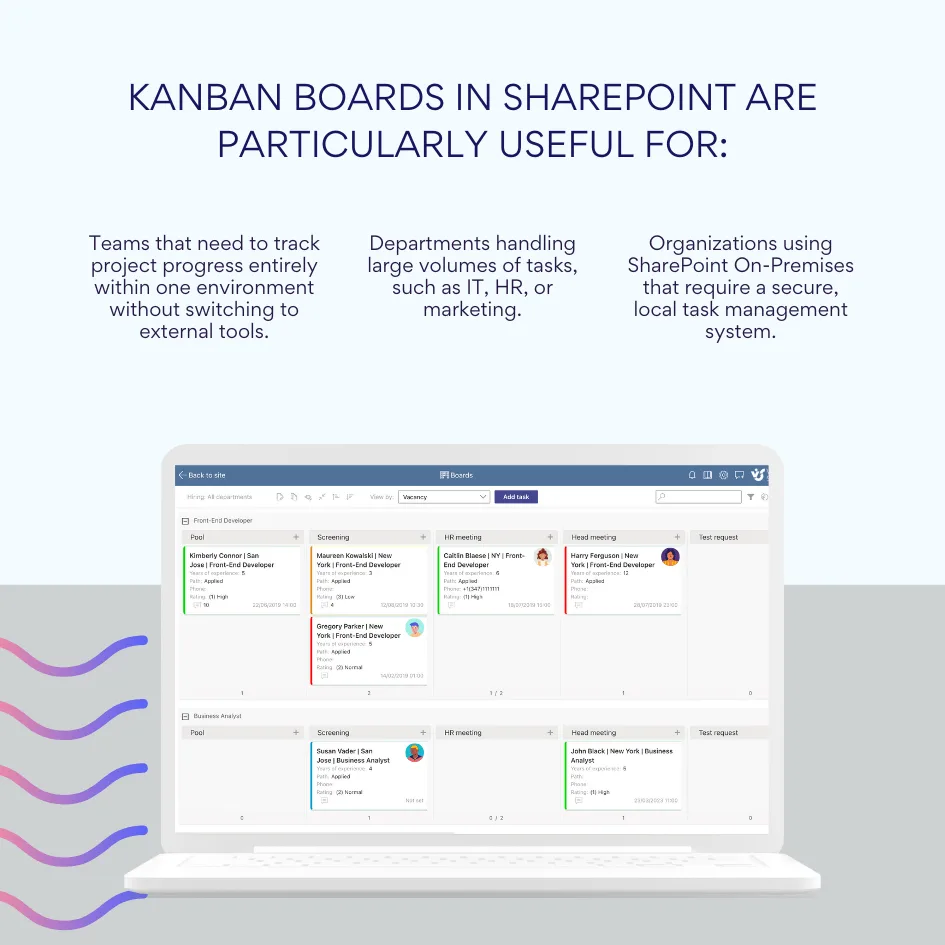
Kanban complements SharePoint’s content and document management capabilities, allowing teams to operate in a unified workspace where all project materials are stored.
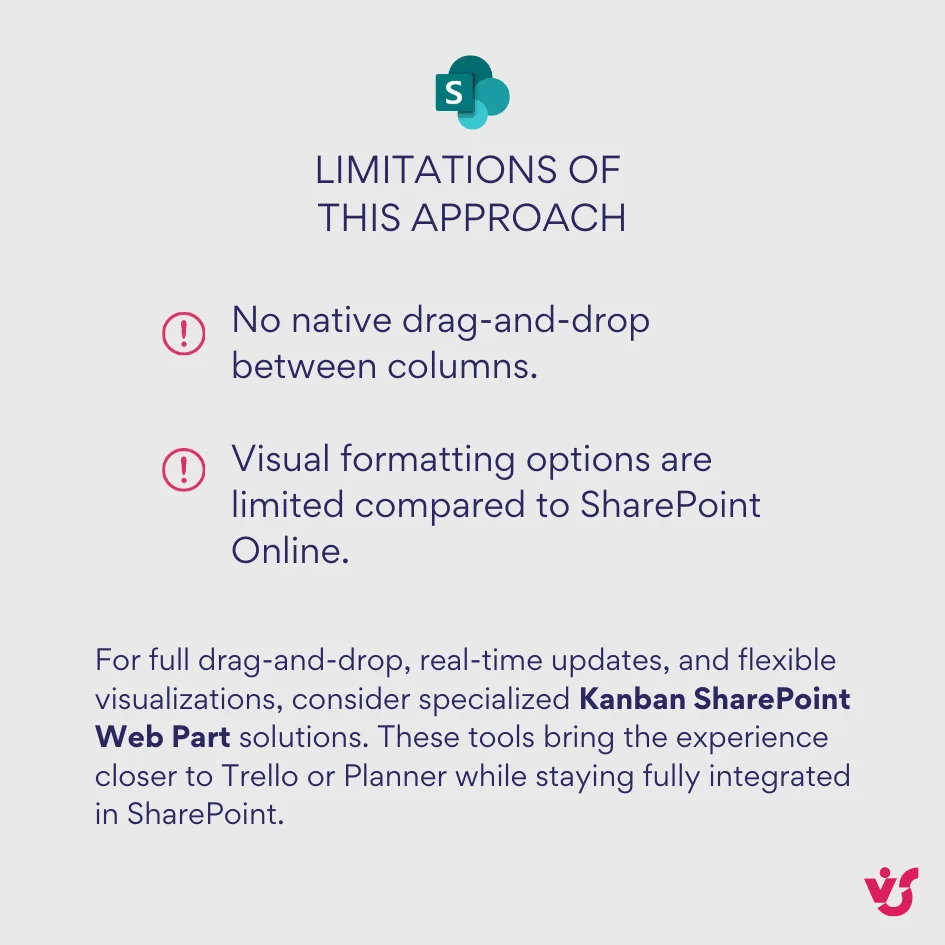
👉 Does SharePoint have Kanban? SharePoint doesn’t include a native Kanban interface like Microsoft Planner or Trello. However, you can build a functional Kanban board SharePoint setup manually using standard SharePoint tools—lists, statuses, and custom views. While this requires some expertise, it allows you to tailor Kanban to your specific business processes.
Microsoft Planner offers a basic Kanban interface, but it isn’t fully compatible with SharePoint On-Premises. For local SharePoint installations, specialized solutions like Virto Kanban Board Web Part enable a fully-featured Kanban in SharePoint experience directly on your site.
How to Create a Kanban Board in SharePoint
👉Can you create a Kanban board in SharePoint? The short answer is yes—but with some caveats. SharePoint doesn’t offer a full-featured Kanban interface out of the box.
Building a Kanban board SharePoint setup usually requires manual configuration of lists and views. Here’s the breakdown:
- SharePoint Online provides a basic Kanban approach via Microsoft Lists using the “Board” view grouped by a status column.
- SharePoint On-Premises has no built-in Kanban board. You can either create one manually with lists and custom views or use specialized Web Part solutions like Virto Kanban Board for full functionality.
Creating a basic Kanban board in SharePoint Online (Microsoft Lists)
1. Create a task list
- Start a new list (e.g., “Project Tasks”).
- Add the following columns:
- Status (Choice): To Do, In Progress, Blocked, Done
- Priority (Choice): Low, Medium, High
- Assigned To (Person)
- Due Date (Date)
- Tags/Categories (Choice, optional)
2. Set up the board view
- Create a new Board view and group tasks by the Status column.
- Configure card fields to display important info, like Priority, Due Date, and Assigned To.
3. Customize visuals and usability
- Apply color coding for Priority or Status using column formatting.
- Show meaningful fields on the card: brief description, deadlines, assignee.
4. Filters and sorting
- Add filters for Assigned To, Project/Category, and a search box.
- Sort by Priority, then Due Date, to highlight critical tasks.
5. Quick edit and dragging
- Move cards between columns to update status.
- Use Quick Edit for bulk updates.
Creating a basic Kanban board in SharePoint On-Premises
1. Create a task list
- Use either the default Tasks list or a Custom List.
- Add columns: Status (To Do, In Progress, Blocked, Done), Priority, Assigned To, and Due Date.
2. Build columns on a site page
- Create a page layout with 3–4 columns.
- Insert a List View Web Part into each column.
- Configure each Web Part to show tasks filtered by a specific status (e.g., To Do only).
- Display key fields on each card or row: Title, Assigned To, Due Date, Priority.
3. Simulate task movement
- Change status by opening the item form or using Quick Edit.
- Maintain consistent styles and column headings to mimic a Kanban layout visually.
4. Filters and sorting
- Add a filter panel for Assigned To and Priority.
- Sort tasks by Priority and Due Date within each Web Part.
Troubleshooting and Optimizing Kanban Boards in SharePoint
Even though SharePoint is a flexible and powerful platform, building a Kanban board in SharePoint manually can be tricky—especially when working with classic views or custom task lists. Many users encounter issues not only during setup but also later, when maintaining the board: cards may not display properly, filters might fail, or task statuses don’t update as expected.
Users often expect a ready-made “Kanban view” like in Trello or Planner, but a SharePoint Kanban board requires manual configuration of lists, views, and columns. That flexibility comes with the risk of misconfiguration—most commonly due to incorrect field types, view filters, or SharePoint interface limits.
Common issues and solutions for SharePoint Kanban boards
| Problem | Cause | Solution |
| ⚠️No native Kanban view | SharePoint doesn’t include a built-in Kanban interface. | 💡Manually create a Kanban board SharePoint setup: in SharePoint Online, use the “Board” view grouped by Status; in On-Premises, build columns with List View Web Parts. |
| ⚠️Incorrect filtering by Status | Inconsistent or misspelled values in the “Status” column (e.g., “In progress” vs. “In Progress”). | 💡Standardize naming conventions for all task statuses across lists. |
| ⚠️Data not updating in real time | Lists don’t auto-refresh, especially with multiple users editing simultaneously. | 💡Refresh the view regularly or configure Power Automate flows to sync updates automatically. |
| ⚠️Limited visual customization | Classic SharePoint views have minimal styling options. | 💡Use column formatting or conditional JSON formatting in SharePoint Online to color-code priorities or highlight task categories. |
| ⚠️Permission or access issues | Users lack read/write permissions for lists or views. | 💡Verify and adjust permission settings for all team members involved in the Kanban in SharePoint board. |
Practical tips to keep your SharePoint Kanban running smoothly
✅Keep your lists clean. Regularly remove outdated or duplicate tasks to improve performance and clarity.
✅Standardize your statuses. Use the same naming convention (e.g., To Do, In Progress, Done) across all projects.
✅Use conditional formatting. Highlight urgent or completed tasks with color cues to make the board more intuitive.
✅Optimize large lists. For extensive Kanban SharePoint boards, enable pagination and index key columns to prevent slow loading times.
✅Automate notifications. Use Power Automate (or SharePoint Designer workflows for On-Premises) to alert team members when task statuses change.
Why it matters
A well-tuned Kanban board in SharePoint directly impacts transparency, collaboration, and team productivity. When statuses don’t display correctly or filters fail, teams lose visibility into real progress—and that can derail even the best-managed projects.
Even small configuration errors, like broken filters or wrong permission levels, can distort how work is represented on the board. That’s why many organizations turn to specialized Kanban SharePoint Web Parts, which solve synchronization and display issues while adding modern visuals and real-time interaction to the classic SharePoint interface.
Kanban Board Solutions and Templates for SharePoint — How to Choose and When to Use
Kanban boards have become a go-to tool for teams who want a clear, visual way to manage workflows inside SharePoint. But when it comes to choosing the right setup, things can get tricky. Should you build your own SharePoint Kanban board from scratch, use Microsoft’s native tools, or go with a professional third-party solution?
In this section, we’ll explore the main options — from built-in templates to advanced Kanban board SharePoint solutions — and help you understand which approach fits best for your environment and team.
Solutions and templates
👉Does Microsoft have a Kanban board tool? Technically, yes. Microsoft offers Planner and Project with built-in Kanban functionality. However, these tools are not native to SharePoint — they live within the broader Microsoft 365 ecosystem. For teams working directly inside SharePoint, especially SharePoint On-Premises, you’ll need a dedicated module or Web Part to get a full-featured Kanban experience.
There are several ways to quickly launch a SharePoint Kanban board, depending on your environment and needs:

Below are some of the most popular Kanban SharePoint tools:
| Solution | Type | Highlights |
| Virto Kanban Board Web Part for SharePoint On-Premises | Professional Web Part | Advanced visualization with drag-and-drop, color coding, filtering, and full integration with SharePoint Lists. |
| Bamboo Solutions Kanban Board | Web Part | Visual task management supporting multiple lists and custom fields. |
| KWizCom Kanban Board App | App (Online & On-Premises) | Flexible card and status customization, suitable for hybrid environments. |
Use cases for Kanban boards in SharePoint
A Kanban board SharePoint setup can be invaluable across different teams and workflows. Here are a few practical examples:
- Project and task management
Teams can visualize progress across multiple projects, track workload distribution, and balance priorities at a glance. - IT requests and internal processes
IT departments can log support tickets, monitor task statuses, and manage SLA compliance directly in a Kanban in SharePoint view. - Marketing campaigns and content planning
Marketing teams use Kanban SharePoint boards to plan campaigns, schedule content releases, and keep deadlines visible for everyone. - HR operations
HR teams can manage recruitment stages, employee onboarding, training schedules, and leave requests within a single SharePoint Kanban interface.
Ultimately, Kanban in SharePoint isn’t limited to technical departments — it brings structure and visibility to any process-driven team that values transparency and accountability.
How to choose the right Kanban solution
Selecting the right Kanban board SharePoint solution depends on your environment and requirements:
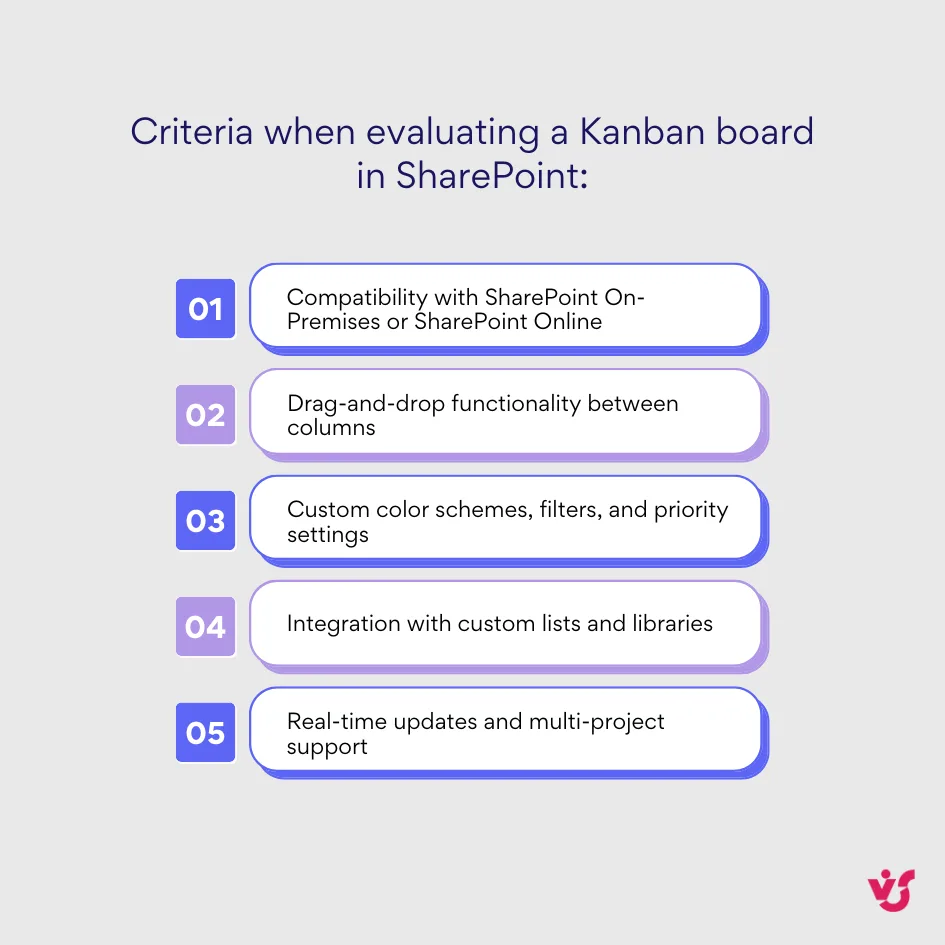
- For SharePoint Online, integration with Planner or Microsoft Lists works well for lightweight project tracking.
- For SharePoint On-Premises, installing a dedicated Web Part (such as Virto Kanban Board) provides the best experience with advanced configuration and local data control.
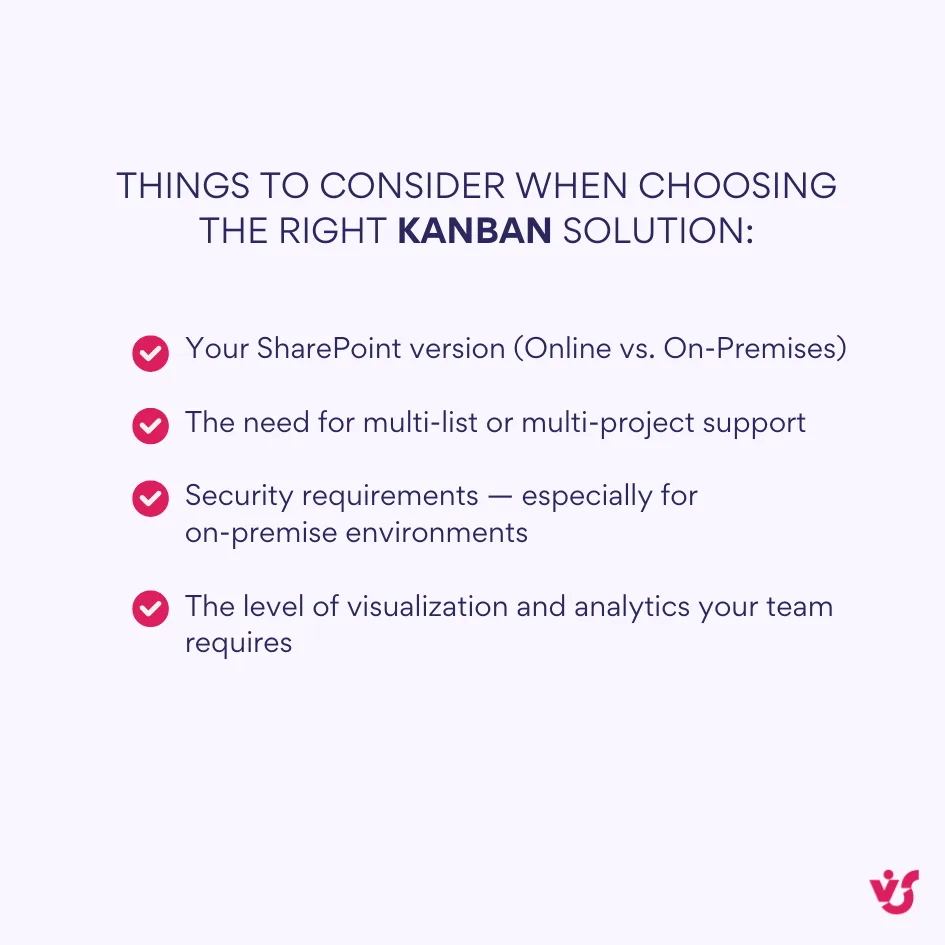
The right SharePoint Kanban board can turn static task lists into dynamic, visual workflows — bridging the gap between collaboration and clarity.
Integrating Your Kanban Board with the Microsoft Ecosystem
A Kanban board in SharePoint becomes far more powerful when it’s not operating in isolation but is fully embedded in the Microsoft 365 ecosystem. Connecting your SharePoint Kanban to tools like Outlook, Teams, Power Automate, and SharePoint Libraries enables teams to work synchronously, see up-to-date task statuses, receive notifications, and collaborate on files seamlessly.
Key benefits of ecosystem integration:
✅Centralized information — all task data, files, and communications live in a single workspace.
✅Process automation — reduce manual task updates and notification management.
✅Transparency and control — managers and team members see task status in real time.
✅Stronger collaboration — linking communications (Teams), planning (Kanban board SharePoint), and content storage (SharePoint Libraries) keeps work organized and efficient.
✅Compliance with security and permissions — ensures corporate standards are maintained.
Examples of integration
| Integration | How It Works | Key Benefits / Examples |
| Outlook | Track task updates, send reminders, and notify users from your Kanban board in SharePoint. | – Automatic email when a task is assigned- Alerts on status changes (e.g., In Progress → Completed)- Sync deadlines with Outlook calendar for consolidated scheduling |
| Teams | Add your Kanban board SharePoint as a tab in a channel and receive real-time updates. | – View tasks and statuses directly in Teams- Automatic alerts on status changes, assignees, or comments- Discuss tasks in chat while updates stay synced with SharePoint Kanban |
| SharePoint Libraries | Link documents and media files to tasks on the Kanban SharePoint board. | – Each card can contain links to documents or reports- Automatic updates of files remain connected to the relevant task- Permissions ensure only project members can edit attachments |
| Power Automate | Automate workflows for your SharePoint Kanban board, eliminating manual updates. | – Notifications on status changes- Automatic task creation from emails or form submissions- Sync tasks across multiple boards or systems (Planner ↔ SharePoint)- Deadline reminders before due dates- Supported by Virto Kanban Board Web Part for advanced automation |
Extending Kanban Board Functionality in SharePoint with VirtoSoftware
For organizations using SharePoint On-Premises, the Virto Kanban Board Web Part offers a professional, full-featured solution for visual task management. This tool transforms a standard SharePoint Kanban board into a dynamic workspace, enabling teams to manage tasks more efficiently.
Key features of the Virto Kanban Board Web Part:
- Create full Kanban boards in SharePoint with drag-and-drop card movement.
- Work across tasks from multiple SharePoint lists and projects.
- Configure filters, priorities, categories, and custom fields to match business processes.
- Assign task owners and track due dates.
- Update and sync data in real-time, keeping the board accurate for all team members.
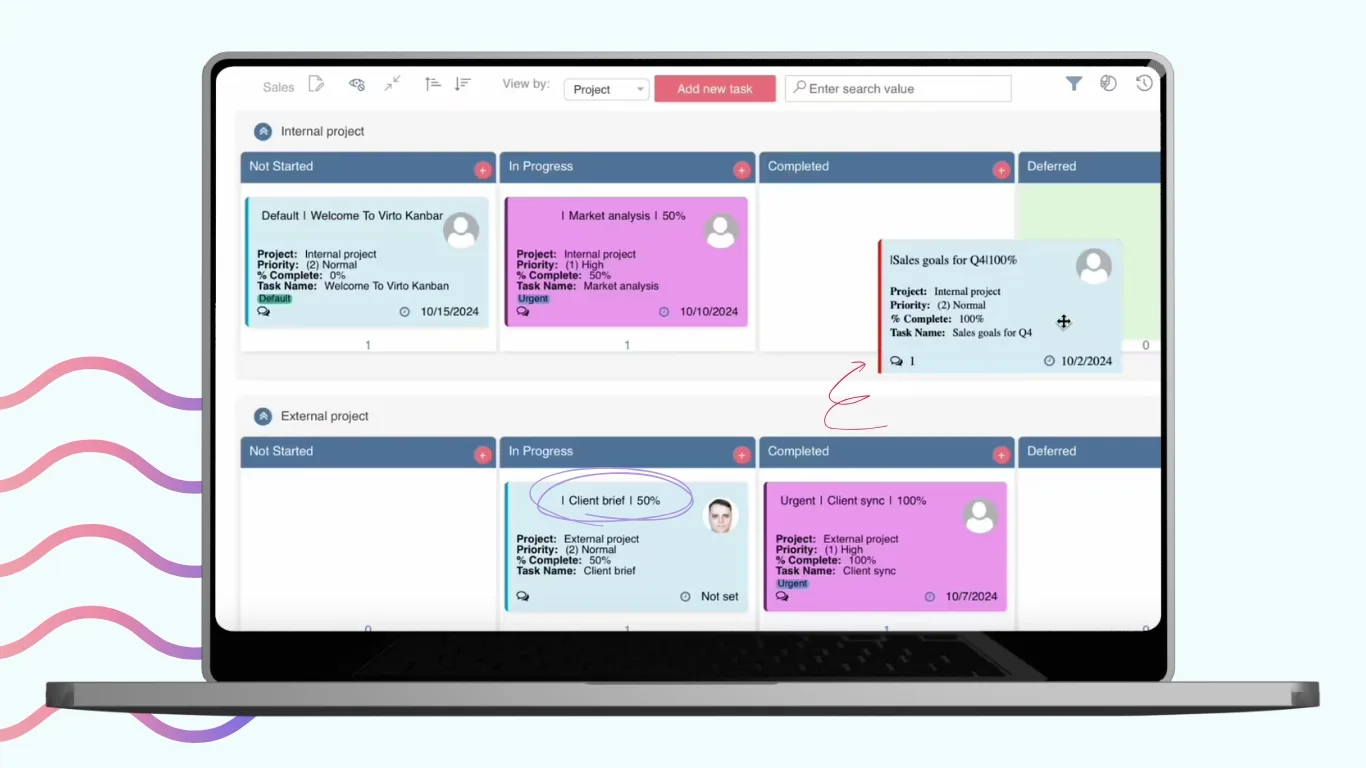
The application is fully integrated with the SharePoint infrastructure and does not require external services, ensuring data stays secure within your environment.
Why VirtoSoftware’s solution stands out
The Virto Kanban Board Web Part is particularly useful for organizations running local SharePoint versions (2013, 2016, 2019), where a flexible, secure task management system is needed without relying on cloud services. Key advantages include:
✅Ease of installation and configuration — get boards up and running quickly.
✅Compliance with corporate security standards — data stays under organizational control.
✅Customizability — adapt the board to match the specific workflows of your company.
Improve Your Management with VirtoSoftware

Virto Kanban Board
Streamline task management: Visualize projects with color-coded boards for efficient workflow tracking.
Real-world use cases
- IT departments manage tickets, incidents, and service requests efficiently with a Kanban board SharePoint.
- HR teams track recruitment pipelines, onboarding, and employee training processes.
- Project managers organize sprint tasks, set priorities, and monitor progress across multiple projects.
With VirtoSoftware, The Virto Kanban Board Web Part becomes a true operational hub — visually intuitive, fully integrated, and tailored to the company’s processes, while maintaining control and security in an on-premises environment.
Conclusion
A Kanban board in SharePoint is a powerful tool for visual task management, bringing clarity and structure to workflows across teams. Implementing a SharePoint Kanban board helps organizations increase process transparency, improve task oversight, and foster a culture of visual project management.
While SharePoint’s native capabilities for Kanban in SharePoint are limited, they can be significantly extended with add-ons and Web Parts. Professional solutions like the Virto Kanban Board Web Part for SharePoint On-Premises allow companies to fully embrace the Kanban approach within their local SharePoint environment — combining flexibility, real-time updates, and task visualization without compromising security or usability.
With the right setup, a SharePoint Kanban board becomes more than just a task list; it becomes a live workspace that empowers teams, simplifies collaboration, and ensures projects move forward efficiently.
Official Microsoft resources:
- Kanban Board Web part
- Creating a Kanban View in SharePoint
- How To Use a Kanban Solution To Manage Your Team Tasks
Your further read: