Large companies don’t stumble on big problems. They trip over small ones that repeat all day. A contract needs five approvals. Finance rekeys data from one system to another. Legal reviews arrive by email with three different versions attached. Each handoff adds delay, invites errors, and makes it hard to scale without simply adding more people. As processes stretch across regions, business units, and tools, the gaps widen: work invisibility, audit headaches, compliance risk, and mounting operational cost.
Enterprise workflow automation addresses these issues head-on. This isn’t a trend or a shiny tool category. It’s a strategic capability that improves efficiency, increases transparency, and gives leaders control over how work moves through the organization. Done well, automation standardizes critical steps, enforces policy, provides real-time status, and frees teams to focus on higher-value tasks. It also lays the groundwork for better governance, analytics, and AI assistance.
This article is a practical guide to doing it right. We’ll define enterprise-level workflow automation in plain terms, outline how to design and implement it at scale, and compare the major tool options—including Microsoft 365 and SharePoint-based approaches such as Power Automate—so you can choose with confidence. We’ll also flag important platform changes that affect planning, like the retirement of legacy SharePoint workflows, and show how to future-proof your stack from day one..
What Is Enterprise Workflow Automation
Before we dive into tools and implementation, it helps to level-set on terms. This section defines what we mean by enterprise workflow automation, how it differs from basic task automation, and why scale, integration, and compliance change the requirements. With that foundation, the rest of the guide—design choices, roll-out, and platform options—will make practical sense.
What is enterprise workflow automation
A workflow is a defined sequence of steps to complete a task. In business, that could be vacation approval (request → manager review → HR record → notification), order processing (quote → PO → fulfillment → invoice), or employee onboarding (offer → background checks → account provisioning → training). Each step has an owner, inputs, outputs, and rules.
Enterprise workflow automation is software that executes, tracks, and governs these steps with minimal human intervention. It routes work, enforces policy, handles exceptions, and records every action. In practice, you describe the process once—triggers, participants, data, and rules—and the system takes over the orchestration reliably and repeatably.
How “enterprise” automation differs from basic task automation:
- Scale and volume. It must process hundreds or thousands of items per day, support thousands of concurrent users, and maintain high availability and fault tolerance across regions.
- Complexity and integration. It connects deeply to ERP, CRM, ECM/DMS, BI, ITSM, data lakes, and often legacy systems. Cross-functional flows span departments and legal entities, with branching paths and exception handling.
- Security and compliance. It enforces granular access (RBAC), applies retention and deletion policies, and produces end-to-end audit logs for internal/external audits—covering frameworks such as GDPR, SOX, and local equivalents (e.g., Federal Law No. 152).
- Scale of consequences. A misrouted approval or stuck queue can cost millions, create compliance exposure, or halt an entire function.
Simple examples you’ll recognize:
- Automatic routing of incoming support tickets to the right queue based on product, priority, and customer tier.
- A consistent contract approval path that collects legal, finance, and executive sign-offs, then stores the final in the repository and updates the CRM.
- Automatic notification to accounting when a delivery note is signed, triggering invoice creation and status updates.
| Process | Trigger | Key steps automated | Primary systems | Example KPIs to track |
| Contract approval | New draft uploaded to library | Parallel legal/finance review → e-signature → publish final → update CRM | SharePoint, Power Automate, e-signature, CRM | Cycle time, approval touches per item, first-pass yield |
| Employee onboarding | New hire created in HRIS | Account provisioning → equipment request → training assignments → welcome notifications | HRIS, AD/Azure AD, SharePoint, Teams | Time-to-ready, % tasks on time, rework rate |
| Support request intake | New ticket received | Auto-classify → route by product/priority → SLA timers → escalation | ITSM, Teams/Email, SharePoint | SLA attainment, backlog age, reopen rate |
| Vendor onboarding | Vendor form submitted | Data validation → risk checks → master record creation → notify AP/procurement | SharePoint, ERP/Finance | Lead time, error rate, exception rate |
Note for Microsoft 365/SharePoint readers (current state). In SharePoint Online, Power Automate is the supported path for workflow. Microsoft has deprecated legacy SharePoint 2013 workflows (off for new tenants since April 2, 2024; fully removed April 2, 2026) and retired SharePoint 2010 workflows in Microsoft 365 (creation disabled Aug 1, 2020; removed Nov 1, 2020). If you still run classic workflows, plan a migration to Power Automate or supported alternatives.
💡 Learn more from official sources:
- Use SharePoint and Power Automate to build workflows
- Modernize SharePoint 2013 workflows | Microsoft Learn
- SharePoint 2013 workflow retirement – Microsoft Support
- SharePoint 2010 workflow retirement – Microsoft Support
Microsoft also evolved “SharePoint Syntex” into SharePoint Premium (announced Nov 15, 2023) and, in 2025 materials, you may see the document processing for Microsoft 365 label for consumption-priced content services. Treat the names as packaging; the capabilities—content processing, AI-assisted classification, and governance—are what matter for workflow design.
💡 Learn more from official sources: Introducing SharePoint Premium – the future of AI powered content management and experiences | Microsoft Community Hub
Why large companies need workflow automation
Large organizations feel pain at scale. Automation addresses the root causes:
- Scalability. Manual, email-driven processes can’t keep up as volumes rise. Automated queues, rules, and SLAs allow you to absorb growth without linearly adding headcount.
- Compliance and auditability. Every step runs according to defined policy; approvals, data changes, and handoffs are time-stamped and immutable. This produces an audit trail that satisfies internal controls and external regulators.
- Risk reduction. The main source of errors is the human handoff—copy-paste mistakes, skipped steps, wrong versions. Automation validates inputs, enforces required checks, and limits unauthorized actions via role-based access.
- Data consolidation. Work stalls when information is trapped in silos. Automated integrations move data between systems (ERP ↔ CRM ↔ DMS ↔ BI), keep records in sync, and surface a single status view so teams aren’t chasing updates.
The outcome is faster cycle times, fewer defects, and clearer accountability—plus the visibility leaders need to measure and improve how work actually flows. In the sections that follow, we’ll translate this into design principles, an implementation blueprint, and concrete tool choices (including SharePoint-based options) you can adopt with confidence.
👉 What’s the difference between enterprise workflow management and enterprise workflow automation? Enterprise workflow management is the discipline and tooling for modeling, monitoring, and improving how work moves—think governance, roles, SLAs, and analytics—while workflow automation is the execution layer that actually carries out the steps via rules, integrations, and triggers; in short, management designs and oversees the system, automation runs it.
Key Benefits of Implementing Enterprise Workflow Solutions
Enterprise workflow automation software pays off in four practical ways: work moves faster, costs stay flatter as you scale, errors fall, and leaders gain clear oversight. Here’s how those gains show up in day-to-day operations.
Increased speed and efficiency
Automation shortens cycle time by removing the idle gaps between steps and handling routine decisions instantly.
- Parallel progress instead of long queues. Approvals that used to wait in a single line can run in parallel (legal, finance, security review at the same time), then merge only when all checks are complete.
- Automatic handoffs. When a task finishes, the next assignee is notified and given the exact inputs needed—no chasing links or files.
- Pre-checks and auto-fills. Required fields, policy thresholds, and reference data (e.g., vendor IDs from ERP) are validated up front so work doesn’t bounce back later.
- Smart routing and escalation. Rules direct items to the right team by product, region, or risk tier; timeouts escalate to backups if someone is out.
Example: A contract that once took several days now completes in hours: intake classifies the request, parallel reviews launch, an e-signature step triggers automatically on approval, and the final document is stored and indexed with the correct metadata.
Reducing operating costs
With automation, volume can rise without a matching rise in headcount performing repetitive work.
- Scale without cloning roles. Routine steps—intake triage, data copying between systems, status notifications—run unattended. People focus on exceptions and negotiation, not admin.
- Reusable building blocks. Standardized templates and connectors prevent one-off scripting for every department.
- Less rework. When rules catch issues early, you avoid the expensive back-and-forth that drags teams into reprocessing.
Example: Vendor onboarding pulls tax and banking data from secure forms, validates it against finance systems, and opens the vendor record automatically. Procurement and AP handle only edge cases, not every submission.
Eliminating human error
Manual processes fail in predictable ways: skipped steps, wrong recipients, outdated versions. Automated workflows enforce the model you define.
- No skipped steps. Gateways won’t proceed until required approvals or documents are present.
- Right person, right time. Role-based routing avoids sending sensitive items to the wrong inbox; substitutions and delegations are handled by rules.
- Version control by design. The system references the current record of truth (e.g., the latest SharePoint file version or master data row), so teams aren’t working from stale attachments.
- Consistent data. Validation, lookups, and format checks prevent bad inputs from entering downstream systems.
Example: Purchase orders above a threshold always add finance approval; below that threshold they route directly to fulfillment, removing variance without adding risk.
Transparency and audit
You can’t improve what you can’t see. Enterprise platforms make every action observable and reportable.
- End-to-end traceability. Each run logs who did what, when, with which inputs and outcomes. That produces evidence for internal controls and external regulators.
- Live status for stakeholders. Dashboards show where each item sits, SLA timers, and where queues are building up—so managers can reassign or add capacity before deadlines slip.
- Governed records. Retention and deletion policies apply automatically to workflow artifacts (requests, approvals, comments, files), aligning operations with compliance requirements.
Example: During a quarterly audit, compliance exports a trail showing request intake, approvals with timestamps, and the final record stored under the correct retention label—no reconstructing from email threads.
Taken together, these benefits translate into faster cycle times, flatter cost curves as you grow, fewer defects, and clear accountability. In the next section we’ll turn those outcomes into design principles you can apply from day one.
💡 Check out additional resources on our blog:
- Enterprise Document Management Software: Features, Types, and Comparisons
- Enterprise Project Management: Features, Strategies & Implementation Steps
- Enterprise Project Management Software: Features, Benefits, and Top Tools
- What is ERM? An Overview of Enterprise Risk Management
Enterprise Workflow Tools and Approaches: Overview and Selection Criteria
A good enterprise workflow platform choice does two things at once: it fits how your business already works and it gives you room to evolve without painful rewrites. This section maps the main categories of workflow tools, where each shines, and how to choose with clear, enterprise-grade criteria.
Overview of enterprise workflow solution types and their business benefits
Here’s how to read the landscape. We group platforms into three practical types you’ll actually meet in the market. Treat these as lenses, not hard boxes—many enterprises use a blend, such as native Microsoft 365 automation for everyday flows, a low-code platform for custom apps, and a BPMN suite for highly regulated processes. For each type below, you’ll see where it fits, the benefits, trade-offs, and example tools so you can map choices to your stack.
- General-purpose low-code platforms: These are broad toolsets for building apps, data models, and workflows in one place. Think visual designers, reusable components, and large connector libraries.
- Where they fit. Complex, multi-department processes that need custom UI, data, and workflow in a single solution.
- Pros. Fast build cycles; rich connectors; reusable components; strong governance features; good path from no-code prototypes to IT-owned solutions.
- Cons. Requires product training and environment governance; very intricate, long-running orchestrations may need complementary services (rules engines, message queues) to keep design maintainable.
- Examples. Microsoft Power Platform, OutSystems, Mendix, ServiceNow App Engine, SAP Build.
- Specialized BPMN suites: These focus on deep modeling of end-to-end processes with BPMN or similar notations. They emphasize orchestration, optimization, and process intelligence.
- Where they fit. Regulated, cross-functional processes with strict SLAs, complex branching, and a need for formal modeling, simulation, and process mining.
- Pros. Precise control over flow logic; strong exception handling; human-in-the-loop tasks; powerful analytics on bottlenecks and conformance.
- Cons. Heavier implementation and upkeep; developer involvement expected for integrations and advanced logic; standalone stack to secure and operate.
- Examples. Camunda, Appian, Pega, Bonita.
- Ecosystem-integrated tools: These live inside major business platforms—extending the identity, security, data, and collaboration layers you already use.
- Where they fit. Organizations standardized on a core ecosystem that want native integration and quick adoption.
- Pros. Built-in SSO and security; native data access; familiar UX for end users; lower change-management effort; licensing and admin aligned with the platform.
- Cons. Deepest capabilities are within the same ecosystem; complex cross-platform integrations may still require API work or iPaaS.
- Examples. Microsoft 365 (Power Automate with SharePoint/Teams), Salesforce Flow, SAP Build Process Automation, ServiceNow Flow Designer.
| Type | Best for | Pros | Cons | Examples |
| General-purpose low-code | Custom apps + workflows in one | Fast build; rich connectors; reusable components | Needs training/governance; very long flows may need adjunct services | Power Platform, OutSystems, Mendix, ServiceNow App Engine, SAP Build |
| Specialized BPMN suites | Formal, cross-functional processes | Precise control; simulation/mining; strong exception handling | Heavier rollout/upkeep; more dev for deep integrations | Camunda, Appian, Pega, Bonita |
| Ecosystem-integrated tools | Orgs standardized on a core stack | Native identity/data; familiar UX; faster adoption | Deepest features inside the ecosystem | Microsoft 365 (Power Automate), Salesforce Flow, SAP Build Process Automation, ServiceNow Flow Designer |
What this means if you’re a Microsoft 365 and SharePoint shop
Type 3 is often the most rational and fastest route to value: identity, data governance, and collaboration are already in place, and Power Automate is the supported workflow path in Microsoft 365. You can still pair it with low-code apps or even a BPMN engine for very specialized cases.
Why low-code/no-code is the default for large enterprises
At scale, requirements and policies change frequently. Low-code/no-code tools let you adapt quickly, keep business owners involved in design, and reduce the backlog on central IT—while still operating under proper guardrails. The best enterprise tools are flexible enough that non-developers can configure most logic, with IT stepping in for integrations, security, and lifecycle management.
👉 What are some of the best enterprise process automation software on the market? Across categories, widely adopted options include Microsoft Power Automate for Microsoft 365 ecosystems; ServiceNow Flow Designer/App Engine for ITSM-centric enterprises; Salesforce Flow inside Customer 360; SAP Build Process Automation for SAP-first shops; BPM/BPMN stalwarts like Camunda, Appian, and Pega; and low-code app+workflow platforms such as Mendix and OutSystems.
Selection criteria for enterprise workflow solutions
Use these criteria to compare platforms objectively. Score each item against your must-have processes and operating constraints.
- Deep integration with your ecosystem
- Native connectors and APIs to your core systems (CRM, ERP, ECM/DMS, ITSM, data platform).
- Event-driven triggers, webhooks, and support for modern auth.
- Alignment with your identity provider, DLP policies, data residency, and retention.
- Flexibility for complex logic
- Visual design of non-linear flows: conditions, branching, parallel tasks, loops, and compensation steps.
- Human-in-the-loop features: SLAs, due dates, reminders, and escalations when someone doesn’t respond in time.
- Rules and data validation that match your policies, without bending the business to the tool.
- Scalability, reliability, and performance
- Proven throughput for thousands of concurrent processes and users.
- Robust retry, idempotency, and error handling so transient failures don’t become incidents.
- High availability, disaster recovery options, environment strategy (dev/test/prod), and support for long-running workflows.
- Centralized management and analytics
- A single admin surface to govern environments, solutions, connectors, and runtime policies.
- Built-in monitoring with real-time run status, backlog and SLA views, alerts, and usage quotas.
- Process analytics/mining to detect bottlenecks and measure cycle time by step, role, and region.
- Security and access management
- Role-based access to apps, flows, data entities, and secrets.
- Encryption in transit and at rest; options for customer-managed keys where required.
- Comprehensive audit logs for every action, with export to your SIEM; alignment to your compliance regimes (GDPR, SOX, ISO 27001, industry specifics).
- Ease of use and speed of implementation
- Visual, low-code designers for workflows, forms, and data—plus templates and reusable components.
- Intuitive user experience for both builders and approvers so adoption isn’t a hurdle.
- Clear DevOps path: solution packaging, source control integration, automated testing, and safe deployment to production.
How to decide, quickly
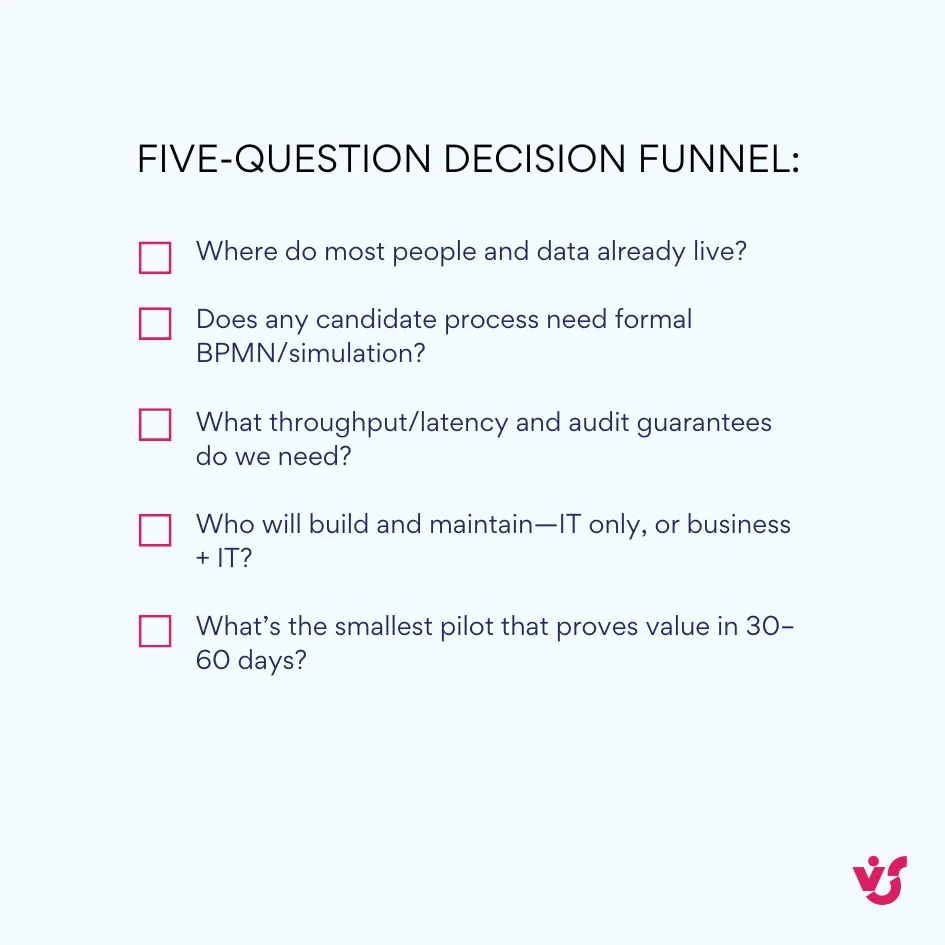
Use this as a quick decision funnel, not a feature checklist. Start broad—anchor on where your people and data already live—then pressure-test flexibility and non-functional needs at scale. Finally, validate with a real pilot so you measure time-to-value, not slideware.
- Start with ecosystem fit—if most work and data live in Microsoft 365, Salesforce, SAP, or ServiceNow, prefer the ecosystem’s native automation first.
- Check your top three processes against the flexibility criteria—if you need formal BPMN and simulation, shortlist a specialized suite.
- Validate non-functional needs at scale—throughput, audit, and security are table stakes for enterprise use.
- Run a short pilot with real users—time to first value is your best leading indicator of ROI.
Enterprise Workflow Automation Solutions in SharePoint and M365
SharePoint sits where work and documents meet, so it’s the natural place to automate reviews, approvals, and records handling. The approach you take depends on where SharePoint runs: cloud (SharePoint Online in Microsoft 365) versus on-premises (SharePoint Server). Each has different capabilities, guardrails, and tooling.
Enterprise workflow automation in SharePoint
SharePoint is the central store for corporate content and collaboration. That’s why document-centric workflows—requests, approvals, publishing, records—see the biggest gains when automated here.
Automation in SharePoint online: A modern cloud approach
In Microsoft 365, Power Automate is the supported, primary way to build workflows for SharePoint. It provides deep SharePoint integration, hundreds of connectors, and more than 100 SharePoint-specific templates to jump-start common scenarios like notifications, approvals, file moves/copies, and integrations with Teams and Outlook. Recent additions like Copilot in Power Automate let you draft or modify flows using natural language, which speeds up design and iteration.
Why the cloud model pays off:
- No servers to patch or maintain.
- Features land continuously, without upgrade projects (for example, Copilot features and new connectors).
- Global availability and reliability aligned to the Microsoft 365 SLA.
📍 Plan for platform realities: As mentioned, legacy SharePoint 2013 workflows are off for new tenants since April 2, 2024 and retire across all tenants on April 2, 2026. SharePoint 2010 workflows were disabled for new tenants on Aug 1, 2020 and removed from existing tenants on Nov 1, 2020. If you still rely on classic workflows, prioritize migration to Power Automate or supported ISV solutions.
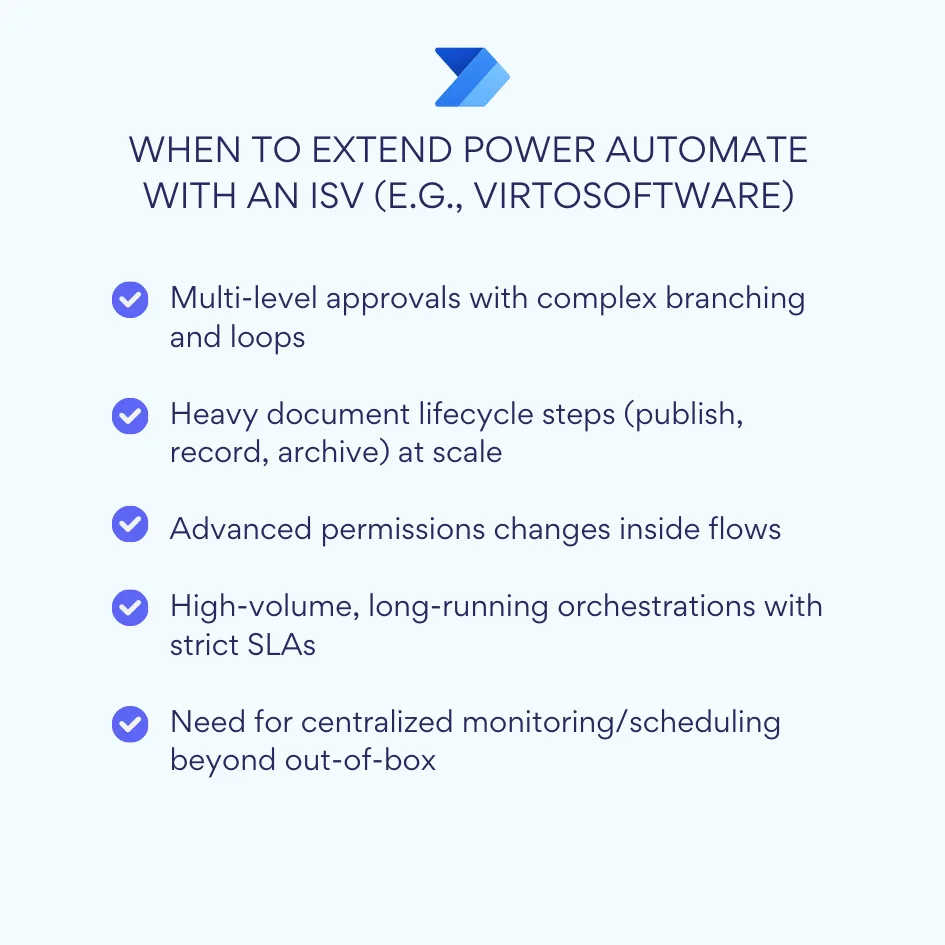
When you may outgrow “standard” flows: Highly complex, cross-system processes—multi-level conditional approvals, heavy document lifecycle operations, advanced permissions handling, or high-volume, long-running orchestrations—can stretch native cloud flows. In those cases, enterprises layer in specialized workflow components or ISV apps that extend SharePoint while keeping everything inside Microsoft 365 security and governance.
Automation in SharePoint On-Premises: Solutions for perimeter-bound environments
Some organizations keep SharePoint Server on-premises for strict data residency, existing infrastructure investments, or full control over every component.
- SharePoint Designer (legacy). Still present in many farms as a no-code designer for classic workflows, but limited compared to modern tooling and considered legacy by Microsoft.
- Custom solutions. You can build bespoke workflow logic and integrations, but this demands skilled developers, rigorous testing, and ongoing maintenance.
💡 Learn more from official sources:
- Official Microsoft Power Automate documentation
- Adopt automation with Copilot in Power Automate – Power Automate | Microsoft Learn
- Overview of workflows included with SharePoint – Microsoft Support
- Introduction to SharePoint workflow – Microsoft Support
| Environment | Primary tools | Ideal use cases | Advantages | Limitations / notes |
| SharePoint Online (M365) | Power Automate (+ Copilot, templates) | Approvals, notifications, file moves, Teams/Outlook integration | No servers; continuous updates; global reliability | Very complex, long-running, or permissions-heavy flows may need extensions/ISVs |
| SharePoint Server (on-prem) | SharePoint Designer (legacy), custom code, Virto on-prem | Perimeter-bound, highly customized processes | Full control; data stays inside perimeter | Designer is legacy; custom code requires dev capacity; maintain farm components |
💡 Check out additional resources on SharePoint on our blog:
- SharePoint Features and Capabilities for Teams and Businesses
- SharePoint Security: Complete Guide for Safe Collaboration
- SharePoint Alerts Retirement: Alternatives and Next Steps
Overcoming limitations: Specialized solutions for SharePoint
For mission-critical, complex processes, the built-in options—both Online and on-prem—may not cover every need. This is where specialized, SharePoint-native solutions add power and control without abandoning the Microsoft ecosystem.
Virto Workflow Automation App (SharePoint Online & Microsoft 365)
Virto Workflow Automation App is a cloud solution built for Microsoft 365 that fully leverages SharePoint Online.
- Low-code designer. Build sophisticated workflows—document approval, incident management, vacation requests—visually, without writing code.
- Richer logic than standard out-of-the-box flows. Configure multi-level approvals, parallel tasks, conditions, and loops to match real enterprise paths.
- Deep M365 integration. Use SharePoint for content, Teams for collaboration and notifications, Outlook for approvals, and keep everything within your tenant’s governance.
- Ready for scale. Designed to handle thousands of users and processes concurrently.
- Enterprise content management. Automate the document lifecycle end-to-end: creation, review, approval, publication, and archiving.
Explore VirtoSoftware Apps

Workflow Automation
Enhance SharePoint with 270+ no-code workflow activities for easy, customized automation.

Virto Multiple File Operations
Execute a wide array of file actions—upload, download, delete, copy, move, check-in, approve, and edit.
Virto Workflow Automation App
Enhance SharePoint Online with 80+ no-code workflows for streamlined processes.
Virto Workflow Automation Web Part (SharePoint On-Premises)
For organizations running SharePoint Server, VirtoSoftware provides an on-premises suite that augments native capabilities and modernizes classic workflows—all within your perimeter.
- Unified package. Virto Workflow Automation is now a single bundle that combines Virto SharePoint Workflow Activities, Virto Workflow Status Monitor, and Virto Workflow Scheduler, simplifying deployment and governance.
- Dozens of ready-made building blocks. Extend SharePoint’s classic workflow engine with a rich library of activities so admins and power users can assemble advanced processes without custom code.
- Powerful operations beyond native tools. Handle complex permissions, database calls, external service interactions, scheduled triggers, and fleet-level monitoring—ideal for processes that are hard or impossible to implement with stock features.
- Enterprise-grade security and reliability. Keep all data and processing inside your secured environment while meeting uptime and audit requirements for critical operations.
Taken together, Microsoft 365’s native capabilities (Power Automate, SharePoint Online) cover the majority of modern automation needs, while specialized solutions such as Virto’s deliver the extra depth required for complex or perimeter-bound scenarios—without leaving the SharePoint world.
Explore VirtoSoftware Use Cases

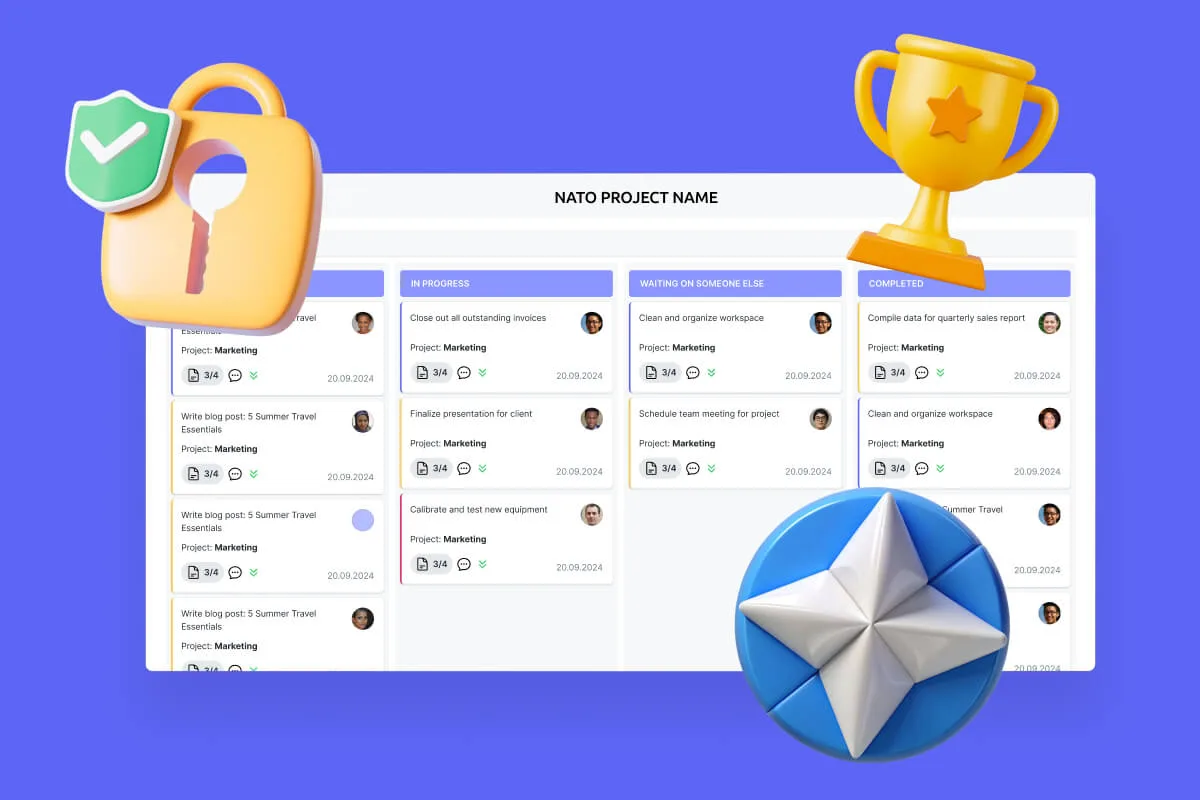
The Future of Automation: How AI is Changing Enterprise Workflow
Classic automation moves work according to rules. AI adds perception and prediction: it reads content, infers intent, recommends next steps, and spots risk early. The result isn’t just faster execution—it’s workflows that adapt to context while staying governed.
What AI adds on top of rules
Before we list features, here’s the shift in plain terms: rule-based flows are great at doing; AI is great at understanding and anticipating. You keep the deterministic backbone—triggers, roles, approvals—and layer in models that can read context, suggest next steps, and flag risks. That starts with the most foundational skill: understanding content.
- Understanding content. Prebuilt and custom models extract fields from documents and messages (amounts, dates, names, IDs) and classify intent without manual parsing. In Microsoft 365, this shows up in document processing for Microsoft 365 and AI Builder models you can drop into flows.
- Design and maintenance help. Builders can describe a flow in natural language and let Copilot in Power Automate scaffold it, then refine expressions conversationally—useful for speeding up iteration without sacrificing control.
- Insight to action. Process mining reveals bottlenecks, rework, and root causes so you can target automation where it matters and measure the impact.
- Agentic workflows (emerging). Microsoft is rolling out Copilot-enabled app and workflow “agents” that turn plain-language goals into runnable automations across Microsoft 365 and beyond—backed by Copilot Studio for governance.
Intelligent automation examples you can use today
Let’s ground the promise of AI in concrete patterns you can deploy right now. We’ll start with the front door of most processes—ingest—where intelligent capture and routing remove the first big bottleneck.
Automatic classification, data extraction, and routing
In practice, this looks like models that read incoming content, lift the fields you care about, and hand the work to the right place with the right metadata. Typical use cases include:
- Invoices, resumes, applications, and emails. Use prebuilt AI Builder models (e.g., invoice and receipt processing) or train your own to extract key fields, then start the right process automatically—create a record, attach evidence, and route to the correct queue with the needed metadata.
- SharePoint-centric content. Document processing services in Microsoft 365 classify content, capture fields, and apply retention labels as part of the flow—so filing and compliance aren’t afterthoughts.
Smart decision-making and predictive analytics
Once you’re reliably capturing clean signals, the next step is choosing the best path for each item—before someone has to think about it. This is where predictive models use history (cycle times, workloads, approval behavior, risk scores) to recommend or auto-apply the most efficient route while honoring your policies. The most common—and high-impact—pattern is data-driven routing.
- Data-driven routing. Combine historical cycle times with business rules to send requests to the approver most likely to respond fastest (or to a group where any member can approve) and balance workload by region or tier. (This is a common enterprise pattern informed by process mining; group approvals are supported natively.)
- Forecasting delays and rework. Use process mining’s rework detectors and root-cause analysis to flag steps that typically bounce back or stall, and have your flow escalate or add validation before failure points.
Proactive process management
Proactive means you don’t just watch processes—you steer them. Using live telemetry and learned patterns, the system forecasts where work will stall, simulates the impact, and applies mitigations automatically (reassignment, escalations, capacity shifts) before an SLA is at risk. The first visible layer of that capability is early-warning dashboards.
- Early-warning dashboards. Surface SLA risk by step and queue length; alert owners before deadlines slip, then trigger auto-escalations or reassignment. Power Automate’s process-level insights and mining integration are built for this exact feedback loop.
- Seasonality and capacity signals. Train lightweight models on volume and handle-time by period to predict peak weeks; your workflow can add extra approvers, lengthen SLAs, or stage work ahead of load.
Where this lands for SharePoint and Microsoft 365
Here’s how the AI patterns translate inside your Microsoft 365 tenant. The building blocks are already native—Copilot in Power Automate for speed, document processing for M365 to understand files, process mining for evidence-based improvement, and governed agents to scale. Put them together to deliver intelligent workflows without leaving SharePoint and Teams.
- Build faster with copilot-powered design. Describe a SharePoint-based scenario (“When a new contract is uploaded, extract vendor, amount, due date; route to legal and finance; file the signed PDF”) and let Copilot draft a flow you harden with policies.
- Make content intelligent, not just stored. Use document processing for M365 to classify and extract from files in libraries, then drive approvals and records steps automatically.
- Close the loop with mining. Point process mining at event data to identify the few steps causing most delay, then change the flow logic and re-measure.
- Plan for the next wave. Copilot “Workflows” and Studio bring conversational build and governed agents to more users—useful for citizen developers working under enterprise guardrails.
💡 Learn more from official sources:
- Overview of document processing for Microsoft 365
- Invoice processing prebuilt AI model | Microsoft Learn
- https://learn.microsoft.com/en-us/power-automate/create-cloud-flow-using-copilot
- Overview of Power Automate 2025 release wave 1 | Microsoft Learn
- Process mining – Power Automate
- Microsoft 365 Copilot now enables you to build apps and workflows
Evolution, not replacement
AI doesn’t replace proven automation; it extends it. Keep the deterministic spine—triggers, roles, approvals, retention—and layer AI where perception and prediction add value: document understanding, routing, exception handling, and insight. Maintain human-in-the-loop checkpoints for high-risk steps, and keep everything auditable (logs, data lineage, SIEM export). Features like validation and usage reporting in AI Builder help you oversee model behavior at scale.
Bottom line: pair rule-based flows with AI-driven understanding and insights. You’ll get workflows that are flexible under change, adaptive to real-world variability, and efficient at enterprise scale—without giving up governance.
How to Successfully Implement Automation at a Large Enterprise
This playbook turns strategy into a repeatable rollout. Timelines are indicative; use timeboxes to keep momentum and define exit criteria at each stage before moving on.
| Stage | Timebox | Focus | Key deliverables | Exit criteria |
| 1. Preparation & planning | 1–2 months | Team, scope, candidates, KPIs, platform | Charter/RACI, process shortlist, KPI baselines, platform decision | Signed plan and pilot scope |
| 2. Design & development | 2–3 months | To-be model, integrations, pilot build | BPMN diagrams, solution package, test data | Pilot feature-complete in test |
| 3. Implementation & launch | 1–2 months | Enablement, phased rollout, data migration | Training assets, release notes, migration report | Adoption and KPI targets trending positive |
| 4. Monitoring & optimization | Ongoing | KPIs, feedback, continuous improvement | Dashboards, feedback backlog, quarterly roadmap | Sustained KPI gains; templates for reuse |
Stage 1: Preparation and planning (1–2 months)
Before touching tools, set the foundation. This stage aligns business goals, scope, and guardrails so decisions later aren’t guesswork. It starts with the right people in the room.
Step 1.1: Create a working group
Build a cross-functional team that can decide quickly and unblock issues.
- Core roles: project owner (business), product manager (automation), lead architect (IT), business analyst, security and compliance lead, data steward, change manager, and 2–4 future power users.
- Responsibilities: agree scope, budget, and success measures; prioritize processes; set governance (environments, naming, DLP, retention); approve the pilot plan.
- Deliverables: RACI, communication plan, risk register, and a charter with decision rights.
Step 1.2: Audit and select candidate processes
Inventory processes across departments, then shortlist pilots that prove value fast.
- Selection criteria: high frequency, clear rules, measurable outcomes, low regulatory risk for a first win.
- Typical picks: contract approval, employee onboarding, support request intake and triage.
- Deliverables: process backlog with effort/impact scoring; 2–3 pilot candidates with business owners.
Step 1.3: Define goals and success metrics (KPIs)
Tie automation to outcomes the business cares about.
- Examples: cut cycle time by 40%; reduce error rate by 90%; free 2 hours per user per day; raise SLA attainment to 95%; improve first-pass yield to 98%.
- Measurement plan: baseline current performance, define data collection points in the future workflow, and agree reporting cadence.
- Deliverables: KPI sheet per process with baseline, target, and data source.
Step 1.4: Select an automation platform
Compare options against hard requirements, not just features.
- Integration: native connectors and APIs for ERP/CRM/SharePoint; event triggers; modern auth.
- Scale and performance: concurrency, long-running workflows, retry and error handling.
- Security and compliance: RBAC, encryption, audit logs, retention, data residency.
- Usability: visual designers for workflows and forms; templates; role-based experiences for builders and approvers.
- TCO: licenses, hosting (if any), admin effort, support model, and skills availability.
- Deliverables: scorecard, reference architecture, and a signed decision. If you’re standardized on Microsoft 365 and SharePoint, plan around Power Automate for cloud scenarios and consider SharePoint-integrated ISV tools for advanced needs; on-premises estates should weigh specialized SharePoint server add-ons alongside custom development.
Stage 2: Design and development (2–3 months)
With priorities locked, turn intent into a buildable blueprint. The first move is clarity—map how work flows today and how it should flow tomorrow, including data, roles, and exceptions.
Step 2.1: Describe the process in detail
Model how work flows today and how it should work after automation.
- Artifacts: “as-is” and “to-be” diagrams (BPMN or equivalent), swimlanes, inputs/outputs, data model, and exception paths.
- Include: participants, decision points, branching, loops, escalations, SLAs, retention rules, and audit needs.
- Deliverables: signed “to-be” spec and acceptance criteria linked to KPIs.
Step 2.2: Develop a pilot solution
Build in a non-production environment with guardrails from day one.
- Workflow logic: triggers, rules, escalations, and compensation steps.
- Integrations: connectors/APIs for master data, identity, and content repositories.
- User experience: forms with validation, contextual guidance, and notifications in the channels people already use (e.g., Teams, Outlook).
- AI where it helps: document classification and field extraction at intake; route suggestions; draft responses for common steps. Keep humans in the loop for higher-risk actions.
- Deliverables: working pilot, solution package, test data, and run books.
Step 2.3: Testing and validation
Test for correctness, scale, and safety—then test failure modes.
- Functional: verify all paths, including exceptions and rework loops.
- Load and resilience: simulate peak volumes and outages; confirm retries, idempotency, and graceful degradation.
- Security: role tests, data masking, permission boundaries, and audit log completeness; verify retention and deletion behaviors.
- Deliverables: test plan and results, defect log, and a go/no-go checklist.
Stage 3: Implementation and launch (1–2 months)
A solid pilot only delivers value when people adopt it. Start by preparing users—clear guidance, quick training, and visible champions make the first release land smoothly.
Step 3.1: Prepare users
Good adoption beats perfect features.
- Enablement: quick-start guides, 2–3 minute videos, and scenario-based playbooks.
- Training: webinars and live workshops; office hours during the first two weeks.
- Champions: appoint a champion per department to gather feedback and demo improvements.
- Deliverables: training assets, FAQ, and a support channel.
Step 3.2: Phased launch
Start small, learn fast, then scale.
- Pilot rollout: enable one department or region; monitor KPIs daily for two weeks.
- Refinement: ship quick fixes; document known issues and workarounds.
- Expansion: add departments in waves with a clear readiness checklist.
- Deliverables: release notes, change log, and an adoption dashboard.
Step 3.3: Data migration
Move what users need, not everything that exists.
- Scope: define which historical records must be brought over and which can remain in read-only archives.
- Execution: map fields, cleanse data, migrate in batches, and validate counts and spot checks.
- Coexistence: set up synchronization or stubs for in-flight items until cutover completes.
- Deliverables: migration plan, reconciliation report, and rollback plan.
Stage 4: Monitoring and optimization (ongoing)
Launch isn’t the finish line. Treat workflows as products—measure, learn, and iterate—so performance improves quarter after quarter.
Step 4.1: Monitor KPIs regularly
Make performance visible and actionable.
- Cadence: weekly KPI review for the first quarter, then monthly.
- Views: cycle time by step, SLA breaches, rework ratio, backlog trends, and workload by team.
- Action: assign owners to each metric and track improvements in a simple log.
- Deliverables: live dashboards and a quarterly outcomes report.
Step 4.2: Collect feedback
Qualitative input explains the numbers.
- Channels: in-app surveys after key steps, champion forums, and a feedback form linked in notifications.
- Synthesis: tag feedback by theme (usability, policy, data quality) and prioritize fixes.
- Deliverables: feedback backlog with status and expected impact.
Step 4.3: Drive continuous improvement
Treat workflows as products, not projects.
- Optimize: remove steps that add little value; automate frequent exceptions; tune routing with insights from process mining.
- Extend: add new automations where KPIs point to bottlenecks; apply AI to new intake types as models improve.
- Scale: templatize successful patterns, publish build standards, and stand up a center of excellence for governance and reuse.
- Deliverables: quarterly roadmap, template library, and updated standards.
Implementation challenges to plan for
Even great designs hit real-world friction. Anticipate the common obstacles and neutralize them early—beginning with how people feel about the change:
- Employee resistance. Mitigate with early involvement, clear “why,” and visible wins. Use champions and office hours to keep the feedback loop tight.
- Process ambiguity. If rules aren’t written, the automation will mirror confusion. Invest time in “to-be” design and decision tables.
- Tool sprawl. Set platform guardrails and a catalog of approved connectors to keep governance intact.
- Legacy dependencies. Plan interim bridges for systems that can’t integrate cleanly yet; isolate technical debt behind stable interfaces.
Common mistakes to avoid
A few missteps can stall momentum. Steer clear of these traps from day one, starting with the urge to tackle the hardest process first:
- Automating the most complex process first. Start with high-volume, rule-driven flows to build credibility and reusable components.
- Skipping deep integration tests. Test with realistic data and peak loads; simulate downstream outages and confirm recovery behavior.
- Ignoring resistance to change. Training and communications are not optional; budget time for them.
- Skimping on user training. Short videos and role-based guides reduce tickets and speed adoption.
- No scaling plan. Without standards, environments, and a center of excellence, you’ll accumulate debt. Define lifecycle management, naming, source control, and release practices up front.
Outcome to aim for: a sustainable operating model where business teams can design and evolve workflows within guardrails, IT governs platforms and integrations, and leadership reviews clear metrics that link automation to real savings, faster cycle times, and lower risk.
Conclusion on Enterprise Workflow Management & Automation
Enterprise workflow automation isn’t a fad—it’s a core capability for efficiency, control, and scale. The payoff shows up in faster cycle times, flatter operating costs, fewer errors, and clear auditability. But technology alone isn’t the win. Success comes from thoughtful platform selection, disciplined design, and a people-first rollout with measurable goals.
For SharePoint-heavy organizations, there’s a clear path forward in both deployment models. In the cloud, Microsoft 365 plus the Virto Workflow Automation App brings low-code power, rich SharePoint/Teams integration, and enterprise governance. On premises, Virto Workflow Automation extends classic SharePoint workflows with advanced activities, scheduling, and monitoring—keeping data and control inside your perimeter.
Both products are built to handle complex, mission-critical scenarios for businesses of any size. A pragmatic starting point is to analyze your slowest, most expensive processes—contract approvals, onboarding, purchase requests—then select the right VirtoSoftware solution to remove bottlenecks and prove value quickly.
Ready to move?
- Schedule a demo
- Try it free:
Further reading: