virto-shared-calendar-icon

NEW Virto Shared Calendar

Home > Blog > News > Virto Calendar App Update: Persistent Category Filters Save Your Preferences​

Virto Calendar App Update: Persistent Category Filters Save Your Preferences​

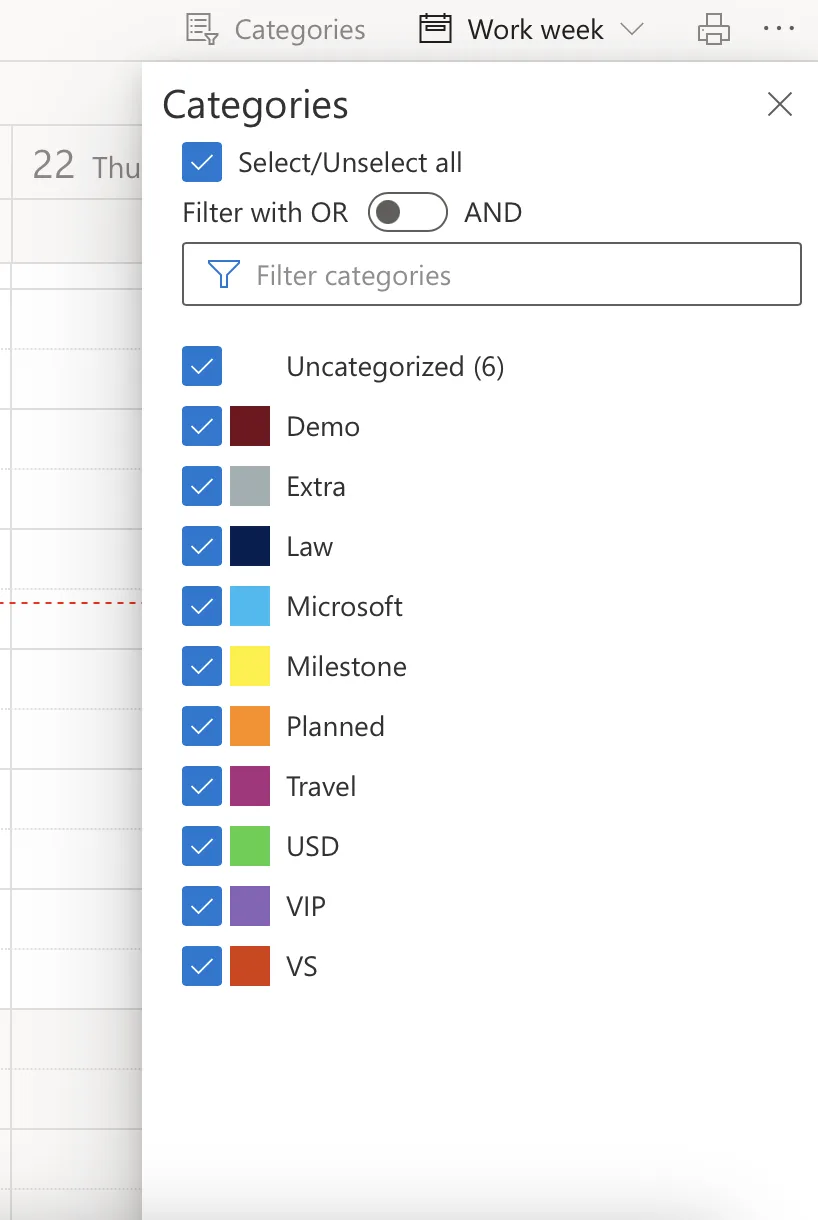
Virto Calendar App for SharePoint and Microsoft Teams now saves your selected categories automatically across sessions. This small update enhances user experience by remembering filter preferences, like those shown in the color-coded category panel. No more resetting filters every time.
Screenshot 2026 01 23 at 15.36.33

Why This Matters

Users often switch between category views to focus on specific events, such as Blue for projects or Green for meetings. Previously, selections reset on reload; now, they persist per user, reducing clicks and boosting efficiency in busy SharePoint or Teams environments. This aligns with Virto Calendar’s core strength in customizable, color-coded overlays from SharePoint lists, Outlook, and more.

How It Works

Open the “Categories” menu in Virto Calendar App and select the ones you need. Selections save instantly. Multi-select and search filters remain intuitive, supporting dynamic views (Day, Week, Month, etc.).

Benefits for Teams

  • Time Savings: Jump straight to relevant events without reconfiguration.
  • Personalization: Each user retains their setup, ideal for diverse teams.
  • Consistency: Perfect for recurring tasks in project management or event planning.

Try it today in your Virto Calendar App and experience seamless scheduling in Microsoft 365.

Download and extract the zip file to a folder on your SharePoint server
Run Setup.exe under SharePoint administrator account and follow the simple wizard

Request your 14-day trial. 

Download the Latest Version

Choose your SharePoint product version:

Need any help? – email us at support@virtosoftware.com

Please select the SharePoint version that your organization uses to proceed
with the checkout.

Please select the SharePoint version that your organization uses to proceed
with the checkout.

Download and extract the zip file to a folder on your SharePoint server
Run Setup.exe under SharePoint administrator account and follow the simple wizard

Request your 14-day trial. 

Download Free 30-day Trial

Choose your SharePoint version

Product version:

Need any help? – email us at support@virtosoftware.com

Charts

Important: You’re just a few clicks away from exploring our app. Before you start the installation process, make sure to read instructions. This will prevent from possible technical issues in the future

If you will need further technical help for installation or configuration please contact our support team at support@virtosoftware.com

Pop up alert
Important: You’re just a few clicks away from exploring our app. Before installing, please read the instructions to avoid potential technical issues.

If you will need further technical help for installation or configuration please contact our support team at support@virtosoftware.com

Download and extract the zip file to a folder on your SharePoint server
Run Setup.exe under SharePoint administrator account and follow the simple wizard

Request your 14-day trial. 

Download Free 30-day Trial

Choose your SharePoint product version:

Need any help? – email us at support@virtosoftware.com