



Truth be told — figuring out how to keep track of work tasks isn’t always as easy as jotting down a to-do list on a sticky note. With so many moving parts, especially in hybrid teams, staying organized takes more than just good intentions. That’s why more and more teams are turning to task tracking software to bring structure and sanity to their day-to-day.
A good work task tracker isn’t just a list — it’s a digital workspace that helps you track tasks, manage priorities, and stay aligned with your team. Whether you're dealing with simple assignments or full-on projects, a solid task tracking system transforms scattered efforts into clear progress.
In this article, we’ll break down how to choose the right task tracker for work, what to look for in a reliable task tracking tool, and how automation can save your team hours of manual effort. We’ll explore the most useful task tracking applications, including online task trackers that play well with your existing tools.
We’re also putting extra focus on tracking tasks at work within Microsoft 365 — showing you how tools like Microsoft Teams can become a powerful work tracking tool when paired with the right task tracker software.
Whether you're trying to keep track of tasks at work, manage a hybrid team, or just want a smarter way to track task progress, we’ve got you covered. Get ready to explore the world of task trackers and finally take the chaos out of tracking work tasks.
What Is a Work Task Tracker and Why Does It Matter?
A task tracker for work is more than just a fancy to-do list. It’s a digital tool — or in many cases, full-blown task tracking software — designed to bring structure to your workflow. Whether you're flying solo or part of a busy team, the right task tracking tool helps organize workloads, delegate responsibilities, track tasks in real time, and streamline communication.
Some task trackers are as simple as an online checklist. Others are more advanced, packed with features like automation, analytics, and integrations with services you already use — like Microsoft Teams, Outlook, Slack, or even your CRM. The beauty is, you can start small or go full power mode depending on your team's needs.
So, why use a work task tracker in the first place?
For individuals:
- Reduce stress and ditch the mental overload.
- Stay laser-focused with a clear view of your own to-dos.
- Track personal progress and never miss a step.
- Use a tasks tracker to boost your daily productivity without constantly switching between apps.
For teams:
- Spot and fix bottlenecks before they derail the project.
- Improve communication — no more "Who’s doing what?" confusion.
- Make workloads visible, so everyone knows who’s handling what.
- Cut back on your team’s dependence on that one person who always “knows everything.”
For managers:
- Get a data-driven view of team performance.
- Distribute work smartly and avoid burnout.
- Quickly check the status of key tasks without chasing updates.
- Use reports from your task tracking system to make decisions backed by real progress data.
What problems do work task trackers solve?
Let’s break it down with real examples of what the right task tracker software can do:
✅ Prioritizing like a pro
A good task tracking application helps you sort work by urgency and importance — so you’re not stuck wondering what to tackle next.
- Everyone knows what comes first.
- Managers can focus teams on high-impact tasks.
- Priorities are visible and easy to adjust when needed.
⏰ Deadline control (without the panic)
No more missed deadlines or last-minute scrambles.
- Each task has a due date visible to everyone involved.
- Notifications keep tasks on track without micromanagement.
- Timely delivery helps keep your entire project from falling behind.
🧠 No more forgotten or duplicated tasks
With a tracking task software, everything is logged — nothing slips through the cracks.
- Set automatic reminders to keep tasks top of mind.
- Assign responsibilities clearly, so there’s less confusion and zero task overlap.
- All updates live in one place — perfect for tracking tasks at work.
📈 Progress that’s easy to follow
Visualize work as it moves from “to do” to “done.”
- See task status in real time: planned, in progress, completed, blocked, etc.
- Use kanban boards, Gantt charts, or lists to match your style.
- Managers can quickly spot delays or overburdened teammates.
🤝 Simplifying teamwork
Using a task tracking tool together keeps everyone on the same page — no endless status meetings required.
- See who’s doing what, and when.
- Share comments, updates, and files directly in the task card.
- Create a shared workspace that’s easy to navigate for both remote and in-office teams.
🔗 Integrating with your favorite tools
Modern task trackers work with tools your team already uses — so you can track task progress where your work actually happens.
- Sync with Outlook, Microsoft Teams, Google Calendar, Slack, and more.
- Stop switching tabs and start managing tasks seamlessly in one place.
📊 Transparency and insights
With the right tracking task system, managers don’t have to guess — they can see what’s happening in real time.
- Get stats on completed, overdue, and in-progress tasks.
- Identify who’s overloaded and who’s ahead of schedule.
- Export reports to plan better and manage resources more effectively.
Whether you're trying to keep track of tasks at work or looking for a work tracking tool that integrates cleanly into your team’s daily flow, choosing the right online task tracker can completely change the way you collaborate and deliver results.
Popular Task Tracking Tools: A Quick Comparison
When it comes to tracking tasks at work, there's no one-size-fits-all. Some teams need something lightweight to track task progress quickly, others need deep project management features with automation, analytics, and integrations. Here's a closer look at some of the most popular task tracking software options out there — including those built right into Microsoft 365 and beyond.
Whether you’re looking for a visual task tracking application, a collaborative online task tracker, or a simple way to keep track of tasks at work, this overview will help you figure out what suits your team best.
So, what is the best task tracking software for work?
Let’s break it down 👇
| Tool | What it is | Key features | Pros | Cons | Best for |
| Microsoft Planner + To Do | Built-in task tracker for work in Microsoft 365 | Lists, boards, calendar view, Teams/Outlook integration, personal + team task tracking | Native to Microsoft ecosystem, simple UI, great for hybrid teams | Limited automation, basic analytics | Microsoft 365 users, hybrid teams |
| Trello | Visual task tracking tool based on boards and cards | Kanban boards, drag & drop, checklists, power-ups, integrations | Super intuitive, flexible for any kind of workflow | May feel too simple for complex team needs | Visual thinkers, creative teams |
| Virto Shared Calendar App | Shared work tracking tool for Microsoft Teams users | Calendar-based task view, color coding, group scheduling, reminders | Ideal for Teams-based workflows, visual clarity, perfect for shift-based teams | Calendar-first, not a full task/project manager | Teams using Microsoft 365, HR/yoga/scheduling-heavy roles |
| Asana | Full-featured task tracking software for team projects | Tasks, timelines, calendar, automation, dashboards | Clean design, powerful workflow builder, detailed project tracking | Takes time to onboard, premium features can get pricey | Cross-functional teams, agencies |
| ClickUp | All-in-one task tracker software with deep customization | Docs, goals, time tracking, dashboards, task dependencies | Highly customizable, replaces multiple apps, advanced features | Can be overwhelming, steeper learning curve | Power users, project-heavy teams |
| Jira | Advanced tracking task system for software and dev teams | Scrum boards, sprints, backlog, custom workflows, reports | Robust for agile teams, tons of integration, advanced tracking | Too complex for non-tech users | Software development teams |
| Google Tasks | Simple, minimal tasks tracker for Google Workspace users | Task lists in Gmail & Calendar, reminders, sync with mobile | Clean and fast, great for personal productivity | Lacks team features, no real reporting | Solo users, basic task needs |
No matter what tool you choose, the goal is the same: track work tasks with less effort and more clarity. If you’re already deep in the Microsoft ecosystem, combining Planner, To Do, or the Virto Shared Calendar App might give you everything you need without adding yet another app to your stack.
👉What is the best task tracking software for work?The best task tracking software for work depends on your team’s size, workflow, and specific needs. For small teams or personal use, tools like Microsoft To Do or Google Tasks are simple and effective. If you need visual task management, Trello or Asana offer flexible Kanban-style boards and collaboration features. For more advanced project tracking with timelines, dependencies, and automation, ClickUp and Jira are powerful choices. And if your team works in the Microsoft ecosystem, Microsoft Planner integrated with Teams is a strong, seamless option. Ultimately, the best task tracking tool is one that your team will actually use consistently and that integrates well with your existing systems.
👉 Still not sure what task tracking tool to choose? We got your back in our guide: Top Task Management Software Tools to Consider: The Expert Review
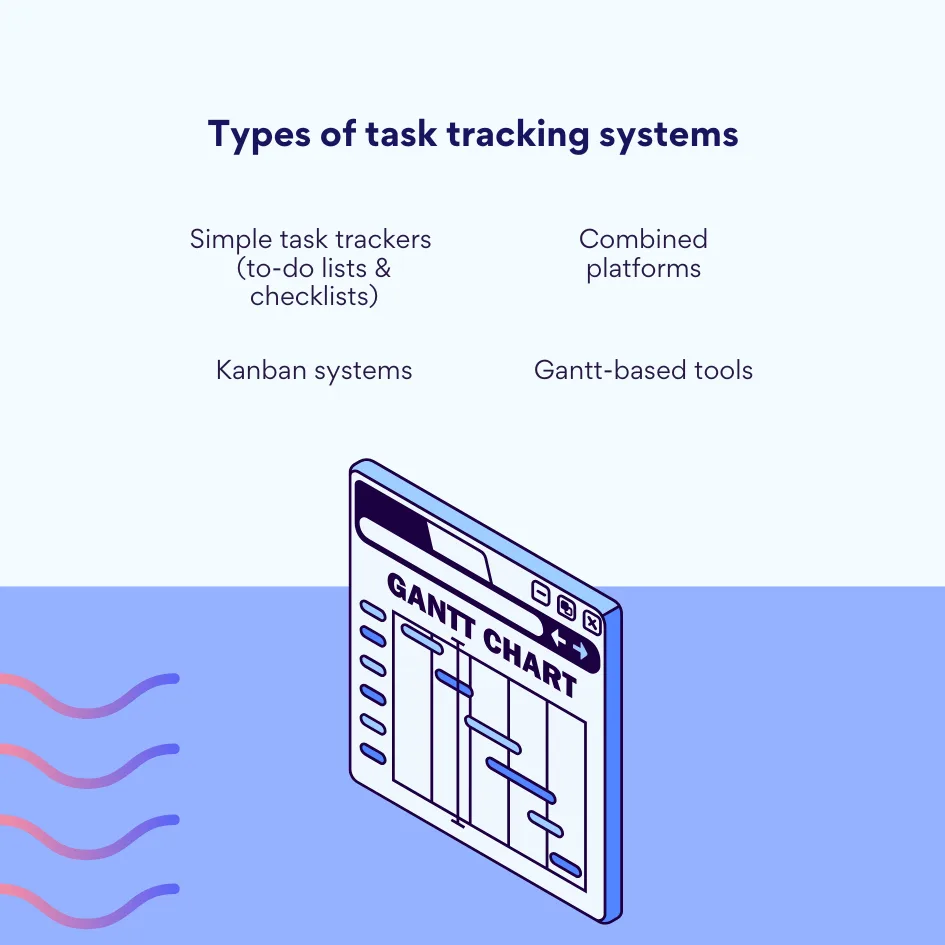
Types of Task Tracking Systems: Finding Your Fit
Not all task tracking systems are created equal — and that’s a good thing. The best way to track tasks depends on how your team works, the complexity of your projects, and how much visibility you need.
From simple checklists to visual dashboards and timeline-driven platforms, there’s a wide spectrum of task trackers out there. Let’s explore the main types so you can find the right match for your team or solo workflow.
✅Simple task trackers (to-do lists & checklists)
Sometimes, less is more. These tasks trackers focus on straightforward functionality: creating task lists, checking off completed items, and keeping things lightweight.
What it looks like:
- Basic lists
- Reminders and due dates
- Personal task management
Who it’s for:
- Individuals
- Small teams
- Quick daily planning
Examples:
- Microsoft To Do
- Google Tasks
| Pros: ✔️ Easy to use ✔️ Great for personal productivity ✔️ Minimal setup | Cons: ❌ Limited collaboration features ❌ No advanced automation or analytics |
Perfect if you just need to keep track of tasks at work without all the bells and whistles.
🧩Kanban systems
Kanban is one of the most popular formats in modern task tracking tools — and for good reason. It’s a visual way to track task progress using columns like “To Do,” “In Progress,” and “Done.”
What it looks like:
- Drag-and-drop task cards
- Columns that reflect workflow stages
- Clear visual overview of status
Who it’s for:
- Cross-functional teams
- Agile projects
- Visual thinkers
Examples:
- Trello
- Jira (Kanban mode)
- Asana boards
| Pros: ✔️ Intuitive layout ✔️ Easy to track work tasks in real time ✔️ Great for spotting bottlenecks | Cons: ❌ Not always ideal for long-term planning ❌ Can become cluttered without discipline |
If you're more of a "see it to believe it" type, Kanban might be your go-to task tracking application.
📅Gantt-based tools
If your team works with timelines, dependencies, and deadlines, Gantt chart tools are a powerful way to track tasks over time.
What it looks like:
- Tasks laid out along a timeline
- Dependencies between tasks
- Milestones and delivery dates
Who it’s for:
- Project managers
- Product teams
- Long-term planning
Examples:
- ClickUp
- Microsoft Project
- TeamGantt
| Pros: ✔️ Excellent for planning complex projects ✔️ Timeline clarity ✔️ Great for setting realistic expectations | Cons: ❌ Can be overkill for small teams or simple tasks ❌ Requires more setup and updates |
For those managing serious projects, this type of task tracking software brings much-needed structure and foresight.
🔀Combined platforms
Some tools combine multiple tracking styles — Kanban, list view, Gantt — and add deep integration with your existing tools like Teams, Outlook, and calendars. These work task trackers are all about flexibility and collaboration.
What it looks like:
- Multiple views: board, list, calendar, timeline
- Built-in communication tools
- Seamless sync with Microsoft 365
Who it’s for:
- Mid-to-large teams
- Hybrid and remote workplaces
- Those already using Microsoft ecosystem
Examples:
- Microsoft Planner + Teams
- Virto Shared Calendar App
- ClickUp
| Pros: ✔️ Customizable for different roles ✔️ Unified workspace for communication and tasks ✔️ Powerful integrations | Cons: ❌ Slightly steeper learning curve ❌ Can be overwhelming if you don’t use all the features |
If your team needs a flexible task tracker for work that fits into your daily tools, this is the sweet spot.
What sets these systems apart?
| Criteria | Simple trackers | Kanban systems | Gantt tools | Combined platforms |
| Complexity | Low | Medium | High | Medium–High |
| Customization | Minimal | Moderate | Advanced | High |
| Team use | Basic | Great for teams | Project-focused teams | Teams of all sizes |
| Visualization | Low | Visual boards | Timeline views | Boards + Timelines + Lists |
| Integration | Limited | Moderate | Depends on tool | Strong (Teams, Outlook, etc.) |
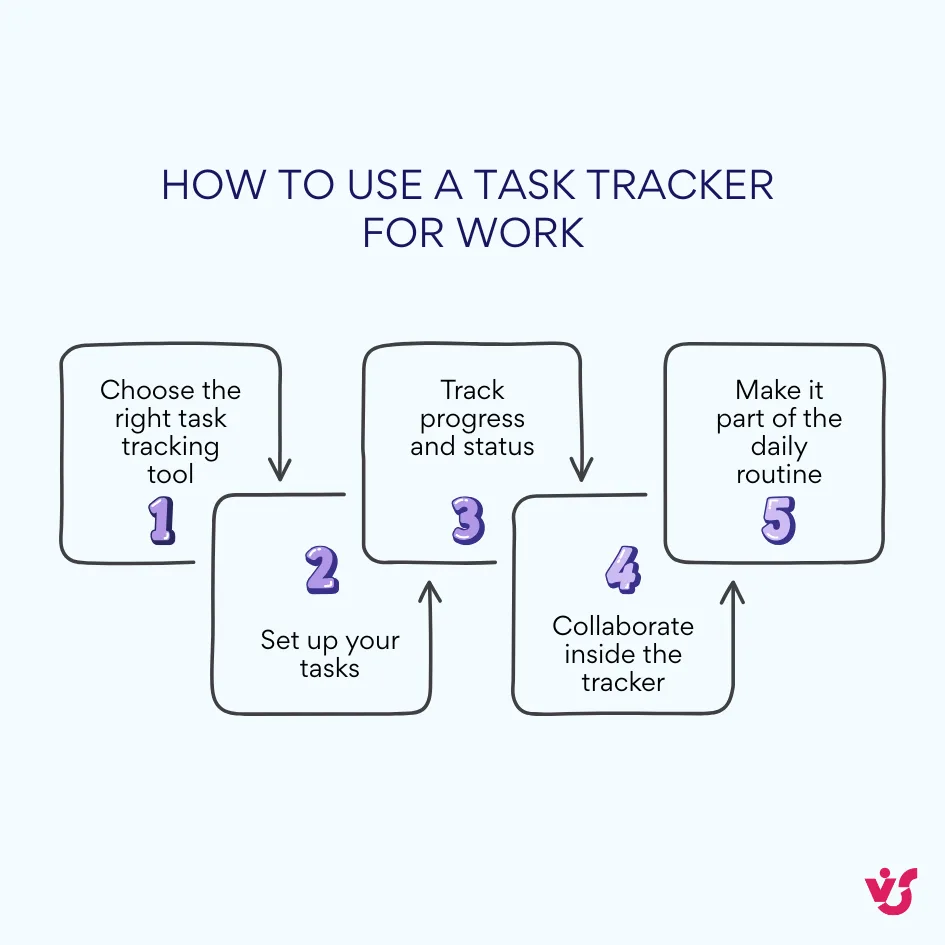
How to Use a Task Tracker for Work: Step-by-Step
Using a task tracker for work isn’t just about choosing the right software — it’s about turning it into a daily habit that simplifies your workflow and boosts team productivity. From picking the tool to building daily routines around it, here’s a practical guide on how to make task tracking part of your work culture.
1. Choose the right task tracking tool
(aka How do I create a task tracker for work?)
Before diving into checklists and dashboards, you need the right foundation — a task tracking tool that actually fits your team.
Here’s what to consider:
| Criteria | What to look for |
| Team size | Small teams may thrive with Trello or Microsoft To Do; larger, cross-functional teams often need ClickUp, Asana, or Jira. |
| Task type | If your work involves multi-step projects, go for tools that support Kanban boards, Gantt charts, and task templates. |
| Integrations | Check if the task tracking software connects with Outlook, Microsoft Teams, Slack, CRMs, calendars, or email. |
| Budget | Free options work well for solo use or small teams; larger orgs may need paid platforms with enterprise features. |
| Ease of use | Go for something your team can adopt quickly — if the learning curve is too steep, no one will use it. |
| Security standards | If you're in a regulated industry, pick a task tracking system that supports GDPR, role-based access, and secure data handling. |
👉How do I create a task tracker for work? To create a task tracker for work, start by choosing a task tracking tool that fits your team’s size, workflow, and budget — options like Trello, Microsoft To Do, ClickUp, or Asana are great places to start. Set up your workspace to reflect your real processes: organize tasks into lists or boards, add statuses (like “To Do,” “In Progress,” “Done”), and use labels or tags to keep things sorted. Each task should include clear details — title, description, deadlines, priority, and an assigned owner. Use calendar or Kanban views for better visibility, and integrate with tools like Microsoft Teams or Outlook to keep everything connected. Most importantly, make task tracking a daily habit: review tasks in the morning, update progress as you work, and clear out completed items. With the right setup, a work task tracker becomes your team’s go-to system for staying organized, on track, and productive.
2. Set up your tasks
Once you’ve picked your task tracker software, it’s time to get your hands dirty and start building out your first batch of tasks.
Here’s how to do it right:
| Task element | Best practices |
| Create tasks | Each item of work should be its own task card or entry. Keep it focused and specific. |
| Prioritize | Use tags, labels, or custom fields to show urgency and importance. |
| Set deadlines | Add start and due dates to every task — that’s the secret to tracking tasks at work effectively. |
| Assign responsibility | Make sure every task has a clear owner — one task, one person. |
| Add context | Include detailed descriptions, attached files, and links. |
| Break it down | Use subtasks or checklists for multi-step tasks. Keeps everything digestible and easy to track. |
3. Track progress and status
How do you keep track of work tasks?
Use visual cues and real-time updates to stay on top of where every task stands.
| Tracking method | What to use |
| Status labels | Use statuses like "Assigned," "In Progress," "On Hold," or "Done" to show progress clearly. |
| Views | Pick the view that suits your brain — Kanban board, list view, calendar, table, or Gantt chart. |
| Filters | Sort tasks by deadline, owner, priority — especially useful for busy team dashboards. |
| Activity logs | Use the task history to see who made changes and when — helps catch errors and track accountability. |
4. Collaborate inside the tracker
One of the biggest wins of using a task tracking system is cutting down on scattered emails and side chats. Keep everything in one place.
| Collaboration feature | How it helps |
| Comments & mentions | Chat right inside the task card — no more hunting through inboxes. |
| Notifications | Get alerts for approaching deadlines, changes to your tasks, and new assignments. |
| Messenger integrations | Connect your task tracker to Teams, Outlook, or Slack so tasks live where your team already works. |
5. Make it part of the daily routine
Getting the team to consistently track tasks takes more than a single setup session — it’s a habit that pays off fast when built into your workflow.
| Daily task tracking habits | Why it matters |
| Start-of-day check-ins | Review your tasks in the morning to plan your day. |
| Live updates | Update statuses, add comments, or upload files as things progress. |
| Deadline reminders | Let the system nudge you when tasks are due — less mental clutter. |
| Collaborative editing | Team members can edit or comment on shared tasks together in real time. |
| Automate recurring tasks | Save time by setting up templates for weekly reports, check-ins, or repeat tasks. |
Task tracker best practices
Using a task tracker for work is only as effective as the habits your team builds around it. Even the most powerful task tracking software won’t help if no one updates their tasks or takes ownership. Here are a few tried-and-true practices to help your team get real value out of your task tracking system — without the fluff.
✅ Make it a habit
Check and update your tasks every day. A quick morning review keeps priorities clear and prevents forgotten work from slipping through the cracks. Whether you’re solo or in a team, consistency is your productivity’s best friend.
📝 Be specific
Forget vague tasks like “handle it” or “ASAP.” The more precise the task, the easier it is to track and complete. Use your task tracking tool to add clear descriptions, checklists, links, or files — it saves time and avoids confusion.
👤 Assign a single owner
Every task should have one person responsible — no shared ownership, no guessing games. Of course, others can collaborate, but someone has to take the lead and push it forward.
🏷 Use tags and labels
Most task trackers let you tag tasks by priority, type, or project. Don’t skip this! Labels make it easy to filter, sort, and stay organized — especially when your backlog gets big. It’s a small step with a big payoff.
🗂 Clean up as you go
Archive or delete completed or irrelevant tasks regularly. This keeps your online task tracker clean, clear, and focused on what really matters. Nobody likes digging through clutter just to find what’s actually active.
👉How do you keep track of work tasks? To keep track of work tasks, use a dedicated task tracking tool or task tracking software that fits your workflow — whether it's a simple to-do list like Microsoft To Do or a full-featured platform like ClickUp or Asana. Organize tasks by project or priority, assign owners, set deadlines, and use tags or labels to easily filter and sort. Visual formats like Kanban boards or calendars help you see progress at a glance, while features like reminders, notifications, and integrations with tools like Microsoft Teams or Outlook keep everything in sync. The key is consistency: check your work task tracker daily, update statuses, and review upcoming deadlines to stay on top of your workload without letting things slip through the cracks.
Real-World Use Cases: How Work Task Trackers Help Businesses Stay Organized
What’s the best way to track tasks at work? The answer often lies in using the right task tracking software — and knowing how to apply it across different scenarios. Whether you're coordinating internal projects, managing client work, or just trying to keep your own priorities in order, a good task tracker for work turns chaos into clarity. Let’s look at how businesses actually use these tools every day — and why it makes a real difference.
🏗 Internal projects & approvals
From launching new products to redesigning the company website, internal projects can involve a lot of moving parts. A work task tracker helps bring it all together. Teams use it to manage cross-departmental work like CRM implementations, website updates, or security audits. Document approvals and presentations flow through the system without endless email chains. Each team member sees their responsibilities and deadlines in one place, while managers can track tasks in real time. Bonus: All the discussions and file versions are stored right in the task card — no digging through inboxes required.
🤝 Client work & external collaboration
Agencies, consultants, and sales teams use task tracking tools to structure client work and external tasks. Each client or deal can have its own board, making progress visible to everyone involved. Freelancers use online task trackers to share updates and deadlines with clients without endless check-ins. Sales teams can manage lead status, follow-ups, and proposals with shared task tracker software that keeps everything moving forward. With built-in notifications and deadline reminders, there’s less risk of dropped balls — and even clients can be looped in as collaborators when needed.
👤 Personal productivity & solo planning
Even if you’re working solo, a solid task tracking application can become your secret weapon. You can create daily, weekly, or monthly to-do lists, set reminders, and sort tasks by urgency and category. Tools like Microsoft To Do or Google Tasks make it easy to stay on track, especially when paired with calendar integrations. This kind of task tracking system helps you stay focused, avoid forgetting small tasks, and measure how productive your day actually was. It’s your personal assistant — just digital.
🧩 Department-specific use cases (Marketing, HR, IT, etc.)
Functional teams often live and breathe through their tasks tracker. Here’s how different departments typically use them:
Marketing teams
Plan and track campaigns, newsletters, blog posts, and social media content — all in one place. Creative teams can collaborate on copy, visuals, and assets without version confusion. Briefs, comments, and design approvals are all tracked, minimizing back-and-forth.
HR Departments
Use task tracking tools to manage hiring pipelines, onboarding checklists, training schedules, and employee docs. Automations help ensure no step is missed, and status updates make progress transparent across the team.
IT & Dev teams
Whether it’s bug tracking, user support, or system rollouts, IT teams use task tracking systems to keep workflows clean and tickets visible. Integrated with help desk tools or platforms like Jira, these trackers help teams prioritize incidents, assign engineers, and handle updates or releases with less stress.
📈 Task tracking = better data & smarter decisions
One of the biggest advantages of using structured task tracking software for work is the ability to gather performance data — not just checkboxes. Most task tracking systems let you view:
- The number of completed tasks per week
- Average time it takes to complete a task
- How many tasks are overdue
- Team activity (comments, updates, participation)
This data is incredibly useful for team leads and managers. It helps spot bottlenecks, understand workloads, and even evaluate team engagement. It also makes reporting easier — whether it’s a weekly update or a quarterly performance review.
In short, whether you’re managing a team or just trying to keep track of tasks at work more effectively, the right task tracker isn’t just a digital to-do list — it’s a foundation for clarity, accountability, and growth.
👉What is the best way to track tasks at work? The best way to track tasks at work is to use a dedicated task tracking tool that fits your team’s workflow, scales with your needs, and integrates with your existing platforms like Microsoft Teams, Outlook, or Slack. Whether you're working solo or managing a team, a reliable task tracking system helps you organize tasks, assign responsibilities, set deadlines, and monitor progress in real time. Tools like ClickUp, Asana, Trello, or Microsoft Planner allow you to visualize your workload with boards, calendars, or Gantt charts, while built-in notifications and reminders ensure nothing falls through the cracks. The key is to keep it consistent: update tasks daily, communicate inside the tracker, and use filters or labels to stay focused — that’s how you turn a simple task tracker for work into a real productivity booster.
Templates and Automation in Task Tracking
When it comes to smart, time-saving workflows, templates and automation are the real MVPs of any solid task tracking tool. They help reduce repetitive work, bring structure to recurring projects, and keep your team on track — without micromanagement or constant manual updates.
Task tracker templates
Templates are prebuilt task structures you can reuse again and again — so you don’t have to start from scratch every time. They help you launch new projects faster, ensure a consistent workflow, and save your team serious time.
Here’s how templates can supercharge your task tracker for work:
🔁 Templates for recurring tasks
If your team has weekly standups, monthly reports, or regular content planning meetings, task templates let you create them with one click. Just plug in a ready-made checklist or card, and you're good to go. It’s one of the easiest ways to keep processes consistent and reduce setup time.
🗂 Project templates
Planning a marketing campaign? Onboarding a new hire? Hosting an event? Project templates come with pre-set stages, tasks, deadlines, and assigned team members — all ready to go. In a few seconds, your task tracking system is populated with everything your team needs to execute smoothly.
📅 Calendar-integrated templates
Using a solution like the Virto Shared Calendar App for Microsoft Teams, you can set templates that auto-populate with due dates, reminders, and recurring events. For example, every time you launch a content sprint, your tasks show up in both the calendar view and the task board — already scheduled and assigned. You never forget a deliverable, and everyone knows the plan.
Templates are especially powerful in online task trackers, where the combination of deadlines, status labels, and reminders keeps everything flowing with less manual work.
Task tracking automation
Automation is where your task tracking application stops being just a digital to-do list and starts working like a real assistant. By setting up smart rules, conditions, and triggers, you can automate repetitive actions and reduce human error — especially useful in large-scale workflows.
Here’s how automation transforms how you track tasks at work:
📌 Rule-based task creation
Want a new task to be created every time a project kicks off, or a form is submitted? Done. Many task trackers integrate with forms, CRM systems, help desk tools, or calendars — so when a certain trigger happens (like hiring a new employee), your task tracking software automatically creates onboarding tasks, assigns them, and even sets the deadlines.
🔔 Automated notifications
Never miss a beat — your task tracking tool can send reminders when a deadline is coming up, a task changes status, or a team member is assigned to a new item. Notifications can pop up in Teams, Slack, email, or mobile push — whatever works best for your team.
✅ Auto-updating task statuses
Say you’ve got a main task with several subtasks — the moment those are all marked “done,” the main task automatically updates to “Completed.” Or if a deadline passes without action, the status flips to “Overdue.” These kinds of automations boost transparency and help managers react quickly to potential delays.
With the right use of templates and automation, your task tracking software for work becomes more than just a place to jot things down — it becomes a proactive system that keeps your team productive, your processes clean, and your deadlines on track.
Task Tracking in the Microsoft 365 and Teams Ecosystem
If your team already lives in Microsoft Teams, Outlook, or uses Microsoft 365 tools daily, there’s good news: you don’t need to go far to build an effective task tracking system. Microsoft’s ecosystem offers everything from simple personal to-do lists to full-scale team collaboration boards — all tightly integrated to help you track tasks at work without bouncing between platforms.
Built-in Microsoft tools for task tracking
Microsoft gives you two powerful (and free) tools to cover both personal planning and team collaboration — Microsoft To Do and Microsoft Planner — both of which sync seamlessly with Teams and Outlook.
📌 Microsoft To Do — Your personal task tracker for work
Ideal for solo planning and staying on top of your daily responsibilities, Microsoft To Do keeps things clean and simple. Create lists, break tasks into subtasks, set reminders, and add notes or deadlines — perfect for GTD (Getting Things Done) enthusiasts or anyone just trying to keep a busy day under control. Bonus: tasks from Outlook emails can land here automatically.
🧩 Microsoft Planner — A task tracking tool for teams
If your team is collaborating on projects or managing shared workloads, Planner is your go-to. Built on a Kanban-style layout, it lets you create task boards, assign roles, add deadlines, checklists, attachments, and comments — all in one place. Each task is a card that moves through statuses like “Planned,” “In Progress,” or “Done.” And since it’s integrated into Microsoft Teams, you can pin a Planner board directly to any channel as a tab — no switching tabs or apps required.
👉Check more insights into how Microsoft Planner works in our recent guides:
- Microsoft Planner: Organize and Manage Tasks Easily
- How to Use Microsoft Planner in Teams for Task Management
- Explore Microsoft Planner 2024: What’s New for Task Management
🔗 Integration with Outlook and Teams
One of the most powerful parts of Microsoft’s task tracking software is how everything syncs behind the scenes:
- Tasks from Outlook appear automatically in To Do
- You can manage both Planner and To Do from within Microsoft Teams via the “Tasks” app
- You’ll get real-time reminders in Teams when a task is due or assigned
- You can even create a task from a Teams message — just right-click and choose “Create Task”
This tight integration turns Microsoft 365 into a centralized task tracking tool, perfect for hybrid teams that need flexibility without losing visibility.
👉 Here is your further read: Task Management for Microsoft Teams: Guide and Best Practices
Unified task management without app-hopping
One of the biggest strengths of the Microsoft 365 ecosystem is that it lets you manage all your task tracking without bouncing between apps.
✨ Here’s what it looks like in action:
A project manager builds a board in Microsoft Planner, assigns tasks, and sets deadlines. Each team member receives instant notifications in Microsoft Teams, where they can discuss the task, ask questions in the channel, and even update the task status — all without leaving the Teams interface.
Meanwhile, any changes — like new due dates or completed tasks — sync across Planner, Teams, and To Do. And if someone prefers using Outlook Tasks or the mobile To Do app, no worries — it all stays in sync automatically.
This centralized flow means your task tracker for work becomes a natural part of your team’s everyday communication. No need to chase updates or waste time switching tools. Just focused work, all in one place.
Virto Kanban Board for Microsoft Teams — A Smarter Way to Track Work Tasks
If built-in Microsoft 365 tools like Planner or To Do start to feel too basic for your needs, the Virto Kanban Board for Microsoft Teams steps in as a powerful upgrade. Designed for teams who want more visibility, flexibility, and control over their workflows, this task tracking tool brings next-level clarity to even the most complex projects — all without leaving the Microsoft Teams interface.
Unlike standard task apps, Virto offers a clean, visual, and fully customizable task tracker for work that’s embedded directly inside Teams. No tab-hopping. No duplicate updates. Just one smart board that does it all — and looks great doing it.
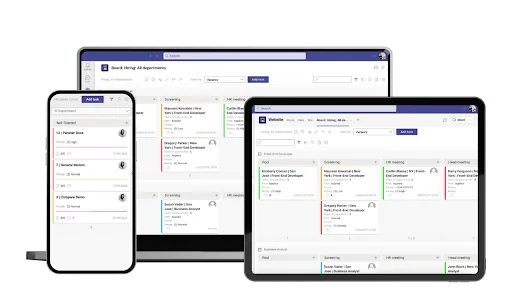
Key features of Virto Kanban Board
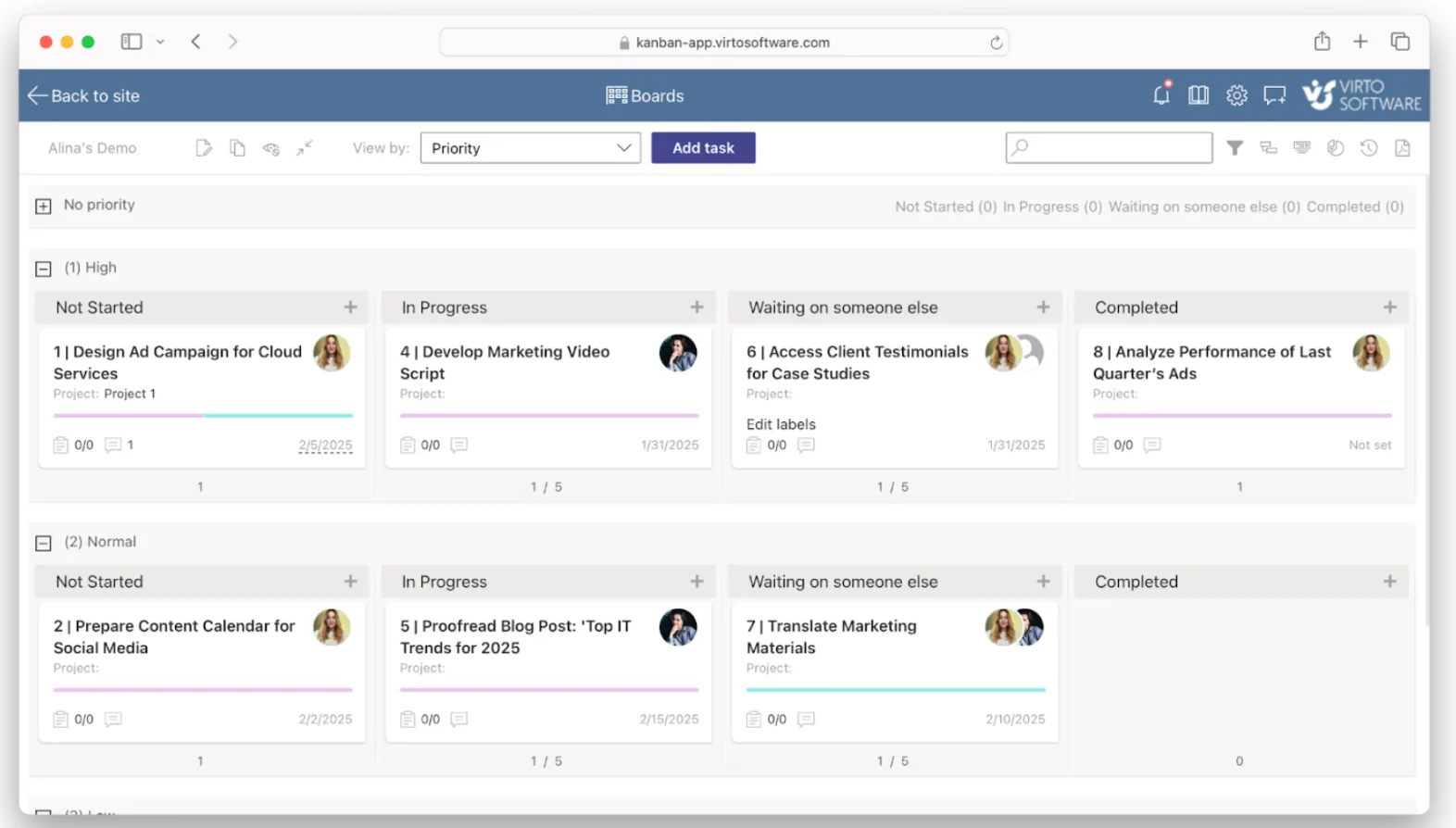
✅ Visual, drag-and-drop task board
Every task is a card you can move between columns like “To Do,” “In Progress,” and “Done.” It’s intuitive, fast, and helps your whole team understand what’s happening — no training required.
🧩 Advanced task management
Each card includes assignees, start and due dates, progress tracking, and built-in comments. You can attach files, tag priorities, and break large tasks into checklists — making it a true task tracking system with everything in one place.
🔍 Smart filtering and search
Need to find a task by owner, status, tag, or deadline? Virto’s filtering and sorting options make it easy to focus on what matters. Whether you're managing a few dozen cards or a few thousand, you’ll never lose track of work again.
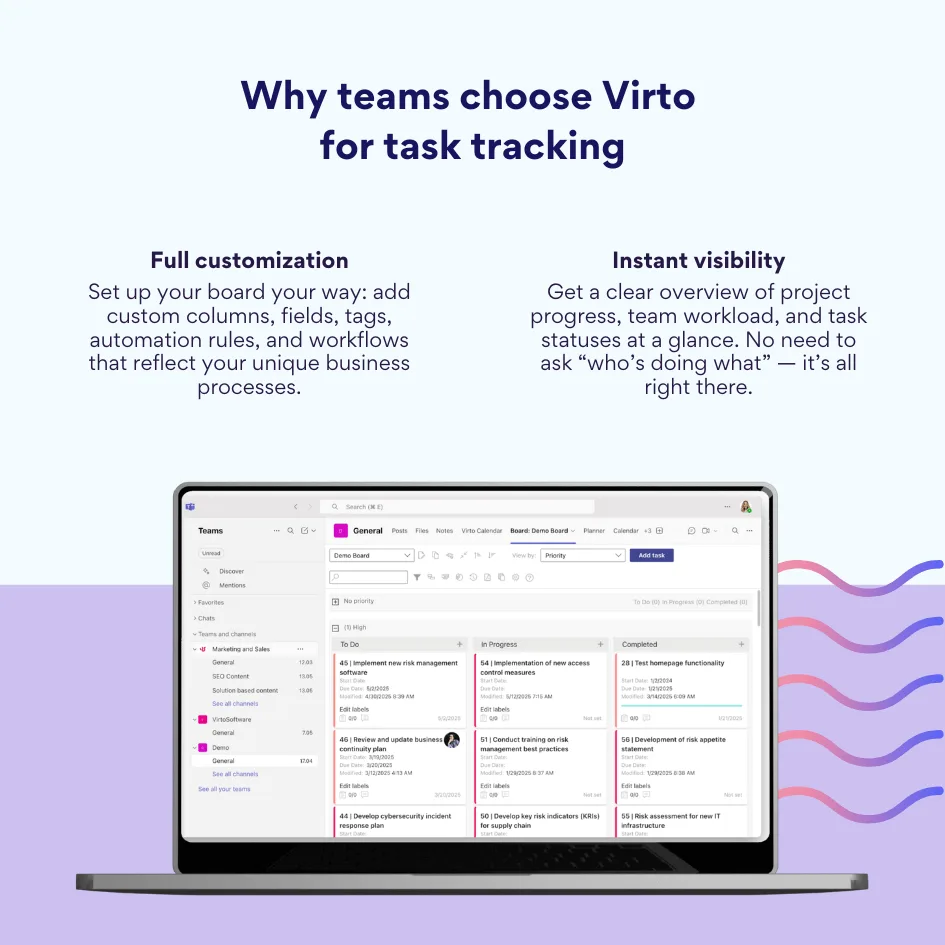
Why teams choose Virto for task tracking
- Full customization — Set up your board your way: add custom columns, fields, tags, automation rules, and workflows that reflect your unique business processes.
- Instant visibility — Get a clear overview of project progress, team workload, and task statuses at a glance. No need to ask “who’s doing what” — it’s all right there.
Who is Virto Kanban Board for?
If your team is already working in Microsoft Teams, Virto is a natural fit. It’s especially useful for:
- Project teams and cross-functional groups managing complex, multi-stage tasks
- Companies that need custom boards beyond what Microsoft Planner can offer
- Businesses that want visual task management to quickly assess workloads and progress
- Anyone tired of switching between apps to check task statuses or share updates
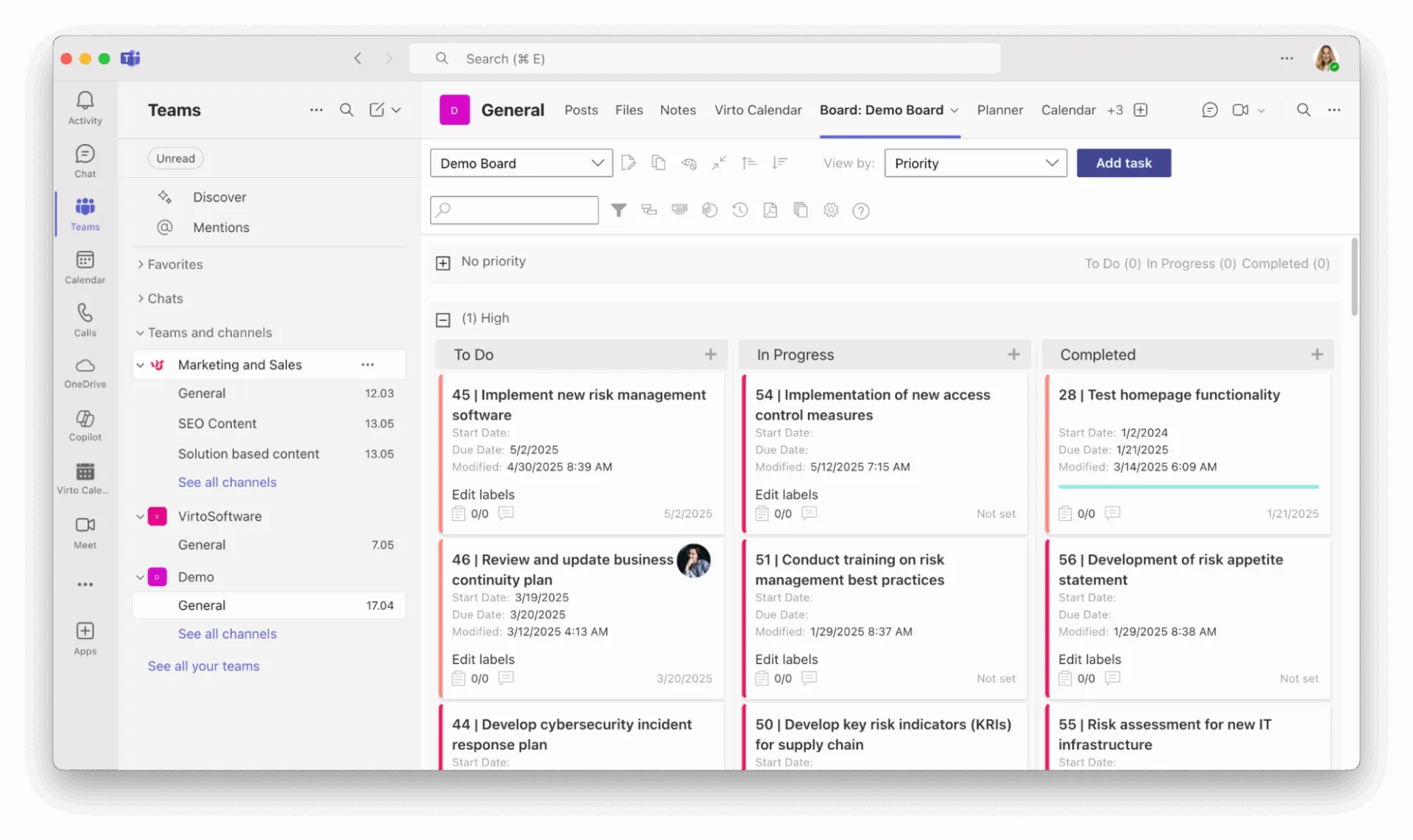
With the Virto Kanban Board for Microsoft Teams, your task tracking software becomes a real-time command center — flexible enough for complex projects, but easy enough for daily work. Whether you're tracking product launches, marketing campaigns, HR processes, or IT projects, Virto helps you stay organized, aligned, and in control.
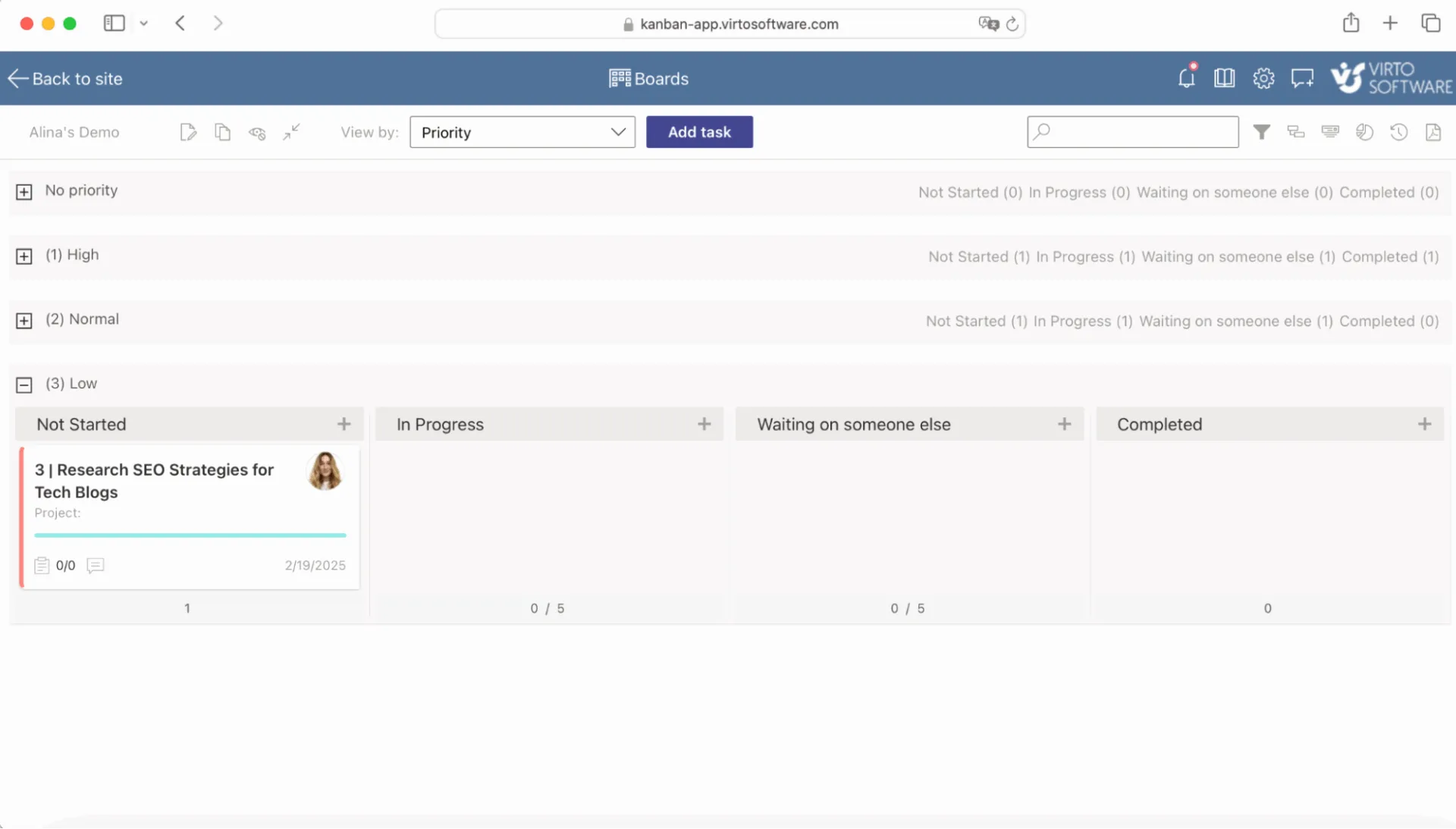
👉See how it all works in action:
Conclusion: Task Tracking Is an Investment in Team Clarity and Efficiency
Implementing a work task tracker isn’t just about staying organized — it’s an investment in your team’s productivity, communication, and overall clarity. Whether you're a small crew managing to-do lists or a growing business juggling complex cross-team projects, having the right task tracking software for work makes a noticeable difference.
The best task tracking tool is the one that fits your workflow — and that means choosing based on your goals, task types, team size, and the tools you already use every day. If you’re in the Microsoft 365 ecosystem, it makes sense to build your task tracking system around tools like Microsoft Teams, Outlook, and Planner — or take it a step further with more visual, customizable solutions.
No matter which option you go with — built-in features or a more advanced task tracker for work — keep your focus on what really matters: structured task management, transparency across the team, and staying in control of your day-to-day work.
✅ If you’re already working in Microsoft Teams and want to simplify visual planning and save time managing complex workflows, we highly recommend trying the Virto Kanban Board for Microsoft Teams. It gives your team a beautifully visual and flexible way to track tasks, stay aligned, and keep things moving — all without switching platforms.
Task tracking doesn't have to be complicated. With the right tools, it becomes second nature.
👉We invite you to explore more about Kanban and other project management strategies through our insightful articles.