Introduction
Modern workdays revolve around meetings, projects, and shared priorities — and coordinating them efficiently depends on how clearly teams can see each other’s plans. Microsoft 365 Group Calendar, available directly in Outlook, is designed for this purpose. It gives teams a shared space to plan events, track schedules, and keep everyone aligned without switching between multiple tools.
Still, there’s often confusion about how a group calendar differs from a shared calendar. Both let several people access events, but they work differently under the hood — and using the wrong one can create scheduling chaos instead of clarity.
This article explains what Microsoft 365 Groups are, how their calendars function inside Outlook, and how you can create and manage one step by step. We’ll also clarify the difference between group and shared calendars and show how additional tools — such as Virto Calendar Overlay — can extend your options when it comes to cross-team scheduling.
Whether you’re organizing a small team or managing projects across departments, this guide will help you build a more transparent and reliable scheduling system in Microsoft 365.
The Microsoft 365 Group Calendar as Part of the Ecosystem
A Microsoft 365 Group Calendar is more than just another shared scheduling tool — it’s a centralized calendar automatically connected to a specific group of users, such as a department, project team, or working group. When you create a new Microsoft 365 Group, the system instantly generates not only a shared mailbox and file library, but also a group calendar that all members can access.
How do I create a group calendar in Microsoft 365?
The answer is simple: you don’t need to create it manually. Every time you set up a new Microsoft 365 Group — whether from Outlook, Microsoft Teams, or the Admin Center — the calendar appears automatically. It becomes part of the group’s workspace, accessible through Outlook on the web, desktop Outlook, and the Outlook mobile app. This means your team can schedule meetings or track events no matter where they work.
Do Microsoft 365 Groups have a shared calendar?
Yes. Each Microsoft 365 Group includes its own built-in shared calendar by default. It’s fully integrated into Outlook and instantly available to all group members. There’s no need to adjust permissions or share links — everyone in the group can view, add, and edit events right away.
Does a Microsoft 365 Group work as a distribution list?
In part, yes — but that’s only the beginning. While a distribution list is designed solely for sending group emails, a Microsoft 365 Group goes further by providing a shared mailbox, file repository, Planner board, and, of course, a collaborative calendar. This tightly connected ecosystem allows teams to manage communication, documents, and scheduling in one place instead of juggling separate tools.
Together, these features make the Microsoft 365 Group Calendar an essential component of modern teamwork. It combines accessibility with structure and keeps teams aligned across multiple apps in the Microsoft 365 suite.
How the Microsoft 365 Group Calendar Works in Outlook
Once your Microsoft 365 Group is set up, its calendar integrates seamlessly into Outlook, making it easy for teams to collaborate without extra setup. Here’s how it functions in practice.
2.1 Viewing the Group Calendar / Interface
In Outlook, the group calendar appears automatically in the Calendar view under the Groups section (next to “My Calendars”). Simply expand the Groups folder in the left sidebar, and your group calendars will be listed there.
- Events shown: All meetings, appointments, and events created by any group member appear here. You’ll see details like start/end times, attendees, and descriptions.
- Who can see them: Every group member has view-only or edit access by default, depending on group settings. No individual invitations needed — it’s a shared view for the entire team.
This setup works across Outlook desktop, Outlook on the web, and mobile apps, so remote teams stay synchronized wherever they are.
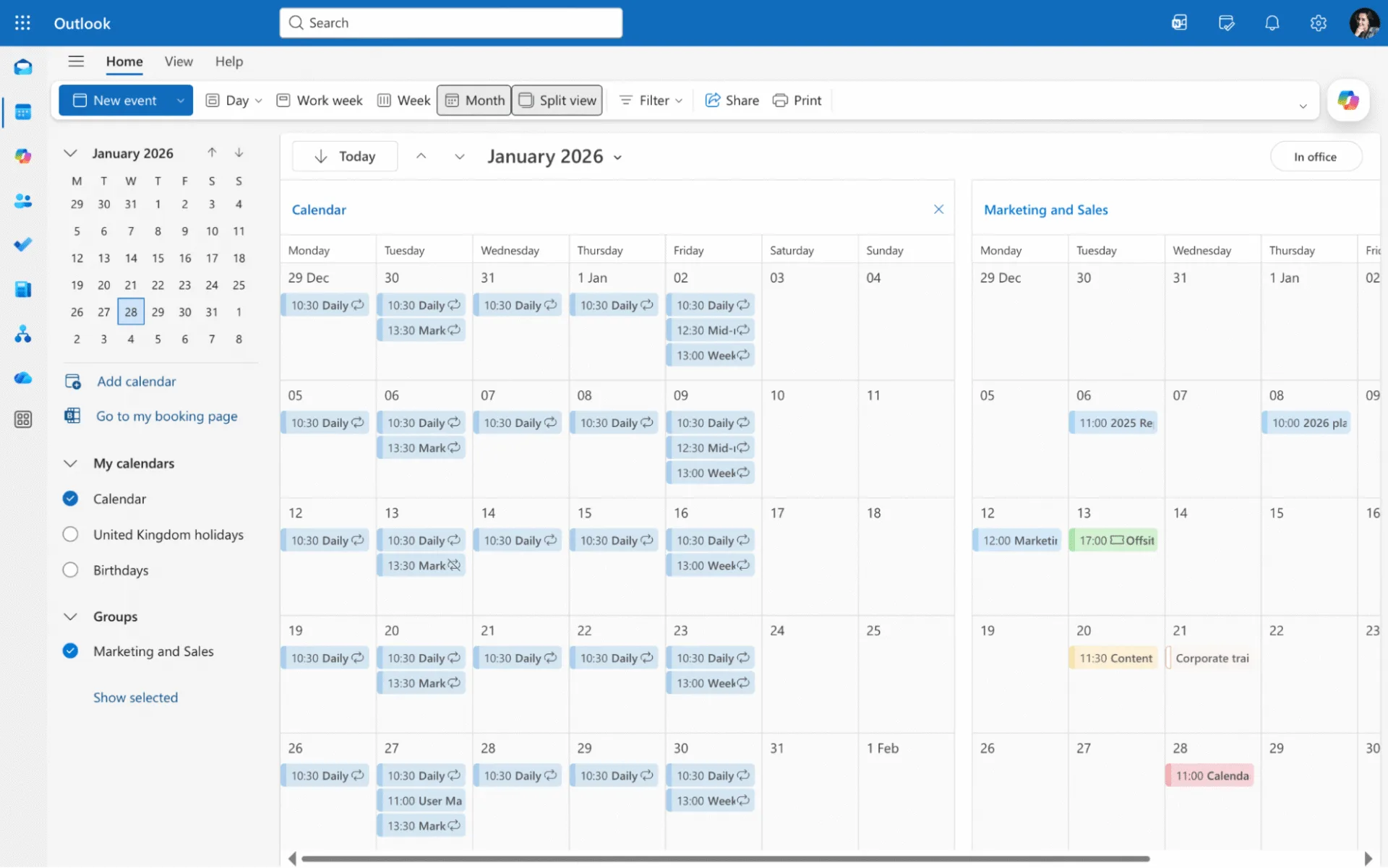
2.2 Working with Events and Collaborative Scheduling
The Outlook group calendar shines in everyday scenarios:
- Team meetings: Schedule recurring stand-ups or all-hands calls — everyone sees availability and RSVPs instantly.
- Vacations and time off: Post personal absences so colleagues can plan around them without conflicts.
- Deadlines and milestones: Track project timelines or deadlines visible to the whole group.
Any change — new event, update, or deletion — syncs automatically to all members in real time. No manual forwarding or reminders required. This makes Outlook calendar groups ideal for collaborative planning, ensuring transparency and reducing scheduling overlaps in busy teams.
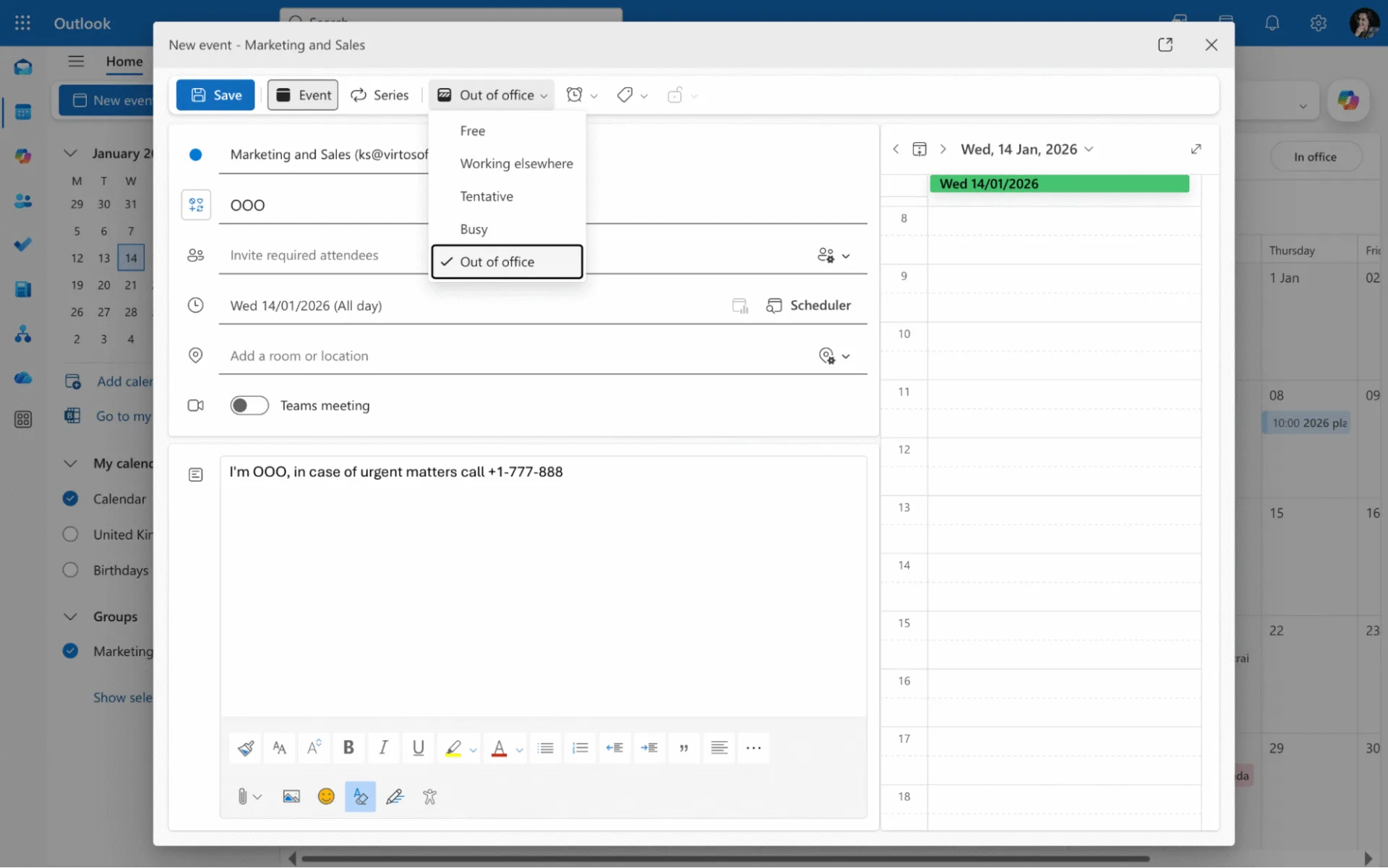
Whether you’re using it for how to add a group calendar in Outlook or daily coordination, the interface keeps things intuitive and efficient.
👉 Read more: Schedule and edit events in Outlook group calendars >>>
How to Create, Add, Use, and Manage Access to a Microsoft 365 Group Calendar
Getting a Microsoft 365 group calendar up and running is straightforward since the calendar comes automatically with every group. Here’s how to create one and make sure everyone can access it in Outlook.
3.1 Creating a Group and Its Calendar
How to create a group calendar through the Outlook interface:
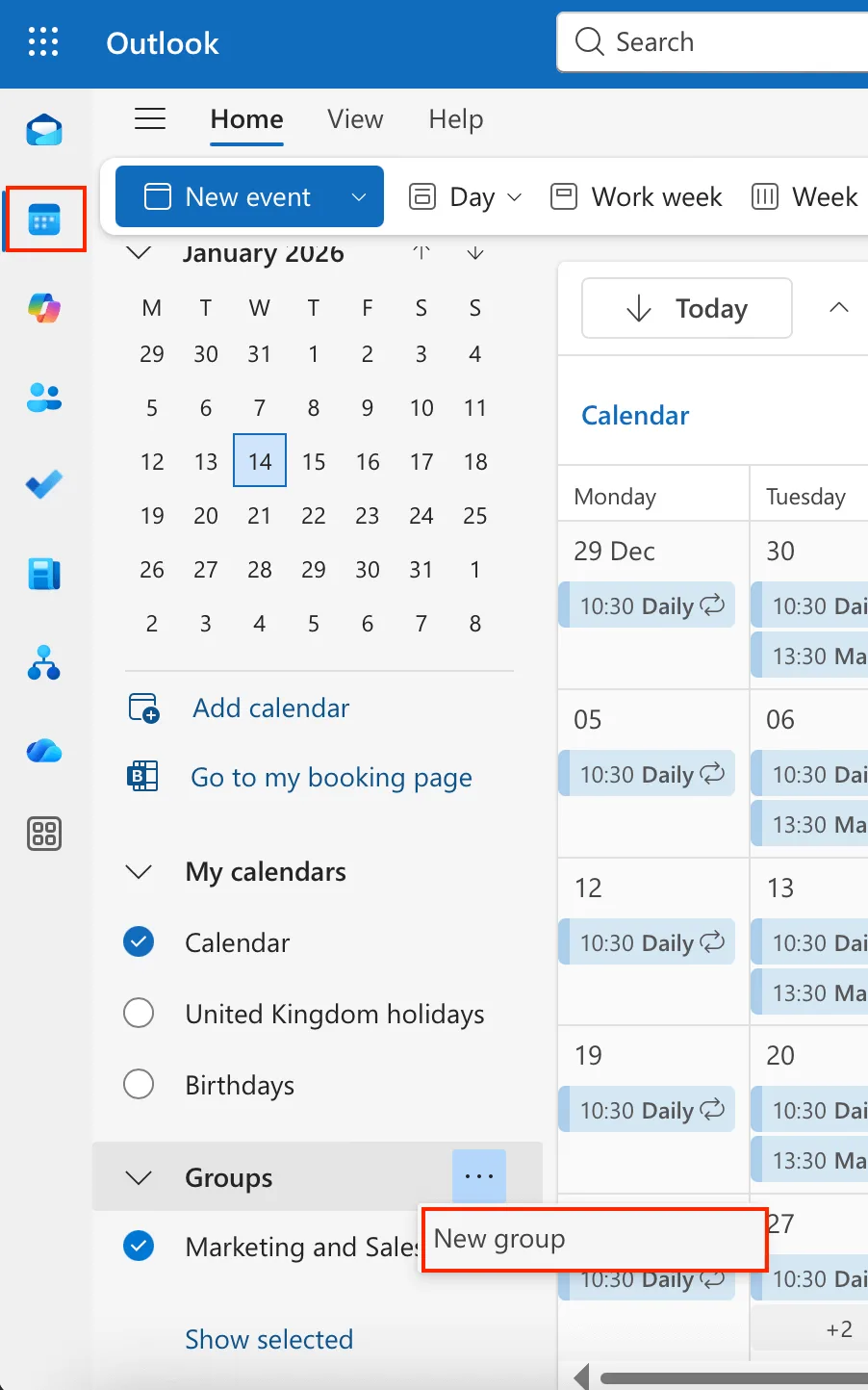
- Open Outlook (desktop, web, or mobile) and go to the Calendar view.
- Click New Group
- Enter a name for your group (e.g., “Marketing Team”) and add members by typing their email addresses or selecting from your organization.
- Set privacy (Public or Private) and click Create Group.
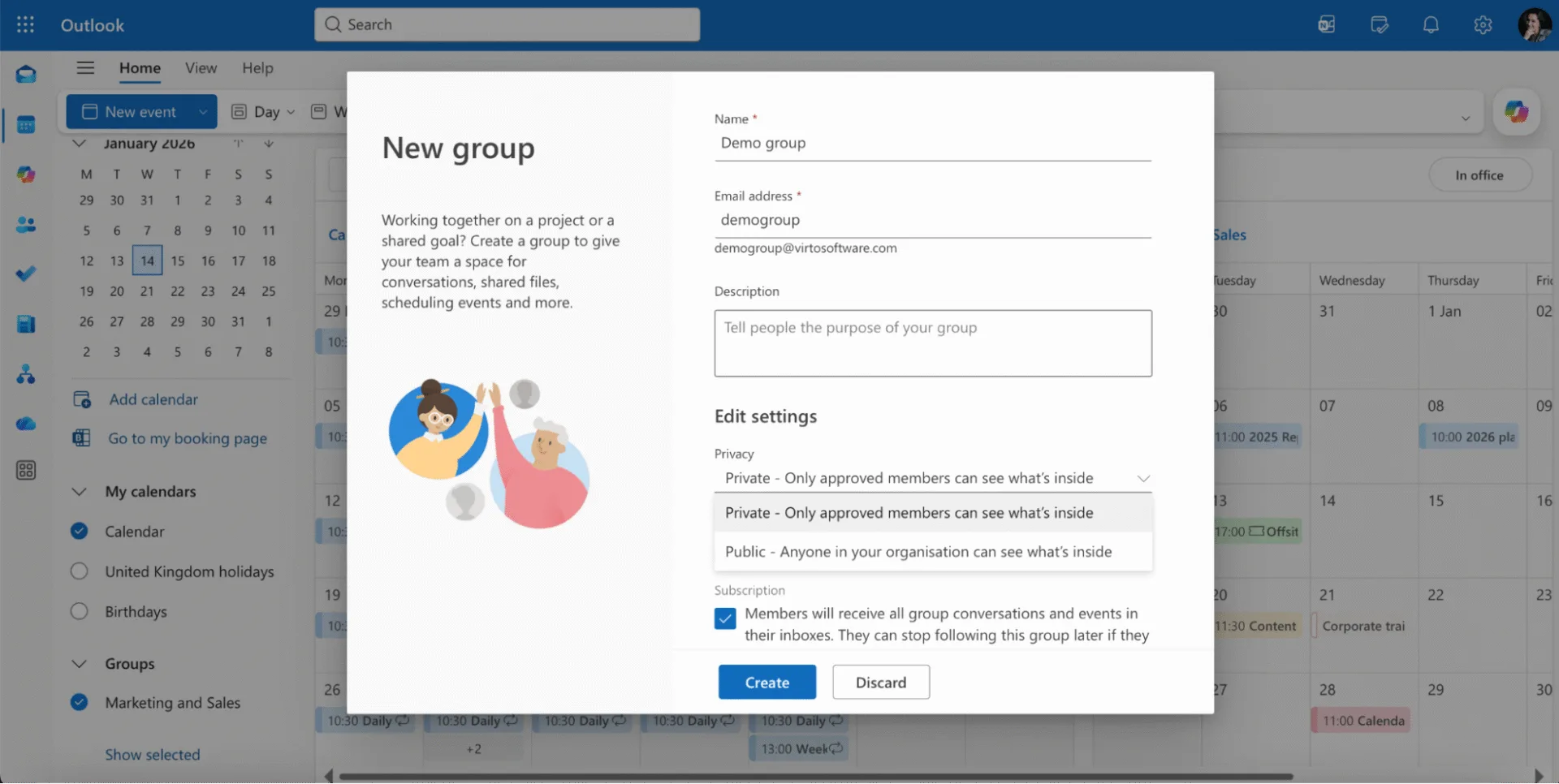
The group calendar is created automatically and appears instantly for all members. No separate calendar setup needed — it’s ready for scheduling.
👉 Official Microsoft guidance: Create, view, or delete calendar groups >>>
3.2 Adding and Viewing the Group Calendar in Outlook
After creating or joining a group, the calendar shows up automatically in Outlook:
- Where to find it: In the Calendar view, expand the Groups section in the left navigation pane (below “My Calendars”). Your group calendars are listed there with checkboxes.
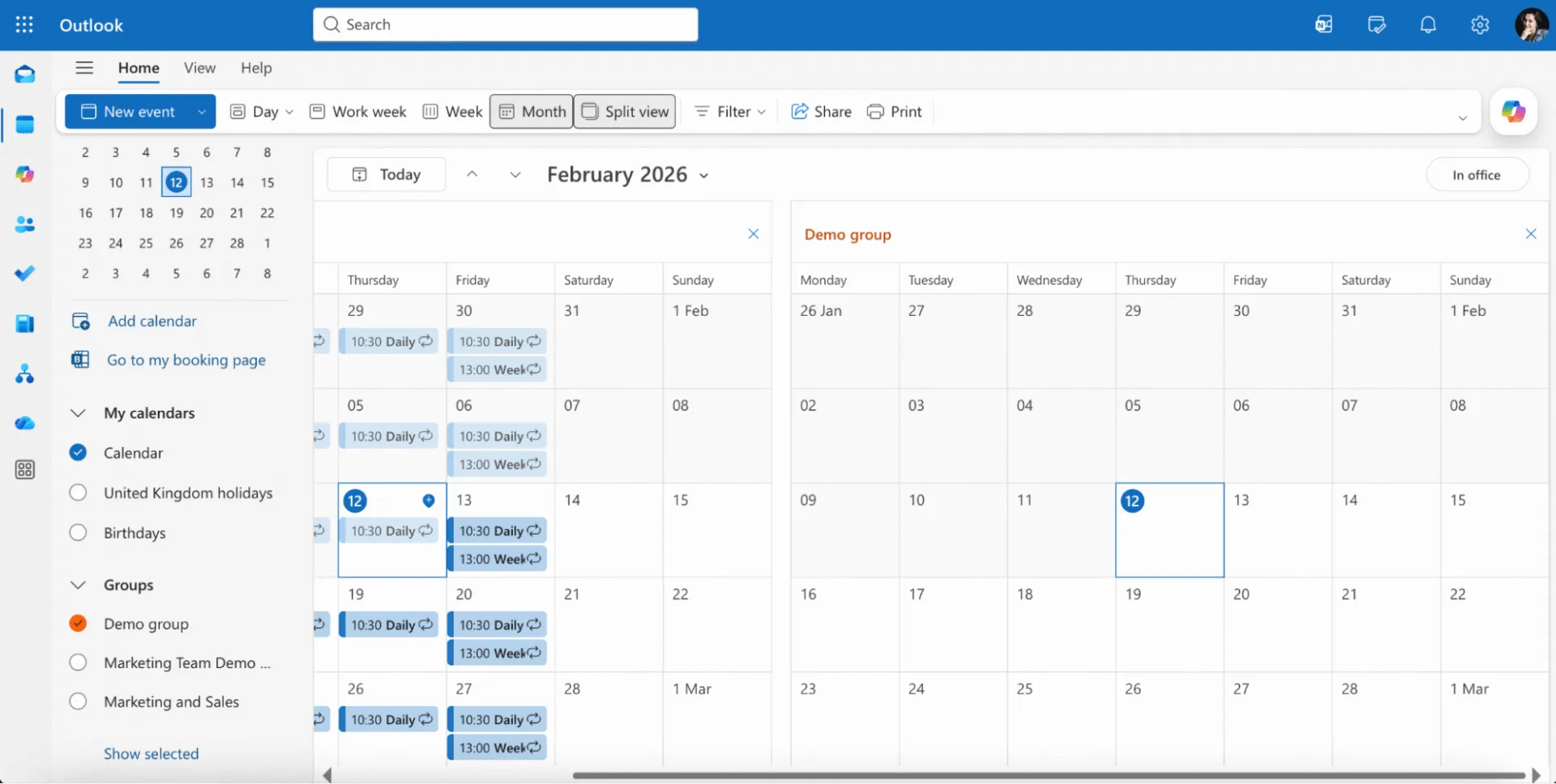
- Switching views: Check/uncheck the group calendar box to toggle it on/off alongside your personal calendar. Data stays safe — nothing gets deleted.
- If it doesn’t appear immediately:
- Go to the Home tab > open Calendar > Groups and select your group.
- Or simply refresh the tab.
Common reasons it’s not visible right away:
- Cached Outlook desktop needs refresh.
- The user hasn’t accepted the group invite yet (check email).
- Group settings restrict visibility (check in Teams or Admin Center).
Once visible, everyone can add events, see availability, and collaborate seamlessly. Next, we’ll cover managing permissions and advanced features.
3.3 Using and Collaborating with the Group Calendar
Any member of a Microsoft 365 group can create, edit, or delete events directly in the Outlook group calendar — no special permissions needed beyond group membership. Every change syncs instantly, making it visible to all team members without manual updates or notifications.
Typical actions include:
- Adding a meeting: Click any time slot in the group calendar, select New Event, and fill in details.
- Editing an event: Double-click the event, make changes, and save — updates appear for everyone immediately.
- Deleting an event: Right-click the event and choose Delete; it vanishes from all views.
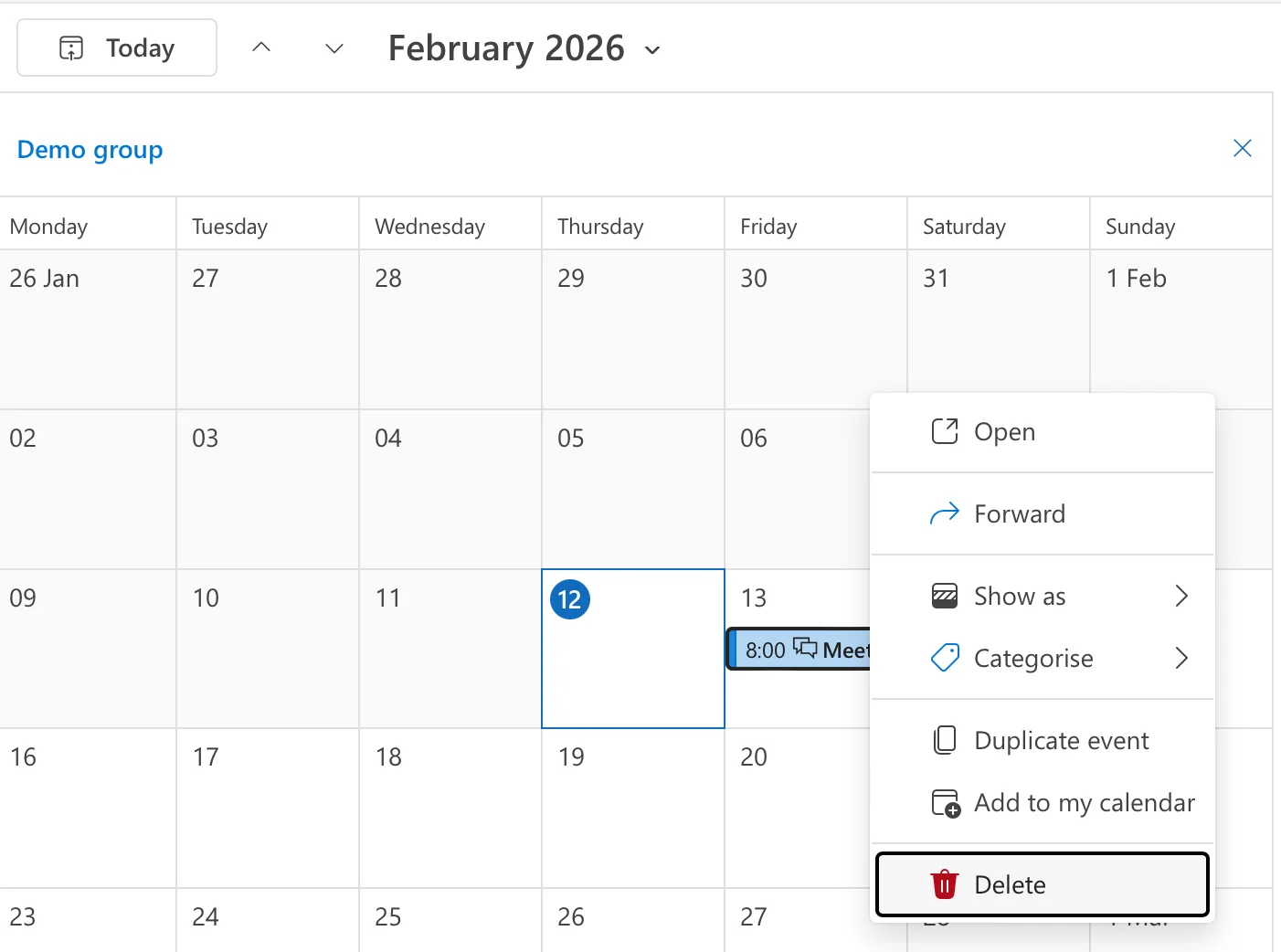
- Viewing the team’s schedule: Open the group calendar next to the personal one to spot conflicts at a glance.
Practical tips for meetings:
- To invite the entire group at once, start a new meeting in the group calendar and add the group email (e.g., marketingteam@company.com) as the attendee — everyone gets notified automatically.
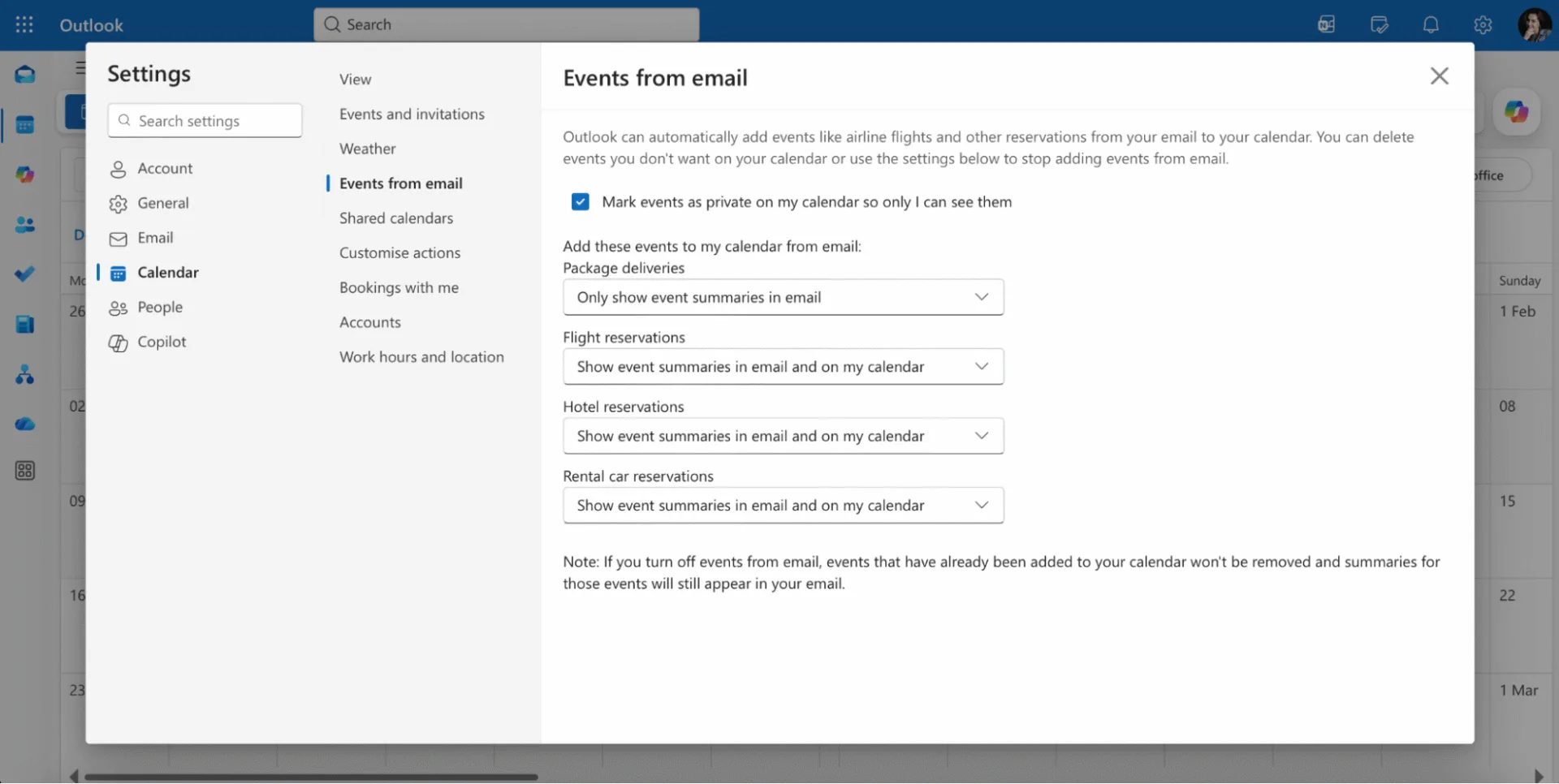
- Enable notifications via Settings (gear icon in the right corner)> Calendar > Events from email to ensure invites land in personal inboxes.
- When editing or canceling, do it from the group calendar view to avoid duplicating events in personal schedules.
3.4 Access to the Group Calendar and Group Membership
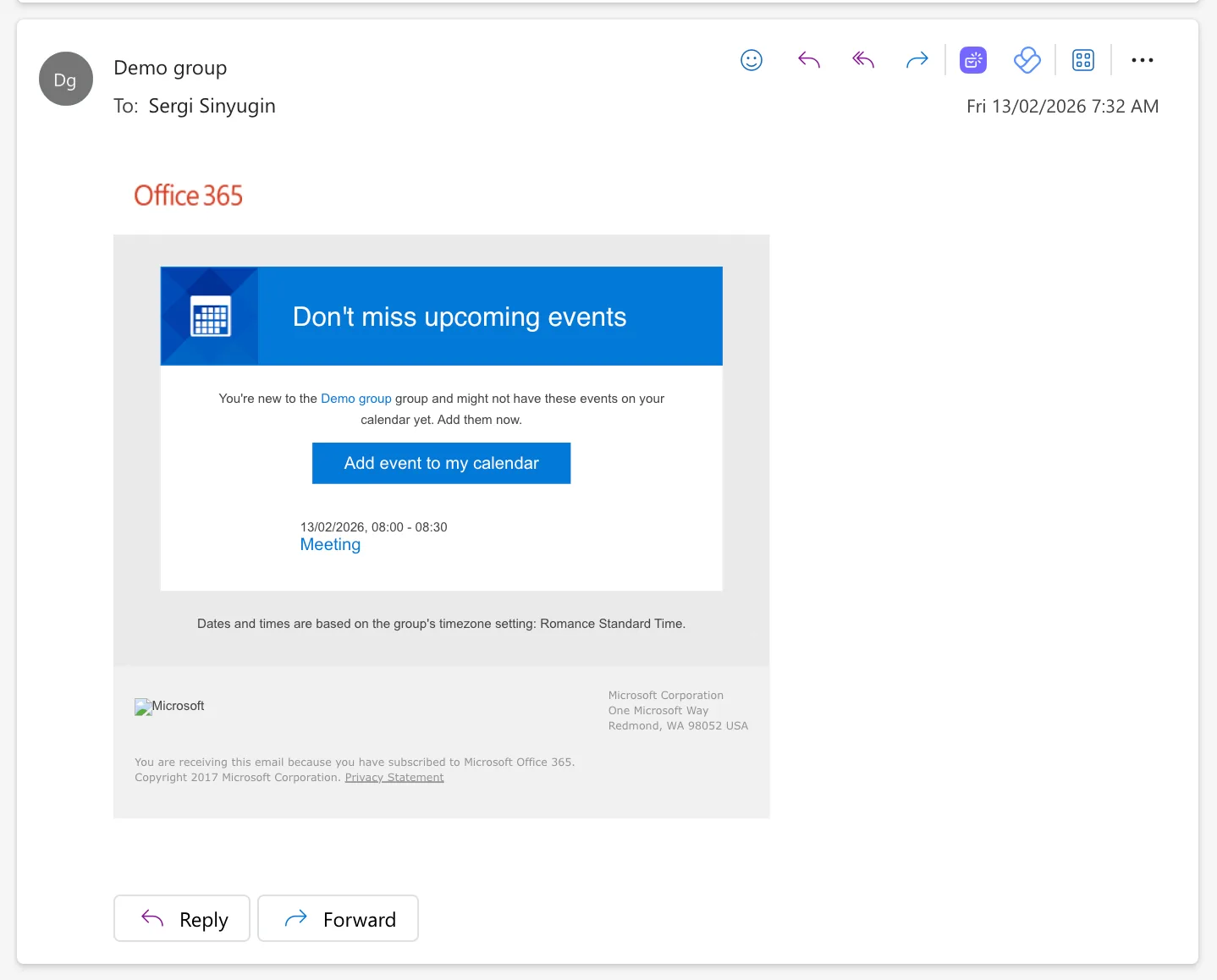
Unlike shared calendars, a Microsoft 365 group calendar requires zero manual sharing. It becomes available automatically when someone joins the group — just accept the invite by clicking “Add event to my calendar” , and it appears in Outlook.
Who can invite members:
- Group owners (set during creation or via Teams/Admin Center).
- Members with elevated permissions (assigned by owners).
This built-in access keeps things frictionless for growing teams.
3.5 Deleting and Modifying the Group Calendar
You can’t delete a group calendar independently — it’s tied to the Microsoft 365 Group and removes entirely when the group is deleted.
What happens on deletion:
- The calendar, all events, and history vanish permanently for members.
- Associated mailbox and files are also removed.
How to delete a group calendar:
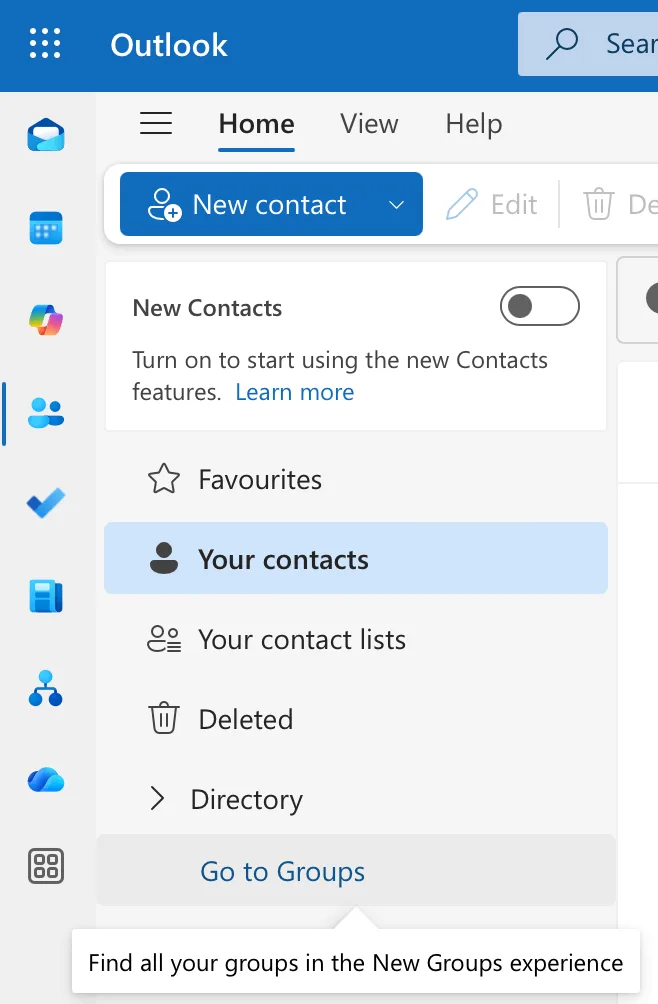
- Go to “People” tab and click “Go to Groups”
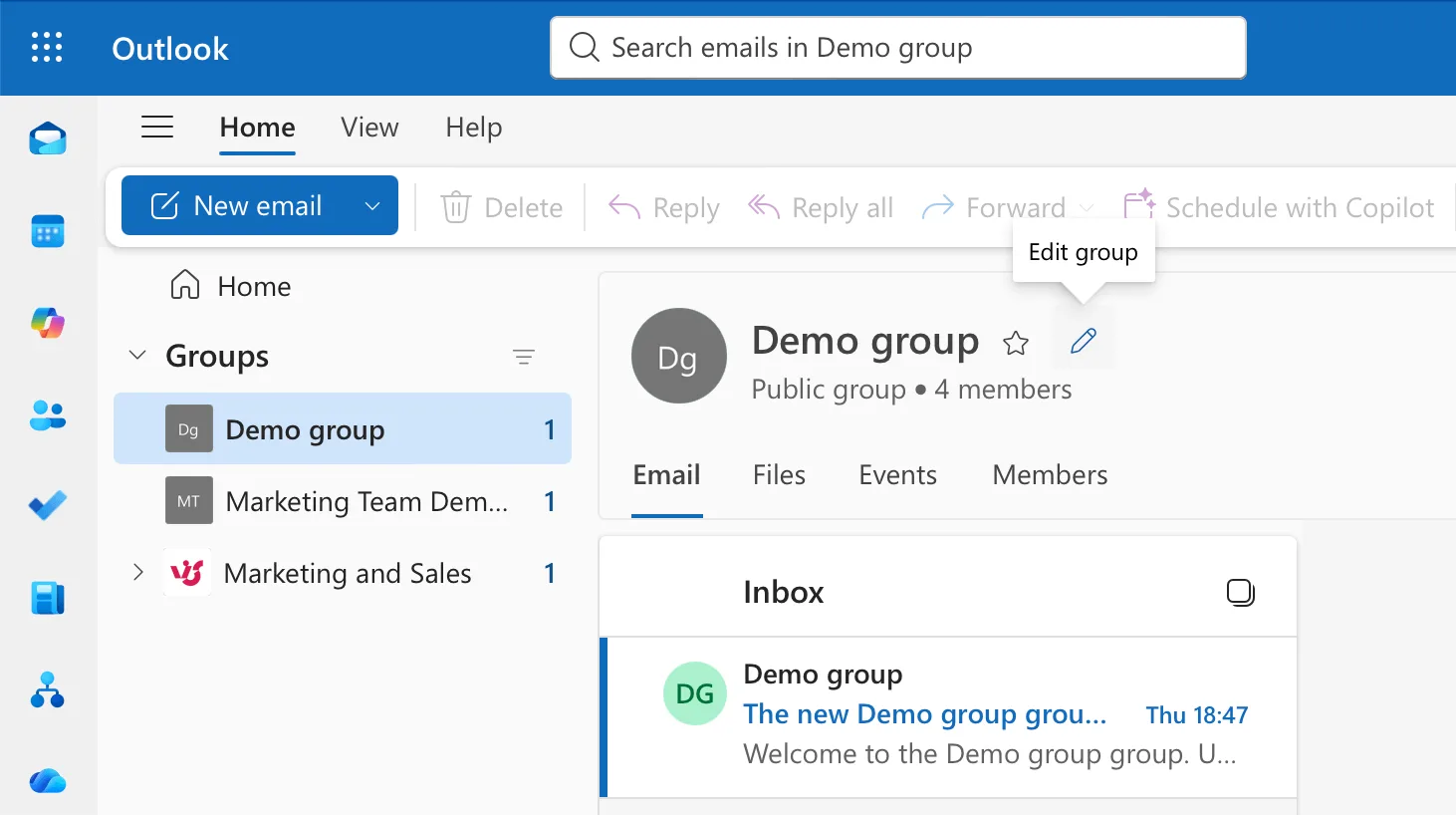
- Click the group you’d like to edit and then click the pen icon next to its name.
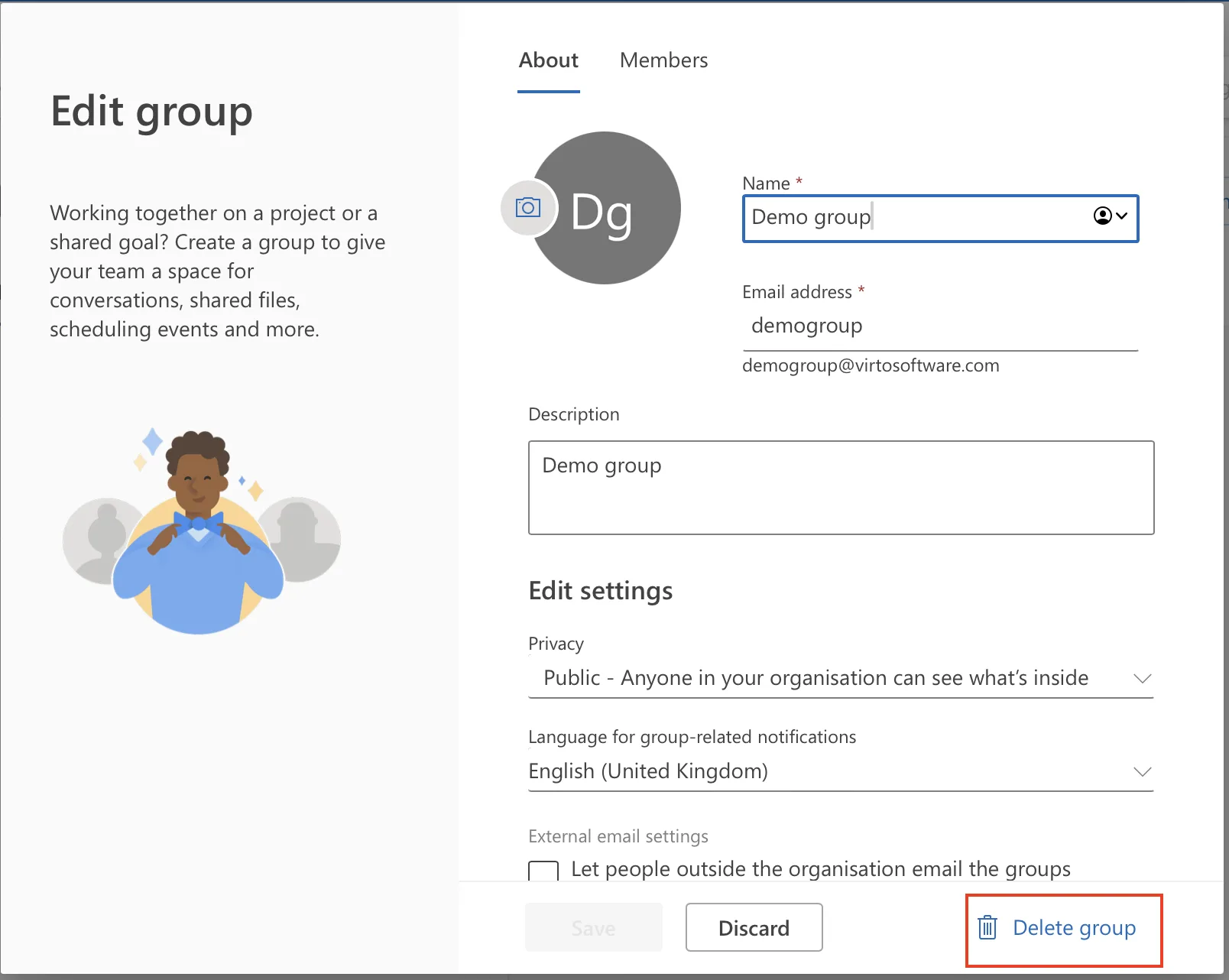
- Click the “Delete group” button in the bottom right corner
Always handle deletions carefully, especially for recurring meetings or long-term plans. Microsoft 365 offers a 30-day recovery window: Admins can restore via Admin Center > Teams & Groups > Deleted Groups > Restore.
Group Calendar vs Shared Calendar in Microsoft 365
When deciding between calendar options in Microsoft 365, the choice often comes down to Outlook group calendar versus a shared calendar. Both enable team visibility, but they serve different needs.
4.1 Fundamental Difference Between Group and Shared Calendars
What is the difference between a shared calendar and a group calendar in Office 365?
A shared calendar is essentially one person’s personal calendar that they manually share with others. A single owner controls access, sets permissions, and manages everything — others can view or edit based on those delegated rights.
You can share you calendar by clicking gear icon in the upper right corner and following to Calendar > Shared Calendar
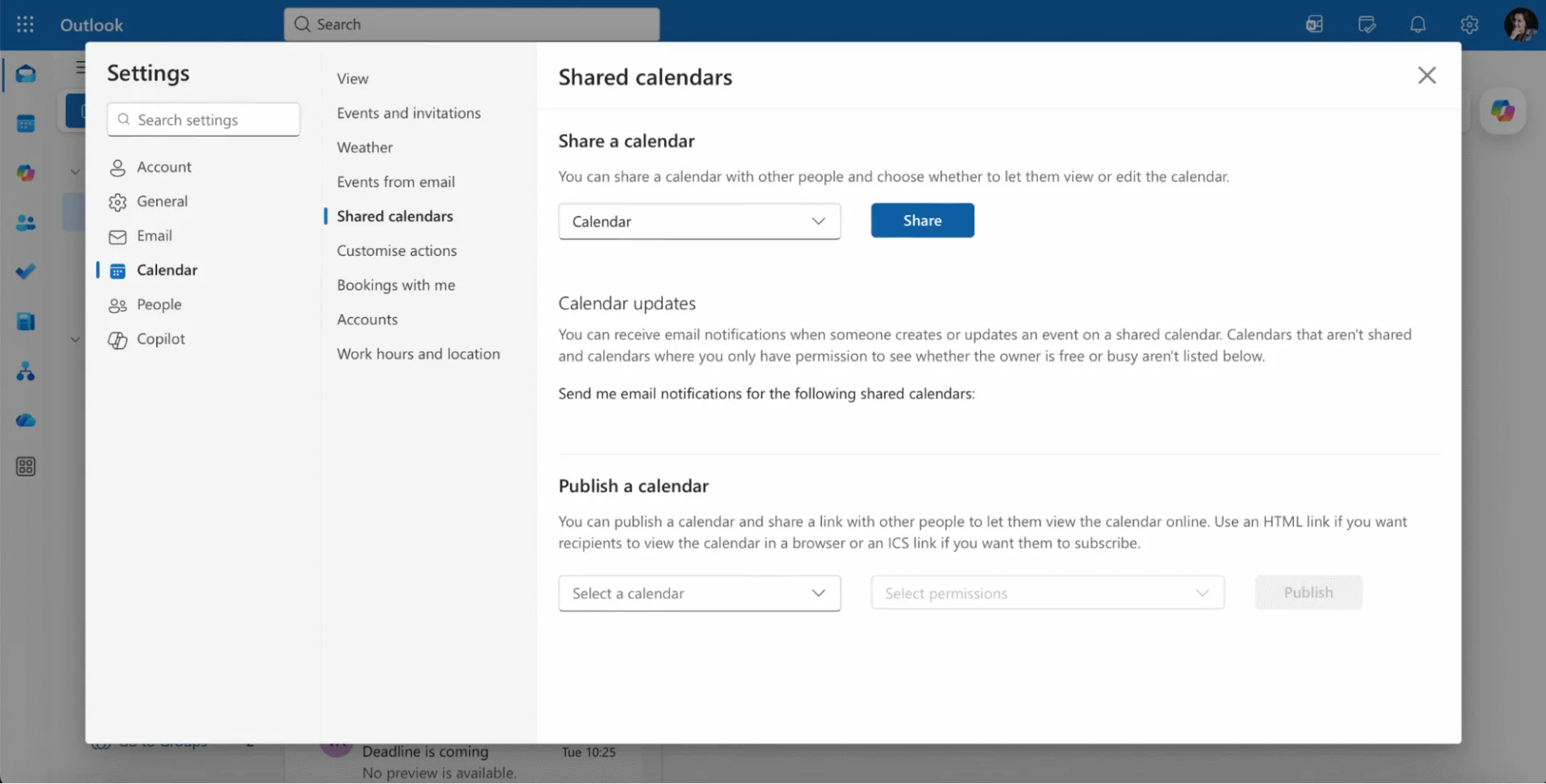
After clicking “Share”, the pop up with permissions will appear. There you can choose permissions for individual users, and for the whole organization.
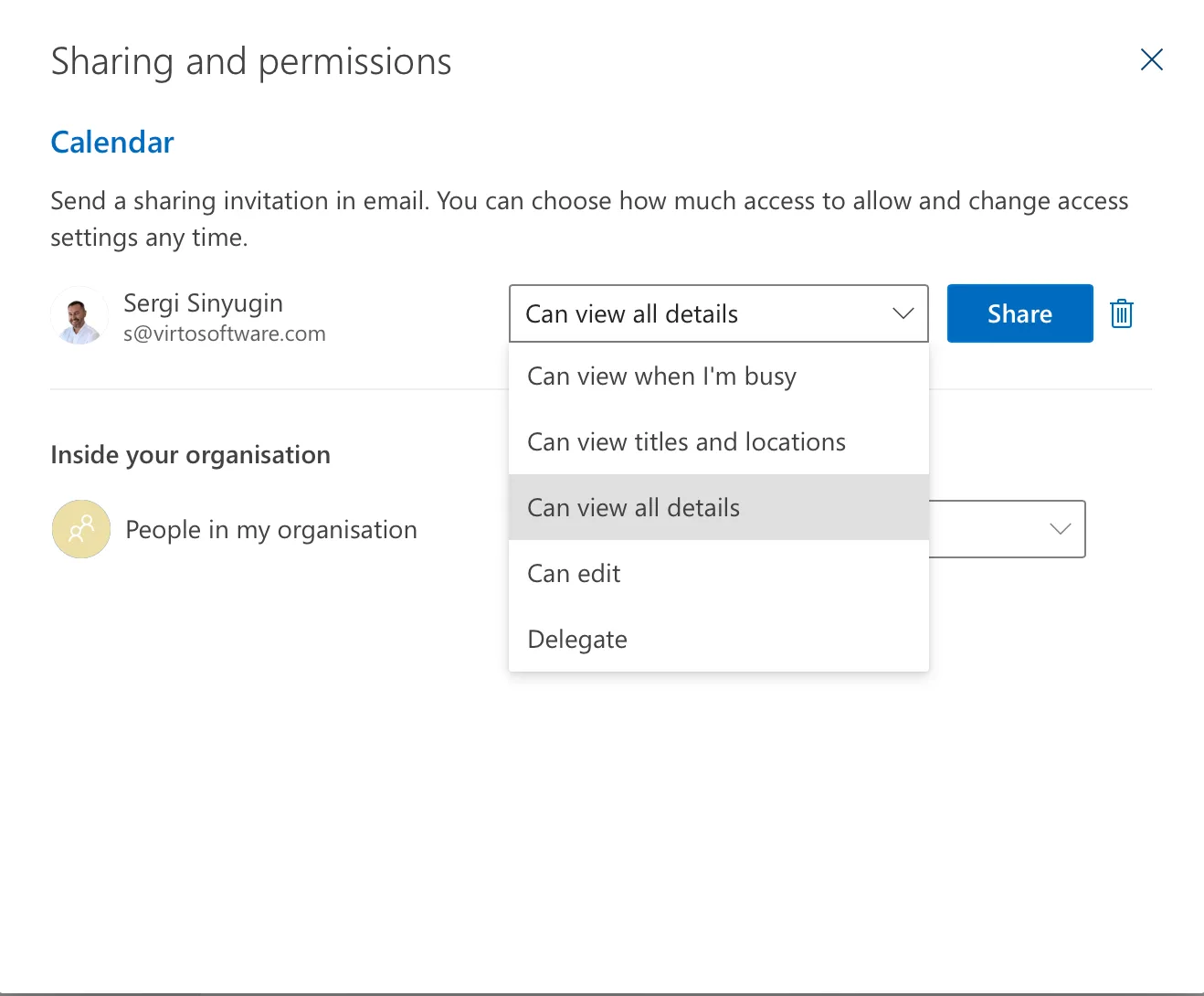
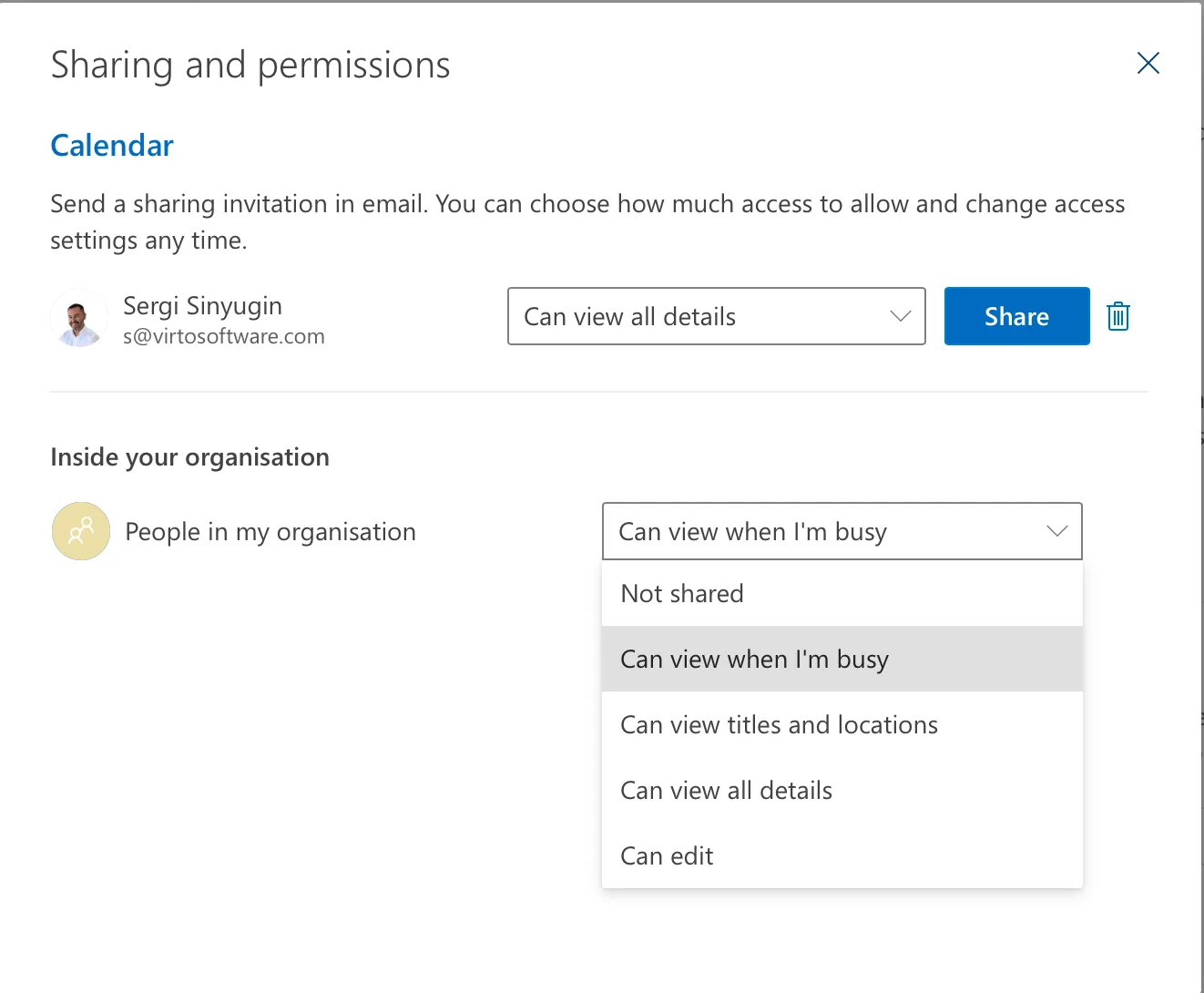
In contrast, a Microsoft 365 group calendar belongs to the entire group, not any individual. It’s created automatically with the group and acts as a collective resource where every member has built-in access to view, add, or edit events without ongoing manual sharing.
👉Community discussion: Shared calendar vs group calendar comparison >>>
4.2 Comparison of Microsoft 365 Group Calendar and Shared Calendar
Here’s how they stack up across key factors:
| Criterion | Shared Calendar | Microsoft 365 Group Calendar |
| Purpose | Showing personal availability to others | Collaborative team planning and events |
| Ownership | Owned by one individual | Owned collectively by the group |
| Access Management | Manual setup for each user | Automatic for all group members |
| Collaboration | Limited for larger or changing teams | Scales easily for departments/projects |
| Integration | Isolated to Outlook | Tied to Teams, SharePoint, Planner, etc. |
This breakdown highlights why group calendars excel for ongoing team coordination, while shared calendars work better for simple personal sharing. For growing teams, the group approach reduces admin overhead and fosters better collaboration.
When and What Is Better to Use
Choosing between a shared calendar and a Microsoft 365 group calendar depends on your team’s size, goals, and workflow. Here’s when each shines.
Use a Shared Calendar When:
- Showing your schedule to a manager or assistant: One-way visibility into personal availability without group overhead.
- Temporarily giving a colleague access: Quick permission grants for short-term projects or coverage.
- Simple scenarios without team coordination: Ad-hoc sharing where no ongoing collaboration is needed.
These cases keep things lightweight, avoiding the structure of full group membership. Perfect for scenarios requiring calendar sharing in Microsoft 365.
Use a Microsoft 365 Group Calendar When:
- Planning work shifts: Rotating schedules visible and editable by multiple staff.
- Maintaining a department-wide vacation schedule: Collective tracking to avoid overlaps.
- Scheduling regular team meetings: Recurring events with automatic group invites.
- Project planning with multiple participants: Milestones and deadlines shared across stakeholders.
The key is matching the tool to the task: shared calendars handle personal coordination, while group calendars enable full team collaboration. Pick based on whether you need simplicity or scalability — not just interface familiarity.
Advantages and Limitations of Using Microsoft 365 Group Calendars
The Microsoft 365 group calendar offers solid functionality for team scheduling, but like any tool, it has strengths and limitations. Here’s a balanced look.
5.1 Advantages of the Group Calendar for Team Collaboration
Microsoft 365 group calendars deliver clear benefits for everyday teamwork:
- Single source of truth: All meetings, deadlines, and events live in one shared space — no more “check with Sarah” confusion.
- Automatic access management: Add a new member, and they instantly see the full schedule. Remove someone, and access vanishes automatically.
- Tight integration: Works seamlessly with Outlook, Teams, and SharePoint, pulling in emails, files, and chats as needed.
- Fewer scheduling conflicts: The shared overview helps spot overlaps before they happen.
For small and medium teams handling basic coordination, these features often cover everything needed without extra setup.
5.2 Typical Challenges and Limitations of the Standard Group Calendar
Despite its strengths, the standard group calendar hits limits in busier environments:
- Calendar overload: Too many small events (like quick 1:1s) clutter the view, making it hard to spot key priorities.
- Viewing multiple calendars: Outlook’s interface struggles to show several group calendars side-by-side effectively.
- Limited customization: Basic color-coding and categorization don’t scale for tracking different projects or tasks.
- No consolidated workload view: You can’t easily see the big picture of team capacity on one screen.
- Manual toggling: Turning calendars on/off for analysis gets tedious with more groups.
For complex setups, other issues arise:
- Rigid access control: Everyone gets full view/edit rights — no fine-grained roles for viewers vs. editors.
- No direct task links: Events don’t automatically connect to Planner tasks or SharePoint lists in the same group.
The built-in tool works well for basic planning, but as teams grow or workflows get intricate, it can feel restrictive. That’s when exploring advanced solutions — like Virto Calendar Overlay for multi-calendar views and smarter overlays — starts making sense.
👉 Read more: Managing multiple M365 calendars >>>
Advanced Management Alternative — Virto Calendar App for SharePoint Online & Microsoft 365
While Microsoft 365 group calendars handle basic team scheduling well, larger teams often need more power.
6.1 When the Standard Group Calendar Is Not Enough
The built-in calendar starts to falter in these scenarios:
- Complex visual planning: Tracking projects across multiple overlapping schedules.
- Multiple calendars at once: Juggling several group calendars without a unified view.
- Weak filters and summaries: No easy way to drill down or see workload overviews.
- Large teams with overlaps: Managing dozens of events, shifts, and deadlines becomes chaotic.
For growing organizations, these gaps slow down productivity and obscure the big picture.
👉 Related guide: How to create Office 365 shared calendar >>>
6.2 How Virto Calendar App Solves Complex Tasks
Enter Virto Calendar App for SharePoint Online & Microsoft 365 — a robust add-on that extends group planning without replacing Outlook. It lives inside your existing SharePoint and Microsoft 365 setup, so no retraining is needed.
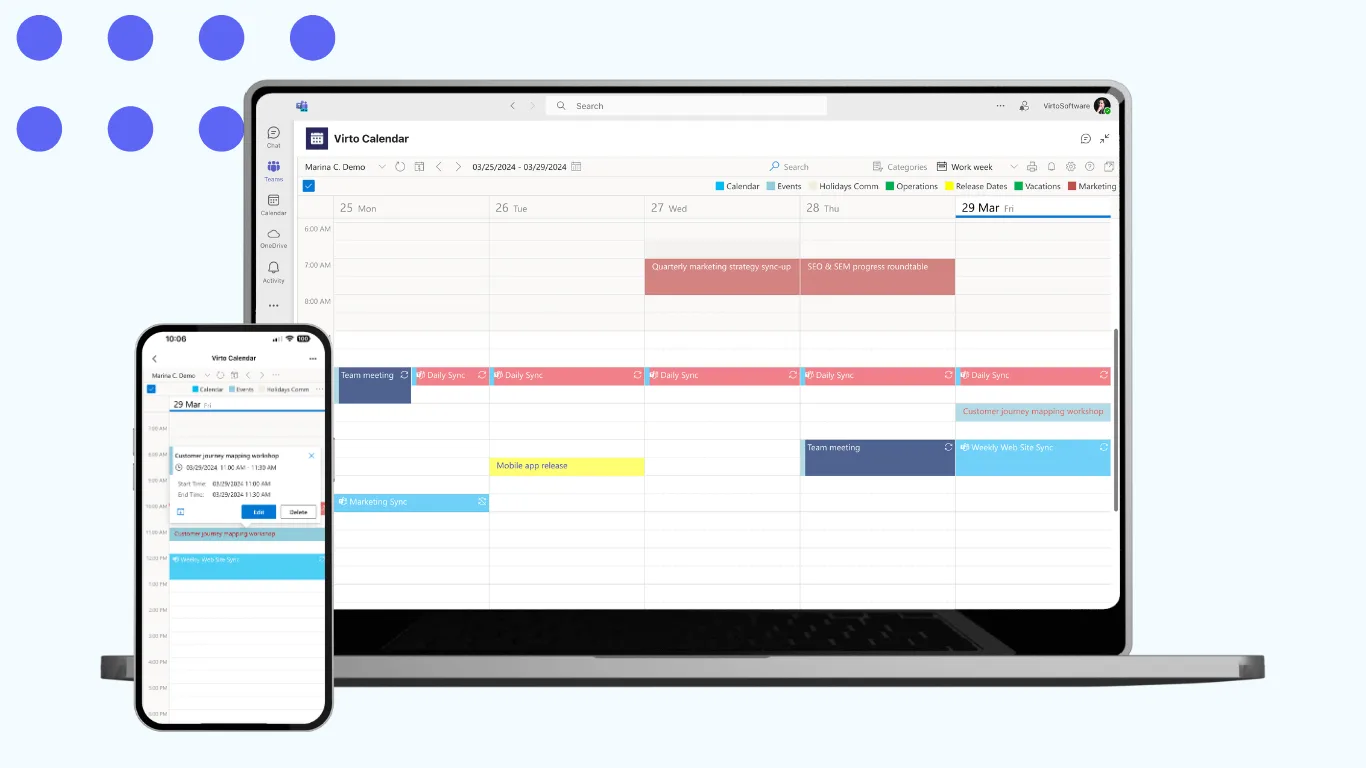
Key features that fix standard limitations:
- Combine multiple sources: Overlay Outlook and Microsoft 365 group calendars with SharePoint lists (tasks, vacations), Planner boards, or even Google Calendar — all in one view.
- Summary overviews: Get a single consolidated calendar for teams, projects, or departments, aggregating events for instant workload insights.
- Flexible visuals: Color-code by project, status, or type; drag-and-drop to reschedule; keep interfaces clean despite heavy data.
- Granular access: Leverage SharePoint permissions for viewer, editor, or approver roles — far beyond group defaults.
- SharePoint sync: Turn any list into calendar format, with two-way updates between sources.
- Embed anywhere: Add to SharePoint pages or Teams tabs, making it the hub of your workspace.
Virto Calendar App excels where standard tools fall short — helping organizations not just track events, but actively manage resources, deadlines, and capacity.
Lightweight Option: Virto Shared Calendar for Simplicity
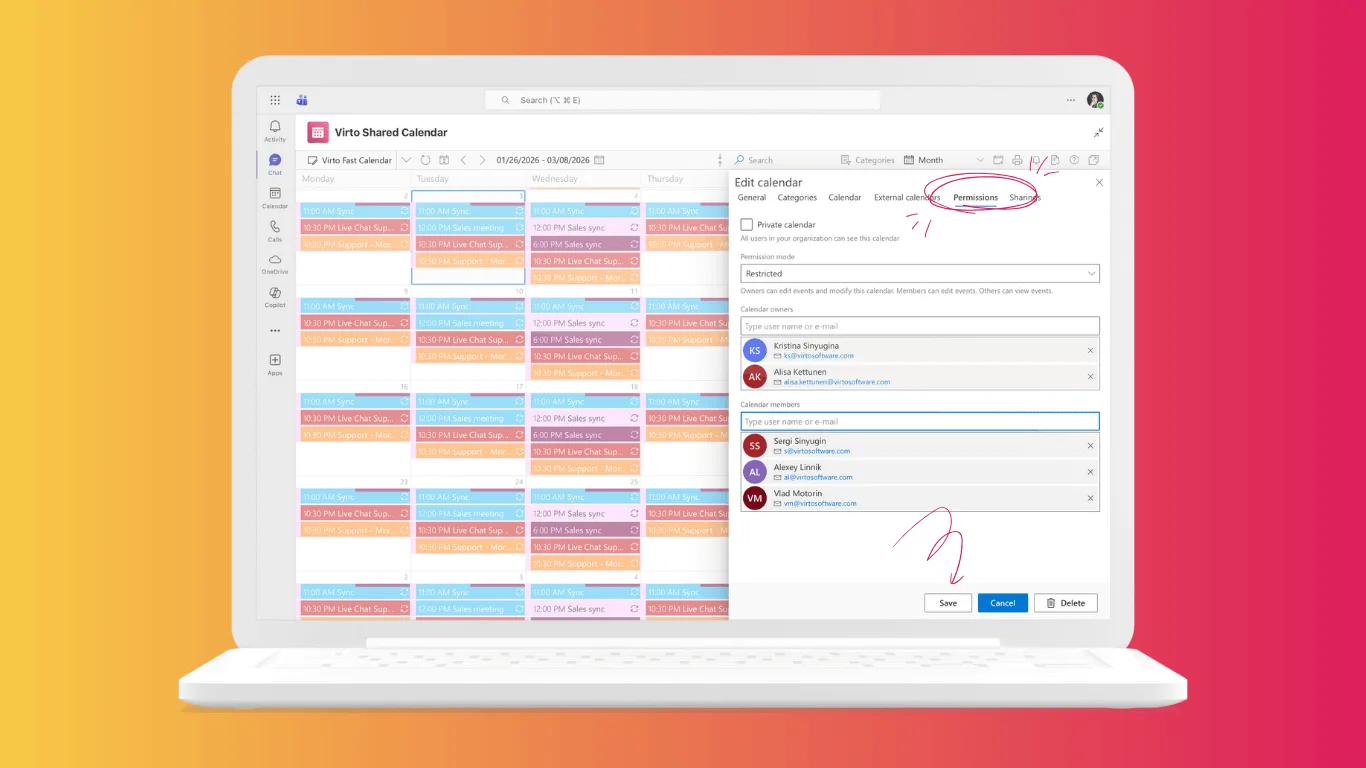
Not every team needs enterprise-level complexity. For small and medium-sized teams who want to enhance their Microsoft 365 group calendar without overcomplicating things, Virto Shared Calendar offers a lightweight upgrade focused on ease and efficiency.
When Virto Shared Calendar Fits Best
Virto Shared Calendar suits teams seeking a simple, independent tool for clear, shared scheduling — no Outlook or SharePoint dependencies required.
- Quick, standalone setup: Ideal if you need an immediate shared calendar without integrations or overlays.
- Designed for small to mid-sized teams (1–50): Perfect for departments, agencies, and project groups prioritizing clarity and coordination over advanced analytics.
- Effortless to manage: Manual event entry keeps control simple and administrative time low.
- Perfect for practical scenarios: Use it for vacation tracking, shift planning, resource allocation, or project timelines.
- Built for external visibility: Anonymous access enables easy sharing with clients or partners — especially useful for agencies and service teams.
Choose it when you want scheduling that’s clean, reliable, and refreshingly straightforward.
Key Features for Streamlined Teamwork
Virto Shared Calendar keeps coordination smooth while staying lightweight:
- Standalone workspace: Manage all events inside Virto without relying on external calendar overlays or syncs.
- Visual organization: Color-code and label events for quick recognition across categories like meetings, time off, or milestones.
- Anonymous view links: Share specific calendars or views externally without requiring sign-ins.
- .ics export support: Download calendars for optional overlay or backup in other tools.
- Drag-and-drop editing: Create, move, or adjust events instantly with a modern, intuitive interface.
- Responsive design: Optimized for both desktop and web use, ensuring access wherever teams work.
Priced affordably and installed in minutes, it gives small teams professional-grade polish without technical overhead.
Virto Shared Calendar vs Full Virto Calendar App
| Feature | Virto Shared Calendar | Virto Calendar App |
| Team Size | Small/Medium (1-50) | Large/Enterprise (50+) |
| Setup Time | Minutes | An hour |
| Calendar Sources | 1 | Unlimited (Outlook, Planner, Google, etc.) |
| Best For | Simplicity + visuals | Full resource management |
| Permissions | Basic roles (owner / editor / viewer) | Advanced granular controls |
Choose Virto Shared Calendar when you want group calendar upgrades without the enterprise weight — keeping collaboration smooth and straightforward.
Conclusion
The Microsoft 365 group calendar proves itself as a reliable foundation for teams starting with collaborative scheduling. From how to create a group calendar in Outlook to toggling Outlook calendar groups on and off, its automatic setup, real-time synchronization, and seamless access make everyday coordination — like team meetings, vacations, or deadlines — straightforward and efficient. For small teams or basic needs, this built-in Outlook feature often delivers everything required without extra tools or training.
Yet, as workflows evolve, limitations surface. Calendar overload, challenges viewing multiple group calendars simultaneously, rigid permissions, and the lack of unified workload insights can frustrate growing teams. If you’re repeatedly troubleshooting Outlook group calendar vs shared calendar choices or struggling with visibility, it’s clear when native features fall short for complex planning like shift rotations, cross-project timelines, or department resource tracking.
That’s where VirtoSoftware steps in with tailored upgrades — all fully integrated into your Microsoft 365 ecosystem:
- Virto Shared Calendar: The lightweight choice for small and medium teams (1-50 people) craving simple enhancements. Get smart color-coding, drag-and-drop rescheduling, and effortless sharing — without enterprise complexity. Perfect when you want 90% more power with 10% of the setup.
- Virto Calendar App: The robust solution for larger organizations needing advanced control. Overlay unlimited sources (group calendars, SharePoint lists, Planner, Google), build consolidated summaries, apply granular permissions, and embed anywhere in Teams or pages for true resource management.
👉 Explore all Microsoft 365 solutions: VirtoSoftware Microsoft 365 >>>
Both options enhance your Microsoft 365 group calendar rather than replace it, ensuring smooth adoption. Evaluate your setup today: Do basic functions still suffice, or is it time to scale with professional tools? Start a free trial of Virto Shared Calendar or Virto Calendar App and unlock clearer visibility for your team.