


Eight Edits a Day, One Email
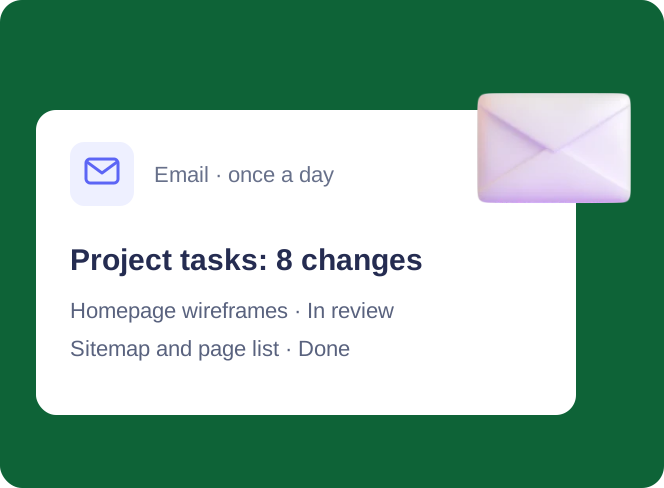
Several people edit one SharePoint list, and Virto Alerts & Reminder App sends one email a day with every change in a single table — plus an email of its own for the changes that cannot wait.



Trusted by Industry Leaders


and over 8,000 businesses worldwide
One Table for the Routine, One Email for the Exception
A summary rule collects the changes of the day; a second rule sends its own email only when a change cannot wait.
The rule
A summary on a schedule instead of an email per edit
Every change, sent once a day
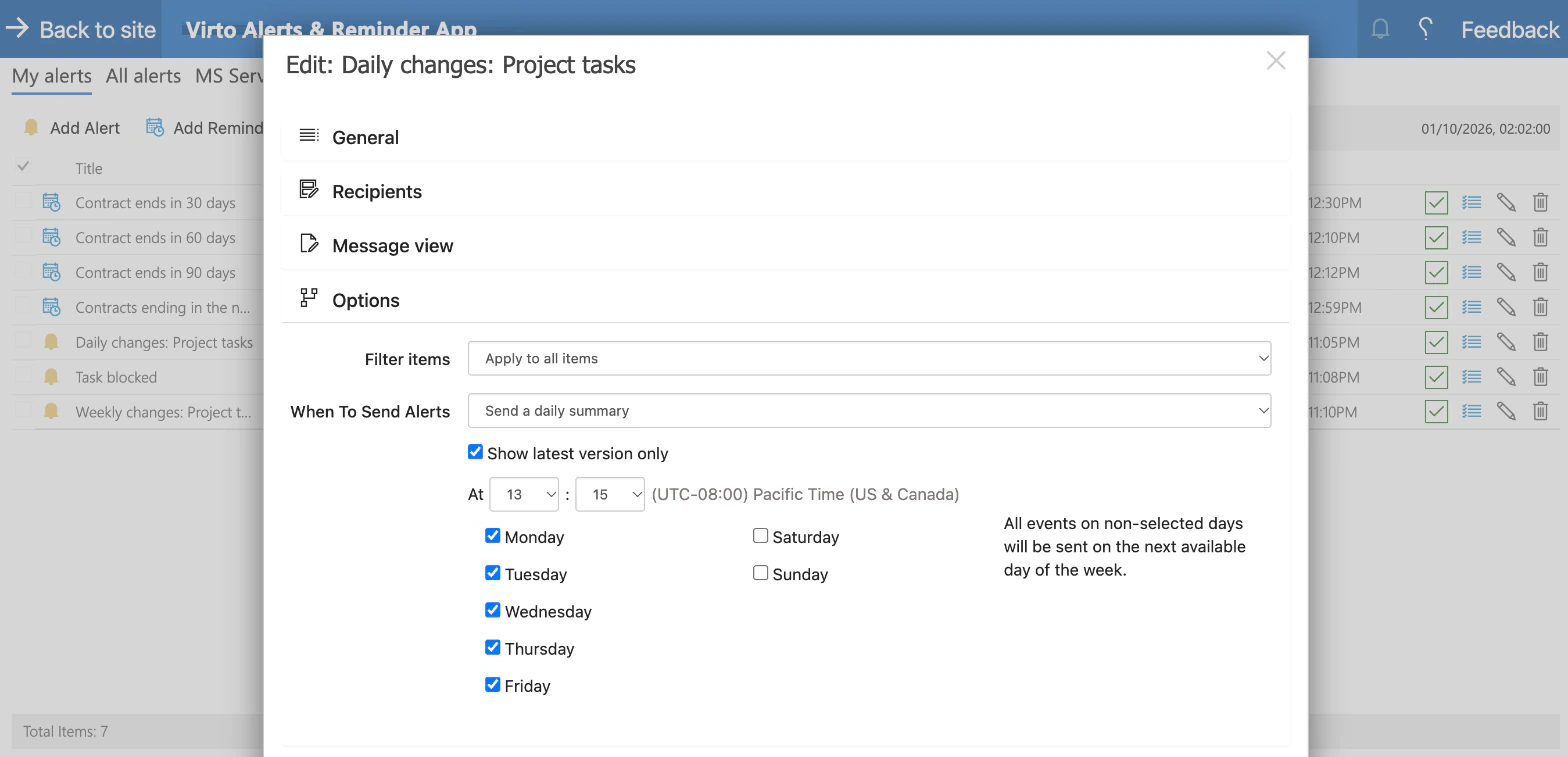
The alert watches new and modified items and sends them together at the hour you set, in the time zone of the app settings.
Working days only, if you like
Tick the weekdays the summary should go out on. Changes made on the other days are sent on the next day that is ticked.
The latest state of each item
With Show latest version only, an item that was edited several times during the day is reported as it stands at send time.
The template
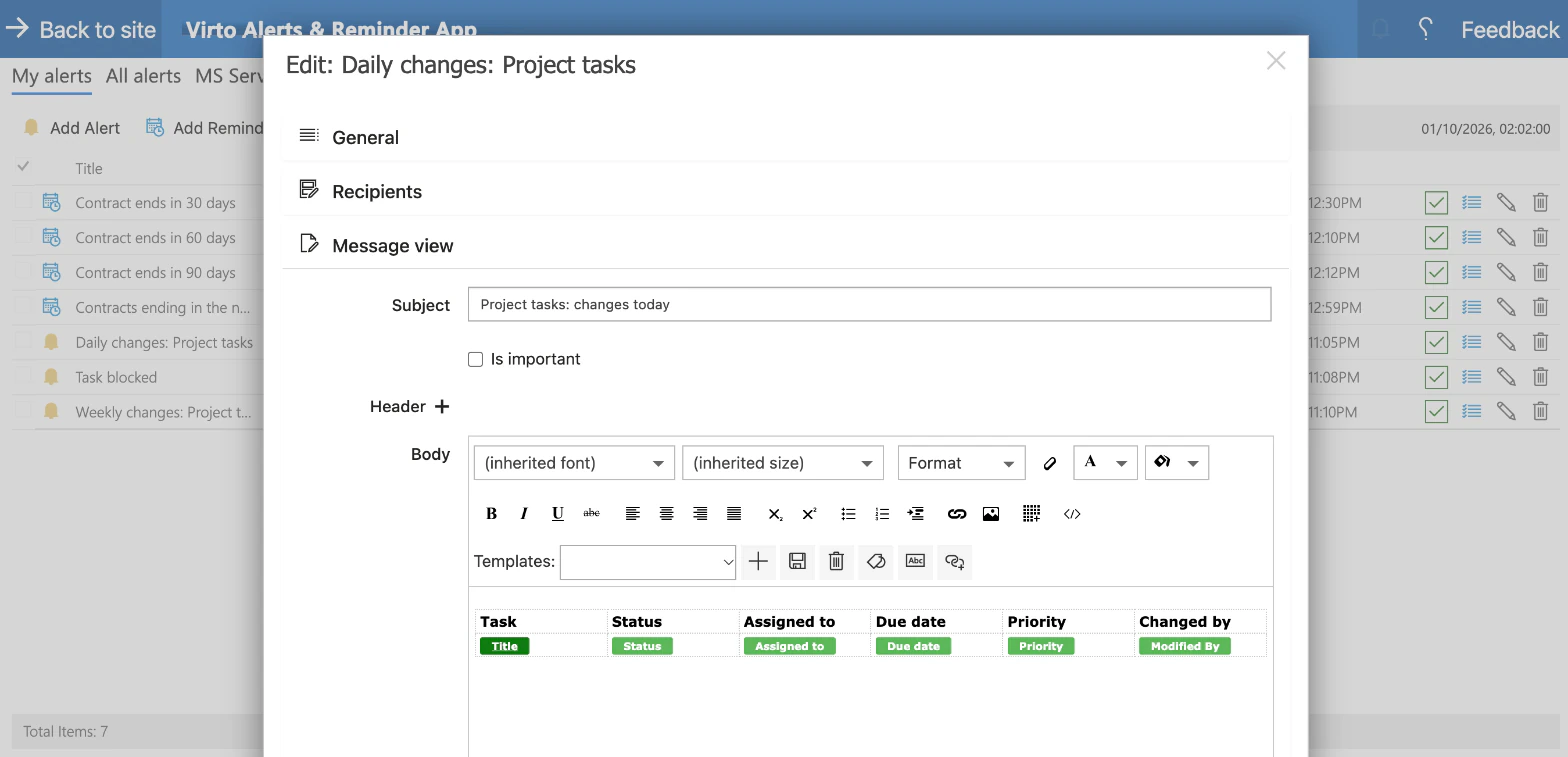
You decide which columns the table has
A header row and a row of fields
The body of the message is one table: a header you type and, under it, the fields of the list. The app repeats the second row for each changed item.
Each row links to its item
The first cell is a link built from the item's title, so a click in the email opens the task in SharePoint.
The previous value, if you need it
A field can be printed with its new value or its old one, so a column can show what the status was before the change.
The email
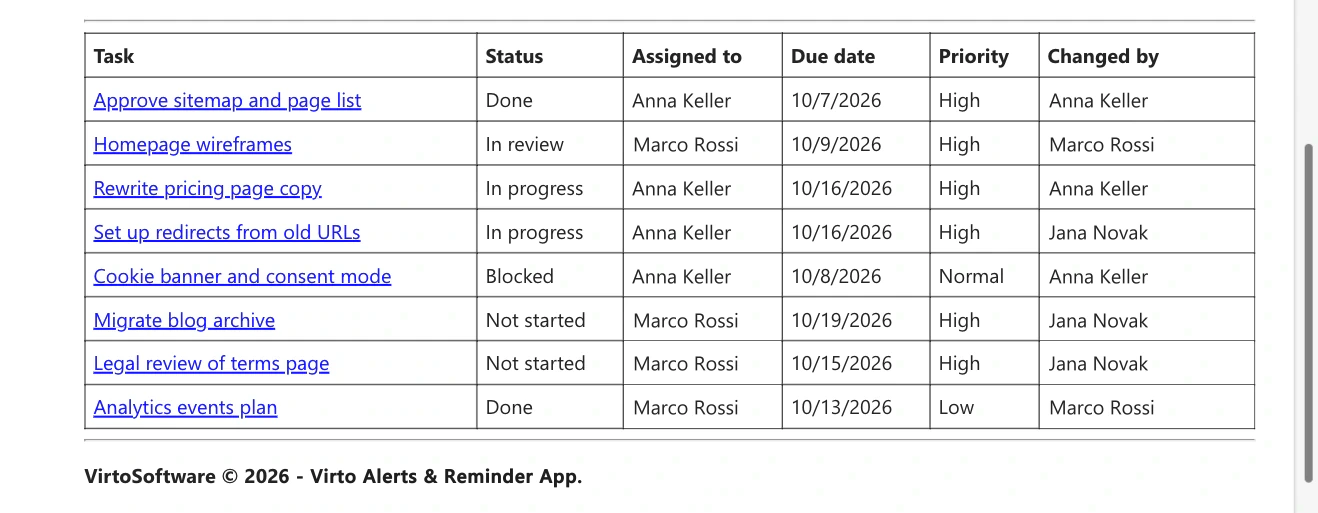
One table, one row per changed task
Eight edits, one message
Every task that was created or changed that day is a row: a status that moved, a priority that went up, a task added in the afternoon. Nothing arrives in between.
The columns from the template
The header row is the one typed in the rule, and the field tags under it are filled in for each task, with the task name as a link.
Who changed what
The Changed by column names the person who edited each task, so the project manager sees who moved what without opening the list.
The exception
A blocked task gets its own email
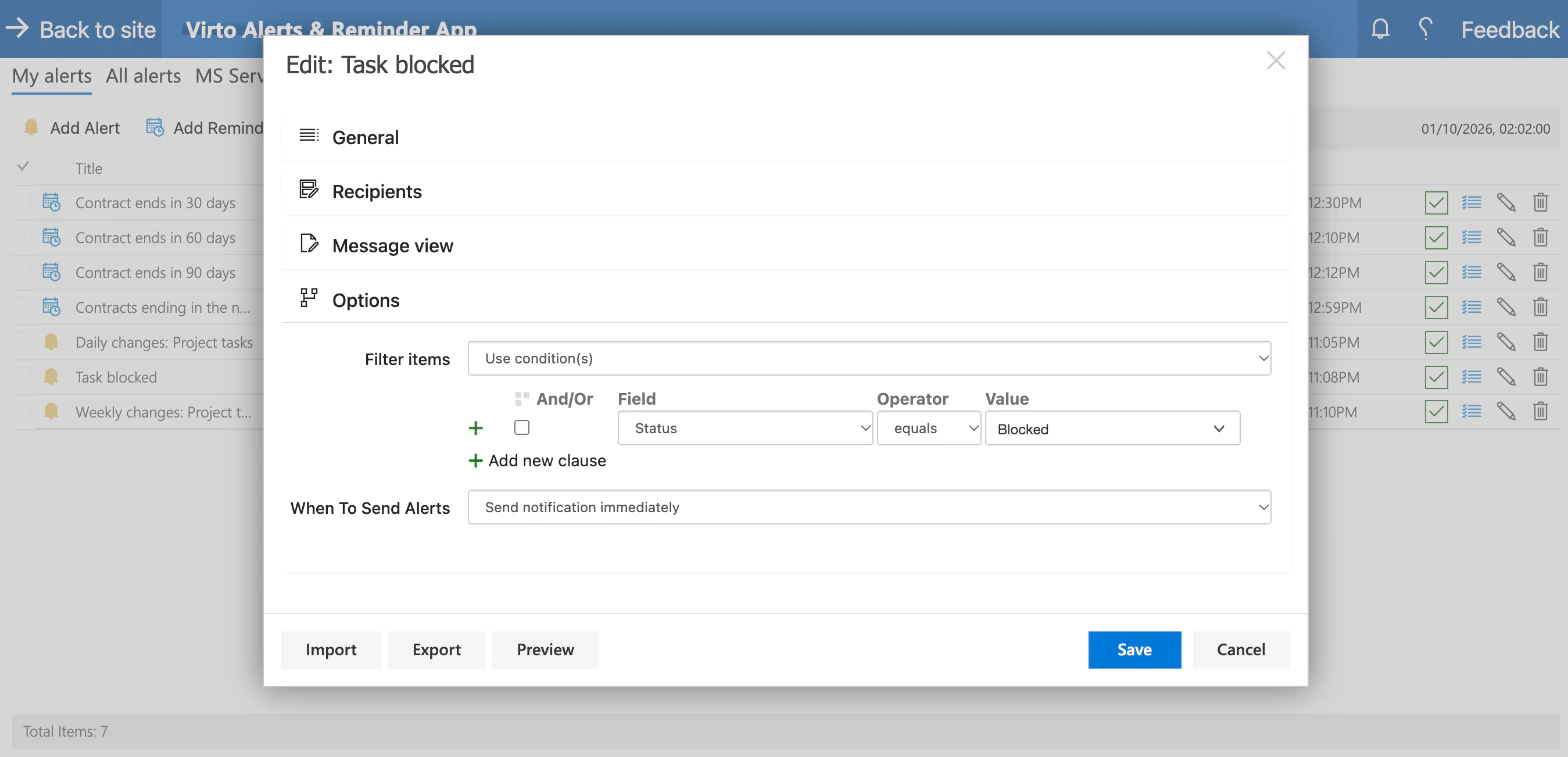
A condition on one column
The second rule looks at modified items and keeps those whose Status equals Blocked. Everything else stays in the daily table.
Within minutes, not at the end of the day
The email goes out within minutes of the change, with the task, its assignee, its due date and the person who changed it.
Key benefits

One email instead of one per edit
The changes of the day arrive together, at an hour you choose, in a table that can be read in a minute.
The exception still arrives fast
A second rule with a condition sends its own email within minutes, so the urgent change is not buried in the daily table.
Your columns, your wording
The table is a template: you choose the fields, type the header and set the subject and the sender name.
Daily for the team, weekly for the sponsor
The same template runs on two schedules for two audiences, without building anything twice.
Every rule in one place
My alerts lists each rule with its list and recipients, and the Queue tab shows what has been sent.
The list stays where it is
The tasks remain an ordinary SharePoint list in your Microsoft 365 tenant, with the permissions and version history it already has.
Which notification fits which list
The project manager wants to know what moved, not to be interrupted by every save.

One email at the end of the day lists every changed task in a table, and a blocked task is reported within minutes.
Someone outside the team needs the changes of the week in one message.
The same rule with a weekly schedule sends the table on the weekday you choose.
The built-in rules send an email to named people when an item changes. They send one email per change and have no summary.
Virto Alerts & Reminder App notifies people. Routing a request through approvers is a flow.
Virto Alerts & Reminder App
Get the day's changes in one email


Related use cases
Discover our range of use cases to take your planning and coordination to another level
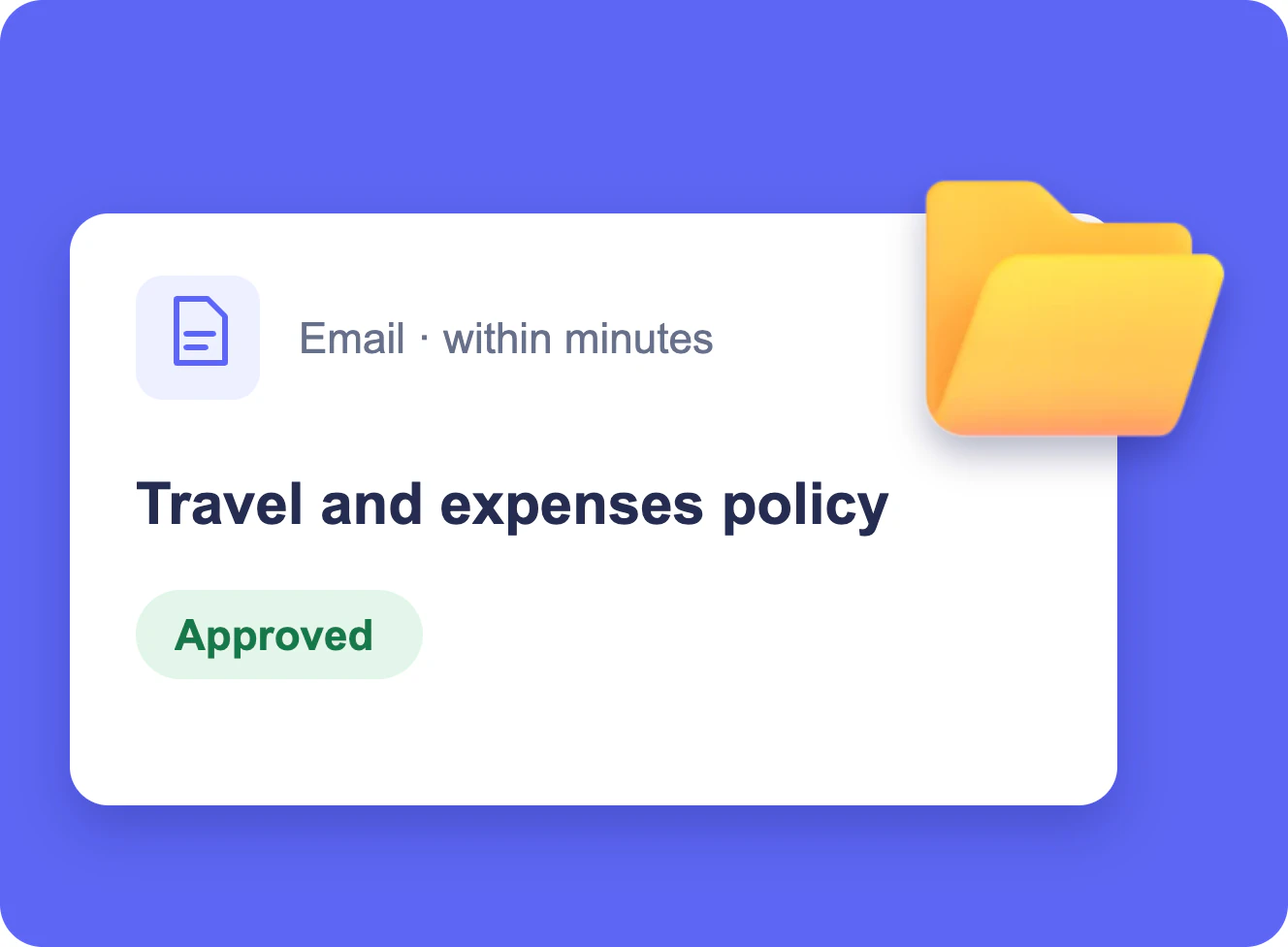
Document Library Change Notifications
When a policy in a SharePoint library is approved, its readers get an email with a link; one folder can have its own rule, and a weekly table lists what changed.
Learn more about Document Library Change Notifications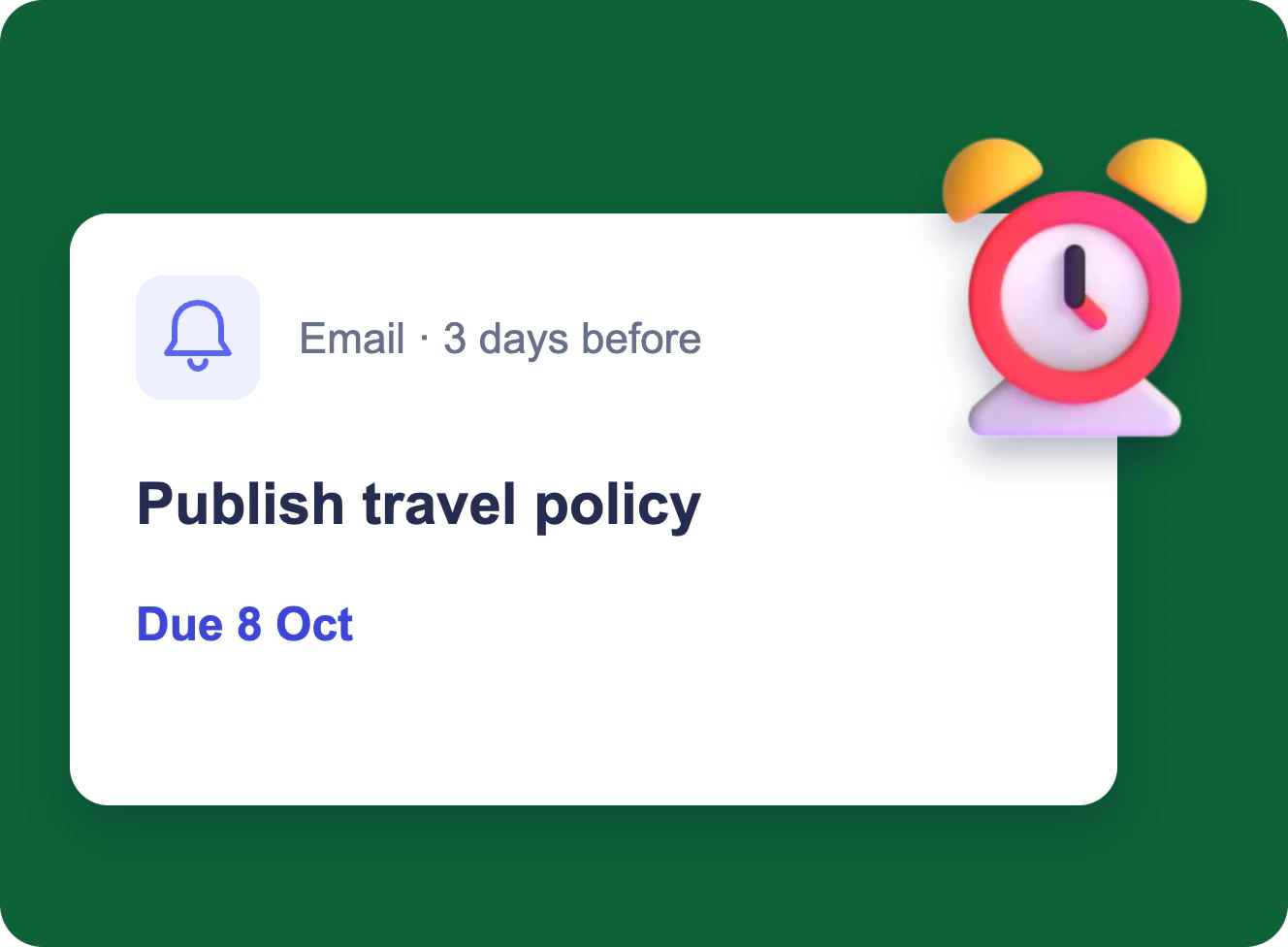
Task Due Date & Overdue Reminders
Each assignee gets an email three days before a task is due, and the manager gets one table of everything overdue and still open every morning — from a SharePoint task list.
Learn more about Task Due Date & Overdue Reminders
Project Management
Leverage Virto's advanced tools to masterfully manage projects—breaking down complexities, optimizing timelines, and empowering agile methodology.
Learn more about Project Management