


Inspections on Schedule, Findings on a Board
Inspection dates, maintenance windows, inspection results, work orders and reports in one SharePoint site: one calendar, reminders before each due date, an inspection form, a work-order board and a bulk upload for the reports. Built with the Virto M365 Productivity Kit.



Trusted by Industry Leaders


and over 8,000 businesses worldwide
Five Steps, Five Apps, One Site
Inspections, maintenance windows and work orders are ordinary SharePoint lists, and the reports go into a document library. Each step is one Virto app on top of them; together the five apps are the Virto M365 Productivity Kit. The screens are from our demo site.
Step 1 · Plan
Inspections next to the maintenance windows
Two lists, one view
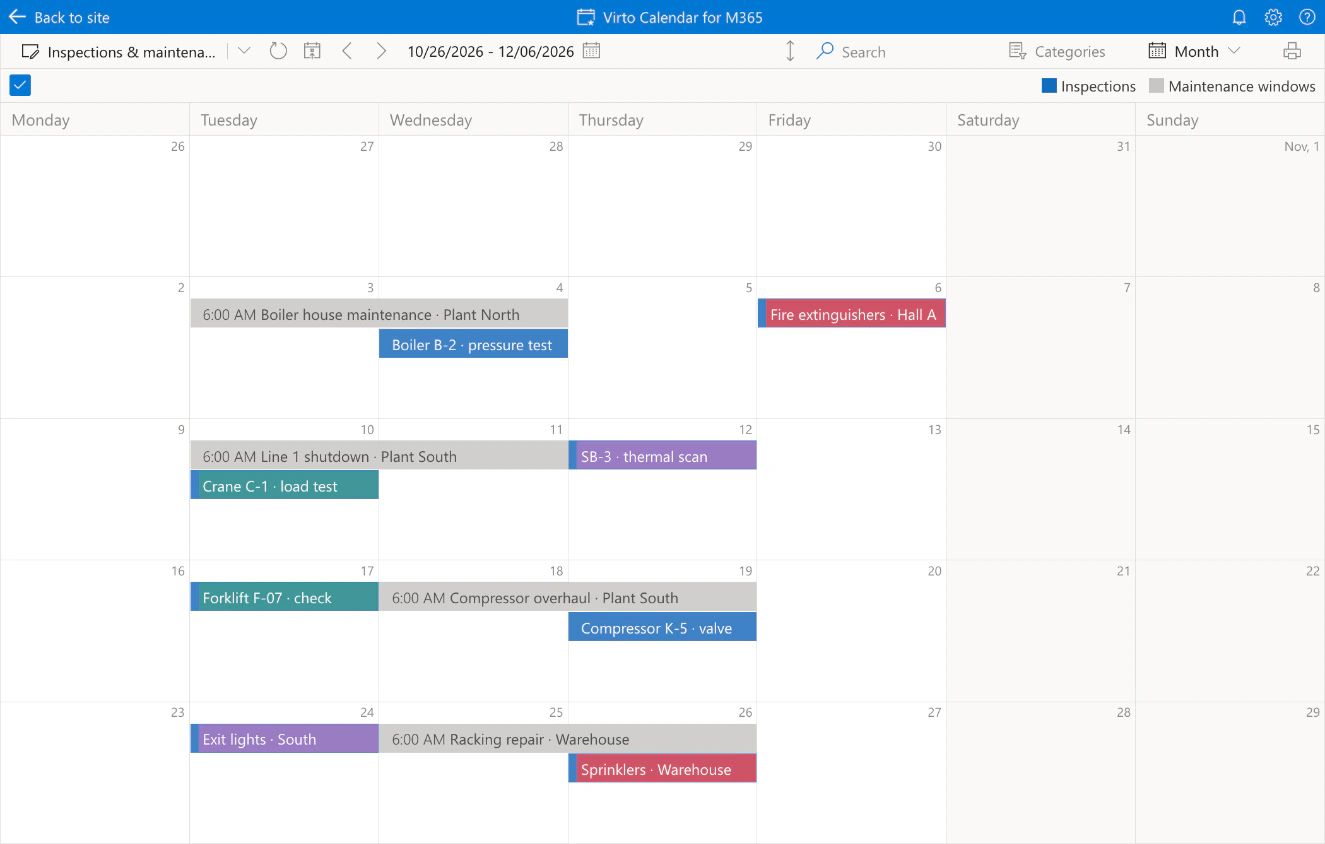
Inspections and maintenance windows are separate SharePoint lists; the calendar overlays them, and each entry stays an item of its own list, with its permissions.
Colour by inspection type
Inspections take their colour from the Inspection type column: pressure tests in blue, fire safety in red, lifting gear in teal, electrical safety in purple.
Step 2 · Remind
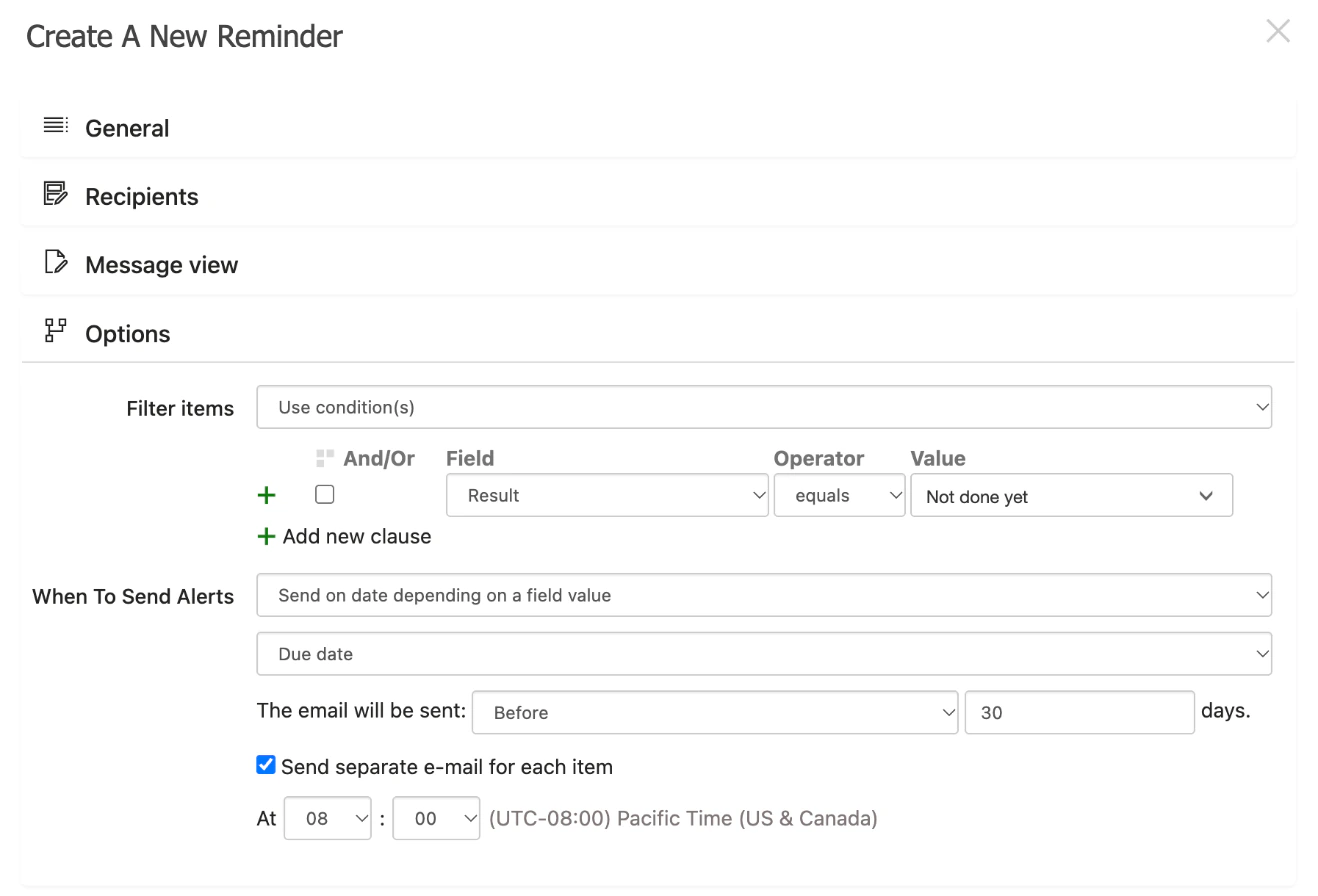
Thirty days before an inspection is due, the owner hears
To the person responsible
The rule writes to the person in the Responsible column, so an inspection added to the list next year needs no new rule.
In a Teams channel too
A second reminder on the same list can post the coming inspections to the maintenance team's channel through a Workflows link.
Step 3 · Inspect
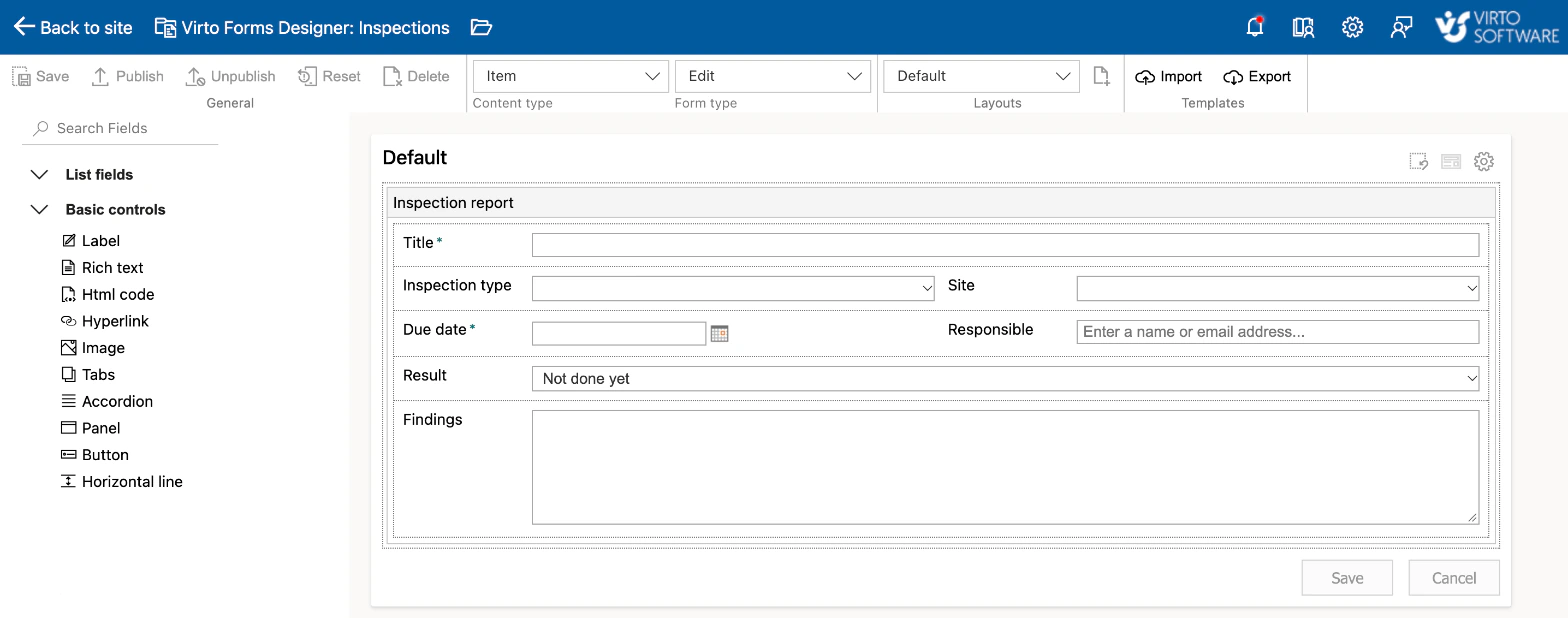
The result recorded in one form
Result and findings on the item
The inspector picks Pass, Pass with remarks or Fail and writes the findings into the same list item that the calendar and the reminder read.
Published once by an admin
Publishing the form needs a SharePoint admin to allow custom scripts on the site. The setting switches itself off within a day, and the published form keeps working.
Step 4 · Fix
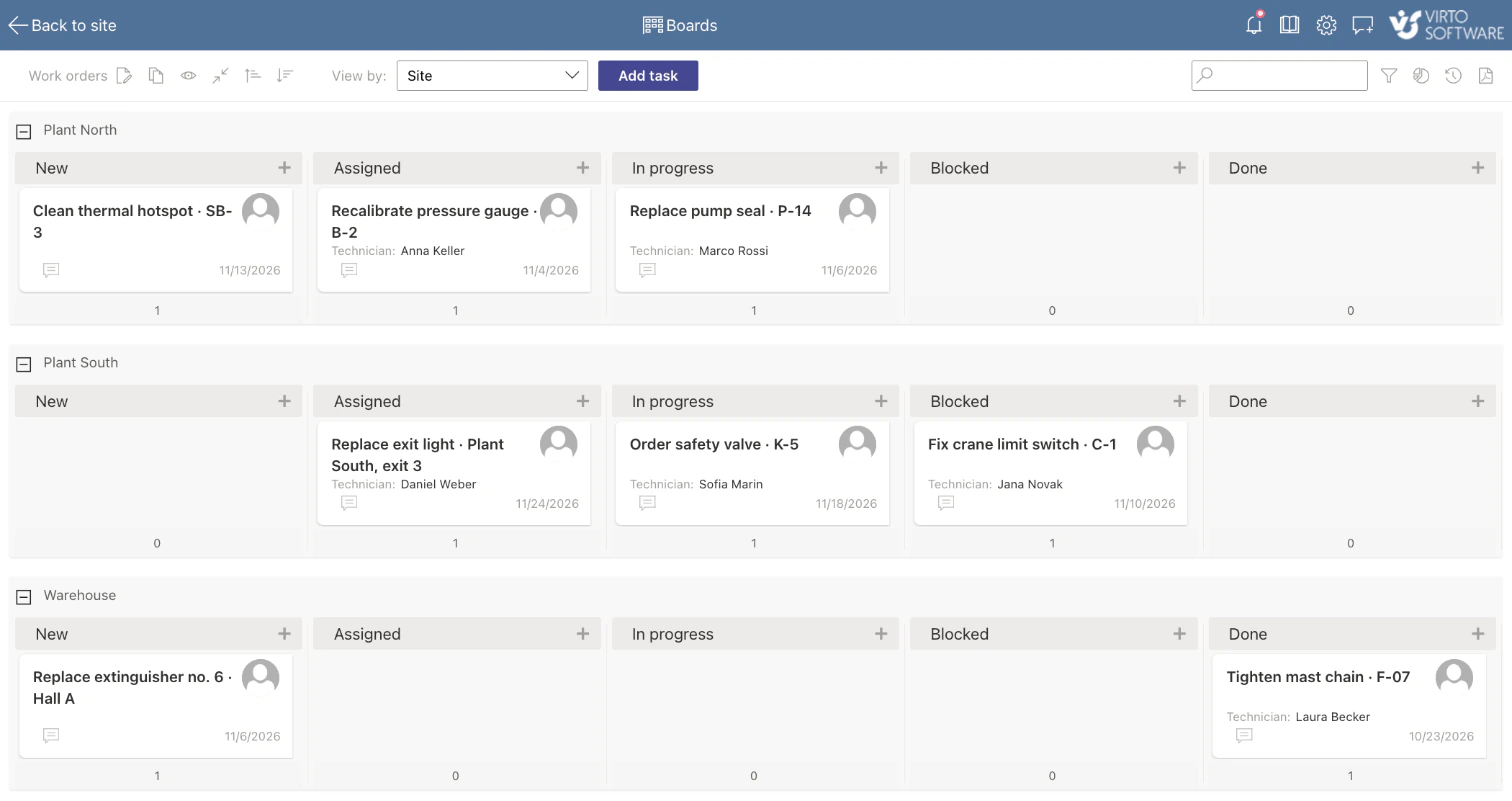
Work orders for the findings on one board
A card for each finding
The maintenance lead adds a work order for a Fail or a remark. New, Assigned, In progress, Blocked and Done are the Status column, so moving a card changes it.
Blocked is announced
An alert on the work orders list emails the maintenance lead when a card's status changes to Blocked.
Step 5 · File
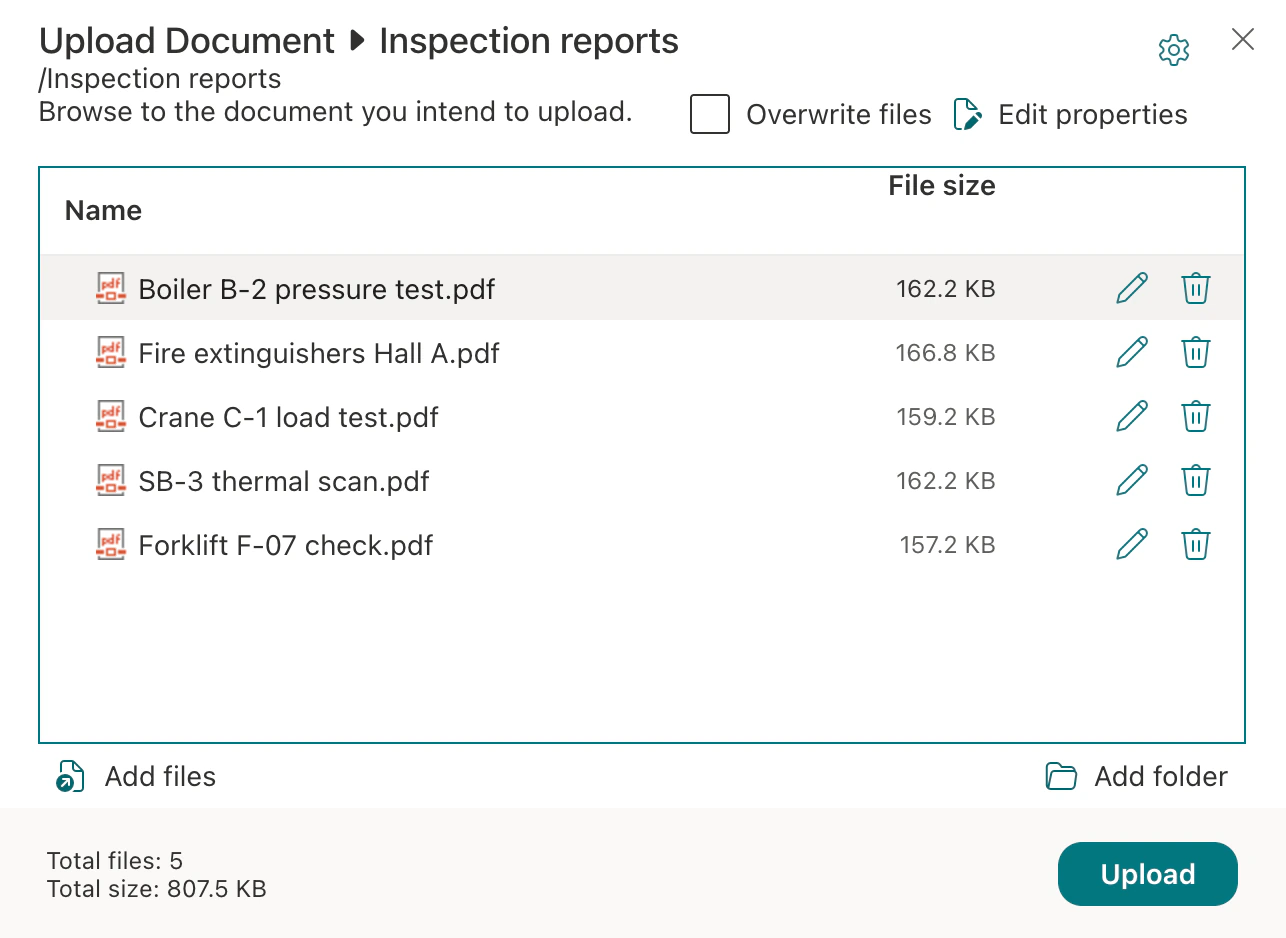
An inspection round's reports in one upload
The whole batch at once
After an inspection round, the reports go into the library in one upload, under its versions and permissions.
Site and type as columns
Site and inspection type can be columns of the library, filled in grid view after the upload, so the reports sort and filter like the inspections list.
Key benefits

No separate system for the routine
Inspections, maintenance windows and work orders are SharePoint lists, and the reports a library your tenant already has. The apps add the calendar, the form, the board, the bulk upload and the reminders.
Reminders built from the record
The rule reads the due date and the person responsible in each row, so next year's inspections need no new setup.
Windows you can see
The calendar does not flag a clash by itself. It puts the inspections next to the maintenance windows, so an inspection planned outside its window stands out.
Your data stays in your tenant
Lists, reports and events stay in your Microsoft 365 tenant under your permissions; the apps process them without storing them.
Version history is the record
The lists and the library keep versions, so who changed a result or uploaded a report, and when, is one click away.
Five apps, one subscription
The five apps come together as the Virto M365 Productivity Kit: one quote, one invoice, one renewal date.
What inspections and maintenance need, and what runs them
Inspections sit in one list, planned shutdowns in another.

Both lists overlay in one calendar, inspections coloured by type and windows in grey; each entry stays an item of its own list.

A rule writes to the person in the Responsible column 30 days before the due date, one email for each inspection still open.

One form on the Inspections list: what was inspected, where, when, by whom, the result and the findings.

The work orders list as a board: columns from Status, lanes from Site, the technician and the due date on each card.

Bulk Upload puts the batch of PDF reports into the library at once.
The kit keeps the dates, the results, the work orders, the reports and the reminders in SharePoint. Asset hierarchies, meter-based triggers, spare parts stock and offline work in the field belong to a maintenance management system.
Virto M365 Productivity Kit
See the whole cycle in your own tenant
Related use cases
Discover our range of use cases to take your planning and coordination to another level
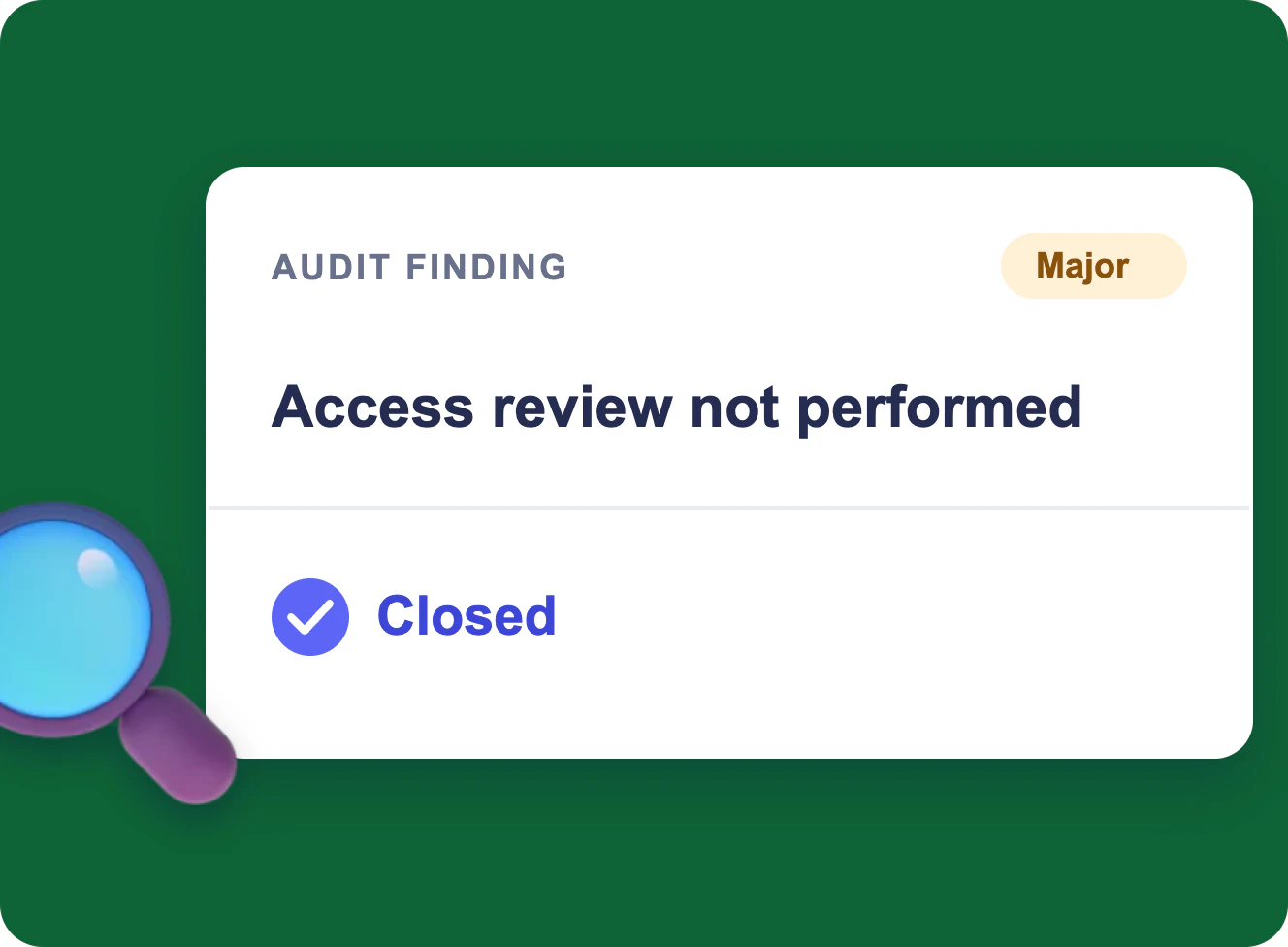
CAPA and Audit Findings in Microsoft 365
One audit finding from the audit plan to a closed record in Microsoft 365: a calendar, a form, a board, an evidence folder and reminders for ISO 9001, 20000-1, 27001 and CMMI, without a separate QMS.
Learn more about CAPA and Audit Findings in Microsoft 365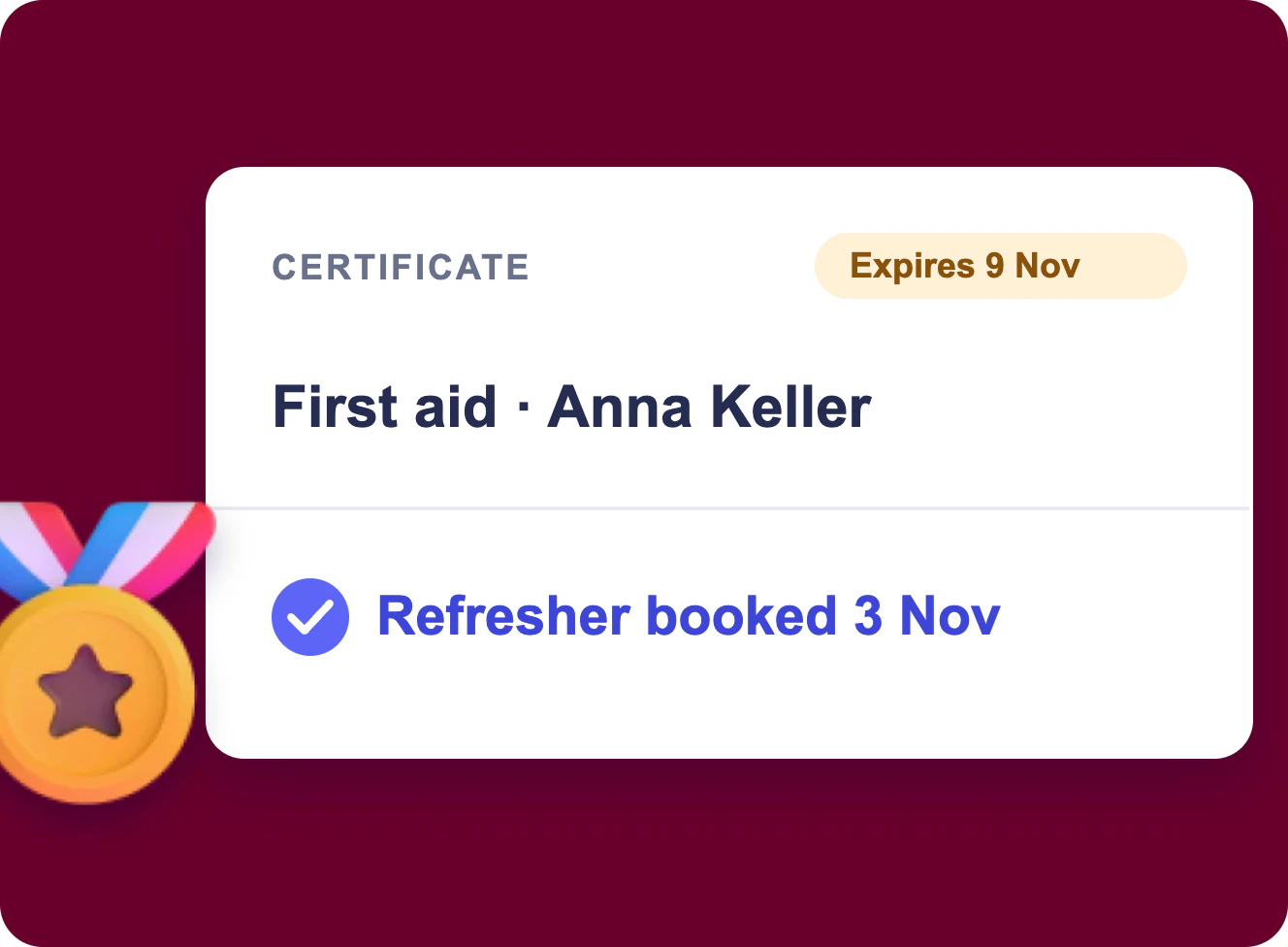
Training and Certification Tracking in Microsoft 365
Training requests, course dates and certificate expiry in Microsoft 365: a request form, a board, one calendar, a bulk upload for the scans and reminders 60 and 30 days before a certificate runs out.
Learn more about Training and Certification Tracking in Microsoft 365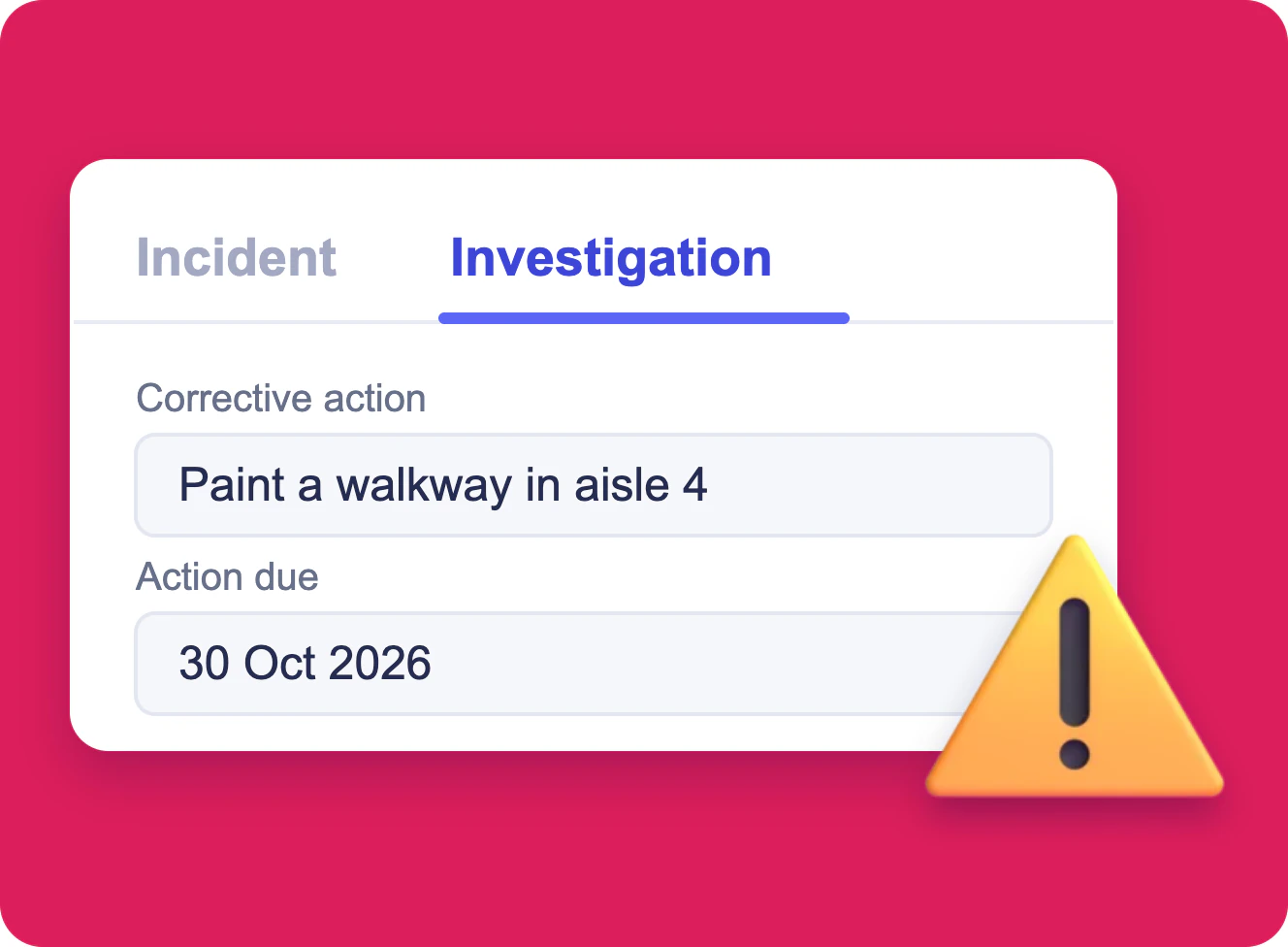
Incident Report Form in SharePoint
A SharePoint list of safety incidents with an Incident tab anyone can file, photos attached, and an Investigation tab that only the safety team edits, built with Virto Forms Designer App.
Learn more about Incident Report Form in SharePoint