Quick answer: how do you see who is out today in Microsoft Teams? Microsoft Teams has no list of everyone who is out today. It shows Out of Office one person at a time, on their picture and profile. To see the whole team for a day, add the team in the Outlook Scheduler or keep a shared calendar. For a view in Teams itself, add a calendar tab with a people-by-days view to the team’s channel.
“Who is out today?” comes before the stand-up, the handover and the customer call, and Teams answers it one colleague at a time. This guide shows what Teams tells you on its own, how to see the whole team for a day with what Microsoft 365 already has, and how to put a who-is-out view into the team’s channel. For absences over months, with requests, approvals and days left, see our guide to tracking team absences in Microsoft 365.
What Teams shows on its own
Teams shows a colleague as Out of Office when they have automatic replies on, or when their Outlook calendar has an event set to show as Out of Office (Microsoft Learn). Their out of office message appears when you contact them in Teams or open their profile. It is the same message their automatic replies send, because Teams keeps it in sync with Outlook (Microsoft Support).
That answers “is this person away?” well. It doesn’t answer “who is out today?”:
- One person at a time. You see the status when you look at somebody: next to their name, in a chat, on their profile. Teams has no list of everyone who is out of office today.
- Only what each person sets. Nobody approves it, and a colleague who forgot their automatic replies looks available.
How to set it for yourself is in our guide to setting Out of office in Microsoft Teams. What each status color means is in Microsoft Teams status explained.
See the whole team for one day in Outlook
The Scheduler. Start a new event in Outlook, add your team as attendees and open the Scheduler, the former Scheduling Assistant; classic Outlook for Windows and Microsoft’s help still use the old name. Everyone’s day sits in one grid, a row per person, so a day blocked as busy or out of office stands out. Close the event without sending it. The catches: you add the people every time, and the grid shows when someone is unavailable, not why.
A shared calendar. The other built-in way is a calendar the whole team shares, such as a Microsoft 365 group calendar, where everyone adds their days off. Microsoft’s steps for a group calendar add a vacation as an event shown as Free, with no reminder (Microsoft Support), and our vacation calendar guide for Outlook and Teams shows the setup. It shows who is out today only when everyone remembers to add their days, and an entry there doesn’t set anyone’s Out of Office status in Teams. More on where a shared calendar stops is in our team absences guide.
Teams on a shift schedule: Shifts
If your team runs its schedule in the Shifts app in Teams, time off is part of that schedule: workers request time off in Shifts and the team’s frontline managers approve it, and an approved time off applies only to the team in which it was requested (Microsoft Learn). Managers choose whether workers can see each other’s time off (Microsoft Learn). For an office team without shifts, that means keeping a shift schedule just for absences. Our team absences guide has more on time off in Shifts.
Add a who-is-out view to a Teams channel
Teams has no such view of its own, but a calendar app can put one into the channel as a tab. Virto Calendar App has a Team absences view: people in rows, days in columns, and a line above the grid that names who is out today and why. In Teams, the app is called Virto Calendar Pro.
You need to be a calendar administrator or calendar manager in the app. If Virto Calendar Pro is missing in Teams, your Teams administrator may need to allow it.
- Turn on the view. In the Virto Calendar App settings, select Edit calendar next to the team’s calendar and open the Team absences tab. In step 1, select Show the Team absences view in this calendar.
- Create the absence list. In step 2, select Create a new absence list, choose the SharePoint site, keep the list name Team absences, select Create and then Save. The wizard sets up the list with content approval and permissions; you need permission to manage lists on that site. Only steps 1 and 2 are required.
- Optional: add people from Outlook and holidays. Step 3 adds colleagues who never use the absence list: only their Out of office and Working elsewhere times appear, without subjects or other meeting details. Step 6 shades public holidays from an internet calendar you choose, such as your country’s holiday feed.
- Add the tab. In the team’s channel, select + (Add a tab) next to the tabs, choose Apps and search for Virto Calendar Pro.
- Choose the view. In the Welcome to Virto Calendar! window, pick the calendar under Choose calendar to display, select Team absences under Choose calendar view, and select Save.
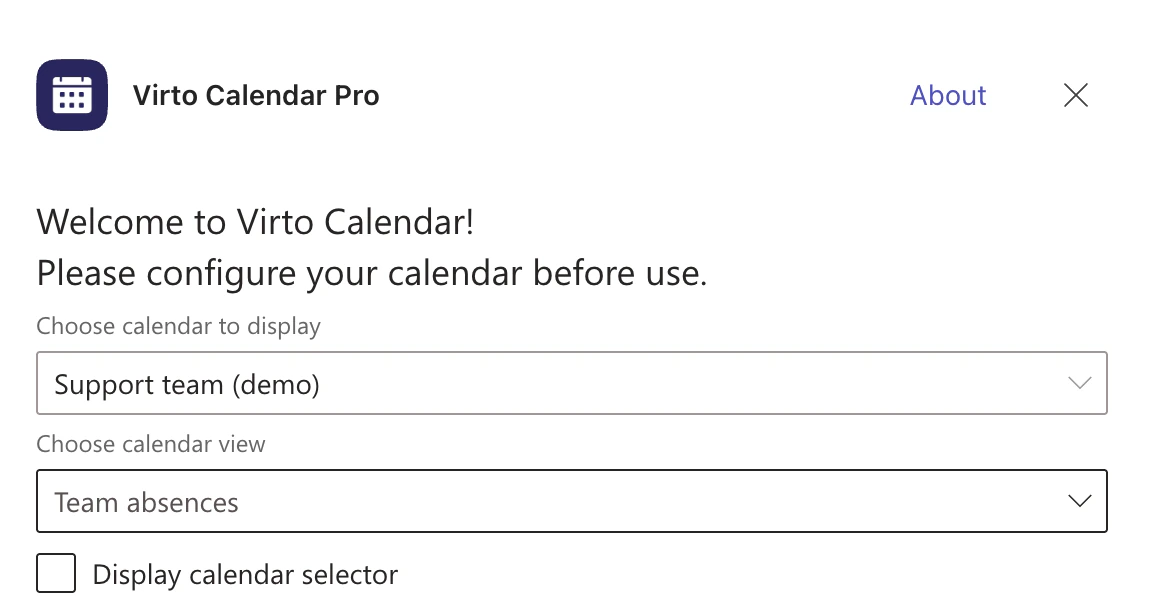
Pic. 1. A new Virto Calendar Pro tab opens the calendar in the Team absences view
Teams names the tab after the app. To call it Team absences or Who is out, open the tab’s menu and select Rename. The same menu has Settings, to change the calendar or the view later.
What the team sees in the tab
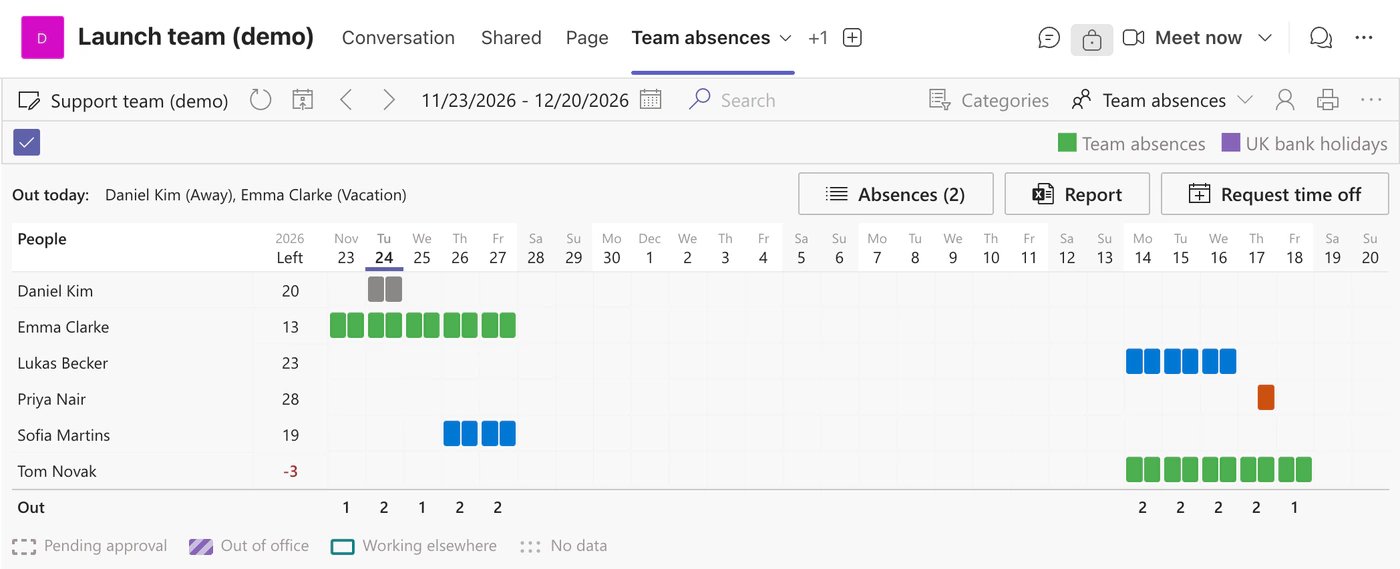
Pic. 2. The Team absences tab in a channel: Out today above the grid, the whole team for four weeks below it
- Out today above the grid names who is away today and why, for example “Daniel Kim (Away), Emma Clarke (Vacation)”.
- People in rows, days in columns: four weeks at a time, each day with a morning and an afternoon half.
- The Out row counts the people away each day. Days over the limit you set for the team are highlighted in red.
- Categories by color: Vacation, Away, Business trip and Training. A sick day or another personal reason goes in as Away: colleagues see that the person is out, not why.
- People from Outlook: their Out of office time is striped, and Working elsewhere is outlined.
- Holidays from the holiday calendars you chose are shaded for the whole team.
The tab shows who is out when someone opens it. It doesn’t post in the channel or send a daily list: Team absences emails go only to approvers and employees, about time-off requests and decisions. In the same tab, people select Request time off, approvers decide in the Absences panel, and the calendar can keep an annual allowance per person with an optional carry-over. The Team absences documentation covers the setup, and Add Virto Calendar App to Microsoft Teams covers the tab.
Set up a vacation calendar for the whole team. The vacation tracker for Microsoft 365 shows how a team runs Team absences from the request to the year-end report. Virto Calendar App has a 30-day free trial on Microsoft Marketplace.
Explore the Vacation Tracker Use Case
Employee Vacation Tracker
Team absences in Virto Calendar App: who is out each day, time-off requests approved in the calendar, warnings when too many people are away, and each person's annual allowance, in a SharePoint list on your site.
Learn more about Employee Vacation TrackerWhich way fits your team
| If | Then |
|---|---|
| You need to check one person before a call | Their Out of Office status and message in Teams |
| Your team is small, and someone checks once a day who is out | The Scheduler in Outlook or a shared calendar |
| Your team works shifts and plans them in Shifts | The Shifts schedule |
| The whole team should see who is out today and this week, where it works | A Team absences tab in the team’s channel |
FAQ
Can I see who on my team is out of office in Teams?
Not as a list. Teams shows Out of Office one person at a time: next to their name, in a chat and on their profile. To see the whole team, add the team to a new event in the Outlook Scheduler, keep a shared calendar, use the Shifts schedule if your team works shifts, or add a calendar tab with a people-by-days view to the team’s channel.
How do I see someone’s out of office message in Teams?
Open a chat with them or open their profile. While their automatic replies are on, Teams shows their out of office message there. It is the same message their automatic replies send from Outlook, because Teams and Outlook keep the two in sync.
Is there a vacation calendar that runs in Teams without a separate app?
Not a built-in one. The closest are a Microsoft 365 group calendar that the whole team adds its days off to and, for teams on a shift schedule, time off in Shifts. A calendar that shows absences with people in rows and days in columns comes from an app, for example a Virto Calendar App tab with the Team absences view.
Does Teams show whether someone is on vacation or sick?
No. Teams shows Out of Office, not the reason. In the Team absences view of Virto Calendar App, a vacation has the category Vacation, and a sick day or another personal reason is entered as Away: colleagues see that the person is out, not why.
How do I add a calendar to a Teams channel?
In the channel, select + (Add a tab), choose Apps and pick the calendar app, for example Virto Calendar Pro. In its settings window, choose the calendar and the view, such as Team absences, and select Save. To change the settings later, open the tab’s menu and select Settings.
Sources
Checked on November 24, 2026.
- Microsoft Support: Schedule an out of office status in Microsoft Teams
- Microsoft Learn: User presence in Teams
- Microsoft Support: Use the Scheduling Assistant and Room Finder for meetings in Outlook
- Microsoft Support: Block out vacation time on a Group calendar in Outlook
- Microsoft Learn: Shifts for your frontline organization and Manage Shifts permissions for frontline managers
- Microsoft Support: Add an app to Microsoft Teams
- Virto Calendar App documentation: Team absences, Set up Team absences and Add Virto Calendar App to Microsoft Teams