


Quick answer: what is Microsoft Teams? Microsoft Teams is Microsoft 365’s hub for teamwork: chat, video meetings, calls, and shared files and apps, organised into teams and channels. Organisations use it for team communication and collaboration — messaging, meetings, calls, co-authoring files and running apps in one place.
Most people meet Microsoft Teams on their first day in a new job: a meeting link, an invitation to a team, a chat that starts before the laptop is fully set up. Teams is easy to start using — and just as easy to use badly: three teams for the same project, files lost in private chats, notifications nobody reads.
This guide explains what Microsoft Teams is, what it is used for and how to use it well from day one. Each section covers the essentials and points to a dedicated guide when you need more depth — on chat, meetings, the calendar, channels, permissions, guest access and apps.
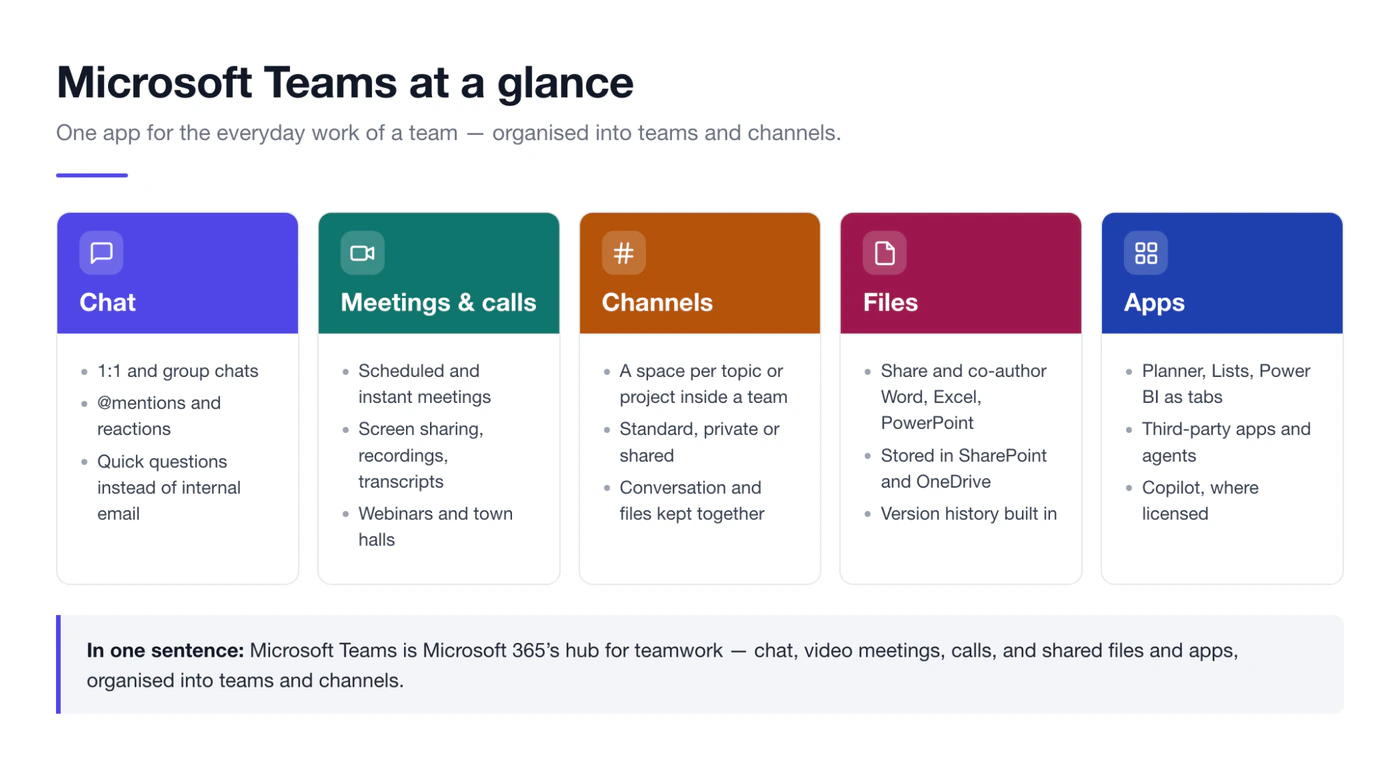
Fig. 1. Microsoft Teams at a glance: chat, meetings, channels, files and apps in one place
What is Microsoft Teams?
Microsoft Teams is the collaboration app of Microsoft 365. Microsoft describes it as a platform that brings together chat, audio and video calling, online meetings and web conferencing with file sharing, collaboration and apps, on desktop, web and mobile (Microsoft Teams service description).
The key to understanding Teams is that it is a front end, not a separate system. Conversations happen in Teams, but files are stored in SharePoint and OneDrive, meetings live in your Outlook calendar, and the members of a team are a Microsoft 365 group. That is why a document shared in a channel opens in Word, and why a meeting you schedule in Outlook appears in Teams a moment later.
What is Microsoft Teams used for?
Teams is used for team communication and collaboration. In practice, that covers six kinds of work:
- Everyday communication. One-to-one and group chats replace a large share of internal email.
- Meetings and calls. Scheduled meetings, instant calls, webinars and town halls, with screen sharing, recordings and transcripts.
- Department and project work. A team for each department or long-running project, with a channel per topic, so discussion and files stay together.
- Working on files together. Several people co-author the same Word, Excel or PowerPoint file instead of emailing versions around.
- Running business apps. Planner, Lists, Power BI, third-party tools and custom apps sit as tabs next to the conversation.
- Company-wide communication. Announcements in an org-wide team, and town halls for large audiences.
Teams, channels and chats: what is the difference?
Three words cause most of the confusion for new users:
- A team is a group of people who work together — a department, a project, an office. Every team has members and at least one owner.
- A channel is a space inside a team for one topic, project or workstream. Every team starts with a General channel.
- A chat is a conversation between individuals or a small group, outside any team. Chats suit quick questions; channels suit work that other people will need to find later.
So what is a Teams channel? It is a dedicated space within a team where members hold conversations, share files and add apps for one subject. Microsoft Teams has three channel types, and the type decides who can see the channel and where its files are stored (Microsoft Learn):
| Type | Who can see it | Where its files are stored | Typical use |
|---|---|---|---|
| Standard channel | Everyone in the team, including guests added to the team | The team’s SharePoint site | Team-wide updates, projects, knowledge sharing |
| Private channel | Only team members added to the channel | A separate SharePoint site for the channel | Budgets, HR and other restricted topics |
| Shared channel | People and teams added to the channel, including people from other organisations, without joining the team | A separate SharePoint site for the channel | Cross-team and cross-company projects |
| Chat (for comparison) | Only the chat participants | OneDrive of the person who shared the file | Quick questions, one-to-one work |
A team can hold up to 1,000 channels of any type. For how to plan them, see our guide to Microsoft Teams channels.
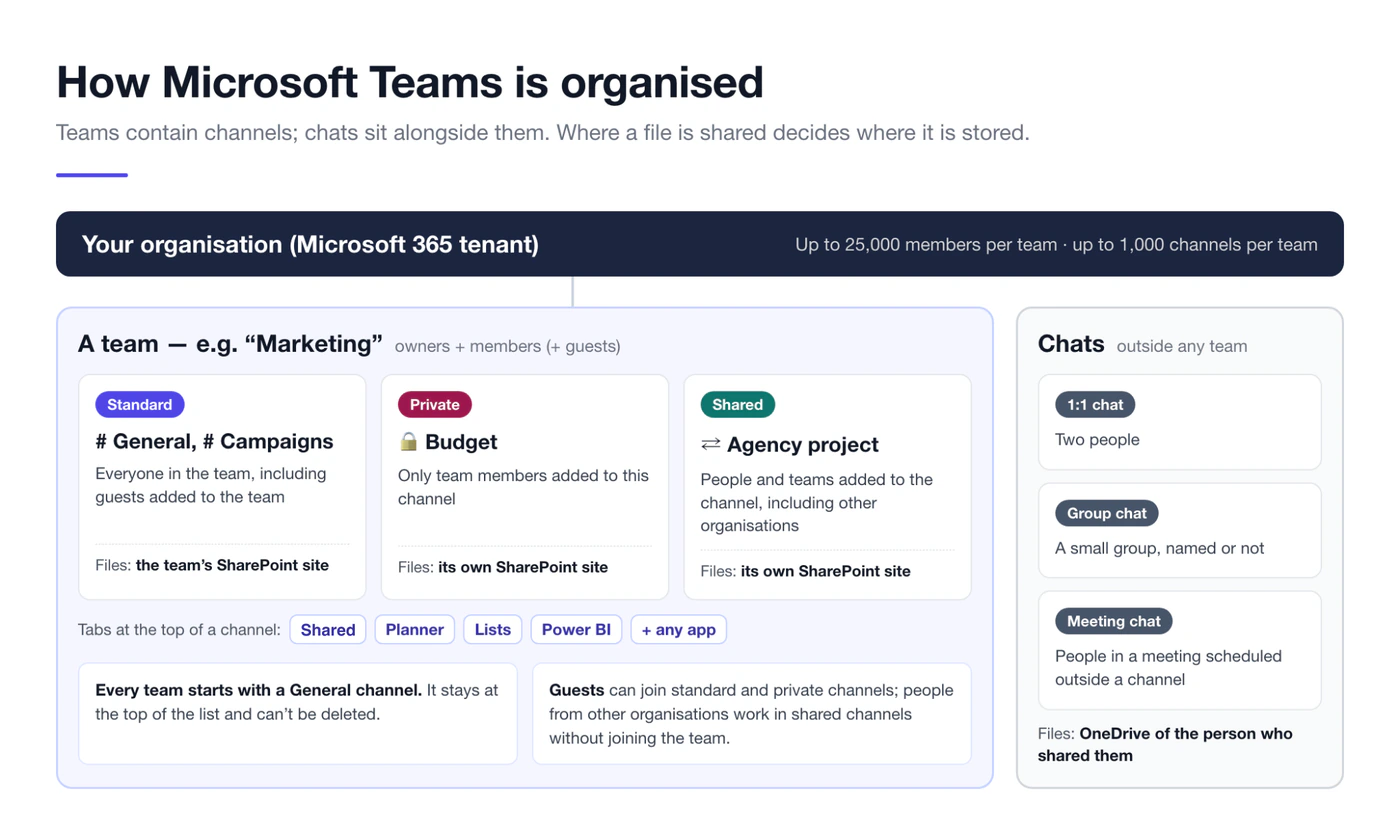
Fig. 2. How Microsoft Teams is organised: teams contain channels, chats sit alongside them
Key features of Microsoft Teams
Teams has hundreds of features, but most people use the same handful every week. Here is what each one does, with a link to the full guide.
Chat
Chat covers one-to-one and group conversations with formatting, @mentions, reactions, pinned and saved messages, file sharing and Loop components that stay live wherever they are pasted. Teams can show chats, teams and channels together in one Chat view, with sections such as Favorites, Chats and Teams and channels; you can switch to separate views in the view settings.
Full guide: Microsoft Teams chat: how to start and manage chats.
Meetings and calls
You can schedule a meeting in Teams or Outlook, start an instant meeting with Meet now, or call someone straight from a chat — up to 20 people can join a call started from chat. Meetings support screen sharing, PowerPoint Live, breakout rooms, live captions, recordings and transcripts, and can last up to 30 hours (Limits and specifications for Microsoft Teams).
Capacity depends on the plan: up to 300 people on Microsoft 365 Business plans and Teams Essentials, and up to 1,000 interactive participants on enterprise plans, where extra attendees can join in view-only mode up to 10,000. Webinars and town halls cover larger audiences.
Learn more: How to schedule a Teams meeting, How to schedule a Teams meeting in Outlook and Teams vs Zoom.
Calendar
The Teams calendar is your Exchange calendar, so it shows the same meetings as Outlook. In 2025 Microsoft brought the new calendar to Teams — one unified calendar that works across the new Outlook for Windows, Outlook on the web, Microsoft Places and Teams (Teams admin release notes). Teams can also show a channel calendar for the whole team.
Learn more: Microsoft Teams calendar guide, How to create a shared calendar in Microsoft Teams, Teams channel calendar, How to add a Teams calendar to Outlook and what to do when the Teams calendar is not syncing with Outlook.
Channels, posts and tabs
Channel conversations are organised as posts with replies, and since September 2025 a channel can also be shown as threads (What’s new in Microsoft Teams). Tabs at the top of a channel give quick access to its files and to any app the team adds — a Planner board, a list, a Power BI report or a calendar. Tags let you @mention everyone in a role, such as all designers or all on-call engineers, at once.
Files and co-authoring
Files shared in a channel are stored in the team’s SharePoint site; files shared in a chat are stored in the OneDrive of the person who shared them, with access granted to the chat members. You can open a file in Teams, in the browser or in the desktop app, edit it with colleagues at the same time and restore earlier versions from version history. If you are deciding what belongs in Teams and what belongs in a SharePoint site, see SharePoint vs Microsoft Teams.
Apps, integrations and agents
The Apps section of Teams lists Microsoft apps such as Planner, Lists, Forms, Power BI and Power Automate workflows, thousands of third-party apps and your organisation’s own custom apps. An app can appear as a tab in a channel, as a personal app in the app bar, as a message extension or as a bot or agent you chat with. Admins decide which apps are available.
Learn more: Microsoft Teams integrations and the best Microsoft Teams apps to try.
Copilot and AI features
With a Microsoft 365 Copilot licence, Copilot in Teams can summarise chats and channel conversations, answer questions about a meeting while it runs and list action items afterwards. Intelligent recap — AI-generated notes, tasks and mentions after a meeting — is available with Teams Premium or Microsoft 365 Copilot. In 2025 and 2026 Microsoft added the Facilitator agent for meetings and natural-language search with Copilot. Which AI features you see depends on your licences and your admin’s settings.
Status, notifications and polls
Your presence status — Available, Busy, Do not disturb, Be right back, Appear away — tells colleagues whether to expect a quick answer, and notification settings decide what interrupts you. Polls collect quick decisions without a meeting.
Learn more: Microsoft Teams status, Microsoft Teams notifications and how to create a poll in Teams.
How to use Microsoft Teams
The steps below take a new user from the first sign-in to a working team. The first four set you up; the last four build the structure other people will rely on.
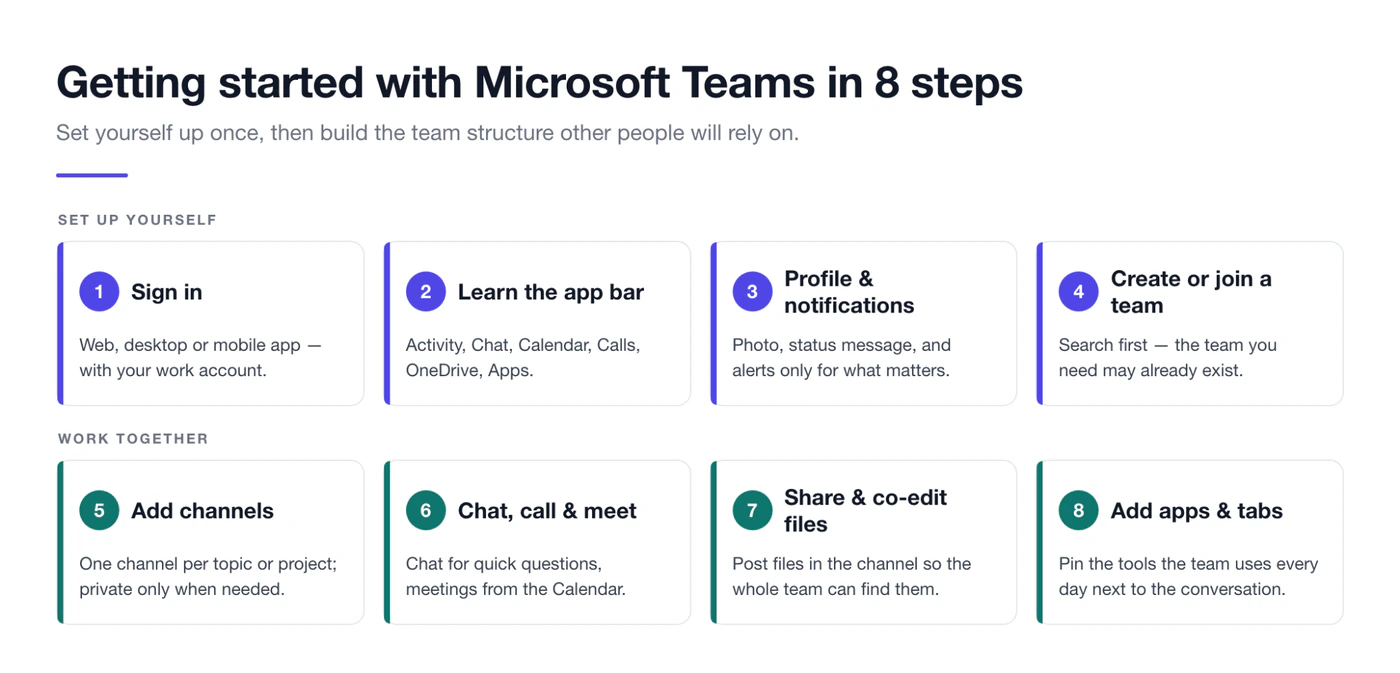
Fig. 3. Getting started with Microsoft Teams in eight steps
Step 1. Sign in on the web, desktop or mobile
If your organisation uses Microsoft 365, you already have a Teams account: sign in with your work email. For personal use, you can sign in to Microsoft Teams (free) with a Microsoft account.
- Web: go to teams.microsoft.com and sign in. Nothing to install.
- Desktop: download the app for Windows or macOS from the Microsoft Teams download page, install it and sign in.
- Mobile: install Microsoft Teams from the App Store or Google Play and sign in with the same account.
| Version | Best for | Keep in mind |
|---|---|---|
| Web | Shared or temporary devices, quick access without installing anything | Some meeting features and background effects are limited, and performance depends on the browser |
| Desktop | Daily work: the full feature set, the best meeting and screen-sharing experience, system notifications | Needs to be installed and kept up to date |
| Mobile | Chat, joining meetings and checking files on the go | A small screen for presenting and editing |
Your chats, meetings and files sync across all three, so a message you read on your phone does not show as unread on your laptop. Microsoft keeps a list of Teams features by platform.
Step 2. Get to know the interface
The app bar down the left side of Teams is where you move between areas:
- Activity — mentions, replies, reactions and other notifications.
- Chat — your conversations. In the combined view, your teams and channels appear here too; in the separate view they have their own Teams icon.
- Calendar — your meetings and events.
- Calls — calling, call history and voicemail, where your licence includes them.
- OneDrive — your files and files shared with you.
- Apps — find and add apps; pinned apps stay in the app bar.
The search box at the top finds messages, people and files. Your profile picture in the top-right corner opens your status and account options, and Settings and more (…) opens the settings.
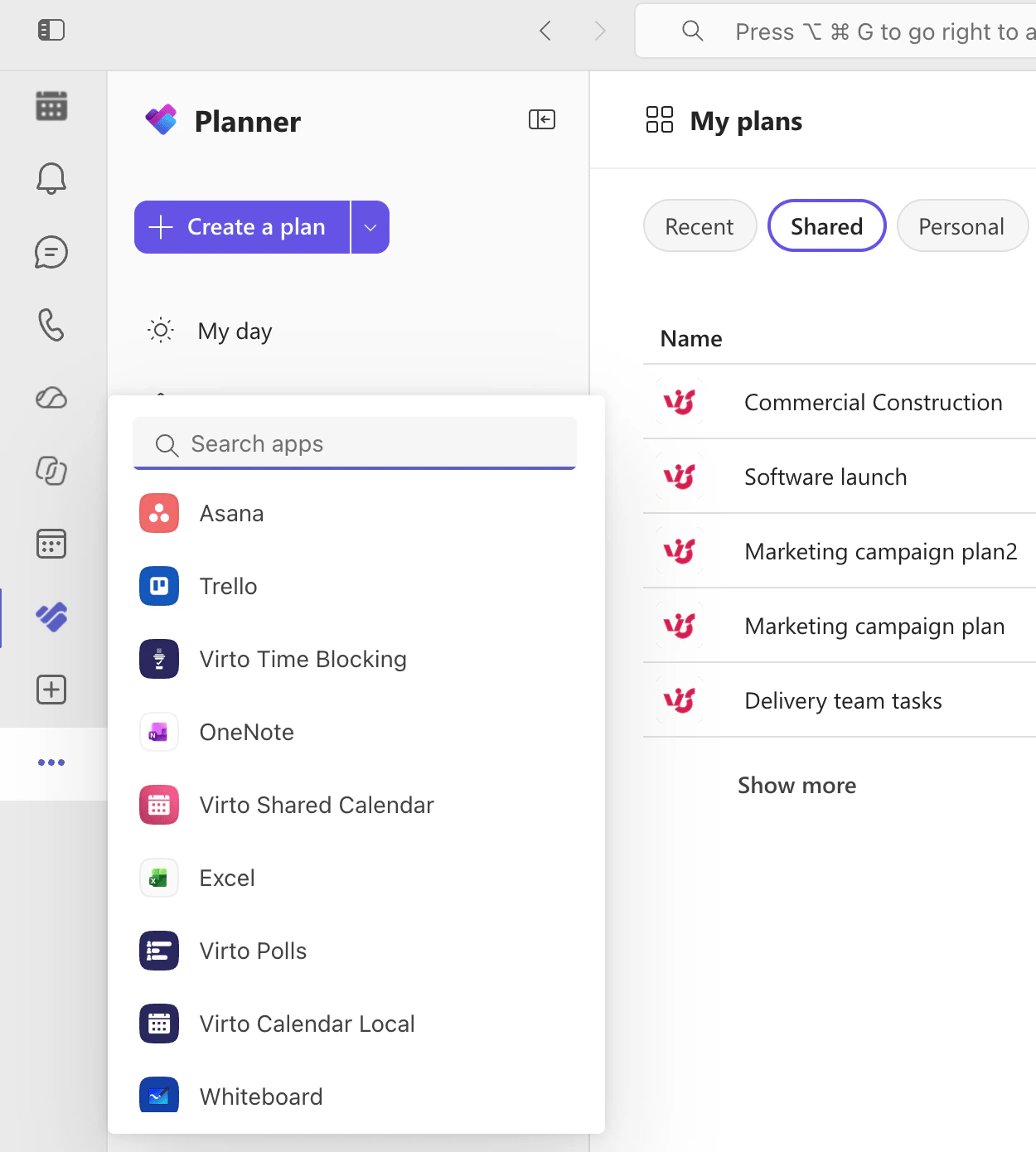
Pic. 1. The Microsoft Teams window after sign-in, with the app bar on the left
Step 3. Set up your profile, status and notifications
- Select your profile picture in the top-right corner.
- Add or change your photo and set a status message, for example your working hours or when you are on leave.
- Select Settings and more (…) > Settings > Notifications and activity.
- Keep notifications for mentions and replies on, and turn off banners for busy channels you only need to check now and then.
If your name, job title or photo cannot be edited, your IT team manages them centrally.
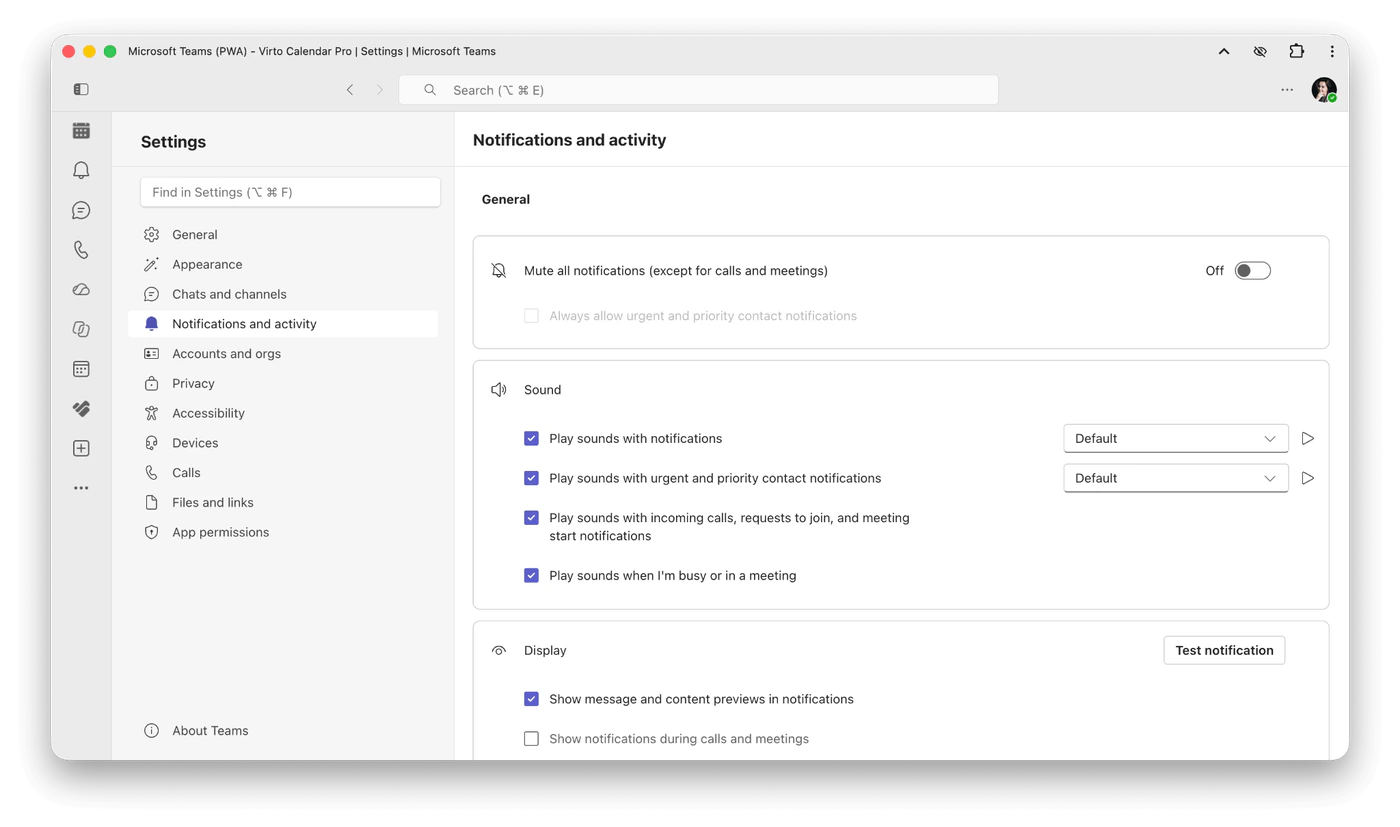
Pic. 2. Notifications and activity settings in Microsoft Teams
Step 4. Create or join a team
Before you create a team, search for it — the team you need may already exist, and duplicate teams are the most common source of confusion. If it does not exist:
- Open Teams (or Chat, if you use the combined view) and select + at the top of the list.
- Select Create team.
- Enter a team name and a short description.
- Choose the team type: Private (people need permission to join) or Public (anyone in your organisation can find and join it).
- Name the first channel and select Create.
- Add members by name or email address, and make at least one other person an owner so the team is never left without one.
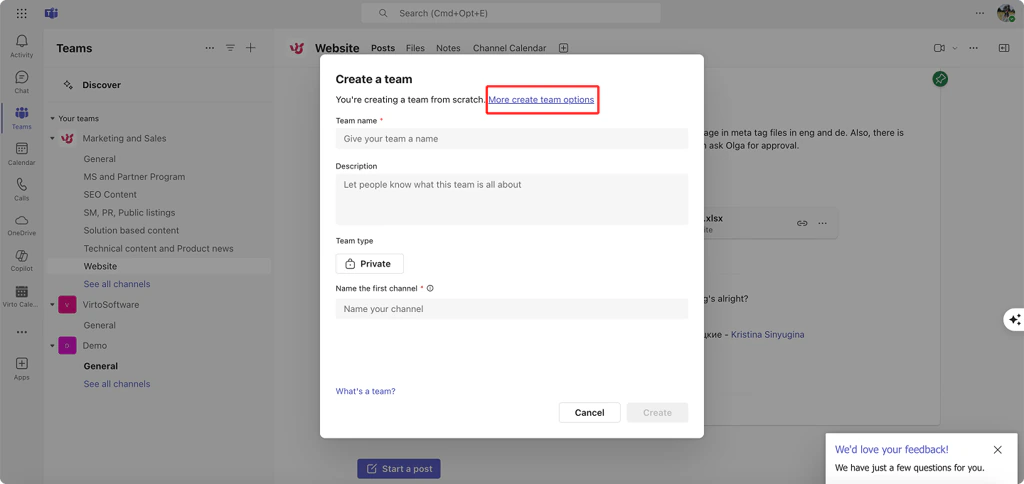
Pic. 3. The Create a team dialog: team name, description, team type and first channel
A good rule of thumb: create one team per stable group of people — a department, a function, a long-running programme — and a channel per project inside it. Our Microsoft Teams governance guide explains why.
Step 5. Add channels and organise conversations
- Next to the team name, select More options (…) > Add channel.
- Enter a channel name and description.
- Choose the channel type: Standard, Private or Shared.
- Select Create.
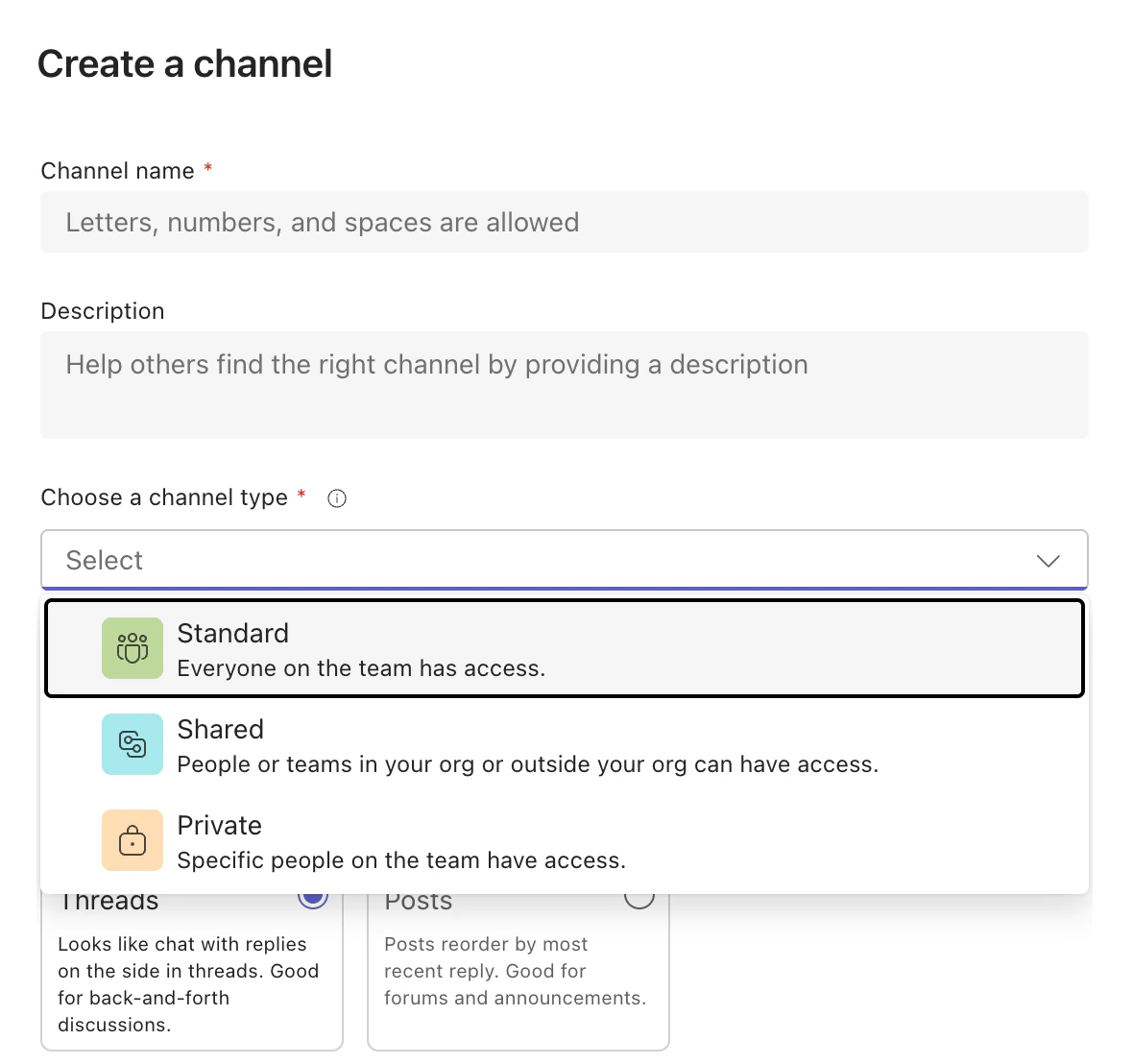
Pic. 4. Creating a channel and choosing Standard, Private or Shared
Then keep the channel easy to follow: start a new post for each new topic, reply in the thread rather than starting another post, @mention the people who need to act, and pin the posts people will look for again.
Step 6. Chat, call and meet
- Start a chat: in Chat, start a new chat, type one or more names and write your message.
- Call from a chat: select the video or audio call button at the top of the chat.
- Schedule a meeting: go to Calendar > New meeting, add a title, attendees, date and time — and a channel, if the whole team should see it — then send the invitation.
- Join a meeting: select Join on the event in your calendar, open the link in the invitation, or join from the channel where the meeting was scheduled.
You do not need to install Teams to join a meeting: the link opens in a browser. For the full feature set — background effects, better screen sharing — the desktop app is the better choice.
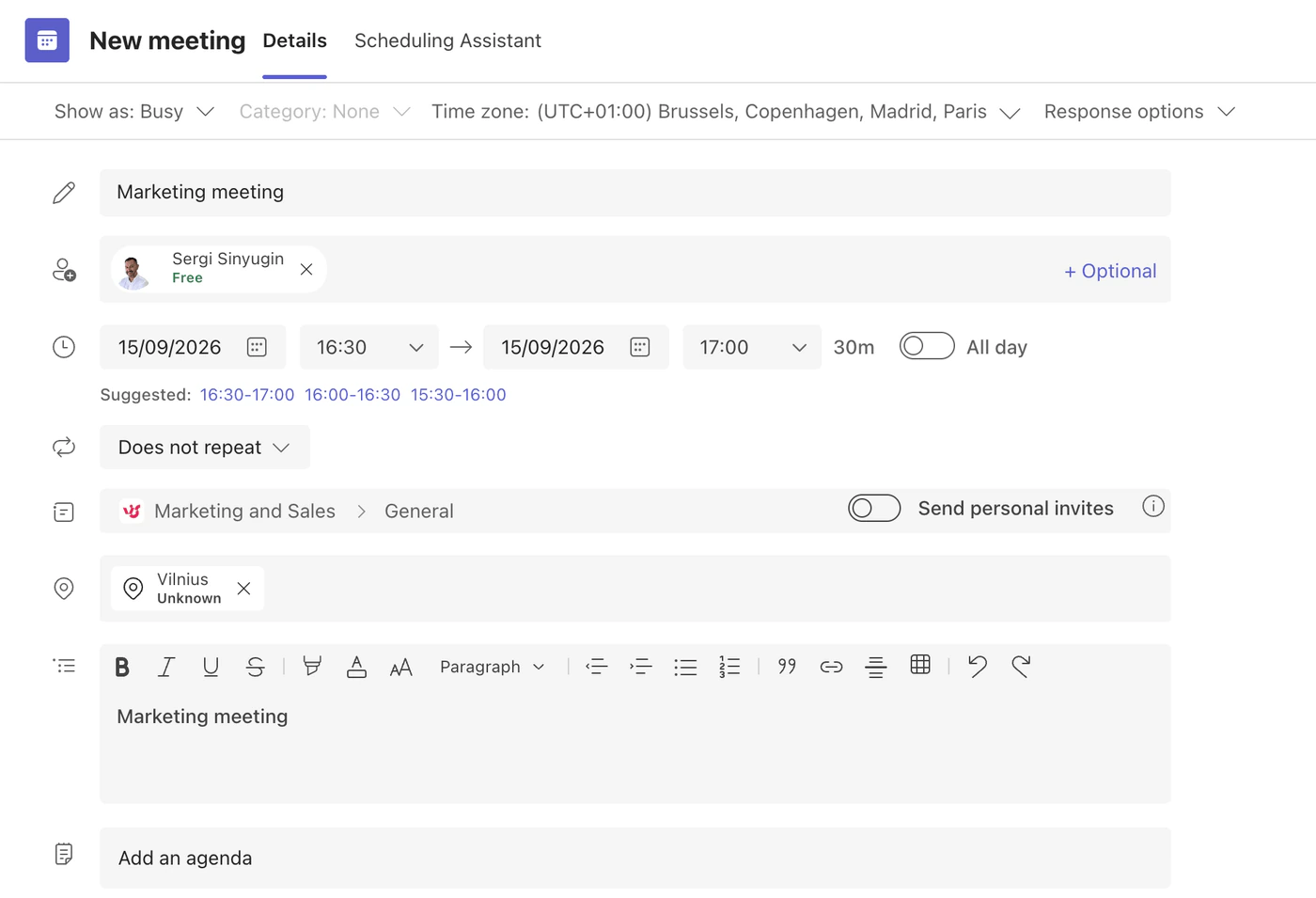
Pic. 5. Scheduling a new meeting from the Teams calendar
Step 7. Share and co-edit files
- In a channel post or chat, use the attach option in the message box to upload a file from your device or pick one from OneDrive — or open the channel’s Shared tab and upload it there.
- Open the file in Teams, in the browser or in the desktop app.
- Edit together: everyone sees changes as they are made. Use comments with @mentions to ask for input.
- To go back to an earlier version, open the file’s version history in SharePoint or OneDrive.
Share files the whole team needs in the channel, not in a private chat — channel files belong to the team, while chat files stay in the OneDrive of the person who shared them.
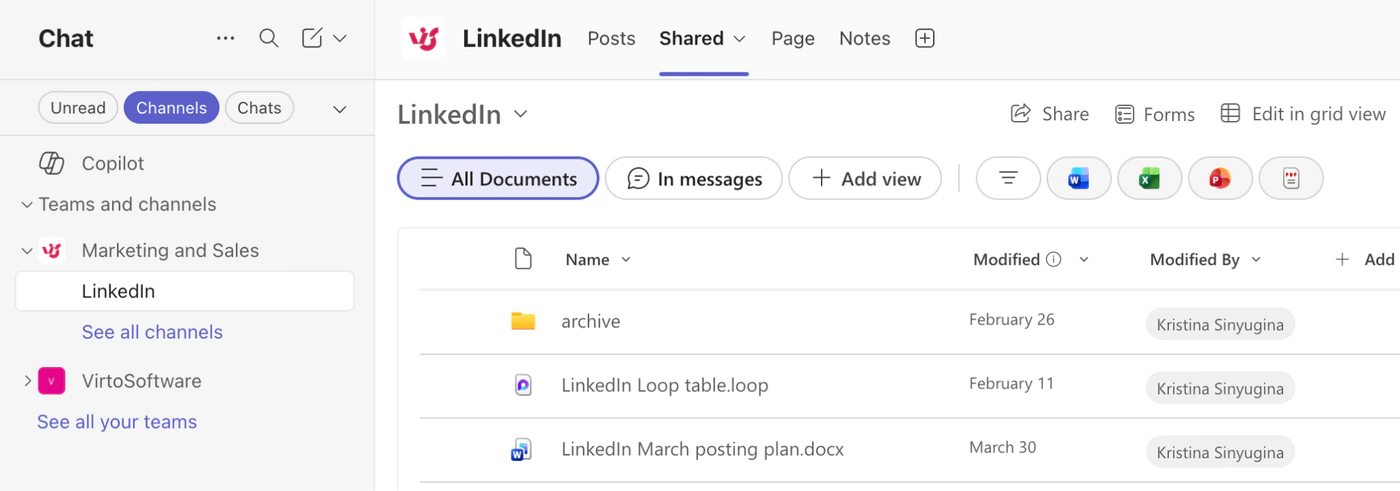
Pic. 6. The Shared tab of a channel, with upload and sharing options
Step 8. Add apps and tabs
- In a channel, select + (Add a tab) at the top.
- Search for the app — for example Planner, Lists or a calendar app — and select it.
- Follow the setup steps and select Save.
Apps you use yourself can be added from Apps in the app bar and pinned. If an app is missing or blocked, your admin controls which apps are available.
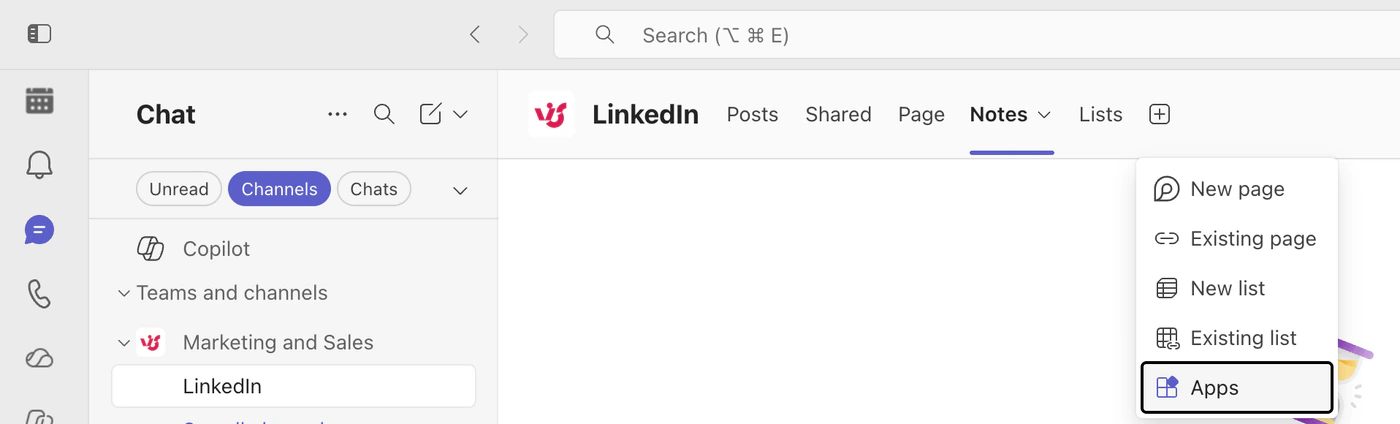
Pic. 7. Adding an app as a tab in a channel
Microsoft Teams and the Microsoft 365 ecosystem
Every team is a Microsoft 365 group. When you create a team, Microsoft 365 also creates a SharePoint team site for its files, a group mailbox and calendar, a Planner plan and a OneNote notebook. Private and shared channels get their own SharePoint sites. Files shared in chats go to OneDrive, meetings are stored in Exchange calendars, and sign-in and guest accounts are handled by Microsoft Entra ID (Overview of Teams and SharePoint integration).
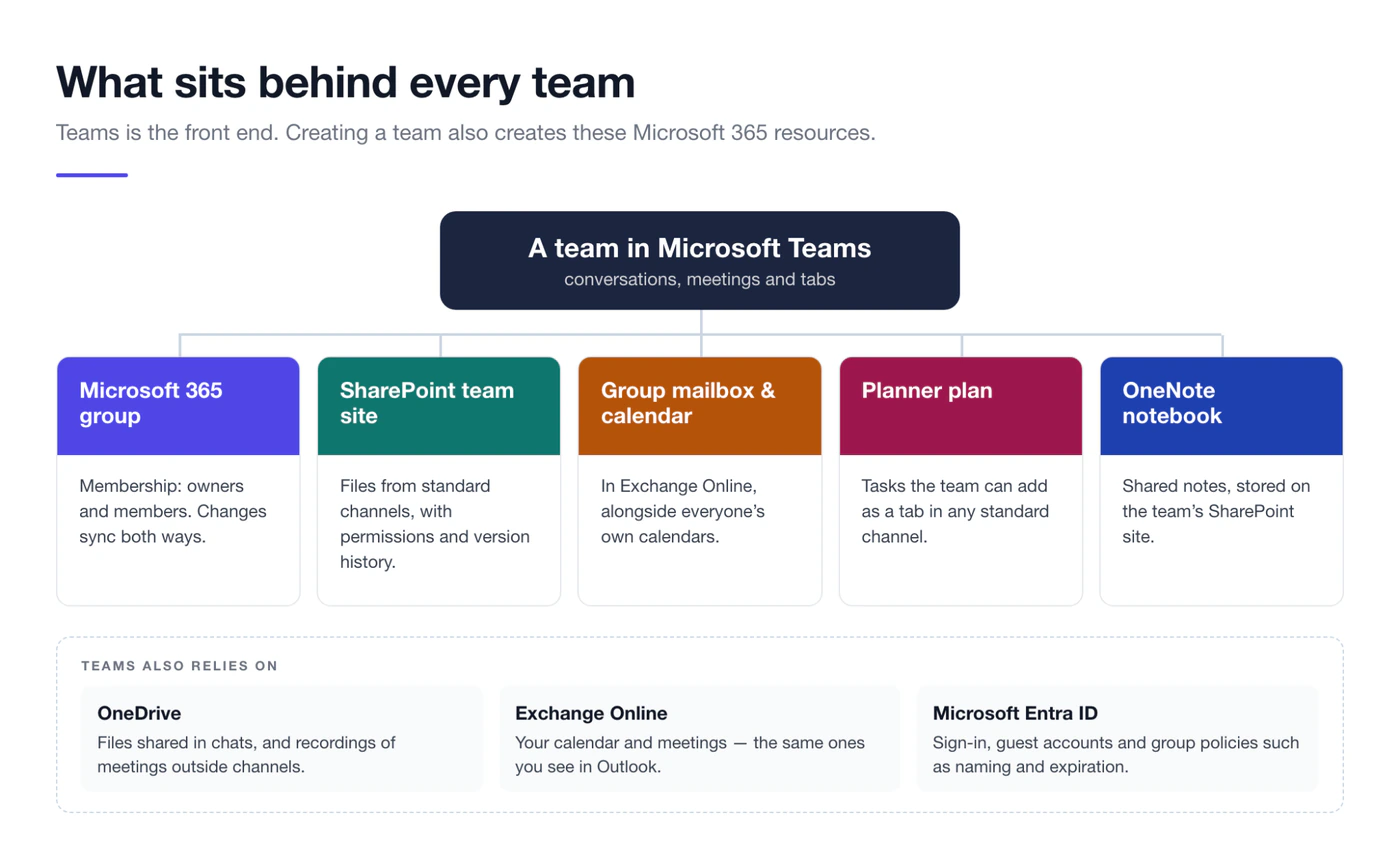
Fig. 4. What Microsoft 365 creates behind every team
This has practical consequences:
- Permissions follow the group. Adding someone to a team adds them to the group, which gives them access to the SharePoint site and the other resources.
- Deleting a team deletes more than a chat space. The group, its site, mailbox and plan go with it; a deleted group can be restored within 30 days.
- Teams and SharePoint do different jobs. Teams is for conversations and day-to-day teamwork; SharePoint is for intranet pages and structured document management. See SharePoint vs Microsoft Teams and Microsoft 365 Groups explained.
How Microsoft Teams is licensed
Teams comes in a free version for personal use and in several business plans. Since April 1, 2024, new enterprise customers buy Teams separately from the Microsoft 365 or Office 365 E1, E3 and E5 suites; Microsoft 365 Business suites (up to 300 users) are available with and without Teams (Manage Teams licenses).
| Option | Who it is for | Meetings |
|---|---|---|
| Microsoft Teams (free) | Personal use, families and small groups | Group meetings up to 60 minutes and 100 participants; 5 GB of cloud storage |
| Microsoft Teams Essentials | Small businesses that need Teams without the full Microsoft 365 suite | Up to 300 participants |
| Microsoft 365 Business Basic, Standard or Premium | Organisations with up to 300 users | Up to 300 participants, meetings up to 30 hours |
| Microsoft Teams Enterprise with a Microsoft 365 or Office 365 enterprise suite | Larger organisations | Up to 1,000 interactive participants, view-only up to 10,000 |
| Teams Premium (add-on) | Organisations that need advanced meetings, webinars and intelligent recap | Adds features, not a separate Teams |
Limits for the free version come from Microsoft Support; check Microsoft’s plan comparison for current prices in your region.
Microsoft Teams pros and cons
Teams is the default choice for organisations already on Microsoft 365, but it is not frictionless. Here is how the strengths and weaknesses line up.
| Area | Pros | Cons |
|---|---|---|
| Communication | Chat, meetings, calls and files in one app | Notification overload without clear habits |
| Microsoft 365 integration | Files in SharePoint and OneDrive, meetings in Outlook, co-authoring in Word, Excel and PowerPoint | Works best inside Microsoft 365; other ecosystems integrate less deeply |
| Security and compliance | Microsoft Entra ID sign-in, multifactor authentication, retention, eDiscovery and data loss prevention in Microsoft Purview | Settings are spread across several admin centers |
| Scale | Up to 25,000 members and 1,000 channels per team | Team and channel sprawl without governance |
| Extensibility | Thousands of apps, Power Platform and custom apps | Some apps need admin approval, and private and shared channels support fewer app types |
| Performance | Desktop, web and mobile apps that stay in sync | The desktop app can use a lot of memory during video calls; the web version has fewer features |
| Cost | A free version, Teams Essentials, and Teams included in many Business plans | The free version is limited; enterprises license Teams separately; Premium and Copilot are paid add-ons |
| Learning curve | Familiar to anyone who uses Office apps | New users need help with teams vs channels vs chats and with where files are stored |
For the hard numbers — member limits, file sizes, meeting caps — see Microsoft Teams limits and limitations. If you are choosing between Teams and a meeting-first tool, our Zoom vs Teams comparison goes feature by feature.
Governance basics: roles, guests and admin controls
Governance is the set of decisions that keeps Teams organised and secure: who can create teams, what they are called, how long they live, who can join and how their data is protected. Even a small organisation benefits from deciding these early. The full picture is in our Microsoft Teams governance guide.
Owners, members and guests
Every team has three kinds of people. Owners manage membership and team settings — a team can have up to 100 owners. Members do the day-to-day work and can create channels and add apps if the owners allow it. Guests are people from outside your organisation with a guest account: they can take part in channels and share channel files, but they cannot create teams, add apps or schedule meetings (Guest experience in Teams).
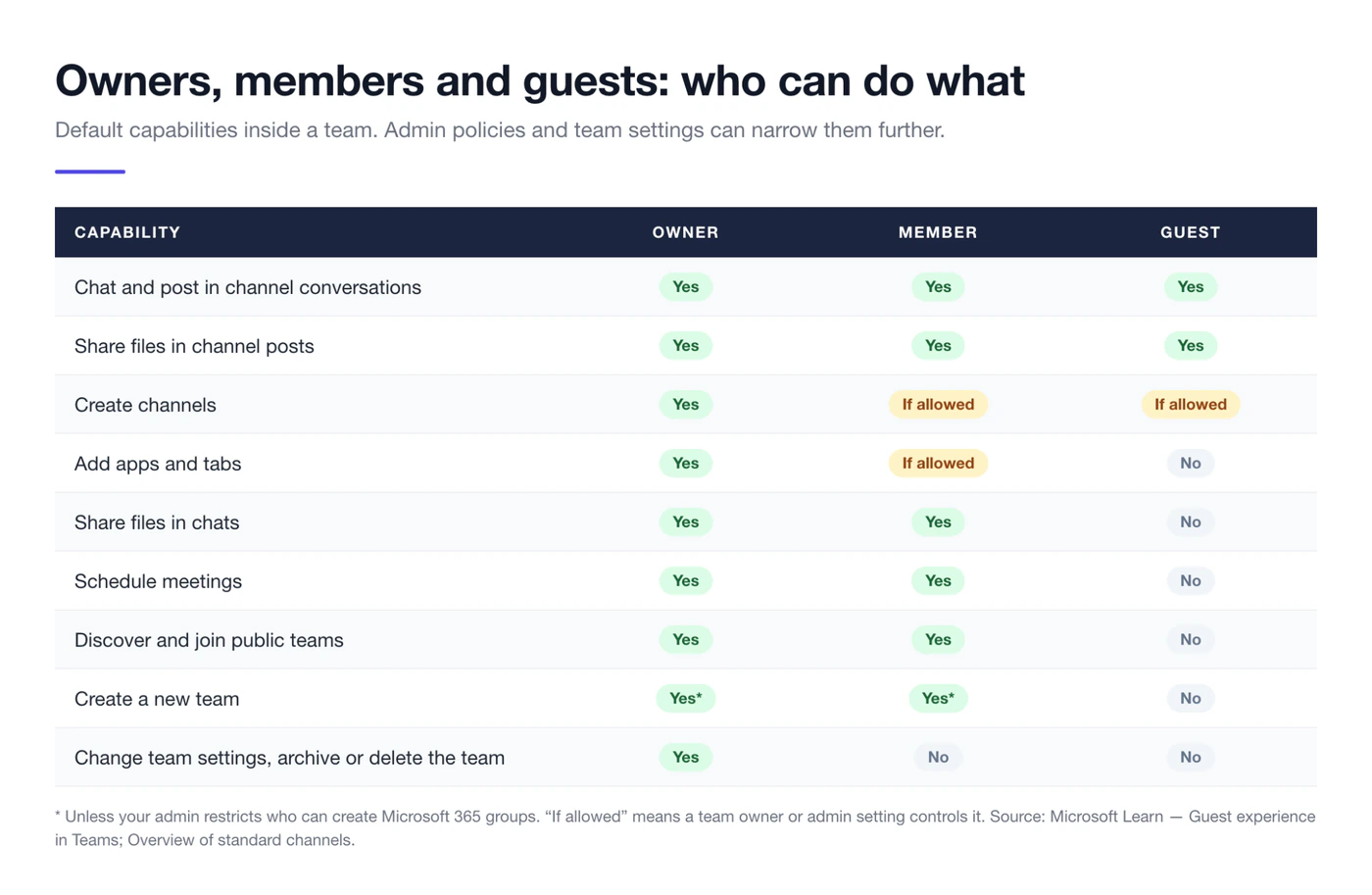
Fig. 5. What owners, members and guests can do in a team by default
Guests are not the only way to work with other companies. External access lets you chat, call and meet with people in other organisations without adding them to your directory, and shared channels let them work in one channel without joining the team. Learn more in our guides to Microsoft Teams permissions and Microsoft Teams guest access.
Where admins control Teams
- Teams admin center — meeting, messaging, app and guest access policies. See our Teams admin center guide.
- Microsoft 365 admin center — licences and usage reports. See Microsoft Teams reporting.
- Microsoft Entra ID — who can create groups, naming and expiration policies, guest settings.
- Microsoft Purview — retention, sensitivity labels, eDiscovery and data loss prevention. See our Microsoft Teams security guide.
Do more in Microsoft Teams with Virto apps
Teams handles conversations and meetings well. Where teams usually need more is structured work: one schedule for everything, a visual board for tasks, reminders that arrive before a deadline rather than after it. Virto apps for Microsoft 365 add those pieces inside Teams.
Virto Calendar App overlays Microsoft 365 calendars, SharePoint lists and web calendars such as Google Calendar and iOS calendars in one view inside Microsoft Teams — as an app or as a tab in any channel. Team schedules, absences and project milestones live where the team already works. The same app is available for Microsoft 365 and SharePoint Online.
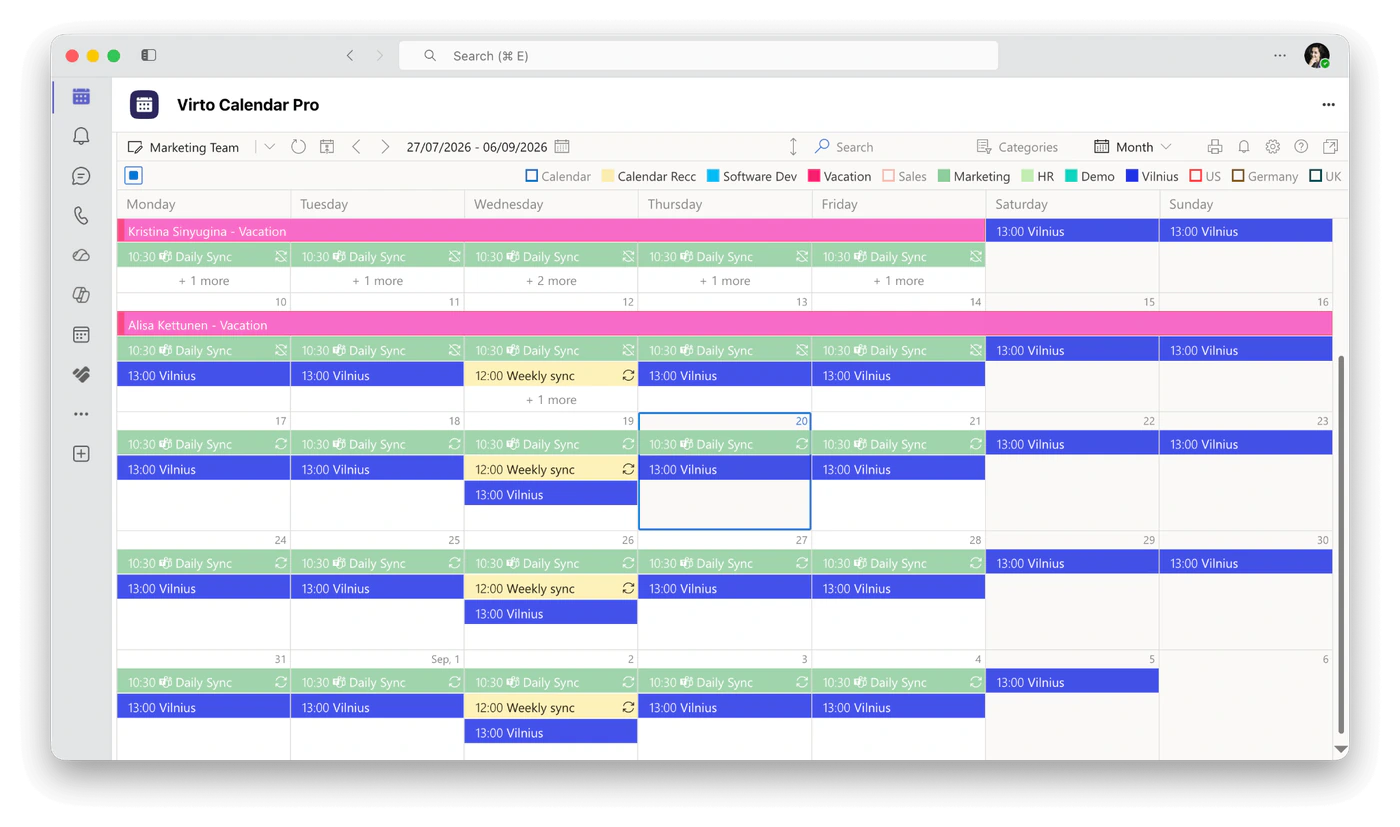
Pic. 8. Virto Calendar App inside Microsoft Teams
Virto Kanban Board App turns tasks into a board in a Teams channel, with task cards that show deadlines, assignees and progress, so everyone can see who is doing what without a status meeting.
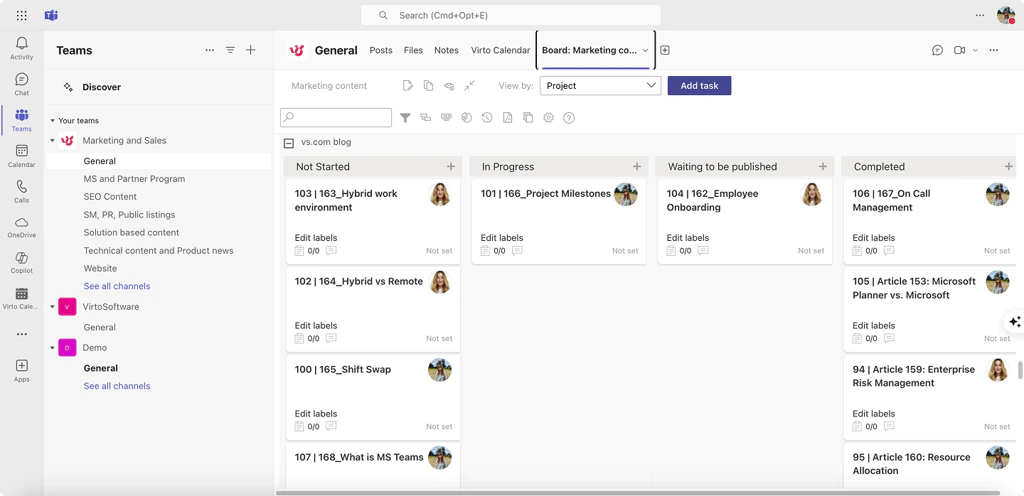
Pic. 9. Virto Kanban Board App in a Microsoft Teams channel
Virto Notifications & Reminders App sends alerts to Teams channels when Microsoft 365 or SharePoint data changes, and reminders before due dates — approvals waiting, deadlines approaching, reviews due.
Virto Polls creates single-choice, multiple-choice, rating and open-text polls inside Microsoft Teams, with results that update in real time. Virto Time Blocker App analyses your Teams calendar and schedules breaks between meetings.
Virto Calendar App, Virto Kanban Board App and Virto Notifications & Reminders App come with a 30-day free trial; see the pricing page for current plans.
Browse all Virto apps for Microsoft Teams or book a product demo to see them working in your own tenant.
Frequently asked questions
What is Microsoft Teams?
Microsoft Teams is Microsoft 365’s teamwork hub: chat, video meetings, calls, and shared files and apps, organised into teams and channels. It runs on the web, on Windows and macOS, and on iOS and Android.
What is Microsoft Teams used for?
Team communication and collaboration — messaging, meetings, calls, co-authoring files and running apps in one place. Organisations use it for everyday chat, internal and external meetings, department and project work, and company-wide announcements and town halls.
Is Microsoft Teams free?
There is a free version for personal use: group meetings of up to 60 minutes with up to 100 participants and 5 GB of cloud storage. Business use needs a paid plan — Microsoft Teams Essentials, a Microsoft 365 Business plan that includes Teams, or Microsoft Teams Enterprise alongside an enterprise suite.
What is a Teams channel?
A channel is a dedicated space inside a team for one topic, project or department, where members hold conversations, share files and add apps. Standard channels are open to the whole team, private channels to selected team members, and shared channels to people inside or outside the organisation who are added to the channel.
What is the difference between a chat and a channel in Teams?
A chat is a conversation between specific people and lives outside any team; files shared there are stored in the sender’s OneDrive. A channel belongs to a team, is visible to its members and stores files on the team’s SharePoint site. Use chats for quick questions and channels for work others need to find later.
Do I need to download Microsoft Teams to join a meeting?
No. You can join from the meeting link in a web browser without installing anything, or from the Teams mobile app. The desktop app gives you the full set of meeting features.
What is the difference between Microsoft Teams and SharePoint?
Teams is where people talk and work together day to day; SharePoint is where content is stored and organised. Every team has a SharePoint site behind it, so files shared in a Teams channel are SharePoint files. Read more in SharePoint vs Microsoft Teams.
Sources
- Microsoft Teams service description — Microsoft Learn
- Limits and specifications for Microsoft Teams — Microsoft Learn
- Overview of teams and channels in Microsoft Teams — Microsoft Learn
- Overview of Teams and SharePoint integration — Microsoft Learn
- Guest experience in Teams — Microsoft Learn
- Manage Teams licenses — Microsoft Learn
- Learn more about subscriptions for Microsoft Teams (free) — Microsoft Support
- What’s new in Microsoft Teams — Microsoft Support
- Use Microsoft Teams on the web — Microsoft Support