


Most of the work in Microsoft Teams happens in chat. A quick question to a colleague, a group thread for a launch, the conversation that runs alongside a meeting: all of it lands in the same list on the left of the screen. Yet many people use only a fraction of what Teams chat can do, and just as many post in a chat what really belongs in a channel.
This guide covers what Microsoft Teams chat is, how to start and manage one-on-one and group chats, when to use a channel instead, which chat features are worth knowing in 2026, and how to turn the decisions made in chat into tasks, events and reminders.
What is Microsoft Teams chat?
Microsoft Teams chat is the instant-messaging feature in Microsoft Teams for 1:1 and group conversations. It is separate from channel posts, and it has files, reactions and calls built in. Only the people in a chat can see its messages, while a channel conversation is visible to everyone who has access to that channel.
In practice you will meet three kinds of chat:
- One-on-one (1:1) chat: a private conversation between you and one other person. You can also chat with yourself to keep notes, drafts and links in one place.
- Group chat: a private conversation with up to 250 people, which you can name and add people to over time.
- Meeting chat: the chat that comes with every Teams meeting. It is available before, during and after the meeting and appears in your chat list.
Chats work the same way in the Teams desktop app, in the browser and on mobile, and everything syncs across your devices.
How to start a chat in Microsoft Teams
Every chat starts from the same button. The steps below follow the current Teams client, where chats and channels can share one list. If your list looks different, it may be set to the separate view, but the New message button is in the same place.
How to start a one-on-one chat
- Open Microsoft Teams and select Chat on the left.
- Select New message at the top of your chat list, or press Ctrl+N on Windows.
- In the To field, type the person’s name or email address and select them from the suggestions.
- Type your message in the compose box at the bottom and press Enter or select Send.
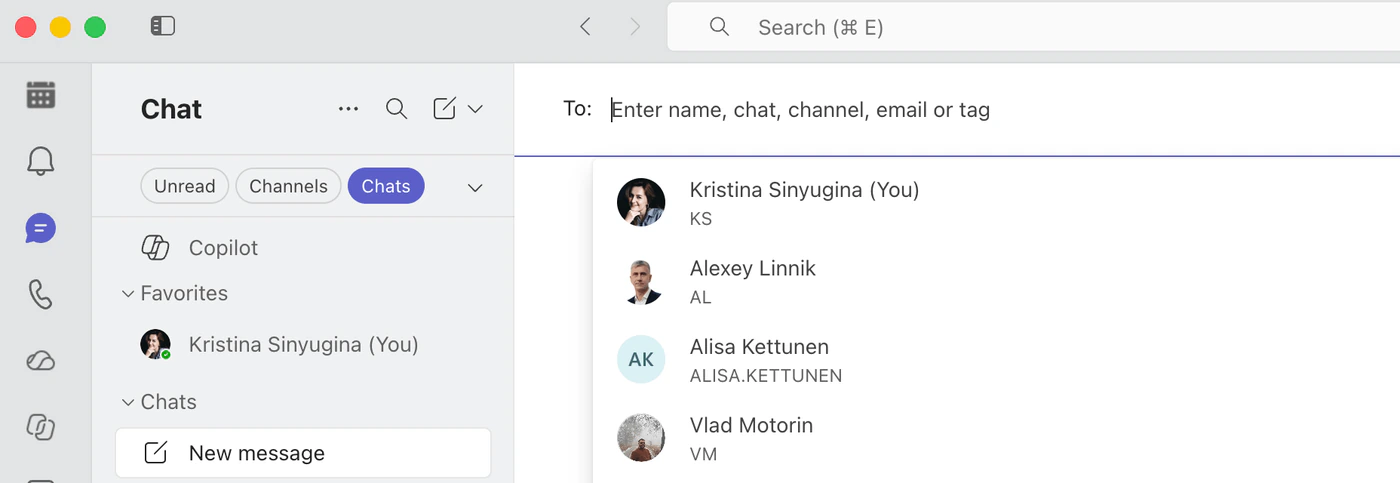
Pic. 1. Starting a new chat with the New message button
You can also start a chat without leaving what you are doing: open a person’s profile card from any message, meeting or file and start the chat from there.
How to start a group chat and name it
- Select New message.
- Select the down arrow at the far right of the To field to open the Group name field, and type a name for the chat.
- Add the people you need in the To field. A group chat can include up to 250 people, and you can add up to 200 at once.
- Type your first message and send it.
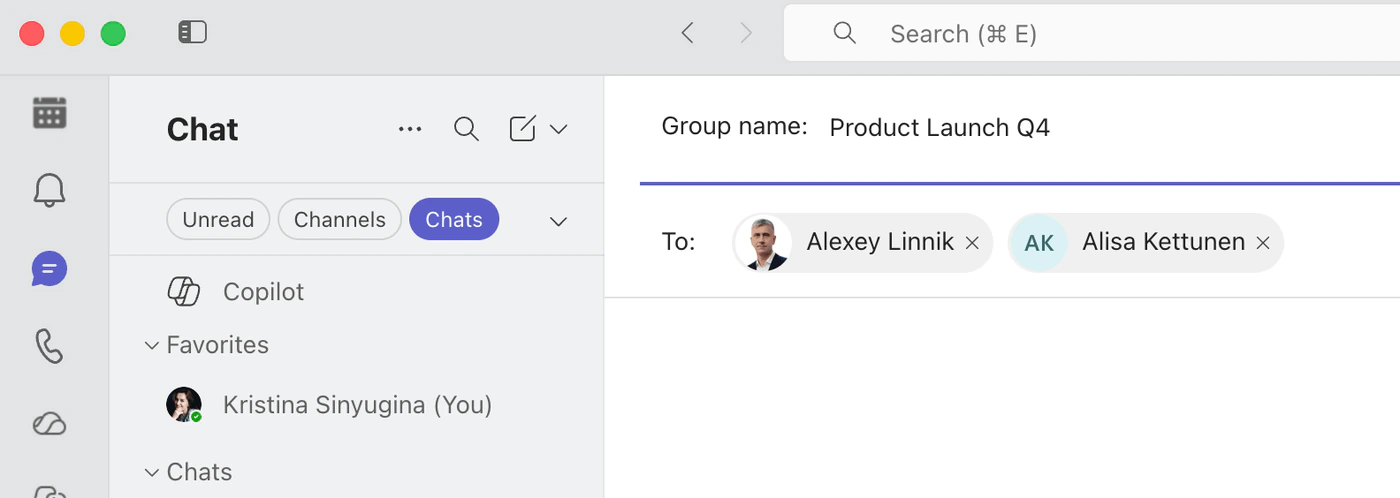
Pic. 2. Naming a group chat and adding participants
Only group chats have a name. A clear one, such as “Website redesign: content” rather than a list of first names, makes the chat easy to find in search months later. To rename a group chat, select the pencil icon next to its name at the top of the chat.
How to add people to an existing chat
- Open the group chat and select View and add participants at the top right.
- Select Add people and type the names of the people you want to add.
- Choose how much of the earlier chat history the new people will see: none of it, the messages from a set number of days, or all of it.
- Select Add.
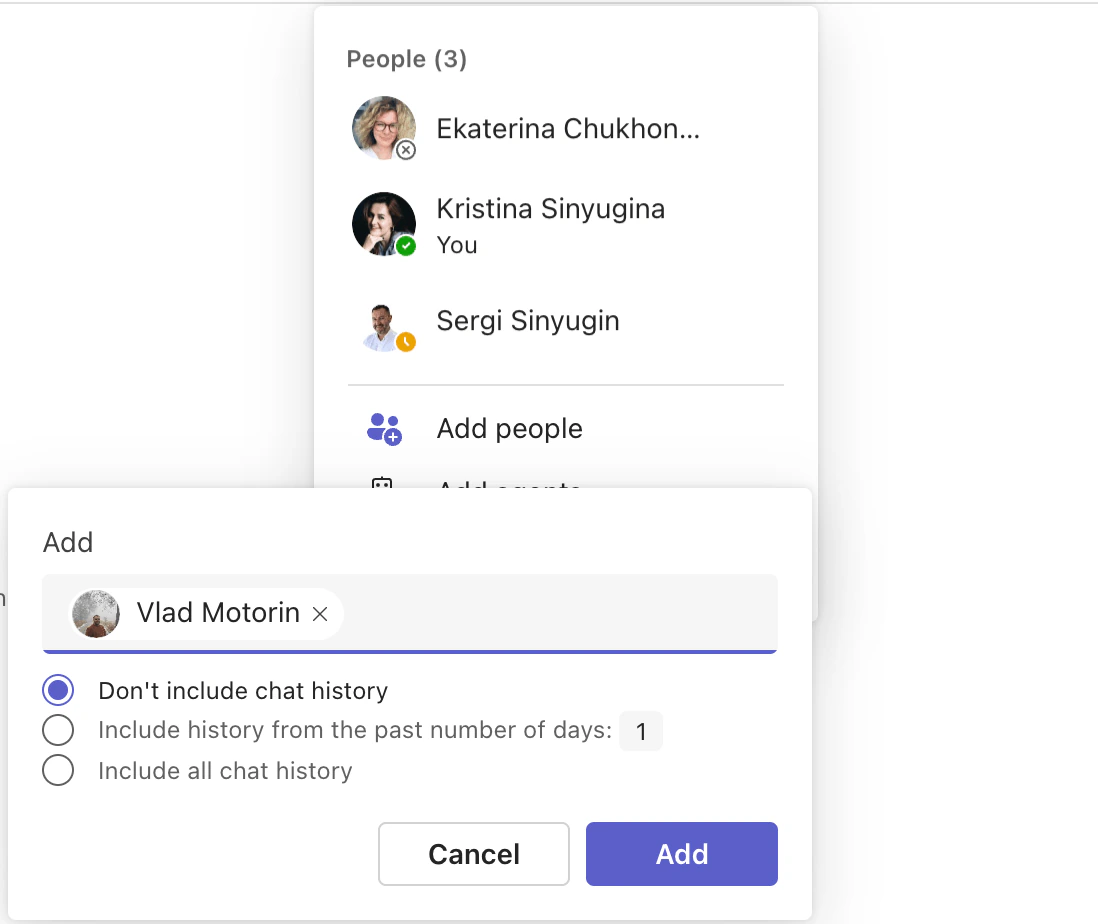
Pic. 3. Adding people to a group chat and choosing how much history they see
History sharing only works for an existing group chat. When you add someone to a one-on-one conversation, Teams starts a new group chat, and the original 1:1 history stays between the two of you.
How to use the meeting chat
Every Teams meeting has its own chat. Use it before the meeting to share the agenda, during the meeting to post links and questions without interrupting the speaker, and afterwards to follow up. Meeting chats appear in your chat list, and chat is available in meetings with up to 1,000 attendees. You can leave a meeting chat you no longer need, unless you are the meeting owner. If you are organizing the meeting itself, see our guide on how to schedule a Teams meeting.
How to manage your chats
A busy chat list quickly becomes noise. Hover over a chat in the list and select More options (…) to keep it under control:
- Move to Favorites: keeps the chats you open every day at the top. You can also drag a chat into Favorites or create your own sections, such as one per project.
- Mute: stops notifications from a chat. You still get notified when someone @mentions you, and muted chats move to their own Muted section.
- Mark as unread: brings a conversation back to your attention when you cannot answer it right now.
- Hide: removes a one-on-one chat from your list until a new message arrives. To find a hidden chat, search for the person’s name.
- Leave: takes you out of a group chat or a meeting chat. You cannot leave a one-on-one chat.
- Remove chat history: clears a one-on-one chat from your side only. The other person still sees the whole conversation.
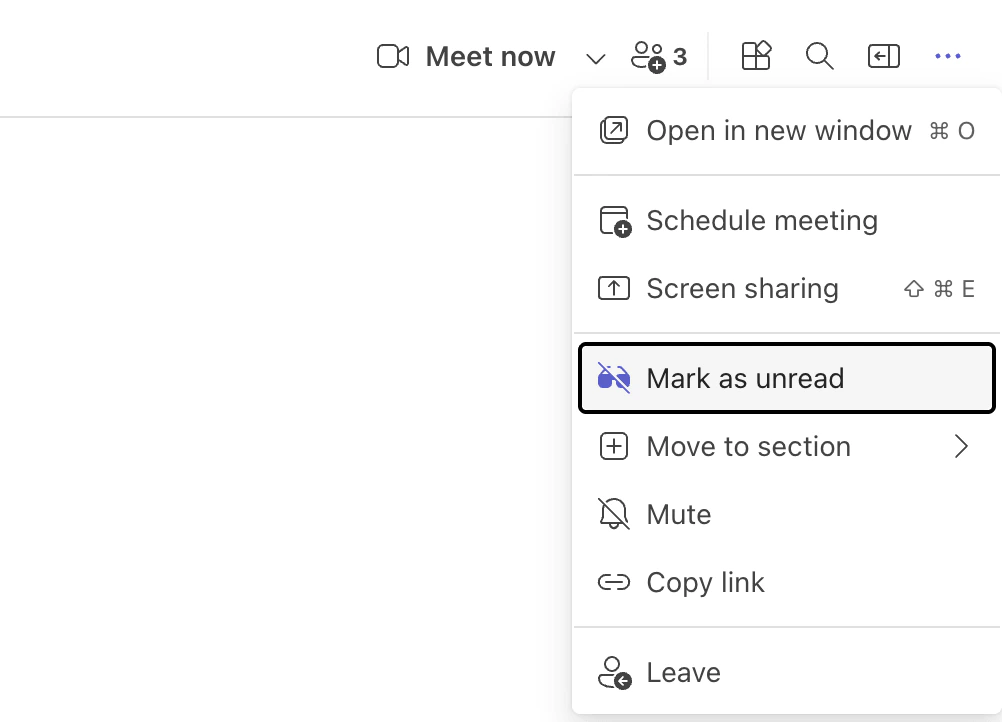
Pic. 4. Managing a chat from the More options menu
To keep an important message in view for everyone in a chat, hover over the message, select More options, then Pin for everyone. A chat can have one pinned message at a time.
For finer control over alerts, open Settings and more (…) > Settings > Notifications and activity. Under Chats and channels, you can decide how chat messages and different kinds of @mentions reach you: as a banner, in the Activity feed, or not at all. Our guide to Microsoft Teams notifications walks through every setting.
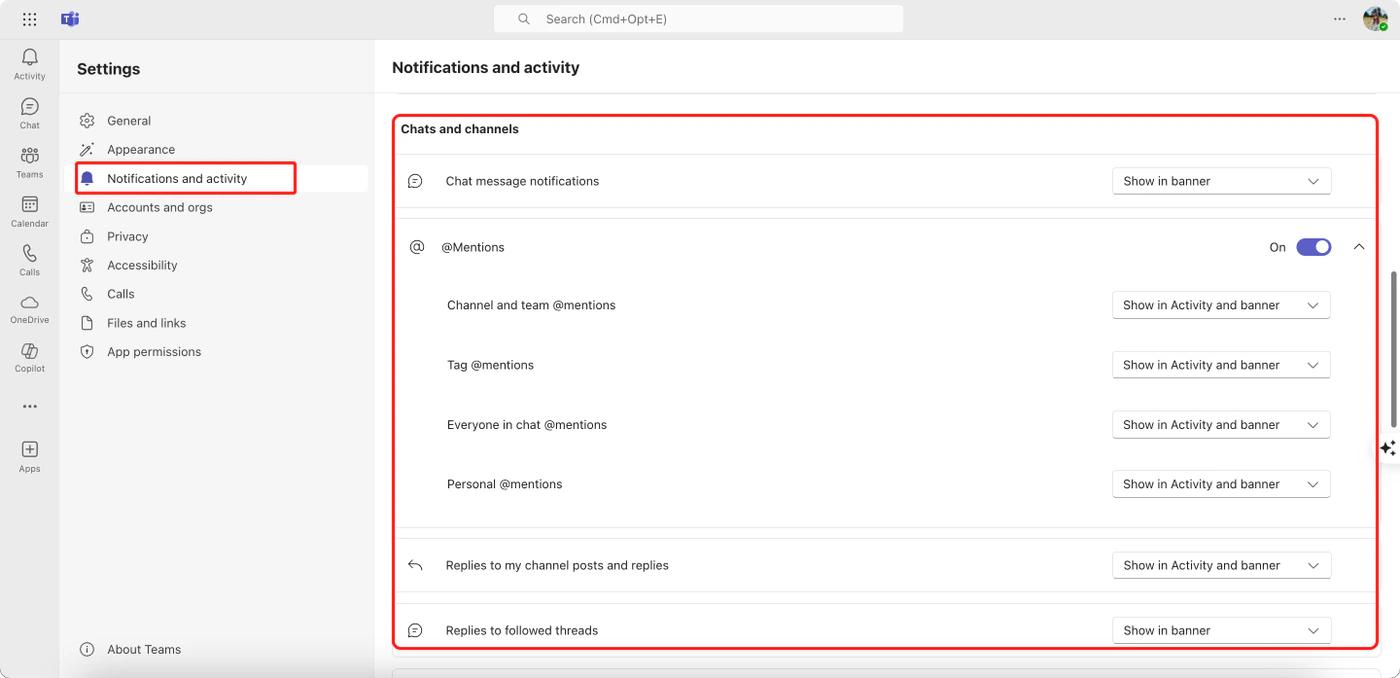
Pic. 5. Chat and @mention notification settings in Microsoft Teams
To find an old message, press Ctrl+E to go to search and type a keyword, a person’s name or a file name. Filters in the chat list, such as Unread, narrow the list down further.
Teams chat vs channel conversations
Chats are private 1:1 or group conversations. Channel messages are posted to a whole team, and everyone in the channel can see them. That single difference decides who reads your message, who sees it when they join later, and where your files end up.
| Chat | Channel | |
|---|---|---|
| Who can see it | Only the people in the chat | Everyone with access to the channel |
| People who join later | See the earlier history only if it is shared with them when they are added | See the full conversation history |
| Where files go | The sender’s OneDrive | The team’s or channel’s SharePoint site |
| Size | Up to 250 people | Up to 25,000 team members |
| Structure | One running conversation | A posts or threads layout, set per channel |
| Best for | Quick questions, small groups, short-lived topics | Project work, announcements, decisions the team must be able to find later |
A chat is the right place for speed; a channel is the right place for a record. Move a conversation into a channel when any of these becomes true:
- The group keeps growing and new people constantly ask what was decided before they joined.
- The discussion produces decisions, files or approvals the whole team should be able to find.
- The topic will outlive the current participants, such as a long-running project or a client account.
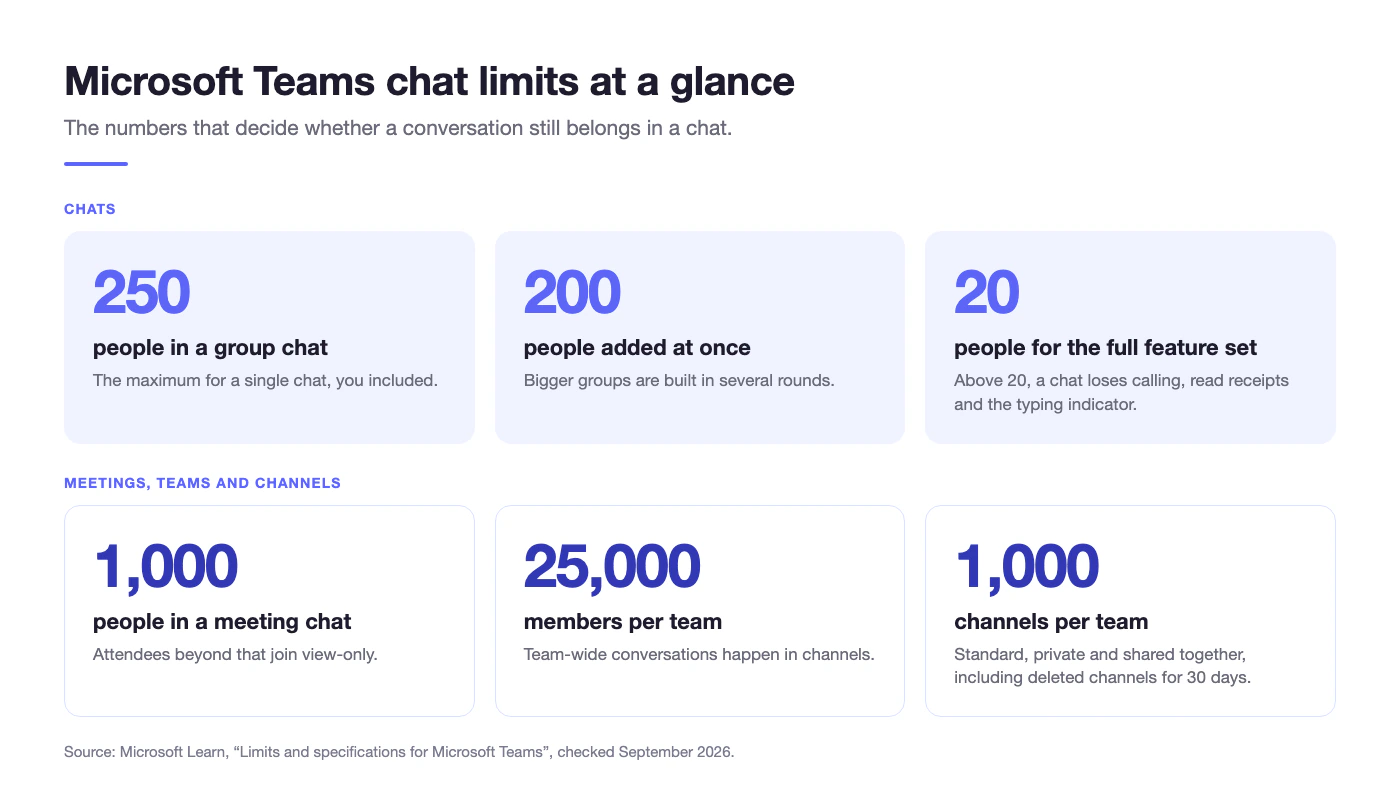
Pic. 6. Microsoft Teams chat, meeting and channel limits
If you want chats and channels in one list, open the chat list and choose Customize view. The Combined view puts Favorites, chats, and teams and channels together, with custom sections and filters, while Separate keeps them apart. To dig deeper into standard, private and shared channels, read our guide to Microsoft Teams channels.
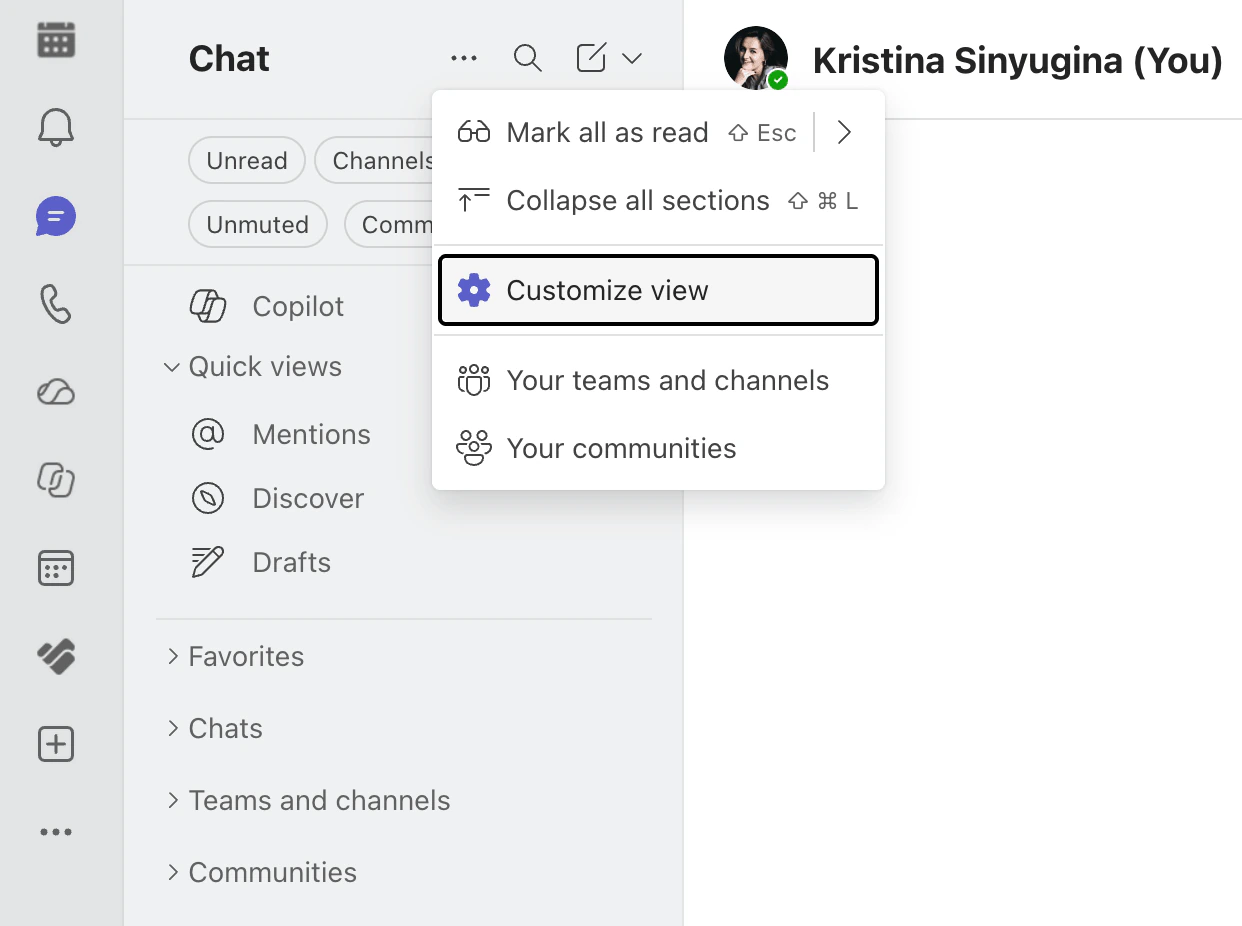
Pic. 7. The combined chat and channels view in Microsoft Teams
Microsoft Teams chat features worth knowing
Sharing files and Loop components
To share a file in a chat, select Actions and apps (+) under the compose box, choose Attach file and pick a file from your device or from OneDrive. Everyone in the chat can open it, and Word, Excel and PowerPoint files can be edited together without leaving Teams.
Files from chats and files from channels are stored in different places, which matters when you look for them later or leave the organization:
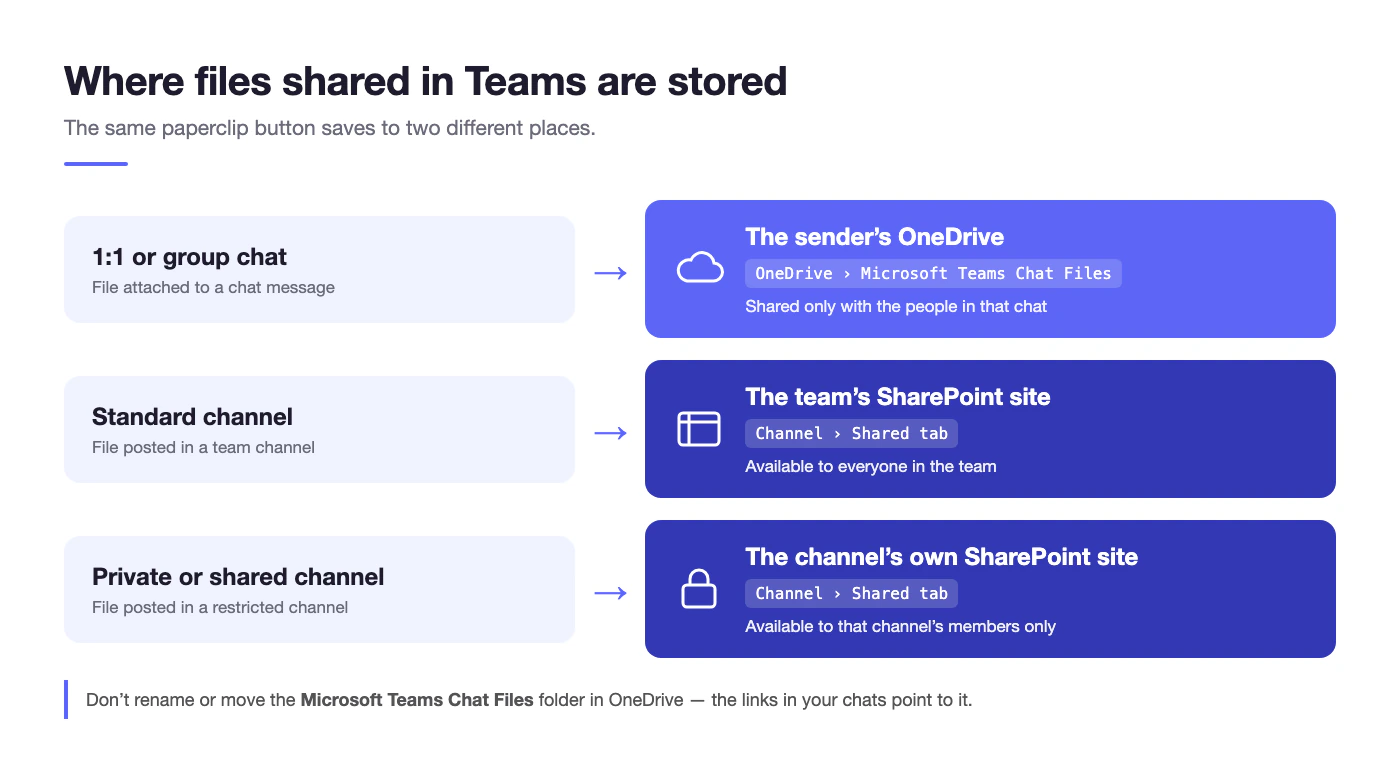
Pic. 8. Where files shared in Teams chats and channels are stored
To see every file shared in a conversation, open the Shared tab at the top of the chat. For the details, see Microsoft’s overview of file storage in Microsoft Teams and our guide to OneDrive for Business.
Loop components go a step further: a table, checklist, task list or paragraph that everyone in the chat edits in place, and that stays in sync wherever it is shared. Insert one from the compose box. Loop components require a OneDrive license; learn more in what Microsoft Loop is and how to use it.
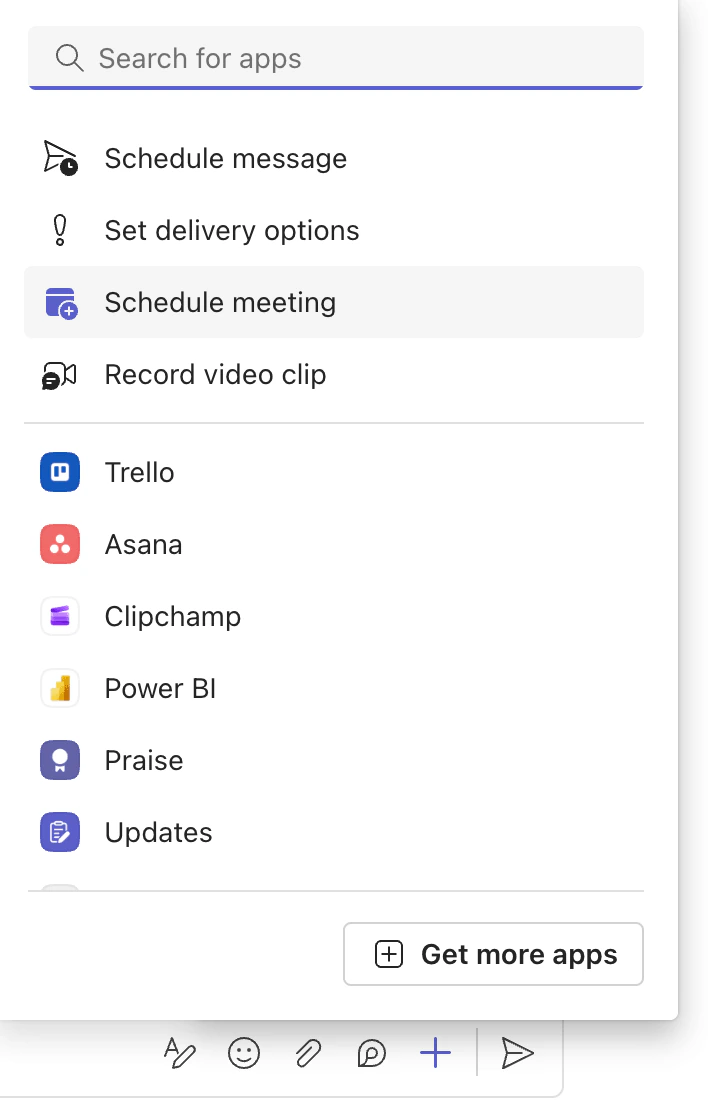
Pic. 9. The Actions and apps menu in a Teams chat
Reactions, quoted replies and @mentions
- Reactions: hover over a message and pick a reaction to acknowledge it without adding another message. Each person can add up to 20 reactions to a message.
- Reply with quote: answer a specific message so everyone knows what you are responding to, even after the conversation has moved on.
- @mentions: type @ and a name to make sure a person is notified. In a group chat, @everyone notifies all participants at once. To reach a role rather than a person, such as all designers on a team, use Microsoft Teams tags.
Important messages and scheduled send
To make a message stand out, select Actions and apps (+) > Set delivery options > Important. Where your organization’s messaging policy allows Urgent messages, Teams keeps notifying the recipient every 2 minutes for 20 minutes until they read the message. Use both sparingly: when every message is important, none of them is.
To send a message later, for example at the start of a colleague’s working day in another time zone, select Actions and apps (+) > Schedule message and pick a date and time. On mobile, press and hold Send. Scheduling works in a conversation that already exists. Before you message someone, check their Microsoft Teams status to see whether they are available, busy or presenting.
Formatting, new lines and keyboard shortcuts
Pressing Enter sends a message straight away. To start a new line instead, press Shift+Enter. For longer messages, select Format under the compose box, or press Ctrl+Shift+X, to open the full formatting toolbar with bold, italics, lists, quotes, code blocks and links.
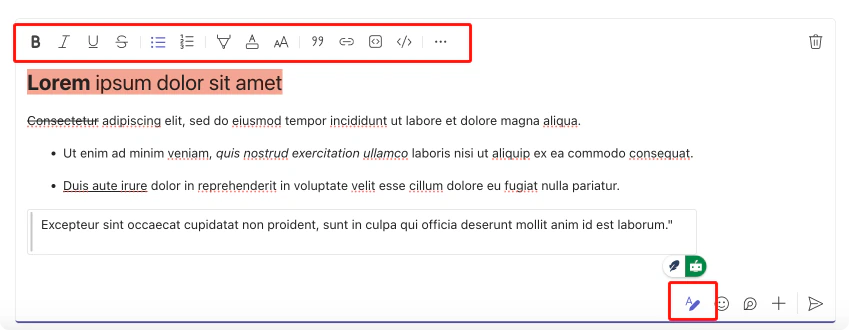
Pic. 10. Formatting a message in a Teams chat
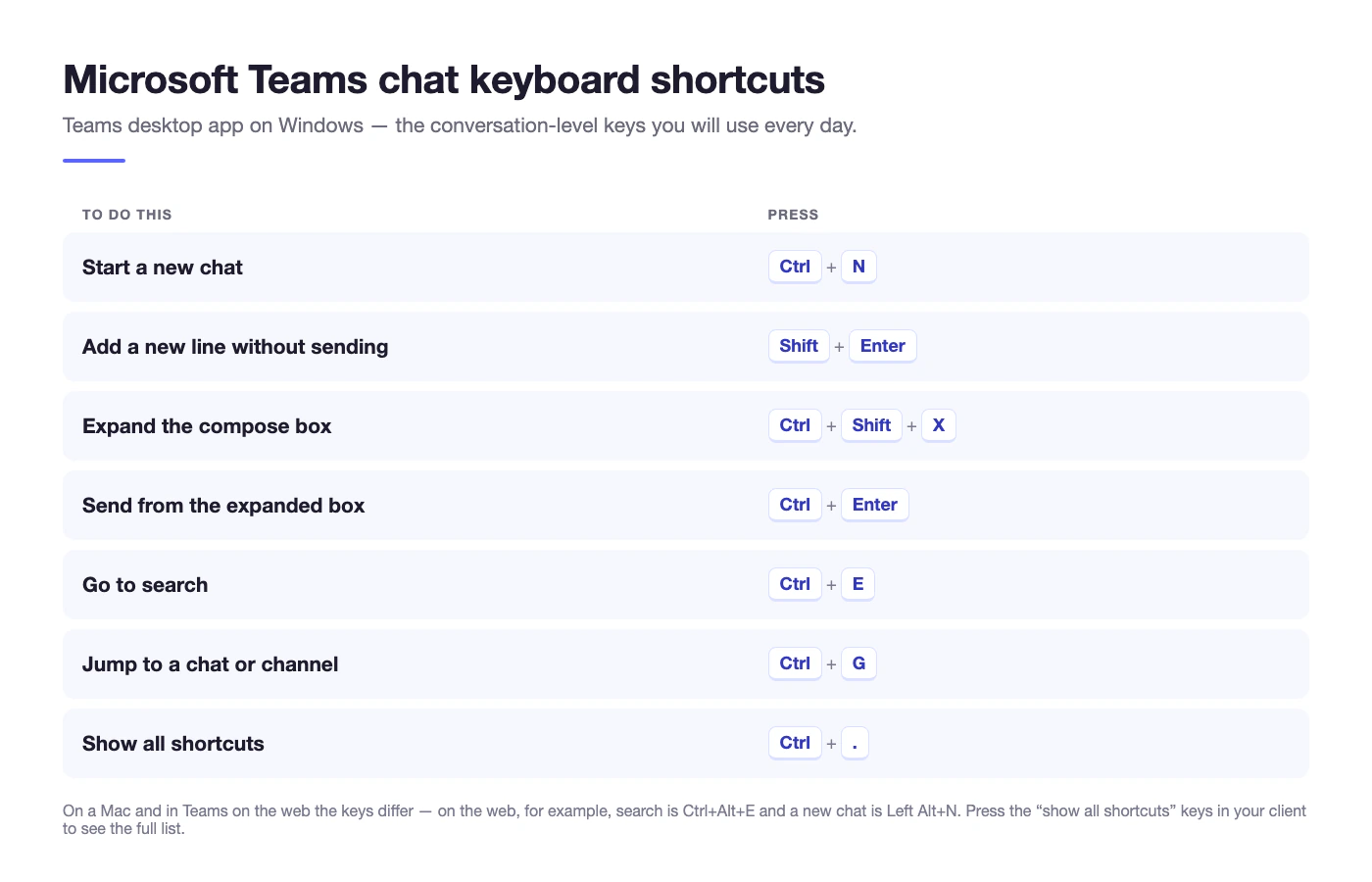
Pic. 11. Keyboard shortcuts for Microsoft Teams chat
The full list of key combinations for Windows, Mac and the web is on Microsoft’s keyboard shortcuts for Microsoft Teams page.
Editing, deleting and forwarding messages
Hover over a message you sent and select More options to edit or delete it. There is no limit on edits, and a deleted message can be restored with Undo, although your admin can turn off editing and deleting. To pass messages on, select Forward. You can forward up to five messages at once to another chat or channel.
Calls, Meet now and polls
When typing takes too long, switch to voice. Select Video call or Audio call at the top of a chat to call everyone in it; calls from a chat work for up to 20 people. In a group chat, Meet now starts an instant meeting right away. To collect opinions without a meeting, add a poll from Actions and apps (+) > Polls. See our step-by-step guide on how to create a poll in Teams.
Read receipts and translation
Read receipts are on by default, so you can see when your message has been read. In group chats, Read by shows who has seen a message in chats of up to 20 people. Receipts are not shown for external users. If a colleague writes in another language, hover over the message and use the translation option under More options.
Copilot in Teams chat
With a paid Microsoft 365 Copilot license, Open Copilot in the upper-right corner of a chat summarizes the conversation and answers questions about it, and Rewrite with Copilot adjusts a draft before you send it. The free Copilot Chat app available with eligible Microsoft 365 plans works with web data and cannot read your chats. See Microsoft’s guide to Copilot in Teams chats and channels.
Chatting with external users
Teams can connect you with people outside your organization in two different ways, and your admin decides which ones are available:
- External access lets you find, chat, call and meet with people in other organizations that use Microsoft identities. It is on by default. External participants cannot open your team’s resources, and file sharing in external chats stays off until an admin enables it.
- Guest access adds a person from outside as a guest in a team, so they can work in its channels and files almost like a member.
You can also add people who use Teams Free, or who do not use Teams at all, to a chat by email address or phone number. Someone without Teams receives an invitation to create an account. Microsoft explains the details in add or invite people outside your organization to a chat.
For a full walkthrough of the settings and their limits, read our Microsoft Teams guest access guide, and see Microsoft Teams permissions for what owners, members and guests are allowed to do.
Tips and best practices for Teams chat
- Pick the right place first. Use a chat for speed and a channel for anything the team will need to find later.
- Name every group chat. “Q3 launch: design” is searchable; a string of first names is not.
- Keep one topic per chat. Start a new chat for a new subject instead of burying it in an old thread.
- Reply with quote. In a busy chat, quoting the message you answer saves everyone scrolling.
- Mute instead of leaving. You keep access to the history and still see @mentions.
- Respect working hours. Schedule messages for colleagues in other time zones and save Urgent for real emergencies.
- Do not treat chat as storage. Post final versions of documents in a channel, where the whole team can find them.
- Remember that chats are business records. Private does not mean invisible to compliance: depending on your organization’s settings, chat messages can be retained and searched. Our Microsoft Teams governance guide explains how policies like these are set up.
Do more with Virto in Microsoft Teams
Chat is where decisions are made, but it is a poor place to track what happens next. Tasks agreed in a group chat, deadlines mentioned in passing and reminders promised “for later” scroll out of sight within a day. Virto apps for Microsoft 365 bring that follow-through into Teams, next to the conversations it comes from. Every Virto product comes with a 30-day free trial.
Virto Kanban Board App
The Virto Kanban Board App adds a Kanban board to a Teams channel tab. When a chat ends with “who does what”, add the tasks to the board, assign them and track their progress across columns without switching to another tool.
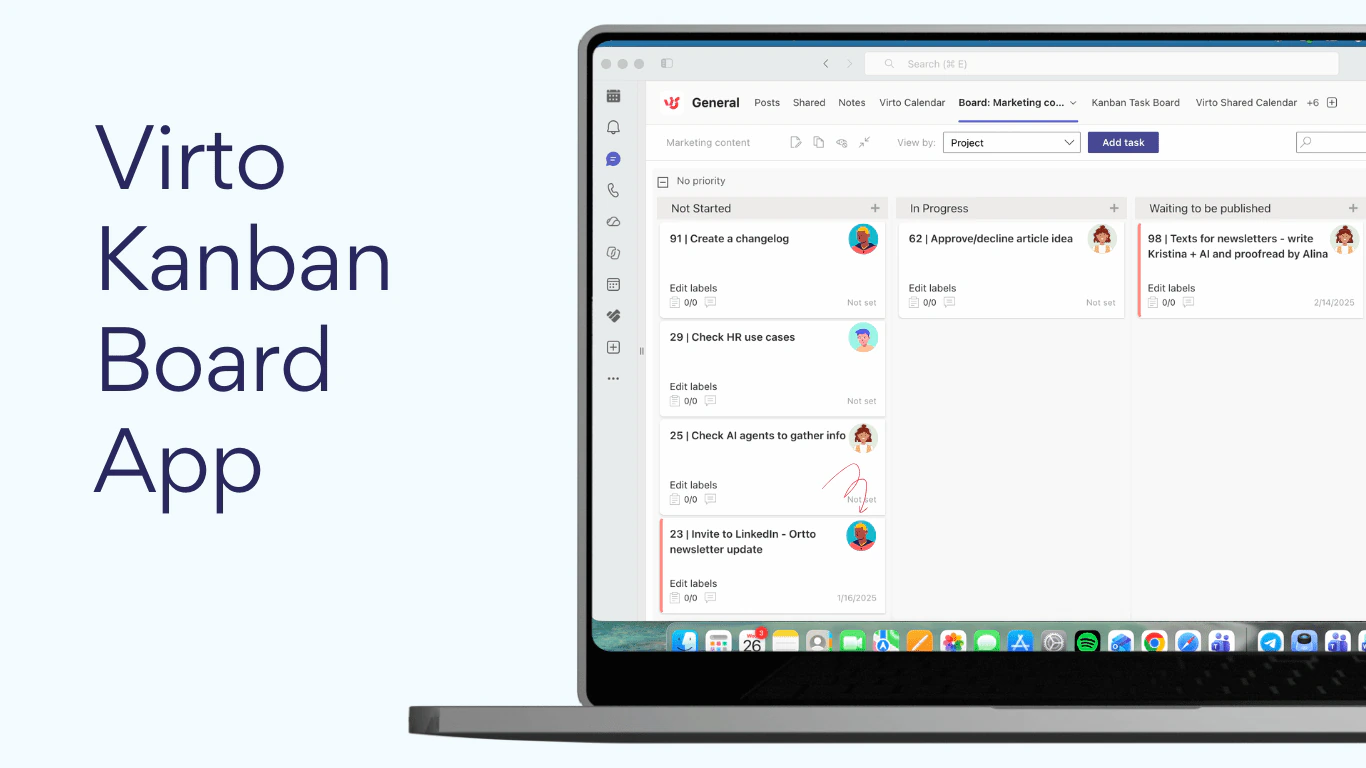
Pic. 12. A Virto Kanban Board App board inside Microsoft Teams
Virto Calendar App
The Virto Calendar App, available for Microsoft Teams and for Microsoft 365, overlays SharePoint, Exchange and Outlook calendars in one color-coded view. Deadlines and events agreed in chat go onto a calendar the whole team can see. To compare it with what Teams offers out of the box, read our Microsoft Teams calendar guide and the guide on how to create a shared calendar in Teams.
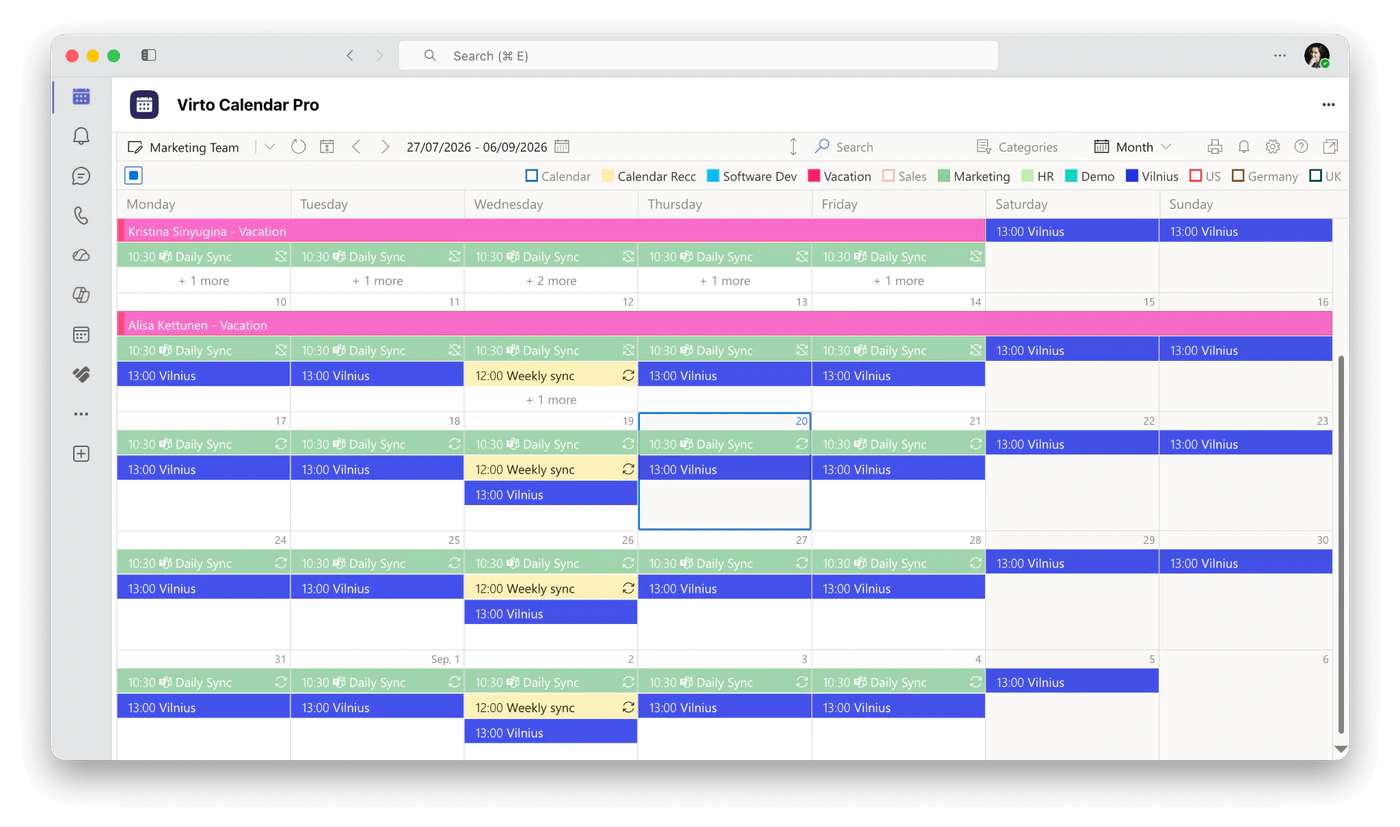
Pic. 13. The Virto Calendar App in Microsoft Teams as an app
You do not even have to leave your conversations to check it. The Virto Calendar App runs as an app inside Microsoft Teams, Outlook and the Microsoft 365 app: the same calendar, data and permissions, opened from the app bar without a second sign-in. Inside these apps, search for Virto Calendar Pro, the name the app carries in the app store.
Adding it takes two quick steps:
- An administrator opens Teams apps > Manage apps in the Microsoft Teams admin center, finds Virto Calendar Pro and chooses the users or groups that get access on the Users and groups tab. Admins can also install the app for people directly, so it simply shows up.
- Each person then adds Virto Calendar Pro from the apps section and pins it where they work.
- Microsoft Teams: select Apps, find Virto Calendar Pro, then right-click its icon and select Pin.
- Outlook on the web and the Microsoft 365 app: open Apps in the sidebar.
- Outlook on Windows: open More apps in the sidebar.
- On a phone: use the Teams mobile app. Outlook and the Microsoft 365 app on mobile are not supported yet.
Each host keeps its own app bar, so pinning the app in Teams does not pin it in Outlook or the Microsoft 365 app. Pin it separately in each place you use. Read more in our announcement: Virto Calendar App now opens right inside Teams, Outlook, and Microsoft 365.
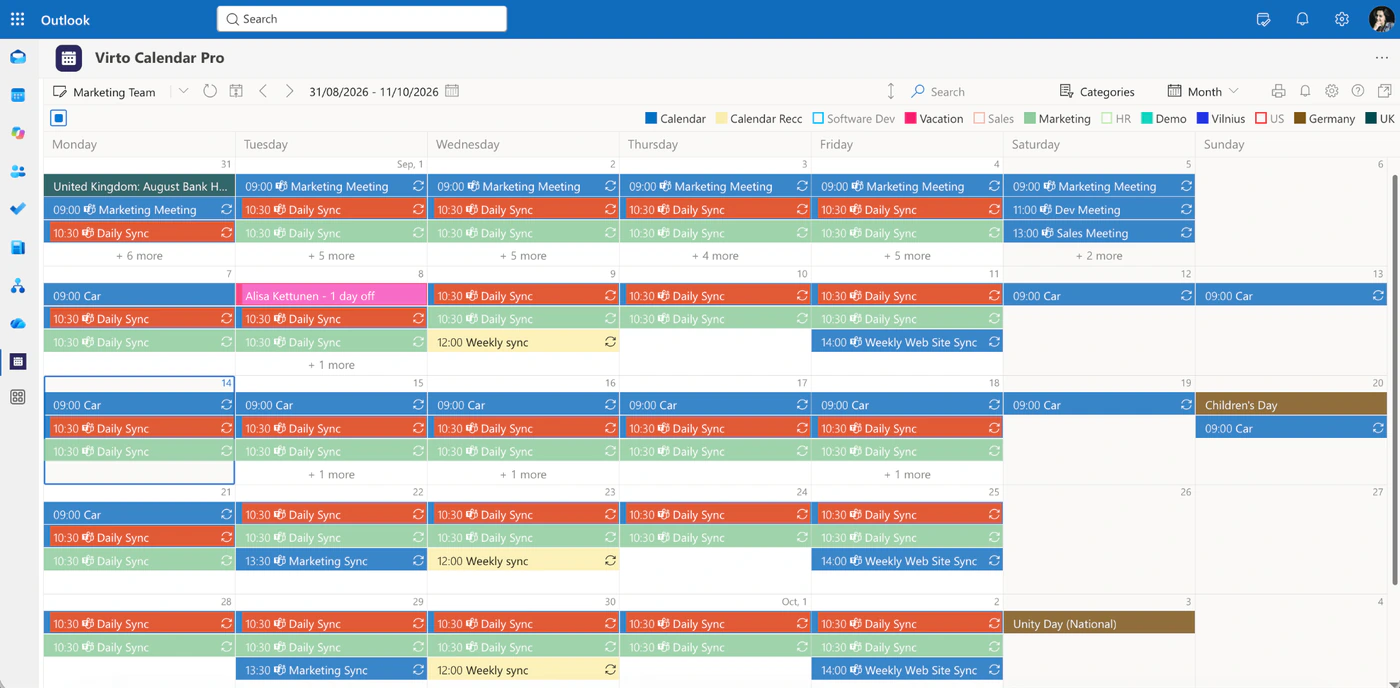
Pic. 14. Virto Calendar Pro pinned in Outlook
Virto Notifications & Reminders App
The Virto Notifications & Reminders App sends condition-based alerts about changes in your Microsoft 365 and SharePoint lists, calendars and boards straight to a Teams channel. Your team hears about an approaching deadline or a changed item where they already talk, instead of in yet another email.
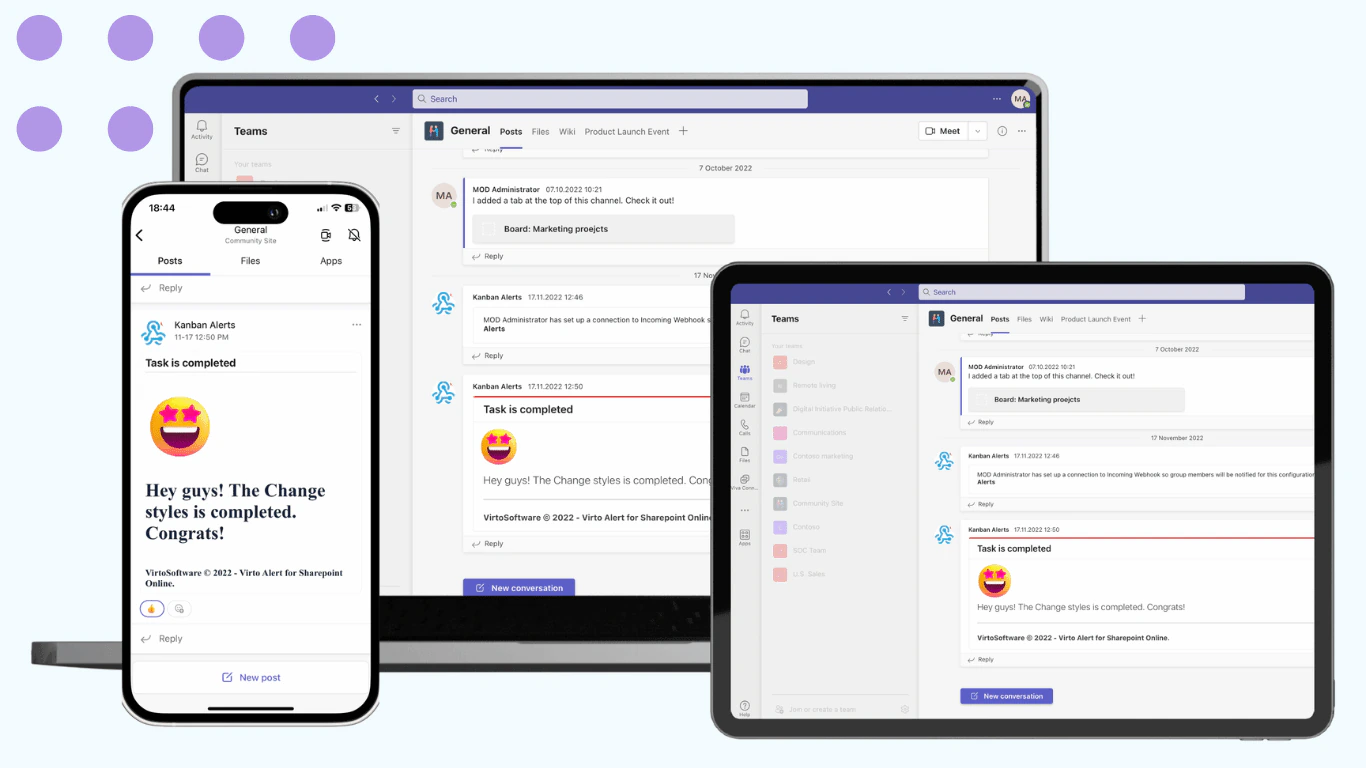
Pic. 15. A Virto Notifications & Reminders App alert in Microsoft Teams
Virto Polls
When a chat stalls between options, Virto Polls lets you ask the team in seconds and watch the results come in live, right inside Microsoft Teams.
Browse all Microsoft Teams apps from Virto or explore more ways to connect your tools in our guide to Microsoft Teams integrations.
FAQ
What is Microsoft Teams chat?
Microsoft Teams chat is the instant-messaging feature in Microsoft Teams for 1:1 and group conversations. It is separate from channel posts and has files, reactions and calls built in.
What is the difference between a chat and a channel in Teams?
Chats are private 1:1 or group conversations. Channel messages are posted to a whole team, and everyone in the channel can see them. Chat files are saved to the sender’s OneDrive, while channel files are saved to the team’s SharePoint site.
How do I start a group chat in Teams?
Select New message, open the Group name field with the down arrow at the right of the To field, name the chat, add people in To and send your first message.
How many people can be in a Teams group chat?
Up to 250 people, and you can add up to 200 at once. In chats with more than 20 people, some features such as calling from the chat and read receipts are not available.
Can I name a one-on-one chat in Teams?
No. Only group chats have a name. If you need a named conversation with one person, add a topic to your first message or pin the key message for everyone.
Can new people see the earlier messages in a chat?
In a group chat, the person who adds them chooses whether they see no history, the messages from a set number of days, or the whole conversation. When you add someone to a one-on-one chat, Teams starts a new group chat and the original history stays private.
Where are files from Teams chats saved?
In the sender’s OneDrive, in a folder named Microsoft Teams Chat Files, shared only with the people in the chat. Files posted in a channel are saved to the team’s SharePoint site.
Are Microsoft Teams chats private?
Other users cannot see a chat they are not part of. However, chats are business records: depending on your organization’s policies, retention, eDiscovery and data loss prevention can apply to chat messages. Microsoft describes how in retention policies for Microsoft Teams.
How do I start a new line in Teams chat without sending the message?
Press Shift+Enter. To write a longer message with formatting, press Ctrl+Shift+X to expand the compose box, then Ctrl+Enter to send it.
Can I chat with people outside my organization in Teams?
Yes, if your admin allows it. External access lets you chat with people in other organizations, guest access adds them to a team, and you can invite people without Teams to a chat by email. See our Microsoft Teams guest access guide for the details.