Microsoft does not sell one scheduling app. It ships five of them inside Microsoft 365, plus a sixth layer for rooms and desks — and the trick is knowing which one does which job. This guide compares Microsoft Bookings, Outlook Calendar, the Microsoft Teams calendar, Microsoft Shifts, Microsoft Planner and Microsoft Places as they stand in 2026, shows you how to set each one up, and explains what to do when your team outgrows them.
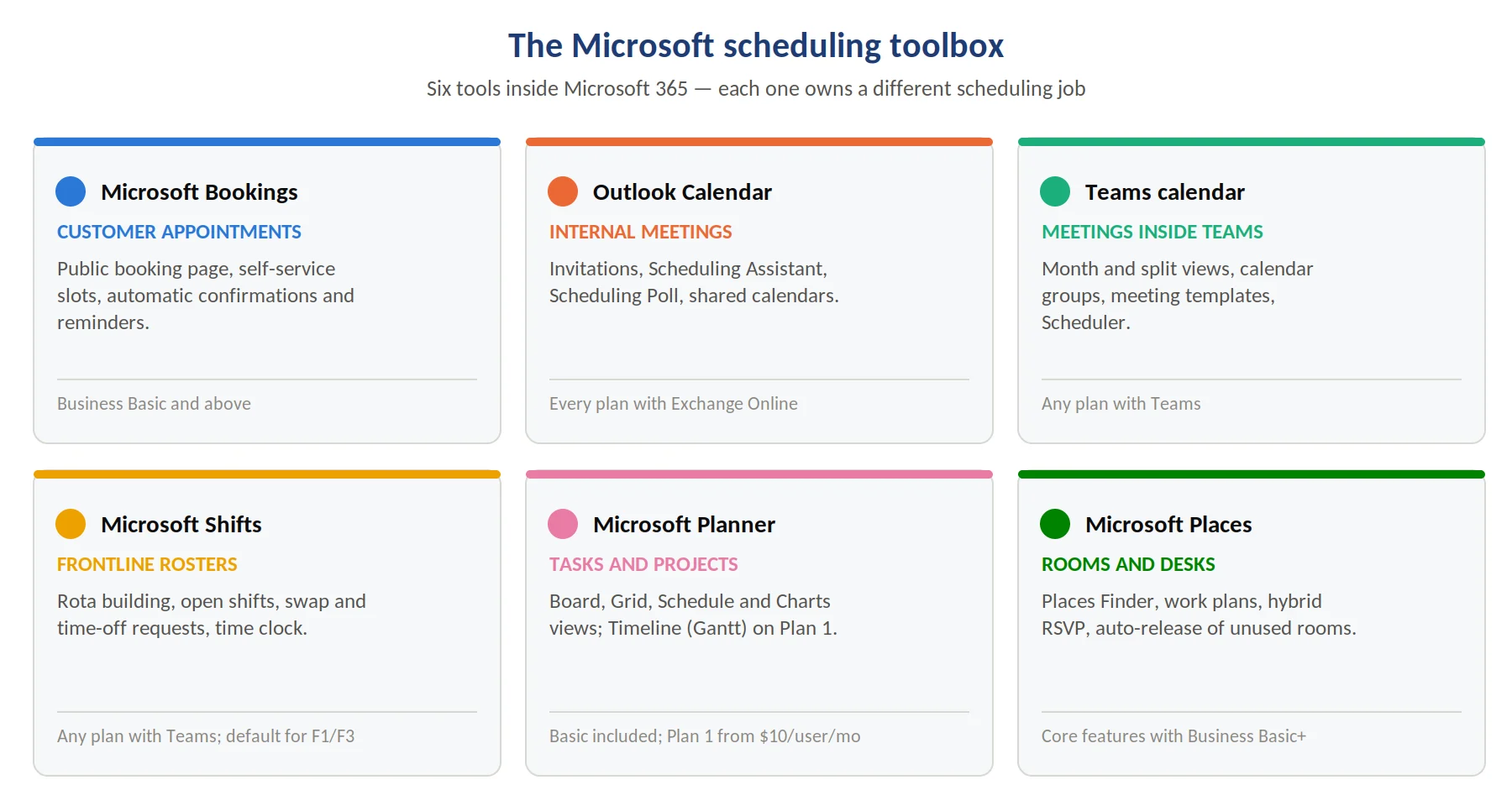
Pic.1. The six Microsoft 365 scheduling tools and the job each one owns
Quick answer: what is the best Microsoft scheduling software?
There is no single best one — pick by the job you need done:
- Microsoft Bookings — customer and client appointments through a public booking page.
- Outlook Calendar — internal meetings, invitations, availability and Scheduling Poll.
- Microsoft Teams calendar — meetings you run inside Teams, with split and shared calendar views.
- Microsoft Shifts — frontline rosters, shift swaps and time clock.
- Microsoft Planner — task and project scheduling, with a Timeline (Gantt) view on premium plans.
- Microsoft Places — room, desk and workplace booking inside the Outlook and Teams calendars.
All six are part of Microsoft 365, so they share one identity, one calendar and one set of permissions. If you need to see them together in a single colour-coded view, that is where an overlay app such as Virto Calendar App comes in.
What is Microsoft scheduling software?
“Microsoft scheduling software” is not a product name — it is the family of scheduling tools bundled into Microsoft 365. Each one solves a different scheduling problem, and they all write to the same underlying Exchange Online calendar, which is why booking a client in one app instantly blocks the slot in another.
So, does Microsoft have scheduling software? Yes — several pieces of it:
- Outlook Calendar — the everyday Microsoft calendar scheduler for invitations, availability and reminders.
- Microsoft Bookings — a self-service booking page for customer appointments, comparable to Calendly.
- Microsoft Teams calendar — meeting scheduling from inside Teams, synced with Outlook.
- Microsoft Shifts — rota and shift scheduling for frontline and deskless staff.
- Microsoft Planner — task, sprint and project scheduling, including a Gantt-style Timeline on paid plans.
- Microsoft Places — room, desk and hybrid work-location booking, surfaced inside Outlook and Teams.
One important 2026 correction: Microsoft Project is no longer the cloud answer. Project for the web was retired on 1 August 2025 and Project Online retired on 30 September 2026. Their capabilities moved into Planner. The Project desktop app (Project Professional 2024) and Project Server Subscription Edition are still sold and supported, but for cloud project scheduling the successor is Planner.
What changed in Microsoft scheduling in 2026
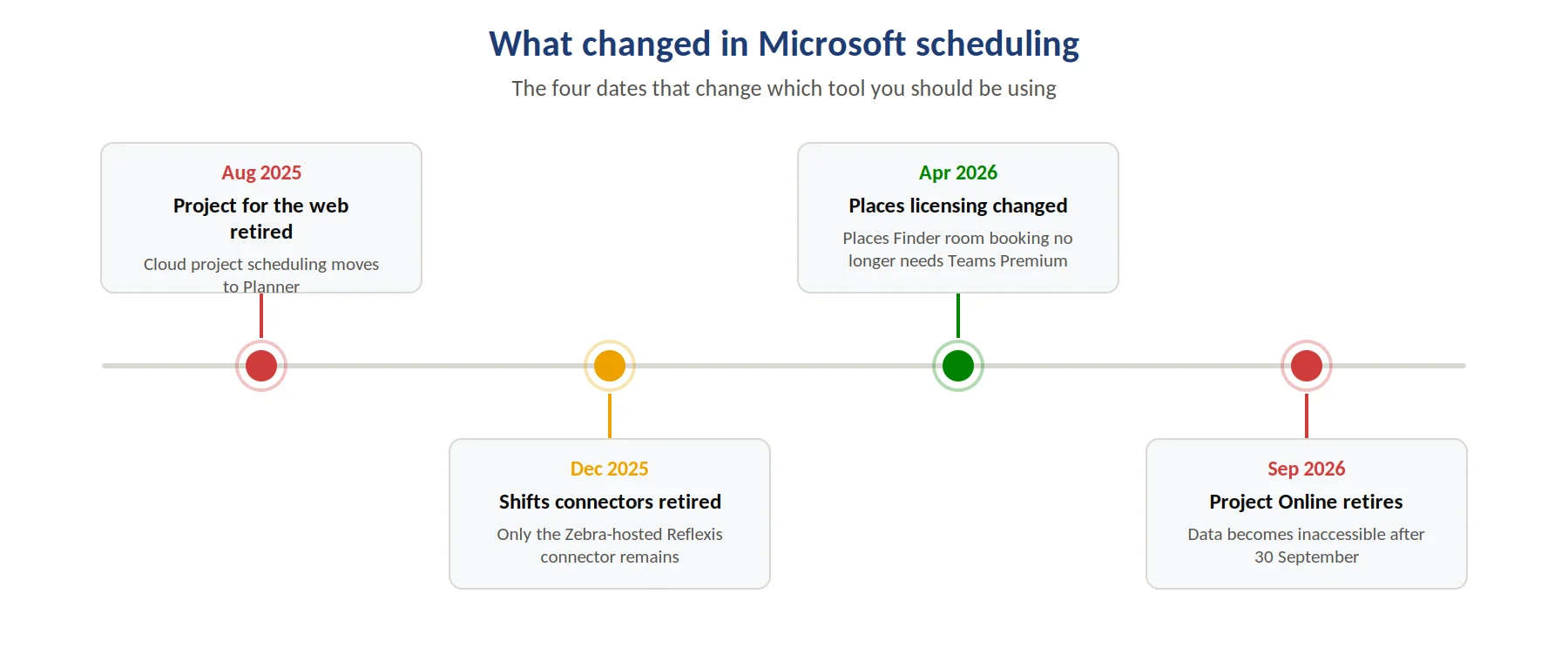
Pic.2. The four dates that change which Microsoft scheduling tool you should be using
| What changed | What it means for you |
|---|---|
| Project for the web retired (1 Aug 2025); Project Online retired 30 Sep 2026 | Move cloud project scheduling to Planner. Keep Project desktop only for classic, heavyweight plans. |
| Unified Planner (To Do + Planner + Project for the web) is fully rolled out | One Planner app in Teams and on the web. Timeline (Gantt), goals and sprints sit behind Planner Plan 1. |
| Microsoft-managed Shifts connectors retired (7 Dec 2025) | Only the Zebra-hosted Reflexis connector remains packaged; other workforce systems need a Graph API integration. |
| Microsoft Places licensing changed (1 Apr 2026) | Places Finder room booking no longer needs Teams Premium — it is included with Business Basic and above. Desk booking and auto-release moved to per-space licensing. |
| New Teams calendar is generally available | Month view, saved views, split view across multiple calendars, calendar groups and meeting templates. |
| Scheduling Poll replaced FindTime | Use Scheduling Poll in Outlook to agree a time across up to 15 options without the email ping-pong. |
| New Outlook for Windows is still opt-in | Classic Outlook remains supported to at least 2029, so calendar workflows do not need to be rebuilt yet. |
Microsoft scheduling tools compared
Here is how the Microsoft scheduling tools line up against each other in 2026.
| Tool | Best for | Key scheduling features | Included with |
|---|---|---|---|
| Microsoft Bookings | External appointments with clients, patients, students | Public booking page, service types, staff availability, buffers, automatic confirmations and reminders, Bookings with me personal page | Business Basic and above, E1/E3/E5, F1/F3, A-plans |
| Outlook Calendar | Internal meetings and one-to-one scheduling | Invitations, Scheduling Assistant, Scheduling Poll, working hours, recurring events, delegate access, shared calendars | Every Microsoft 365 plan with Exchange Online |
| Microsoft Teams calendar | Meeting-heavy and hybrid teams | New Teams calendar with month and split views, calendar groups, meeting templates, Scheduler, channel and shared calendars | Any plan with Teams |
| Microsoft Shifts | Frontline, retail, healthcare and shift-based teams | Rota building, open shifts (including across locations), swap and time-off requests, clock in/out, shift reminders | Any plan with Teams; pinned by default for F1/F3 |
| Microsoft Planner | Task and project scheduling | Board, Grid, Schedule and Charts views, dependencies, assignments; Timeline (Gantt), goals, sprints and premium templates on Plan 1 | Basic Planner included; Planner Plan 1 from $10/user/month billed yearly |
| Microsoft Places | Room, desk and hybrid work-location booking | Places Finder for rooms and desks, work plans, workplace presence, hybrid RSVP, auto-release of unused rooms | Core features included with Business Basic and above; desk booking needs per-space licences |
A closer look at each Microsoft scheduling tool
Outlook Calendar — the default Microsoft calendar scheduler
If you have ever sent a meeting invitation or checked when a colleague is free, you have already used the Outlook scheduling tool. It handles invitations, availability, reminders, recurring events and shared calendars, and it is the calendar that every other Microsoft scheduling app writes into.
Two features are worth knowing about because most people never turn them on. The Scheduling Assistant shows attendee free/busy side by side so you can drop the meeting into a slot that already works. Scheduling Poll — the feature that replaced the old FindTime add-in — lets you offer up to 15 time options to internal and external attendees, collect votes, and have Outlook book the winning slot automatically. It works in new and classic Outlook for Windows, Outlook on the web and Outlook for Mac.
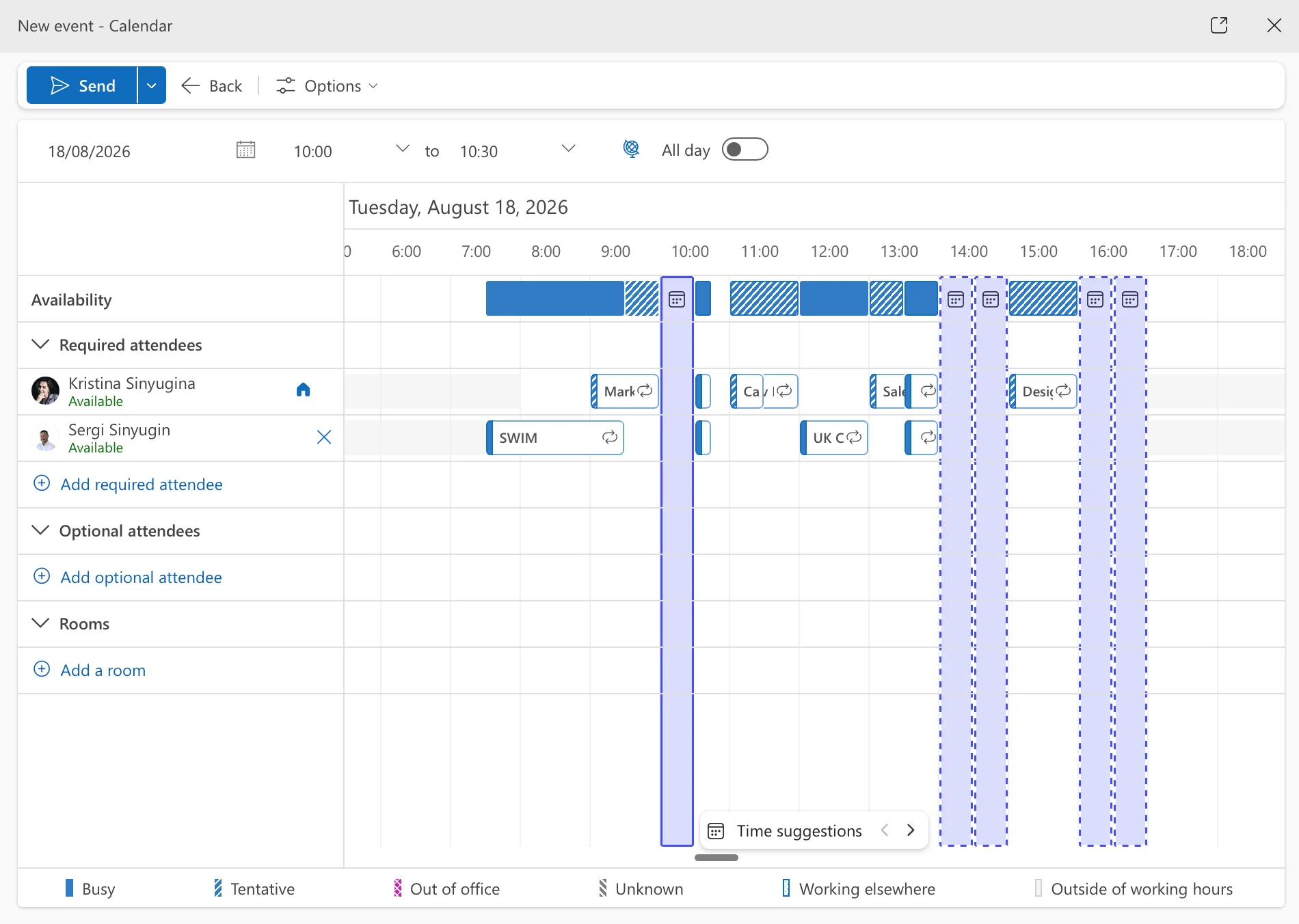
Pic.3. Screenshot: Outlook Calendar with the Scheduling Assistant open
Microsoft Teams calendar — scheduling where the meetings actually happen
Does Microsoft Teams have an appointment scheduler? Yes — the Teams calendar is a view onto your Outlook calendar, so anything you schedule in one shows up in the other. The new Teams calendar added month view, saved views, custom time scales, calendar groups, granular calendar sharing, delegate access, multiple time zones and — the one most teams notice — a split view that puts several calendars side by side instead of stacking them.
The refreshed scheduling form also supports meeting templates, so recurring meeting types (a client review, a sprint demo) can carry preset options, recording settings and attendee permissions. External guests can be invited by email address without a Teams licence.
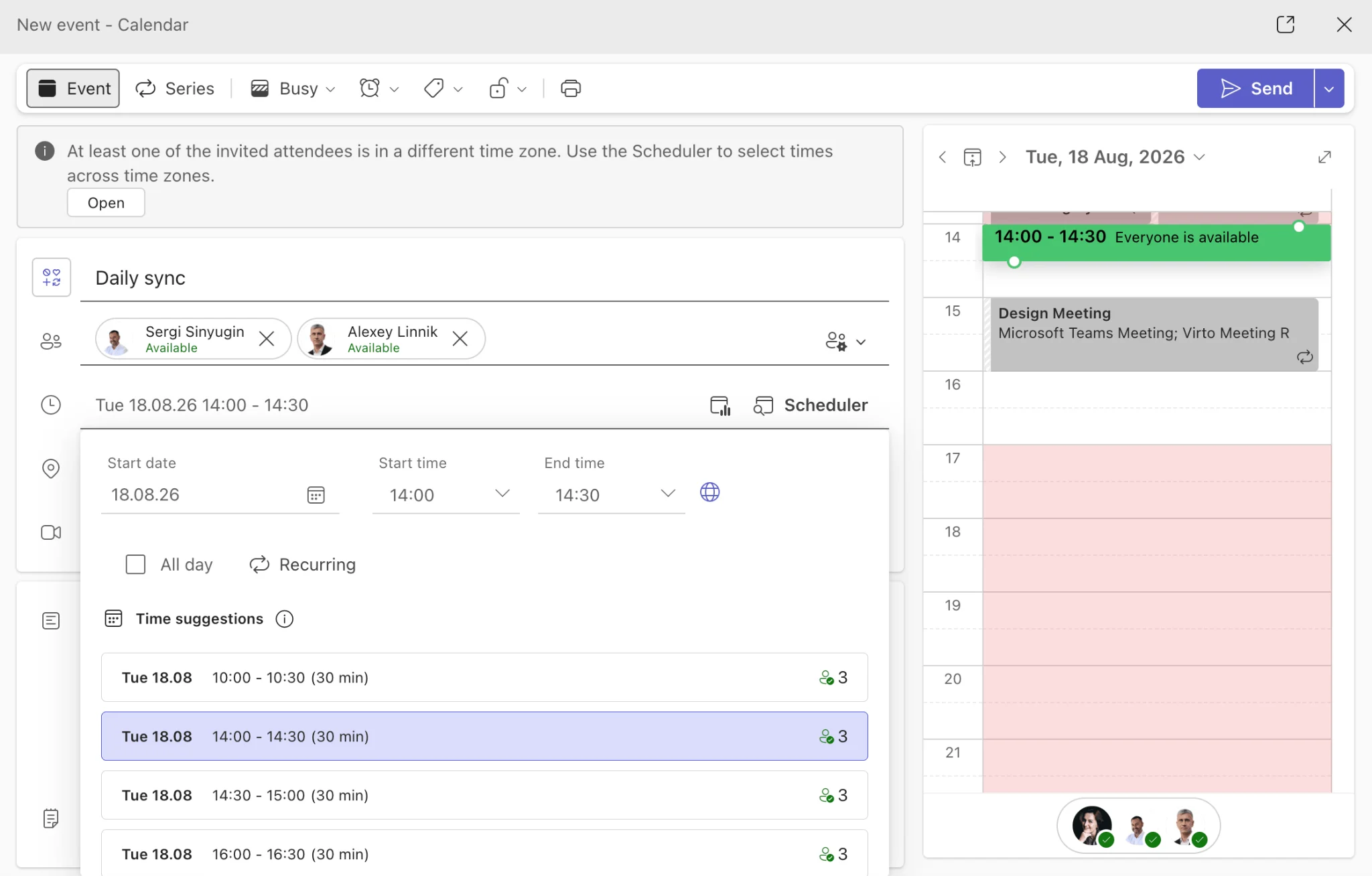
Pic.4. Screenshot: scheduling a meeting from the Microsoft Teams calendar
Microsoft Bookings — the Microsoft answer to Calendly
Does Microsoft have something like Calendly? Yes: Microsoft Bookings. You define your services and working hours, publish a booking page, and customers pick a slot themselves. Bookings writes the appointment straight into the staff member’s Outlook calendar, sends confirmations and reminders, and respects buffer times so nobody gets double-booked.
There are two flavours. Shared booking pages are for teams — a clinic, a support desk, an admissions office — with multiple staff, services and a dedicated Bookings mailbox. Bookings with me is your own personal availability page, tied to your individual calendar, with 15- and 30-minute meeting types created for you. Both live at book.ms, and you can pin Bookings into the left rail in Outlook and Teams.
Two practical notes: the organiser needs a Bookings licence, but the person booking needs no licence and no Microsoft account at all; and SMS reminders require an extra Teams Premium licence and are limited to North America and the UK.
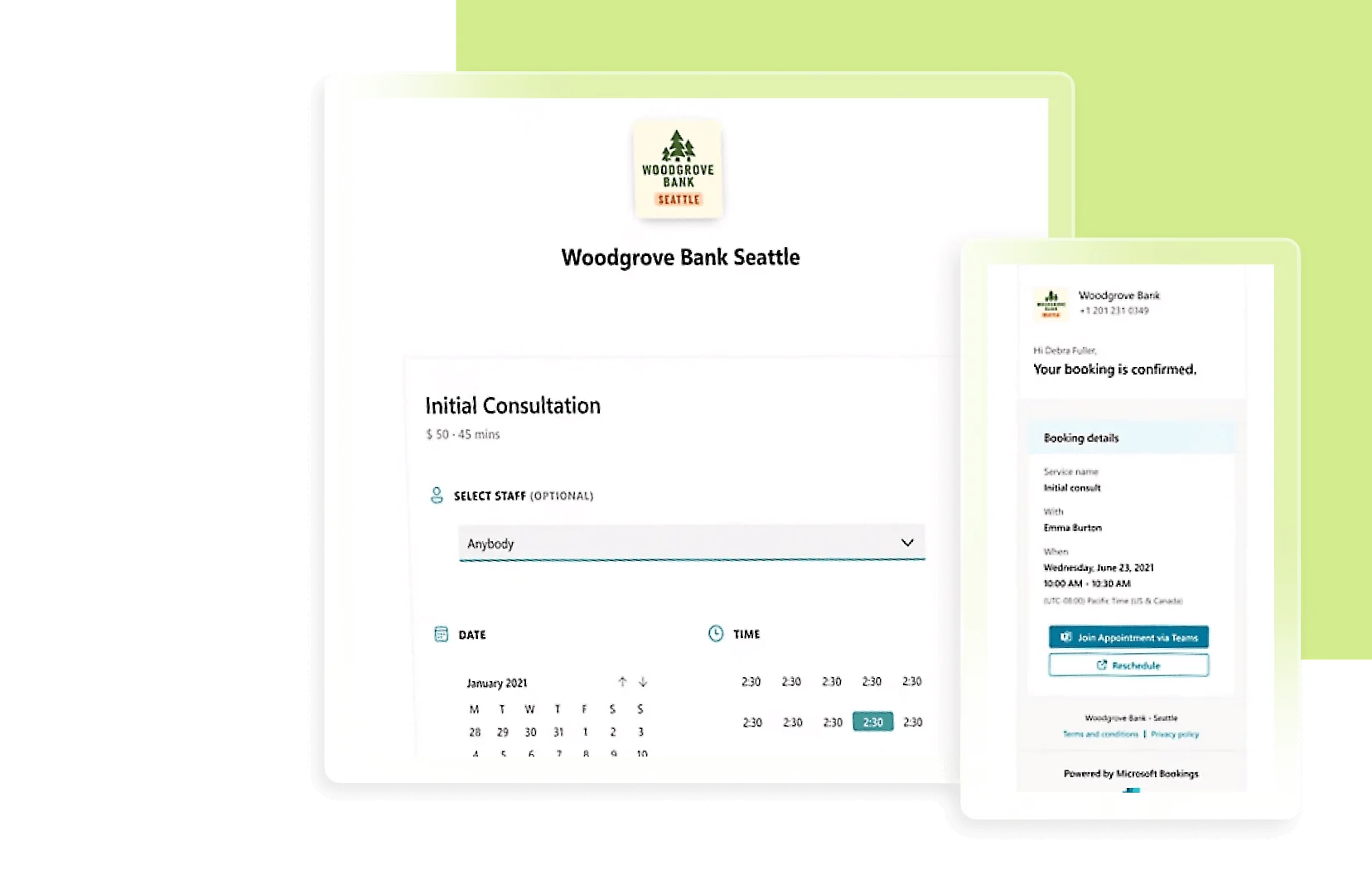
Pic.5. Microsoft Bookings booking page as customers see it. Source
Microsoft Shifts — scheduling for people who do not sit at a desk
Microsoft Shifts is the piece most Microsoft scheduling roundups forget. It is a Teams app for building rotas: managers create and publish schedules, staff view their shifts on mobile, request swaps and time off, claim open shifts and clock in and out. A recent addition lets managers offer open shifts across locations, so a gap at one site can be filled by someone from another team in the same area.
Shifts is pinned by default for frontline F1 and F3 users and is included with Microsoft 365 Business Basic and Standard, provided the user has a Teams licence. One change to plan around: Microsoft-managed Shifts connectors were retired in December 2025. The only packaged connector left is the Zebra-hosted Reflexis connector — any other workforce-management system now needs a custom Microsoft Graph integration.
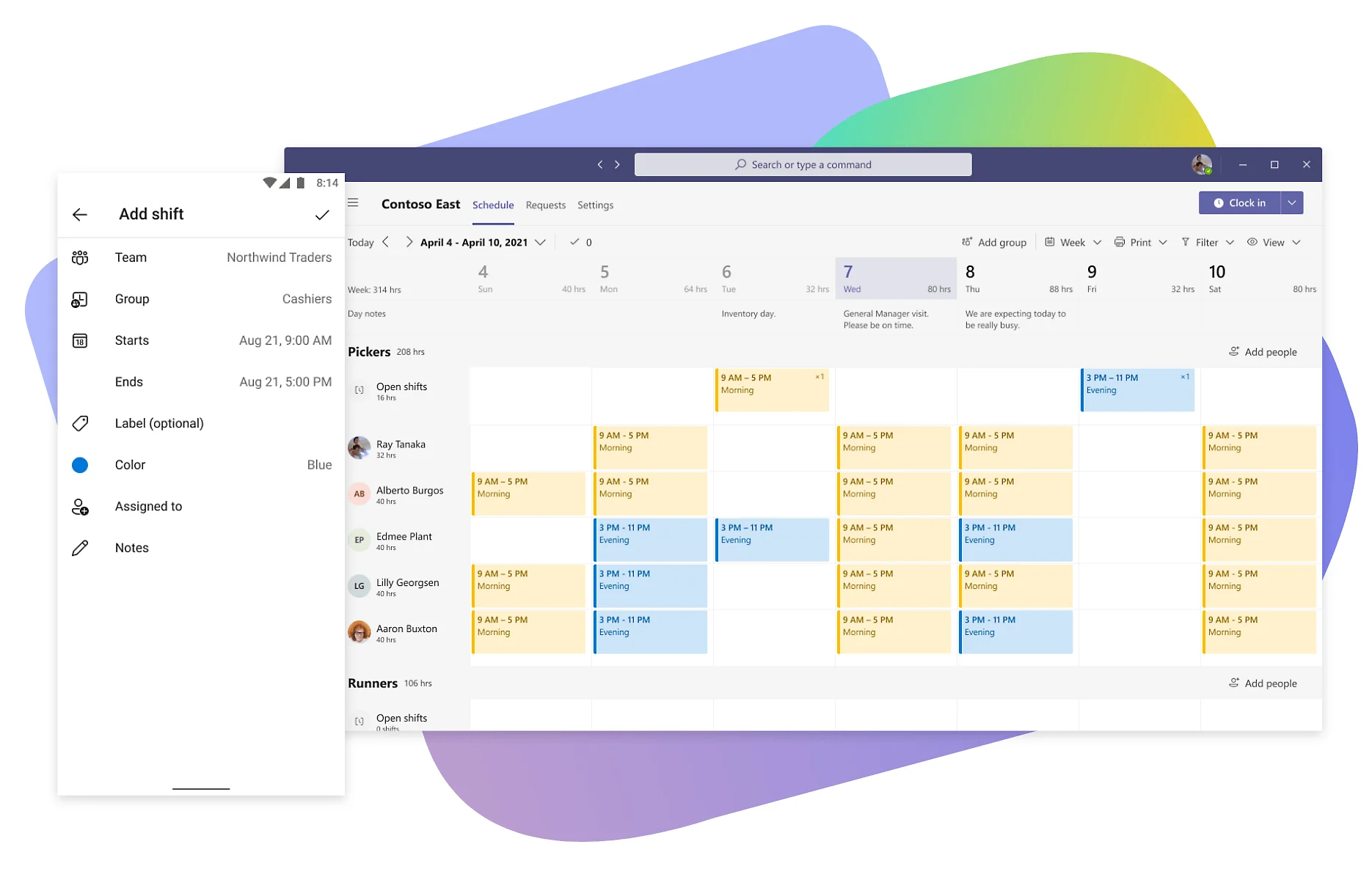
Pic.6. Microsoft Shifts app for Teams. Source
Microsoft Planner — task and project scheduling
Microsoft Planner is now the single task and project app: To Do, the old Planner and Project for the web were merged into it. The free tier that comes with Microsoft 365 gives you Board, Grid, Schedule and Charts views, task assignments, checklists, labels and dependencies — enough for most team scheduling.
Planner Plan 1 ($10 per user per month, billed yearly) adds the Timeline view — Microsoft’s native Gantt chart — plus goals, sprints, backlogs and premium templates. Planner and Project Plan 3 ($30 per user per month, yearly) layers on baselines, critical path, resource requests, portfolio management and the Project desktop app.
If you are weighing the two, we compared them in detail in Microsoft Planner vs Project, and how to use Planner in Teams walks through pinning a plan as a tab. If Planner is not a fit, Microsoft Project alternatives covers what else is out there.
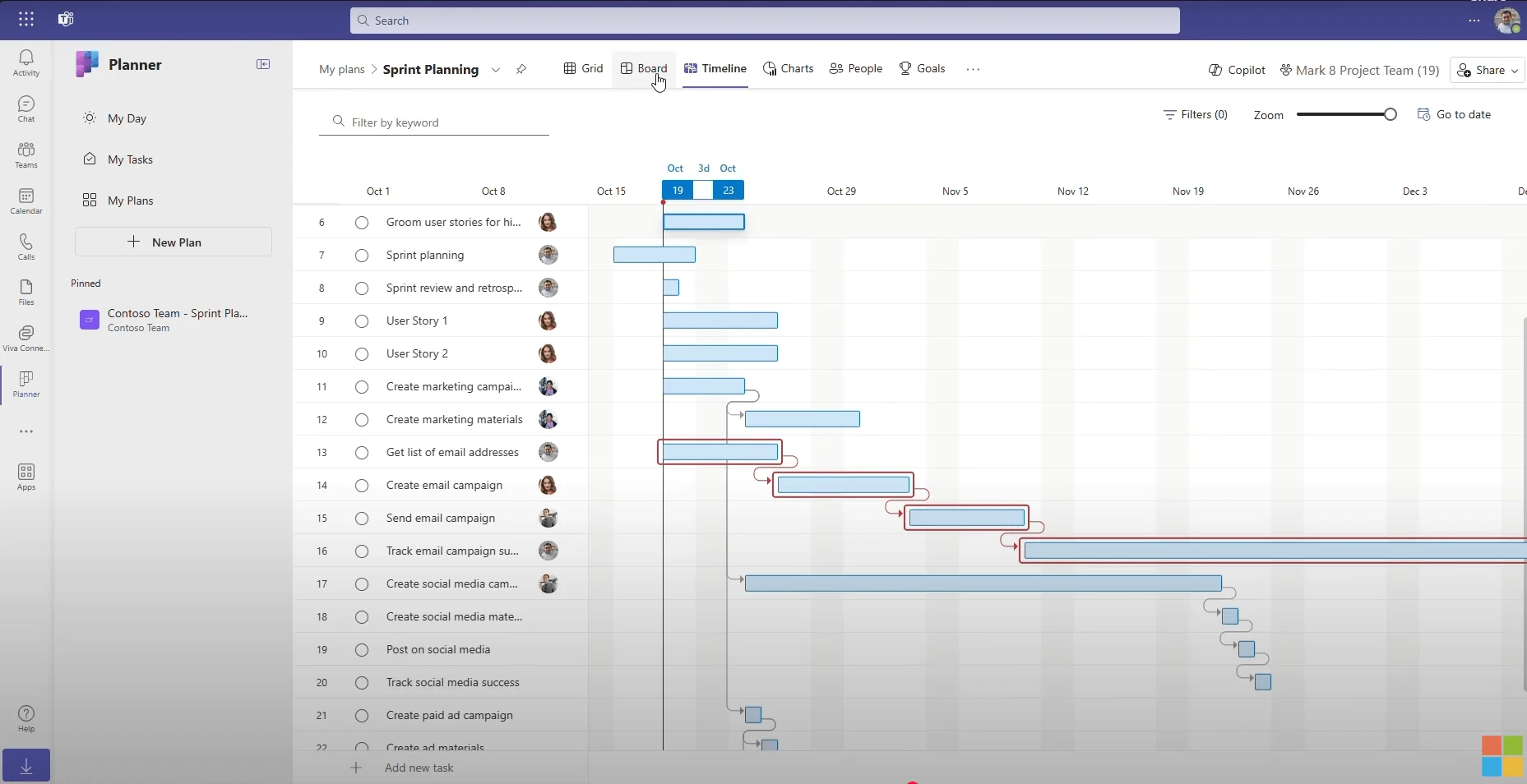
Pic.7. Screenshot: Microsoft Planner Timeline view. Source
Microsoft Places — booking rooms, desks and where you work
Microsoft Places is the newest piece of the Microsoft scheduling stack and the one most teams have not switched on. It handles work plans (declaring in-office days in advance), workplace presence, hybrid RSVP, and Places Finder — a room and desk picker with photos, floor plans, capacity, A/V and accessibility details, built into the Outlook and Teams calendars.
The licensing changed in April 2026 in a way that matters: core Places features, including Places Finder room booking, no longer require Teams Premium and are included with Microsoft 365 Business Basic and above. Individual desk booking, auto-release of unoccupied rooms and occupancy reporting moved to per-space licences (Microsoft Teams Shared Space or Teams Rooms). If you are setting rooms up for the first time, our guide to creating and displaying a meeting room calendar in Microsoft 365 covers the Exchange side.
How to set up Microsoft scheduling software
Outlook Calendar
- Open Outlook Calendar on the desktop or the web.
- Go to Settings → Calendar and set your working hours, time zone and first day of the week.
- Turn on Automatic processing rules if you want meeting invitations handled without manual acceptance.
- Create an event by clicking a time slot, then use Scheduling Assistant to find a slot everyone is free for.
- For meetings with external attendees, use Scheduling Poll instead of proposing times by email.
Microsoft Teams calendar
- Open the Calendar tab in Teams.
- Select New meeting, then add a title, attendees, date and time — it lands in Outlook automatically.
- Switch the layout with the view selector: day, work week, week, month or split view for multiple calendars.
- Use Calendar groups to pin the calendars you check most often, and calendar sharing to grant view or edit rights.
- Save a recurring meeting type as a meeting template so options and permissions are preset next time.
Microsoft Bookings
- Go to book.ms or open Bookings from the app launcher in Microsoft 365.
- Create a booking calendar and fill in your business details, business hours and time zone.
- Add services — a 30-minute consultation, a product demo — each with its own duration, buffer and price.
- Add staff and connect their Outlook calendars so real availability drives the booking page.
- Publish the page and share the link, or embed it on your website. Confirmations and reminders go out automatically.
Microsoft Shifts
- Open Shifts in Teams and select the team whose schedule you are building.
- Create shifts on the schedule grid, or import an existing rota from Excel.
- Add open shifts for slots you want staff to claim, and set the approval rules for swaps and time-off requests.
- Turn on time clock if you need clock in/out, with optional location detection.
- Select Share with team — nothing is visible to staff until you publish.
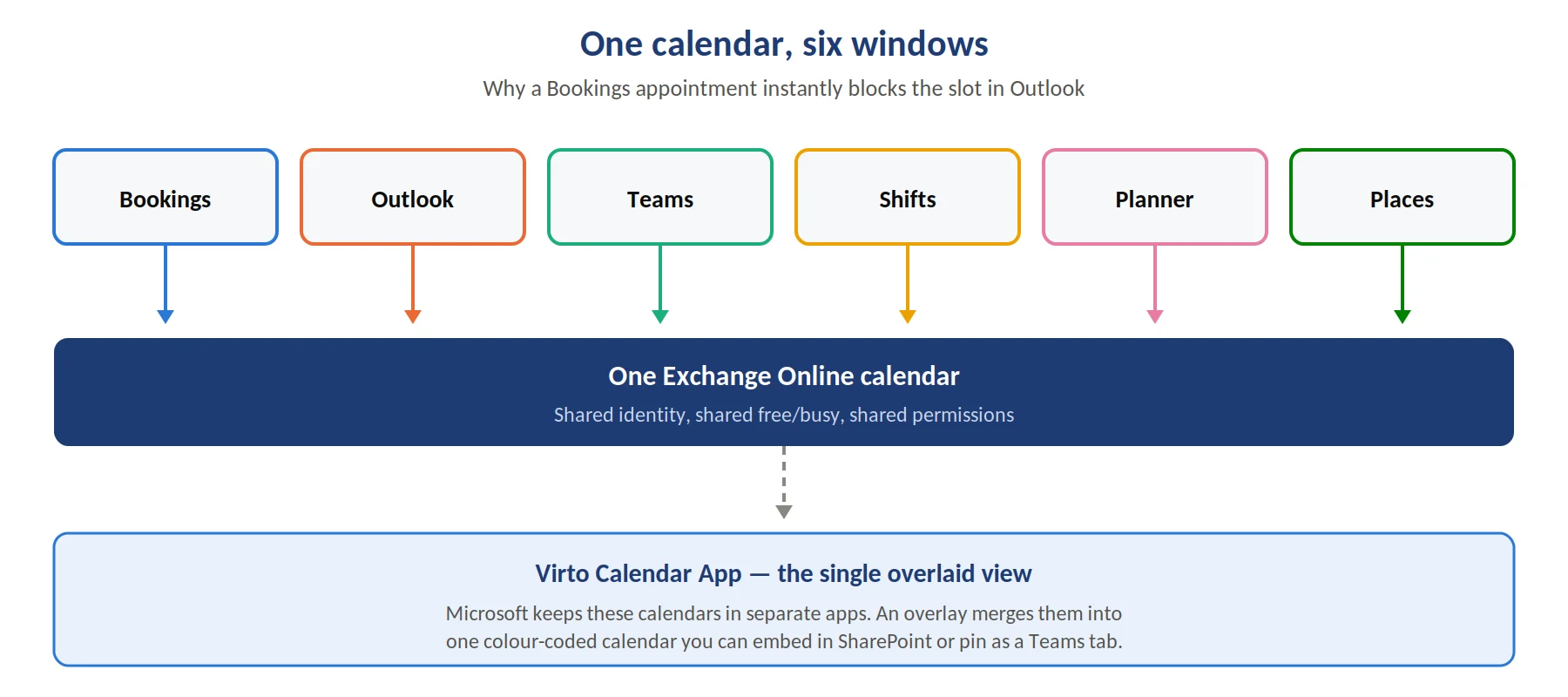
Pic.8. All six tools read and write the same Exchange Online calendar
Why it all works together: every one of these tools writes to the same Exchange Online calendar. A Bookings appointment blocks the slot in Outlook; a Teams meeting appears in Outlook and on mobile; a Places room booking shows on the room’s own calendar. You are not syncing five systems — you are looking at one calendar through five windows.
How to choose the right Microsoft scheduling tool
The right choice depends on who you are scheduling with and how structured the work is.
| If you need to… | Use | Why |
|---|---|---|
| Let customers book time with you | Bookings | Self-service page, automatic reminders, no licence needed for the person booking |
| Set up internal meetings | Outlook Calendar | Scheduling Assistant and Scheduling Poll remove the back-and-forth |
| Run meetings inside Teams | Teams calendar | Same calendar as Outlook, plus split views, groups and meeting templates |
| Roster shift workers | Shifts | Built for rotas, swaps, open shifts and clock in/out on mobile |
| Schedule tasks and deadlines | Planner | Board and Schedule views free; Timeline (Gantt), goals and sprints on Plan 1 |
| Book rooms or desks | Places | Places Finder inside Outlook and Teams, with auto-release for no-shows |
| See all of the above in one view | Virto Calendar App | Overlays Outlook, Exchange, Teams, Planner and SharePoint calendars in one colour-coded calendar |
And by team shape:
- Solo professionals and small teams — Outlook Calendar plus Bookings covers internal time and client bookings.
- Office-based teams — the Teams calendar plus Planner handles meetings and task scheduling in one place.
- Frontline and shift-based teams — Shifts first, with Bookings on top if customers book appointments.
- Enterprises and project offices — Planner (Plan 1 or Plan 3) plus Outlook, Teams and Places, with Project desktop only where classic scheduling is genuinely required.
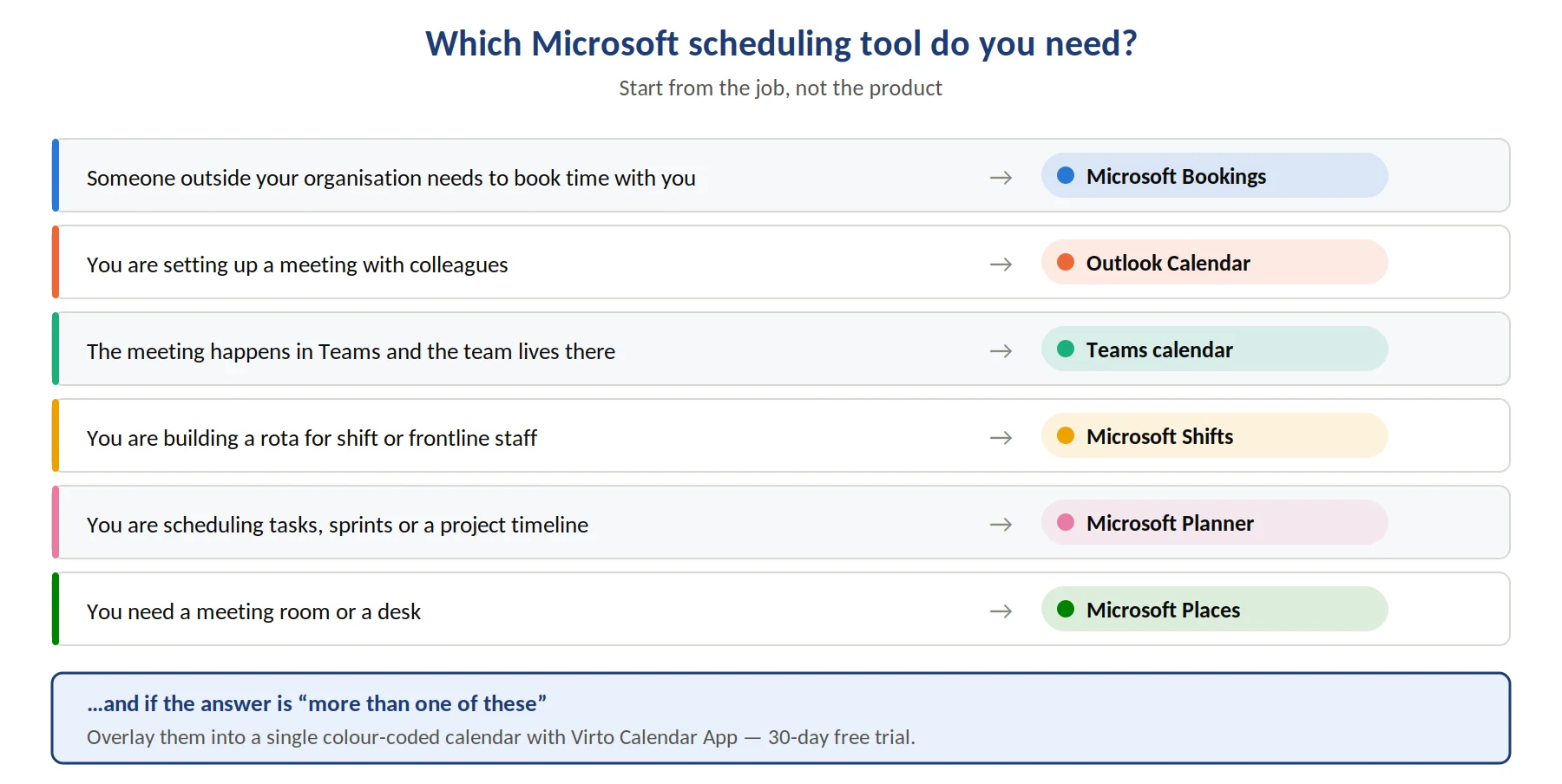
Pic.9. Start from the scheduling job, not the product
Scheduling for specific needs
Some scheduling problems need more than the general-purpose tools above. We cover those in dedicated guides rather than repeating them here:
- Employee and staff scheduling — see employee scheduling software and staff scheduling for rota building, coverage rules and compliance.
- Shift work and AI rota building — shift scheduling software, including multi-location and construction scenarios.
- Schools and universities — student scheduling software and class scheduling for timetables, consultations and exams.
- Rooms and resources — resource availability and meeting room booking software for rooms, equipment and shared assets.
- On-call rotations — how to set up on-call rotation and scheduling.
- Industry-specific scheduling — scheduling software by industry covers healthcare, legal, education and more.
Supercharging Microsoft scheduling with VirtoSoftware
Microsoft gives you the scheduling engines. What it does not give you is a single view across all of them. The moment your work spans an Outlook calendar, a Teams channel, a SharePoint events list and a Planner plan, you are checking four places to answer one question: who is available, and what is happening this week?
That gap is what Virto’s calendar apps close.
Virto Calendar App — one unified calendar for Microsoft 365
Virto Calendar App overlays events from Outlook, Exchange, SharePoint lists, Teams and Planner into a single colour-coded calendar. Instead of switching apps, you get one dashboard that answers availability questions at a glance.
- Overlay unlimited calendars from Microsoft 365, SharePoint and external sources in one view
- Colour-code by team, category, source or any list field
- Real-time two-way sync with the underlying Microsoft calendars
- Shared team and department views, embeddable on a SharePoint page or as a Teams tab
- Granular permissions over who can view, add or edit events
- Works as an app in Microsoft Teams, Outlook and the Microsoft 365 app
Best for: project managers, HR and operations teams, cross-department workflows, and anyone whose schedule lives in more than one Microsoft app.
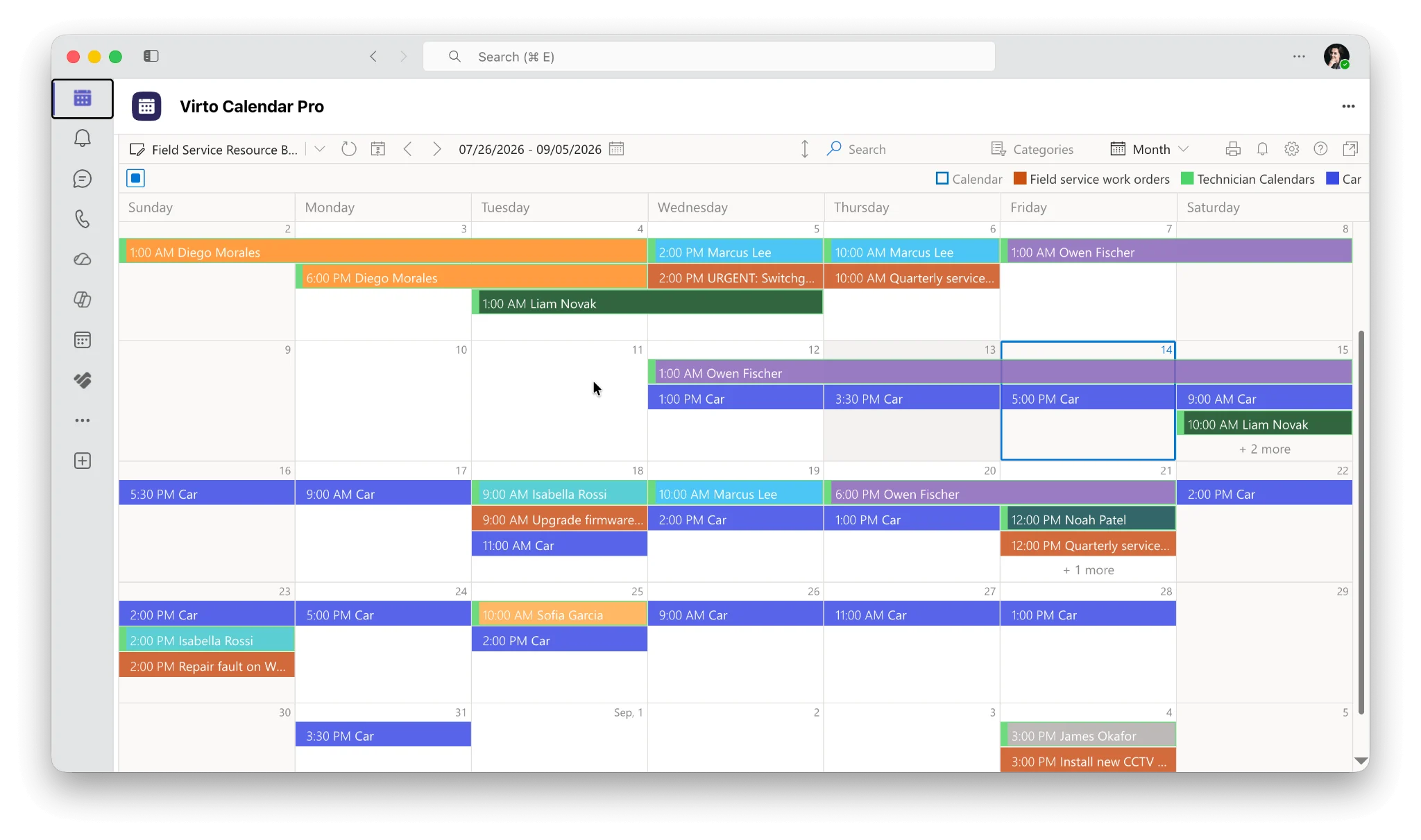
Pic.10. Screenshot: Virto Calendar App showing overlaid Microsoft 365 calendars
Virto Calendar App for Microsoft Teams
The Virto Calendar App for Teams brings the same overlay into Microsoft Teams, and there are two ways to add it.
- As a tab in a channel — the channel gets its own combined calendar, with sprint milestones, time off, client meetings and shared resources side by side, visible to everyone in that channel.
- As an app pinned to the left app bar — the same unified calendar sits in the quick-access rail alongside Chat, Teams and Calendar, so it is one click away from anywhere in Teams rather than buried inside a particular channel.
Most teams end up using both: the channel tab for shared project visibility, and the pinned app for a personal cross-project view. Rollout is a two-step process — an administrator first grants access to the chosen users or groups, then those users add the app themselves from the store. The same app can also be added in Outlook and the Microsoft 365 app, so the overlay follows you across all three.
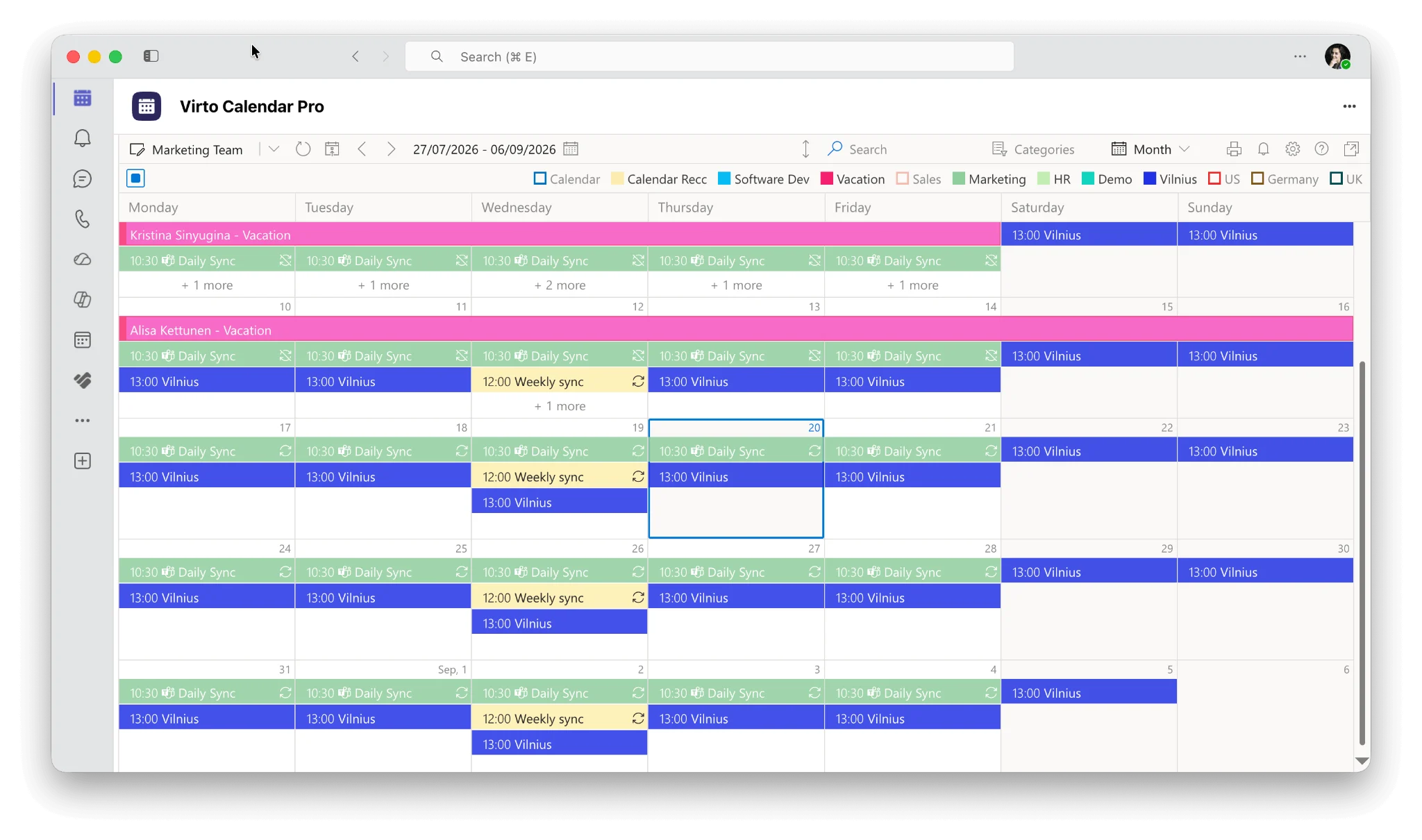
Pic.11. Screenshot: Virto Calendar App as an app in Microsoft Teams
Virto Shared Calendar — lightweight team scheduling
Virto Shared Calendar is the simpler option: a single shared space showing team-wide availability, meetings and events, without loading up anyone’s personal calendar. It syncs with Outlook, Teams and SharePoint, gives admins control over visibility and edit rights, and works on desktop and mobile.
Best for: small teams, HR, office administrators and hybrid teams who need a visible team calendar and nothing more complicated than that.
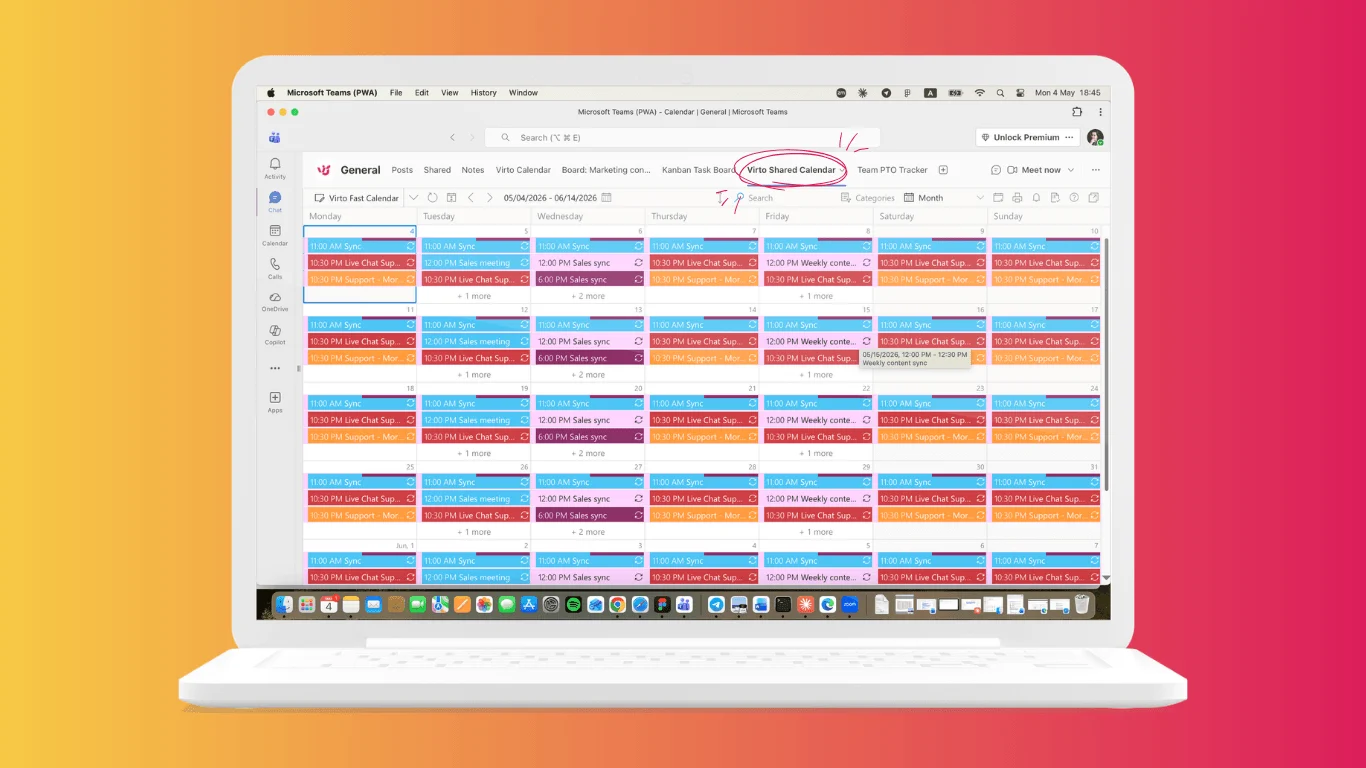
Pic.12. Screenshot: Virto Shared Calendar
Try it on your own tenant. Every Virto app comes with a 30-day free trial — no credit card, and it installs alongside your existing Microsoft 365 setup rather than replacing it. Browse the full range on the Microsoft 365 apps page.
FAQ
Does Microsoft have scheduling software?
Yes — Microsoft Bookings for appointments, Outlook for meetings, Shifts for frontline rosters, and Planner and Teams for task scheduling, all within Microsoft 365.
What is the best Microsoft scheduling software?
It depends on the job: Bookings for customer appointments, Outlook for internal meetings, Shifts for shift work, and Planner for task and project timelines. Apps like Virto Calendar unify availability across all of them.
What is Microsoft scheduling software?
It is the group of scheduling tools included in Microsoft 365 — Bookings, Outlook Calendar, the Teams calendar, Shifts, Planner and Places. They share one identity and one underlying Exchange calendar, so an appointment booked in one is visible in the others.
Does Microsoft have something like Calendly?
Yes. Microsoft Bookings is the closest equivalent. It publishes a booking page, lets people choose a slot from your real availability, and sends confirmations and reminders automatically. The person booking needs no Microsoft account.
Is Microsoft Bookings free?
It is included at no extra cost with Microsoft 365 Business Basic, Business Standard, Business Premium and most enterprise, frontline and education plans. There is no standalone free version, and SMS reminders require an additional Teams Premium licence.
Is Microsoft Project still the right choice for scheduling in 2026?
For cloud project scheduling, no. Project for the web retired in August 2025 and Project Online retired on 30 September 2026 — Planner is the successor. The Project desktop app and Project Server Subscription Edition remain supported for classic and on-premises scenarios.
Does Microsoft Planner have a Gantt chart?
Yes, as the Timeline view — but it requires Planner Plan 1 ($10 per user per month, billed yearly) or higher. The Planner tier included with Microsoft 365 offers Board, Grid, Schedule and Charts views only.
How do I schedule a meeting when nobody’s calendar lines up?
Use Scheduling Poll in Outlook. It offers up to 15 time options to internal and external attendees, collects votes and books the winning slot automatically. It replaced the old FindTime add-in.
Can I see Outlook, Teams, SharePoint and Planner calendars in one place?
Not natively — Microsoft keeps them in separate views. An overlay app such as Virto Calendar App merges them into a single colour-coded calendar that you can embed in SharePoint or pin as a Teams tab.
How do I book meeting rooms in Microsoft 365?
Create room mailboxes in Exchange, then book them through Places Finder in the Outlook or Teams calendar. Since April 2026, Places Finder room booking is included with Business Basic and above rather than requiring Teams Premium.
Conclusion: build your Microsoft scheduling stack deliberately
The strength of Microsoft scheduling software is also its confusion: there is a tool for every scenario, and no obvious signpost telling you which is which. Use Bookings when someone outside your organisation needs to book time. Use Outlook and the Teams calendar for meetings. Use Shifts for rotas. Use Planner for tasks and timelines — not Project, which is no longer the cloud answer. Use Places for rooms and desks.
Pick deliberately, set each one up properly once, and the scheduling problem largely solves itself. When the remaining problem is visibility — too many calendars, no single view — that is where Virto Calendar App earns its place, with a 30-day free trial to test it against your own calendars. For everyday habits that make any of these tools work better, our calendar management guide is a good next read.