


Quick answer: To view someone’s Outlook calendar, open Calendar, select Add calendar, and add them from the directory or address book — if you don’t have permission yet, choose Request access instead. Steps differ between Classic Outlook and New Outlook (2025/2026), so see the section below for your platform’s exact path.
Does Outlook notify the person when you add their calendar? No — adding a shared calendar is silent. The owner is only notified when you request access and they have to approve it. See the FAQ for details.
What’s new in 2025/2026: New Outlook is now the default on most new Microsoft 365 accounts, and Microsoft is auto-migrating many existing users. The menu paths in New Outlook differ from Classic Outlook, and Outlook for Mac has had a significant UI refresh. This guide covers both Classic and New Outlook, plus Outlook on the web (OWA) and Mac.
How to view someone’s Outlook calendar (Classic, New Outlook & OWA)
Quick answer: Open Calendar, choose Add calendar (or Add Calendar in Classic), pick the person from the directory or address book, and click Add. Their calendar appears in your sidebar and can be overlaid with yours.
Being able to view a colleague’s calendar is essential for scheduling and collaboration. The exact steps depend on which version of Outlook you’re running, so first confirm your version using the callout below, then follow the matching path.
Which version of Outlook am I using? In New Outlook you’ll see a toggle labelled “New Outlook” in the top-right corner, a simplified ribbon, and Settings behind a gear icon. Classic Outlook has the traditional full ribbon with named tabs (Home, Send/Receive, View). Because Microsoft is auto-migrating accounts, many users are on New Outlook without having opted in — if your interface looks unfamiliar, that’s likely why.
New Outlook (Windows, 2025/2026)
- Open Outlook and select the Calendar icon in the left navigation bar.
- In the left pane, click Add calendar.
- Select Add from directory.
- Choose your account, then search for the person by name or email.
- Select them and click Add. Their calendar appears under “People’s calendars.”
Note: If you don’t yet have permission, the Add button is replaced by a Request access button — see the next section.
Classic Outlook (Windows Desktop App)
- Open Outlook and go to Calendar view.
- On the Home tab, click Add Calendar in the Manage Calendars group.
- Select From Address Book from the dropdown menu.
- Find and select the person whose calendar you want to view.
- Click OK. The calendar appears in your calendar list on the left sidebar.
Outlook for Mac (2025/2026 UI)
- Open Outlook, switch to Calendar view, and click Add Calendar.
- From the dropdown menu, select Add Shared Calendar.
Pic. 1. Adding a shared calendar in Outlook for Mac.
- In the Add Shared Calendar dialog box, start typing the person’s name and select it from the suggestions.
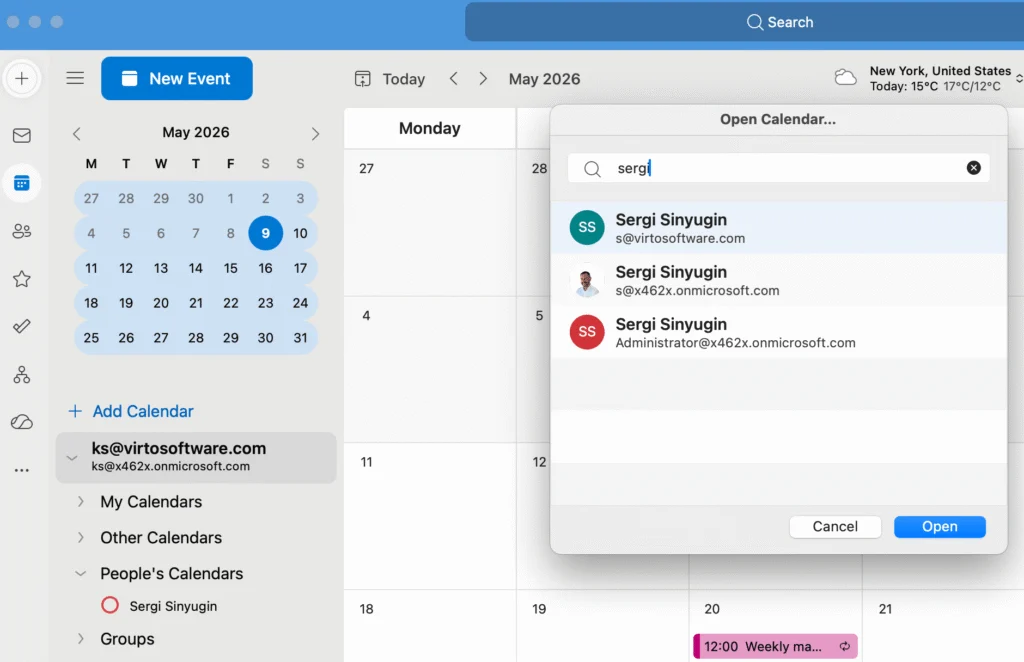
Pic. 2. Looking for a specific person’s calendar in Outlook for Mac.
- Click Add to add the calendar, or send a sharing request if they haven’t enabled sharing with you yet.
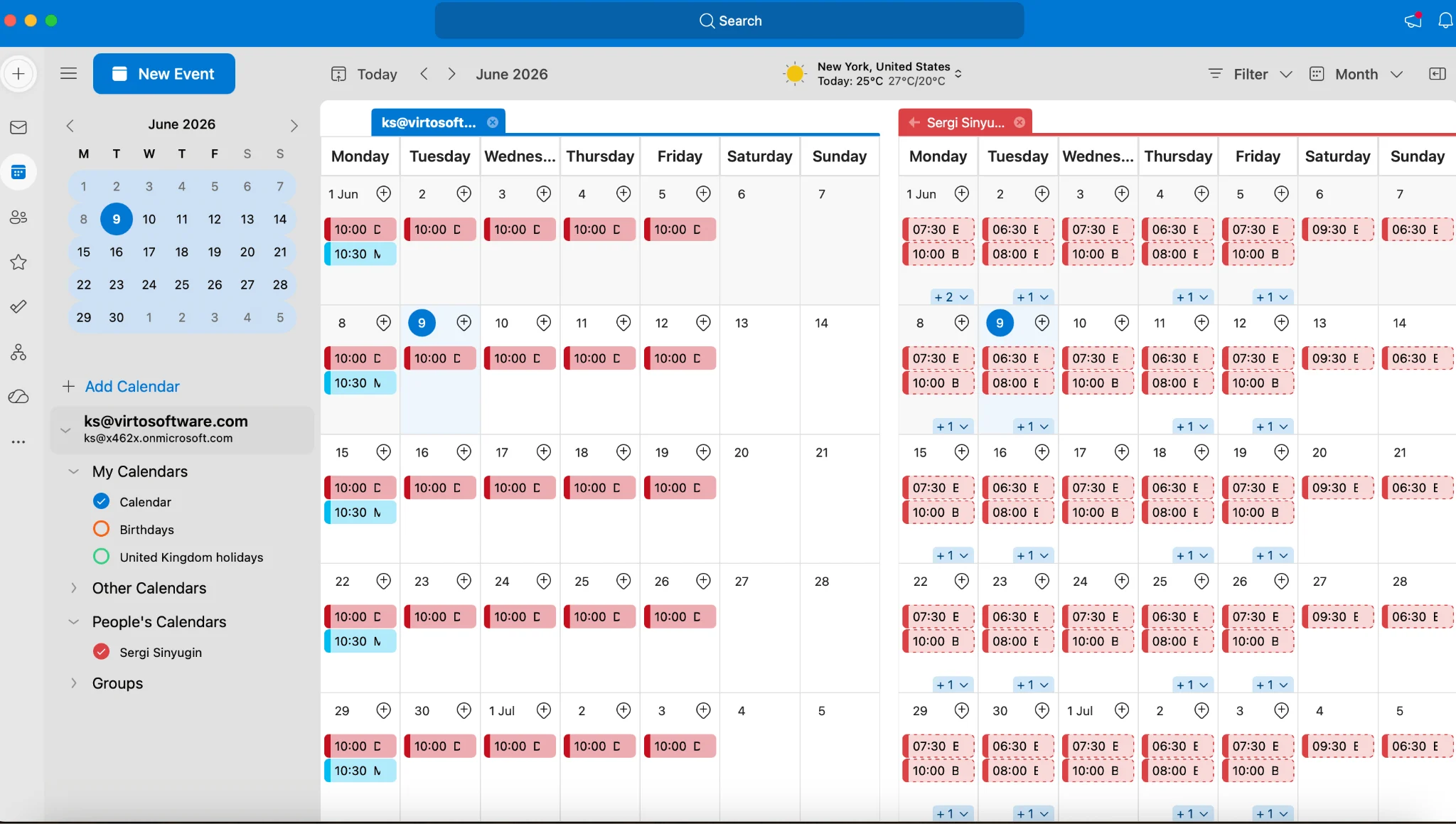
Pic. 3. Viewing your colleague’s calendar side-by-side in Outlook for Mac.
- Once the person accepts your request, their calendar appears in your calendar list on the left sidebar.
Outlook on the web (OWA)
- Sign in to Outlook on the web and go to the Calendar page.
- On the left side, under My calendars, click Add calendar.
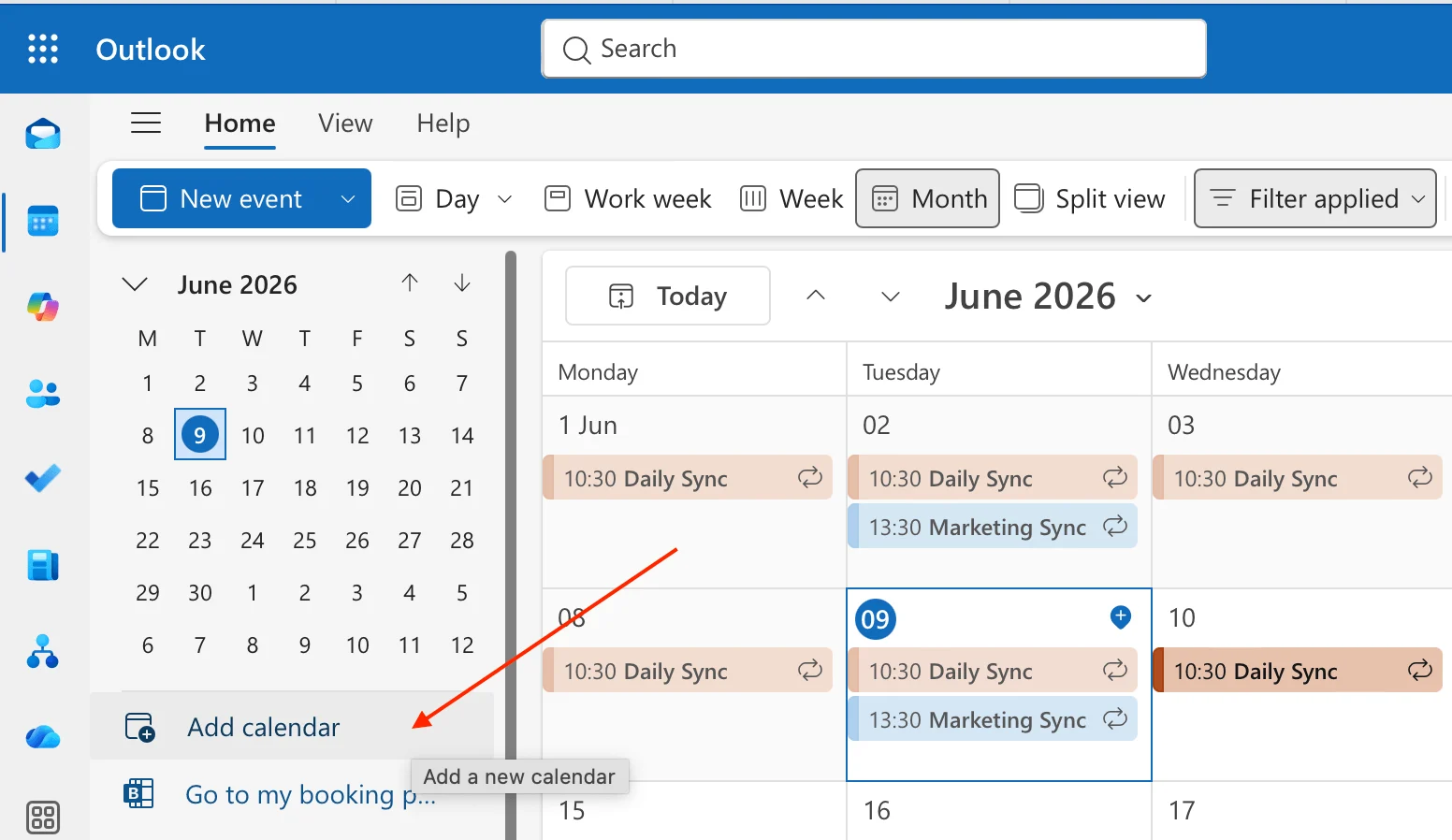
Pic. 4. Adding a calendar in Outlook on the web.
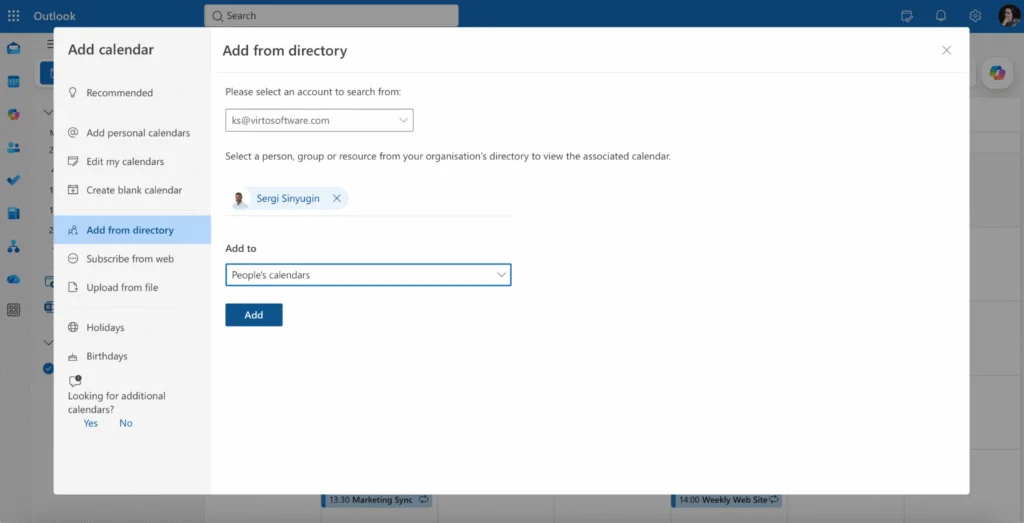
- Choose From directory.
- Search for the person’s name and select their calendar.
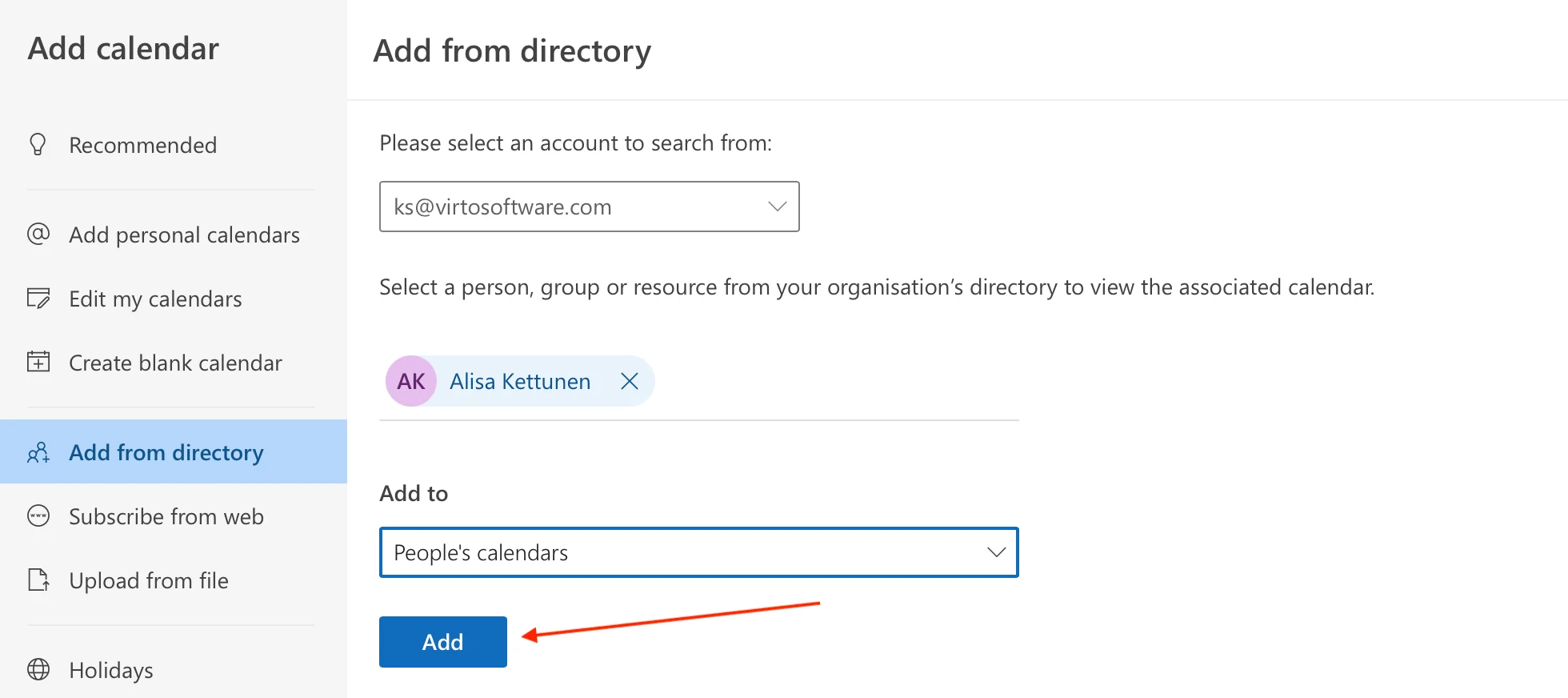
Pic. 5. Adding a calendar from directory in Outlook on the web.
- Click Add to include their calendar in your view.
Viewing someone’s calendar in Teams: You can’t open a colleague’s full calendar directly in Microsoft Teams, but you can check their availability with the Scheduling Assistant when creating a meeting. See how to view someone’s calendar in Teams for the full walkthrough.
Troubleshooting quick tips
- If you can’t find the person’s calendar, confirm they’ve shared it with you or that you have permission.
- If the calendar appears but is empty, check whether your access level allows you to see details.
- In Classic Outlook, you may need to restart the app after adding a new calendar for it to appear.
How to request access to someone’s Outlook calendar
Quick answer: To request access to someone’s Outlook calendar, open Calendar, choose Add calendar, then Add from directory, search for the person, and click Request access if the Add button isn’t available. The owner receives an email and, once they approve, the calendar appears in your list.
Requesting access is the fastest-growing reason people search for this topic — and it’s the route to take whenever a calendar hasn’t already been shared with you. Use it when the Add button is greyed out or replaced by a Request access option.
How to request access (New Outlook & OWA)
- Go to Outlook on the web (or New Outlook) and select the Calendar icon.
- Click Add calendar in the left pane.
- Select Add from directory and choose your account.
- Search for the person whose calendar you want to access.
- Depending on your version and existing access, you’ll see Add or Request access.
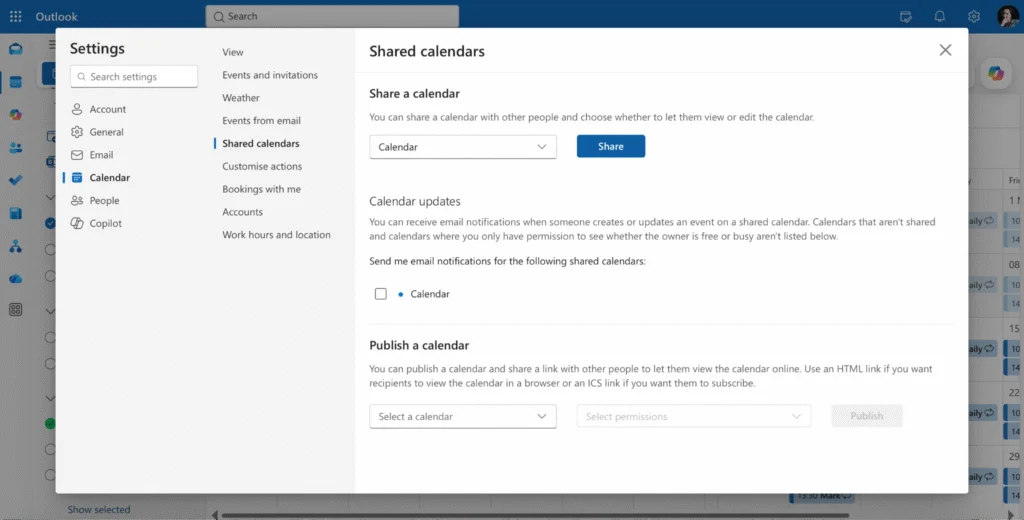
Pic. 6. Adding a person’s calendar from directory.
- Choose where to add the calendar, then click Add or Request access. If you hit an error, you may need extra permissions — contact your IT department.
How to request access (Classic Outlook)
Open Calendar view, click Add Calendar on the Home tab, then select From Address Book. Search for and select the person. If you don’t have permission, Outlook prompts you to send a sharing request — a pre-filled email opens that you can customize before sending. The owner can approve it, after which you’re notified and their calendar appears in your list.
What happens after you send a request?
- The calendar owner receives an email notification asking them to approve or decline your request.
- If they approve, they can also choose the permission level you’ll get (free/busy only, titles and locations, or full details).
- You receive a confirmation, and the calendar appears automatically in your sidebar — usually within a few minutes, though sync can take longer.
- If you don’t see it after approval, restart Outlook or refresh the web page.
Can IT admins block calendar access requests?
Yes. Some organizations restrict or disable calendar sharing and access requests through Microsoft 365 admin policies, especially for external users. If the Request access button is missing or your request silently fails, your IT administrator has likely limited this — they’re the right people to ask. See the troubleshooting section for the New Outlook-specific version of this issue.
Owner’s side: If you’re the calendar owner approving requests (or want to share proactively), see how to share a calendar in Outlook for what to do on your end.
Requesting delegate access
Delegate access is a higher level of permission that lets you manage someone’s calendar on their behalf, including receiving and responding to meeting requests. Delegation is set up by the calendar owner, not the requester:
- The owner opens Settings (gear icon) and goes to Calendar > Shared calendars.
- They choose a calendar and select Share.
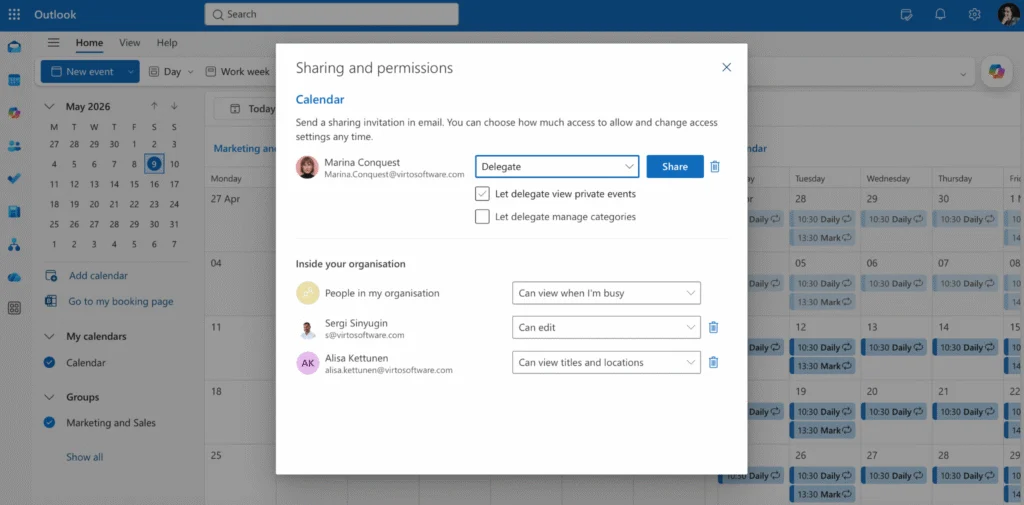
Pic. 7. Sharing your calendar through Outlook settings.
- They select the person to delegate to and click Delegate.
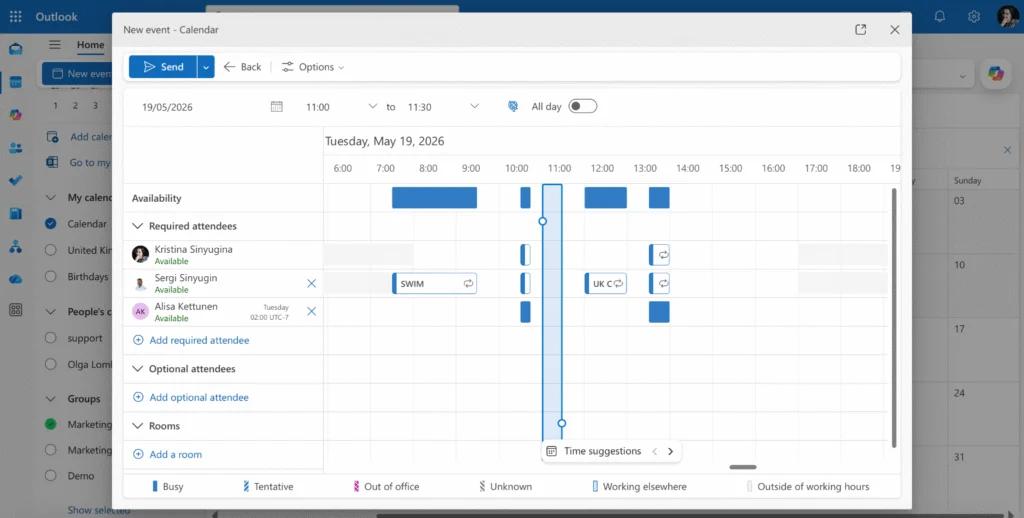
Pic. 8. Delegating access to your calendar to a specific person.
- You receive an email confirming delegate access, and the owner can fine-tune your exact permissions.
How to check someone’s availability in Outlook without sharing
Quick answer: Use the Scheduling Assistant when creating a meeting: add the person as an attendee and Outlook shows their free/busy grid — no need to open or be granted access to their full calendar.
Checking availability before scheduling saves time and prevents conflicts. Outlook gives you several ways to do this that don’t require opening someone’s full calendar.
Method 1: Scheduling Assistant
- Create a new meeting by clicking New event in Calendar view.
- In the meeting window, click Scheduling Assistant in the top menu.
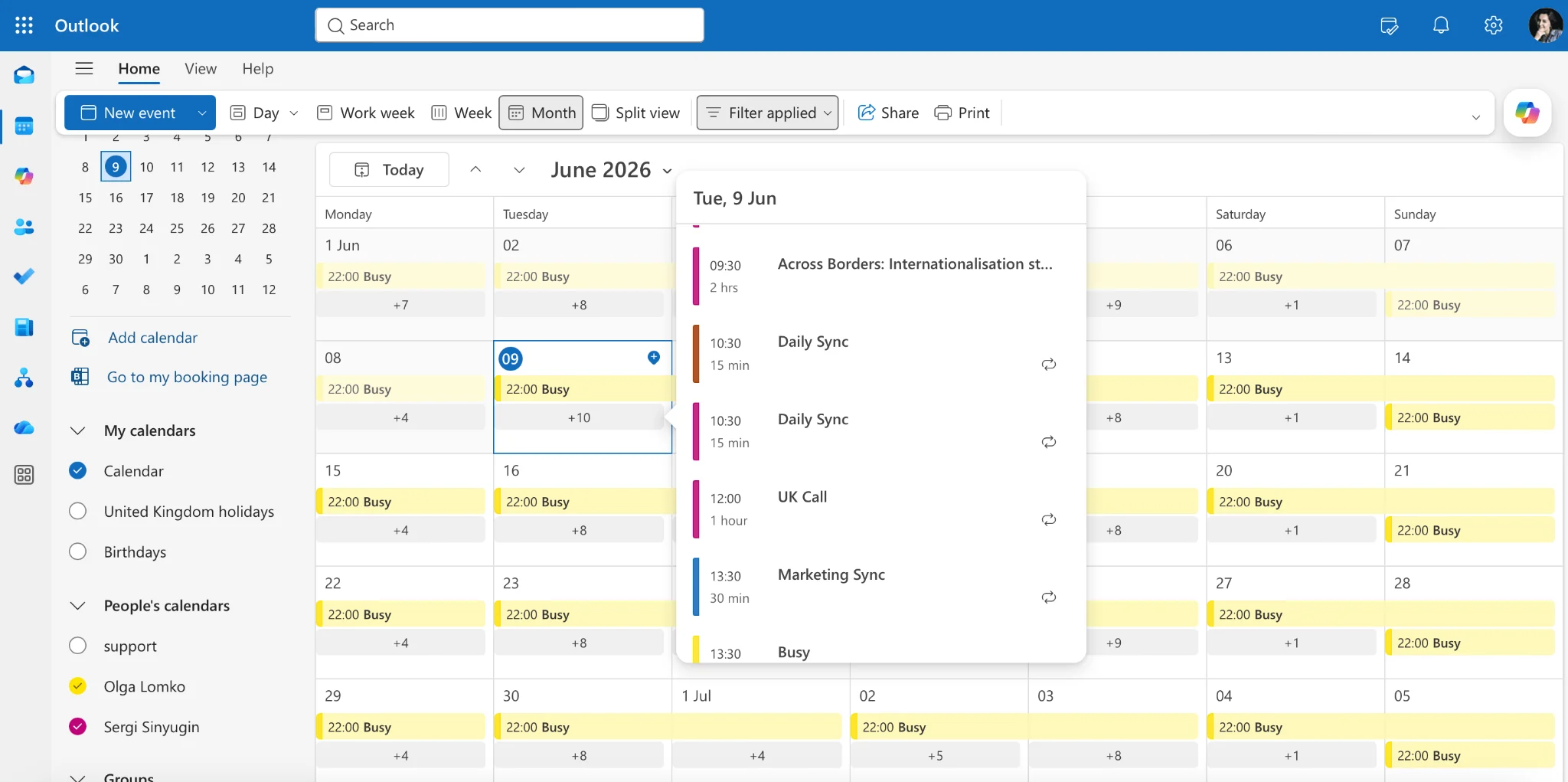
Pic. 9. Using Scheduling Assistant for availability check.
- In the Add Attendees field, type the name or email of the person whose availability you want to check.
- The Scheduling Assistant shows a free/busy grid for all attendees. White spaces are times everyone is available.
Method 2: Overlay shared calendars
If the person’s calendar is already in your sidebar, click it to view it, and select multiple calendars at once to overlay them and compare availability.
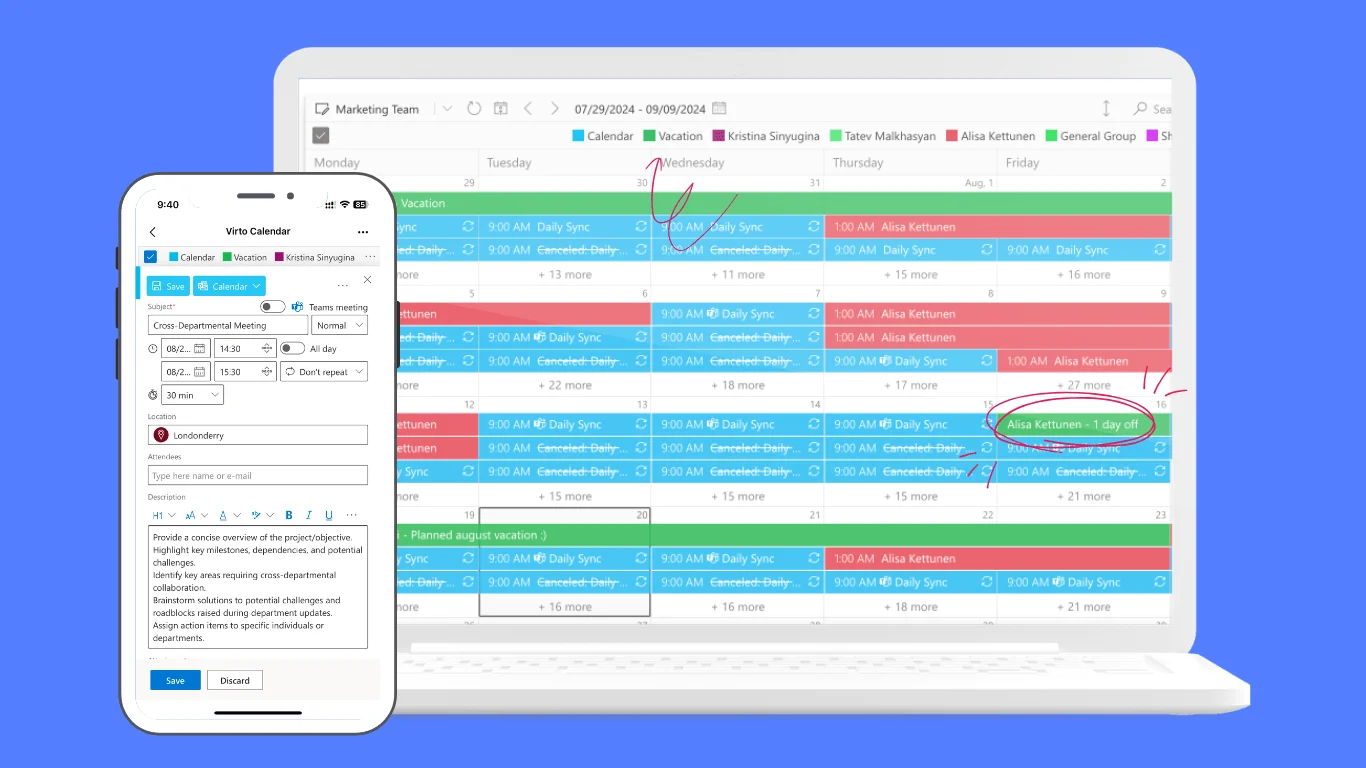
Pic. 10. Overlaying multiple calendars in Outlook.
Does this work for external or guest users?
Partly. Free/busy lookups for external users depend on whether your organizations have set up federation or sharing between tenants. Without it, Outlook often can’t display an external person’s availability, and you’ll see hatched or “no information” blocks. For guests added to your tenant, availability usually works once they’ve accepted and signed in.
Teams free/busy: The Scheduling Assistant in Microsoft Teams works the same way and pulls the same free/busy data. For a deeper walkthrough, see how to view someone’s calendar in Teams.
Outlook calendar permission levels: what each level lets you see
Quick answer: Outlook offers five access levels — from “Can view when I’m busy” (free/busy only) up to Delegate (manage on the owner’s behalf). The level the owner grants you determines how much of their calendar you can actually see.
When you can only see free/busy blocks and not event details, it’s almost always a permission-level issue rather than a bug. Here’s what each level allows:
| Permission level | What the person can see / do |
|---|---|
| Can view when I’m busy | Shows only free/busy blocks — no titles, locations, or details. Lowest level; ideal for external users. |
| Can view titles and locations | Shows event subjects and locations, but not the body or attendees. |
| Can view all details | Full visibility of event details, including notes and attendees (except items marked Private). |
| Can edit | View plus create, edit, and delete events on the calendar. |
| Delegate | Edit-level access plus the ability to receive and respond to meeting requests on the owner’s behalf. |
Tip: If you’re setting permissions on group calendars, see Outlook group calendar for how group-level access differs from individual sharing.
Troubleshooting: shared calendar access issues in Outlook
Most calendar access problems fall into a few recognizable buckets. Work through the matching fix below.
Shared calendar disappeared after switching to New Outlook
Calendars added in Classic Outlook don’t always carry over to New Outlook. Re-add the calendar via Add calendar > Add from directory. If it still won’t appear, sign out and back in to force a resync.
Request access button is missing in New Outlook
This is a known 2025/2026 behavior: in some tenants the Request access option doesn’t surface in New Outlook even when it exists in Classic or OWA. Workarounds: try the same flow in Outlook on the web, or ask the owner to share the calendar with you directly. If neither works, your IT admin may have disabled access requests at the tenant level.
Calendar not displaying
- Refresh the page (web) or restart Outlook (desktop).
- Check your internet connection and clear browser cache/cookies for OWA.
- Make sure the calendar is actually selected (ticked) in your left sidebar.
- Still stuck after sharing was confirmed? See shared Outlook calendar not showing for the full fix list.
Denied access or wrong access level
- Confirm the owner actually granted access — and that it hasn’t expired.
- Check your permission level in the calendar’s sharing settings; request a higher level if you need event details.
- Ask the owner to resend the sharing invitation, and check your junk/spam folder for the original.
Differences across Outlook versions
- Desktop (Windows/Mac): more granular permission controls and robust offline behavior, which can occasionally mask sync issues.
- Mobile (iOS/Android): simplified interface with fewer permission and troubleshooting options; sync issues are more common on intermittent connections.
- Outlook for Mac: some enterprise features may lag the Windows version or behave differently.
- Across all versions, organization policies and your M365 subscription tier affect what’s available — check with IT for persistent issues.
Frequently asked questions
If I add someone’s calendar in Outlook, will they know?
No. Adding a calendar that’s already shared with you doesn’t notify the owner. The owner is only notified when you send a request access invitation that they must approve.
How do I view someone’s calendar in Outlook 365?
It’s the same process as standard Outlook: open Calendar, click Add calendar, choose From directory, search for the person, and click Add. If you lack permission, choose Request access instead.
Why can I only see free/busy and not event details?
Your access is set to “Can view when I’m busy.” To see titles, locations, or full details, the owner needs to raise your permission level — see the permission levels table above.
Can you request access to someone’s Outlook calendar?
Yes. When a calendar hasn’t been shared with you, the Add button is replaced by Request access. Click it to send the owner an approval request.
Does checking availability work for external users?
Only if your organizations share free/busy information across tenants. Without that federation, external availability often shows as unavailable or hatched.
Going further with Virto Calendar App for Outlook
While Outlook provides a solid foundation for scheduling, many users hit limits when working with multiple shared calendars or external data sources. Virto Calendar App for Outlook is a calendar overlay solution for Microsoft 365 that enhances the experience without compromising security or disrupting existing workflows.
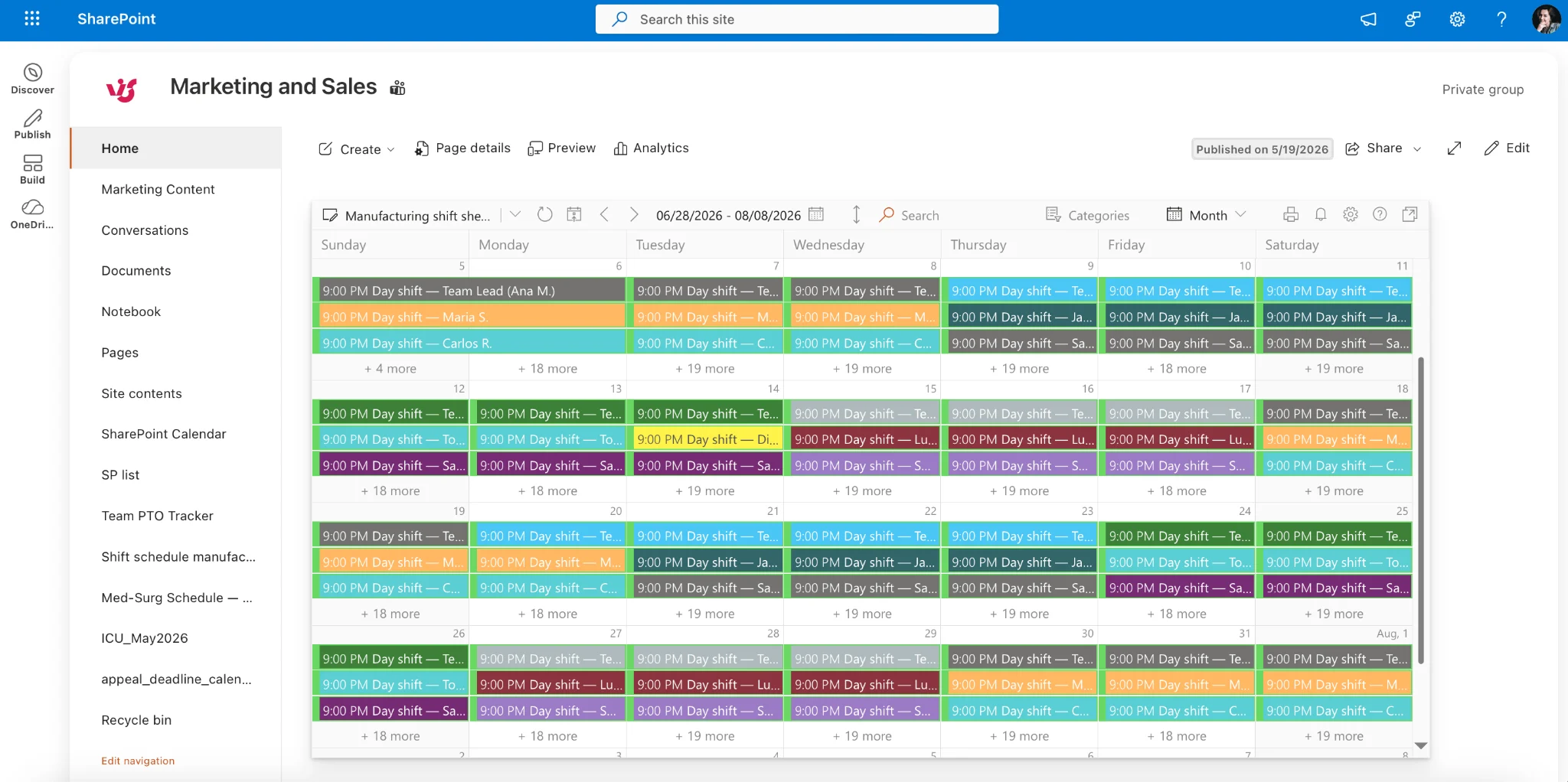
Pic. 11. Sample Virto Calendar overlaid view of multiple calendars.
What Virto Calendar App does
- Merges multiple calendars from various sources into a single, centralized view.
- Runs natively in Microsoft 365, keeping security protocols and user experience consistent.
- Adapts to scenarios from complex project timelines to simple personal schedules.
- Excels at overlaying Exchange personal and shared calendars for a complete view in one place.
Advantages over standard Outlook calendars
- More flexible viewing and management of shared calendars.
- Integrates data from SharePoint, Outlook, Planner, Google Calendar, iCal, and Apple Calendars — see Calendar Data Sources.
- More granular permission management for safer collaboration.
- A centralized scheduling hub that simplifies coordination across teams and projects.
- More intuitive group calendar management for people in many groups.
Maintaining security and compliance
Virto Calendar App works within your existing security frameworks. It doesn’t override or violate the security policies or permissions configured in your Microsoft 365 ecosystem — it adds functionality while fully respecting your organization’s protocols.
Try it free: Start a 30-day trial of the Virto Calendar App and see how it streamlines working with other people’s calendars.
Wrapping up
Viewing someone’s Outlook calendar comes down to three paths: add it if it’s already shared, request access if it isn’t, or check free/busy via the Scheduling Assistant when you just need availability. With New Outlook now the default for many accounts, double-check which version you’re on before following a set of steps — and lean on the permission levels table whenever you can see less than you expected.