A contact group, an email group, and a distribution list all describe the same Outlook feature — one saved set of addresses you can email at once. This guide brings the whole topic together: what a contact group is, how to build one on Windows, Mac, and the web, how to manage members, and how to fix the issues that trip people up.
When teams coordinate regularly, adding recipients one by one is slow and easy to get wrong. A contact group solves that by bundling multiple email addresses under a single, memorable name. Instead of picking ten people for every project update, you address one entry — “Marketing Team” or “Q2 Stakeholders” — and everyone is included.
You’ll see the same feature called different things depending on your Outlook version and where you look: contact group, email group, or distribution list. They point to the same core capability — email several people at once without retyping addresses. This article treats those terms as synonyms and shows you the steps for every platform, plus where a group calendar (a different thing entirely) fits in.
Quick answer: what is a contact group in Outlook?
A contact group in Outlook is a saved set of email addresses — also called an email group or a distribution list — that lets you message everyone in it at once by typing a single name. Rather than adding recipients individually each time, you select the group name and Outlook includes all its members automatically.
Each recipient receives their own individual copy of the message; they don’t see the rest of the list unless you deliberately expand the group or use the Cc/Bcc fields. Think of it as a reusable, named shortcut for a group of people you email often.
Next question: does the same group need a shared schedule? A contact group only addresses email; it carries no calendar. To see the group’s Outlook calendars, group calendars and SharePoint lists in one color-coded view, add Virto Calendar App.
Contact group vs. email group vs. distribution list: are they the same?
Short answer: in everyday Outlook use, yes. All three names describe a collection of email addresses you can reach with one entry. The differences are mostly about wording across versions and about who manages the list:
- Contact group / contact list — the term used in modern Outlook (new Outlook for Windows and Outlook on the web call it a “contact list”; classic Outlook calls it a “contact group”). Created and managed by you, stored in your own contacts, ideal for personal or small-team mailing.
- Email group — an informal, catch-all phrase people use for the same feature. It isn’t a separate object in Outlook; it’s just how many users describe “a group I can email.”
- Distribution list — the older name for a contact group, and also the term for organization-wide lists that IT creates and manages in Exchange. These org-level lists appear in the Global Address List (GAL) and are administered centrally rather than by individual users.
There’s one more term worth separating out: a Microsoft 365 Group is a bigger concept — it adds a shared inbox, calendar, files, and Planner on top of email. If you only need to email several people at once, a contact group is all you need. If your team needs shared collaboration tools, that’s a Microsoft 365 Group.
| Term | What it really is | Best for |
|---|---|---|
| Contact group / contact list | A personal list of addresses you build and manage in Outlook | Personal use, small teams, quick email lists |
| Distribution list | The old name for a contact group; also org-wide lists managed by IT in Exchange | Company-wide announcements, formal email-only groups |
| Microsoft 365 Group | A collaboration space with shared inbox, calendar, files, and Planner | Project teams, cross-functional work, Teams integration |
Why use a contact group?
Contact groups turn repetitive addressing into a single action. The practical payoffs:
- Time savings — reach dozens of people by typing one name, with no repetitive address entry.
- Fewer mistakes — no more accidentally leaving someone off an important thread.
- Consistent communication — the same audience receives every update, keeping everyone aligned.
- Easy upkeep — add or remove members as the team changes, without rebuilding the list.
Typical uses span internal team updates (“Finance Department,” “IT Support”), project teams (“Website Redesign Team”), customer and newsletter segments (“VIP Clients”), external partners (“Legal Advisors”), and event or training cohorts. For very large customer lists, a dedicated email-marketing tool is the better fit for deliverability and compliance.
Outlook in 2026: what’s changed for groups
Microsoft continues to shift users to the new Outlook for Windows, which reached broad availability across Microsoft 365 accounts through 2025. Classic Outlook remains supported until 2029, so both experiences are in use — and both still create, edit, and manage contact groups. A few points worth knowing:
- Terminology in the new UI — what classic Outlook calls a “Contact Group,” the new Outlook and Outlook on the web call a “Contact List.” The feature is the same.
- Favorite groups — the new Outlook lets you mark frequently used groups (and people and categories) as favorites for faster access.
- Unified contacts across Outlook and Teams — a single, synchronized contact list now spans Outlook and Microsoft Teams, with automatic de-duplication and shared categories/favorites. This doesn’t add features to contact groups directly, but it makes the underlying contacts easier to manage.
- Distribution list management — org-level distribution lists are handled through the Exchange Admin Center; core management remains available even as the interface evolves.
How to create a contact group — Outlook for Windows (desktop)
This is the classic desktop path. In the new Outlook, the same feature lives under People → Contact lists (covered further below).
- Open the contacts area. Click the People icon in the navigation bar, or press Ctrl + 3.
- Start a new group. On the Home tab, click New Contact Group. (In very old versions this is New Distribution List.)
- Name the group. Give it a clear, descriptive name such as “Marketing Team” or “Project Alpha Stakeholders.”
- Add members. Click Add Members and choose a source:
- From Outlook Contacts
- From Address Book
- New E-mail Contact
- Select the people you want (hold Ctrl to pick several), click Members, then OK. Repeat until everyone is added.
- Save. Click Save & Close. The group now appears in your contacts, ready to use.
How to create a contact group — Outlook for Mac
- Open contacts. Click the People icon in the bottom navigation bar (or open the People view).
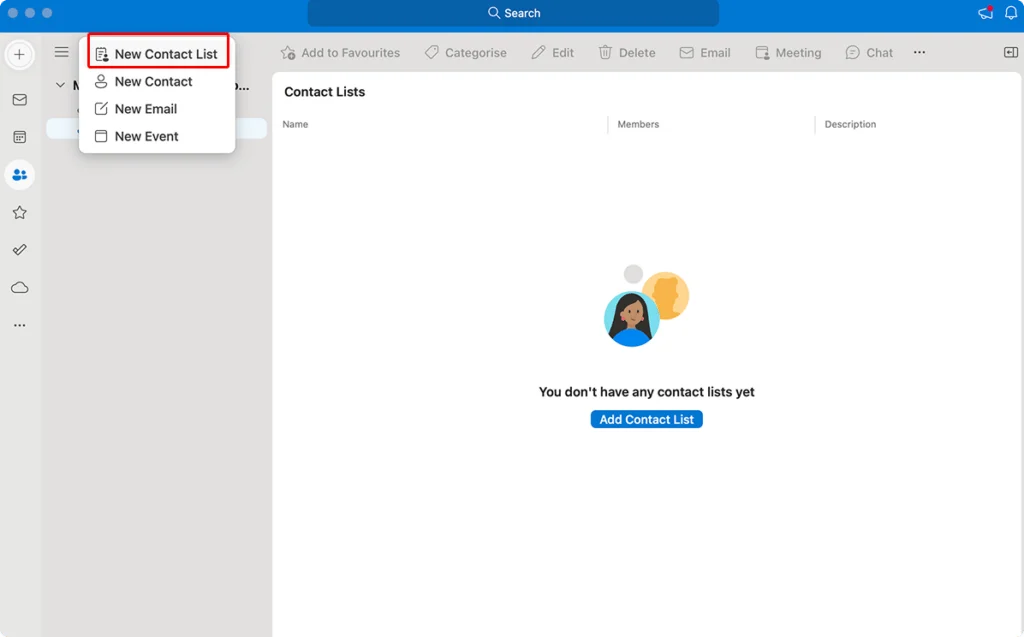
- Create a new list. In the top menu, click Home > New Contact List. In older versions, look for New Distribution List.
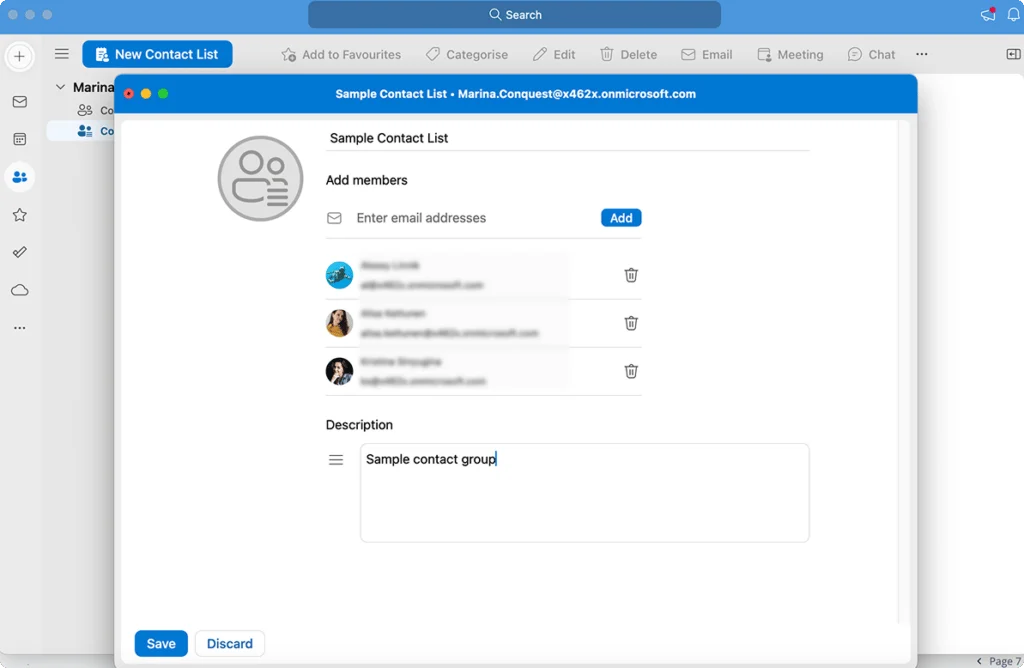
- Name the list. Type a descriptive name for the group.
- Add members. Click Add and search your address book, or click New Contact to add someone not already saved.
- Save. Click Save & Close (or Save) when you’re done. The group appears in your contacts.
How to create a contact group — Outlook on the web (OWA) / Microsoft 365
Outlook on the web uses a clean, modern interface and calls the feature a contact list.
- Open People. Click the People icon in the left navigation pane.
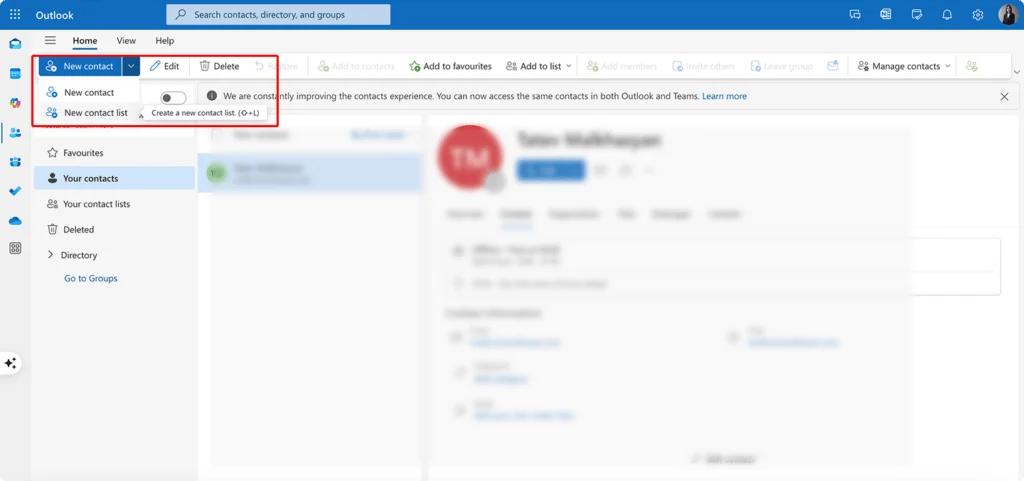
- Create a new contact list. Select New contact list at the top of the contacts view. (In some versions, click New first, then Contact list.)
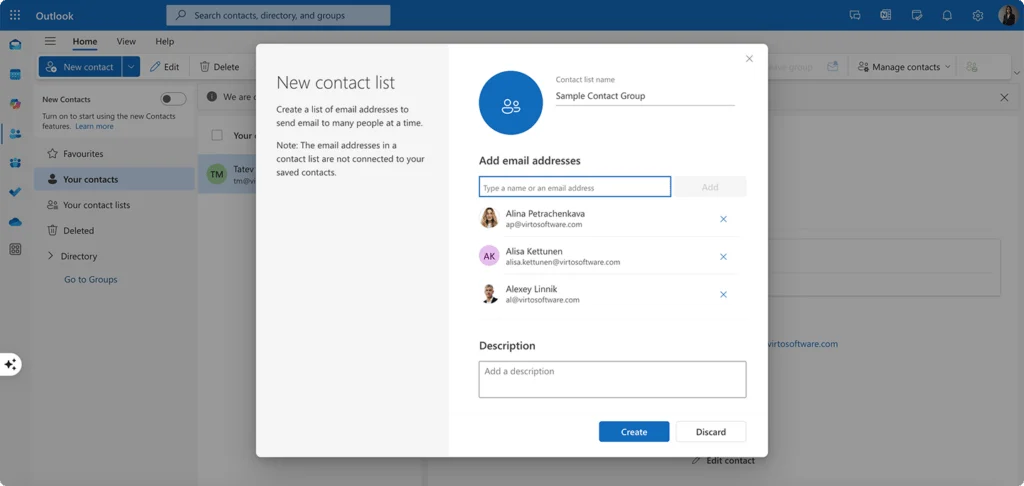
- Name the list. Enter a meaningful name in the Contact list name field (e.g., “Sales Leads Q2”).
- Add members. In the Members field, start typing a name or address and pick from the suggestions, or use Add to select several at once.
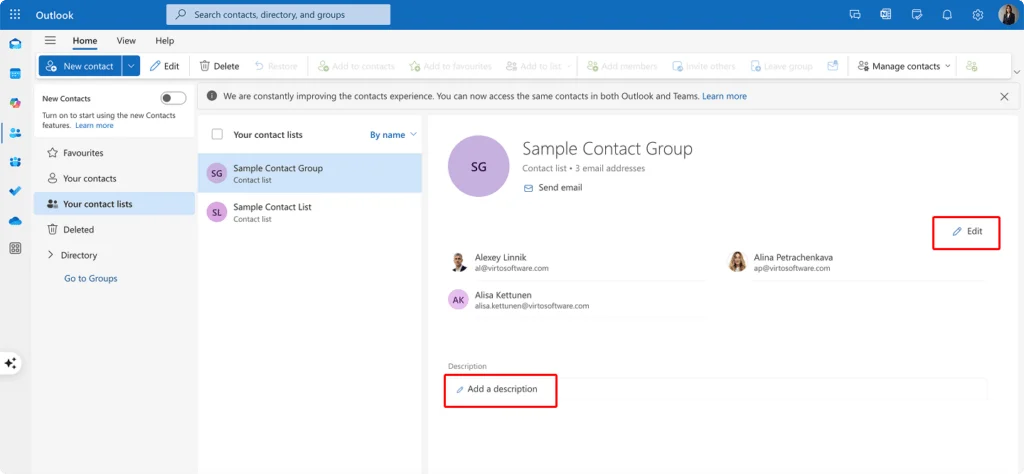
- Create. Click Create (or Save) at the bottom. The list is now in your contacts folder.
Add, edit, or remove members
Keeping a group current is what keeps your messages reaching the right people.
Edit a group or its members
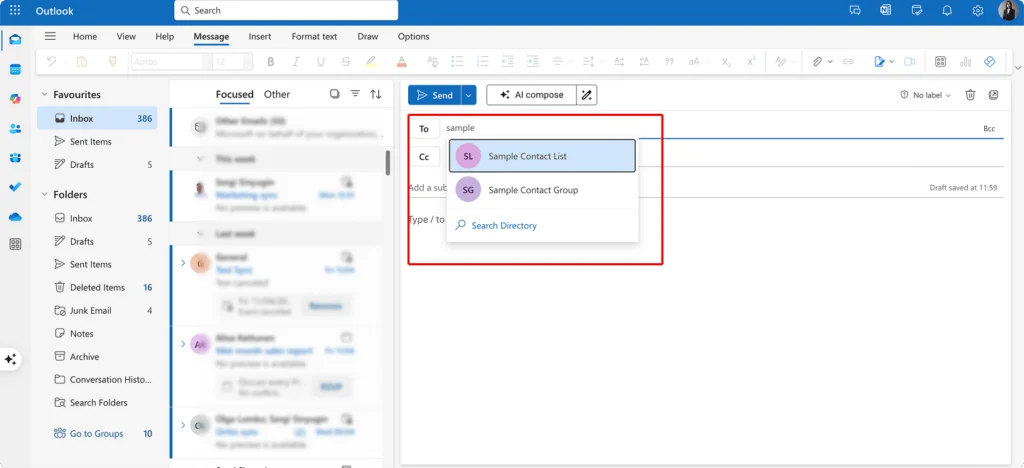
- Go to People / Contacts and open the group (double-click it on desktop; in the new Outlook and web, open All contact lists, then Edit).
- Rename the group, add a description, or adjust membership as needed.
- Add members via Add Members (From Outlook Contacts / From Address Book / New E-mail Contact), then OK.
- Remove members by selecting a name and clicking Remove.
- Save with Save & Close.
Delete a group
For a personal contact group: open People / Contacts, right-click the group and choose Delete (or select it and press Delete). Deleting the group removes the list only — the individual contacts stay in your address book. Make sure you’re deleting a contact group, not a Microsoft 365 Group (only owners or admins can delete those, and doing so removes all the group’s shared content).
Email the whole group at once
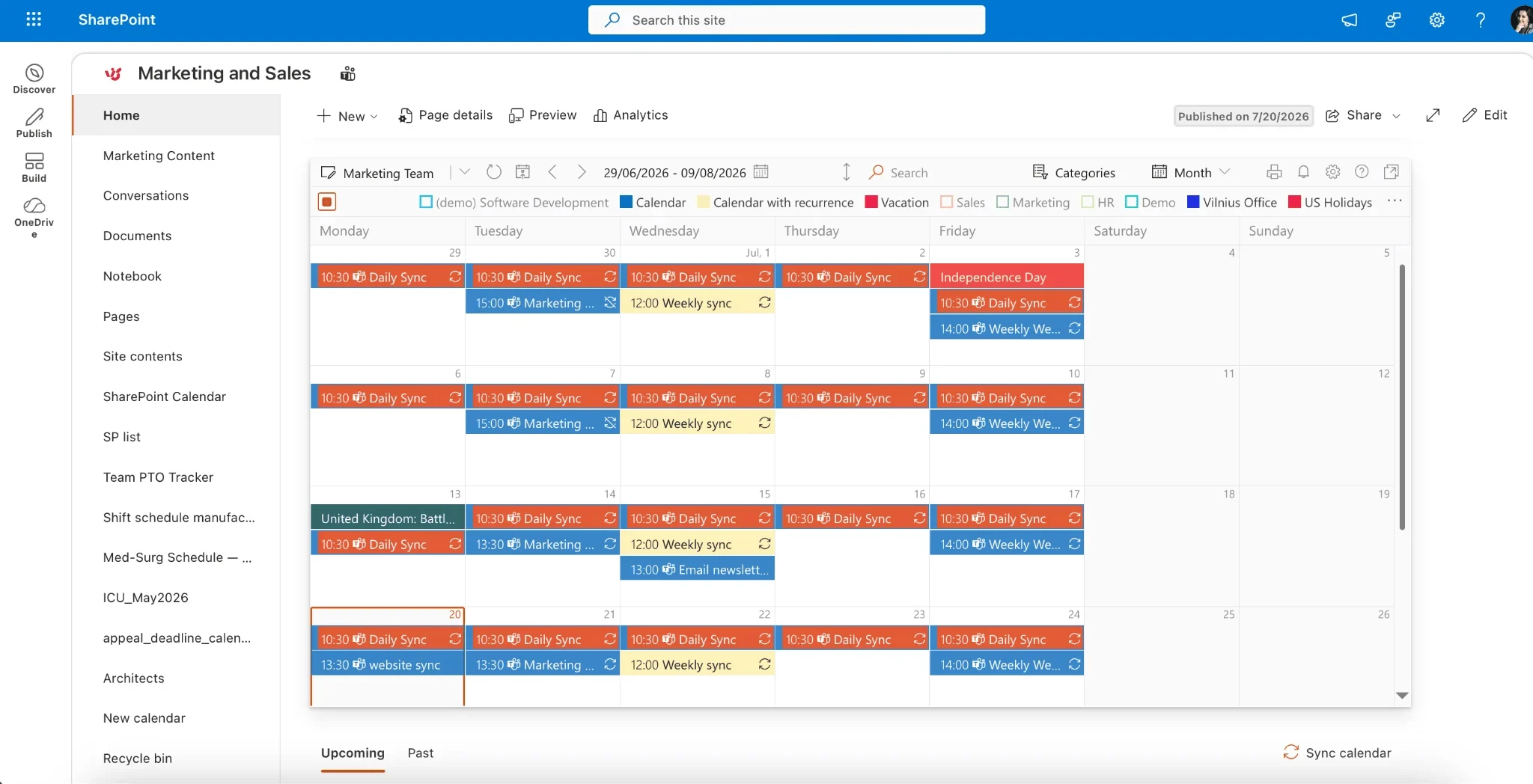
- New message. Click New Email (or Ctrl + N on Windows / Command + N on Mac).
- Add the group. Type the group name in the To: field and select it from the suggestions.
- On desktop the group may expand to show individual addresses; on the web the group name stays as a single entry, but all members still receive the email.
- Compose and send. Each member gets an individual copy of the message.
Troubleshooting common contact group issues
Why can’t I create a contact group?
- Account type. Free or basic plans (e.g., Outlook.com personal accounts, some Exchange Online Basic subscriptions) may lack full group functionality. Microsoft 365 Groups typically require Microsoft 365 Business Standard, E3, or higher, and a Microsoft 365 or Exchange Online account (not standalone POP/IMAP).
- Permissions. In corporate tenants, admins can restrict who may create groups via Microsoft Entra ID (formerly Azure AD) policies. Standard users may be limited to smaller internal groups or need approval.
- Client glitches. Restart Outlook, update to the latest version, verify your account under File > Account Settings, and, on Windows, repair the Office installation via Control Panel > Programs > Programs and Features > Repair.
- Privacy / tenant settings. Some organizations block public groups or restrict group creation tenant-wide; try a private group or check with IT.
Why aren’t emails reaching the whole group?
- Check the member addresses. Look for typos, outdated addresses from people who’ve left, and duplicates. A single invalid address can sometimes block delivery to the entire group in strict environments.
- Confirm the group is found. Start typing the name in To: to trigger auto-complete; if it doesn’t appear, open the address book with the To button and check the group is saved in the right location and hasn’t been renamed.
- Permissions and privacy. Private Microsoft 365 Groups accept mail from members only by default; guest access and moderation settings can also hold or block messages.
- Filters and spam. Ask members to check Junk/Spam, add the group to Safe Senders, and have admins review mail-flow and anti-spam rules that might redirect group messages.
- Synchronization. Give changes time to propagate across desktop, web, and mobile; force a send/receive with F9 on desktop and check connectivity.
How do I confirm my changes were applied?
- Re-open the group in People / Contacts and review the member list, name, and description directly — the most reliable check.
- For Microsoft 365 environments, verify in Outlook on the web or the Microsoft 365 Admin Center; security groups can also be checked in the Microsoft Entra admin center.
- Allow time for cross-device sync (often 15–30 minutes) and restart clients to force a refresh if needed.
Need a shared group calendar, not just a contact group?
A contact group handles email — it doesn’t give your team a shared calendar. If what you actually want is a place where everyone can see and manage the same events, that’s a different feature set (a Microsoft 365 group calendar or a shared calendar), and choosing the wrong one causes real scheduling confusion.
We cover that side of things separately:
- Outlook Group Calendar: creation, management, and best practices
- How to share a calendar in Outlook
- Managing multiple Microsoft 365 calendars
For teams that outgrow native views — overlapping schedules, multiple sources, department-wide visibility — the Virto Calendar App overlays Microsoft 365, Outlook, SharePoint, Google, and iCalendar sources into one color-coded view. It’s the calendar counterpart to a contact group: instead of one email entry for a set of people, you get one unified schedule across all of them. Virto Calendar offers a 30-day free trial.
Go further: Virto apps for team communication and scheduling
Outlook contact groups are a solid foundation. When coordination gets more complex — recurring notifications, cross-team scheduling — two Virto apps extend what Outlook does natively.
Virto Calendar App — unified team scheduling
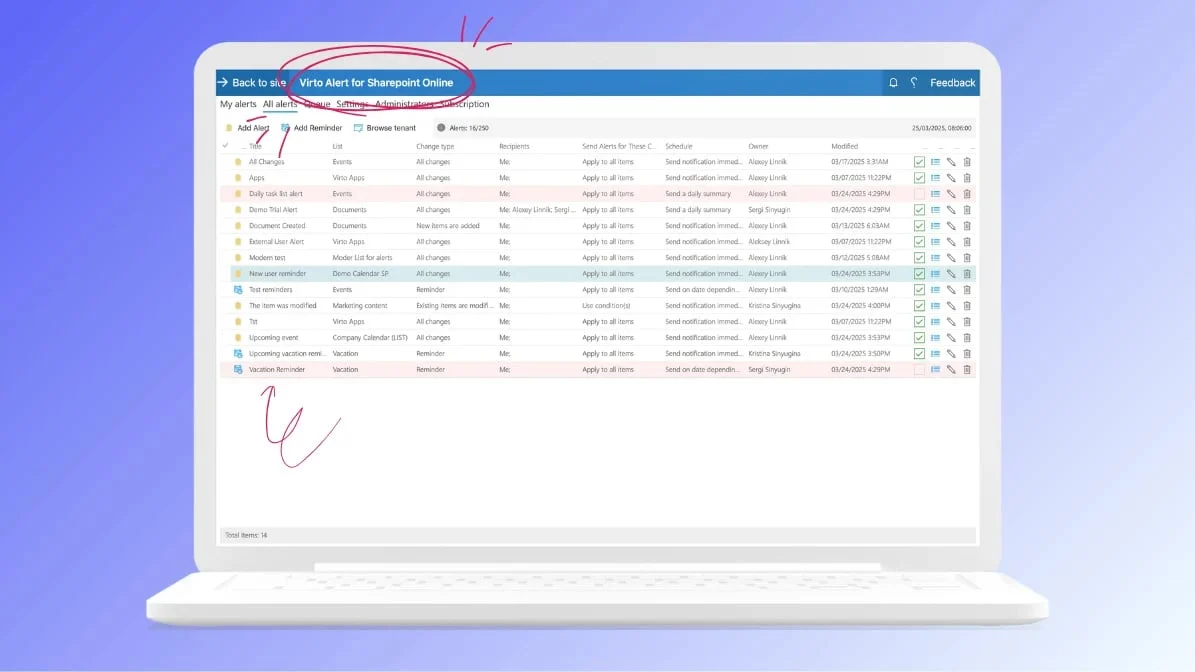
The Virto Calendar App consolidates calendars from many sources into a single, color-coded view, with direct integration to Outlook contact groups, Microsoft Teams embedding, and real-time sync across SharePoint, Outlook, and Teams. A project coordinator can overlay the availability of a “Product Development” group and a “Quality Assurance” group to find a meeting slot that works for everyone. Available with a 30-day free trial.
Virto Alerts & Reminders App — automated group notifications
The Virto Alerts & Reminders App automates notifications to your groups: recurring and graduated reminders (a week before, three days before, day-of), custom HTML/branded templates, and dynamic content pulled from SharePoint lists or Microsoft 365 calendars — with conditional alerts that fire only when specific criteria are met. It also carries a 30-day free trial.
In practice
A manager running a website redesign builds one contact group spanning design, development, and content. With Virto Calendar she creates a shared project timeline, schedules recurring sprint reviews for the whole group, and color-codes each team’s milestones. With Virto Alerts & Reminders she sends automated 24-hour deadline reminders, triggers alerts when documents change in SharePoint, and delivers weekly HTML progress summaries. Missed meetings and forgotten deadlines largely disappear.
Conclusion
A contact group — whether you call it an email group or a distribution list — is one of Outlook’s simplest, highest-return features: define a set of people once, then reach them all with a single name across desktop, Mac, and the web. Keep the membership current, know when you actually need a Microsoft 365 Group or a shared calendar instead, and troubleshoot with the account, permission, and sync checks above.
When your needs grow past email, the Virto Calendar App and Virto Alerts & Reminders App extend Outlook with unified scheduling and automated notifications — both free to try for 30 days. You can also schedule a quick demo or explore the full toolkit on the VirtoSoftware site.
Official Microsoft resources
- Create a contact group in Outlook
- Create, edit, or delete a contact list (or contact group) in Outlook
- Create a group in Outlook (Microsoft 365 Groups)
- What’s new in the new Outlook for Windows
More from the VirtoSoftware blog
- Microsoft Outlook expert tips & guides
- Distribution List in Outlook: Create and Manage Easily
- How to Share Office 365
- Outlook Delegate Access: A Complete Guide
- How to Add PTO to Outlook Calendar
- Outlook Calendar Out of Office: How to Set It Up
- How to Overlay Calendars in Outlook
FAQ
What is a contact group in Outlook?
A saved set of email addresses — also called an email group or distribution list — that lets you email everyone in it at once by typing a single name.
How do I create a contact group in Outlook?
In Outlook, go to People, select New Contact Group (or New contact list in the web/new Outlook), name it, choose Add Members, pick your contacts, and Save & Close. Then email the group by typing its name in the To: field.
How do I create a distribution list in Outlook?
For a personal distribution list, the steps are identical to creating a contact group — “distribution list” is just the older name. Organization-wide distribution lists (visible to everyone in the Global Address List) are created by IT in the Exchange Admin Center.
What’s the difference between a contact group and a shared mailbox?
A contact group is only an addressing shortcut — it sends individual copies to each member. A shared mailbox is a single mailbox multiple people open and send from together. If you need shared email, calendar, and files, that’s a Microsoft 365 Group rather than a contact group.
Do I need a group calendar instead?
If you want a shared calendar the whole team can see and edit — not just a way to email them — you need a Microsoft 365 group calendar or a shared calendar. See Outlook Group Calendar, or overlay everything with the Virto Calendar App.