


Quick answer: how to add your Teams calendar to Outlook
Your personal Microsoft Teams calendar is already your Outlook calendar — both apps read the same Exchange Online calendar in Microsoft 365, so any meeting you schedule in one shows up in the other automatically once you sign in with the same work account. There is nothing to switch on for personal events. The manual step only applies to a Teams channel calendar: an administrator unhides it with a single Exchange Online PowerShell command, after which the channel’s Microsoft 365 Group calendar appears in Outlook on the web, desktop, and mobile as a view-only calendar. To see Teams, Outlook, SharePoint, and external calendars together in one tab, use the Virto Calendar App.
Microsoft Teams and Outlook are the two calendars most Microsoft 365 users live in, and the good news is that they are not really two calendars at all. Both surface the same Exchange Online mailbox calendar, so the meetings on your personal calendar stay aligned across the two apps without any setup at all. That single fact resolves most of the confusion people run into: there is no hidden sync switch to flip for your own events, and there is no scheduled refresh that can fall behind.
Where people do get stuck is with the calendars that sit beside your personal one. A Teams channel calendar is really a Microsoft 365 Group calendar that Outlook hides by default. A shared or group calendar you want pinned inside a channel needs a workaround, because Teams has no native “add this Outlook calendar” button. And anyone juggling SharePoint, room, or external calendars quickly finds that native sync simply does not reach that far. This guide walks through each scenario in 2026’s interface — confirming native sync, exposing a channel calendar in Outlook, pinning an Outlook calendar inside Teams, fixing genuine sync failures, and overlaying everything in one place when the built-in tools run out of road.
How to sync Teams & Outlook calendars (native)
By default, Microsoft 365 keeps your Teams and Outlook calendars in sync because, for your personal calendar, they are literally the same calendar reading from the same Exchange Online mailbox. A meeting you schedule in Teams appears in Outlook the moment you save it, and vice versa. The settings worth checking are not sync toggles but the meeting defaults that decide how Teams handles the events you create. To confirm them in Outlook on the web:
- Open Outlook on the web and select the Calendar icon in the left rail.
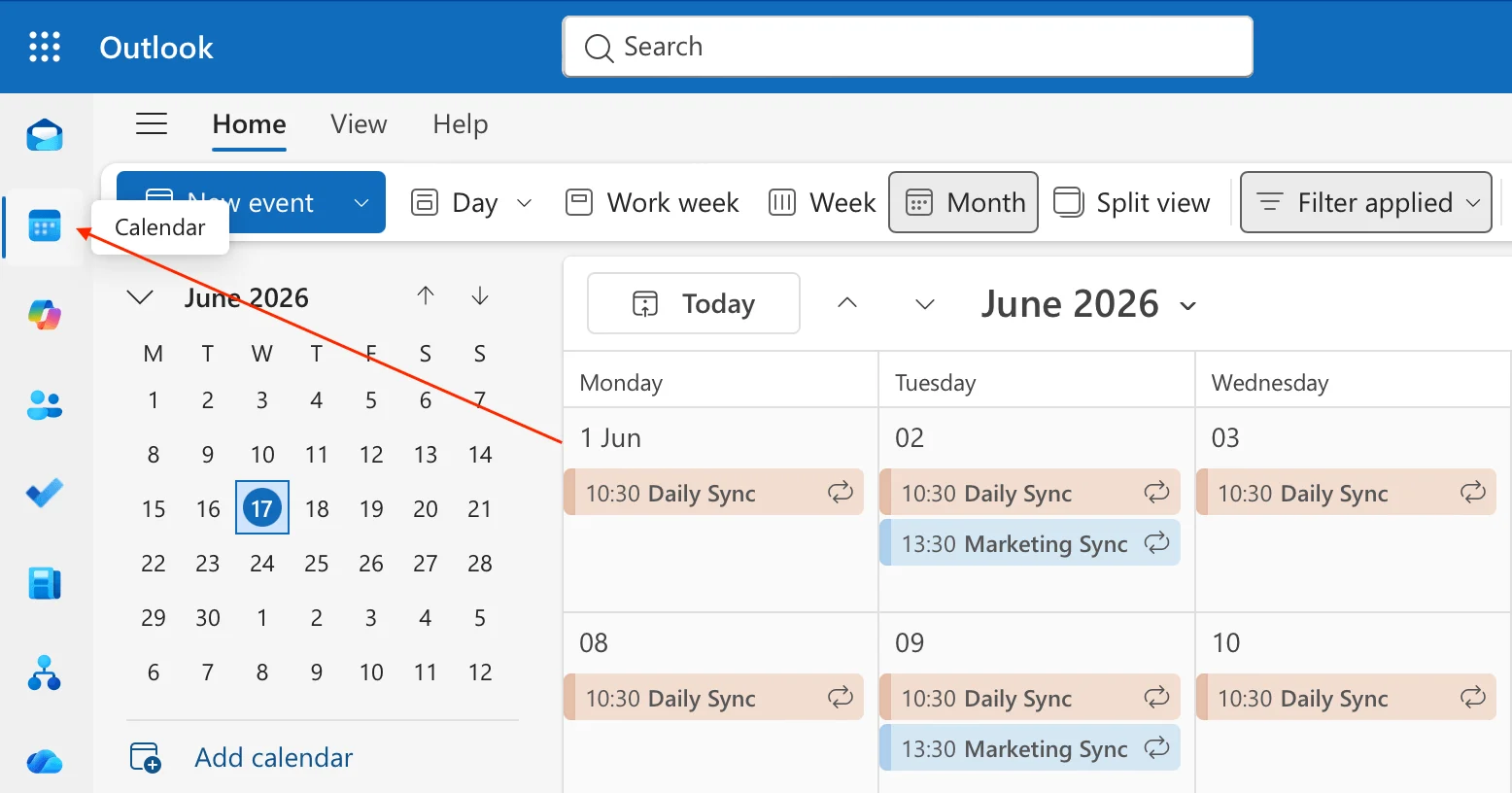
Pic. 1. Opening the Calendar in Outlook on the web.
- Select the Settings gear in the top-right corner, then Calendar → Events and invitations.
- Turn on “Add online meeting to all meetings” and choose Microsoft Teams as the meeting provider if prompted.
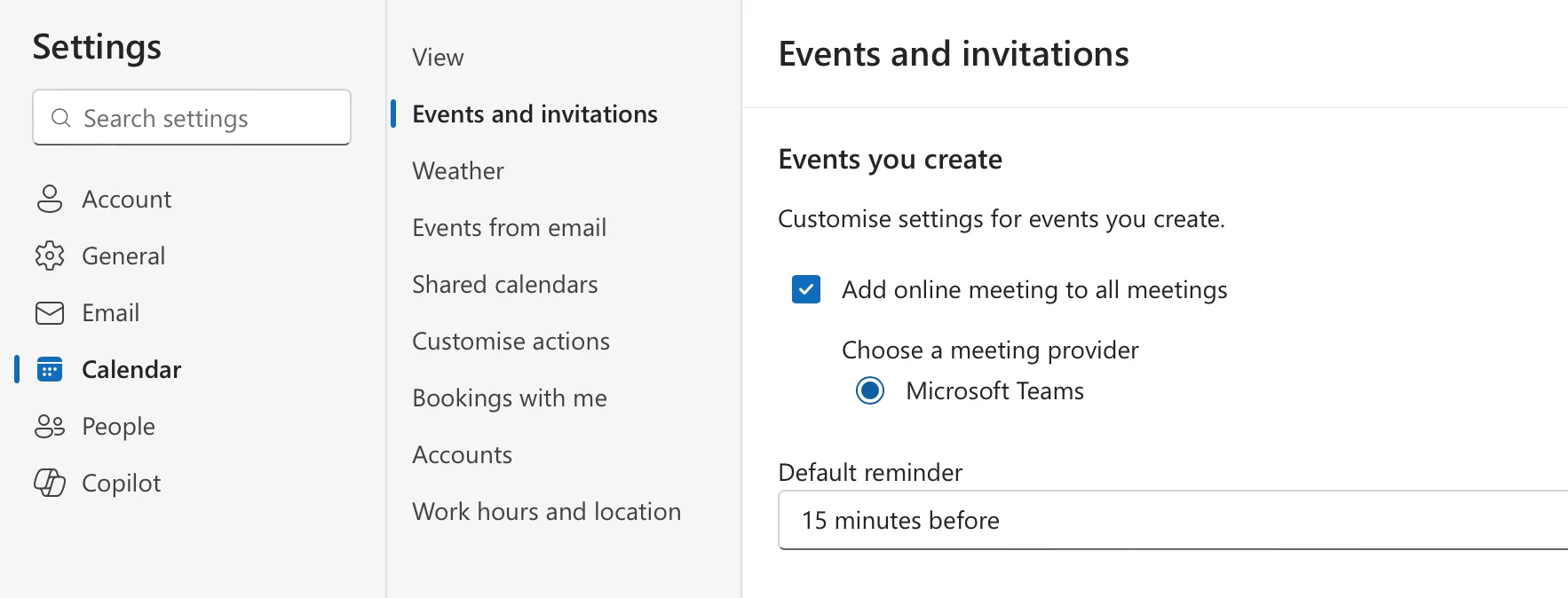
Pic. 2. Setting Teams as the default meeting provider.
- Close the Settings pane — changes save automatically.
Both apps must use the same Microsoft 365 work account. Sync is automatic; if events are missing, jump to the troubleshooting section below rather than looking for a sync toggle, because there isn’t one for your personal calendar.
How to add a Teams (channel) calendar to Outlook
A Teams channel calendar is not a brand-new calendar. It is a filtered view of the Microsoft 365 Group calendar that backs the team, showing only the meetings scheduled within that channel. Those group calendars are hidden from Outlook clients by default, which is why a channel calendar that is plainly visible in Teams seems to be missing from Outlook. Exposing it is simply a matter of unhiding the underlying group. This is an administrator task run from Exchange Online PowerShell:
- Connect to the Exchange Online PowerShell module.
- Run the cmdlet, replacing the identity with your team’s name:
Set-UnifiedGroup -Identity "Your-Team-Name" -HiddenFromExchangeClientsEnabled:$False
- Once the group is unhidden, its calendar becomes visible in Outlook on the web, desktop, and mobile.
The channel calendar is view-only in Outlook. Create and edit channel meetings in Teams so they stay tied to the channel; Outlook simply displays them.
How to add a calendar to a Teams channel
Teams has no built-in option to attach your personal Outlook calendar to a channel as a separate calendar — your personal calendar is already synced through Outlook. What you can add to a channel is a shared Channel Calendar, and because it is backed by the team’s Microsoft 365 Group, the events you create in it also show up in Outlook. This is the current Microsoft-supported method:
- Open the channel, then select the Add (Open apps) icon in the top-right corner of the channel and choose “Pin a tab”. In the new Teams client this replaces the old “+” tab button.
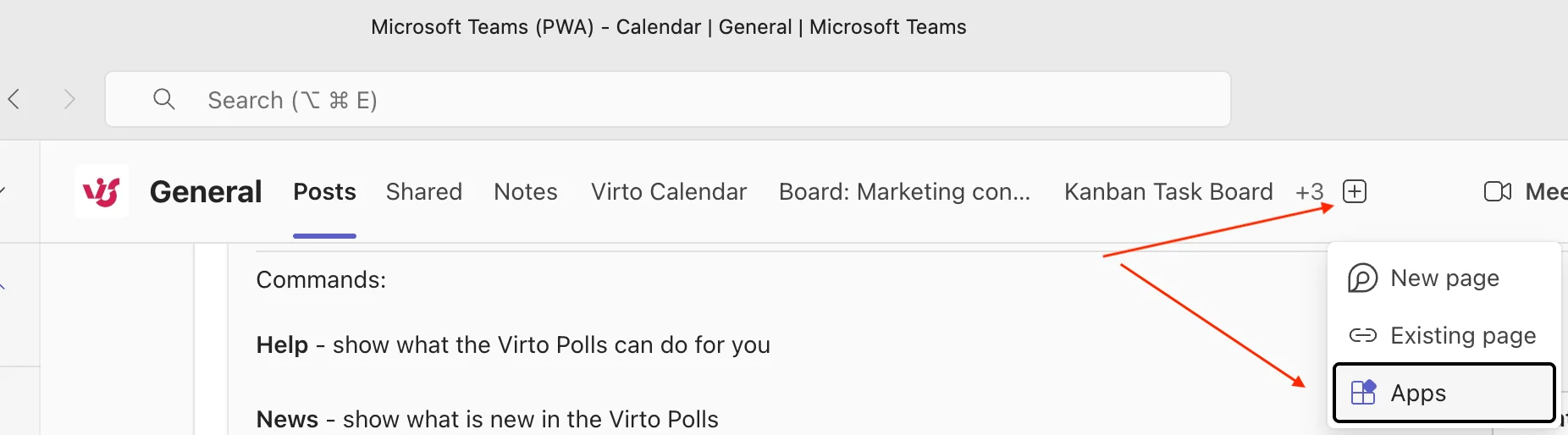
Pic. 3. Adding a tab from the Add (Open apps) icon in the new Teams client.
- Search for the Channel calendar app and select it (use “See more” if it isn’t shown).
- Give the calendar a name such as “Team Schedule” and select Add (or Save).
The Channel Calendar appears as a tab that all channel members can view and add events to. Events created here automatically post to the channel and also appear in the team’s Microsoft 365 Group calendar in Outlook — the same group calendar you unhid in the section above.
Channel calendars aren’t available in private channels, and guests can’t view them. If you specifically need a published Outlook or SharePoint calendar surfaced in a channel, note that the old Website tab now opens links in a separate browser tab rather than embedding them, so it’s no longer a reliable way to display a live calendar inside Teams. For a true in-Teams overlay, use the Virto Calendar App below.
Fix: Teams calendar not syncing with Outlook
Because Teams and Outlook share one calendar, a true “not syncing” problem is rarer than it looks — what feels like a sync failure is usually an account, version, or cache issue, or a channel calendar that was never unhidden. Before assuming something is broken, confirm you are actually expecting events that native sync covers: personal meetings sync automatically, while channel calendars only appear once unhidden via PowerShell as shown above. For genuine failures, this checklist resolves the large majority of cases:
- Confirm both apps are signed in with the same Microsoft 365 account.
- Update Teams and Outlook to the latest build (web Outlook updates itself).
- Clear the app or browser cache, then sign back in.
- Check the Microsoft 365 Service Health page for Exchange Online or Teams incidents.
If events are still missing after these steps, work through our dedicated guide: Outlook and Teams Calendars Syncing: A Troubleshooting Guide.
One unified view: the Virto Calendar App
Native sync keeps Teams and Outlook aligned, but it stops at your own mailbox. It cannot overlay SharePoint lists, room and resource calendars, Microsoft 365 Group calendars, or external iCal feeds in a single view — and channel calendars remain view-only wherever they appear. The result is that anyone coordinating across more than one or two calendars ends up tabbing between apps and views to assemble a complete picture. The Virto Calendar App closes that gap by acting as one tab that overlays every calendar you work with, side by side and colour-coded, inside the tools you already use.
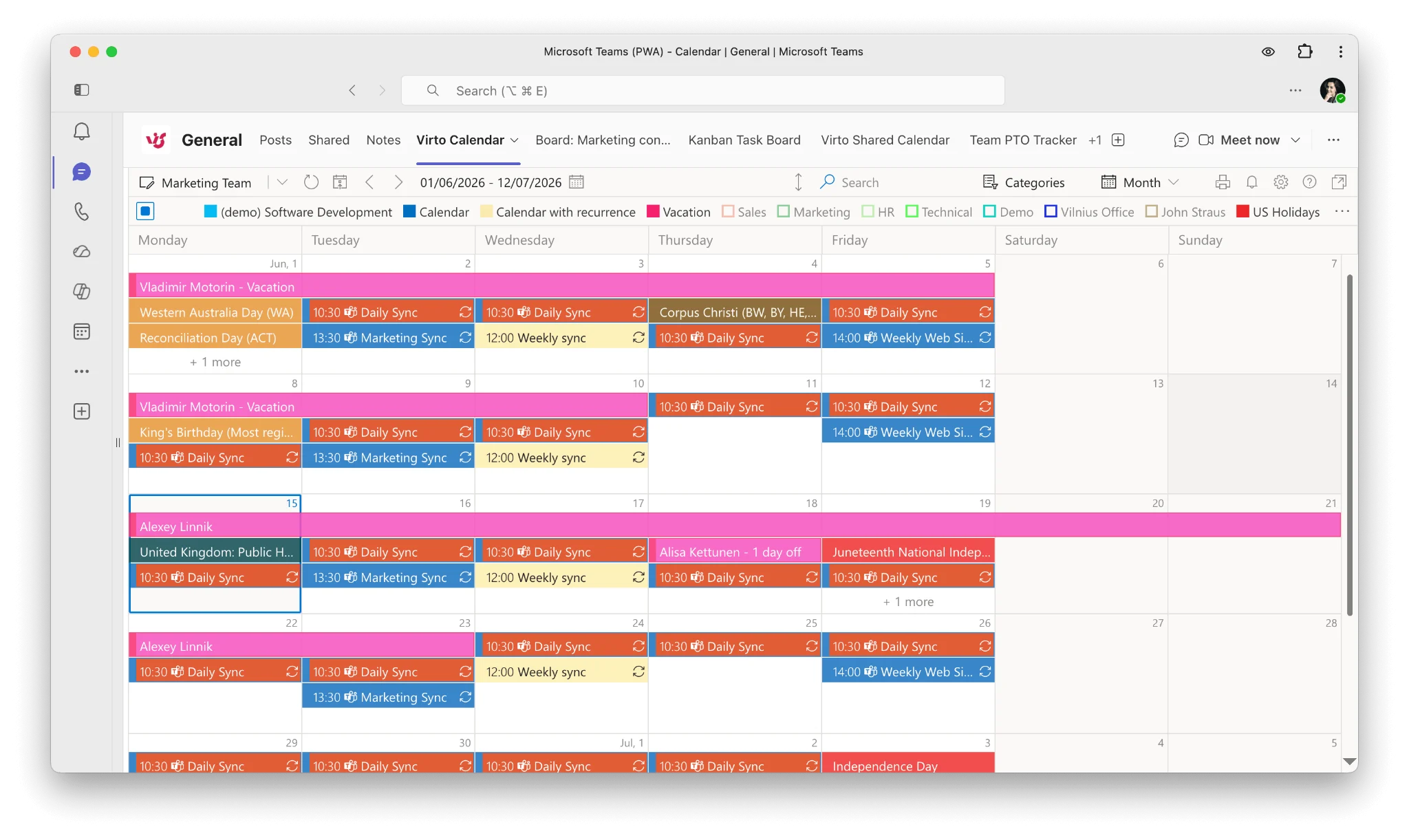
Pic. 4. Teams, Outlook, SharePoint, and iCal calendars overlaid in one Virto Calendar tab.
What it does
- Overlay multiple sources: Exchange Online (personal and shared), Microsoft 365 Group calendars, SharePoint lists, room calendars, and external iCal feeds in one view.
- Colour-coding and custom views: distinguish event types and save day, week, month, or project views.
- Works where you do: add it as a tab in Microsoft Teams or a web part in SharePoint, on desktop and mobile.
- Microsoft-native security: respects existing permissions and keeps data within the Microsoft 365 ecosystem.
You can overlay Teams and Outlook calendars in one tab with the Teams app, or set up a unified Microsoft 365 calendar overlay in SharePoint.
Try it free: start a 30-day free trial of the Virto Calendar App, or book a demo to see it overlay your own calendars.
Related guides
- Microsoft Teams Shared Calendar Guide
- Comprehensive Microsoft Teams Calendar Guide
- How to View Someone’s Calendar in Teams
FAQ
Can you sync Teams calendar with Outlook?
Yes. Microsoft Teams and Outlook share the same Exchange Online calendar inside Microsoft 365, so meetings you create in either app appear in both automatically when you are signed in with the same work account. There is no separate sync to switch on for your personal calendar.
How do I add a Teams channel calendar to Outlook?
Channel (Microsoft 365 Group) calendars are hidden from Outlook by default. An admin unhides one by running Set-UnifiedGroup -Identity "Your-Team-Name" -HiddenFromExchangeClientsEnabled:$False in Exchange Online PowerShell. The group calendar then appears in Outlook on the web, desktop, and mobile as a view-only calendar.
Why is my Teams calendar not syncing with Outlook?
The usual causes are signing in with different accounts, an outdated Teams or Outlook build, or cached data. Confirm both apps use the same Microsoft 365 account, update both, then clear the cache and sign back in. For a full walkthrough see our dedicated troubleshooting guide.
Can I add a personal Outlook calendar to Teams?
Teams does not let you attach a separate Outlook calendar as its own calendar, but you can pin a shared or group calendar to a channel as a Website tab using the calendar’s published URL.
Do I need a third-party app to see Teams, Outlook and SharePoint calendars together?
Native sync keeps Teams and Outlook aligned, but it cannot overlay SharePoint, group, room, or iCal calendars in one view. The Virto Calendar App combines all of those into a single colour-coded tab inside Teams or SharePoint.