SharePoint web parts are the modular building blocks that turn a plain page into a working intranet: news, calendars, lists, documents, dashboards and custom tools all live inside them. In modern SharePoint (SharePoint Online in Microsoft 365 and SharePoint Server Subscription Edition), you add web parts to a page in a few clicks — no code required — and developers can build custom ones with the SharePoint Framework (SPFx).
This guide explains what a web part is, the main types available, and how to add, connect and customize them in modern SharePoint, with practical examples. VirtoSoftware has built SharePoint web parts since 2001 — used by organizations such as Sony, Forever 21, Vanguard and Motorola — so we’ll also point to ready-made options where they save you time.
Quick answer: what is a SharePoint web part?
A SharePoint web part is a modular building block you add to a SharePoint page to display content or functionality — text, images, news, lists, document libraries, calendars and more. Modern SharePoint ships with many out-of-the-box web parts, and custom web parts are built with the SharePoint Framework (SPFx).
Types of SharePoint web parts
SharePoint web parts fall into three broad groups:
- Out-of-the-box modern web parts — the standard components included with SharePoint Online and current SharePoint Server, such as Text, Image, News, Quick Links, Hero, Events, File Viewer, and the List and Document Library web parts. These cover most everyday content and layout needs.
- Classic web parts (legacy) — server-side web parts and web part zones from classic pages (SharePoint 2013/2016/2019 and older). They still function on classic pages but are considered legacy; new work should target modern pages.
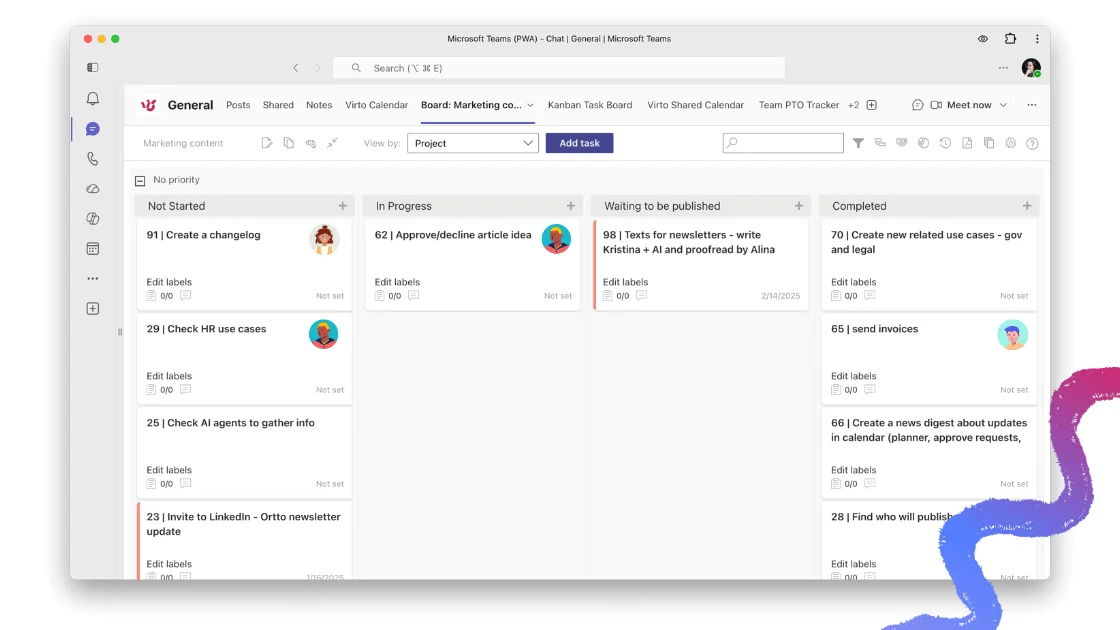
- Third-party and custom SPFx web parts — specialized components built with the SharePoint Framework or supplied by vendors, adding capabilities the standard set doesn’t cover (for example, calendar overlays, Kanban boards, Gantt charts and advanced forms).
👉 What are SharePoint widgets? “Widget” is an informal term people use for a web part or add-in — any component dropped onto a page to add functionality such as a news feed, a calendar view or a list.
👉 Classic vs modern: Classic pages use server-side web parts and web part zones; modern pages use client-side web parts placed inside sections. Modern web parts are responsive, mobile-friendly and easier to configure, which is why Microsoft recommends modern pages for new content.
How to add a web part in modern SharePoint
Adding content to a modern page is a two-step idea: you create a section (the layout container), then drop web parts into it. Here’s the full flow.
Add a section
- Open the page you want to change and select Edit.
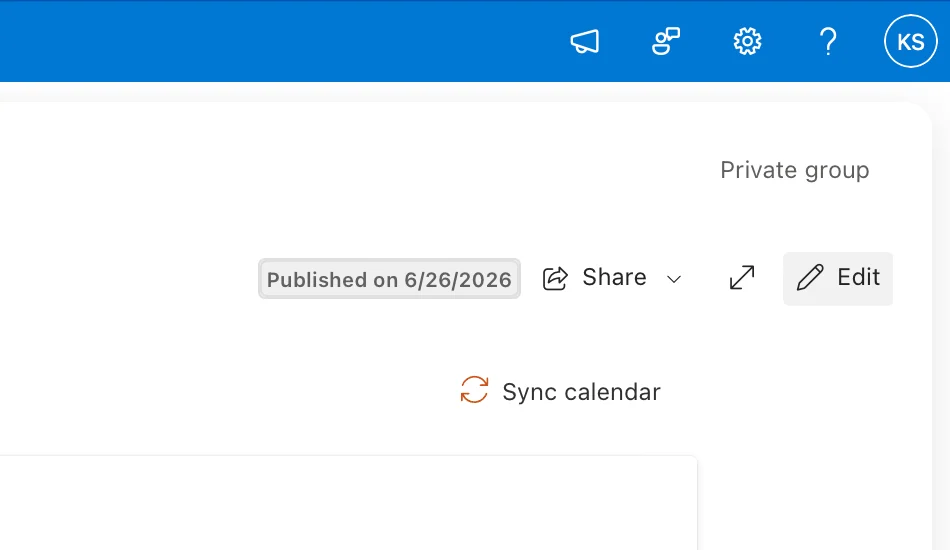
Pic. 1. Select “Edit” to start editing the page.
- Hover above or below an existing section to reveal the circled plus (+) button, then select a section layout (one, two or three columns, etc.).
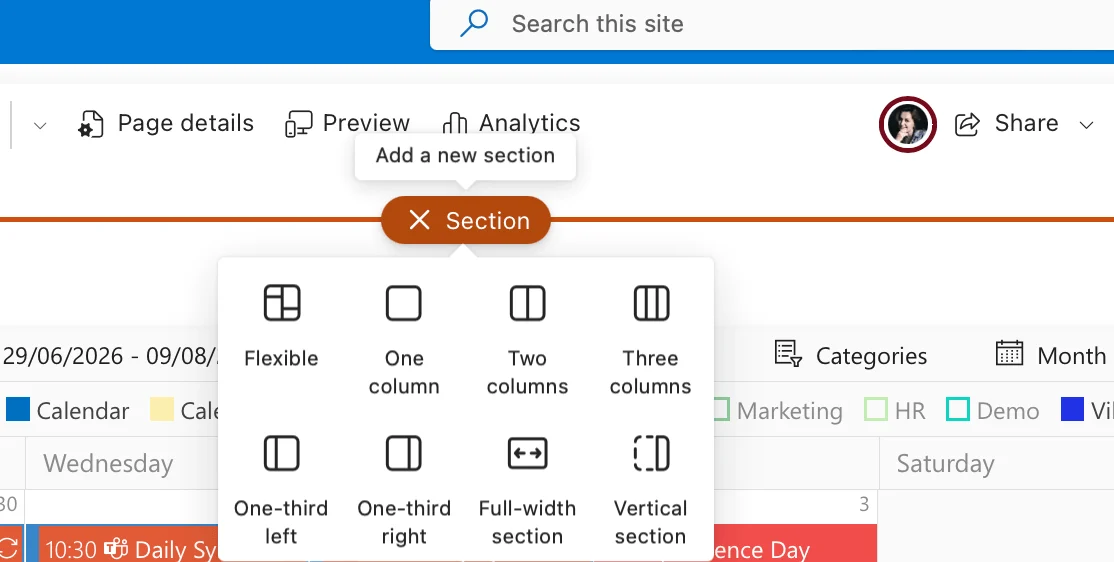
Pic. 2. Choosing the section layout.
Add a web part
- Inside the section, select the plus (+) button to open the web part toolbox.
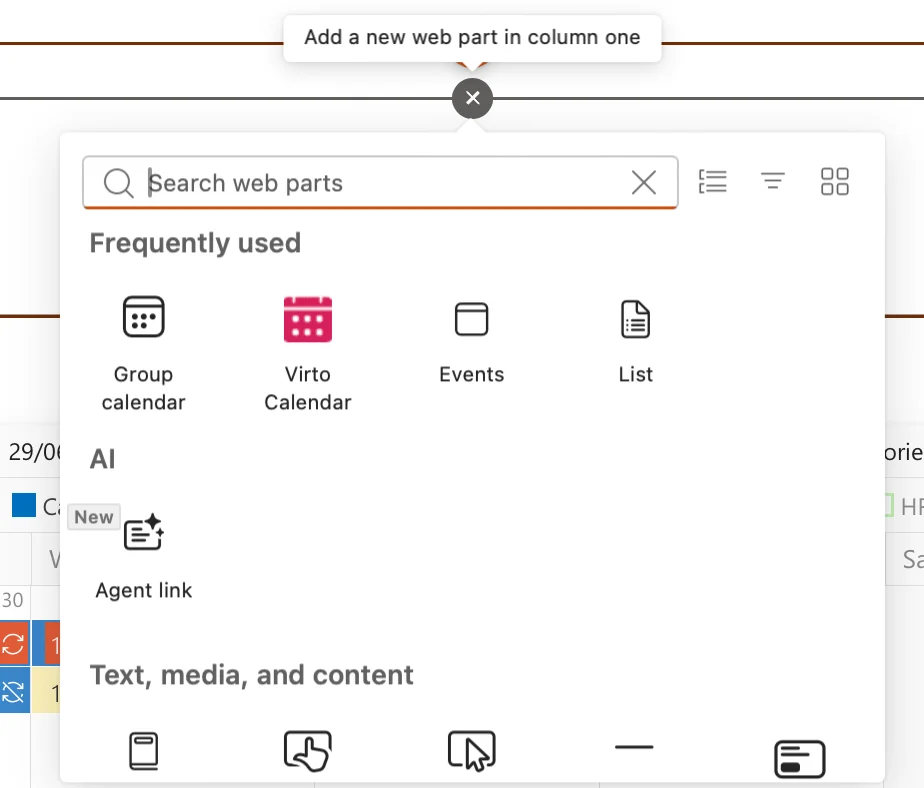
Pic. 3. Select the plus button to open the web part toolbox.
- Scroll or use the search box to find the web part you want, then select it to add it to the section.
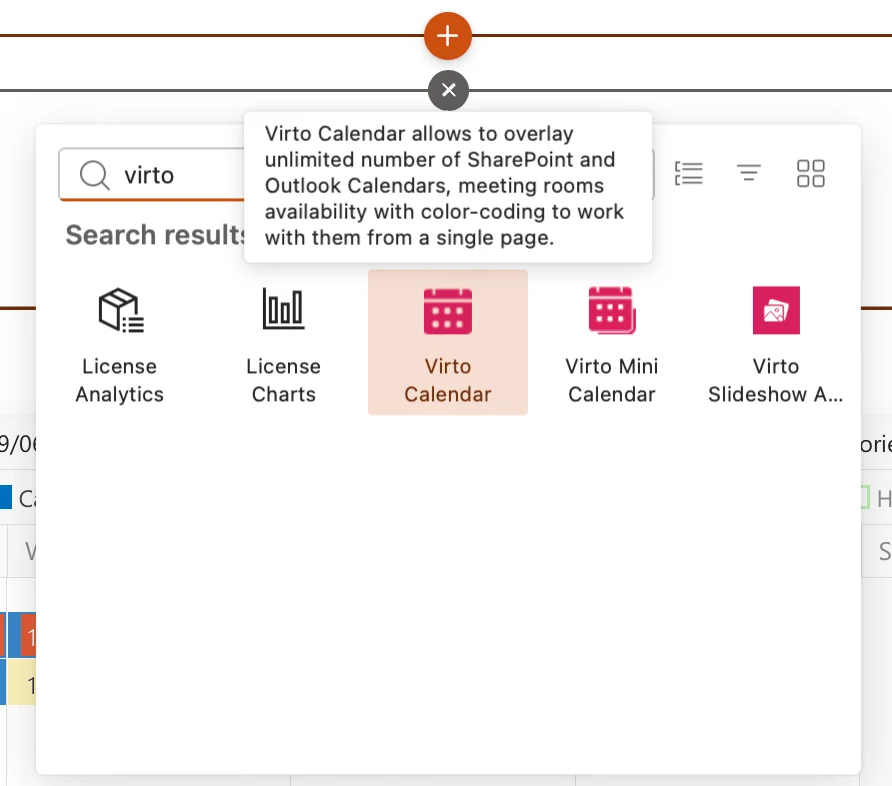
Pic. 4. Search for and pick a web part from the toolbox.
- Drag the web part to reposition it within the section, or move it to another section as needed.
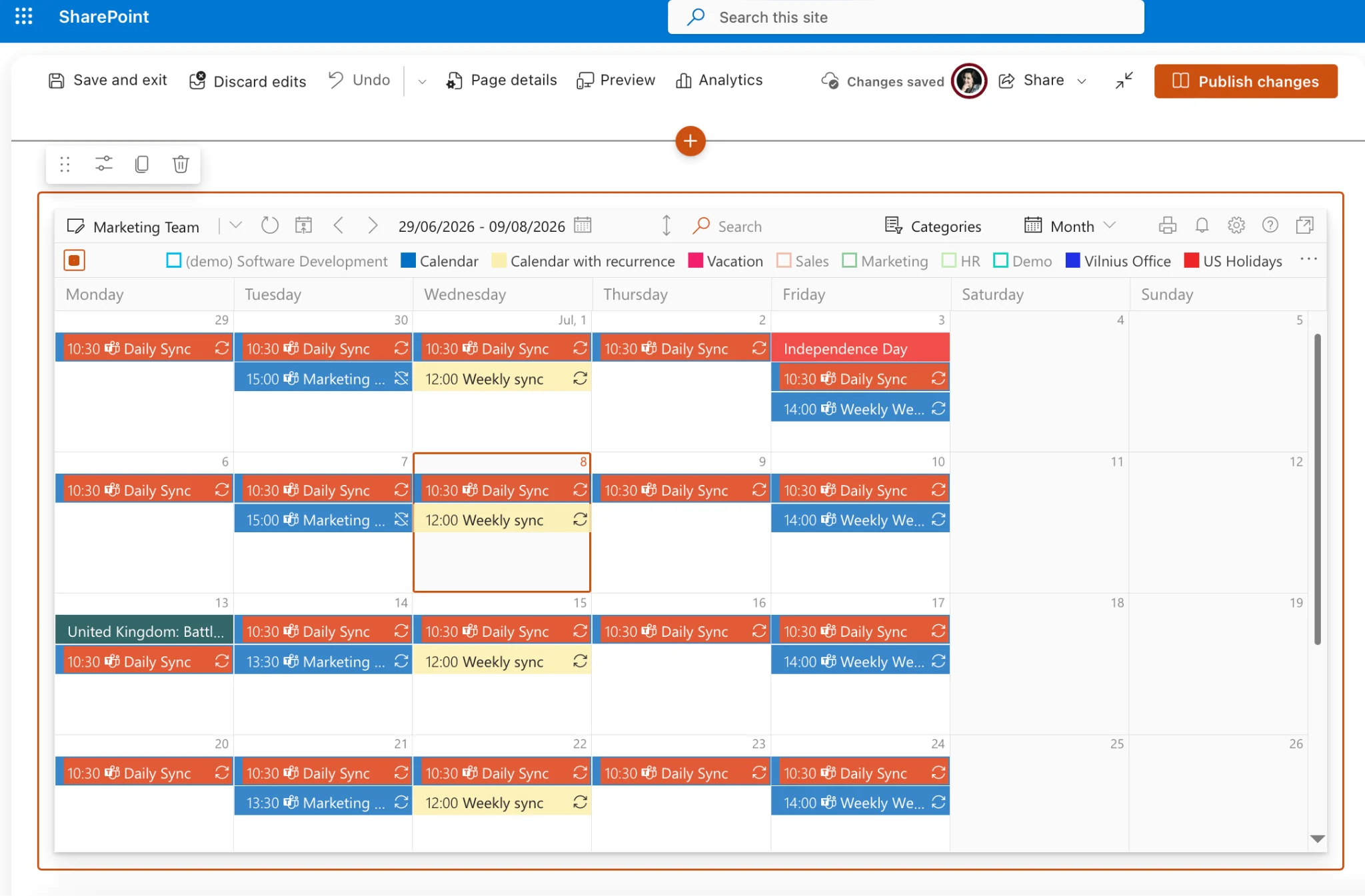
Pic. 5. Adding a web part to the page.
- Select Republish (or Publish) to make your changes live.
👉 How do I add a list to a SharePoint page? Edit the page, select the + inside a section, choose the List web part, then pick the list you want to display and configure any view or filter options before republishing.
Steps can vary slightly by SharePoint version and by the permissions your administrator has set — make sure you have edit rights on the page first.
Customize a web part
- Select the web part to reveal its toolbar; use it to move, duplicate or delete the part.
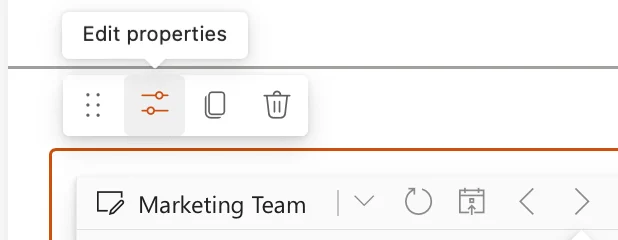
Pic. 6. The web part toolbar.
- Select the Edit properties icon to open the property pane.
- Adjust settings such as layout, display style, text formatting or data source, then preview and Republish.
Most web parts offer display options (list, grid, carousel), sizing and placement controls, and interaction settings like filtering or sorting — experiment to match your page design.
Connecting web parts in SharePoint
Connecting web parts lets them share data so the page behaves like a mini-dashboard — selecting an item in one part updates what another part shows. Common connection types include:
- Provider and consumer — one part sends data, the other receives and reacts to it.
- Filter connections — one part filters the data shown in another.
- List and library connections — a list or library part passes a selected item’s details to another part.
👉 Modern vs classic connections: Rich web part connections are primarily a classic-page capability configured through the web part properties. On modern pages, most cross-part interactivity comes from dynamic data sources (for example, a List web part filtering a connected view) rather than the classic provider/consumer model. Check the specific web part’s property pane for the options it supports.
Set up a connection (classic pages)
- Edit the page and add both web parts you want to connect.
- Open the provider web part’s properties (pencil icon) and choose the option to send or export data.
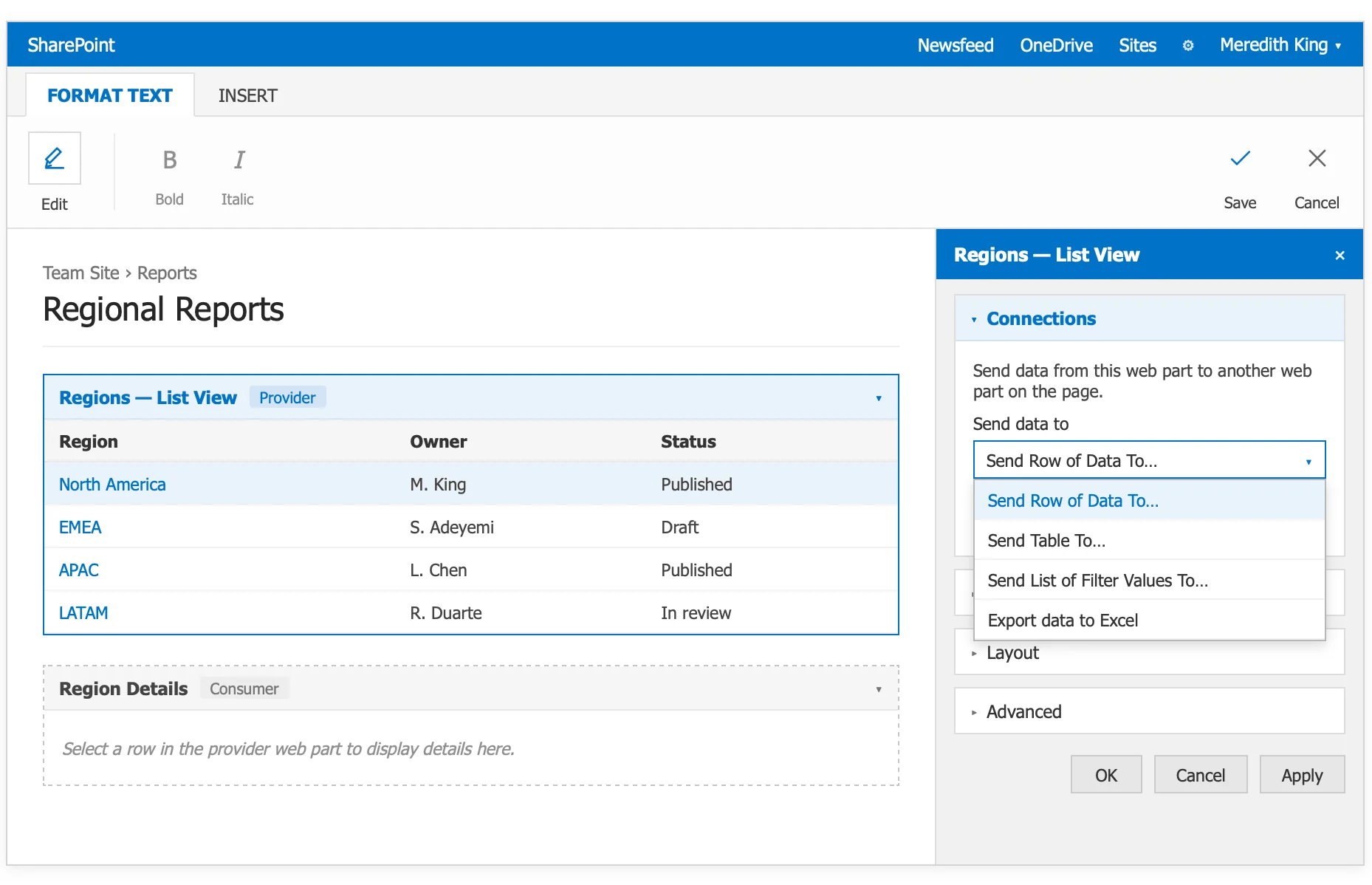
Pic. 7. Open the properties pane to configure the data source.
- Open the consumer web part’s properties and choose to receive or import that data.
- Define which column or field is passed, complete the prompts, then save and test the interaction.
Building custom web parts with SPFx
When the built-in and third-party options don’t cover a specific need, you can build a client-side web part with the SharePoint Framework (SPFx) — the modern, recommended model for custom SharePoint development. SPFx web parts are responsive, integrate cleanly with SharePoint data, and run in both SharePoint Online and supported on-premises environments.
A typical build looks like this:
- Set up the toolchain: Node.js, npm, Yeoman, Gulp and the SharePoint Yeoman generator, with an editor such as Visual Studio Code.
- Scaffold the project by running
yo @microsoft/sharepoint. - Build the web part in TypeScript/JavaScript (often with React), adding your HTML and CSS.
- Preview and test in the local workbench.
- Bundle and deploy the package to your site or the App Catalog.
👉 For a step-by-step walkthrough, see Microsoft’s guide, Build your first SharePoint client-side web part. Keep components lightweight, responsive, tested and secure, and use version control throughout.
Examples and top SharePoint web parts
Mixing the right web parts is how you turn a blank site into a useful intranet. Common out-of-the-box picks include:
- News — announcements and stories in a carousel or grid.
- Quick Links — a tidy set of links to key resources, with customizable icons and layout.
- Hero — highlights featured content with large visuals and calls to action.
- Events — upcoming meetings and deadlines, with Outlook and Teams integration.
- File Viewer — displays a document (Word, Excel, PowerPoint, PDF and many more types) inline.
- Image Gallery — a rich gallery for photos and visual content.
- Employee Directory — searchable people profiles (usually via a third-party part).
For needs the standard set doesn’t cover — calendar overlays, Kanban boards, Gantt charts, alerts and advanced forms — ready-made web parts save development time. You can browse the full range in the Virto SharePoint web parts catalog. Popular examples include:
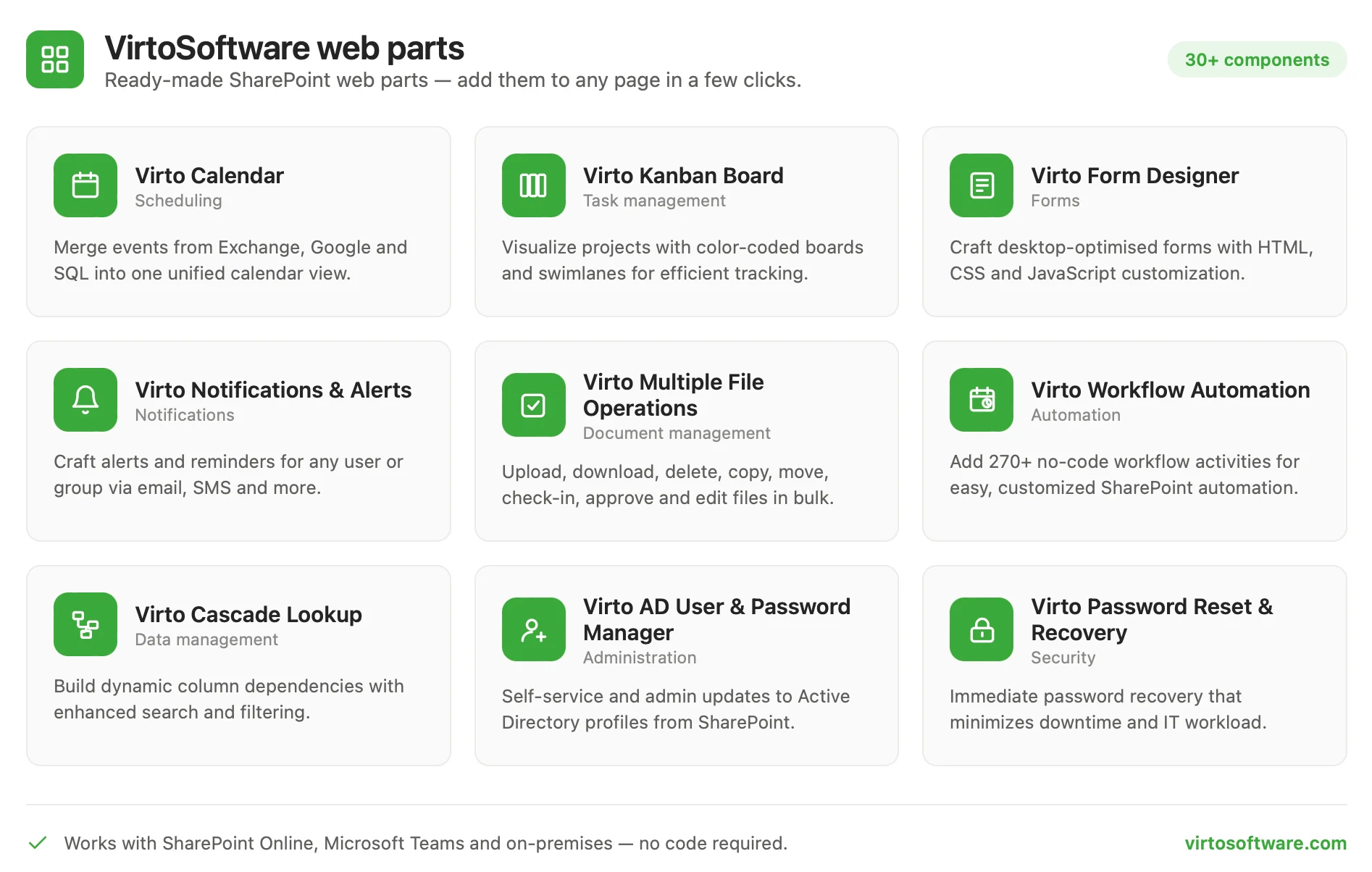
Pic. 8. Ready-made SharePoint web parts from VirtoSoftware.
- Virto Calendar Web Part — overlays multiple calendar sources into one color-coded view.
- Virto Kanban Board Web Part — visualizes tasks and workflows for project and task tracking.
- Virto Notifications and Alerts Web Part — custom alerts and reminders on list and library changes.
- Virto Form Designer — build custom data-entry forms without code.
FAQ
What is a SharePoint web part?
A modular building block you add to a SharePoint page to display content or functionality — text, news, lists, calendars and more. Modern SharePoint includes many out-of-the-box web parts, and custom ones are built with SPFx.
How do I add a web part in SharePoint?
Edit the page, add a section, select the + to open the web part toolbox, choose the web part you want, configure it, and republish.
What’s the difference between classic and modern web parts?
Classic web parts are server-side components placed in web part zones on classic pages; modern web parts are client-side, responsive components placed inside sections on modern pages. New work should use modern pages, with SPFx for anything custom.
Which SharePoint versions support web parts?
All current versions do. SharePoint Online and SharePoint Server Subscription Edition / 2019 / 2016 support modern and SPFx web parts; older on-premises versions support classic web parts with more limited capabilities. Virto’s web parts support SharePoint from 2010 onward — check each product page for exact compatibility.
Conclusion
Web parts are what make SharePoint flexible: they let anyone assemble a page from reusable blocks, and they let developers extend the platform with SPFx when the built-ins fall short. Start with the out-of-the-box modern web parts, connect and customize them to fit your content, and reach for ready-made or custom parts when you need more. Explore the Virto SharePoint web parts catalog to add calendars, boards, alerts and forms to your intranet in minutes, or reach out if you’d like help selecting and deploying the right ones.