SharePoint and Microsoft Teams are the two Microsoft 365 tools people most often confuse — and the confusion is understandable, because they overlap on screen. Both show you files. Both have something called a team. Both claim to be where collaboration happens. Yet they are not alternatives to each other, and choosing one over the other is not really the decision most organisations think it is.
This guide gives you the short answer first, then a side-by-side comparison table, the mechanics of how the two products are wired together, and clear guidance on which one to reach for in a given situation.
Quick answer: SharePoint vs Microsoft Teams
SharePoint is Microsoft 365’s content, document and intranet platform. Microsoft Teams is the chat and meeting hub that sits on top of it — every team you create in Teams stores its files in a SharePoint site. Use Teams to collaborate in the moment; use SharePoint to store, structure and publish content that has to last.
Three points settle most of the debate:
- They serve different jobs. Teams is an interface for conversation and coordination. SharePoint is a platform for content and its governance.
- You are already using both. The moment you create a team, Microsoft 365 provisions a SharePoint site behind it. There is no such thing as a file stored “in Teams”.
- The real question is not which to pick, but which to open for a given task — and how much structure you put into SharePoint before the work starts.
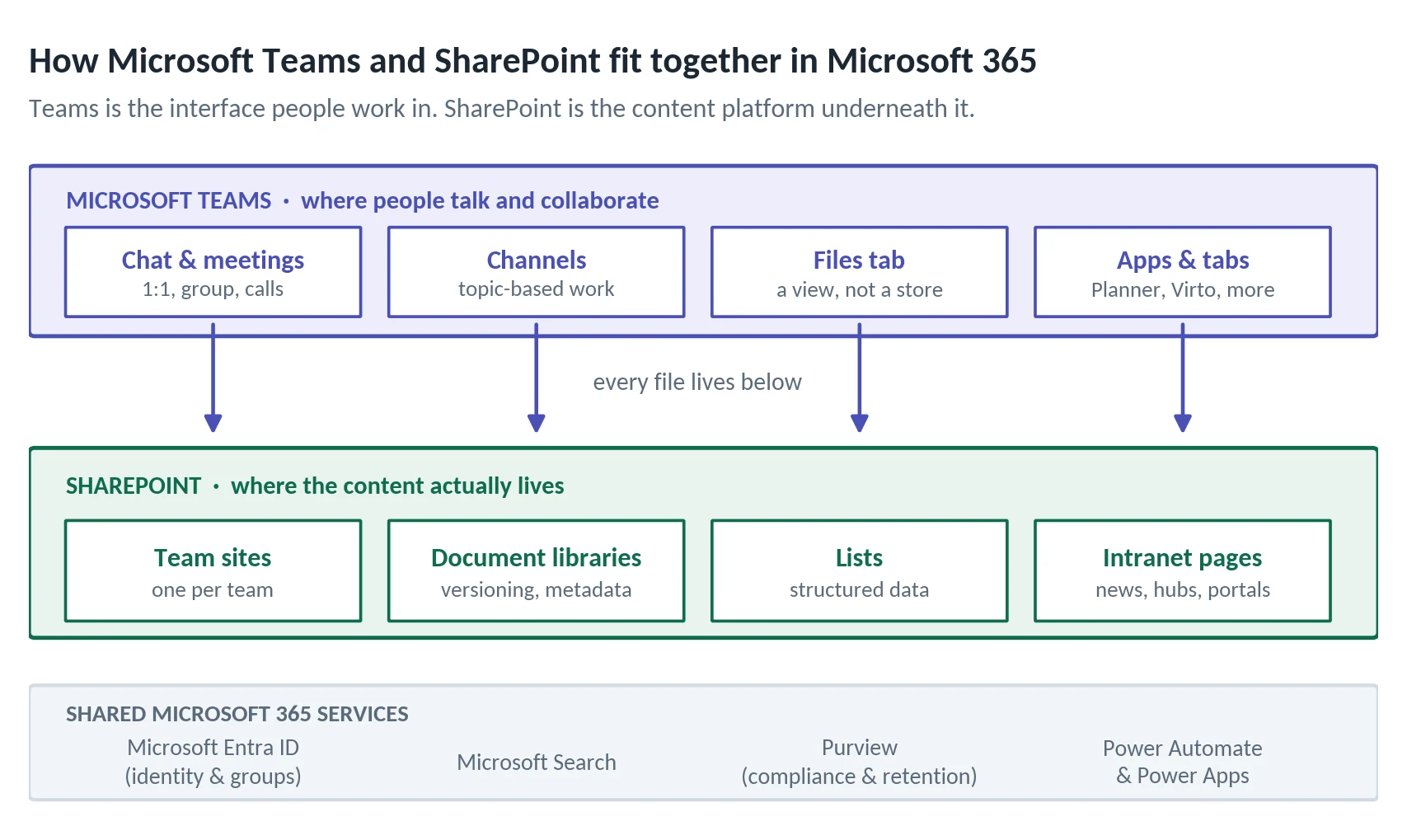
Pic.1. How Microsoft Teams and SharePoint fit together inside Microsoft 365
SharePoint vs Microsoft Teams comparison table
The table below is the fastest way to see where the two products genuinely differ. Read it as “same platform, different layer” rather than “competitor A vs competitor B”.
| Dimension | SharePoint | Microsoft Teams |
|---|---|---|
| Primary purpose | Store, structure and publish content: documents, lists, intranet pages | Communicate and coordinate: chat, calls, meetings, channel work |
| What it really is | A content management and intranet platform | A front-end hub that surfaces content from SharePoint, Exchange and other services |
| Files and storage | The actual storage layer — document libraries hold the files | Displays files; every one of them physically lives in SharePoint or OneDrive |
| Structure | Sites, subsites, hubs, document libraries, lists, folders, metadata columns | Teams and channels, plus tabs pinned inside each channel |
| Versioning and metadata | Full version history, custom columns, content types, approval flows | Inherited from the underlying SharePoint library, edited in SharePoint |
| Search | Deep search across sites, libraries, list items, page content and metadata | Search across messages, people and files, scoped to what you have access to |
| Permissions | Granular: site, library, folder and item level; unique permissions possible | Membership-driven: team owners and members, private and shared channels |
| External sharing | Sharing links per file, folder or site, governed by tenant policy | Guest access to a team; shared channels for cross-tenant collaboration |
| Content lifespan | Built for content that must outlive the project — records, policies, archives | Built for the current conversation; older threads scroll away |
| Automation | Power Automate flows, alerts, approvals, content types, retention labels | Workflow apps, bots, message extensions, Power Automate triggers on messages |
| Intranet capability | Yes — news, hubs, communication sites, company-wide portals | No native intranet; SharePoint pages can be pinned as tabs |
| Best for | Document management, intranet, structured data, compliance and governance | Day-to-day collaboration, meetings, project channels, fast file exchange |
If you only remember one row, make it “files and storage”. It explains almost every other difference on the list. For the wider Microsoft 365 storage picture — 1 TB base per organisation plus 10 GB per licence, with a 25 TB ceiling per site — see the SharePoint Online service limits published by Microsoft.
Key differences between SharePoint and Teams
Purpose: conversation versus content
Teams is optimised for the present tense. It is where a question gets asked, a decision gets made, a meeting happens and a draft gets passed around. SharePoint is optimised for the past and the future tense: what was agreed, what the current approved version is, what a new joiner needs to find in six months. When teams complain that “nobody can find anything in Teams”, what they are usually describing is content that was never given a home in SharePoint.
Files: Teams shows them, SharePoint stores them
The Files tab in a Teams channel is a window, not a container. Behind it sits a document library in a SharePoint site, and every capability that library has — version history, check-in/check-out, metadata columns, retention labels, approval flows — is available to that content whether or not anyone in the team has ever opened SharePoint. Microsoft explains the mechanics in its community article on whether to store files in Teams or SharePoint.
Structure: channels versus sites and libraries
A team gives you one axis of organisation: channels. That is enough for a project, and not enough for a department that produces contracts, policies and reports which need to be filtered, grouped and reported on. SharePoint gives you libraries with metadata columns and views, lists that behave like small databases, and site hierarchies connected by hubs. If you need to answer “show me every contract expiring this quarter”, you need SharePoint structure, not more channels.
Search and findability
Both products search what you have access to, but they search different material. Teams search is strongest on conversation — who said what, in which channel. SharePoint search is strongest on content — file text, list items, page content and, crucially, metadata. A well-structured library will still surface the right document three years later; a channel thread rarely will.
Permissions and governance
Teams permissions are membership-shaped: you are an owner, a member, or a guest, and private and shared channels create their own boundaries. SharePoint permissions are content-shaped: you can grant access to a single library, a single folder, even a single document. Most governance work — retention, sensitivity labels, records declaration, controlled publishing — happens on the SharePoint side, even when the users involved never leave Teams.
Intranet and one-to-many publishing
This is a capability Teams simply does not have. Company news, HR portals, policy hubs and department landing pages are SharePoint territory, usually built on a SharePoint communication site and rolled up through hubs. Teams can pin such a page as a tab, but the page itself is a SharePoint artefact.
How SharePoint and Microsoft Teams work together
Rather than competing, the two products are stacked. Understanding the stack is what turns “SharePoint or Teams?” into a practical decision instead of a philosophical one.
What happens the moment you create a team
Creating a team triggers a chain of provisioning: a Microsoft 365 group is created in Microsoft Entra ID to hold the membership, a SharePoint team site is created and connected to that group, and a default document library inside that site becomes the storage for the team’s files. From that point on, team membership and site access stay in sync. Microsoft documents the relationship in its guide to Teams and SharePoint integration.
Where files from channels and chats actually live
Different kinds of Teams conversation route content to different places, and knowing the routing prevents most “where did that file go?” incidents.
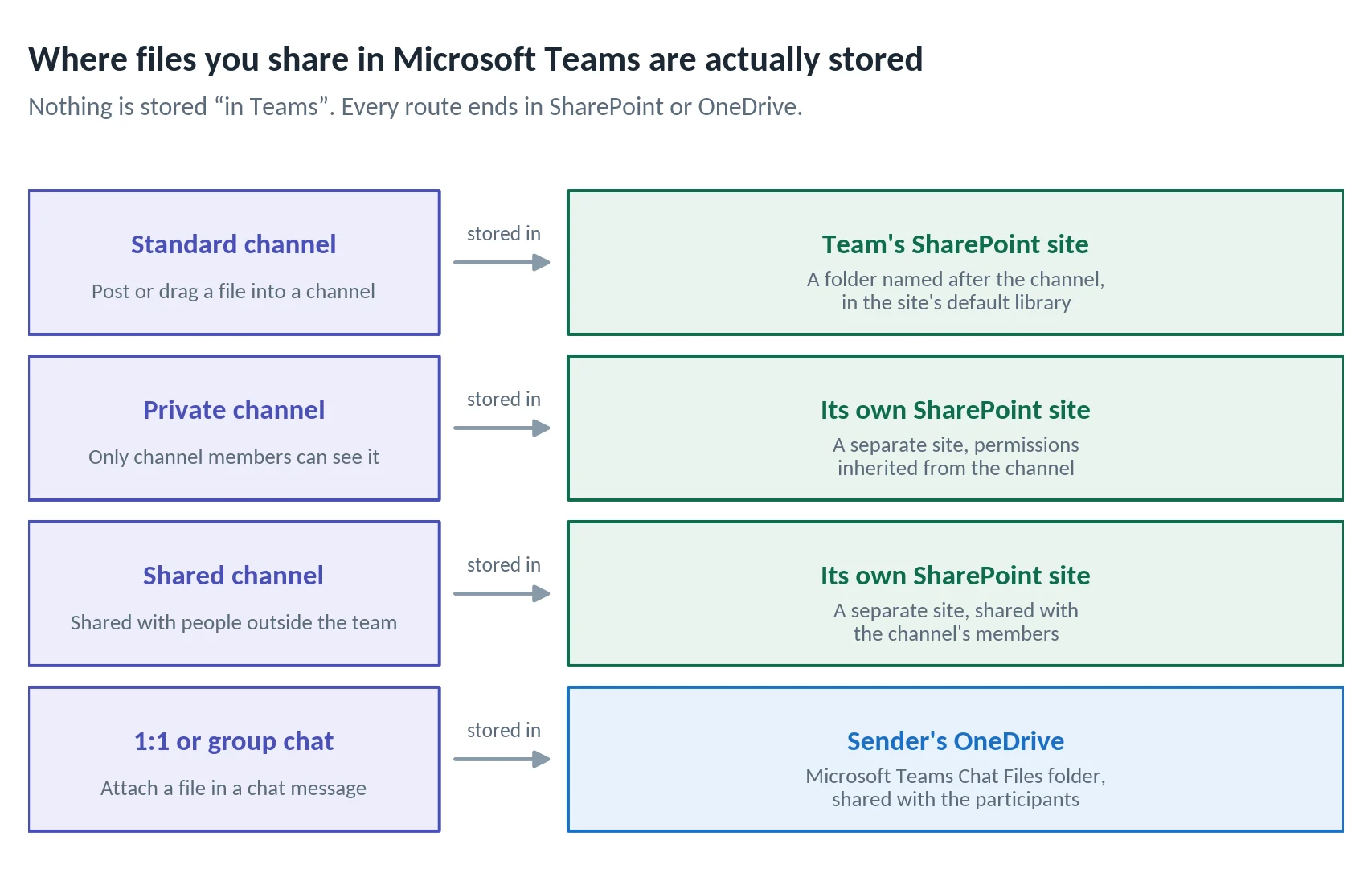
Pic.2. Where a file goes depending on where you shared it in Microsoft Teams
- Standard channels all share the team’s parent SharePoint site. Each channel gets its own folder inside the site’s default document library — which is why renaming a channel does not rename its folder.
- Private channels get a separate SharePoint site of their own, visible only to the channel’s members, with permissions inherited from the channel rather than managed in SharePoint.
- Shared channels also get their own SharePoint site, which is how people from outside the team — and outside the tenant — can be given access to just that content.
- Files attached in a 1:1 or group chat are not in SharePoint at all: they go to the sender’s OneDrive, into a Microsoft Teams Chat Files folder, and are shared with the chat participants.
That last point is the single most common cause of orphaned content in Microsoft 365. A file shared in a chat belongs to a person; a file posted in a channel belongs to the team.
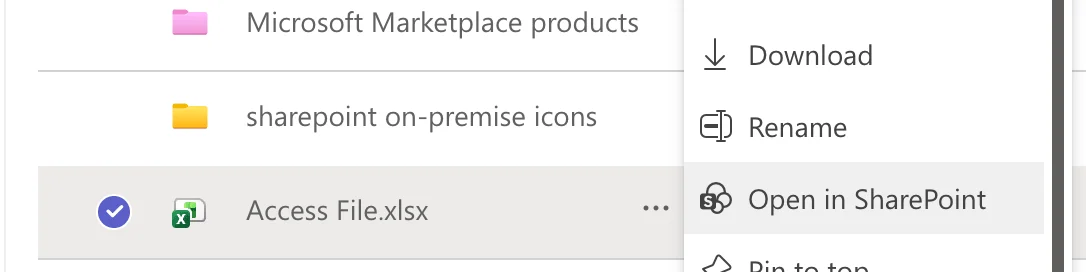
Pic.3. The Files tab of a Teams channel, with the “Open in SharePoint” command highlighted
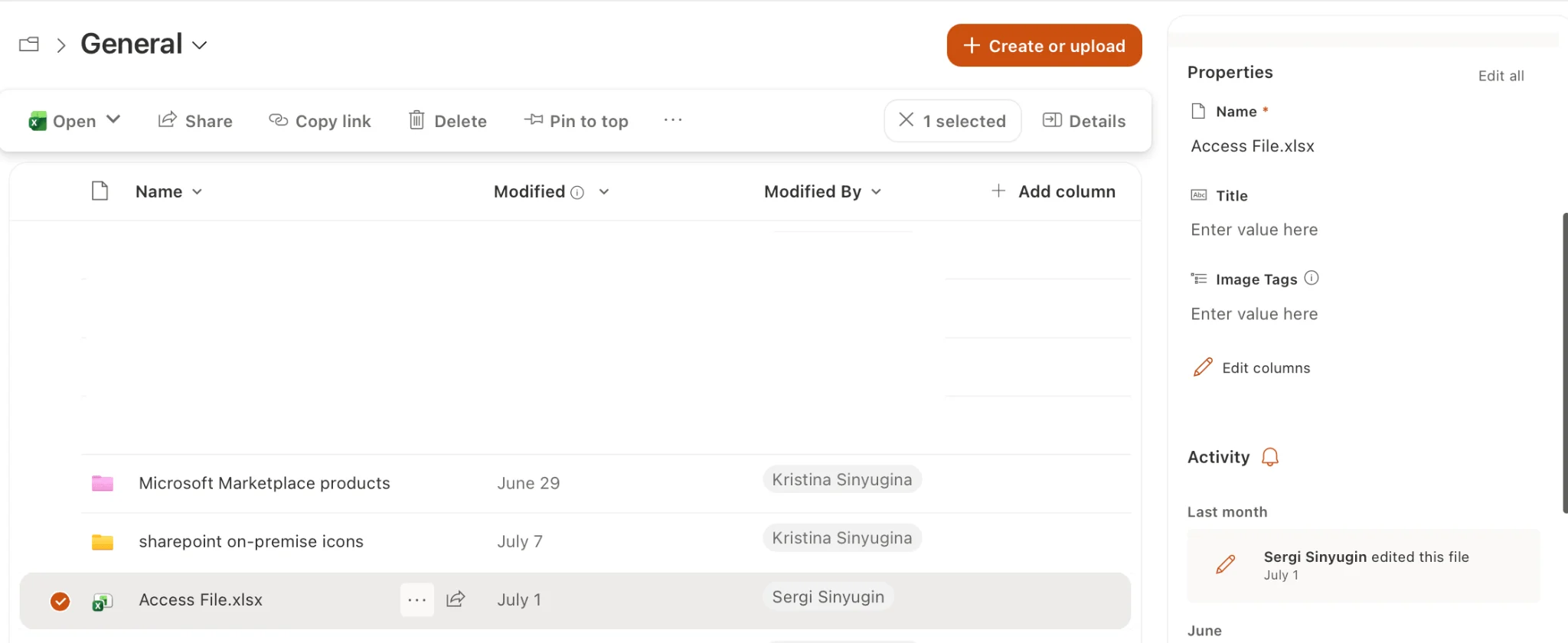
Pic.4. The same folder viewed in the connected SharePoint document library, showing metadata columns and version history
Bringing SharePoint into Teams
The integration works in both directions. Any SharePoint library, list or page can be pinned inside a Teams channel as a tab, which lets people work with proper SharePoint structure without leaving the interface they already have open all day. This is the pattern to use when a team needs metadata and views but will not realistically go looking for a site URL. For the wider picture of what else can be embedded this way, see our guide to Microsoft Teams integrations.
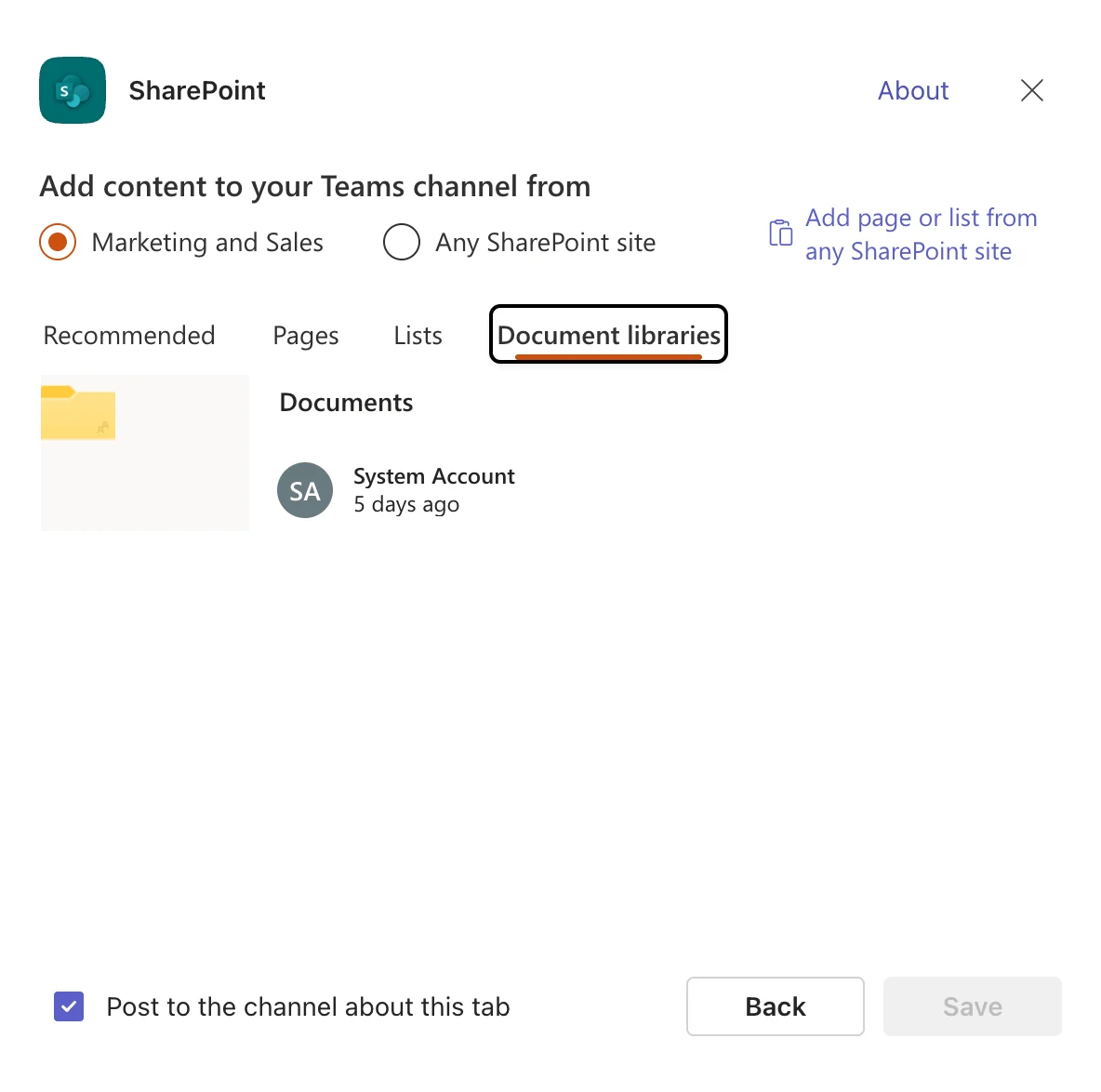
Pic.5. Adding a SharePoint document library as a tab in a Microsoft Teams channel
SharePoint vs Teams vs OneDrive: the three-way question
Search data shows a lot of people asking about all three at once, and the three-way version of the question is actually easier to answer than the two-way one, because each product owns a different scope of content.
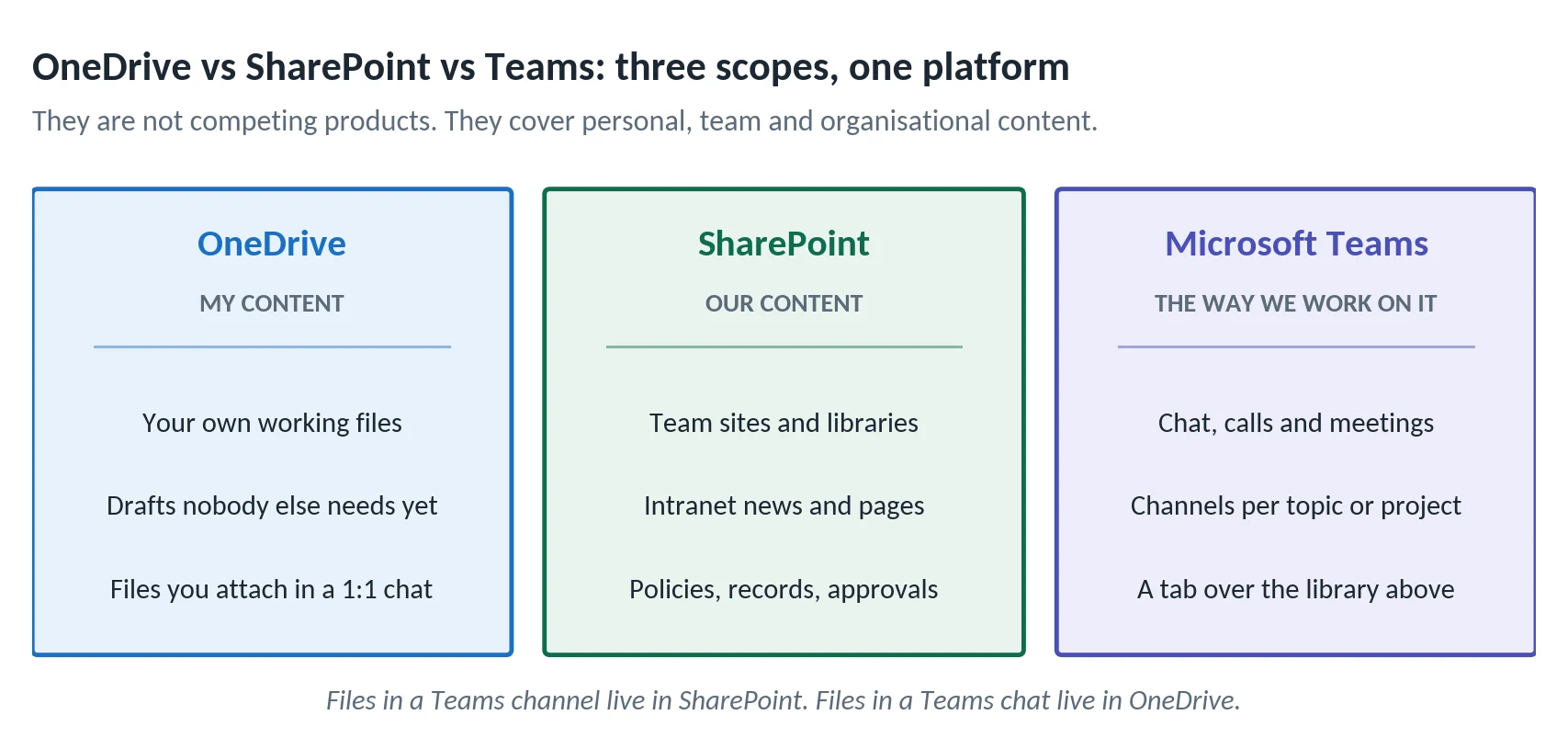
Pic.6. OneDrive, SharePoint and Microsoft Teams cover three different scopes of content
OneDrive is personal: your drafts, your working files, anything not yet ready to belong to a group. SharePoint is shared: content owned by a team, a department or the whole organisation. Teams is neither — it is the interface through which people reach both. If you are weighing up the storage side specifically, our dedicated comparison of SharePoint vs OneDrive goes deeper on quotas, sync behaviour and sharing.
When to use SharePoint and when to use Teams
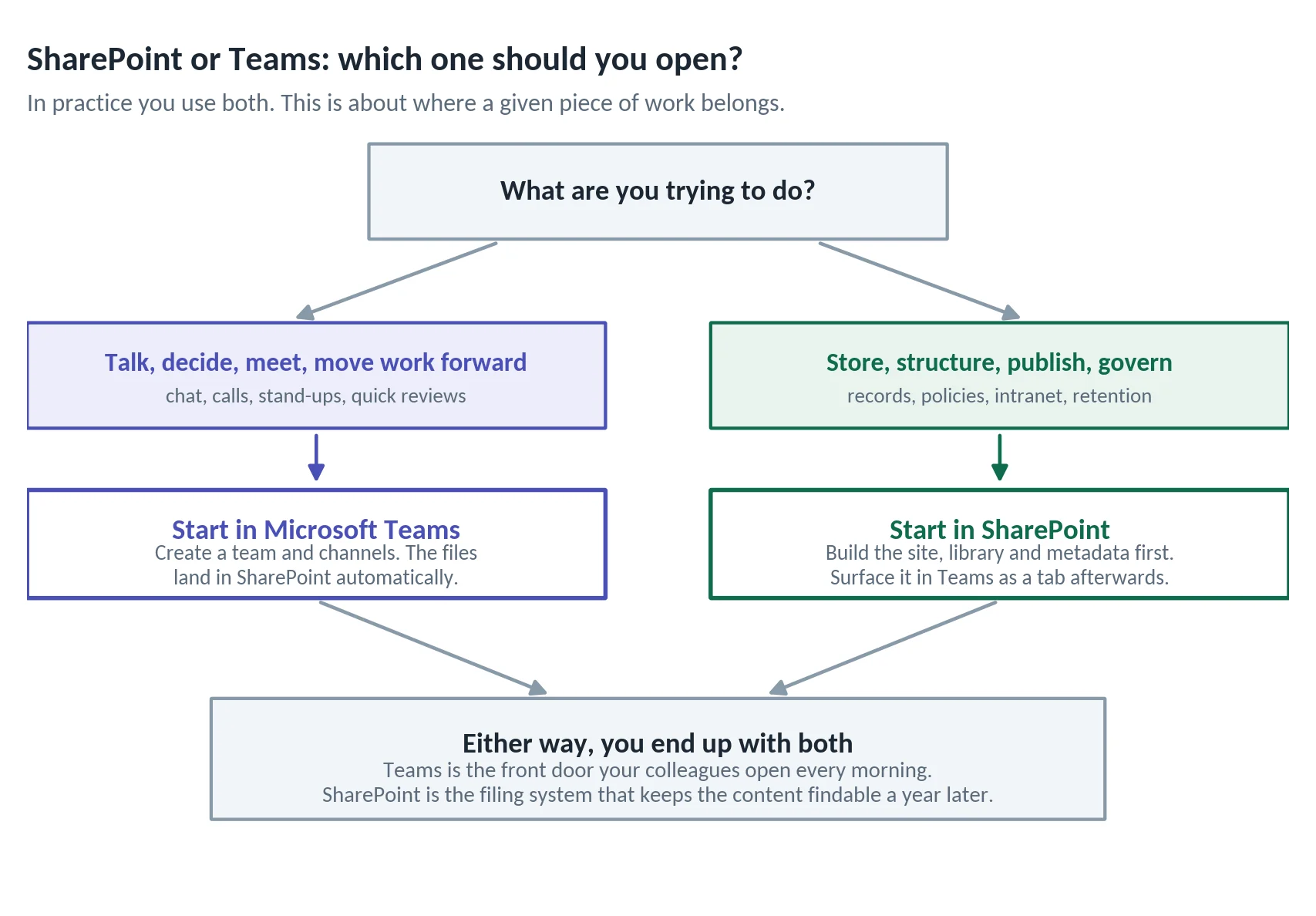
Pic.7. A simple way to decide where a given piece of work belongs
Reach for Microsoft Teams when
- The work is a conversation: a decision to make, a stand-up, a client call, a quick review round.
- A project needs a working space fast and the structure can be figured out as you go.
- People need notifications and presence — knowing who is around and getting pinged when something changes.
- You want tasks, boards and files in the same place your colleagues already have open. Our guide to project management in Microsoft Teams covers this pattern in detail.
Reach for SharePoint when
- The content has to outlive the project: contracts, policies, specifications, records, approved templates.
- You need metadata, views, filtering or reporting rather than folders — for example “all invoices, by supplier, by status”.
- The audience is broader than one team: company news, an HR portal, a policy hub, a department landing page.
- Governance matters — retention labels, sensitivity labels, approval flows, controlled publishing.
- You are building a structured project workspace rather than a chat space. See SharePoint project management for how that is set up.
Do I need SharePoint if I already have Teams?
You have it either way — the question is whether you use it deliberately. Teams cannot function without SharePoint underneath it, so the choice is not whether SharePoint is in play but whether anyone has designed the libraries, metadata and permissions that Teams is quietly relying on. Organisations that never open SharePoint end up with hundreds of team sites full of flat folders, which is exactly the mess most of them adopted Microsoft 365 to avoid.
Patterns that work in practice
- Design the site first for anything long-lived. Create the SharePoint site, library and metadata, then connect a team to it and pin the library as a tab.
- Let Teams lead for short-lived work. Project channels, campaign teams and task forces can start in Teams; archive the site when the work ends.
- Keep one home per document. If a file matters, it belongs in a channel’s library, not in a chat attachment.
- Publish upward, collaborate downward. Draft inside a team, publish the approved version to a communication site the whole organisation can read.
- Watch the platform limits. Team, channel and file size ceilings do bite at scale — our overview of Microsoft Teams limits lists the current numbers.
Microsoft’s own guidance on when to use Project, Planner, To Do or the Tasks app in Teams is a useful companion when you are deciding where task tracking should sit alongside these two.
How Virto apps work across both Teams and SharePoint
The practical problem with a two-layer platform is that the same information ends up looking different depending on which layer you opened. Virto’s Microsoft 365 apps are built to work identically in both, so a calendar or board you configure once is the same object whether a colleague opens it in a Teams tab or on a SharePoint page. Every Virto app comes with a 30-day free trial, with no commitment during the trial period.
Virto Calendar App
The Virto Calendar App merges multiple sources — Exchange and Outlook calendars, SharePoint lists, Microsoft 365 group calendars, Google Calendar and public iCal feeds — into a single colour-coded view. It is not tied to one surface: add it as a web part on a SharePoint page, pin it as a tab in a Teams channel, or install it as a personal app so it sits in the quick-access rail of Microsoft Teams, Outlook and the Microsoft 365 app. Wherever a colleague opens it, it is the same calendar with the same sources and permissions. That makes it the most direct answer to the scheduling gap between the two products: Teams channel calendars are scoped to a single channel, while SharePoint calendars on their own never reach the place people actually spend their day.
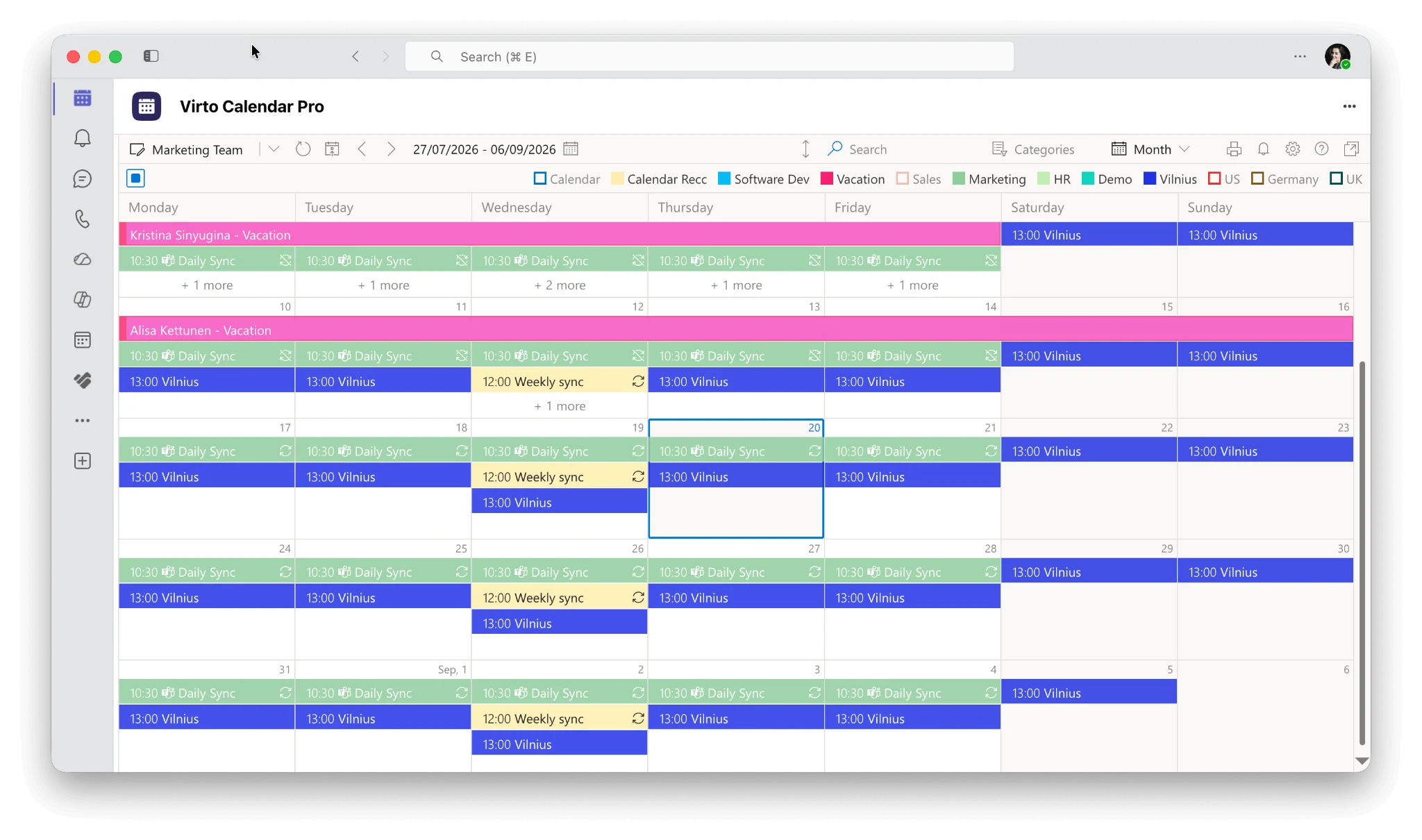
Pic.8. Virto Calendar App opened from the quick-access app rail in Microsoft Teams
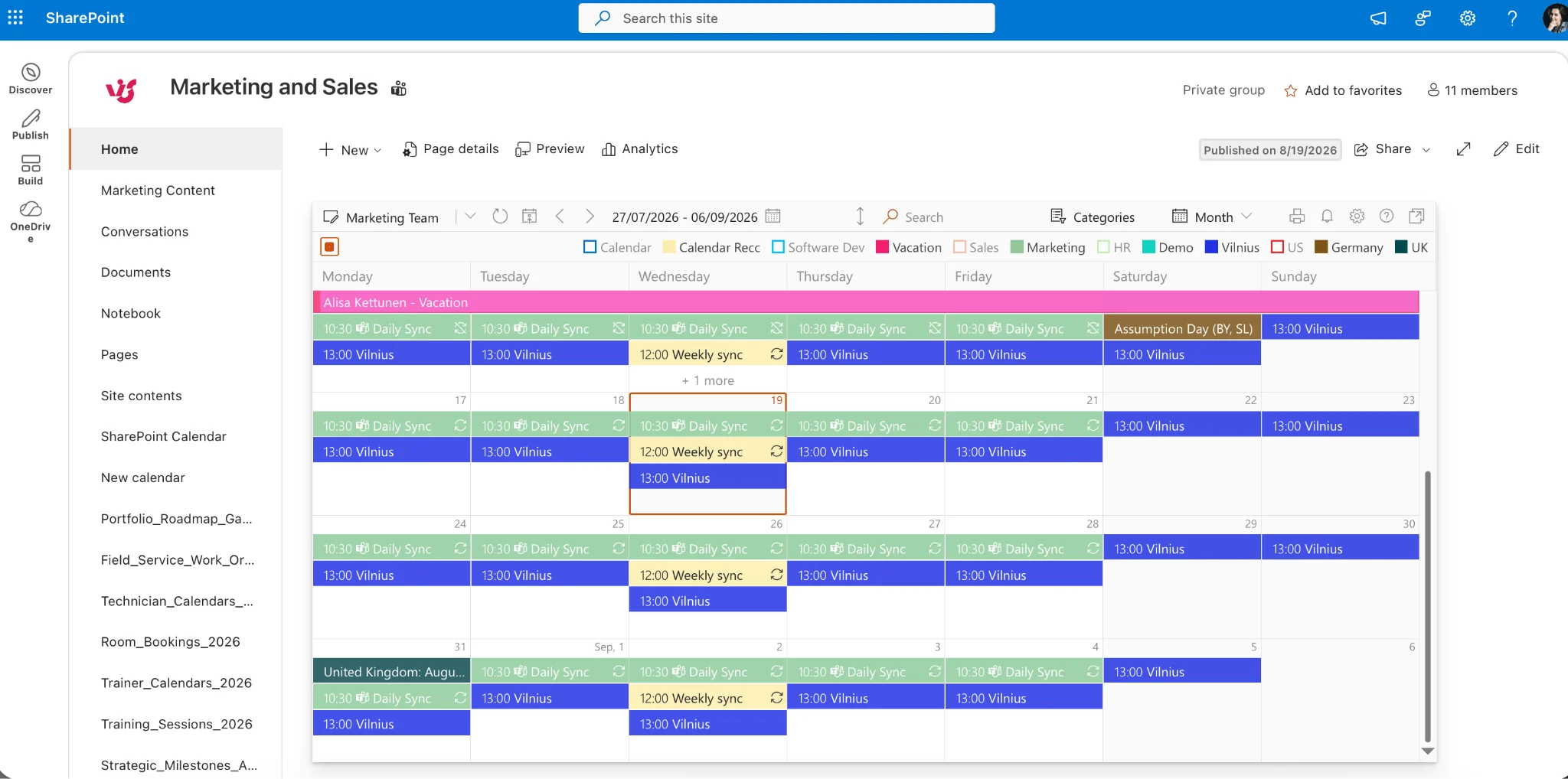
Pic.9. The same Virto Calendar App view as a web part on a SharePoint page
If you are juggling several sources today, our guides on managing multiple Microsoft 365 calendars and calendar management best practices cover the groundwork.
Virto Kanban Board App
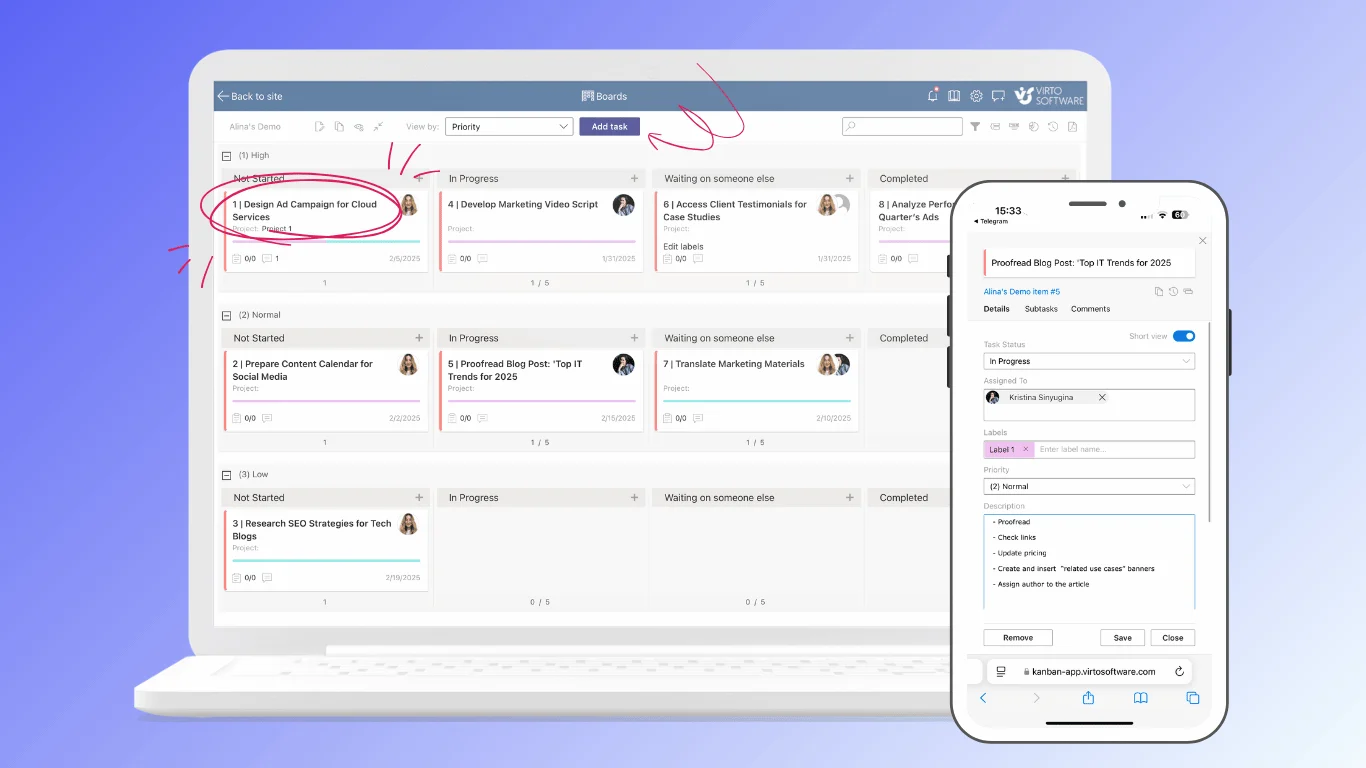
The Virto Kanban Board App turns SharePoint list items into a visual board that can also be pinned inside a Teams channel — so the board and the underlying list never diverge. It suits teams that have outgrown a flat task list but want their data to stay in SharePoint, where it can be governed and reported on. For alternatives and context, see our reviews of the best Kanban boards for Microsoft Teams and online Kanban board tools.
Virto Alerts & Reminders App
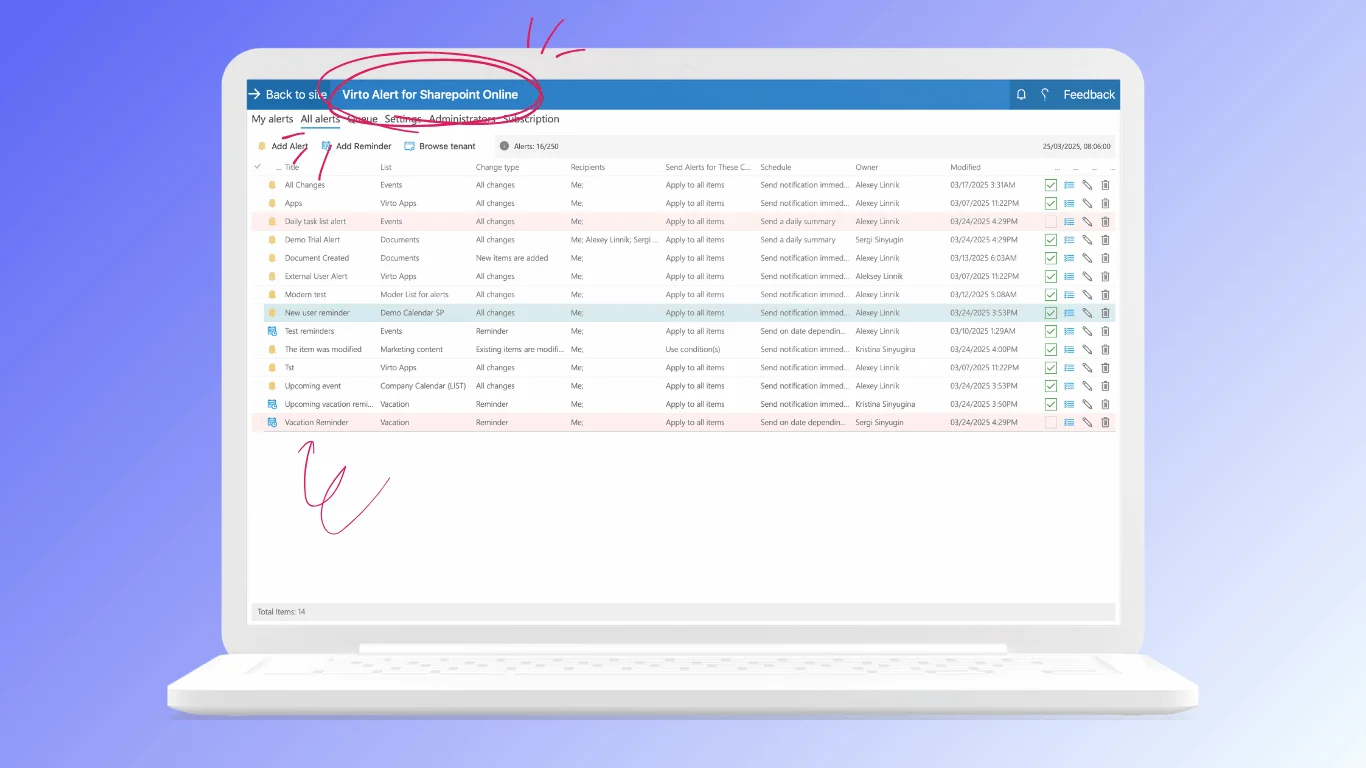
The Virto Alerts & Reminders App sends conditional notifications from SharePoint lists and libraries — deadlines, status changes, expiring documents — to the people who need them. It closes a familiar gap: content lives in SharePoint, attention lives in Teams and email, and native alerting is not flexible enough to bridge the two.
SharePoint vs Teams: frequently asked questions
What is the difference between SharePoint and Microsoft Teams?
SharePoint is Microsoft 365’s content and document platform — sites, document libraries, lists and intranet pages. Microsoft Teams is the chat and meeting hub built on top of it. Every team you create stores its files in a SharePoint site, so the two are layers of one platform rather than competing products.
Does Microsoft Teams use SharePoint?
Yes. Creating a team automatically provisions a connected SharePoint site, and files posted in standard channels are stored in folders inside that site’s default document library. Private and shared channels each get their own SharePoint site.
Do I need SharePoint if I have Teams?
You are already using it — Teams cannot store files without it. The real decision is whether you design your SharePoint libraries, metadata and permissions deliberately, or let hundreds of unstructured team sites accumulate by default.
Should I store files in Teams or SharePoint?
Store them through Teams for everyday collaborative work — they land in SharePoint anyway. Work directly in SharePoint when the content needs metadata, approval, retention or an audience wider than the team. Avoid sharing important files as chat attachments, since those live in the sender’s OneDrive rather than in a shared library.
Can I use SharePoint without Microsoft Teams?
Yes. SharePoint is a complete platform on its own and is widely used for intranets, document management and structured lists without any Teams involvement. The reverse is not true.
What is the difference between a SharePoint team site and a Teams team?
A Teams team is the collaboration space with channels, chat and meetings. A SharePoint team site is the content container connected to it. Every Teams team has a site; not every site has a team — a site can be created independently and connected to Teams later.
Where do Teams chat files go?
Into the sender’s OneDrive, in a folder called Microsoft Teams Chat Files, shared automatically with the chat participants. They are not stored in the team’s SharePoint site, which is why they disappear from view when the sender leaves the organisation.
Is SharePoint being replaced by Teams?
No. Teams depends on SharePoint for storage and cannot replace it. Microsoft continues to develop both, and the interface convergence between them makes SharePoint more central, not less.
The verdict
SharePoint versus Microsoft Teams is a comparison between a foundation and a front door. Teams wins on immediacy — conversation, meetings, notifications, the sense of a team being in one place. SharePoint wins on durability — structure, metadata, permissions, governance, and the ability to find something long after the conversation about it has scrolled away.
The organisations that get the most out of Microsoft 365 stop treating this as a choice. They let Teams be the interface people live in, invest in SharePoint structure behind it, and add tools that behave the same in both. If you want to see what that looks like in your own tenant, the Virto Calendar App is free to try for 30 days across Teams and SharePoint alike.
Comparing SharePoint against tools outside the Microsoft stack? See our companion guides: Confluence vs SharePoint, Notion vs SharePoint and SharePoint vs OneDrive. New to the platform entirely? Start with what SharePoint is and how it works.