Confused about whether to use OneDrive or SharePoint? Discover how these tools compare, when to use each, and how to combine them for maximum productivity.
Quick Answer: SharePoint vs OneDrive
OneDrive is personal cloud storage for your own files; SharePoint provides team sites and shared document libraries for group content. Both run on the same Microsoft 365 storage backend and are designed to work together — use OneDrive for individual, work-in-progress files, and SharePoint for team, department, or project content that many people share.
SharePoint vs OneDrive Comparison Table
At a glance, here is how the two platforms compare across the aspects that matter most when deciding where a file belongs:
| Aspect | SharePoint | OneDrive |
|---|---|---|
| Primary purpose | Team sites & shared content management | Personal file storage |
| Storage model | Shared document libraries within sites | Individual, private file space |
| Sharing | Accessible to site/team members by default | Private by default; owner shares on demand |
| Structure | Sites, libraries, folders, metadata | Simple personal folder structure |
| Admin & permissions | Granular controls at site/library/file level | Basic per-file / per-folder sharing |
| Best use case | Team, department & project collaboration | Individual and work-in-progress files |
Table 1. SharePoint vs OneDrive — side-by-side comparison.
When it comes to Microsoft’s suite of cloud-based tools, OneDrive and SharePoint are two of the most commonly used platforms for file storage and collaboration. Many users confuse the two, as they share overlapping features such as document storage, sharing, and syncing. Despite these similarities, OneDrive and SharePoint serve distinct purposes and excel in different scenarios, making it important to understand their differences.
Choosing the right platform depends on your specific goals. Whether you’re an individual looking for personal file management or an organization seeking robust collaboration and content management, understanding how these tools compare is key to making the best decision.
In this article, we’ll clear up the confusion between SharePoint and OneDrive, outlining their key differences, distinct features, and respective pros and cons. We’ll also explore how these two platforms integrate to boost productivity and teamwork, and provide practical guidance to help you determine the best standalone or integrated solution for your priorities around governance, security, productivity, and scale.
SharePoint vs OneDrive Overview
In this section, we’ll provide an overview of SharePoint and OneDrive, explaining what each tool is, their key features, and how they fit into the broader Microsoft 365 ecosystem.
What Is SharePoint vs OneDrive?
SharePoint is a powerful web-based collaboration and content management platform designed for organizations. It enables teams to create, manage, and share content in a centralized location. SharePoint is particularly well-suited for building intranets, document libraries, and workflows, making it an ideal choice for businesses that require structured collaboration and robust document management.
👉 To learn more about SharePoint, explore additional pieces on our blog, such as:
- SharePoint Overview: What Is SharePoint
- SharePoint Best Practices
- SharePoint External Sharing
- SharePoint Permissions Configuration & Management
OneDrive, on the other hand, is a personal cloud storage solution designed for individuals. It allows users to store, sync, and share files securely across devices. While OneDrive is primarily geared toward personal file management, it also integrates with Microsoft 365 to enable seamless file sharing and collaboration, especially for smaller teams or ad hoc projects.
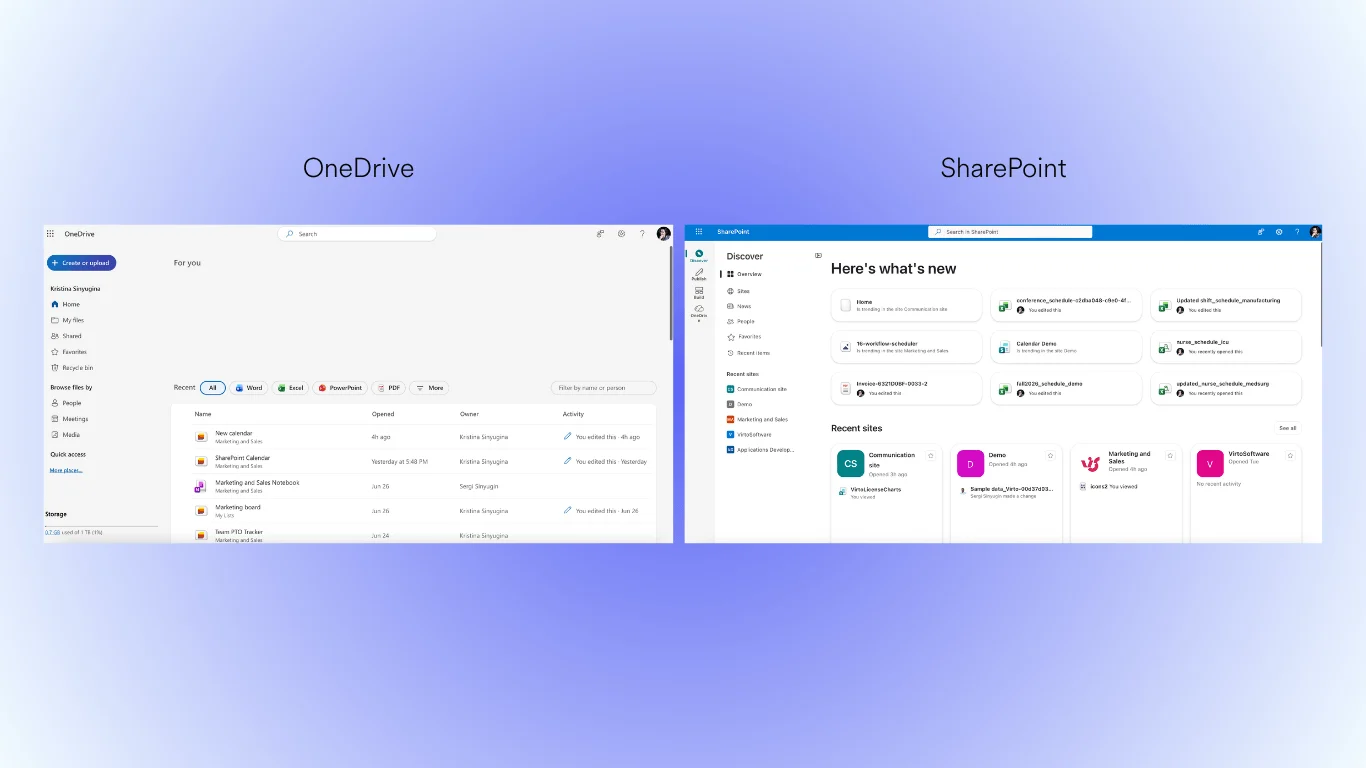
Pic. 1. SharePoint and OneDrive within the Microsoft 365 interface.
Key Features of SharePoint vs OneDrive
While both platforms offer robust functionality for file storage, sharing, and collaboration, they each have unique strengths that make them ideal for certain use cases. Below is a high-level overview of their key features, some of which we’ll explore in greater detail later.
SharePoint features
- Centralized document libraries for group file storage and management.
- Advanced collaboration tools, including version history, co-authoring, and metadata tagging.
- Customizable intranet portals and team sites for internal communication.
- Integration with workflows, automation, and third-party apps.
- Robust access controls and governance for enterprise-level security.
OneDrive features
- Personal cloud storage for individual users.
- File syncing across devices for easy access on the go.
- Sharing and collaboration options for individual files or folders.
- Integration with Office apps for seamless editing and co-authoring.
- Offline access and automatic backup for personal data.
How SharePoint and OneDrive Complement Each Other
Both SharePoint and OneDrive are part of the Microsoft 365 ecosystem, which means they share a similar user interface and integrate deeply with other Microsoft tools like Word, Excel, Teams, and Outlook. This integration makes transitioning between the two platforms intuitive. While OneDrive focuses on individual file storage and sharing, SharePoint is designed to manage and organize team and organizational content. Together, they provide a comprehensive solution for both personal and collaborative needs.
Are SharePoint and OneDrive the Same Thing?
No, SharePoint and OneDrive are not the same thing, though they are closely connected. OneDrive is often thought of as the personal storage component of Microsoft 365, while SharePoint serves as a collaborative platform for teams and organizations. However, OneDrive is integrated with SharePoint to provide seamless access to shared team files. For example, when you save a file to a shared library in SharePoint, it can also appear in your OneDrive for quick access.
Is SharePoint the Back End of OneDrive?
In many ways, yes — SharePoint can function as the back end for OneDrive in a business or organizational setting. When you use OneDrive to access shared files or data from your team, those files are often stored in SharePoint libraries. This integration allows OneDrive to act as a convenient front-end tool for accessing both personal files and shared team content, while SharePoint handles the storage, organization, and permissions on the back end.
OneDrive vs SharePoint: Key Differences
While SharePoint and OneDrive share similarities, their core purposes and functionalities differ significantly. At its core, SharePoint serves as a shared repository for collaborative work, where files are accessible to all members of a SharePoint site. In contrast, OneDrive is a personal repository designed for individual data storage, where the owner can choose to share files with others when needed.
Below, we break down the key differences and provide a side-by-side comparison of their features.
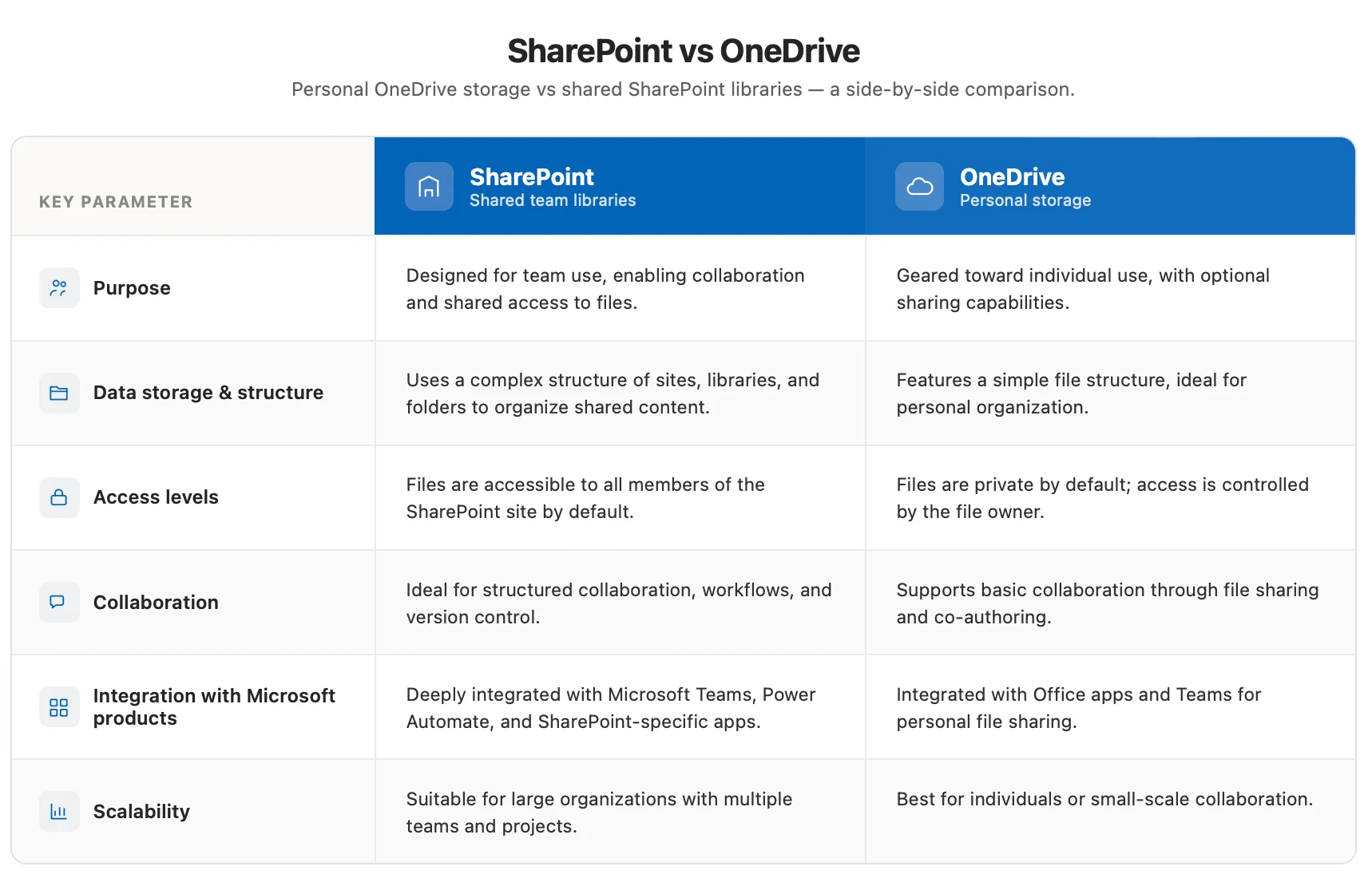
Pic. 2. Personal OneDrive storage vs shared SharePoint libraries.
👉 Is SharePoint and OneDrive the same? SharePoint and OneDrive are not the same, although they are both part of the Microsoft 365 ecosystem and share overlapping features. While OneDrive focuses on individual productivity, SharePoint provides a centralized space for teams to collaborate, share resources, and create intranet sites. The two are interconnected: files shared in Microsoft Teams channels are stored in SharePoint, while files shared in private chats are typically saved to the sender’s OneDrive and then shared with recipients. This lets users switch between personal and team-based tasks without disruption.
What Is the Difference Between a SharePoint Team and OneDrive?
The distinction lies primarily in how files are stored, shared, and used within a team or individual context. Let’s look at these in greater detail.
File storage and sharing in SharePoint
SharePoint is inherently a team-based platform designed for structured collaboration. Files are stored in team libraries that are part of a larger SharePoint site. These libraries are accessible to all members of the team or site by default, making it easy to collaborate on shared content.
What sets SharePoint apart is its ability to provide a centralized workspace for teams, where files are just one aspect of a larger collaborative environment. SharePoint sites can include:
- Document libraries for shared storage and collaboration.
- Calendars for scheduling and coordinating events.
- Task lists to track progress on projects.
- Workflows to automate repetitive processes.
- Customizable pages for group communication or departmental updates.
SharePoint is designed for ongoing, structured collaboration, making it ideal for organizations with multiple teams working on complex projects. Users can co-author documents in real time, track changes with version history, and organize content using metadata or folder hierarchies. Access permissions can be finely tuned at the site, library, or even file level.
File storage and sharing in OneDrive
OneDrive, in contrast, is built for individual file storage and gives users full control over their personal data. Files stored in OneDrive are private by default, meaning no one else can access them unless the owner explicitly chooses to share specific files or folders.
OneDrive’s primary focus is a personal, simple file management system where users can:
- Store individual files and access them across devices.
- Share files or folders with others on an ad hoc basis.
- Sync files for offline access or automatic backups.
While OneDrive supports real-time collaboration such as co-authoring, its scope is much narrower than SharePoint’s. It’s primarily intended for personal use, small-scale sharing, or temporary collaboration, and doesn’t provide SharePoint’s team-based functionality such as shared sites, workflows, or advanced content management.
A closer look at how SharePoint & OneDrive work together
While they serve distinct purposes, SharePoint and OneDrive are closely integrated within Microsoft 365 and complement each other effectively. For example:
- Accessing shared files in OneDrive: When a team saves files in a SharePoint document library, those files can also appear in the “Shared Libraries” section of the user’s OneDrive.
- Seamless file movement: Users can move files between OneDrive and SharePoint depending on whether they’re meant for personal use or team collaboration.
- Collaborative tools: Both platforms integrate with Microsoft apps like Teams, Word, and Excel to enable real-time editing and communication, regardless of where files are stored.
SharePoint for teams, OneDrive for individuals
To summarize, the primary difference lies in their intended use cases:
- SharePoint is a team-based solution for structured collaboration, where files are always accessible to team members as part of a larger workspace.
- OneDrive is an individual-centric tool for personal file storage, where the user controls access and sharing.
👉 So, what is the difference between SharePoint and OneDrive? OneDrive is primarily a personal file storage platform, best suited for individuals to store, access, and share their own files — your private space within Microsoft 365, where files remain personal unless explicitly shared. SharePoint is a collaborative platform built for team and organization-wide use, offering robust tools for document management, workflow automation, and sharing content with larger groups.
SharePoint vs OneDrive Use Cases: When to Use Each
In this section, we explore real-world scenarios where OneDrive and SharePoint shine — when OneDrive is ideal for personal and small-scale tasks, and how SharePoint supports team collaboration, corporate data management, and more complex workflows.
When to Use OneDrive
OneDrive is optimized for personal file management and lightweight collaboration. Think of it as your personal cloud storage integrated with Microsoft 365.
- Personal file storage: Ideal for personal files you don’t need to share widely — personal documents (resumes, financial records), photos and videos, and work-in-progress files not yet ready for team review.
- Drafting and individual work: Use OneDrive as your private workspace for drafting documents or creating initial versions, then move them to a SharePoint library when ready — e.g. writing a blog post, creating a presentation, or developing a project proposal.
- Online file creation and editing: OneDrive integrates seamlessly with Office Online (Word, Excel, PowerPoint), letting you create and edit files in your browser, make quick edits on mobile, and co-author documents in real time when shared.
- Small-scale collaboration: Suitable for small projects or sharing files with a few individuals — sharing a file with a colleague for review, collaborating with a couple of team members, or distributing a document to a small group for feedback.
When to Use SharePoint
SharePoint is designed for team collaboration, enterprise content management, and complex workflows. It provides a centralized platform for managing information, automating processes, and fostering teamwork.
- Team collaboration (broader scope): Co-author documents with version control, manage approvals and workflows, and facilitate discussion through comments — e.g. developing a marketing campaign with multiple contributors.
- Corporate data management: A central repository for organizational data with secure access control, version history, and metadata tagging — e.g. storing company policies, procedures, and templates.
- Project management: Create project sites with document libraries, task lists, and calendars, integrate with Microsoft Planner, and automate workflows with Power Automate.
- Team communication: News and announcements, discussion boards, and shared calendars for coordinating schedules.
- Intranet and portal development: Build a central hub for company information, news, and resources, with personalized content based on user roles — e.g. an HR portal.
- Business process automation: Automate document approvals, task assignments, and other processes with workflows and Power Automate — e.g. routing vacation requests to the right manager.
OneDrive is ideal for personal file management, small projects, and drafts, while SharePoint is designed for team collaboration, centralized data storage, and advanced organizational workflows. Using them together lets you leverage the strengths of both.
SharePoint vs OneDrive vs Teams: A Quick 3-Way Note
These three tools are often grouped together, but they play different roles in Microsoft 365. In short: OneDrive stores your personal files, SharePoint stores and organizes shared team content, and Microsoft Teams is the chat-and-meeting layer that surfaces that content where conversations happen. Teams doesn’t store files itself — every Team is backed by a SharePoint site, and files shared in private Teams chats land in the sender’s OneDrive. Choose OneDrive for individual work, SharePoint for structured team content and libraries, and Teams as the hub that ties both into real-time collaboration.
For a deeper comparison, see our dedicated guide: SharePoint vs Teams: Key Differences and Integration Guide.
Pros and Cons of SharePoint and OneDrive
When choosing between SharePoint and OneDrive, it’s important to weigh the benefits and drawbacks of each. Both offer powerful features as part of Microsoft 365, but they also have limitations depending on the use case.
Benefits of OneDrive
OneDrive is an intuitive, user-friendly platform for personal file storage and small-scale collaboration.
- Ease of use: A clean, intuitive interface for storing, organizing, and accessing personal files without steep learning curves.
- Access from any device: Files sync with the cloud for access from PCs, tablets, and smartphones — flexible for remote or on-the-go work.
- Integration with Microsoft 365 apps: Seamless with Word, Excel, and PowerPoint; edit online without installing desktop apps.
- Free storage: A limited amount of storage (typically 5 GB for personal accounts) is available for free.
- Security: Data encryption in transit and at rest, two-factor authentication, and built-in protection against malware and ransomware.
Benefits of SharePoint
SharePoint is a highly customizable, collaborative platform for team-based workflows and corporate environments.
- Flexibility of customization: Flexible access rights at site, library, or file level, plus customization via web parts to meet unique business needs.
- Centralized libraries: Central document libraries that maintain a single source of truth for corporate data.
- Integration with Office and Teams: Deep integration with Microsoft 365 apps and Teams for collaboration within familiar tools.
- Process automation: Trigger workflows for document approvals or signature requests, and build advanced workflows with Power Automate.
- High security: Enterprise-grade encryption, 24/7 monitoring, and compliance with industry standards.
Disadvantages of SharePoint
- Complexity of setup: Extensive functionality can overwhelm beginners; setting up sites, libraries, and workflows often requires training.
- Cost: Licenses and implementation can be costly, particularly for larger organizations or on-premises installations.
- Support requirements: Complexity may require technical specialists for setup, maintenance, and troubleshooting.
- User interface: Compared to modern tools, the UI can feel cluttered, which may hinder adoption.
Disadvantages of OneDrive
- Limitations in access control: Lacks the granular permission settings found in SharePoint.
- Difficulties with large teams: Falls short of SharePoint’s collaborative features and structured workflows for larger projects.
- Limited automation: Minimal support for automating business processes or complex workflows.
- Cloud dependence: Relies heavily on an internet connection; offline work is limited to locally synced files.
Ultimately, the choice depends on the scale and complexity of your needs. For personal use or small tasks, OneDrive is sufficient. For team projects, corporate data management, or large-scale workflows, SharePoint is the better option. Below is a summary of the benefits and limitations of both platforms:
| Feature | SharePoint Pros | SharePoint Cons | OneDrive Pros | OneDrive Cons |
|---|---|---|---|---|
| Ease of use | Flexible, customizable for team collaboration. | Complex for beginners; needs training. | Intuitive, user-friendly for personal files. | Limited collaboration tools for larger teams. |
| Collaboration | Simultaneous editing, discussion boards, task management. | Can overwhelm smaller teams or simple projects. | Basic file sharing and co-authoring. | Not ideal for structured team collaboration. |
| Data organization | Centralized libraries for team/org files. | Effort to set up libraries and permissions. | Simple cloud file structure. | Limited tools for large datasets. |
| Access control | Granular permissions at every level. | Setup can be complex and time-intensive. | Easy sharing with individuals or groups. | Less flexible than SharePoint. |
| Integration | Deep with Office, Teams, Power Automate. | Some integrations need extra config/licenses. | Seamless with Office 365 apps. | Limited automation vs SharePoint. |
| Automation | Advanced workflows via Power Automate. | Needs technical knowledge to manage. | Basic automation only. | Lacks business-process automation. |
| Accessibility | Any device via browser/desktop/mobile. | Offline access requires syncing. | Syncs across devices, online & offline. | Reliant on internet for cloud files. |
| Customization | Web parts, themes, business configs. | May require technical expertise. | Standardized, simple interface. | No advanced customization. |
| Security | Enterprise-grade: encryption, monitoring, compliance. | Advanced config needs IT expertise. | Encryption, 2FA, malware protection. | Limited enterprise-level controls. |
| Cost | Fits large orgs (license + implementation). | High setup/maintenance, esp. on-premises. | Free tier for personal accounts. | Storage beyond free limit costs extra. |
| Offline | Limited; requires syncing files locally. | Depends on internet for full use. | Synced files available offline. | Offline limited to synced files. |
| Use case fit | Team collaboration, corporate data, intranets. | Overkill for personal/simple projects. | Personal storage, small projects, ad hoc. | Unsuitable for complex workflows. |
Table 2. Pros and cons: Microsoft SharePoint vs OneDrive.
👉 What is a disadvantage of using OneDrive? One of the biggest disadvantages is its limited functionality for team collaboration and access control. While OneDrive lets you share files, it lacks the structured tools and advanced permission settings SharePoint offers — no shared team sites, centralized libraries, or automated workflows — which makes it less suitable for managing large projects or corporate data.
Using SharePoint and OneDrive Together
In this section, we explore how SharePoint and OneDrive can be used together to maximize productivity and streamline workflows — how they work together, their syncing and sharing capabilities, and scenarios where using both enhances team collaboration.
How the Tools Work Together
SharePoint and OneDrive are deeply integrated, bridging personal file management with team-based collaboration to ensure seamless data sharing and access.
Integration and syncing for team collaboration
- OneDrive as a personal hub: OneDrive is the personal file repository, but its integration with SharePoint gives direct access to shared libraries. These appear in the “Shared Libraries” section of OneDrive, so users see personal and shared content in one unified interface.
- Real-time collaboration: Both platforms support co-authoring, so multiple team members can work on the same document simultaneously, with version history maintained automatically.
- Unified search across platforms: Microsoft 365’s unified search finds files across OneDrive, SharePoint, Teams, and Outlook, regardless of where they’re stored.
Accessing and managing shared libraries (via OneDrive)
Shared libraries are SharePoint document libraries that serve as central repositories for team files. You don’t create them directly from OneDrive, but OneDrive provides seamless access and management.
How shared libraries work:
- SharePoint foundation: Shared libraries are fundamentally SharePoint document libraries, providing the core structure for storage, versioning, and permissions.
- Access through OneDrive: OneDrive acts as a convenient access point — libraries appear under “Shared with me” or in the Files tab if synced.
- Microsoft Teams integration: Creating a Team automatically creates a corresponding SharePoint site and document library.
- Centralized permissions: Permissions are managed at the SharePoint level, ensuring consistent access control across OneDrive, Teams, and SharePoint.
How to access and manage a shared library (from OneDrive):
- Navigate to “Shared”: In OneDrive, locate the “Shared with me” section, which lists all SharePoint libraries and folders shared with you.
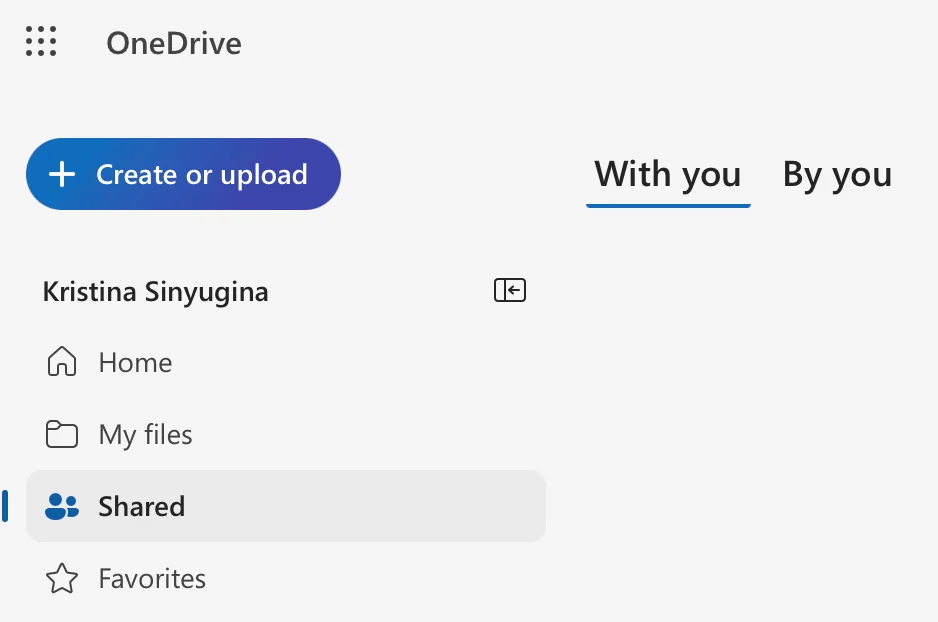
Pic. 3. Locating “Shared” within OneDrive.
- Locate the shared library: Find the specific library you want to access.
- Add to your OneDrive (optional): Choose “Add to OneDrive” or “Sync” to make it appear in your file list, or “Add shortcut to My Files” to create a link without syncing the full contents.
- Manage files: Once added, access, edit, and manage files within the shared library directly from OneDrive.
Creating a new document library (in SharePoint):
While you don’t create shared libraries directly from OneDrive, you can create new document libraries within a SharePoint site, which then become accessible through OneDrive:
- Navigate to the SharePoint site where you want to create the library.
- Click “New” or “+ New.”
- Select “Document Library” from the list of options.
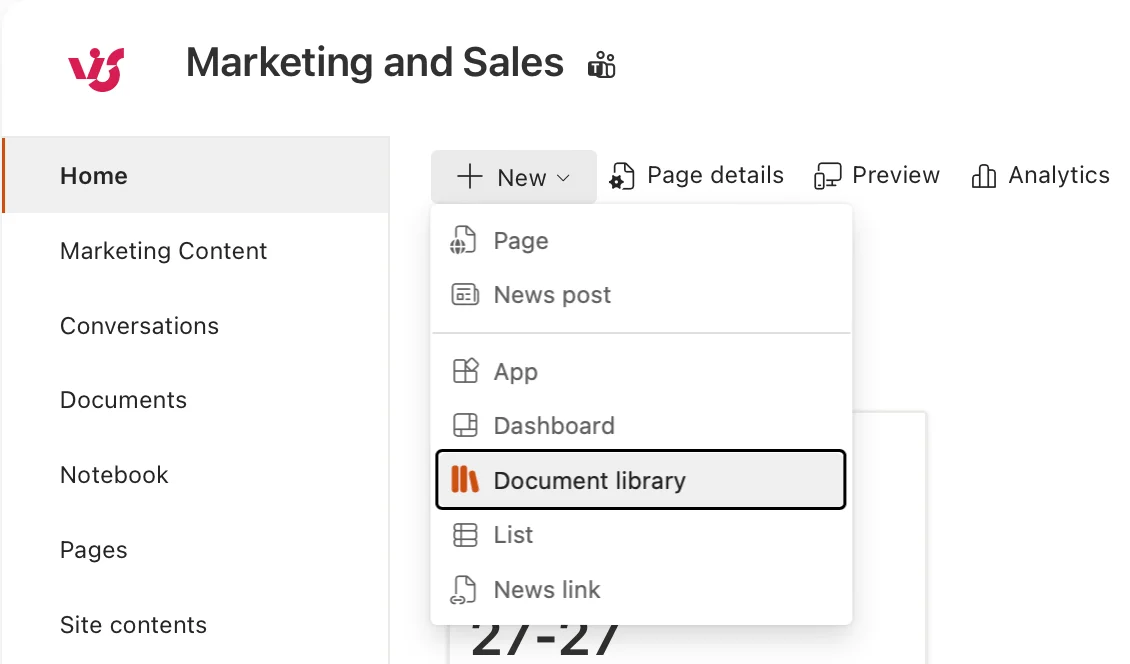
Pic. 4. Creating a document library on a SharePoint site.
- Provide a name and description (description optional).
- Configure settings such as versioning and permissions.
- Click “Create” to create the new document library.
Seamless file management between OneDrive and SharePoint
- Copying and moving files between OneDrive and SharePoint is simple. Use the “Move to” or “Copy to” options in the web interface to transfer files.
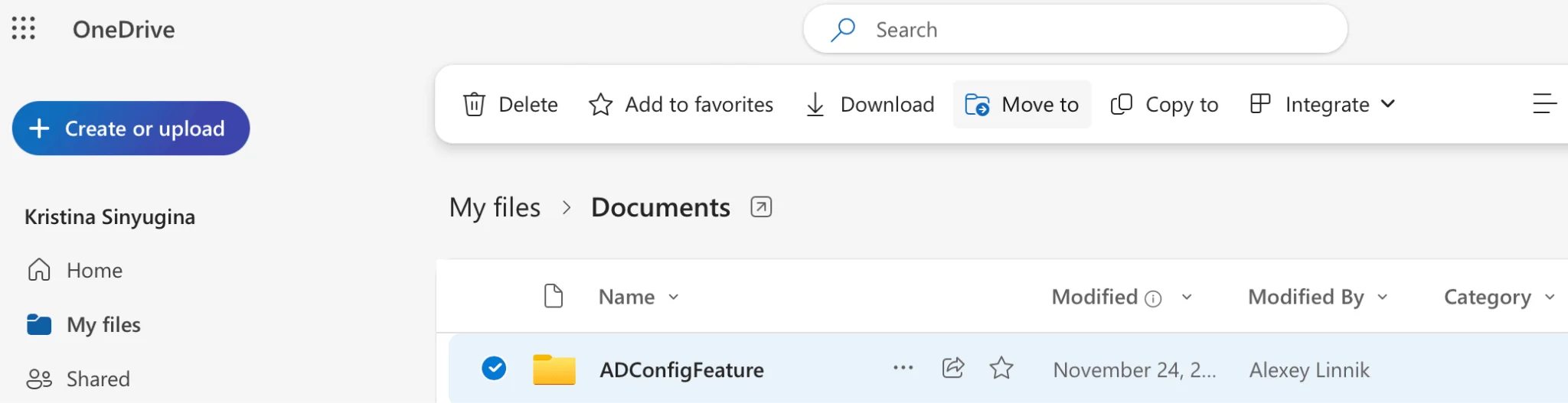
Pic. 5. Moving or copying files within OneDrive.
- Move personal files from OneDrive to a team’s SharePoint library for collaboration, or copy team files to your OneDrive for personal editing.
- Permissions and version history are retained when moving files within the Microsoft 365 ecosystem.
Syncing files to your computer
- Both OneDrive and SharePoint let you sync files locally using the OneDrive sync app, so files are accessible offline and sync back to the cloud automatically.
- Sync entire libraries from SharePoint or individual folders/files from OneDrive.
- Synced files are accessible through File Explorer (Windows) or Finder (Mac), without relying on a browser.
Scenarios for Using SharePoint and OneDrive Together
Centralized company documents in SharePoint and personal folders in OneDrive
- Use SharePoint as a central repository for company-wide documents like policies, reports, and shared resources.
- Each employee maintains a personal folder in OneDrive for individual work, drafts, or private files.
- When ready, employees move or share files from OneDrive to the SharePoint library for team collaboration.
Sync files locally with OneDrive and publish to SharePoint
- Employees use OneDrive to sync files locally, making it easy to work offline or access files quickly.
- Once complete, files can be uploaded or moved to SharePoint for team collaboration or archiving.
- Especially useful for employees who travel or work with limited internet access.
Document templates in SharePoint for use in OneDrive
- SharePoint acts as a repository for document templates such as standard contracts, reports, or presentations.
- Employees access these templates from OneDrive, use them to create new files, and save them back to OneDrive or SharePoint.
- This ensures consistency across documents while letting employees work from their personal workspace.
Benefits of Using SharePoint and OneDrive Together
- Maintain a centralized system for shared files and personal file management.
- Improve collaboration and productivity with seamless transitions between personal (OneDrive) and team (SharePoint) workspaces.
- Ensure data security and compliance, as both platforms support advanced permission controls and encryption.
- Enable employees to work efficiently offline while syncing changes back to the cloud.
👉 How is SharePoint different from OneDrive, and how do you use them together? OneDrive is best for individual productivity, while SharePoint excels in team collaboration. Start a document in OneDrive and move it to SharePoint when it becomes relevant to a project or team. SharePoint lets multiple users collaborate, set permissions, and track versions, while OneDrive keeps quick access to your personal files — striking a balance between private file management and organized, collaborative workspaces.
Tips for Choosing and Improving SharePoint and OneDrive
SharePoint and OneDrive are versatile tools within Microsoft 365, but choosing the right one and enhancing their functionality can be challenging. This section helps you determine when to use each and how to leverage additional tools for productivity.
How Do I Choose the Right Tool? OneDrive vs SharePoint
Deciding between SharePoint and OneDrive depends on the nature of your work, the level of collaboration required, and the features you need.
Choose SharePoint
- Collaboration with large teams: Centralized document libraries, shared calendars, and team sites enable seamless collaboration, with permissions managed at granular levels.
- Managing corporate portals and projects: Intranet portals for company-wide communication and a single source of truth for enterprise resources.
- Automating complex business processes: Integration with Power Automate to streamline document approvals, task notifications, and data tracking.
Choose OneDrive
- Personal files or small projects: A secure, private space for personal files or small projects, ideal for drafting before moving to a team workspace.
- Convenience and access from any device: Syncs effortlessly across devices for online or offline access anywhere — great for remote workers.
👉 What is the difference between OneDrive and SharePoint? They share overlapping features such as cloud storage, file sharing, and syncing, but cater to different use cases. OneDrive is for individual users who need a secure place to store personal files, access them from any device, and share occasionally. SharePoint serves as a central hub for team collaboration, offering shared document libraries, intranet portals, and customizable workflows for complex organizational needs.
Using Additional Tools to Improve SharePoint and OneDrive
SharePoint and OneDrive become even more powerful when paired with tools designed to extend their capabilities. Here’s how you can enhance your experience with third-party apps like VirtoSoftware SharePoint On-Premise Web Parts and VirtoSoftware Microsoft 365 & SharePoint Online Apps.
Why use additional tools?
- Automate routine processes: Add tools that streamline workflows, such as automated notifications, file uploads, or task management.
- Customize the interface: Tailor SharePoint and OneDrive to improve usability and align with your organization’s needs.
- Enhance file interaction: Tools like the Virto Calendar App and Kanban Board App make it easier to manage and visualize data stored in SharePoint and OneDrive.
Choosing the right tools for your setup
- VirtoSoftware SharePoint On-Premise Web Parts: Designed for on-premises SharePoint environments to improve traditional workflows.
- VirtoSoftware Microsoft 365 & SharePoint Online Apps: Suitable for cloud-based environments, enhancing SharePoint Online and OneDrive within Microsoft 365.
Example: Tools to Improve Productivity
Below are several examples of VirtoSoftware tools — the Virto Calendar App, Virto Kanban Board App, Virto Multiple File Upload App, and Virto Alerts & Reminders App — highlighting how they improve task management, file organization, and collaboration on top of SharePoint document collaboration.
Virto Calendar App
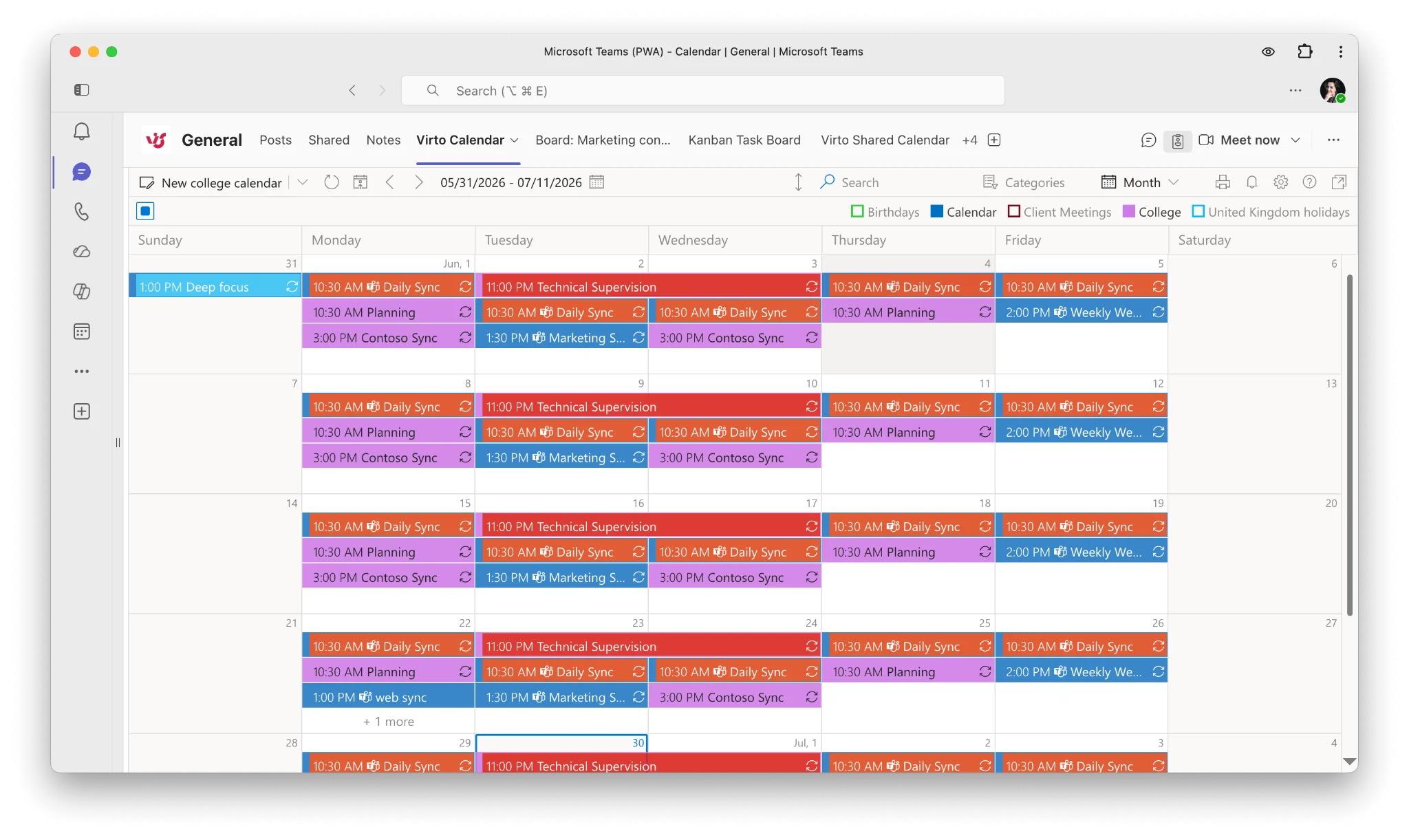
Pic. 6. Sample overlaid Virto Calendar.
The Virto Calendar App simplifies calendar management and overlays multiple data sources into a single, visually unified calendar.
- Overlay Exchange Online and SharePoint calendars: Combine Exchange Online calendars, SharePoint lists, and external calendars like Google Calendar into one view.
- Dynamic time views: Switch between daily, weekly, monthly, or yearly views.
- Color-coded events: Easily distinguish between categories or types of events.
- Use case: A project manager can overlay a SharePoint task list with team members’ Exchange Online calendars to track deadlines, meetings, and availability in one place.
👉 Check the app page for more information: for SharePoint Online | for SharePoint On-Premises.
Virto Kanban Board App
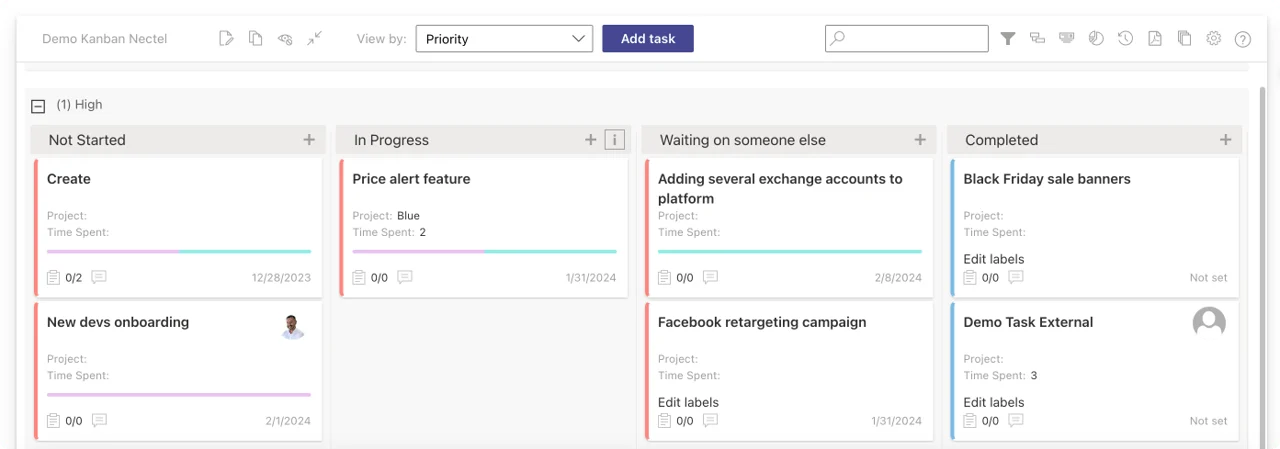
Pic. 7. Sample Virto Kanban Board.
The Virto Kanban Board App visualizes tasks in SharePoint and Microsoft Teams, helping teams manage workflows with drag-and-drop simplicity.
- Visualize workflows: Display tasks as cards in columns such as “To Do,” “In Progress,” and “Completed.”
- Customizable boards: Add swimlanes, color codes, and subtasks to align with project requirements.
- Native Microsoft 365 integration: Work within SharePoint or Teams for a consistent experience.
- Use case: A marketing team can track campaign tasks, assign roles, and identify bottlenecks for quicker resolution.
👉 Check the app page for more information: for SharePoint Online | for SharePoint On-Premises.
Virto Multiple File Upload App
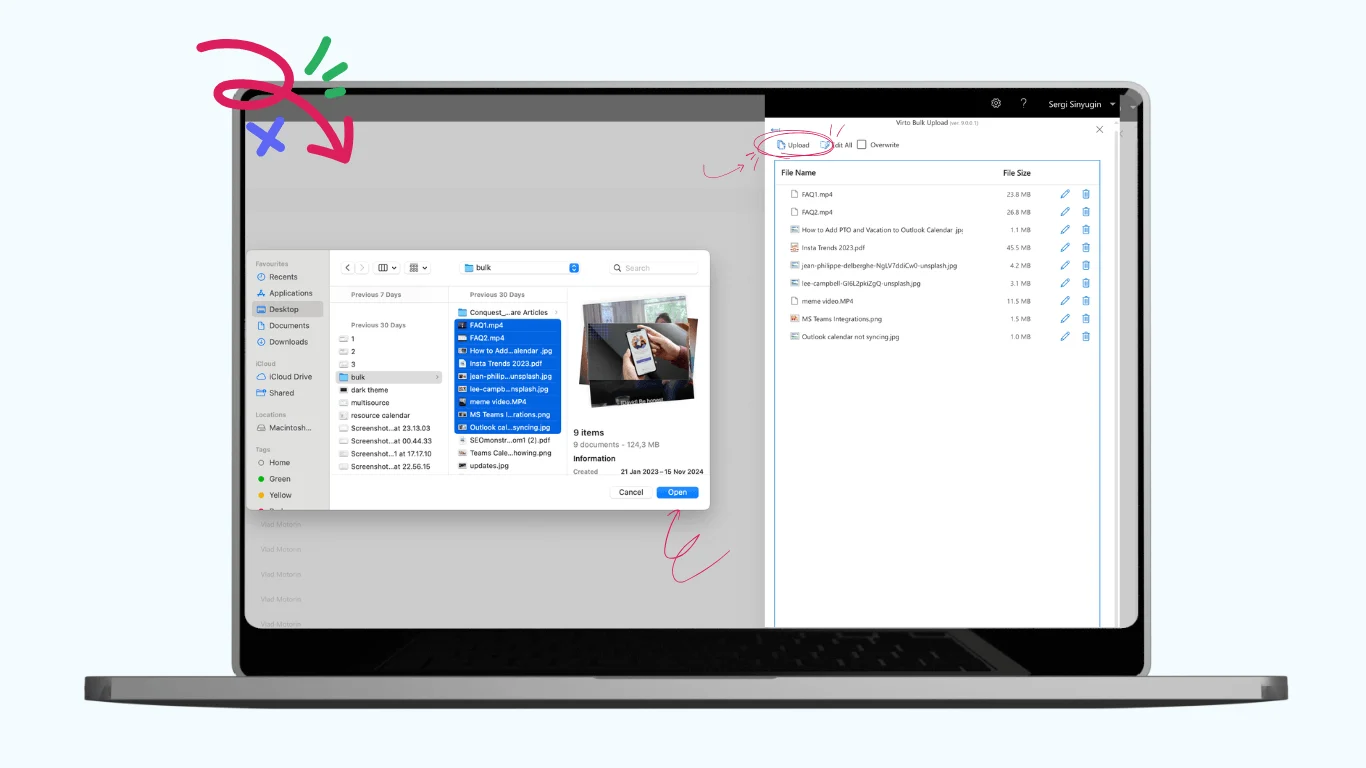
Pic. 8. Virto Multiple File Upload App
This app simplifies uploading large volumes of files and folders to SharePoint or OneDrive.
- Drag-and-drop interface: Quickly upload files and folders directly into SharePoint libraries.
- Metadata assignment: Add metadata during uploads to categorize files.
- Overwrite protection: Prevent accidental overwrites with built-in safeguards.
- Use case: An HR team can upload applicant resumes and assign metadata like job position, application date, and candidate status during upload.
👉 Check the app page for more information: for SharePoint Online | for SharePoint On-Premises.
Virto Alerts & Reminders App
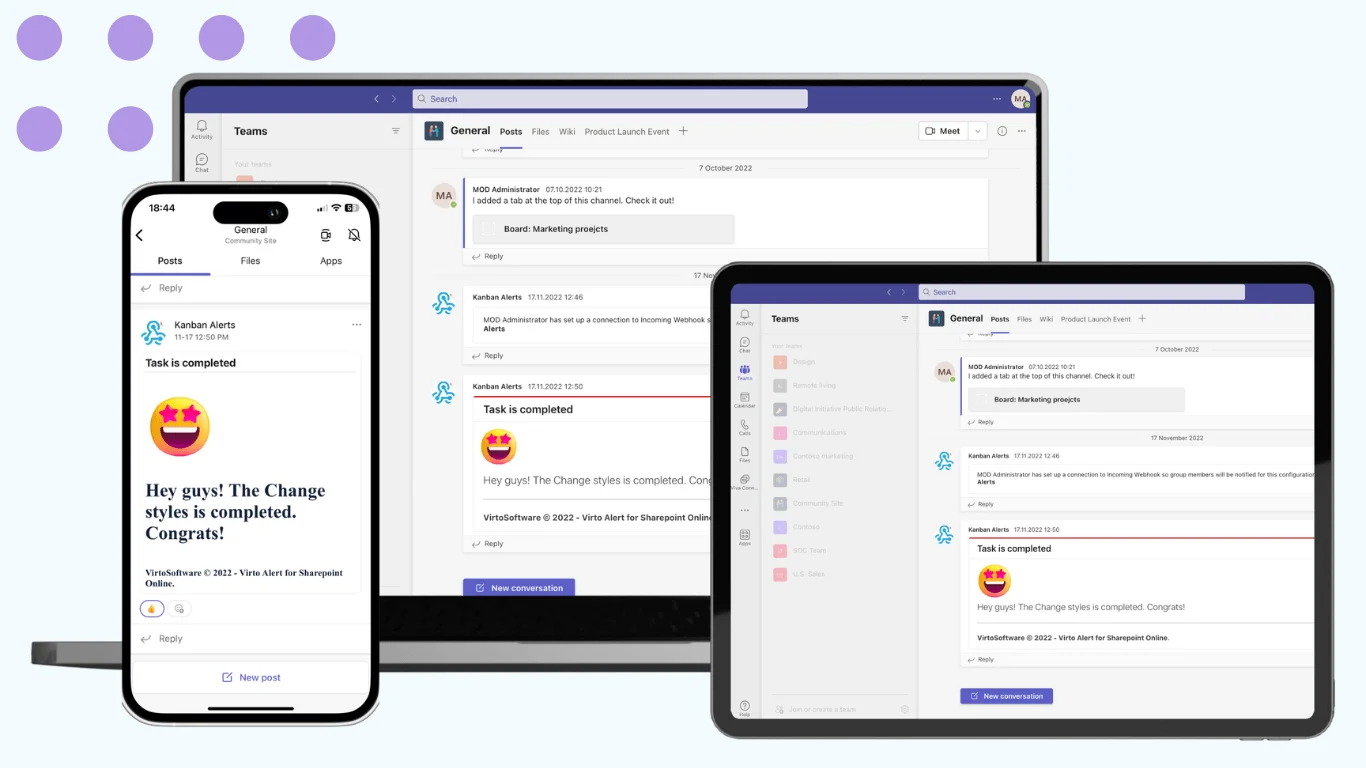
Pic. 9. Virto Alerts & Reminders App
This app automates notifications and reminders for changes in SharePoint lists or calendar events.
- Automated alerts: Notify users of changes to files, tasks, or events in SharePoint or OneDrive.
- Customizable templates: Create visually appealing email alerts with HTML-based templates.
- Flexible scheduling: Send alerts immediately or schedule them based on specific conditions.
- Use case: A facilities manager can set up alerts to notify employees of upcoming maintenance tasks or updates to shared equipment schedules.
👉 Check the app page for more information: for SharePoint Online | for SharePoint On-Premises.
Benefits of Using Additional Tools
- Increased efficiency: Automating task assignments, notifications, or file uploads reduces human error and saves time.
- Improved visualization: Tools like the Kanban Board and Calendar App let teams see workflows or schedules at a glance.
- Enhanced collaboration: Integrating multiple data sources lets teams work cohesively without switching between platforms.
- Customization for unique needs: Adapt SharePoint and OneDrive for specific workflows, whether project tracking, event management, or document organization.
Conclusion: The Difference Between OneDrive and SharePoint
While OneDrive and SharePoint serve distinct purposes, their integration within the Microsoft ecosystem lets them work seamlessly together, enhancing productivity and collaboration. OneDrive is ideal for personal file storage and small-scale sharing, while SharePoint excels in team-based collaboration and enterprise-wide document management. By understanding their key differences and leveraging their complementary features, organizations can create a more efficient and connected workflow.
To further optimize your work, consider the advanced functionality offered by VirtoSoftware SharePoint On-Premise Web Parts and VirtoSoftware Microsoft 365 & SharePoint Online Apps. These solutions streamline processes, enhance customization, and improve how you interact with your files and documents.
Frequently Asked Questions
What’s the difference between SharePoint and OneDrive?
OneDrive is personal cloud storage for your own files; SharePoint provides team sites and shared document libraries for group content. Both run on the same Microsoft 365 storage and are designed to work together.
When should I use SharePoint vs OneDrive?
Use OneDrive for individual, work-in-progress files; use SharePoint for team, department, or project content that many people share.
Is SharePoint the same as OneDrive?
No. They’re closely connected parts of Microsoft 365 and share a backend, but OneDrive is individual-centric personal storage while SharePoint is a team collaboration and content-management platform.
Further Reading
Official Microsoft resources
- Should I Save Files to OneDrive or SharePoint? — Microsoft Support
- What Is the Difference Between SharePoint and OneDrive — Microsoft Learn
Our blog articles
- SharePoint vs Teams: Key Differences and Integration Guide
- What Is Microsoft OneDrive for Business and How to Use It Effectively?
- SharePoint vs Google Drive
- Confluence vs SharePoint
- Notion vs SharePoint
- SharePoint Communication Site: Improve Communication and Teamwork
- Top 5 Shared Calendars for SharePoint Online in 2026