SharePoint vs Google Drive — Quick Verdict [2026]
| Question | Short Answer |
|---|---|
| Which is better for business? | SharePoint — for enterprise document governance, structured workflows and Microsoft 365 integration. Google Drive — for small teams that need fast, simple file sharing. |
| A direct Google equivalent of SharePoint? | Does not exist. The closest combination is Google Drive + Google Workspace + Google Sites, but it lacks SharePoint’s granular permissions, structured workflows and deep Microsoft 365 integration. |
| When should you use both? | Use SharePoint for internal governance and corporate content; use Google Drive for quick external sharing and lightweight collaboration with clients or contractors. |
Full comparison, use cases and Virto apps that close SharePoint’s UX gaps are below.
Introduction
SharePoint and Google Drive both promise cloud storage, sharing and collaboration — but they answer very different problems. This 2026 guide compares them head-to-head on features, pricing, automation and security, answers whether Google has a true SharePoint equivalent, and shows where Virto apps fix SharePoint’s biggest UX gaps.
What Is SharePoint?
SharePoint is Microsoft’s enterprise platform for document management, collaboration and business process automation. It acts as an internal portal, a centralized content hub and a foundation for building structured workflows inside Microsoft 365.
Core capabilities include:
- Document management with version control, metadata and granular permissions
- Real-time co-authoring and team workspaces (sites, libraries, lists)
- Process automation through Power Automate (approvals, notifications, reminders)
- Deep integration with Teams, Outlook, Word, Excel and the rest of Microsoft 365
- Enterprise security: Active Directory, conditional access, audit logs, compliance policies
Because it sits inside Microsoft 365, SharePoint is far more than cloud storage — it is the document and process backbone of most mid-sized and enterprise organizations.
Learn more in our collection of articles on SharePoint Online.
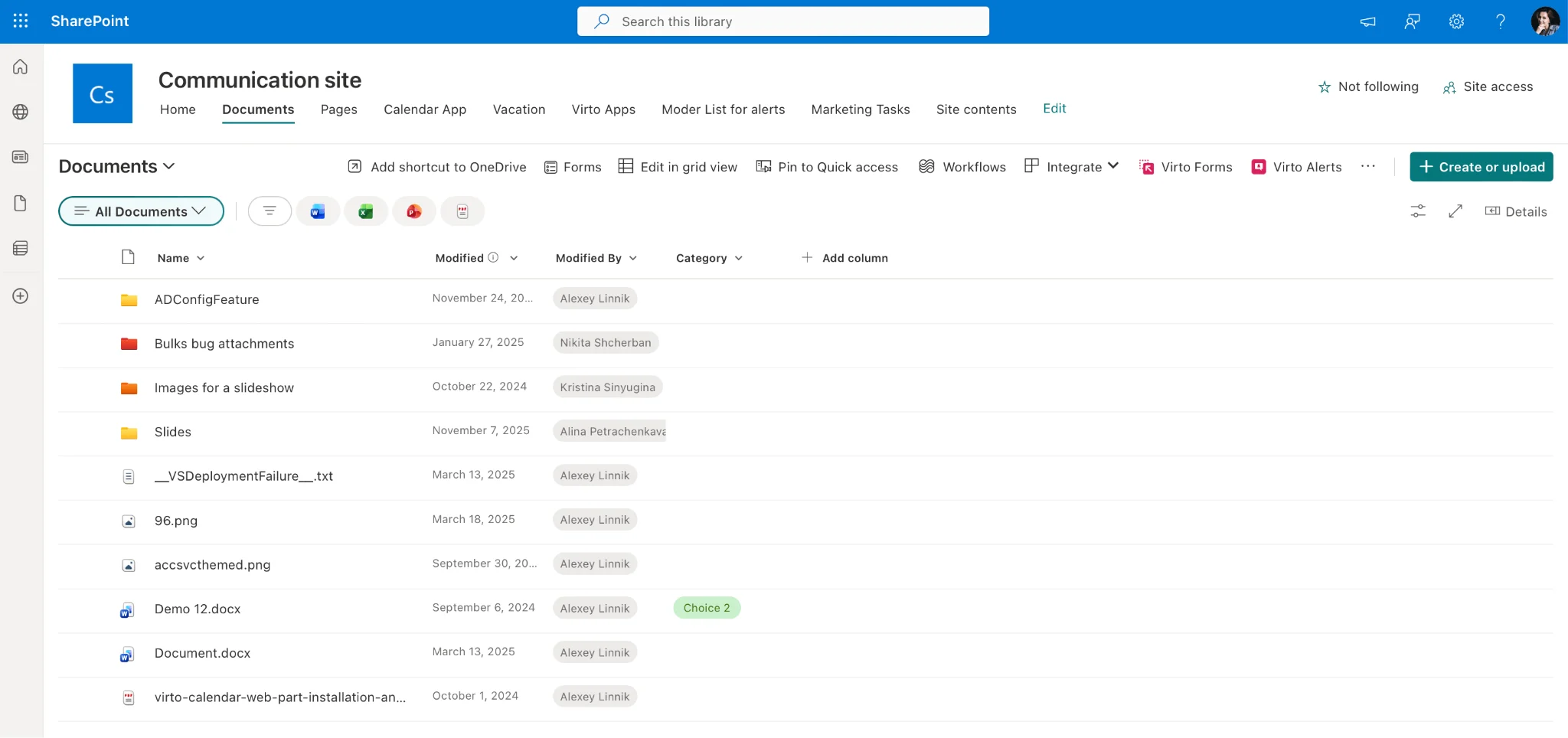
Pic. 1 — SharePoint site / document library interface.
What Is Google Drive?
Google Drive is Google’s cloud storage and collaboration service. It is built around simplicity: store any file type, share it with a link, and edit Docs, Sheets and Slides together in real time from any device.
Core capabilities include:
- Universal file storage accessible from web, desktop and mobile
- Real-time co-editing of Google Docs, Sheets and Slides
- Integration with Gmail, Google Meet and Google Calendar via Google Workspace
- Simple view / comment / edit sharing model — no admin setup required
Drive shines for individuals and small teams that need quick, reliable cloud storage and effortless collaboration without governance overhead.
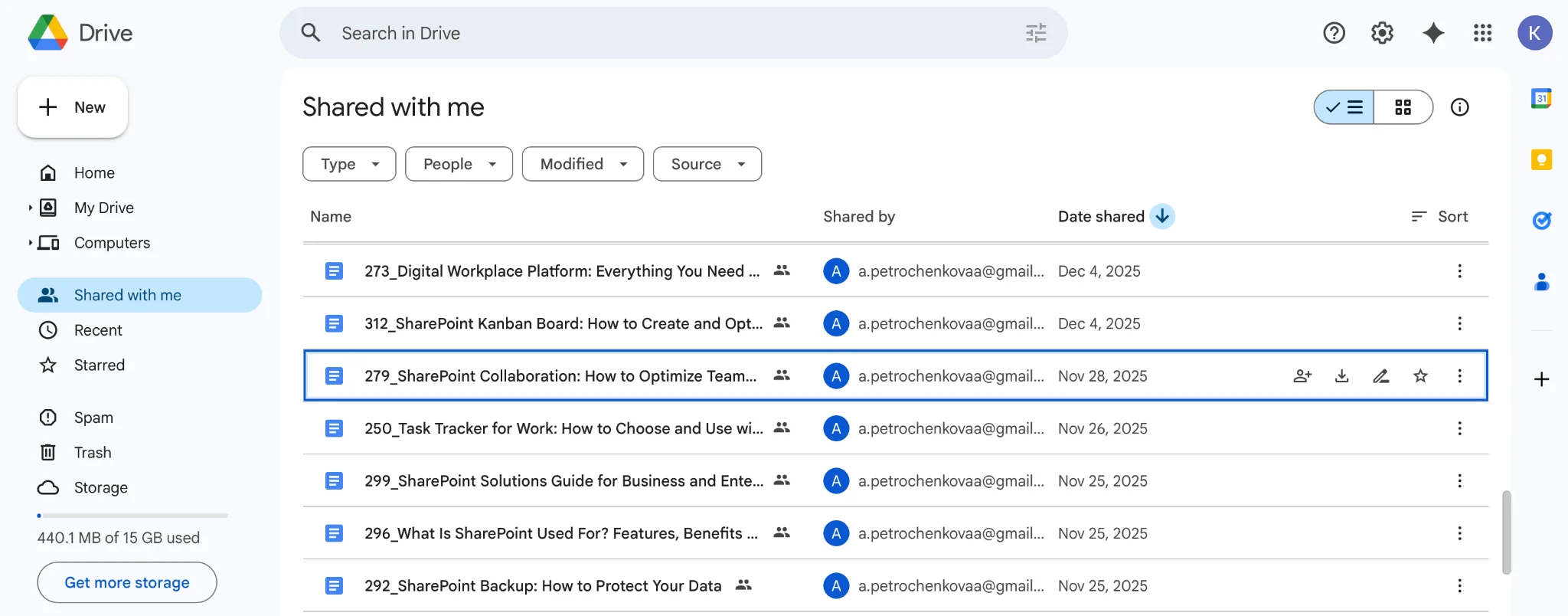
Pic. 2 — Google Drive shared drive interface.
SharePoint vs Google Drive: Feature Comparison
The two platforms overlap at the surface (store files, share them, co-edit) but diverge sharply once you look at governance, automation and pricing.
| Criterion | SharePoint | Google Drive |
|---|---|---|
| Primary purpose | Enterprise document & content management, intranet, workflows | Cloud storage and real-time collaboration |
| Permissions | Site / library / folder / item-level, AD-integrated | Folder and file-level view / comment / edit |
| Workflow automation | Power Automate with pre-built connectors and approvals | Apps Script and basic Workspace Flows |
| Collaboration | Co-authoring in Office + Teams chat & channels | Real-time co-editing in Docs / Sheets / Slides |
| Storage (per user, business plans) | 1 TB OneDrive + SharePoint pooled storage | 30 GB – 5 TB depending on Workspace plan |
| Search & metadata | Custom columns, content types, full-text search | Full-text search; limited metadata |
| Compliance & security | DLP, retention, e-discovery, sensitivity labels | DLP and Vault available on higher Workspace tiers |
| Pricing (business entry) | Included in Microsoft 365 Business Standard (~$12.50/user/mo) | Google Workspace Business Standard (~$14/user/mo) |
| Best for | Mid-size & enterprise orgs with governance needs | Individuals, freelancers and small teams |
Is There a Google Equivalent of SharePoint?
No — there is no single Google product that matches SharePoint feature-for-feature. The closest combination is Google Drive + Google Workspace + Google Sites, but each covers only a piece of what SharePoint does.
Here is how the main SharePoint building blocks map onto Google’s stack:
| SharePoint capability | Closest Google equivalent | What’s missing |
|---|---|---|
| Document libraries | Google Drive shared drives | Metadata columns, content types, custom views |
| Team sites | Google Sites | Document libraries integration, lists, granular permissions |
| Lists with custom fields | Google Sheets / AppSheet | Native UI, workflows, formal data structure |
| Power Automate workflows | Apps Script / Workspace Flows | Pre-built connectors, approval flows, business-user UI |
| Granular permissions | Shared drive permissions | Item-level permissions, role-based controls, AD integration |
| Intranet portal | Google Sites + Currents (deprecated 2023) | Native portal features; Google retired Currents |
| Microsoft 365 integration | Google Workspace integration | Different ecosystem — not cross-compatible at depth |
If you’re a small team that values speed, Google Drive + Workspace is a valid lightweight alternative. But for any organization with compliance requirements, structured approval workflows or more than ~50 users, no Google product combination fully replaces SharePoint.
SharePoint vs Google Workspace (Full Stack Comparison)
When people search “SharePoint vs Google Workspace”, the fair comparison is actually Microsoft 365 vs Google Workspace as a whole suite — because SharePoint is one component inside Microsoft 365, not a standalone competitor to Workspace.
| Layer | Microsoft 365 (incl. SharePoint) | Google Workspace |
|---|---|---|
| Mail & calendar | Outlook + Exchange Online | Gmail + Google Calendar |
| Productivity apps | Word, Excel, PowerPoint | Docs, Sheets, Slides |
| Meetings | Microsoft Teams | Google Meet |
| File storage | OneDrive + SharePoint document libraries | Google Drive shared drives |
| Intranet / sites | SharePoint sites & hubs | Google Sites |
| Workflow automation | Power Automate (deep) | Apps Script / Workspace Flows (lighter) |
| Admin & compliance | Microsoft Purview, sensitivity labels, DLP | Vault, DLP (higher tiers) |
Bottom line: Google Workspace is lighter and quicker to adopt; Microsoft 365 (with SharePoint at its core) goes deeper on governance, automation and enterprise IT controls.
Strengths and Weaknesses (Pros and Cons)
SharePoint — strengths
- Granular, AD-integrated permissions at site, library, folder and item level
- Centralized corporate document management with versioning and audit trails
- Native integration with Teams, Outlook and the rest of Microsoft 365
- Power Automate workflows for approvals, notifications and routine business processes
SharePoint — weaknesses
- Steeper learning curve and longer onboarding
- Default file upload UX is clunky compared to Google Drive’s drag-and-drop
- Higher total cost of ownership, especially for advanced scenarios
- No native Kanban or visual project view out of the box
Google Drive — strengths
- Extremely simple to adopt — almost no training needed
- Free 15 GB per personal account; generous storage on Workspace plans
- Best-in-class real-time co-editing in Docs, Sheets and Slides
- Frictionless external sharing via links
Google Drive — weaknesses
- Simpler permission model — no item-level or role-based controls
- No native business process automation
- Limited metadata, content types and structured lists
- Offline functionality depends on extensions and sync state
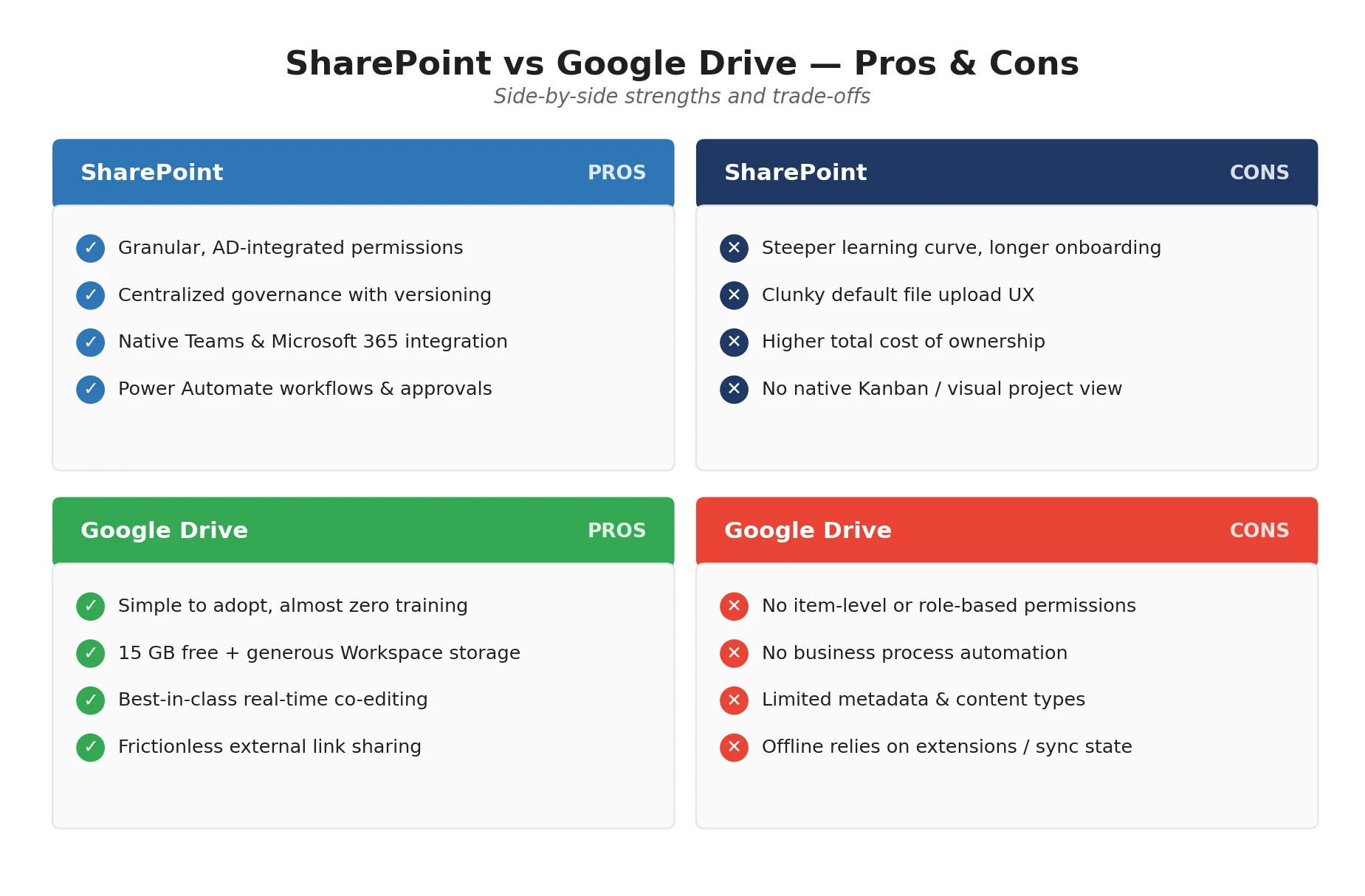
Fig. 1 — SharePoint vs Google Drive pros and cons summary.
Heads up: many of the SharePoint criticisms above — clunky uploads, basic calendar UX, no Kanban view — are solved by third-party apps. See how Virto’s SharePoint productivity suite closes these gaps below.
When to Use SharePoint vs Google Drive
Choose Google Drive when…
- You’re an individual, freelancer or team of less than ~20 people
- Speed and zero-setup collaboration matter more than governance
- Most of your content lives in Docs, Sheets and Slides
- You frequently share files externally and need link-based access
Choose SharePoint when…
- You have 50+ users or multiple departments and need structured permissions
- Compliance, retention or e-discovery are part of your requirements
- You already run on Microsoft 365 (Outlook, Teams, Office)
- You need formal approval workflows, intranets or business-process automation
If you’ve decided on SharePoint, see how Virto Calendar App, Virto Multiple Operations and Virto Kanban Board fill SharePoint’s UX gaps.
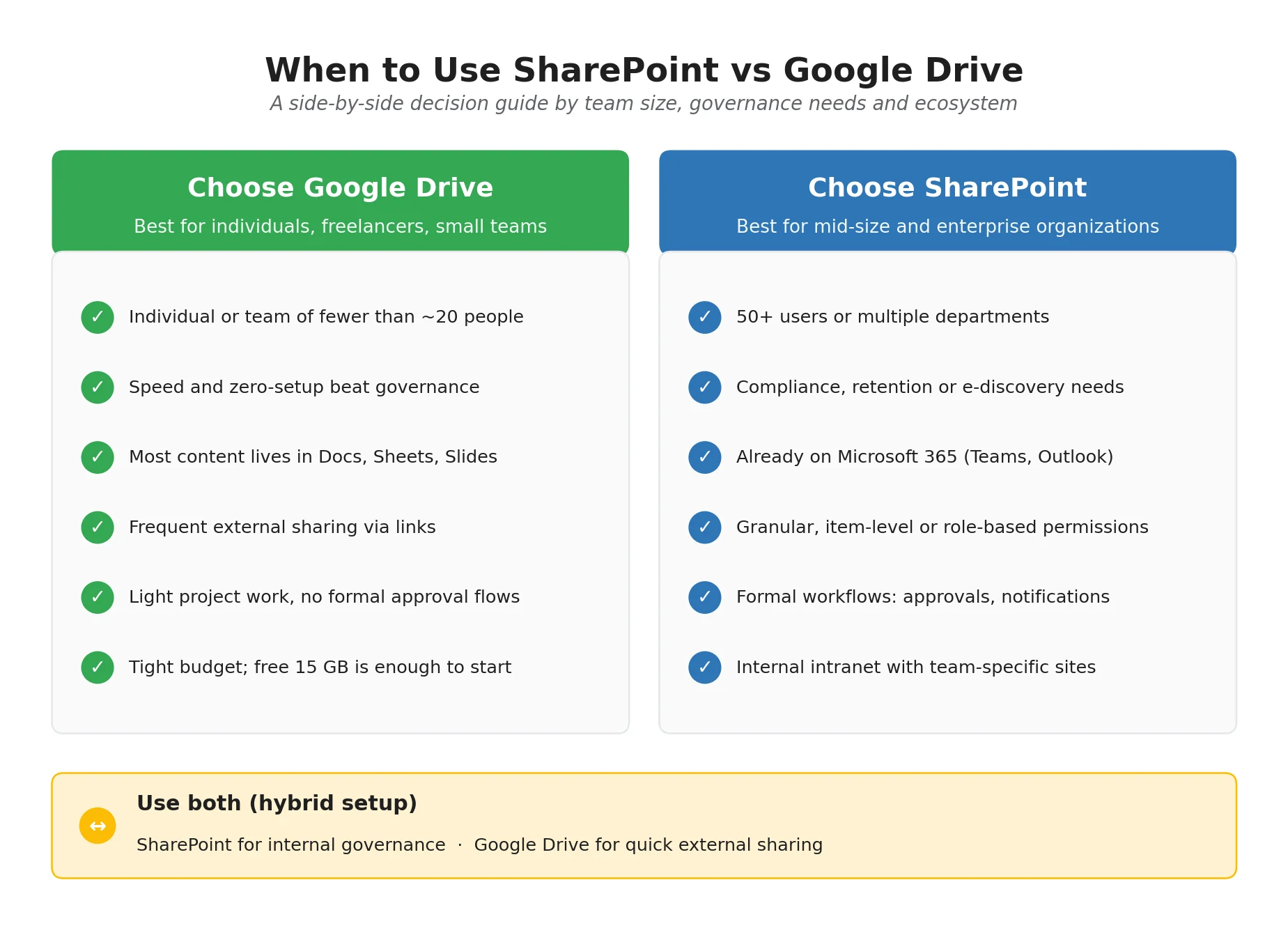
Fig. 2 — Decision matrix: when to use SharePoint vs Google Drive.
Migrating Between SharePoint and Google Drive
Migration between SharePoint and Google Drive is possible in either direction, but it’s never a one-to-one move — the two platforms have fundamentally different architectures.
Migration possibilities
- From SharePoint to Google Drive — for companies moving to Google Workspace
- From Google Drive to SharePoint — for organizations adopting Microsoft 365 and needing enterprise-grade governance
Common tools include Microsoft’s and Google’s built-in migration utilities, plus third-party platforms such as AvePoint, CloudFuze, Mover and Cloudsfer that preserve folder hierarchy and metadata at scale.
Potential challenges
- Loss of structured data — SharePoint sites, libraries and lists flatten into folders and files in Drive
- Permissions don’t map directly — SharePoint’s granular controls collapse into Drive’s view/comment/edit roles
- Integration breakage — links to Teams, Power Automate or Office artifacts won’t work after a move to Workspace
Migration recommendations
- Audit content first — identify what must be migrated and what can be archived
- Pick the right tool — manual for small jobs; specialized tools for enterprise migrations
- Run a pilot — test on a limited dataset before moving the whole tenant
- Communicate with users — give clear guidance on the new environment
- Provide post-migration support — monitor for missing permissions or broken links
How VirtoSoftware Apps Solve SharePoint’s UX Gaps
Many of the SharePoint criticisms surfaced in Google Drive comparisons — steep learning curve, clunky file uploads, no native project visualization, basic calendar — are solved by third-party apps that extend SharePoint with the kind of polish Drive offers natively. Three Virto apps specifically address these gaps.
Virto Multiple Operations — Bulk Uploads & File Management
SharePoint’s native upload limits and clunky file moves are the top complaint vs Google Drive. Virto Multiple Operations adds drag-and-drop bulk upload, filtered mass delete and batch metadata edits — turning multi-hour file chores into a single action. Bulk move and copy come with the on-premises Virto Multiple File Operations.
- Drag-and-drop bulk upload (no 100-file cap)
- Mass copy / move / delete with permissions preserved
- Bulk metadata editing across files
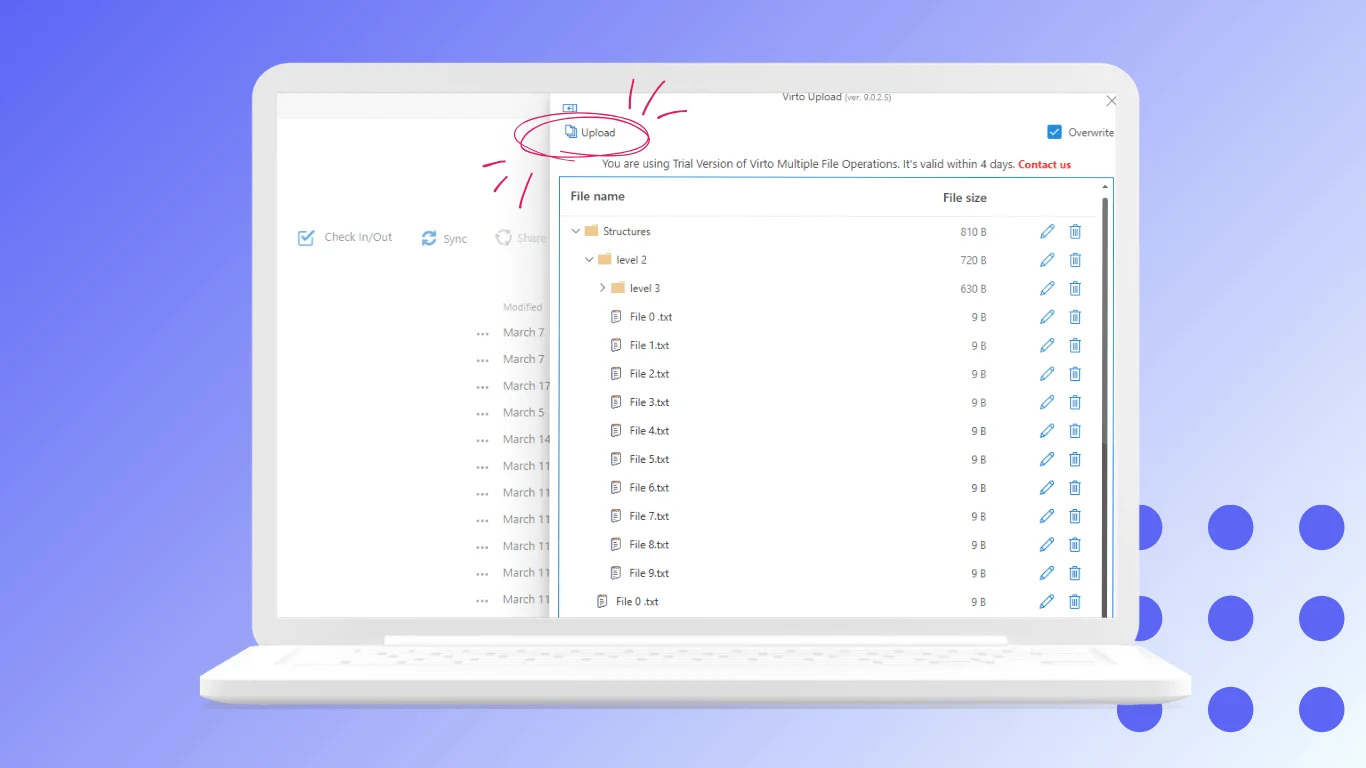
Pic. 3 — Virto Multiple Operations.
Virto Calendar App — Unified Calendar Across Sources
SharePoint’s default calendar is minimal. Virto Calendar App overlays SharePoint lists, Outlook / Exchange calendars, Microsoft Planner tasks and external iCal sources into a single color-coded view inside SharePoint or Teams.
- Overlay SharePoint + Exchange + Planner + Google iCal in one view
- Color coding by source
- Embed directly in SharePoint pages or Teams tabs
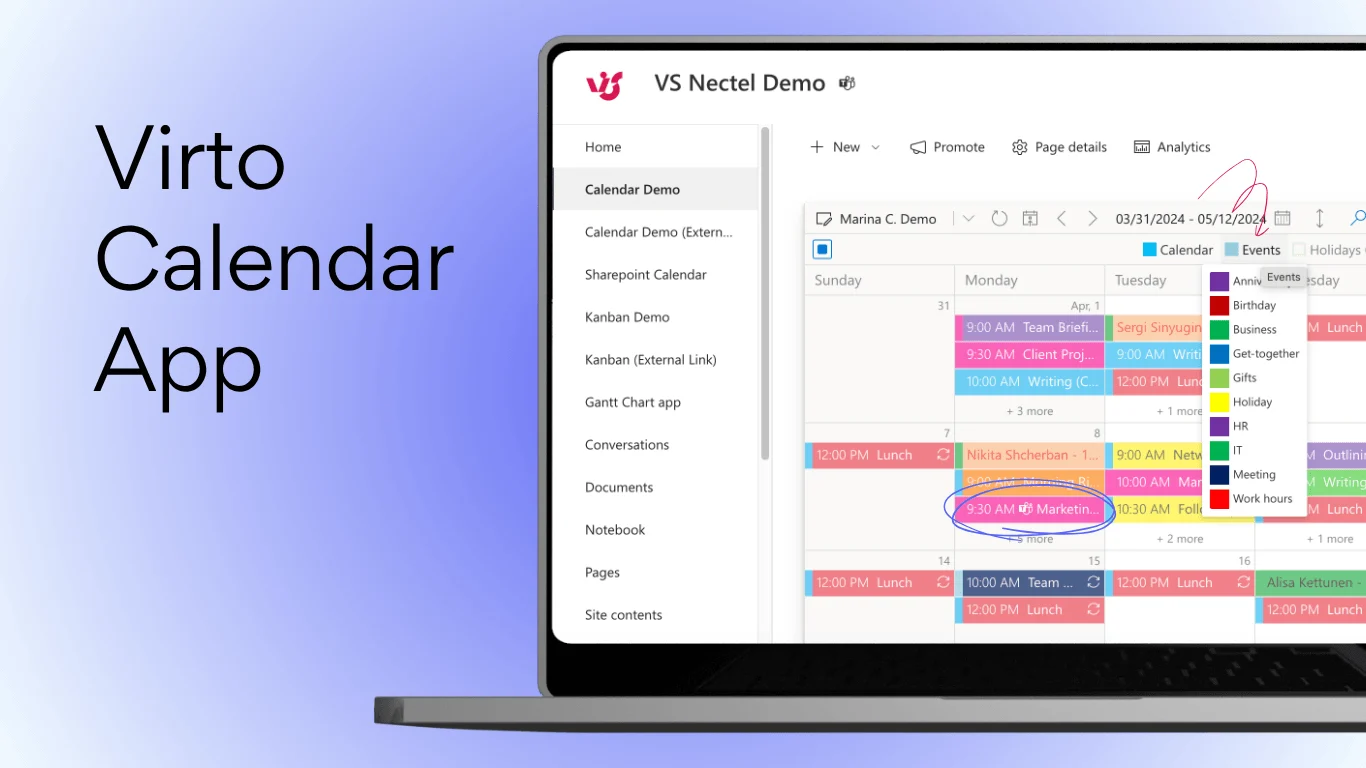
Pic. 4 — Virto Calendar App.
Virto Kanban Board — Visual Project Management Inside SharePoint
SharePoint has no native Kanban view. Virto Kanban transforms a SharePoint list into a Trello-style board for visual task tracking — the kind of agile workflow tool Google Drive users typically turn to third-party apps for anyway.
- Drag-and-drop cards across columns
- Color coding and swim lanes
- Works on existing SharePoint lists — no data migration
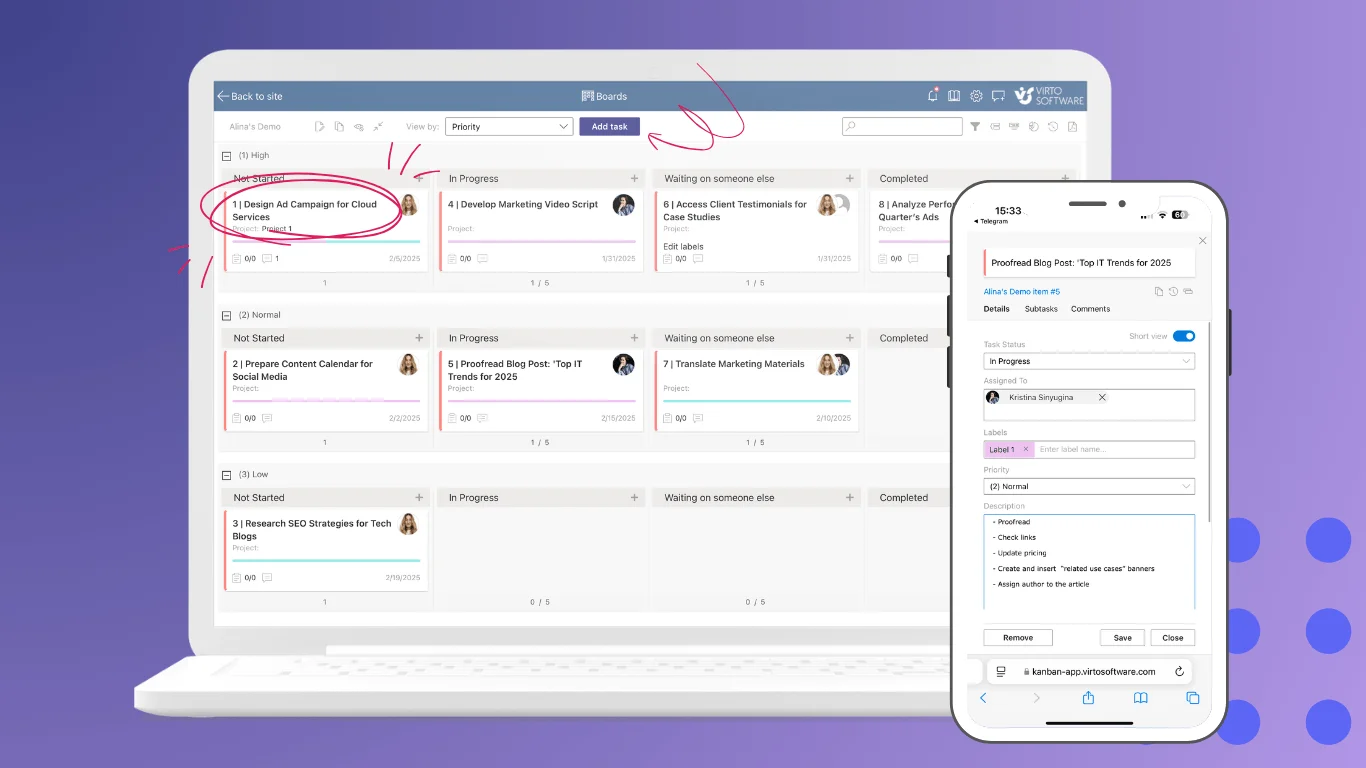
Pic. 5 — Virto Kanban Board.
All three apps are also available for SharePoint On-Premises (2016 / 2019 / Subscription Edition). See the Virto on-premises productivity kit »>
Frequently Asked Questions
Is SharePoint like Google Drive?
Both store and share files in the cloud, but SharePoint is an enterprise platform for document governance, workflows and granular permissions, while Google Drive focuses on simple cloud storage and real-time co-editing. SharePoint also includes sites, libraries, lists and Power Automate workflows that Google Drive doesn’t have.
Does Google have a SharePoint equivalent?
No — there is no single Google product that matches SharePoint. The closest combination is Google Drive + Google Workspace + Google Sites, but this stack lacks SharePoint’s structured workflows, granular item-level permissions and Microsoft 365 integration.
What is the Google version of SharePoint?
Google doesn’t sell a single “SharePoint equivalent” product. Google Sites is closest to SharePoint’s intranet portal feature; Google Drive shared drives mirror SharePoint document libraries at a basic level; Google Workspace covers the productivity app suite. None of these match SharePoint’s depth individually.
Which is better, SharePoint or Google Drive?
It depends on scale. Google Drive is better for individuals, freelancers and small teams who need quick collaboration without setup. SharePoint is better for organizations with 50+ users that need document governance, structured workflows, granular permissions or Microsoft 365 integration. There is no universal winner.
What is the difference between SharePoint and Google Workspace?
Google Workspace is a productivity app suite (Gmail, Docs, Sheets, Slides, Meet, Drive, Calendar). SharePoint is one component within the broader Microsoft 365 suite. The fair comparison is Microsoft 365 vs Google Workspace — SharePoint corresponds to Drive + Sites + parts of Workspace combined, with deeper enterprise capabilities.
Can I migrate from SharePoint to Google Drive (or vice versa)?
Yes, but it’s not a one-to-one migration. SharePoint sites, libraries and lists flatten into folders and files when moved to Google Drive. Permissions also don’t map directly — SharePoint’s granular controls become Drive’s simpler view/comment/edit roles. Use specialized migration tools and plan for manual permission reconfiguration.
Conclusion
The right choice between SharePoint and Google Drive comes down to scale and intent. Google Drive is the faster, simpler option for individuals and small teams. SharePoint is the enterprise platform for organizations that need governance, automation and Microsoft 365 integration.
There is no direct Google equivalent of SharePoint — Drive + Workspace + Sites cover the basics, but not the depth. If you’ve chosen SharePoint, Virto’s Calendar, Multiple Operations and Kanban Board apps close the UX gaps that make Drive feel friendlier out of the box.
Further reading:
Microsoft: Google Drive or SharePoint · OneDrive vs Teams vs SharePoint
Virto blog: Intranet SharePoint guide · Merge and combine calendars · SharePoint Content Management · Confluence vs SharePoint