Where is the SharePoint recycle bin, and how long do files stay there?
On any SharePoint site, open Settings (gear) > Site contents > Recycle bin, or use the Recycle bin link in the left navigation. Deleted items are kept for 93 days total, split across two stages: the first-stage (site) recycle bin that the person who deleted the item can see, and the second-stage (site collection) recycle bin that site owners and site collection admins can see. The 93-day clock starts at deletion and does not restart when an item moves to the second stage. Entire deleted sites are not in either bin — they live in the SharePoint admin center under Sites > Deleted sites, also for 93 days.
Deleting the wrong file in SharePoint shouldn’t turn into a fire drill. The recycle bin is your first — and usually fastest — line of defence for everyday mistakes, bulk edits that went sideways, and the occasional ransomware scare. Yet most teams still treat it as a mystery: what actually gets kept, who can see what, how it differs from version history or Microsoft Purview retention, and where Teams channel files end up when someone hits delete.
This guide clears that up. You’ll get the two-stage model in plain English, the real retention numbers (including the ones that changed), where to click as a user and as an admin, how to bulk-restore after a mass deletion, the PowerShell you’ll actually use, and an honest account of what the recycle bin does not protect you from — plus what Microsoft now offers instead of “buy a third-party backup.”
What the SharePoint recycle bin is (and isn’t)
The SharePoint recycle bin is a temporary holding area for deleted objects, not a vault. It catches documents and folders in libraries, list items, whole lists and libraries, site pages, and subsites, and it gives users and site owners a self-service way to undo a deletion for a limited window.
What it is not is a backup. It lives inside the same SharePoint environment as your live content, it has no independent storage, it can be emptied by anyone with the right permissions, and after 93 days the content is gone from Microsoft’s native tooling. Treat it as layer one, not the whole strategy.
The two-stage model
SharePoint Online uses a two-level recycle bin:
- First-stage (end user) recycle bin. Lives on each site. Users see the items they deleted, and only items they had permission to see before deletion — role-based permissions are still enforced inside the bin.
- Second-stage (site collection) recycle bin. Site owners and site collection administrators can restore items that were removed from the first stage, or emptied by a user. Reached from a link at the bottom of the recycle bin page, or via Site settings > Site collection administration > Recycle bin.
Deleted sites are handled separately again. Subsites go to the second-stage recycle bin; entire site collections appear under Deleted sites in the SharePoint admin center.
| Level | Who can access | Where to find it | Typical actions | Time window |
|---|---|---|---|---|
| First-stage (end user) | The user who deleted the item, subject to their original permissions | Site left nav > Recycle bin, or Site contents > Recycle bin | View, restore, delete | Part of the 93-day total |
| Second-stage (site collection) | Site owners and site collection admins | Recycle bin page > “second-stage recycle bin” link | Restore to original location, purge | Remainder of the same 93-day clock |
| Deleted sites (tenant) | SharePoint or Global Administrator | SharePoint admin center > Sites > Deleted sites | Restore site, permanently delete | 93 days |
| Deleted containers | SharePoint Administrator | SharePoint admin center > Deleted containers | Restore, permanently delete | 93 days |
Fig.1. Who sees what, and where.
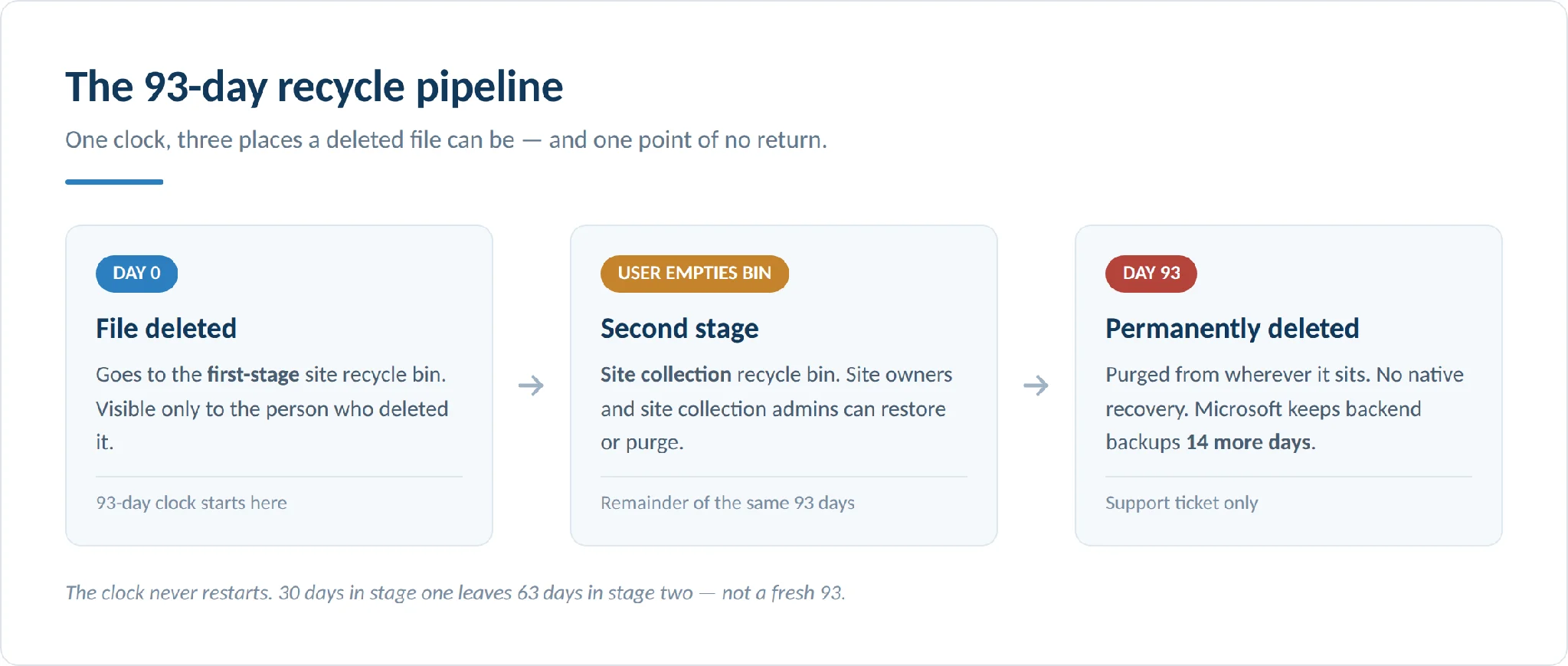
Pic.1. How a deleted file moves through SharePoint’s 93-day recycle pipeline.
SharePoint On-Premises is different
If you’re on SharePoint Server (2016, 2019 or Subscription Edition), the numbers are not the same, and this is the single most common misconception. Microsoft’s own documentation for SharePoint Server sets the defaults as:
- First-stage (site) recycle bin: 30 days, not 93.
- Second-stage (site collection) recycle bin: 50% of the site quota — a size limit, not a time limit.
The maximum retention on-prem is therefore 30 days by default, and an item can be purged sooner if the second-stage bin blows past its share of the quota. Farm administrators can change both values in Central Administration and via quota templates, so check your own farm rather than assuming the online behaviour applies. More on planning that in our SharePoint best practices guide.
Where is the SharePoint recycle bin?
For users
On a SharePoint site, look for the Recycle bin link in the left navigation. If custom navigation has hidden it, click Site contents and you’ll find Recycle bin at the top right of the page.
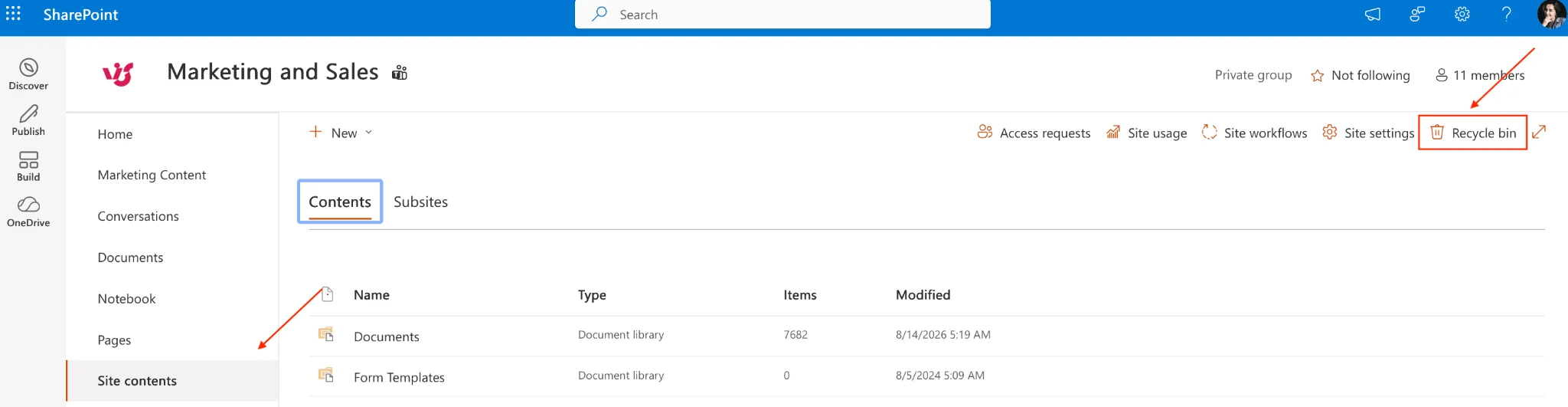
Pic.2. The Recycle bin link in the left navigation of a modern SharePoint site.
In a document library, use the settings gear > Site contents > Recycle bin. There’s no per-library bin — deleted files from every library on the site land in the same site recycle bin.
In OneDrive for work or school, the recycle bin is in the left navigation of the OneDrive web interface, and it holds everything you deleted from your own OneDrive.
Rights required: none beyond your normal site access. You can always see and restore items you deleted yourself.
For site owners and administrators
The second-stage recycle bin is reached from the bottom of the site recycle bin page, or through Site settings > Site collection administration > Recycle bin. There you’ll see two views:
- End user Recycle Bin items — everything currently sitting in users’ first-stage bins across the site.
- Deleted from end user Recycle Bin — the second-stage bin proper.
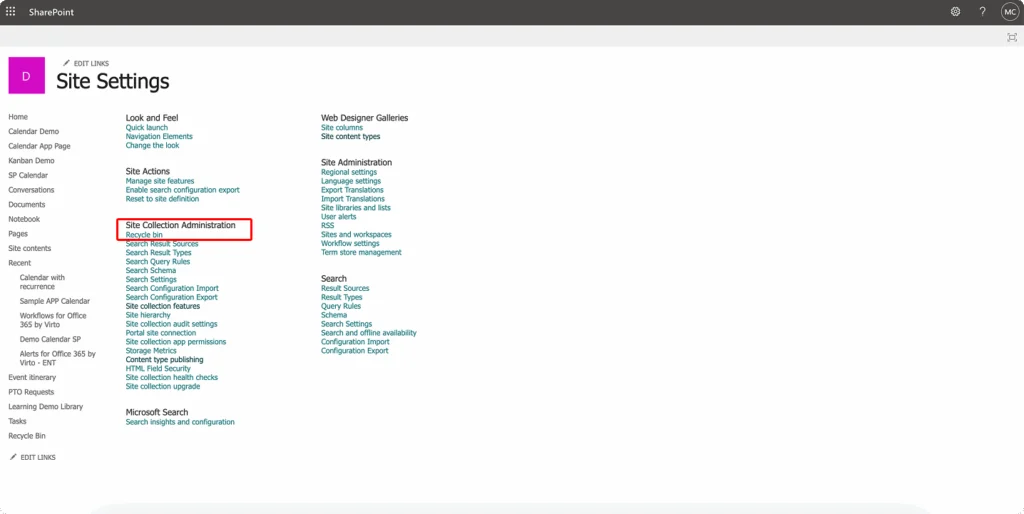
Pic.3. Opening the second-stage recycle bin from site collection administration.
For deleted sites, go to the SharePoint admin center > Sites > Deleted sites. You can sort and filter this list the same way as Active sites, including by time deleted.
Two access notes that trip people up. First, SharePoint recycle bins are only reachable through the web interface and the admin centers — a synced folder in File Explorer gives you the Windows recycle bin, not SharePoint’s. Second, the mobile app exposes only partial recycle bin functionality; for anything beyond a single simple restore, use a browser.
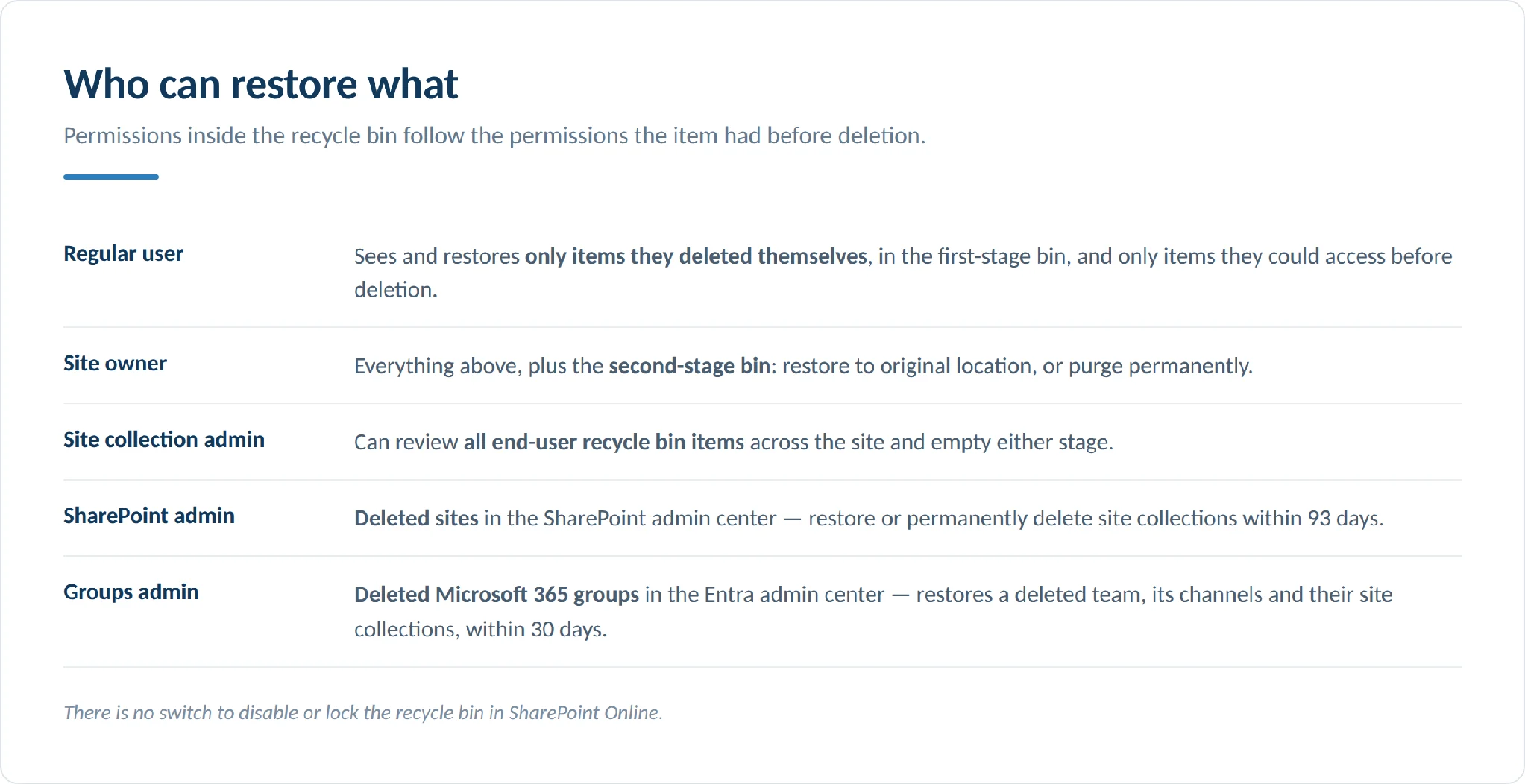
Pic.4. Permissions cheat sheet: who can restore what.
Retention periods and limits
How long do files stay in the SharePoint recycle bin?
In SharePoint Online, deleted items are kept for 93 days in total, and that single clock spans both stages. If an item sits in the first-stage bin for 30 days and a user then empties the bin, it has 63 days left in the second stage — not a fresh 93. At the end of 93 days it is permanently deleted from wherever it happens to be.
Two things can cut the window short:
- Quota pressure. If a deletion pushes the site collection recycle bin past its quota, SharePoint starts purging the oldest items to make room for the newest. A single mass deletion can therefore evict older recoverable content.
- Manual purging. Anyone with site collection admin rights can empty either stage at any time. Items deleted from the second-stage bin are purged immediately.
A note on a widely repeated figure: many guides state that the SharePoint Online second-stage bin is capped at 200% of the site quota. Microsoft’s current documentation no longer publishes a percentage for SharePoint Online — it describes the mechanism (oldest-out when the bin exceeds its quota) without a number. The 50%-of-quota figure that is documented applies to SharePoint Server. Plan around the behaviour, not the number.
| Area | Default behaviour | Configurable? | Notes |
|---|---|---|---|
| Item retention (SharePoint Online) | 93 days total across both stages | No | Single clock, starts at deletion |
| Item retention (SharePoint Server) | 30 days first stage; second stage limited to 50% of site quota | Yes | Central Administration and quota templates |
| Second-stage capacity (Online) | Has its own quota; oldest items purge first | No | Mass deletions can evict older items early |
| Restore this library window | Last 30 days | No | Point-in-time rollback, built on version history |
| Deleted sites | 93 days | No | SharePoint admin center |
| Deleted Microsoft 365 group (Teams) | 30 days | No | Not customisable |
| Deleted user’s OneDrive | 30 days, then 93 days in a deleted state | Partly | Default set in SharePoint admin center |
| Microsoft backend backups | 14 days beyond hard deletion | No | Support-initiated restore only |
Fig.2. Retention and quotas at a glance.
What retention policies change
When a Microsoft Purview retention policy or label applies to content, deletion doesn’t behave the way users expect. A copy of the content is preserved in the Preservation Hold Library, and items whose retention period has expired are routed through the second-stage recycle bin rather than being destroyed outright. Microsoft explicitly changed this to avoid inadvertent data loss: content from the Preservation Hold Library now always passes through the second-stage bin.
One consequence matters for eDiscovery: the recycle bin isn’t indexed, so an eDiscovery search cannot find or place a hold on content sitting in it. If the content must be discoverable, it needs a retention policy, not a recycle bin.
An API caveat worth knowing
Deletions performed through CSOM or REST APIs can either recycle an item (it goes to the bin, like the browser does) or delete it (it is purged immediately and is not recoverable from either bin). Custom scripts, migration tools and Power Automate flows written the wrong way can therefore destroy content that users assume is recoverable. If you run third-party tooling against your tenant, confirm which call it makes.
What changed by 2026
| Claim you’ll still see online | The 2026 reality |
|---|---|
| “Audit logs are kept for 90 days” | Audit (Standard) retention is 180 days for logs generated on or after 17 October 2023. E5 users get one year for Microsoft Entra ID, Exchange, SharePoint and OneDrive activity, and up to 10 years with the add-on licence |
| “Use a third-party backup for anything beyond 93 days” | Microsoft 365 Backup is generally available: pay-as-you-go at $0.15/GB/month, recovery windows of 3 months, 6 months, 1 year or 2 years, restore points every 10 minutes for the first two weeks then weekly. Granular file and folder restore is now GA for SharePoint sites and OneDrive accounts |
| “On-prem works like SharePoint Online” | On-prem defaults are 30 days first stage and 50% of the site quota second stage — a different model entirely |
| “Deleting a team sends files to the SharePoint recycle bin” | Deleting a team soft-deletes the Microsoft 365 group in Microsoft Entra ID for 30 days. Restoring the group restores the site, standard channels, private channels and their separate site collections |
| “The second-stage bin is 200% of the site quota” | Microsoft no longer documents a percentage for SharePoint Online. The documented behaviour is oldest-out purging when the bin exceeds its quota |
| “Azure AD recycle bin” | It’s Microsoft Entra ID — Azure AD was renamed in 2023, and the deleted-groups view now lives in the Entra admin center |
Fig.3. Stale advice vs current behaviour.
The Microsoft 365 Backup change is the significant one. For years the honest advice for anything past day 93 was “buy a third-party product.” Microsoft now sells a first-party service that plugs the gap, priced by consumption rather than per seat, and it can restore individual files and folders rather than only whole sites. That doesn’t make third-party backup pointless — independent storage outside the vendor’s platform is still a real argument — but it changes the default answer.
How to restore files from the SharePoint recycle bin
Restoring individual files and folders
- Open the recycle bin (left navigation, or Site contents > Recycle bin).
- Find the items. You can sort by name, original location, deleted-by or deletion date by clicking the column headers, and filter by date range, item type and original location.
- Tick the boxes next to the items you want. Multi-select works.
- Click Restore at the top of the page.
- Items return to their original location.
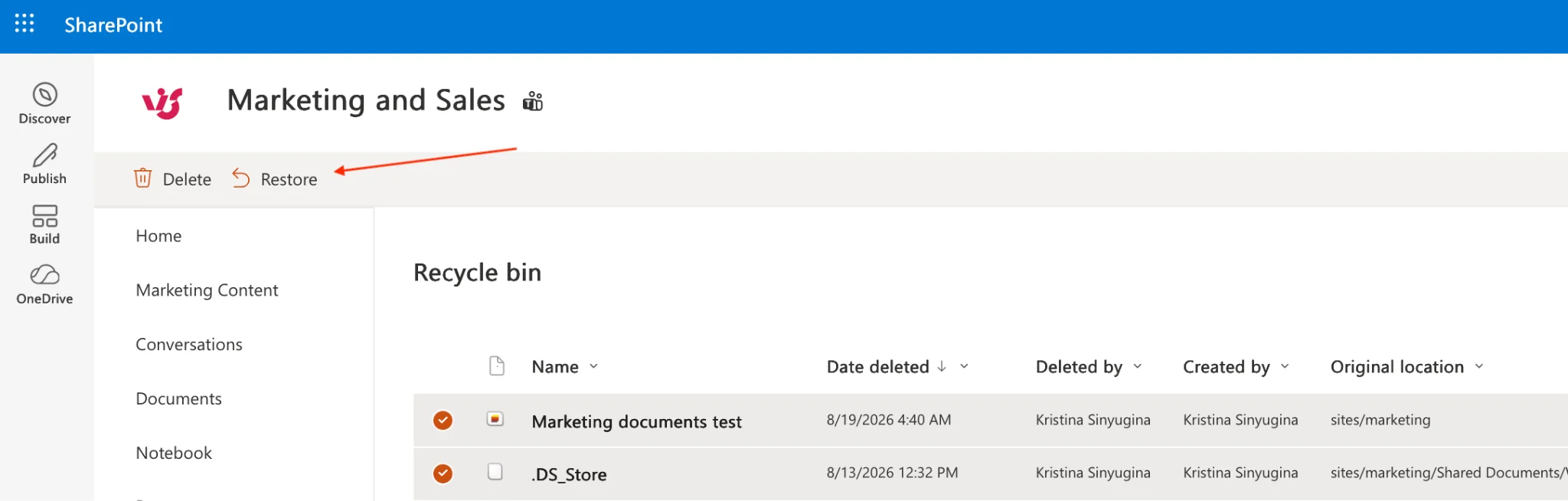
Pic.5. Selecting items and restoring them from the recycle bin.
If the original location no longer exists or has been renamed, SharePoint recreates the closest available path or drops the item at the library root — so always verify where things landed.
Recycle bin or version history?
These solve different problems and people reach for the wrong one constantly. Version history restores an earlier version of a file that still exists — the fix for a bad edit, an overwrite or corruption. The recycle bin recovers files that were deleted outright. Version history only affects the one document you’re working on; it doesn’t touch anything else in the library.
New document libraries default to keeping 500 versions per file, and the version limit is now configurable at organisation level with an Automatic setting that balances restore quality against storage. Cutting versions aggressively to save space directly weakens both version history and library restore, so trim deliberately.
Bulk restore and “Restore this library”
For mass deletions, ransomware or a bulk edit that went wrong, restoring file by file is hopeless. Restore this library rolls an entire document library back to a point in time within the last 30 days, undoing deletions, overwrites and modifications made after that point.
- Open the affected document library.
- Click the settings gear and choose Restore this library.
- Pick a restore point from the timeline, or scrub the activity feed to a specific moment.
- Review the changes that will be reversed.
- Confirm.
Two caveats. It rolls back the whole library, which can surprise colleagues who were working normally. And it is built on version history, so a library with versioning disabled or trimmed hard will restore poorly. Beyond 30 days, your options are the recycle bin, retention policies, Microsoft 365 Backup, or a third-party product.
For bulk work inside the recycle bin itself, use the Select all checkbox, or tick items individually, then Restore or Delete. Administrators can empty a bin wholesale to reclaim storage — permanently, so do it deliberately.
Restoring deleted sites
Deleted subsites land in the second-stage recycle bin. Deleted site collections appear under Deleted sites in the SharePoint admin center; select the site and click Restore. Restoring returns libraries and lists, pages and web parts, permissions and most configuration.
One trap: if the site belonged to a Microsoft 365 group, the site is retained for 93 days but the other group resources — mailbox, Planner, Teams — are only kept for 30. Restore on day 60 and you’ll get a site back without the group assets around it. If the group resources are gone, the site can’t be meaningfully restored and can be purged with Remove-SPODeletedSite.
| Method | Scope | Best for | Impact | Limits |
|---|---|---|---|---|
| Restore from recycle bin | Single or multiple items | Accidental deletes | Targeted, minimal | Within the 93-day window only |
| Version history | One file | Bad edits, overwrites, corruption | Replaces the version, keeps others | File must still exist |
| Restore this library | Entire library | Ransomware, mass edits | Rolls back everything in the library | 30-day window; depends on versioning |
| Restore deleted site | Whole site | Site-level removal | Restores structure and content | Admin only; group resources expire at 30 days |
| Microsoft 365 Backup | Site, account, or selected files | Anything beyond 93 days | Restore in place or to a new location | Paid; only protects what you enrolled |
| Microsoft support restore | Site or subsite | Hard-deleted content | Point-in-time restore from backend backups | 14 days past hard deletion; not self-service |
Fig.4. Choosing a restore method.
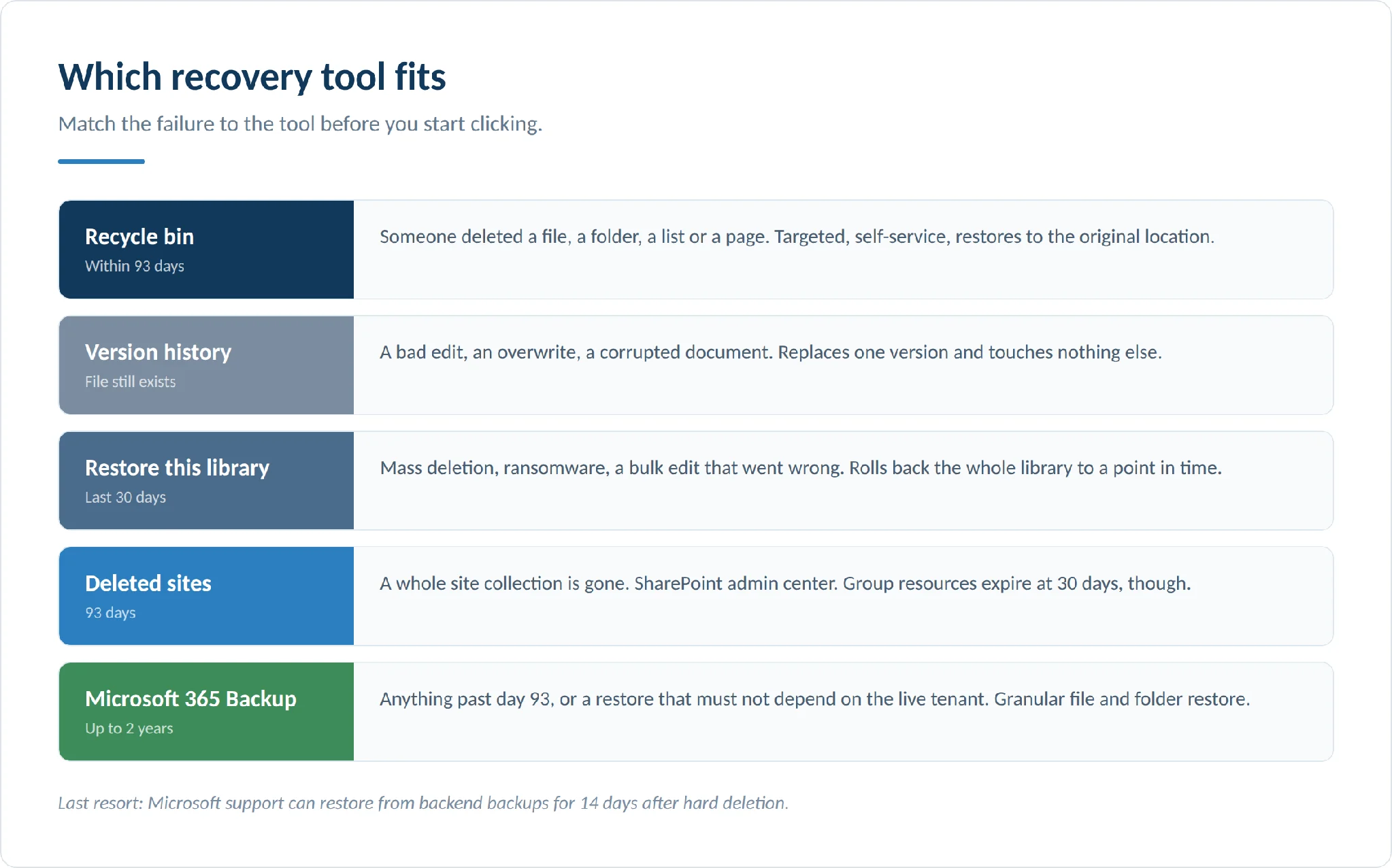
Pic.6. Which recovery tool fits which failure.
Post-restore checks
Getting the file back is not the end of the job.
Permissions. Confirm Owner/Member/Visitor groups are intact, check unique permissions at item or folder level, and verify that broken inheritance was restored the way you expect. Our SharePoint security guide covers the permission model in depth.
Sharing links. Shared links are not preserved through deletion. Reissue links for external collaborators, update bookmarks, and tell the people who had access.
Metadata and versions. Check custom metadata columns are populated, that version history came back, and that any content approval or workflow state is correct.
Search. If search can’t find restored content, reindex: Library settings > Advanced settings > Reindex Document Library, then give the crawler time.
Flows. Power Automate flows bound to the restored content may need their triggers checked and connections re-authenticated. Test one before assuming the rest are fine.
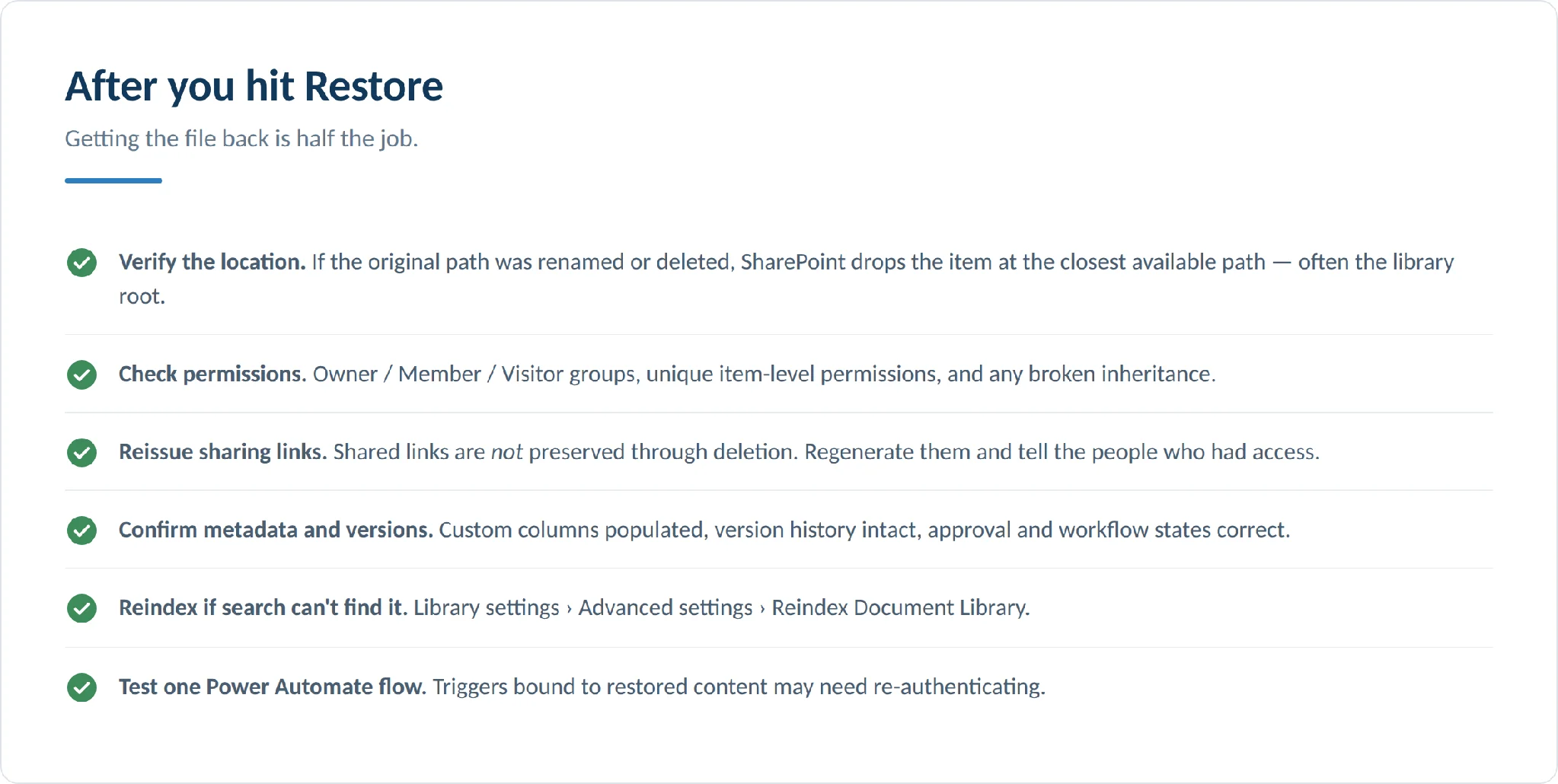
Pic.7. Post-restore checklist.
Microsoft Teams and OneDrive specifics
Teams has no recycle bin of its own. Everything routes back to SharePoint or Entra ID:
- Files deleted from a standard channel go to the recycle bin of the team’s connected SharePoint site.
- Private and shared channels have their own separate SharePoint site collections, each with its own recycle bin. Look there, not in the parent team’s site.
- A deleted team means a soft-deleted Microsoft 365 group, retained 30 days in Microsoft Entra ID. Restoring the group restores the team, its tabs, standard channels, private channels and their site collections. It can take up to 24–48 hours for everything to reappear.
Admins can find deleted groups under Microsoft Entra admin center > Groups > All groups > Deleted groups, or with Get-MgDirectoryDeletedItem and Restore-MgDirectoryDeletedItem. See the Teams admin center guide and Teams permissions guide for the surrounding governance.
For OneDrive, deleted files go to the user’s own recycle bin on the same 93-day two-stage clock. When a user account is deleted, their OneDrive is retained for a configurable period — 30 days by default, set in the SharePoint admin center — and then remains in a deleted state for a further 93 days, restorable only by a SharePoint Administrator.
Managing the recycle bin with PowerShell
When you’re dealing with thousands of items, complex filters, or a report someone needs, the browser stops being enough.
| Task | SharePoint Online (PnP) | On-prem equivalent |
|---|---|---|
| List recycle bin items | Get-PnPRecycleBinItem | $site.RecycleBin |
| Restore by ID | Restore-PnPRecycleBinItem -Identity <id> | $item.Restore() |
| Clear items | Clear-PnPRecycleBinItem -All -FirstStage | $site.RecycleBin.Delete() |
| List deleted sites | Get-SPODeletedSite | Central Administration / Get-SPDeletedSite |
| Restore deleted site | Restore-SPODeletedSite -Identity <url> | Restore-SPDeletedSite |
| Purge deleted site | Remove-SPODeletedSite -Identity <url> | Central Administration |
Fig.5. PowerShell quick reference.
Connect and look around:
Install-Module -Name PnP.PowerShell
Connect-PnPOnline -Url https://yourtenant.sharepoint.com/sites/yoursite -Interactive

# Everything in the bin
Get-PnPRecycleBinItem

# Only second-stage items
Get-PnPRecycleBinItem -SecondStage

# Filter by who deleted it, or when
Get-PnPRecycleBinItem | Where-Object {$_.DeletedByEmail -eq "user@company.com"}
Get-PnPRecycleBinItem | Where-Object {$_.DeletedDate -gt (Get-Date).AddDays(-7)}
Restore in bulk — the ransomware pattern. Find everything deleted in a suspicious window and put it back:
$attackTime = (Get-Date).AddHours(-24)
$suspect = Get-PnPRecycleBinItem | Where-Object {
    $_.DeletedDate -gt $attackTime -and $_.ItemType -eq "File"
}
Write-Host "Found $($suspect.Count) recently deleted files"

foreach ($item in $suspect) {
    try   { Restore-PnPRecycleBinItem -Identity $item.Id -Force }
    catch { Write-Warning "Failed: $($item.Title) - $_" }
}
Report before you purge. Exporting the bin to CSV gives you something to hand to compliance, and something to check against before anyone empties anything:
Get-PnPRecycleBinItem |
    Select-Object Title, DirName, Size, DeletedByEmail, DeletedDate, ItemState |
    Export-Csv -Path "RecycleBin_$(Get-Date -Format 'yyyyMMdd').csv" -NoTypeInformation
Deleted sites need the SharePoint Online Management Shell rather than PnP:
Connect-SPOService -Url https://yourtenant-admin.sharepoint.com
Get-SPODeletedSite
Restore-SPODeletedSite -Identity https://yourtenant.sharepoint.com/sites/projectsite
Note that PnP PowerShell requires PowerShell 7.4 or later and, since Microsoft deleted the shared multi-tenant PnP Management Shell app registration in September 2024, your own Microsoft Entra app registration. The SharePoint Online Management Shell remains Windows-only. Full setup detail is in our SharePoint Online Management Shell guide.
A few practical rules: filter server-side where the cmdlet supports it rather than piping everything into Where-Object; page through very large bins instead of pulling them in one call; run bulk restores outside peak hours to avoid throttling; batch operations into groups of 100–200 items; and always test in a non-production site collection first. PowerShell obeys exactly the same permissions as the browser, so an account without site collection admin rights can’t touch the second stage.
What the recycle bin doesn’t protect you from
Time. 93 days, and then it’s gone from native tooling. There is no recycle bin for the recycle bin.
Quota events. A mass deletion can purge older items early to make room.
Account compromise. An attacker with admin rights can delete content, empty the first-stage bin, purge the second stage, and be done in minutes. The recycle bin offers essentially no defence against a malicious insider or a compromised admin account.
Infrastructure problems. Deleted items live in the same environment as live content. There’s no independent copy.
Custom retention rules. You can’t extend the 93 days for particular content types inside the recycle bin. That’s what Purview retention is for, and it’s a separate system with its own behaviour.
The three layers that actually work
Layer 1 — Recycle bin. Immediate, self-service, free, no setup. Covers accidental user deletions inside 93 days. Ideal for the 90% of incidents that are somebody clicking the wrong thing.
Layer 2 — Microsoft Purview retention. Retention policies and labels, the Preservation Hold Library, legal holds and eDiscovery. This is your compliance layer, and it is what stops content being destroyed on schedule when the law says otherwise.
Layer 3 — Backup. Either Microsoft 365 Backup (first-party, $0.15/GB/month, recovery windows up to two years, granular file and folder restore now GA) or a third-party product with independent storage outside Microsoft’s platform. This is the layer that survives ransomware, a rogue admin, and day 94.
There’s also a half-step worth knowing: Microsoft keeps 14 days of backend backups beyond hard deletion and can perform a support-initiated point-in-time restore of a site or subsite. It’s a genuine last resort, not something you can plan around, and you open the ticket through the Microsoft 365 admin center.
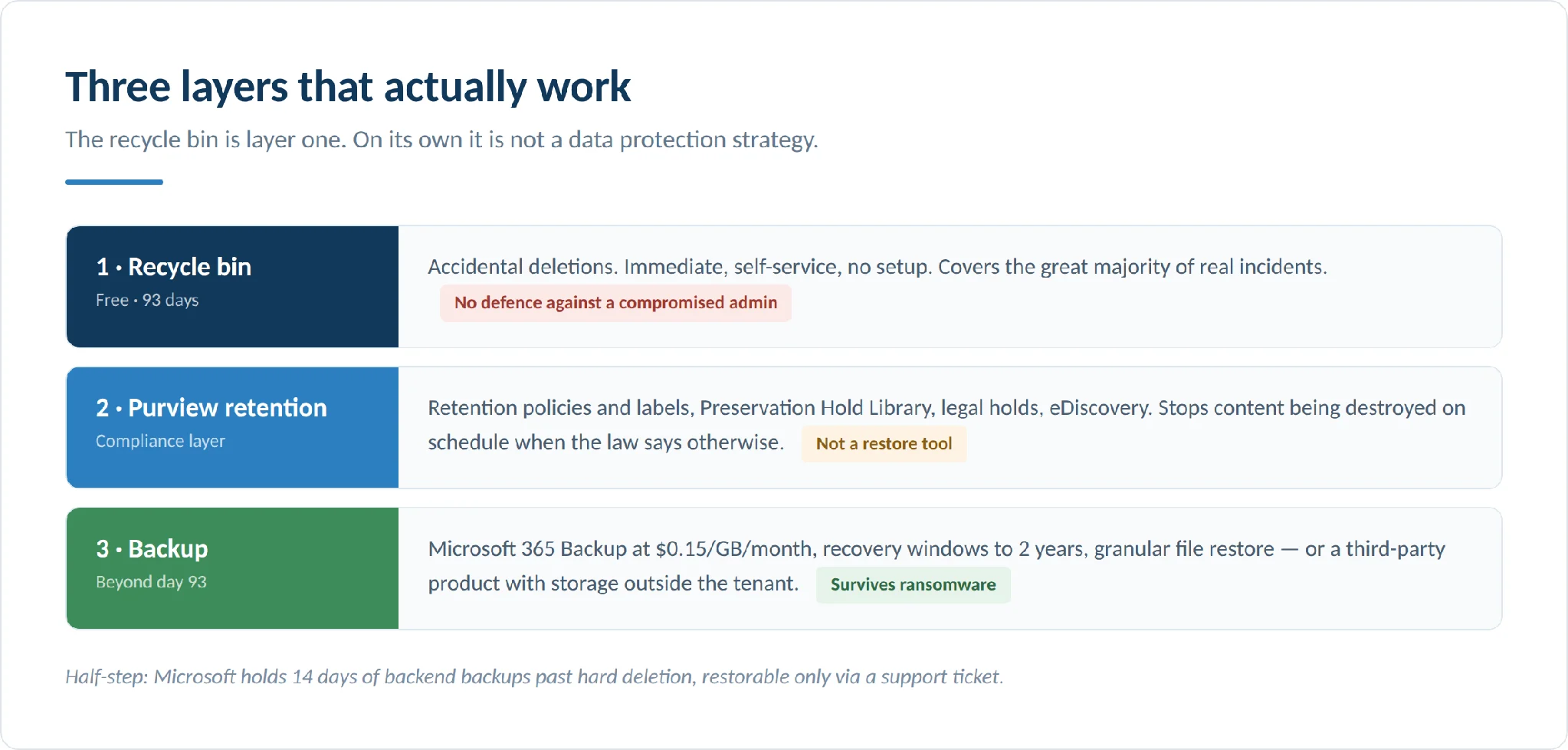
Pic.8. Three layers of protection, and what each one actually covers.
Common problems and how to fix them
| Symptom | Likely cause | What to do |
|---|---|---|
| “I can’t see the recycle bin” | Custom navigation hides the link, or you’re looking for the second stage without owner rights | Go via Site contents; ask a site owner for second-stage access |
| Item isn’t in either bin | 93 days elapsed, quota purge, an admin emptied it, or it was API-deleted rather than recycled | Try Restore this library, then Microsoft 365 Backup, then a support ticket within 14 days |
| Restore fails | Original path is gone or renamed; a name conflict at the destination; path over ~400 characters; special characters (`# % & * : < > ? / { | }`) |
| Restored file has no version history | Versions were trimmed or deleted separately | Version history is independent of the bin — use Restore this library instead |
| Search can’t find restored content | Index hasn’t caught up | Library settings > Advanced > Reindex Document Library |
| Teams file missing | It’s a private or shared channel | Check that channel’s own SharePoint site collection |
| Recycle bin loads slowly | Very large deletion history | Filter by date range, or export via PowerShell and analyse offline |
Fig.6. Troubleshooting the SharePoint recycle bin.
Two habits pay for themselves. Record deletion details immediately — timestamp, file URL, who deleted it — because that’s what makes a PowerShell search or a support ticket fast instead of hopeless. And check both stages before you tell anyone the data is lost.
For mass-deletion incidents specifically: stop further damage first (temporarily pull permissions if you must), document what happened, check both stages, use Restore this library if the blast radius is a library, escalate to backup if retention has expired, and review the audit log to understand root cause. Audit records are available for 180 days on Audit (Standard) and one year for E5 users.
Doing less deleting in the first place: Virto apps for SharePoint
Most recycle bin emergencies start with a bulk operation done by hand — dragging hundreds of files between libraries, re-tagging a folder tree one item at a time, cleaning up after a reorganisation. Manual repetition is where accidental deletions come from.
Virto apps for SharePoint address that end of the problem. For SharePoint Online and Microsoft 365, the Virto Multiple Operations App handles bulk upload of documents and whole folder structures — into libraries or as list item attachments — with drag-and-drop, metadata assignment during upload, and overwrite protection. For SharePoint On-Premises, Virto Multiple File Operations extends that to upload, download, delete, copy, move, check-in, approve and edit across many files at once, with bulk metadata editing and configurable limits on file size and type.
Two situations where this matters for recovery specifically. After a ransomware event, restoring thousands of files from backup storage into SharePoint by hand means recreating metadata document by document; bulk upload restores the folder structure in one operation with metadata applied by rule. And during a departmental reorganisation — thousands of documents moving between libraries with new metadata and permissions — bulk operations turn a week of error-prone clicking into an afternoon, while preserving version history.
These tools don’t replace the recycle bin. They reduce how often you need it. All Virto products come with a 30-day free trial, and you can book a product demo if you’d rather see it against your own environment.
FAQ
Where is the recycle bin in SharePoint?
On any site: the Recycle bin link in the left navigation, or Site contents > Recycle bin. Site owners reach the second stage from a link at the bottom of that page. Deleted sites are in the SharePoint admin center under Sites > Deleted sites.
How long do items stay in the SharePoint recycle bin?
93 days in SharePoint Online, counted from the moment of deletion and shared across both stages. On SharePoint Server the default is 30 days, with the second stage limited by quota rather than time.
Does the 93-day clock restart when an item moves to the second stage?
No. An item that spent 30 days in the first stage has 63 days left, not 93.
Can I recover a file after the recycle bin is emptied?
Sometimes. Check the second stage first. Then try Restore this library if the deletion was within 30 days, then Microsoft 365 Backup if you have it. Microsoft keeps backend backups for 14 days past hard deletion and can do a support-initiated point-in-time restore — open a ticket fast.
Where do Teams files go when deleted?
Standard channel files go to the connected SharePoint site’s recycle bin. Private and shared channel files go to their own separate site collections’ bins. Teams itself has no recycle bin.
How do I restore a deleted team?
Restore the associated Microsoft 365 group within 30 days, from the Microsoft Entra admin center or with Restore-MgDirectoryDeletedItem. That brings back the site, channels and private channel site collections. Allow up to 24–48 hours.
What’s the difference between the recycle bin and version history?
The recycle bin recovers deleted files. Version history recovers earlier versions of files that still exist. Deleted versions do not go to the recycle bin.
Can administrators disable the recycle bin?
No. There’s no switch to turn it off or lock it in SharePoint Online. Access follows site permissions, so admins can hide navigation links or adjust roles, but the bin itself keeps working.
Do deleted items count against my storage quota?
Yes. Recycle bin contents count toward your organisation’s total storage, which is why emptying bins is a standard step when a tenant runs short on space. Deleted sites in the recycle bin do not count toward the total.
Is the recycle bin a backup?
No. It has no independent storage, a fixed 93-day window, and can be emptied by anyone with the right permissions. Use it as layer one alongside Purview retention and a real backup.
Can eDiscovery search the recycle bin?
No. The recycle bin isn’t indexed, so eDiscovery can’t find or hold content sitting in it. Use retention policies if content must remain discoverable.
Conclusion
The SharePoint recycle bin does one job well: it undoes accidental deletions quickly, with no setup and no admin involvement, for 93 days. Learn the two-stage model, know that the clock doesn’t restart, and know where deleted sites and Teams channel files actually live, and most “we lost a file” incidents become a two-minute fix.
Past that, the picture in 2026 is better than it used to be. Microsoft Purview retention handles compliance, Restore this library handles a bad 30 days, and Microsoft 365 Backup finally gives you a first-party answer for everything beyond day 93 — with granular file restore, priced by what you protect. Layer those three and no single mistake, attack or expiry destroys anything permanently.
And the cheapest recovery is the one you never need. Reducing the volume of risky manual file work — with Virto apps for SharePoint or anything else that replaces click-by-click bulk operations — keeps files out of the bin in the first place.
Further reading
Microsoft documentation
- Restore items in the Recycle Bin that were deleted from SharePoint or Teams
- Restore deleted items from the site collection Recycle Bin
- SharePoint data deletion in Microsoft 365
- Restore deleted sites
- Overview of Microsoft 365 Backup
From our blog