A SharePoint page is the part of SharePoint your colleagues actually look at. Lists and libraries hold the data; pages are where that data is arranged, explained and made findable. Get pages right and an intranet feels like a product. Get them wrong and people go back to emailing attachments.
This guide covers what a SharePoint page is, how site pages differ from news posts, how to create and design one step by step, and the publishing, permission and maintenance habits that keep a page useful a year after you build it. Everything here applies to modern SharePoint in Microsoft 365 — SharePoint Online and SharePoint Server Subscription Edition.
Quick answer: what is a SharePoint page?
A SharePoint page is a modern web page inside a SharePoint site, built from sections and web parts. It is used for news, landing pages, dashboards and documentation, and it is distinct from lists and document libraries — those store content, while a page presents it.
Every modern page is assembled from four layers. The page shell holds the title, banner image and page properties. Sections are horizontal bands that set the column layout. Web parts are the content blocks you drop into those columns — text, images, news, a document library, an embedded video, a third-party app. And publishing is what turns your private draft into something readers can see.
You do not need HTML, CSS or SharePoint Designer for any of this. The modern page editor is drag-and-drop, the output is responsive on phones and tablets by default, and every page is automatically indexed by Microsoft Search.
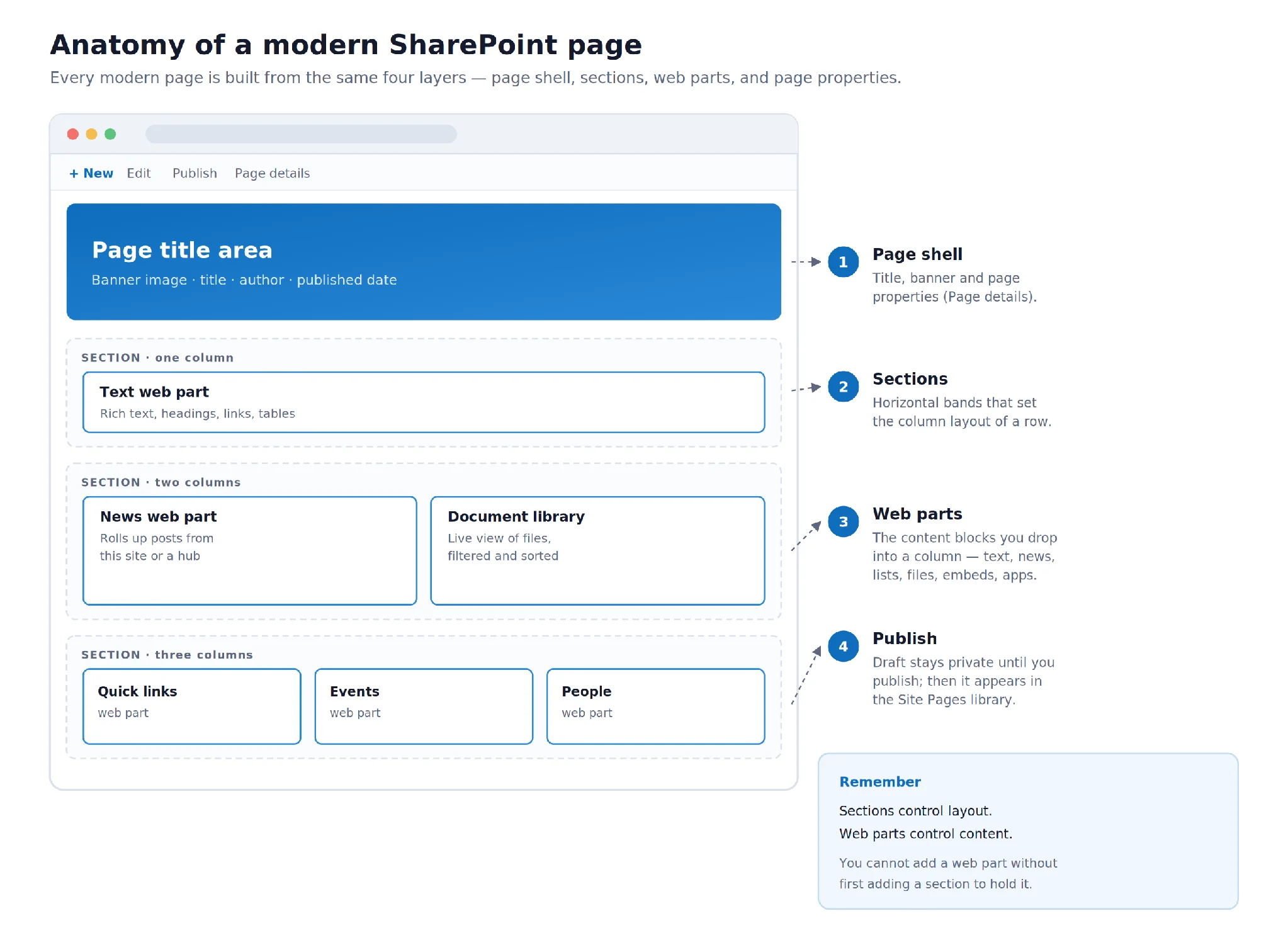
Pic.1. Anatomy of a modern SharePoint page — page shell, sections, web parts and publishing.
Where a page sits in SharePoint
A page is not a special object floating above your site. It is a file — an .aspx file — stored in a document library called Site Pages. That single fact explains most of how pages behave: they inherit the site’s permissions, they keep version history, they can be checked out, and they show up in search results like any other file.
The nesting runs from your Microsoft 365 tenant, down through a SharePoint site, into the Site Pages library, to the individual page, and finally to the sections and web parts inside it.
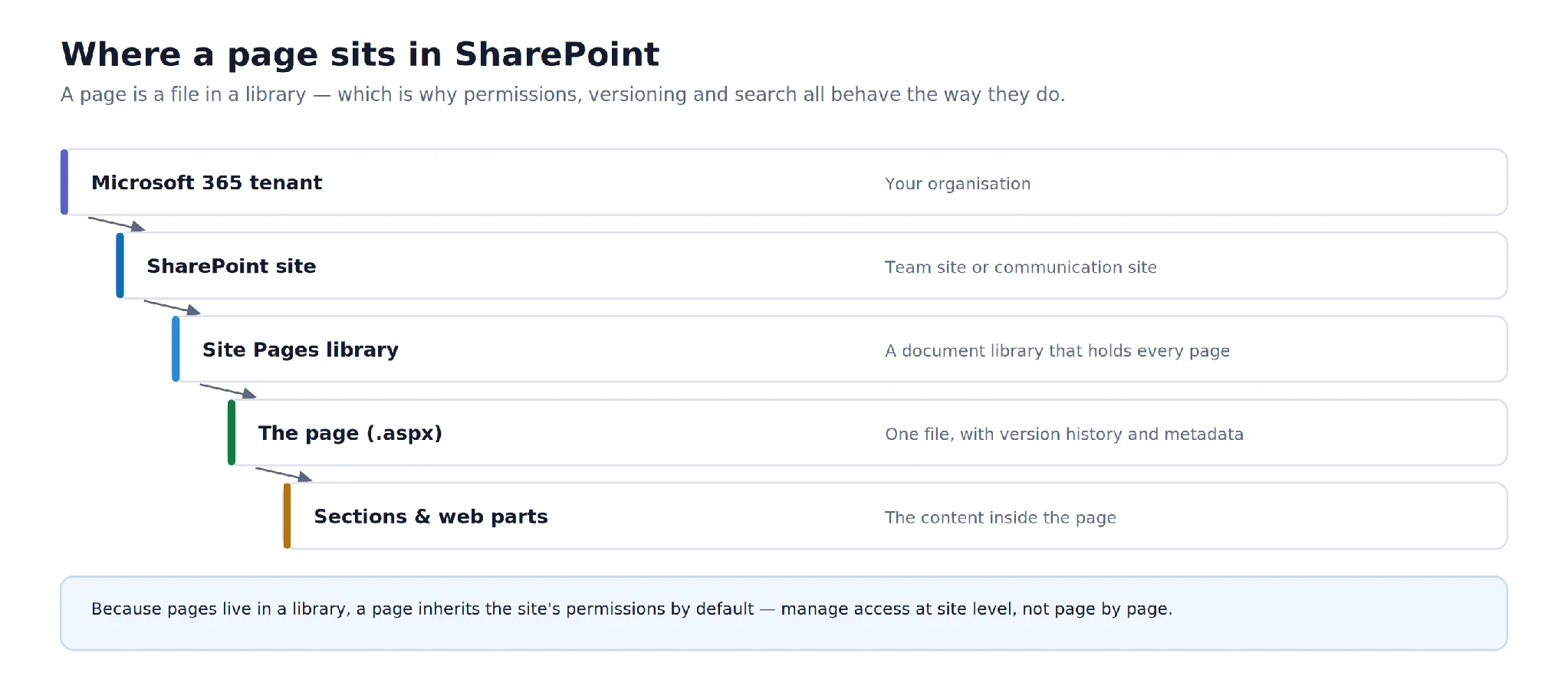
Pic.2. Where a page sits in SharePoint — from tenant to web part.
Modern pages vs legacy page types
Modern pages are the only page type Microsoft is investing in, and the only one you should build with today. If you have inherited an older environment you may still run into three legacy types:
- Classic pages — wiki-style pages with a basic editor, limited layout control and no responsive behaviour.
- Web part pages — fixed-zone pages built specifically to host classic web parts.
- Publishing pages — pages built on page layouts and content types, with approval workflows attached, used in the old publishing infrastructure.
All three still render, but they miss out on modern web parts, mobile layouts, Viva Connections surfacing and most new features. If you are still running them, the practical move is to rebuild rather than convert — the content usually transfers in minutes, and you can read more in our guide to SharePoint modern vs. classic.
Site pages vs news pages: which one do you need?
This is the decision people get wrong most often, and it is worth two minutes up front. Both are created in the same editor and both live in the Site Pages library. What differs is distribution.
A site page is reference content that stays put — a team landing page, an expense policy, a how-to, a reporting dashboard. It appears in site navigation and in search, and you update it in place as things change.
A news post is time-stamped content that gets pushed out. It surfaces in the News web part, on the SharePoint start page, in the mobile app, in Microsoft Teams and Viva Connections, and it can be sent as an email digest or boosted to the top of the organisation’s news feed.
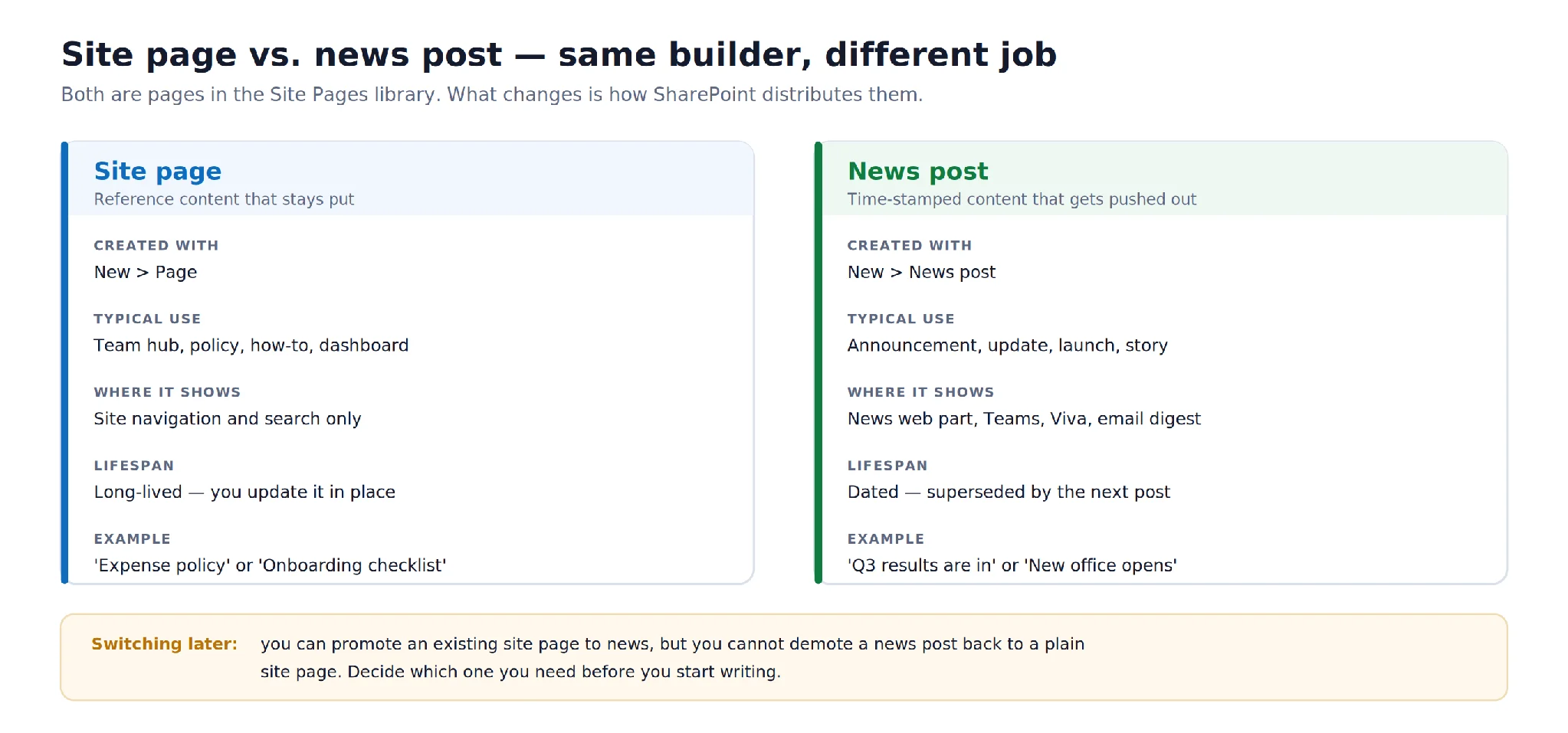
Pic.3. Site page vs. news post — same builder, different distribution.
A quick test: if you would still want somebody to read it in six months, make it a site page. If it is an announcement that will be stale next quarter, make it a news post. You can promote an existing site page to news later, but you cannot turn a news post back into an ordinary site page — so it pays to choose deliberately.
What are SharePoint pages used for?
The page is the only surface in SharePoint that a non-technical colleague experiences directly. Everything else — content types, permission inheritance, retention labels — is plumbing they should never have to think about. A well-built page turns that plumbing into something obvious, and a handful of scenarios come up again and again.
Team and department landing pages
The front door for a group of people: what the team does, who to contact, the four documents everyone asks for, and a live view of current work. This is the single highest-value page most teams will ever build, because it replaces the recurring “where do I find…” question that otherwise arrives by chat every week.
Company news and internal communications
News posts published from a communication site and rolled up across a hub reach people wherever they already are — the SharePoint start page, the mobile app, a Teams tab, Viva Connections, or an emailed digest. Compared with all-staff email, you get read counts, a permanent archive and a page that can be updated rather than corrected in a follow-up.
Policy, process and knowledge pages
A page beats a Word document for anything people need to consult rather than read end to end. It is searchable, it has one canonical URL, it shows a last-updated date, and nobody ends up circulating version 4 of a PDF while version 6 sits in a library.
Reporting dashboards
Combine an embedded Power BI report, a filtered list view, a countdown to the next milestone and a short written commentary in one place. The commentary is what makes it work — numbers without interpretation get looked at once.
Onboarding and training hubs
A structured sequence of pages — first week, first month, tools, who’s who — with links, embedded video and a checklist. Because pages are cheap to duplicate from a template, each department can fork the same structure without anyone rebuilding it.
Project and event pages
Short-lived pages that pull a project’s documents, timeline, contacts and updates into one URL you can paste into a chat. When the project ends, archive the page rather than deleting it — the decisions recorded on it are usually worth keeping.
What these have in common is aggregation. In every case the page is not the source of truth for anything; it is the arrangement that makes several sources of truth usable together. That is worth remembering when a page starts filling up with content that exists nowhere else.
How to create a SharePoint page, step by step
You need Edit permissions on the site — that means membership of the site’s Members group or an equivalent role. Site Visitors can read pages but not create them.
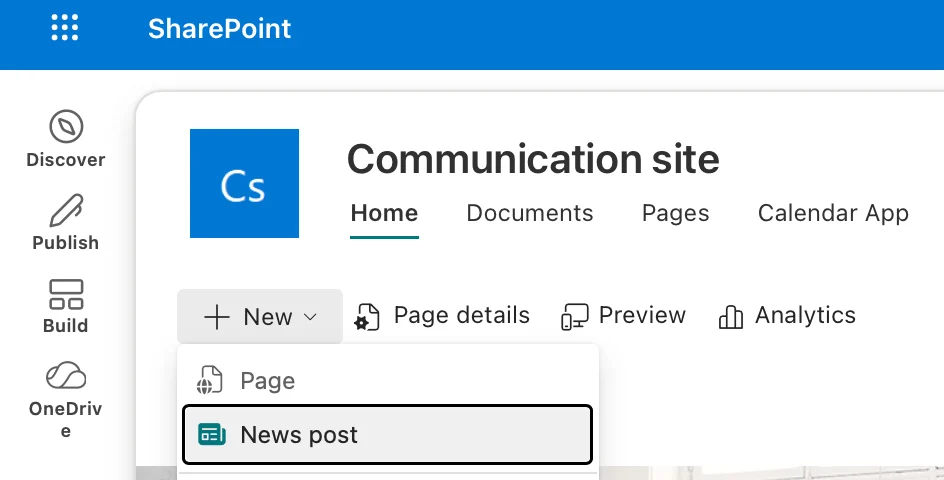
Pic.4. The New menu opens on a SharePoint site command bar, showing the Page and News post options.
Create a site page
- Open the SharePoint site that should own the page. Pages belong to sites, so pick the right one — moving a page between sites later means recreating it.
- On the command bar at the top of the site, select New, then Page. On a team site you may need to go through the Pages library first.
- Choose a template. Blank gives you an empty canvas; the built-in templates (Basic, Visual, Showcase and others) come pre-populated with sections and web parts you can strip back or replace.
- Give the page a name. This becomes both the heading in the title area and the page’s file name and URL, so write something short and descriptive — “Expense policy”, not “Page 3 final v2”.
- Set up the title area. Choose a layout (Image and title, Plain, Coloured block or Overlap), add a banner image, and decide whether to show the author and published date.
- Add sections. Hover below the title area, select the circled plus, and pick a column layout for that band of the page.
- Add web parts inside each section. Select the plus inside a column and choose from the toolbox — Text, Image, Quick links, News, Document library, List, Embed and dozens more.
- Select Save as draft while you work. Nothing is visible to anyone else until you publish.
- When it is ready, select Publish. The page goes live in the Site Pages library and becomes visible to everyone with read access to the site.
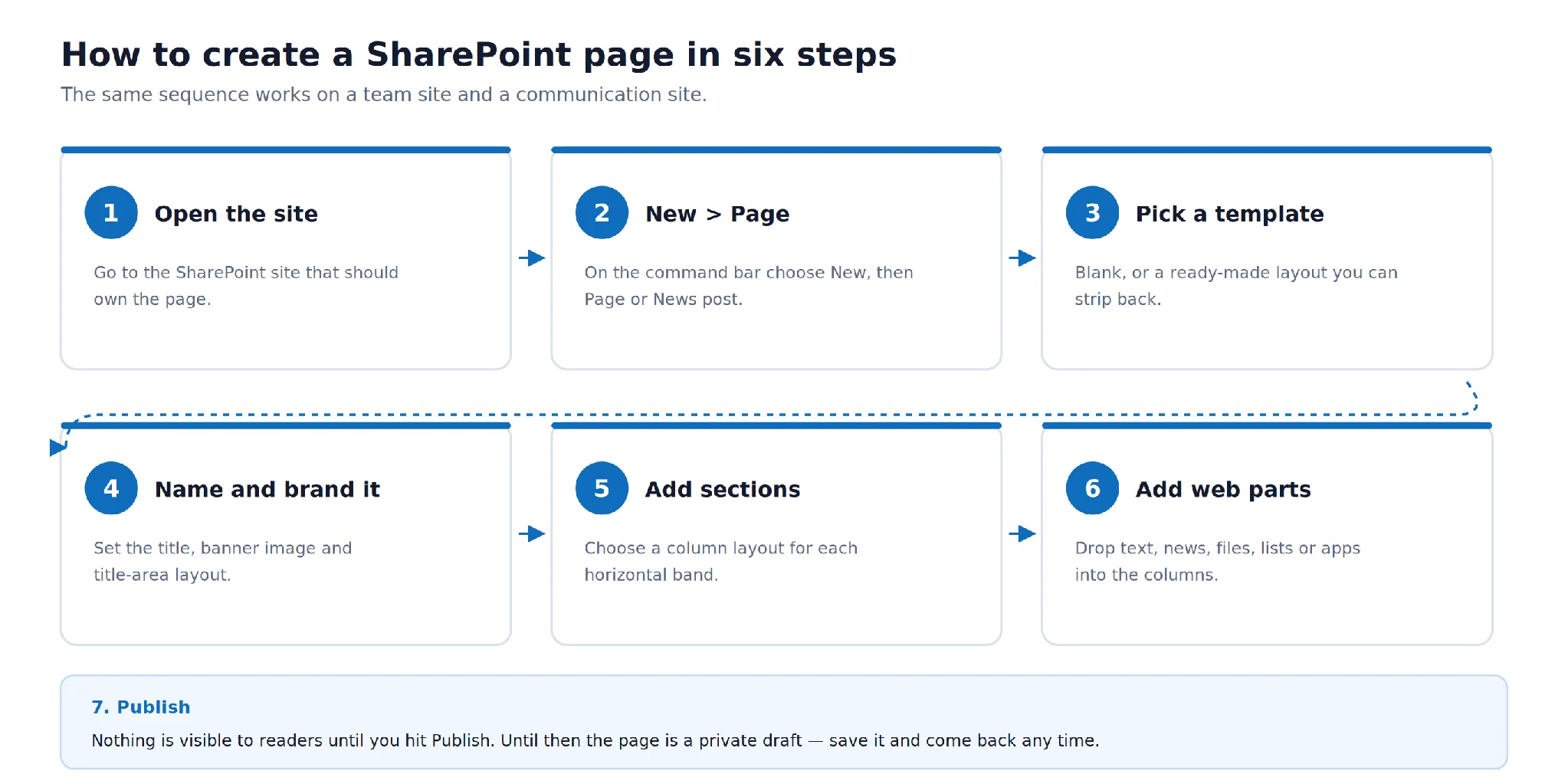
Pic.5. How to create a SharePoint page in six steps, plus publishing.
Create a news post
The flow is identical, with one change at the start: choose New, then News post instead of Page. You will be offered news-specific templates, and once published the post is picked up by every news surface across Microsoft 365. Microsoft’s own walkthrough of creating and sharing news on SharePoint sites covers the distribution options in detail.
Create a page from a template
If your organisation publishes a lot of similar pages — project summaries, department landing pages, meeting notes — save one good page as a template rather than rebuilding it every time. Open a published page, select Promote or the page’s ellipsis menu, and choose Save as template. It then appears in the template gallery for everyone creating a page on that site, which is by far the cheapest way to enforce a house style.
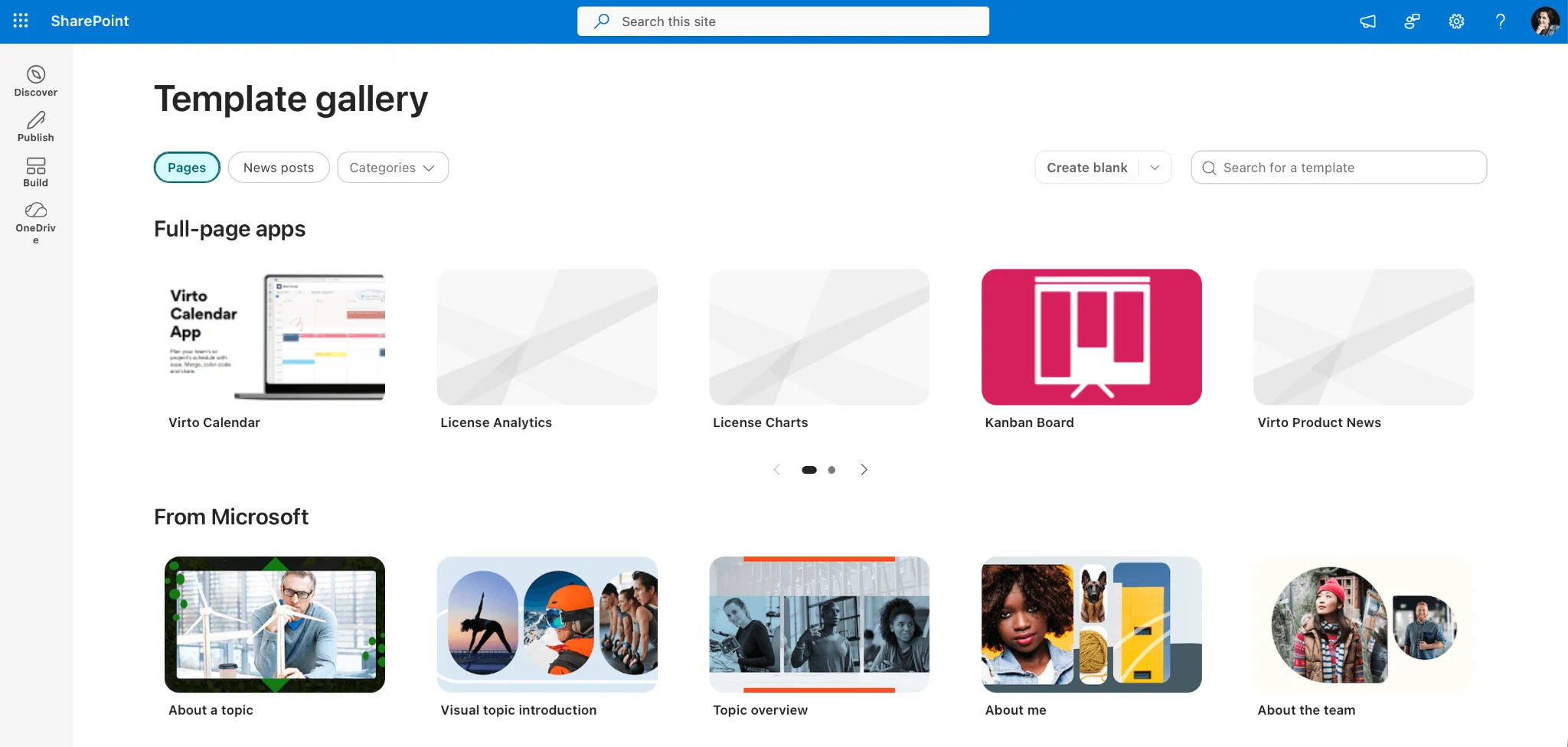
Pic.6. The page template gallery, showing built-in templates alongside a custom organisation template.
How to design a SharePoint page: sections, layouts and web parts
Design in modern SharePoint is a two-step decision, repeated down the page: first choose a section layout, then fill its columns with web parts. Keeping those two ideas separate is what stops pages turning into a mess.
Start with sections
A section is one horizontal band. Each section has its own column layout and its own background shade, and you can stack as many as you need. Mixing layouts down the page — a full-width hero, then a two-column body, then a three-column row of links — reads far better than forcing everything into one rigid grid.
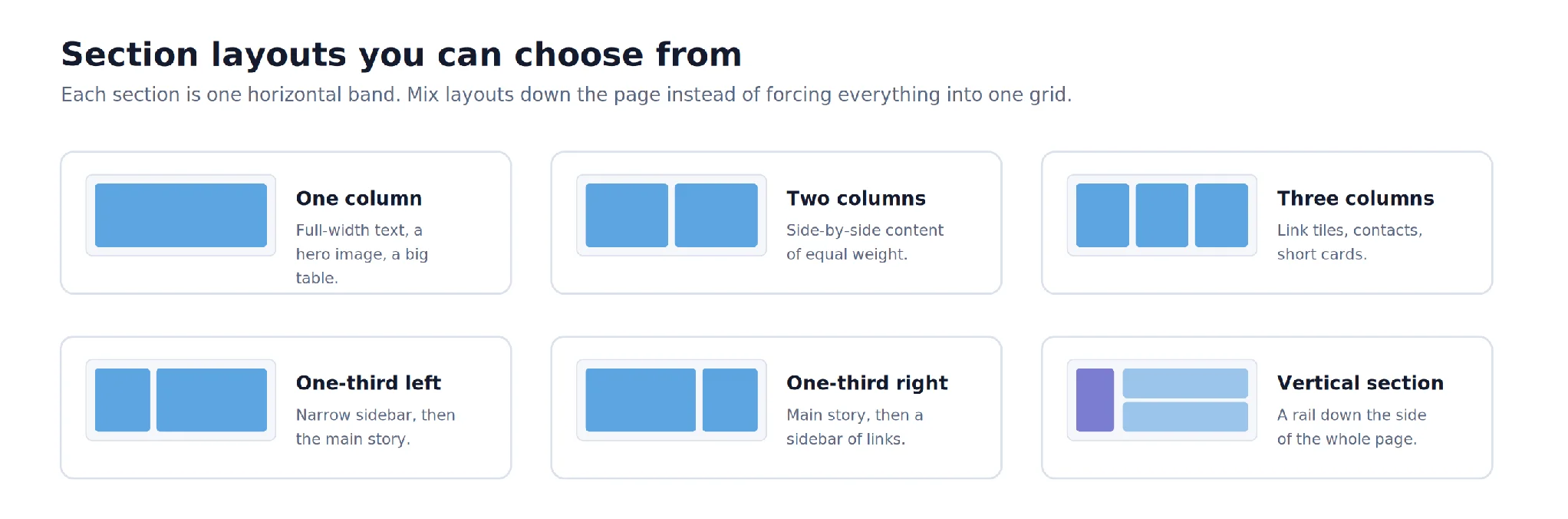
Pic.7. Section layouts available in the modern page editor.
The vertical section is the odd one out: instead of sitting in the flow, it runs down the right-hand side of the whole page. It is useful for a persistent sidebar of contacts, links or upcoming events, but it collapses to the bottom of the page on mobile, so never put anything essential in it.
Add web parts
Web parts are the building blocks that do the actual work. The ones you will reach for most often:
- Text — rich text with headings, lists, tables and links. Use real heading levels rather than bold text, so screen readers and search can follow the structure.
- Image and Image gallery — pictures with captions and alt text.
- Quick links — a tidy tile or list of links; the workhorse of most landing pages.
- News — rolls up posts from this site, a hub, or a hand-picked set of sites.
- Document library and List — a live, filtered view of files or list items, embedded directly in the page.
- Highlighted content — a dynamic query that pulls in recent or matching content automatically.
- Embed — video, dashboards and other external content via iframe or embed code.
- People, Events, Countdown timer, Hero, Divider and Spacer — the finishing touches.
For a full breakdown of the toolbox, including how to connect two web parts together and when a custom SPFx web part is justified, see our guide to SharePoint web parts. Microsoft’s reference on authoring modern pages in SharePoint is a useful companion.
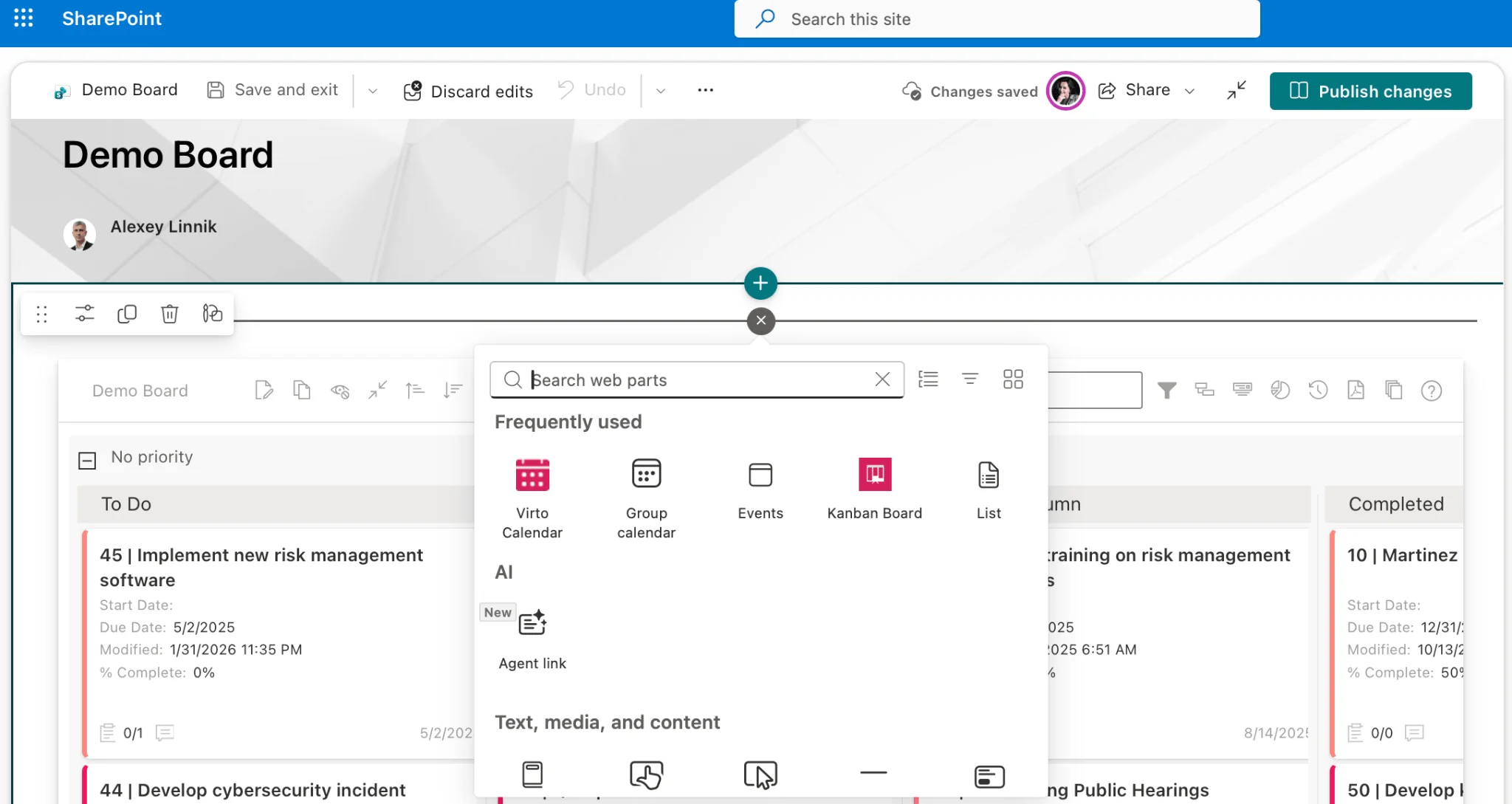
Pic.8. The web part toolbox open on a page in edit mode, showing the available web parts.
Design tips that hold up
- Lead with the answer. Put the thing people came for in the top third of the page, above the fold. Background and context can wait.
- One purpose per page. A page that tries to be a policy hub, a news feed and a file browser at once serves none of them well. Split it and link the parts together.
- Cap it at seven web parts. Beyond that, load time suffers and readers stop scanning. If you need more, you probably need a second page.
- Use consistent image sizes. Banner images render best around 1204 x 400 pixels; mismatched crops across pages are the fastest way to make a site look neglected.
- Write alt text on every image, keep colour contrast at WCAG AA or better, and use the built-in Accessibility checker before publishing.
- Preview on a phone. Sections stack vertically on small screens in a predictable order — check that the resulting sequence still makes sense.
- Do not embed six external dashboards on one page. Every iframe is a separate round trip, and the page will feel slow no matter how fast SharePoint is.
Publish, manage and maintain your pages
Publishing and scheduling
Publish makes the page live. If page scheduling is enabled on the Site Pages library, you can also set a future publish date — handy for announcements that need to land at 9am on a Monday. Republishing an already-live page pushes changes immediately, so for larger edits use Save as draft until you are finished.
Version history and co-authoring
Because a page is a file in a library, it carries full version history. Open the Site Pages library, select the page’s ellipsis menu and choose Version history to compare or restore an earlier version. Several people can also edit the same page at once, with changes appearing live — although in practice it is calmer to agree who owns which section.
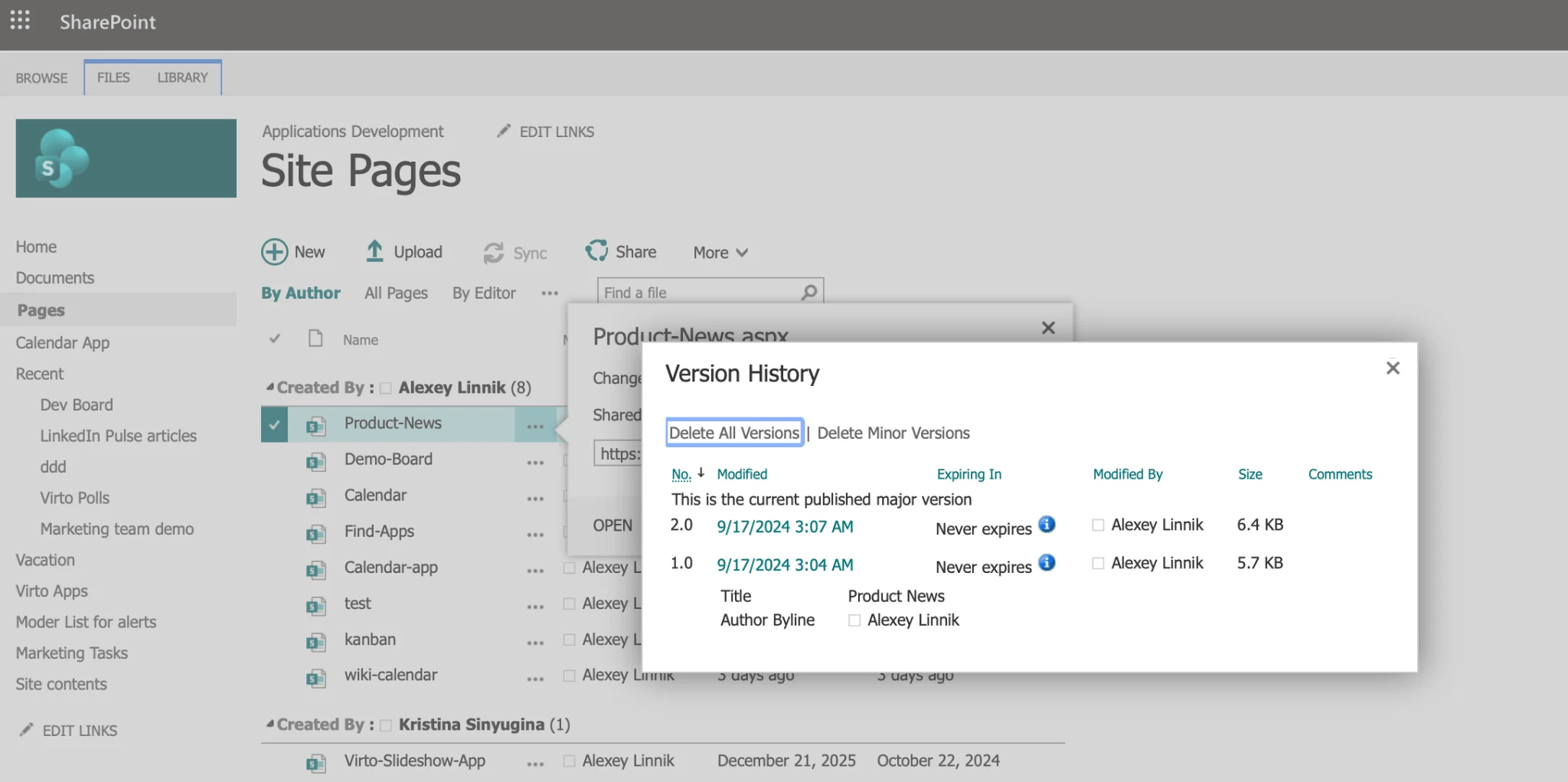
Pic.9. Version history for a page in the Site Pages library.
Page properties and metadata
The Page details panel lets you set a description, thumbnail and any custom columns you have added to the Site Pages library. Populating these properly is what makes Highlighted content web parts and search filtering actually work — a page with no description and no thumbnail looks broken wherever it is rolled up.
Pic.10. The Page details panel with description, thumbnail and custom metadata columns.
Set a page as the site home page
Any published page can become the site’s home page: open it, select the ellipsis on the command bar, and choose Make homepage. Build the replacement first, publish it, check it, then switch — that way nobody sees a half-finished landing page.
Measure what happens next
Site usage and page-level analytics show views, unique viewers, average time spent and traffic sources. Use them ruthlessly. A page nobody opens is not a communication problem, it is a page that should be merged into something people already visit, or deleted.
SharePoint page best practices
- Plan the site before the page. A page only makes sense inside a coherent structure — decide whether the content belongs on a team site, a communication site or a hub site before you start building.
- Name pages the way people search. “Travel booking” beats “T&E process guidance (2026)”. The page name becomes the URL, so it matters for search too.
- Give every page an owner and a review date. Unowned pages rot. Add an owner column to the Site Pages library and review anything untouched for twelve months.
- Reuse, do not duplicate. If two pages say the same thing, one of them will drift out of date. Link instead of copying.
- Publish templates, not instructions. A saved page template gets your house style adopted far more reliably than a style guide nobody reads.
- Keep the Site Pages library tidy. Archive superseded pages rather than leaving them live — old pages compete with current ones in search results.
- Check the page in Teams. Many people will meet your page inside a Teams tab, not the browser, and narrow columns behave differently there.
These sit inside a broader set of habits worth reading alongside this guide — see our SharePoint best practices roundup and, if you are building at intranet scale, our guide to the SharePoint intranet.
Permissions and access for SharePoint pages
Pages inherit permissions from their site, and in almost every case that is exactly what you want. Managing access page by page creates a permissions maze that nobody can audit six months later.
- Manage access at site level. Use the site’s Owners, Members and Visitors groups, and grant access through Microsoft 365 groups or security groups rather than naming individuals.
- Break inheritance only as a genuine exception. If a single page really must be restricted, consider whether that content belongs on a separate site instead.
- Keep drafts private by default. An unpublished page is only visible to people with edit rights, which makes drafting safe.
- Review sharing links regularly. Anyone-links on a page or its images can outlive the reason they were created — our guide to SharePoint external sharing covers the controls.
- Audit periodically. Site permissions drift as people change roles; a quarterly review is enough for most organisations.
For the full model — inheritance, permission levels, groups and the traps in between — see our SharePoint permissions guide.
Common SharePoint page problems and how to fix them
- The page is not visible to colleagues. Nine times out of ten it was saved as a draft, not published. Check the Site Pages library for a checked-out or draft status.
- A web part shows “no content to display”. The underlying list, library or query returned nothing for that viewer — usually a permissions issue on the source, not on the page.
- The page loads slowly. Count the embeds. Each iframe and each external dashboard adds a round trip; move heavy content to its own page and link to it.
- The layout collapses on mobile. Vertical sections and three-column rows stack. Preview on a phone and reorder so the important content comes first.
- The page does not appear in search. Newly published pages take a short while to be indexed, but a missing description or a page in a library excluded from search will stay invisible — check both.
- Someone else’s edits overwrote yours. Version history in the Site Pages library will let you compare and restore; agree section ownership to stop it recurring.
Do more with your SharePoint pages: Virto apps
Out-of-the-box web parts cover the basics well. Where teams usually hit a wall is aggregation — one calendar that shows everything, a board that actually reflects how work moves, bulk operations across a library. That is the gap Virto apps fill, and each one drops onto a page as a web part like any other.
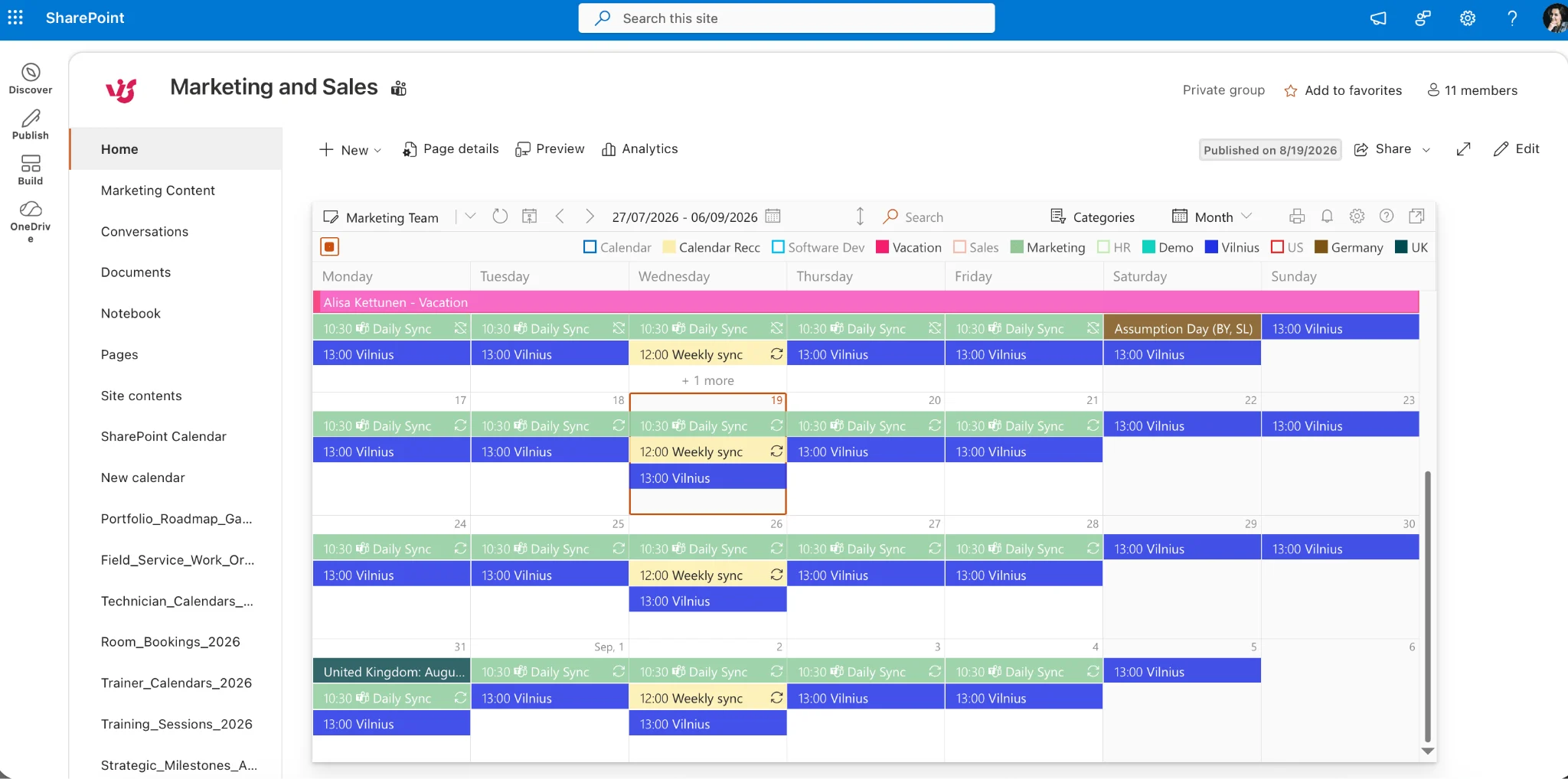
- Virto Calendar App — overlays SharePoint lists, Exchange calendars, Microsoft 365 group calendars and Google Calendar into a single colour-coded view on your page.
- Virto Kanban Board App — turns a SharePoint task list into a drag-and-drop board with swimlanes, filters and card colour rules.
- Virto Alerts & Reminders App — rule-based notifications on list and library changes, far beyond the built-in alerts.
- Virto Forms Designer App — custom forms with conditional logic and validation, embedded directly in a page.
- Virto Multiple Operations App — bulk upload, metadata editing and delete in libraries without leaving the browser.
There are more than thirty apps and web parts in total across Microsoft 365 and on-premises — you can browse the full range of Virto apps for SharePoint or the complete product catalogue. Every Virto app comes with a free 30-day trial, with no card required to start.
Pic.12. The Virto Calendar App web part running on a SharePoint site page.
Frequently asked questions about SharePoint pages
What is a SharePoint page?
A SharePoint page is a modern web page on a SharePoint site, built from sections and web parts, used for news, landing pages or documentation. It is distinct from lists and document libraries, which store content rather than present it.
What is the difference between a site page and a news page?
Both are created in the same editor and stored in the Site Pages library. A site page is durable reference content that appears in site navigation and search. A news post is dated content that is also pushed to the News web part, the SharePoint start page, the mobile app, Teams and Viva Connections. You can promote a site page to news, but not the reverse.
How do I create a page in SharePoint?
On a SharePoint site, choose New, then Page (or News post), pick a template, name the page, add sections and web parts, then select Publish.
Where are SharePoint pages stored?
In a document library called Site Pages on each site. Each page is an .aspx file with its own version history, metadata and permissions inherited from the site.
Can I edit a SharePoint page after publishing?
Yes. Select Edit, make your changes, and either republish immediately or save as a draft. The live version stays visible to readers until you republish, and version history lets you restore an earlier version at any time.
Do I need coding skills to build a SharePoint page?
No. The modern editor is entirely drag-and-drop and produces responsive pages by default. Code is only needed for custom SPFx web parts, which most organisations never require.
How many web parts should a page have?
As few as will do the job — around seven is a sensible ceiling. Each additional web part adds load time and dilutes attention, and a page that needs more is usually two pages.
Can external users see my SharePoint pages?
Only if the site or page has been shared with them and external sharing is enabled for the tenant and site. Pages inherit site permissions, so the site’s sharing settings govern who can reach them.
Final thoughts
SharePoint pages are deliberately simple: pick a section layout, drop in web parts, publish. The difficulty is never the editor — it is the discipline around it. Decide whether you are writing reference content or an announcement. Give the page one job. Name it the way people search. Assign an owner and a review date. Then check the analytics and be willing to delete what nobody reads.
Do that consistently and your SharePoint site stops being a place where documents are stored and starts being the place people actually go first. When you need to go further than the built-in web parts — a unified calendar, a real Kanban board, smarter notifications — Virto apps for SharePoint and Microsoft 365 extend the same pages you have already built, with a free 30-day trial to try them on your own site. How pages fit into the wider platform, next to content types, records and workflow, is covered in our guide to SharePoint content management, and drafting pages and news posts with AI is covered in our guide to Copilot in SharePoint.