The SharePoint Online Management Shell is a PowerShell module for admins to manage SharePoint Online. Install it with
Install-Module Microsoft.Online.SharePoint.PowerShelland connect withConnect-SPOService -Url https://<tenant>-admin.sharepoint.com. It is Windows-only; on macOS and Linux, use PnP PowerShell instead.
Click fatigue is real. SharePoint administration gets dramatically faster the moment you stop clicking through the admin center and start typing commands instead. One line of PowerShell can inventory every site in your tenant, lock a hundred stale sites, or add three hundred users to the right groups — work that would take an afternoon in the browser.
This guide covers the SharePoint Online Management Shell from the ground up: what it is, how to install it on Windows (and what to do instead on a Mac), how to connect safely in 2026, the cmdlets you will actually use, and how to write scripts that will not ruin your week. We will also be honest about where PowerShell is the wrong tool and a configured app does the job better.
What is the SharePoint Online Management Shell?
The SharePoint Online Management Shell is a Microsoft PowerShell module — its formal name is Microsoft.Online.SharePoint.PowerShell — that gives administrators SharePoint-specific commands, called cmdlets, for managing a Microsoft 365 tenant, its site collections, and its users from the command line.
You install the module on an admin workstation, connect to your tenant’s SharePoint admin endpoint, and run verb-noun commands such as Get-SPOSite, Set-SPOTenant, and Add-SPOUser. Every cmdlet in the module uses SPO as its noun prefix, which makes it easy to spot in a script.
To use it you need the SharePoint Administrator role in Microsoft 365. A Global Administrator has sufficient rights too, and since 2025 the SharePoint Embedded Administrator role can also connect for container-related work. As of August 2026 the module ships around 300 cmdlets and is updated roughly monthly — the current build is 16.0.27515.12000, released in early August 2026.
What you can manage with it
Think in terms of three layers, plus a fourth for scale:
- Site collection management — create and delete site collections, change storage quotas, apply site policies, lock sites, and control per-site sharing.
- User and group management — add users to site groups, promote or demote site collection admins, audit who has access, and remove people cleanly when they change roles.
- Tenant-level settings — external sharing policies, storage defaults, OneDrive behaviour, and organisation-wide feature toggles.
- Bulk operations and reporting — the same change applied to hundreds of objects, or an inventory exported to CSV for an access review.
Newer builds go considerably further than the classic set. There are now cmdlets for Data Access Governance insights, restricted access control, Microsoft 365 Archive state, tenant file version policies, SharePoint Embedded containers, and reports on Copilot agent and Microsoft 365 agent access across your sites — the kind of governance surface that did not exist a couple of years ago.
Who it is for — and a warning
This is a tool for administrators and IT professionals. It assumes you are comfortable with the command line and with concepts like roles, scopes, and tenant policy. It is not for everyday business users.
It is also genuinely dangerous in the way any power tool is. A mistyped filter can lock every site in a tenant. Sensible safeguards:
- Test in a non-production tenant first.
- Run read cmdlets (
Get-*) to confirm scope before any write cmdlet (Set-*,Add-*,Remove-*). - Export a baseline before bulk changes so you can prove what the state was.
- Keep scripts in source control with review.
Can you use PowerShell with SharePoint? Yes. Use the SharePoint Online Management Shell for SharePoint Online (connect with
Connect-SPOService), the SharePoint Management Shell for on-premises farms, and cross-platform PnP PowerShell for site and content automation.
What changed in 2026
If you learned this module a few years ago, several things you remember are now wrong. This is the short list worth re-checking before you copy an old script.
| Then | Now (August 2026) |
|---|---|
| Unattended jobs needed PnP PowerShell or stored credentials | Connect-SPOService supports certificate-based app-only auth (-ClientId / -TenantId / -CertificateThumbprint) and Azure managed identities |
| “There is no Disconnect-SPOService cmdlet” | Disconnect-SPOService exists and is documented — use it to close sessions cleanly |
| PnP PowerShell used a shared multi-tenant Entra app | That app was deleted on 9 September 2024. You must register your own Entra ID application |
| PnP PowerShell ran on Windows PowerShell 5.1 | PnP PowerShell v3 requires PowerShell 7.4 or later on all platforms |
| Only SharePoint Administrator and Global Administrator could connect | SharePoint Embedded Administrator can also connect, for container administration |
| A focused set of classic site and tenant cmdlets | Around 300 cmdlets, including Data Access Governance, restricted access control, Microsoft 365 Archive, tenant version policies, and Copilot agent access reports |
| SharePoint Server 2016 and 2019 were supported on-premises targets | Both reached end of support on 14 July 2026 — Subscription Edition only |
-UseWebLogin was the workaround for awkward sign-ins | -UseSystemBrowser $true is the supported MSAL-based flow (or a registry key to make it the default) |
Fig. 1. What changed in the SharePoint Online Management Shell by 2026.
Two of these deserve emphasis. First, app-only authentication is now first-class in the SPO module — you no longer need PnP PowerShell just to run unattended jobs. Second, the PnP multi-tenant app is gone for good; any PnP script written before September 2024 that relied on it stopped working, and the fix is to register your own Entra ID application.
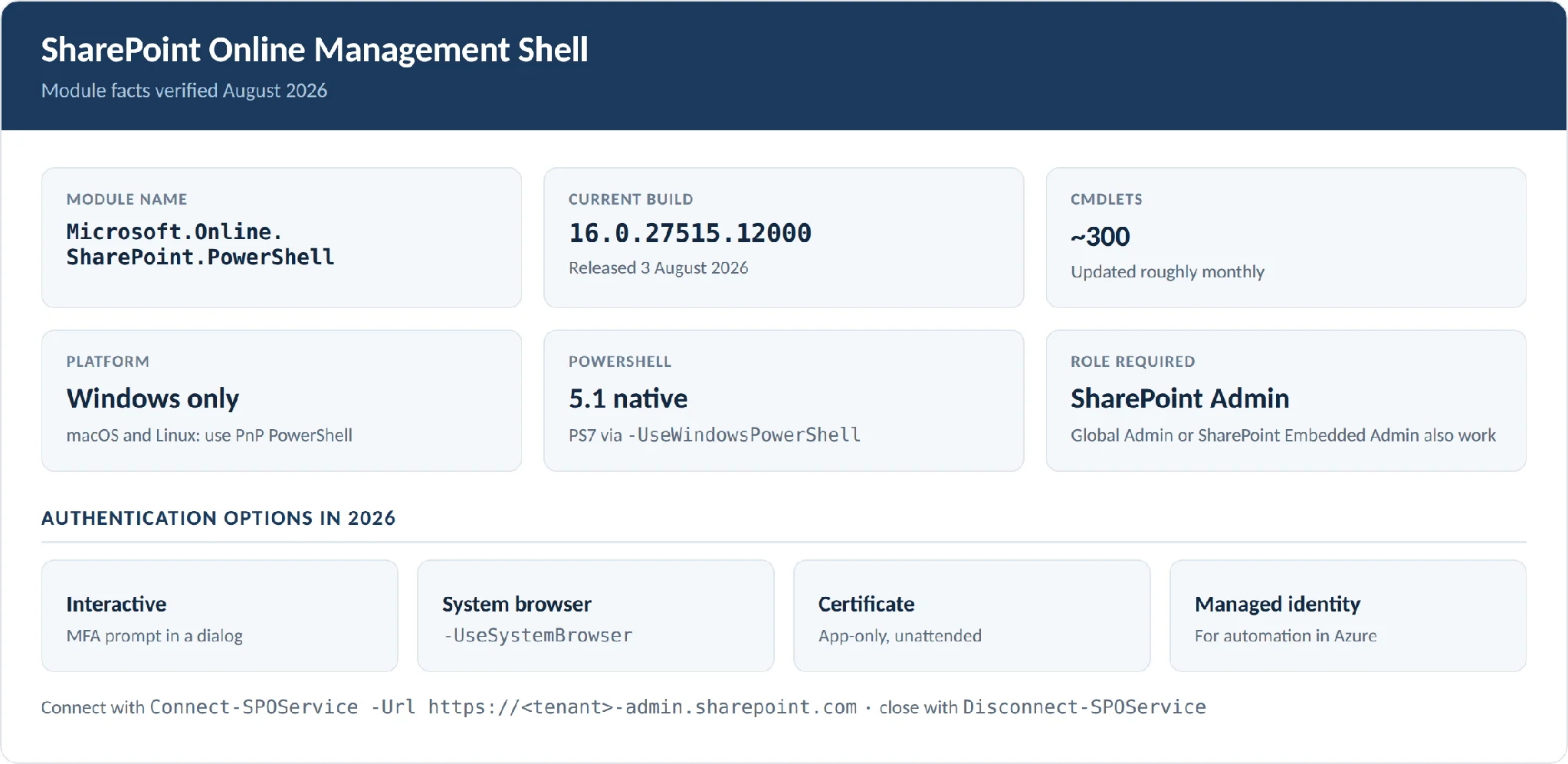
Pic. 1. SharePoint Online Management Shell at a glance, August 2026.
Which SharePoint PowerShell module do you need?
There is no single “SharePoint PowerShell.” Microsoft ships different toolsets depending on where SharePoint lives and what layer you are changing. The fork is simple:
- SharePoint Online (Microsoft 365) → SharePoint Online Management Shell.
- SharePoint Server on-premises → SharePoint Server Management Shell, installed with the product.
- Site and content automation, cross-service work, non-Windows machines → PnP PowerShell.
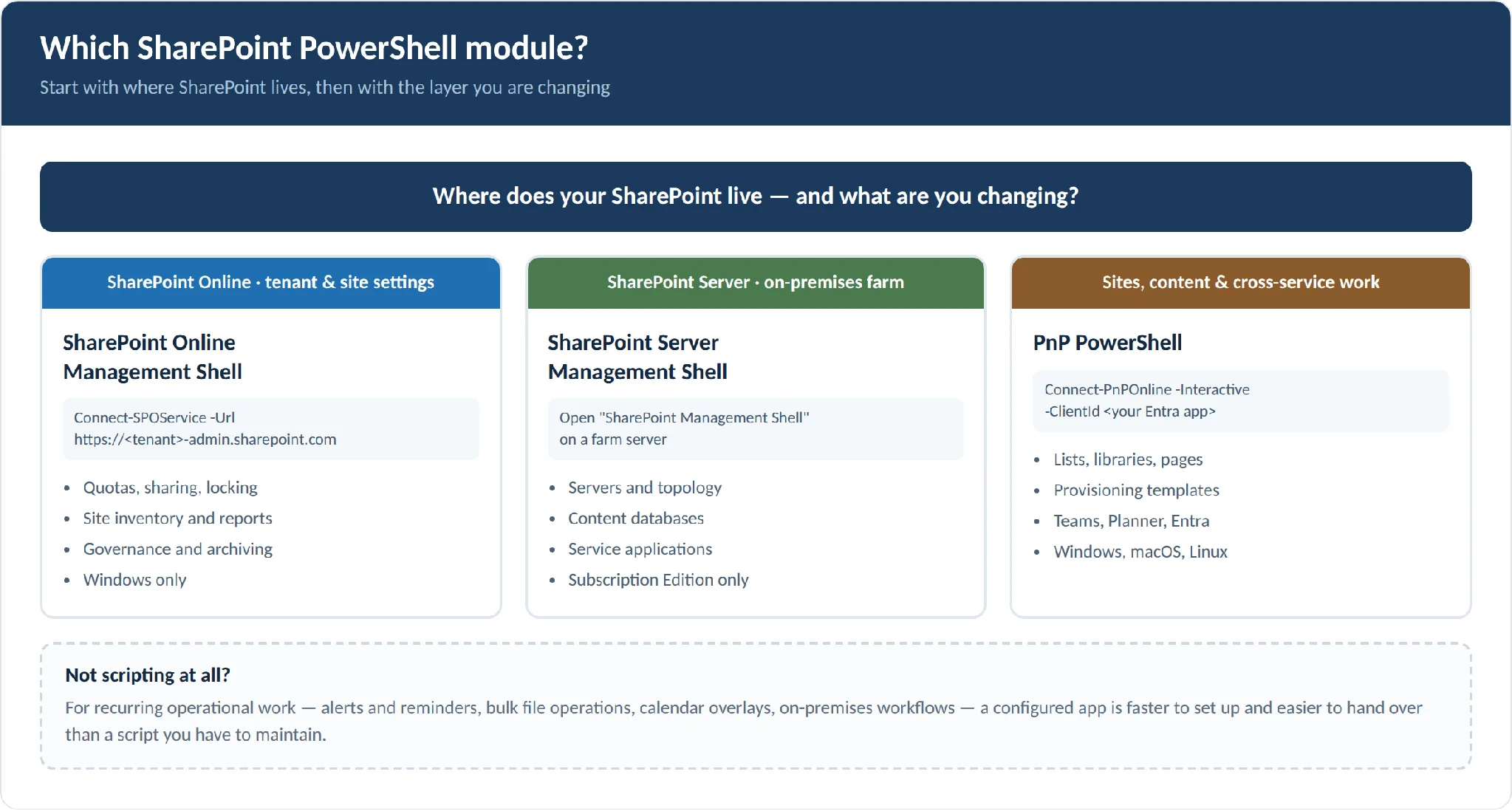
Pic. 2. Choosing between the SharePoint PowerShell modules.
SharePoint Online Management Shell (cloud governance)
The dedicated module for SharePoint Online administration. Install it on a Windows admin workstation, connect to the tenant admin endpoint, and run cmdlets such as Get-SPOSite, Set-SPOSite, Add-SPOUser, and Set-SPOTenant.
Best for: tenant settings, site collection lifecycle, quota and sharing policy, user access, bulk governance changes.
Get it from: the PowerShell Gallery, or the MSI on the Microsoft Download Center.
Platform: Windows only. On PowerShell 7 you load it through the Windows PowerShell compatibility layer.
SharePoint Server Management Shell (on-premises farms)
Installed with SharePoint Server. It loads the SharePoint snap-in and gives farm administrators commands for servers, service applications, web applications, content databases, and search.
Best for: provisioning and maintaining a farm.
Platform: Windows Server, run on a farm server.
Worth knowing: SharePoint Server 2016 and 2019 reached end of support on 14 July 2026. Subscription Edition is the only supported on-premises version now.
PnP PowerShell (cross-platform, broad)
A community-driven, Microsoft-backed module focused on site-level and information-architecture work across SharePoint and the wider Microsoft 365 estate — provisioning templates, lists and libraries, pages, content types, Teams, Planner, and Entra.
Best for: day-to-day site automation, provisioning, content operations, CI/CD pipelines.
Command surface: over 700 cmdlets.
Platform: Windows, macOS, and Linux. Requires PowerShell 7.4 or later.
Note: you must register your own Entra ID application — the shared PnP Management Shell app was deleted in September 2024.
CLI for Microsoft 365 (the third option)
Worth knowing about even though it is not PowerShell: CLI for Microsoft 365 is a Node.js tool from the same PnP community that manages SharePoint and Microsoft 365 from bash, zsh, or any shell. npm i -g @pnp/cli-microsoft365. If you are on a Mac and allergic to PowerShell, this is your route.
| Scenario | Use this | How you connect | Platform |
|---|---|---|---|
| Tenant policies, quotas, sharing rules, site inventory, governance reports | SharePoint Online Management Shell | Connect-SPOService -Url https://<tenant>-admin.sharepoint.com | Windows only |
| Servers, databases, service applications on an on-prem farm | SharePoint Server Management Shell | Open “SharePoint Management Shell” on the server | Windows Server |
| Sites, lists, libraries, pages; cross-service flows (Teams, Planner, Entra) | PnP PowerShell | Connect-PnPOnline -Interactive -ClientId <your app> | Windows, macOS, Linux (PS 7.4+) |
| Managing Microsoft 365 from bash or zsh, or from a non-PowerShell pipeline | CLI for Microsoft 365 | m365 login | Any platform with Node.js |
| Routine operational tasks — alerts, bulk file work, calendars, workflows | Virto apps for SharePoint | Configure in the SharePoint or Teams UI | Browser |
Fig. 2. Which SharePoint PowerShell tool fits which job.
How to install the SharePoint Online Management Shell on Windows
Prerequisites
- A Windows machine — the module is Windows-only.
- Windows PowerShell 5.1, or PowerShell 7 on Windows using the compatibility layer.
- Network access to Microsoft 365.
- An account with the SharePoint Administrator role (or Global Administrator).
Option A — PowerShell Gallery (recommended)
This is the option to pick, because updating is one command rather than another download.
Open Windows PowerShell as administrator and run:
Install-Module Microsoft.Online.SharePoint.PowerShell -Scope AllUsers

# Keep it current — new builds ship roughly monthly
Update-Module Microsoft.Online.SharePoint.PowerShell
If your execution policy blocks the install, you may need Set-ExecutionPolicy RemoteSigned -Scope LocalMachine — check with your security team first, and prefer the narrower -Scope CurrentUser where it works.
Option B — MSI from the Microsoft Download Center
Download the SharePoint Online Management Shell installer from Microsoft, run it, and accept the defaults. The module becomes available in Windows PowerShell, along with a dedicated “SharePoint Online Management Shell” shortcut on the Start menu.
One rule with the MSI route: uninstall the previous version first. Microsoft’s own troubleshooting guidance points at stale side-by-side installs as a common cause of cmdlets behaving oddly.
Check what you have installed
# Everything discovered on disk
Get-Module Microsoft.Online.SharePoint.PowerShell -ListAvailable |
    Select-Object Name, Version, Path

# If it came from the PowerShell Gallery
Get-InstalledModule Microsoft.Online.SharePoint.PowerShell |
    Select-Object Name, Version
If nothing comes back, the module is not on that machine. If two versions come back, remove the old one.
Running it under PowerShell 7
The module targets .NET Framework, so PowerShell 7 cannot load it natively. Import it through the Windows PowerShell compatibility shim instead:
Import-Module Microsoft.Online.SharePoint.PowerShell -UseWindowsPowerShell
This runs the module in a background Windows PowerShell process and proxies the cmdlets into your PS7 session. It works well for interactive use; for heavy automation, keep SPO work in a Windows PowerShell 5.1 runspace.
A known conflict worth remembering
If the SharePoint Client Components SDK is installed on the same machine, the SPO module can fail to load entirely. If you hit that, uninstall the SDK. It catches people out because the error message says nothing about the SDK.
How to install and use it on a Mac
Here is the honest answer, because a lot of guides fudge it: the SharePoint Online Management Shell does not run on macOS. It is a Windows PowerShell module built on .NET Framework, there is no Homebrew formula, and Install-Module Microsoft.Online.SharePoint.PowerShell on a Mac will either fail or install a module whose cmdlets throw the moment you call them.
Mac admins have four real options.
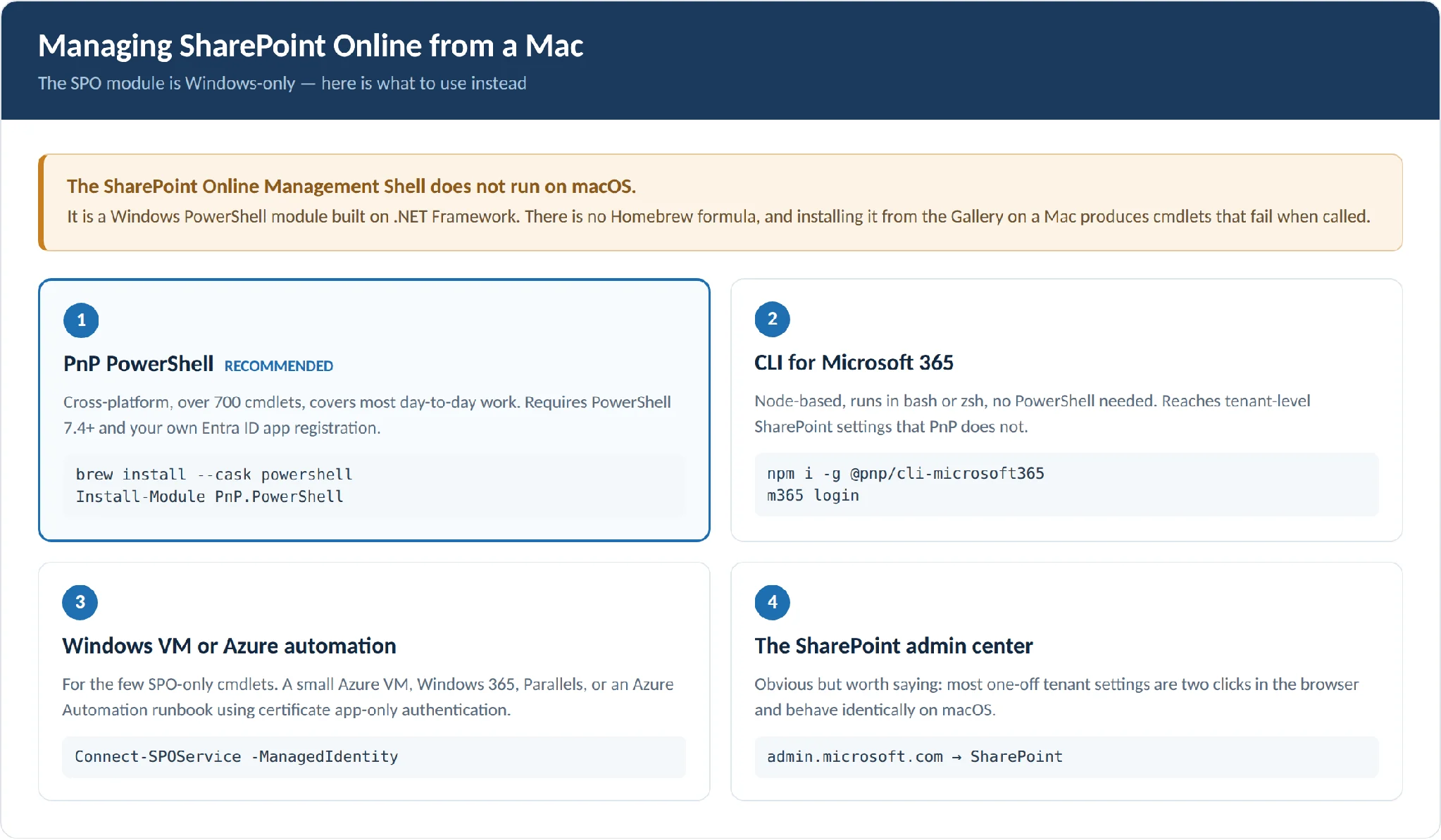
Pic. 3. Four ways for Mac admins to manage SharePoint Online.
Option 1 — PnP PowerShell (the usual answer)
PnP PowerShell is cross-platform and covers the large majority of what most admins need. Install PowerShell 7 first, then the module:
# Install PowerShell 7 (Homebrew)
brew install --cask powershell

# Then, inside pwsh
Install-Module PnP.PowerShell -Scope CurrentUser
Register your own Entra ID application before you connect — this is mandatory since September 2024. Grant it only the permissions your scripts actually need, then connect interactively:
Connect-PnPOnline -Url https://<tenant>.sharepoint.com/sites/ProjectX `
    -Interactive -ClientId <your-entra-app-client-id>
Option 2 — CLI for Microsoft 365
Node-based, no PowerShell required, and it covers tenant-level SharePoint settings that PnP does not:
npm i -g @pnp/cli-microsoft365
m365 login
m365 spo site list
Option 3 — Azure Cloud Shell or a Windows VM
If you need a genuine SPO cmdlet — say Set-SPOTenant with a parameter PnP has no equivalent for — run it somewhere Windows exists. A small Azure VM, Windows 365, Parallels, or a build agent all work. Combined with certificate-based app-only auth, an Azure Automation runbook is a clean way to schedule SPO cmdlets without any workstation involved.
Option 4 — the SharePoint admin center
Obvious, but worth saying. Most one-off tenant settings are two clicks in the browser and work identically on macOS.
| Task | SPO module (Windows) | PnP PowerShell (any OS) |
|---|---|---|
| List sites | Get-SPOSite -Limit All | Get-PnPTenantSite |
| Create a site | New-SPOSite | New-PnPSite -Type CommunicationSite |
| Change site settings | Set-SPOSite | Set-PnPTenantSite |
| Add a user to a site group | Add-SPOUser | Add-PnPGroupMember |
| Tenant-wide settings | Set-SPOTenant | Set-PnPTenant |
| Delete / restore a site | Remove-SPOSite / Restore-SPODeletedSite | Remove-PnPTenantSite / Restore-PnPTenantRecycleBinItem |
| Work with lists, files, pages | Not supported | Get-PnPList, Add-PnPFile, Add-PnPPage and many more |
Fig. 3. Common SPO cmdlets and their PnP PowerShell equivalents for Mac and Linux admins.
Can you install the SharePoint Online Management Shell on a Mac? No. It is a Windows-only module. On macOS, use PnP PowerShell (
Install-Module PnP.PowerShell, PowerShell 7.4+) or CLI for Microsoft 365, and fall back to a Windows VM or Azure Cloud Shell for the few SPO-only cmdlets.
How to connect to SharePoint Online with PowerShell
The basic connection
Replace <tenant> with your Microsoft 365 tenant name — the same one in your SharePoint URLs:
Connect-SPOService -Url https://<tenant>-admin.sharepoint.com
You will get a modern authentication prompt. Sign in with your SharePoint admin account and complete MFA. That is it — you are connected, and you stay connected until you disconnect or close the session.
Only one SPO connection per PowerShell session per geo is supported. Running Connect-SPOService again silently replaces the existing connection rather than adding a second one, which matters if you administer several tenants in one window.
Sign in through the system browser
If the embedded sign-in dialog misbehaves — a common symptom when conditional access policies or certificate-based authentication are in play — push authentication out to your default browser:
Connect-SPOService -Url https://<tenant>-admin.sharepoint.com -UseSystemBrowser $true
To avoid typing that every time, set the UseSystemBrowser registry value (REG_DWORD, non-zero) under HKEY_LOCAL_MACHINE\SOFTWARE\Microsoft\SPO\CMDLETS\.
Unattended: certificate-based app-only authentication
This is the modern way to run scheduled jobs, and it removes the last good reason to store admin credentials in a script. Register an Entra ID application, grant it the SharePoint application permissions it needs, upload a certificate, then:
Connect-SPOService -Url https://<tenant>-admin.sharepoint.com `
    -ClientId  00000000-0000-0000-0000-000000000000 `
    -TenantId  11111111-1111-1111-1111-111111111111 `
    -CertificateThumbprint "3FAAAA1111AAAAAAAAAAA2222AAAAAAAAAAAAAAA"
You can also pass a .pfx path with -CertificatePath and -CertificatePassword, or a certificate object retrieved from the local store.
Unattended in Azure: managed identity
If your automation already runs in Azure, skip certificates entirely:
# System-assigned managed identity
Connect-SPOService -Url https://<tenant>-admin.sharepoint.com -ManagedIdentity
User-assigned identities work too, via -ManagedIdentityType UserAssigned -ManagedIdentityClientId <guid>.
Sovereign and government clouds
Use -Region to target a non-default authentication endpoint. Valid values are Default, ITAR (GCC High and DoD), Delos (German sovereign cloud), France, Germany, and China.
Disconnecting
Disconnect-SPOService ends the session explicitly. Older guides — including earlier versions of this one — claimed no such cmdlet existed. It does, it is documented, and you should use it at the end of scripts. Note that long-running operations already started will still run to completion.
How do I connect PowerShell to SharePoint Online? Install the module, open PowerShell, then run
Connect-SPOService -Url https://<tenant>-admin.sharepoint.comand sign in with a SharePoint admin account. For unattended scripts, use certificate app-only authentication with-ClientId,-TenantId, and-CertificateThumbprint.
Connecting to a site rather than the tenant
A frequent point of confusion. The SPO module connects to the admin endpoint only — https://<tenant>-admin.sharepoint.com. You then target individual sites with parameters such as -Identity or -Site. There is no Connect-SPOSite.
If you want to work inside a site — lists, libraries, files, pages — that is PnP PowerShell’s job:
Connect-PnPOnline -Url https://<tenant>.sharepoint.com/sites/ProjectX `
    -Interactive -ClientId <your-entra-app-client-id>
Essential SharePoint Online PowerShell commands
| Area | Cmdlet | Typical use | Example |
|---|---|---|---|
| Sites | Get-SPOSite | Inventory and filter sites | Get-SPOSite -Limit 50 |
| Sites | New-SPOSite | Create a site collection | New-SPOSite -Url ... -Template SITEPAGEPUBLISHING#0 |
| Sites | Set-SPOSite | Change quota, sharing, lock state | Set-SPOSite -Identity ... -LockState NoAccess |
| Users | Get-SPOUser | Audit who has access to a site | Get-SPOUser -Site ... |
| Users | Add-SPOUser | Add a user to a site group | Add-SPOUser -Site ... -Group "Members" -LoginName ... |
| Users | Set-SPOUser | Toggle site collection admin | Set-SPOUser -IsSiteCollectionAdmin $true |
| Tenant | Get-SPOTenant | Read tenant-wide configuration | `Get-SPOTenant |
| Tenant | Set-SPOTenant | Default link types, features, storage | Set-SPOTenant -DefaultSharingLinkType Internal |
| Lifecycle | Remove-SPOSite | Delete a site collection | Remove-SPOSite -Identity ... -Confirm:$true |
| Lifecycle | Get-SPODeletedSite | See the tenant recycle bin | Get-SPODeletedSite -Limit All |
| Lifecycle | Restore-SPODeletedSite | Restore a deleted site | Restore-SPODeletedSite -Identity ... |
| Governance | Get-SPODataAccessGovernanceInsight | Oversharing and access reports | Get-SPODataAccessGovernanceInsight -ReportEntity SharingLinks_Anyone |
| Governance | Set-SPOSiteArchiveState | Archive or reactivate a site | Set-SPOSiteArchiveState -Identity ... -ArchiveState Archived |
Fig. 4. Core SPO cmdlets cheat sheet.
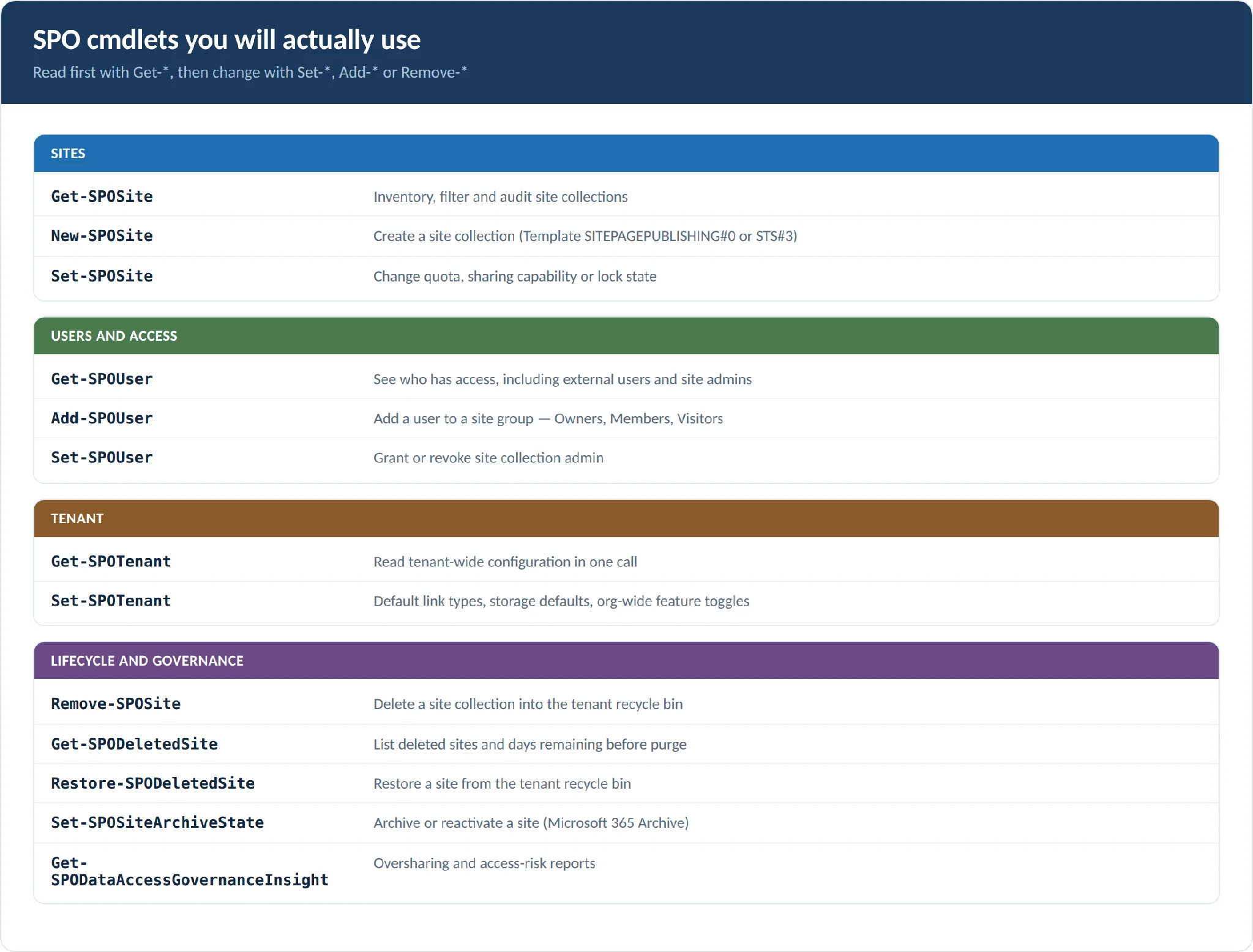
Pic. 4. The SPO cmdlets you will use most often.
Listing and filtering sites
Start read-only. Get-SPOSite confirms your connection and shows you what you are managing:
Get-SPOSite -Limit 50 |
    Select-Object Url, Owner, Template, StorageQuota, StorageUsageCurrent, LockState |
    Format-Table -AutoSize
In a few seconds you have URLs, owners, templates, quotas, storage consumption, and lock state — the raw material for audits, licence reviews, and cleanup projects.
Filtering is where it earns its keep:
# Sites using more than 50 GB (values are in MB)
Get-SPOSite -Limit All | Where-Object { $_.StorageUsageCurrent -gt 51200 }

# One specific site
Get-SPOSite -Identity https://<tenant>.sharepoint.com/sites/ProjectX

# Everything shared with anyone outside the organisation
Get-SPOSite -Limit All | Where-Object { $_.SharingCapability -ne 'Disabled' } |
    Select-Object Url, SharingCapability
Creating a site collection
New-SPOSite `
    -Url          https://<tenant>.sharepoint.com/sites/MarketingHub `
    -Owner        admin@<tenant>.onmicrosoft.com `
    -Title        "Marketing Hub" `
    -Template     SITEPAGEPUBLISHING#0 `
    -StorageQuota 102400                     # megabytes — here, 100 GB
Two things to watch. The template value matters and is easy to get wrong — a communication site is SITEPAGEPUBLISHING#0, not COMMUNICATIONSITE#0, which appears in a surprising number of blog posts and does not work. A non-group-connected team site is STS#3. Group-connected team sites are created through Microsoft 365 Groups, not this cmdlet.
Second, -StorageQuota is in megabytes. 102400 is 100 GB, not 100 TB.
Managing users and access
In SharePoint Online you grant access through site groups — Owners, Members, Visitors — rather than to individuals. Inventory first, then change:
# Who has access to this site, admins first
Get-SPOUser -Site https://<tenant>.sharepoint.com/sites/ProjectX |
    Select-Object LoginName, IsSiteCollectionAdmin |
    Sort-Object IsSiteCollectionAdmin -Descending

# Add one user to a site group
Add-SPOUser `
    -Site      https://<tenant>.sharepoint.com/sites/ProjectX `
    -Group     "ProjectX Members" `
    -LoginName alex@contoso.com
Adding users in bulk from a CSV turns an afternoon into a one-liner:
# users.csv has a header row: UserPrincipalName
$site  = "https://<tenant>.sharepoint.com/sites/ProjectX"
$group = "ProjectX Members"

Import-Csv .\users.csv | ForEach-Object {
    Add-SPOUser -Site $site -Group $group -LoginName $_.UserPrincipalName
}
Be deliberate about Set-SPOUser -IsSiteCollectionAdmin $true. A site collection admin has full control over the entire site collection and bypasses normal permissions. Target the exact site URL, and remember you can reverse it with $false.
Changing site settings
Site settings are higher-impact: verify the target with Get-SPOSite, start small, and record the before-and-after.
# Lock a site while you investigate or archive it
Set-SPOSite -Identity https://<tenant>.sharepoint.com/sites/ProjectX -LockState NoAccess

# Raise the storage quota to 150 GB (megabytes)
Set-SPOSite -Identity https://<tenant>.sharepoint.com/sites/ProjectX -StorageQuota 153600

# Tighten external sharing
# Values: Disabled | ExistingExternalUserSharingOnly | ExternalUserSharingOnly | ExternalUserAndGuestSharing
Set-SPOSite -Identity https://<tenant>.sharepoint.com/sites/ProjectX `
    -SharingCapability ExternalUserSharingOnly
Lifecycle: delete and restore
# Delete a site collection
Remove-SPOSite -Identity https://<tenant>.sharepoint.com/sites/OldProject -Confirm:$true

# See what is sitting in the tenant recycle bin
Get-SPODeletedSite -Limit All | Select-Object Url, DeletionTime, DaysRemaining

# Restore one
Restore-SPODeletedSite -Identity https://<tenant>.sharepoint.com/sites/OldProject
Deleted sites land in the tenant recycle bin and can be restored — but not indefinitely, and a new site cannot reuse a URL still held there. Get-SPODeletedSite shows you what is waiting.
Writing SharePoint PowerShell scripts that will not hurt you
A PowerShell script is a plain text file with a .ps1 extension. Scripts turn commands you would type into something parameterised, logged, and repeatable — which is the difference between an automation and an accident.
The five habits that matter
1. Dry-run mode first. Every bulk script should support a mode that prints what it would do and changes nothing. Review that output before switching to a live run.
2. Transcript logging. Start-Transcript captures every command and message to a file. When someone asks what changed at 2am on Tuesday, you have an answer.
3. Retry with backoff. SharePoint Online throttles. Expect HTTP 429 and 503, sleep, back off exponentially, and retry rather than crashing halfway through 400 sites.
4. Idempotency. Write scripts so a second run is harmless. Adding a user who is already a member should be a no-op, not an error.
5. Validate input before the loop. Check the CSV exists, check the columns are the ones you expect, and fail loudly before touching anything.
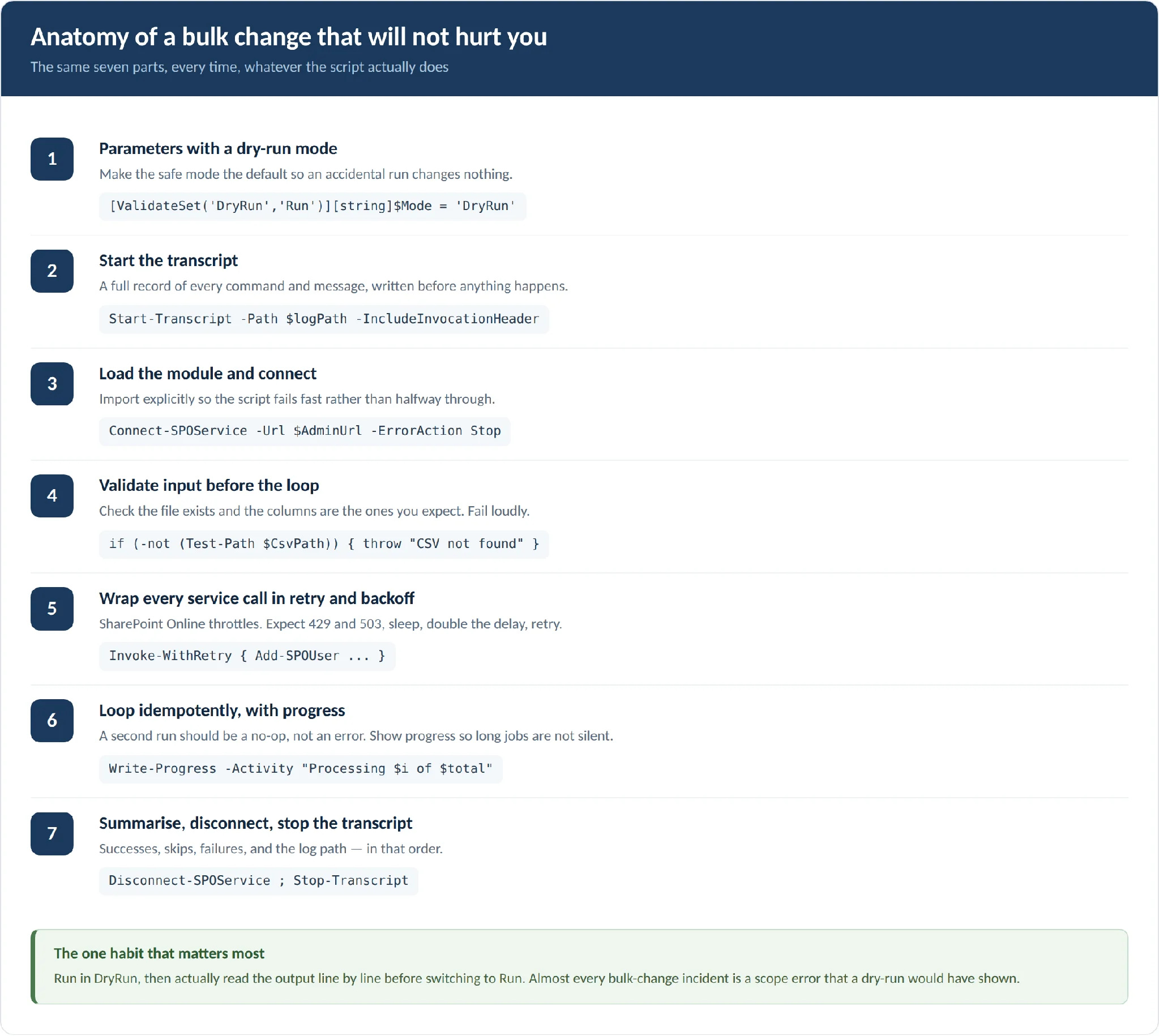
Pic. 5. Anatomy of a safe bulk-change script.
A script skeleton you can adapt
[CmdletBinding()]
param(
    [Parameter(Mandatory=$true)][string]$AdminUrl,   # https://<tenant>-admin.sharepoint.com
    [Parameter(Mandatory=$true)][string]$CsvPath,
    [ValidateSet('DryRun','Run')][string]$Mode = 'DryRun',
    [int]$MaxRetries = 5
)

$stamp   = Get-Date -Format 'yyyyMMdd_HHmmss'
$logPath = Join-Path $PSScriptRoot "logs\Run_$stamp.log"
New-Item -ItemType Directory -Force -Path (Split-Path $logPath) | Out-Null
Start-Transcript -Path $logPath -IncludeInvocationHeader

try {
    Import-Module Microsoft.Online.SharePoint.PowerShell -ErrorAction Stop
    Connect-SPOService -Url $AdminUrl -ErrorAction Stop

    if (-not (Test-Path $CsvPath)) { throw "CSV not found: $CsvPath" }
    $rows = Import-Csv -Path $CsvPath
    if (-not $rows) { throw "CSV has no rows: $CsvPath" }

    foreach ($col in 'SiteUrl','GroupName','UserPrincipalName') {
        if ($rows[0].PSObject.Properties.Name -notcontains $col) {
            throw "CSV is missing required column: $col"
        }
    }

    # ... main loop goes here ...
}
finally {
    Disconnect-SPOService -ErrorAction SilentlyContinue
    Stop-Transcript
}
The full pattern for the main loop looks like this — a retry helper wrapped around the actual change, with counters and a summary at the end:
function Invoke-WithRetry {
    param([scriptblock]$Action, [string]$Description = 'operation')

    $delay = 2
    for ($attempt = 1; $attempt -le $MaxRetries; $attempt++) {
        try { return & $Action }
        catch {
            $msg = $_.Exception.Message
            if ($msg -match '429|503|throttl|too many') {
                Write-Warning "Throttled on attempt $attempt ($Description). Sleeping $delay s..."
                Start-Sleep -Seconds $delay
                $delay = [Math]::Min($delay * 2, 60)
                continue
            }
            throw
        }
    }
    throw "Failed after $MaxRetries attempts: $Description"
}

$success = 0; $skipped = 0; $failed = 0
$i = 0; $total = $rows.Count

foreach ($row in $rows) {
    $i++
    Write-Progress -Activity "Processing $i of $total" `
        -Status "$($row.UserPrincipalName) -> $($row.GroupName)" `
        -PercentComplete (($i / $total) * 100)

    if ($Mode -eq 'DryRun') {
        Write-Output "[DryRun] Would add $($row.UserPrincipalName) to '$($row.GroupName)'"
        $skipped++; continue
    }

    try {
        Invoke-WithRetry -Description "Add $($row.UserPrincipalName)" -Action {
            Add-SPOUser -Site $row.SiteUrl -Group $row.GroupName `
                        -LoginName $row.UserPrincipalName -ErrorAction Stop
        } | Out-Null
        $success++
        Start-Sleep -Milliseconds 200        # be gentle
    }
    catch {
        if ($_.Exception.Message -match 'already.*member') { $skipped++ }
        else { Write-Error "Failed: $($row.UserPrincipalName)"; $failed++ }
    }
}

Write-Host "Success: $success  Skipped: $skipped  Failed: $failed"
Running it
Save the file with a .ps1 extension. If Windows blocks it because it was downloaded from elsewhere, run Unblock-File .\Add-BulkUsersToGroups.ps1. Then run the dry-run, read the output properly, and only then run for real:
# Dry-run first — read this output properly
.\Add-BulkUsersToGroups.ps1 `
    -AdminUrl https://<tenant>-admin.sharepoint.com `
    -CsvPath  .\users.csv `
    -Mode     DryRun

# Then for real
.\Add-BulkUsersToGroups.ps1 `
    -AdminUrl https://<tenant>-admin.sharepoint.com `
    -CsvPath  .\users.csv `
    -Mode     Run
Online versus on-premises
The shape of the script is the same; the connection and the risks differ. Online, you connect to the admin URL and plan for throttling. On-premises, you run the SharePoint Management Shell on a farm server, the snap-in loads automatically, there is no admin URL to connect to, and you use farm cmdlets such as New-SPSite and Set-SPSite. Throttling is not a factor, but server resources are — pace bulk jobs accordingly.
What are SharePoint PowerShell commands? They are cmdlets — verb-noun commands — exposed by the SharePoint Online Management Shell. Common ones include
Get-SPOSiteto list sites,New-SPOSiteto create one,Set-SPOSiteto change settings,Add-SPOUserandSet-SPOUserfor access, andRemove-SPOSiteorRestore-SPODeletedSitefor lifecycle work.
SharePoint Online Management Shell vs PnP PowerShell
PnP PowerShell began as a Microsoft 365 Patterns and Practices community project and is actively supported by Microsoft. It ships fast, spans far more of Microsoft 365 than SharePoint alone, and now exposes over 700 cmdlets across Windows, macOS, and Linux.
The SPO module is Microsoft’s official, Windows-only admin module for tenant and site-collection settings. It is narrower, more conservative, and maps closely to the SharePoint admin center.
| Criterion | SharePoint Online Management Shell | PnP PowerShell |
|---|---|---|
| Primary scope | SharePoint Online tenant and site collection administration | SharePoint sites and content, plus Teams, Planner, Entra, Purview and Search |
| Typical tasks | Tenant policy, quotas, sharing, locking, user access, governance reports | Provisioning, lists and libraries, pages, templates, content moves, cross-service automation |
| Cmdlet count | Around 300 | Over 700 |
| Platform | Windows only | Windows, macOS, Linux |
| PowerShell version | Windows PowerShell 5.1, or PS7 via -UseWindowsPowerShell | PowerShell 7.4 or later |
| Authentication | Interactive, system browser, certificate app-only, managed identity | Interactive, device code, certificate, managed identity — your own Entra app required |
| Update cadence | Monthly, conservative | Frequent, with nightly prerelease builds |
| Support model | Microsoft product support | Open source, Microsoft-backed, community-maintained |
| Best for | SharePoint administrators configuring tenant and site settings | DevOps engineers and admins automating content and multi-service scenarios |
Fig. 5. SharePoint Online Management Shell compared with PnP PowerShell.
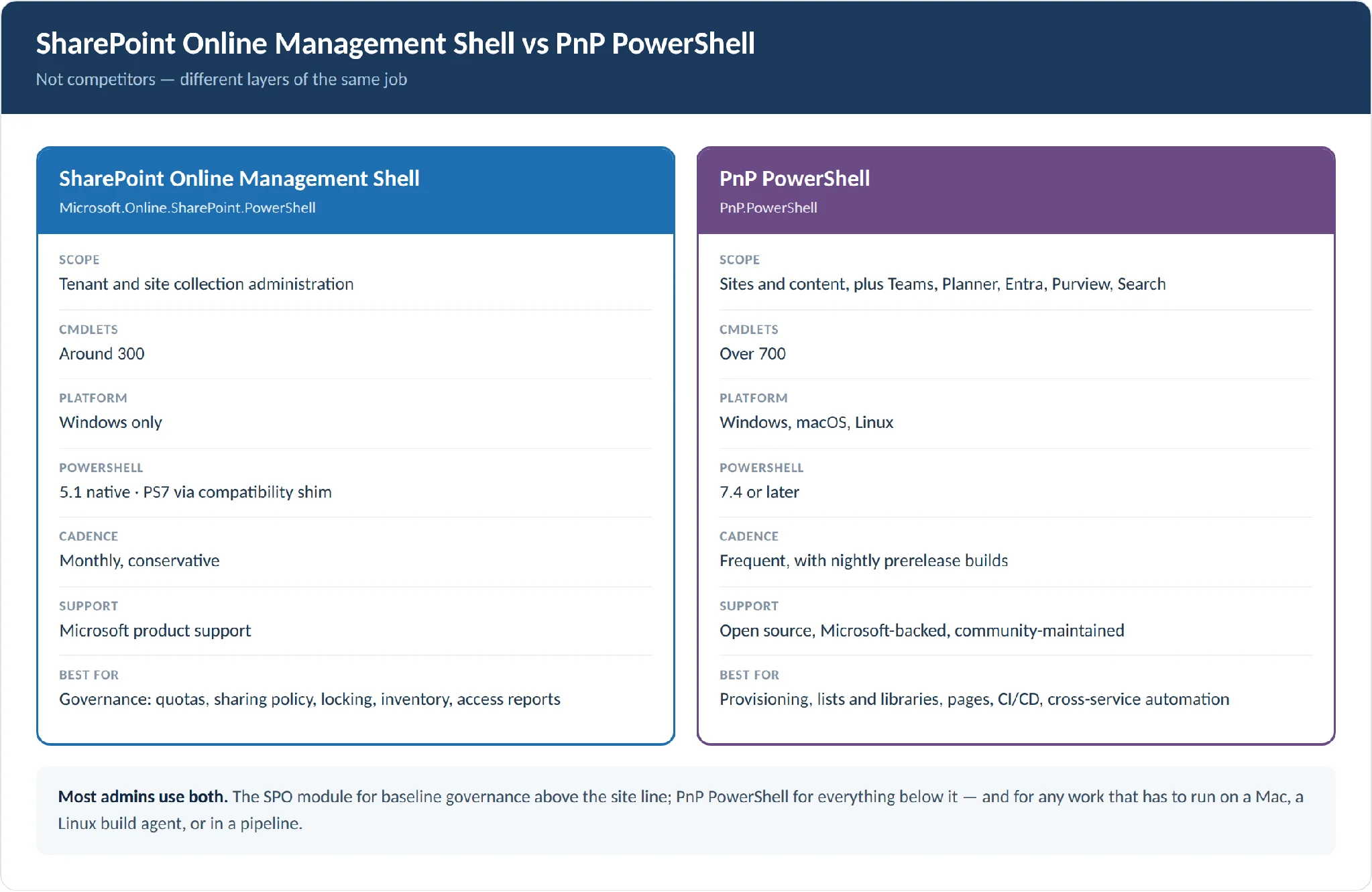
Pic. 6. Side by side — scope, platform, cadence and support model.
Practical guidance
- Setting tenant defaults, adjusting external sharing, auditing site inventories or working with governance features like Data Access Governance → SPO module.
- Provisioning sites, scripting list and library changes, editing pages, or orchestrating Teams and Planner alongside SharePoint → PnP PowerShell.
- On macOS or Linux, or in a CI/CD pipeline → PnP PowerShell or CLI for Microsoft 365, with a Windows runner for the SPO-only gaps.
For most organisations the answer is both: SPO for baseline governance, PnP for everything below the tenant line.
What is the difference between SharePoint Online Management Shell and PnP PowerShell? The SharePoint Online Management Shell is Microsoft’s official Windows-only module for tenant and site-collection administration. PnP PowerShell is the cross-platform, community-driven module with far more cmdlets for content, lists, pages, provisioning, and cross-service automation. Most admins use both.
When not to script it: Virto apps for SharePoint
PowerShell is the right tool for bespoke, one-off, or very large changes. It is a poor tool for recurring operational work that someone other than you needs to run, because every script becomes something you own, maintain, and get paged about when Microsoft changes an endpoint.
For a set of common SharePoint jobs, the Virto apps for SharePoint replace a script with a configured app — same outcome, no code to keep alive, and an interface an operations colleague can use without learning PowerShell. Every Virto product comes with a 30-day free trial.
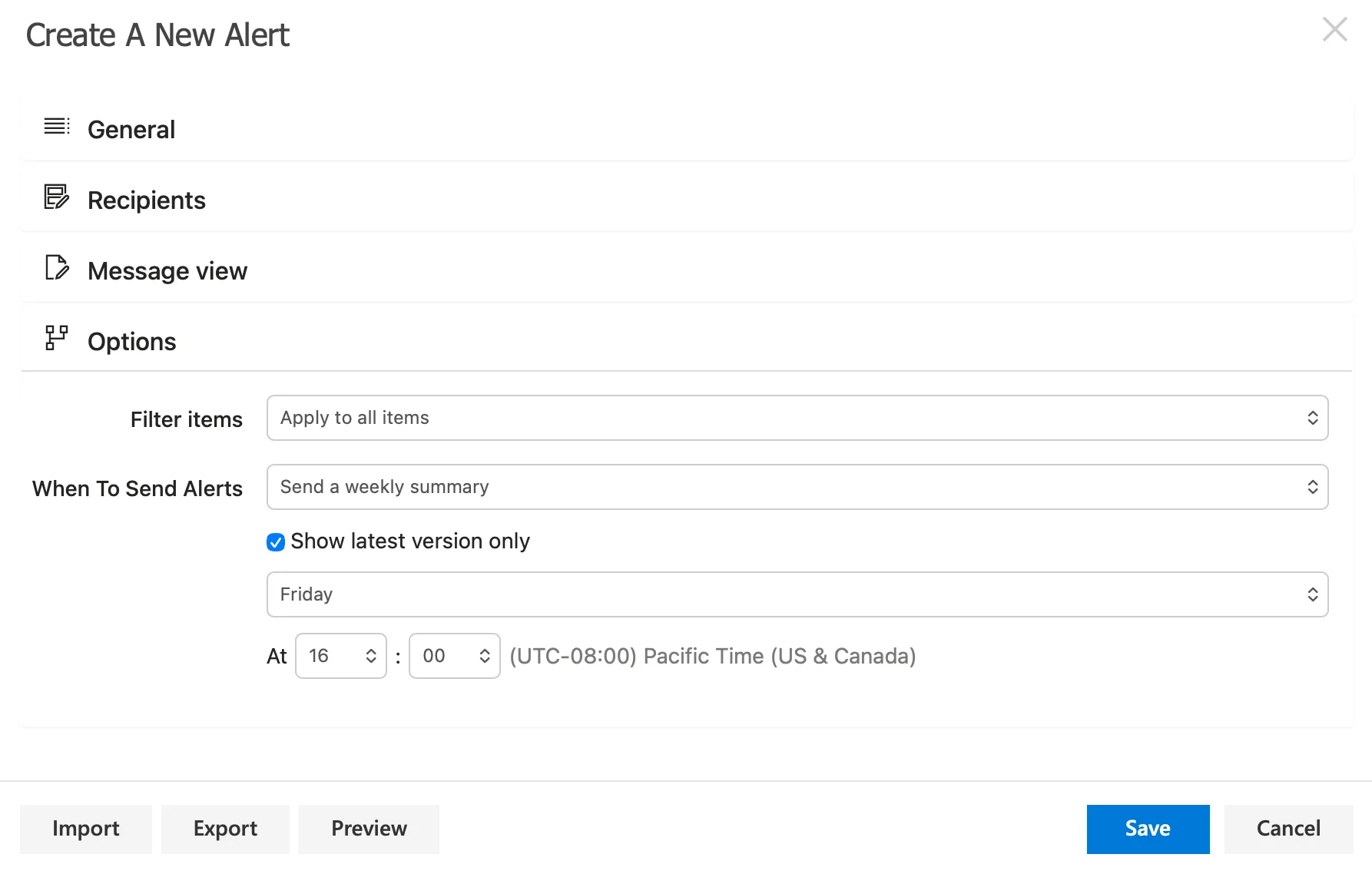
Pic. 7. Configuring an alert rule in a Virto Alerts App instead of writing a notification script.
Alerts and reminders instead of a watcher script
Native SharePoint “Alert me” was fully retired in July 2026, which left a lot of admins writing Power Automate flows or scripts to replace it. The scripted version means polling lists, tracking what you already sent, and handling failures.
- Virto Alerts & Reminders App (Microsoft 365) — condition-based alerts on SharePoint list and calendar changes, date-driven reminders, flexible scheduling, HTML templates, and targeting by user or group. Crucially it does digest emails, which native Rules cannot.
- Virto Notifications & Alerts Web Part (on-premises) — the equivalent for SharePoint 2013 through Subscription Edition, with email and SMS delivery.
Bulk file operations instead of a CSOM script
Uploading, moving, copying, or bulk-editing metadata across thousands of files is a classic reason to write a script — and a classic reason to regret it.
- Virto Multiple File Operations (on-premises) and Virto Multiple Operations (Microsoft 365) — drag-and-drop upload, bulk download, delete, copy, move, check-in, approve, and edit multiple metadata fields at once, from the SharePoint UI.
Workflow automation instead of maintained scripts
- Virto Workflow Automation for SharePoint On-Premises — 70+ pre-built activities covering approvals, document management, messaging, and SharePoint-specific actions, assembled visually. Supports SharePoint 2016, 2019, and Subscription Edition. Note that this is on-premises only; Microsoft 365 customers should use Power Automate for equivalent work.
Calendar aggregation instead of feed-stitching
- Virto Calendar App (Microsoft 365 and Teams) — overlays unlimited Microsoft 365 and web calendars into one colour-coded view, and can be pinned as a personal app in Teams, Outlook, and the Microsoft 365 app.
- Virto Calendar Web Part (on-premises) — aggregates SharePoint lists, Exchange, Google, SQL, and XML sources into a single view.
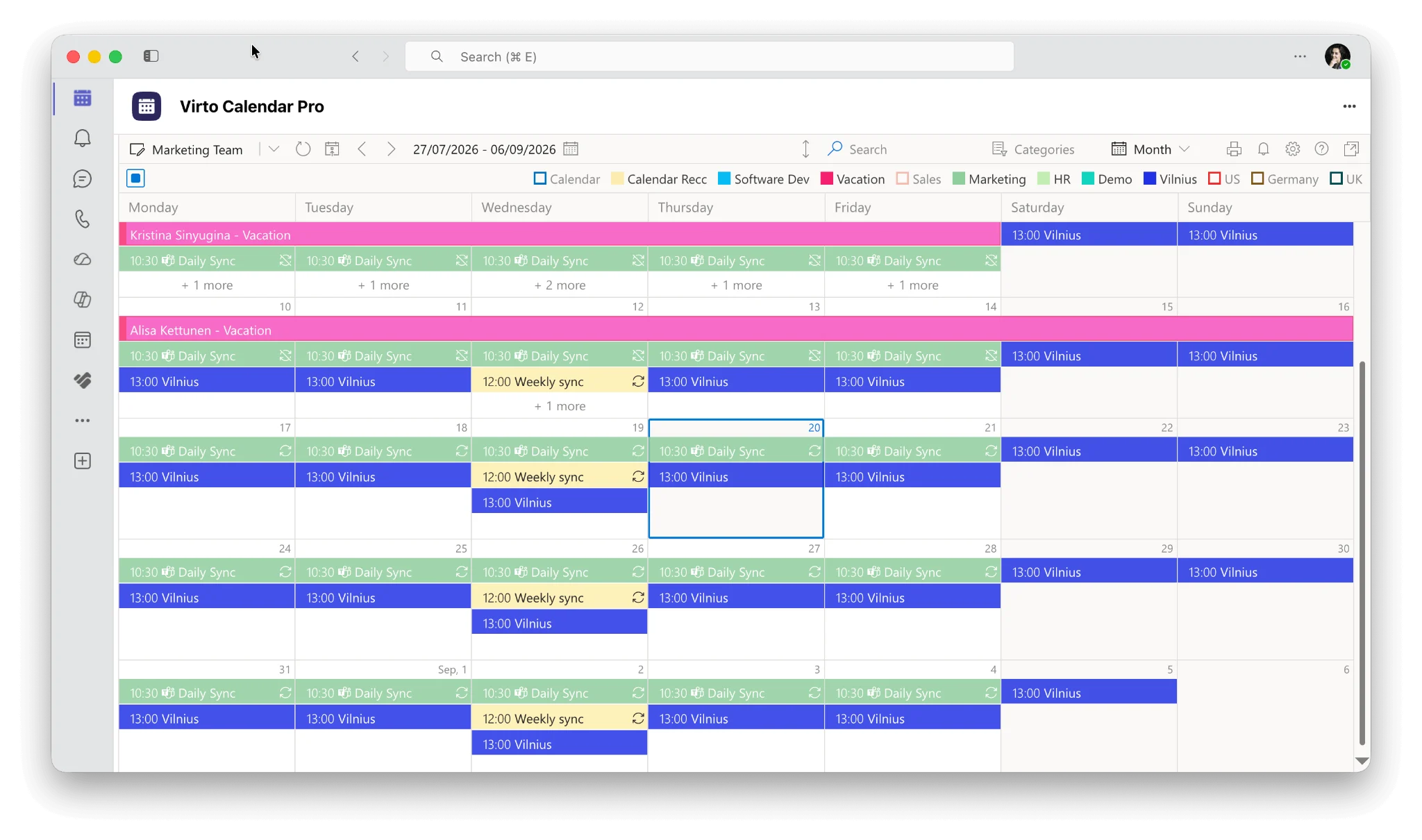
Pic. 8. Virto Calendar App in Teams
The honest framing
These do not replace your governance automation. Tenant policy, fleet-wide audits, and scripted provisioning stay in PowerShell, where they belong. What the apps take off your plate is the repetitive operational layer — the alerts, the bulk file work, the calendar views — so the scripts you maintain are the ones that actually need maintaining.
Best practices for SharePoint PowerShell
Use a dedicated admin account
Do not run tenant operations from your everyday account. Create a separate admin account with only the roles it needs — SharePoint Administrator rather than Global Administrator wherever possible — protect it with MFA and conditional access, and enjoy audit logs that clearly separate administrative actions from personal activity.
Better still, for anything scheduled, use certificate-based app-only authentication or a managed identity so there is no interactive account in the loop at all.
Test in a non-production tenant
Start with a handful of objects, review the transcript, then scale. Validate with Get-* before any Set-*. For bulk runs, export a baseline first:
Get-SPOSite -Limit All |
    Select-Object Url, Owner, Template, StorageQuota, SharingCapability, LockState |
    Export-Csv .\baseline_$(Get-Date -f yyyyMMdd).csv -NoTypeInformation
Treat scripts like product code
Keep them in Git with commit messages and review. Comment the intent, not the syntax. Maintain a short internal reference: what each script does, when to use it, what parameters it needs, and what it can break. Include a README with examples.
Build safety in
Parameters with [ValidateSet('DryRun','Run')]. Transcript logging. Input validation before the loop. try/catch around every call that touches the service. Write-Progress so long jobs are not silent. -Confirm:$true on destructive actions. A clean summary at the end: successes, skips, failures, log path.
The pre-flight checklist
| Check | Why it matters |
|---|---|
| Tested in dev or stage with a small sample | Catches logic errors while the blast radius is still small |
| Baseline exported to CSV | Lets you prove what the state was and roll back deliberately |
| Dry-run output reviewed line by line | The single most effective safeguard there is |
| Transcript logging enabled | Gives you an audit trail without extra effort |
| Retry and backoff in place for 429 and 503 | Stops a throttled run from failing halfway through |
| Scope confirmed with a Get-* cmdlet | Confirms the filter selects what you think it selects |
| Rollback or remediation plan written down | Turns an incident into an inconvenience |
| Change window agreed with stakeholders | Bulk sharing and lock changes are visible to users immediately |
Fig. 6. Pre-flight checklist before any bulk change.
Troubleshooting common errors
| Symptom | Likely cause | Fix |
|---|---|---|
| The module will not load at all | SharePoint Client Components SDK installed on the same machine | Uninstall the Client Components SDK |
| “Could not connect to SharePoint Online” | Legacy authentication path, or conditional access blocking the embedded dialog | Add -UseSystemBrowser $true, or -ModernAuth $true with -AuthenticationUrl |
| Cmdlet not recognised in PowerShell 7 | Module not imported through the compatibility layer | Import-Module Microsoft.Online.SharePoint.PowerShell -UseWindowsPowerShell |
| Access denied on every cmdlet | Account lacks the SharePoint Administrator role | Assign the role in the Microsoft 365 admin center and reconnect |
| HTTP 429 or 503 partway through a bulk run | SharePoint Online throttling | Retry with exponential backoff, add delays, run off-peak, split the batch |
New-SPOSite fails on the template | Invalid template name | Use SITEPAGEPUBLISHING#0 for a communication site, STS#3 for a non-group team site |
New-SPOSite fails saying the URL is in use | A deleted site with that URL is still in the tenant recycle bin | Check Get-SPODeletedSite, then remove or restore it |
A second Connect-SPOService silently changes context | Only one SPO connection per session per geo is supported | Disconnect-SPOService between tenants, or use separate sessions |
| Old PnP scripts stopped authenticating | The shared PnP Management Shell Entra app was deleted in September 2024 | Register your own Entra ID app and pass its -ClientId |
Fig. 7. Common SharePoint Online PowerShell errors and what they usually mean.
FAQ
How do I check which version of the SharePoint Online Management Shell I have?
Run Get-Module Microsoft.Online.SharePoint.PowerShell -ListAvailable | Select-Object Name, Version, Path. If it was installed from the Gallery, Get-InstalledModule Microsoft.Online.SharePoint.PowerShell works too. Nothing returned means it is not installed on that machine.
Does the SharePoint Online Management Shell work with PowerShell 7?
Yes, but not natively. Import it with Import-Module Microsoft.Online.SharePoint.PowerShell -UseWindowsPowerShell, which runs it in a background Windows PowerShell process. For heavy automation, use Windows PowerShell 5.1 directly.
Can I run SharePoint PowerShell on macOS or Linux?
Not the SPO module — it is Windows-only. Use PnP PowerShell (PowerShell 7.4+) or CLI for Microsoft 365 instead, and run a Windows VM or Azure Automation for the handful of SPO-only cmdlets.
Is there a Disconnect-SPOService cmdlet?
Yes. Disconnect-SPOService explicitly ends the connection. Older guides claiming otherwise are out of date. Operations already in flight will still finish.
How do I run SharePoint Online cmdlets without a user signing in?
Register an Entra ID application, grant it SharePoint application permissions, upload a certificate, and connect with -ClientId, -TenantId, and -CertificateThumbprint. In Azure, -ManagedIdentity is simpler still.
What permissions do I need?
The SharePoint Administrator role in Microsoft 365. Global Administrator also works but is more privilege than the job requires. The SharePoint Embedded Administrator role can connect for container-related cmdlets.
Why does New-SPOSite fail with an invalid template error?
Almost always the template name. A communication site is SITEPAGEPUBLISHING#0; a non-group team site is STS#3. COMMUNICATIONSITE#0 is not a valid value despite appearing widely online. Group-connected team sites are not created with this cmdlet at all.
How do I avoid throttling on large jobs?
Add retry-with-exponential-backoff for HTTP 429 and 503 responses, put a small delay between operations, run bulk jobs outside peak hours, and split very large batches. Get-SPOSite -Limit All on a big tenant is itself a throttling risk — page through it.
Should I use the SharePoint admin center or PowerShell?
The admin center for one-off changes and for anything you would otherwise have to look up. PowerShell when the same change applies to many objects, when you need a record of what changed, or when it has to run on a schedule.
Do I still need PnP PowerShell now that the SPO module supports app-only auth?
Yes, if you work below the tenant line. The SPO module still cannot manage lists, libraries, pages, or content — that remains PnP’s territory, along with everything cross-service.
Conclusion
The SharePoint Online Management Shell is the official PowerShell module for administering SharePoint Online at the tenant and site-collection level. It gives you a consistent command set for policy, provisioning, access management, reporting, and bulk operations — work that is slow or impossible in the browser.
In 2026 it is a better tool than it used to be: certificate and managed-identity authentication make unattended automation clean, and the governance surface has grown to cover data access insights, restricted access control, archiving, and agent access reporting. It is still Windows-only, and Mac admins should plan around PnP PowerShell from the start.
Keep PowerShell for the complex and the large. For the repetitive operational layer — alerts, bulk file work, calendar overlays, on-premises workflows — the Virto apps for SharePoint give you a configured alternative with a 30-day free trial, one that a colleague who has never opened a console can run.
If you would like to talk through a specific scenario, book a short demo.
Further reading
- Intro to SharePoint Online Management Shell — Microsoft Learn
- Get started with SharePoint Online Management Shell — install and connect
- Microsoft.Online.SharePoint.PowerShell module reference — full cmdlet index
- Connect-SPOService reference — every authentication option
- Download SharePoint Online Management Shell — Microsoft Download Center
- PnP PowerShell documentation — install, cmdlets, and guidance
- Register an Entra ID application for PnP PowerShell — required since September 2024
- CLI for Microsoft 365 — the cross-platform alternative