



Need to move dozens — or thousands — of files in and out of a SharePoint document library without clicking one at a time? This guide covers the fastest native ways to upload and download multiple files in SharePoint Online and on-premises, exactly where each method hits a wall (size caps, ZIP thresholds, sync quirks), and how to handle true bulk operations without scripting.
Quick answer: uploading & downloading multiple files in SharePoint
To upload multiple files: open the target document library, select the files on your computer, and drag them straight into the library — or use the Upload → Files / Folder button. For ongoing work, sync the library to your PC with OneDrive and copy files in through File Explorer.
To download multiple files: select the files (tick the circles next to each), then click Download in the command bar. SharePoint bundles them into a single ZIP. For a whole library or very large sets, sync with OneDrive and copy the files out locally instead.
Where it breaks down: native drag-and-drop struggles with large folder trees and very high file counts; ZIP downloads have practical size and item thresholds and can silently fail or time out on big selections. When you routinely move hundreds or thousands of files — or need metadata, overwrite control, and filtering — a dedicated bulk tool such as Virto Multiple File Operations removes those limits.
How to upload multiple files to a SharePoint library (native)
SharePoint gives you several built-in ways to upload many files at once. All of them work in SharePoint Online; most also work in modern on-premises (Server 2016/2019/SE) document libraries.
1. Drag and drop
The simplest method, with no setup required:
- Open the target document library.
- Select the files (and folders) on your local machine.
- Drag them into the library window and drop.
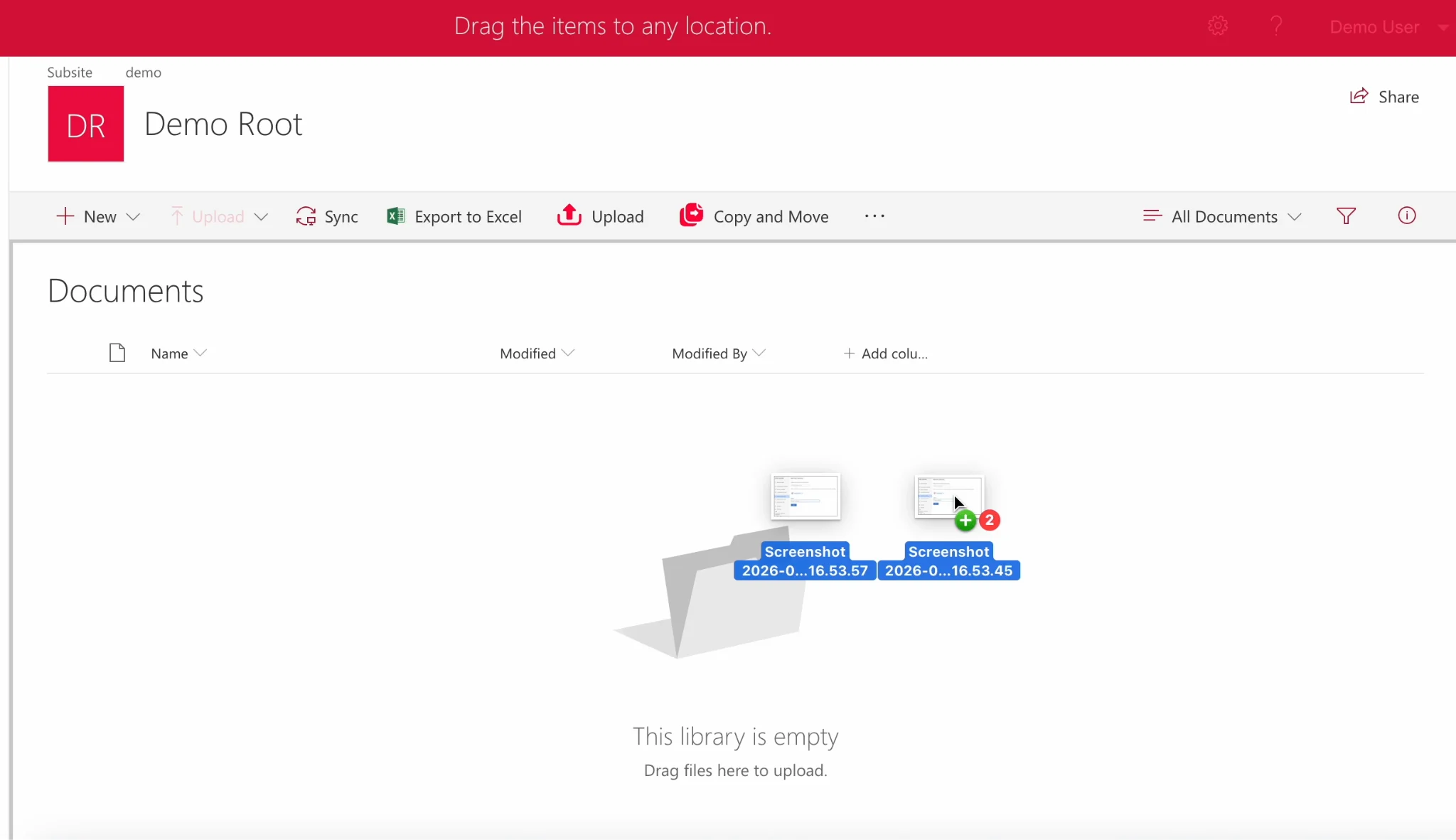
Pic. 1. Drag-and-drop upload into a SharePoint library.
2. The Upload button
Use the command bar when you’d rather browse than drag:
- In the library, click Upload.
- Choose Files or Folder.
- Multi-select the items in the picker and confirm.
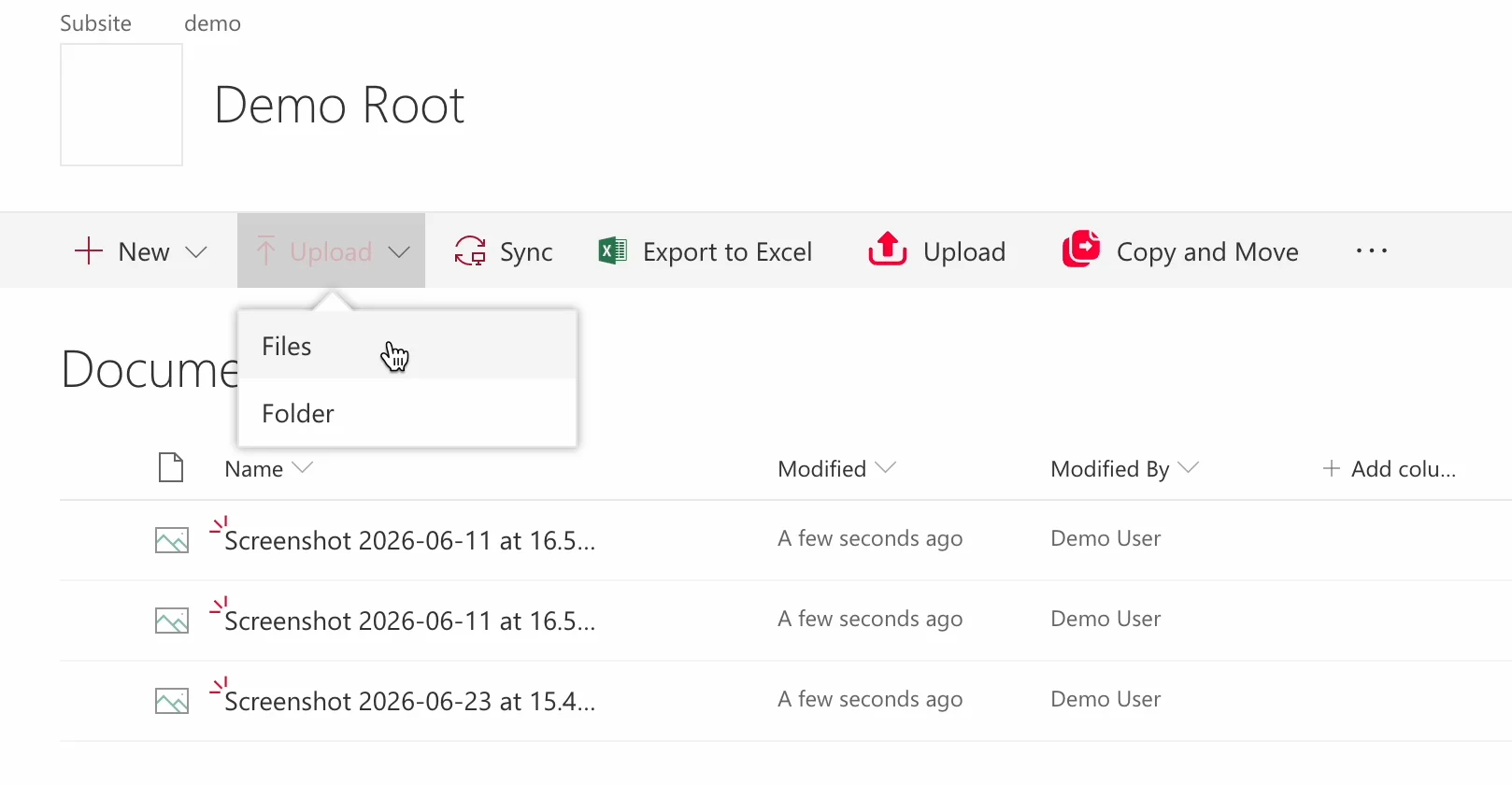
Pic. 2. Uploading via the Upload button.
3. File Explorer view (sync-based)
The classic “Open with Explorer” experience is deprecated in modern SharePoint. The supported equivalent today is to sync the library to File Explorer via OneDrive, then copy and paste files in as you would with any local folder.
4. OneDrive sync
For continuous file management, click Sync on the library. The library appears under your OneDrive folders in File Explorer, and anything you copy in is uploaded to SharePoint automatically in the background.
5. Save directly from Office apps
Word, Excel, and PowerPoint can save straight to a SharePoint library, which is handy for adding files as you create them rather than uploading in a batch later.
How much data can you upload at once? SharePoint Online supports very large individual files (up to 250 GB per file), but real-world bulk upload capacity depends on your available storage, network speed, and any admin-set restrictions on file types or sizes. For the current, authoritative figures, see Microsoft Learn’s documentation on SharePoint limits. For a practical overview, see our Complete SharePoint Limitations Guide.
How to download multiple files from SharePoint (native)
1. Select + Download (ZIP)
The primary native method:
- Open the document library.
- Tick the selection circles next to the files (and/or folders) you want.
- Click Download in the command bar.
- SharePoint packages everything into a single ZIP and your browser downloads it.
Does native multi-file download work in SharePoint on-premises?
Support depends heavily on your version, and it’s more limited than in the cloud:
- SharePoint Online / Microsoft 365: select multiple files (or folders) and click Download — your browser receives a single ZIP. Works reliably.
- SharePoint Server Subscription Edition (SE): per Microsoft, multi-file ZIP download is supported, but the capability is tied to a Microsoft 365 business subscription and can be affected by permissions or custom library configurations. In practice the Download button may not appear when more than one file is selected.
- SharePoint Server 2019: native multi-file download is not available — you can’t download multiple files or folders as a ZIP.
- SharePoint Server 2016 / 2013: no native bulk download; files come down one at a time, or via File Explorer / PowerShell workarounds.
In other words, on most on-premises deployments native bulk download is unreliable or simply missing. This is the gap Virto Multiple File Operations fills — adding consistent bulk upload, download, copy & move files across SharePoint Server 2016, 2019, and SE, regardless of M365 subscription.
2. Sync with OneDrive, then copy out
Click Sync on the library to bring it into File Explorer via OneDrive, then copy the files to any local folder. This is the most reliable route for an entire library or for sets too large for a single ZIP.
3. Download via File Explorer (synced library)
Once a library is synced, it behaves like a local folder — so standard Windows multi-select, copy, and paste all work for pulling files out.
Native limitations for bulk file handling
The built-in methods are fine for everyday selections, but they run into real constraints at scale:
- ZIP download thresholds. Select + Download has practical size and item-count limits. Large selections can be slow, time out, or fail without a clear error, and folders don’t always behave consistently inside the generated ZIP.
- Drag-and-drop fragility. Dragging large folder trees or thousands of files is error-prone — a dropped connection mid-transfer can leave a partial, hard-to-reconcile upload.
- No native bulk metadata. SharePoint won’t let you assign or edit column/metadata values across many files during an upload; you tag them afterward, item by item or via scripting.
- List view threshold. Performance limits on how many items a view returns can complicate selecting and operating on very large libraries.
- Overwrite & versioning control. Native uploads give you little say over how name collisions are handled across a big batch.
- Scripting overhead. PowerShell (PnP) and Power Automate can automate all of this, but they require technical skill, maintenance, and testing — out of reach for most everyday users.
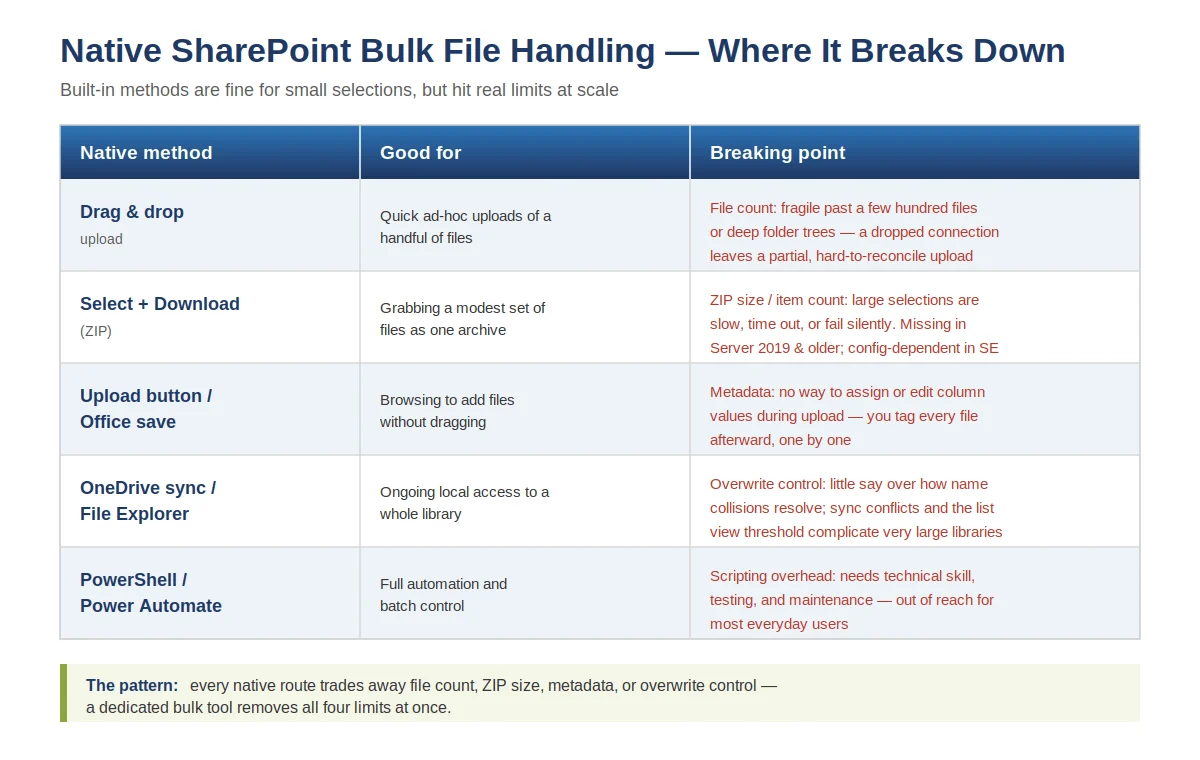
Native SharePoint bulk file limitations at a glance
These gaps are exactly why many teams reach for a purpose-built tool.
Faster bulk upload/download with Virto Multiple File Operations
When bulk file handling is a regular part of your work, Virto Multiple File Operations brings true bulk upload, download, copy & move files — plus delete, check-in, approve, and edit — into a single SharePoint interface, no scripting required.
- Bulk upload & download of hundreds or thousands of files through a drag-and-drop interface.
- Bulk metadata assignment applied as you upload, so files land already tagged.
- File filters, size limits, and overwrite control for clean, predictable batches.
- Secure Recycle Bin handling and compliance-friendly behavior.
- On-premises coverage: compatible with SharePoint Server 2016, 2019, and Subscription Edition (SE).
For SharePoint Online and Microsoft 365, the companion Virto Multiple Operations App delivers fast, drag-and-drop bulk file operations in SharePoint Online with configurable size and file-type rules.
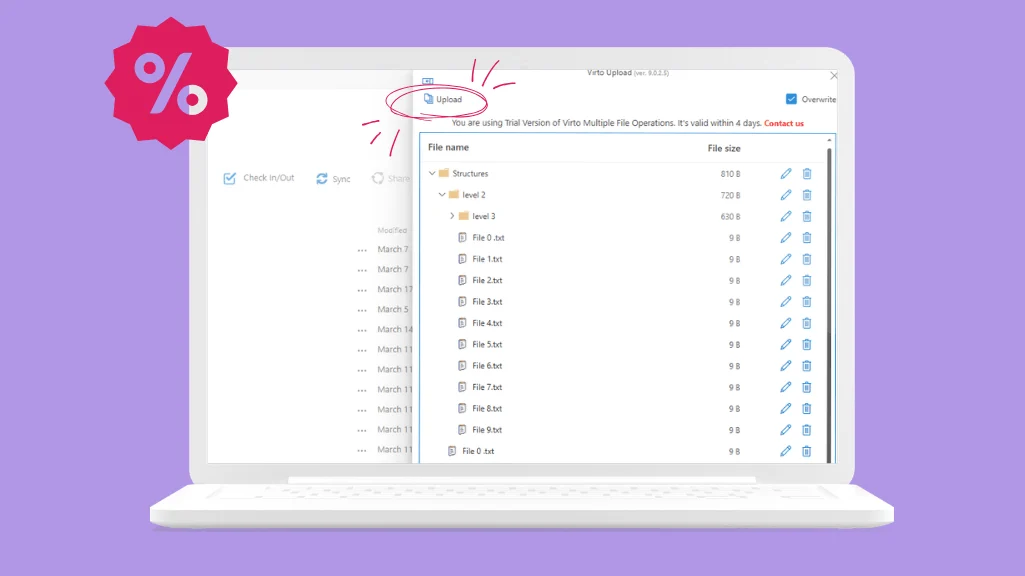
Virto Multiple File Operations bulk upload interface in SharePoint
Try it free. Both apps come with a 30-day free trial — see how much time bulk operations save on your own libraries. Start with bulk upload, download, copy & move files on-premises, or bulk file operations in SharePoint Online.
Related bulk operations
This guide is one part of a larger set covering every multi-file action in SharePoint. For neighboring operations:
- How to delete, copy & move multiple files in SharePoint
- How to edit, share, check in & approve multiple files in SharePoint
- Quick guide: bulk deleting files in SharePoint
FAQ
How do I upload many files to SharePoint at once?
Open the document library and drag your selected files in, or use Upload → Files/Folder in the command bar. For repeat work, sync the library with OneDrive and copy files in through File Explorer. For very large batches with metadata and overwrite control, use Virto Multiple File Operations.
How do I download a whole folder from SharePoint?
Tick the folder (or files) in the library and click Download — SharePoint returns a single ZIP. For an entire library or sets too big to ZIP reliably, sync with OneDrive and copy the folder out in File Explorer.
Why is bulk download limited in SharePoint?
Select + Download builds a ZIP on the fly, and that process has practical size and item-count thresholds. Large selections can be slow, time out, or fail. Syncing with OneDrive or using a bulk tool avoids the ZIP bottleneck.
How do I upload multiple files with their metadata already set?
Native SharePoint can’t assign column metadata during a multi-file upload — you tag files afterward. Virto Multiple File Operations applies metadata as part of the upload.
Can I upload entire folder structures, not just files?
Yes — Upload → Folder, drag-and-drop of folders, and OneDrive sync all preserve folder structure. For large or deep trees, a bulk tool is more reliable than drag-and-drop.