



SharePoint libraries grow fast, and sooner or later you need to clear out, copy, or move dozens or hundreds of files at once. This guide covers the native ways to do that, where they hit their limits, and a faster route for true bulk operations.
Quick answer: deleting & copying multiple files in SharePoint
To delete multiple files, open the document library, tick the checkboxes next to the files (or the header checkbox to select the whole view), and click Delete on the command bar — deleted items land in the recycle bin. To copy or move them, select the files the same way and use Copy to or Move to, then pick a destination library or folder.
Native multi-select works well for a handful of files in a single library. It starts to break down once you’re dealing with large volumes, cross-site transfers, or rule-based selection — that’s where a dedicated tool like Virto Multiple File Operations saves the most time.
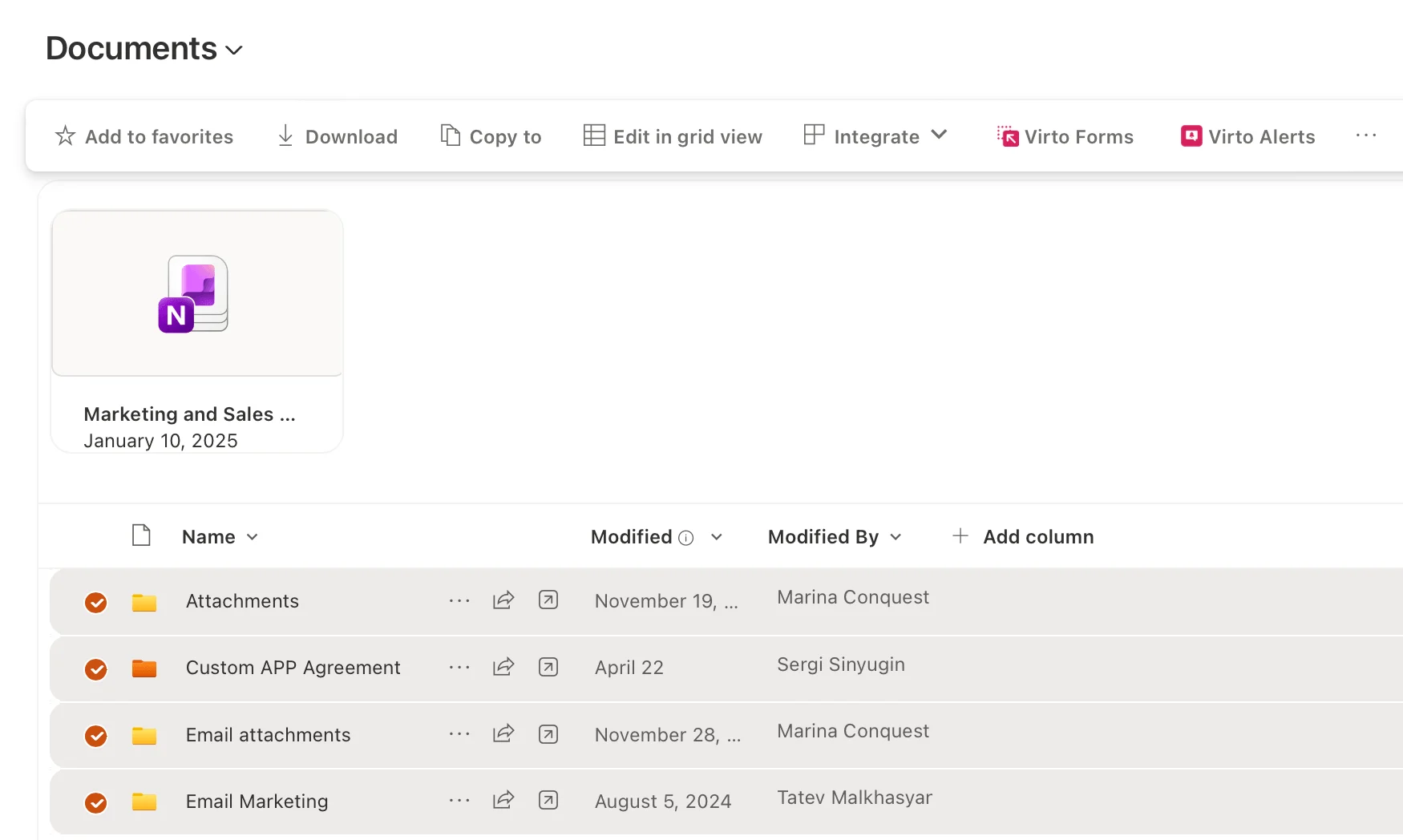
Selecting multiple files in a SharePoint document library.
How to delete multiple files in a SharePoint library (native)
The standard, no-add-in method:
- Open the document library that holds the files you want to remove.
- Select the files — click the circle/checkbox that appears when you hover over each file, or use the Select all checkbox in the column header to grab everything in the current view.
- Click Delete on the command bar. The files move to the site recycle bin.
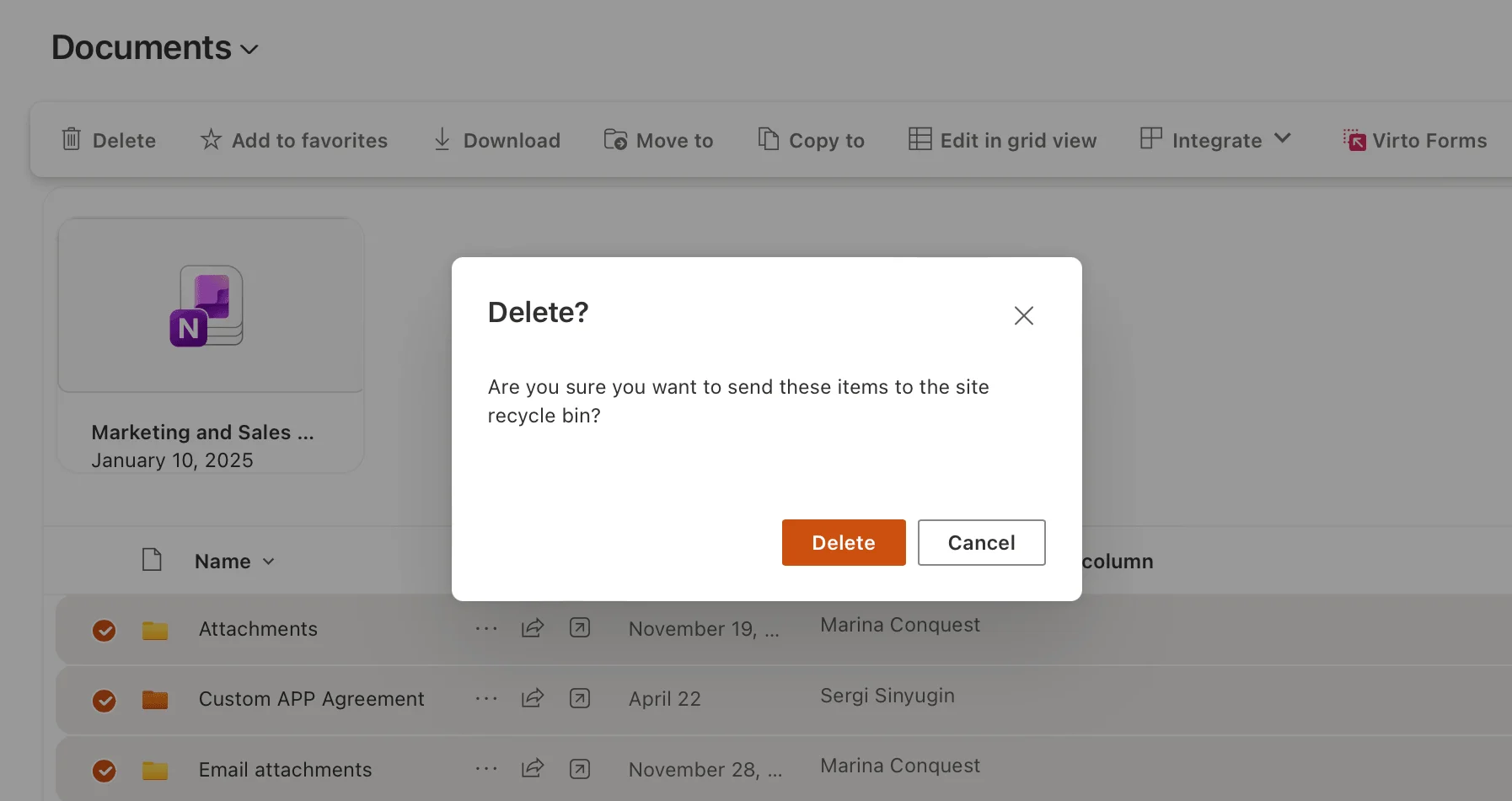
Deleting selected files using the Delete button in SharePoint.
Recovery note: deleted files aren’t gone immediately. They sit in the first-stage recycle bin, then the second-stage (site collection) recycle bin, before permanent deletion. Microsoft documents the standard retention window — see Microsoft Learn on restoring items from the SharePoint recycle bin — so a bulk delete is usually recoverable if you catch it in time.
The same multi-select + Delete pattern works for list items: open the list, tick the items, click Delete.
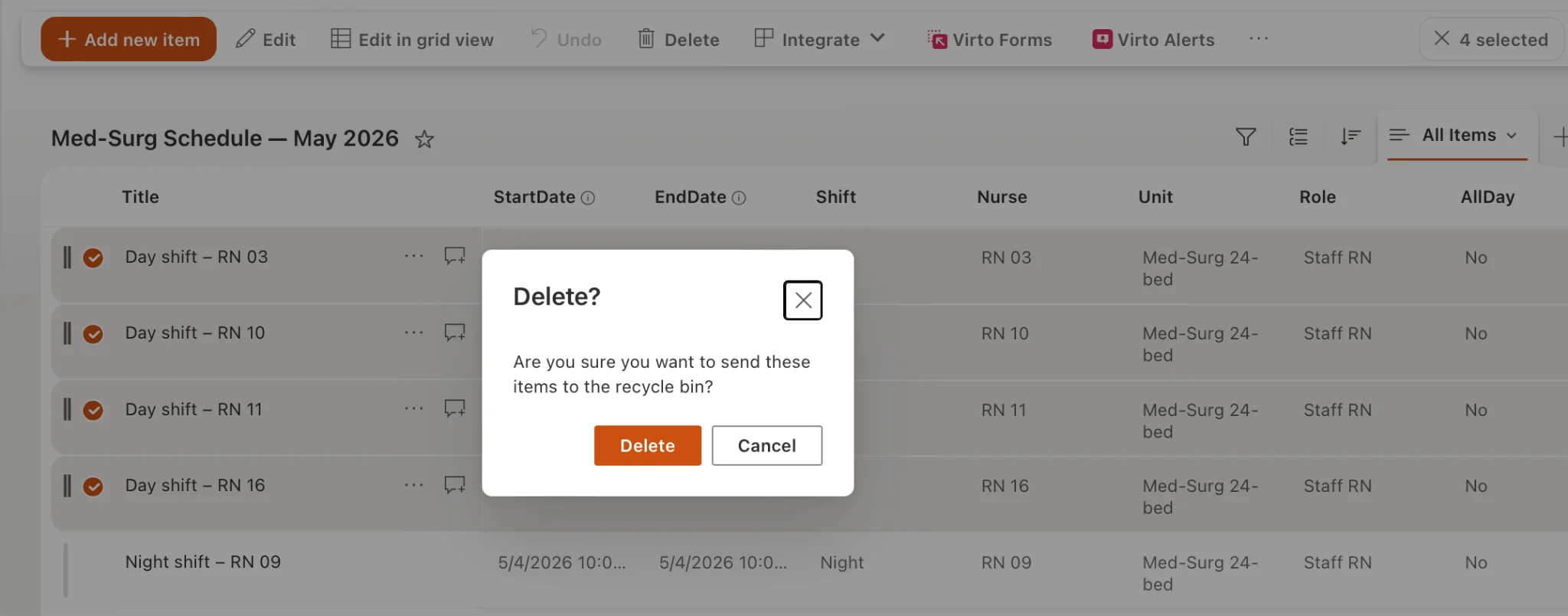
Selecting and deleting multiple items in a SharePoint list.
To clear document versions rather than whole files, open a file’s Version History, then select and delete the versions you no longer need.
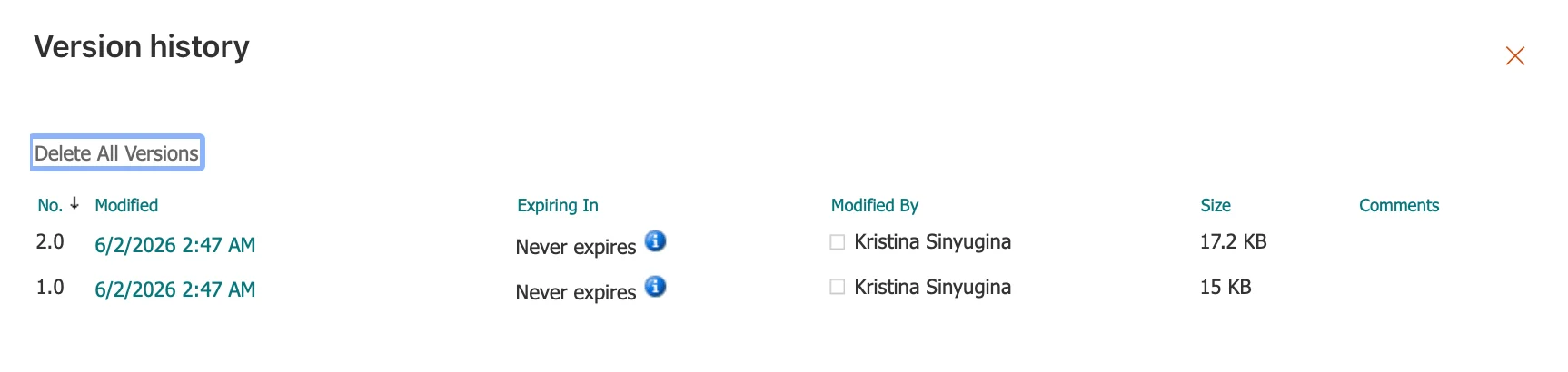
Deleting multiple versions of a document via Version History.
How to copy or move multiple files in SharePoint (native)
SharePoint’s modern library has built-in Copy to and Move to commands:
- Select files — navigate to the library and tick the files you want.
- Choose the action — click Copy to or Move to on the command bar.
- Pick a destination — in the pane that opens, choose the target library or folder, then confirm (Copy here / Move here).
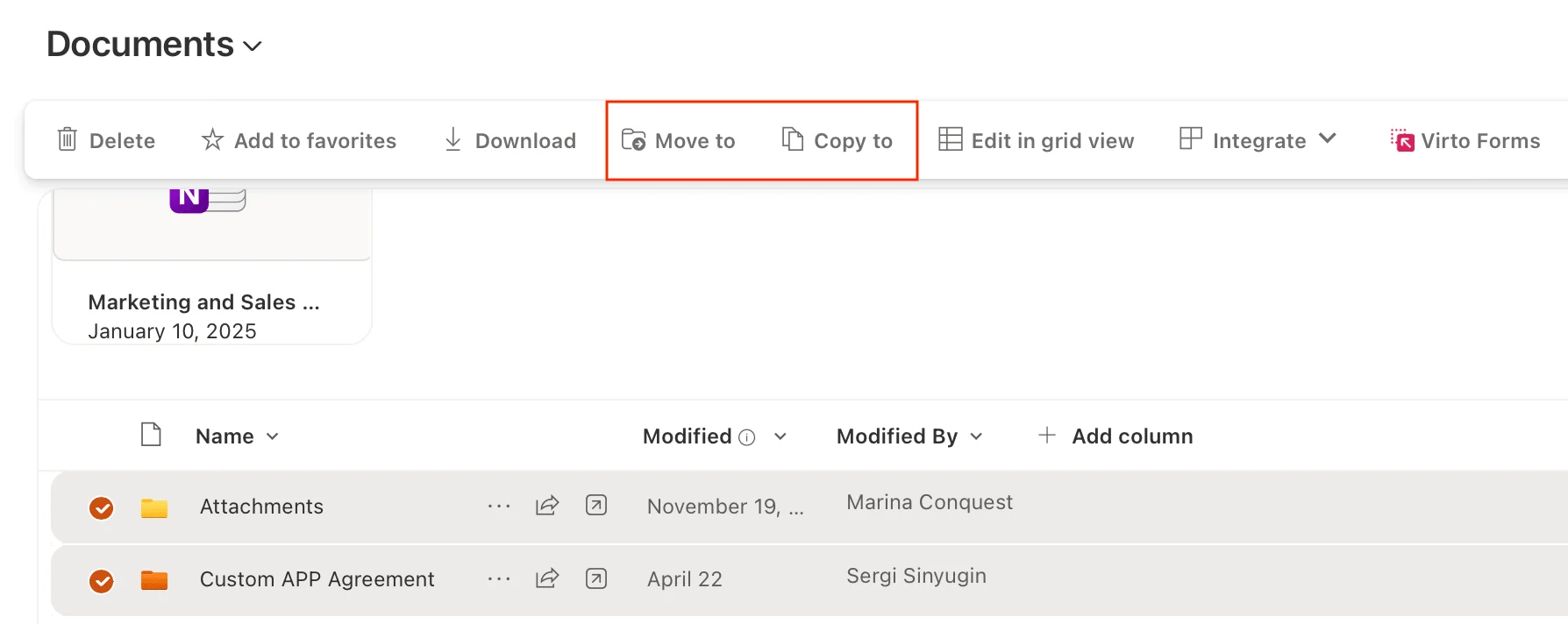
Copying or moving selected files in SharePoint using Copy to and Move to.
A few practical notes:
- Copy to leaves the originals in place; Move to removes them from the source.
- Destinations can include other libraries on the same site, and — depending on tenant configuration — libraries on other sites.
- To duplicate an entire library, create a new document library (Settings → Site contents → New → Document library), then Copy to the new library from the original.
Native limitations for bulk delete/copy/move
The built-in tools are fine for routine work, but they run into walls at scale:
- Volume ceilings: multi-select gets unwieldy across hundreds or thousands of items, and large Copy to / Move to jobs can time out or fail partway.
- Cross-site friction: copying or moving between sites or tenants depends on configuration and isn’t always available.
- No rule-based selection: you can’t natively say “delete everything older than a year” or “move all PDFs” — you select manually.
- Scripting overhead: PowerShell (PnP) can automate all of this, but it requires admin access and scripting comfort that most everyday users don’t have.
When any of these become a recurring pain, a purpose-built bulk-operations tool is the practical fix.
Faster bulk operations with Virto Multiple File Operations
Virto Multiple File Operations lets you delete, copy and move files in bulk directly inside SharePoint — no scripting. You can apply filters and conditions (by date, type, metadata) so large clean-ups and transfers run in a few clicks instead of endless manual selection. Because Virto apps run as native Microsoft apps, data stays on Microsoft servers.
Typical workflow:
- Open the document library and launch the app’s bulk action (Delete, Copy or Move).
- Set your criteria — select files directly, or define conditions (e.g. everything created before a given date).
- Confirm, and the operation runs across the whole matching set at once.
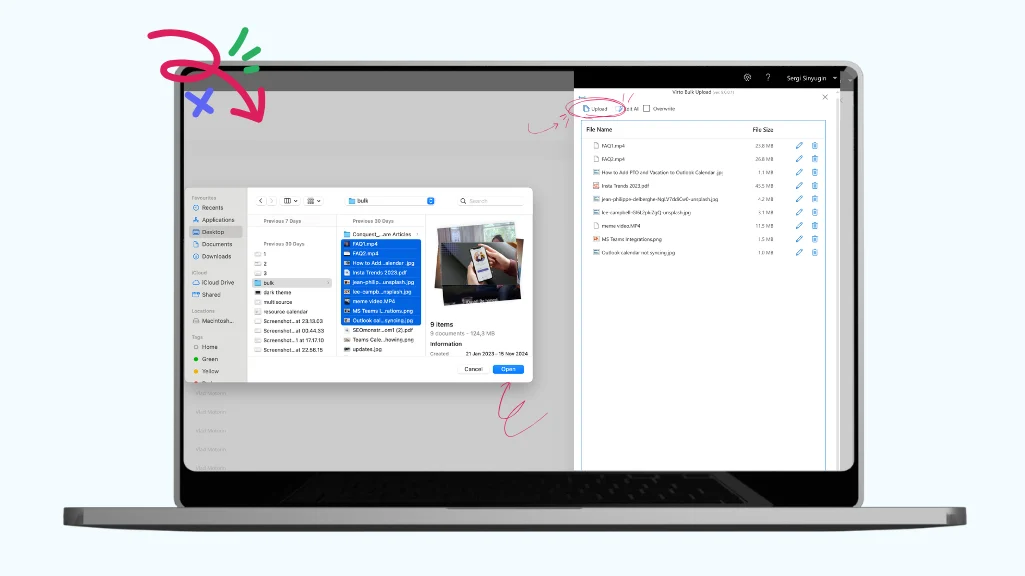
Running a bulk file operation with Virto Multiple File Operations.
Available for both environments: Virto Multiple File Operations (SharePoint on-prem) and Virto Multiple Operations App (Microsoft 365) for bulk file operations in SharePoint Online.
Start a 30-day free trial to see bulk delete, copy and move in your own tenant.
FAQ
How do I delete many files at once in SharePoint?
Open the library, select the files with the checkboxes (or Select all for the whole view), and click Delete on the command bar. They move to the recycle bin, where they can be restored within the retention window. For very large or rule-based deletions, use Virto Multiple File Operations.
How do I copy files between SharePoint libraries?
Select the files, click Copy to (or Move to) on the command bar, and choose the destination library or folder — including libraries on other sites where configured. For large cross-site jobs, a bulk-operations app is more reliable.
Can I recover bulk-deleted files?
Yes — deleted files go to the site recycle bin and then the site collection recycle bin before permanent removal, so they’re recoverable within the standard retention period. Check Microsoft Learn for the current recovery window.