



No platform is more prolific across the enterprise workflow ecosystem than SharePoint. However, inherent limitations in both on-premises and cloud-based editions necessitate savvy navigation to maximize value.
Key SharePoint limits include the 5,000-item list view threshold, 250 MB–15 GB file-size ceilings and per-site storage caps; Online and on-premises differ on several.
With over 200 million active users, SharePoint has become a ubiquitous workflow ecosystem for businesses worldwide (1). Around 80% of Fortune 500 companies rely on SharePoint to power intranets, document management, and internal collaboration (2). However, both SharePoint On-Premise and SharePoint Online come with their own share of challenges.
On-Premise SharePoint requires considerable in-house infrastructure, limiting scalability and availability. SharePoint Online relies completely on cloud hosting, creating dependence on Microsoft 365 and more complex integration needs.
As a company with 25 years of expertise in crafting web parts and applications that improve SharePoint capabilities, VirtoSoftware understands these limitations intimately. Our deep understanding of SharePoint’s limitations comes from our extensive experience with product integration, allowing us to effectively address these constraints.
To aid you in making the most of SharePoint, we have compiled a comprehensive guide highlighting the fundamental restrictions of both SharePoint On-Premise and SharePoint Online. This tutorial is part of a broader conversation that includes insights into SharePoint permissions, security considerations, and the inherent limitations of Microsoft Teams—a conversation we’ve been leading across several articles:
- SharePoint Permissions: A Comprehensive Guide
- Ensuring Microsoft Teams Security: Key Insights & Privacy Policies
- Understanding Microsoft Teams Limitations: Your Guide for 2026
As we explore these topics, it is essential to note that while we strive to present information in a convenient and user-friendly manner, Microsoft remains the ultimate authority on SharePoint capabilities and limitations. We compile this limitation guide strictly for reference purposes, so be sure to consult Microsoft’s documentation for additional details:
Without further ado, let’s get started. Consider this a primer for squeezing more value from SharePoint, no matter where you host it.
What Are the Main Limitations of SharePoint Online?
SharePoint Online, part of the Microsoft 365 suite, provides a cloud-based platform for collaboration and document management. While it offers a range of features to enhance productivity and workflow, certain service limits apply, which can vary depending on the specific subscription plan (Microsoft 365 Business Basic, Business Standard, Business Premium, Teams Essentials, A3/E3/G3, A5/E5/G5, F1/F3, and more).
SharePoint Online file size limit
SharePoint Online sets a cap of 250 GB for individual file uploads. This restriction is applicable to files uploaded to SharePoint document libraries, OneDrive folders, Microsoft Teams Files tabs, and Viva Engage conversations.
This limitation means that storing large video files or extensive databases may require the use of additional third-party storage solutions.
If not proactively managed, this cap can hamper workflow efficiency, but the following workarounds and best practices can potentially reduce influence:
- Proper data planning: Determine what data needs to be stored on SharePoint Online and what can be archived.
- Versioning: Utilize SharePoint Online’s versioning capabilities to maintain only necessary document versions.
- File compression: Employ file compression techniques to minimize file sizes before uploading.
- Alternative storage: For very large files, use OneDrive for Business or other storage services.
- User training: Educate users on how to use SharePoint storage efficiently and the importance of cleaning up unnecessary files.
- Storage alerts: Configure alerts to monitor storage usage and avoid hitting the limit unexpectedly.
👉 SharePoint move file size over limit—how to? If you need to move a file that exceeds the operational limits (e.g., a file or a set of files larger than 100 GB in total), consider the following approaches. First, if possible, split larger files into smaller parts. For more control over file operations, or when dealing with large numbers of files or very large files, using SharePoint PowerShell cmdlets or the SharePoint Online Client Object Model (CSOM) can provide more flexibility and power. Finally, try third-party apps—numerous tools are designed to assist with managing SharePoint content, including moving large files or large volumes of files.
SharePoint Online storage limit
SharePoint Online sets clear parameters for how much data can be stored within its service:
- Per user: Each user can effectively use up to 25 TB of storage.
- Per site: Each site is allowed a maximum storage capacity of 1 TB.
- Per group: Each group is allocated up to 100 GB of storage.
These specified limits are instrumental in shaping an organization’s approach to data management and collaborative strategy. Large-scale projects and extensive document repositories must be planned with these storage ceilings in mind to ensure uninterrupted workflow and data availability.
Below are a few strategies for effective management of these limitations:
- Strategic storage distribution: Spread data across multiple sites and libraries to optimize storage use.
- Archiving policies: Implement archiving policies for older documents to free up space.
- Monitoring tools: Use built-in monitoring tools in SharePoint to track and manage storage allocation.
SharePoint list limitations
In SharePoint Online, list management is subject to certain thresholds designed to optimize performance and user experience.
The default view threshold for list items is capped at 5,000, a limit that can impact how users interact with and retrieve data. However, with proper indexing, this threshold can be increased to accommodate up to 30,000 items, offering more flexibility for larger datasets.
Additionally, there is a maximum limit of 200 user-defined columns per list, which dictates the granularity of data that can be captured and sorted within the list.
While these limitations have a direct impact on workflows, the following mitigation techniques might help:
- Indexing: Create indices on lists to improve performance and increase item threshold.
- List design: Plan lists carefully to stay within the column limitations.
SharePoint Online limitations (general)
Apart from the restrictions already discussed, there are more general, broader SharePoint limitations designed to maintain system performance and reliability:
- User capacity: The platform supports a base limit of 300 users, expandable to 25,000 for organizations on the E5 plan.
- Site numbers: An organization can create up to 25,000 sites, providing a broad canvas for their digital workspace.
- Document versions: Each document can have up to 500 versions, allowing for extensive revision history and collaboration.
- Alert subscriptions: A maximum of 5,000 alert subscriptions per site can be configured to keep users informed of changes.
- Workflow instances: Up to 200 unique workflow instances per site can be utilized to automate and streamline processes.
- External users: Up to 5,000 external users can be invited to collaborate, extending the reach of SharePoint beyond the organization.
These limitations necessitate a strategic approach to SharePoint Online management. Adhering to the prescribed boundaries ensures that the system operates efficiently and remains scalable as organizational needs evolve.
👉 What are the threshold limits for SharePoint Online? There are two main thresholds to keep in mind—the list view threshold of 5,000 items per view at one time and 50,000 unique permissions for items in a list or library.
To effectively navigate these constraints, consider the following strategies:
- User management: Implement a robust user management system, tailoring user roles and permissions meticulously to fit within the platform’s user capacity.
- Site architecture: Construct a thoughtful site architecture to fully leverage the allocated number of sites without exceeding the limit.
- Version control: Enforce version control best practices, maintaining document integrity while managing storage and performance impacts.
- External sharing: Adopt a strategic approach to external sharing, focusing on essential partners and clients and managing guest access within the established external user limit.
Rather than allow constraints to hinder productivity, proactive preparation means organizations can optimize SharePoint Online as the robust digital workspace it aims to provide. So, by carefully considering these limitations and employing targeted strategies, you can create your own adaptable environment while facilitating secure collaboration at scale.
Additional limitations in SharePoint Online
Beyond the general limitations, SharePoint Online imposes specific restrictions on file management and operations, which are critical to note:
- SharePoint file size limit: Each list item in SharePoint can only have attachments up to 250 MB, which may affect the sharing of larger files within list items.
👉 What is too big for a SharePoint file? The maximum file size that can be uploaded to SharePoint Online is 250 GB. Files larger than this are considered too big for SharePoint. If you’re wondering “how do I change the file size limit in SharePoint,” then be advised that you can only adjust the file size limit up to the maximum allowed (250 GB). To do so, go to the SharePoint Admin Center → “Settings” → “Site Settings.” Then, under “Site Collection Administration,” select “Site Collection Features,” and adjust the size.
- Moving/copying files restrictions:
- Total file size: When moving or copying files, the operation is limited to a total file size of 100 GB.
- Number of files: No more than 30,000 files can be involved in a single move/copy operation.
- Individual file size: Each file involved in these operations must be less than 15 GB, except for OneNote files, which have a more stringent limit of 2 GB.
These file management limitations require thoughtful planning and execution when organizing and transferring content. Though its restrictions demand adaptation, successful adoption hinges on mapping engrained behaviors to the constraints of the system.
SharePoint document library limitations:
- Maximum items: SharePoint document libraries can store up to 30 million items (documents and folders).
- SharePoint library file size limit: The maximum file size for a single document uploaded to a SharePoint document library is 250 GB.
- List view threshold: By default, the list view threshold in SharePoint Online is set to display up to 5,000 items. Attempting to retrieve more than 5,000 items at a time without proper indexing can lead to performance issues.
- Permissions limit: For optimal performance, it is recommended to limit unique permissions for items within a document library to no more than 5,000.
- URL path length: The total URL path for a document in SharePoint Online cannot exceed 400 characters. This includes the domain, library path, folder structure, and the file name itself.
- Version limits: SharePoint libraries can support up to 50,000 major versions and 511 minor (draft) versions of a document.
- Sync: With the OneDrive sync client, users can sync up to 300,000 files across all document libraries. This includes files synced from multiple SharePoint sites and OneDrive.
SharePoint OneDrive sync limitations: The OneDrive sync client, used to synchronize files between SharePoint Online document libraries (or OneDrive for Business) and a user’s local machine, also has its set of limitations—
- Item limit: The sync client can handle up to 300,000 files across all synchronized libraries in a single user account.
- File size limit of 250 GB.
- File path length of no more than 400 characters.
- Invalid characters and filenames: Certain characters and filenames are not supported in files and folders.
- Selective sync: Users can choose which folders to sync to their devices, but managing these selections across many files and folders can become cumbersome.
👉 What are the limitations of a SharePoint site? There are three types of limitations when it comes to a SharePoint site. First, there’s a subsite limit—it’s recommended to use no more than 2,000 subsites per site collection. Then, there’re unique security scopes per list or library—the recommended limit is 5,000, although technically supported up to 50,000. Finally, each navigation level (site, hub, global, footer) can handle up to 500 child links. These limitations apply to both SharePoint Online and SharePoint On-Premises, although the applicability and impact might vary slightly depending on the specific environment and configuration. When it comes to SharePoint hub sites limitations, then each SharePoint Online environment can support up to 2,000 hub sites, and each hub site can have up to 2,000 associated sites. SharePoint Hub Sites are a feature specific to SharePoint Online and are not natively available in SharePoint On-Premises environments.
Tackling other important restrictions
Beyond the primary constraints like file size and storage limits, SharePoint Online presents additional considerations that need careful attention:
- Site templates: Limitations on the use and customization of site templates may impact the ability to create uniform site structures quickly.
- Third-party app integrations: Integrating external applications can introduce complexity, as not all third-party solutions may align perfectly with SharePoint Online’s framework.
- Feature availability: Certain features might be restricted based on the plan or may not be available in SharePoint Online when compared to the on-premises version.
To deftly maneuver through these restrictions, organizations should adopt a proactive approach:
- Stay informed: Keep abreast of the latest updates and guidelines by frequently reviewing the SharePoint Online service description.
- Leverage expertise: Engage with SharePoint specialists like VirtoSoftware, who bring years of experience in developing compatible enhancements that fit neatly within SharePoint’s limits.
- Custom solutions: Consider bespoke solutions that are specifically tailored to your organization’s needs within the SharePoint Online environment.
👉 What are the limitations of document sets in SharePoint? Document sets in SharePoint are treated similarly to folders but with additional features. The main limitations include: item limit (30 million items per library), file size limit (250 GB), and some restrictions on nested levels. These limitations apply to both SharePoint Online and SharePoint On-Premises.
Below is a summarizing table that outlines the key SharePoint Online restrictions, their potential impacts on business workflow, and recommendations for how to work within these limitations effectively.
| Limitation | Specific numbers | Impact | Recommendations |
|---|---|---|---|
| SharePoint single file size limit | 250 GB per file | Inability to store extremely large files, impacting storage of extensive databases or media files. | - Compress files to reduce size. - Use third-party storage for oversized files. - Educate users on storage management. |
| SharePoint storage limit | 25 TB per site collection | May need to scale infrastructure as need grows, potential issues with large-scale data storage. | - Distribute data across site collections. - Implement archiving strategies. - Regularly review and clean up old files. |
| SharePoint list limitations & list view threshold | 5,000 items (up to 30,000 with indexing) | Performance issues with large lists, affecting data retrieval and user experience. | - Use indexing for larger lists. - Split large lists into smaller, more targeted lists. |
| Site collections limit | 2 million sites | Restricts the number of workspaces for organizational collaboration. | - Optimize site architecture. - Organize related sites using hub sites. |
| User capacity | Up to 300, up to 500,000 with higher plans | Restricts the number of internal users who can collaborate on the platform. | - Choose the right plan based on user base. - Manage roles and permissions effectively. |
| Document versioning | 50,000 major, 511 minor versions | Excessive versioning can consume significant storage. | - Enforce sensible versioning policies. - Train users on version control. |
| External user sharing | 5,000 external users per tenant | Collaboration with external parties may be limited. | - Prioritize guest access. - Review and manage external permissions periodically. |
| Moving/copying file restrictions | 100 GB total file size, 30,000 files per operation | Challenges when moving/copying large numbers of files or large total file sizes, which can slow down data migrations. | - Schedule large data moves for off-peak hours. - Break down large operations into smaller batches. - Utilize SharePoint migration tools as needed. |
Fig. 1. A summary table of key restrictions of SharePoint Online.
👉 What are Dynamics 365 SharePoint integration limitations? While linking Dynamics 365 and SharePoint unlocks robust document management capabilities, the mismatch carries certain caveats. For instance, Dynamics 365 and SharePoint have fundamentally different security models. This discrepancy can lead to situations where users might see documents in SharePoint that they do not have access to in Dynamics 365, or vice versa, if permissions are not properly aligned and maintained. Also, not all SharePoint features are available or functional when accessed through Dynamics 365. For instance, advanced document management features such as workflows, version control, and metadata are more cumbersome to manage and might not work seamlessly as they do directly in SharePoint.
How SharePoint Online limits vary by plan
SharePoint plans are typically offered as part of broader Microsoft 365 subscription packages (such as Microsoft 365 Business Basic, Business Standard, Business Premium, and Enterprise plans like E1, E3, E5). Depending on the Microsoft 365 subscription plan you have, there are various limits to what you can do with SharePoint Online in terms of storage, number of users, features, and more.
For those businesses focusing specifically on SharePoint, there are dedicated plans that are part of a larger Microsoft 365 package. The standalone SharePoint Online Plan 1 and Plan 2 are being retired: no new customers after May 31, 2026, no renewals after January 2027, and end of service in December 2029. These plans not only differ in cost but also in the set of features and functionality they provide:
- Plan 1: This plan is ideally suited for small teams or organizations that require basic storage and collaboration tools. It provides essential SharePoint functionality, enabling document sharing, team sites, and basic content management. It’s a cost-effective solution that supports small-scale collaboration needs.
- Plan 2: Designed for medium to large teams, Plan 2 offers a step up in SharePoint Online services. This plan includes increased storage capacity, enhanced search capabilities, and advanced compliance features. It also offers additional security measures, making it a good fit for teams that need a more robust collaboration environment and are concerned with data governance.
- E5: The E5 plan is the most comprehensive SharePoint Online offering, suitable for large organizations that demand the highest level of service, including the most advanced capabilities. It encompasses all the features of the lower plans and adds premium functionalities like Power Automate for process automation, advanced analytics, and the most extensive security and compliance tools.
The features and limitations of SharePoint Online also vary by plan:
- Storage: While Plan 1 may offer a substantial amount of storage per user and per site, Plan 2 and E5 typically provide more storage space, accommodating a larger number of documents and data.
- Functionality: Higher-tier plans like Plan 2 and E5 come equipped with advanced features such as eDiscovery, personalized search, and in-depth reporting that are not available in Plan 1.
- Security: The E5 plan boasts the most sophisticated security features, including advanced threat protection and information rights management, which may not be as comprehensive in Plan 1 or Plan 2.
- Collaboration: While all plans support basic collaboration features like team sites and document libraries, higher-tier plans offer more complex tools like intranet portals and extranet sites.
Below is a table summarizing the key differences in limitations across various SharePoint Online plans:
| Plan | Storage | Number of users | File size | Other restrictions |
|---|---|---|---|---|
| Plan 1 | 1 TB per organization + 10 GB per license | Up to 300 users | Max 250 GB per file | Basic collaboration features; limited advanced security and compliance features; standard search capabilities. |
| Plan 2 | 1 TB per organization + 10 GB per license (higher storage ceilings possible) | 1 - 500,000 users | Max 250 GB per file | Enhanced search and eDiscovery; additional DLP capabilities; more advanced security features. |
| E5 | 1 TB per organization + 10 GB per license (additional storage available) | 1 - 500,000 users | Max 250 GB per file | Advanced analytics; Power Automate integration; most comprehensive security and compliance tools. |
Fig. 2. Limitations across various SharePoint Online plans.
👉 What are SharePoint Plan 1 storage limit and SharePoint Plan 2 storage limit? As mentioned, both provide a base tenant storage of 1 TB plus additional storage at a rate of 10 GB per licensed user. In general, SharePoint Online generally adheres to a broader set of storage policies that apply across various Microsoft 365 plans. So, for instance, each site can grow up to 25 TB. This is generally applicable regardless of whether you are on Plan 1, Plan 2, or any other Microsoft 365 plan.
Please note that these numbers may change as Microsoft updates its service descriptions. Always refer to the official Microsoft documentation for the most accurate and current information regarding SharePoint Online plans and limitations.
How you can increase SharePoint Online limits
For enterprises dependent on SharePoint Online, native restrictions can cripple productivity. Recognizing larger clients’ advanced requirements, Microsoft created an avenue to accommodate their greater storage, bandwidth, and usage needs. By meeting delineated criteria around site collections, multi-geo capabilities, and other areas, companies can submit limit increase requests. For organizations leveraging SharePoint Online extensively, extending boundaries through this structured process enables scaling the platform to suit their more complex sharing and document workflows.
Below, we’ll examine the key criteria for increasing SharePoint Online limits and demystify the request process itself.
Criteria for increasing SharePoint Online limits
For large organizations seeking increased limits, Microsoft evaluates several key factors:
- Organization size: Larger organizations typically have greater needs.
- Number of employees: More employees may necessitate higher user limits.
- Annual income: Reflects the organization’s capacity to afford additional costs.
- Usage of SharePoint Online: Frequency and depth of SharePoint usage within the organization.
- Amount of stored data: Current data storage needs and future projections.
- Number of active users: How many employees actively use SharePoint Online.
- Business criticality: The importance of SharePoint Online to the organization’s operations.
Process to increase limits
Here’s a step-by-step breakdown of how organizations can apply for increased limits:
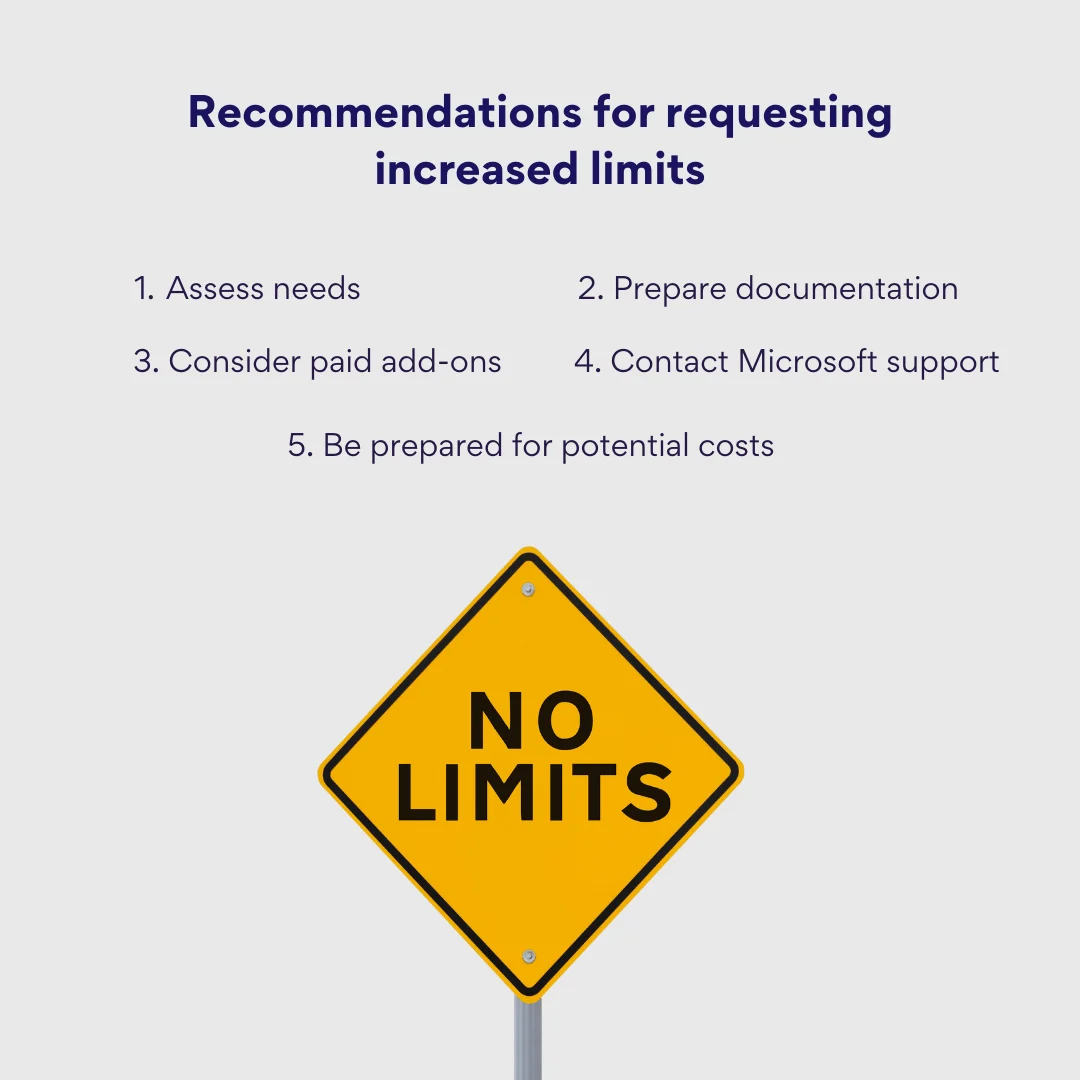
Evaluation of needs
- Assess current usage: Before reaching out to Microsoft, assess your current usage of SharePoint Online. This includes understanding how much storage you’re currently using, the number of active users, and how these figures project into your future needs.
- Identify specific requirements: Determine which specific limits you need to increase (e.g., storage space, number of users, etc.) and why these increases are necessary for your operations.
Preparation of documentation
- Organizational details: Gather detailed information about your organization such as size, number of employees, annual income, and the criticality of SharePoint Online for your business processes.
- Usage statistics: Prepare documentation that outlines your current usage statistics, such as the amount of data stored, number of active users, and frequency of SharePoint Online usage.
Submission of request
- Contact Microsoft support: Use the Microsoft Support Contact Page to initiate your request. This platform allows you to communicate directly with Microsoft’s support team.
- Provide detailed information: Include all prepared documentation and clearly articulate why your organization needs increased limits. The more detailed and justified your request, the better Microsoft can assess your needs.
Review and decision
- Microsoft review: Microsoft will review your application, during which they may reach out for additional information or clarification.
- Decision timeframe: Typically, Microsoft aims to make a decision within 10 working days from the receipt of all necessary information.
- Notification: You will be notified of the decision through the contact information provided in your application.
Post-approval actions
- Implementation of changes: If approved, Microsoft will guide you through the process of implementing the increased limits.
- Cost adjustment: Be prepared for possible adjustments to your billing, depending on the nature and extent of the increases approved.
Ongoing compliance
- Adhere to SLA: Ensure that your usage continues to comply with Microsoft’s Service Level Agreements and other relevant policies.
- Monitor usage: Continuously monitor your usage to ensure it aligns with the increased limits and adjust as necessary.
👉 How to increase SharePoint storage limit? For SharePoint Online, storage management is streamlined through the Microsoft 365 admin center. From there, navigate to “Billing” and “Purchase services.” Look for additional storage options under “Add-ons” or search for “storage” to find available storage plans. Purchase additional storage according to your needs. The extra storage will be added to your tenant’s pool and will be available to all sites. Increasing storage in SharePoint On-Premises, however, typically involves more direct interaction with the server and storage infrastructure.
Advantages of increased SharePoint Online limits
Increasing the limits of SharePoint Online can offer substantial benefits to organizations, enabling them to expand their operational capabilities, enhance user experiences, and secure their data more effectively. Here’s a detailed look at the advantages of adjusting these limits upward:
- More storage space: Increased limits enable the organization to store all necessary data within SharePoint Online. More storage space means that larger and more complex projects can be accommodated. This is particularly beneficial for industries such as media, architecture, and engineering, where file sizes can be substantial.
- More users: With higher user limits, companies can ensure that all employees, including those in subsidiary operations or remote locations, are integrated into the company’s digital workspace, fostering a more inclusive work environment.
- Improved performance: Enhanced limits often come with better resource allocation, which can improve the speed of access and data retrieval, enhancing user satisfaction and productivity.
- Scalability and adaptability: Organizations can plan for future growth without the immediate worry of hitting existing limits. This foresight allows for better long-term strategic planning and investment in technology.
- Enhanced security: Higher limits mean that organizations do not have to resort to third-party storage solutions that might not have the same level of security as SharePoint Online. Keeping more data within SharePoint helps maintain security and compliance with internal policies and regulatory requirements.
- Reduced administrative overhead: Managing data within higher limits can reduce the need for frequent data archiving and deletion, thereby lowering administrative overheads.
👉 What is SharePoint online kiosk and what are SharePoint online kiosk limitations? SharePoint Online Kiosk plans, often referred to as Kiosk licenses or F (Frontline) plans, are designed for users who don’t require full office suite capabilities but need access to essential communication and collaboration tools. These plans are typically used by frontline workers who may have limited requirements for daily tasks. Kiosk plans are more affordable but come with several limitations such as no full desktop versions of Office applications like Word, Excel, or PowerPoint, lower storage limits, no email hosting, and otherwise—limited SharePoint functionality.
Important notes
When considering a request for increased SharePoint Online limits, there are several critical factors and caveats that organizations must keep in mind. These considerations ensure that companies approach the request process with realistic expectations and adequate preparation:
- No guarantee of approval: Organizations should prepare for the possibility that their request might not be approved and consider alternative strategies, such as optimizing current usage or exploring other Microsoft products or third-party solutions that might meet their needs.
- Potential costs: If the request for increased limits is approved, it often comes at a cost. This could be in the form of higher subscription fees or additional charges for the extra resources. It’s important for organizations to review their budgets and ensure they can accommodate these potential costs.
- Consider paid add-ons: Some SharePoint Online add-ons offer increased limits as part of their package. These add-ons are designed to seamlessly integrate with your existing SharePoint environment and offer a straightforward way to extend capabilities. In some cases, opting for these add-ons might be more cost-effective than applying for customized limit increases. Add-ons typically come with a clear pricing structure and defined resource enhancements, making budgeting and financial planning more predictable.
For more detailed information on SharePoint Online limits and how to contact Microsoft support, please visit the following links:
Preparing thoroughly and understanding the process will enhance your chances of successfully increasing your SharePoint Online limits, thereby supporting your organization’s growth and operational efficiency.
Limitations of SharePoint On-Premise
SharePoint On-Premise (also referred to as SharePoint on-prem or SharePoint On Premises) refers to the deployment of SharePoint servers within an organization’s own IT infrastructure, as opposed to using SharePoint Online, which is hosted on Microsoft’s cloud. While SharePoint On-Premise offers greater control over environments and customization, it also comes with its own set of limitations depending on the version deployed—SharePoint Foundation, SharePoint Standard, or SharePoint Enterprise.
| SharePoint Foundation | SharePoint Standard | SharePoint Enterprise |
|---|---|---|
| This is the base version, providing essential features for organizations needing basic content management and collaboration tools. Suitable for small businesses or departments within larger organizations. | Offers additional enterprise features such as search capabilities and business intelligence tools. It’s suitable for medium-sized businesses that require more advanced functionalities. | Includes all features of the previous versions plus more sophisticated capabilities like Enterprise Content Management (ECM), advanced search, and Business Intelligence. Ideal for large organizations that need a comprehensive collaboration and content management solution. |
Fig. 3. SharePoint versions and their suitability
👉 If you wonder, what might be the difference between SharePoint versioning by year (such as 2007, 2010, 2013, 2016, and 2019) and the different editions described above, then the answer primarily lies in the scope of features and intended user base. Each represents a different approach to categorizing the evolution and capabilities of SharePoint. This way, versioning by year refers to the different major releases of SharePoint over time, while the editions of SharePoint (Foundation, Standard, and Enterprise) indicate different levels of feature sets and capabilities within a particular version of SharePoint.
Number of sites
The number of sites that can be created and managed within SharePoint On-Premises varies significantly depending on the SharePoint version being used:
- SharePoint Foundation: Limited to 1 site.
- SharePoint Standard: Up to 250 sites.
- SharePoint Enterprise: Unlimited number of sites.
The restriction on the number of sites impacts how organizations structure their SharePoint environment:
- Single or limited sites: Organizations using SharePoint Foundation or Standard may need to consolidate various functions and departments into fewer sites than ideally necessary. This can lead to complex site structures where different departments or teams might share the same site with potentially overlapping or conflicting requirements.
- Alternative solutions: Due to these limitations, organizations might consider using alternative web solutions for some of their needs, which could lead to fragmented systems and data silos.
- User creation limits: There may need to be strict controls on who can create sites to manage the limited availability, especially in environments using SharePoint Standard. This can inhibit flexibility and responsiveness to new business requirements.
To effectively manage within the constraints of site number limitations in SharePoint On-Premises, organizations might need to:
- Upgrade to SharePoint Enterprise: For organizations that anticipate needing more than 250 sites, upgrading to SharePoint Enterprise will remove the ceiling on site creation, allowing for scalability and flexibility as the organization grows and its needs evolve.
- Plan strategically: Careful planning of the site architecture is crucial. This involves defining clear purposes for each site and understanding how different sites will interact. Effective site planning helps in avoiding redundancy, confusion, and potential governance issues.
- Use SharePoint features: Leveraging built-in SharePoint features can significantly enhance site management:
- Site templates: Use site templates to quickly deploy new sites that adhere to organizational standards. Templates ensure consistency across sites for navigation, branding, and functionality.
- Permission inheritance and security groups: Manage permissions effectively by setting up security groups and leveraging permission inheritance. This ensures that users have appropriate access rights, simplifying the management overhead and enhancing security.
- Archiving: Implement archiving strategies to manage site sizes and ensure that active sites remain performant and within size limits. Archiving old content helps in managing the storage effectively, particularly in versions with site size limitations.
SharePoint site storage limits
The capacity for storing data within a single SharePoint site again varies depending on the edition of SharePoint On-Premises being used:
- SharePoint Foundation: Up to 100 GB per site.
- SharePoint Standard: Up to 250 GB per site.
- SharePoint Enterprise: Up to 1 TB per site.
The site size limitation impacts how organizations manage their data within SharePoint:
- Data overload: As the amount of content grows, sites nearing the upper limit of their storage capacity may experience performance degradation, making it difficult to retrieve content efficiently.
- Data management complexity: Managing large volumes of data within these limits requires meticulous planning regarding what data should be stored and how it is organized, potentially complicating site architecture and governance.
- Scalability issues: For organizations close to their storage limits, scalability becomes a concern. There may be a need to create additional sites or manage multiple site collections more rigorously, which can fragment the user experience and data accessibility.
To effectively manage within the constraints of site size limitations in SharePoint On-Premises, consider the following strategies (apart from upgrading to a higher-tier plan, which we’ve already discussed above):
- Implement archiving solutions: Develop an archiving strategy to move older or less frequently accessed content to other storage solutions, either within SharePoint or to an external system. Archiving helps in maintaining the performance of the active site while still preserving access to important historical data.
- Regular monitoring and cleanup: Implement monitoring tools to regularly review site usage and storage metrics. Set up alerts for when sites approach their storage limits so that preventative measures can be taken promptly. Regularly schedule cleanup activities to remove obsolete or redundant data, which helps in optimizing storage utilization.
- Effective use of document management features: Leverage SharePoint’s document management capabilities such as version control, document sets, and metadata management. These features help in organizing content more efficiently, which can reduce the overall storage footprint by eliminating unnecessary duplications and simplifying access.
- Content database planning: For SharePoint administrators, carefully planning and managing content databases is crucial. Keep databases at manageable sizes and consider using multiple content databases to spread out data, which can improve performance and make backup/restoration tasks more manageable.
👉 Does SharePoint have a storage limit? SharePoint Online offers 1 TB of base storage plus 10 GB per licensed user, scalable with additional storage purchase options. Each site collection can store up to 25 TB. Unlike SharePoint Online, which is hosted on Microsoft’s cloud infrastructure, SharePoint On-Premises is hosted on the organization’s own servers. Therefore, the storage limits for SharePoint On-Premises are primarily dictated by the organization’s own IT infrastructure and capacity planning. Now, what happens if SharePoint storage is full? Well, administrators may need to purchase additional storage or clean up existing files to free up space. So, if your question is “can I increase my SharePoint storage,” then yes, indeed, you can. Both SharePoint Online and SharePoint On-Premises allow for storage increases, but the methods and implications differ due to their distinct hosting models.
Number of users
The number of users that can be effectively supported by SharePoint On-Premises also varies by edition:
- SharePoint Foundation: Up to 500 users.
- SharePoint Standard: Up to 25,000 users.
- SharePoint Enterprise: Unlimited users.
Approaching license ceilings creates the following organizational headaches:
- Scalability challenges: Organizations close to the user limits might face scalability issues, restricting the growth of their SharePoint environment and potentially hindering onboarding.
- Performance degradation: As the number of users approaches the limit, especially in SharePoint Foundation and Standard, the system may experience performance degradation during peak usage times due to increased load on server resources.
- Collaboration barriers: In organizations where user limits are a constraint, collaboration can be stifled. Not all employees may have access to the collaborative tools they need, which can lead to inefficiencies and a reliance on alternative, possibly less secure, methods of communication and data sharing.
To manage within the constraints of user limitations in SharePoint On-Premises effectively, organizations can upgrade to a higher edition or, alternatively, employ the following strategies:
- Optimize SharePoint server performance: Enhance server configurations to handle higher loads by increasing server resources (CPU, RAM) or optimizing SharePoint configurations for performance. This is crucial for maintaining system responsiveness as user numbers grow.
- Implement user access management policies: Develop clear policies to manage who should have access to SharePoint, ensuring that only necessary users are granted licenses. This can help stay within user limits without needing to upgrade immediately.
- Monitor and analyze user activity: Regularly monitor user activity and analyze usage patterns to identify unnecessary user accounts or irregular usage. This can help in optimizing the available user slots and ensuring that SharePoint resources are utilized effectively by active users.
- Leverage SharePoint groups and permission levels: Use SharePoint groups and comprehensive permission levels to manage large numbers of users efficiently. This helps in minimizing administrative overhead and enhancing security by ensuring users have appropriate access levels.
Database size
The maximum size of content databases in SharePoint On-Premises also depends on the edition:
- SharePoint Foundation: Up to 200 GB.
- SharePoint Standard: Up to 400 GB.
- SharePoint Enterprise: Up to 1 TB.
The limitations on database size can affect the following operational aspects of an organization:
- Data storage constraints: Organizations close to the maximum database size may struggle with data storage constraints, forcing them to make hard decisions about what data to keep readily accessible and what to archive.
- System performance: Larger databases can lead to longer backup times, slower restoration processes, and potential performance degradation during high-usage periods.
- Scalability: Being close to the database size limit can hinder scalability, requiring frequent reassessment and restructuring of the database strategy.
To effectively manage the database size limitations in SharePoint On-Premises, consider upgrading your plan or follow the strategies:
- Implement archiving and data retention policies: Develop and enforce data retention policies to regularly archive old or infrequently accessed data. This helps in managing the size of the active database and keeps the system performance optimized.
- Optimize database storage: Use tools and strategies such as Remote BLOB Storage (RBS) to store large binary files outside of the SQL database. This can significantly reduce the size of the content databases while still making the data accessible through SharePoint.
- Monitor database growth: Implement monitoring tools to track the growth of databases actively. Set up alerts for when databases approach capacity limits so proactive measures can be taken to manage the data and prevent performance bottlenecks.
- Split databases: Consider splitting larger site collections into multiple content databases to manage size effectively and improve performance. This strategy also aids in more manageable backup and recovery processes.
- Regular maintenance: Perform regular maintenance activities such as database defragmentation and cleanup of unused sites and data. This not only helps in keeping the database size within limits but also enhances the overall performance of the SharePoint environment.
Hardware limitations in SharePoint On-Premises
There are a few other important hardware limitations to keep in mind.
- Storage limitations: The storage capacity of SharePoint On-Premises is directly limited by the capacity of the server hard disks on which it is installed. This limitation can directly affect how much data can be stored and how quickly it can be accessed.
Recommendation:
Use RAID arrays: Implement RAID (Redundant Array of Independent Disks) arrays to not only increase storage capacity but also enhance data redundancy and fault tolerance. This helps in maintaining high availability and data integrity.
Performance limitations: The performance of SharePoint On-Premises is heavily dependent on the server’s CPU and RAM. Insufficient processing power or memory can lead to slow response times and poor user experience.
Recommendations:
- Invest in high-performance servers: Allocate budget towards purchasing high-performance servers that can handle the demands of SharePoint, especially for large-scale deployments.
IT infrastructure related costs
Finally, there are some infrastructure-related costs to bear in mind:
- Server costs: Deploying SharePoint On-Premises requires significant investment in physical servers, networking equipment, and associated infrastructure.
Recommendations:
Cost-benefit analysis: Conduct a thorough cost-benefit analysis to understand the long-term financial implications of deploying SharePoint On-Premises.
Explore financing options: Consider leasing hardware or financing options to spread out the capital expenditure.
Implementation and ownership costs: SharePoint On-Premises is complex to set up, configure, and maintain, requiring skilled IT personnel for its administration.
Recommendations:
- Invest in training: Ensure that IT staff have access to training and certification programs to manage SharePoint effectively.
- Consider managed services: For organizations without the in-house expertise, consider outsourcing SharePoint management to specialized service providers to reduce the burden of day-to-day administration.
👉 NB: The limitations highlighted are fundamental and can vary based on SharePoint version, server configurations, and other factors. Before implementing SharePoint On-Premise, a thorough analysis of organizational needs and IT capabilities is crucial. Consider engaging qualified specialists to map technical specifications like sizing, storage, and workloads to current and projected requirements. For detailed technical specifications and further reading on SharePoint On-Premises limitations, visit the official Microsoft documentation: Software boundaries and limits for SharePoint Servers 2016 and 2019 - SharePoint Server | Microsoft Learn.
Additional restrictions
We’ve explored fundamental SharePoint On-Premise boundaries around sites, storage, and users. Now let’s examine further constraints tied to libraries and lists themselves—item caps and file sizes.
- Limits on the number of items in the list and library: SharePoint imposes limits on the number of items that can be stored in a list or library. These limits are designed to ensure system performance and manageability but can vary based on the version of SharePoint and the specific configuration.
Recommendations:
Configure SharePoint to increase limits: SharePoint administrators can configure settings to increase the threshold limits for lists and libraries to better suit the needs of their organization.
Implement archiving and regular cleanup: To manage large lists and libraries, consider implementing archiving strategies for older items and regular cleanup routines to keep the item count manageable.
Use indexing and managed metadata: Employ indexing and managed metadata to improve the organization and retrieval of items, which can help in managing large lists more efficiently.
SharePoint file limitations: SharePoint also restricts the size of files that can be uploaded to a document library. This limit helps manage storage resources and affects the upload and download performance.
Recommendations:
Adjust file size limits: Administrators can increase the maximum file size limit within SharePoint’s administrative settings to accommodate larger files.
Optimize storage use: Implement solutions like Remote Blob Storage (RBS) to store large binary files outside the SQL database, thus optimizing the storage usage.
Limits on the number of external users: For SharePoint Online, there are limits on the number of external users who can access the site concurrently. These limits are crucial for maintaining system performance and security.
Recommendations:
- Purchase additional licenses: If the need for external user access exceeds the current limits, consider purchasing additional licenses to increase the number of external users allowed.
- Manage external access efficiently: Use features like external sharing and guest access permissions to manage how and when external users can access SharePoint content.
Here’s a table summarizing the key limitations across different SharePoint On-Premises plans—SharePoint Foundation, SharePoint Standard, and SharePoint Enterprise:
| Restriction | Description of restriction | SharePoint Foundation | SharePoint Standard | SharePoint Enterprise |
|---|---|---|---|---|
| Number of sites | Maximum number of sites that can be created and managed. | 1 site | Up to 250 sites | Unlimited sites |
| Site size | Maximum storage size for a single site. | 100 GB | 250 GB | 1 TB |
| Number of users | Maximum number of users supported by the SharePoint environment. | Up to 500 users | Up to 25,000 users | Unlimited users |
| Database size | Maximum size of content databases that can be supported. | 200 GB | 400 GB | 1 TB |
| Limits on the number of items in list and library | Maximum items that can be stored in a list or library. | Restricted by performance | Restricted by performance | Restricted by performance |
| File size | Maximum size for a single file upload. | Generally up to 2 GB | Generally up to 2 GB | Generally up to 2 GB (configurable up to 10 GB) |
| External users | Number of external users who can access the site concurrently. | Not applicable (limited support) | Supported with limitations | Supported with limitations |
| Versioning | Support for creating and storing versions of documents. | Supported (limited by storage capacity) | Supported | Supported |
Fig. 4. Key limitations across different SharePoint On-Premise versions.
Notes to the table above:
- Site size, file size, and database size: The actual limits can vary based on system configuration and administrative settings. SharePoint administrators have the capability to adjust these sizes within certain limits.
- External users: Handling of external users can vary greatly based on how SharePoint is configured and the licensing model in use. External user access needs proper configuration and might require additional licensing.
- Versioning: While all versions support document versioning, the practical use of versioning can be limited by database and storage capacities, especially in SharePoint Foundation.
👉 NB: This table serves as a general guide. For detailed configurations and extended capabilities, refer to specific SharePoint documentation, especially when planning large or complex deployments.
You’ve probably also known about the various SharePoint versions from 2007 through 2019. Each release has brought changes and improvements, including updates to storage limits, file size restrictions, and site capabilities. Below is another summary of key differences in these areas across SharePoint versions: 2007, 2010, 2013, 2016, and 2019:
| SharePoint version | Maximum file size | Content database size (Recommendation) | Site collection size (Recommendation) |
|---|---|---|---|
| 2007 | 2 GB | Up to 100 GB | Up to 50 GB |
| 2010 | 2 GB | Up to 200 GB (1 TB for archives) | Up to 100 GB |
| 2013 | 2 GB | Up to 200 GB (1 TB for archives) | Up to 100 GB (larger under conditions) |
| 2016 | 10 GB | Up to 200 GB (1 TB for archives) | Support for large site collections |
| 2019 | 15 GB | Similar to 2016 | Improved support for large site collections |
Fig. 5. Key limitations across SharePoint versions: 2007, 2010, 2013, 2016, and 2019.
Best Practices for Working with SharePoint On-Premises Restrictions
While SharePoint On-Premise limitations can frustrate, all is not lost. With smart strategy and governance, organizations can still optimize their environments. Below is a summary of all the key recommendations we’ve given so far for easy reference:
| Key restrictions | Best practices |
|---|---|
| Number of sites | Upgrade to SharePoint Enterprise for unlimited sites, or optimize site usage by combining functionalities where possible. |
| Site size | Regularly monitor and manage site content. Implement archiving strategies to offload older content while keeping it accessible. |
| Number of users | Optimize user licenses and manage user access effectively. Consider role-based access to ensure only necessary users have access to specific SharePoint functionalities. |
| Database size | Use multiple content databases to balance load and improve performance. Regularly review and clean up unused content. |
| File size | Increase the file size limit if necessary via SharePoint Central Administration, and ensure adequate storage and backup systems are in place. |
| Hardware limitations | Invest in high-quality, scalable hardware. Use RAID configurations for increased data reliability and performance. Regularly upgrade hardware components to meet increasing demands. |
| External users | Manage external user access through secure and controlled environments. Use extranet environments or VPNs to extend access securely. |
| IT infrastructure constraints | Budget for initial hardware plus ongoing upgrade/expansion costs, or pursue flexible scaling via cloud. Invest in staff SharePoint training and specialized admin partners to ease management burdens. Architect infrastructure for growth from the outset and reassess as needs evolve. Implement and actively test robust backup/recovery to secure rapidly expanding data. Monitor performance health and fine-tune regularly to optimize user experience. |
Fig. 6. Overarching best practices for circumnavigating SharePoint limitations.
Comparing the Limitations of SharePoint On-Premises and SharePoint Online
SharePoint’s sever- and cloud-based editions each have unique capabilities and restrictions shaping suitability. Organizations should analyze individual limitations against current and future collaboration, document management, and intranet needs before committing.
👉 For a detailed exploration of the differences and a thorough comparison guide, you can read more in the article SharePoint On-Premises vs. SharePoint Online: A Comparison Guide.
With careful inspection of where each edition’s constraints may hamper your workflows, you can select the optimal SharePoint foundation for productivity.
For a summarized overview of the two in terms of limitations, please refer to the table below:
| Limitation | SharePoint On-Premises | SharePoint Online |
|---|---|---|
| Number of sites | 1 (Foundation), 250 (Standard), Unlimited (Enterprise) | Practically unlimited within service limits |
| Site size | 100 GB (Foundation), 250 GB (Standard), 1 TB (Enterprise) | Up to 25 TB per site collection |
| Number of users | 500 (Foundation), 25,000 (Standard), Unlimited (Enterprise) | Limited by license type |
| Database size | 200 GB (Foundation), 400 GB (Standard), 1 TB (Enterprise) | 4 TB per content database |
| Number of items in list/library | Up to 30 million items | Up to 30 million items |
| File size | Configurable, up to 10 GB per file | Up to 250 GB per file |
| External users | Configurable, depends on network setup | Supported, controlled via sharing settings |
| Document versions | Supported, limits configurable | Supported, limits configurable |
| External lists | Supported | Supported, with some limitations |
| Business connections | Extensive, via Business Connectivity Services | Supported but may require additional configurations |
| Workflows | SharePoint 2010 and 2013 workflows supported | Modern workflows with Microsoft Power Automate |
| Storage | Depends on the organization’s infrastructure | Provided by Microsoft, scalable |
| Performance | Dependent on the organization’s IT infrastructure | Optimized by Microsoft, scalable |
| Price | High initial cost for infrastructure and maintenance | Subscription-based, predictable cost |
| Administration | Requires extensive IT management | Managed by Microsoft, minimal IT overhead |
| Safety | Full control over security standards compliance | Compliance managed by Microsoft, with high standards |
Fig. 7. SharePoint Online vs On-Premise limitations.
Conclusions on suitability
- SharePoint Online is generally more suitable for small to medium-sized businesses or those looking for less administrative overhead and more straightforward scaling. It offers the ease of a subscription model, continuous updates, and the ability to access the platform from anywhere, making it ideal for businesses with remote or distributed teams.
- SharePoint On-Premises may be more attractive for large enterprises or organizations with specific compliance requirements that necessitate complete control over their environment and data. This option allows for deeper customization and integration with internal systems, which can be crucial for highly specialized business processes.
Choosing between SharePoint On-Premises and SharePoint Online should also take into account other factors such as security, functionality, integration capabilities, and the potential for expanding functionality with web parts and applications. Each delivery model offers unique advantages that may be better suited to specific business needs and scenarios.
Enhancing SharePoint with VirtoSoftware
Both versions of SharePoint can be significantly enhanced with web parts and applications from third-party providers like VirtoSoftware. Explore the full range of Virto apps for SharePoint to extend your environment while staying within Microsoft’s limits.
Popular solutions include the Virto Calendar, Kanban Board, and Alerts and Reminders, all designed to integrate seamlessly with native SharePoint features, respecting security policies and data handling practices laid out by Microsoft. Below is a more detailed overview of each of those applications:
Virto Calendar
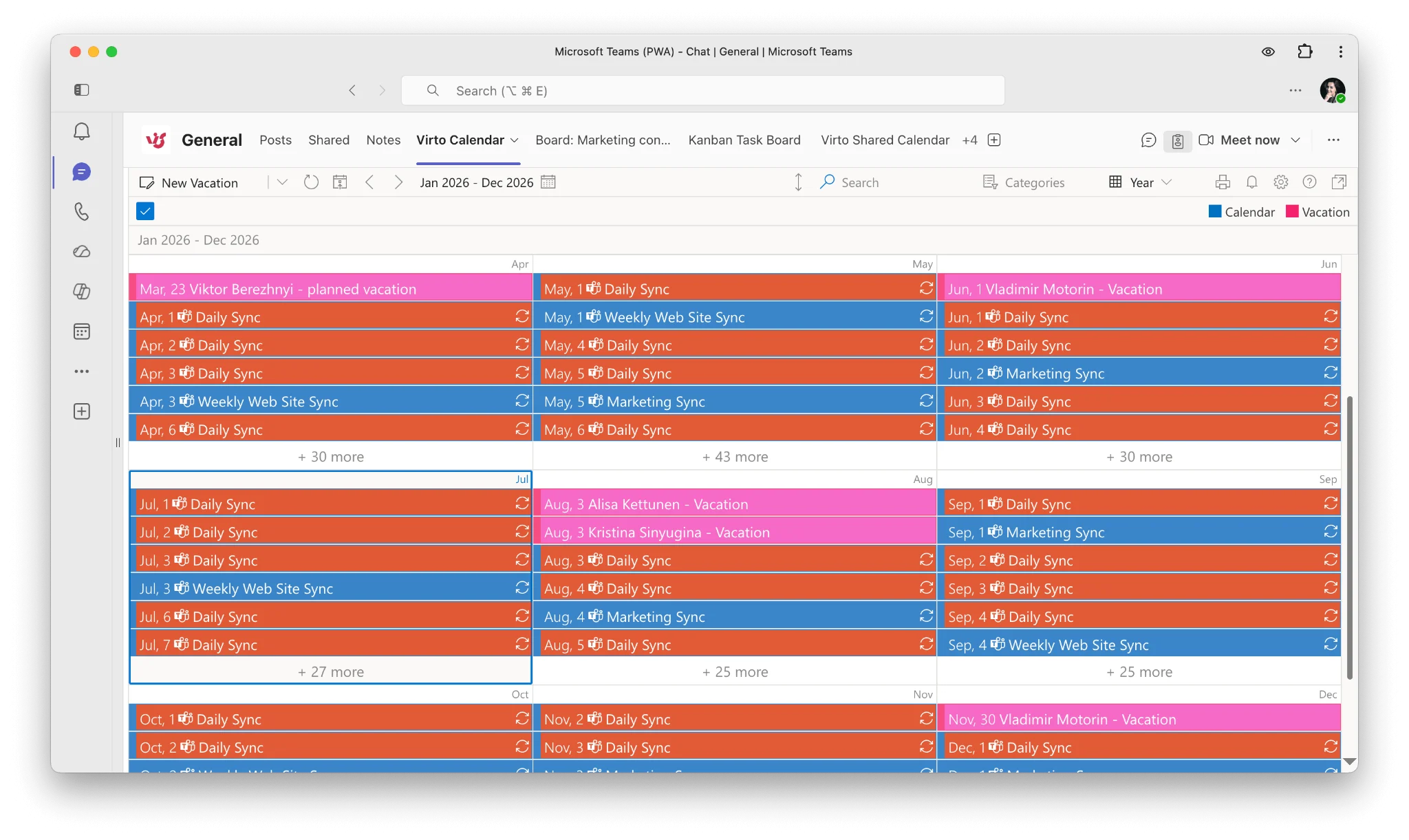
- Purpose: The Virto Calendar App integrates multiple calendars into one SharePoint calendar view, combining Exchange Calendar (Outlook), Google Calendar, SalesForce Calendar, and others. This makes it easier to manage multiple schedules and deadlines from a single interface.
- Features: This app supports color-coding for different calendar sources and allows users to overlay up to 10 calendars. It’s particularly useful for organizations that operate across different scheduling platforms and need a unified view of all events and tasks.
- Benefits: Enhances planning and coordination within teams, ensures no overlapping of important dates, and improves overall time management.
- Trial and availability: Free 30-day trial, demo available.
Kanban Board
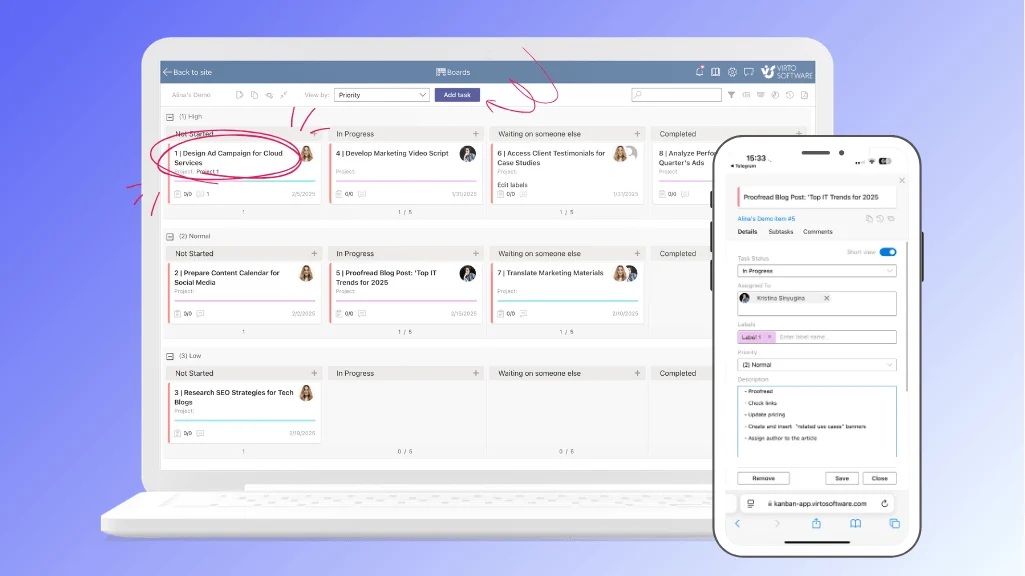
- Purpose: The SharePoint Kanban Board is designed to visualize and manage tasks in SharePoint. The Kanban approach allows for a clear visual management of work at various stages of a process using a card-based layout.
- Features: This tool supports drag-and-drop functionality, customizable columns and swimlanes, color coding, and a variety of task management features such as sorting, filtering, and editing directly from the Kanban board.
- Benefits: Increases workflow transparency, enhances task tracking, and improves team efficiency. It’s ideal for project management and iterative tasks in agile environments.
- Trial and availability: Free 30-day trial, demo available.
Alerts and Notifications
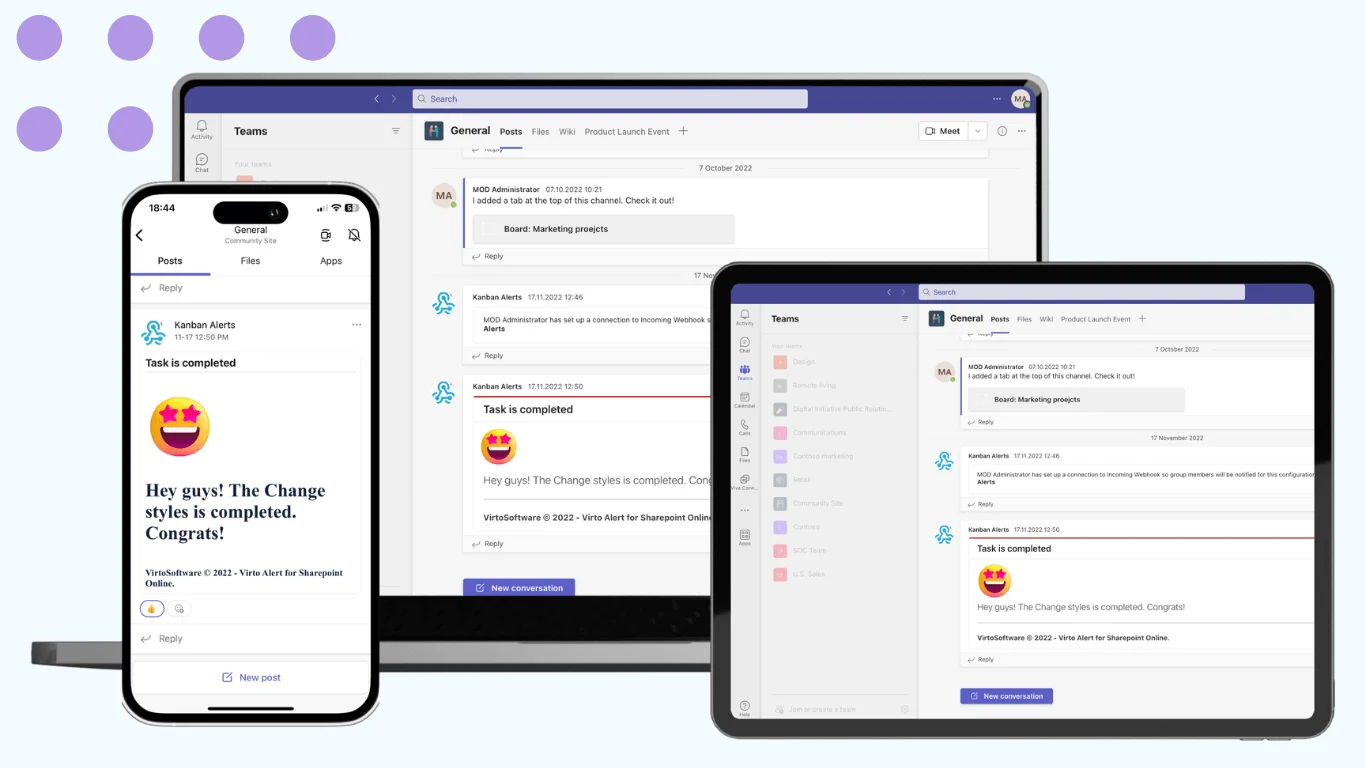
- Purpose: The Alerts and Notifications tool is essential for keeping team members updated about changes within SharePoint lists, documents, and other items. It automates notification delivery to ensure timely updates.
- Features: Users can customize alert conditions, define alert templates, and manage alert settings to tailor the notifications to their specific needs.
- Benefits: Ensures that all team members are promptly informed about updates, which is crucial for maintaining operational continuity and rapid response to changes.
- Trial and availability: Free 30-day trial, demo available.
VirtoSoftware products are developed to be fully compliant with native SharePoint applications. They respect the operational boundaries and capabilities defined by Microsoft, ensuring that they work seamlessly within the SharePoint environment without causing conflicts or security risks.
When using VirtoSoftware tools, all data is managed and stored within Microsoft’s cloud services (for SharePoint Online users) or on the organization’s own servers (for SharePoint On-Premise users). This approach adheres to strict data security policies, ensuring that sensitive information is not transferred to or stored in third-party storage facilities. This is crucial for maintaining corporate security and data integrity.
Finally, VirtoSoftware’s products adhere to Microsoft’s security policies and guidelines, providing an extra layer of assurance that the tools will not compromise the security of your SharePoint environment.
Conclusion to SharePoint On-Premises and SharePoint Online Limitations
The capabilities of SharePoint, whether On-Premises or Online, are robust, but understanding the inherent limitations and restrictions of each version is crucial for effective deployment and management. As mentioned, On-prem requires major infrastructure and maintenance investments but permits deeper customization. Online limits storage yet eases scaling and administration since Microsoft handles upgrades. Ultimately their constraints are navigable with savvy management. Regularly review and clean storage. Leverage modern automation tools for workflows and processes. And size on-prem servers or online subscriptions to balance performance and costs.
When using third-party apps to enhance SharePoint capabilities, it’s paramount to ensure they adhere to stringent security standards. Applications claiming to bypass SharePoint limitations might pose security risks. Always verify the security compliance of any third-party tool before integration.
As highlighted previously, VirtoSoftware offers a range of SharePoint enhancements that respect Microsoft’s security policies and improve the user experience: Virto Calendar, Kanban Board, or Alerts and Notifications. These tools are designed to not only improve functionality but also maintain the integrity and security of your SharePoint environment.
Need help with initial setup? Our support team is ready to guide you on your way! Book a Meeting »>
For official documentation on SharePoint limits and managing site collection storage, please refer to the following links:
For other helpful resources, visit the blog to read articles on topics of your interest, including these helpful pieces:
- SharePoint Permissions
- Microsoft Teams Security
- Permissions of the Virto Calendar for Microsoft 365 and Microsoft Teams
By staying informed about the limitations of SharePoint and using tools like those offered by VirtoSoftware, you can effectively navigate constraints, ensuring a secure, efficient, and productive environment.
References:
(1) Source: Microsoft.
(2) Source: Microsoft.