
Quick answer: what is a SharePoint form? A SharePoint form is the New, Edit or Display view of an item in a SharePoint list, and every list gets all three automatically. You can change them in four ways: the default form with JSON formatting, Power Apps, a form designer such as Virto Forms Designer App, or the retired SharePoint Designer. Approval runs next to the form, in Approvals in Lists or Power Automate.
Most questions about SharePoint forms come down to three: how do I make one, how do I make it fit my process, and how does a request get approved. This guide answers them in that order, as of SharePoint Online in October 2026, then compares list forms with Microsoft Forms. Where one of our own apps helps, we say what it does and where it stops.
What SharePoint forms are and when to use them
A SharePoint form is the screen people use to add, read and change an item in a list, or the properties of a file in a library. The form does not hold the data: each field is a column of the list, and each saved form is one list item that can be sorted, filtered, approved and traced in its version history.
Every list comes with three forms:
- New, for creating an item;
- Edit, for changing it;
- Display, for reading it.
Use a SharePoint form when the data belongs to a process inside your organization: requests, tickets, registrations, inspections, anything that still has a status and an owner after it is submitted. For a quick poll, a quiz or a survey sent to people outside the organization, Microsoft Forms is the better tool; the comparison is further down.
What is a SharePoint form library?
A form library is a document library made to store XML forms: the data files that InfoPath forms produced from an .xsn template. Microsoft removed InfoPath Forms Services from SharePoint Online after July 14, 2026, so a form library is now an archive of old submissions, and new forms are built on lists. Our guide to InfoPath end of life explains how to find old InfoPath forms and what to rebuild each type with.
Create a SharePoint list form (step by step)
Most SharePoint forms start with a list: you create the list, add its columns, and SharePoint builds the form from them. The example below is a vacation request, but the same steps work for an IT ticket, an equipment request or an incident report.
Step 1: create a SharePoint list
- Go to your SharePoint site.
- Select New → List.
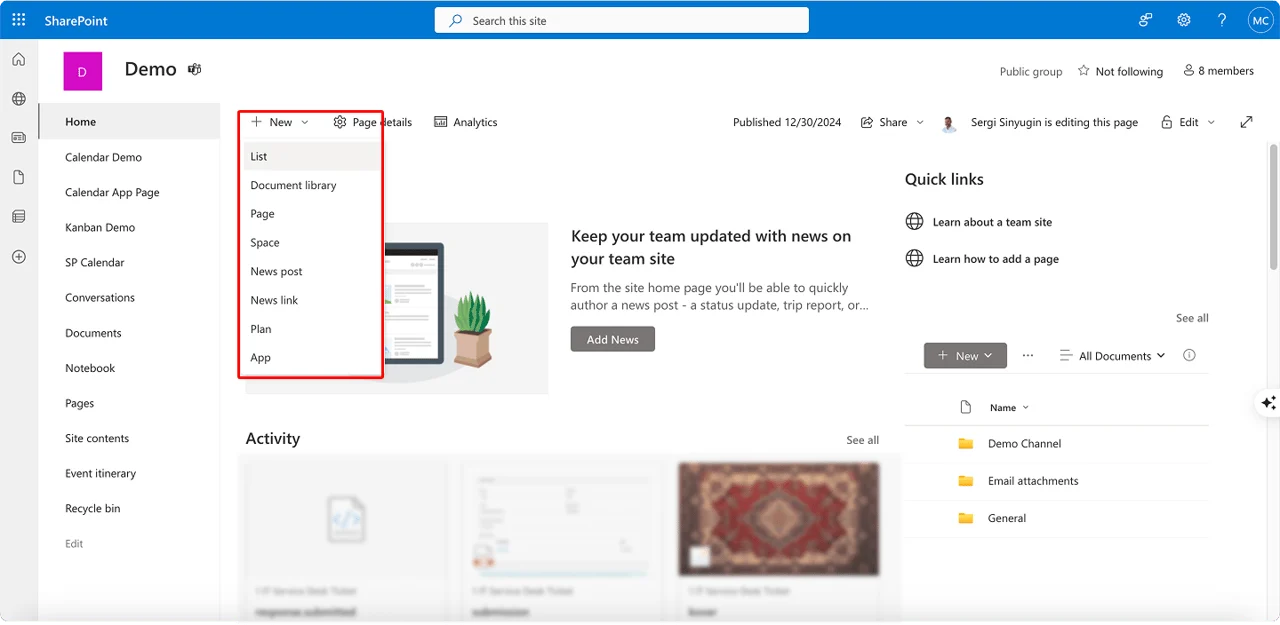
Pic. 1. Creating a new list on a SharePoint site
- Choose Blank list or a template, name it (for example, Vacation requests) and select Create.
Step 2: add columns
Each column becomes a field on the form. For a vacation request:
- Employee, a Person column;
- Start date and End date, Date and time columns;
- Reason, Multiple lines of text;
- Status, a Choice column with New, Pending approval, Approved and Rejected;
- Manager comments, Multiple lines of text.
Select Add column, pick the type, give it a name and save.
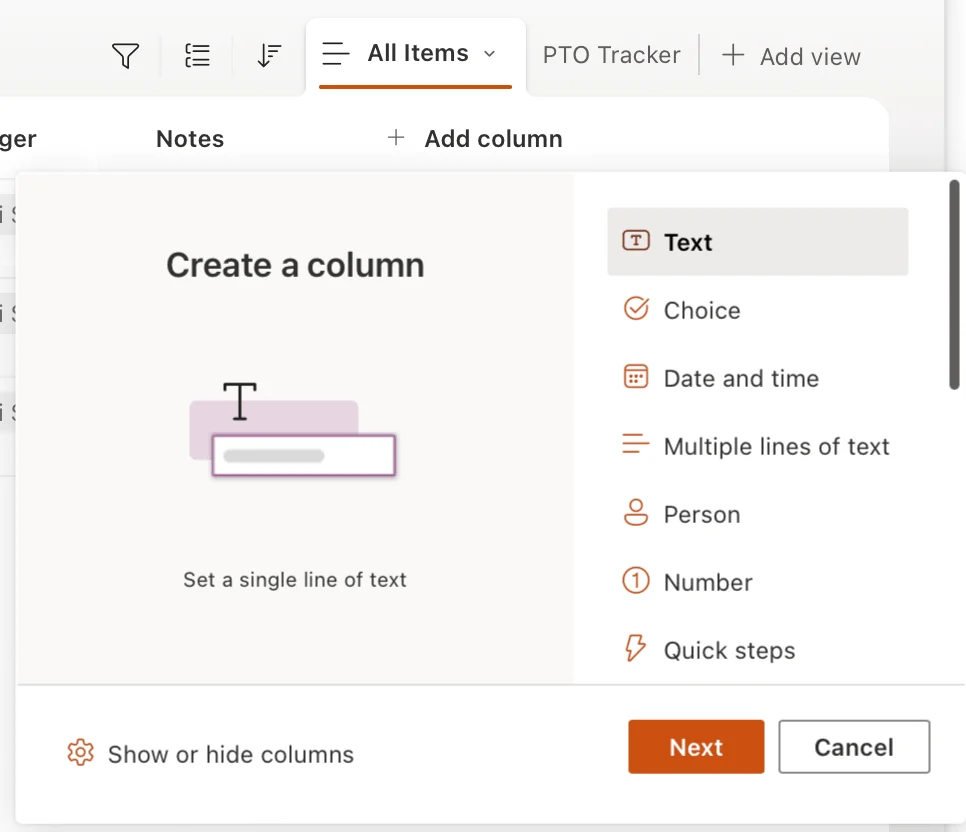
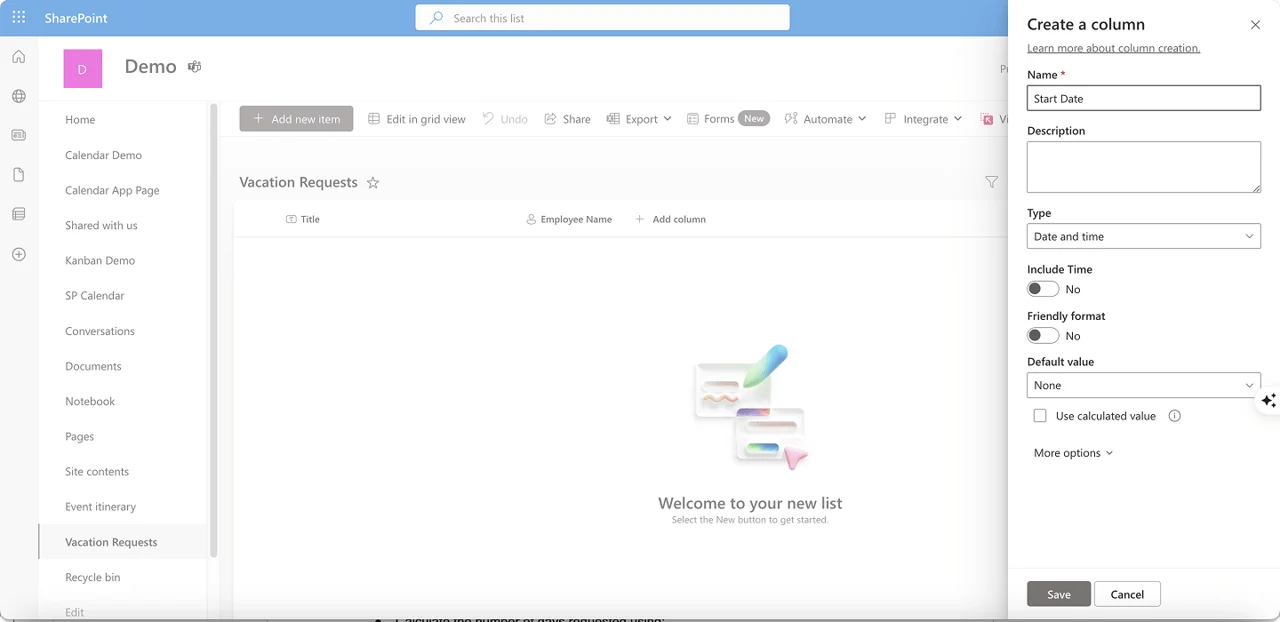
Pic. 2 and 3. Adding columns to a SharePoint list
Step 3: check the form
Select New in the list. The form already shows every column you added, in the order you added them. Two settings are worth making before anyone else uses it:
- Required columns. In a column’s settings, Require that this column contains information stops a form from being saved without it.
- A validation rule. List settings → Validation settings stops impossible values on every form, for example an end date before the start date:
=[End date]>=[Start date]. Our guide to the SharePoint leave request form adds a formula that counts working days.
From here the form works. The next section changes how it looks and what it does.
Customize a SharePoint list form: 4 ways
The list’s columns decide what a form contains. Customization decides how it looks, who sees which part, and what happens when a value changes. There are four ways to do it, from free and built in to a separate app.
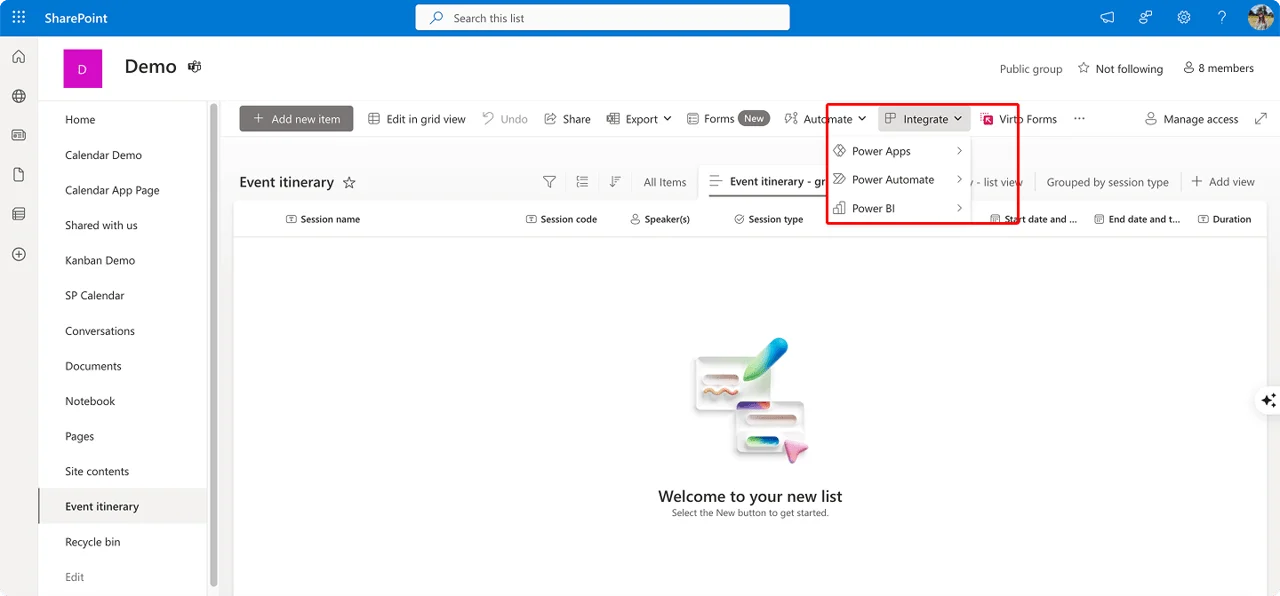
Pic. 4. The list command bar: Forms, Integrate with Power Apps and Power Automate, and Virto Forms, which appears once the app is installed
1. The default form with JSON formatting
Free, built in, and enough for more forms than people expect. Open any item and select Edit form at the top of it:
- Edit columns shows, hides and reorders columns. Each column can also get a conditional formula that shows it only when another column has a certain value, for example
=if([$Category] == 'Hardware', 'true', 'false')(Microsoft Learn). - Configure layout takes JSON for a header, a footer and a body split into sections. Once the body has sections, the form switches to several columns (Microsoft Learn).
What it changes: the order, visibility and grouping of fields, and how the top and the bottom of the form look. What it does not change: there are no tabs, no different form for different people, and conditional formulas do not work with multi-select, currency, calculated or managed metadata columns. Formatting changes only how the form looks, never the data or who may edit it.
2. Power Apps
Integrate → Power Apps → Customize forms replaces the list’s form with a canvas app (Microsoft Learn). It can do almost anything a form can: rules that depend on several fields, values filled in from the current user, calculations on screen, data from other sources, and a layout of any shape.
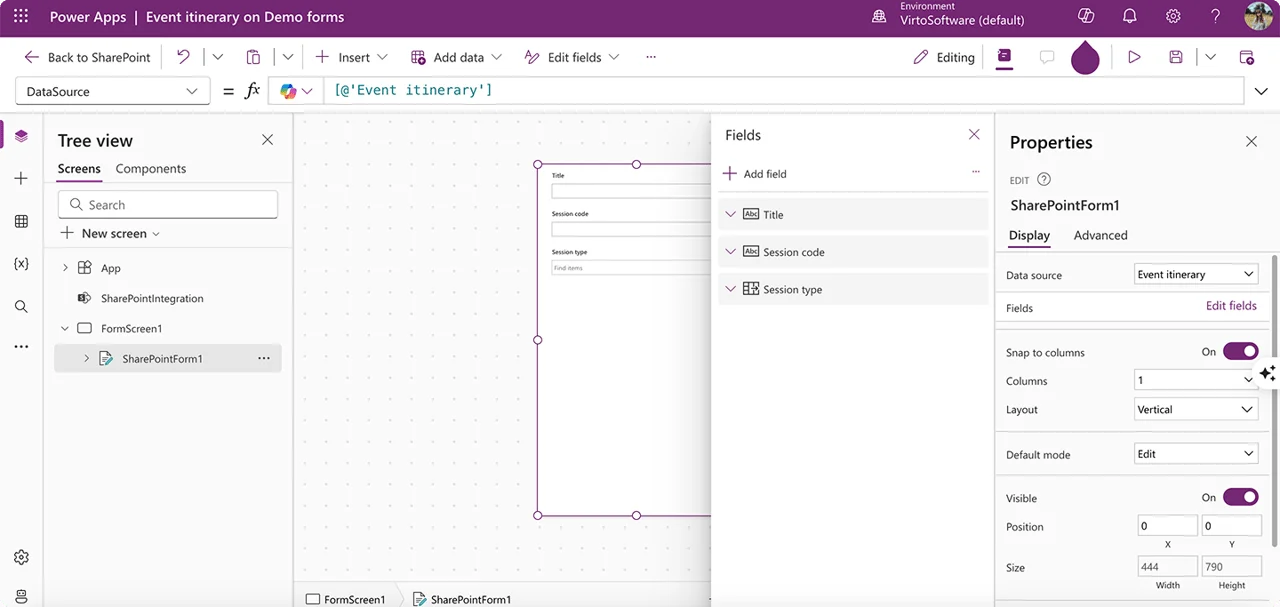
Pic. 5. A list form in Power Apps Studio
Power Apps is justified when the form needs logic the default form cannot express and someone on the team writes Power Fx. The cost comes later:
- Formulas, not settings. Every rule is a Power Fx formula, and when the person who built the form moves on, the next change waits for someone who can read them.
- Moving it is a procedure. The custom form is tied to its list; for moving it to another site or tenant, Microsoft publishes a separate white paper.
- Licences. Standard connectors are covered by Microsoft 365, but in a Managed Environment every active user needs a premium licence (Microsoft Learn).
3. A form designer app: Virto Forms Designer App
Between JSON and Power Apps sits a third option: a designer that rebuilds the list’s own New, Edit and Display forms by drag and drop. Developers can build something similar as a SharePoint Framework form customizer; a ready-made app saves that work.
Virto Forms Designer App is our SharePoint Online form designer. Without code it gives you:
- New, Edit and Display forms built by drag and drop, with fields side by side in two or more columns;
- tabs, accordions and panels that split a long form into parts;
- a separate layout for a user or a SharePoint group: the requester sees a short form, the approver also sees the decision fields;
- tabs and fields that are hidden or read-only in the form for people who do not need to change them.
Where it stops:
- Logic is JavaScript. Validation, calculated values, cascading drop-downs and showing a field based on another field’s value are written in JavaScript in the designer; there is no setting for them. If conditional fields are all you need, the free default form above already does it.
- Hidden is not protected. A hidden or read-only tab shapes the form; it does not protect the data. Who may change an item is still decided by the list’s permissions.
- Required means everyone. A required field is shown to all users, so a field that only one group fills in has to be optional.
- Publishing needs custom script. The app publishes the form as a page in the list, which requires the site to allow custom script. A SharePoint administrator turns it on, SharePoint turns it off again within 24 hours, and forms that are already published keep working.
- People in your organization only. There are no anonymous or public forms; that is what Microsoft Forms is for.
Try the designer in an interactive demo, no install: an equipment request form gets a Handover tab that only the IT team can edit.
On SharePoint Server, the on-premises Virto Form Designer does the same job for SharePoint 2013, 2016, 2019 and Subscription Edition.
4. SharePoint Designer (retired)
SharePoint Designer 2013 reached the end of support on July 14, 2026, and it only ever edited classic forms. Do not start a new form in it. If old forms were built there, rebuild them with one of the three ways above.
Which way for which need
| What you need | Default form and JSON | Power Apps | Virto Forms Designer App |
|---|---|---|---|
| Fields side by side | Yes, body sections in JSON | Yes | Yes, drag and drop |
| Tabs | No | Yes, built with controls and formulas | Yes, also accordions and panels |
| A different form per group | No | With formulas | Yes, a layout per user or SharePoint group |
| Hide or lock a field for some people | No | With formulas | Yes, hidden or read-only; list permissions still decide who may change data |
| Show a field depending on another field | Yes, conditional formula | Yes, formula | JavaScript |
| Validation | List and column validation, which apply to every form | Formulas, plus list validation | List validation, or JavaScript in the form |
| Calculated values | Calculated column, shown after saving | Formulas, live on screen | Calculated column, or JavaScript |
| Cascading drop-downs | No | Yes, with formulas | JavaScript |
| Anonymous or public respondents | No | No | No; use Microsoft Forms |
| Who maintains it | The list owner | Someone who writes Power Fx | The list owner for the layout; a developer for JavaScript |
| Cost | Included | Included with standard connectors; premium in a Managed Environment | Paid app per tenant |
Fig. 1. Four ways to customize a SharePoint list form, need by need
Customize a SharePoint list form without Power Apps
You can, for most forms. The default form gives you column order, conditional fields, sections in several columns, a header and a footer, all free. List validation and calculated columns add rules that work in any form you choose later. A form designer adds what the default form lacks, tabs and a different form for each group, without code. You need Power Apps, or JavaScript in a designer, when the form itself must calculate on screen, filter one drop-down by another or pull data from other systems.
Add approval to a SharePoint form: SharePoint approval workflow options
A request is a list item, and an approval is a decision recorded on that item. So approval does not live inside the form: the form collects the request, and a separate mechanism asks the approver, records the answer and tells the requester. SharePoint Online has three such mechanisms. Pick one per list, because Microsoft does not combine content approval with Approvals in Lists.
Approvals in Microsoft Lists
Turn it on in the list with Integrate → Configure approvals → Enable approvals. On an item, Request approval opens a dialog for the approvers and details; any one approver can decide, or you can require a response from all of them. Approvers answer in the list or in the Approvals app in Teams, and an Approval status column shows where each request stands. Lists created from the Travel requests with approvals and Content scheduler with approvals templates have it set up already (Microsoft Support).
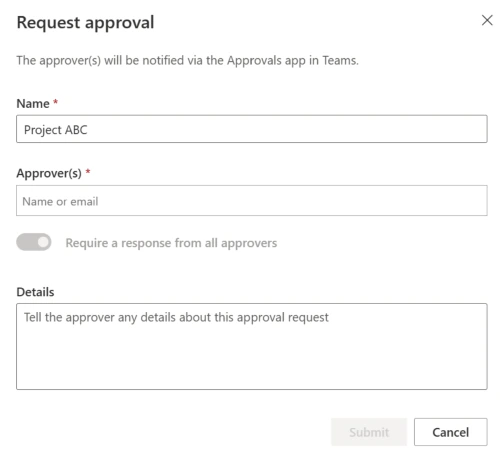
Pic. 6. The Request approval dialog in Microsoft Lists. Source: Microsoft Support
Three limits from Microsoft’s own list matter for request forms: an approver who cannot see the item does not get access to it automatically, editing the item cancels the approval in progress, and the approval columns show only the latest activity, with the full history in Teams.
Power Automate: Start and wait for an approval
Choose Power Automate when approval has more than one stage, depends on a value such as the amount, or needs your own email wording.
- Go to Power Automate and select Create → Automated cloud flow.
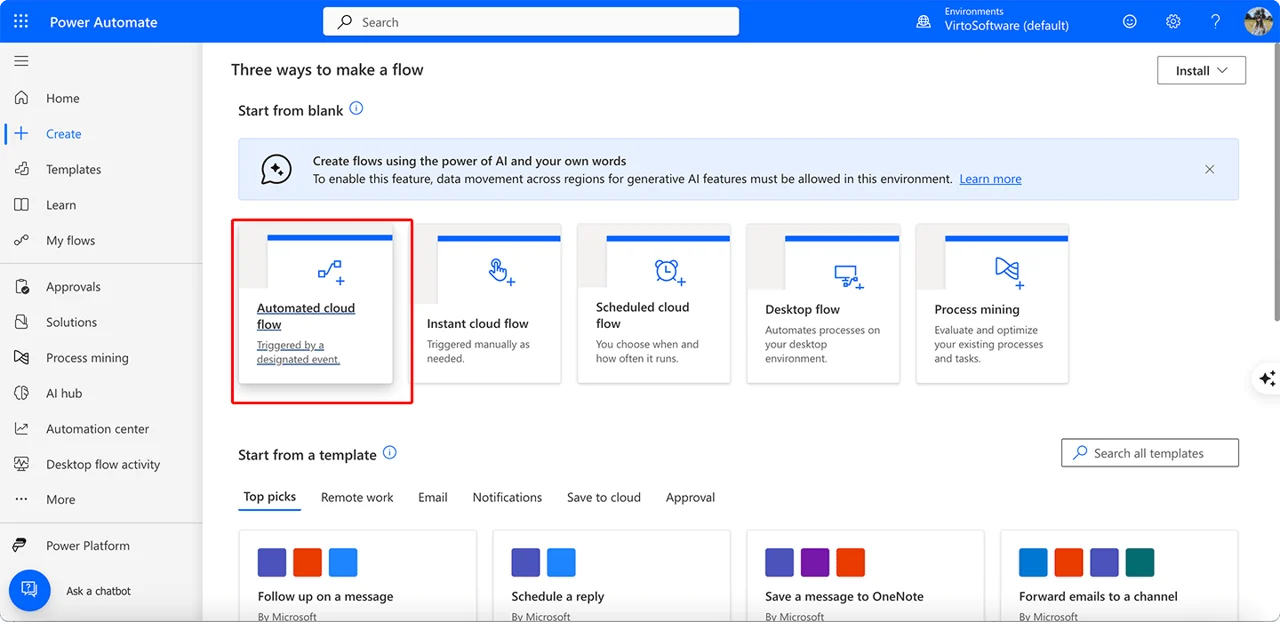
Pic. 7. Starting an automated cloud flow in Power Automate
- Choose the SharePoint trigger When an item is created and select your site and list.
- Add the action Start and wait for an approval and assign the approver, for example the person in the request’s Approver column.
- Add a Condition on the outcome. If approved, set the item’s status to Approved and email the requester; if rejected, set Rejected and include the approver’s comments.
Microsoft’s own approval tutorial builds this flow for vacation requests (Microsoft Learn). Approvers answer from email, the Approvals app in Teams or the approvals center in Power Automate.
Content approval
The oldest option: List settings → Versioning settings → Require content approval for submitted items. A new item stays pending until someone with approval rights approves it, and Draft item security can hide pending items from everyone except the approvers and the author. It sends no notifications on its own, so pair it with a list rule or a reminder.
| Approvals in Lists | Power Automate | Content approval | |
|---|---|---|---|
| Stages | One; one approver or all | Any number, with conditions | One |
| Where approvers answer | The list or the Approvals app in Teams | Email, Teams, the approvals center | The list |
| Notifications | The Approvals app in Teams | Built into the flow | None; add a rule or a reminder |
| Pick it when | One person signs off | Approval depends on amount, type or several people | Items should stay hidden until approved |
Fig. 2. Three ways to approve a request in SharePoint Online
What the requester sees and what the approver sees
When the decision fields sit on the same item as the request, the requester and the approver work with one record. With Virto Forms Designer App, the form can have a tab that only the approving group edits, while everyone else sees it read-only. In our purchase request form, the employee fills in the Request tab and finance completes the Order tab:
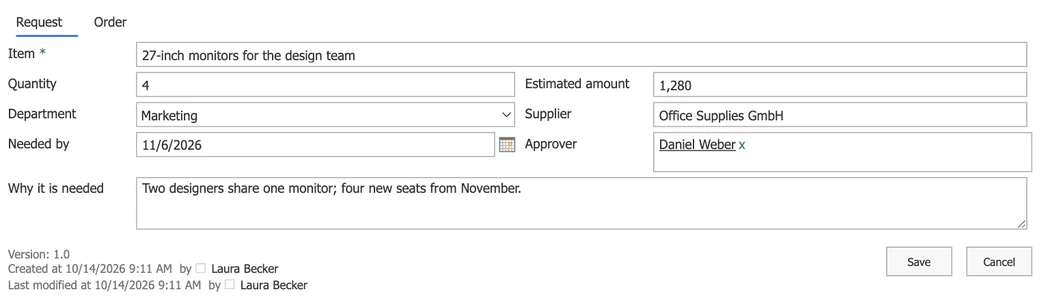
Pic. 8. The Request tab of a purchase request, filled in by the employee
In the IT change request form, the change advisory board records its decision on a tab of its own:

Pic. 9. The CAB decision tab, edited only by the change advisory board
The designer does not run approvals itself: the decision fields are ordinary columns, and Approvals in Lists or a Power Automate flow sends the request and writes the outcome into them.
Approvers also need to hear about new requests and be reminded of the ones still waiting. Virto Alerts & Reminder App emails the approver or posts to a Teams channel when a request arrives, and sends reminders before a date in the request or once it is overdue, without building a flow. For a worked example with a working-days formula, see how to add approval to a leave request form, and for a wider look at approval tools, our guide to automated approval workflows.
SharePoint list form vs Microsoft Forms
Both are called forms and both live in Microsoft 365, but they solve different problems. A SharePoint list form edits a record that lives on: it has a status, an owner and a history. Microsoft Forms collects answers: quick to build, easy to send to anyone, and finished once submitted. Microsoft Lists adds a third option in between, a shareable form whose answers become list items.
| SharePoint list form | Microsoft Lists forms | Microsoft Forms | |
|---|---|---|---|
| Who fills it in | People in your organization, and guests with access to the site | Signed-in people in your organization | Anyone, including anonymous respondents, if your administrator allows it |
| Where an answer is stored | A list item | A list item | In Forms; in a list only through Power Automate |
| Choices from list data | Yes, lookup columns | Yes, lookup columns (respondents need read access to the source list) | No |
| Changing an answer later | In the Edit form, with edit rights | In the list, with edit rights | In Forms only, and only if the form allows it |
| Status, owner, history | Yes, columns and version history | Yes, in the list | No |
| Approval | Approvals in Lists, Power Automate, content approval | The same, on the list | Power Automate |
| File upload | Attachments | Attachments | Respondents in your organization only |
Fig. 3. SharePoint list form, Microsoft Lists forms and Microsoft Forms compared
A simple rule: if an answer needs an owner, a status or an approval after it arrives, it belongs in a list. If you need answers from people outside the organization, or anonymous ones, start in Microsoft Forms and send the responses to a list. For surveys, our guide to Microsoft Forms surveys covers question types, sharing and results.
Send Microsoft Forms responses to a SharePoint list
- Create the list with one column per question, using matching column types: Choice for choice questions, Date and time for dates.
- In Power Automate, create an Automated cloud flow with the Microsoft Forms trigger When a new response is submitted, and select your form.
- Add the Microsoft Forms action Get response details for the same form, with the response ID from the trigger.
- Add the SharePoint action Create item, select the site and list, and map each column to its answer.
- Save the flow, submit a test response and check that the new item appears.
Microsoft describes the trigger and the action in Overview of flows with Microsoft Forms and Common ways to use a form in a flow.
Where it breaks:
- One direction only. The flow copies a new response into a new item. An answer edited later in Forms does not change the item, and an edit in the list does not reach Forms.
- No list data in the form. Forms cannot offer a list’s values as choices, so a question such as “Which project?” is typed by hand.
- Choices kept twice. A choice added to the list column does not appear in the form, and the reverse; keep them in step by hand.
- Files stay in Forms storage. File upload works only for respondents in your organization, and the files go to the form owner’s OneDrive or the group’s site, not to the list item.
SharePoint lists vs SharePoint forms
A list is the table where requests are stored; a form is the screen for one row of it. The list holds the columns, views, permissions and history, and you change it in list settings, views and rules. The form decides which of those columns a person sees and in what order, and you change it with JSON, Power Apps or a form designer. Changing a form never changes the data already in the list. For more on lists themselves, see our guide to Microsoft Lists.
SharePoint form templates and examples
Among the templates in Microsoft Lists, three fit request processes: Issue tracker, Travel requests, which comes with approvals already turned on, and Asset manager. Each gives you the columns and a working form in a minute. For nine ready request forms with their columns, layout and approval, see our collection of SharePoint form templates. The eight request forms in the next section show what such a list looks like once every team has its own tab.
Real request forms built with Virto Forms Designer App
We built eight request forms on our own SharePoint site, each a list with a form in tabs and a tab that one team owns. Every page shows the forms as people see them:
- Employee onboarding form: HR, IT, facilities and the hiring manager each work in their own form of one record.
- Purchase request form: the employee asks for an item; finance completes the order on its own tab.
- IT change request form: the change, its impact and risk, and a CAB decision that only the board writes.
- Travel request form: the trip, the flights and hotel the travel desk books, and the approval.
- IT help desk ticket form: a short ticket for employees and a triage tab for the service desk.
- Incident report form: the report anyone can file, with photos, and an investigation tab for the safety team.
- Contract request form: the business asks for a contract; legal records the review on its own tab.
- Equipment request form: a short request and a handover tab where IT records the asset tag and serial number.
Common SharePoint form issues and solutions
| Issue | Common problems | Recommended solutions |
|---|---|---|
| Limited layout | One long column, no tabs | JSON sections, Power Apps, a form designer |
| Design and branding | Plain look, no logo | JSON header and footer, Power Apps themes |
| Process | No approval, manual follow-up | Approvals in Lists, Power Automate, list rules |
| Compatibility | Different behaviour on phones and browsers | Test on the devices people use; keep forms short |
| Performance | Slow forms on large lists | Indexed columns, fewer lookup columns per form |
| Security | Too many people can edit | List and item permissions, version history |
Fig. 4. Common SharePoint form issues and how to fix them
Start with the lightest fix that solves the problem: JSON for layout, list validation for rules, Power Apps or a designer only when the native form falls short. Three problems deserve a closer look.
“Your account does not have required permission” when publishing a form
Virto Forms Designer App shows this message when the site does not allow custom script: publishing writes the form into the list as a page, and the Add and Customize Pages permission behind it is blocked on most SharePoint Online sites by default. It is the most common question we get about the app. A SharePoint administrator allows custom script for the site in the SharePoint admin center (Active sites → the site → Settings → Custom scripts) or with Set-SPOSite <SiteURL> -DenyAddAndCustomizePages 0. SharePoint switches it back to blocked within 24 hours (Microsoft Learn), and published forms keep working, so the permission is needed only while you publish or reset a form.
A hidden field is not a protected field
Hiding a column in the default form, hiding it with a formula in Power Apps, or making a tab read-only in a form designer all shape the form, not the data. Anyone with edit rights on the list can still change the value in grid view, in another form or through the API. To protect a value, use permissions: item-level permissions in the list’s advanced settings, or a separate list for the sensitive part with its own permissions.
A required field that only one group fills in
A required column has to be filled in on every save, and Virto Forms Designer App shows required fields to all users. Keep the columns that only approvers or one team fill in optional, and check them in the approval step instead.
Where are SharePoint forms stored?
SharePoint does not store forms as separate files; they are part of the list. Each submitted form is a list item, each field maps to a column, and attachments live in a hidden folder linked to the item.
| Component | Storage location | Notes |
|---|---|---|
| Standard form design | The list’s definition | The default form |
| Power Apps form design | The Power Apps service | Linked to the list, not stored in it |
| JSON form formatting | The list’s content type | Changes how the form looks only |
| Submitted data | List items | Each field is a column |
| Attachments | Hidden attachments folder | Linked to the list item |
Fig. 5. Where SharePoint forms and their data are stored
Because the data lives in the list, it inherits SharePoint’s version history, item-level permissions, content approval, retention policies and metadata. Deleted items stay in the recycle bin for 93 days, and exporting to Excel or archiving with Power Automate adds another layer of protection.
FAQ
Can I customize a SharePoint list form without Power Apps?
Yes. The default form reorders and hides columns, shows a column only when another column has a certain value, and splits the form into sections with JSON. A form designer such as Virto Forms Designer App adds tabs and a form per SharePoint group without code; calculations on screen and cascading drop-downs need Power Apps or JavaScript.
How do I add approval to a SharePoint form?
Turn on Approvals in Lists (Integrate → Configure approvals) for a single sign-off, or build a Power Automate flow with Start and wait for an approval for several stages or rules by amount. Content approval keeps new items hidden until they are approved.
Can Microsoft Forms save responses to a SharePoint list?
Yes, with a Power Automate flow: When a new response is submitted, Get response details, then Create item in the list. The copy goes one way only: later edits in Forms do not update the item, and the form cannot show values from the list.
Can external or anonymous users fill in a SharePoint list form?
Not anonymously. A list form needs a signed-in user with access to the list, which can be a guest invited to the site. For anonymous or public respondents, use Microsoft Forms and send the answers to a list with Power Automate.
Where can I get SharePoint form templates?
Microsoft Lists has templates such as Issue tracker, Travel requests and Asset manager. The eight request forms in this guide show their columns, their layout and which team edits which tab. Our SharePoint form templates collection has nine request forms with their columns, layout and approval.
Conclusion
A SharePoint form is the front of a list, and that is its strength: every request becomes an item with a status, an owner and a history. Start with the default form, which does more than its reputation suggests. Reach for Power Apps when the form itself must calculate, or for a form designer when different people need different views of the same request. Run approval next to the form, and use Microsoft Forms when the people answering are outside your organization.
To see Virto Forms Designer App working on your own lists, book a demo.
Further reading: Customize a form for a SharePoint list (Microsoft) · What is SharePoint?