Every organisation eventually has to let outsiders in. A client needs to see project drawings, a supplier needs to upload compliance certificates, a reseller needs the latest price list. The awkward part is doing it without handing those people a seat inside your intranet — and without falling back on email attachments nobody can version or audit.
A SharePoint extranet is the answer most Microsoft 365 organisations land on. It is a normal SharePoint site, deliberately built for people outside your company, with authentication, permissions and compliance controls wrapped around it. This guide covers what an extranet actually is, how to build one step by step, how to keep it secure a year later, and where a SharePoint extranet is — and is not — the right choice.
What is a SharePoint extranet?
Quick answer: A SharePoint extranet is a SharePoint site configured to securely share content and collaborate with external partners, vendors or clients, using Microsoft 365 external sharing and Microsoft Entra B2B, and kept separate from your internal sites.
The defining feature is not the technology — it is the boundary. An extranet sits between two things you already understand. An intranet is for employees and is normally reached from a managed device or corporate network. A public website is open to anyone with the URL and asks for no credentials at all. An extranet is reachable from anywhere, like a public site, but every visitor has to prove who they are first, like an intranet.
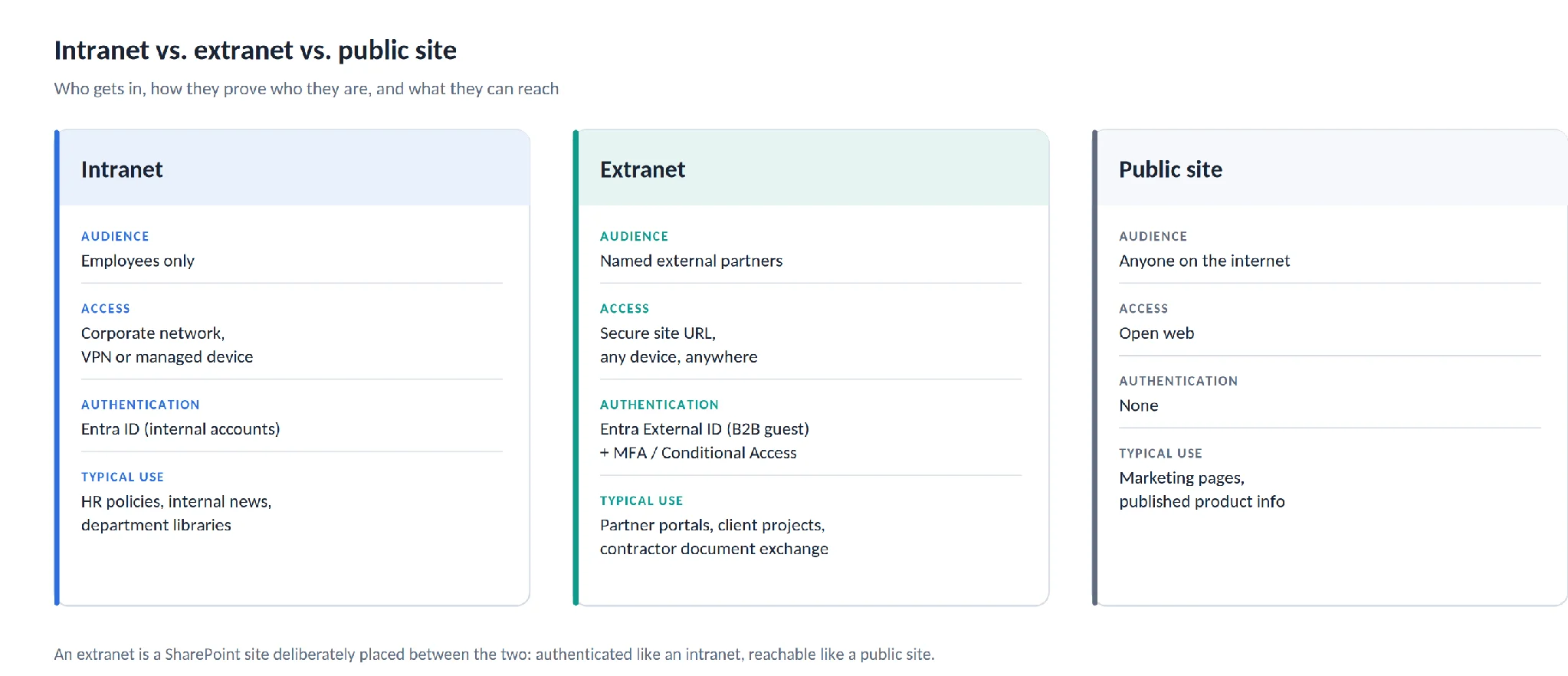
Pic.1. Where an extranet sits between an intranet and a public website.
Extranet vs external sharing: what is the difference?
These two terms get used interchangeably and they should not be. External sharing is the mechanism — the tenant and site settings that decide whether your people are allowed to share anything with anyone outside the organisation, and what kind of link they get. An extranet is a destination — a dedicated site, built on top of those settings, where a partner relationship lives over months or years.
Put another way: you turn on external sharing once, at tenant level. You build an extranet each time a partner relationship is substantial enough to deserve its own home. If you are still deciding how to configure the underlying settings, our guide to SharePoint external sharing walks through every option in the admin center.
How the pieces fit together
A working extranet has three parts. Outside your tenant are the partners themselves. Between them and your content sits Microsoft Entra External ID, which issues each partner a guest account in your directory and applies your MFA and Conditional Access policies to it. Behind that sits the extranet itself: usually a hub site for shared navigation, with a separate site per partner or project underneath.
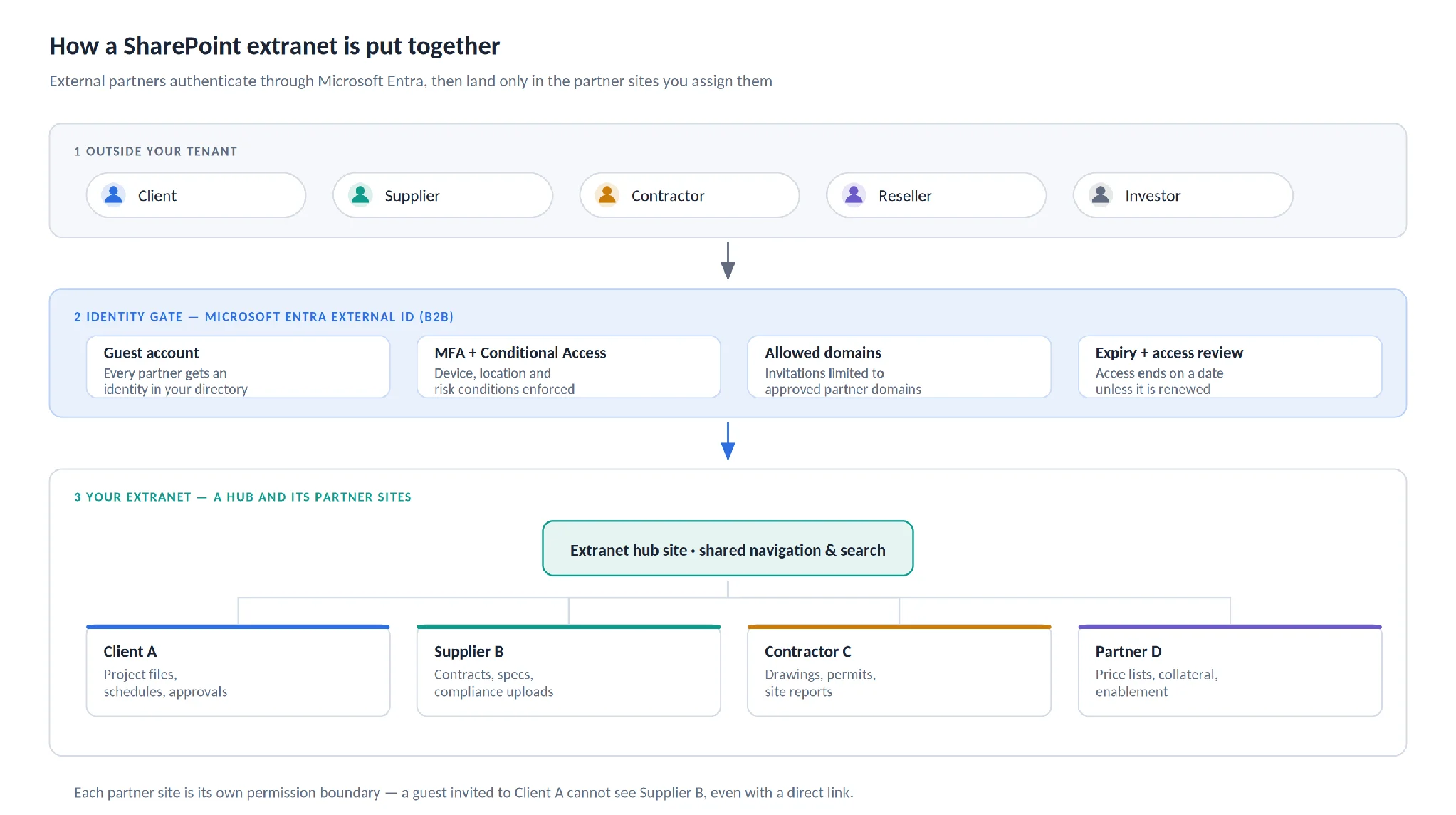
Pic.2. The three layers of a SharePoint extranet: external users, the Entra identity gate, and the partner sites themselves.
Important update for 2026. A note on how partners sign in, because this changed recently. Microsoft has moved SharePoint and OneDrive external sharing onto Microsoft Entra B2B. From May 2026 the integration is enabled for every tenant and can no longer be switched off, and from July 2026 external collaborators without an Entra B2B guest account in your directory lose access to previously shared links. One-time passcodes have not disappeared — Entra B2B still uses email OTP as a fallback for people with no work, school or Microsoft account — but the old SharePoint-native OTP path is gone. Microsoft’s FAQ on the B2B transition is the authoritative reference if you are auditing an older extranet.
Benefits and use cases of a SharePoint extranet
If your organisation already pays for Microsoft 365, an extranet built on SharePoint gives you five things a separate portal product usually cannot.
One identity system for staff and partners
Guests are real objects in your directory, so the same Conditional Access policy, the same MFA requirement and the same access review process that governs employees also governs the contractor who joined last week. There is no second user store to reconcile, and offboarding a partner is one action, not three. See Microsoft Entra B2B collaboration for how guest identities are managed.
Granular, auditable access control
Permissions can be set at site, library, folder or item level, and every share, view and download is written to the audit log. For regulated work — GDPR, ISO 27001, HIPAA — that audit trail is often the reason SharePoint wins over a file-sharing tool.
A single source of truth
Version history, co-authoring and check-out mean the partner is always looking at the current revision rather than an attachment someone emailed three weeks ago. Naming conventions and retention rules apply to partner content exactly as they do internally.
Automation without extra tooling
Power Automate handles approvals, onboarding flows and status updates. Alerts can fire when a document changes, a due date approaches or an access package is about to expire — which is where a purpose-built notification tool earns its keep, since native SharePoint alerts are deliberately basic.
Room to grow
An extranet can start as one site for one client and expand into a hub with dozens of partner sites beneath it, without a migration. If you are unsure which site template to start from, our overview of SharePoint site types compares the options.
Common use cases
| Use case | What partners do there | Why an extranet fits |
|---|---|---|
| Project collaboration portal | Upload deliverables, review updates, approve documents | Long-running relationship with real document workflow |
| Supplier and contractor exchange | Submit contracts, specifications, compliance certificates | Uploads need to be controlled and evidenced |
| Partner or reseller portal | Pull price lists, collateral, enablement material | Many partners, tiered access, frequent updates |
| Client service portal | Track orders, tickets, SLAs and invoices | Client-specific content that must not leak between clients |
| External training portal | Complete onboarding and certification modules | Versioned content delivered to non-employees |
| Investor or board portal | Read reports, presentations, governance papers | Small audience, high sensitivity, full audit logging |
How to create a SharePoint extranet site
Creating an extranet is not one switch. It is six decisions, made in order, mostly in the SharePoint admin center and Microsoft Entra. The first four make it work; the last two are what keep it safe six months later.
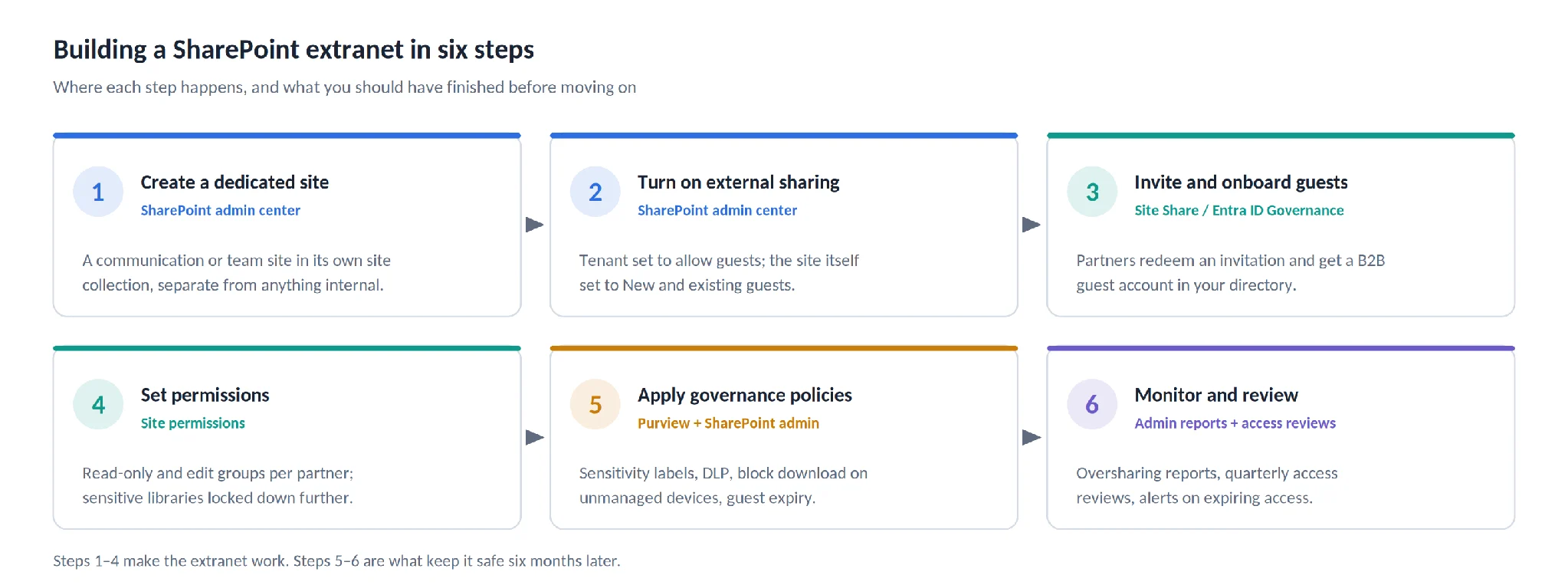
Pic.3. The six steps to a working SharePoint extranet, and where each one happens.
Step 1. Create a dedicated site
- Create a communication site or team site specifically for external collaboration. Communication sites suit read-heavy partner portals; team sites suit two-way project work.
- Give it its own site collection. Never build an extranet as a subsite of an internal site — inherited permissions are how accidents happen.
- Use a name a partner will recognise, such as clients.contoso.sharepoint.com or partners.contoso.sharepoint.com.
- If you expect more than a handful of partners, start with a hub site now rather than retrofitting one later.
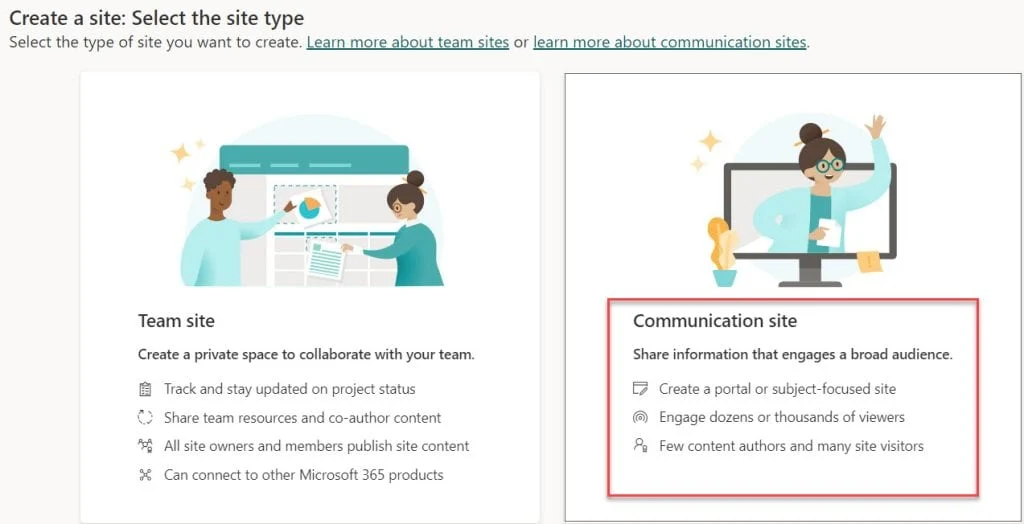
Pic.4. Creating a new communication site for external collaboration in SharePoint Online.
Step 2. Turn on external sharing
- In the SharePoint admin center, under Policies > Sharing, confirm the organisation-level setting allows guests. Microsoft documents four levels: Anyone, New and existing guests, Existing guests, and Only people in your organization.
- Set the extranet site itself to New and existing guests. This requires every visitor to authenticate, which is the whole point of an extranet.
- Change the default file and folder link type to Specific people so nobody accidentally creates an open link.
- Restrict invitations to an allowlist of partner domains. It is the single cheapest control on this list.
- Leave Anyone links off for extranet sites. If you need one-way uploads from partners, use file requests instead.
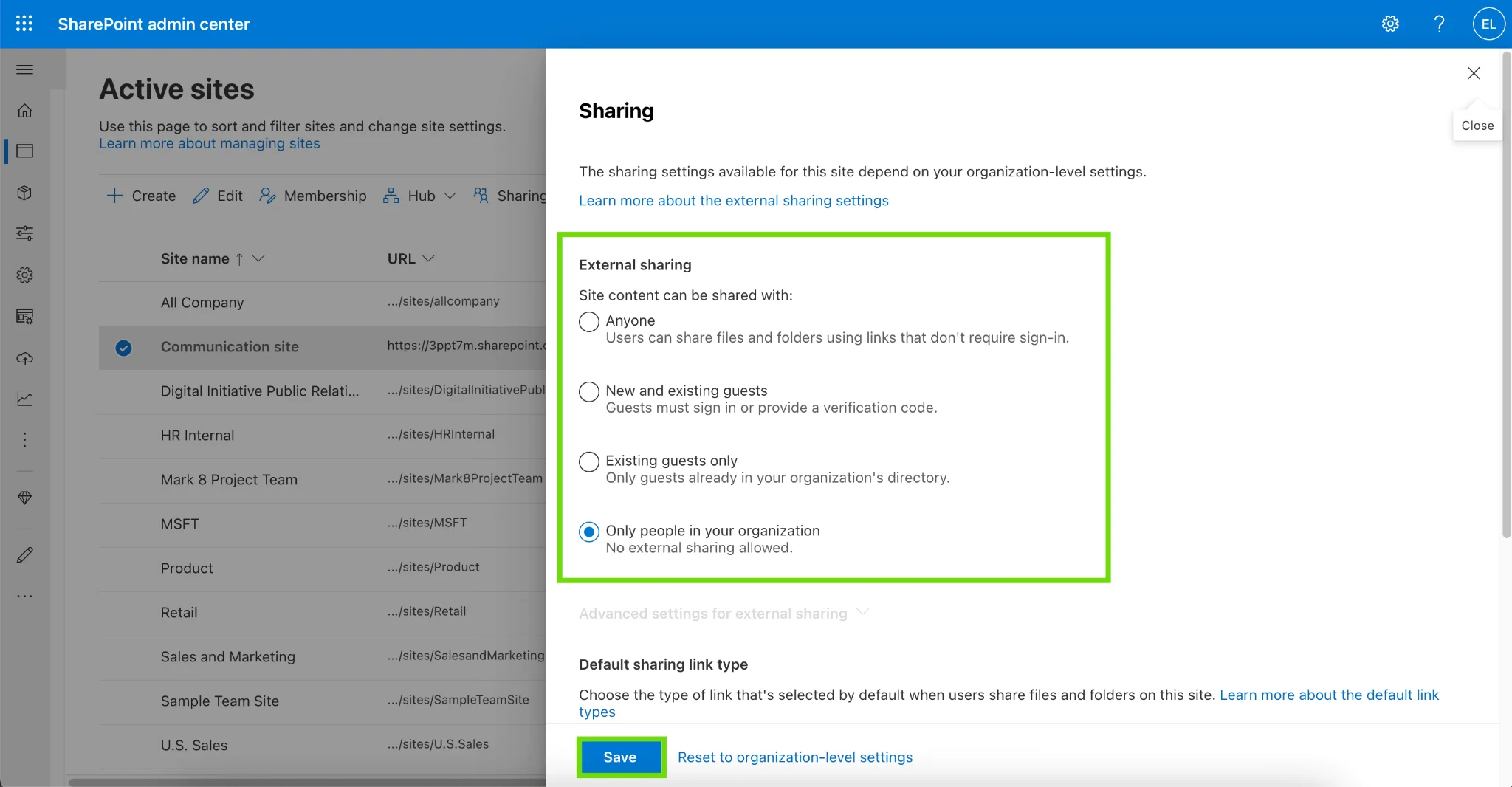
Pic.5. External sharing settings for a site in the SharePoint admin center.
Step 3. Invite and onboard partners
- Manually — use the site’s Share button to invite partner email addresses. Fine for a handful of people.
- Automatically — trigger guest invitations from Power Automate off a form submission or a CRM record.
- Self-service with approval — Entra ID Governance access packages let approved partner organisations request access themselves, route it to an internal sponsor for approval, and set an expiry date at the same time. This is the option that scales.
- Each partner signs in with their own identity — a work or school account, a Microsoft account, or a federated Google identity — and becomes a guest in your directory.
Step 4. Configure permissions
- Create groups that describe the relationship, not the person: Partners – Read, Client A – Contribute, Auditors – Read.
- Set site-level permissions for navigation and shared areas, library-level permissions for what each group can reach, and item-level permissions only where genuinely necessary.
- Break inheritance sparingly. Every unique permission is something a future administrator has to understand.
- Add Restricted Access Control where you can. It gates an entire site to members of a named security group, so even a leaked link fails for anyone outside it.
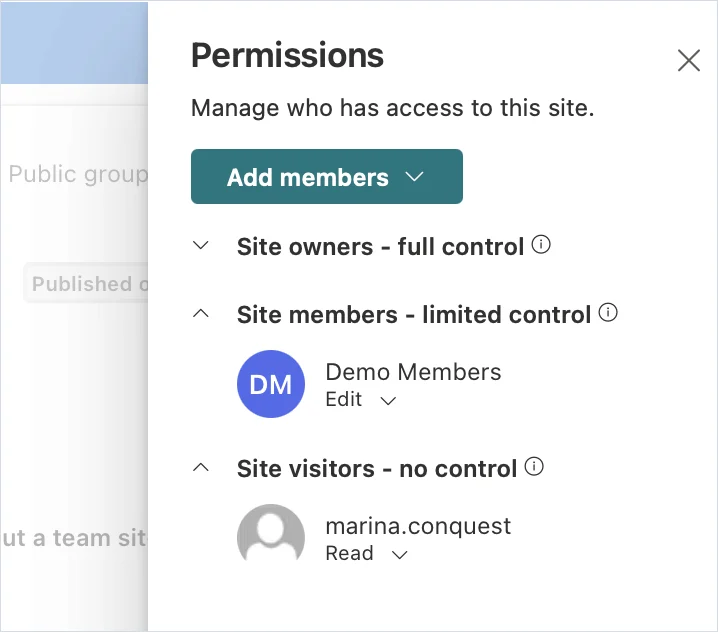
Pic.6. Site permissions on a partner site: contributors under Site members, read-only partners under Site visitors.
Step 5. Apply governance policies
- Apply a sensitivity label to the site so external sharing rules and default link types are enforced by policy rather than by memory.
- Use Microsoft Purview DLP to stop confidential content leaving through downloads or forwarding.
- Block download on unmanaged devices, while still allowing in-browser viewing and editing — partners keep working, files stop landing on personal laptops.
- Set guest access expiration so accounts lapse automatically rather than accumulating.
Step 6. Monitor and review
- Run data access governance reports to find oversharing, sites shared with ‘Everyone except external users’, and unusual sharing-link activity.
- Schedule quarterly access reviews in Entra ID Governance so site owners — not IT — confirm each guest is still needed.
- Notify partners and internal owners before access expires, so renewal is a decision rather than a surprise lockout.
- Revisit the site architecture yearly. Partner relationships change faster than site structures do.
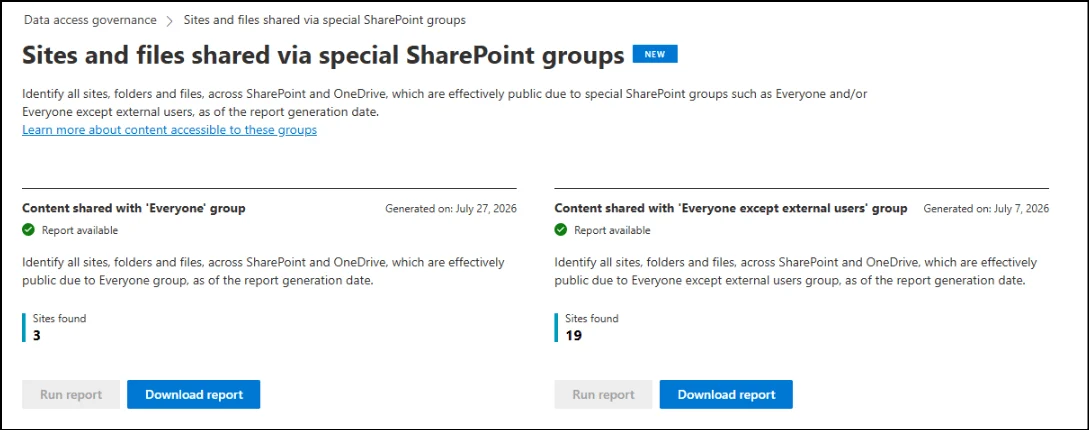
Pic.7. A data access governance report highlighting sites with external sharing activity.
SharePoint extranet strategy and planning
The technical steps above take an afternoon. The planning is what decides whether the extranet is still usable in two years. Four questions are worth answering before you create anything.
Who exactly is this for?
Clients, distributors, contractors, consultants, auditors and investors all need different things and tolerate different amounts of friction. Classify them up front, because the classification drives permission groups, navigation and how strict the authentication requirements can reasonably be.
How should the sites be structured?
There are three workable models, and the right one depends mostly on how many partners you expect and how sensitive their content is.
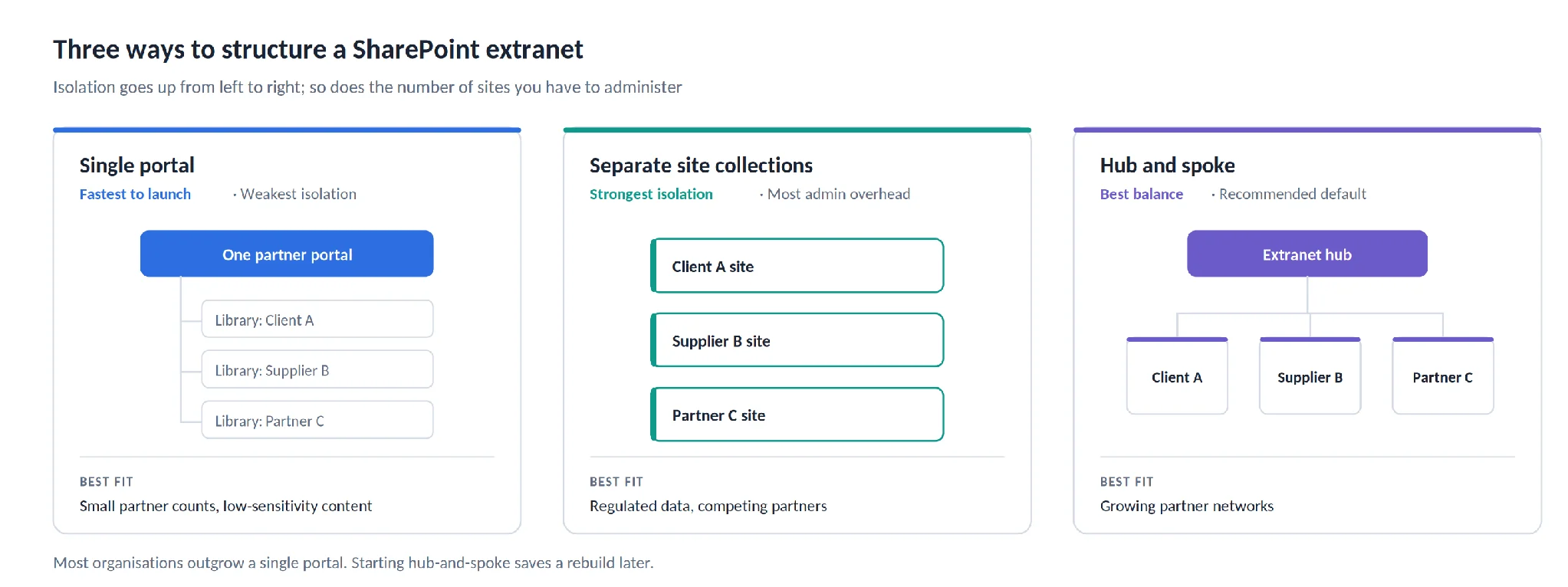
Pic.8. Three site structures for a SharePoint extranet, from fastest to launch to strongest isolation.
A single portal with permissions broken at library level is quickest, but every new partner adds permission complexity. Separate site collections give the strongest isolation and suit regulated data or partners who compete with each other. Hub and spoke sits in between: one hub for consistent navigation and search, separate sites underneath so each partner is still its own permission boundary. Most organisations that start with a single portal end up rebuilding as hub and spoke, so starting there is usually the cheaper decision.
What content actually belongs there?
- Publish only what the collaboration requires. An extranet is not a window onto your internal libraries.
- Write down a document policy covering naming, versioning, retention and who approves publication — before the first partner is invited, not after.
- Bring legal and compliance in early if the content touches personal data, health data or anything contractually confidential.
Who owns it?
An extranet without a named owner drifts. Decide explicitly who approves invitations, who maintains permissions, who watches the activity logs, and who runs the periodic content and access audits. In most organisations this is a business owner supported by IT, not IT alone.
Where will it be hosted?
| Hosting model | Strengths | Trade-offs | Best fit |
|---|---|---|---|
| SharePoint Online | Always current, scales freely, native Entra and Microsoft 365 integration | Depends on internet connectivity and Microsoft’s roadmap | The default for most organisations |
| SharePoint Server (on-premises) | Maximum control over data location and custom security | Higher maintenance, hardware cost, and you build the publishing layer yourself | Strict data-residency or sovereignty requirements |
| Hybrid | Sensitive workloads stay on-premises, partner-facing content lives in the cloud | Two environments to govern and keep in sync | Mixed data sensitivity or a phased cloud migration |
Microsoft’s current guidance favours the cloud for extranet scenarios; the on-premises path is still documented under publishing to internet, intranet and extranet sites in SharePoint Server, but it applies to SharePoint Server only and is not the direction the platform is moving.
Security and governance for a SharePoint extranet
Extranet security is best thought of as layers rather than a single setting. A partner has to clear all of them before a document opens, which means a mistake in one layer is usually caught by another.
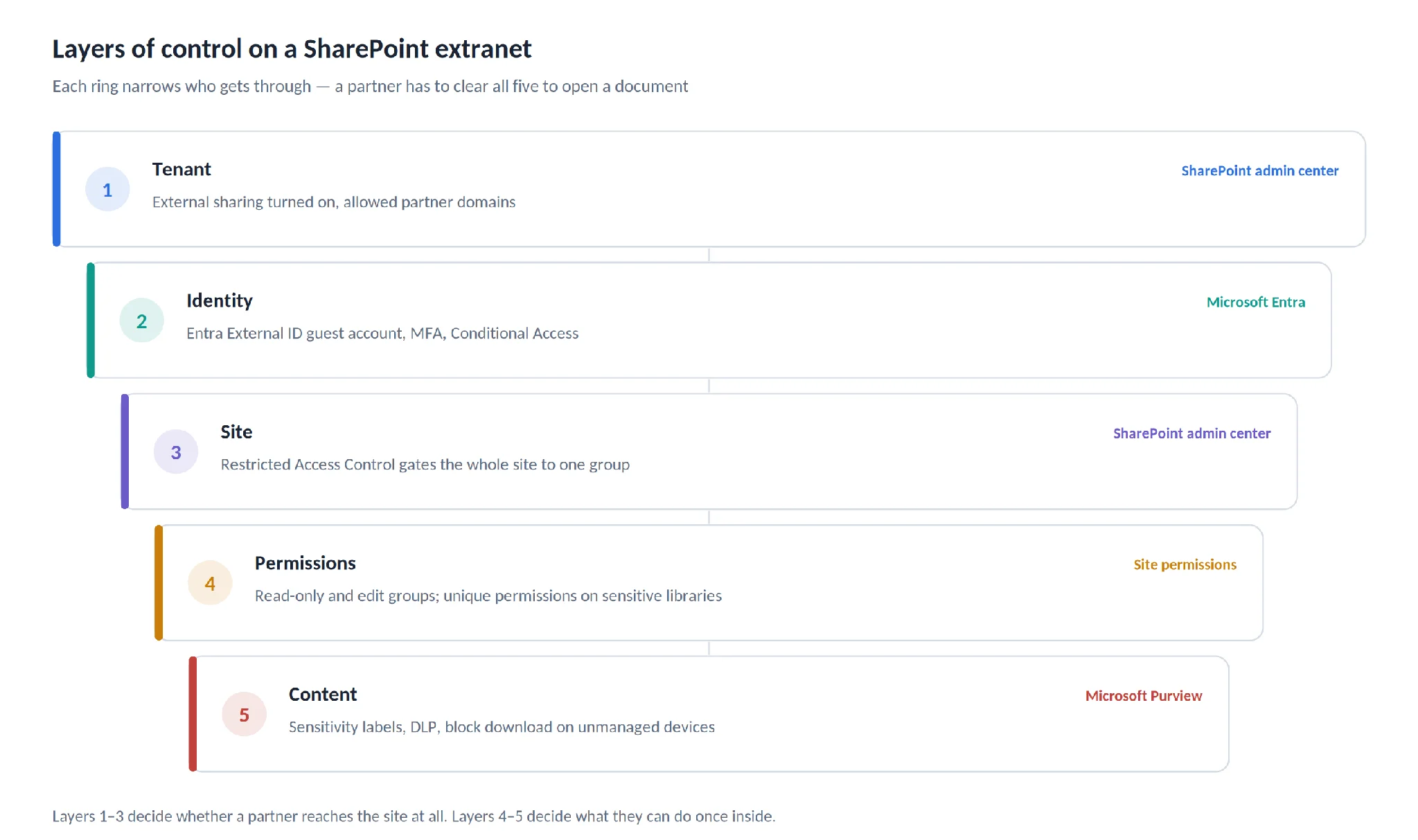
Pic.9. Five layers of control on a SharePoint extranet, from tenant settings down to individual documents.
Identity controls
- MFA for every external account, enforced through Entra Conditional Access rather than requested politely.
- Domain allowlists so invitations can only go to approved partner organisations.
- Conditional Access by device and location where the content justifies it — for example, requiring a compliant device for a bid library.
Content controls
- Sensitivity labels that travel with the file and keep their protection after download.
- DLP policies that block unauthorised download, forwarding or printing of classified content.
- Block download on unmanaged devices, so partners can read and edit in the browser without copies proliferating.
- Restricted content discovery to keep extranet content out of organisation-wide search and Copilot responses where that matters. Microsoft documents the behaviour here.
Lifecycle controls
The failure mode of nearly every extranet is not a breach — it is accumulation. Guests who left the partner company two years ago still hold accounts, and nobody notices because nothing broke. Access has to expire by default.
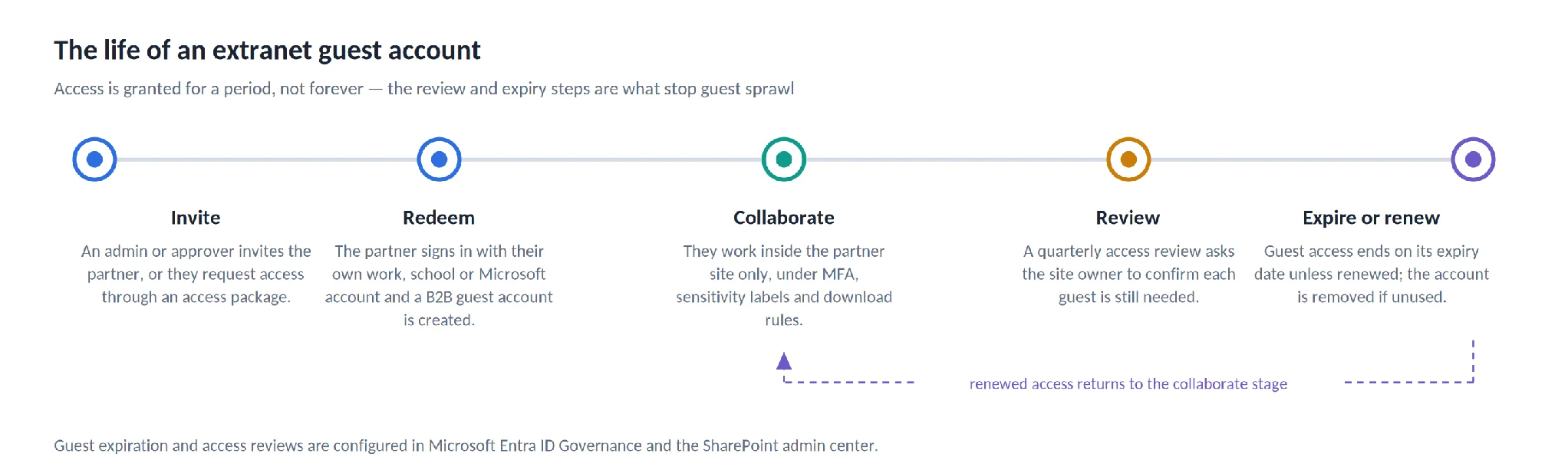
Pic.10. The lifecycle of an extranet guest account, from invitation to expiry or renewal.
The tooling for this is SharePoint Advanced Management plus Entra ID Governance. SAM is now included with Microsoft 365 Copilot licences, or available as the SharePoint Advanced Management Plan 1 add-on, and it is what provides the oversharing reports, site access reviews, restricted access control and block-download policies referenced above. Check your licensing before you design a governance model that assumes them.
Extranet software: what your options are
It is worth being honest that SharePoint is not the only way to run an extranet, and not always the best one. Broadly there are three categories, and the choice usually comes down to one question rather than a feature comparison.
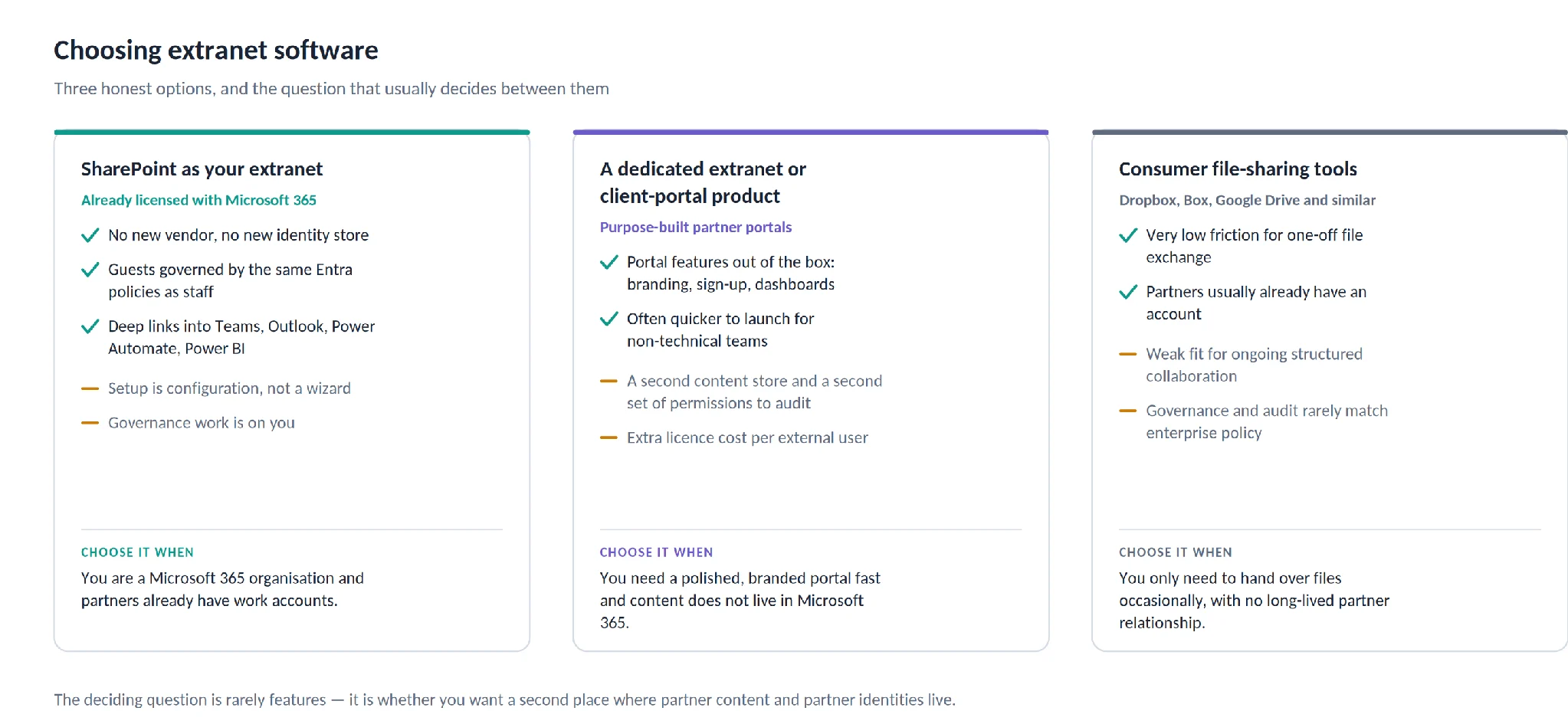
Pic.11. Three categories of extranet software and when each one is the right choice.
Dedicated extranet and client-portal products give you branding, self-service sign-up and dashboards without configuration work, which is genuinely appealing if your team has no SharePoint expertise. The cost is a second content store, a second permission model and a second audit surface — plus a licence per external user. Consumer file-sharing tools are excellent at handing over a folder and poor at everything that comes after.
SharePoint’s advantage is not that it does more; it is that partner content and partner identities stay inside the estate you already govern. If your content lives in Microsoft 365 and your partners already have work accounts, adding a portal product usually creates more governance work than it removes. If neither of those is true, a dedicated product may well be the better answer. For a broader platform comparison, see our analysis of Confluence vs SharePoint.
How Virto apps help you run a SharePoint extranet
SharePoint gives you the structure and the security model. What it does not give you is a comfortable way to keep dozens of external people informed, scheduled and coordinated without someone chasing them by email. That is the gap the Virto apps for SharePoint fill. All Virto apps come with a 30-day free trial, and Virto Kanban Board App starts at $2 per user per month on the Starter tier (up to 30 users), $3 per user per month on Pro (31–200 users), with Enterprise pricing on request.
Virto Alerts & Reminders
Native SharePoint alerts were deliberately simple, and they have been retired in cloud environments. Virto Alerts & Reminders replaces them with condition-based rules: notify when a specific column changes, when a due date is a week away, when a document moves to a particular approval stage. Notifications go to email or straight into a Microsoft Teams channel, with HTML templates so a message to a partner looks like something you meant to send. For SharePoint Server environments, the equivalent is the Virto Notifications & Alerts Web Part, which also supports SMS delivery.
In an extranet the practical uses are narrow and useful: warn a partner before their access expires, tell a contractor that a permit document was updated, remind an internal owner that an access review is due.
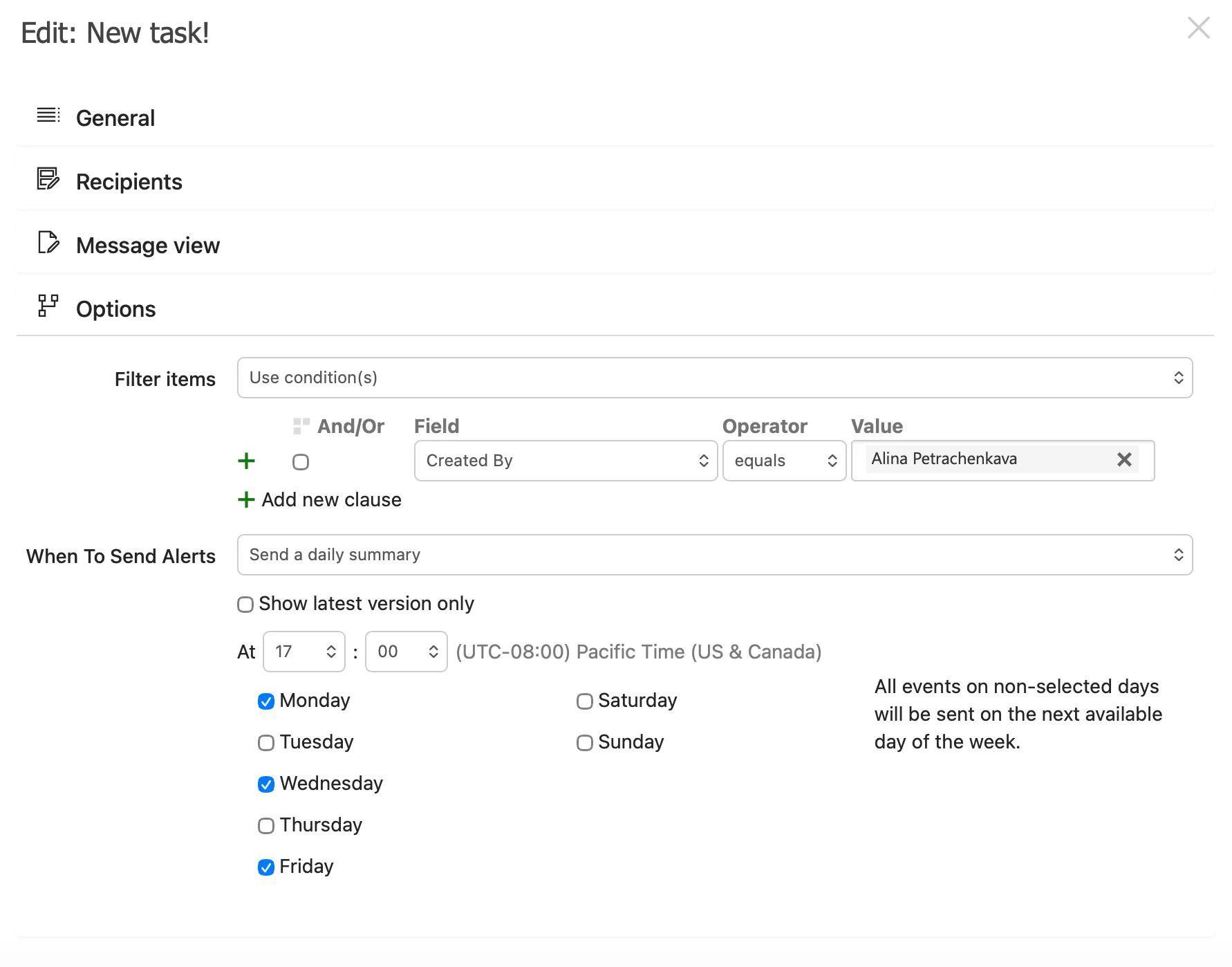
Pic.12. Setting up a condition-based alert rule in Virto Alerts & Reminders.
Virto Calendar
Virto Calendar overlays events from multiple SharePoint lists, libraries and Exchange calendars into one colour-coded view. It respects SharePoint permissions automatically, so a guest on a partner site sees only the events they are entitled to see — which is exactly what you want when several partner schedules share a hub. Typical extranet uses are partner onboarding schedules, joint project milestones, training windows and investor meeting calendars. The Virto Calendar Web Part covers SharePoint Server, with additional filtering and external data import.
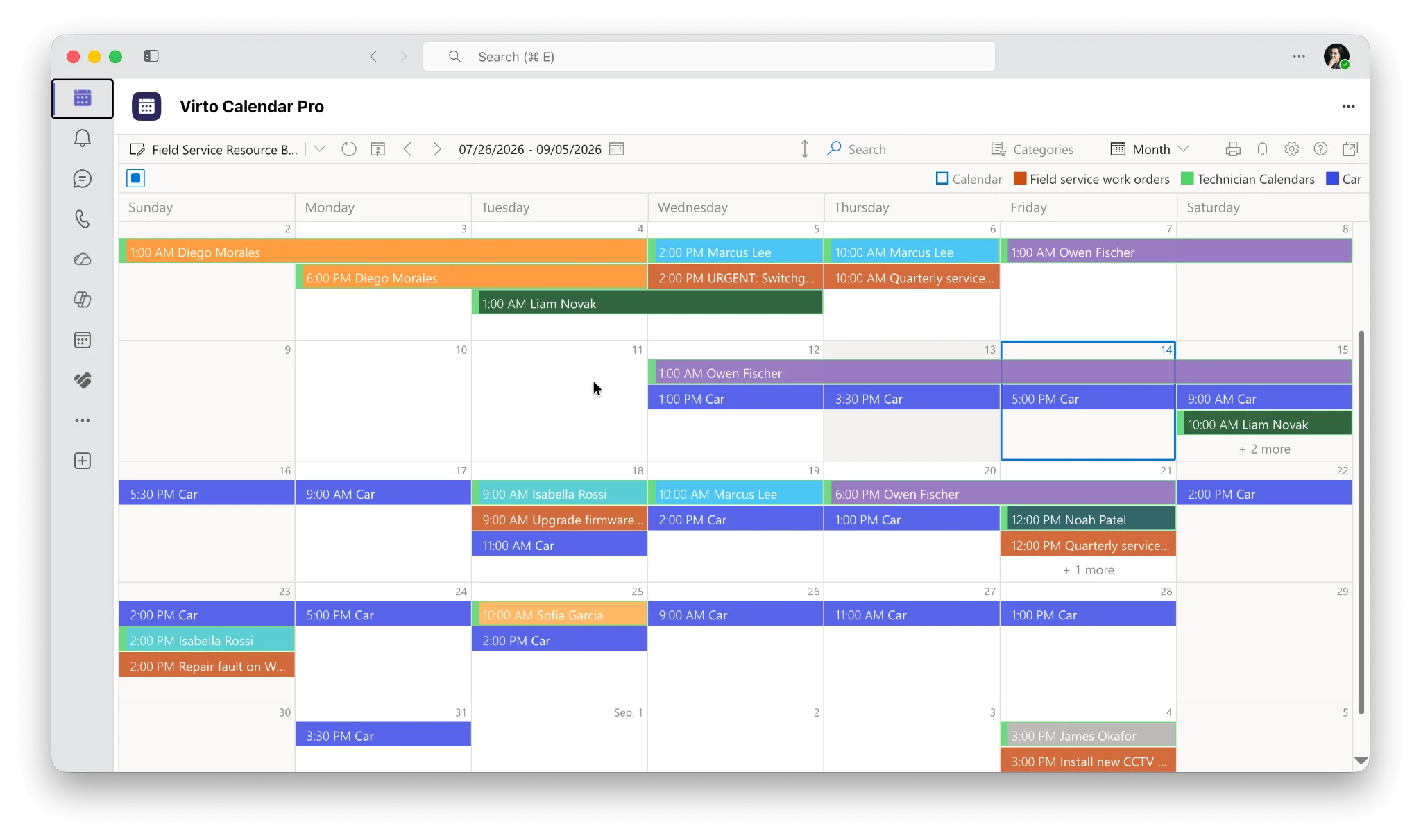
Pic.13. Multiple calendars overlaid in a single Virto Calendar view.
Virto Kanban Board
Virto Kanban Board turns a SharePoint list into a drag-and-drop board with custom columns, swimlanes and filters. On an extranet it gives external collaborators a status view they can actually read — tender stages, ticket queues, deliverable pipelines — without granting them access to internal project tooling. Updates are live for internal and external users alike. The Virto Kanban Board Web Part provides the same capability for SharePoint 2013 through Subscription Edition, including isolated networks.
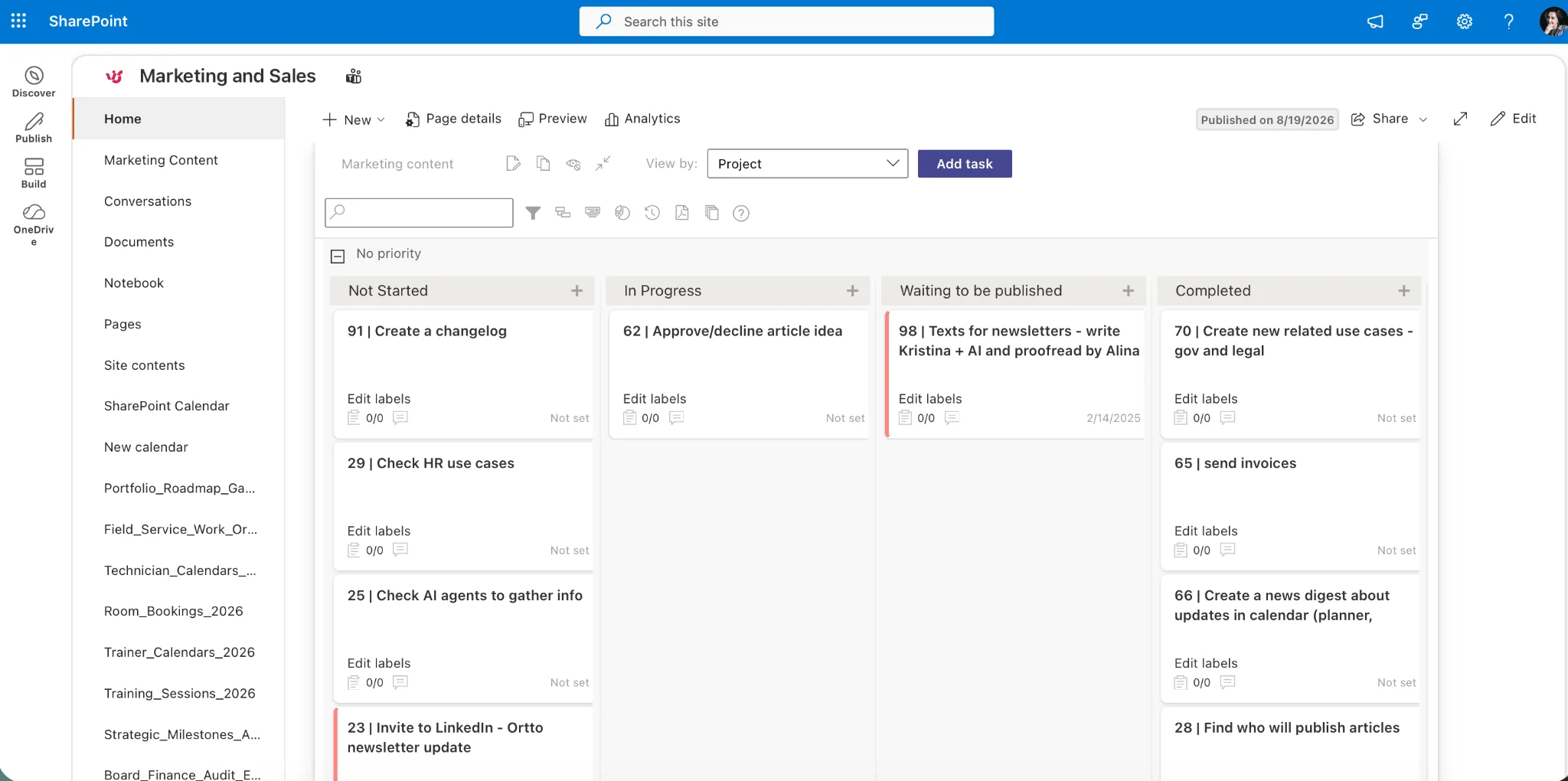
Pic.14. A partner project tracked on a Virto Kanban Board inside a SharePoint extranet site.
If you expect to use more than one of these, the Virto productivity kits bundle the M365, on-premises and hybrid app sets together.
SharePoint extranet examples by industry
The shape of an extranet changes noticeably depending on what the partner relationship is for. Five patterns cover most of what organisations actually build.
| Industry | Extranet purpose | Key SharePoint features | Virto apps that help |
|---|---|---|---|
| Software vendor | Reseller and partner portal | Hub site with regional spokes, domain-restricted sharing | Alerts & Reminders, Calendar |
| IT services | Client service portal | Entra External ID authentication, file requests, CRM integration | Kanban Board |
| Construction | Contractor collaboration hub | Separate site collection per project, Restricted Access Control | Alerts & Reminders |
| Pharmaceutical | External training portal | Versioned training library, sensitivity labels | Calendar, Alerts & Reminders |
| Manufacturing | Tender and bid management | DLP on bid documents, guest accounts for legal counsel | Kanban Board |
Partner and distributor portal
A software vendor gives its reseller network access to product updates, marketing collateral and sales enablement material. A hub site holds shared navigation; regional spoke sites carry region-specific pricing. Sharing is restricted to reseller domains and the default link type is Specific people. Alerts push a notification the moment new collateral lands, and a shared calendar carries webinar and launch dates so regional teams plan against the same timeline.
Client service portal
An IT services firm gives enterprise clients a portal for contracts, SLAs and ticket status. Each client has its own site, so nothing crosses between accounts. File requests let clients upload documents without seeing anything already in the folder, and a Kanban board renders the ticket queue as something a non-technical client can read at a glance.
Contractor collaboration hub
A construction firm runs several projects with different subcontractors. Each project gets its own site collection with Restricted Access Control, so a subcontractor on one project cannot reach another even with a forwarded link. Power BI dashboards are embedded for progress reporting, and deadline reminders go out automatically for permit submissions and milestone reviews.
External training portal
A pharmaceutical company delivers training to external sales teams across several regions. A central library holds versioned modules with sensitivity labels protecting proprietary content. A calendar manages enrolment windows per region, and reminders handle course deadlines and certification renewals — the kind of administration that otherwise consumes a coordinator’s week.
Tender and bid management
A manufacturer collaborates with external legal and commercial partners on high-value bids. DLP policies stop bid documents leaving the environment, guest accounts are created for named legal counsel with a hard expiry at bid close, and a Kanban board tracks each tender from drafting to submission so every party sees the same status.
More scenarios, filtered by industry and department, are collected in the Virto use case library.
Frequently asked questions
What is a SharePoint extranet?
A SharePoint site configured to securely share content and collaborate with external partners, vendors or clients, using Microsoft 365 external sharing and Microsoft Entra B2B, and kept separate from internal sites.
How do I create a SharePoint extranet?
Create a dedicated site in its own site collection, enable external sharing and set the site to New and existing guests, invite partners so they receive Entra B2B guest accounts, assign permissions through partner-specific groups, apply sensitivity labels and DLP, then monitor with access reviews and oversharing reports.
What is the difference between an extranet and external sharing?
External sharing is the setting that lets you share content with people outside your organisation. An extranet is a dedicated site built on those settings for ongoing partner collaboration. You configure external sharing once; you build an extranet per relationship.
Do external users need a Microsoft 365 licence?
No. Partners sign in as Entra B2B guests using their own work, school or Microsoft account, or via email one-time passcode as a fallback. They do not consume a Microsoft 365 licence from your tenant, though some governance features are gated by your own licensing.
Is a SharePoint extranet secure enough for regulated data?
It can be, provided you use the controls rather than just the site. MFA and Conditional Access on guest accounts, Restricted Access Control on the site, sensitivity labels and DLP on the content, guest expiry and periodic access reviews on the lifecycle — that combination is what auditors look for. A site with external sharing turned on and nothing else is not a secure extranet.
Can I build an extranet on SharePoint Server?
Yes, using a separate web application with its own DNS entry, SSL, firewall rules and an external authentication provider. It is more work and Microsoft’s guidance now favours the cloud for external collaboration, but it remains a valid option for strict data-residency requirements.
How many partners can a SharePoint extranet support?
Enough that the limit is practical rather than technical. Hub-and-spoke architectures routinely serve hundreds of partner organisations; what constrains you is how much permission complexity your administrators can maintain, which is why group-based permissions and access packages matter more than raw scale.
Conclusion
A SharePoint extranet solves a specific problem well: giving named outsiders durable, governed access to a slice of your content without letting them near anything else. The build is straightforward — a dedicated site, external sharing set to guests only, group-based permissions, labels and DLP on the content. The part that determines whether it still works next year is the governance: expiry by default, quarterly access reviews, and someone whose job it is to look at the oversharing report.
The 2026 platform makes both halves easier. Entra B2B is now the single path for external identity, Restricted Access Control closes the leaked-link gap, and SharePoint Advanced Management surfaces oversharing before an auditor does.
Where that still leaves manual work — chasing partners about deadlines, coordinating schedules across organisations, giving external collaborators a status view they can read — the Virto apps for SharePoint close the gap. Every Virto product includes a 30-day free trial, so you can test the fit on a real partner site before committing.
Further reading
- Use SharePoint as a business-to-business (B2B) extranet solution — Microsoft Learn
- FAQ: improvements to external sharing in OneDrive and SharePoint — Microsoft Learn
- Restrict SharePoint site access with Microsoft 365 and Entra security groups — Microsoft Learn
- SharePoint Advanced Management overview — Microsoft Learn
- SharePoint External Sharing: A Complete 2026 Guide
- SharePoint Hub Site: Features, Benefits & Best Practices
- SharePoint Communication Site: Improve Communication and Teamwork
- SharePoint Collaboration: Features, Tools & Tips for 2026
- What Is Microsoft SharePoint and What Is It Used For?