Almost every project eventually needs someone outside the company: an agency, a client, an auditor, a freelance designer. SharePoint external sharing is how Microsoft 365 lets that happen without email attachments, USB sticks or a shadow Dropbox — and without handing strangers the keys to your tenant.
This guide covers what external sharing actually is, how to turn it on and configure it at both the organization and the site level, how to share a site, a folder or a single file with a guest, and how to keep the whole thing governed. It ends with the fixes for the problems that generate most helpdesk tickets, including the famous greyed-out Share button.
Quick answer
External sharing in SharePoint is the ability to share sites, files and folders with people outside your organization — guests. It is controlled in two places: an organization-level setting in the SharePoint admin center (Policies → Sharing) and a per-site setting (Active sites → the site → Settings → More sharing settings). The more restrictive of the two always wins. To enable it, set the organization level to New and existing guests, then set each site to the same level or a stricter one.
What is external sharing in SharePoint?
External sharing is the set of Microsoft 365 features that let a person who has no account in your tenant open, and optionally edit, content stored in SharePoint or OneDrive. That person is a guest. Instead of copying a file out of your environment, you extend a controlled, revocable, auditable piece of access to it — the content never leaves your governance boundary.
Two facts explain most of the confusion around it. First, external sharing is a layered setting, not a switch: the tenant sets a ceiling, and every site can sit at or below that ceiling. Second, the sharing level (who may be shared with) is separate from the link type (how a specific item is shared). You can have external sharing fully enabled and still send a link that only one named person can open — and that is usually exactly what you want.
Members, guests and external users — the words that matter
- Members are people with an account in your Microsoft Entra ID tenant — your employees. They sign in with a work or school account.
- Guests are external people who have been added to your directory as guest objects (their user principal name contains #EXT#). They sign in with a work or school account from their own organization, a Microsoft account, or an email one-time passcode. Because they exist as directory objects, their access can be reported on, reviewed, expired and revoked.
- Anonymous recipients are people who open an Anyone link. There is no identity behind them at all: no sign-in, no directory object, no per-person audit trail. This is the only external sharing mode that is genuinely unauthenticated.
In everyday speech “external user” covers both guests and anonymous recipients. In practice the distinction is the whole ballgame: guests are governable, anonymous link holders are not.
What external sharing looks like in practice
Three patterns cover most of the real demand for it:
- A contractor working inside a project. A freelance designer needs to open, edit and upload files in one project library for six weeks. The right shape is a guest account, Contribute permission on a single library, and guest access expiration set so the access lapses on its own if nobody renews it.
- A client reviewing deliverables. A client needs to read and comment on a set of documents but should never change them. The right shape is a Specific people link with view or review permission and an expiry date — no site access at all.
- A partner in a long-running programme. An external agency collaborates continuously across several workstreams. The right shape is a dedicated site or team per partner, with guests added through a controlled onboarding process and reviewed on a schedule.
Notice that the scope shrinks as the relationship narrows. Most oversharing incidents start with a request that deserved the second pattern being answered with the third.
How guests actually sign in
Guest sign-in runs on Microsoft Entra B2B collaboration, which lets external people authenticate with an identity they already own rather than a password you have to issue and reset. When a guest opens an invitation, Microsoft 365 works down a short list:
- A work or school account in the guest’s own Microsoft Entra tenant — the cleanest case, and the one where the guest’s own employer keeps enforcing its MFA and device policies.
- A Microsoft account (outlook.com, hotmail.com, or any address registered as one).
- An email one-time passcode — a fallback for recipients with none of the above. Microsoft emails a temporary code; per Microsoft’s documentation the passcode is valid for 30 minutes and the resulting session lasts 24 hours, after which the guest requests a new one. This is enabled by default in new tenants.
That third option is the answer to “how do I share with someone who has no Microsoft account?” — you do not have to do anything special, and you should not fall back to an Anyone link just because the recipient uses Gmail.
How SharePoint external sharing is controlled: the two-level model
Before touching any settings, it helps to see the shape of the thing. External sharing is decided at two levels, and Microsoft’s rule is explicit: if a site’s setting and the organization-level setting do not match, the most restrictive value always applies.
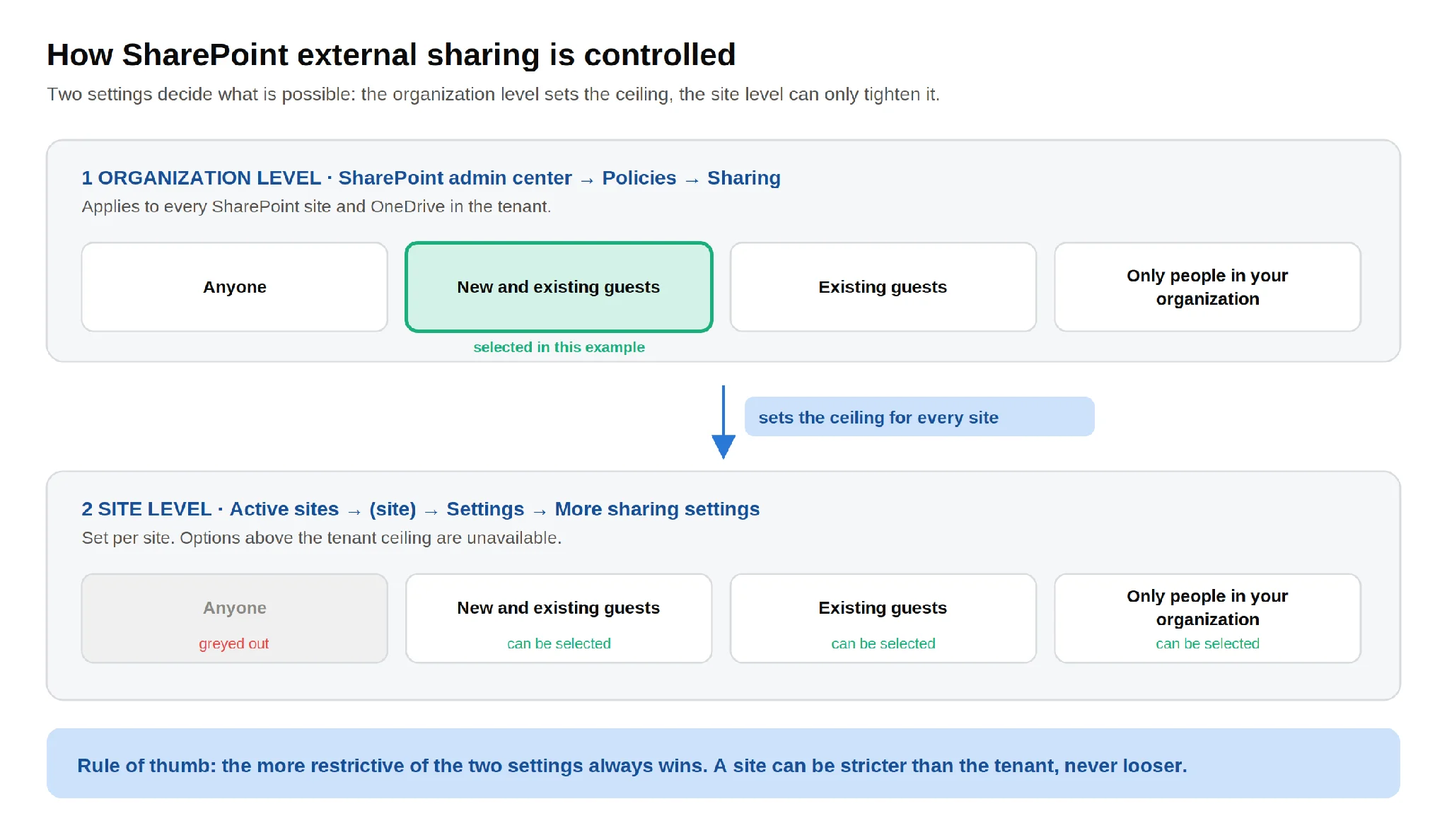
Pic.1. External sharing is controlled at two levels — the organization level sets the ceiling and the site level can only tighten it.
Read that diagram in both directions and two practical consequences fall out:
- You cannot enable external sharing for one site while the tenant has it off. If the organization level is Only people in your organization, every site’s sharing options are greyed out. This is the single most common cause of “the Share button doesn’t work”.
- Turning the tenant on does not open every site. Site-level settings survive independently, and several site types default to Only people in your organization — classic sites, communication sites and non-group-connected modern sites all do, per Microsoft’s site sharing documentation.
Those defaults are worth knowing before you go hunting for a bug that is not there:
| Site type | Default external sharing setting |
|---|---|
| Group-connected sites and Teams team sites | New and existing guests — or Existing guests only, depending on what the organization allows |
| Communication sites | Only people in your organization |
| Modern sites that are not group-connected | Only people in your organization |
| Classic sites | Only people in your organization |
| OneDrive | Anyone |
OneDrive follows the same pattern with its own tenant setting, which may be more restrictive than SharePoint’s but never more permissive.
The four external sharing levels explained
The same four options appear at the organization level and at each site. From most open to most locked down:
| Level | What it allows | Sensible use |
|---|---|---|
| Anyone | Users can create unauthenticated links that work for anybody who receives them. The link can be forwarded and access cannot be audited per person. | Genuinely public material only. Many organizations disable this level outright. |
| New and existing guests | Recipients sign in with a work, school or Microsoft account, or an email one-time passcode, and are added to your directory as guests. | The everyday default for partner, client and contractor work. |
| Existing guests | Sharing is possible only with guests an administrator has already added to the directory. | Tightly governed sites with a fixed, known partner list. |
| Only people in your organization | External sharing is off for this scope. Existing external links stop working while the setting is off. | Sites holding regulated, personal or confidential data. |
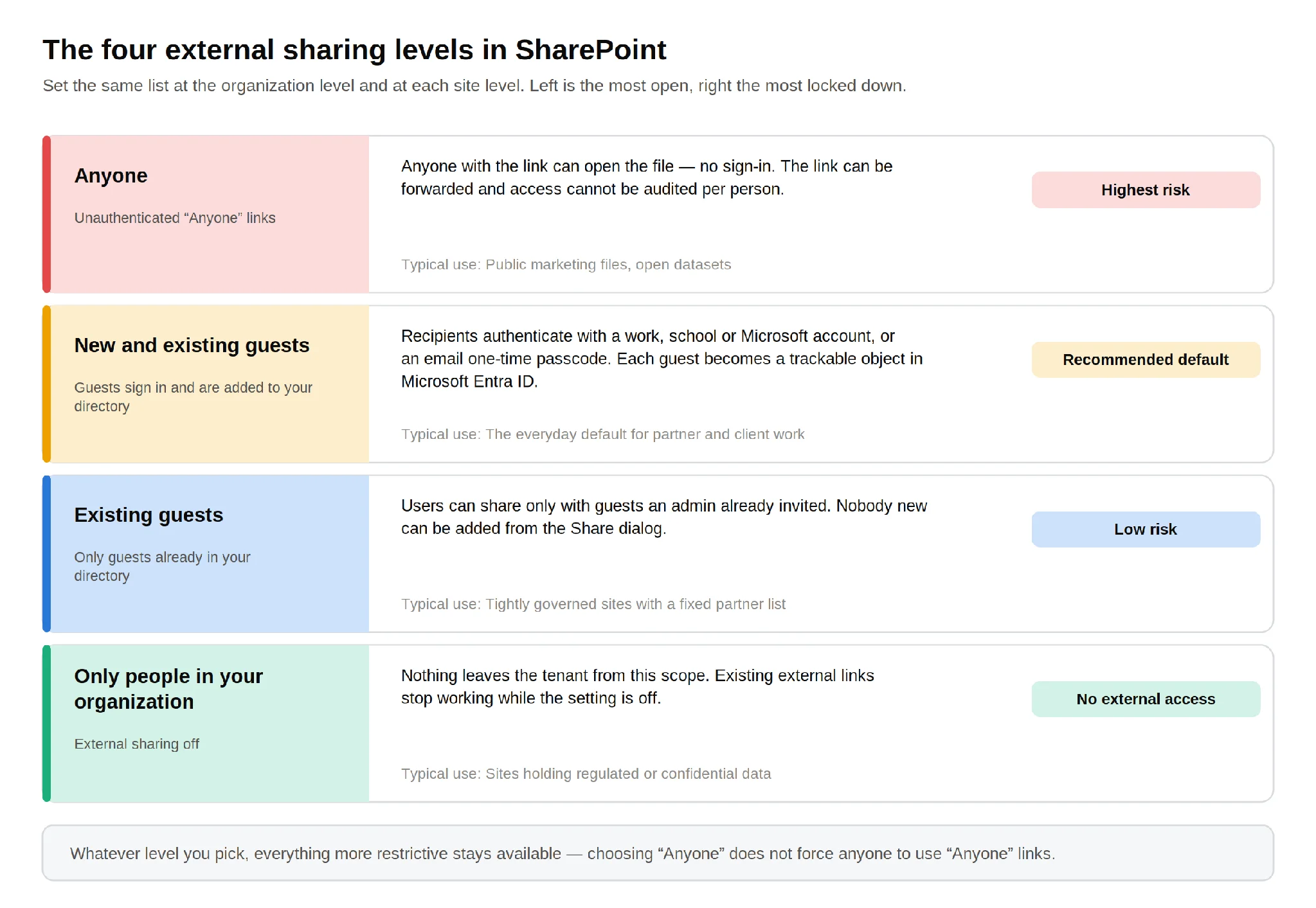
Pic.2. The four external sharing levels, from the most permissive to the most restrictive.
One point is easy to miss: whichever level you choose, everything more restrictive stays available. Selecting Anyone at the tenant level does not force anyone to use Anyone links — it simply makes them possible. That is why the tenant setting should be read as “the most open thing that could happen here”, not “what will happen here”.
Which level should you pick?
For most organizations, New and existing guests at the tenant level is the right ceiling. It permits real collaboration, keeps every external person as a directory object you can report on and expire, and still lets you drop individual sites to Existing guests or Only people in your organization. Setting the tenant to Only people in your organization looks safe on a slide and usually just pushes people onto consumer file-sharing tools you cannot see at all — Microsoft’s own planning guidance makes the same argument.
How to enable external sharing in SharePoint, step by step
You need the SharePoint Administrator or Global Administrator role. Site owners cannot change site-level external sharing settings; only a SharePoint admin can.
Step 1 — Set the organization level
- Sign in to the SharePoint admin center at
https://<tenant>-admin.sharepoint.com. - In the left navigation, expand Policies and select Sharing.
- Under External sharing, move the SharePoint slider to the level you want — for most tenants, New and existing guests.
- Set the OneDrive slider. It can be the same level or stricter, never looser.
- Select Save.
Changes are not always instant. Microsoft notes that sharing setting changes typically take effect within one hour, so do not conclude the setting failed because the Share dialog still looks the same thirty seconds later.
Step 2 — Configure the settings that actually contain the risk
On the same page, expand More external sharing settings. This is where a permissive-looking tenant becomes a well-governed one.
| Setting | What it does | Recommendation |
|---|---|---|
| Limit external sharing by domain | Restricts sharing to an allow-list of partner domains, or blocks a list of domains. Up to 5,000 domains at tenant level. | Use an allow-list if your external collaboration is with a known set of partners. Note that wildcards are not supported. |
| Allow only users in specific security groups to share externally | Restricts who may invite guests at all. | Useful in large tenants — pair it with a request process rather than a blanket block. |
| Guest access expiration | Automatically removes a guest’s access after a set number of days unless it is renewed. | Turn it on. Guests who joined for a three-week project should not still hold access three years later. |
| Verification code reauthentication | Forces recipients using email one-time passcodes to reauthenticate after a set number of days. | Keep it short — the default is more generous than most projects need. |
| Anyone link expiration | Forces every Anyone link to expire within N days. | If Anyone links are enabled at all, set an expiry. 30 days is a common choice. |
| Anyone link permissions | Restricts Anyone links to View-only for files and folders. | View-only unless you have a specific reason not to. |
| Default sharing link | Sets which link type the Share dialog offers first. | Specific people. This one change does more for real-world safety than any policy document. |
Step 3 — Set the level for an individual site
- In the SharePoint admin center, go to Sites → Active sites.
- Select the site name to open its details panel. (For a Teams channel site, open the link in the Channel sites column first.)
- Open the Settings tab and choose More sharing settings under External sharing.
- Pick the external sharing level for this site.
- Optionally expand Advanced settings for external sharing to set a per-site domain allow or block list (up to 500 domains), a per-site guest expiration, or a different default link type.
- Select Save.
This per-site control is the mechanism that makes a permissive tenant safe. A tenant set to New and existing guests with your finance, HR and legal sites individually set to Only people in your organization is a far better posture than a tenant locked down globally while people email spreadsheets to their personal accounts.
Step 4 — Choose the right link type
Every Share dialog in SharePoint and OneDrive produces one of three link types, and the link type — not the sharing level — decides who can actually open the item.
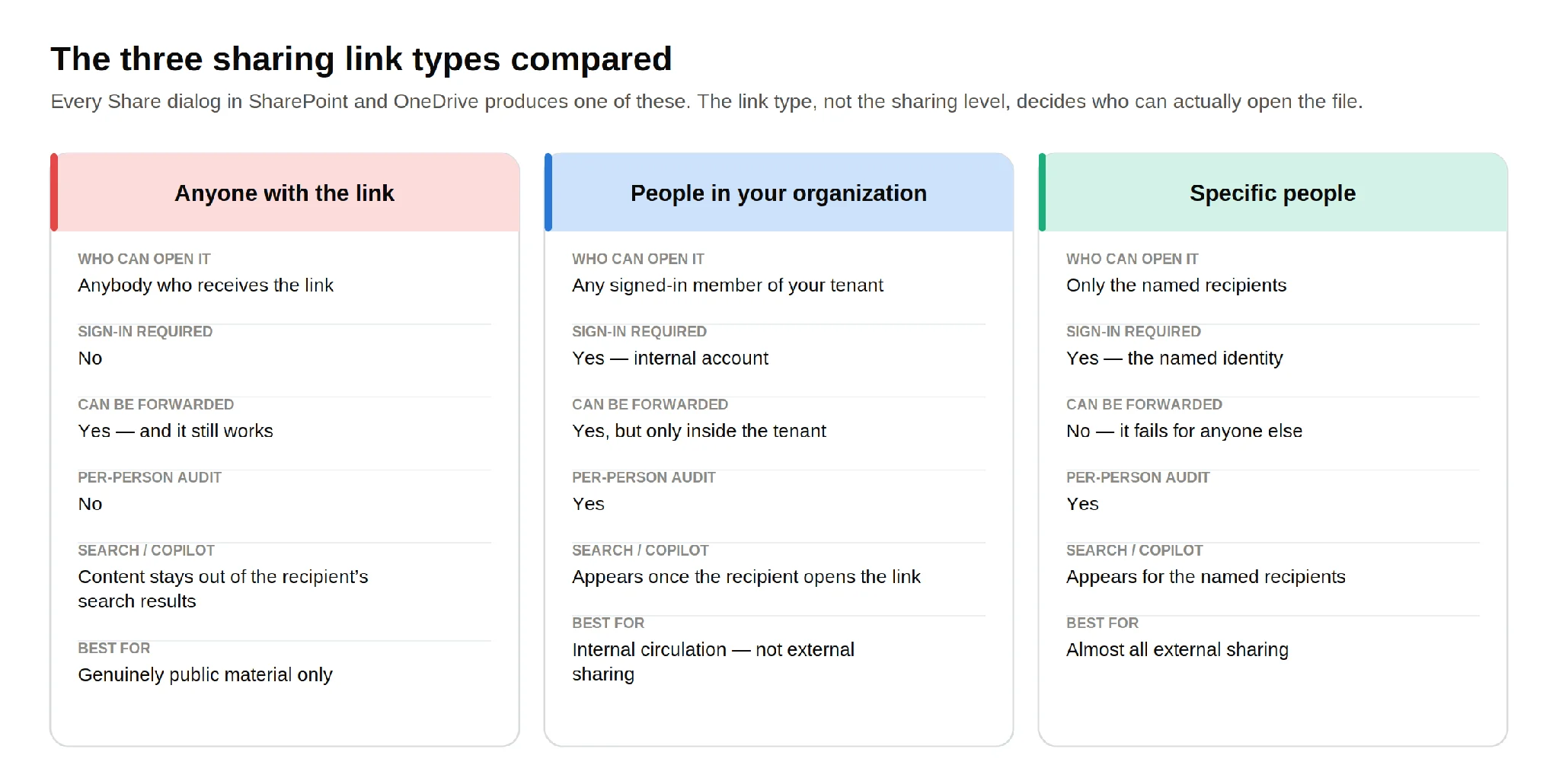
Pic.3. The three sharing link types compared.
For external work the answer is nearly always Specific people. Per Microsoft’s documentation on shareable links, a Specific people link is non-transferable: forwarded to anyone else, it simply fails. It is also the only external option that produces a real audit trail and lets the content surface in the recipient’s own search results.
A note on OneDrive
OneDrive and SharePoint share the same external sharing machinery and the same admin page — OneDrive is, technically, a personal SharePoint site. The practical differences are about ownership rather than mechanism. Content in OneDrive belongs to one person; when that person leaves, the content and everything they shared from it becomes an offboarding problem. Content in a SharePoint site belongs to a team and survives them.
The rule of thumb: use OneDrive to share a draft you own with someone outside, and move to a SharePoint site the moment more than one internal person needs to work on it or the material outlives the immediate task. Remember that the OneDrive tenant setting defaults to Anyone — if you have tightened SharePoint but left OneDrive alone, you have not finished.
External sharing is not the same as internal sharing
The two use the same Share dialog, which is why they get conflated. They are governed differently: internal sharing is bounded by your tenant’s own permission model, while external sharing crosses an organizational boundary and picks up an entirely separate stack of settings, expiration rules and audit obligations. If what you actually need is to circulate a document among colleagues, our guide to sharing files in SharePoint covers that case; everything in this article assumes the recipient is outside your organization.
How to share a SharePoint site with external users
Sharing a whole site is the right move when a partner needs ongoing access to a body of work rather than one document — a project workspace, a client portal, a vendor collaboration area.
- Open the site.
- Select the settings gear in the top right, then Site permissions.
- Select Add members (for a group-connected site) or Share site (for a communication site).
- Type the external person’s email address. If external sharing is available for this site, SharePoint offers to invite them as a guest.
- Choose the permission level, then Add or Share.
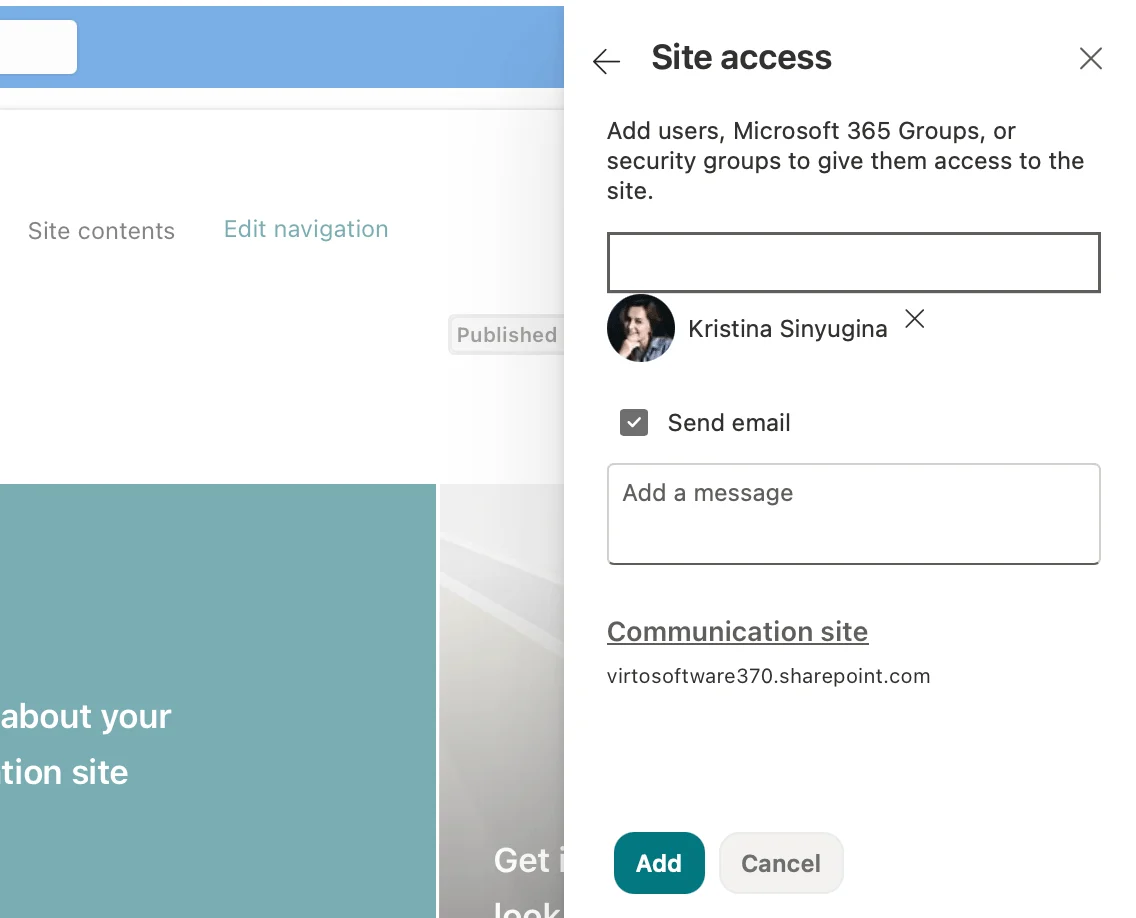
Pic.4. Inviting an external user from the Site permissions panel.
The permission level you pick here is the one thing people rush and later regret:
| Permission level | What the guest can do | When to use it |
|---|---|---|
| Read | View pages, list items and documents; download copies. | Review cycles, reference material, anything the guest only needs to see. |
| Contribute | Add, edit and delete list items and documents. | Working contributors — contractors producing deliverables. |
| Edit | Contribute, plus add, edit and delete lists themselves. | Rarely appropriate for a guest. |
| Full Control | Everything, including permissions and site settings. | Never for a guest, in practice. |
A guest granted Full Control can reshare the site. Even where the tenant setting Allow guests to share items they don’t own is off, full-control guests retain that ability — which is precisely why the level should stay internal.
Sharing a single file or folder
- In the document library, select the file or folder and choose Share (or Copy link).
- In the link settings, select Specific people and enter the external address.
- Set the permission — Can view, Can edit, or Can review for Word documents.
- Optionally set an expiration date, a password, or Block download for view-only links.
- Send the link, or copy it and send it yourself.
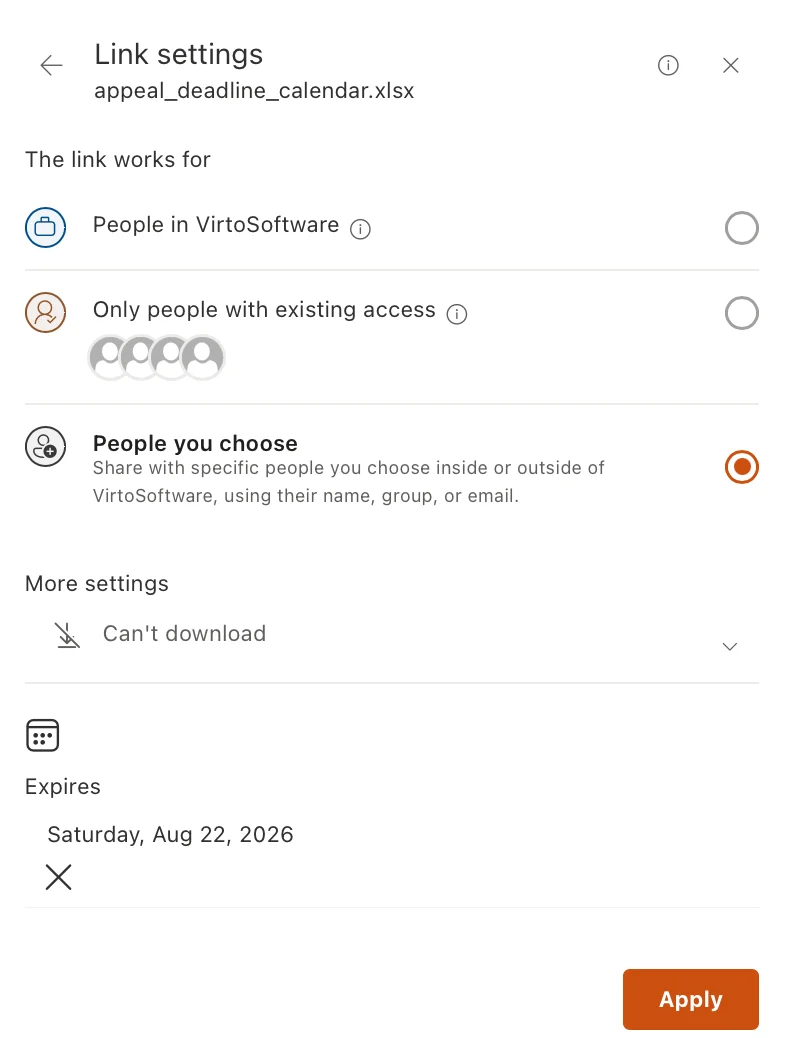
Pic.5. The Share dialog with the link settings panel open, showing Specific people, expiry and Block download.
Sharing a folder rather than a set of individual files is worth a moment’s thought. A folder link keeps working as its contents change — convenient during an active project, and a slow leak afterwards, because anything dropped into that folder later inherits the same external access. If the folder will outlive the engagement, share it with an expiry date.
Sharing with someone who has no Microsoft account
This works out of the box. Send a Specific people link to the person’s ordinary business address; when they open it, Microsoft 365 emails them a one-time verification code, they enter it, and they are in. They appear in your directory as a guest exactly like any other, and you can expire and revoke their access the same way.
The reflex to reach for an Anyone link in this situation is understandable and wrong: it trades a fully governed guest for an anonymous, forwardable URL in order to save the recipient one extra click.
When the partner relationship is bigger than a site
For a sustained partner programme — a supplier network, a franchise, a long-running client portfolio — Microsoft’s B2B extranet pattern is a better fit than ad-hoc sharing. Each partner gets a dedicated, members-only site or team, so partner A never sees partner B’s content, and guest onboarding runs through a controlled, auditable process rather than someone’s Share dialog.
Security and governance for external sharing
Enabling external sharing takes about ninety seconds. Keeping it safe is the actual work — and it is mostly a design decision made once per site, not a daily chore.
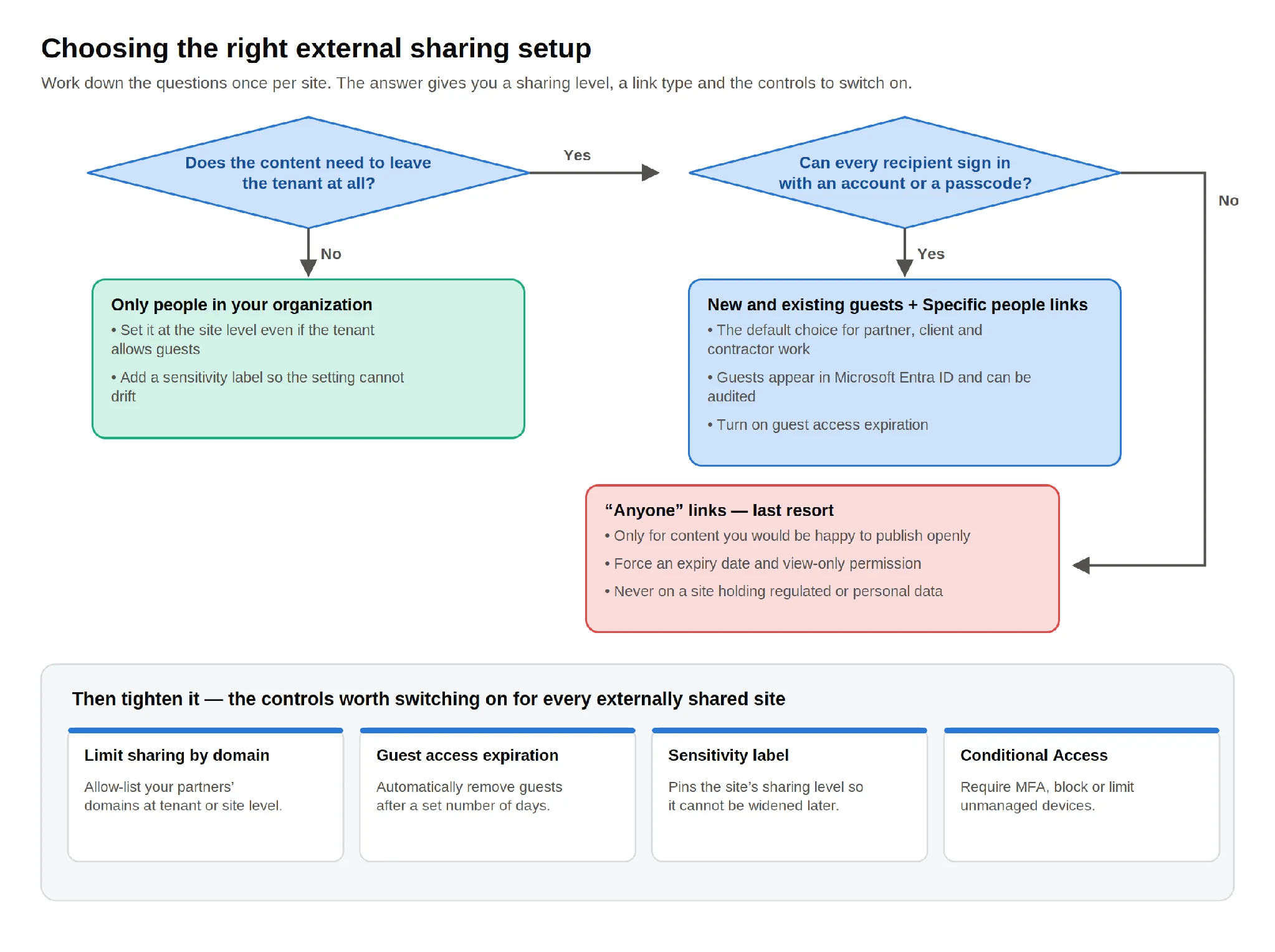
Pic.6. A decision flow for choosing the sharing level, link type and controls for a site.
Think of the controls as five layers, each catching something the one above it cannot.
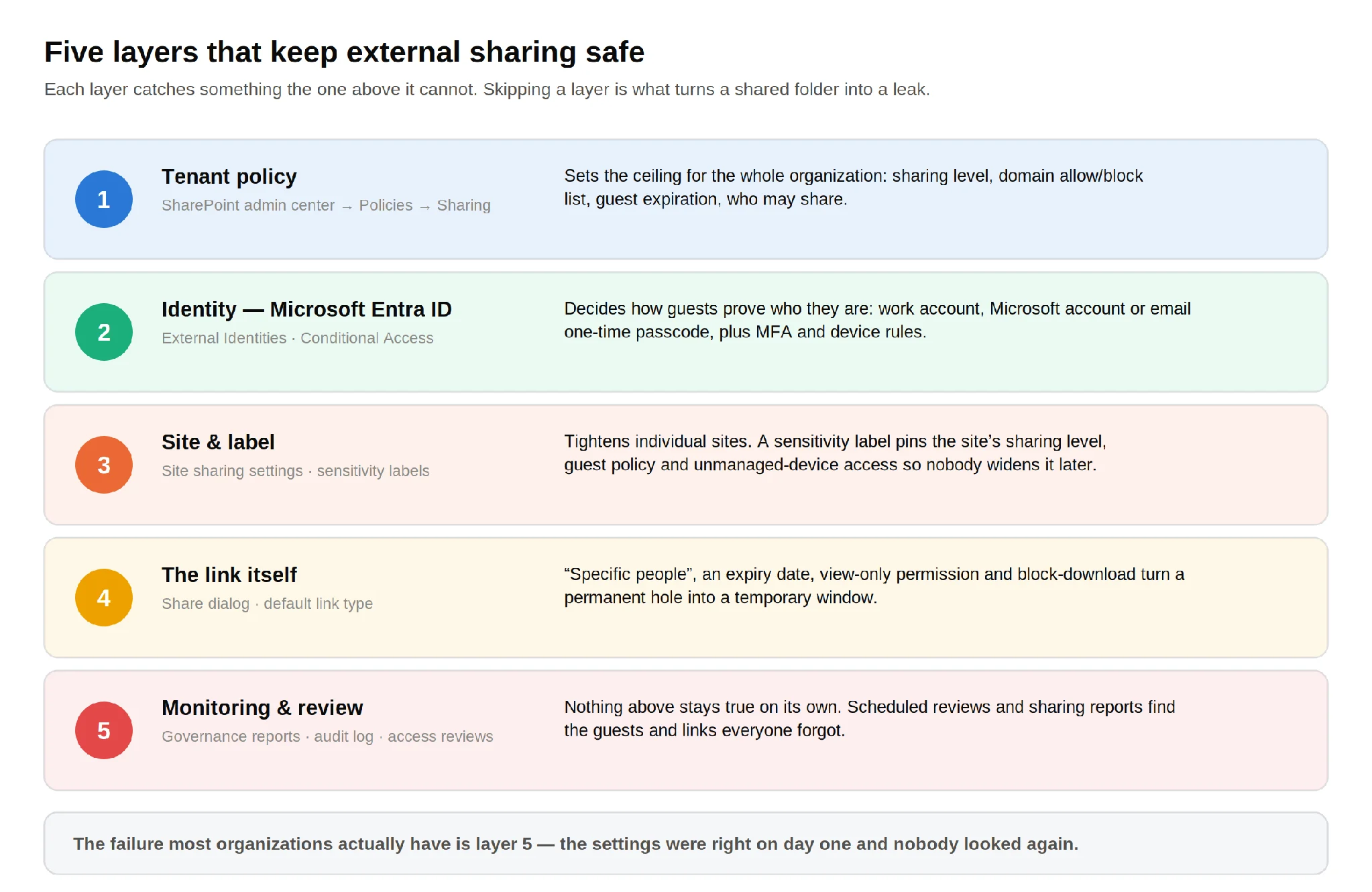
Pic.7. Five layers of control over SharePoint external sharing.
Least privilege, applied properly
Grant the narrowest access that lets the guest do the job, and grant it at the narrowest scope. In descending order of preference: a single file, a folder, a document library, a site. “They’ll probably need other things later” is not a reason to share a site — it is a reason to share the file now and the next one when it is asked for.
Grant access through groups, not one guest at a time. Removing a departing contractor should be one action, not an archaeology exercise across nine libraries.
Expiry, passwords and download blocking
Three link-level controls do a disproportionate amount of work:
- Expiration dates turn a permanent hole into a temporary window. Set them per link, and enforce a maximum for Anyone links at tenant level.
- Passwords on a link mean an intercepted or forwarded URL is not enough on its own.
- Block download on a view-only link keeps the content inside the browser, which matters when the concern is a copy walking out rather than someone reading it.
Domain allow-lists and block-lists
Restricting sharing by domain is the most under-used control in the admin center. An allow-list of your genuine partner domains stops the accidental share to a personal address or a typo’d domain before it happens. Two rules of thumb: the organization-wide setting takes precedence over site-level lists, and a site-level allow-list must be a subset of the tenant allow-list. Wildcards are not supported, so list domains explicitly.
Sensitivity labels and Conditional Access
A sensitivity label applied to a site can pin its external sharing level, control whether owners may add guests, and block or limit access from unmanaged devices through Microsoft Entra Conditional Access. This is the difference between a setting and a policy: a label survives the next well-meaning administrator who widens a site’s sharing to unblock a deadline.
Conditional Access adds the identity-side conditions — require MFA for guests, restrict by location, or allow browser-only access from unmanaged devices so nothing syncs to a machine you do not control.
Data loss prevention
Microsoft Purview DLP inspects content rather than containers. A DLP policy can block or warn when a document containing card numbers, health identifiers or your own custom sensitive-information types is shared with people outside the organization — catching the case where the site is correctly configured but the file inside it should never have been there.
Auditing and review — the layer everyone skips
Configuration decays. Guests stay after projects end, links outlive their purpose, and a site set up for one partner quietly accumulates three. The instrumentation exists:
- Data access governance reports in the SharePoint admin center surface sites shared with guests, sharing links created in the last 28 days, and content shared with Everyone except external users. Note the licensing: full access requires SharePoint Advanced Management, while Microsoft 365 E5 gives a limited view.
- Site permissions on each site shows current members and guests — the fastest way to answer “who can see this?”
- The Microsoft Purview audit log records sharing events, invitations and file access.
- Access reviews in Microsoft Entra ID can put recertification on a schedule and make site owners, not IT, confirm that each guest still needs access.
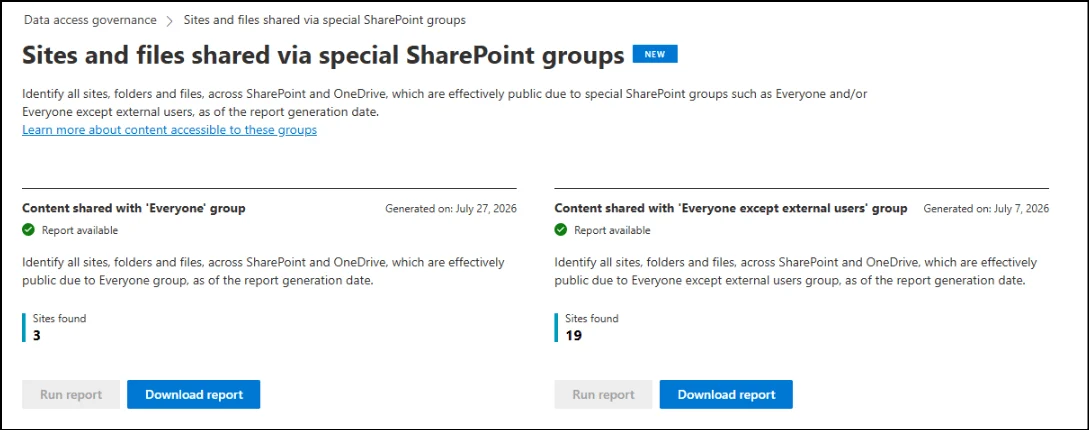
Pic.8. A data access governance report listing sites shared with guests and with everyone except guests.
How to check and remove external access
Two things need removing, and people routinely do only the first:
- Site membership. Open the site → settings gear → Site permissions, find the guest, and remove them. This revokes site-level access.
- Individual sharing links. Select the file or folder → Manage access → review the links and named people, and delete any that are no longer needed. A link created on a specific item survives the removal of site membership.
- The guest account itself. For a clean break, remove the guest from Microsoft Entra ID. This revokes their access everywhere in the tenant at once, which is what you want when a contractor’s engagement ends.
If you only ever remember one of these, make it the third: deleting the guest object is the only action that is guaranteed to be complete.
A workable review rhythm
Monthly: scan new sharing links and newly added guests. Quarterly: review guest lists on externally shared sites and remove anyone whose project has ended. Annually: revisit the tenant-level sharing settings and the domain lists against how the business actually collaborates now.
Common problems and how to fix them
Almost every external sharing ticket resolves to one of six causes. Work down them in order and stop at the first failure.
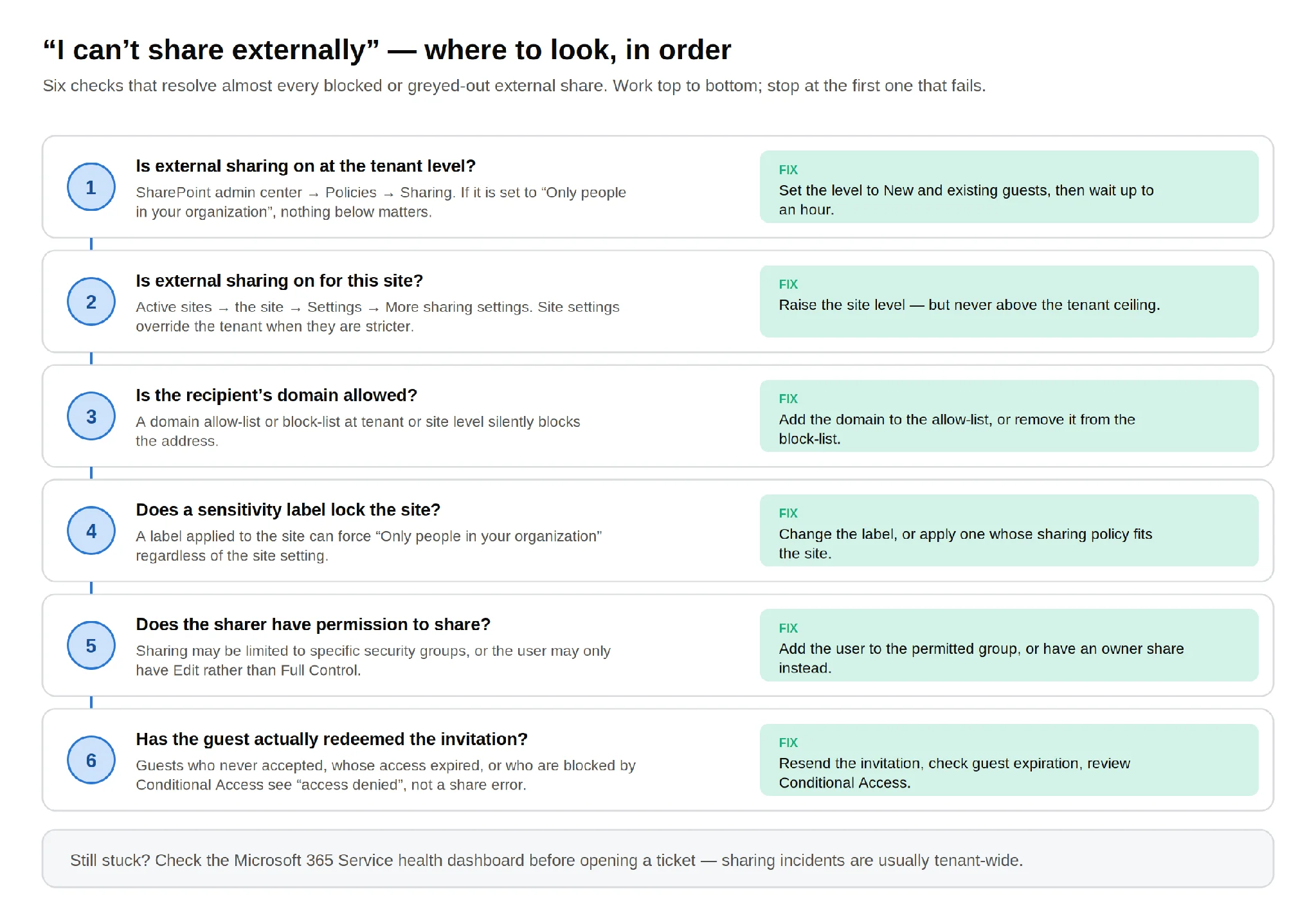
Pic.9. Six checks that resolve almost every blocked external share.
The Share option is greyed out, or external addresses are rejected
This is a configuration block, not a bug. In order of likelihood: external sharing is off at the tenant level; it is off for this site; the recipient’s domain is on a block-list or missing from an allow-list; a sensitivity label on the site is forcing Only people in your organization; or the person sharing is not in the security group permitted to share externally. Fix the level that is actually blocking, then allow up to an hour for the change to reach the site.
The invitation never arrives
- Check the address for typos — a wrong address usually fails silently.
- Ask the recipient to check junk, quarantine and any external-mail filtering their organization runs. Invitation mail from Microsoft 365 is frequently caught.
- Resend from Site permissions, or send the link directly through your own email instead of relying on the invitation message.
- Confirm the recipient’s domain is not on a block-list.
The guest accepted, but gets “access denied”
The invitation and the permission are separate things. Check that the guest actually redeemed the invitation rather than clicking the link while signed in as a different identity — a very common cause, and one that resolves instantly in a private browser window. Then check that guest access has not expired, that a Conditional Access policy is not blocking their device or location, and that the item’s own permissions include them and not just the site’s.
The guest can open the file but cannot edit it
Either the link was created as view-only, or the guest’s permission level is Read. Reshare with Can edit, or raise their permission to Contribute. If neither works, check whether the site is set to view-only for guests, or whether a sensitivity label or DLP policy is limiting what they can do with the content.
External links stopped working all at once
Someone changed the organization-level setting to Only people in your organization. Microsoft’s behaviour here is worth knowing: existing external links stop working while the setting is off, and resume working if it is turned back on. If nothing changed on your side, check the Microsoft 365 Service health dashboard — sharing incidents are usually tenant-wide.
What has changed recently
Three shifts are worth knowing if your external sharing configuration was set up a few years ago and has not been revisited.
- Guest identity runs through Microsoft Entra B2B. External sharing is no longer a SharePoint-only concept. Guests are Entra objects, which is what makes Conditional Access, access reviews and identity-level auditing apply to them at all — and it means your Entra allow and block lists constrain SharePoint sharing too, not just invitations.
- Link behaviour now affects search and Copilot. Content reached through an Anyone link stays out of the recipient’s search results, and a People in your organization link only surfaces once the recipient has opened it. A Specific people link makes content discoverable for the named recipients. If you are wondering why shared content is not appearing where users expect it, the link type is often the reason.
- Oversharing reporting has matured. Data access governance reports in the SharePoint admin center now cover sites shared with guests, recent sharing link activity and content shared with Everyone except external users, with the full feature set gated behind SharePoint Advanced Management and a reduced view available on Microsoft 365 E5.
Do more with Virto apps for SharePoint
Native external sharing handles access. It does not do much about what happens next — telling people that a partner uploaded something, collecting files and information from guests without giving them a tour of your library structure, or moving hundreds of files at once when a project wraps up. That is the gap Virto’s apps for SharePoint and Microsoft 365 fill.
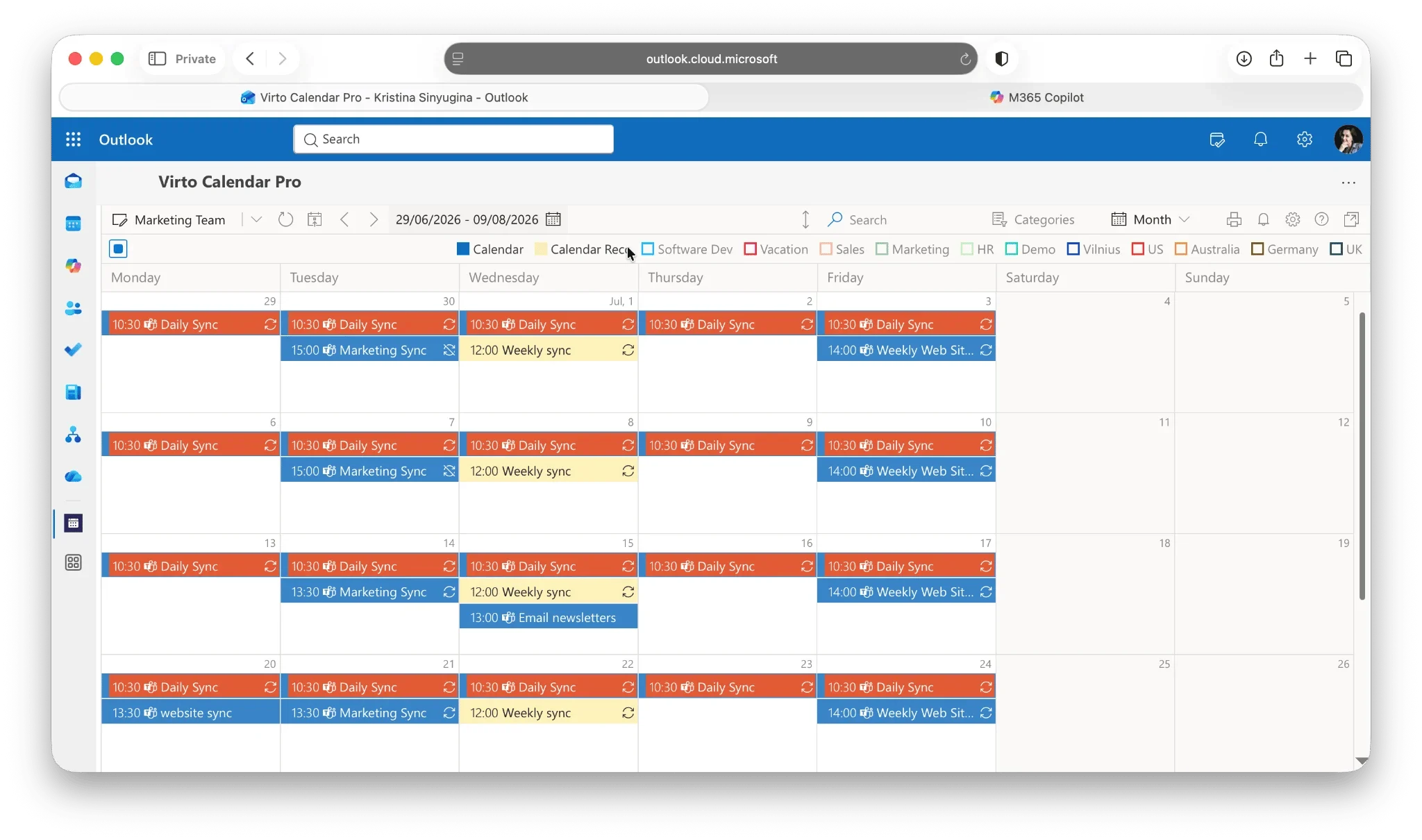
Pic.10. Virto Calendar App running inside a SharePoint Online site.
- Virto Alerts & Reminders App — templated email and Microsoft Teams notifications when a list or library changes. On an externally shared site this is how the internal team learns that a client uploaded a revision, without anyone watching the folder.
- Virto Multiple Operations App — bulk upload, bulk metadata editing and filtered bulk deletion. Useful at both ends of an engagement: getting a partner’s deliverables in, and cleaning the site out afterwards.
- Virto Forms Designer — custom forms with validation and conditional logic, so a guest submits structured information through a form instead of being handed edit rights on a list.
- Virto Kanban Board App — a visual board over SharePoint list data, giving guests a clear view of a shared workstream without needing access to everything behind it.
- Virto Calendar App — overlays SharePoint, Exchange and Google calendars in one view for shared project schedules.
All Virto apps for Microsoft 365 and on-premises SharePoint come with a 30-day free trial — no card, full functionality. See the full app catalogue or how to purchase.
Frequently asked questions
What is SharePoint external sharing?
It is the ability to share SharePoint sites, files or folders with people outside your organization — guests — governed by external sharing settings at the tenant and site level in Microsoft 365.
How do I enable external sharing in SharePoint?
In the SharePoint admin center, go to Policies → Sharing and set the organization-level external sharing level (usually New and existing guests). Then set each site’s sharing to the same level or a more restrictive one under Active sites → Settings → More sharing settings. Users can then share with guests. Allow up to an hour for changes to apply.
Is SharePoint external sharing secure?
It can be, and it is materially more secure than the alternatives people use when it is switched off. Guests authenticate through Microsoft Entra B2B, access is revocable and auditable, and it can be constrained with domain allow-lists, guest expiration, sensitivity labels, Conditional Access and DLP. The insecure mode is unauthenticated Anyone links — those are the ones to restrict or disable.
What is the difference between an external user and a guest?
In practice, “guest” means an external person who has a guest object in your Microsoft Entra directory, signs in, and can therefore be reported on, expired and revoked. “External user” is the looser everyday term, and often also covers anonymous recipients of Anyone links, who have no identity at all.
Can I share with someone who does not have a Microsoft account?
Yes. Send a Specific people link to their normal email address; they receive a one-time verification code by email, enter it, and get access as a guest. There is no need to fall back to an Anyone link.
Why can’t I share a SharePoint file externally?
Usually because external sharing is off at the organization level, off for that particular site, blocked by a domain allow-list or block-list, pinned by a sensitivity label, or because your account is not in a security group permitted to share externally. Check those five in that order.
How do I see who has access to a SharePoint site?
Open the site, select the settings gear and choose Site permissions to see members and guests. For a tenant-wide picture, use the data access governance reports in the SharePoint admin center, which list sites shared with guests and sharing links created recently.
How do I remove an external user’s access?
Remove them from Site permissions on the site, delete the specific sharing links they were given from the item’s Manage access panel, and — for a clean break — remove the guest account from Microsoft Entra ID. Removing the guest object revokes access everywhere at once.
In short
SharePoint external sharing is a two-level setting with a single rule: the more restrictive tenant and site always wins. Set the tenant to New and existing guests, lock down the sites that hold sensitive material, default the Share dialog to Specific people, turn on guest expiration and a domain allow-list, and put a quarterly review in the calendar. Do that and external collaboration stops being the thing security worries about and becomes the thing that stops people emailing spreadsheets to their personal accounts.
For more on the wider collaboration picture, see our guides to SharePoint collaboration, how to share files in SharePoint for the internal side of the same question, SharePoint document management, and what SharePoint is if you are starting from the beginning.