Most organisations already own a document management system and do not realise it. If you have Microsoft 365, you have SharePoint — and SharePoint is not just a place to park files. It is a full document management platform with metadata, version history, co-authoring, granular permissions, retention policies and enterprise search built in.
The gap between “we store files in SharePoint” and “we run document management on SharePoint” is where most of the pain lives. Teams that never move past the first stage end up with folder trees ten levels deep, seven copies of the same contract, and a search box that returns nothing useful. Teams that make the jump get a repository where a document’s location matters far less than what the document is.
This guide covers what SharePoint document management actually is, how it differs from a document library, which capabilities matter in practice, how to configure the system step by step, the best practices that survive contact with real users, and the honest limitations you should plan around. Updated for 2026, including the AI and governance changes Microsoft shipped this year.
Quick answer: SharePoint document management means using SharePoint as a document management system (DMS) — storing, organising and controlling documents through libraries, metadata, versioning, co-authoring and permissions inside Microsoft 365. It covers the whole lifecycle of a document: creation, classification, collaboration, approval, retention and disposal.
What is SharePoint document management?
SharePoint document management is the practice of using SharePoint — either SharePoint Online in Microsoft 365 or SharePoint Server Subscription Edition on-premises — as the system of record for an organisation’s documents. Instead of files living on personal drives, email attachments and network shares, they live in structured libraries where every file carries metadata, keeps a version history, obeys permission rules and falls under retention policy.
The word “system” is doing real work in that sentence. A document management system is not a storage location. It is the combination of:
- Structure — how content is organised into sites, libraries and content types.
- Classification — the metadata that describes what each document is, who owns it and what stage it is at.
- Control — versioning, check-out, approval and permissions that govern who can do what.
- Lifecycle — retention labels and disposition rules that decide how long content lives and what happens at the end.
- Discovery — search, views and filters that let people find a document without knowing where it was filed.
SharePoint provides all five out of the box. What it does not provide is the decisions — those are yours, and they are the difference between a well-run DMS and an expensive folder tree.
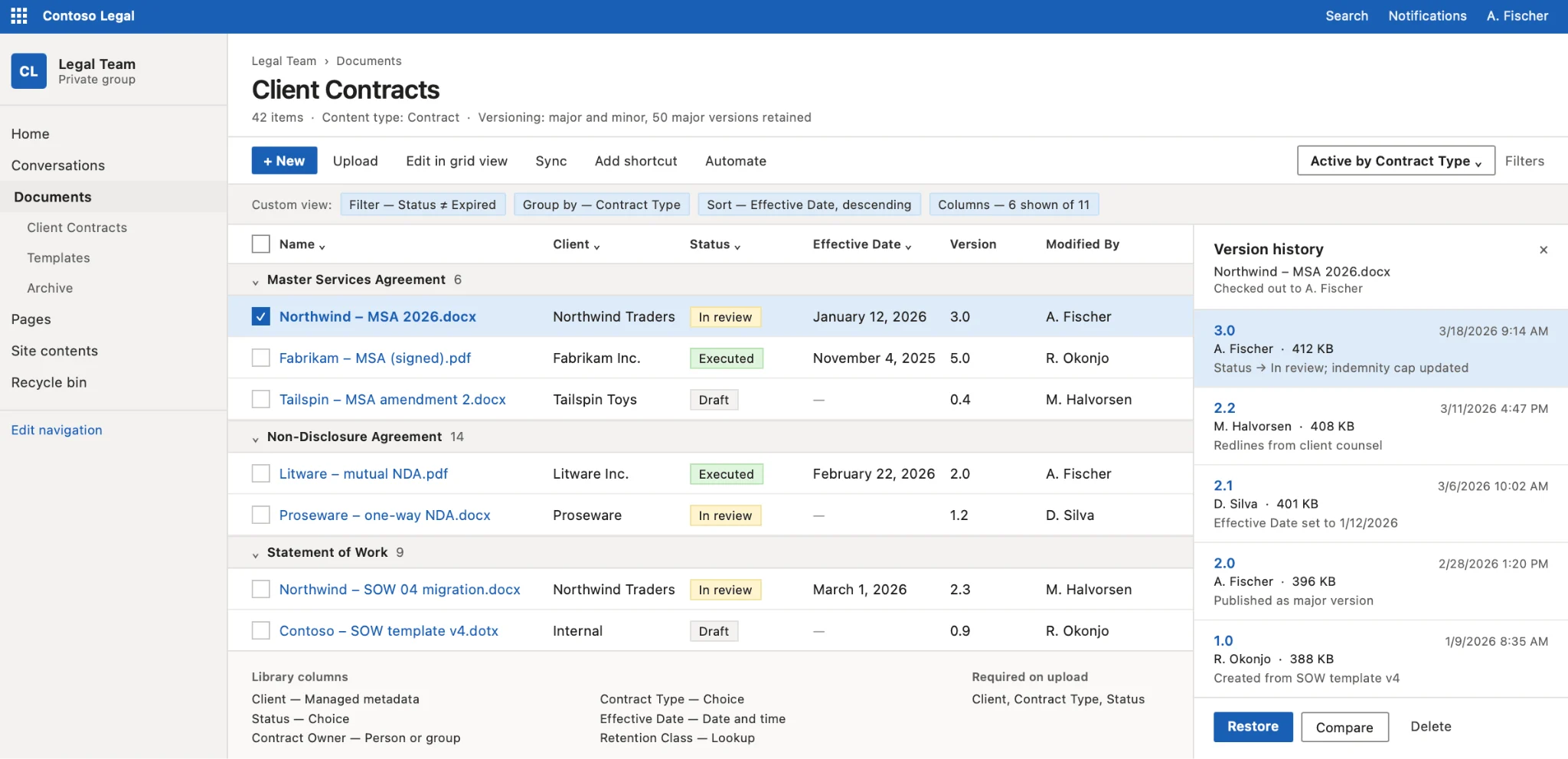
Pic.1. A SharePoint document library configured with metadata columns, version history and a custom view.
How SharePoint organises and manages documents
At the storage layer, everything in SharePoint sits inside a site. A site contains lists and libraries; a document library is the container purpose-built for files. Each file in a library is an item with a set of columns — some system-generated (Modified, Modified By, Version), some defined by you (Client, Contract Type, Status, Review Date).
Above the individual site, SharePoint uses hub sites to associate related sites under shared navigation, a common theme and a single search scope. This is how a modern SharePoint document management architecture scales: many focused sites, each with its own libraries and permissions, tied together by a hub rather than nested as subsites.
For a broader tour of the platform itself, see our SharePoint overview guide.
Document library vs. document management: the difference that matters
These two terms get used interchangeably and they should not be. Getting the distinction right changes how you design the whole system.
A document library is a container. It is the SharePoint app where files physically live, complete with columns, views and settings. You create one, you upload files to it, you configure it.
Document management is the wider system applied across libraries: the metadata schema, the content types, the permission model, the retention policies, the approval workflows and the governance rules that make many libraries behave as one coherent repository.
| Aspect | Document library | Document management |
|---|---|---|
| What it is | A container for files inside a SharePoint site | The system and practice of controlling documents across the organisation |
| Scope | One library, one site | Many libraries, many sites, the whole tenant |
| Configured by | Site owner | Information architect, records manager, SharePoint admin |
| Typical questions | How do I create it? How do I add a column? How do I change the view? | Which metadata do we standardise? Who approves what? How long do we keep it? |
| Failure mode | A messy library | An organisation that cannot find, trust or defensibly delete its own content |
In practice you build document management out of document libraries. If you want the mechanics of creating and configuring the container itself, that is covered separately in our guide on how to create and manage a SharePoint document library. This article is about the system you build on top.
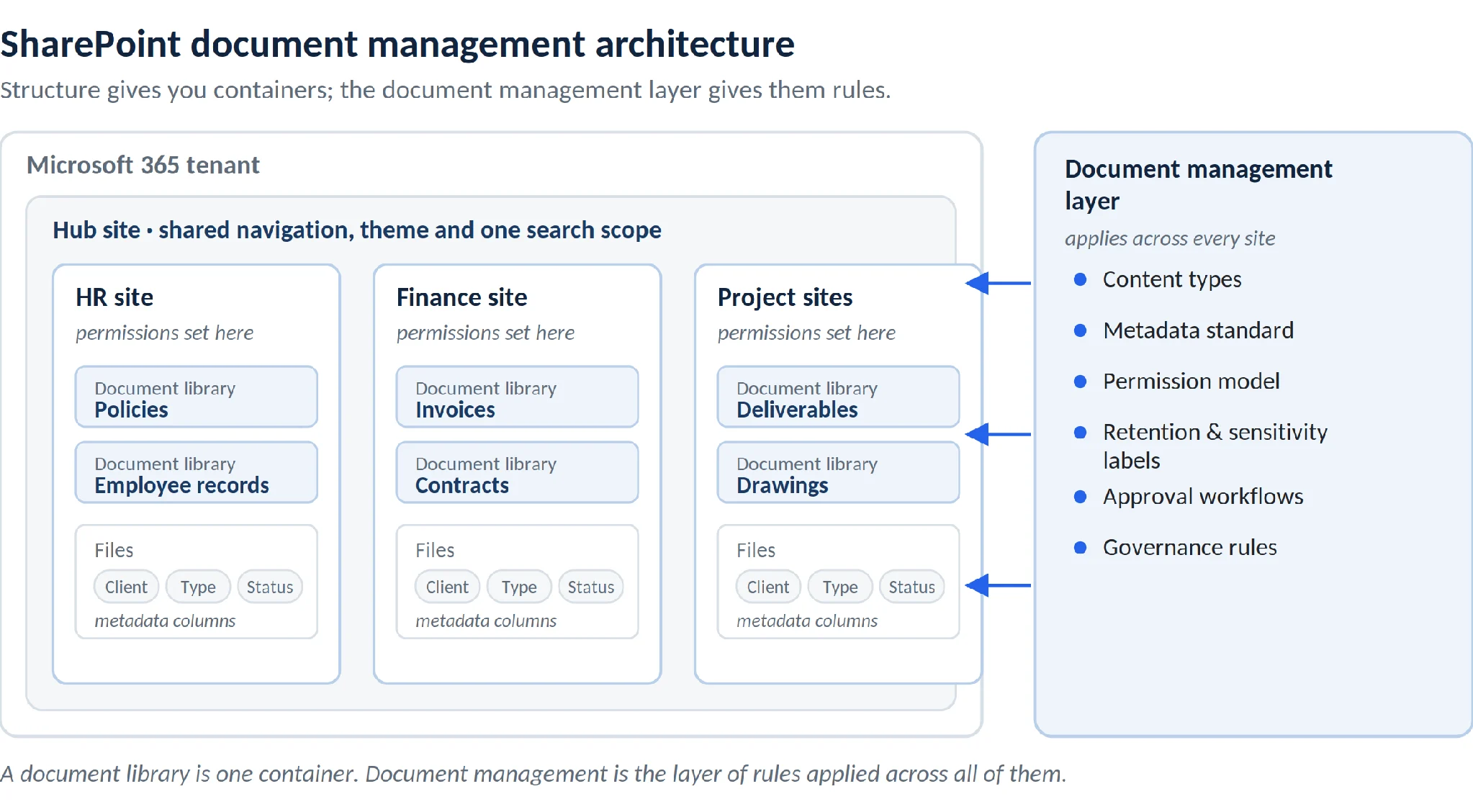
Pic.2. How SharePoint document management fits together — sites and libraries are the containers, the document management layer supplies the rules.
Key capabilities of SharePoint as a document management system
These are the capabilities that make SharePoint a genuine DMS rather than cloud storage with a Microsoft logo on it.
Metadata, content types and managed taxonomy
Metadata is the single highest-leverage feature in SharePoint document management, and the one most consistently underused. Instead of encoding information in folder paths — /Clients/Acme/2026/Contracts/Signed/ — you attach it as columns: Client = Acme, Year = 2026, Document Type = Contract, Status = Signed. The document then appears in every view that matches, without being duplicated.
Content types take this further. A content type is a reusable definition of a category of document: its metadata columns, its template, its retention policy, its workflow. Define a “Client Contract” content type once, publish it from the content type hub, and every library across the tenant that uses it inherits the same structure. This is what stops eleven departments from inventing eleven incompatible ways to describe the same thing. Microsoft’s guidance on planning content types and workflows is the reference here.
Managed metadata adds a central term store — a governed taxonomy of terms that can be reused across sites, used for navigation, and kept consistent as the business changes. Microsoft’s introduction to managed metadata explains the term store model, including the distinction between a formal taxonomy and user-driven enterprise keywords.
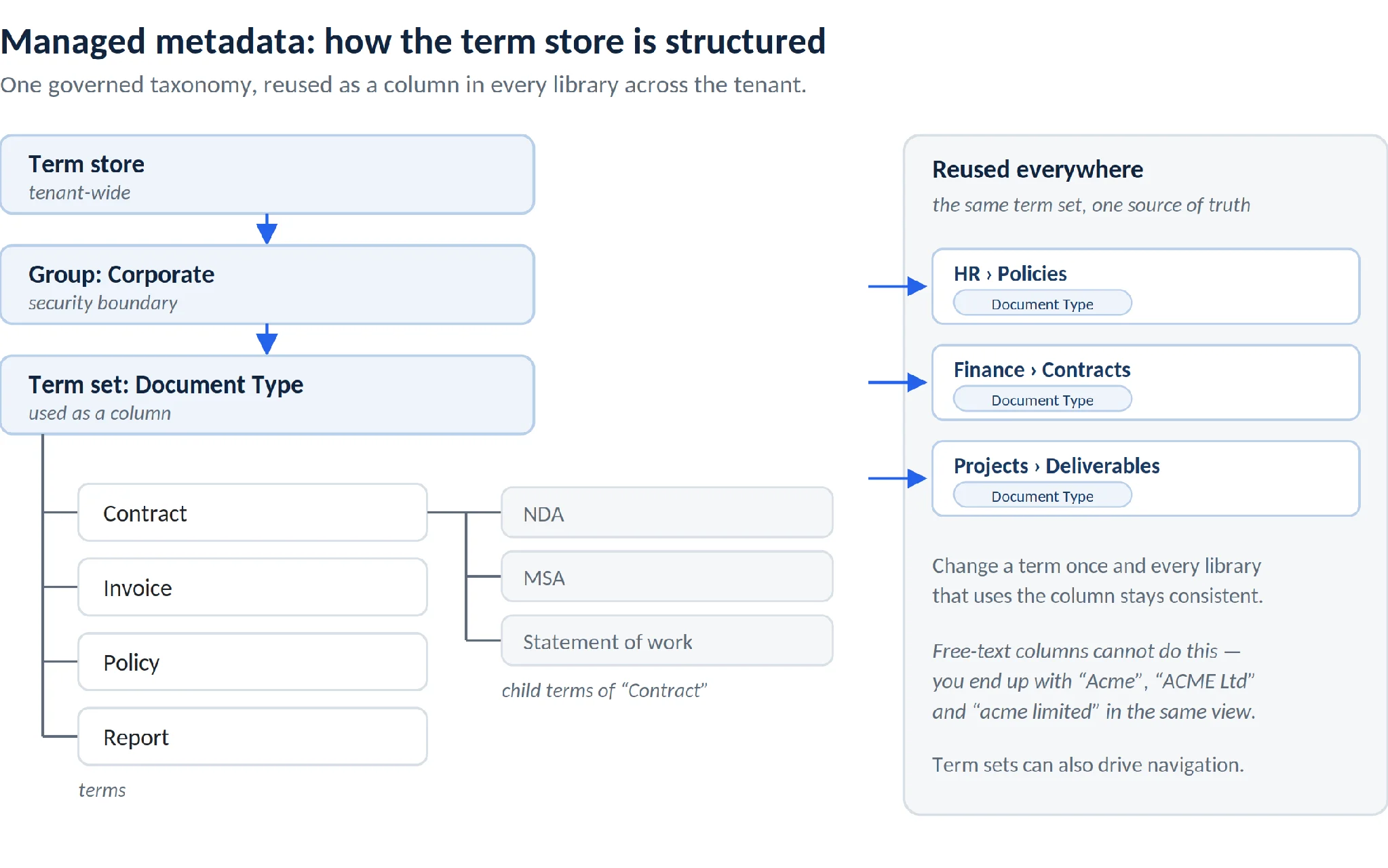
Pic.3. Managed metadata: how a term store is structured, and how one term set is reused as a column across every library.
Versioning and change control
SharePoint keeps a version history for every file in a library. Major versions, optional minor (draft) versions, and the ability to view, restore or compare any prior version. When someone overwrites a spreadsheet at 4:55pm on a Friday, version history is the difference between a shrug and a crisis.
Version limits are configurable per library — you can cap the number of major versions retained, or use automatic version history limits to balance recoverability against storage consumption. Microsoft documents the settings in enable and configure versioning for a list or library.
A practical note: turn versioning on before you need it. It is not retroactive.
Check-in, check-out and co-authoring
SharePoint supports two opposite but complementary models.
Co-authoring lets multiple people edit the same Word, Excel or PowerPoint file simultaneously, with changes merged in real time and each editor’s cursor visible. This is the default and the right choice for most collaborative documents.
Check-out does the reverse: it locks a file to one editor so nobody else can change it until they check it back in. This matters for documents where concurrent editing is genuinely dangerous — a signed template, a regulated procedure, a financial model with fragile formulas. Microsoft’s guide to check out, check in, or discard changes to files in a library covers the mechanics, including required check-out.
Choose deliberately. Forcing check-out on a library where five people need to work in parallel is a reliable way to make everyone email attachments again.
Permissions and access control
SharePoint permissions work through inheritance. A site has permission groups (typically Owners, Members, Visitors); libraries, folders and individual items inherit from the site unless you break inheritance and set something specific.
The capability is genuinely granular — you can secure a single document differently from the library around it. The discipline is knowing when not to. Every broken inheritance is a permission that someone has to remember, audit and eventually untangle. The maintainable pattern is: set permissions at the site or library level, use Microsoft 365 groups and security groups rather than individuals, and reserve item-level permissions for genuine exceptions.
When documents need to leave the organisation, that is a separate discipline with its own settings and risks — see our guide to SharePoint external sharing and Microsoft’s documentation on secure external sharing in SharePoint.
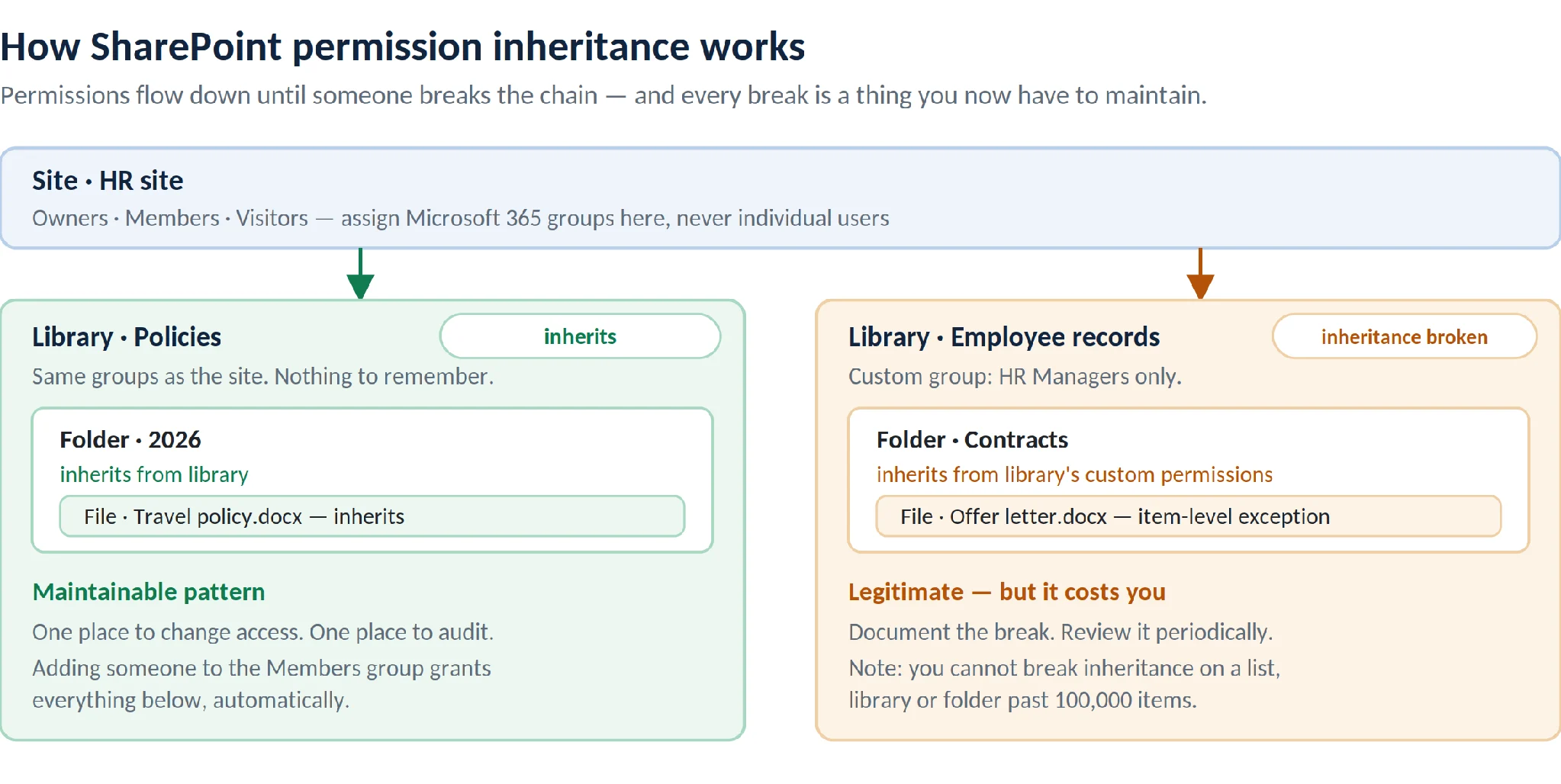
Pic.4. Permission inheritance in SharePoint — inherited access on the left, a deliberate and documented break on the right.
Retention, records management and compliance
This is where SharePoint pulls ahead of general-purpose file storage. Through Microsoft Purview you can apply retention policies at site or library scope and retention labels at item level, configured to retain, delete, or retain-then-delete. Labels can trigger disposition review before anything is destroyed, and can be event-based — retain an employee file for seven years after the employee leaves, not after it was created.
Sensitivity labels run alongside retention and control protection rather than lifecycle: encryption, watermarks, and access restrictions that travel with the file. Microsoft’s documentation on sensitivity labels for files in SharePoint and OneDrive covers enablement, supported file types and current limitations.
For the full retention model, see Microsoft’s retention policies and retention labels documentation.
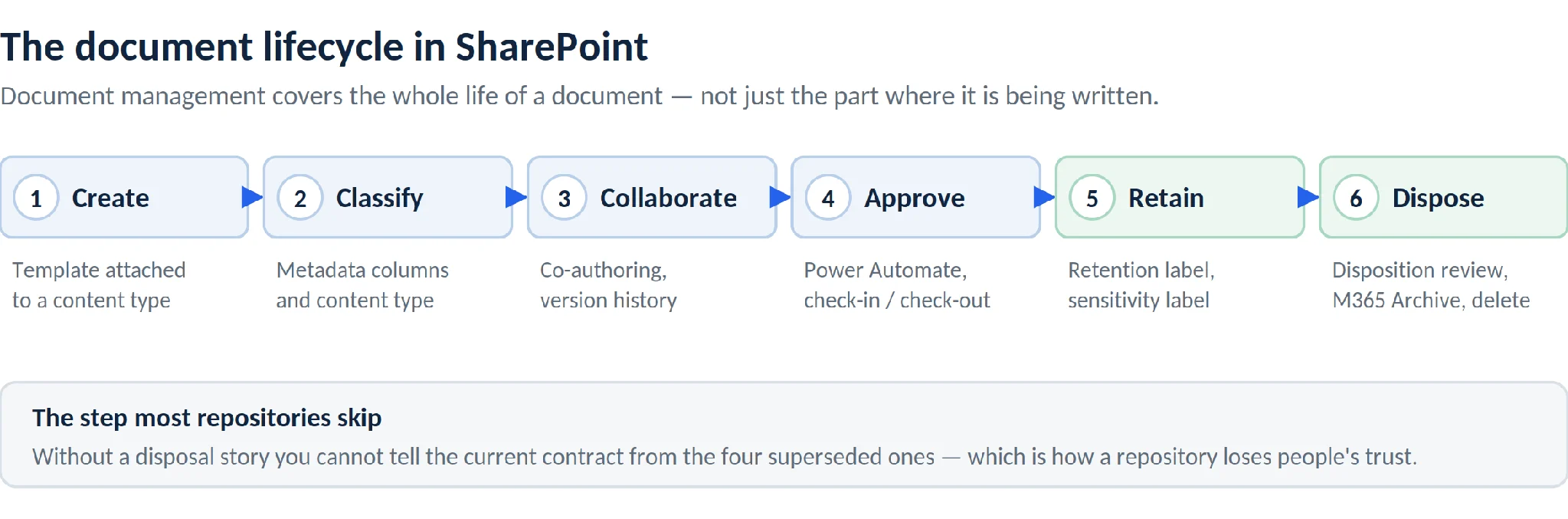
Pic.5. The document lifecycle in SharePoint, from creation through to defensible disposal.
Search and discovery
SharePoint search indexes file content, metadata columns and managed properties. Because metadata is indexed, a well-classified repository lets people filter to “all signed contracts for Acme expiring this quarter” without knowing which site the files live on.
Search quality is downstream of classification quality. A library where every document has the same three blank columns will search badly no matter how good the engine is. This is the practical argument for investing in content types up front.
Workflow automation
Document management involves approvals, reviews, notifications and routing. Power Automate handles these natively against SharePoint: trigger a flow when a file is created or a column changes, route it for approval, update status metadata, notify the requester, move the file on completion.
Common document management flows worth building early: contract approval routing, document review reminders on a Review Date column, automatic metadata stamping on upload, and escalation when an approval sits untouched for too long.
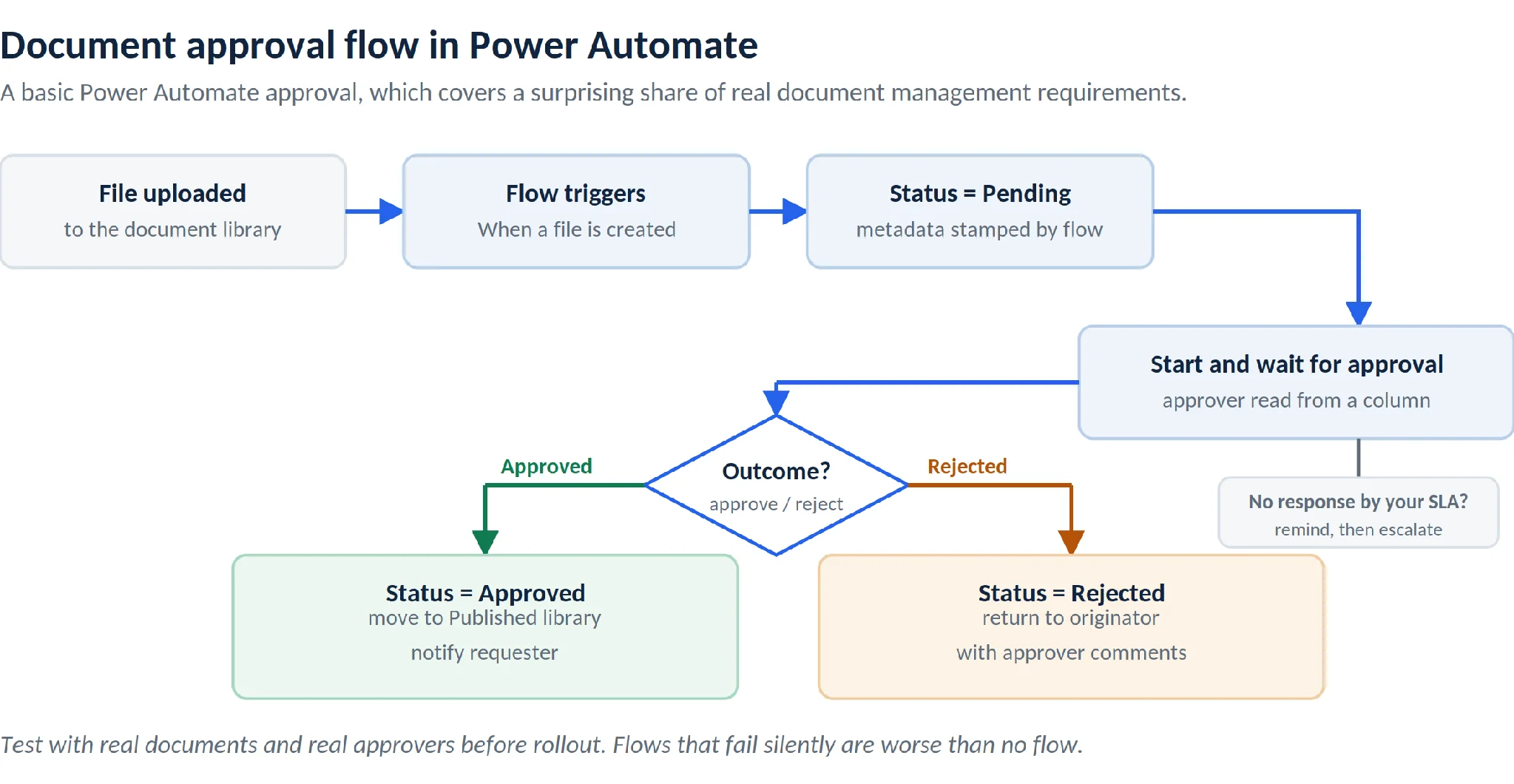
Pic.6. A basic document approval flow in Power Automate, including the rejection and escalation paths.
What is new in SharePoint document management in 2026
The last eighteen months have changed the shape of SharePoint document management more than the five years before them. Three shifts matter.
AI agents grounded in your document libraries
Agents in SharePoint let users ask questions of a site, page or document library in natural language and get answers grounded in that content. Critically, agents respect existing permissions — an agent’s response to a given user only includes content that user can already access. Microsoft covers the model in manage access to agents in SharePoint.
Copilot in SharePoint extends this to building: creating sites, pages, lists and libraries through natural language, and running workflows against content. As of mid-2026 it rolls out as an opt-out preview to users with a Microsoft 365 Copilot licence — see get started with Copilot in SharePoint.
The document management consequence is direct: AI amplifies whatever your information architecture already is. Clean metadata and tight permissions produce useful answers. Sprawling libraries with “Everyone except external users” access produce confidently sourced answers from documents nobody should have seen.
Governance tooling caught up
SharePoint Advanced Management (SAM), available through Microsoft 365 Copilot or as an add-on, adds the governance layer that large document repositories always needed. The capabilities most relevant to document management:
- Data access governance reports — site permissions baseline, sharing links activity, and the “Everyone except external users” report that surfaces the top sites shared with the entire organisation.
- Restricted content discovery — stop specified sites from surfacing in Copilot Business Chat and organisation-wide search.
- Site lifecycle management — ownership, inactivity and attestation policies that automatically flag ownerless or abandoned sites.
- AI insights — a language model that interprets governance report findings and recommends actions.
Microsoft’s get ready for Microsoft 365 Copilot with SharePoint Advanced Management is the practical sequence to work through.
Archiving and storage economics
Microsoft 365 Archive moves inactive sites to a cheaper storage tier while preserving content, permissions and metadata. Archived content stops consuming active SharePoint storage quota and is excluded from Copilot grounding. For organisations with a decade of accumulated project sites, this is the missing end of the document lifecycle.
On-premises, SharePoint Server Subscription Edition continues to receive feature updates on a rolling basis rather than version releases, keeping hybrid document management scenarios viable for organisations that cannot move everything to the cloud.
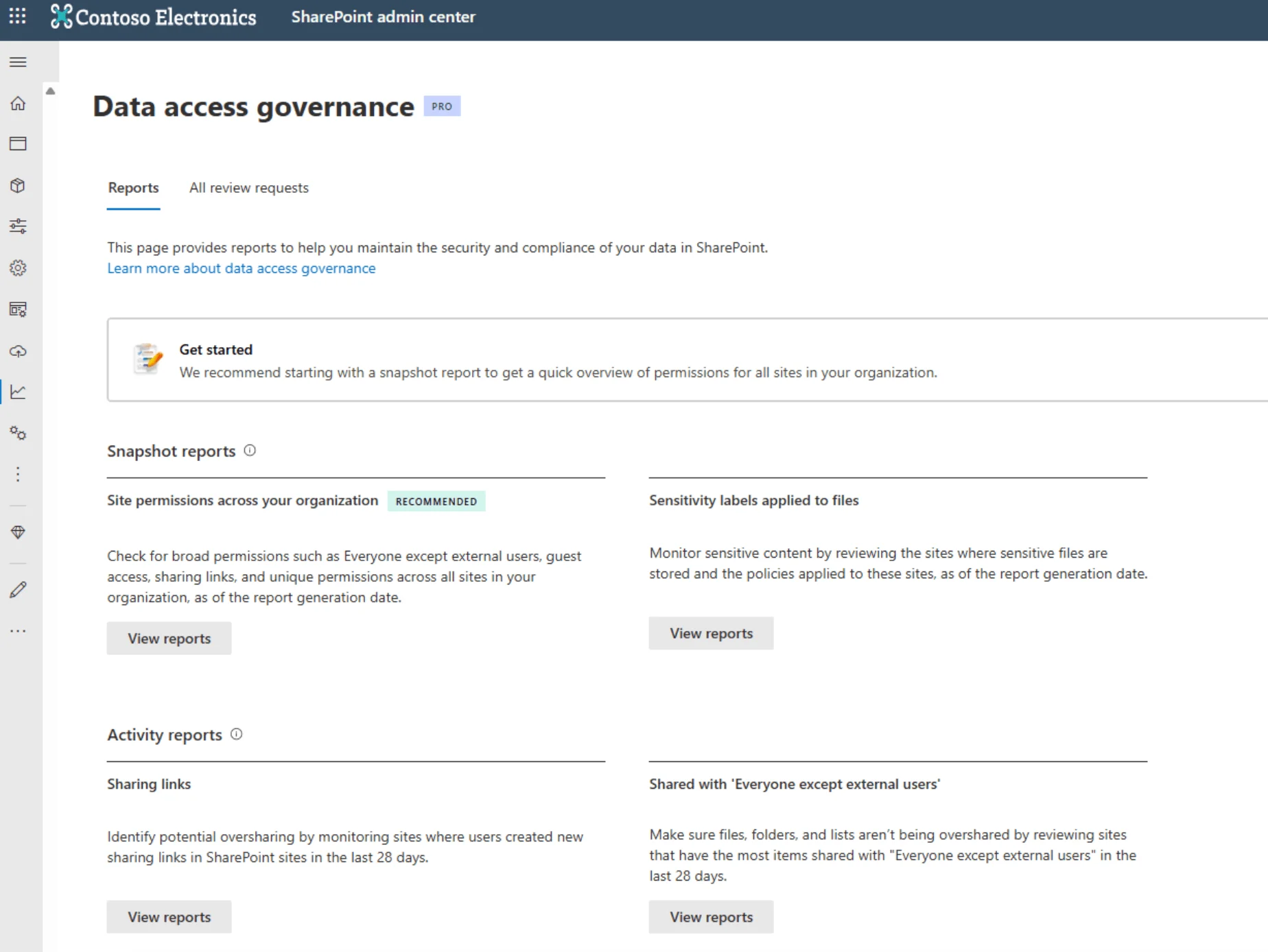
Pic.7. Data access governance reports in the SharePoint admin centre.
How to set up document management in SharePoint step by step
The order matters. Most failed SharePoint DMS projects start at step 4 and never recover.
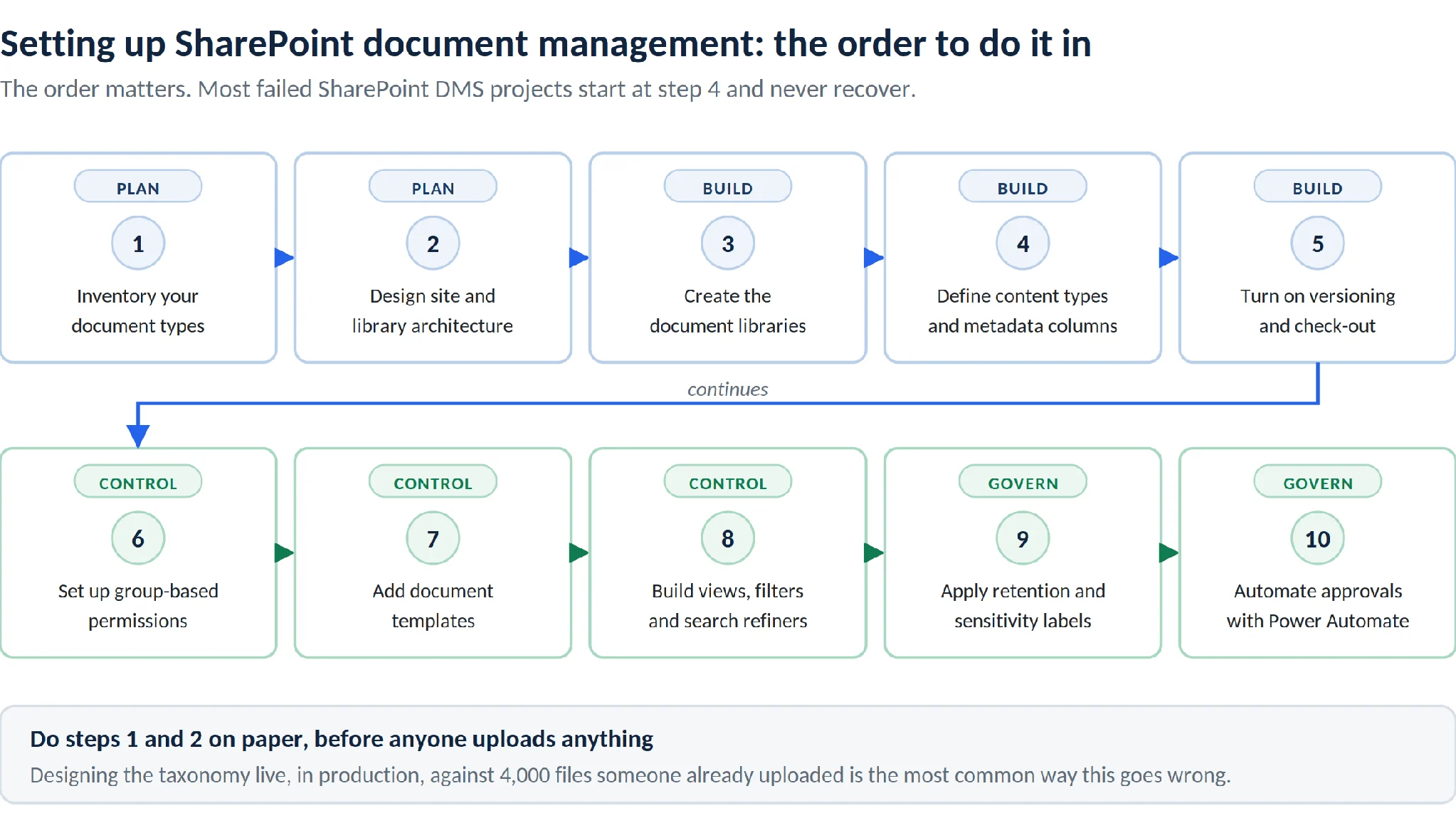
Pic.8. The recommended order for setting up SharePoint document management.
Step 1: Inventory your document types before you build anything
List the categories of document your organisation actually handles — contracts, invoices, policies, project plans, HR records, technical drawings. For each, note who creates it, who approves it, who reads it, how long it must be kept and whether it has regulatory constraints.
This inventory becomes your content type design. Skipping it means designing the taxonomy live, in production, under pressure from users who already uploaded 4,000 files.
Step 2: Design the site and library architecture
Decide what gets its own site and what gets its own library within a site. The useful rule: permissions drive sites, purpose drives libraries. If a set of documents needs a distinctly different audience, it wants its own site. If it shares an audience but has a different structure, it wants its own library.
Associate related sites to a hub rather than nesting subsites. Hubs give you shared navigation and a unified search scope without the permission inheritance headaches that subsites create.
If the repository is part of a broader employee portal, plan it alongside your SharePoint intranet architecture rather than as a separate exercise.
Step 3: Create the document libraries
In the target site, select New → Document library, name it clearly and descriptively, and add a description that explains what belongs in it. Names matter more than they seem — “Contracts — Executed” tells a user something; “Documents2” does not.
Create libraries for genuinely distinct content sets. Resist the urge to create one library per team when the teams handle the same document types; that fragments your metadata and breaks cross-library views.
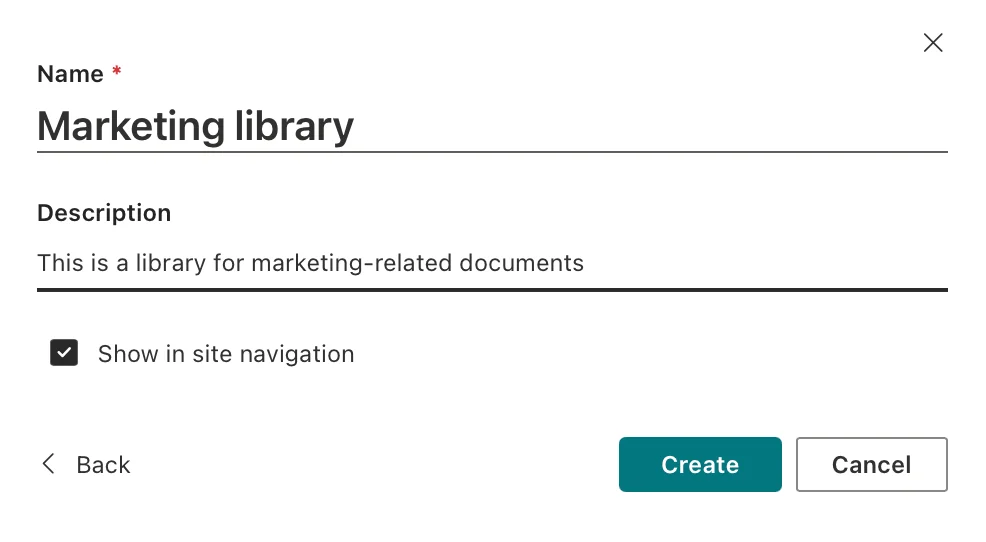
Pic.9. Creating a new document library and setting its name, description and navigation option.
Step 4: Define content types and metadata columns
For each document type from step 1, create a content type with its columns. Publish shared content types from the content type hub so they propagate across sites.
Column design guidance that holds up in practice:
- Use Choice or Managed metadata columns rather than free-text wherever the values are finite. Free text guarantees inconsistency — “Acme”, “ACME Ltd”, “acme limited”.
- Mark the columns you genuinely need as required, and keep that list short. Ten required fields on upload produces users who avoid uploading.
- Set sensible default values so the common case needs no input.
- Include a Status column for anything that moves through stages — it drives views, flows and reporting.
Then associate the content types with the relevant libraries and remove the generic “Document” content type where it is not needed, so users pick from a meaningful list.
Step 5: Turn on versioning and configure check-out
In library settings, enable version history. Decide whether you need minor versions — useful where drafts should be invisible to readers until published, unnecessary elsewhere. Set a version limit so history does not consume unbounded storage.
Enable required check-out only on libraries where concurrent editing is genuinely a risk. For everything else, co-authoring is the better default.
Step 6: Set up permissions
Work through the site’s Owners, Members and Visitors groups first. Populate them with Microsoft 365 groups or security groups, never individual users — individual assignments are what turn a permission model into an archaeology project two years later.
Break inheritance only where a genuine exception exists, document every break, and review them periodically. If you have SharePoint Advanced Management, the site permissions baseline report gives you this review for free.
Step 7: Add document templates
Attach templates to content types so that New in a library produces a correctly formatted, correctly branded document with metadata pre-populated. This is the cheapest standardisation win available and it removes an entire category of “which version of the template is current?” questions.
Step 8: Build views, filters and search refiners
Views are where metadata pays off. Create views that answer real questions: “My documents pending approval”, “Contracts expiring in 90 days”, “Everything modified this week”. Group by metadata, filter on Status, sort by date.
Set a sensible default view for each library, and index the columns you filter on — indexed columns are what keep large libraries responsive.
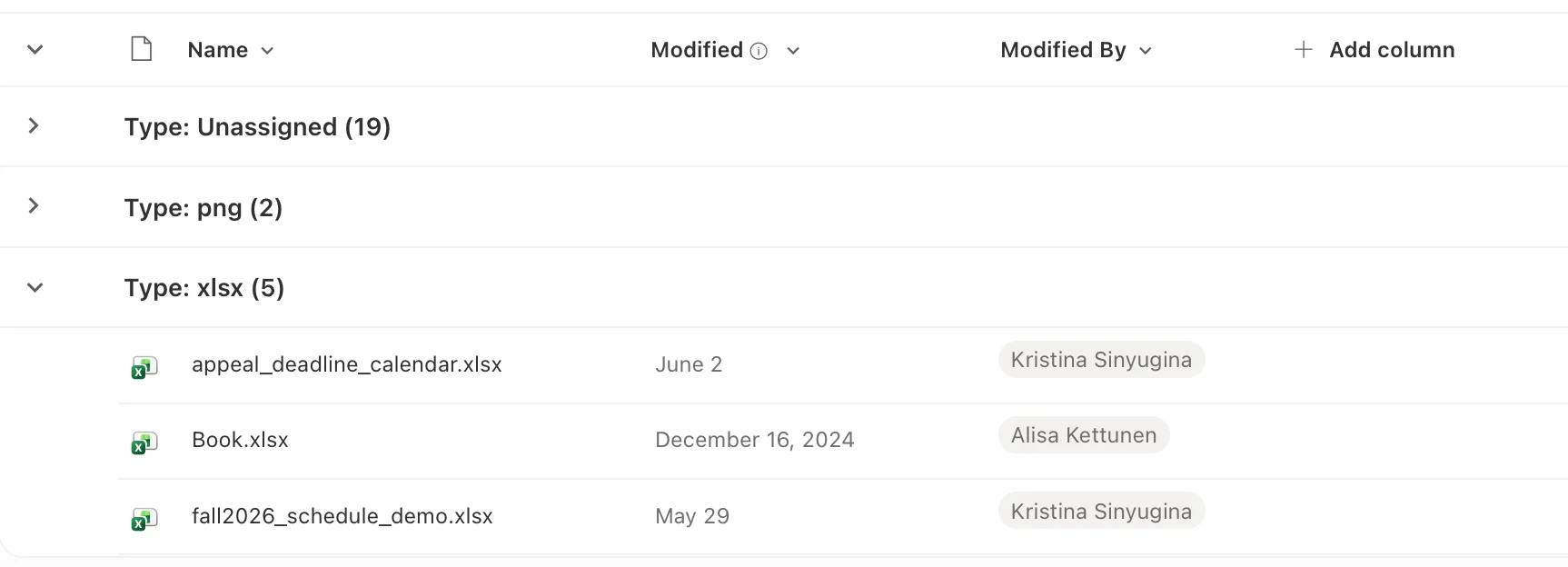
Pic.10. A filtered document library view grouped by document type and status.
Step 9: Apply retention and sensitivity labels
Map each content type to a retention label reflecting its actual legal or business requirement, and publish the labels to the relevant sites. Where content is confidential, apply sensitivity labels for encryption and access control.
Do this with whoever owns compliance in your organisation. Retention is one of the few SharePoint settings where getting it wrong has consequences beyond inconvenience.
Step 10: Automate approvals and routing with Power Automate
A basic document approval flow, which covers a surprising share of real requirements:
- In the library, select Automate → Power Automate → Create a flow.
- Choose a template such as Request sign-off for a selected file or build from the When a file is created (properties only) trigger.
- Add a Start and wait for an approval action, targeting the approver — ideally resolved from a metadata column rather than hard-coded.
- Branch on the outcome: on approval, update the Status column to Approved and optionally move the file to a published library; on rejection, update Status and notify the originator with the comments.
- Add a reminder or escalation path for approvals that sit untouched past your SLA.
- Test with real documents and real approvers before rolling out. Flows that fail silently are worse than no flow.
Where approvals begin with a structured request rather than a file, pair the flow with a form — see our guide to SharePoint forms.
SharePoint document management best practices
These are the practices that separate repositories that stay usable from repositories that quietly rot.
Prefer metadata to folders
Folders encode exactly one hierarchy and force every user to guess it. Metadata lets the same document appear correctly in every relevant view. A shallow folder structure with rich metadata beats a deep folder structure with none, every time.
This does not mean zero folders. It means folders for coarse separation where they genuinely help, and metadata for everything else.
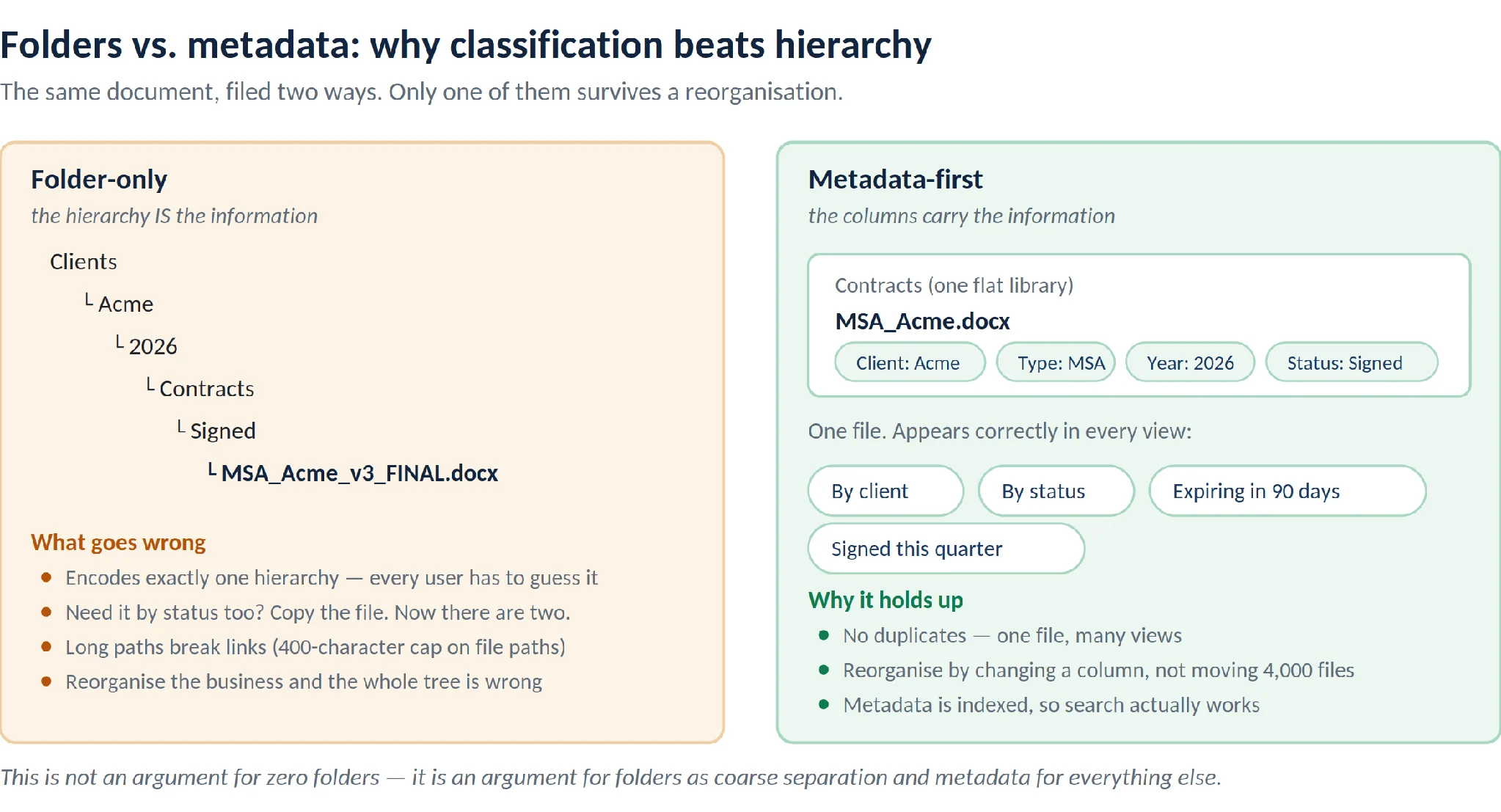
Pic.11. Folders vs. metadata — the same document filed two ways, and what each approach costs you.
Standardise naming, then stop relying on names
Agree a naming convention — document type, subject, date, version if needed — and apply it consistently. But treat file names as a human convenience, not a data structure. The moment your naming convention is carrying information that should be in a column, you have built a fragile system.
Keep the structure flat and the hierarchy in the hub
Deep nesting creates long URLs (SharePoint caps decoded file paths at 400 characters), fragile links and permission confusion. Use hub-associated sites for organisational hierarchy and keep individual libraries shallow.
Design for the list view threshold
SharePoint Online supports up to 30 million items in a library, but views and queries degrade well before that if columns are not indexed. Index the columns you filter and sort on, use filtered views rather than showing everything, and split genuinely enormous repositories across libraries by a stable dimension such as year or business unit. Microsoft’s SharePoint limits documentation has the current figures, including the 250 GB single-file limit and the 100,000-item threshold for breaking permission inheritance.
Govern permissions as a standing process, not a one-off
Schedule a periodic review of broken inheritance, external sharing links and site ownership. Oversharing accumulates silently — someone adds “Everyone except external users” to solve a Tuesday afternoon problem and it stays for four years. With AI agents now reading your libraries, that accumulation has teeth it did not have before.
Write a governance document and make it findable
One page covering: which libraries exist and what belongs in each, the metadata standard, the naming convention, who approves what, retention rules, and who to ask. Store it in SharePoint, link it from the site navigation, and update it when the system changes.
Train users on the why, not just the click path
Users who understand that tagging a document makes it findable for everyone will tag it. Users who were told to fill in four columns because IT said so will select the first option in every dropdown. The training that sticks is the training that explains the payoff.
Plan the end of the lifecycle
Decide up front what happens to a document when it stops being active: archived, retained under label, or deleted. Repositories without a disposal story become repositories nobody trusts, because there is no way to tell the current contract from the four superseded ones.
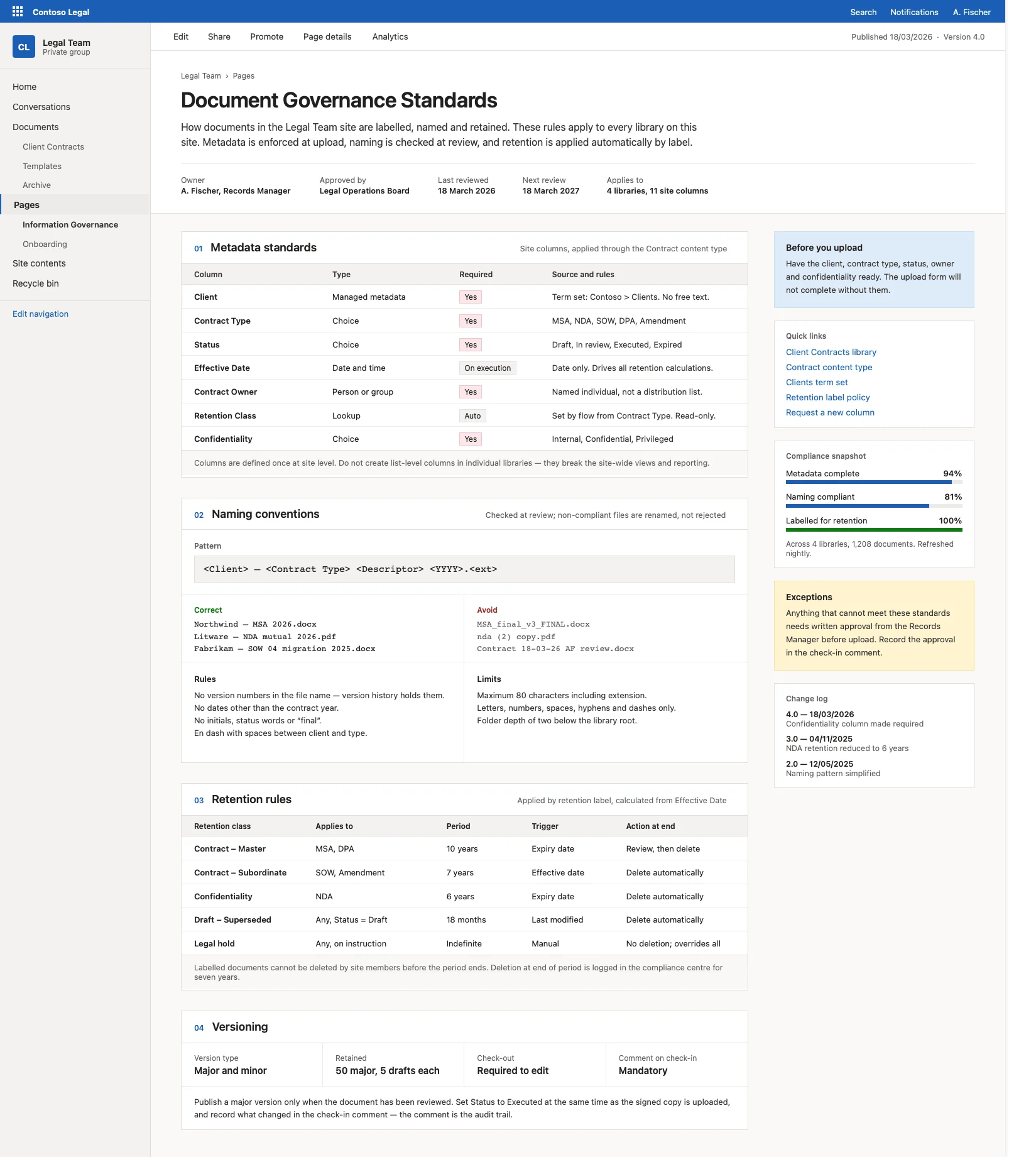
Pic.12. A governance page documenting metadata standards, naming conventions and retention rules.
Limitations of SharePoint document management and when to extend it
SharePoint is a strong DMS. It is not a complete one for every organisation, and it is worth being clear about where it strains.
- Bulk operations are weak. Moving, copying, deleting or re-tagging thousands of files through the browser interface is slow and error-prone, and the modern UI imposes practical limits well below what large repositories require.
- Bulk metadata editing is limited. Updating a column across a few thousand documents natively means either a lot of clicking, a Power Automate flow, or PowerShell. None of those is a self-service option for a site owner.
- Large library performance needs planning. The item ceiling is high, but views, filters and permission changes degrade without deliberate indexing and architecture work.
- Native alerting is coarse. Built-in alerts fire on broad conditions and offer limited control over recipients, formatting, conditions and scheduling — which is why so many document review reminders end up as custom flows.
- Out-of-the-box forms are basic. Complex, conditional or multi-stage document intake forms quickly exceed what the default experience handles comfortably.
- Governance features are licence-gated. Several of the strongest oversharing and lifecycle controls sit behind SharePoint Advanced Management rather than base SharePoint.
None of these are reasons to reject SharePoint. They are reasons to plan the architecture properly and to add tooling where the native gap is real.
How Virto enhances SharePoint document management
Virto builds apps for exactly the gaps above — bulk file handling, alerting, forms and workflow — for both SharePoint Online and SharePoint on-premises. All Virto products come with a 30-day free trial, so you can test them against your own repository before committing.
Virto Multiple File Operations
The bulk operations layer SharePoint lacks. Virto Multiple File Operations (SharePoint on-premises) and the Virto Multiple Operations App (SharePoint Online and Microsoft 365) let users:
- Upload hundreds of files at once with drag and drop, including whole folder structures.
- Execute bulk actions — download, delete, copy, move, check-in, check-out, approve and edit — across large selections.
- Edit metadata on multiple files simultaneously, which turns a taxonomy migration from a scripting project into an afternoon.
- Delete precisely, using filters by date, creator or file type rather than manual selection.
- Apply configurable constraints — file size limits, allowed file types, metadata rules — so bulk operations stay within governance.
For any organisation running a metadata-first document management model, bulk metadata editing is the capability that makes the model maintainable as it evolves.
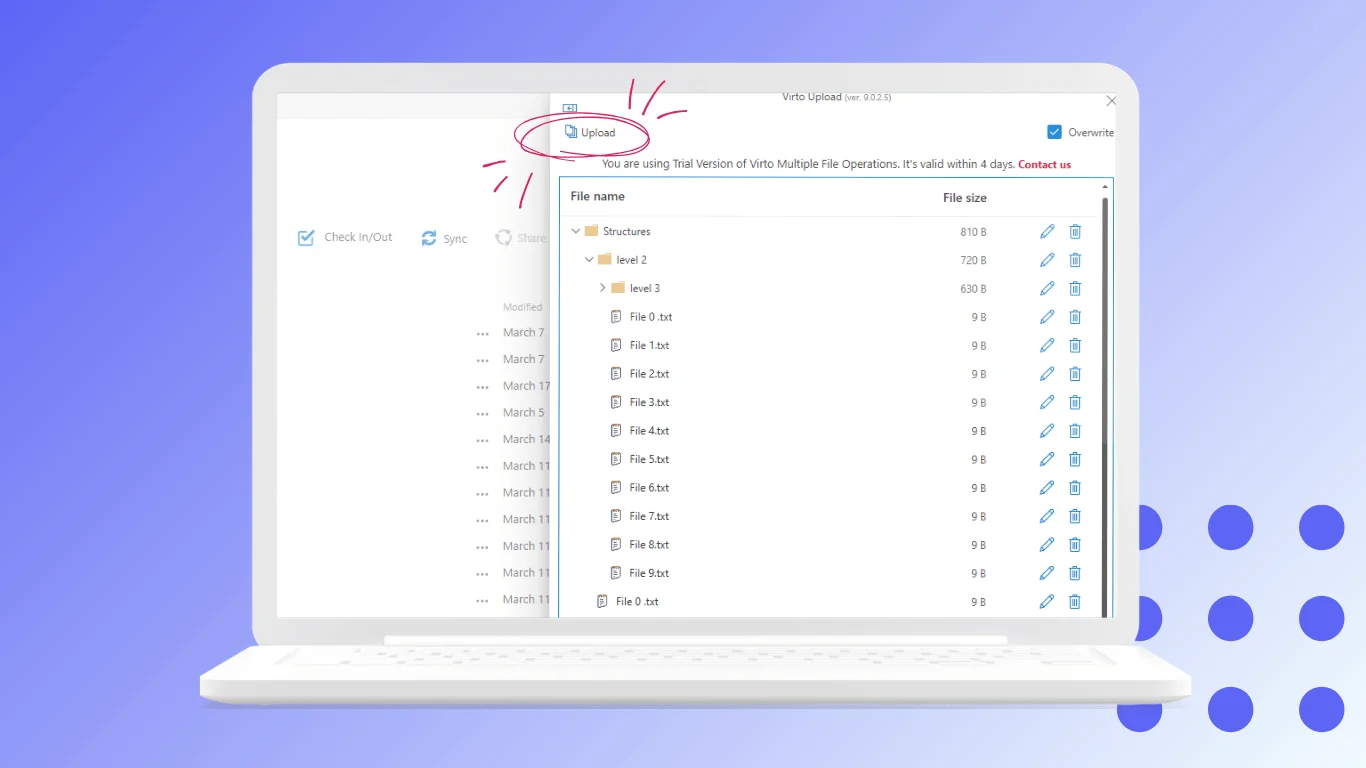
Pic.13. Virto Multiple Operations.
Virto Alerts and Reminders
Virto Alerts and Reminders replaces coarse native alerts with conditional, scheduled notifications: alert the contract owner 30 days before a Review Date, notify a group when a document’s Status changes to Pending Approval, or send a weekly digest of everything added to a library. For document management, this is how review cycles actually get followed rather than forgotten.
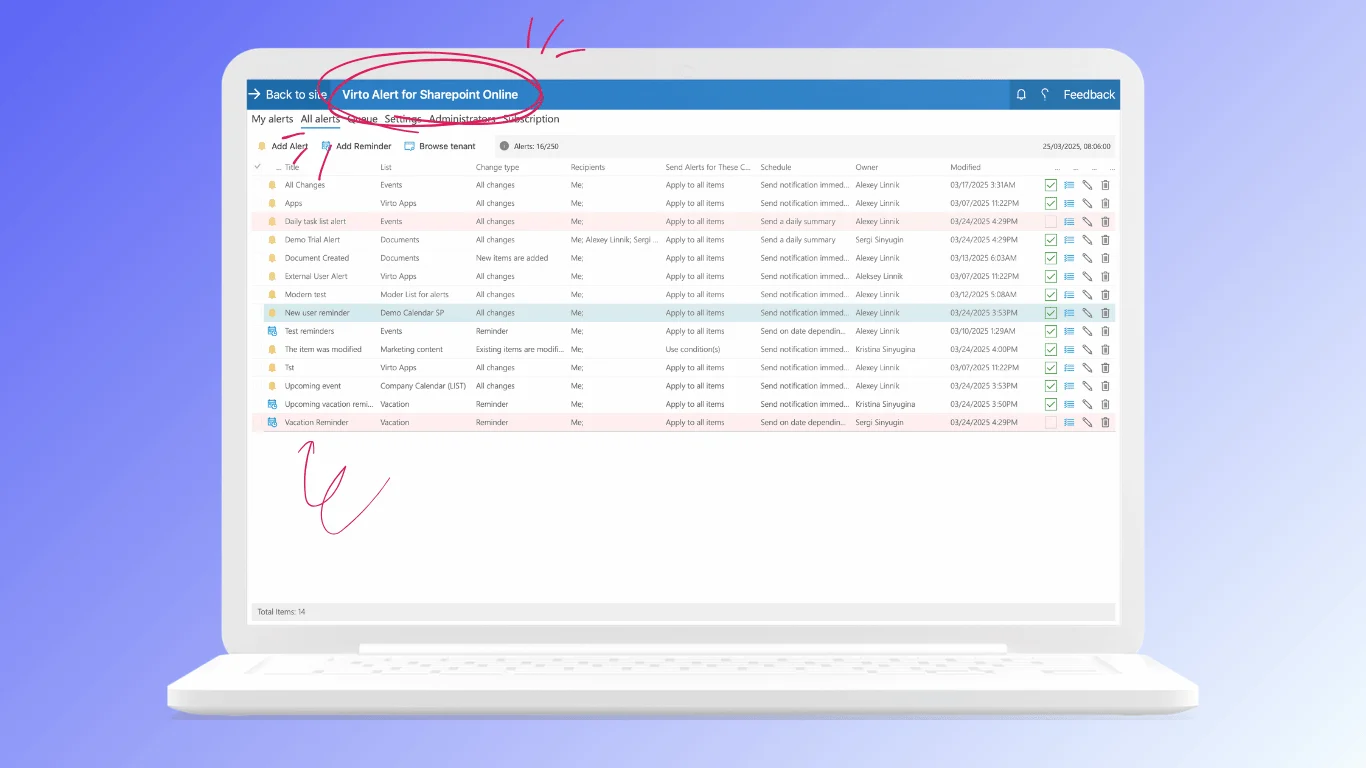
Pic.14. Virto Alerts and Reminders.
Virto Form Designer
Virto Form Designer builds structured intake and approval forms against SharePoint lists and libraries, with conditional logic, validation and tailored layouts — useful wherever documents enter the system through a request rather than a plain upload.
Virto Workflow Automation
For on-premises environments, Virto Workflow Automation extends SharePoint Designer workflows with additional activities for document routing, approvals and content operations.
The full range is on the Virto apps for SharePoint page, with licensing details on the pricing page. Every product includes a 30-day free trial with full functionality.
Frequently asked questions
Is SharePoint a document management system?
Yes. SharePoint provides document management through libraries with metadata, version history, co-authoring, check-in and check-out, retention and granular permissions inside Microsoft 365. Whether it functions well as one in your organisation depends on how you configure the metadata, permissions and lifecycle policies on top of those capabilities.
What is the difference between document management and a document library?
A document library is where files are stored — a container inside a SharePoint site. Document management is the wider system of metadata, versioning, permissions and policies applied across libraries. You build document management using document libraries as the building blocks.
What are the best practices for SharePoint document management?
Use metadata instead of deep folder structures, standardise document types through content types, enable versioning before you need it, assign permissions to groups rather than individuals, index the columns you filter on, apply retention labels that match real requirements, document your governance rules, and review oversharing on a schedule.
How many documents can a SharePoint document library hold?
SharePoint Online supports up to 30 million files and folders per library and up to 250 GB per individual file. Practical performance depends on indexing and view design well before those ceilings — plan the architecture rather than relying on the raw limit.
Can SharePoint replace a dedicated DMS like Documentum or M-Files?
For a large share of organisations, yes — particularly those already standardised on Microsoft 365, where SharePoint’s integration with Word, Excel, Teams, Power Automate and Purview outweighs the additional features of a specialist system. Organisations with heavy regulated records management, complex compound-document requirements or deep line-of-business integrations should evaluate carefully, and often end up with SharePoint plus targeted extensions rather than either extreme.
How do I organise documents in SharePoint?
Start from document types rather than departments. Create a content type per document type with the metadata that describes it, put those content types in a small number of well-named libraries, keep the folder structure shallow, and build views that filter on metadata. Organise the hierarchy at the site and hub level, not inside libraries.
Does SharePoint document management work with AI and Copilot?
Yes. Agents in SharePoint answer questions grounded in site and library content while respecting each user’s existing permissions, and Copilot in SharePoint can create sites, pages and libraries from natural language. Both make information architecture more important, not less — AI surfaces whatever your permissions and metadata allow it to surface.
Conclusion
SharePoint document management is less about features than about decisions. The platform gives you metadata, content types, versioning, co-authoring, granular permissions, retention, search and automation — a complete DMS toolkit. What determines whether you end up with a system of record or a very expensive shared drive is whether you inventory your document types before building, classify with metadata instead of folder paths, assign permissions to groups, and plan for the end of a document’s life as deliberately as its beginning. For the platform-wide layer above the library, content types, records, pages and workflow, see our guide to SharePoint content management.
The 2026 additions raise the stakes in both directions. AI agents reading your libraries make good information architecture more valuable and bad information architecture more visible. Governance tooling like SharePoint Advanced Management gives you the reporting to see where the problems actually are.
Where SharePoint’s native tooling runs short — bulk file and metadata operations, conditional alerting, structured forms — Virto’s apps for SharePoint fill the gap, each with a 30-day free trial so you can test against your own content before deciding.
If you are building out the wider collaboration layer around your document repository, our guide to SharePoint collaboration covers how document management fits alongside team sites, co-authoring and Teams integration, and our Microsoft Lists guide covers the structured-data side of the same platform.