Quick answer: A SharePoint document library is a special type of SharePoint list built for files. It stores documents, lets your team co-edit them in the browser, keeps a full version history, controls who can see or change each file, and adds metadata columns and views so people can find things without digging through folders.
If your team’s files live in a mess of shared drives, email attachments and “Final_v3_REALLY_final.docx”, a document library is the fix. It is the container that actually holds documents inside Microsoft 365 — and everything else in SharePoint document management is built on top of it.
This guide covers what a document library is, how to create one in about five clicks, where to find the libraries you already have, how to organise files with folders and metadata, and the settings worth getting right on day one. It also covers what changed in 2025–2026: automatic version history limits and Copilot-generated libraries.
New to the platform? Start with our What Is Microsoft SharePoint and What Is It Used For? guide, then come back here.
What is a SharePoint document library?
A SharePoint document library is a container on a SharePoint site that stores files and adds structure around them. Technically it is a list whose items happen to be documents — which is why it inherits everything lists can do: columns, views, filters, permissions and automation.
That distinction matters. A folder on a network drive holds files and nothing else. A document library holds files plus the information about those files: who owns each one, what status it is in, which client it belongs to, when it expires, and every version anyone has ever saved.
Here is what you get out of the box.
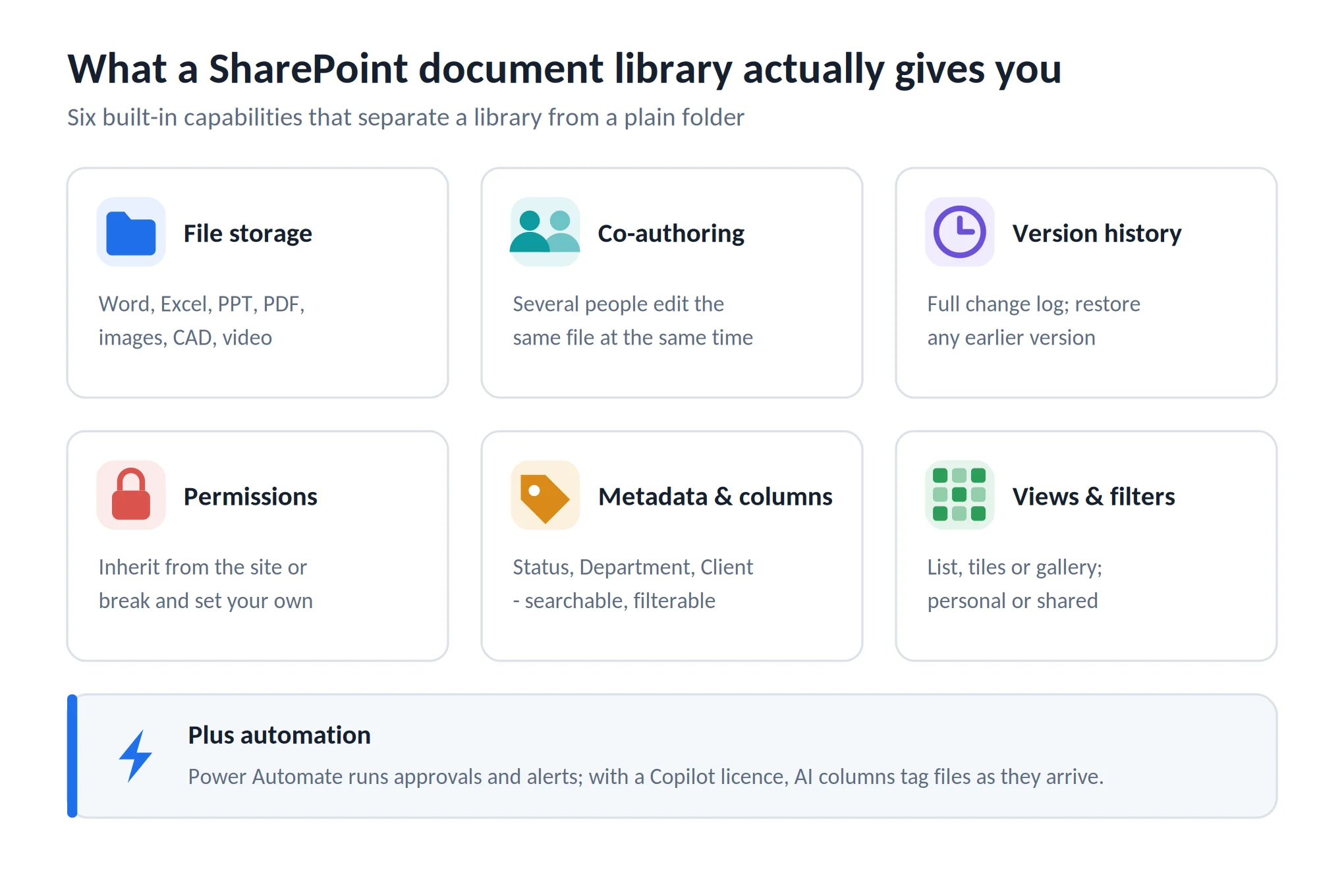
Pic. 1. What a SharePoint document library gives you.
File storage. Word, Excel, PowerPoint, PDFs, images, video, CAD files — a library takes them all, and files open directly in the browser rather than downloading first.
Co-authoring. Several people can edit the same document at the same time. Changes appear live, with each person’s cursor labelled. No more emailing a file around and merging the edits by hand afterwards.
Version history. Every save creates a version. You can see who changed what and when, compare, and restore any earlier version — including after someone deletes half the document by accident.
Permissions. A library inherits access from its site by default. Break that inheritance and you can grant view-only access to one group, edit rights to another, and lock a subfolder entirely.
Metadata and columns. Add fields like Status, Department, Client or Review date. These become sortable, filterable and searchable, which is what turns a library from storage into something you can actually query.
Views and filters. Save the way you like to look at the library — a table of everything pending approval, a tile view of brand assets, a gallery of photos. Views can be private to you or shared with everyone.
Add Power Automate on top and the library starts doing work on its own: routing approvals, sending reminders, moving files when a status changes.
What is a SharePoint document library? A special type of SharePoint list for storing and collaborating on files, with folders or metadata, version history and permissions.
How is it different from a folder?
You can create folders — inside a library. But a folder is only a visual grouping. A document library is a first-class SharePoint object with its own settings, permissions model, columns, views, retention behaviour and automation hooks.
Put simply: folders organise, libraries manage. A file can sit in exactly one folder, but it can carry a dozen metadata values at once, which means it can be found a dozen different ways.
What is the difference between a folder and a document library in SharePoint? A folder just organises files inside a library. A document library is the full package — it stores files and supports permissions, versioning, metadata, views and automation.
How to create a document library in SharePoint
Creating a library takes under a minute. You can do it on any SharePoint Online site, inside a Microsoft Teams tab (Teams stores its files in a SharePoint library behind the scenes), or on an existing team, project or communication site.
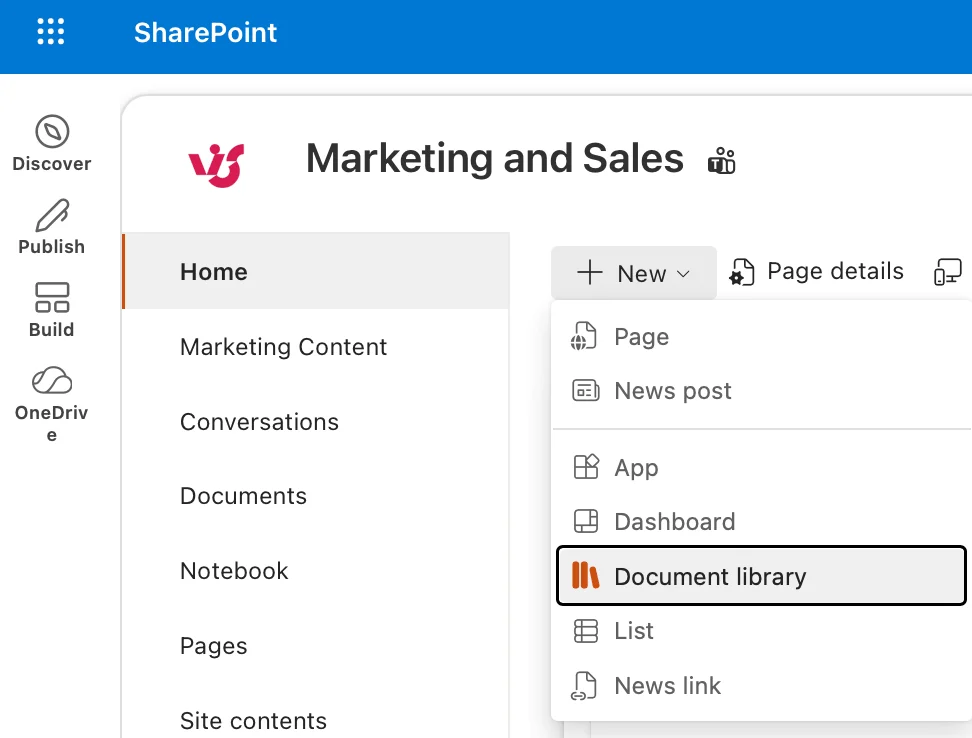
Pic. 2. The “+ New” menu open on a SharePoint site home page, with “Document library” highlighted.
Steps:
- Go to the site that should own the library — a team site, project site or communication site.
- Click + New on the command bar and choose Document library.
- Name it something a human will recognise: “Client contracts”, “Q3 campaign assets”, “HR templates” — not “Library 1”.
- Add a description in one line. It shows up in Site contents and saves questions later.
- Click Create. The library appears in Site contents and can be pinned to the site navigation.
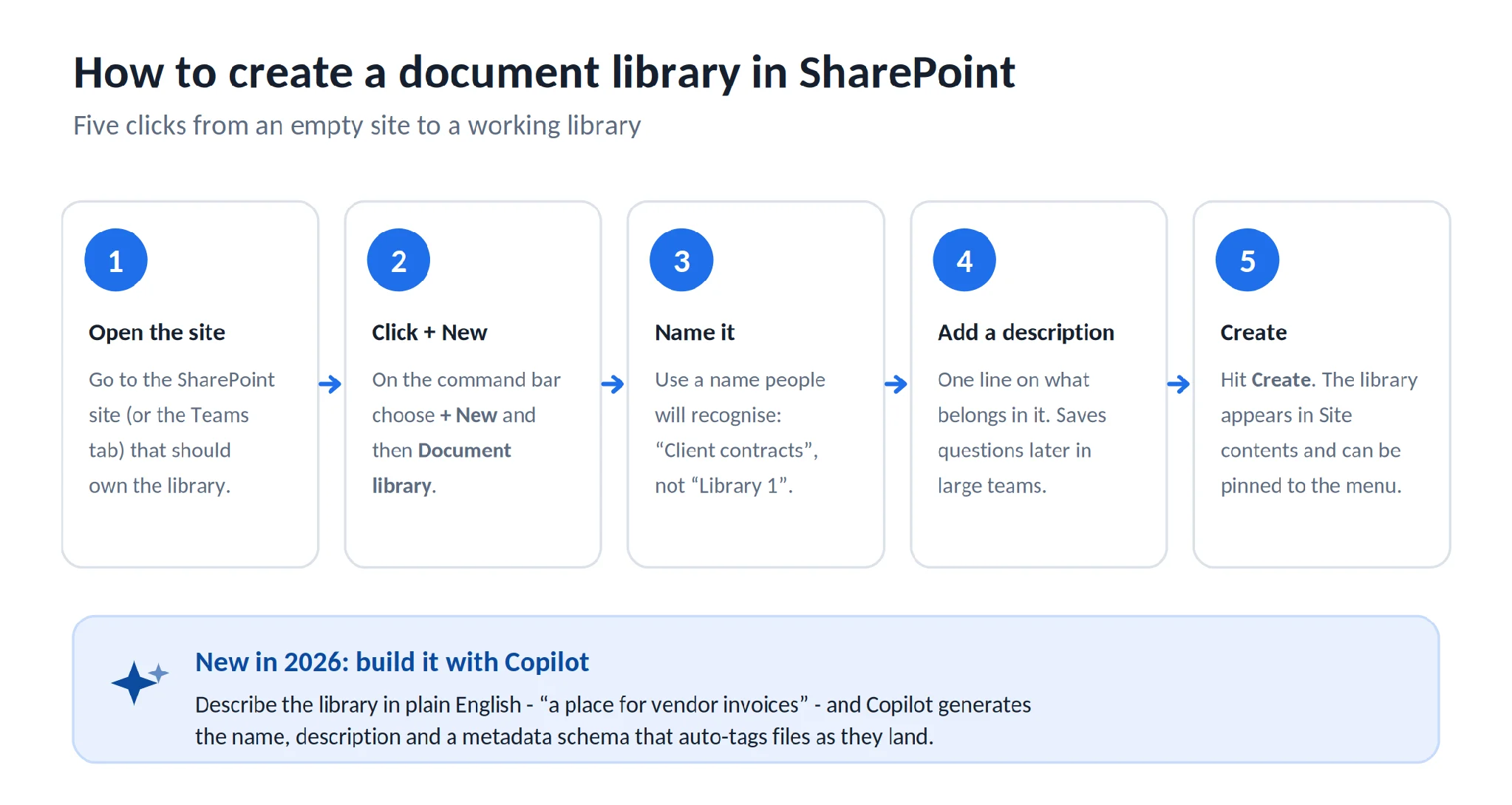
Pic. 3. How to create a document library in SharePoint, step by step.
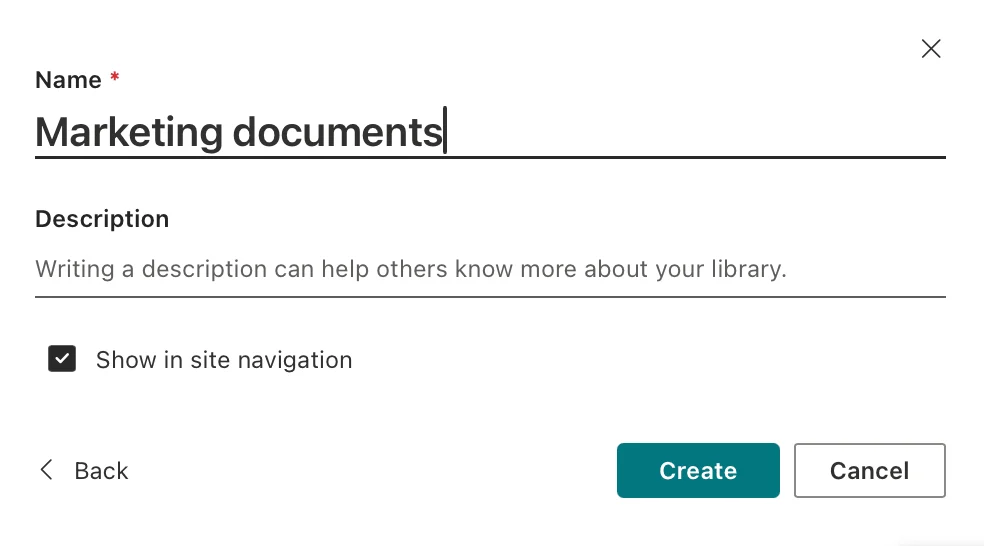
Pic. 4. The “Create document library” panel showing the Name and Description fields and the Create button.
How do I create a document library in SharePoint? On a SharePoint site click New > Document library, name it, then add files, columns/metadata and views.
Creating a library with Copilot
If your tenant has Copilot in SharePoint licensed, there is now a second route. Instead of building the structure yourself, you describe what the library is for — “a place for vendor invoices”, “a repository for employee onboarding documents” — and optionally upload one sample file.
Copilot then proposes a library name, a description and a full metadata schema, and creates AI-powered columns that read incoming documents and populate values automatically. You review the schema and the underlying prompts before anything is created, and you can edit them afterwards. It is genuinely useful for invoice, contract and records libraries, where the columns you need are predictable but tedious to set up by hand.
Settings worth getting right on day one
The create dialog is deliberately minimal. The settings that matter live in Library settings once the library exists, and they are much easier to configure before people start uploading.
Name and description. The name appears in navigation, search results and the site homepage. Rename later and links keep working, but muscle memory does not — pick well the first time.
Versioning. Choose major versions only (1.0, 2.0, 3.0) for everyday collaboration, or major and minor versions (1.1, 1.2, 2.0) when drafts need to be reviewed before anyone sees them. Turn this on before the first upload.
Permissions. By default the library inherits from the site. Break inheritance only when you genuinely need different access, and assign it to groups rather than individuals.
Default document template. Set what the New button creates — a Word file, an Excel workbook, a PowerPoint deck, or your own branded template. Small setting, big consistency win.
Columns and content types. Decide what you need to know about each file: Status, Owner, Department, Client, Expiry date. Add those columns now, before there are 4,000 items to backfill.
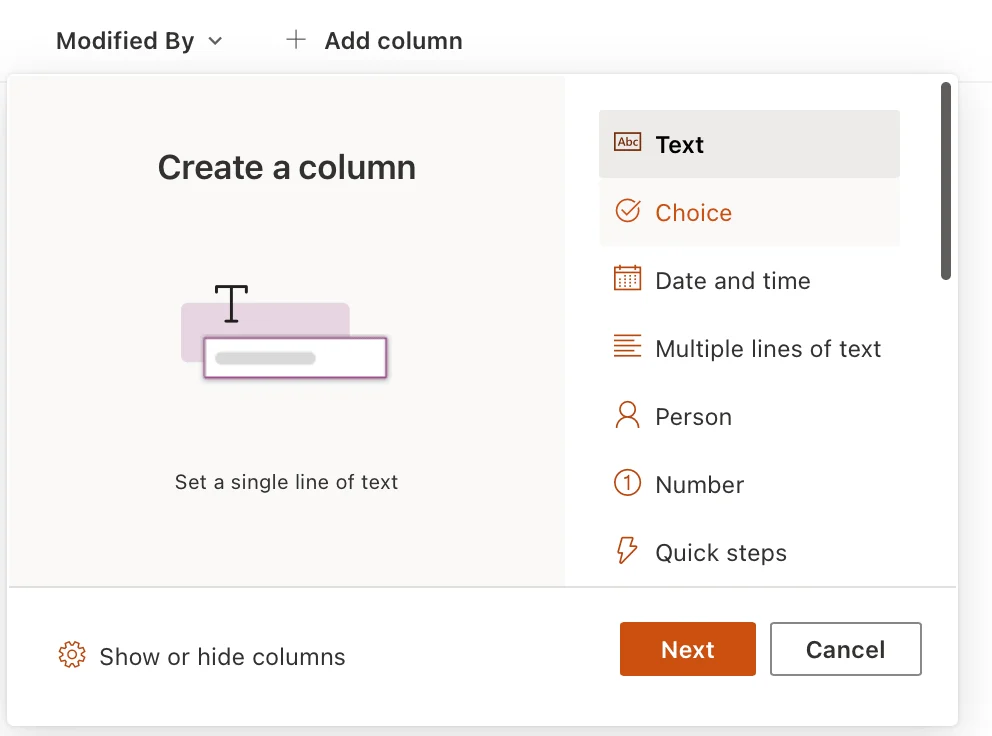
Pic. 5. The “Add column” dropdown in a document library showing column types (Text, Choice, Date, Person, Managed metadata).
Where to find and how to manage your libraries
Where is the document library in SharePoint?
Four reliable places:
- Left navigation. If the site owner pinned the library, it is right there in the site menu.
- Site homepage. Many sites surface recently used libraries and documents as web parts on the front page.
- Site contents. Go to Settings (gear) > Site contents. This is the definitive list of every library, list, page and app on the site.
- Search. Type the library name or a file name into the search bar. SharePoint returns anything you have permission to see, across sites.
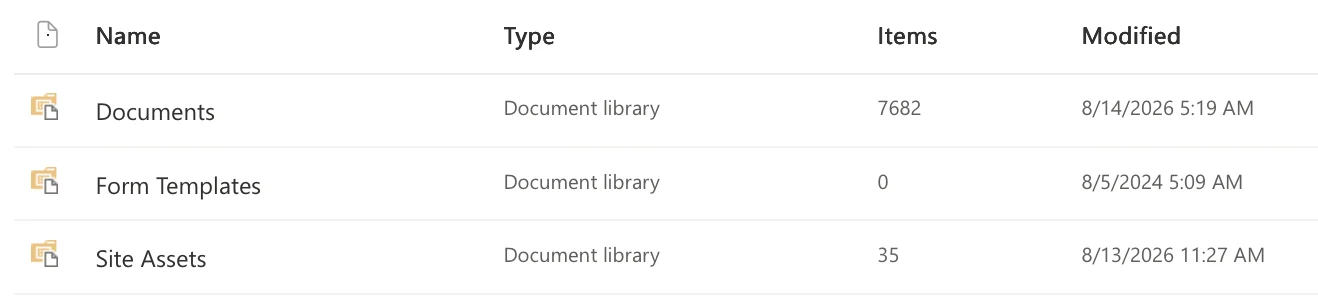
Pic. 6. The Site contents page of a SharePoint site, showing several document libraries with item counts.
How do I see all document libraries in SharePoint? Go to Site contents on the site to see every library, list and app. To find libraries across multiple sites, use the search bar.
Day-to-day management
Adding and removing files. Drag and drop from File Explorer, use Upload for files or whole folders, or create new documents with New. Deleted items go to the site recycle bin and can be restored for a limited period.
Structuring the library. Add folders where they genuinely help — usually for permissions or for syncing a subset to a laptop. Add columns for everything else. Then group and sort by those columns.
Filtering and views. Switch between list, compact list and tiles, or build saved views: “Pending approval”, “My documents”, “Expiring this quarter”. Views can be personal or shared with the whole site.
Syncing and shortcuts. Use Sync to make the library available in File Explorer or Finder, or Add shortcut to OneDrive to pin it into your OneDrive without copying anything.
Need to move or share content beyond the library? Our How to Share Files in SharePoint guide covers links, permissions and external sharing in detail.
Folders vs. metadata: how to organise files
This is the decision that determines whether people can find anything in six months.
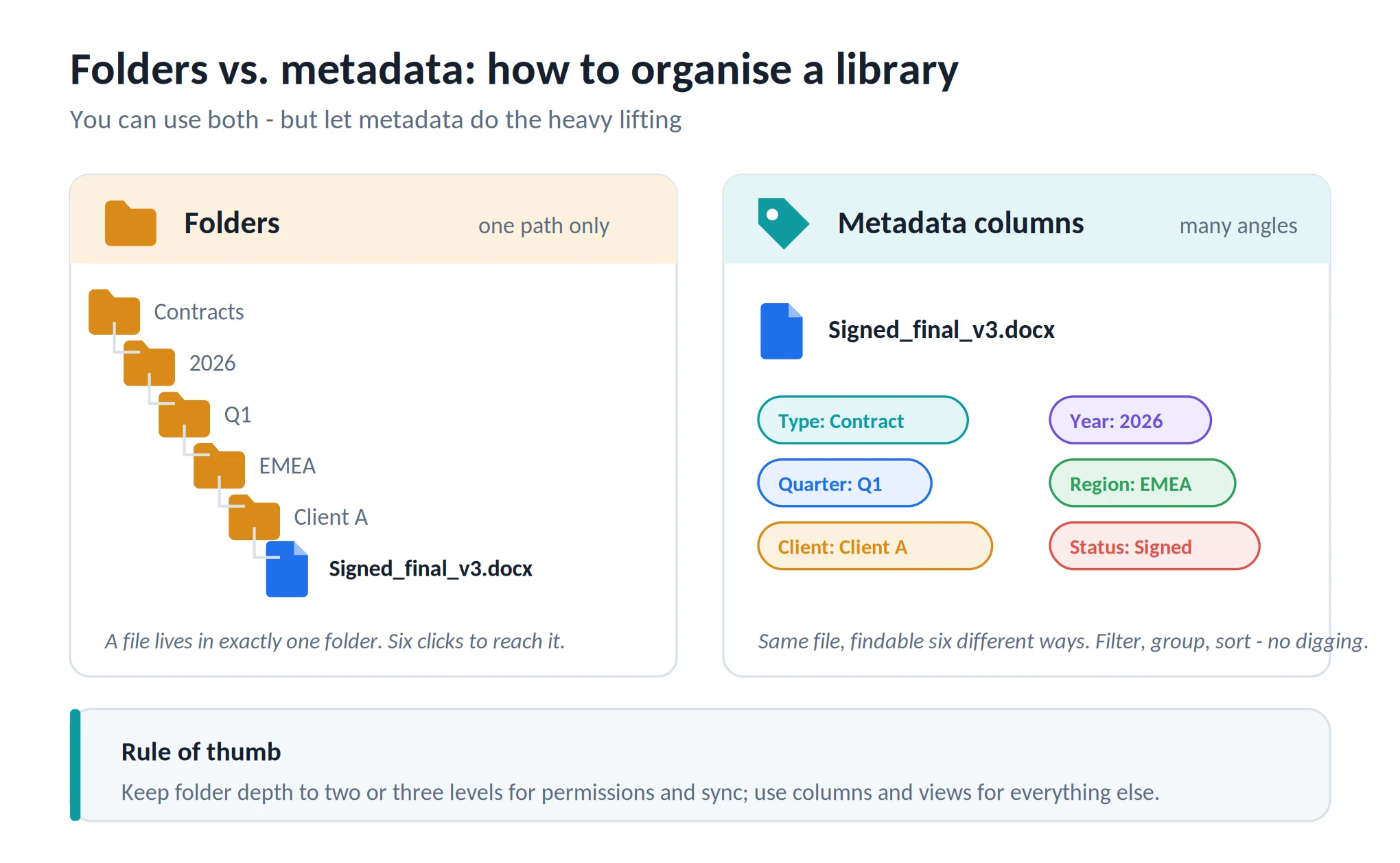
Pic. 7. Folders vs. metadata in a SharePoint document library.
Deep folder trees feel familiar because they mirror a network drive. The problem is that a file can only live in one branch. Is the signed EMEA contract for Client A filed under Contracts > 2026 > Q1 > EMEA > Client A, or under Clients > Client A > Legal? Whichever you pick, half the team will look in the other place — and someone will eventually upload a second copy.
Metadata columns solve this by describing the file instead of placing it. Tag the same document with Type = Contract, Year = 2026, Quarter = Q1, Region = EMEA, Client = Client A, Status = Signed, and it is findable from six different angles. Filter, group, sort — no navigation required.
Where folders still earn their place:
- Applying different permissions to a subset of files
- Syncing only part of a large library to a device
- Keeping a library under the 5,000-item view threshold by splitting content
- Matching a genuinely physical structure people already think in
Practical rule: keep folder depth to two or three levels, use columns for everything else, and build a couple of views so nobody has to construct a filter themselves. Managed metadata (a shared term store) is worth the setup once more than one library needs the same vocabulary.
Views, versioning and permissions
Views
A view is a saved way of looking at the library: which columns show, in what order, filtered how, grouped by what. Create them for the questions people actually ask.
Good starting set: All documents (default), Recently modified, Pending approval (filtered on a Status column), and Mine (filtered on Created by = [Me]). For image or brand libraries, add a tiles view.
Views can be personal or public. Make the useful ones public — a private view helps one person, a public view helps the whole site.
Versioning
Versioning is on by default for new libraries in SharePoint Online, keeping major versions. Open a file’s Version history to see every save, who made it, and to restore or delete individual versions.
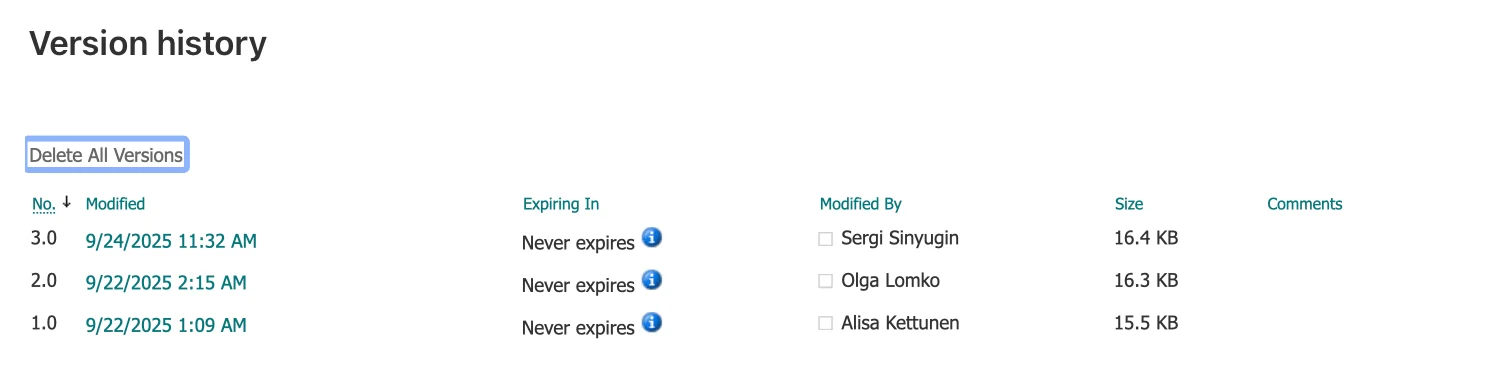
Pic. 8. The Version history panel for a file in a document library, showing several dated versions.
Since 2024–2025, Microsoft 365 also applies version history limits, which decide how long versions are kept and when older ones are trimmed. This matters because versions consume your tenant’s storage quota.
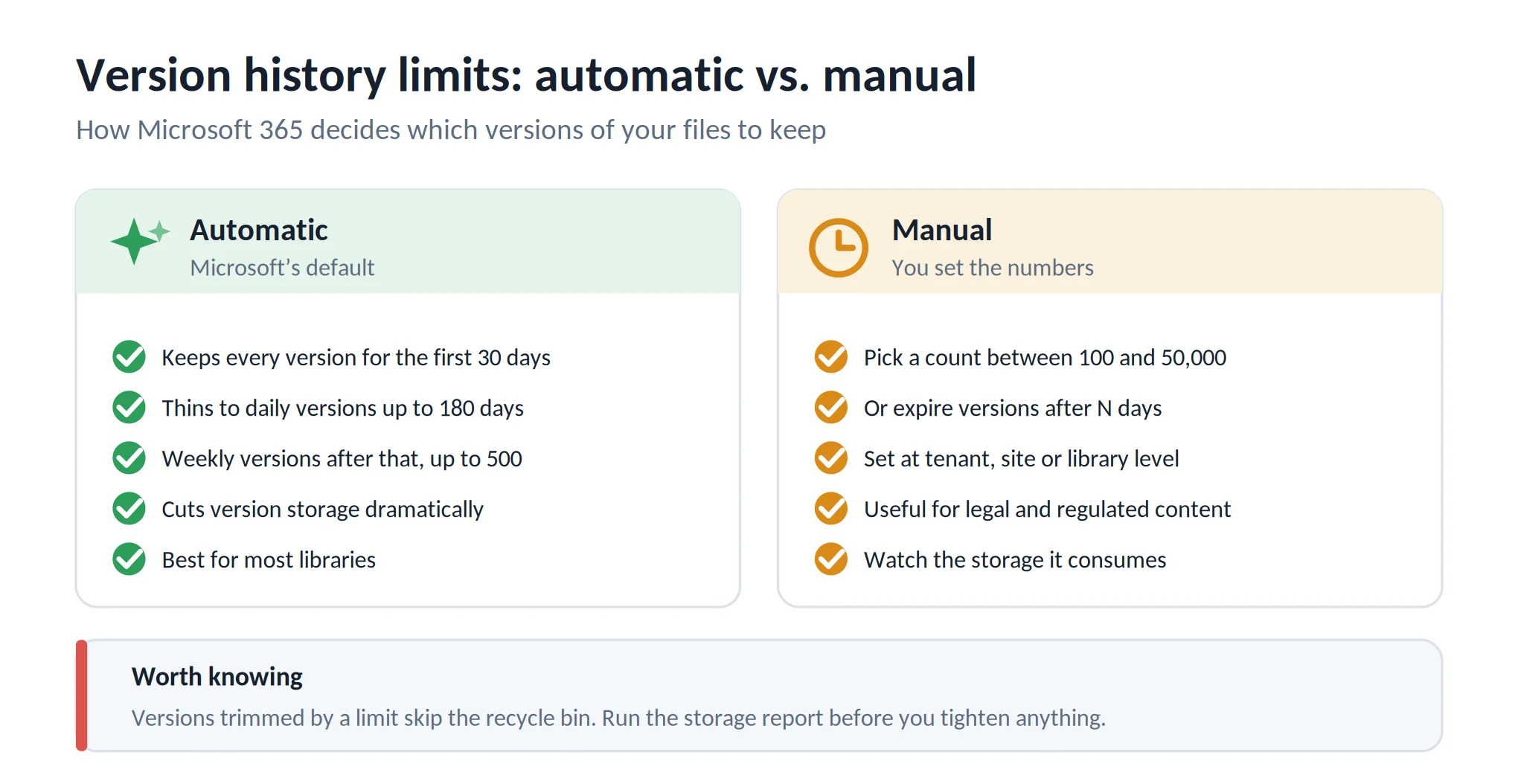
Pic. 9. Automatic vs. manual version history limits.
Automatic is the recommended setting. It keeps every version for the first 30 days, thins to daily versions between 30 and 180 days, and keeps weekly versions after that, up to a 500-version ceiling. In Microsoft’s own modelling this cuts version storage by roughly 94% compared with count-only limits, while still leaving recent history intact.
Manual lets you set a specific count (anywhere from 100 to 50,000 major versions) and/or an expiry period. Use it for legal, regulatory or archival libraries where the retention window is dictated by policy rather than convenience.
Limits can be set at tenant, site or individual library level, and a library can break inheritance from the site. One caveat worth knowing: versions removed by a limit or a trim job bypass the recycle bin and cannot be recovered. Run the version storage report before tightening anything.
Permissions
Libraries inherit permissions from their site. That is usually what you want — one set of groups, one place to manage them.
Break inheritance when a library holds something genuinely different: board papers, salary data, signed contracts, a partner-facing folder. Then assign access to groups, not individuals. Individual permissions are invisible six months later and impossible to audit.

Pic. 10. The “Manage access” panel for a document library showing groups and permission levels.
Item-level permissions exist but should be rare. If you find yourself setting permissions on dozens of individual files, that content probably wants its own library.
Document library vs. list vs. form library
People mix these up constantly, so here is the clean version.
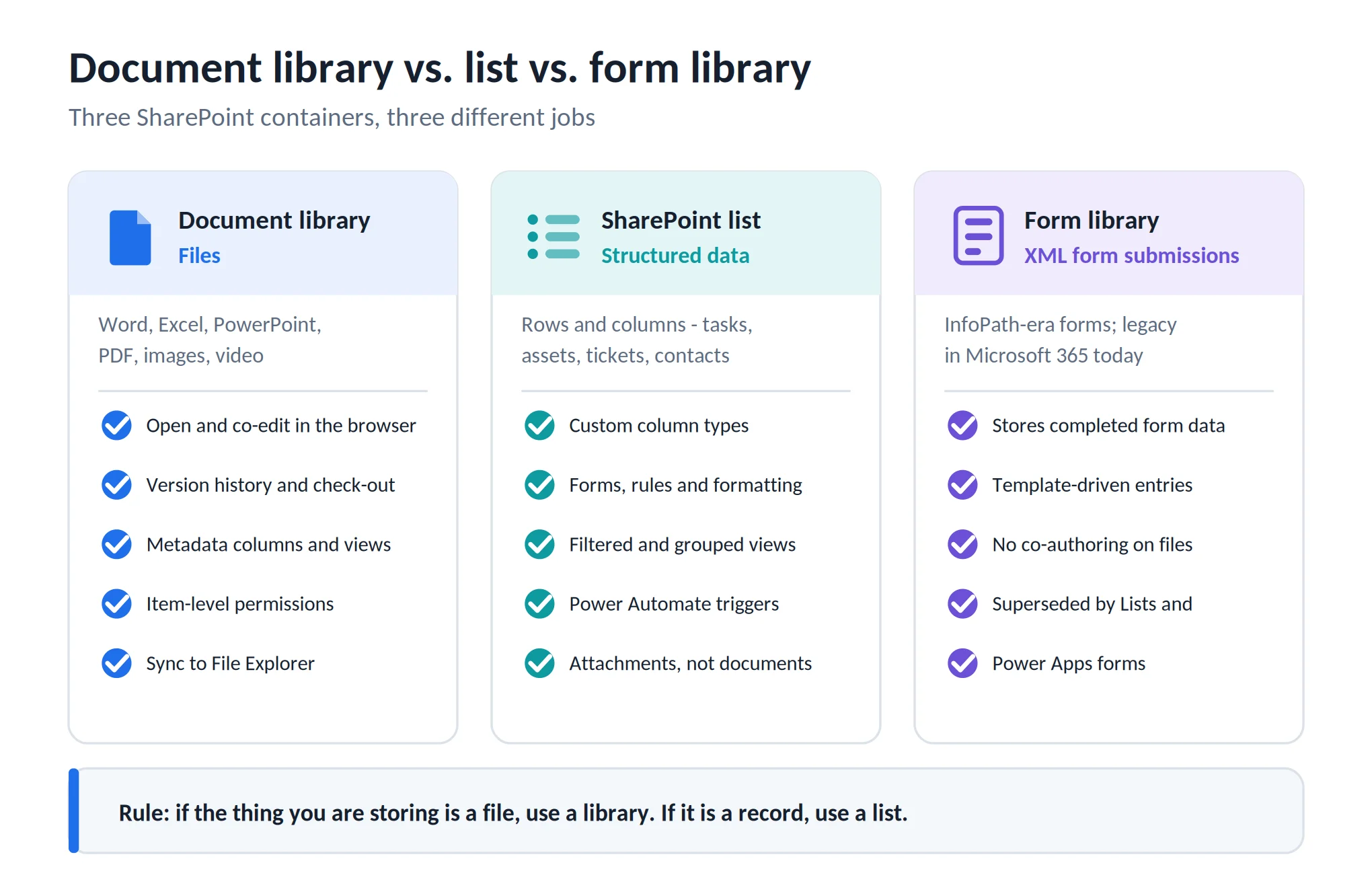
Pic. 11. Document library, list and form library compared.
A document library manages files. Its items are documents, and it adds co-authoring, version history, check-out, sync and item-level permissions on top of them.
A SharePoint list manages structured records — tasks, assets, tickets, contacts, inventory. Items are rows, not files, although rows can carry attachments. Lists have richer column types, forms, rules and conditional formatting. Our Microsoft Lists: What It Is & How to Use It guide goes deeper.
A form library stores XML-based form submissions, originally from InfoPath. It still exists but is legacy; new work should use Microsoft Lists forms or Power Apps.
What is the difference between a document library and a form library in SharePoint? A document library stores and manages actual documents. A form library stores form submissions as XML files for automation and workflows, and is largely legacy in Microsoft 365 today.
Rule of thumb: if the thing you are storing is a file, use a library. If it is a record, use a list.
| Type | Used for | Key features |
|---|---|---|
| Document library | Managing files | Co-authoring, version history, check-out, permissions, metadata, sync |
| SharePoint list | Managing structured records | Rich column types, rules, forms, views, Power Automate triggers |
| Form library | XML form submissions | Template-driven entries, legacy InfoPath scenarios |
Fig. 1. Document library, list and form library at a glance.
Document library vs. document management
These two terms get used interchangeably, and they should not be.
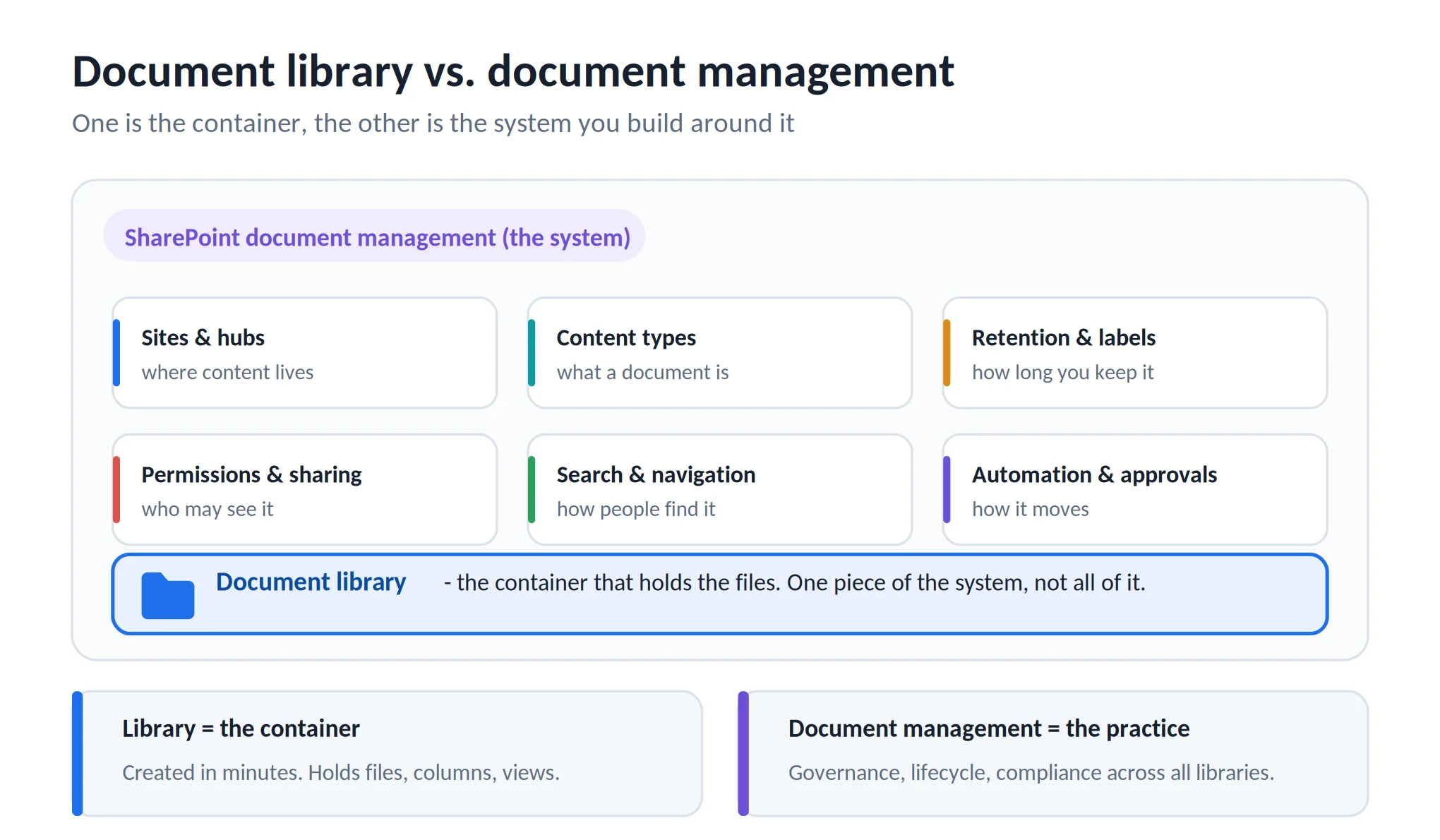
Pic. 12. The library is the container; document management is the system around it.
A document library is a container. You create one in a minute and it holds files, columns and views.
SharePoint document management is the system you build across all of those containers: your site and hub architecture, content types, retention labels and policies, permission model, search configuration and approval workflows. The library is one component of it — an important one, but not the whole.
If you are designing the wider system rather than a single library, read Optimize Your Business with SharePoint Document Management next. If you want the governance checklist, our Best Practices for SharePoint Document Management, Library, Folder Structure and Security guide covers information architecture and security in depth.
SharePoint document library examples
Five patterns that come up in almost every organisation.
| Use case | What to store | Settings that make it work | Why it works |
|---|---|---|---|
| Internal company docs | Policies, procedures, internal guides | Versioning on; columns for Department and Doc type; views by role | Keeps institutional knowledge current and findable. Good for onboarding and compliance evidence. |
| Project collaboration | Briefs, specs, reports, schedules | Co-authoring; permissions per project group; columns for Phase and Deadline | Removes email chains and duplicate attachments. Status is visible without a status meeting. |
| Marketing asset library | Presentations, catalogues, logos, video | Tiles view; columns for Campaign, Year, Asset type; edit rights limited to the team | Brand assets stay centralised, on-version and easy to reuse. |
| Legal and contract archive | Contracts, agreements, licences, patents | Versioning plus content approval; manual version limits; columns for Client and Expiry date | Adds a defensible audit trail. You always know who changed what, and when. |
| Templates and forms | Proposals, report templates, memos | Default document template set; read-only for most users; folders plus columns | Everyone starts from the same version. Fewer rogue copies in circulation. |
Fig. 2. SharePoint document library examples by use case.
For libraries that back a wider teamwork setup, our SharePoint Collaboration: Features, Tools & Tips for 2026 guide covers how libraries fit alongside Teams, channels and co-authoring.
SharePoint document library best practices
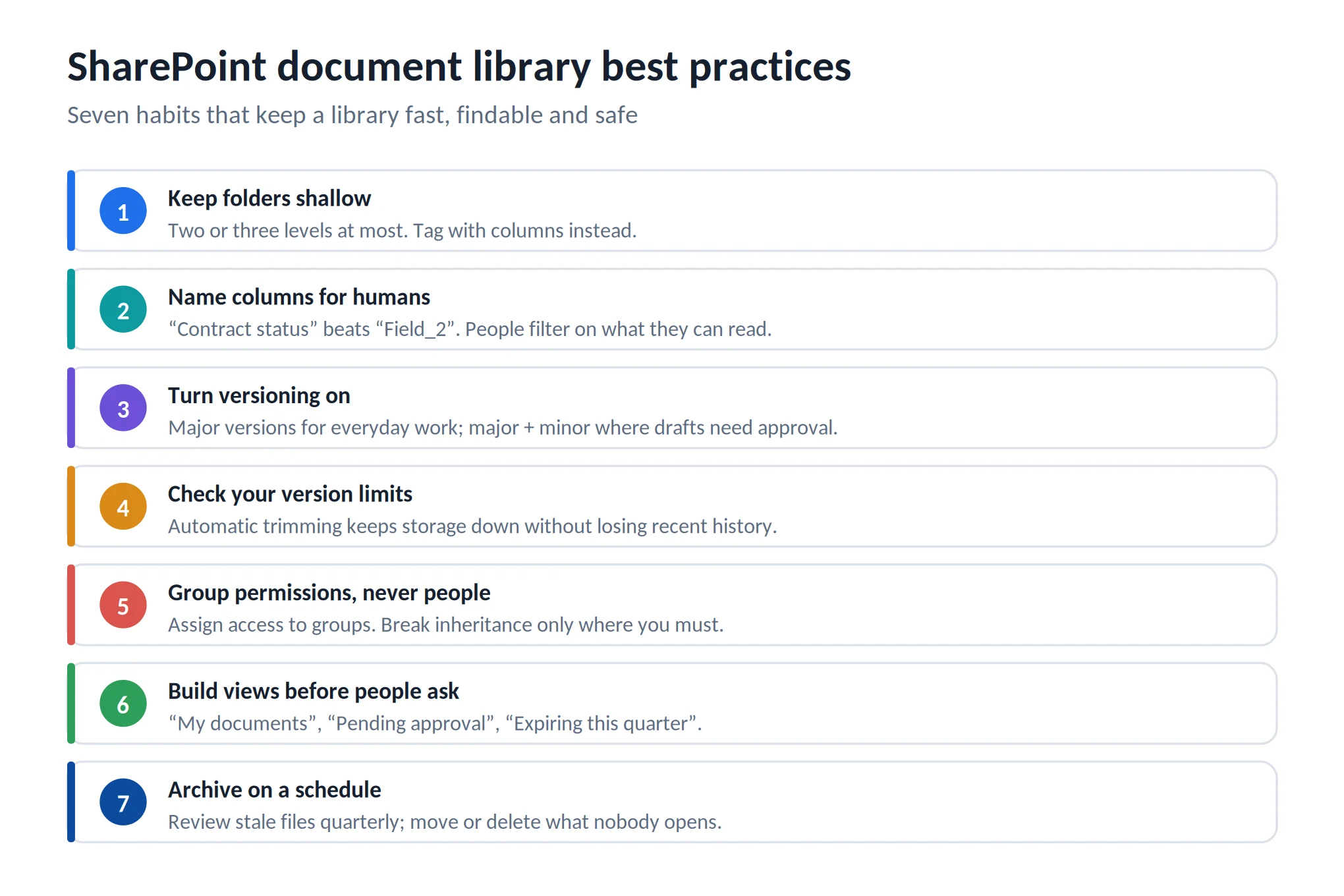
Pic. 13. SharePoint document library best practices.
1. Keep folders shallow. Two or three levels at most. Everything deeper should be a column.
2. Name columns for humans. “Contract status” beats “Field_2”. People filter on what they can read, and column names show up in search refiners.
3. Turn versioning on before the first upload. Major versions for everyday work; major and minor where drafts need approval before publication.
4. Check your version history limits. Automatic trimming keeps storage under control without losing recent history. Review the setting on legal and archival libraries specifically, and run the storage report before you tighten anything.
5. Assign permissions to groups, never to people. Break inheritance only where you have to, and document why. Individual grants become invisible technical debt.
6. Build views before people ask for them. “Pending approval”, “Mine”, “Expiring this quarter”. A good view removes the need for a folder.
7. Watch the 5,000-item view threshold. A library can hold millions of files, but a single view should not try to return more than 5,000 items at once. Index the columns you filter on and default to a filtered view.
8. Archive on a schedule. Review stale content quarterly. Move what nobody opens, delete what nobody needs, and use retention labels where a policy applies.
9. Write the naming convention down. Two lines in the library description beats a convention that lives in one person’s head.
Do more with your libraries: Virto apps for SharePoint
SharePoint’s built-in features cover a lot. Once a library carries thousands of files, several approval chains and a handful of deadlines, a few gaps show up — bulk operations, richer forms, proactive notifications. That is where Virto apps for SharePoint and the Virto Microsoft 365 apps come in.
Virto Alerts & Reminders
Native SharePoint alerts are basic. Virto Alerts & Reminders sends conditional notifications when a document is updated, needs approval or is approaching an expiry date — delivered by email or straight into Microsoft Teams, on the schedule you choose rather than immediately or daily.
Typical use: a contracts library where owners are pinged 30 days before an expiry date stored in a column.
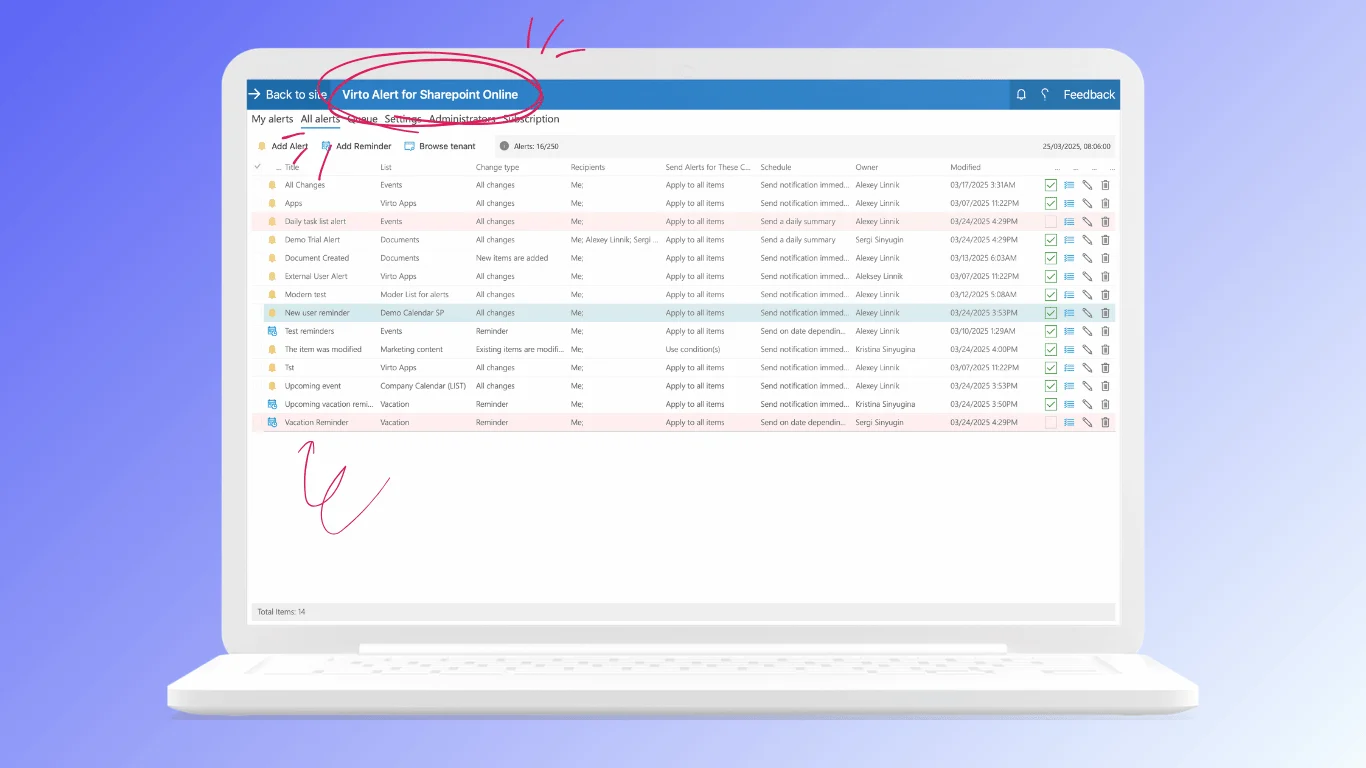
Pic. 14. Virto Alerts & Reminders.
Virto Forms Designer App
Virto Forms Designer App for SharePoint Online & Microsoft 365 builds custom forms for the metadata behind your files — drag and drop fields, conditional logic, validation, tabs. It replaces the back-and-forth of spreadsheet trackers and email approvals for document intake.
Typical use: a submission form that captures the right columns at upload time, so nothing lands in the library untagged.
Virto Multiple Operations
Virto Multiple Operations handles the bulk work SharePoint makes painful: uploading hundreds of files with drag and drop, deleting by filter (date, author, file type), and assigning or changing metadata across many documents at once.
Typical use: retagging a legacy library after you introduce new columns, or cleaning out everything older than a given date.
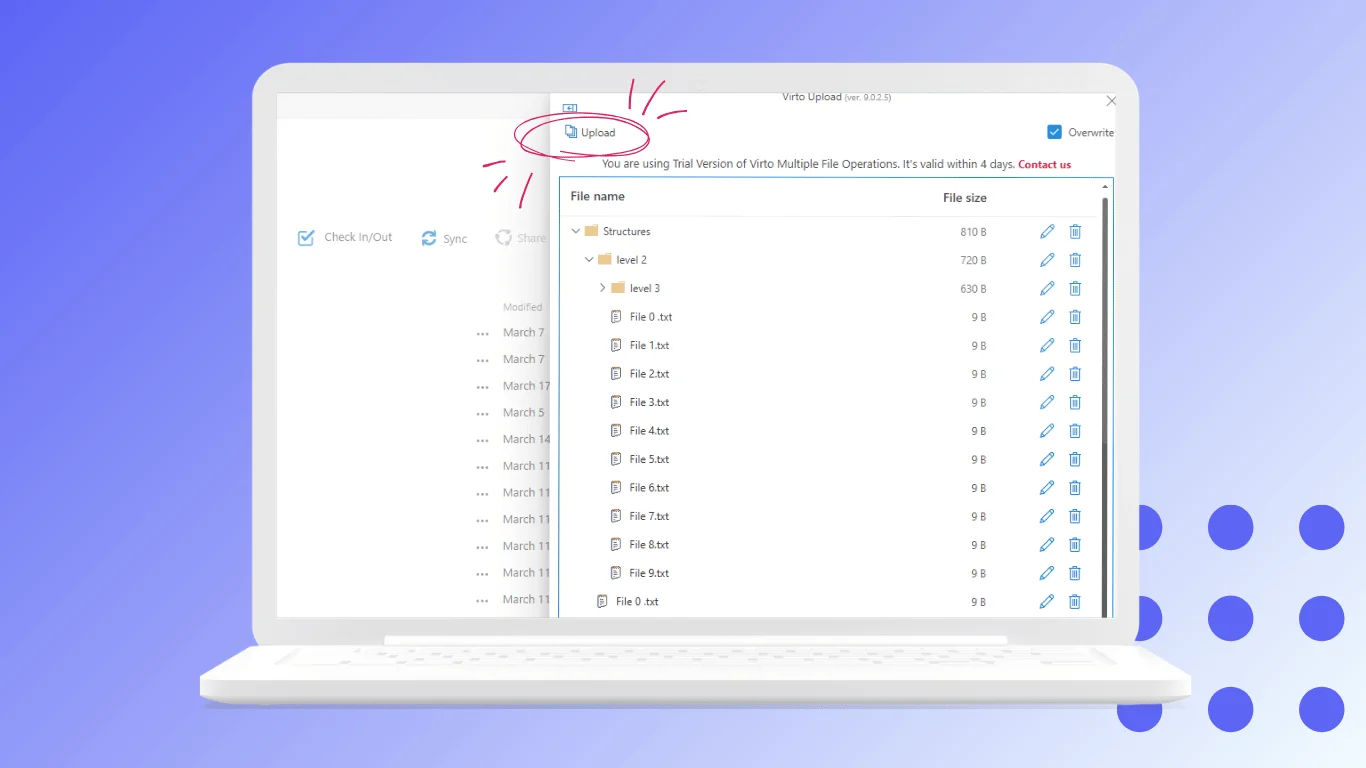
Pic. 15. Virto Multiple Operations.
Virto Kanban Board
When documents belong to work rather than to an archive, Virto Kanban Board App puts a visual board over your SharePoint lists and libraries — cards, swimlanes, statuses and assignees, with the underlying files one click away.
Typical use: a review pipeline where each card is a document moving through Draft, Review, Approved.
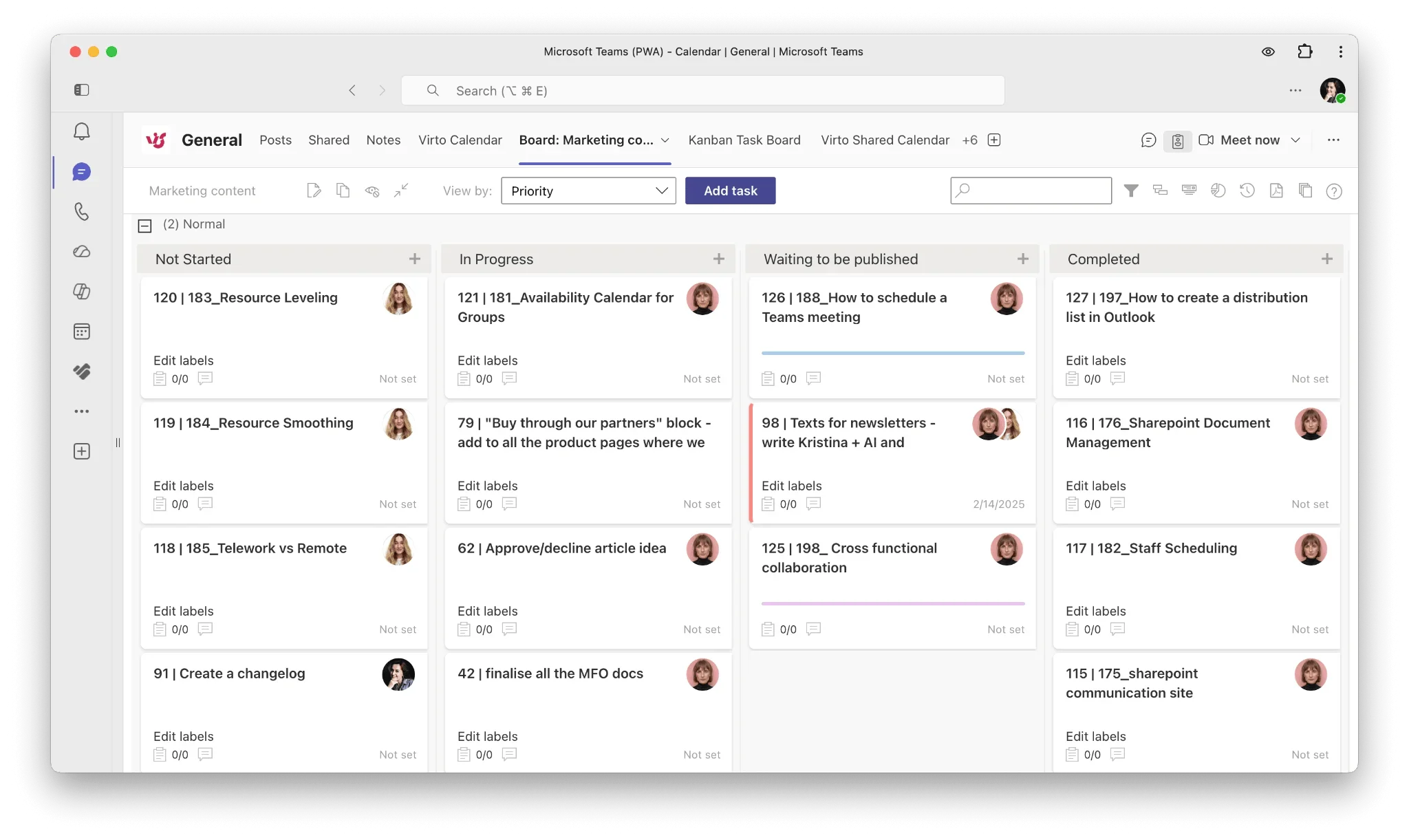
Pic. 16. Virto Kanban Board.
FAQ
What is a SharePoint document library? A special type of SharePoint list for storing and collaborating on files, with folders or metadata, version history and permissions. It is the container that holds documents on a SharePoint site.
How do I create a document library in SharePoint? On a SharePoint site click New > Document library, name it, then add files, columns/metadata and views. With a Copilot licence you can instead describe the library in plain English and let it generate the name, description and metadata columns.
What is the difference between a document library and a folder? A folder organises files inside a library. A library is a full SharePoint object with its own settings, permissions, versioning, metadata, views and automation. Folders live inside libraries, not the other way round.
What is the difference between a document library and a list? A library manages files; a list manages structured records. A library is technically a list whose items are documents, which is why both share columns, views and permissions.
Where is the document library in SharePoint? Check the left navigation, the site homepage, or Settings > Site contents for the definitive list. Use search to find libraries across multiple sites.
How many files can a SharePoint document library hold? Up to 30 million items. The practical limit is the 5,000-item view threshold — a single view should not try to return more than 5,000 items, so index your filter columns and use filtered views by default.
Can I restore a deleted file or an earlier version? Yes. Deleted files go to the site recycle bin and can be restored within the retention window. Earlier versions are restored from a file’s Version history. Versions removed by a version limit or trim job, however, bypass the recycle bin.
Should I use folders or metadata? Metadata for almost everything; folders for permissions, sync scope and genuinely physical structure. Keep folder depth to two or three levels.
Conclusion
A SharePoint document library is the container — but how you set it up decides whether your team finds files in three seconds or three minutes. Get four things right and the rest follows: shallow folders, meaningful metadata columns, versioning turned on with sensible limits, and permissions assigned to groups.
Then build the views people actually need, review the library quarterly, and let automation handle the reminders and approvals nobody enjoys chasing. If you want to push further — bulk metadata operations, conditional alerts, custom intake forms, a visual board over your document workflow — Virto’s apps for SharePoint and Microsoft 365 extend the library without replacing it. Every app has a 30-day free trial.
Keep reading: SharePoint Collaboration: Features, Tools & Tips for 2026, Microsoft Lists: What It Is & How to Use It, and Optimize Your Business with SharePoint Document Management.