A SharePoint communication site is one of the most effective ways to broadcast news, resources, and updates to a wide audience across your organization. Unlike a team site built for collaboration, a communication site is designed to inform and engage — presenting polished, branded content that most people simply read. This 2026 guide explains what a communication site is, when to use one, how to create and design it step by step, and how it differs from a team site.
Along the way we’ll show how VirtoSoftware apps for SharePoint Online and Microsoft 365 extend a communication site with unified calendars, visual task boards, and smart notifications — turning a static portal into an interactive hub.
Quick answer: what is a SharePoint communication site?
A SharePoint communication site is a site type for broadcasting news, information, and resources to a broad, mostly read-only audience — used for intranets, portals, and announcements. It differs from a team site, which is built for group collaboration and document co-authoring. You create one from the SharePoint start page by choosing Create site → Communication site, picking a template (Topic, Showcase, or Blank), and adding pages, news, and web parts.
What is a communication site & when to use it
A SharePoint communication site is a specialized modern site template designed primarily for broadcasting information to a wider audience. It works on a “one-to-many” model: a small number of authors publish content, and a large audience consumes it. Think of it as a corporate digital bulletin board — polished, visually appealing, and easy to navigate.
Communication sites are the right choice whenever your goal is to share rather than collaborate. Typical scenarios include:
- Company intranets and corporate news portals
- Departmental hubs for HR, IT, or Marketing
- Product, project, or event showcases
- Policy libraries, knowledge bases, and announcement archives
If instead your team needs shared document libraries, task lists, and real-time co-authoring, a team site is the better fit. For a full breakdown, see the dedicated comparison below.
Key features of SharePoint communication sites
- News posts: visually rich articles with text, images, and video that can be highlighted on the homepage and shared via email or Teams.
- Hero web part: large, engaging banners — now with a carousel layout for rotating up to five items.
- Pages and flexible sections: drag-and-drop layouts built from modern web parts.
- Events web part: an interactive calendar that syncs with Outlook and Teams.
- Quick links and highlighted content: easy navigation to key resources and automatically surfaced content.
- Microsoft 365 integration: Teams, Outlook, OneDrive, SharePoint libraries, Forms, and Viva Engage.
- Copilot in SharePoint: AI-assisted authoring that suggests content, refines messaging, and proposes layouts.
How to create a communication site in SharePoint
Creating a communication site takes just a few minutes and requires no code. Here is the full step-by-step process.
Step 1: Go to the SharePoint start page
- Sign in to your Microsoft 365 account.
- Open SharePoint from the Microsoft 365 app launcher (the waffle icon, top-left) or go directly to https://[your-organization-name].sharepoint.com/.
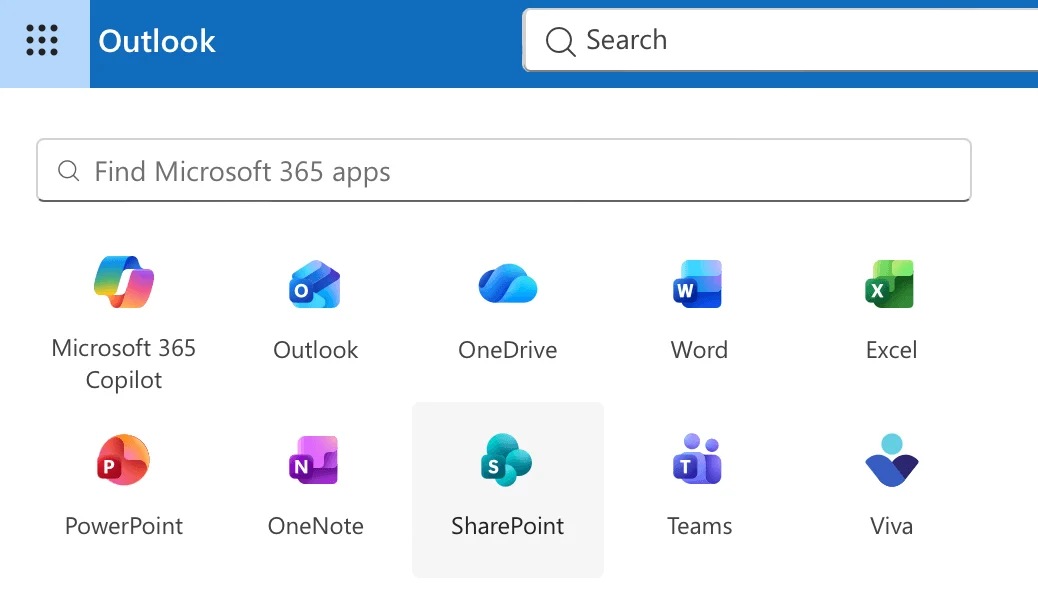
Pic. 1. Locating SharePoint on the M365 app launcher.
- The start page shows your followed and recent sites and serves as the gateway to your SharePoint environment.
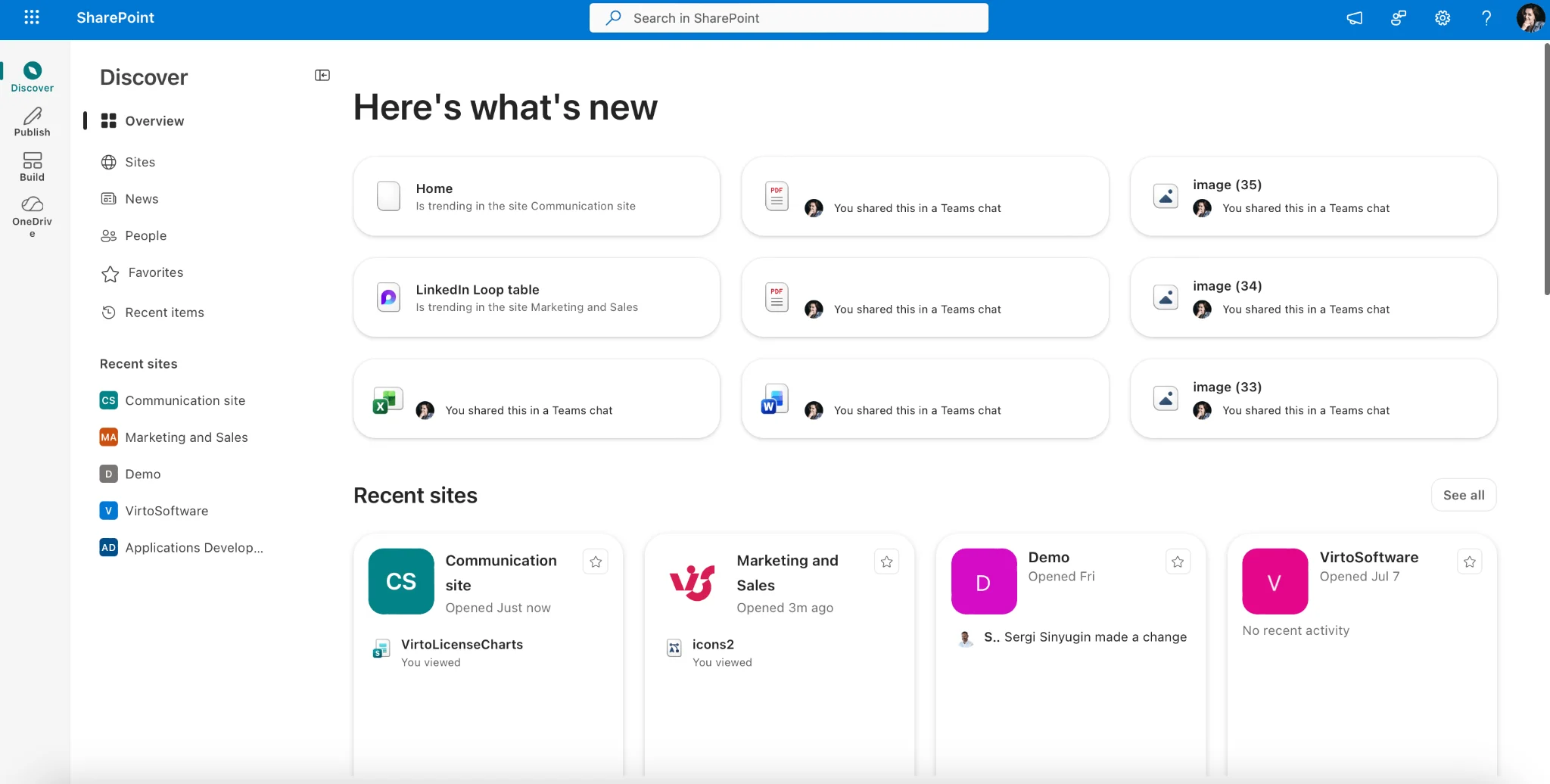
Pic. 2. SharePoint landing page.
Step 2: Start site creation
- Click the “+ Create site” button near the top of the start page.
- If you don’t see it, ask your SharePoint administrator — you may need additional permissions.
Step 3: Select the Communication site type
- In the panel that appears, choose “Communication site” (rather than “Team site”).
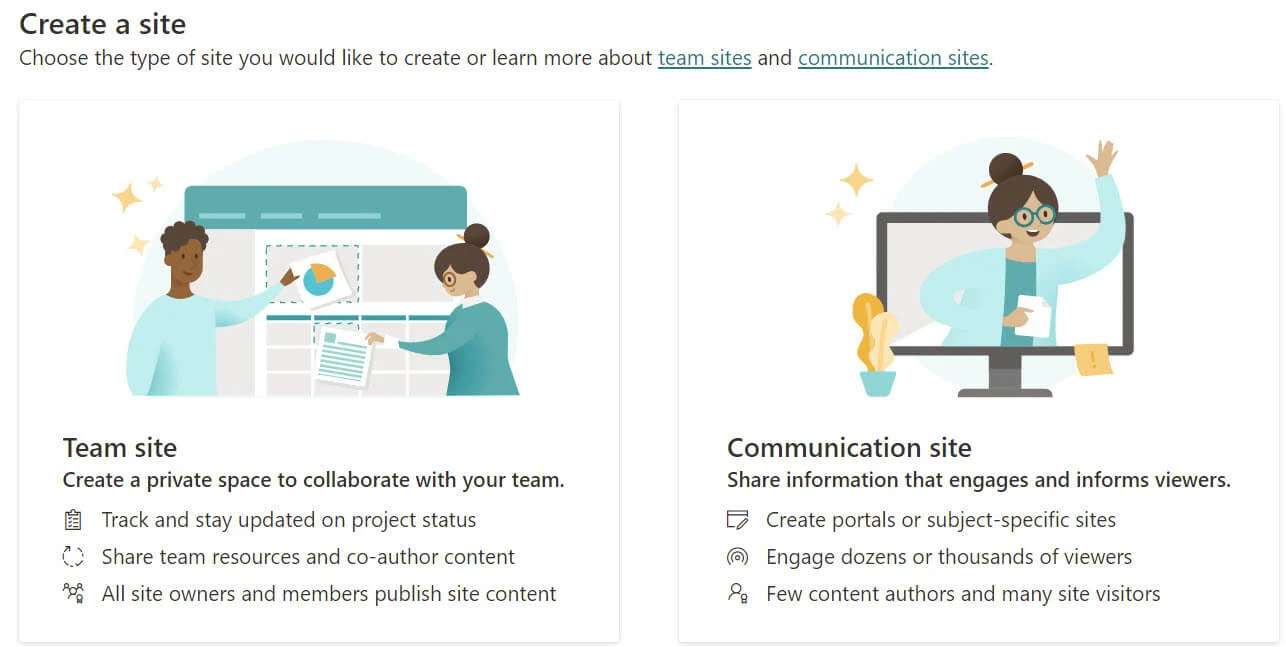
Pic. 3. Choosing between Team & Communication site.
This sets the site’s structure and permissions model, optimizing it for broadcasting information rather than collaboration.
Step 4: Choose a template
SharePoint offers three starting templates. Choose the one closest to your goal — you can customize any of them later.
- Topic (e.g. Department, Volunteer center, New employee onboarding): ideal for news sharing, with a prominent Hero web part and news sections.
- Showcase: perfect for visual storytelling — highlighting products, projects, or events with large image areas.
- Blank: a clean slate with minimal preconfigured elements for maximum customization.
Step 5: Configure site details
- Site name: a clear, descriptive name (appears in the header and navigation).
- Site description: a brief explanation of the site’s purpose.
- Site address: the URL suffix auto-fills from the name but can be edited.
- Language: the primary interface language (cannot be changed after creation).
- Advanced settings: optionally set the time zone and other options.
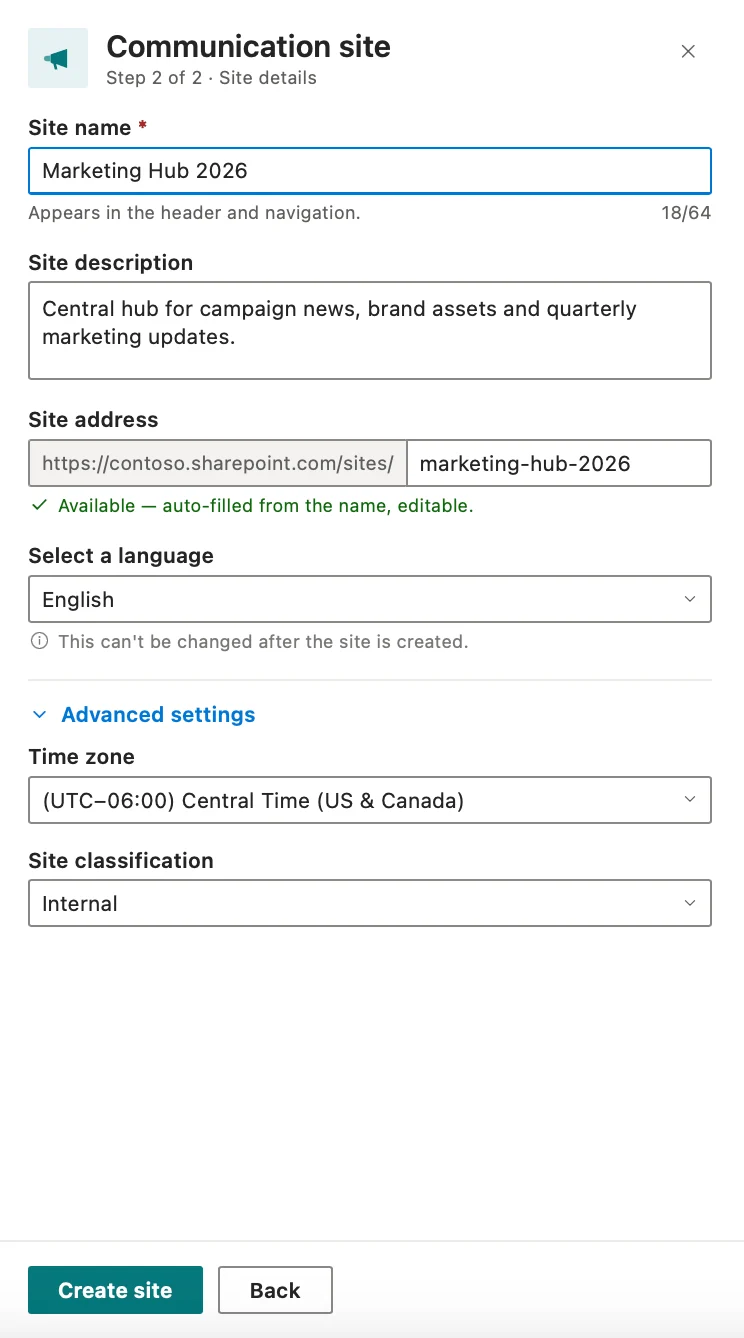
Pic. 5. Configuring your site.
Step 6: Create your site
Click “Finish” or “Create.” SharePoint typically provisions the site in 1–2 minutes, then redirects you to it.
Step 7: Initial customization
Once the site exists, start shaping it:
- Configure navigation: click “Edit” in the top navigation bar to add, remove, or reorder links.
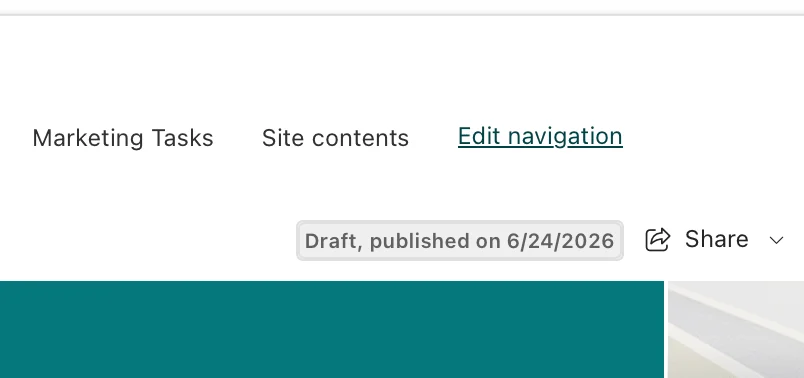
Pic. 6. Locating the “Edit navigation” button for editing your site.
- Customize the home page: edit the template’s web parts, or add new ones with the “+” icon between sections.
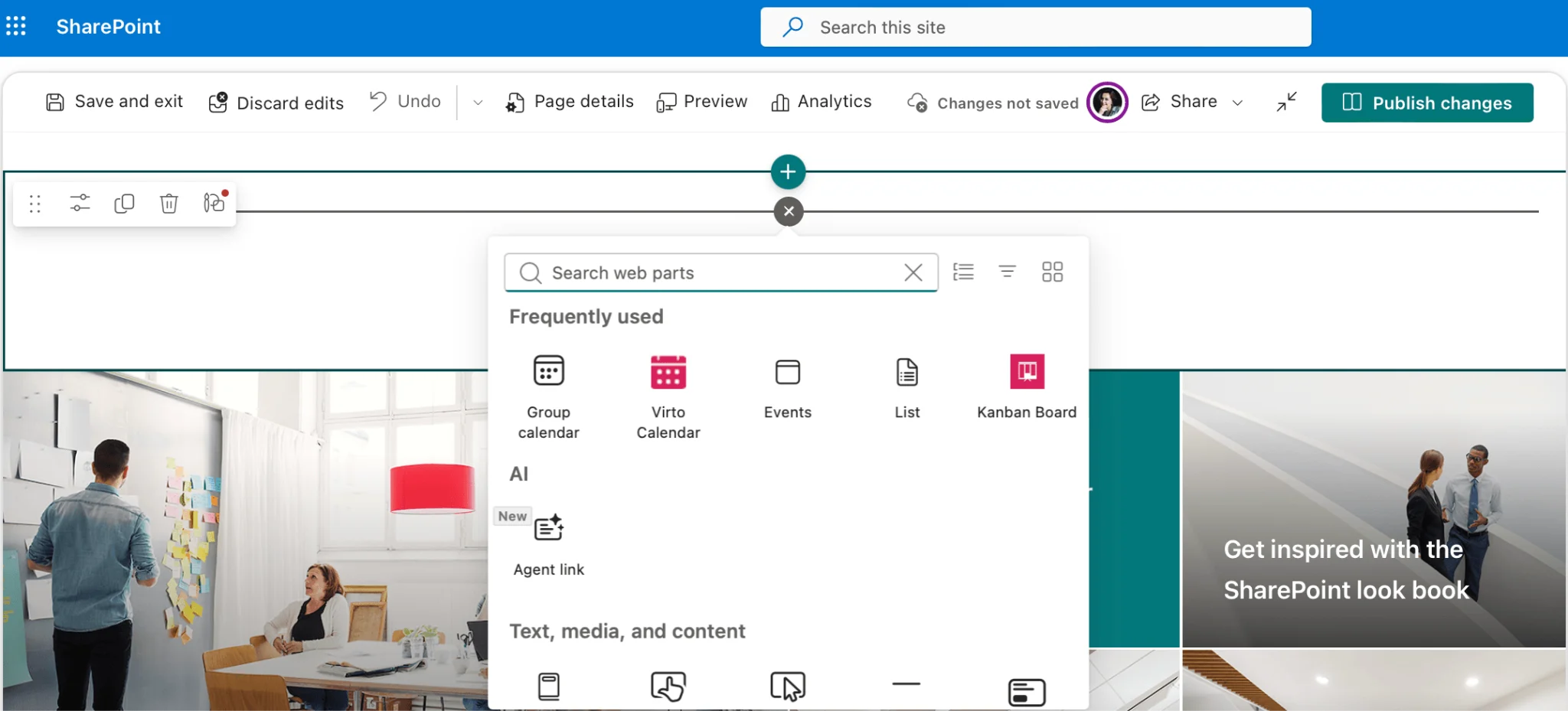
Pic. 7. Adding a web part.
- Add branding: use the gear icon → “Change the look” to set the logo, theme, and header image.
- Set up content structure: create pages, document libraries, and news posts.
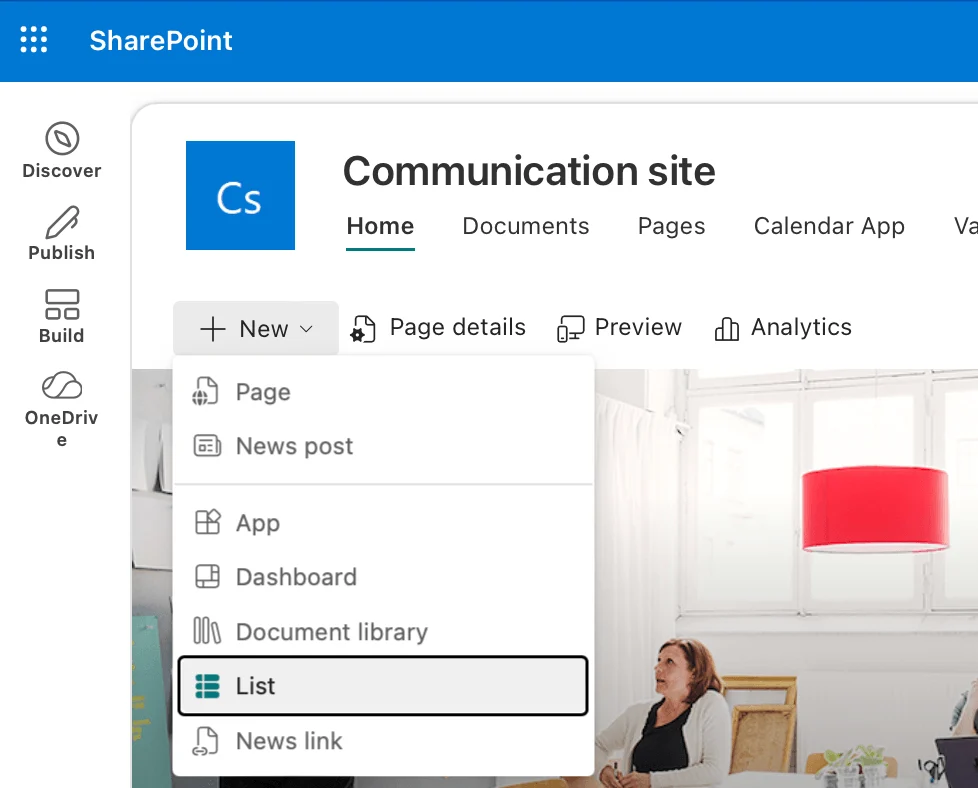
Pic. 8. Adding a new list, document library, page, etc.
- Configure permissions: by default everyone in your organization can view the site while only owners edit; adjust via the gear icon → “Site permissions.”
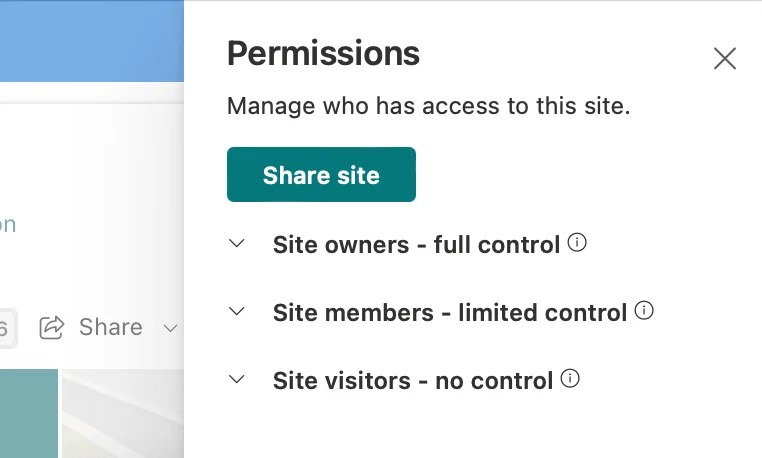
Pic. 9. Navigating to “Site permissions”.
Step 8: Add content with web parts
Populate the site using SharePoint’s modern web parts — Hero, News, Events, Document library, Quick links, Text, Image gallery, Highlighted content, Viva Engage conversations, and Video. To add one, edit the page, click the “+” icon where you want the content, choose the web part, and configure it in the property pane.
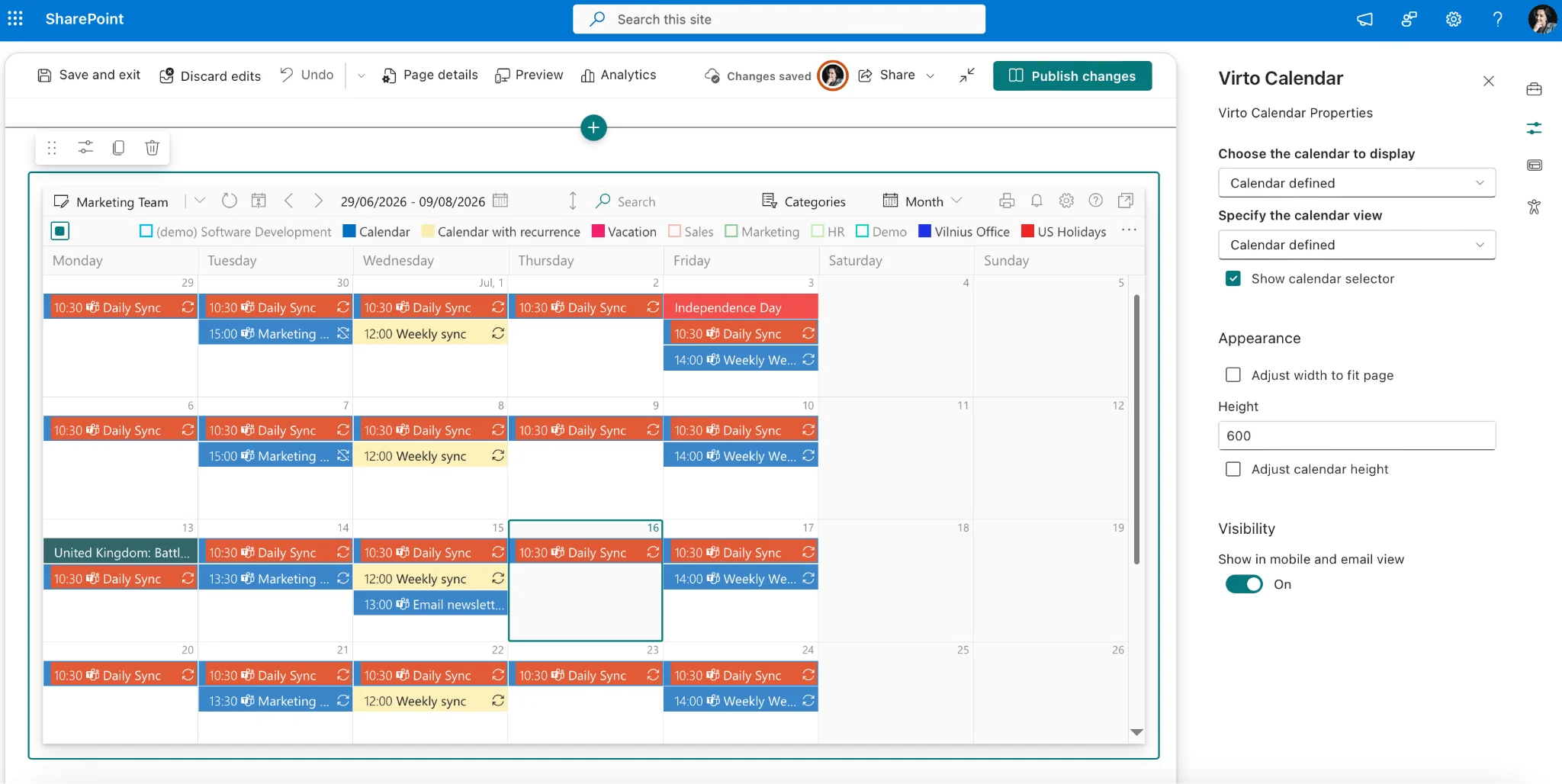
Pic. 10. Editing a web part.
Step 9: Publish and share
- Click “Publish” to make your changes visible.
- Announce the new site by email and link to it from other key resources.
- Gather feedback from a small group before promoting it widely.
Communication site vs team site (quick comparison)
The core distinction is purpose: a communication site broadcasts information to a broad audience, while a team site supports collaboration inside a group. The table below summarizes the differences.
| Aspect | Communication site | Team site |
|---|---|---|
| Primary goal | Broadcast news and information to a broad audience | Collaborate and co-author within a group |
| Communication model | One-to-many (mostly read-only) | Many-to-many (interactive) |
| Typical users | Whole organization or a large audience | A specific team, project, or department |
| Common uses | Intranet, news portal, HR/IT hub, showcase | Project workspace, document collaboration, task tracking |
| Microsoft 365 group | Not created by default | Created by default (with Teams, Planner, etc.) |
For an in-depth breakdown — templates, permissions, real-world use cases, and how to choose — see our full guide: SharePoint Team Site vs Communication Site.
Communication site templates and examples
Templates give you a professional starting structure you can adapt. The three standard options are:
- Topic (formerly News) — for frequent announcements and departmental news.
- Showcase (formerly Presentation) — for visual content, product catalogs, and portfolios.
- Blank — for full custom design control.
Where can I find SharePoint communication site templates? Click “Create site” on the SharePoint start page, select “Communication site,” and choose a template. Microsoft’s SharePoint Look Book also offers professionally designed examples, and administrators can manage custom site designs in the SharePoint admin center.
Real-world communication sites include corporate news portals, HR resource centers, marketing brand hubs, project showcases, IT service portals, and learning & development centers — each combining a Hero banner, news, events, and quick links tailored to its audience.
Planning, design & permissions
A great communication site starts with planning. Before building, decide what information you’ll share, who your audience is, and what tasks the site should solve. Then plan structure and navigation, keeping top-level menus to about 5–7 items and important content within 2–3 clicks of the home page.
Design principles
- Brand consistency: apply your color palette, logo, and a custom theme.
- Readability: clear typography, strong contrast, and a limited set of fonts.
- Strategic layout: put key information above the fold and use the Hero web part to highlight it.
- Accessibility: colorblind-friendly palettes, alt text on images, and sufficient contrast.
Permissions in brief
Communication sites follow SharePoint’s “open by default” model: everyone in the organization can typically view the site, while a small group of owners and content publishers create and edit. SharePoint’s predefined permission levels — Full Control, Design, Edit, Contribute, Read, and Restricted Read — let you separate content producers from consumers cleanly. For sensitive content, you can break inheritance at the library or item level, and audience targeting lets you show specific news, web parts, or navigation links to specific groups.
👉 For a complete walkthrough of permission levels and management, see Configuration & Management of SharePoint Permissions: A Complete Guide.
Enhance your communication site with VirtoSoftware apps
SharePoint’s native web parts are a solid foundation, but organizations often need more. VirtoSoftware offers purpose-built apps that integrate seamlessly with SharePoint Online and Microsoft 365 — extending a communication site without custom code, while keeping the familiar interface and security standards. Three apps in particular turn a static portal into an interactive hub.
Virto Calendar App: centralized event management
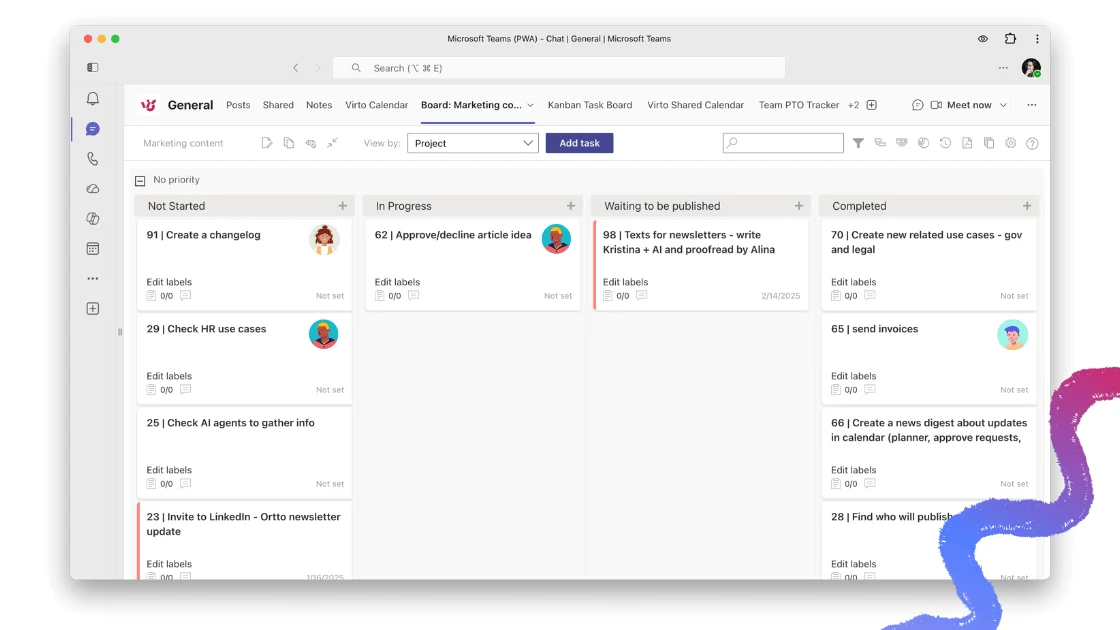
Pic. 11. Sample Virto Calendar.
Communication sites are often the go-to place for company announcements — including upcoming events, deadlines, and key dates. SharePoint’s native Events web part is basic, so for anything beyond a single list the Virto Calendar App is a major upgrade.
It overlays events from many sources into one unified, color-coded view, so visitors don’t have to check several places:
- SharePoint calendars from different sites
- Microsoft 365 Exchange and Outlook calendars
- Microsoft Teams calendars
- External calendars via iCalendar feeds (Google Calendar, Apple Calendar)
Multiple view modes — month, week, day, timeline, and agenda — let each visitor interact with schedules the way that suits them. Events can be color-coded by category (for example, blue for company-wide meetings, green for training, red for critical deadlines) and linked directly to related content such as a news post, a registration form, or a resource library. The result is a calendar people actually return to, rather than a static list.
Virto Kanban Board: visual project management
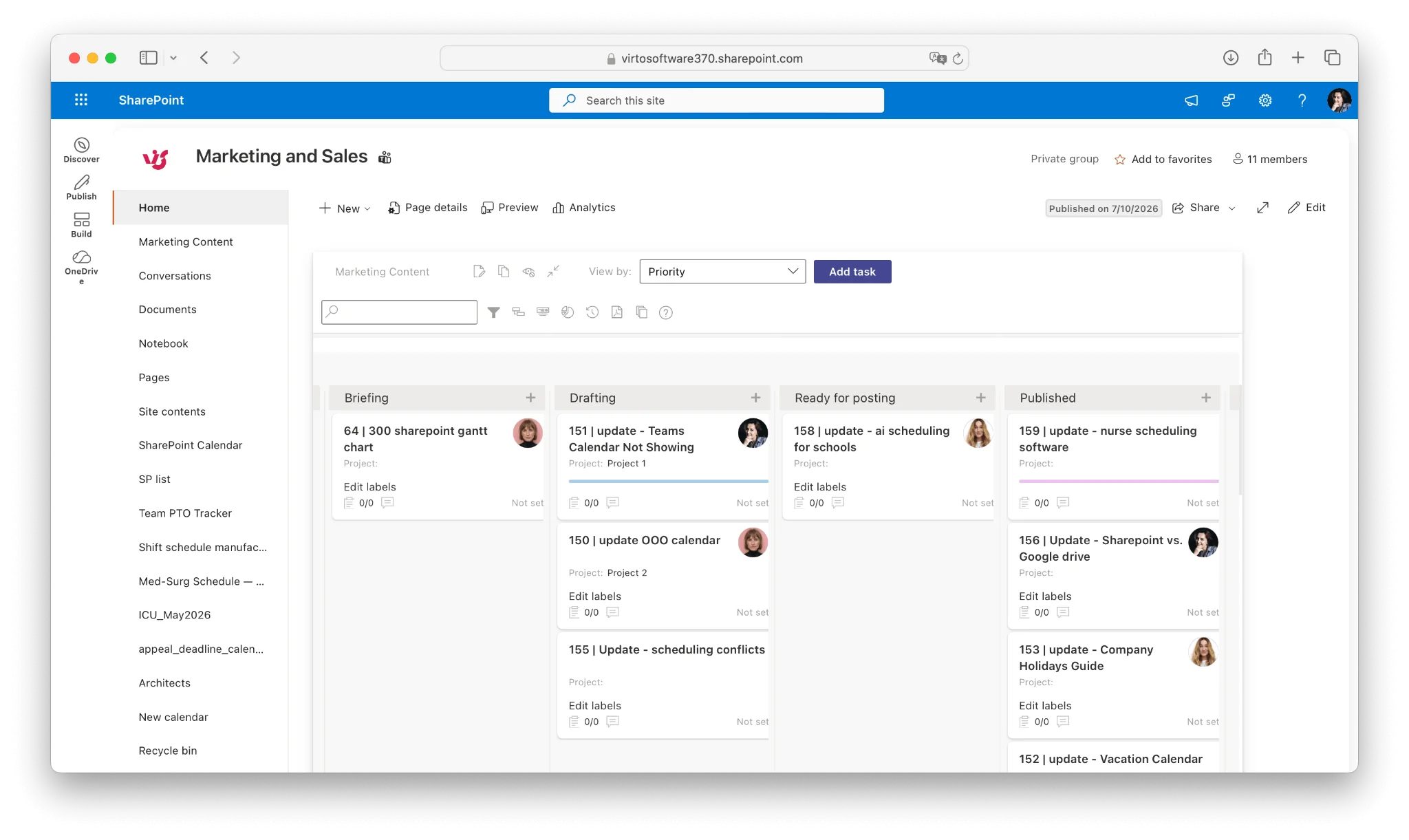
Pic. 12. Sample Virto Kanban Board.
While communication sites focus on broadcasting rather than collaboration, a visual status board can still add real value — for example, to show progress on strategic initiatives to the whole organization. The Virto Kanban Board App brings agile task tracking directly onto your site.
Tasks move through customizable columns that represent your workflow stages, with the flexibility to match how your teams actually work:
- Visual task management: color-coded cards show status, ownership, and deadlines at a glance.
- Customizable workflows: custom columns, swimlanes, fields, and WIP (Work In Progress) limits to prevent bottlenecks.
- Microsoft 365 integration: link tasks to SharePoint documents, pull in Microsoft Planner tasks, and honor SharePoint permissions.
- Analytics and reporting: cycle-time analysis, bottleneck identification, and completion-rate tracking that can feed periodic site updates.
This gives stakeholders an at-a-glance status of key initiatives — accountability, deadlines, and completed milestones all visible — while preserving the one-to-many communication model that defines a communication site.
Virto Alerts & Reminders: automated engagement
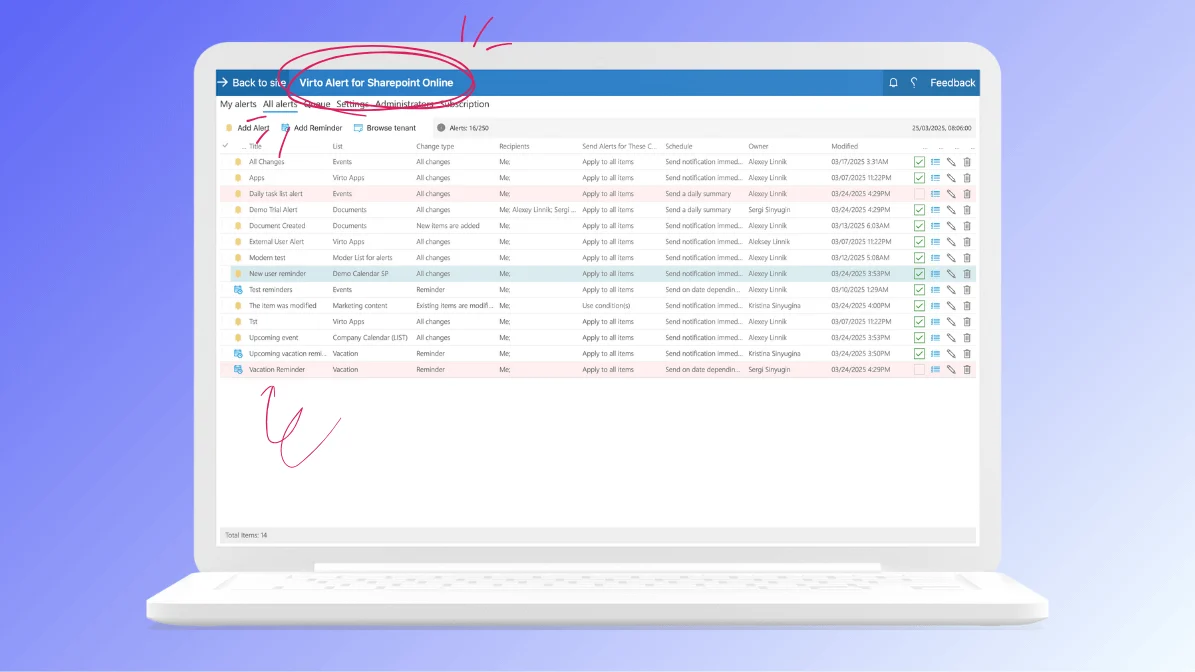
Pic. 13. Sample Virto Alerts & Reminders.
Keeping an audience engaged with frequently updated content is hard, and important announcements are easy to miss. The Virto Alerts & Reminders App solves this by proactively notifying users about the content that matters to them.
It goes well beyond SharePoint’s basic alerts:
- Flexible delivery: email, Microsoft Teams messages, in-app notifications, and scheduled reminders.
- Advanced scheduling: one-time, recurring, and conditional alerts, plus deadline-driven reminders that increase in frequency as a date approaches.
- Targeted audiences: security groups, distribution lists, custom selections, or role-based targeting to avoid alert fatigue.
- Rich formatting: HTML notifications with branding, images, and direct links back to site content.
For an HR or IT communication site, this means new policies, benefits deadlines, and compliance training reminders reach the right people through their preferred channel — and drive them back to the site.
Getting started with VirtoSoftware
- 30-day free trial for every app
- Self-service deployment
- A single license covers SharePoint Online, Microsoft Teams, and Azure deployments
- Comprehensive documentation and support
- Educational and non-profit discounts available
Want to see the apps in action? Request a product demo.
FAQ
What is a SharePoint communication site?
A SharePoint site type for broadcasting news, information, and resources to a broad, mostly read-only audience — used for intranets, portals, and announcements, unlike a team site built for group collaboration.
How do I create a communication site?
In SharePoint, choose Create site → Communication site, pick a template (Topic, Showcase, or Blank), name it, and add pages, news, and web parts.
Communication site vs team site — what’s the difference?
A communication site broadcasts information one-to-many to a wide, mostly read-only audience — ideal for intranets, news portals, and announcements. A team site supports many-to-many collaboration within a group, with shared document libraries, task lists, and real-time co-authoring. Choose a communication site to inform, and a team site to work together. See our full comparison guide for templates, permissions, and use cases.
Who can see a communication site?
By default, everyone in your organization with SharePoint access can view it. Owners can restrict access to specific groups, enable limited external sharing, or apply audience targeting for a more personalized experience.
Conclusion
A well-planned SharePoint communication site becomes the central, reliable hub for organizational news, resources, and announcements — improving information flow, engagement, and brand consistency. Start with a clear purpose, choose the right template, design for your audience, and maintain the site as a living asset. If you are new to SharePoint altogether, our guide to how to use SharePoint covers sites, libraries, lists, pages and sharing from the beginning.
To go further, native SharePoint pairs well with tools like Virto Calendar, Virto Kanban Board, and Virto Alerts & Reminders, which turn a communication site into a dynamic, interactive workspace.
Official Microsoft resources
- Create a Communication Site in SharePoint
- Plan Your SharePoint Communication Site
- Use the Standard Communication, Showcase, and Blank Templates
- Guided Walkthrough — Create a Communication Site
- Build Your SharePoint Communication Site
Related articles on our blog
- SharePoint Team Site vs Communication Site
- SharePoint Hub Site: What It Is & How to Create
- Types of SharePoint Sites: Features, Uses & Selection Guide
- SharePoint Intranet: What It Is, How to Build, and Its Uses
- SharePoint Pages: What They Are, How to Create and Optimize
- SharePoint External Sharing: A Complete Guide
- What Is SharePoint?
- Best Practices for SharePoint Document Management, Libraries and Security