



A practical guide to how teams actually work together in SharePoint — the built-in features, how to set a collaboration site up properly, and the apps that fill the gaps.
Quick answer: what is SharePoint collaboration? SharePoint collaboration means working together on documents, sites and lists in Microsoft 365 — with co-authoring, version history, permissions and integration with Teams. In practice, it is a team site that holds your files, lists and calendars in one place, with granular access control, and surfaces the same content inside Microsoft Teams, Outlook and OneDrive.
SharePoint turned 25 in 2025, and Microsoft now positions it as the knowledge platform behind Copilot and agents. That shift matters for collaboration: the same libraries and lists your team edits every day are what AI features read from. Getting the structure and permissions right is no longer just tidy housekeeping — it decides what Copilot can and cannot surface.
This guide covers what SharePoint collaboration means, the features that make it work, how to set up a collaboration site step by step, what changed in 2026, and where Virto apps for SharePoint extend what the platform does out of the box. New to the platform? Start with our overview of what SharePoint is and the full breakdown of SharePoint features and capabilities.
What is SharePoint collaboration?
Collaboration in SharePoint goes well beyond keeping documents in folders. It is a digital workspace where employees, teams and whole departments work on the same content, in the same place, with the right people having the right level of access. A SharePoint collaboration site becomes the hub where content is created, shared and governed, and where processes are tracked instead of scattered across inboxes.
In practice it combines five things:
- Shared access to information — documents, lists, libraries and team calendars in one secure place.
- Real-time co-authoring — several people editing the same Word, Excel or PowerPoint file at once, with visible cursors and instant sync.
- Team workspaces — dedicated team sites where a group manages its files, projects and updates.
- Built-in communication — comments, @mentions and notifications tied to specific content rather than a chat thread.
- Access control and security — granular permissions that keep sensitive content protected while still letting people work together.
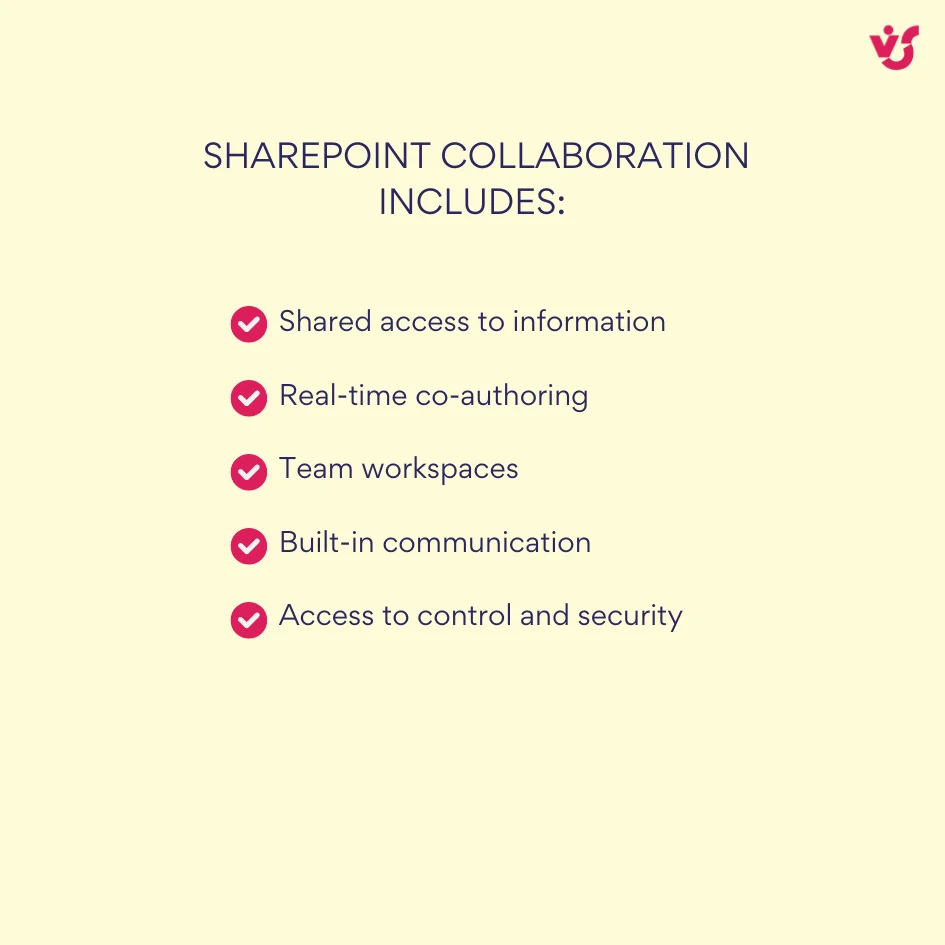
Pic. 1. Components of collaboration in SharePoint.
Put another way, SharePoint collaboration brings together people (who can find files and expertise fast), content (centralised, versioned, protected) and processes (approvals, reminders and requests automated with lists, forms and Power Automate). The payoff is one source of truth instead of five half-current copies.
Can two people work on the same SharePoint document at once? Yes. SharePoint supports real-time co-authoring, so multiple people can edit the same file simultaneously in the browser or the desktop apps. Changes appear instantly, each person’s edits are visible, and version history means nothing is lost. The same applies to lists — several people can update items at the same time.
Key SharePoint collaboration features
What makes SharePoint stand out is not any single feature but the combination: storage, structure, communication and automation in one place, tied into the rest of Microsoft 365.
1. Shared document libraries and co-authoring
Libraries are the heart of it. Teams co-author Word, Excel and PowerPoint files directly in the browser or desktop apps; every change syncs instantly. Version history lets you roll back to an earlier edit at any point, and comments keep feedback attached to the content it refers to.
2. Lists, task tracking and shared calendars
Lists handle tasks, requests, ideas and tickets with custom fields, views, filters and statuses. Switch a list to Calendar view — or add the Events web part — for deadlines and meetings; see our guide to creating a SharePoint calendar for the modern approach. For assignment and progress tracking specifically, our SharePoint task management guide goes deeper.
3. Customisable collaboration sites
A team site combines libraries, lists, calendars, forms and dashboards, and can be shaped around a department, project or process with its own permissions and navigation. If you are deciding between a team site and a communication site, compare the types of SharePoint sites first.
4. Deep Microsoft 365 integration
Every Microsoft 365 team gets a SharePoint site behind it. Each Teams channel maps to a folder in the site’s document library, so files are organised automatically; calendars sync with Outlook, and personal drafts live in OneDrive until they are ready to share. (Not sure which to use when? See SharePoint vs OneDrive.)
5. Comments, version history and approvals
Feedback and accountability are built in. Users comment inside documents, every file keeps a complete version history showing who changed what, and approval flows can be added with Power Automate or SharePoint forms.
6. Permissions and external sharing
Permissions can be applied at site, library, list, folder and item level, using the three standard roles — Owner (full control), Member (can edit) and Visitor (read-only). External collaborators can be invited by email if your tenant allows it, which is what makes SharePoint workable for client and partner projects, not just internal ones.
Benefits of SharePoint collaboration
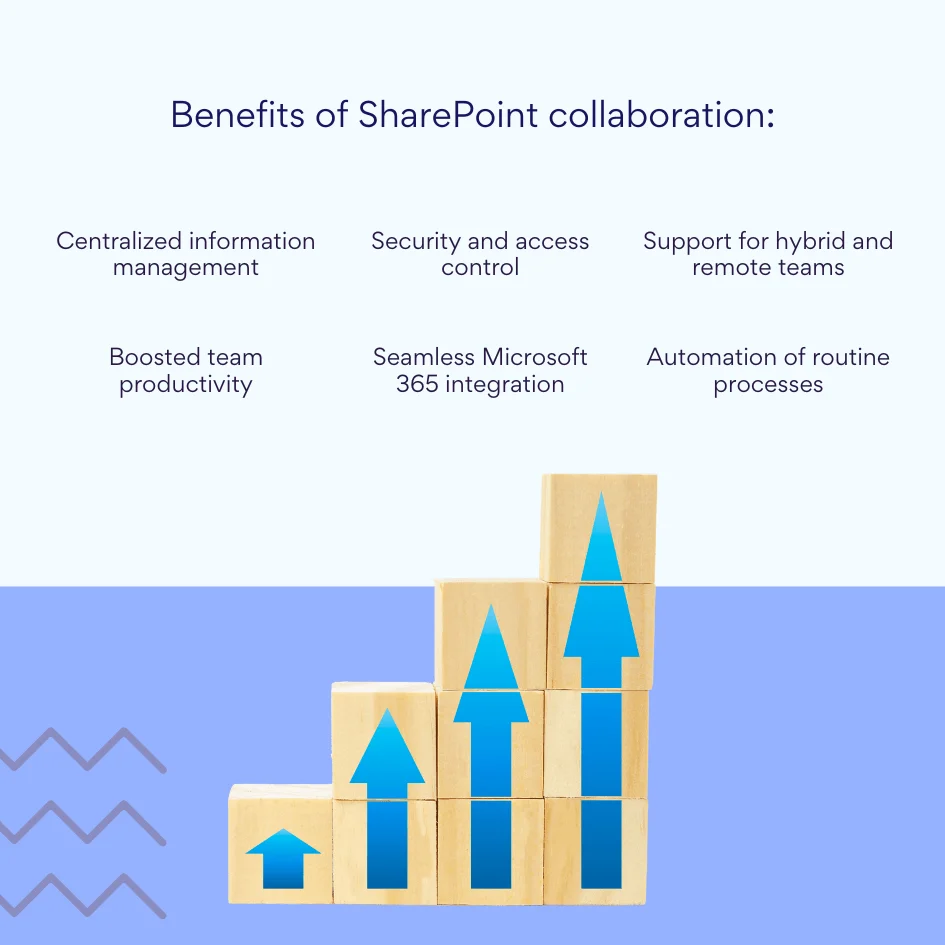
Pic. 2. Benefits of SharePoint collaboration.
| Benefit | What it means in practice |
|---|---|
| Centralised information | All files and documents in one place — no hunting through email threads or personal drives. |
| Faster teamwork | Co-authoring, notifications and task tracking remove the back-and-forth of sending versions around. |
| Security and access control | Granular permissions at site, library, folder and item level. |
| Microsoft 365 integration | Works with Teams, Outlook, Word, Excel, Planner and OneDrive without switching tools. |
| Hybrid and remote support | Same content from any location or device. |
| Automation | Approvals, reminders and repetitive steps handled by Power Automate and list rules. |
| AI-readiness | Well-structured, correctly permissioned content is what Copilot and SharePoint agents can actually use. |
Fig. 1. SharePoint collaboration: benefits and what they mean day to day.
What changed for SharePoint collaboration in 2026
Three changes are worth knowing before you plan a collaboration site this year.
- AI is now part of the collaboration layer. Microsoft positions SharePoint as the knowledge platform for Copilot and agents. Site-level agents can answer questions grounded in a site’s content, and Copilot can draft pages from existing documents. Both depend entirely on how well your libraries, metadata and permissions are set up.
- Classic SharePoint Add-ins were retired on 2 April 2026. If your collaboration site still relies on a third-party add-in that used Azure ACS authentication, it has stopped working. Modern SPFx-based tools are unaffected — including all Virto apps.
- Classic “Alert me” is gone. SharePoint alerts were retired in 2026, though the button often still appears under the “…” menu. Replace it with Workflows in the command bar, Automate → Rules for simple per-event emails, Power Automate for anything conditional, or the Virto Alerts and Reminders App if you need daily or weekly digest emails, which native Rules cannot send.
How to set up SharePoint collaboration: step by step
SharePoint gives you plenty of options, and without a clear setup even good tools feel messy. Decide up front who gets access, how content will be organised, and which integrations matter.
- Create a team site. Create it from SharePoint or from Microsoft Teams, choose the Team Site template, and set the name, description and privacy (public or private).
- Add members. Go to Site Permissions or the Microsoft 365 Group panel and add people by email — internal, and external if external sharing is enabled. Group members by department, project or role rather than adding individuals one by one.
- Assign roles and permissions. Use Owner, Member and Visitor. Apply permissions at the site level first, and only break inheritance for specific libraries or folders when you genuinely need to. Broken inheritance in dozens of places is the single most common cause of “why can’t I see this file?”.
- Structure your content. Separate document libraries per project, team or client; lists for tasks, requests, surveys and approvals; metadata and views rather than deep folder trees.
- Connect the rest of Microsoft 365. Add the site as a tab in Teams, sync calendars with Outlook, link tasks to Planner, and add productivity apps where the built-in features fall short.
- Govern and maintain. Archive outdated files, review permissions on a schedule, and name one site administrator who owns the structure. This is also what keeps AI features returning accurate answers.
How do I add a collaborator in SharePoint? Open the site, go to Settings → Site permissions, add the person’s email address and choose Owner, Member or Visitor. They get access according to the permissions you configured for that group.
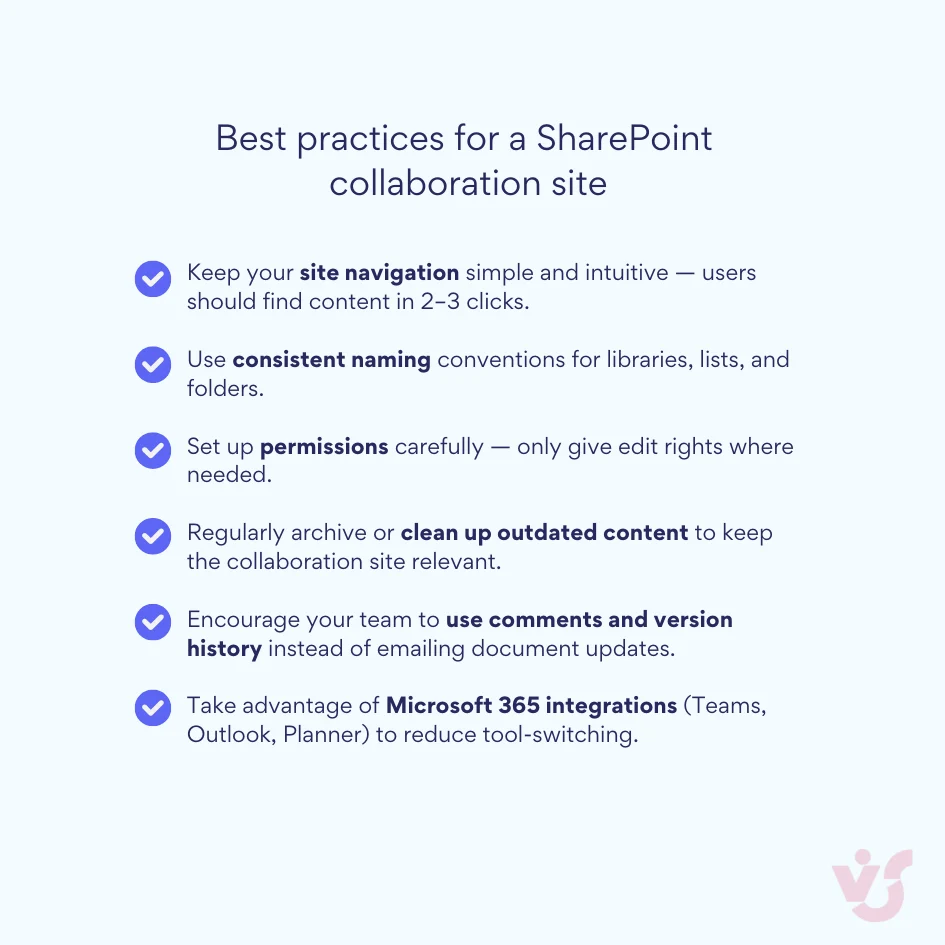
Pic. 3. Best practices for a SharePoint collaboration site.
What to put on a SharePoint collaboration site
Think of a collaboration site as the team’s digital office. A workable one usually contains:
- Document libraries for storing and co-editing files, split by project or client.
- Lists for tasks, requests, issues and approvals.
- A calendar for meetings, deadlines and milestones.
- Pages and web parts for dashboards, announcements and quick links.
- A clear place for discussion — a linked Teams channel usually beats a classic discussion board.
Three examples of how that plays out:
- Marketing team. A campaign calendar, a library of creative assets with approval status, and a content list tracking drafts to publication.
- Project team. A deliverables library, task and issue lists, milestone tracking, and a dashboard page. See our SharePoint project management guide for the full setup.
- HR team. Policy libraries, onboarding checklists, request forms, and a shared calendar for training and interviews.
When several departments share a site, the hard part is rarely the technology — it is agreeing on ownership and naming. Our guides to interdepartmental collaboration and cross-departmental collaboration cover that side of it.
Extending SharePoint collaboration with Virto apps
SharePoint covers a lot out of the box, but real projects usually need better visual management, richer calendars and less manual file work. That is where Virto apps for SharePoint come in — for SharePoint Online and Microsoft 365, and for on-premises environments. All apps are SPFx-based, run inside your own tenant, and come with a 30-day free trial.
For SharePoint Online and Microsoft 365
Virto Calendar App — overlay SharePoint lists, Exchange, Outlook, Planner, Google and iCal feeds into a single colour-coded view, so a team stops checking four calendars to find one free slot.
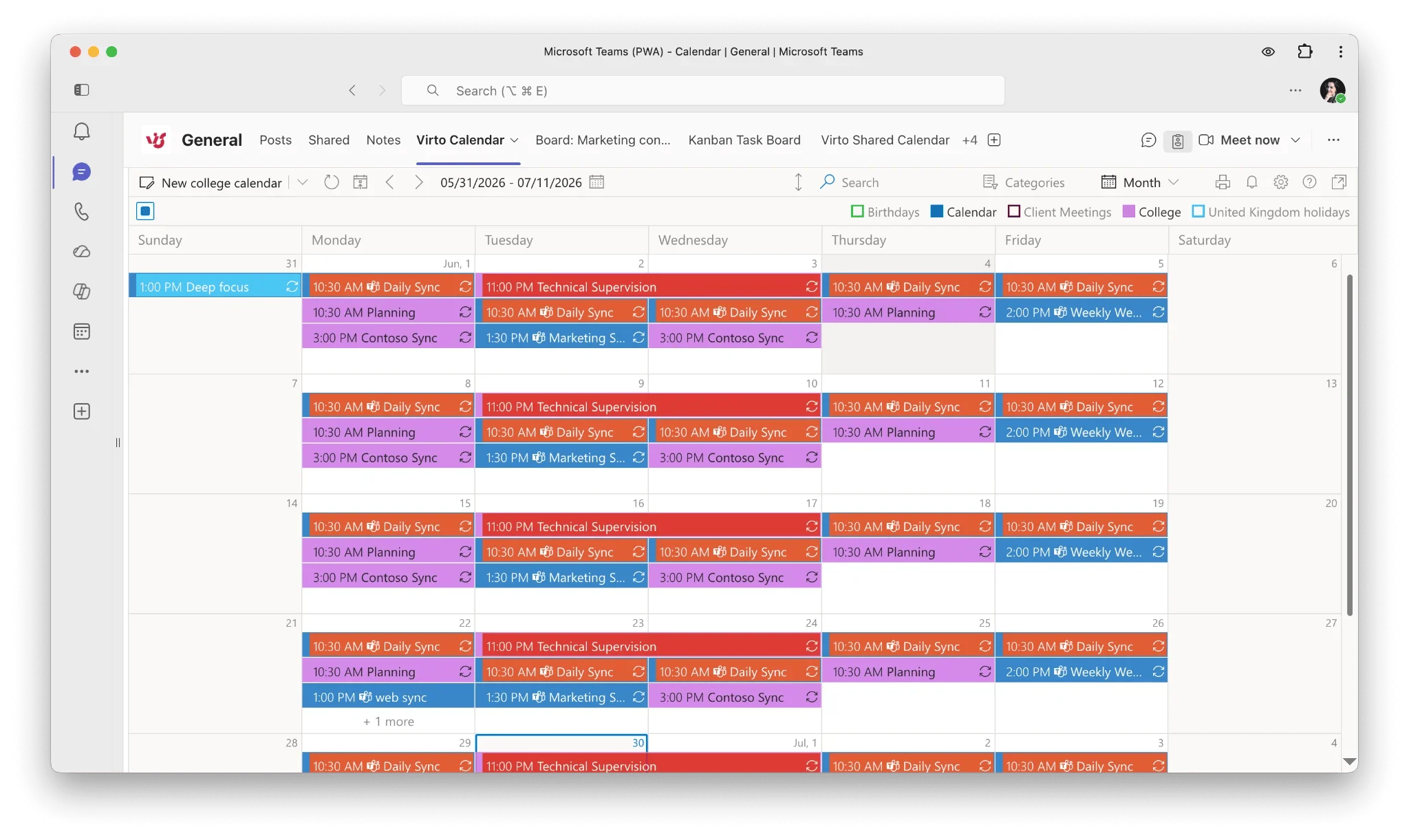
Pic. 4. Virto Calendar App.
Virto Kanban Board App — turn SharePoint or Microsoft Lists items into drag-and-drop cards with swimlanes, subtasks, WIP limits and board-level analytics. Separate boards per team or project, all reading from the same underlying list.
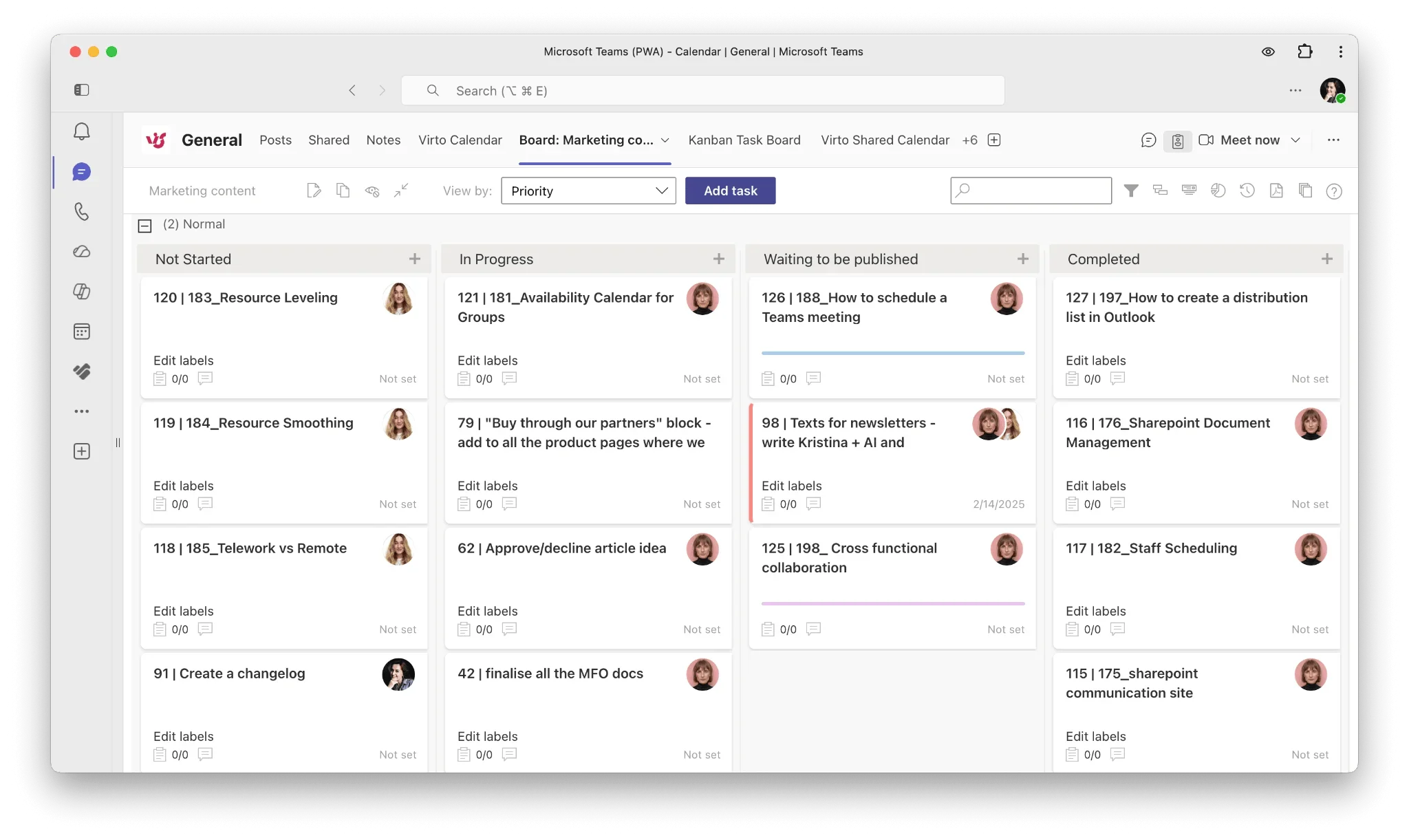
Pic. 5. Example of the Virto Kanban Board App.
Virto Alerts and Reminders App — email and Teams notifications with conditions and daily or weekly digests, filling the gap left by retired SharePoint alerts.
Virto Forms Designer — drag-and-drop custom forms for lists, with conditional fields and branded layouts.
Virto Multiple Operations — bulk upload, move, copy and delete files and folders, which saves hours once a library grows past a few hundred items.
All of these are also available together in the Virto M365 Productivity Kit.
For SharePoint On-Premises
On-premises teams use separate web parts, licensed through the Virto On-Premises Productivity Kit or individually.
Virto Calendar Web Part — merge events from SharePoint lists, Exchange, Google and SQL sources into one calendar view.
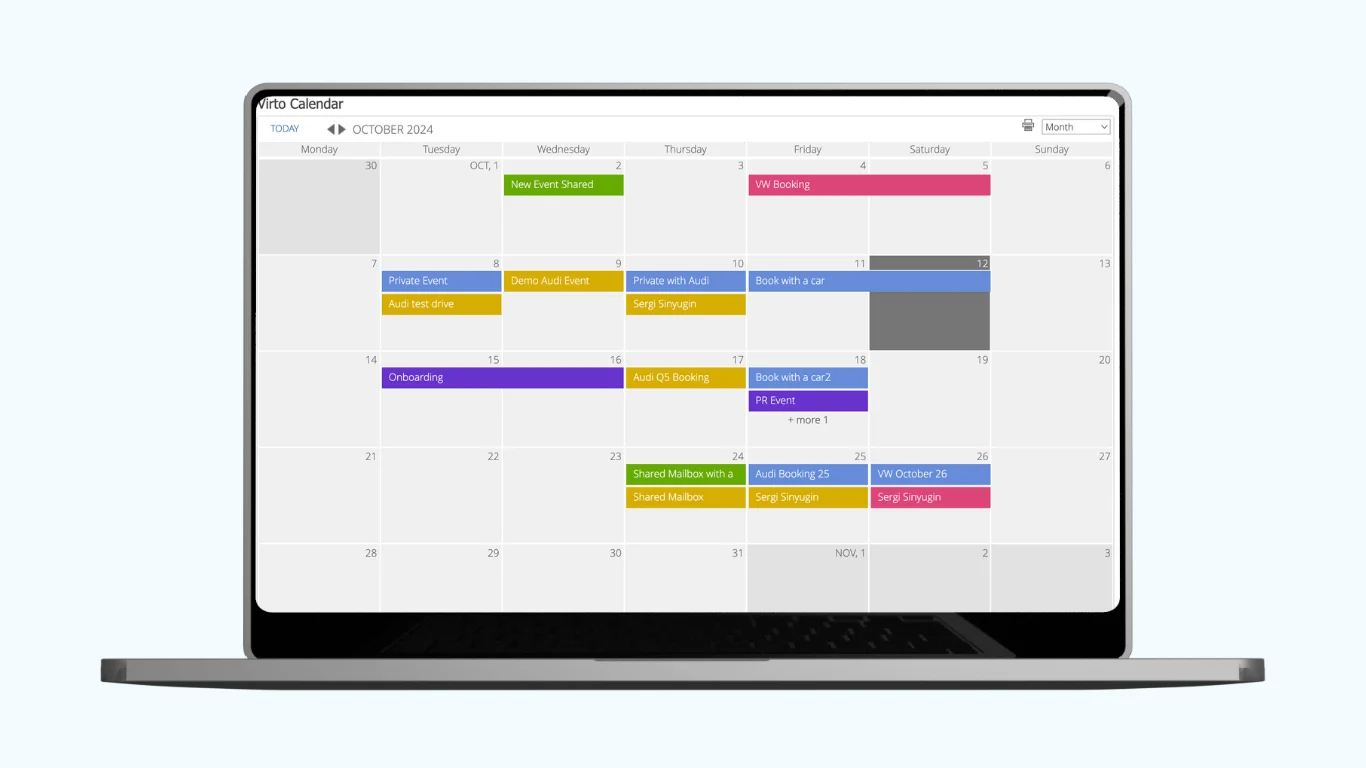
Pic. 6. Virto Calendar Web Part.
Virto Kanban Board Web Part — visual task management with colour-coded boards, swimlanes and prioritisation inside on-premises SharePoint.
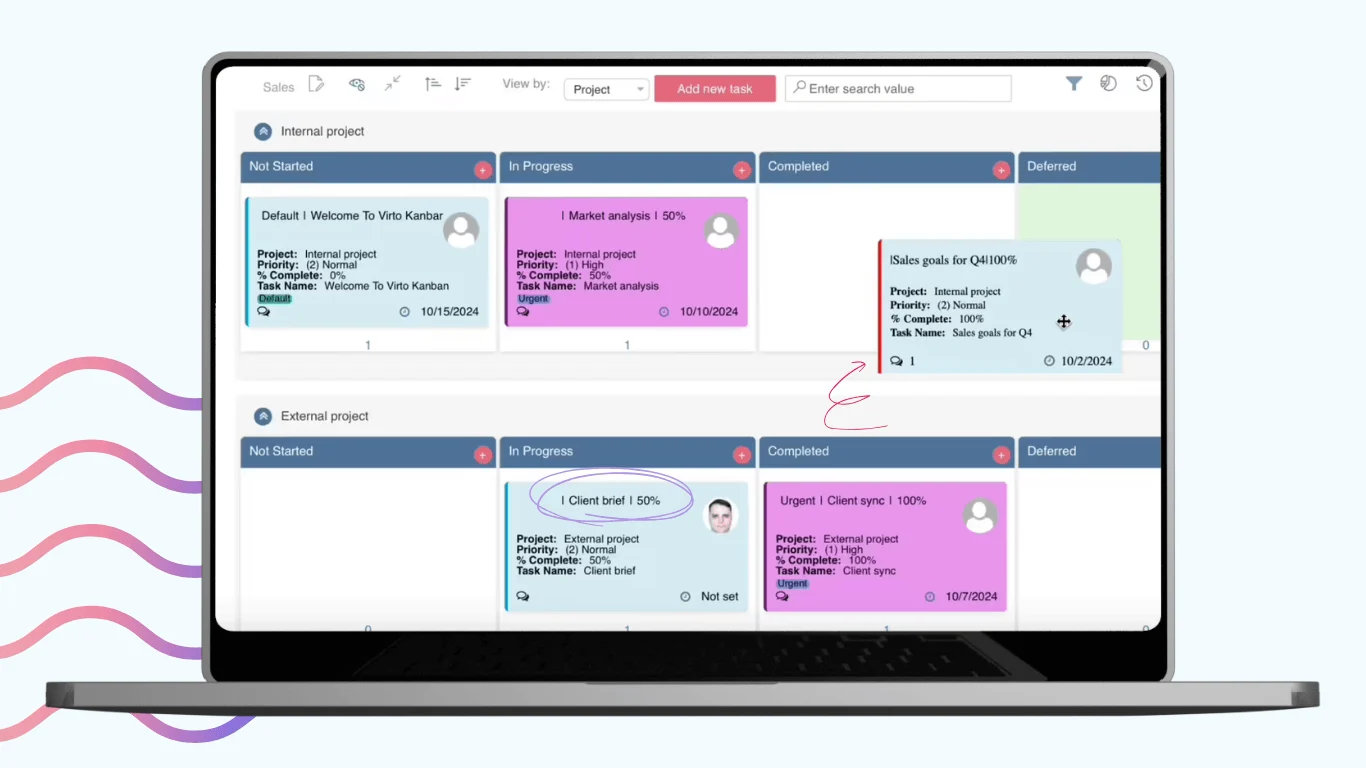
Pic. 7. Virto Kanban Board Web Part.
Virto Multiple File Operations — bulk upload, download, delete, copy, move, check-in and approve.
Virto Workflow Automation — 270+ no-code workflow activities for approvals and custom processes.
Virto Notifications and Alerts Web Part — alerts and reminders for any user or group by email or SMS.
Virto Form Designer — advanced form customisation including HTML, CSS and JavaScript.
| Environment | App or web part | What it adds to collaboration | Typical use case |
|---|---|---|---|
| Microsoft 365 / SharePoint Online | Virto Calendar App | Unified, colour-coded view across multiple calendar sources | Team schedules, company events, resource planning |
| Virto Kanban Board App | Visual task management with swimlanes and analytics | Sprint tracking, project boards per team | |
| Virto Alerts and Reminders App | Conditional notifications and digest emails | Deadline reminders, approval nudges | |
| Virto Forms Designer | Custom, branded list forms | Requests, intake, structured feedback | |
| Virto Multiple Operations | Bulk file and folder actions | Library clean-ups, migrations | |
| SharePoint On-Premises | Virto Calendar Web Part | Multi-source calendar display | Department calendars, project milestones |
| Virto Kanban Board Web Part | Visual boards inside on-premises SharePoint | Task assignment, workflow tracking | |
| Virto Workflow Automation | 270+ no-code workflow activities | Approvals, document routing |
Fig. 2. Virto apps and web parts for SharePoint collaboration.
Every app has a 30-day free trial, and you can book a demo if you would rather see it against your own site structure first.
SharePoint collaboration FAQ
What is SharePoint collaboration?
It is working together on documents, sites and lists in Microsoft 365 — co-authoring files, tracking work in lists, sharing calendars, and controlling who sees what through permissions, with all of it surfaced in Teams and Outlook.
Can two people work on the same SharePoint document at the same time?
Yes. Co-authoring is supported in Word, Excel and PowerPoint, in the browser and in the desktop apps. Edits sync in real time, cursors are visible, and version history records every change.
Is SharePoint a good collaboration tool?
For organisations already on Microsoft 365, yes — the integration with Teams, Outlook and Office, the permission model, and the automation options are hard to match. It is less suited to teams that want a lightweight tool with no setup, since SharePoint rewards deliberate structure.
How do I add a collaborator in SharePoint?
Settings → Site permissions → add their email address and pick Owner, Member or Visitor. For external people, external sharing has to be enabled at tenant and site level first.
What is the difference between a team site and a communication site?
A team site is for a group working together, with most members able to edit. A communication site is for broadcasting to a wide audience, where a few people publish and everyone else reads.
Can external users collaborate in SharePoint?
Yes, if your administrator has enabled external sharing. Guests can be given access to specific sites, libraries or even individual files, and their permissions work the same way as internal users'.
What is the difference between SharePoint and OneDrive for collaboration?
OneDrive is your personal work area — drafts and files that belong to you. SharePoint is the shared area that belongs to the team and survives people joining and leaving. Drafts start in OneDrive and move to SharePoint once they are team property.
Final thoughts
SharePoint collaboration works when three things line up: a clear site structure, permissions people actually understand, and tools that match how the team really plans and tracks work. The platform gives you the first two; the third is where you either configure carefully or add something.
If your bottleneck is scattered calendars, opaque task lists or slow bulk file work, pick the matching Virto app for SharePoint, pilot it with one team on a 30-day trial, and measure the time saved before rolling it wider.