Most SharePoint problems are not technical. The platform works; the way it was set up does not. Someone recreated the old file server as a five-level subsite tree, gave a dozen people Full Control to unblock a deadline, and never wrote down what a site is called or when its content expires. Two years later nobody can find anything and search gets the blame.
This guide collects the SharePoint best practices that prevent that outcome, in the order they matter. It covers structure, document libraries and metadata, document management, permissions and external sharing, governance, and adoption. Each section is a summary with the decisions you actually have to make — where you need the full detail, it links to a dedicated guide. If you are still deciding whether SharePoint is the right platform at all, start with what SharePoint is and what it is used for.
One thing worth saying up front: a lot of SharePoint advice still circulating was written for the classic experience, before hub sites, before Microsoft 365 groups, and before Teams put a SharePoint site behind every channel. Some of it is now actively wrong — the nested subsite hierarchy being the clearest example. Where this guide differs from something you read a few years ago, that is usually why.
Quick answer: the SharePoint best practices that matter most
If you only fix six things, fix these:
- Keep the structure flat. Create separate sites and connect them with a hub site instead of nesting subsites inside a root site collection.
- Use metadata, not deep folders. Columns and views let one file be found six different ways; a folder path allows exactly one.
- Apply least privilege. Grant permissions to groups, at the widest sensible scope, and treat unique item-level permissions as an exception you document.
- Control external sharing deliberately. Set the tenant default to the most restrictive option that still lets people work, then loosen it site by site.
- Write the governance down. Naming standards, versioning settings, site request process, retention and review dates — a page nobody wrote is a page nobody follows.
- Plan for adoption. Pilot with one team, train champions, migrate content before you ask anyone to switch, and retire the old shared drive on a fixed date.
The order matters. Permissions are easier to design on a flat structure. Governance is easier to enforce when metadata is already in place. Adoption is easier when the first three are done, because the environment is one people can actually navigate.
Next question: which practice slips first? Usually the dates: review deadlines and content expiry that nobody is reminded of. To send reminders a set time before a date in a SharePoint list, add Virto Alerts & Reminder App.
These practices apply whether you are setting up a new tenant, cleaning up one that grew organically, or migrating from a file server. If you are inheriting an existing environment, resist the urge to redesign everything at once. Fix the structure for new content, leave the old content where it is behind a clear label, and migrate it in batches as teams touch it. A perfect architecture nobody has moved into is not an improvement.
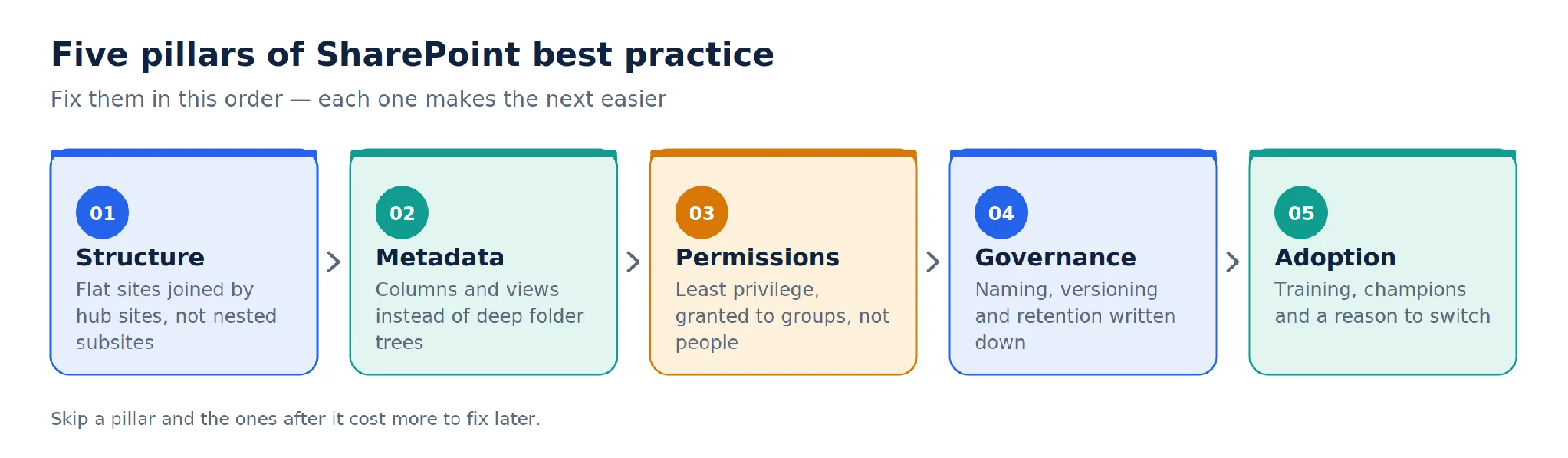
Pic.1. The five pillars of SharePoint best practice, and the order to fix them in.
Structure and architecture: go flat, connect with hub sites
The single most consequential decision in a SharePoint environment is its information architecture — how many sites exist, what each one is for, and how they relate. Get it wrong and every later problem (permissions sprawl, broken links, failed search) traces back to it.
Why the subsite hierarchy stopped being a best practice
Classic SharePoint encouraged a tree: one root site collection, departments as subsites, teams as subsites of those, projects below that. It mirrored the org chart, which felt intuitive, and it caused four predictable problems.
- Permissions inherit downwards, so a change near the top quietly changes access several levels below it.
- URLs grow long and fragile. Moving one branch breaks every link, bookmark and document reference inside it.
- Reorganisations are expensive. When Marketing merges with Communications, the structure has to be rebuilt rather than re-pointed.
- Storage, search and lifecycle settings apply to the whole collection instead of the team that actually owns the content.
Subsites still exist and there are narrow cases for them, but they are no longer the default answer. Microsoft’s own modern information architecture guidance recommends flat, and so does everyone who has had to untangle a tree.
The flat model: one site per workload, hubs for the connections
In modern SharePoint, each team, project or department gets its own site at the top level. A hub site then associates those sites so they share navigation, branding, search scope and news. The relationship is a property, not a location — you can re-associate a site with a different hub in a few clicks, and no URL changes.
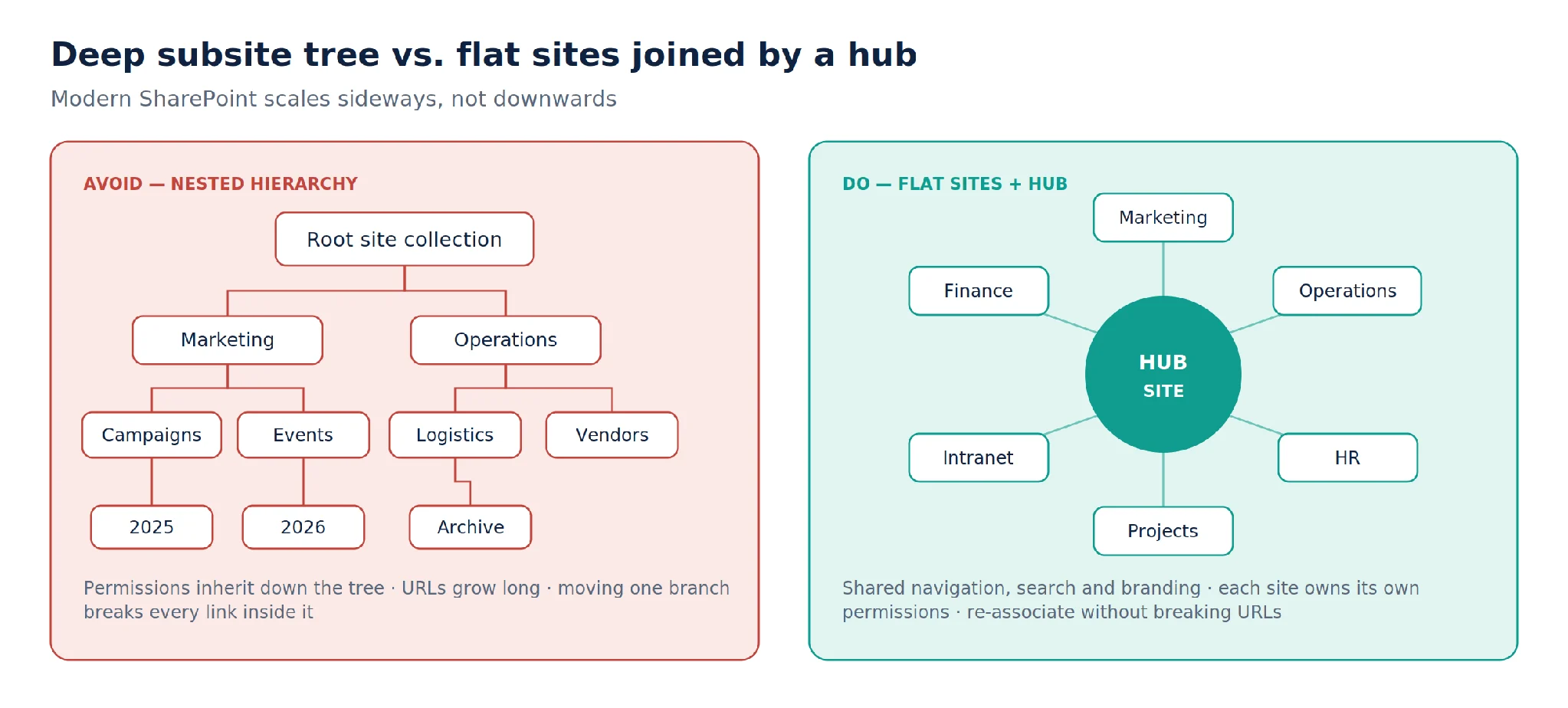
Pic.2. The same organisation modelled as a nested subsite tree and as flat sites joined by a hub.
Information architecture best practices
- One site per workload, not per team member or per year. If a project ends, archive the site; do not create a subsite for next year’s version.
- Choose the site type on purpose. Team sites for collaborative work with a Microsoft 365 group behind them; communication sites for one-to-many publishing such as policies, news and an intranet homepage.
- Plan hubs before you create them. A tenant has a limited number of hubs, and a hub with forty associated sites has the same navigation problem as a folder with forty subfolders. Microsoft’s hub site planning guidance is worth reading before the first one is created.
- Design navigation for how people search, not how the company is organised. Hub navigation, site navigation and the mega menu each serve a different audience — see planning site navigation.
- Keep the number of top-level entry points small. Most users should be able to reach anything they need in three clicks from the intranet home page.
- Name sites so a stranger understands them. “HR-Policies” beats “Team Site 4” and beats “Sharon’s Site” by a wider margin.
- Use site templates to make new sites consistent. Site scripts and site designs apply libraries, columns, views and settings automatically, so best practice is the default rather than an instruction.
Team site or communication site?
This choice is made once per site and is awkward to reverse, so it is worth thirty seconds of thought. A team site is for a group of people doing work together: it comes with a Microsoft 365 group, a shared mailbox and, if created from Teams, a Teams channel. Membership and permissions are managed through that group, and every member can contribute by default.
A communication site is for publishing to an audience that mostly reads: policies, news, an HR portal, a product knowledge base. A small group of authors edits; everyone else has read access. It has no Microsoft 365 group behind it, which makes its permissions simpler and its lifecycle independent of any team.
The failure mode is using a team site as an intranet. Everyone gets edit rights on the company handbook because that is what team site membership means, and the audience never quite understands why the news page has a Files tab. If the primary verb is “read”, use a communication site.
A note on sites created by Microsoft Teams
Every Teams team creates a SharePoint site, and every channel creates a folder in that site’s document library. This is convenient and it is also the most common source of unplanned sprawl, because anyone who can create a team can create a site. Two practices keep it manageable: apply a naming policy and an expiration policy to Microsoft 365 groups so abandoned teams do not accumulate indefinitely, and decide deliberately which content belongs in a Teams-backed site versus a standalone SharePoint site. Working files and channel conversations belong in Teams; reference content the whole organisation needs does not.
Document libraries and metadata: stop building folder trees
A document library is not a folder on a network drive with a web page in front of it. It is a list with columns, and the columns are what make it useful. Teams that treat libraries as file shares get file share results.
Why metadata beats folders
A folder puts a file in exactly one place. Everyone who wants that file has to guess the same path, in the same order, with the same vocabulary. Metadata puts the same file in as many places as there are useful questions to ask about it: whose is it, what type is it, which client, which stage, when does it expire.
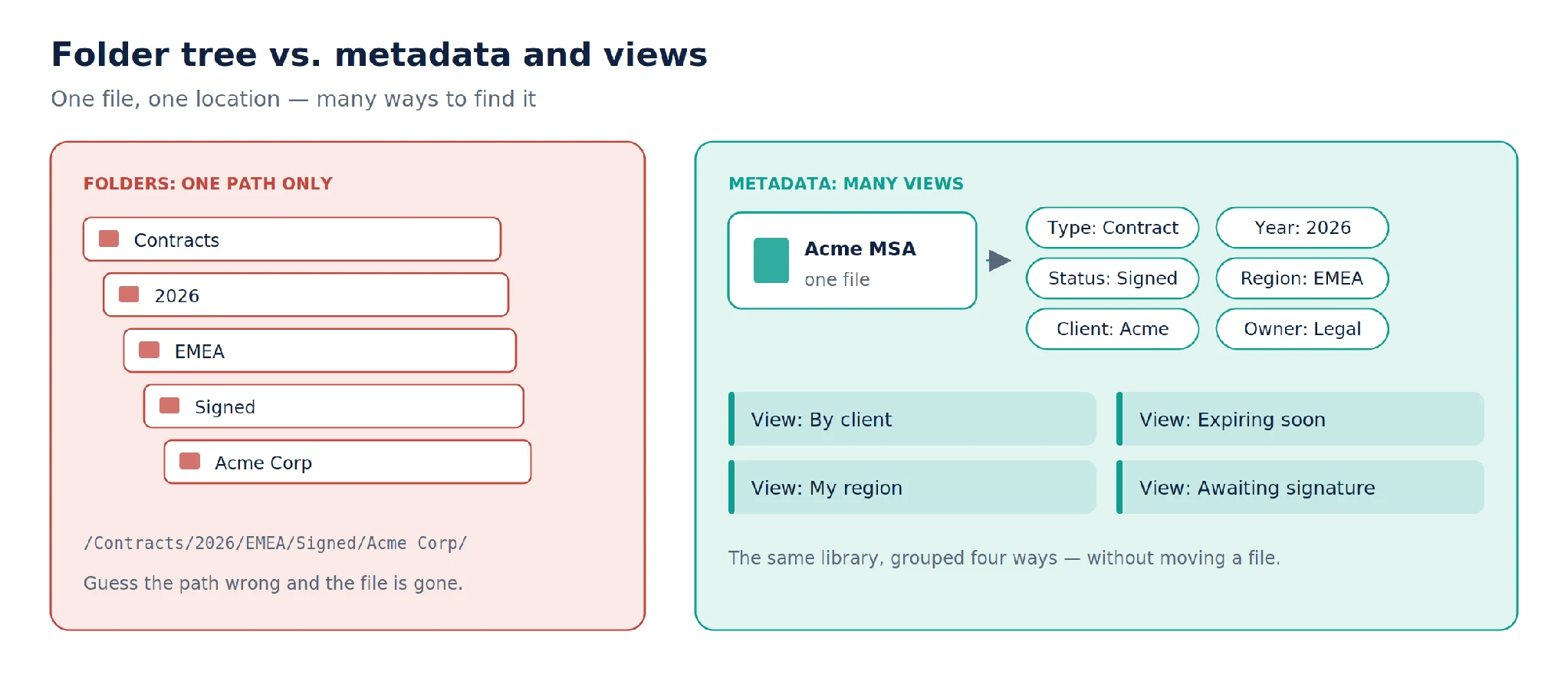
Pic.3. The same contract, filed in a folder path and described with metadata columns.
There are hard limits behind the advice as well. Deep folder paths produce long URLs, and views that try to display more than 5,000 items at once hit the list view threshold. Metadata with well-designed views sidesteps both — Microsoft’s guidance on large lists and libraries explains how filtered, indexed views keep large libraries fast.
Document library best practices
- Flatten first. One or two levels of folders at most, and only where they map to something genuinely structural such as a security boundary.
- Add columns that answer real questions. Document type, owner, status, client or project, review date. Five well-chosen columns beat twenty aspirational ones.
- Use managed metadata for anything with a controlled vocabulary. A term set for departments or document types keeps everyone typing the same words — see introduction to managed metadata.
- Make the important columns required. If a field is optional, half the library will be missing it within a month.
- Build views instead of folders. “My documents”, “Awaiting approval”, “Expiring this quarter” — each view is a folder structure that costs nothing to maintain.
- Set default column values per library so metadata gets applied on upload rather than in a clean-up project later.
- Split by purpose, not by size. Separate libraries for policies, contracts and working drafts are easier to secure and retain than one library with everything in it.
- Give files predictable names. Even with good metadata, consistent names make search results scannable and exports intelligible.
- Review quarterly. Delete unused views, retire columns nobody fills in, and check that the library still matches how the team works. Microsoft’s overview of organising documents and sites is a useful checklist for this.
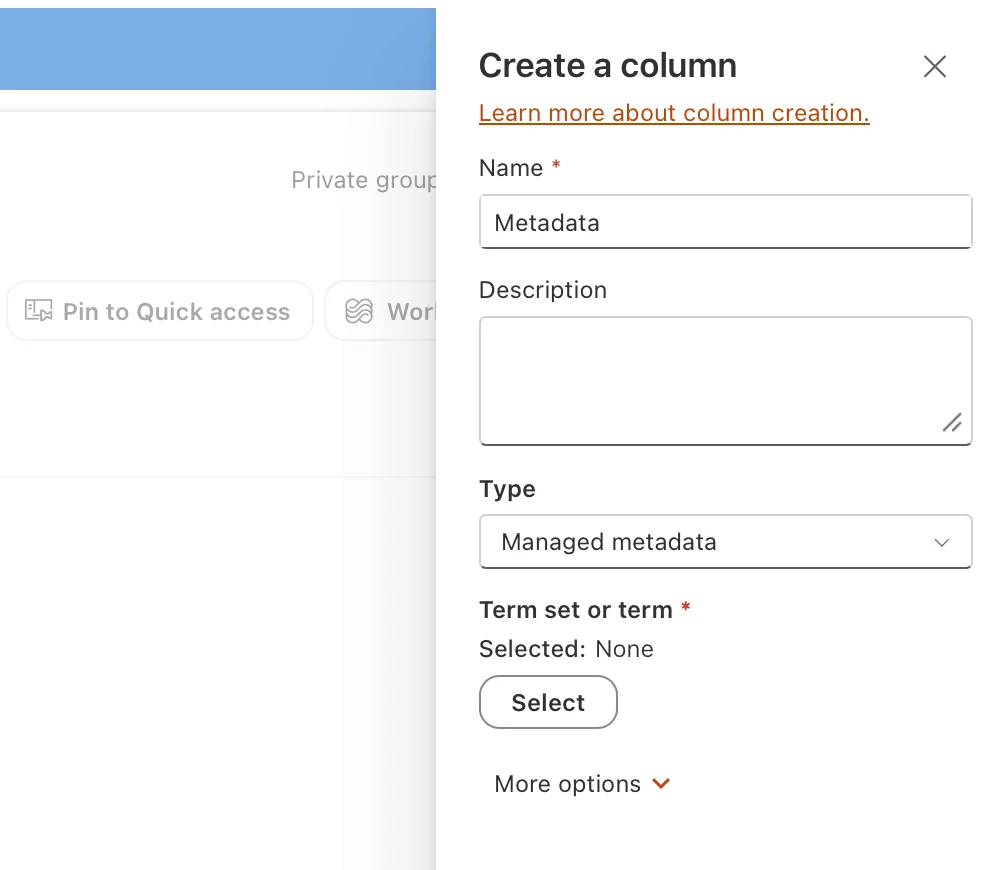
Pic.4. Screenshot: adding a managed metadata column.
Content types: worth it, but not everywhere
A content type bundles a template, a set of columns, a retention policy and a workflow into a reusable definition — “Invoice”, “Statement of Work”, “Policy Document”. Published from the content type gallery, it applies the same structure across every library that uses it, which is exactly what you want for content that has a formal shape and a compliance owner.
It is also more machinery than most libraries need. A team drive full of working documents does not benefit from a content type; a contracts library with a retention obligation absolutely does. The practical rule: introduce content types when the same document type appears in more than one library and has rules attached to it. Before that, site columns and library defaults do the job with far less overhead.
Search and findability
Search in Microsoft 365 works well when it has something to work with, which is another argument for metadata. Managed properties built from your columns let people filter results by department, document type or status rather than scrolling; a term set gives search consistent vocabulary to match against; and required columns mean the filters are actually populated.
Three practices make the biggest difference. Index the columns you filter and sort on most, particularly in large libraries. Use descriptive file names and document titles, because both are weighted in relevance. And check what your most common searches actually return — if “expenses policy” does not surface the expenses policy in the first three results, the fix is usually a missing title, a missing column value or a page that should have been promoted, not a search configuration problem.
Document management: versioning, approval and lifecycle
Once content is findable, the next question is whether it can be trusted: is this the current version, who signed it off, and how long does it need to stay? That is document management, and SharePoint has the features for it — they just need to be switched on deliberately.
Versioning that people can actually use
Versioning is on by default in modern libraries, but the default settings are rarely the right ones for a library that matters.
- Use major and minor versions where content is published. Minor versions (0.1, 0.2) stay visible to editors; major versions (1.0, 2.0) are what readers see.
- Cap the version count. Unlimited versions of a large file are a storage bill nobody budgeted for. A limit of 100 major versions with a handful of minor drafts each is generous for most libraries.
- Turn on content approval where publishing is a formal act — policies, customer-facing documents, anything with a compliance owner.
- Use check-out only where genuinely needed. Co-authoring is better for most working documents; forced check-out creates the classic “locked by someone on holiday” problem.
- Configure it per library, not per tenant, and document the choice. Microsoft’s guide to enabling and configuring versioning covers the settings themselves.
Give every document an end date
The reason libraries become unusable is not that people add content. It is that nobody ever removes any. A lifecycle turns that from a periodic clean-up project into a routine.
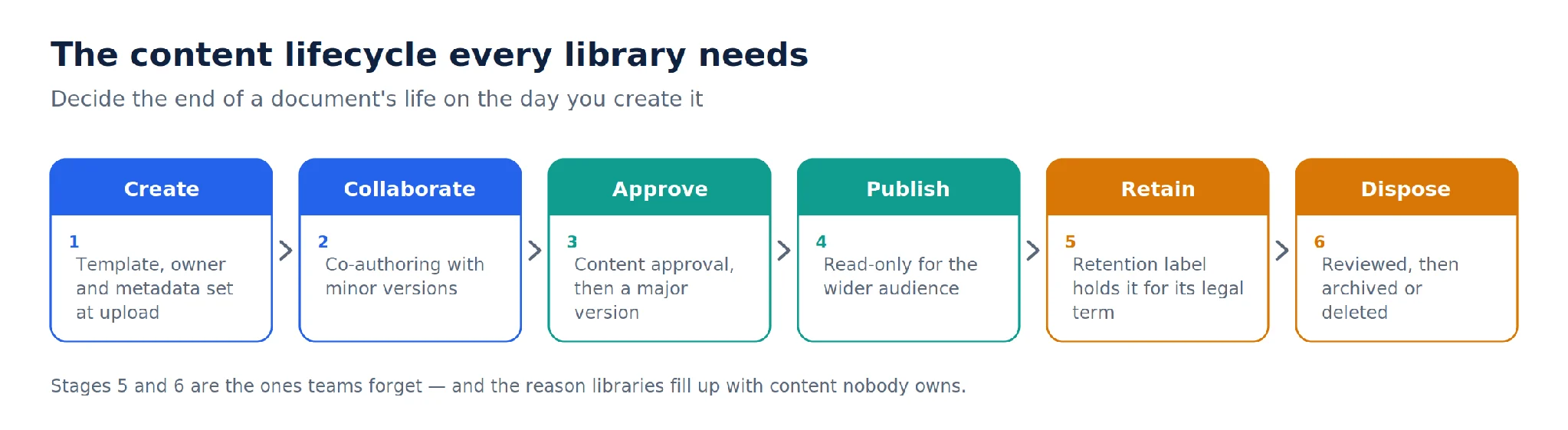
Pic.5. The content lifecycle every library needs, from creation to disposal.
- Apply retention labels so documents are kept for their required period and reviewed after it — creating retention labels walks through the setup.
- Set a review date column and a view that surfaces anything past it. A named owner plus a visible list is more effective than an annual audit.
- Archive completed project sites rather than leaving them live. Read-only content that stays searchable is better than content that quietly rots.
- Decide who owns disposal before you need it. “Legal will tell us” is not a process.
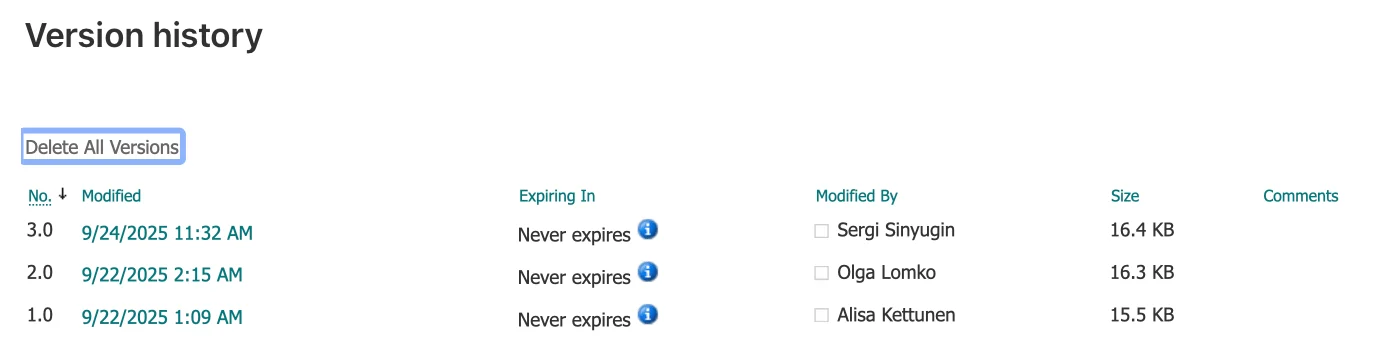
Pic.6. Screenshot: the version history pane showing versions of a document.
Permissions and external sharing: least privilege by default
Permissions are where good intentions go to die. Someone needs access urgently, the fastest fix is a unique permission on a single file, and three years later nobody can explain who can see what. The best practice is not to be strict — it is to be consistent and legible.
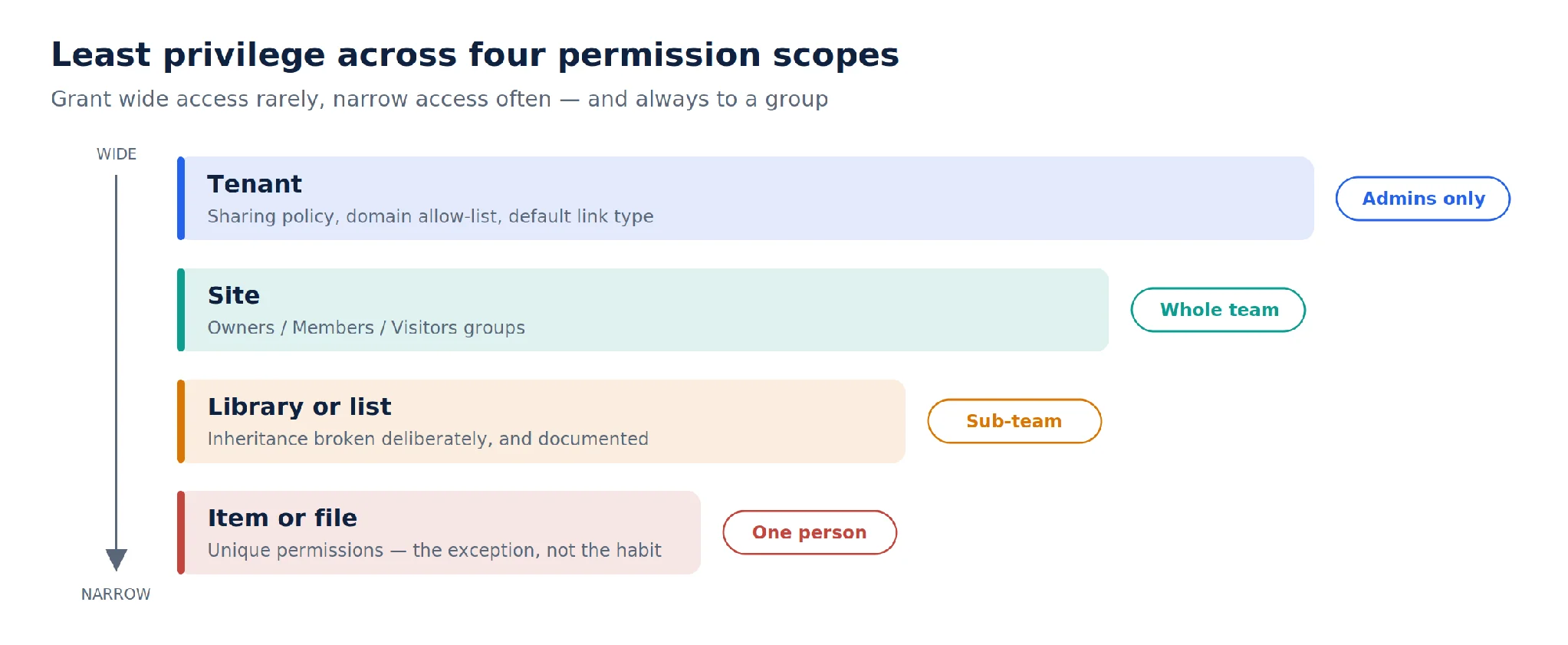
Pic.7. The four permission scopes, and how wide access should be at each.
Permission best practices
- Grant access to groups, never to individuals. Use the site’s Owners, Members and Visitors groups, backed by Microsoft 365 groups or security groups that HR processes already maintain.
- Keep inheritance intact wherever possible. Every broken inheritance is a place someone has to check during an access review.
- When you do break inheritance, document why and set a review date. An undocumented exception becomes permanent.
- Limit Full Control to two or three named owners per site, and make sure at least two people hold it so the site is never orphaned.
- Never use unique item-level permissions as a routine tool. If one file in a library needs different access, it usually belongs in a different library.
- Review access on a schedule and after every reorganisation. Access reviews catch the permissions that outlived the project.
- Understand what the modern experience actually grants. Sharing links, “Anyone” links and direct access behave differently — Microsoft’s sharing and permissions overview is the reference.
Permissions are one layer of a broader picture that also includes encryption, conditional access, data loss prevention and audit logging. Our SharePoint security guide covers the full stack, and the Microsoft 365 community article on SharePoint Online security as a team effort is a good argument for why this cannot be one administrator’s job.
Two specific mistakes are worth calling out because they are so common. The first is adding people to the site’s Owners group to solve a problem that only needed Edit — Full Control includes the ability to change permissions, delete the site and break inheritance anywhere in it. The second is granting access to “Everyone except external users” as a shortcut. It works, it is invisible in most reviews, and it means the content is available to every employee in the organisation, which is very rarely what was intended.
External sharing best practices
External sharing is a business requirement, not a risk to eliminate. The goal is to make the safe path the easy one. Our full guide to external sharing in SharePoint covers the settings in detail; the practices below are the ones worth adopting everywhere.
- Set the tenant-level policy to the most restrictive option that still lets people work, then relax it per site. A site-level setting can never be more permissive than the tenant — see the external sharing overview.
- Prefer “specific people” links over “anyone with the link”. They require sign-in and are traceable to a person.
- Set expiration dates on guest links by default, and a shorter one for sites holding sensitive content.
- Use a domain allow-list for regulated work so files can only be shared with partners you have agreements with.
- Change the default link type. If the default is “anyone”, most people will never change it; if the default is “specific people”, most people will never need to.
- Classify content with sensitivity labels so protection travels with the file rather than depending on where it is stored.
- Review guest access quarterly and remove guests whose project ended. Nobody else will.
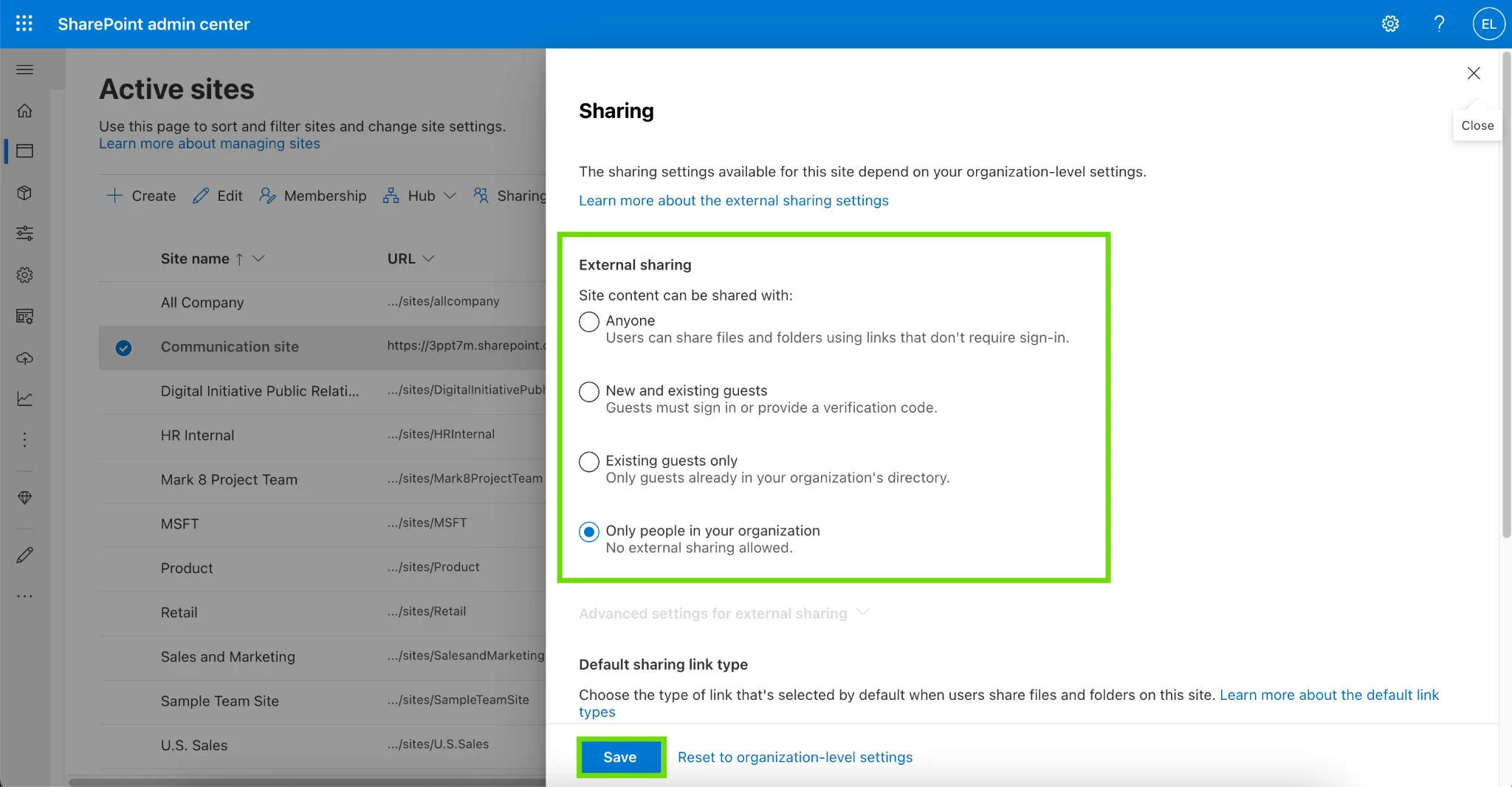
Pic.8. Screenshot: external sharing settings in the SharePoint admin center.
Governance, naming and lifecycle: write the rules down
Governance sounds like bureaucracy until the first time somebody asks who approved a site named “Project Falcon (new) FINAL”. A governance plan is simply the set of decisions you have already made, written where people can find them. Microsoft’s SharePoint governance overview lays out the full scope; in practice most organisations need answers to six questions.
The six questions a governance plan answers
- Who can create a site, and how? Either self-service with a template and a naming rule, or a request form that routes to a small team. Uncontrolled creation is how a tenant ends up with 900 sites and 40 active ones.
- What is everything called? A naming convention for sites, libraries, columns and files, applied consistently.
- Who owns each site? A named owner and a deputy, recorded somewhere outside the site itself, with a process for what happens when they leave.
- What are the default settings? Versioning, sharing, retention and permissions for a new site — ideally applied automatically through a site template.
- How long does content live? Retention periods by content type, and who reviews them.
- When is this reviewed? A governance document with no review date is a historical artefact within eighteen months.
Naming conventions that survive contact with users
A naming convention fails when it is long, ambiguous or hard to remember. The ones that work have a fixed order, a fixed separator and no more than four or five components.
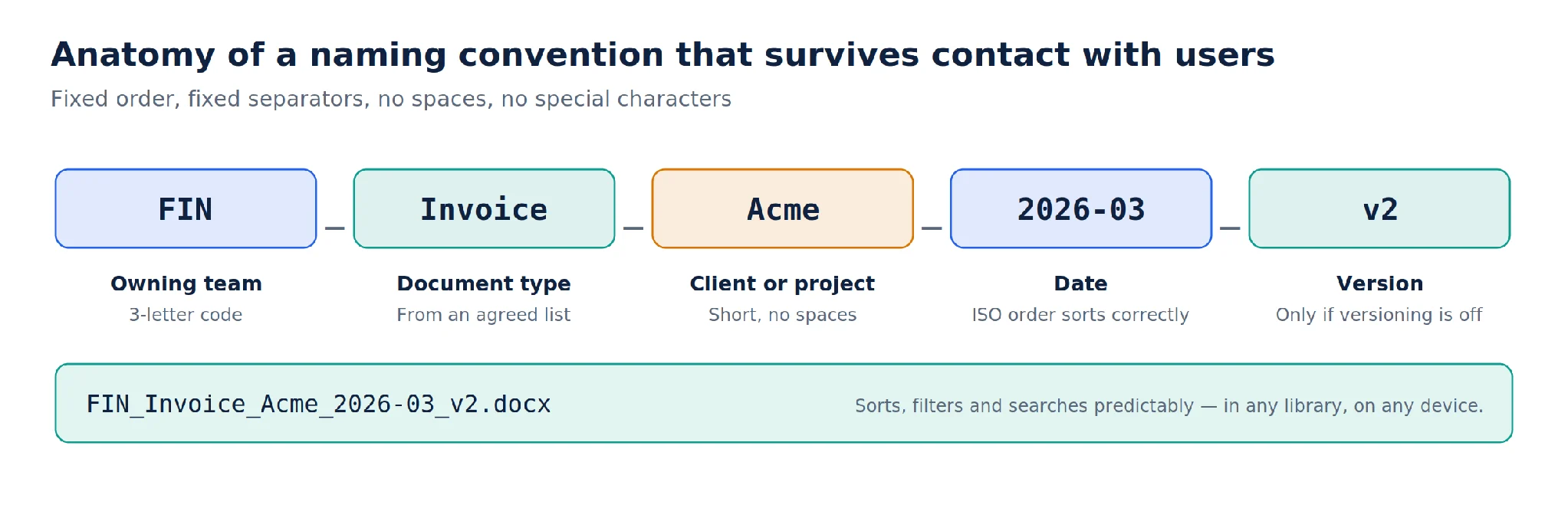
Pic.9. The anatomy of a naming convention that people can follow without a cheat sheet.
- Put the date in ISO order (2026-03-14) so names sort chronologically on their own.
- Avoid spaces and special characters — they become %20 and worse in URLs.
- Drop version numbers from file names once library versioning is on. “v2_final_FINAL2” is a symptom, not a standard.
- Keep site names short. They end up in every URL, every link and every navigation menu.
- Publish the convention on the intranet with three worked examples. Nobody reads a rule; everybody copies an example.
Governance roles worth naming
Governance fails most often because it belongs to nobody in particular. Three roles cover most of what is needed. A platform owner — usually in IT — owns tenant settings, the site provisioning process and the security baseline. A site owner owns the content, permissions and lifecycle of one site, and is named in the site itself so users know who to ask. A business sponsor owns the decisions that are not technical: what gets retained, what gets shared externally, and what happens when two departments want the same thing built differently.
For small organisations one person can hold all three, provided the split is written down. What does not work is a governance document owned by “the SharePoint team” when the SharePoint team is a shared mailbox.
Common governance mistakes
- Writing a forty-page policy nobody reads. A two-page guide on the intranet with worked examples changes more behaviour.
- Locking down site creation entirely. If the official route takes three weeks, people will use Teams, OneDrive or a personal tool instead — and you have lost visibility rather than gained control.
- Governing the platform but not the content. Site provisioning rules are the easy half; retention, ownership and review dates are the half that keeps the environment usable.
- Treating governance as a launch activity. It is a maintenance activity with a launch component.
Adoption and training: the practice that makes the rest stick
A well-architected SharePoint environment that people avoid is worth less than a messy one they use. Adoption is not a communications exercise at the end of the project — it is a design constraint from the beginning.
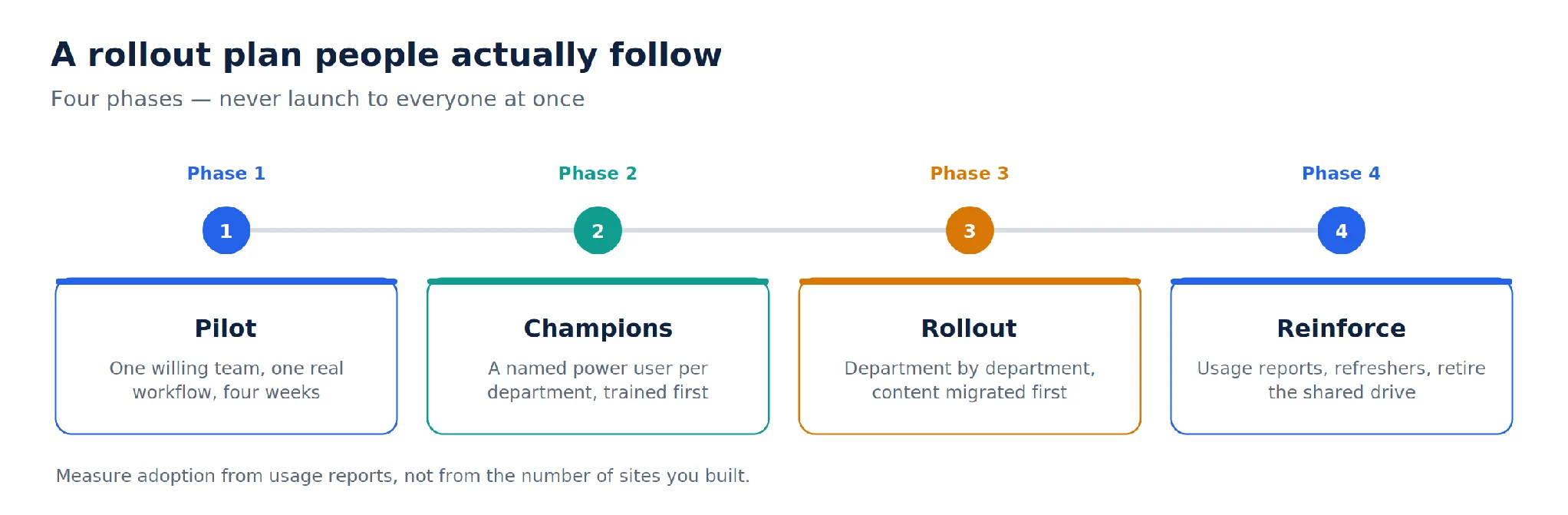
Pic.10. A four-phase rollout: pilot, champions, department-by-department rollout, then reinforcement.
Adoption best practices
- Start with one team and one real workflow. A pilot that solves an actual irritation produces advocates; a demo environment produces opinions.
- Recruit champions per department and train them first. People ask the colleague two desks away before they open a ticket.
- Migrate content before you ask anyone to switch. An empty site is a reason to go back to the shared drive.
- Train by role, not by feature. “How the sales team files a proposal” lands; “an introduction to content types” does not.
- Set a date to retire the old system and hold it. Parallel running is the most reliable way to fail an adoption programme.
- Measure usage, not deployment. SharePoint and Microsoft 365 usage reports show which sites are actually being used — Microsoft’s guidance on training and change management covers how to structure the programme around them.
- Give people something they could not do before. A live project management dashboard, a shared team calendar, a form that replaces an email thread — visible wins pay for a lot of change fatigue.
Practical building blocks help here too: SharePoint web parts for assembling pages, SharePoint forms for replacing email-based data collection, and shared calendars for SharePoint Online for the scheduling problems that spreadsheets handle badly.
It also helps to be honest about what changes for each person. Most users do not care about information architecture; they care whether the thing they do fifteen times a day got faster or slower. If a new structure adds two clicks to the most common task, no amount of training will fix it — go back and change the structure. Adoption problems are frequently design problems wearing a different hat.
Common SharePoint mistakes and how to avoid them
Most environments that need rescuing show the same handful of patterns. If you recognise several of these, the fixes above are worth prioritising in the order listed.
- Recreating the shared drive. Migrating a folder tree unchanged moves the problem into a more expensive place. Migration is the one moment when restructuring is cheap — use it.
- One giant site for everything. It concentrates permissions, storage and lifecycle decisions into a single object that nobody can safely change.
- Permissions granted in a hurry and never reviewed. Every urgent exception should be created with a review date, or it becomes permanent by default.
- Metadata columns nobody fills in. Optional fields decay. Make the important ones required, set defaults, and delete the columns that turned out not to matter.
- Versioning left unlimited on large libraries. Storage grows quietly until it does not, and the clean-up is far harder than the original setting.
- No owner on a site. When the person who built it leaves, an unowned site becomes content nobody will touch and nobody will delete.
- Launching to the whole organisation at once. Without a pilot you find out about the design problems from three hundred people simultaneously.
- Never retiring anything. Archiving finished project sites and closing dead libraries is what keeps search results relevant two years in.
How Virto supports SharePoint best practices
Several of the practices above are easy to state and tedious to implement with out-of-the-box features alone — consolidated scheduling, visible work-in-progress, notifications that fire on your rules rather than Microsoft’s defaults, and bulk operations on libraries that have grown past a few hundred files. Virto apps for SharePoint fill those gaps without custom development.
- Virto Calendar App overlays SharePoint lists, Exchange and Microsoft 365 calendars into a single colour-coded view, so teams stop maintaining a parallel scheduling spreadsheet.
- Virto Kanban Board App turns a SharePoint list into a board with swimlanes, filters and work-in-progress limits — a straightforward way to make a task list something people actually look at.
- Virto Alerts and Reminders App sends conditional, scheduled notifications based on list and library data, which is what makes review dates and approval steps work in practice.
- Virto Form Designer builds structured forms with validation and conditional logic, so metadata gets captured correctly at the point of entry instead of being cleaned up later.
- Virto Multiple Operations handles bulk upload, metadata assignment and filtered deletion in libraries — the tool you want during a migration or a folder-to-metadata clean-up.
- Virto Workflow Automation extends automation for SharePoint on-premises environments where Power Automate is not available.
All Virto apps run inside your Microsoft 365 tenant and follow Microsoft’s security model — details are in the Virto Trust and Security Center. Every product comes with a full-featured 30-day free trial, no credit card required, and the apps are also available bundled in the Virto M365 Productivity Kit. Virto Kanban Board App starts at $2 per user per month on the Starter plan (up to 30 users) and $3 per user per month on Pro (31–200 users), with Enterprise pricing on request; current details are on the pricing page. The full catalogue is at Virto apps for Microsoft 365 and SharePoint Online.
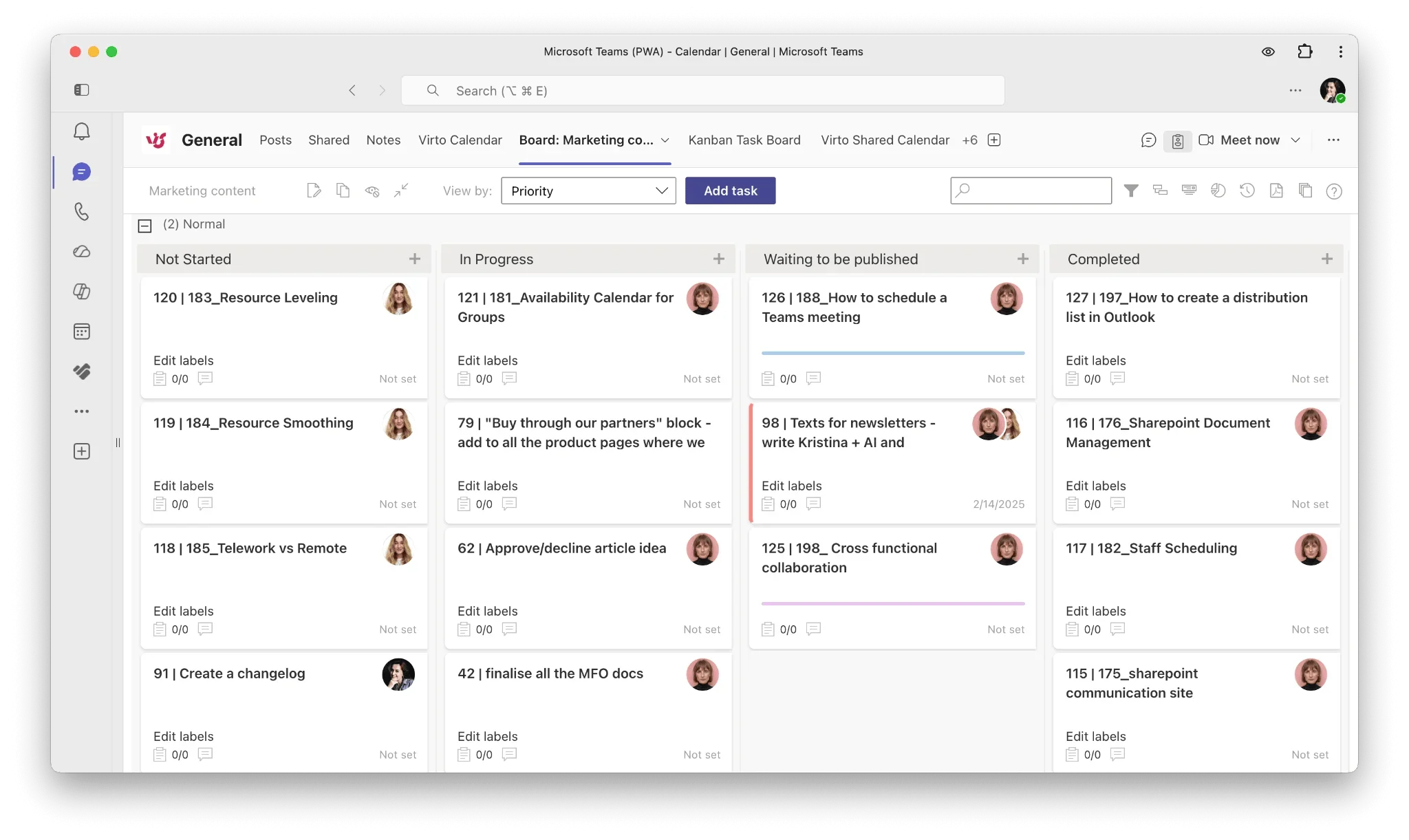
Pic.11. Screenshot: Virto Kanban Board App displaying a SharePoint task list as a board.
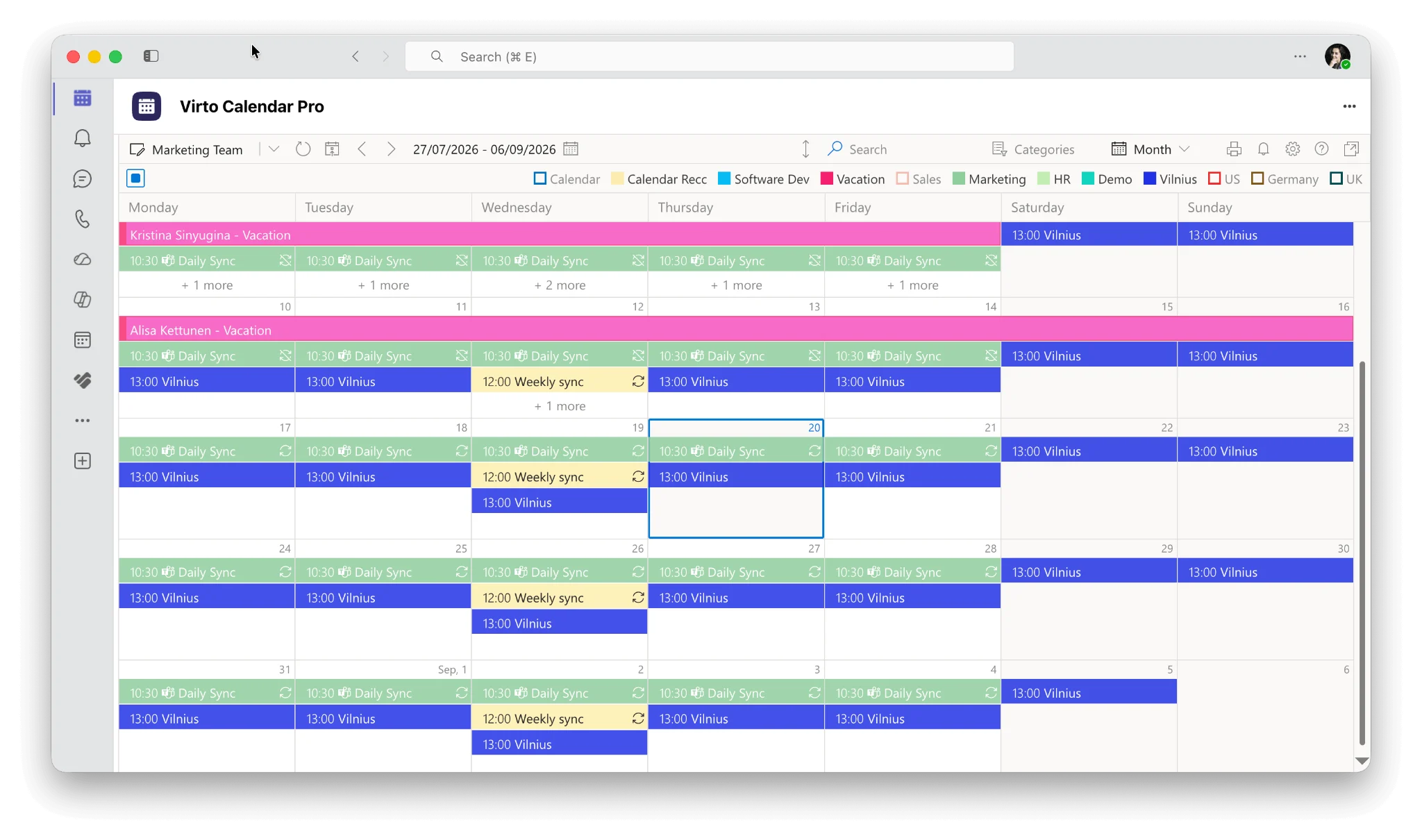
Pic.12. Screenshot: Virto Calendar App overlaying several SharePoint and Exchange calendars.
SharePoint best practices FAQ
What are SharePoint best practices?
Keep a flat structure with hub sites, use metadata instead of deep folders, apply least-privilege permissions, set governance and naming standards, and plan for user adoption.
What is the best way to structure SharePoint?
Create one site per team, project or department at the top level, and connect related sites with a hub site rather than nesting them as subsites. Flat structures are easier to secure, survive reorganisations without breaking URLs, and let each site manage its own permissions, storage and lifecycle.
Folders or metadata in SharePoint?
Prefer metadata and views over deep folder trees — it scales better and avoids the 5,000-item and long-URL problems. A shallow folder level is fine where it maps to a real boundary, but the questions people ask about a document (type, owner, status, client, expiry) belong in columns, not in a path.
How many SharePoint sites should we have?
As many as there are distinct workloads with distinct audiences and permissions — and no more. A site per active project or team is normal; a site per person, per year or per document type usually is not. Archive sites when the work they support ends.
What are SharePoint permissions best practices?
Assign permissions to groups rather than individuals, use the built-in Owners, Members and Visitors groups, keep inheritance intact wherever you can, limit Full Control to two or three named owners per site, and treat unique item-level permissions as a documented exception with a review date.
How often should governance be reviewed?
At least annually, and after any significant reorganisation, migration or change to Microsoft 365 licensing. Access reviews should run more often — quarterly for sites holding sensitive or externally shared content.
Do these best practices apply to SharePoint on-premises?
Most of them do. Metadata, versioning, least privilege, naming and adoption apply to any version. Hub sites and sensitivity labels are Microsoft 365 features, so on-premises environments handle those relationships through navigation and site collection design instead.
Where to start
You do not need a programme to begin. Pick the library your team uses most, add three metadata columns and two views, and see whether anyone goes back to folders. Then look at who has Full Control on that site and remove anyone who does not need it. Those two changes take an afternoon and demonstrate the value of the rest.
When you are ready to go wider, work through the pillars in order — structure, then metadata, then permissions, then governance, then adoption — and use the dedicated guides for the areas that need real depth: SharePoint hub sites, document libraries, document management, external sharing and SharePoint security.