SharePoint holds the documents your organisation actually runs on — contracts, project files, policies, the library that three departments open every morning. Most teams assume that because it lives in Microsoft 365, it is backed up. It is protected, which is not the same thing.
This guide sets out what SharePoint gives you out of the box, what Microsoft’s own backup service adds, where third-party tools earn their cost, and how to actually run a backup and a restore. It covers both SharePoint Online and SharePoint Server, and it is honest about the boundaries of each option — including the ones vendors tend to gloss over.
Quick answer: how do you back up SharePoint?
The short version
SharePoint has built-in protection — the recycle bin, version history and Purview retention policies — plus the Microsoft 365 Backup service, which adds true point-in-time restore points at $0.15 per GB per month. Built-in features cover everyday mistakes within a 93-day window. For recovery beyond that window, for a copy stored outside your tenant, or for anything you need to export, many organisations add a third-party backup tool on top.
In practice, protecting SharePoint is a stack rather than a single product. Each layer answers a different failure, and the ones at the bottom are already switched on.
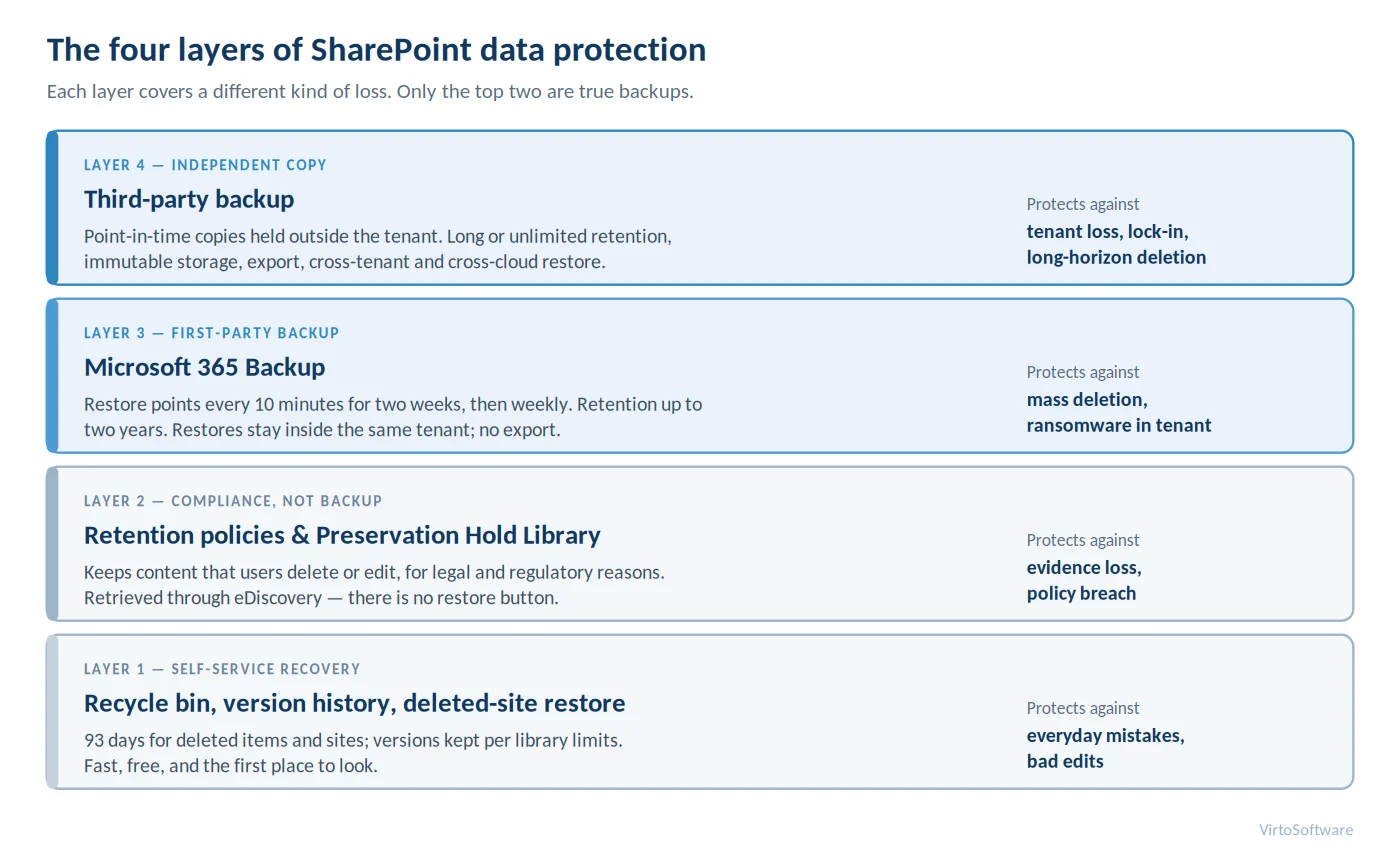
Pic. 1. The four layers of SharePoint data protection
What “SharePoint backup” actually means
Backup, retention and recovery are three different things
These words get used interchangeably in vendor marketing, and the confusion is expensive. It is worth separating them before you evaluate anything.
- Backup is an independent copy of your content, taken at a known point in time, that you can restore from. The defining property is independence: if the source is destroyed, the copy survives.
- Retention keeps content from being permanently deleted, in place, for compliance reasons. It is a legal control, not a recovery tool — there is no “restore” button on a retention policy.
- Recovery is the set of mechanisms that get content back: the recycle bin, version rollback, a site restore, a backup restore. Some of these draw on backups; some do not.
A team that has retention policies configured and believes it therefore has a backup will discover the difference during an incident, which is the worst possible moment.
Why Microsoft does not back up your data for you
Microsoft’s shared responsibility model is explicit on this point: in a SaaS service, the platform, infrastructure and availability are Microsoft’s responsibility, while data, identities and configuration remain the customer’s — in Microsoft’s own words, these are “always retained by the customer” regardless of deployment model.
That is not a gap Microsoft is hiding. It is the design. Microsoft guarantees that SharePoint will be there tomorrow; it does not guarantee that the library someone emptied last quarter will be.
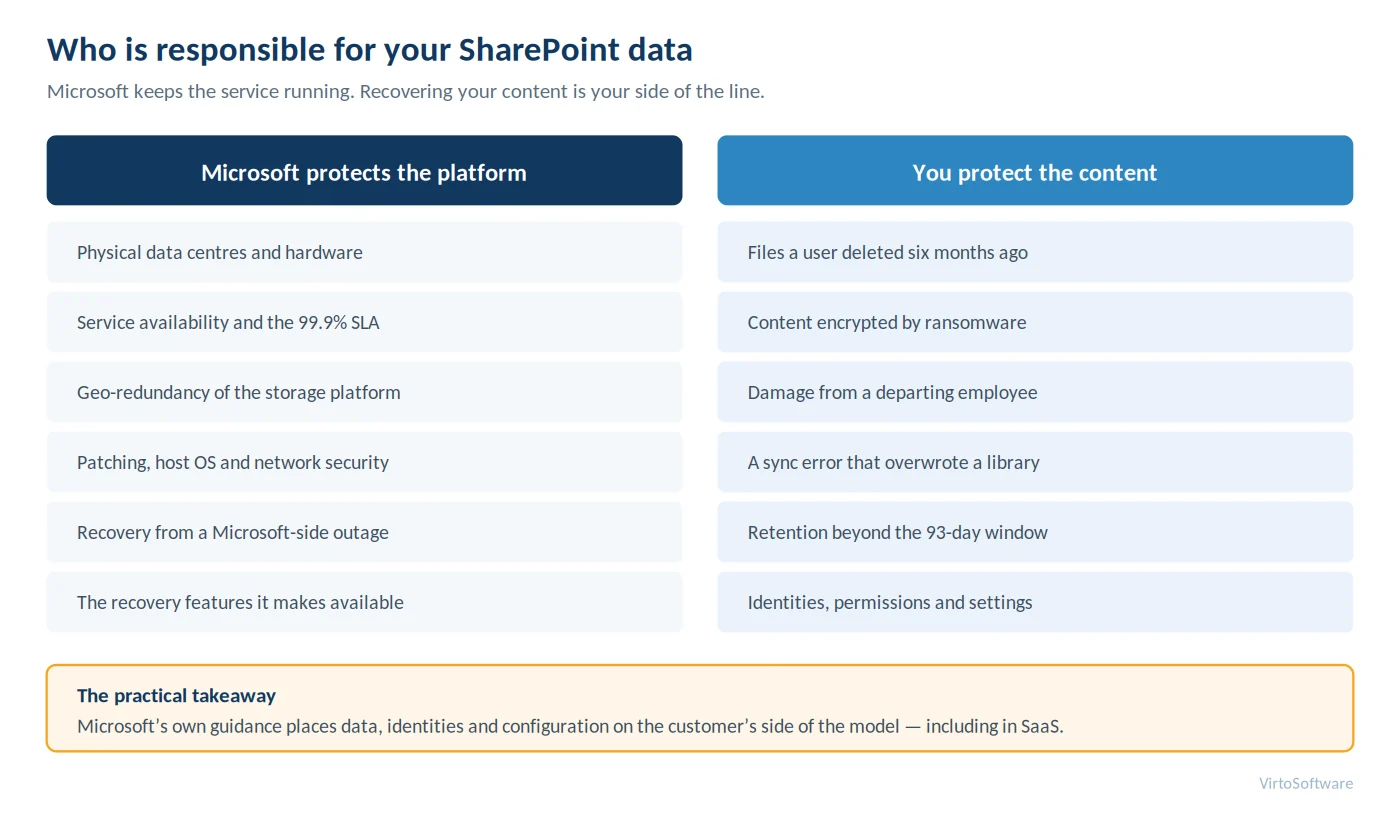
Pic. 2. Who is responsible for your SharePoint data
A note on the “12 hours / 14 days” figure
Older articles — including earlier versions of this one — state that Microsoft takes SharePoint Online backups every 12 hours and keeps them for 14 days, restorable by raising a support ticket. That figure now appears only in community forum answers, not in current Microsoft product documentation. Treat it as legacy. Microsoft positions Microsoft 365 Backup as the supported recovery path, and you should plan against what is documented rather than what support might do as a favour.
Built-in SharePoint protection: what you already have
Before buying anything, know what is already switched on. For a large share of real incidents — someone deleted the wrong folder, someone saved over a document — the built-in tools are faster and cheaper than any backup product.
The recycle bin: 93 days, two stages
Deleted items in SharePoint Online go to the site recycle bin, where any user can restore their own items and a site owner can restore anything. If that stage is emptied, items drop to the site collection recycle bin, reachable by an administrator.
The critical detail people get wrong: the 93-day clock starts when the item is deleted and does not restart when the item moves to the second stage. Emptying the first-stage bin buys no extra time. After 93 days the item is permanently gone. Our guide to the SharePoint recycle bin walks through both stages in detail, including the PowerShell route for bulk recovery; Microsoft documents the site collection recycle bin as well.
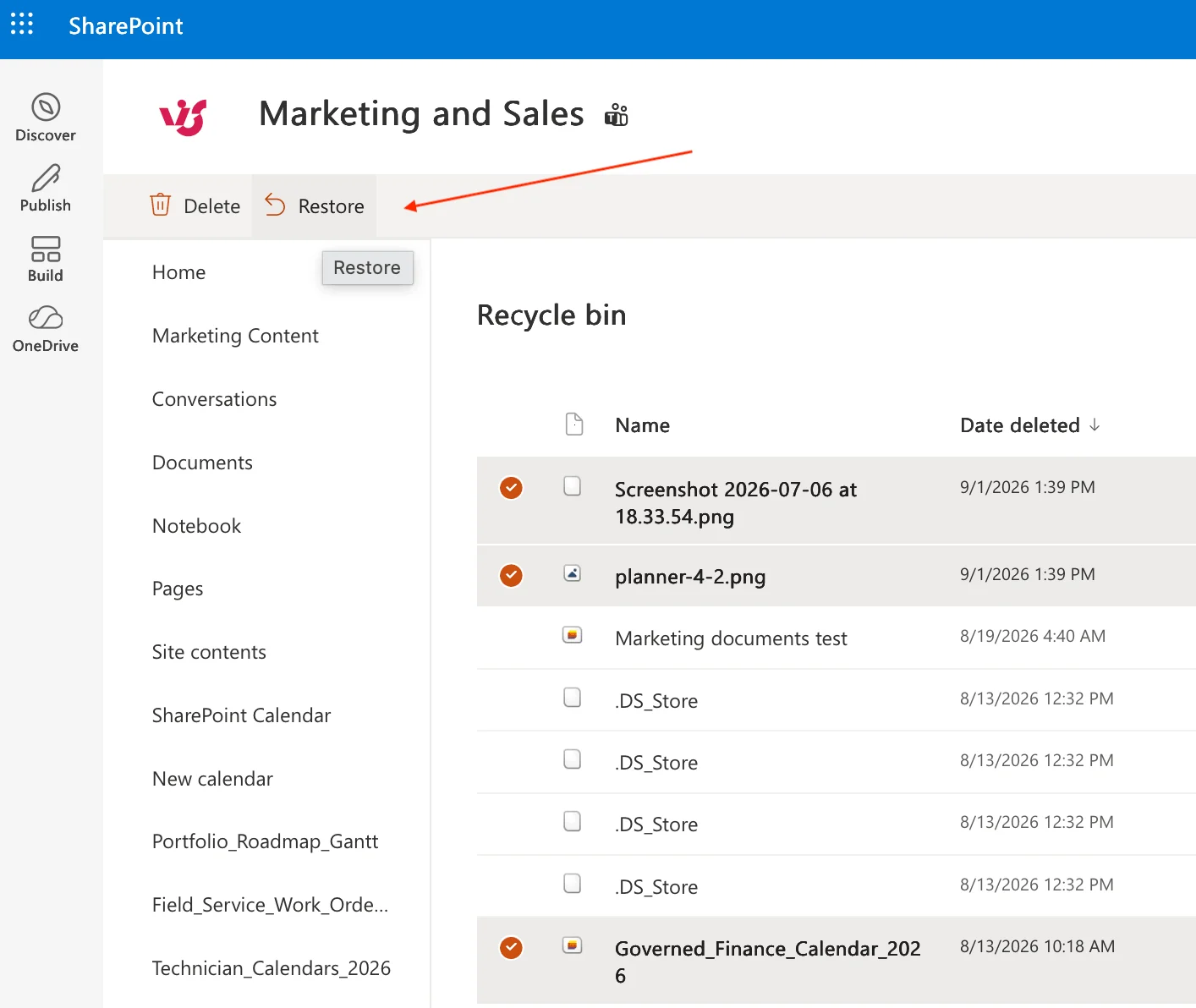
Pic. 3. Restoring a deleted document from the SharePoint site recycle bin
Version history and the 2026 versioning defaults
Version history is the answer to a bad edit rather than a deletion. When versioning is enabled on a document library, every save creates a restorable version, and any user with edit rights can roll a file back without involving an administrator.
What changed recently is how many versions SharePoint keeps. Libraries can now use automatic (intelligent) version limits, which tier retention rather than counting: all versions for the first 30 days, hourly versions from 30 to 60 days, daily versions from 60 to 180 days, then weekly versions beyond that, capped at 500. Microsoft reports this cuts version storage by roughly 94–96% over six months compared with a flat count limit. The details are in Microsoft’s version storage planning guide.
The tenant default today is still manual limits — 500 major versions with no expiration. Two things to know before you rely on this: manual mode has a UI floor of 100 versions or 30 days, and an org-level change applies only to newly created libraries — existing libraries keep whatever they had. Check the libraries that matter rather than assuming the tenant setting reached them. Microsoft’s library version limits documentation covers the per-library settings.
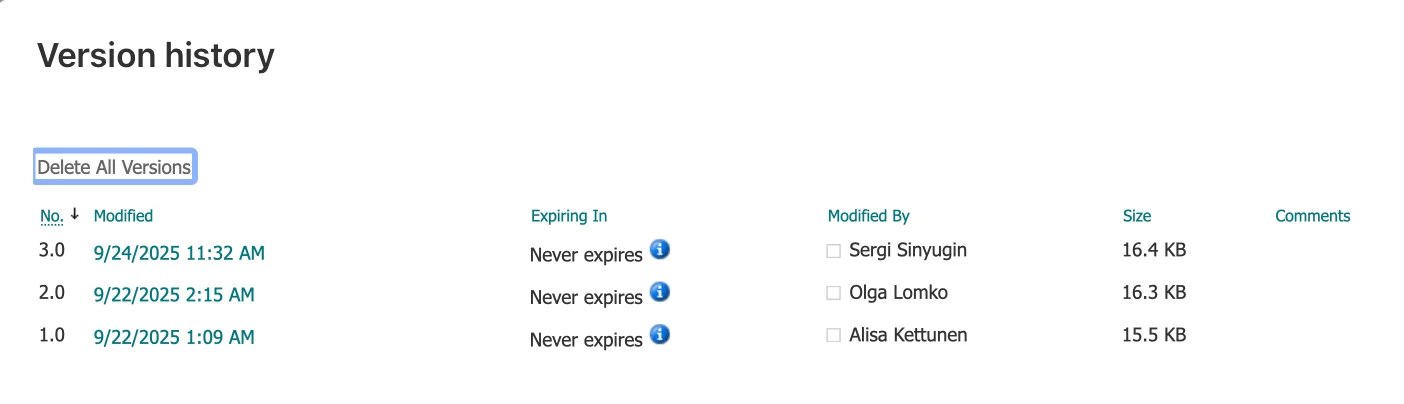
Pic. 4. Version history panel for a document in SharePoint Online
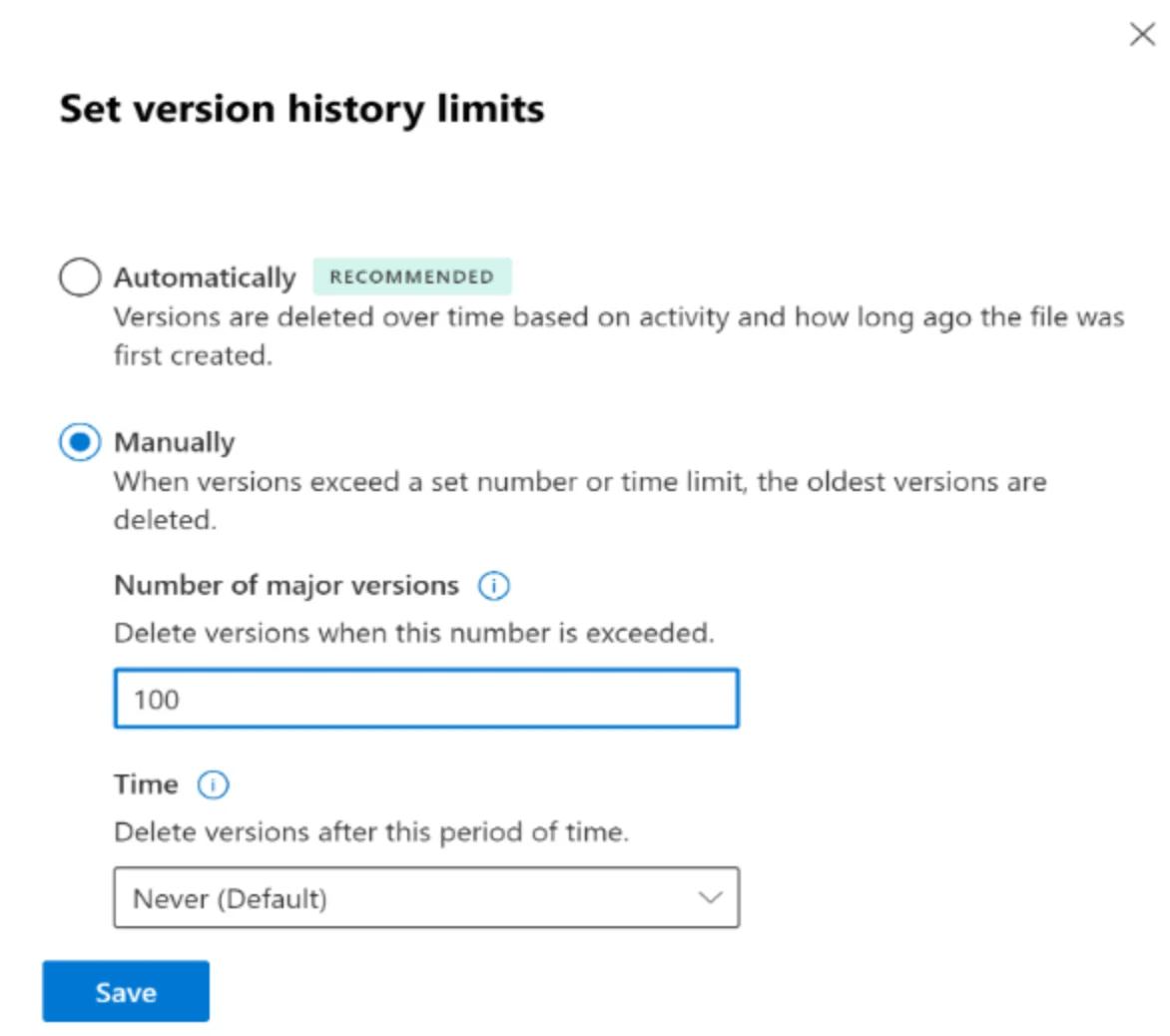
Pic. 5. Version history limit settings on a SharePoint document library
Retention policies and the Preservation Hold Library
Microsoft Purview retention policies keep content that users delete or edit. When retained content is changed or removed, a copy is written to a hidden Preservation Hold Library on the site.
This is compliance tooling, and it is genuinely useful for legal hold and regulatory obligations. It is not a backup, for three reasons: there is no point-in-time snapshot of a site, content is retrieved through eDiscovery rather than a restore action, and — as Microsoft notes — “because the Preservation Hold library is included in the site’s storage quota, you might need to increase your storage when you use retention settings.” Storage you pay for, that you cannot easily restore from. Microsoft’s retention for SharePoint and OneDrive documentation sets out the mechanics.
Restoring a deleted site
If an entire site is deleted, a SharePoint administrator can restore it from SharePoint admin center → Deleted sites → Restore, within 93 days. After that the site and everything in it is permanently removed. Microsoft documents the process for restoring deleted sites.
One trap worth flagging: if the site belongs to a Microsoft 365 Group, the site is kept for 93 days but the group’s other resources — the mailbox, Teams content, Planner plans — are only kept for 30. Restoring on day 60 gets you the files and an empty shell around them. If you have several types of SharePoint sites in play, know which is which before you need to act.
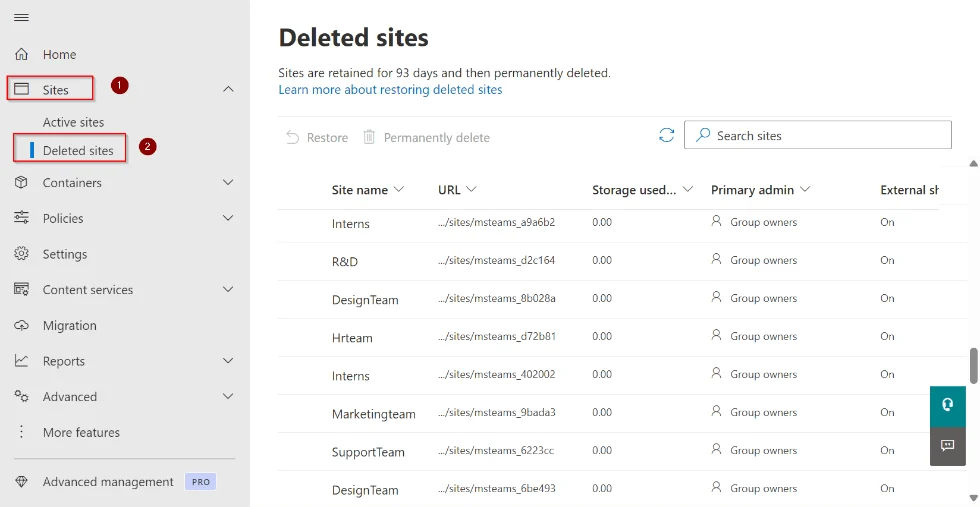
Pic. 6. The Deleted sites page in the SharePoint admin center
Microsoft 365 Backup: the first-party option
Microsoft 365 Backup, generally available since 2024, is Microsoft’s own backup service for SharePoint, OneDrive and Exchange Online. It is the first built-in feature in this list that is a real backup rather than a recovery convenience.
What you get, per Microsoft’s backup overview:
- Restore points every 10 minutes for the previous two weeks, then weekly snapshots from two to 52 weeks back.
- Retention of 3 months, 6 months, 1 year or 2 years, set on the backup policy.
- $0.15 per GB per month on a pay-as-you-go basis. Restores are free.
- Item-level restore for SharePoint and OneDrive, added in 2026 — you can browse or search a restore point and recover individual files and folders rather than rolling back a whole site.
- Fast recovery — Microsoft cites a median of 1–3 TB per hour for SharePoint and OneDrive restores, because the data never leaves the Microsoft 365 boundary.
Setting it up requires an Azure subscription with pay-as-you-go billing enabled, plus the appropriate admin roles. Note the 2026 change: customers onboarding after 1 April 2026 enable pay-as-you-go through the new Billing node in the Microsoft 365 admin center rather than the old SharePoint pay-as-you-go page. Microsoft’s setup guide has the current steps.
What Microsoft 365 Backup does not do
Restores land in the same tenant only — the original URL or a new URL inside it, with no cross-tenant restore. There is no way to export or download backup data; the only exit is a restore back into Microsoft 365. Coverage stops at SharePoint, OneDrive and Exchange, so Teams chat, Loop, Planner, Entra ID and Power Platform are not included. And a policy only protects data written after you switch it on — it cannot reach backwards. See restoring data with Microsoft 365 Backup for the boundaries.
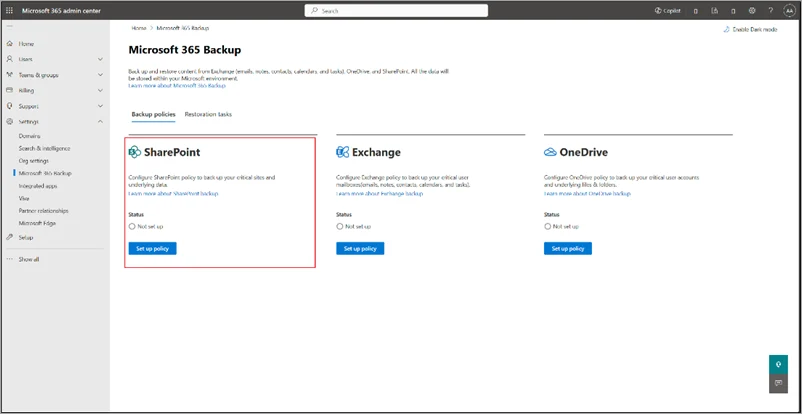
Pic. 7. Creating a backup policy for SharePoint in the Microsoft 365 Backup admin center
Where built-in protection runs out
Put the recovery windows side by side and the gaps become obvious. Everything native is bounded — by 93 days, by version limits, by tenant walls — while the risks you are protecting against are not.
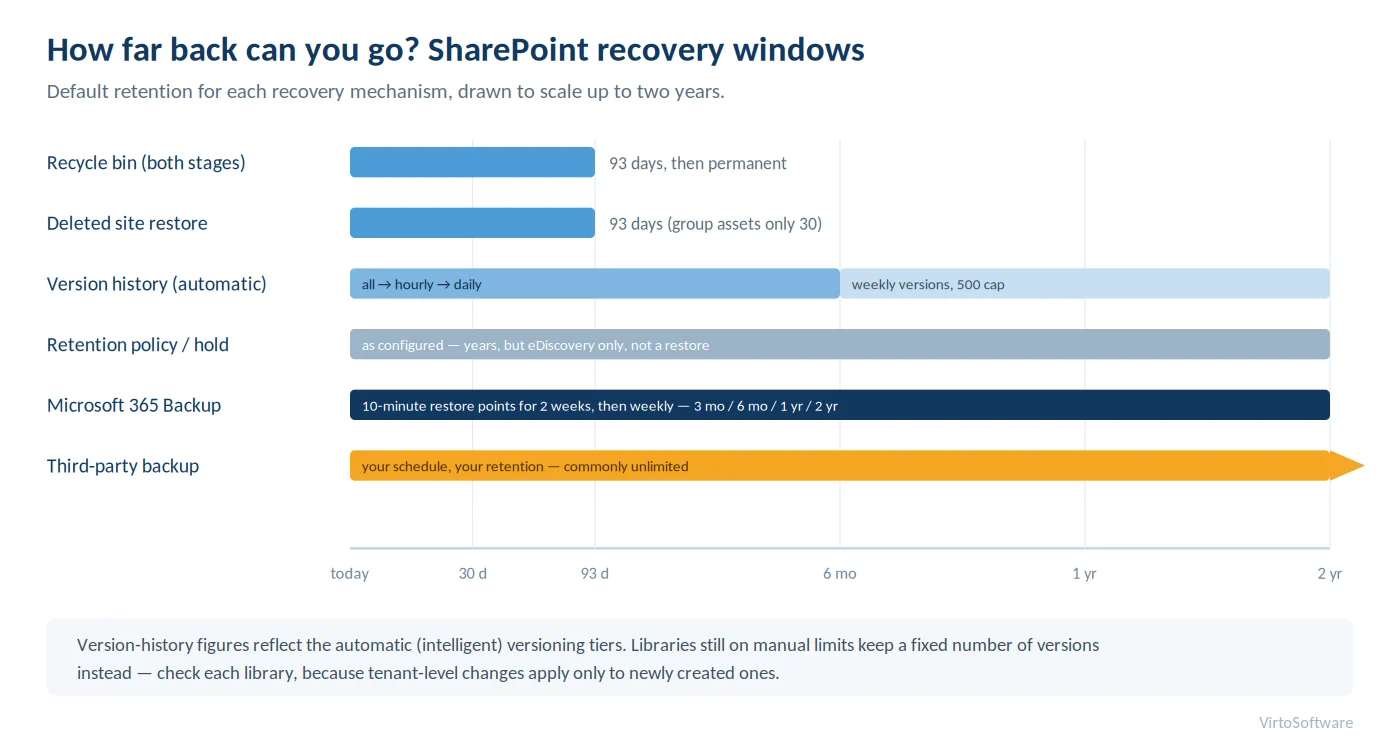
Pic. 8. How far back can you go? SharePoint recovery windows
The scenarios that break the built-in model are all realistic: an employee deleted a project archive eight months ago and nobody noticed; a compliance auditor wants a copy of a library as it stood two years ago, delivered outside Microsoft 365; an acquisition means content must move to a different tenant; a ransomware incident encrypted files faster than versioning could keep useful copies. Our overview of SharePoint limitations covers the wider set of platform boundaries worth planning around.
SharePoint Online vs SharePoint Server backup
The two deployments are backed up in genuinely different ways, and advice written for one is often wrong for the other. If you are still working out which you have, our explainer on what SharePoint is and how it works sets out the deployment models.
| SharePoint Online | SharePoint Server (on-premise) | |
|---|---|---|
| Who runs the infrastructure | Microsoft | You |
| Native recovery | Recycle bin (93 days), version history, deleted-site restore | Recycle bin (30 days by default), version history, farm and site collection restore |
| First-party backup | Microsoft 365 Backup, $0.15/GB/month | Backup-SPFarm, Backup-SPSite and SQL Server backups — included, but you operate them |
| Backup target | Inside the Microsoft 365 boundary | Any storage you control: UNC share, NAS, tape, object storage |
| Export a copy | Not supported by native tooling | Yes — the backup files are yours |
| Typical third-party role | Independent copy outside the tenant | Offsite copy, faster granular restore, agentless orchestration |
| Main risk | Assuming Microsoft holds a restorable copy | Backup jobs that silently fail, or that miss the components a farm backup excludes |
Two 2026 realities to factor in. SharePoint Server 2016 and 2019 reached end of support on 14 July 2026 — see Microsoft’s end-of-support list. If a farm is still on those versions, backup is no longer the pressing question; migration is. SharePoint Server Subscription Edition remains supported under the Modern Lifecycle Policy, with no announced retirement date, provided you stay current on updates.
The second: a farm backup is not as complete as it looks. Microsoft’s backup and recovery overview for SharePoint Server notes that trust certificates, web.config customisations, Business Connectivity Services data sources, non-FILESTREAM remote BLOB stores and SQL Transparent Data Encryption keys are not captured by a farm backup. Document and back those up separately, or a restore will produce a farm that starts but does not work.
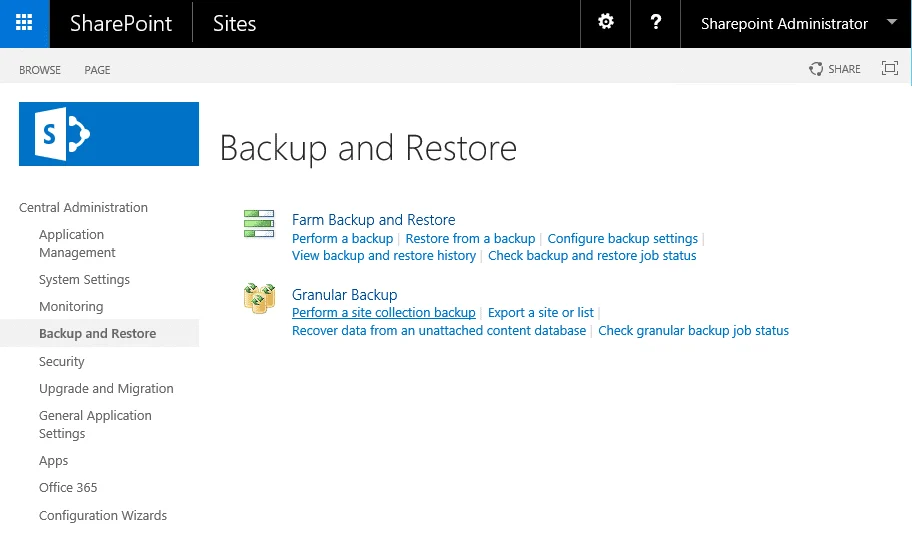
Pic. 9. Backup and Restore in SharePoint Server Central Administration
Third-party SharePoint backup solutions
What a third-party backup actually adds
Now that Microsoft ships its own backup service, the case for a third-party tool is narrower than it was — and clearer. These are the things that genuinely require one:
- A copy outside the tenant. If the tenant itself is compromised, suspended or lost, a backup that lives inside it is not a backup. Independent storage is the single strongest argument.
- Export and portability. Microsoft 365 Backup cannot hand you your data as files. A third-party tool can, which matters for legal handover, tenant migration and exit planning.
- Retention beyond two years. Regulated industries routinely need seven years or more. Microsoft’s ceiling is two.
- Broader coverage. Teams chat, Planner, Entra ID, Power Platform and Dynamics fall outside Microsoft 365 Backup. Several third-party vendors cover them.
- Immutable, air-gapped storage. Backups that a compromised administrator account cannot alter or delete.
- Cross-tenant restore. Essential during mergers, divestitures and tenant consolidation.
If none of those apply to you, built-in protection plus Microsoft 365 Backup may genuinely be enough. That is a legitimate answer, and it is cheaper.
The vendor landscape in 2026
The market has consolidated. A short, honest map of who does what:
| Vendor | Model | Where it stands out |
|---|---|---|
| Veeam Data Cloud for M365 | Managed SaaS or self-hosted | The largest installed base; storage included in the managed service, Teams chat coverage, separate Entra ID product |
| AvePoint Cloud Backup | SaaS, bring-your-own-storage option | Broadest Microsoft coverage — M365, Entra ID, Power Platform, Dynamics, Azure — plus cross-tenant recovery |
| Rubrik | Enterprise SaaS | Security-led: zero-trust immutability and threat hunting over the backup set |
| Commvault Cloud | SaaS and hybrid | Regulated and government workloads; air-gapped Cloud Vault. The former Metallic brand is now part of Commvault Cloud |
| Druva | Pure SaaS | No customer-managed infrastructure or storage at all |
| Keepit | SaaS on its own independent cloud | Not hosted on Azure or AWS — genuine vendor independence, with verifiable immutability |
| Acronis | SaaS, MSP-oriented | Backup bundled with endpoint security |
| Barracuda Cloud-to-Cloud Backup | SaaS | SMB and mid-market simplicity, unlimited storage and retention |
| Afi | SaaS | Immutable versions, unlimited retention and ransomware detection; strong 2026 reviews |
| N-able Cove, Spanning, Cohesity | SaaS / channel | MSP-delivered protection and multi-workload consolidation |
Two themes cut across all of them this year. Entra ID backup has moved from a nice-to-have to a standard line item, because restoring content into a tenant whose groups and permissions are gone is only half a recovery. And several vendors now integrate with the Microsoft 365 Backup Storage APIs, giving fast in-tenant restores while still keeping an independent copy outside — which is a sensible way to have both.
Built-in vs Microsoft 365 Backup vs third-party
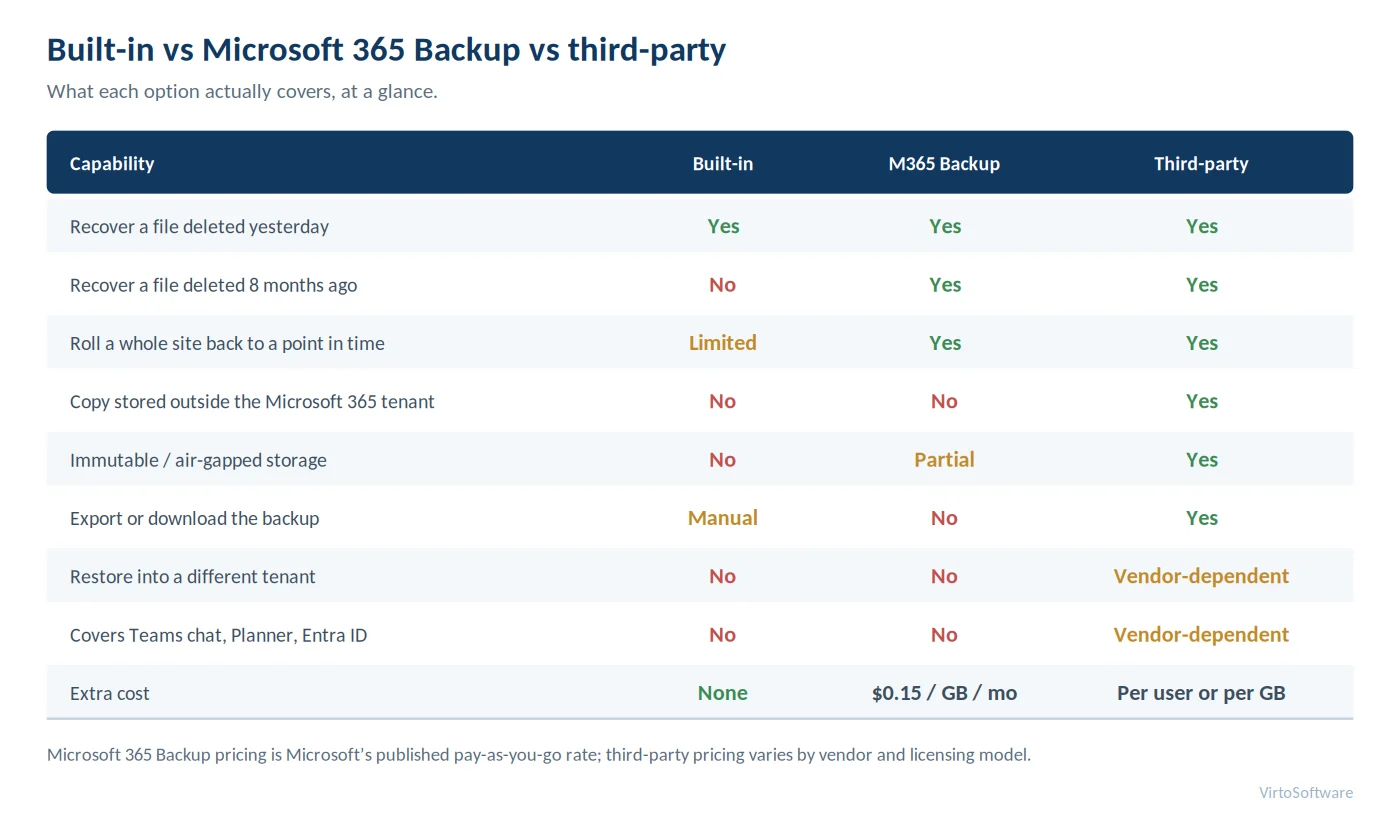
Pic. 10. Built-in vs Microsoft 365 Backup vs third-party: capability comparison
How to back up SharePoint: five practical methods
Before you start: scope the backup
A backup that misses metadata or permissions restores files nobody can find or open. Decide these before configuring anything:
- Scope. Which sites, libraries and lists are business-critical? Not everything needs the same protection, and paying per GB makes that distinction worth making.
- Metadata and permissions. Custom columns, content types, managed metadata and permission structures. Confirm your chosen method captures them — a script that downloads files usually does not. Our SharePoint permissions guide covers what is at stake here.
- Versions and attachments. Decide whether you need version history in the backup, and remember that list item attachments live separately from library files.
- RPO and RTO. How much data can you afford to lose, and how long can you be down? These two numbers decide the method more than any feature list.
- Restore test cadence. Schedule it now, while you are configuring. A backup you have never restored from is a hypothesis.
Method 1 — Turn on Microsoft 365 Backup
The fastest route to genuine point-in-time recovery for most tenants.
- Enable pay-as-you-go billing and link an Azure subscription — through the Billing node in the Microsoft 365 admin center for tenants onboarding from April 2026.
- Open the Microsoft 365 Backup app in the admin center and create a backup policy for SharePoint.
- Select sites individually, or by rule — rules keep new sites protected automatically as they are created.
- Set retention: 3 months, 6 months, 1 year or 2 years.
- Activate. Allow around 60 minutes for the policy to process and a further 60 for the first restore points to appear.
Cost is predictable: total protected volume in GB × $0.15 per month. Scoping the policy to what matters is the main lever on that bill.
Method 2 — Deploy a third-party backup service
The shape is similar across vendors: authorise the tool against your tenant with an application registration, choose the workloads and sites, choose a storage target (vendor cloud, your own object storage, or on-premise), set a schedule and retention, then run a pilot restore before you consider it live.
Two questions to ask during evaluation that separate serious tools from checkbox ones: does the restore preserve permissions and metadata, not just files? And can you export the backup set without the vendor’s console — which is what you will need on the day you leave them.
Method 3 — Export a library with PnP PowerShell
Useful for a one-off archive of a specific library, or for scheduled exports of a small, high-value set of content. It is a script, not a backup system — no scheduling, no monitoring, no incremental logic unless you build it.
Connect-PnPOnline -Url "https://contoso.sharepoint.com/sites/Finance" -Interactive

$library = "Shared Documents"
$target  = "D:\SPBackup\Finance"

# Recurse the library and rebuild the folder structure locally
Get-PnPListItem -List $library -PageSize 500 | ForEach-Object {
    $path = $_.FieldValues.FileRef
    $type = $_.FileSystemObjectType
    $rel  = $path -replace "^/sites/Finance/$library/", ""

    if ($type -eq "Folder") {
        New-Item -ItemType Directory -Force -Path (Join-Path $target $rel) | Out-Null
    } else {
        $dir = Split-Path (Join-Path $target $rel) -Parent
        New-Item -ItemType Directory -Force -Path $dir | Out-Null
        Get-PnPFile -Url $path -Path $dir -FileName (Split-Path $path -Leaf) -AsFile -Force
    }
}

# Export the metadata separately - file downloads do not carry it
Get-PnPListItem -List $library -PageSize 500 |
    Select-Object -ExpandProperty FieldValues |
    Export-Csv -Path "$target\metadata.csv" -NoTypeInformation -Encoding UTF8
Note the last block. Downloading files gives you bytes; the columns, content types and managed metadata that make a well-structured document library usable are lost unless you export them deliberately.
Method 4 — Automate with Microsoft Graph
For large libraries and scheduled jobs, Microsoft Graph is the right tool. Use the drive delta query to fetch only what changed since the last run, which turns a full export into an incremental one:
GET https://graph.microsoft.com/v1.0/sites/{site-id}/drives/{drive-id}/root/delta

# The response includes @odata.deltaLink - store it and pass it
# on the next run to receive only additions, edits and deletions.
Register an app with Sites.Read.All (or Sites.Selected, scoped to the specific sites — the better practice), authenticate with a certificate rather than a secret, and write to storage that the SharePoint service account cannot reach. Log every run and alert on failure; the classic failure mode for home-built backup is a job that stopped working months before anyone needed it.
Method 5 — Back up a SharePoint Server farm
For on-premise deployments, use Central Administration (Backup and Restore → Perform a backup) or PowerShell. The first backup of a farm must be full; differentials build from there.
# Full farm backup to a UNC path
Backup-SPFarm -Directory \\backup01\spbackup -BackupMethod Full

# Differential thereafter
Backup-SPFarm -Directory \\backup01\spbackup -BackupMethod Differential

# A single site collection
Backup-SPSite -Identity "https://sp.contoso.com/sites/finance" `
              -Path D:\SPBackup\finance.bak -Force
The account needs securityadmin on the SQL instance, db_owner on all databases, and local Administrators on the servers involved. Pair farm backups with SQL Server database backups, and keep at least one copy offsite. Microsoft’s guide to backing up a farm has the full prerequisites.
How to restore SharePoint data
Restores should escalate. Start with the fastest, least disruptive option and only move down the list when it cannot reach what you need.
Restore a deleted file or folder
Open the site recycle bin, select the item, choose Restore. It returns to its original location with its metadata. If it is not there, an administrator checks the second-stage site collection recycle bin. Both stages together cover 93 days from deletion.
Roll back a bad edit
Open the document’s Version history, find the last good version, and restore it. This creates a new current version rather than destroying the intervening ones, so it is safe to try. Microsoft’s guide to restoring a previous version of a file covers the steps for both SharePoint and OneDrive.
Restore an entire library
When a sync error or an encryption event has hit many files at once, use Restore this library from the library settings menu. It rolls the whole library back to a chosen point within the last 30 days, showing you a chart of daily activity so you can pick the moment before the damage. This is the single most useful native tool for a mass-change incident, and it is the one most administrators do not know exists.
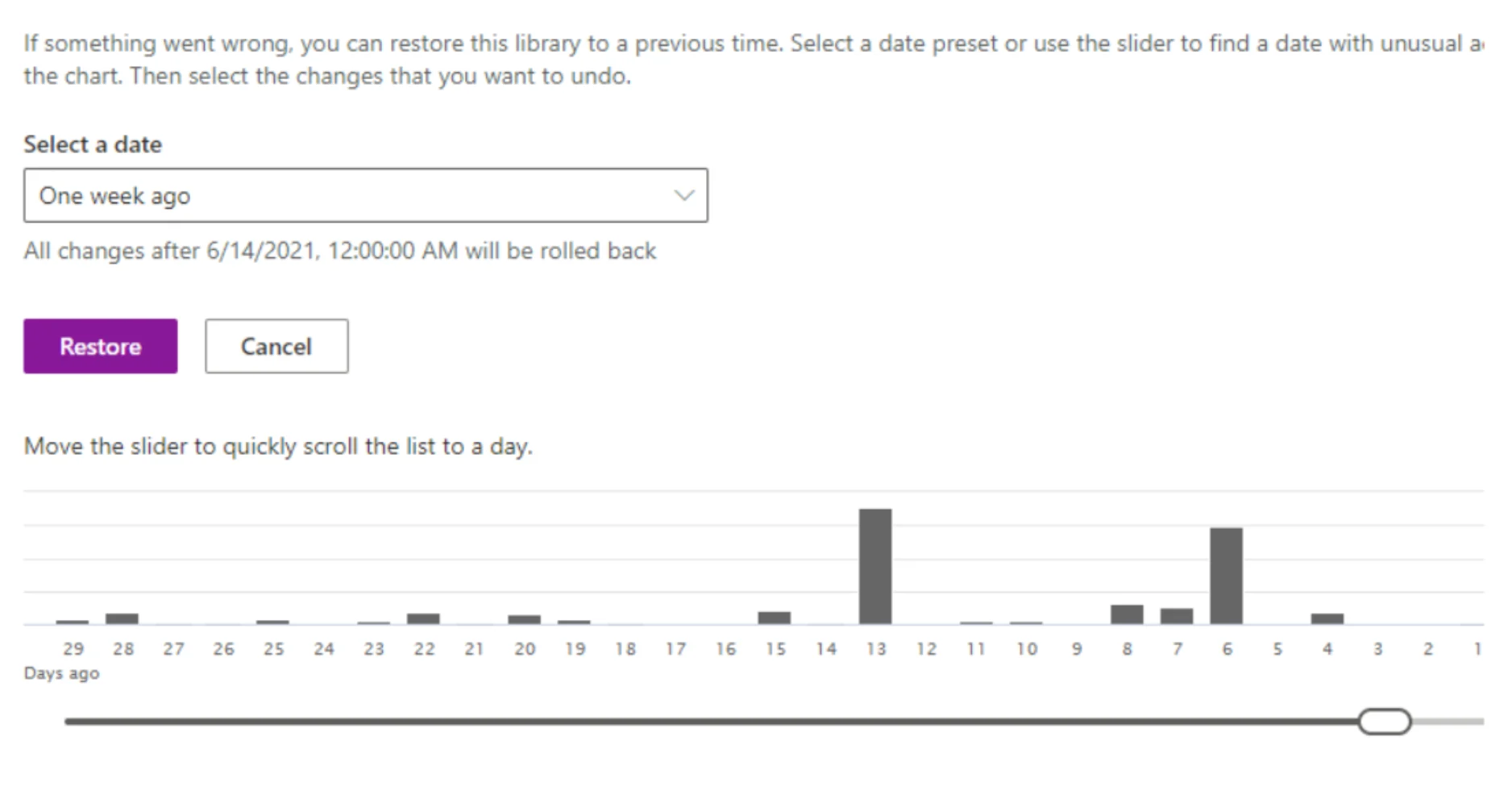
Pic. 11. The Restore this library screen, showing activity by day
Restore a deleted site
In the SharePoint admin center, open Deleted sites, select the site and choose Restore. Within 93 days the site and its content come back. If it was a group-connected site, deal with it inside 30 days if you also want the mailbox and Teams content.
Restore from Microsoft 365 Backup or a third-party tool
Both work the same way conceptually: choose a protection unit, choose a restore point, choose a destination. Microsoft 365 Backup restores to the original URL or a new one in the same tenant, with new-URL restores created read-only until you release them. Third-party tools generally add cross-tenant restore, restore to a file share, and item-level search across restore points.
Before you restore anything
Changes made after the restore point will be lost. Copy any new files created since then to a safe location first, tell the affected team the restore is happening, and — for a large restore — restore to a new URL and compare before overwriting the live site.
A worked example: ransomware on a Teams-connected library
A finance library synced to several laptops is encrypted overnight. The practical sequence:
- Stop the spread — disable the compromised accounts and pause OneDrive sync on affected machines before restoring anything, or the encrypted copies will simply sync back.
- Use Restore this library to roll back to the point before the first encrypted write. For an event caught within 30 days, this alone usually resolves it.
- Recover anything missed from the recycle bin — ransomware often deletes originals after writing encrypted copies.
- If the event is older than 30 days, or if the library structure itself was damaged, restore the site from Microsoft 365 Backup or your third-party tool to a new URL, verify it, then cut over.
- Re-check permissions afterwards. Restores return content; they do not always return the access model around it.
The reason this sequence works is that each step is cheaper and faster than the next. The reason it sometimes fails is that nobody tested it beforehand. Hardening the environment in advance — covered in our SharePoint security guide — reduces how often you need it at all.
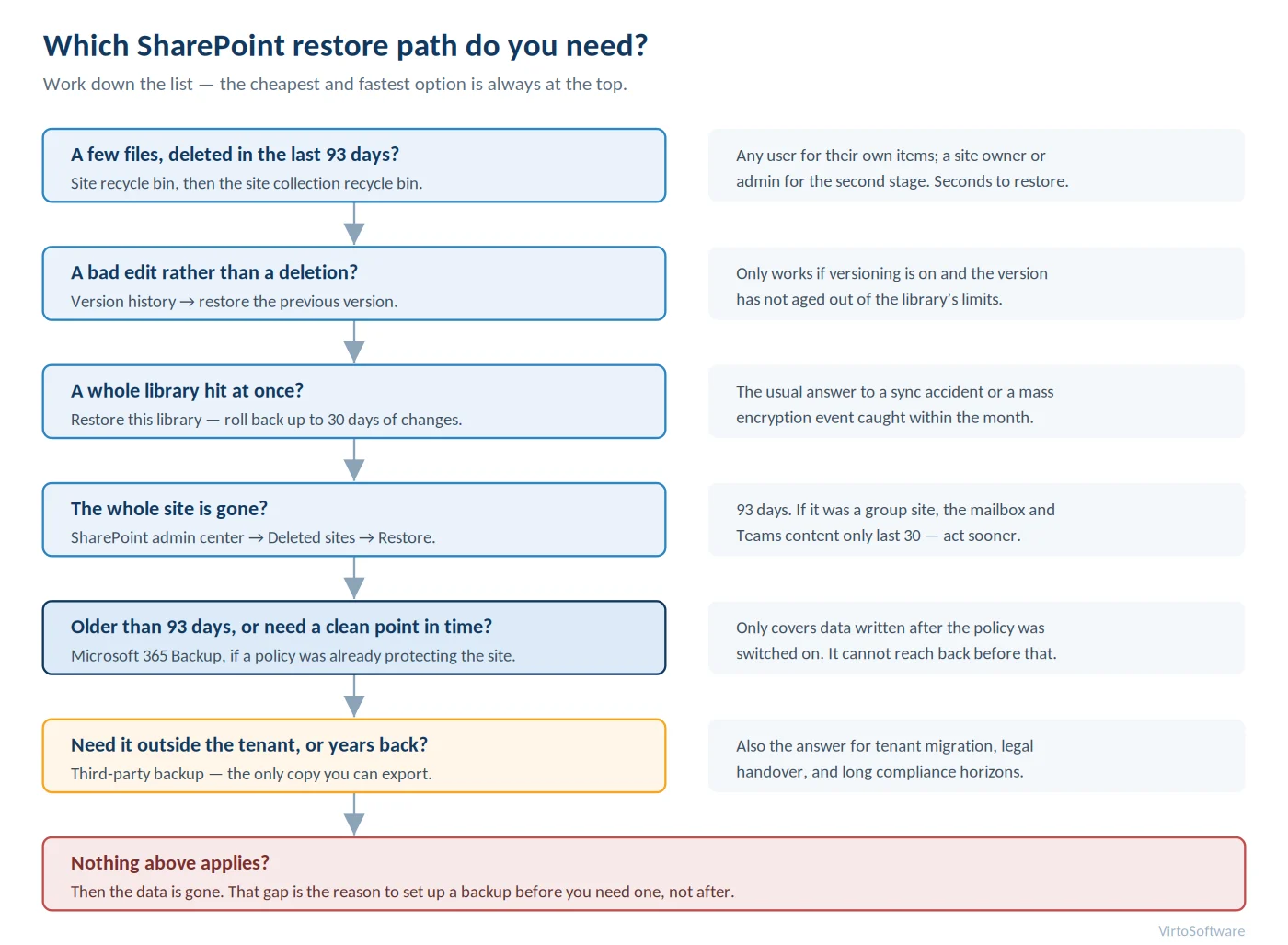
Pic. 12. Which SharePoint restore path do you need?
Choosing the right approach
Work through these questions honestly. The answers point to an option without much ambiguity.
| Question | If yes | Points to |
|---|---|---|
| Do you need recovery beyond 93 days? | Native recovery cannot reach it | Microsoft 365 Backup or third-party |
| Do you need retention beyond two years? | Microsoft’s ceiling is two years | Third-party |
| Must a copy exist outside the tenant? | In-tenant backups share the tenant’s fate | Third-party |
| Do you need to export or hand over data? | Microsoft 365 Backup has no export | Third-party |
| Do you need Teams chat, Planner or Entra ID? | Outside Microsoft 365 Backup’s scope | Third-party |
| Do you need to restore into another tenant? | Not supported natively | Third-party |
| Is your main risk everyday user error? | Native tools handle this well | Built-in, plus Microsoft 365 Backup |
| Are you on SharePoint Server? | You own the whole backup chain | Farm and SQL backups, plus offsite copies |
One more input that is easy to skip: define your RPO and RTO as numbers before you shortlist products. “We can lose at most one hour of work and must be back within four” eliminates most of a vendor list in a single sentence, and it turns a procurement argument into an arithmetic one.
SharePoint backup best practices
| Practice | What to do | Why it matters |
|---|---|---|
| Scope deliberately | Classify sites by criticality and protect accordingly, rather than backing up everything at the same level | Per-GB pricing makes indiscriminate protection expensive, and an oversized backup set slows every restore |
| Follow 3-2-1 | Three copies, two media types, one offsite. Microsoft 365 plus Microsoft 365 Backup is one copy on one platform | A single platform failure or account compromise should never be able to take every copy |
| Keep one copy outside the tenant | Independent storage with immutability enabled | Protects against tenant compromise, admin error and account suspension |
| Back up identities too | Include Entra ID groups and permissions in scope | Content restored into a tenant with no group or permission structure is only half a recovery |
| Capture metadata explicitly | Export columns, content types and permissions alongside files | Files without their metadata are unfindable and often unusable |
| Test restores on a schedule | A library every quarter, a full site twice a year, and record how long each took | This is the only way to know your RTO is real rather than aspirational |
| Monitor and alert on jobs | Log every run; alert on failure and on suspicious volume changes | Silent backup failure is the most common cause of an unrecoverable incident |
| Document the runbook | Who restores what, with which credentials, in what order | During an incident nobody reads documentation they have to go looking for |
It is worth being blunt about why the testing line matters. Veeam’s 2026 data resilience research found that while 90% of organisations were confident they could recover from a cyber incident, fewer than one in three ransomware victims recovered all of their data — only 28% got everything back, and the average recovery came to 72% of affected data. Confidence and capability are not the same variable.
If you are also tightening up how content is organised in the first place, our SharePoint best practices guide and the comparison of SharePoint and OneDrive are useful companions — a well-structured tenant is meaningfully easier to back up and restore.
Beyond backup: keeping the working context intact
A restore returns files. What it rarely returns cleanly is the working context around them — the schedules, task boards and process state that told the team what those files were for. That gap tends to surface a day or two after the technical recovery, when the documents are back but nobody is sure which milestone or task each one belonged to.
Keeping that layer in structured SharePoint lists rather than in ad-hoc pages or personal tooling is what makes it recoverable at all: lists are covered by the same recycle bin, versioning and backup mechanisms as everything else on the site. VirtoSoftware’s apps for SharePoint work this way — the Virto Calendar App and Virto Kanban Board App surface schedules and task boards over standard SharePoint lists, so a site restore brings the process view back with the content. On-premise equivalents are available as the Calendar Web Part and Kanban Board Web Part.
All Virto apps come with a 30-day free trial, so you can check how they behave in your own environment before committing.
Frequently asked questions
Does SharePoint back up automatically?
SharePoint has built-in protection — recycle bin, version history and retention policies — plus the Microsoft 365 Backup service; for full point-in-time recovery, many organisations add a third-party backup tool. The built-in features are on by default, but Microsoft 365 Backup is not: it must be switched on, and it only protects data written after you enable it.
How long does SharePoint keep deleted files?
93 days from the moment of deletion, split across the site recycle bin and the site collection recycle bin. The clock does not restart when an item moves between stages. After 93 days the item is permanently deleted and no native mechanism will bring it back.
How do I restore a SharePoint file?
For a deleted file, use the site recycle bin, then the site collection recycle bin. For a file that was edited rather than deleted, open Version history and restore the previous version. For many files at once, use Restore this library, which rolls a whole library back up to 30 days.
Do I need a third-party SharePoint backup tool?
It depends on four things: whether you need retention beyond two years, whether you need a copy stored outside your Microsoft 365 tenant, whether you need to export or restore data across tenants, and whether you need workloads that Microsoft 365 Backup does not cover, such as Teams chat or Entra ID. If none of those apply, built-in protection plus Microsoft 365 Backup is a reasonable stopping point.
How much does Microsoft 365 Backup cost?
$0.15 per GB per month for protected data, billed pay-as-you-go through an Azure subscription. Restores are free. Cost scales with the volume you choose to protect, so scoping policies to business-critical sites is the main way to control it.
Is a retention policy the same as a backup?
No. A retention policy prevents permanent deletion and preserves copies in the Preservation Hold Library for compliance purposes, but it offers no point-in-time snapshot and no restore action — content is retrieved through eDiscovery. It also consumes your site storage quota. Retention answers “can we prove what existed?”; backup answers “can we get it back?”
How do I back up SharePoint Server on-premise?
Use Central Administration (Backup and Restore) or the Backup-SPFarm and Backup-SPSite PowerShell cmdlets, paired with SQL Server database backups. Keep at least one copy offsite, and back up separately the components a farm backup excludes — trust certificates, web.config customisations, BCS data sources and TDE keys.
How often should I test a SharePoint restore?
Restore a library quarterly and a full test site twice a year, and record how long each takes. Those timings are your real RTO. A backup that has never been restored from is an assumption rather than a control.
Conclusion
SharePoint is well protected against the things that go wrong most often, and poorly protected against the things that go wrong worst. The recycle bin, version history and library restore will handle the great majority of incidents in minutes, at no cost. Beyond 93 days, outside the tenant, or across tenant boundaries, none of them help.
Microsoft 365 Backup closes most of that gap at a predictable price, and for many organisations it is the right and sufficient answer. Where regulation demands long retention, where a copy must exist outside Microsoft 365, or where workloads beyond SharePoint, OneDrive and Exchange are in scope, a third-party tool is doing work that nothing native does.
Whichever you choose, the decisive step is the unglamorous one: schedule a restore test, run it, and write down how long it took. That number — not the feature comparison — is what tells you whether your SharePoint backup strategy actually works.