Quick answer: how do I set up alerts in SharePoint?
Classic SharePoint alerts — the “Alert me” command — were retired from SharePoint Online in July 2026 and no longer work. To get notified about changes now, open your list or library and go to Integrate → Rules for simple per-item emails; use Power Automate when you need conditions, digests, Teams messages or approvals; or install a third-party app such as the Virto Alerts & Reminder App when you need scheduled reminders, HTML-formatted emails and group recipients. On SharePoint Server on-premises, “Alert me” still works exactly as it always did.
If you came here looking for the old “Alert me when items change” dialog, the short version is that it is gone from SharePoint Online. This guide covers what replaced it, how to set each replacement up step by step, which one to pick for which job, and how to manage or switch off the notifications you already have. We are honest about where the replacements are weaker than the feature they replaced — because in one specific area, they are.
For the full business-impact analysis of the retirement itself — risks, audit steps, migration planning — see our companion piece on the SharePoint alerts retirement. This article is the hands-on “what do I click now” guide.
What happened to SharePoint alerts
Alerts had been part of SharePoint since the early 2000s. You opened a list or library, chose Alert me, picked what to be notified about and how often, and SharePoint emailed you. Microsoft retired the feature in stages across a twelve-month window.
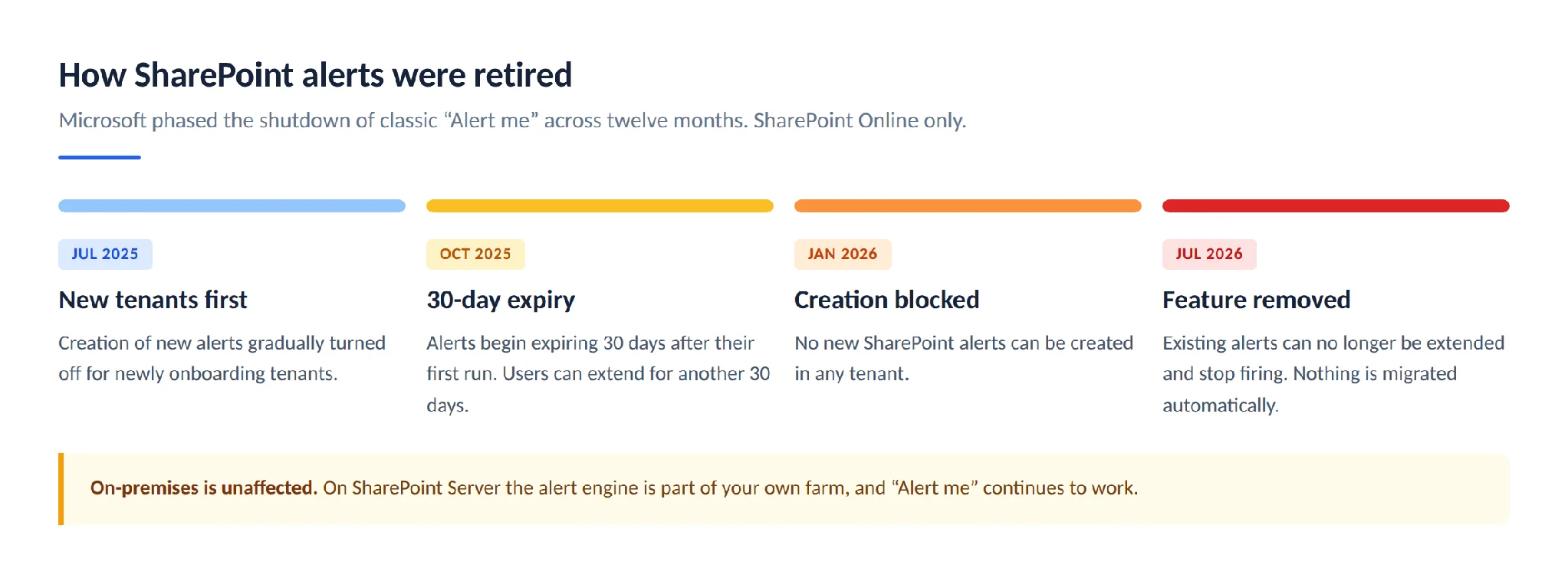
Pic. 1. The SharePoint alerts retirement timeline, July 2025 to July 2026.
| Date | What changed |
|---|---|
| July 2025 | Creation of new SharePoint alerts gradually turned off for newly onboarding tenants. |
| October 2025 | Alert expiration switched on. Alerts expired 30 days after their first run; users could re-enable and extend them for another 30 days. |
| January 2026 | Creation of new SharePoint alerts gradually turned off for all tenants. |
| July 2026 | Microsoft removed the ability to use SharePoint alerts. Existing alerts can no longer be extended and no longer fire. |
Three points are worth being precise about, because they are the ones people get wrong:
- This is a SharePoint Online change only. SharePoint Server on-premises is governed by your own farm configuration, and “Alert me” is still there. See the on-premises section below.
- Nothing was migrated for you. Microsoft did not convert existing alerts into rules or flows. If a business process depended on an alert, that process went quiet in July 2026 unless somebody rebuilt it.
- The replacements are not feature-equivalent. They cover most scenarios well and one scenario — the daily or weekly digest — badly. We come back to this in the comparison section.
Microsoft’s own retirement notice is worth bookmarking if you need to point colleagues at a first-party source: SharePoint Alerts retirement on the Microsoft support site, and the accompanying SharePoint blog announcement.
The four ways to get notified in SharePoint in 2026
There is no single successor to alerts. There are four routes, and picking the wrong one is the most common reason people conclude that “SharePoint notifications are broken now”.
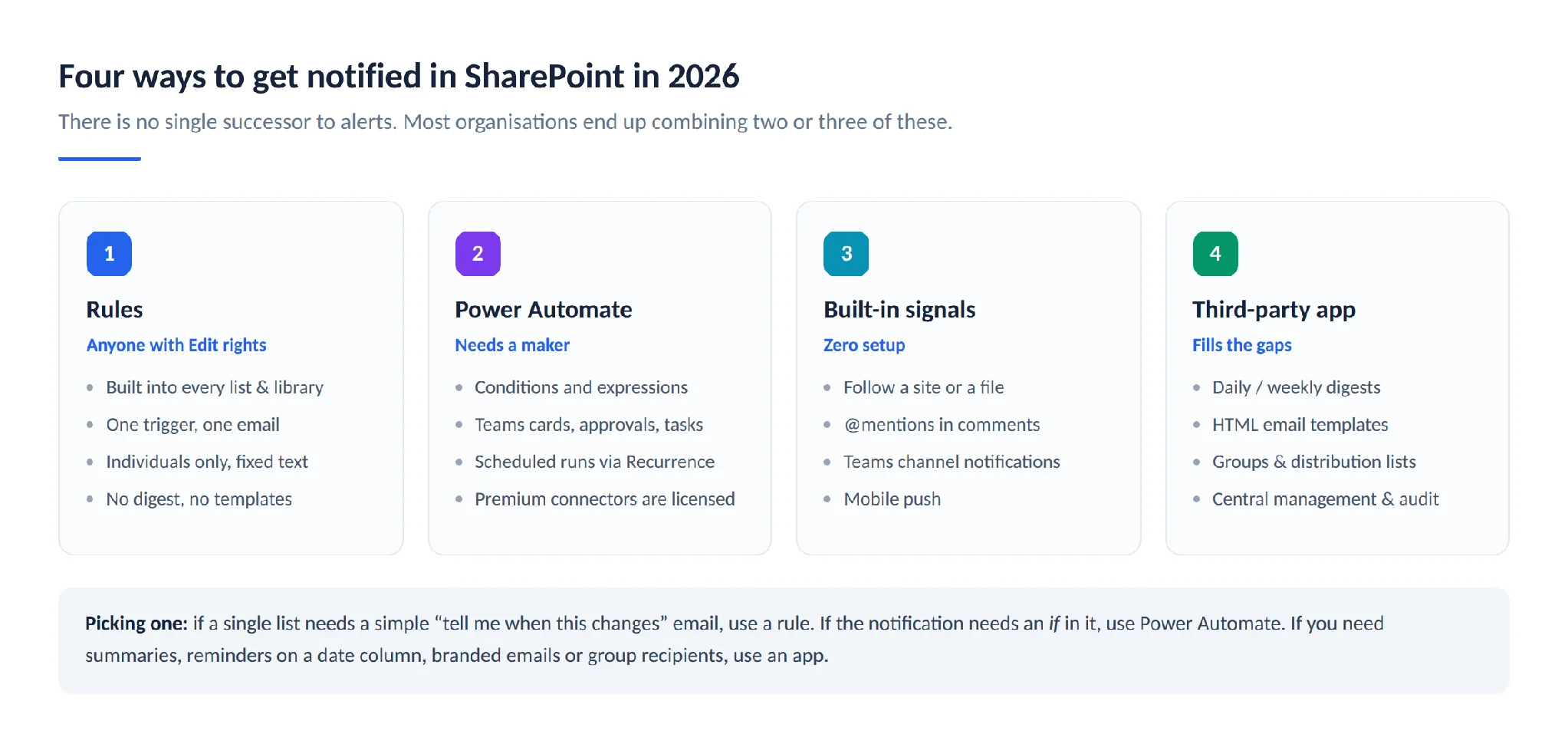
Pic. 2. Four routes to SharePoint notifications, and when each one is the right choice.
- Rules — built into every modern list and library. No licence beyond SharePoint, no maker skills. One trigger, one email, per item. This is the closest thing to a drop-in replacement for a simple alert.
- Power Automate — Microsoft’s recommended path. Handles conditions, multiple actions, Teams messages, approvals, adaptive cards and scheduled summaries. Requires a maker to build it and, for some connectors, a premium licence.
- Built-in signals — following sites and files, @mentions in comments, Teams channel notifications, mobile push. These cost nothing to set up and already cover a surprising amount of “keep me in the loop”.
- A third-party notification app — for the things the first three do not do: HTML-templated emails, scheduled digests, reminders on a date column, group and SharePoint-group recipients, escalation chains, and central management of every notification in the tenant.
Most organisations end up using two or three of these together rather than standardising on one.
How to set up notifications with SharePoint rules
Rules are the fastest replacement and the one to try first. They live inside the list or library itself, and anyone with Edit or Contribute rights can create one.
One note before the steps, because it is the single most common source of confusion right now: Microsoft is mid-way through reshuffling the SharePoint command bar, and three layouts are in circulation. The dialogs behind them are the same — only the route changed. Find the row that matches what you actually see:
| What your command bar shows | To create a rule | To create a flow |
|---|---|---|
| Workflows button and an Integrate menu (current) | Integrate → Rules | Workflows. Integrate → Flows now only offers Set a reminder for date columns |
| An Automate menu | Automate → Rules → Create a rule | Automate → Flows → Create a flow |
| Integrate with no Workflows button (older, and still what most Microsoft documentation shows) | Integrate → Rules | Integrate → Power Automate → Create a flow |
If a menu you expect is missing entirely, it is usually a permission issue rather than a rollout one — rules and flows both need Edit or Contribute rights on the list.
Create a rule
- Open the SharePoint list or document library you want to watch.
- On the command bar, select Integrate → Rules, then Create a rule. The same menu also holds Flows, Quick steps, Approvals and Power Apps — everything automation-related now lives in one place.
- Under Take action when, pick the trigger. The available conditions are: A column changes, A column value changes, A new item is created, An item is deleted, and A date approaches.
- The rule is written as a sentence with underlined parts. Select each underlined portion and choose the column, the comparison value, and the recipient — for example, “When Status changes to Approved, send an email to Priya Nair”.
- Select Create.
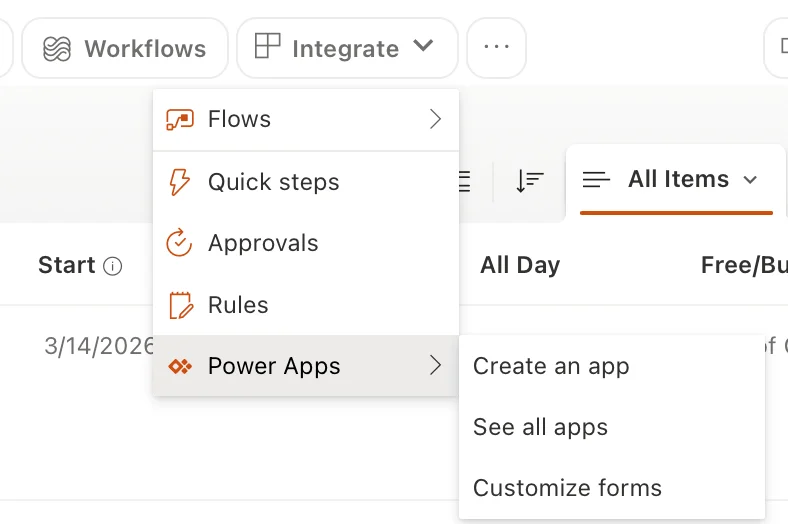
Pic. 3. The Integrate menu on the SharePoint command bar, with Flows, Quick steps, Approvals, Rules and Power Apps.
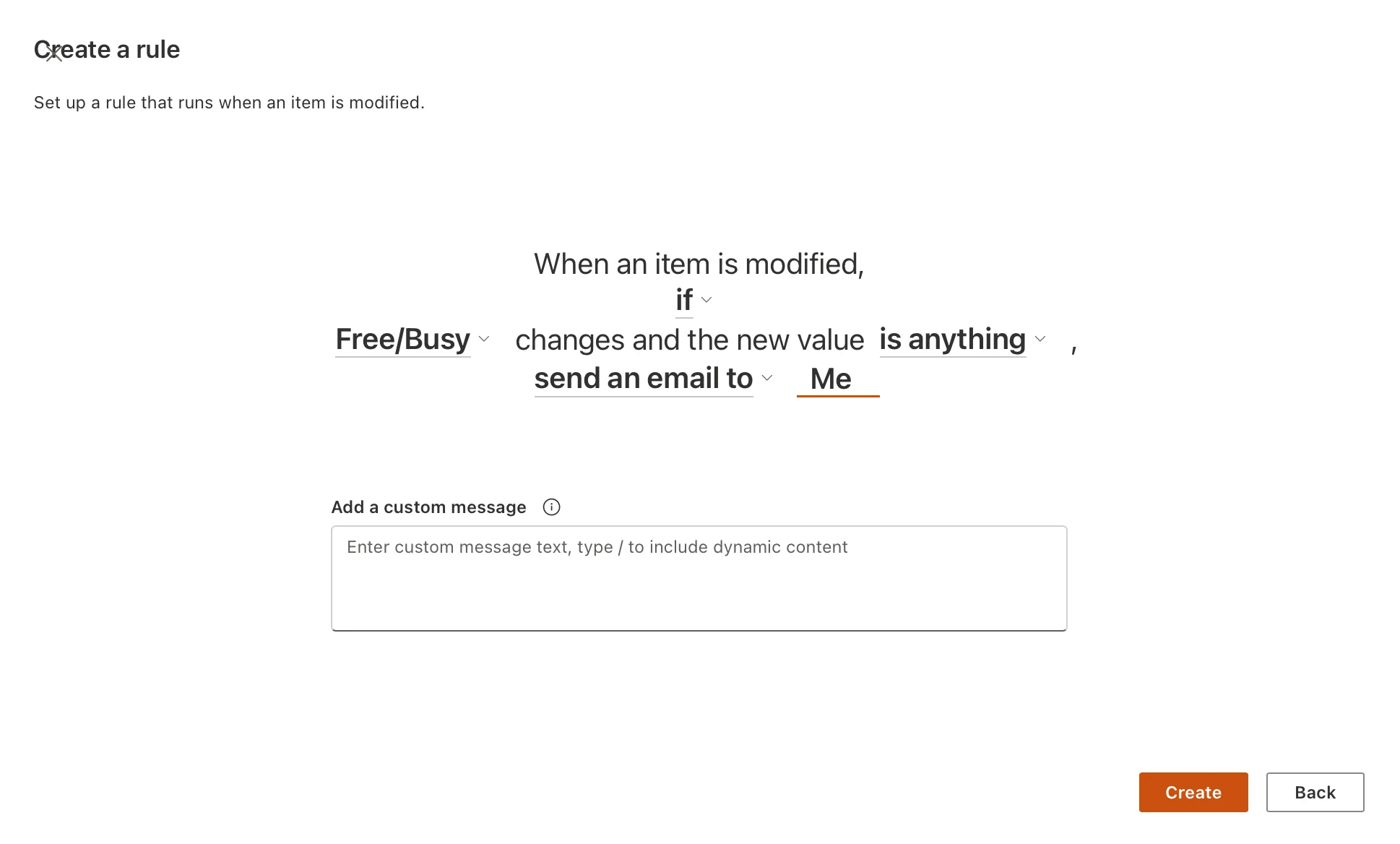
Pic. 4. Building the rule condition by selecting each underlined element.
The rule starts working immediately. Notification emails are sent from no-reply@sharepointonline.com, so tell your recipients to allow that address before they file a support ticket.
What rules can and cannot do
Rules were designed for straightforward per-item notifications, and they hold that line firmly. Know the boundaries before you build a process on them:
- Recipients must be individuals in your organisation. You can address a person, several people, or a person-type column — but not a distribution list, a Microsoft 365 group address, a SharePoint group, or an external guest.
- The email body is fixed. There is no template editor, no HTML, no branding, no ability to include a chosen set of columns.
- Comparisons are limited. For value-based rules you can only choose is and is not. No greater-than, no contains, no date arithmetic beyond the built-in “a date approaches” trigger.
- Multi-line text columns are not supported as the basis for a rule.
- “A date approaches” is capped at two rules per list or library.
- You need Contribute or Edit permission on the list to create or manage a rule, and read access to all items. Read-only users cannot subscribe themselves the way they could with the old alerts — which is a real behavioural change, and the one that surprises end users most.
- There is no digest. Every qualifying change produces its own email.
View, edit, turn off or delete a rule
- Open the list or library and select Integrate → Rules → Manage rules.
- To pause a rule without losing it, switch its On toggle off.
- To change it, select the rule, edit the underlined parts of the condition, and select Save.
- To remove it permanently, use the delete command on the rule.
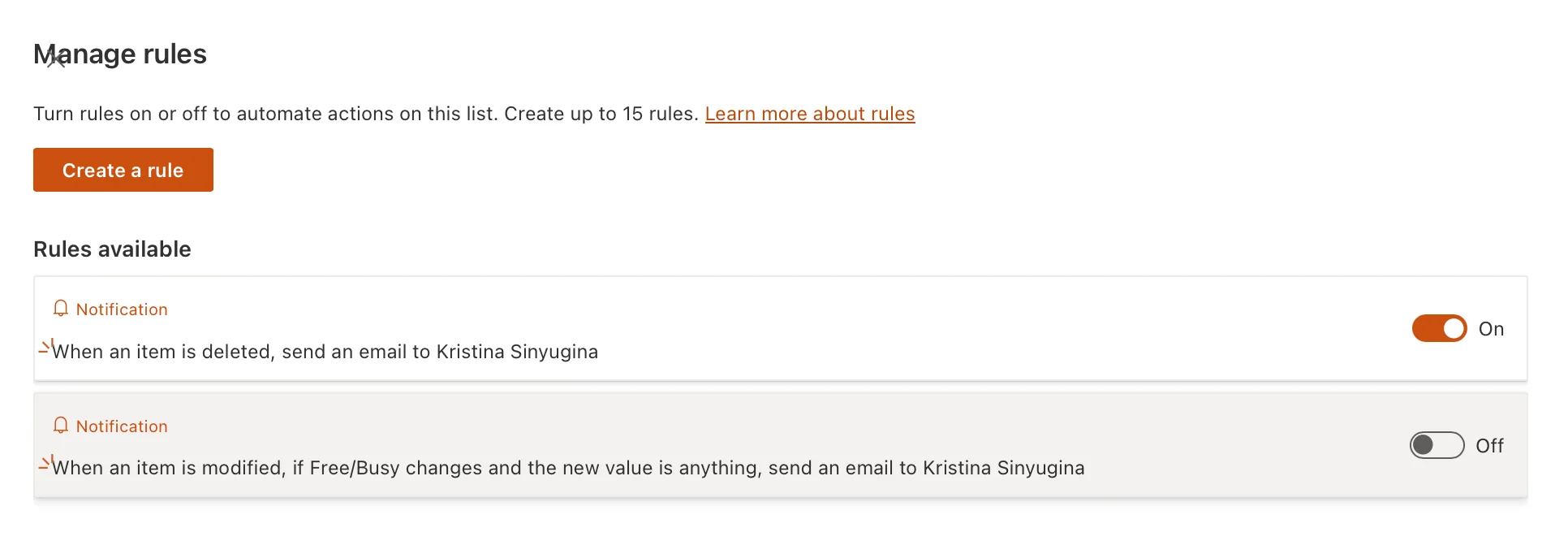
Pic. 5. The Manage rules page, showing the On/Off toggle for each rule.
Rules are per-list, which is convenient and also a trap: there is no tenant-wide view of every rule that exists. If governance matters to you, keep a register — or use a tool that gives you one.
How to set up notifications with Power Automate
Power Automate is Microsoft’s headline recommendation, and it is genuinely the most capable of the built-in options. It is also the one that needs someone willing to build and maintain flows.
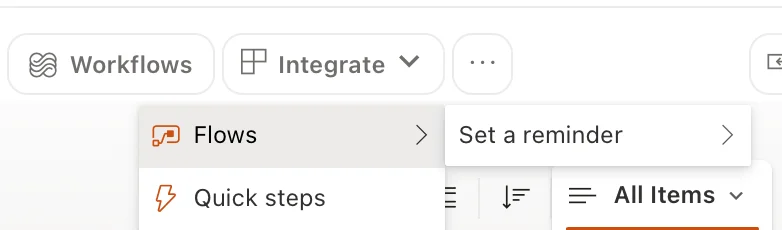
Pic. 6. The Flows submenu under Integrate, offering Set a reminder for each date column in the list.
The quickest route: the Workflows button
If your command bar has a Workflows button sitting to the left of Integrate, use it. It is Microsoft’s simplified builder, designed precisely for the people who used to create alerts and have no intention of learning the full Power Automate designer.
- Open the list or library and select Workflows.
- Either pick something from Start from a template, or describe what you want in the search box, or choose Build from scratch.
- Building from scratch is a fill-in-the-blanks sentence: choose one trigger — for example, When an item is created — and one action, such as Send a message in a Teams channel or Send an email.
- Complete the dropdowns it asks for and save.
- Your existing flows are listed under Your workflows, each with an on/off toggle — which is also the fastest place to switch a noisy notification off.
If you later need conditions or several actions, select Edit in Power Automate to open the same flow in the full designer. Nothing is lost by starting simple.
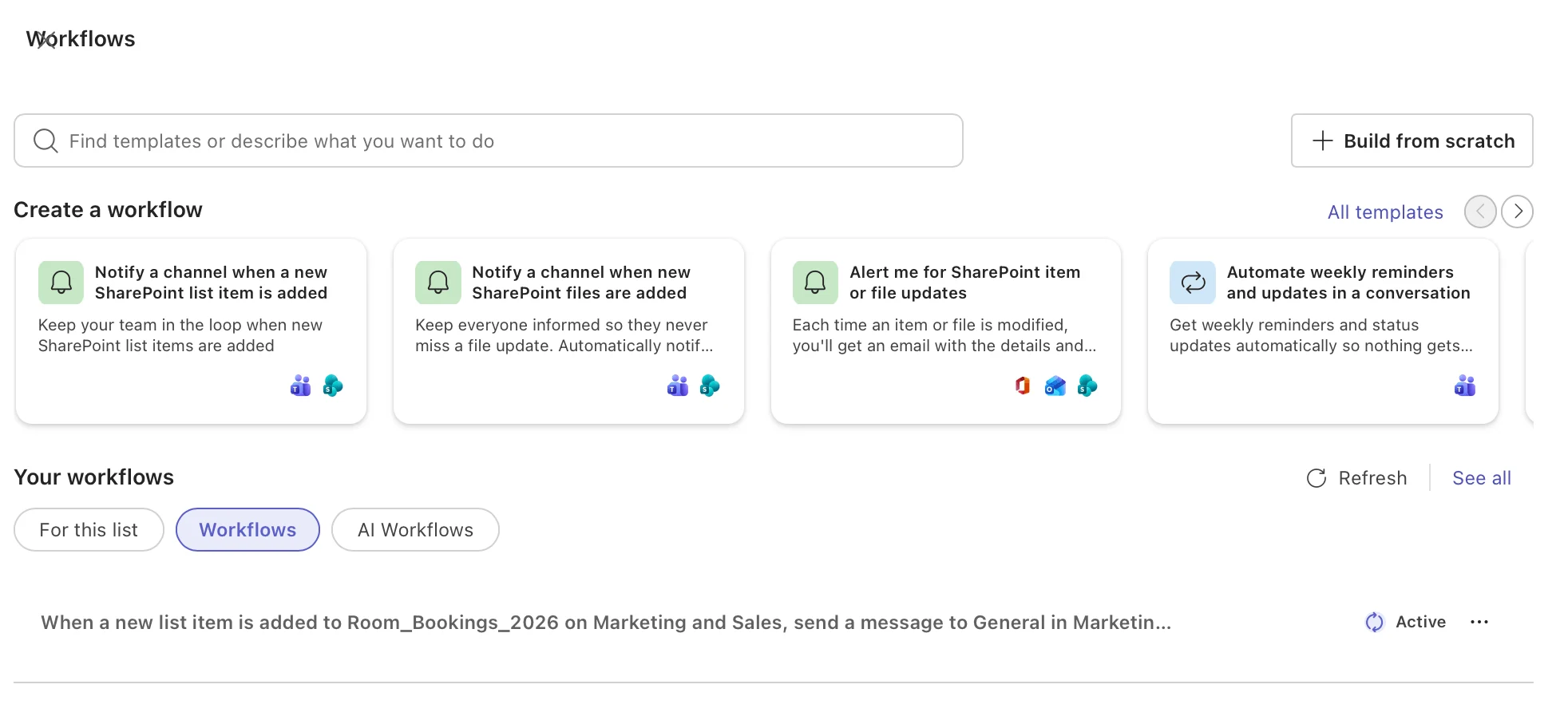
Pic. 7. The Workflows panel, with templates, Build from scratch, and Your workflows.
One-click reminders on a date column
Worth knowing about separately, because it is the closest thing SharePoint has to a native date-based alert and almost nobody finds it: Integrate → Flows → Set a reminder, then the name of a date column. On a calendar list that means Start and End; on a contract register it might be Expiry date.
- Open the list and select Integrate → Flows → Set a reminder → [your date column].
- Sign in to the connections if prompted.
- Give the flow a name and fill in Remind me this many day(s) in advance.
- Select Create.
Two limitations to know before you rely on it. The reminder goes to the person who created the flow and nobody else — so it is a personal reminder, not a team notification. And the only setting is days in advance; there is no condition, no filtering, no digest. It is also not available in GCC, GCC High, DoD or other sovereign clouds. What you get in exchange is a working date reminder in about twenty seconds, and it is an ordinary flow underneath, so you can open it in Power Automate afterwards and add recipients or conditions.
Build a notification flow from a template
For anything beyond one trigger and one action, start in Power Automate itself.
- Open your list or library and select Workflows → Start from a template, or go to make.powerautomate.com and select Create → Automated cloud flow. On older tenants the entry point is Integrate → Flows → Create a flow or Integrate → Power Automate → Create a flow.
- Pick a template. The gallery includes ready-made notification flows such as Send a customised email when a new SharePoint list item is added and Post a message to Teams when an item is modified.
- Sign in to the SharePoint and Outlook (or Teams) connections when prompted.
- Confirm the Site Address and List Name in the trigger, then edit the email subject and body. Insert column values from the dynamic content picker so the message actually says which item changed.
- Select Save, then Test → Manually to fire it once and confirm delivery.
The anatomy of a notification flow
Every notification flow you will build has the same three-part shape, whatever the scenario.
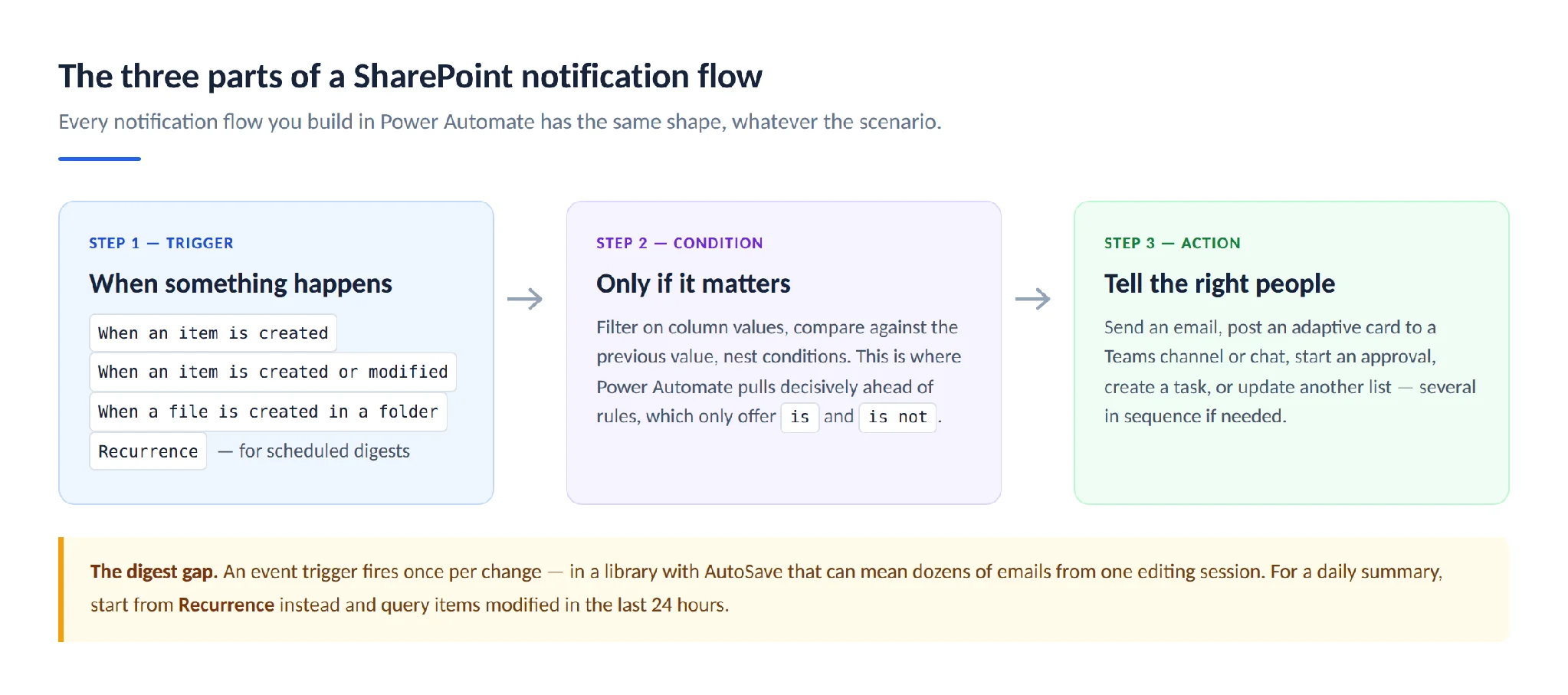
Pic. 8. The three parts of a SharePoint notification flow: trigger, condition, action.
- Trigger — When an item is created, When an item is created or modified, When a file is created in a folder, or Recurrence for scheduled summaries.
- Condition — filter so you only notify on what matters. This is where Power Automate pulls decisively ahead of rules: you get full expressions, comparisons, nested conditions, and the ability to look at the previous value.
- Action — send an email, post an adaptive card to a Teams channel or chat, start an approval, create a task, update another list, or several of these in sequence.
Solving the digest problem
Here is the honest weakness. Classic alerts could send a daily or weekly summary of everything that changed. Neither rules nor an event-triggered flow can do that — both fire once per change. In a document library with AutoSave enabled, a single editing session can produce dozens of versions, and therefore dozens of emails. Practitioners have reported receiving 70-plus messages from reviewing one document.
The workaround is to stop using an event trigger and use a Recurrence trigger instead:
- Create a flow starting with Recurrence, set to run daily at, say, 08:00.
- Add Get items (or Get files) against your list or library.
- In the action’s advanced options, add a Filter Query on the
Modifiedcolumn against the last 24 hours, using an expression such asModified gt '@{addDays(utcNow(),-1)}'. - Add an Apply to each or a Create HTML table action to assemble the results into one message.
- Send that single email or Teams message.
It works, and it is roughly forty minutes of work per digest you need. If you need several digests across several sites, this is the point at which a purpose-built app stops being a luxury.
Licensing and permission notes
Standard SharePoint, Outlook and Teams connectors are included with most Microsoft 365 plans. Premium connectors — SQL Server, Salesforce, HTTP requests, and custom connectors — need a Power Automate Premium licence. Flows also run under the identity of whoever created them, so if that person leaves, the flow can break. Move business-critical flows into a solution owned by a service account rather than an individual. Our guide to SharePoint automation goes deeper on flow design and governance.
Built-in notifications you don’t have to build
Before you build anything, check whether Microsoft 365 is already offering the signal you want. These cost nothing and require no maker skills.
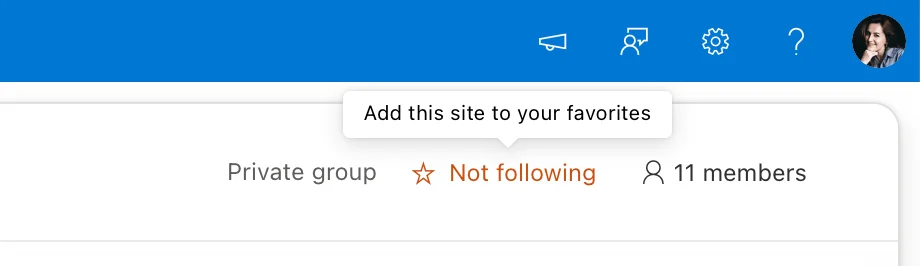
Pic. 9. Following a SharePoint site to receive its updates by clicking “Not following”.
- Follow a site. Open the site and click Not following in the top-right to follow the site. Followed sites surface in the SharePoint start page and the mobile app, and news posts from them appear in your news feed and the periodic News from your sites email.
- Follow a file. In a document library, select a file and choose Follow. Changes appear in your OneDrive activity feed.
- @mentions in comments. Mentioning a colleague in a file or list-item comment emails them directly, with a link back to the item. This is the single most underused notification mechanism in SharePoint.
- Teams channel notifications. If your site is connected to a team, changes surfaced in the channel follow each member’s Teams notification settings. Our guide to notifications in Microsoft Teams covers per-channel tuning.
- Mobile push. The SharePoint and OneDrive mobile apps push notifications for shares, mentions and comments on the items you are involved with.
- Microsoft Lists in Teams. Lists added as a Teams tab inherit the channel’s notification behaviour, so activity can appear where the team already is.
SharePoint on-premises: “Alert me” still works
The retirement applies to SharePoint Online. On SharePoint Server the alert engine is part of your farm, and Microsoft’s server documentation still describes creating and managing alerts. If you run SharePoint Server Subscription Edition, nothing about your alerts changed in 2026.
To create an alert on-premises:
- Open the list or library and select the ellipsis (…) on the command bar, then Alert me.
- In the Alert me when items change dialog, set the Alert Title.
- Under Send Alerts To, enter the users who should receive it.
- Choose the Delivery Method — email, or text message where SMS is configured on the farm.
- Under Change Type and Send Alerts for These Changes, narrow the trigger to the events you care about.
- Under When to Send Alerts, choose immediate, daily summary or weekly summary.
- Select OK.
To manage them, use Settings → Site settings → Site Administration → User alerts, pick a user, and delete the alerts you no longer want. Farm administrators control delivery through the outgoing email settings and the alert timer jobs in Central Administration.
One caveat worth stating plainly: SharePoint Server 2016 and 2019 reached end of support on 14 July 2026. Alerts still function on those versions, but the platform underneath them no longer receives security updates. If that is your situation, the alert question is the smaller of your two problems — plan the move to Subscription Edition or to SharePoint Online.
Rules vs Power Automate vs a dedicated app
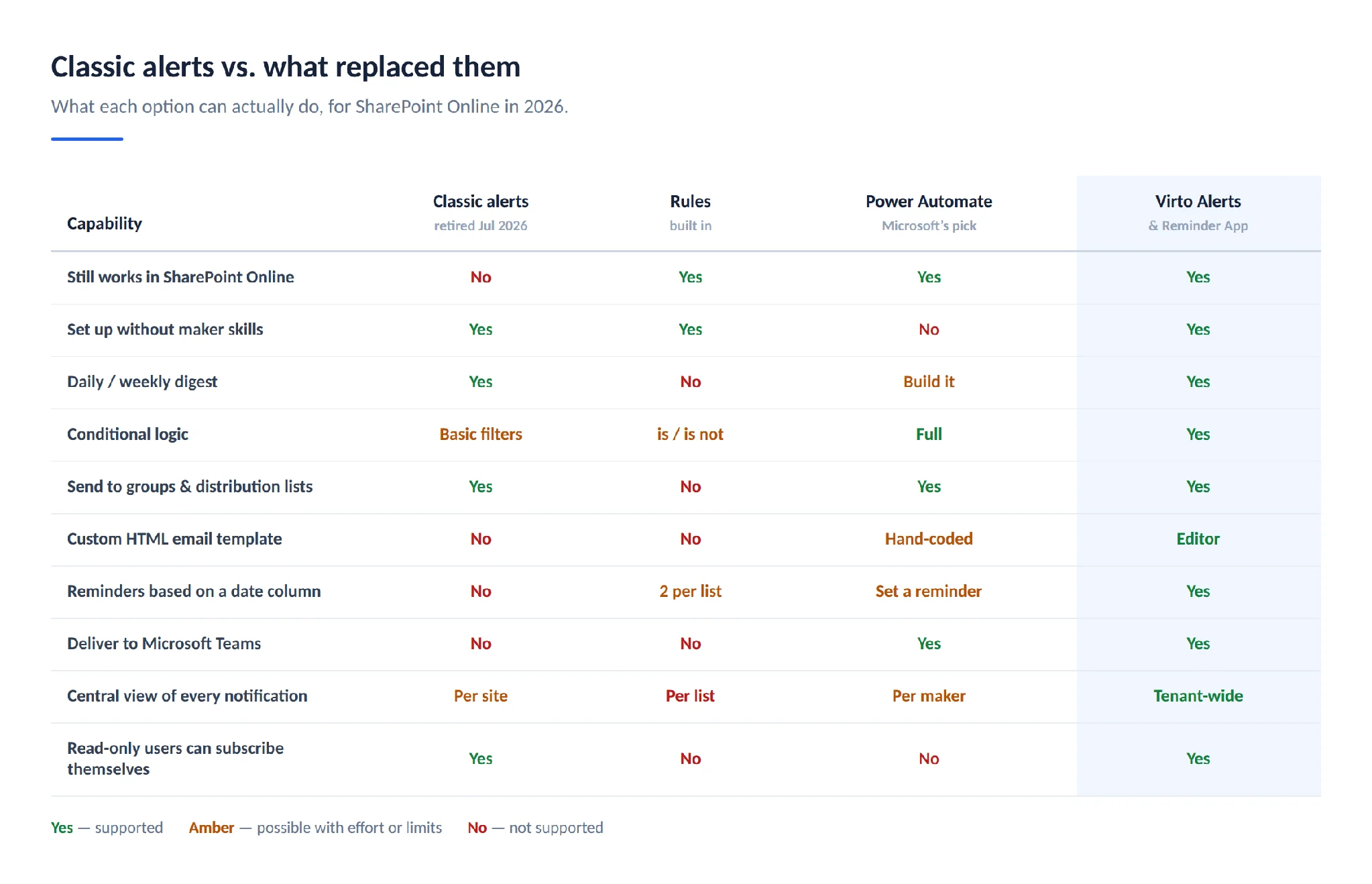
Pic. 10. Feature comparison: classic alerts, rules, Power Automate and Virto Alerts & Reminder.
The way to read this comparison: rules replace the simple “tell me when this list changes” alert and nothing more. Power Automate replaces everything alerts did except the digest, and adds a great deal alerts never did, at the cost of build and maintenance effort. A dedicated app exists because of the gaps in the middle column — digests, templates, group recipients, date-based reminders and a single place to see every notification in the tenant.
Be sceptical of anyone who tells you one of these three is “the” answer. In practice a mid-sized tenant runs rules for a handful of small lists, five to fifteen flows for the processes that matter, and an app for the recurring reminder and digest scenarios that would otherwise be forty separate flows.
Do more with Virto
Where the native options run out, the Virto Alerts & Reminder App for SharePoint Online & Microsoft 365 is built to close the specific gaps left by the retirement. It sends alerts and reminders based on SharePoint list changes and date columns, delivers to Microsoft Teams, Outlook email, SharePoint and iCalendar, and lets you design the message body with an HTML template editor including images, tables and links — the thing neither rules nor a quick flow will give you.
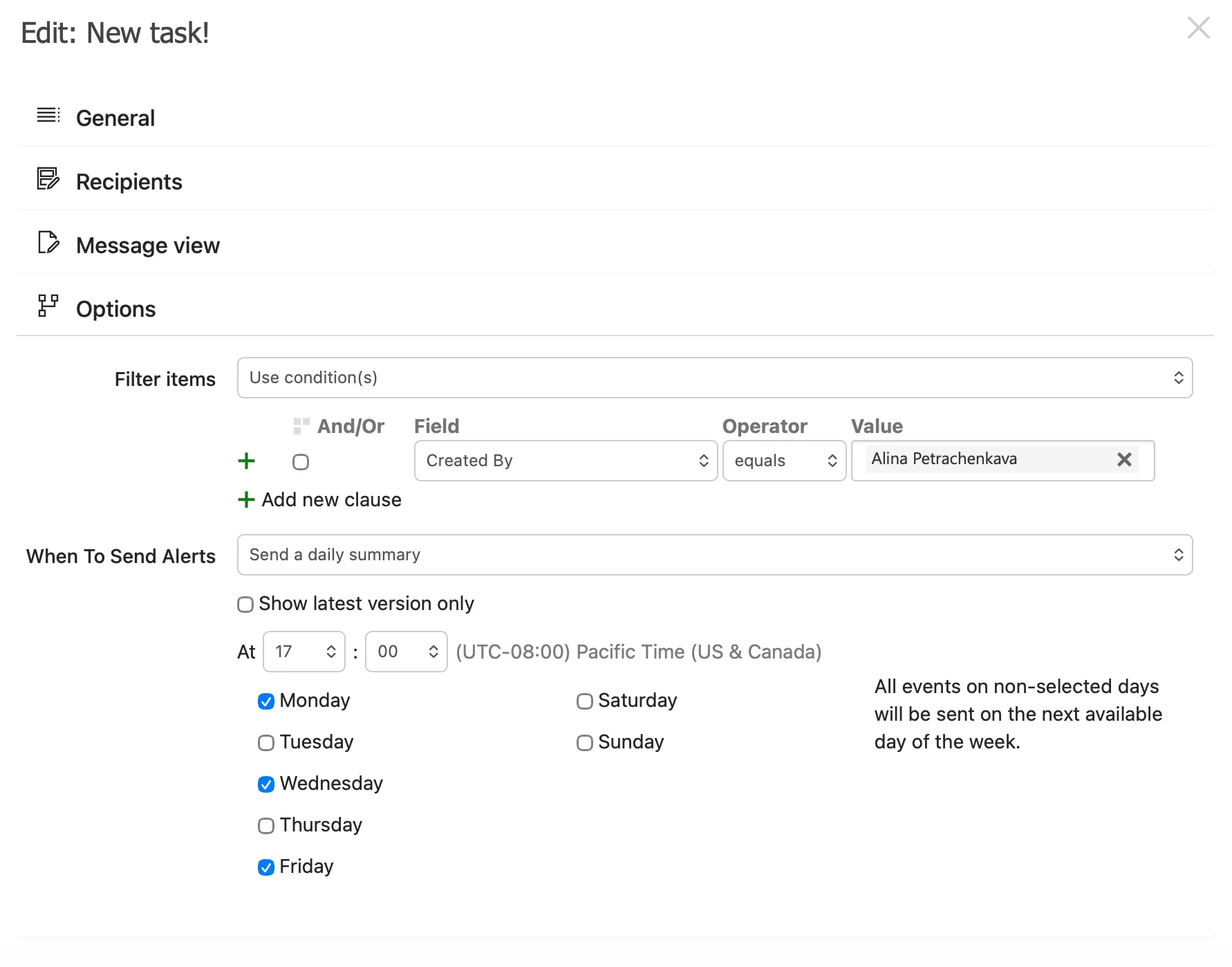
Pic. 11. Configuring an alert in the Virto Alerts & Reminder App.
Practically, it covers:
- Scheduled digests and reminders — daily or weekly summaries, and reminders fired a set number of days before or after a date column, without building a recurrence flow per scenario.
- Group recipients — SharePoint groups, Microsoft 365 groups and distribution lists, not just named individuals.
- Branded, column-aware emails — HTML templates that include exactly the fields your recipients need.
- Central management — every alert across every site in one place, which is what makes an audit possible.
For SharePoint on-premises farms, the equivalent is the Virto Notifications & Alerts Web Part, and the Virto Notifications & Reminders App for Microsoft Teams handles Teams-first scenarios.
Both are available on a 30-day free trial, and you can browse the wider range of Virto apps for SharePoint if you are filling more than one gap at once.
Explore Our Use Cases for SharePoint Notifications
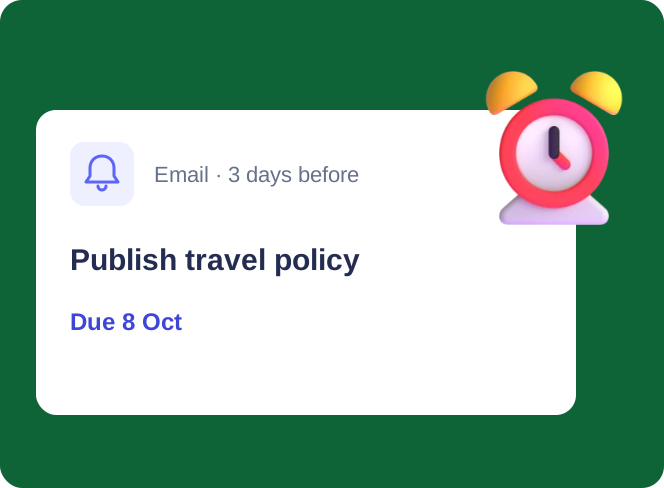
Task Due Date & Overdue Reminders
Each assignee gets an email three days before a task is due, and the manager gets one table of everything overdue and still open every morning — from a SharePoint task list.
Learn more about Task Due Date & Overdue Reminders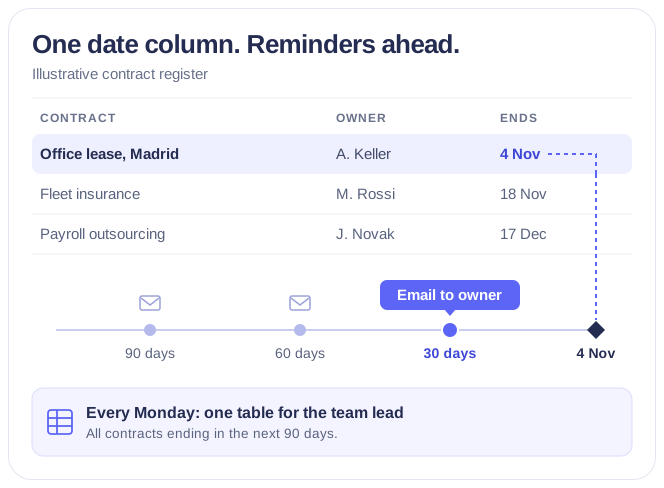
Expiration & Renewal Reminders
Each owner gets an email 90, 60 and 30 days before a contract, certificate or licence ends, and the team lead gets one weekly table — from the SharePoint list you already keep.
Learn more about Expiration & Renewal Reminders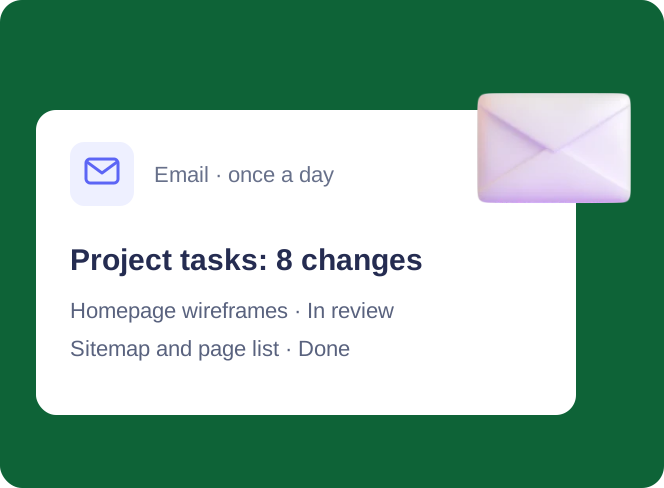
Change Digest for SharePoint Lists
Several people edit one SharePoint list; the project manager gets one email a day with every change in a table, and a separate email within minutes when a task is blocked.
Learn more about Change Digest for SharePoint ListsManaging and turning off SharePoint notifications
Too many notifications is the failure mode people actually experience. Here is where each type is switched off.
- A rule — list or library → Integrate → Rules → Manage rules → toggle On to off, or delete the rule.
- A flow — fastest from the list itself: Workflows → Your workflows and flip the toggle. Otherwise make.powerautomate.com → My flows → the flow’s ⋯ menu → Turn off or Delete. Flows someone else built appear under Shared with me only if you were added as an owner.
- Following a site or file — open the site and select Following to unfollow; for a file, select it and choose Unfollow.
- Teams noise — in Teams, use the channel’s ⋯ → Channel notifications to move it to Custom and silence what you do not need.
- The “News from your sites” email — unsubscribe from the link at the foot of the message itself.
- Third-party app alerts — disable them in the app’s own management screen.
A cleanup that is worth doing once: because alerts stopped firing in July 2026 rather than being deleted, some tenants still carry references to them in documentation and onboarding checklists. Search your internal wiki for “Alert me” and fix the instructions before a new starter follows them.
Why am I not getting SharePoint notifications?
Work through these in order — the first two account for most cases.
- The notification is a classic alert. If it stopped in 2026 and nobody changed anything, this is why. It cannot be revived; rebuild it as a rule or a flow.
- The email is being filtered. Add
no-reply@sharepointonline.comand your flow’s sender address to the safe senders list, and check the Junk and Other folders. In Exchange Online, check that no transport rule is quarantining them. - The recipient is not eligible. Rules cannot notify guests, distribution lists or group addresses. If you pointed a rule at one of these, it silently does nothing useful.
- The recipient lost access. SharePoint does not notify someone about an item they can no longer see. Check the item’s permissions after any site restructure.
- The flow is turned off or failing. In Power Automate, open the flow and check the 28-day run history. A flow whose connection has expired shows as suspended, not as an error to the person waiting for the email.
- The trigger never fires. “A column changes” does not fire when the item is created, only when it is subsequently edited. If you need both, use two rules or a created or modified flow trigger.
- The user’s email address is wrong in their profile. Rarer, but it happens after mergers and rebrands.
- On-premises only: outgoing email is misconfigured. Check the SMTP server settings and the alert timer jobs in Central Administration.
Best practices for notifications after the retirement
- Audit before you rebuild. List every process that used to depend on an alert, decide which ones genuinely need a notification, and rebuild only those. Retirements are a rare licence to delete noise.
- Match the channel to the urgency. Immediate email for approvals and escalations; a daily digest for routine change tracking; Teams for anything the team should discuss rather than file.
- Prefer conditions over volume. A rule that fires on every change trains people to ignore it. A rule that fires only when Status becomes Blocked gets read.
- Give flows a service-account owner. Personal ownership is the most common cause of a flow dying six months later.
- Keep one register of who gets notified about what. Rules are per-list and flows are per-maker, so nobody has the whole picture by default.
- Name things so a stranger can maintain them, and review quarterly. “Notify contract owner when Status = Expiring” beats “Rule 3”, and ten minutes per site per quarter is enough to keep the system trustworthy.
FAQ
How do I set up alerts in SharePoint?
In SharePoint Online you no longer can — classic alerts were retired in July 2026. Use Integrate → Rules → Create a rule in the list or library for simple email notifications, or build a Power Automate flow for anything conditional. On SharePoint Server on-premises, Alert me still works.
Are SharePoint alerts really gone, or just hidden?
Gone. From July 2026 Microsoft removed the ability to use them; existing alerts cannot be extended and no longer fire. There is no tenant setting that brings them back.
Did Microsoft migrate my alerts to rules automatically?
No. Nothing was converted. Every alert had to be rebuilt manually as a rule, a flow, or a third-party alert.
What is the difference between SharePoint rules and Power Automate?
Rules are a simple, list-scoped feature with one trigger and one email, configurable by anyone with Edit rights. Power Automate is a full workflow platform with conditions, multiple actions, Teams and approval integration, and scheduled runs — but it needs someone to build and maintain the flows.
Can I still get a daily or weekly summary of changes?
Not from rules, and not from an event-triggered flow. Build a Recurrence-triggered flow that queries items modified in the last 24 hours and sends one combined message, or use an app such as Virto Alerts & Reminder that produces digests natively.
Can a rule notify a SharePoint group or a distribution list?
No. Rules address individuals in your organisation or a person-type column only. Use Power Automate or a third-party app for group delivery.
How do I turn off SharePoint notifications?
Turn off the rule under Integrate → Rules → Manage rules, turn off or delete the flow in Power Automate, unfollow the site or file, and adjust channel notifications in Teams.
Does the retirement affect SharePoint on-premises?
No. It applies to SharePoint Online only. Note separately that SharePoint Server 2016 and 2019 reached end of support on 14 July 2026.
Why are my rule notification emails going to junk?
They come from no-reply@sharepointonline.com. Add it to safe senders, and check for transport rules in Exchange Online that might be catching it.
Do I need a Power Automate licence to replace alerts?
Not for the standard SharePoint, Outlook and Teams connectors, which are included with most Microsoft 365 plans. Premium connectors and some governance features require a Power Automate Premium licence.
Conclusion
The retirement of SharePoint alerts removed a feature that had been quietly holding a lot of processes together, and it did not hand over an exact replacement. What it handed over is a choice: rules when the requirement is simple, Power Automate when the requirement has logic in it, the built-in follow and mention signals when you just want to stay aware, and a dedicated app when you need digests, templates, group recipients or a single view of every notification you run.
The tenants that came through this well are the ones that treated it as a cleanup rather than a like-for-like rebuild. Audit what actually needed a notification, rebuild that, and leave the rest switched off.
If the gaps you are left with are digests, reminders on date columns, branded emails or central management, the Virto Alerts & Reminder App is free to try for 30 days — and the wider set of Virto apps for SharePoint covers the neighbouring problems, from document management to automation.