Quick answer: The preservation hold library is a hidden library that keeps copies of content under a retention policy or legal hold, so it isn’t permanently removed early. SharePoint and OneDrive create it automatically the first time a covered file is edited or deleted, it counts against your site storage quota, and you can’t delete it by hand while a policy or hold is still active.
If files in a SharePoint site refuse to delete, or a user’s OneDrive reports terabytes in use while looking empty, the Preservation Hold Library is usually the answer. It is Microsoft 365’s compliance safety net: a system library that quietly keeps the original copy of anything a retention policy, retention label or eDiscovery hold is protecting.
This guide is written for SharePoint, OneDrive and Microsoft 365 administrators. It covers what the library actually stores, how to find it, why it grows, what changed by 2026, and the three supported ways to reclaim the space — including Priority cleanup, the feature Microsoft added specifically so you can override holds and delete preserved files without waiting years for a retention period to expire.
What is a Preservation Hold Library?
A Preservation Hold Library is a hidden system library that SharePoint and OneDrive create automatically in a site when content there needs to be retained for compliance. When a user edits or deletes a file covered by retention settings, the original version is copied into this library. The user’s action still succeeds in their app — the copy is what satisfies the compliance requirement.
Microsoft is explicit that this is not a library you are meant to work in: editing, deleting or moving files inside it, or changing their retention and sensitivity labels, is unsupported. The supported way to reach that content is eDiscovery.
Three things distinguish it from the tools admins confuse it with:
- It is not the Recycle Bin. The Recycle Bin is user-facing and time-boxed to 93 days across both stages. The Preservation Hold Library is invisible to end users and holds content for as long as the policy says.
- It is not a backup. It preserves what a policy covers, in place, for governance — not the whole site for disaster recovery.
- It is not optional. You don’t create it, and you can’t opt a covered site out of it.
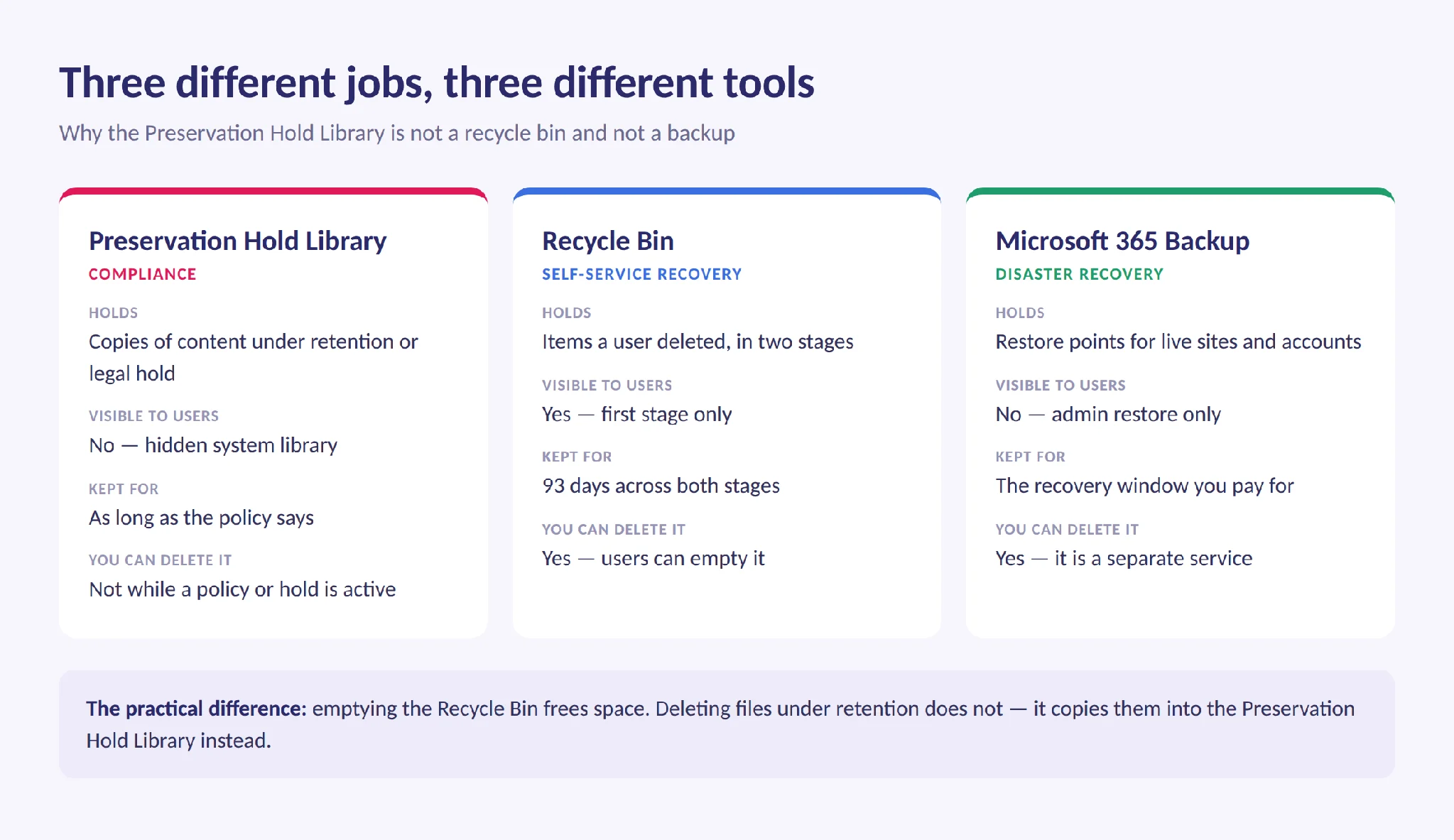
Pic. 1. The Preservation Hold Library compared with the Recycle Bin and Microsoft 365 Backup.
When SharePoint creates one
The library appears only once a compliance trigger fires. In practice that means one of:
- A retention policy is applied to the SharePoint site, the OneDrive account, or a Microsoft 365 group.
- A retention label that blocks deletion — or marks items as records — is applied to content.
- An eDiscovery case or litigation hold is placed on the site or the user.
- A covered file is then actually edited or deleted. This is the moment the library gets populated and starts showing up in storage reports.
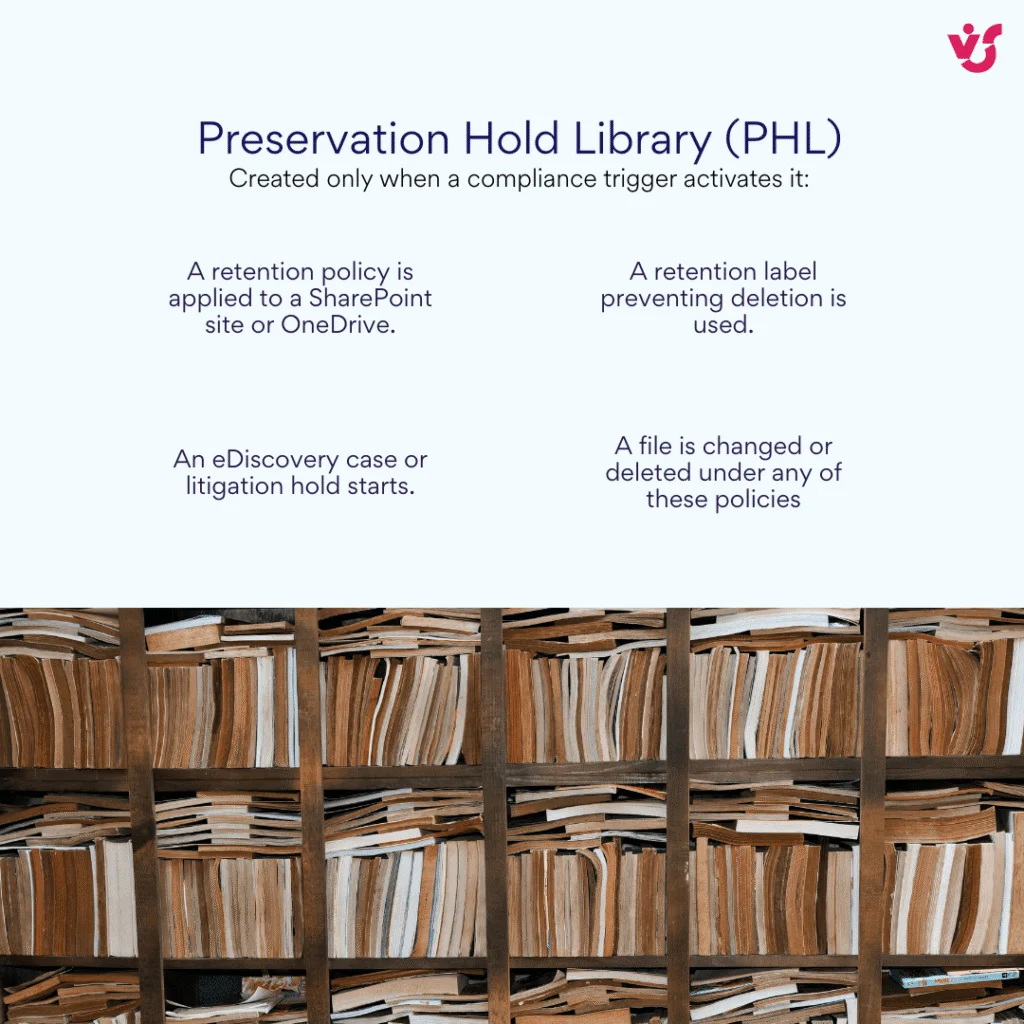
Pic. 2. The four triggers that create a Preservation Hold Library.
What actually creates a copy
This is where most admin assumptions go wrong. Not every edit produces a copy, and the behaviour depends on which retention mechanism is in play.
| What is applied | User edits the item | User deletes the item |
|---|---|---|
| Retention policy | Copy created | Copy created |
| Standard retention label | No copy | Copy created |
| Label that marks items as records | Copy created if unlocked; blocked if locked | Blocked |
| Label that marks items as regulatory records | Blocked | Blocked |
Fig. 1. What creates a copy in the Preservation Hold Library.
Two footnotes worth knowing. New content added to a site after the policy applied is not copied to the library the first time it’s edited. And to preserve every intermediate version of a file, versioning must be turned on for the library — without it, only the version current at the time the hold was applied is kept.
What changed by 2026
If you’re working from older guidance or an older article, several details are now wrong.
| Often stated | Actually true in 2026 |
|---|---|
| Every version of an edited file becomes a separate copy in the library | Since July 2022 all versions of a non-record file are kept inside a single file. Only record versions stay separate |
| Files are permanently deleted straight out of the Preservation Hold Library | They now exit through the second-stage Recycle Bin and are deleted after 93 days there |
| Manage holds at compliance.microsoft.com | That portal is retired. Use purview.microsoft.com — Solutions › Data Lifecycle Management |
| You can never delete content from the library early | Priority cleanup can override retention settings and eDiscovery holds, with approvals and an audit trail |
| Any edit to a labelled file creates a copy | A standard retention label creates a copy only on delete, not on edit |
Fig. 2. What changed by 2026.
Where preserved files actually go
For retain-and-delete settings, the path looks like this. A timer job evaluates content; it can take up to seven days to run.
If the content is modified or deleted during the retention period, a copy of the original lands in the Preservation Hold Library. When its retention period expires, the timer job moves it to the second-stage Recycle Bin, where it is permanently deleted after 93 days.
If the content is not modified or deleted, nothing is copied. At the end of the retention period the timer job moves the original to the first-stage Recycle Bin; a 93-day window then spans both recycle bin stages before permanent deletion.
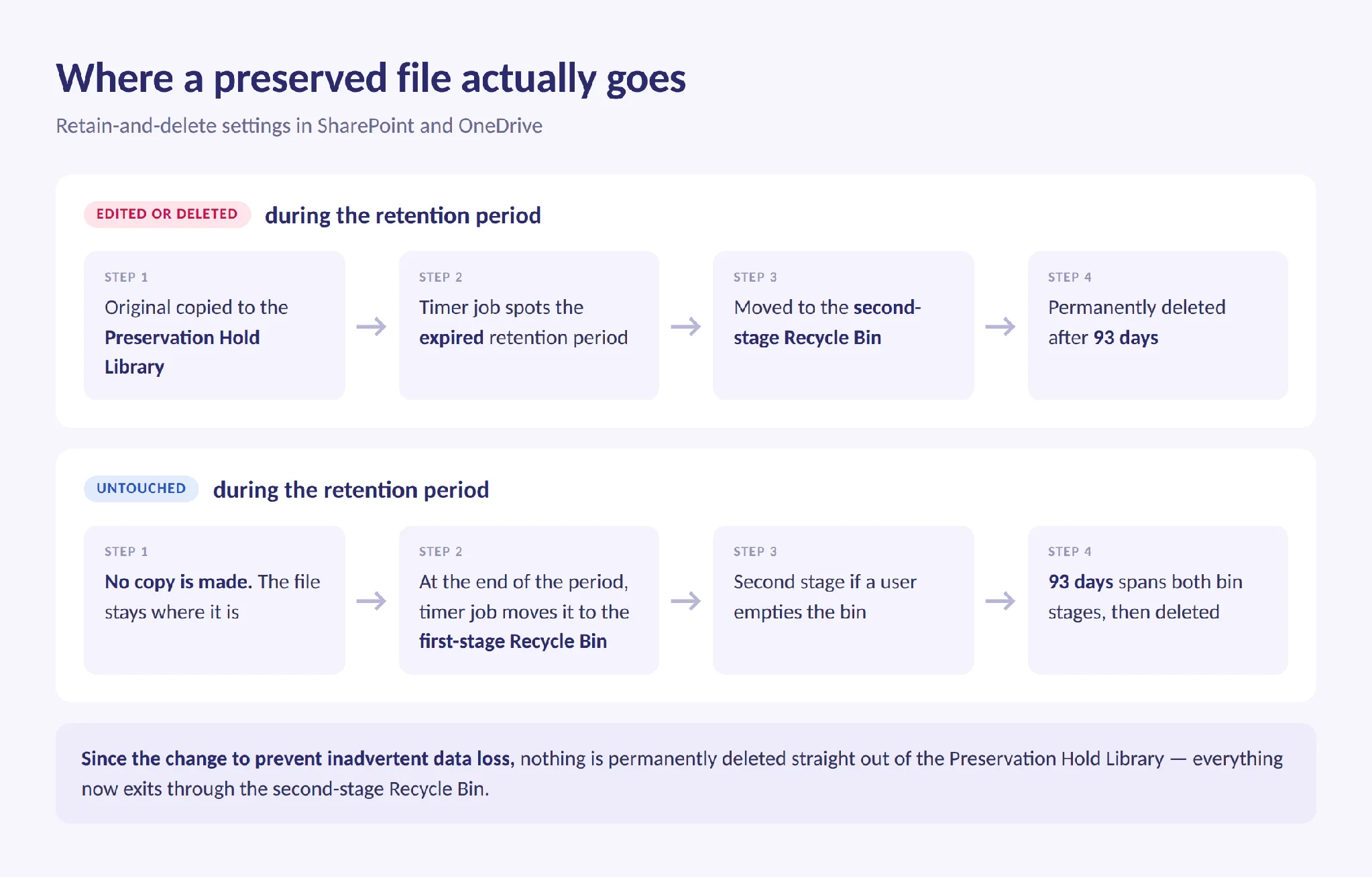
Pic. 3. The path a preserved file takes under retain-and-delete settings.
For retain-only settings, the same copy is made on edit or delete and is released to the second-stage Recycle Bin at the end of the period. For delete-only settings, nothing is copied to the library at all — deletions simply flow through the two recycle bin stages.
One consequence that catches people out: the Recycle Bin isn’t indexed, so an eDiscovery search cannot find or hold content sitting in it.
How to find the Preservation Hold Library
The library is hidden from ordinary users by design. Site collection administrators and SharePoint administrators can reach it.
In SharePoint
- Open the site and select the gear icon, then Site contents.
- Look for Preservation Hold Library in the list. On modern sites it is usually visible to site owners without any extra step.
- If it isn’t listed, go direct:
https://<tenant>.sharepoint.com/sites/<site>/PreservationHoldLibrary/Forms/AllItems.aspx.
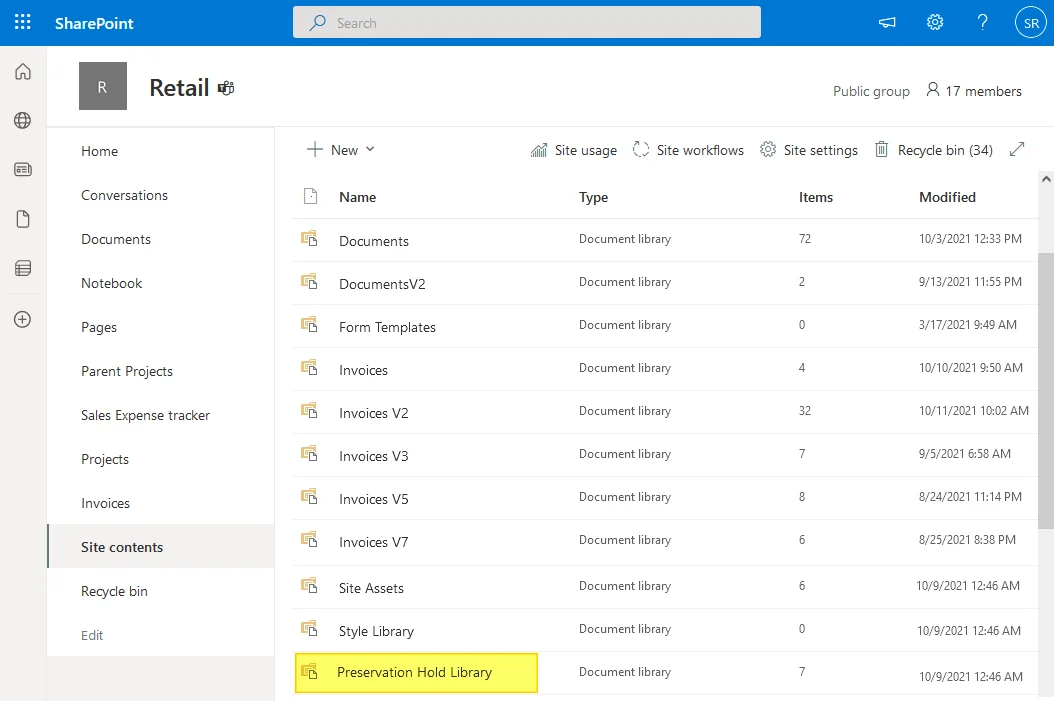
Pic. 4. Site contents in SharePoint showing the Preservation Hold Library.
To confirm why it exists, check which policies are in scope. Sign in to the Microsoft Purview portal and go to Solutions › Data Lifecycle Management › Policies › Retention policies, then check eDiscovery › Cases for holds on the same site.
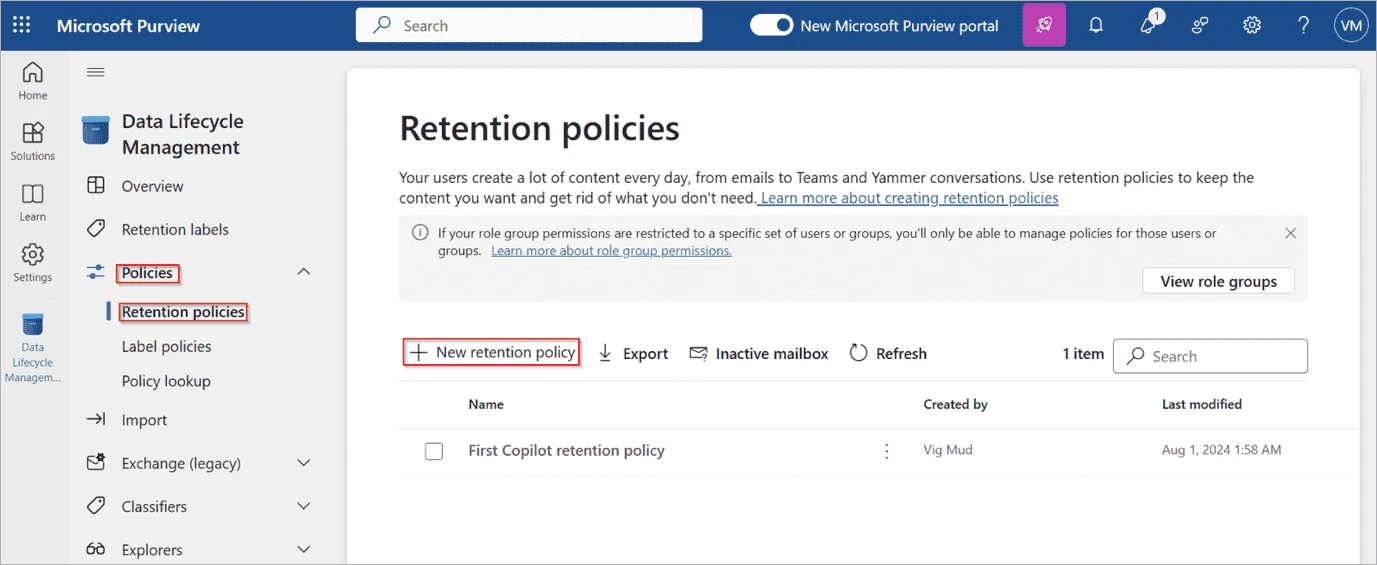
Pic. 5. Microsoft Purview › Data Lifecycle Management › Policies › Retention policies.
In OneDrive
OneDrive runs on SharePoint, so the mechanism is identical — the library just lives in the user’s personal site.
- In the Microsoft 365 admin center, go to Users › Active users, select the user, open the OneDrive tab, and select the link to their files.
- From their OneDrive, open the gear icon and select Site contents.
- Open Preservation Hold Library.
This is exactly the scenario behind a well-known Microsoft Q&A thread about a multi-terabyte Preservation Hold Library in a user’s OneDrive — the account looks empty to the user and full to the tenant.
Why it grows, and what it costs you
Yes — everything in the Preservation Hold Library counts against the site or OneDrive storage quota, exactly like a normal file. Microsoft’s own documentation warns that you may need to increase storage when you turn on retention.
What it does not do is duplicate everything. SharePoint uses copy-on-write: a file that is never touched after the policy applies is never copied. Copies appear only on the first edit or delete.
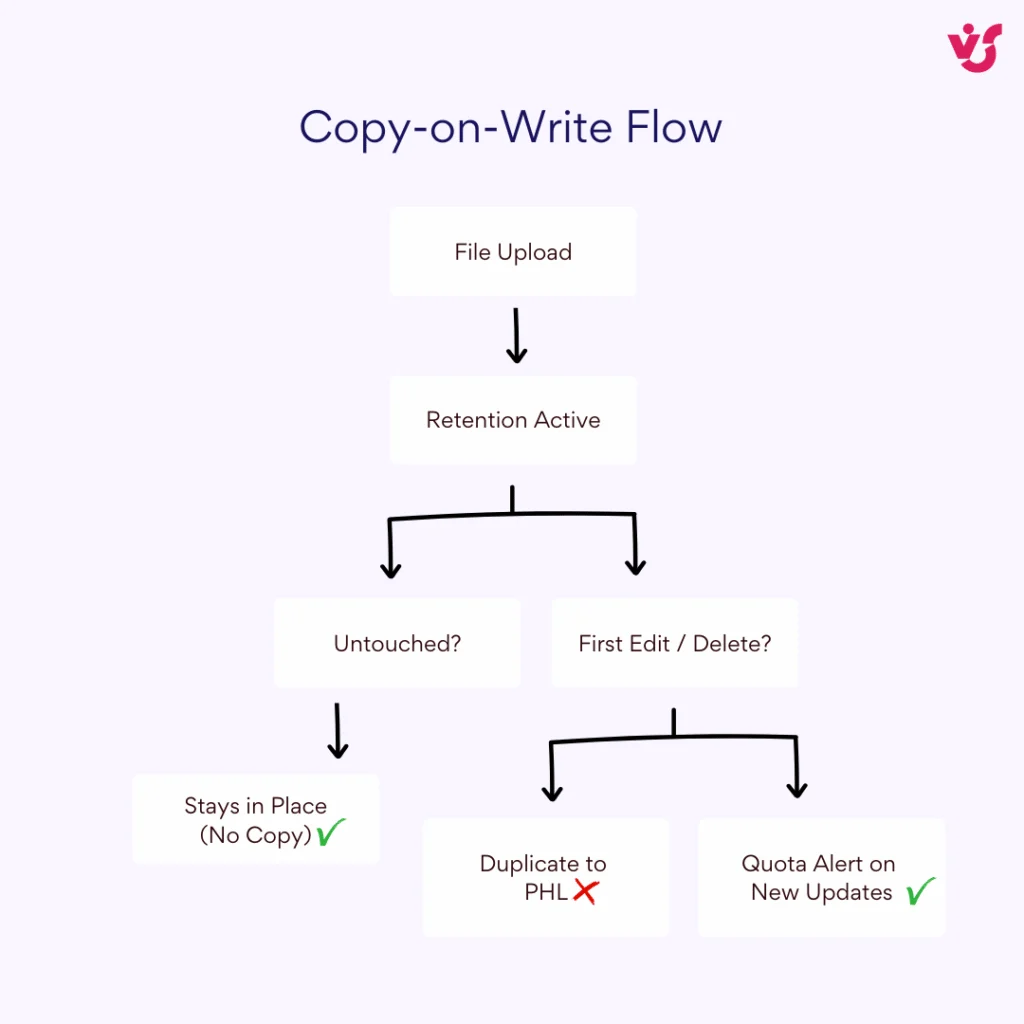
Pic. 6. Copy-on-write: untouched files are never duplicated.
The old rule of thumb that “a 100 MB file edited ten times consumes 1 GB in the library” has been wrong since July 2022. All versions of a non-record file are now retained inside a single file in the library rather than as separate copies. Versions of items marked as records are still stored separately, because they have to be able to expire independently.
Two behaviours explain most unexplained growth:
- Large, frequently churned files. Teams meeting recordings and transcripts are the classic offender — big, continuously produced, and usually in scope of a broad retention policy. Video, CAD and deck files behave the same way.
- Deletion at scale. A user or a migration tool clearing out an old library doesn’t free anything; every deleted file is copied into the Preservation Hold Library instead.
The cleanup timetable
Content isn’t removed the moment its retention period ends. A timer job runs over the library every seven days, and only considers content that has been there more than 30 days. Together that means up to 37 days between expiry and removal.
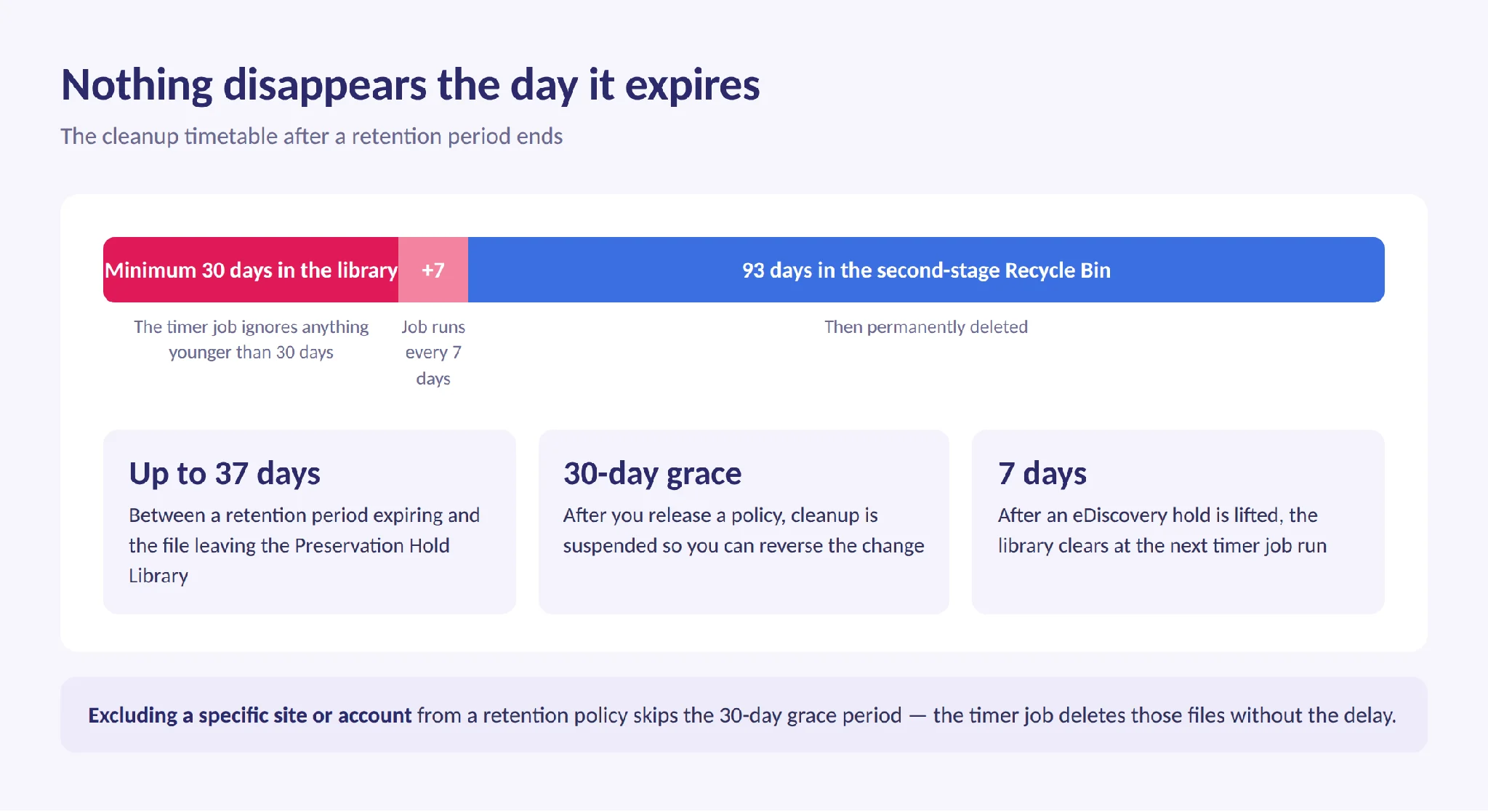
Pic. 7. The cleanup timetable after a retention period expires.
If you release a retention policy, SharePoint and OneDrive keep retaining for a 30-day grace period — files still flow into the library, but cleanup is suspended so you can reverse the change. Excluding a specific site or account from the policy skips that grace period. Removing an eDiscovery hold is faster: the library is cleared the next time the seven-day timer job runs.
Can you delete the Preservation Hold Library?
Not directly, and not with PowerShell. It is a system-managed library, and while any policy or hold covers the site, deletion is blocked — for the library, and for the site itself. There are three supported routes.
| Route | When to use it | How long it takes |
|---|---|---|
| Release or narrow the retention policy | The policy is broader or longer than the business actually needs | 30-day grace period, then the 7-day timer job |
| Lift the eDiscovery hold | The case or investigation is closed | Cleared at the next timer job run, within 7 days |
| Priority cleanup | You need the space now, or a departed user’s OneDrive is blocked from deletion | Up to 7 days after approval, then 93 days in the Recycle Bin |
Fig. 3. Three supported ways to clear a Preservation Hold Library.
1. Release or narrow the policy
In the Microsoft Purview portal, go to Solutions › Data Lifecycle Management › Policies › Retention policies and either shorten the retention period, exclude specific sites or accounts, turn the location off, or delete the policy. Remember the 30-day grace period, and check whether a Preservation Lock is applied — that makes the policy irreversible by design.
2. Lift the eDiscovery hold
Holds live under eDiscovery › Cases in the same portal. Once a hold is removed, files in the library are moved to the recycle bin at the next timer job run, within seven days.
3. Priority cleanup — the 2026 answer
Priority cleanup is Microsoft’s supported way to override retention settings and eDiscovery holds and delete files from a Preservation Hold Library now. It exists for two named use cases: clearing stale Teams meeting recordings and transcripts, and unblocking the OneDrive of a user who has left the organisation.
How it works in practice:
- You create the policy at Solutions › Data Lifecycle Management › Priority cleanup, with the Priority Cleanup Admin role.
- You target content with a KeyQL query. For files in a Preservation Hold Library, that query is
ParentLink:PreservationHoldLibrary. For meeting media it’sProgID:Media AND ProgID:Meeting. - Simulation is mandatory for SharePoint and OneDrive, and a second priority cleanup admin has to turn the policy on — the last person to edit a policy can’t be the one to enable it.
- If any matched item is under an eDiscovery hold, a named eDiscovery admin must approve the deletion from the Pending cleanups page.
- Approved items go to the second-stage Recycle Bin and follow the normal 93-day path. Allow up to seven days.
Two hard limits: priority cleanup can never touch items marked as records or regulatory records, and it only overrides Preservation Lock when the retention settings are delete-only. Everything is audited under the PriorityCleanupTagApplied and PriorityCleanupFileRecycled events, and auditing must be on at least a day before you run the first policy.
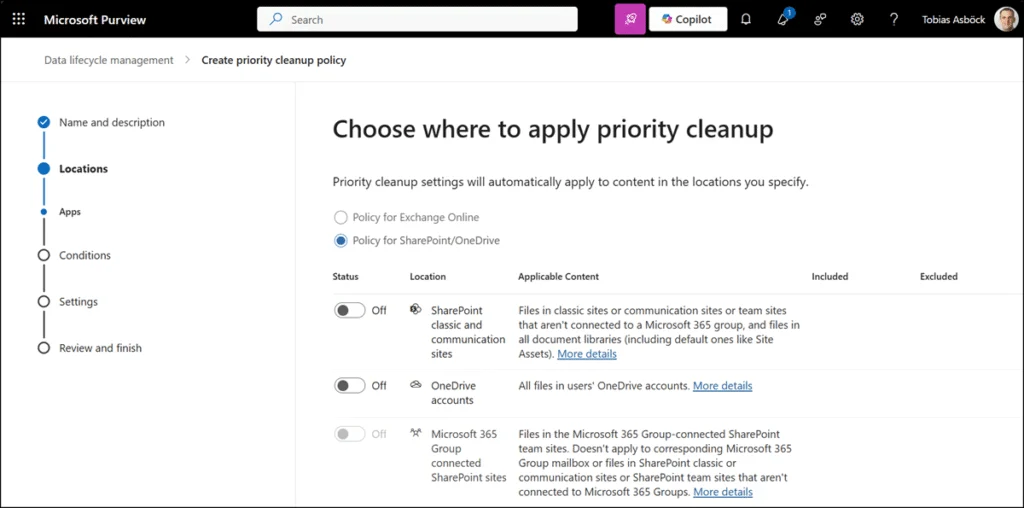
Pic. 8. Creating a Priority cleanup policy in Microsoft Purview.
Restoring a file from the Preservation Hold Library
Restoration is manual and lossy. With site collection admin rights, open the library, find the version you need, and download or copy it back into the active library. What comes back is a standalone copy — original metadata, version history and folder context are not restored with it. The preserved copy stays in the library until its retention period expires regardless.
For anything with legal weight, use eDiscovery rather than a manual copy: it’s the supported path and it produces a defensible record of the export.
Five mistakes worth avoiding
- Trying to delete the library itself. It clears itself once nothing covers the site. Manual attempts fail and waste a maintenance window.
- Cleaning up while a policy is still active. Deleting the source files just copies more into the library. Storage goes up, not down.
- Treating the Recycle Bin as proof of deletion. Emptying it changes nothing about preserved content.
- Assuming versioning is free. Turning on versioning is what makes full version history preservable — and it’s also what makes the library grow on record-labelled content.
- Applying one broad tenant-wide policy. Scoping retention to the sites that genuinely need it is the single most effective way to keep Preservation Hold Libraries small.
Keeping SharePoint tidy around retention
The Preservation Hold Library is a symptom, not the disease. Most of the growth admins blame on it starts with libraries that were never curated: duplicates nobody removed, exports nobody archived, folders past the 5,000-item list view threshold that are painful to clean in the native UI.
That work has to happen before retention expands to cover it, and after policies are released — and it is exactly the kind of bulk operation the native interface handles badly.
The Virto Multiple Operations App for SharePoint Online & Microsoft 365 adds bulk upload, bulk metadata editing and bulk delete, filtering by date, author or file type, and handling for libraries past SharePoint’s threshold limits — from a visual interface rather than PowerShell. A worked walkthrough of the native alternatives lives in our guides to bulk upload and download, bulk edit and share and bulk delete and copy.
One clarification, because it matters: no third-party app can delete content out of a Preservation Hold Library while a policy or hold is active — that is a Purview-side action only. What a tool like this changes is how much ends up in there, and how quickly you can tidy up once retention is lifted.
Every app in the Virto apps for SharePoint catalogue comes with a 30-day free trial, on-premises and Microsoft 365 editions included.
FAQ
Does the Preservation Hold Library count against storage?
Yes. Everything in it counts fully against the SharePoint site or OneDrive storage quota, the same as an ordinary file. Microsoft recommends planning for extra storage before enabling retention.
Can I delete the Preservation Hold Library?
Not while a retention policy, retention label or eDiscovery hold covers the site. It is deleted automatically once nothing protects the content and the timer job has run. To force the issue, use Priority cleanup in Microsoft Purview.
How do I delete the Preservation Hold Library with PowerShell?
You don’t — Microsoft blocks it. Use PowerShell to investigate instead: Get-RetentionCompliancePolicy and Get-RetentionComplianceRule in Security & Compliance PowerShell to list policies and their settings, and Get-SPOSite or Get-PnPTenantSite to check the site. Deletion is a Purview action.
How long does content stay in the Preservation Hold Library?
Until its retention period expires, plus up to 37 days — the cleanup timer job only looks at content older than 30 days and runs every seven days. After that it moves to the second-stage Recycle Bin for 93 days.
Why does my OneDrive show as full when it looks empty?
Almost always a Preservation Hold Library holding copies the user can’t see. Check it from the Microsoft 365 admin center via the user’s OneDrive site contents.
Does editing a file always create a copy?
No. A retention policy creates a copy on edit; a standard retention label creates one only on delete. Labels that mark items as records create a copy when an unlocked item is edited, and block the action entirely for locked items and regulatory records.
Can users see the Preservation Hold Library?
No. It’s hidden from end users in the web interface, File Explorer and search. Site collection admins and SharePoint admins can open it, and eDiscovery can search it.
Do all versions of a file get copied separately?
Not since July 2022. Versions of a non-record file are retained inside a single file in the library. Versions of items marked as records are still stored as separate files so they can expire independently.
Is the Preservation Hold Library covered by Microsoft 365 Backup?
Microsoft 365 Backup protects your live SharePoint and OneDrive content. Preserved copies exist to satisfy retention and legal hold, which is a different job — treat retention and backup as separate layers, not substitutes.
Conclusion
The Preservation Hold Library is doing exactly what it was designed to do: making sure content under retention or legal hold survives a user’s delete key. The storage surprise is the cost of that guarantee, not a bug.
Manage it at the policy level. Scope retention to the sites that genuinely need it, set periods that match real legal requirements rather than “forever, just in case”, turn versioning on deliberately, and watch storage reports on collaborative sites where files change constantly. When you do need the space back and the policy can’t wait, Priority cleanup is now the supported route — with the approvals and audit trail that make it defensible.