A practical 2026 guide to what OneDrive for Business is, what it does, what it costs, and how to get real work done with it — plus how it differs from personal OneDrive.
Quick answer. OneDrive for Business is the Microsoft 365 cloud-storage service for an individual’s work files — backed by SharePoint — with sync, secure sharing and admin controls that personal OneDrive doesn’t have.
OneDrive for Business is an enterprise cloud-storage service built into Microsoft 365. Unlike the consumer version, it gives employees a secure place to store, sync and share work files while IT keeps control over security and compliance. It integrates tightly with SharePoint, Teams and the Office apps, so files move between tools without friction. This guide walks through its key features, its pricing in 2026, how it compares to personal OneDrive, and how to set it up and use it at work.
What Is OneDrive for Business?
OneDrive for Business (sometimes called OneDrive for work) is the cloud file-storage service that ships with Microsoft 365 business and enterprise subscriptions. It provides centralized storage, enterprise security and collaboration features aligned to organizational needs, and it integrates with SharePoint, Teams and Office (Word, Excel, PowerPoint).
It’s worth being clear about the OneDrive–SharePoint relationship, because it’s the source of most confusion: OneDrive is designed for an individual’s work files, while SharePoint powers team sites and broader collaboration. Files synced from a SharePoint document library actually use the OneDrive sync client — the two services are closely linked under the hood. For a full breakdown, see our guide to SharePoint vs OneDrive.
Key capabilities: what does OneDrive for Business do?
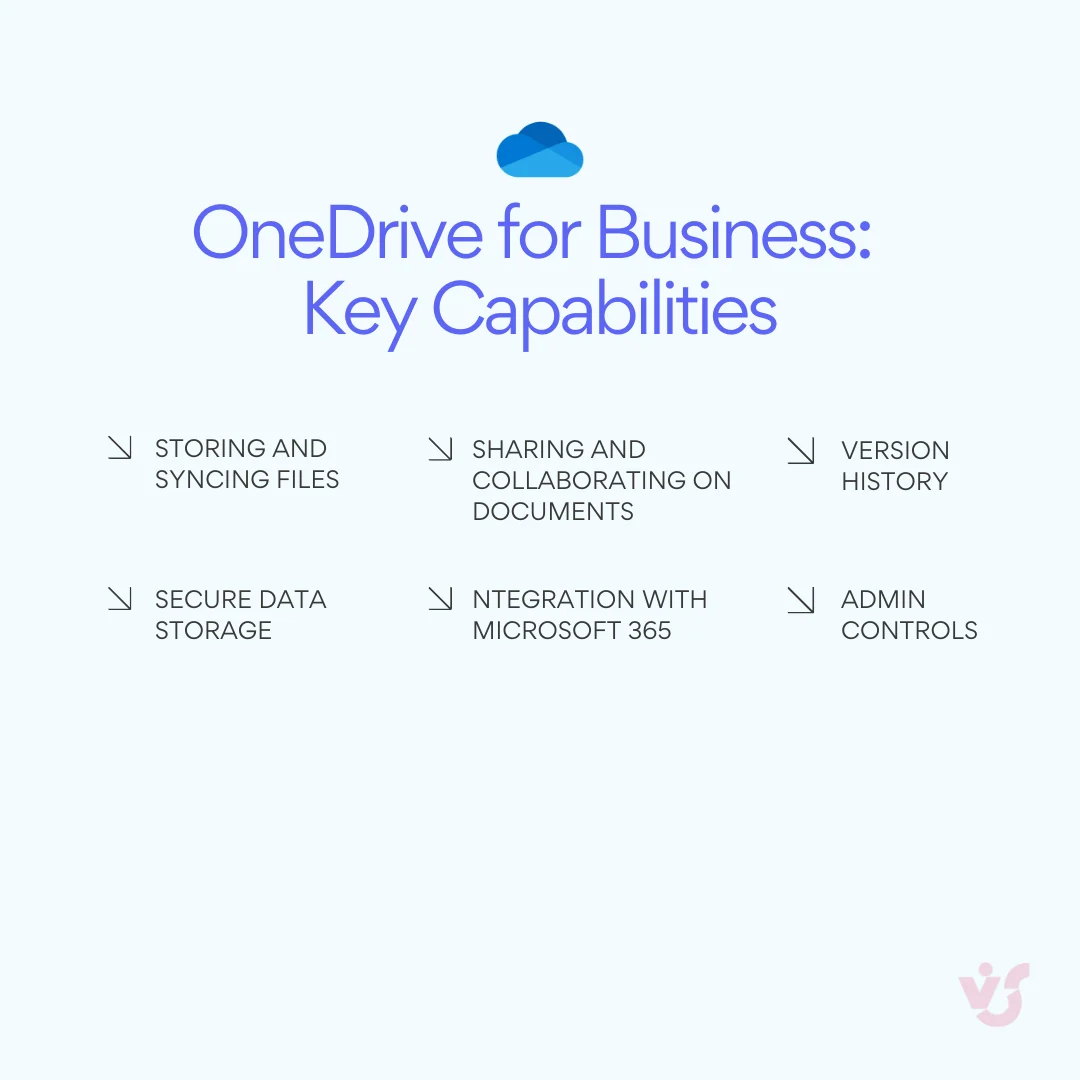
Pic. 1. OneDrive for Business key capabilities.
- Store and sync files: keep any file type in the cloud, available across devices (including iOS and Android apps). Files sync automatically, and offline changes sync when you reconnect.
- Share and collaborate: share files and folders internally or externally with granular permissions and link expiry, and co-author Word, Excel and PowerPoint in real time.
- Microsoft 365 integration: work directly with Office apps, manage team documents in SharePoint, and share files inside Teams chats and meetings.
- Secure storage: encryption in transit and at rest, multi-factor authentication, and compliance with standards such as GDPR and HIPAA.
- Version history: track changes and roll back to earlier versions of a file.
- Admin controls: manage user access, storage quotas (typically 1 TB or more per user) and security policies from a central console.
Does OneDrive for Business still exist? Yes — and it’s actively developed
Yes. OneDrive for Business remains a core, actively developed part of Microsoft 365, with ongoing improvements to features, security and administration. Recent updates include:
- File management: OneDrive now trims trailing spaces in file and folder names to prevent sync issues, and colored folders in Windows File Explorer help with organization.
- Interface: a sync status view in File Explorer surfaces sync state, quota and settings at a glance, and confirmation dialogs appear when deleting shared files.
- Open in native apps: open files directly in their native desktop application from OneDrive, SharePoint or Teams, with changes saved back to the cloud.
- Backup and conflict resolution: turning off folder backup can restore files to their original locations, and Office document conflict handling has improved.
Note on inactive accounts. Since January 2025, unlicensed OneDrive accounts that stay inactive are automatically archived — they become inaccessible to users while remaining visible to admins — which gives organizations stronger governance over dormant accounts. This is part of Microsoft 365 Archive.
More detail is in the official OneDrive release notes and the Microsoft Learn article on unlicensed accounts.
Key Features of OneDrive for Business
Beyond the basics, here’s how organizations actually put OneDrive for Business to work day to day — for file management, collaboration, syncing and security.
File storage and organization
OneDrive for Business provides centralized cloud storage where users can upload, organize and find files. You can upload files and folders from a computer or mobile device, keep documents in a structured folder system, and use search to locate files by keyword, metadata or filters.
Example: a marketing team stores campaign assets in organized folders and uses search to pull the latest version of a presentation instead of digging through email.
Collaboration: sharing and editing
- Grant access to colleagues, clients or external partners via a secure link or by adding specific users.
- Set permissions — view-only, edit or comment — to control how recipients interact with a file.
- Co-author in real time on Word, Excel and PowerPoint files inside Microsoft 365 apps.
- Version history lets you track changes and restore earlier versions.
Example: a law firm drafts contracts in OneDrive and shares them with clients in comment-only mode so clients can give feedback without editing the original.
Sync across devices
- Access files from desktop, laptop, tablet or mobile.
- Automatic syncing keeps changes current across every connected device.
- Files On-Demand lets you see cloud files without downloading them, saving local space.
Example: a travelling sales team retrieves updated proposals on their laptops before meetings, even offline.
Security and management
- Encryption in transit and at rest.
- Access control — restrict sharing, enforce MFA, require password-protected links.
- Sensitivity labels classify and protect sensitive information.
- Data Loss Prevention (DLP) stops sensitive data from being shared inappropriately.
- Conditional access, MDM integration, eDiscovery and legal hold extend control and compliance.
- Recovery: deleted files sit in the recycle bin for up to 93 days, and ransomware detection flags suspicious activity.
Example: a healthcare provider stores patient records in OneDrive, enables MFA and restricts access to authorized personnel to meet HIPAA requirements.
OneDrive vs OneDrive for Business: The Short Version
OneDrive and OneDrive for Business share a name and a core purpose — cloud storage and file sync — but they’re built for different users. Personal OneDrive is self-managed storage for an individual’s photos and documents. OneDrive for Business is organization-owned, IT-governed storage with enterprise security, compliance and collaboration built in.
| Aspect | OneDrive (Personal) | OneDrive for Business |
|---|---|---|
| Purpose | Personal cloud storage for individuals. | Enterprise cloud storage for organizations. |
| Ownership & control | Owned and managed by the individual user. | Owned by the organization; IT admins govern access and policy. |
| Security & compliance | Basic personal-account protection. | Encryption, MFA, DLP, sensitivity labels, GDPR/HIPAA compliance. |
| Collaboration | File sharing with basic permissions. | Real-time co-authoring, version control, enterprise sharing controls. |
| Storage | 5 GB free; 100 GB–1 TB via consumer plans. | 1 TB per user (up to 5 TB on E3/E5). |
| Backup & recovery | Basic recycle bin and file recovery. | Ransomware detection, IT-managed recovery, retention rules. |
| Integration | Consumer Microsoft services. | Deeply embedded in Microsoft 365 (Teams, SharePoint, Office). |
In short: choose personal OneDrive for your own files across personal devices; choose OneDrive for Business when you need IT-managed security, compliance and Microsoft 365 integration. For a deeper side-by-side — including pros, cons and when to use each — read our dedicated guide, SharePoint vs OneDrive: Key Differences Explained. You may also find SharePoint vs Google Drive useful if you’re weighing Microsoft against Google’s ecosystem.
Advantages and Disadvantages of OneDrive for Business
Advantages
- Availability and access — cloud-based, cross-platform (Windows, macOS, iOS, Android), web access with no install, and 99.9%+ uptime backed by Microsoft’s global data centers.
- Microsoft 365 integration — works with Teams, SharePoint, Outlook and Office; single sign-on via Microsoft Entra ID; Power Automate workflows; unified Microsoft Search.
- Security and compliance — encryption, MFA, granular access, ransomware detection, conditional access, sensitivity labels, DLP and customizable sharing links (expiry, passwords, block-download).
- Sync and offline access — Files On-Demand, automatic and selective sync, browser-based offline options, and clearer sync-status visibility in File Explorer.
- Storage — 1 TB per user (expandable to 5 TB on enterprise plans), large-file support up to 250 GB, storage analytics and quota policies.
- AI and productivity — with a Microsoft 365 Copilot license, ask questions about files, get summaries, use natural-language search and AI-driven recommendations.
- Collaboration — granular permissions, co-authoring, comments and @mentions, shortcuts to shared content, and controlled external sharing.
Disadvantages
- Learning curve — users moving from traditional file servers can struggle with sharing links, sync-status icons and the OneDrive-vs-SharePoint distinction.
- Cost considerations — it requires a paid Microsoft 365 subscription; extra storage, advanced security/compliance, SharePoint Advanced Management and Copilot all cost more.
- Sync and bandwidth — large files and huge libraries can strain networks; long file paths (over ~400 characters) can break sync; VPNs and metered connections add complexity.
- Limited advanced file management — no custom metadata, content types, document sets or in-place records management like SharePoint; search and workflow options are more basic.
- Technical limits and dependencies — full functionality needs reliable internet; some file formats have preview/sync quirks; cross-tenant collaboration and mobile parity have gaps.
- Security–convenience tradeoffs — strict controls can frustrate users and encourage shadow IT; managing permissions and external sharing at scale takes diligence.
- Migration challenges — moving from legacy file servers is technically involved: initial sync time, permission mapping, special-character issues and change management all add effort.
OneDrive for Business Pricing in 2026: What Does It Cost?
For most organizations, OneDrive for Business comes bundled inside a Microsoft 365 subscription rather than as a product you buy on its own. There are two important 2026 changes to know before you plan a budget.
Two 2026 changes to note. First, Microsoft is retiring the standalone OneDrive for Business plans (Plan 1 and Plan 2): new sign-ups stopped on 31 May 2026, renewals end in 2027, and the plans are fully retired by 2029. If you just need team storage, the path now is a Microsoft 365 business plan. Second, Microsoft raised prices on most commercial Microsoft 365 plans on 1 July 2026, so several figures below moved mid-year. Always confirm the live price at checkout.
Microsoft 365 business plans (include OneDrive)
Each of these gives every user 1 TB of OneDrive storage. Prices are per user, per month (US list price, annual commitment) as of mid-2026:
- Microsoft 365 Business Basic — ~$6–$7/user/month: web and mobile Office apps, 50 GB Exchange mailbox, Teams, SharePoint and 1 TB OneDrive.
- Microsoft 365 Business Standard — ~$12.50–$14/user/month: everything in Basic plus the desktop Office apps, Loop, Clipchamp, Bookings and webinars.
- Microsoft 365 Business Premium — ~$22/user/month: everything in Standard plus Intune device management, Entra ID P1 conditional access and Defender for Business.
Business plans cap at 300 users per tenant.
Enterprise (E-series) plans
- Microsoft 365 F3 — for frontline workers; limited OneDrive storage (around 2 GB/user).
- Microsoft 365 E3 — 1 TB per user, admin-raisable to 5 TB; desktop Office, advanced management and compliance. List price rose to about $39/user/month on 1 July 2026.
- Microsoft 365 E5 — 1 TB per user (up to 5 TB); premium security, compliance and analytics for large or regulated enterprises.
📌 Tip: Only tenants with five or more users are eligible for the 5 TB per-user raise, and admins must request it — Microsoft doesn’t raise the quota automatically. Beyond 5 TB, additional storage is provisioned via support.
Storage at a glance
- Most plans: 1 TB per user.
- Microsoft 365 F3: roughly 2 GB per user.
- E3 / E5: 1 TB by default, raisable to 5 TB per user on request; the tenant also gets a separate SharePoint pool (1 TB base + 10 GB per licensed user).
What OneDrive is — and isn’t — for
Microsoft’s service description is explicit that OneDrive is intended for an individual’s work files, not for system backups, departmental or organization-wide data repositories, or non-human (bot/service) accounts. For those broader content-management needs, Microsoft points you to SharePoint.
When choosing a plan, weigh your current Microsoft footprint, whether staff work online or offline, real storage needs, security requirements, budget and how your needs may scale. For most teams already in Microsoft 365, the bundled OneDrive storage is effectively free, so the decision is really about which suite fits.
How to Get Started with OneDrive for Business
Here’s how to sign in, install the app, set up sync, organize files, collaborate and troubleshoot.
Sign up and set up
Step 1: Sign in
OneDrive for Business is included in Microsoft 365 business and enterprise plans, so if your organization uses Microsoft 365, you already have it. Go to onedrive.com, click Sign in, and enter your Microsoft 365 work credentials — or open OneDrive from the Microsoft 365 app launcher (the waffle icon) in any Microsoft 365 web app. If you don’t have access, ask your IT administrator.
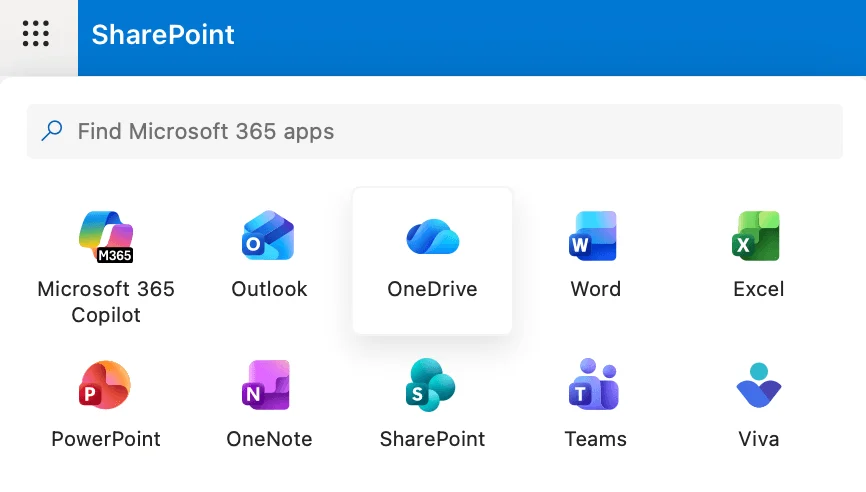
Pic. 2. Locating OneDrive for Business in the Microsoft 365 app launcher.
📌 Tip: Your storage is typically 1 TB but can vary by subscription — check with IT for your exact limit.
Step 2: Install OneDrive on your devices
On Windows 10/11, OneDrive is pre-installed — just sign in. For other systems, download the app from Microsoft’s OneDrive download page, run the installer and sign in with your work account. On mobile, install Microsoft OneDrive from the App Store or Google Play, sign in, and optionally enable camera upload and biometric unlock.
📌 Tip: The mobile app can scan documents, whiteboards and business cards straight into OneDrive.
Step 3: Choose which folders sync
After you sign in, OneDrive creates a “OneDrive – [Your Organization]” folder in Finder (Mac) or File Explorer (Windows), and anything you put there syncs to the cloud. To control which folders sync down to this device, open OneDrive settings and pick them:
- On Mac: click the OneDrive cloud icon in the top menu bar → the gear/settings icon → Preferences, then open the Account tab and click Choose Folders. Tick the folders you want available on this Mac and click OK.
- On Windows: click the OneDrive cloud icon in the taskbar → Help & Settings → Settings → Account → Choose folders, select the folders to sync and click OK. (Windows also offers a Backup tab for automatically backing up Desktop, Documents and Pictures — see Manage Backup there if your version shows it.)
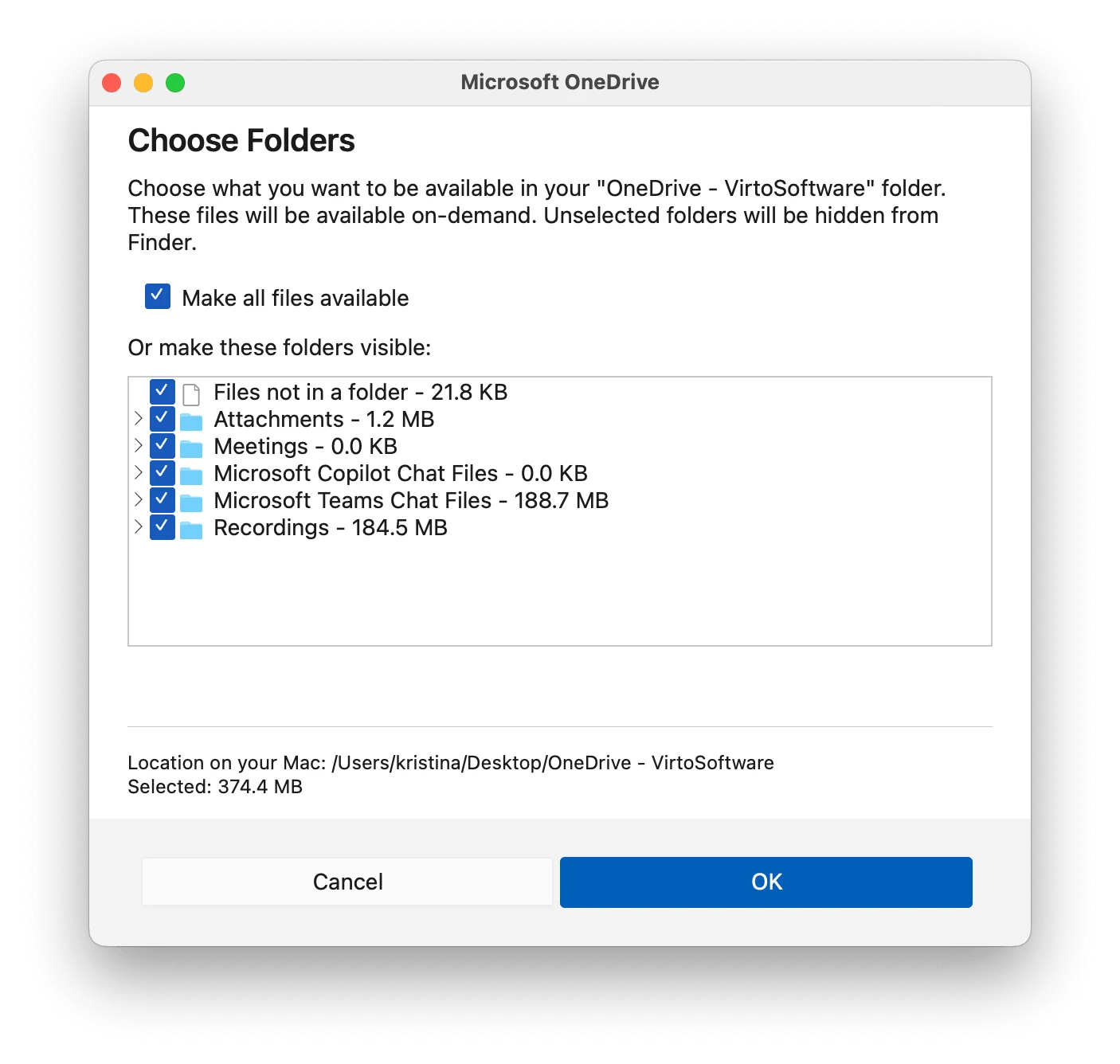
Pic. 3. Choosing which folders sync in the OneDrive Account tab (Mac).
📌 Tip: Your files live under “OneDrive – [Your Organization]” in Finder or File Explorer. The sync client supports files up to 250 GB. The Account tab is also where you’ll find Manage Storage, Add an Account and Unlink this Mac.
Step 4: Save disk space with Files On-Demand
Files On-Demand lets you see every file without downloading it, so cloud-only items take no local space until you open them. On Mac, open the OneDrive cloud icon (menu bar) → gear icon → Preferences → the Preferences tab, and under “Files On-Demand (Advanced)” choose “Download files as you use them (recommended).” The same tab also has options to hide the Dock icon, warn you before deleted files are removed from the cloud, and save screenshots to OneDrive. On Windows, this setting sits under Settings → Sync and Backup as “Save space and download files as you use them.”
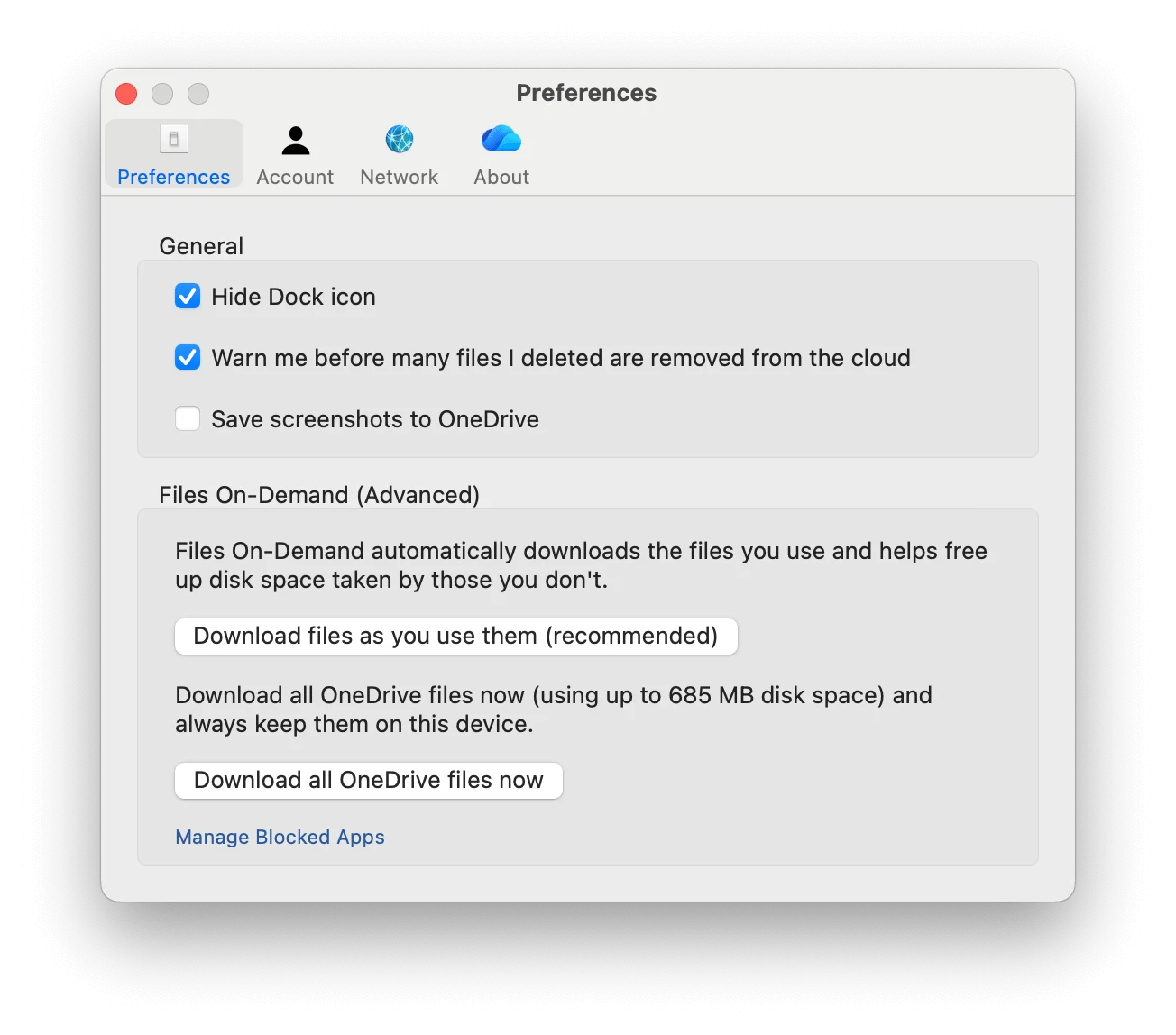
Pic. 4. The Files On-Demand options in the OneDrive Preferences tab (Mac).
Once Files On-Demand is on, file icons in Finder or File Explorer tell you each file’s state:
- Cloud icon: online-only file, no local space used.
- Green checkmark: file available locally.
- Solid green circle: always kept on this device (pinned).
- Circular arrows: file is syncing.
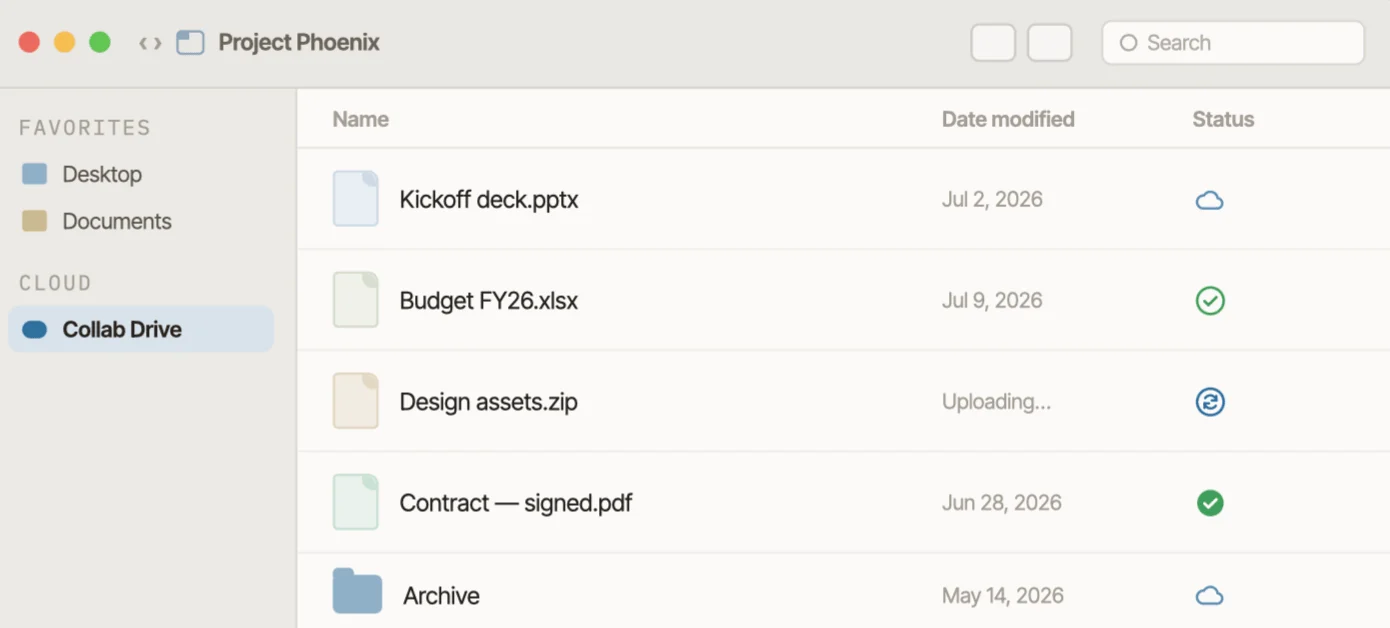
Pic. 5. File sync-status icons in Finder (Mac).
Making files available offline on Mac. Open the OneDrive folder in Finder, right-click a file or folder inside it, and choose “Always keep on this device” to pin it for offline use, or “Free up space” to make it online-only again. These options only appear on items inside the OneDrive folder (not always on top-level folders) and only when the OneDrive Finder extension is enabled. If you don’t see them, turn on the extension in System Settings → General → Login Items & Extensions → Finder (enable “OneDrive Finder Integration”), then relaunch Finder. To pull everything down at once, use the OneDrive menu-bar icon → gear → Preferences → Preferences tab → “Download all OneDrive files now.”
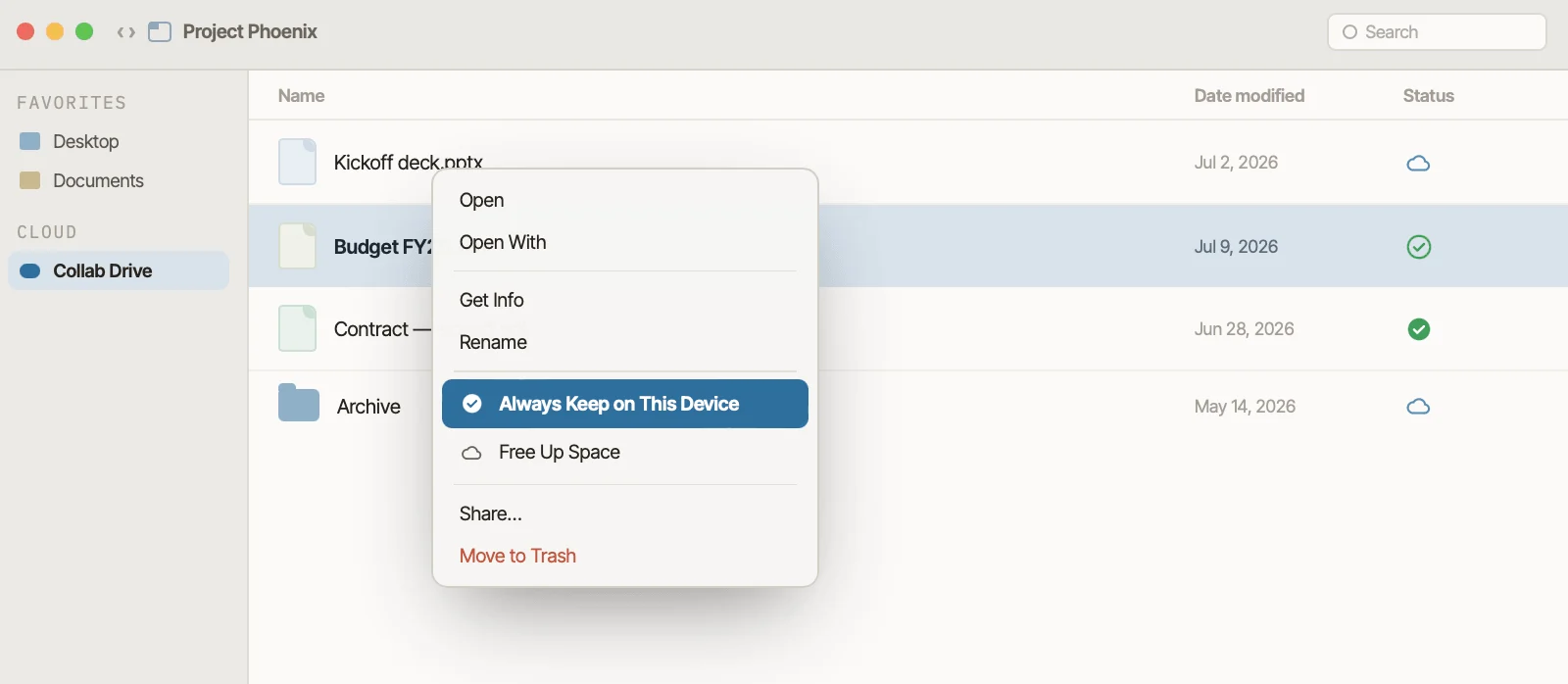
Pic. 6. The “Always keep on this device” option in Finder (Mac).
Sync files between devices
Once OneDrive is installed, anything you save to your OneDrive folder syncs to the cloud and to your other devices. To move files in, drop them into the “OneDrive – [Your Organization]” folder in Finder or File Explorer. On mobile, open the OneDrive app, browse and tap a file; long-press and choose “Make available offline” for files you need without a connection.
📌 Tip: If sync seems stuck, click the OneDrive icon, pause syncing for two hours, then resume to reset the connection.
For performance on limited devices, open OneDrive settings and go to the Network tab (menu bar → gear → Preferences → Network on Mac; taskbar icon → Help & Settings → Settings → Network on Windows) to adjust upload and download rates. On Windows you can also enable “Don’t sync in metered networks” and exclude file types you don’t need synced (for example .mp4 or .pst).
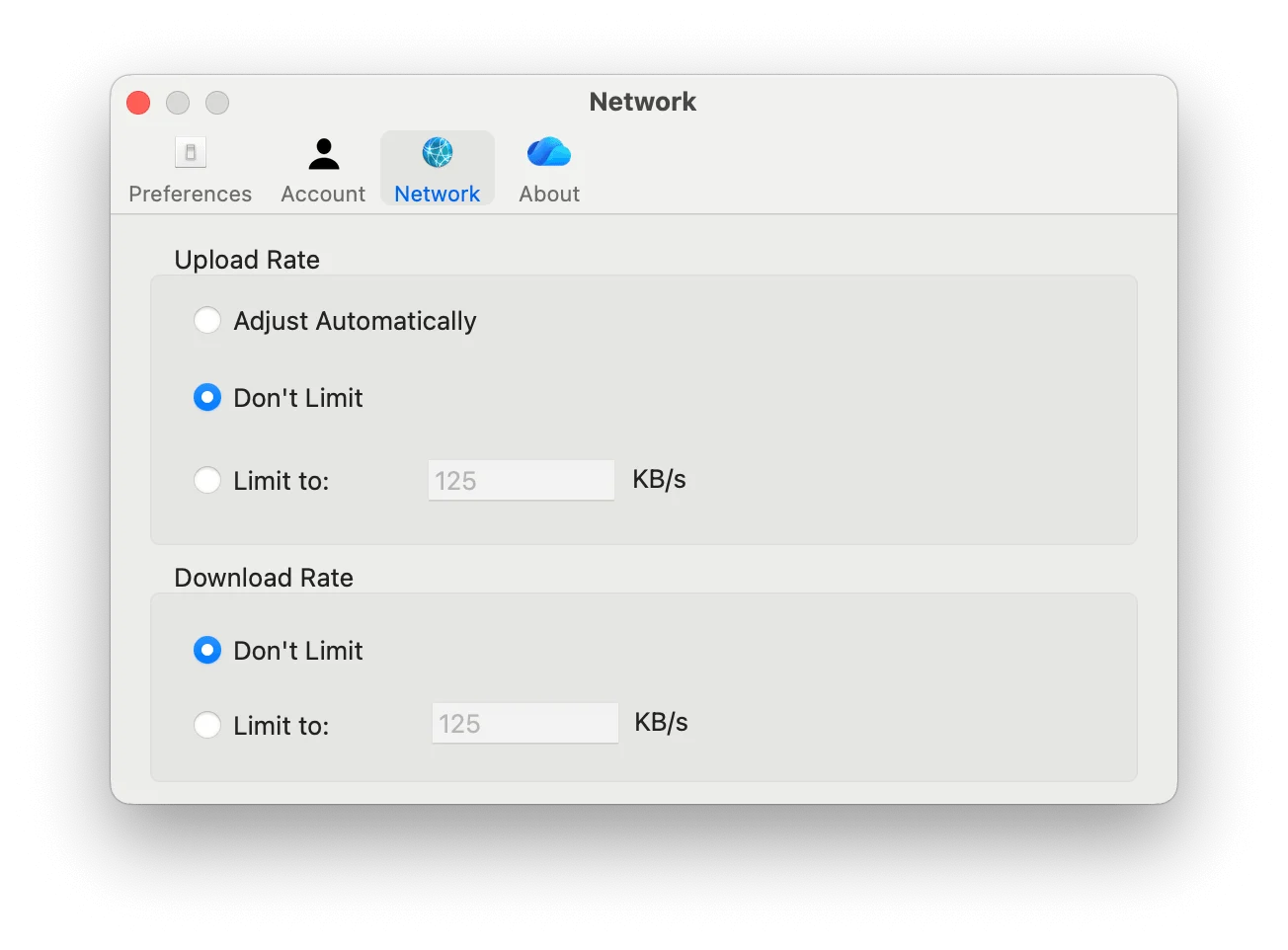
Pic. 7. The Network tab in the OneDrive app (Mac).
Organize and manage your files
- Build a clear hierarchy by project, client or department, with consistent naming conventions.
- Use colored folders (right-click a folder → Color) to categorize content visually.
- Mark favorites (hover a file → star) and add shortcuts to shared content (“Add shortcut to My files”) for quick access.
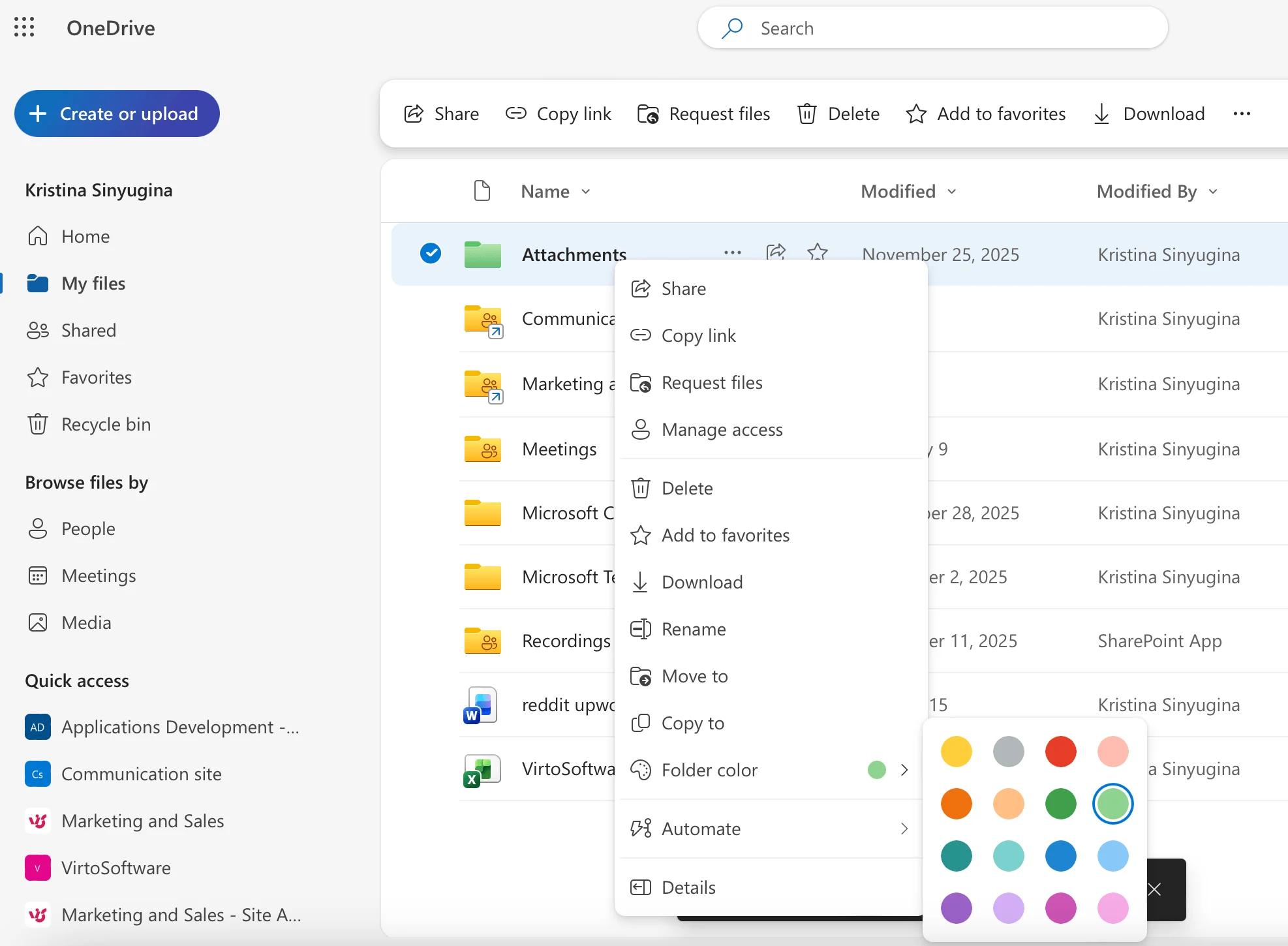
Pic. 8. Choosing a color for a folder in OneDrive.
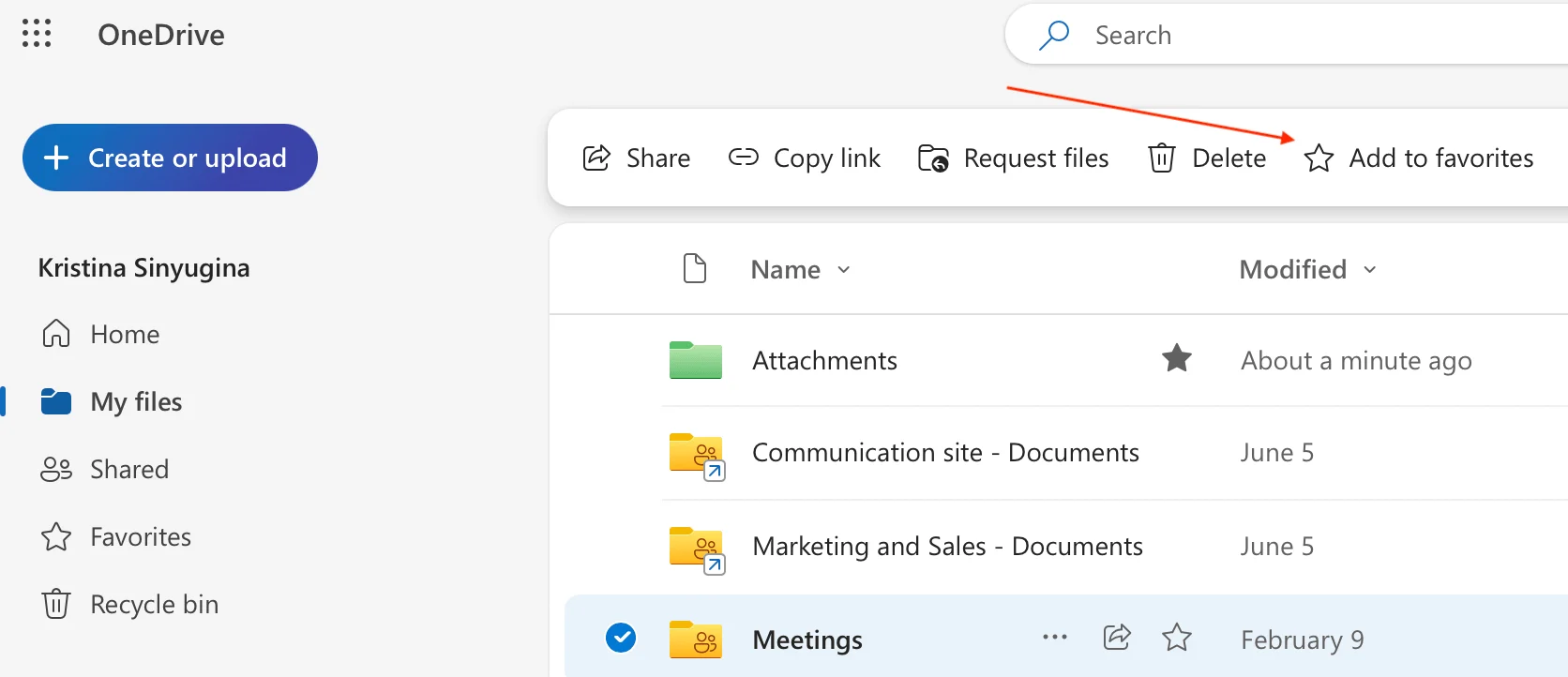
Pic. 9. The ribbon menu with the “Favorite” and “Add shortcut” options in OneDrive.
📌 Tip: Don’t nest folders too deeply — path lengths over ~400 characters can cause sync issues.
Collaborate with OneDrive for Business
To share, right-click a file or folder → Share, add email addresses, and pick a permission level (edit, view or review). Add options if needed — block download, set an expiration date, or require a password — then send or copy the link. Manage who has access anytime via “Manage access.”
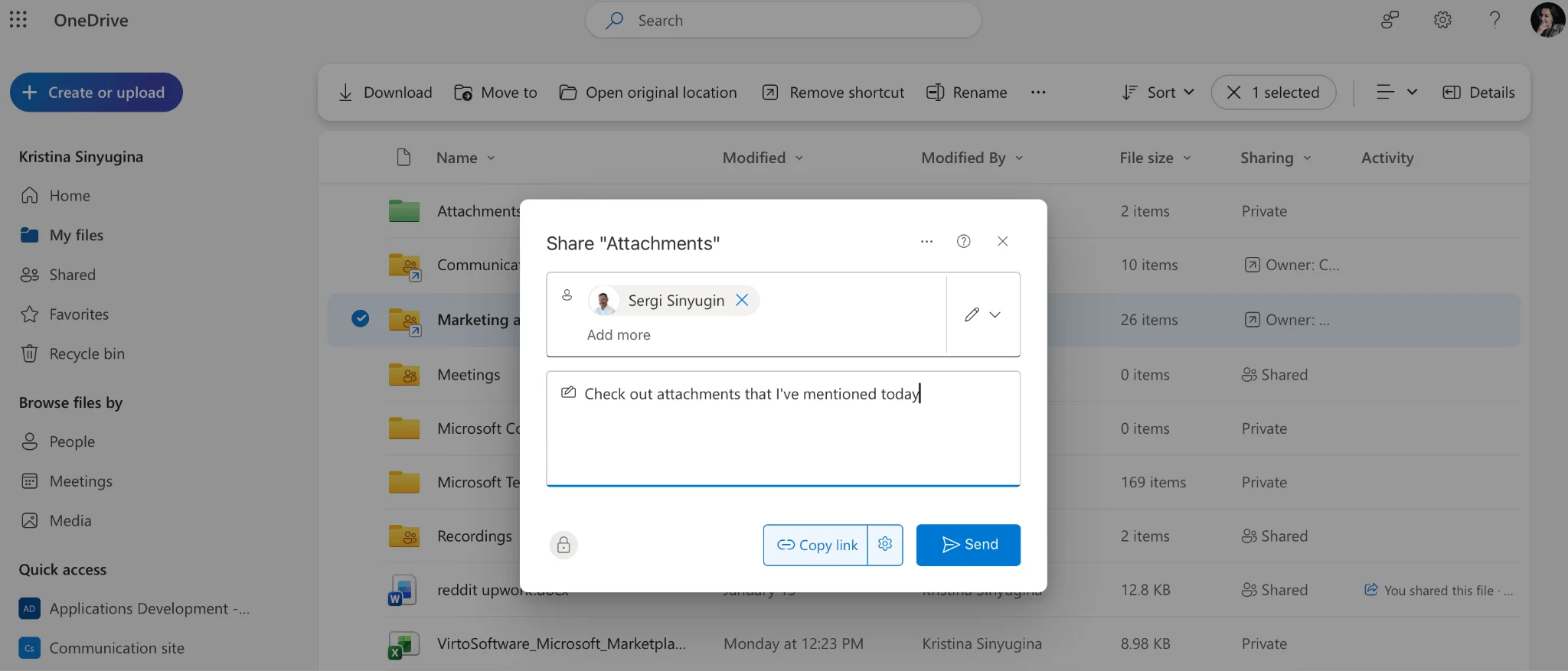
Pic. 10. Sharing a file in OneDrive.
For real-time co-authoring, open a Word, Excel or PowerPoint file stored in OneDrive, click Share and invite people. Everyone can edit in Microsoft 365 online or the desktop app, changes appear live, and presence indicators show who’s working. Use comments with @mentions to notify colleagues, and check version history to review or restore earlier versions.
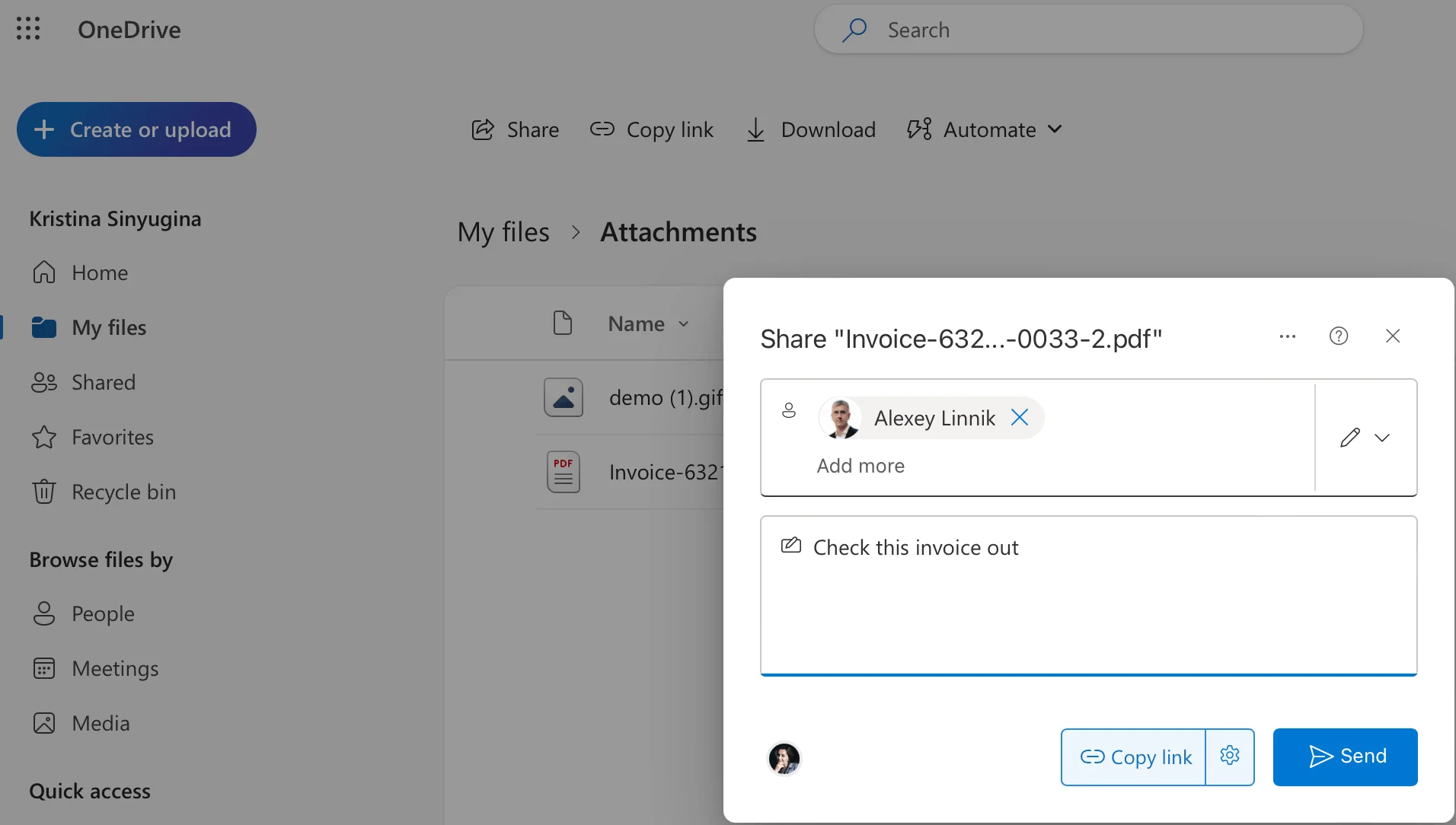
Pic. 11. Sharing a document in OneDrive.
📌 Tip: The “Open in App” feature (right-click a file → Open → Open in app) opens any file type in its native desktop application — useful for CAD, Photoshop or audio files — and saves changes back to OneDrive.
Work on the go and troubleshoot
The mobile app gives you Home, Files, Photos and Shared views plus search that can find text inside images, and it can scan documents via the + icon. Secure it with biometric unlock, an app PIN, and Intune app protection if your organization uses it.
If sync breaks, check your connection, look for locks by other apps, and use “View sync problems” to resolve conflicts; if needed, unlink and re-add the PC (OneDrive icon → Settings → Account → Unlink this PC). To manage space, check used/available storage at the bottom of the OneDrive web navigation, sort by size, delete large unneeded files and empty the recycle bin.
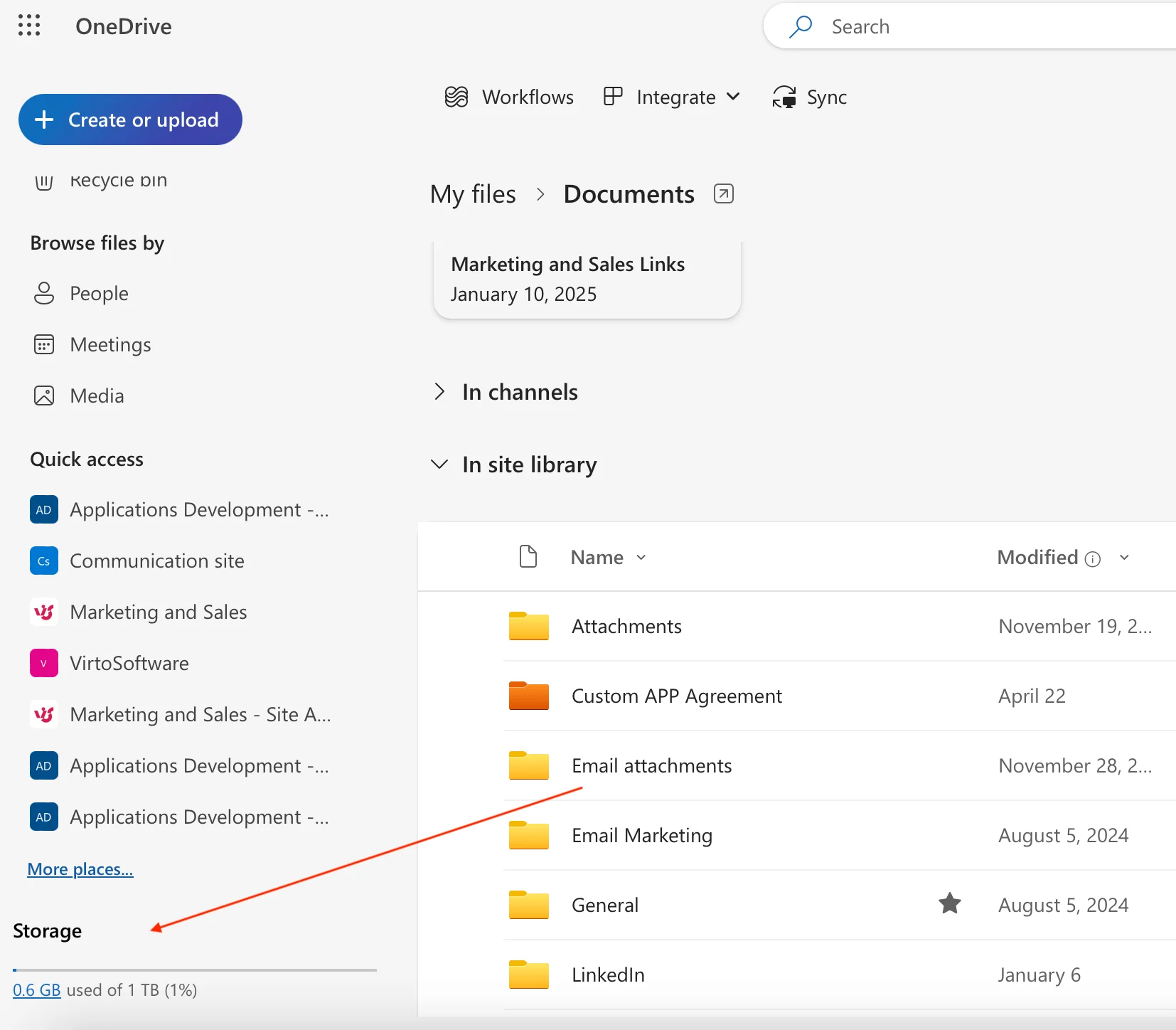
Pic. 12. Checking available storage in OneDrive.
📌 Tip: Low on space? Move older, rarely used files to a SharePoint document library (usually a separate storage pool) or ask IT for more.
Leverage advanced features
With a Microsoft 365 Copilot license, use the OneDrive search bar to ask natural-language questions like “find the marketing deck I worked on last week” or “summarize the quarterly report.” To automate work, select a file → Automate → Create a flow in Power Automate to send notifications on changes, convert file formats, move files by content, or request approvals. Some options may vary depending on how your IT administrator has configured your tenant.
Is OneDrive Enterprise the same as OneDrive for Business? Effectively, yes. “OneDrive Enterprise” isn’t an official Microsoft product name — people use it to describe OneDrive for Business deployed in an enterprise with custom security and governance. Microsoft markets the service as “OneDrive for Business” across its documentation.
How Do I Use OneDrive for Business at Work?
OneDrive for Business is more than storage — it’s a productivity hub. Common use cases include:
- Managing corporate files with version history and retention policies, so you always have the latest version and can restore earlier ones.
- Collaborating on projects through co-authoring, shared folders, comments and @mentions — cutting email chains and version confusion.
- Acting as a personal hub for working documents before finalized versions move to SharePoint for the team.
- Streamlining content creation by starting in Office apps and saving straight to OneDrive, with web apps for quick edits anywhere.
- Secure external sharing via permissioned links with expiry dates and passwords, plus access analytics for compliance.
By organization size
- Small businesses (1–50): use OneDrive as an all-in-one store-and-collaborate solution and a mobile workspace for client meetings and travel.
- Larger companies (250+): pair OneDrive with SharePoint — individuals use OneDrive for works-in-progress, then publish to departmental SharePoint sites, with enterprise controls like conditional access and DLP.
- Remote teams: rely on selective sync, offline access and real-time collaboration to stay productive across locations and time zones.
Tips for using it effectively
- Keep folder nesting to 3–4 levels, use consistent naming (project codes, document types, dates), and apply permissions at the folder level with periodic access audits.
- Add metadata and searchable terms to important files so they’re easy to find.
- Coordinate co-authoring with presence indicators and comments rather than direct edits, and use version history before major changes.
- Automate recurring work with Power Automate — approvals, notifications, archiving completed projects and standardized folder creation.
How VirtoSoftware Apps Help You Work with OneDrive
OneDrive for Business handles storage and basic collaboration well, but many teams want richer project management, visualization and automation on top of their Microsoft 365 content. VirtoSoftware’s apps extend OneDrive and SharePoint to close that gap.
Virto Calendar App: unified scheduling
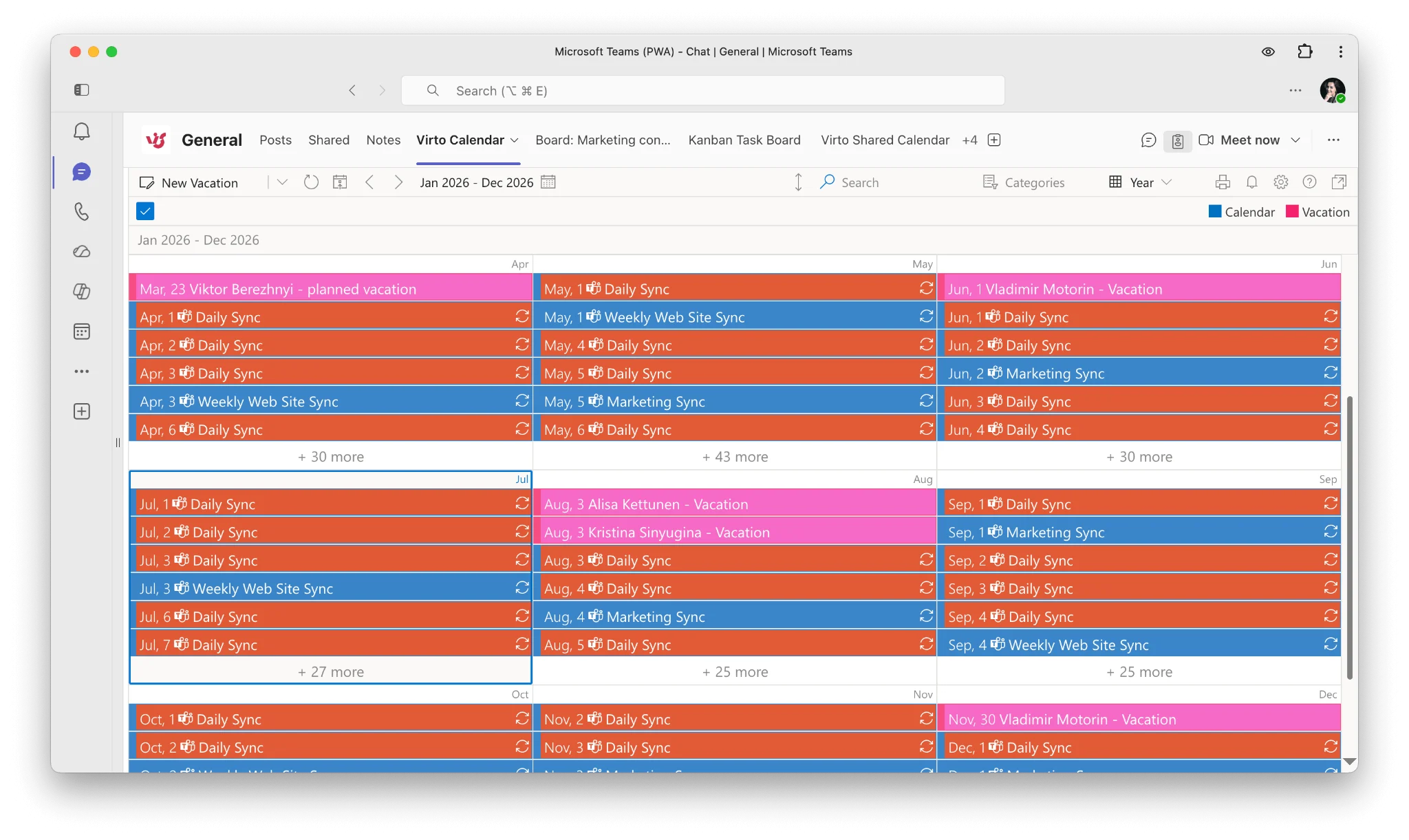
Pic. 13. Virto Calendar App.
When events and deadlines live across OneDrive, SharePoint, Outlook and other sources, keeping one clear view is hard. The Virto Calendar App consolidates them into a single hub — merging multiple calendars, connecting to OneDrive files, Outlook, SharePoint lists, Google Calendar and Apple/iCal, with color-coding, enterprise-grade security and access from SharePoint Online or Teams.
Virto Kanban Board: visual task management
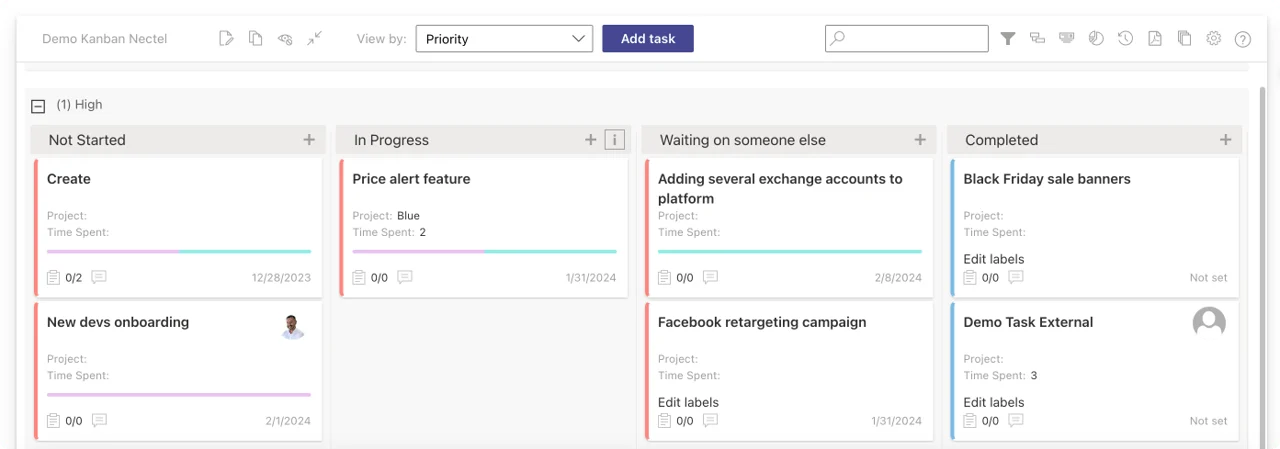
Pic. 14. Virto Kanban Board App.
The Virto Kanban Board turns file repositories into visual workflows: attach and open OneDrive files directly on Kanban cards, move tasks between stages with drag-and-drop while keeping document links intact, get notifications when task statuses change through Virto Alerts & Reminder App, included in the subscription, work inside Teams channels, and organize with customizable swimlanes and filters.
Virto Alerts & Reminders: proactive document management
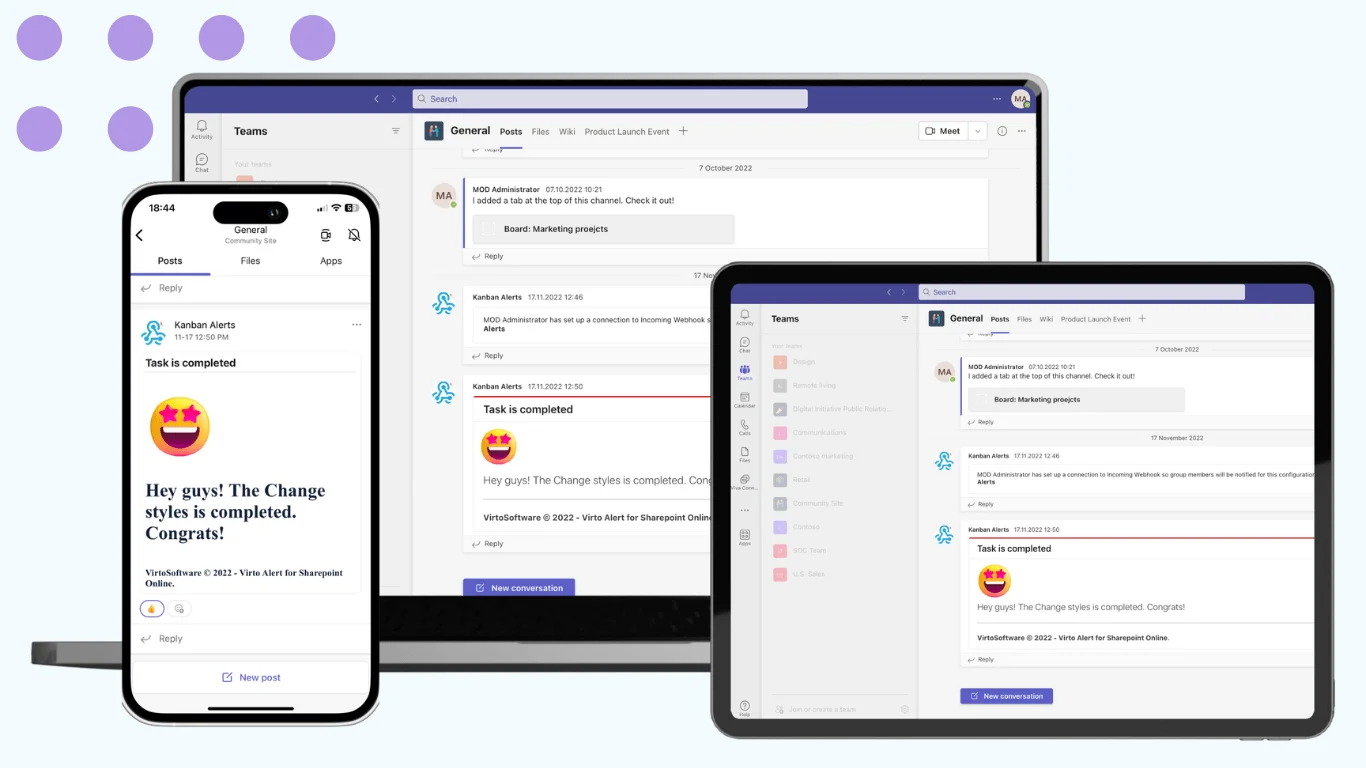
Pic. 15. Virto Alerts & Reminders App.
For teams that depend on timely reviews and approvals, Virto Alerts & Reminders adds custom alert triggers on OneDrive file events, scheduled reminders for review cycles and compliance checks, multi-channel delivery (Teams, email, mobile), approval-workflow integration and audit trails.
Together, these apps turn OneDrive from a file repository into an active collaboration environment. You can explore the full lineup in the VirtoSoftware apps catalog.
Conclusion
OneDrive for Business gives organizations reliable, secure cloud storage that’s tightly woven into Microsoft 365. With encryption, MFA, version history and granular sharing controls, your data stays protected while remaining available to the right people across devices. Its real strength is ecosystem integration: documents move naturally between Office, Teams and SharePoint without format headaches or context switching.
VirtoSoftware apps extend that foundation — adding project visualization, task tracking and automated notifications so teams focus on high-value work. To see how they fit your workflows, try a free trial of VirtoSoftware solutions or schedule a demo.