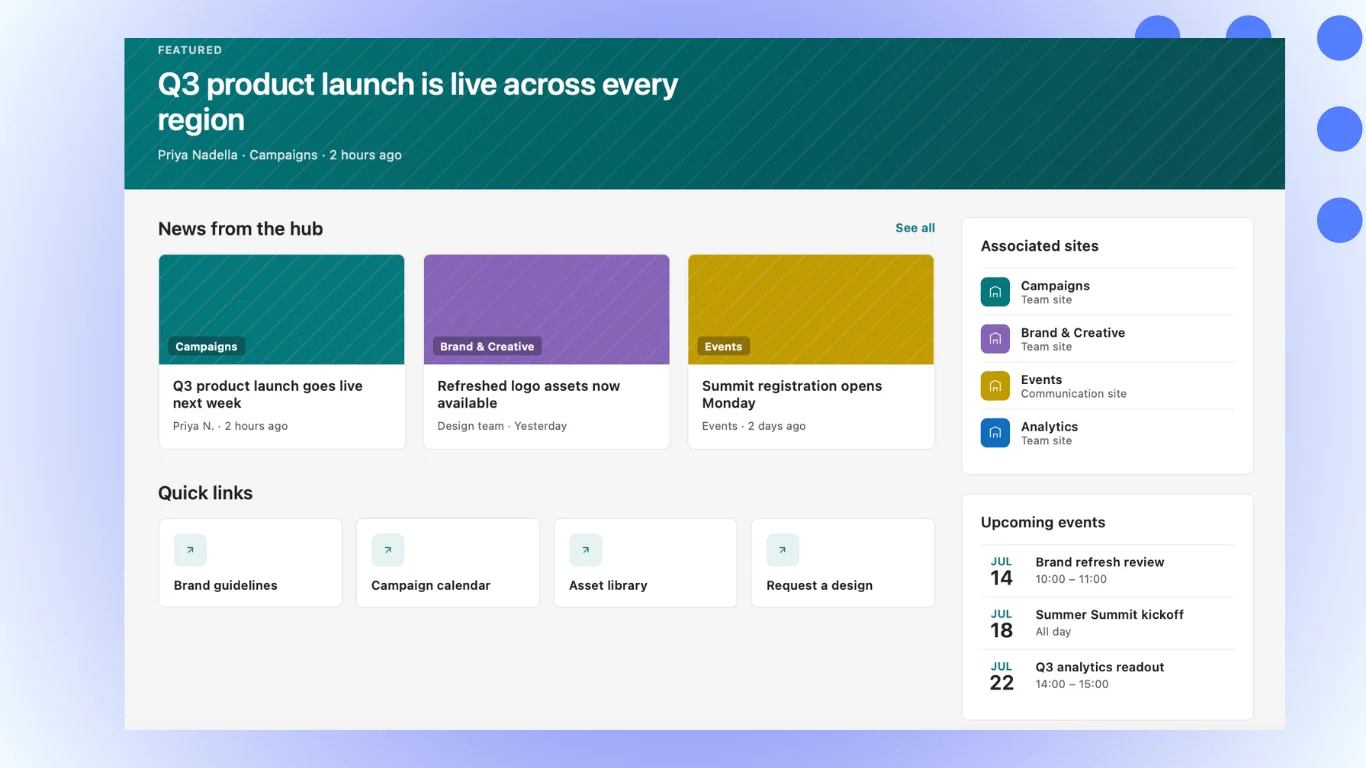
Microsoft Lists turns everyday tracking — issues, assets, onboarding, content plans — into smart, shareable lists inside Microsoft 365. This guide covers what it is, how it relates to SharePoint lists, its key features and templates, and how to create and use your first list in the browser, in Teams, or on mobile.
Quick answer: what is Microsoft Lists?
Microsoft Lists is a Microsoft 365 app for tracking information in customisable “smart” lists. It evolved from SharePoint lists and adds multiple views (list, grid, gallery, calendar, board), rules, forms, ready-made templates and a mobile app — all integrated with Microsoft Teams and SharePoint. You can create a list from scratch, from a template, from Excel, or from an existing list, and share it with your team with granular permissions.
How do I use Microsoft Lists? Open Microsoft Lists from the Microsoft 365 app launcher (or add it as a tab in Teams or SharePoint), click + New list, choose a blank list or a template, name it and pick where to save it, then add your columns and items. From there, use views to change how the data is displayed and rules to automate notifications.
Next question: what if the list runs a real project? The built-in Board view groups cards by one field and stops there: no swimlanes, no work-in-progress limits. To turn the same list into a Kanban board with swimlanes and WIP limits without moving the data, add Virto Kanban Board App.
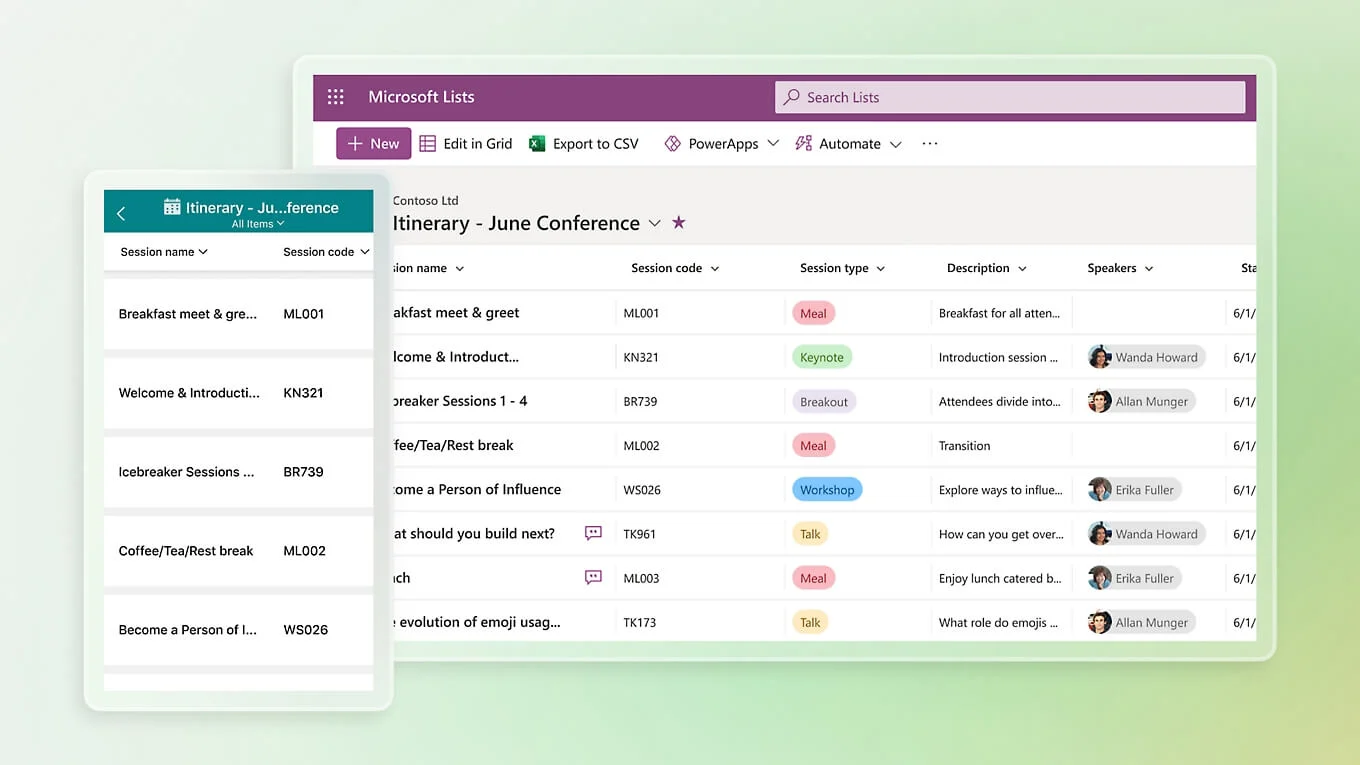
Pic. 1. Microsoft Lists
What is Microsoft Lists (and how it relates to SharePoint lists)
Microsoft Lists is the modern evolution of the classic SharePoint list. Where a SharePoint list was essentially a table of data living inside a site, Microsoft Lists wraps that same underlying engine in a dedicated app: a home page with all your lists in one place, a richer view experience, built-in rules, and templates you can spin up in seconds.
Under the hood, the two are the same technology — every list you create is still stored in SharePoint Online (or in your OneDrive for a personal list). What Lists adds is a collaboration layer on top: multiple ways to look at the same data, conversation and commenting on items, alerts, and native surfaces in Teams and on mobile.
The app is built on three principles:
- Simplicity — start a list from scratch, or from a ready-made template, in a couple of clicks.
- Flexibility — keep everyone aligned with rules, alerts and conditional formatting.
- Integration — work with the same list directly in Microsoft Teams and SharePoint, in whichever view suits the job.
Think of a list as a friendly hybrid of a database and a spreadsheet: structured columns, but with a UI designed for people rather than analysts. If you’re new to the wider platform, our guide to what SharePoint is used for gives the bigger picture.
Who uses Microsoft Lists, and for what?
- QA and support teams — track issues, assign owners, notify on status change.
- Managers — collect ideas, plan events, track participants and deadlines.
- HR and team leads — run onboarding checklists so nothing gets missed on day one.
- IT — maintain an asset register: laptops, condition, checkout dates, warranty.
- Anyone — a personal learning roadmap, a reading list, a travel plan.
Since 2023 Microsoft Lists is no longer limited to business tenants — it’s available to personal accounts too, on the web, iOS and Android. See Microsoft’s Lists product page for current availability.
Key features of Microsoft Lists
Views: list, grid, gallery, calendar and board
The same data, shown five different ways. Switching view doesn’t change the list — only how you see it:
- Grid view — the default. Rows and columns you can edit inline, like a spreadsheet. Best when you’re entering or correcting a lot of data.
- List view — the same rows without inline editing; closest to the classic SharePoint list.
- Gallery view — card-based, ideal when items have images.
- Calendar view — plots items on a calendar using a date column. Useful for deadlines, events and content plans.
- Board view — groups items into columns by a choice field (e.g. Status), giving you a basic Kanban layout inside Lists itself.
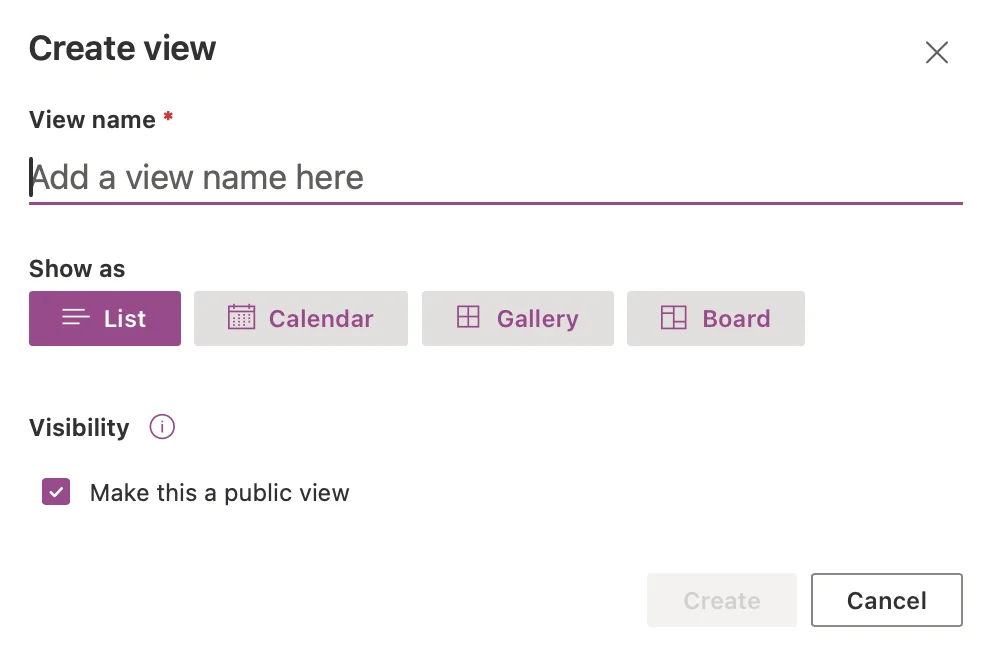
Pic. 2. Creating a view in Microsoft Lists.
Conditional formatting
You can make a list read at a glance. Set a rule so that an item’s background turns amber when Status is “Under review” and green when it flips to “Approved”; change font colours and icons the same way. The formatting updates dynamically as the data changes.
Notifications: Workflows, Rules — and what happened to “Alert me”
Before anything else: “Alert me” no longer works. It still appears in the “…” overflow menu on many lists, which is exactly the trap — the button is there, it clicks, and it delivers nothing. Microsoft blocked the creation of new alerts in January 2026 and fully retired the feature in July 2026. If your team set up alerts years ago and quietly stopped receiving emails, this is why.
There are three replacements, in order of how quickly you’ll get there.
1. Workflows — the fastest route. It sits right in the command bar at the top of your list. Microsoft has added alert-style templates here specifically to replace the retired feature: pick a template, point it at your list, done. Under the hood it builds a Power Automate flow, so anything beyond the ready-made templates inherits Power Automate’s licensing.
2. Rules — lightweight, but not on every list. Found under Automate → Rules → Create a rule. Choose a trigger — a column changes, an item is created or deleted, someone is assigned — and an action (send an email). No extra licence required. But this one catches people out: if there’s no Automate button in your command bar at all, Rules aren’t available on that list. Lists originally created in classic mode don’t support Rules, even after they’ve been modernised. Use Workflows or Power Automate instead.
3. Power Automate — for everything Rules can’t do. Rules send immediate, per-event emails only: no daily or weekly digest, no conditional logic, no posting to a Teams channel. All of that needs a flow.

Pic. 3. The Microsoft Lists command bar: Workflows sits in the top menu, while the retired “Alert me” still appears under “…”.
If the retired alerts left a gap — and for most teams the missing piece is the digest, the one thing Rules can’t produce — Virto Alerts and Reminders App installs straight into the Lists command bar and covers it without a Power Automate licence:
- Daily and weekly summary emails — the digest Rules dropped and Power Automate makes you build by hand.
- Conditional alerts on any column, sent to individuals, groups, or a Microsoft Teams channel.
- Works on classic and modernised lists, where the native Rules option simply isn’t offered.
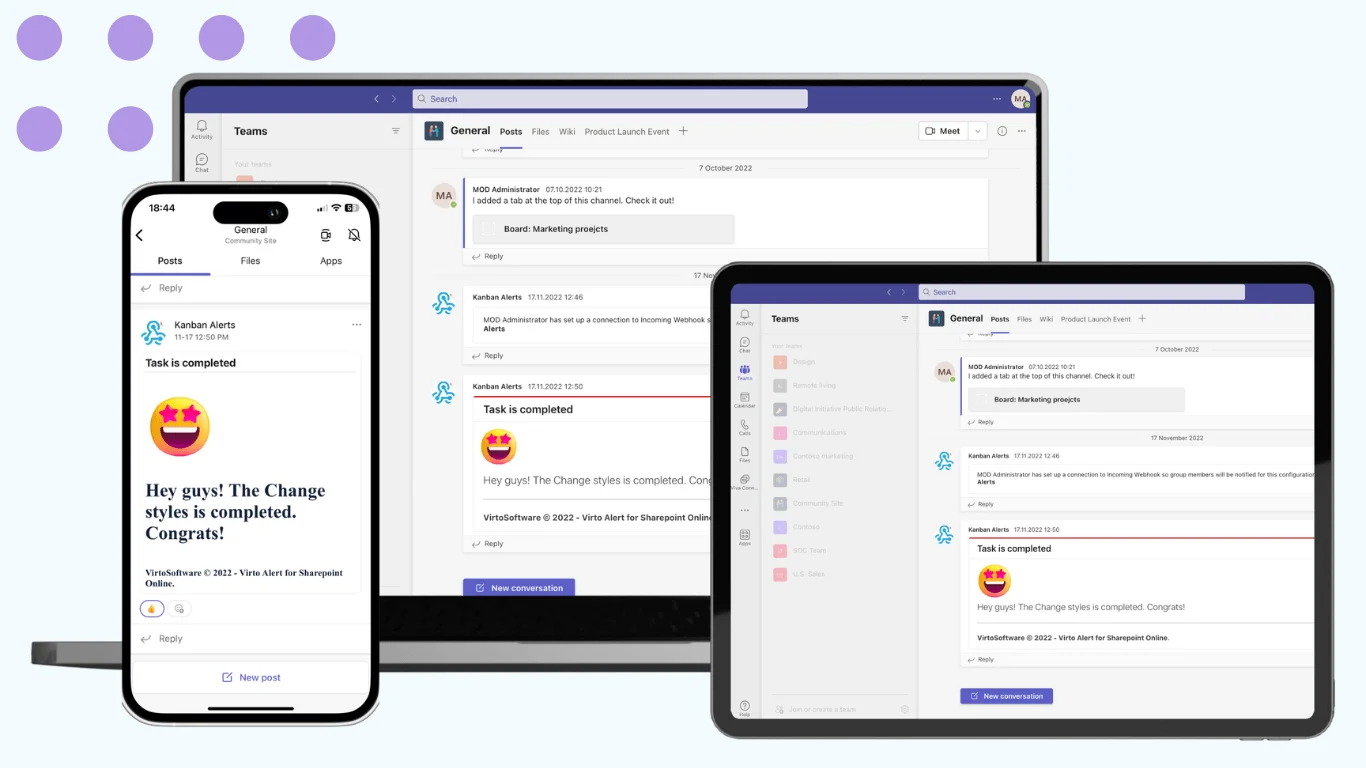
Pic. 4. Virto Alerts and Reminders App
Forms
Rather than asking colleagues to edit a table, you can expose a list as a form. They fill in the fields; the item lands in your list correctly structured. Good for intake requests, sign-ups and bug reports.
Sharing and permissions
Share a whole list or an individual item, with edit or read-only access. You can disable editing, set an expiry date on a share link, and require a password. People with access can comment on items, keeping the discussion attached to the record instead of scattered across email.
How to create and use a list (getting started)
Microsoft Lists runs in the browser, in Teams, in SharePoint and on mobile. Here’s the standard path in the browser.
Create your first list
- Sign in to Microsoft 365, open the app launcher and choose Lists (or search for “Lists” in the top search bar).
- Click + New list.
- Choose how to start: a blank list, from an existing list, from Excel, from CSV, or from a template.
- Give the list a name and a description, pick a colour and icon, and choose where to save it — My lists (personal, stored in OneDrive) or a SharePoint site (shared with that site’s members).
- Click Create. Add items with + New, and add or edit columns from the + Add column header.
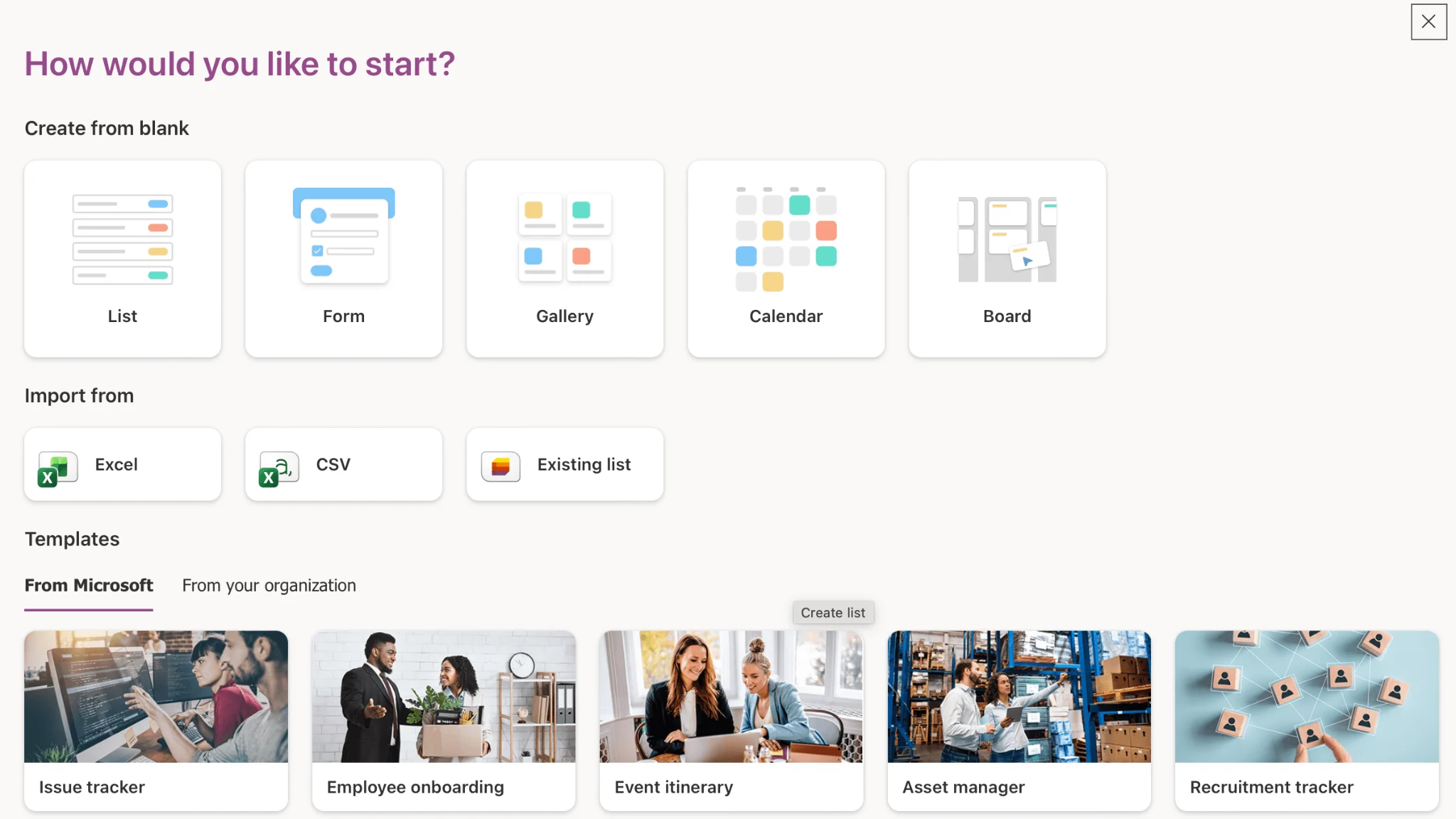
Pic. 5. The “+ New list” dialog — blank list, from existing list, from Excel, from CSV, or from a template.
Import from Excel
If your data already lives in a spreadsheet, you don’t need to retype it:
- Choose From Excel, then pick a file from OneDrive or upload one from your device.
- Select the table or range you want to import.
- Check the column types Lists has detected — dates, choices, numbers, people — and correct any that are wrong. Getting this right at import saves rework later.
- Create the list. Your data arrives with views, rules and formatting available immediately.
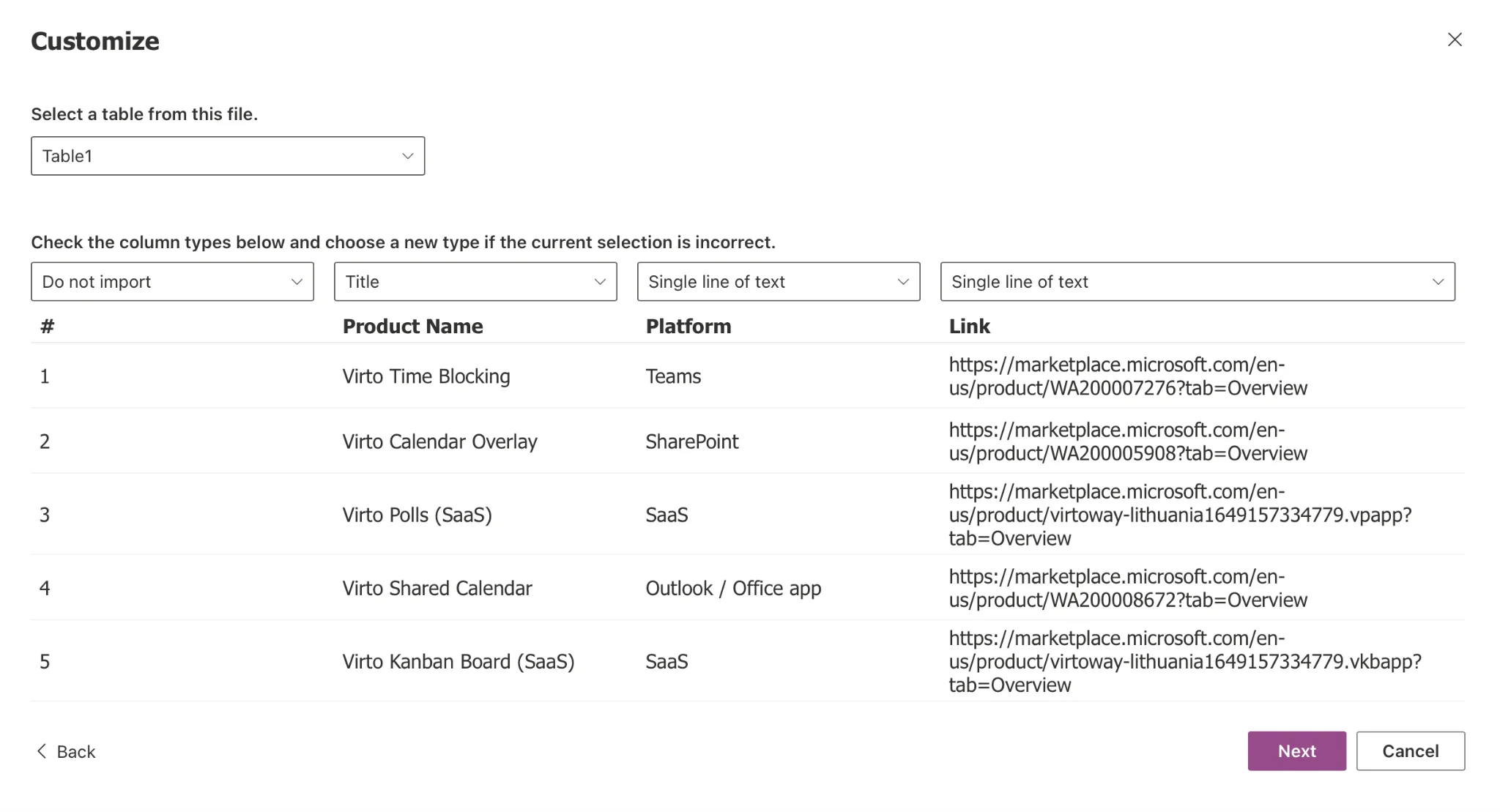
Pic. 6. Mapping Excel columns to Microsoft Lists column types during import.
Everyday management
- Add a column — choose a type (text, number, choice, date, person, image, lookup) rather than defaulting to text; the type is what makes views, rules and formatting work.
- Edit or delete a column — click the column header → Column settings → Edit, then use Delete in the panel. Deleting a column removes its data permanently, so export first if you might need it.
- Add images — add a column of type Image, then upload a picture on any item. Gallery view will use it automatically.
- Save a custom view — filter, sort and group, then save the arrangement as a named view so your team can reuse it.
- Print — Lists has no built-in print dialog; use the browser’s print function. Setting margins to None strips the header and footer for a cleaner output.
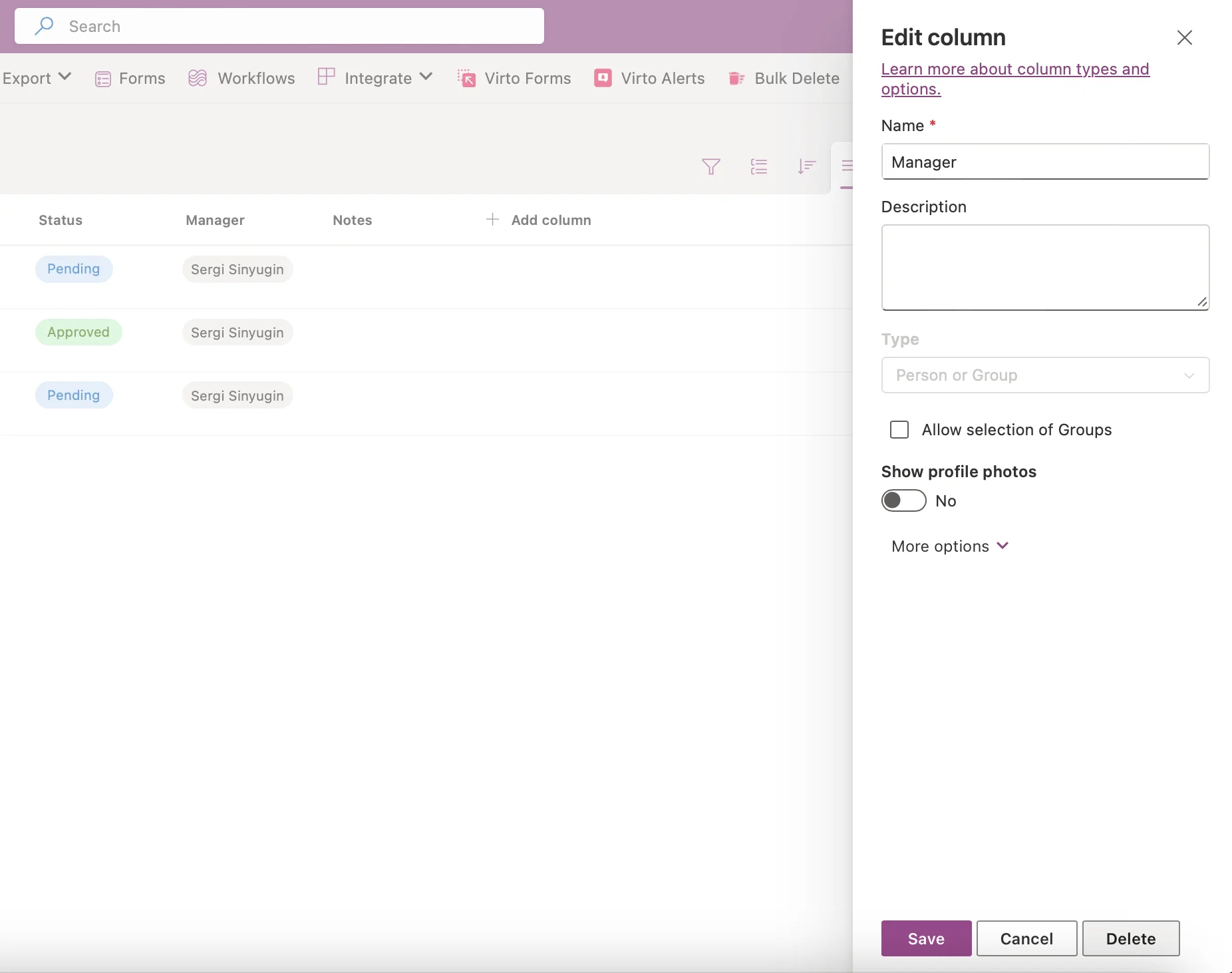
Pic. 7. Deleting a column: Column settings → Edit → Delete.
Tip: to get Lists as a desktop-style app, open it in a Chromium browser and choose Install Microsoft Lists from the browser menu. It’s a PWA, not a separate download.
How big can a list get?
A single list can hold a very large number of items (into the millions), but performance and the view threshold matter long before you hit the ceiling — index your filter columns and keep views under 5,000 items. Limits change, so check Microsoft’s current SharePoint Online limits before designing anything at scale.
Can you duplicate a list?
Yes — two ways. The simplest is + New list → From existing list, which copies the structure (and optionally the content) into a new list. For reuse across sites, save the list as a template: see Microsoft’s guide to managing list templates, which requires custom scripting to be enabled on the site.
Microsoft Lists templates
Templates are the fastest route from “I need to track something” to a working list. Each one ships with the columns, forms, views and conditional formatting already configured for a specific job.
Commonly used templates include:
- Issue tracker — bugs and defects, with priority and status.
- Asset manager — devices, owners, condition, checkout dates.
- Employee onboarding — a checklist per new hire, with owners per step.
- Event itinerary — sessions, times, speakers, locations.
- Content scheduler — a publishing plan with dates, channels and assets.
- Work progress tracker — a simple status board for a small project.
Preview a template before you commit, then adapt it — rename columns, add your own, delete what you don’t need. Nothing about a template is locked.
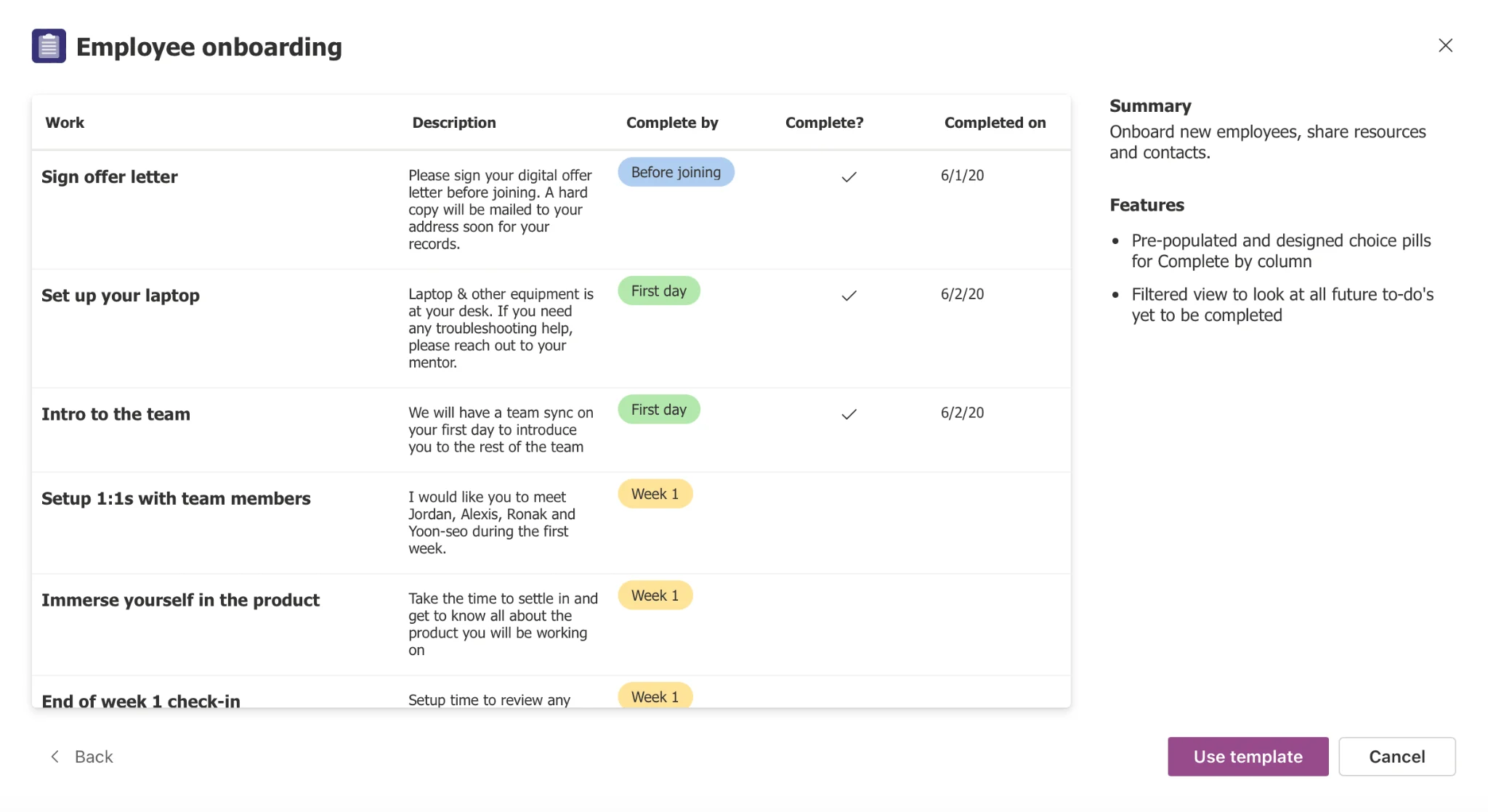
Pic. 8. The template gallery in Microsoft Lists, with a preview of the selected template.
Microsoft Lists in Teams and other integrations
Microsoft Teams
Adding a list to a channel keeps the data next to the conversation about it:
- In the channel, open the Add/Open apps icon above the message box (or the “+” on the tab bar) to open the app library.
- Find and select Lists, then Save.
- Choose Add an existing list to surface one you already have, or Create a list to start fresh.
- Inside Teams you get the full Lists experience — templates, column types, views, quick edit, filtering, export to Excel — plus channel conversations about individual items.
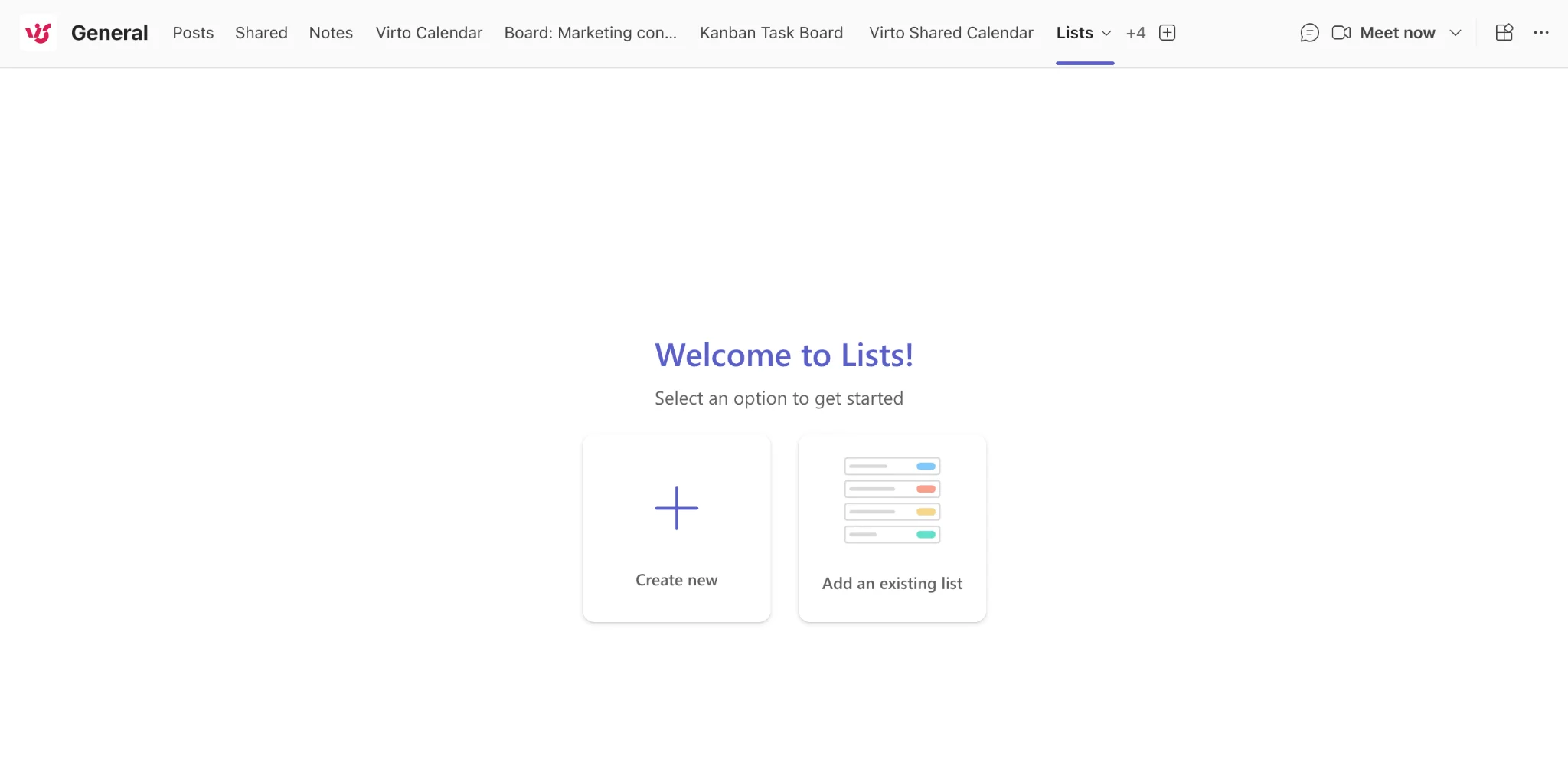
Pic. 9. Adding Microsoft Lists as a tab in a Microsoft Teams channel.
SharePoint
Any list saved to a SharePoint site is a SharePoint list — create one from the New button on the site home page or in Site contents, and it appears in the Lists app as well. This is why the two names get used interchangeably.
OneDrive
Personal lists (saved to My lists) live in your OneDrive for Business rather than a shared site. Handy for anything you’re tracking on your own that doesn’t belong to a team.
Power Automate and Power Apps
For anything more complex than a rule — approvals, multi-step workflows, custom forms — Lists connects to Power Automate and Power Apps. Typical flows: request manager approval when an item is created, post to a Teams channel when status changes, or generate a document from an item. See our roundup of Microsoft Teams integrations for the wider ecosystem.
Turn a Microsoft List into a Kanban board
Lists’ built-in Board view is a genuine improvement, but it’s deliberately basic: one grouping field, no swimlanes, no WIP limits, no analytics. Once a list is doing real project work, teams usually want more.
Virto Kanban Board App reads an existing SharePoint or Microsoft list as its data source and renders it as a full drag-and-drop Kanban board — no migration, no duplicate source of truth. Move a card on the board and the list item updates; edit the item in Lists and the board reflects it.
- Swimlanes, sub-tasks, colour-coding and conditional card formatting.
- WIP limits and chart-view analytics to spot bottlenecks.
- Works across the browser, SharePoint and Microsoft Teams under a single licence.
If your list is date-driven rather than status-driven, Virto Calendar App does the equivalent for dates — overlaying multiple lists and calendars into one colour-coded view.
Virto Kanban Board App starts at $2/user/month (Starter, up to 30 users) and $3/user/month (Pro, 31–200 users), billed yearly; Virto Calendar App costs $2,412 per 100 users per year with a 3-year agreement (100 users and up). Both have a 30-day free trial — see full pricing.
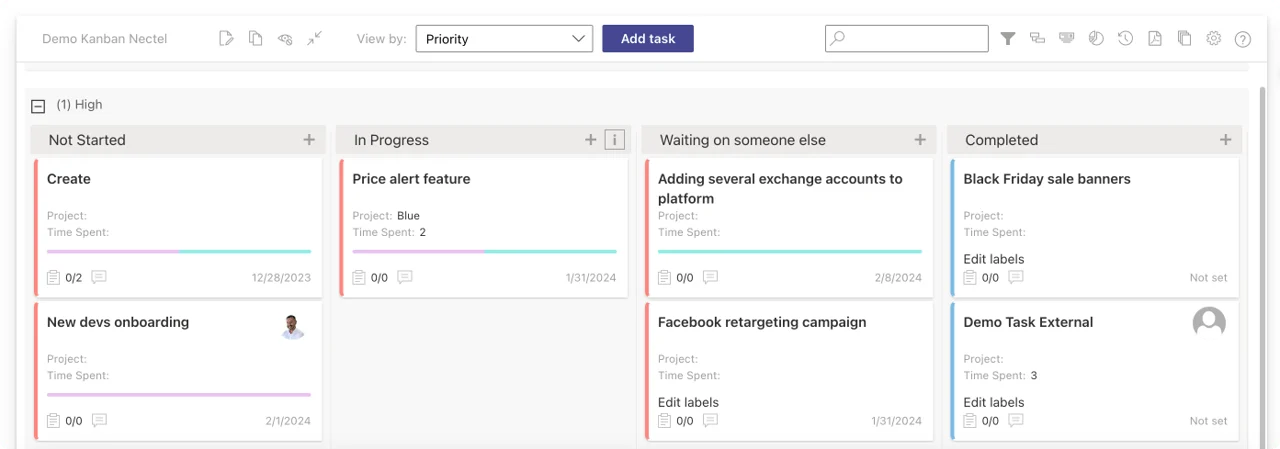
Pic. 10. Virto Kanban Board App.
Turn your Microsoft List into a real Kanban board.
→ Start your free 30-day trial
Improve Your Microsoft Lists with Virto Apps



Microsoft Lists vs. other Microsoft 365 apps
Microsoft 365 has several overlapping tools for tracking work. The short version:
| App | Best at | Reach for it when… |
|---|---|---|
| Microsoft Lists | Structured records with many attributes | You need columns, views and rules over a shared dataset |
| Microsoft To Do | Personal task list | It’s your own to-dos, not a team’s data |
| Microsoft Planner | Lightweight team Kanban | You want buckets and assignments, not a data model |
| SharePoint list | The same engine, site-scoped | The data belongs to a specific SharePoint site |
Lists vs. To Do: To Do is for individual commitments — recurring tasks, steps, reminders, Outlook sync. Lists is for shared records with structure. They complement each other; they don’t compete.
Lists vs. Planner: Planner is a Kanban board with buckets and assignees, designed for agile team work. Lists is more customisable but less visual out of the box. If you like Planner’s board but need Lists’ data model, the Kanban tie-in above is exactly that combination.
Lists vs. SharePoint lists: Yes and no — same underlying technology, different front door. Lists gives you a cross-site home page, richer views, rules and a mobile app. A list saved to a site is a SharePoint list. For calendar-style work over SharePoint data, see our SharePoint calendar guide.
The Microsoft Lists mobile app
The iOS and Android apps give you the full list, not a cut-down view: open any list, create one from a template or from scratch, edit items and columns, and share links with colleagues. Dark mode and landscape orientation are supported. Useful for anything captured away from a desk — site inspections, asset checks, event logistics.
What Microsoft Lists is used for: four common scenarios
1. Project and task tracking
Assign owners, set due dates, get notified on completion, and see the whole plan in calendar or board view. Enough for a small project without buying a dedicated tool.
2. Content scheduling
The content scheduler template holds copy, assets, publication dates and channel. Calendar view turns it into an editorial calendar.
3. Onboarding
The onboarding template tracks each new hire’s steps and owners. Rules notify stakeholders as stages complete — NDA signed, accounts provisioned, laptop issued.
4. Asset management
Devices, condition, warranty dates, who has what. Set alerts ahead of renewal dates so nothing lapses quietly.
Want to see your Microsoft Lists in calendar or Kanban view?
→ Book a free 30-minute consultation
Explore Our Use Cases for Project, Content and Asset Tracking
Project Management
Leverage Virto's advanced tools to masterfully manage projects—breaking down complexities, optimizing timelines, and empowering agile methodology.
Learn more about Project Management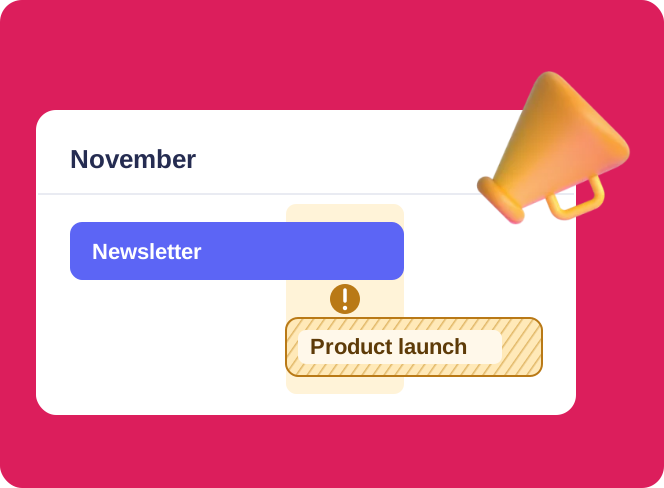
Marketing Calendar Solution
Virto Calendar App draws the Planner campaign plan and the campaign group calendar on one timeline: the work, next to the date it was promised for.
Learn more about Marketing Calendar Solution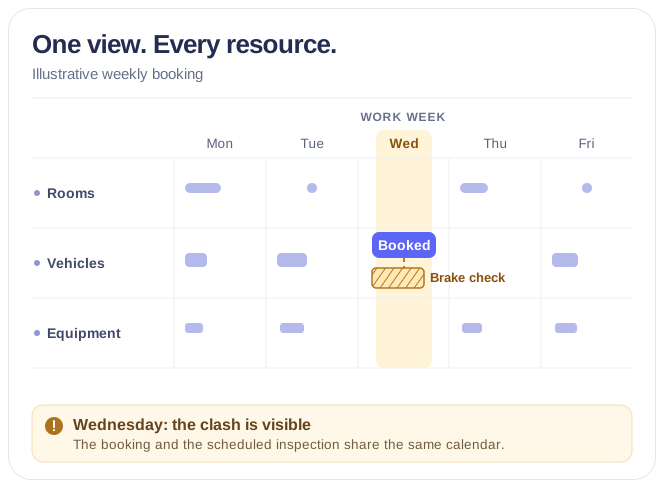
Rooms & Equipment Calendar
Combine rooms, offices, vehicles and equipment in one Microsoft 365 calendar, with the maintenance jobs and blackout periods that make them unavailable.
Learn more about Rooms & Equipment CalendarFAQ
What is Microsoft Lists?
A Microsoft 365 app for tracking information in customisable smart lists. It evolved from SharePoint lists and adds multiple views, rules, forms, templates and a mobile app, integrated with Teams and SharePoint.
How do I use Microsoft Lists?
Open Lists from the Microsoft 365 app launcher (or add it in Teams/SharePoint), click + New list, start blank or from a template, add columns and items, then use views and rules to manage it.
Is Microsoft Lists free?
Lists is included with Microsoft 365 business and enterprise subscriptions at no extra cost, and is also available to personal Microsoft accounts on the web and mobile. There’s no separate licence to buy.
Is Microsoft Lists the same as SharePoint Lists?
Effectively yes, under the hood — every list is stored in SharePoint Online. Lists is the modern app experience on top: a cross-site home page, richer views, rules, templates and mobile access.
Can Microsoft Lists do Kanban?
Lists includes a basic Board view that groups items by a choice column. For swimlanes, WIP limits, sub-tasks and analytics, teams pair a list with Virto Kanban Board App, which uses the list itself as its data source. See also our comparison of the best Kanban boards for SharePoint Online and the digital Kanban board guide.
Why is “Alert me” not working in Microsoft Lists?
Because it’s been retired. Microsoft blocked new alerts in January 2026 and switched the feature off entirely in July 2026 — but the Alert me button often still shows under the “…” menu, so it looks like it should work. Use Workflows in the command bar (fastest), Automate → Rules for simple per-event emails, or Power Automate for digests and conditional logic.
Why can’t I see Rules in my list?
If there’s no Automate button in the command bar, Rules aren’t available on that list. Lists created in classic mode — and classic calendars — don’t support Rules, even after being modernised. Use Workflows or Power Automate instead. Note too that Rules only send immediate, per-event emails; they can’t produce a daily or weekly digest.
Where are Microsoft Lists stored?
In SharePoint Online. A list saved to a site lives in that site; a personal list saved to “My lists” lives in your OneDrive for Business, which is also part of SharePoint Online.
Summary
Microsoft Lists is the right tool when you need structure: columns with real types, several ways to look at the same records, automation you can set up without a developer, and a shared home for data that would otherwise live in someone’s spreadsheet. It’s fast to start. Lists are also part of the wider SharePoint content management model, governed by the same content types and retention labels as documents.