If your team keeps a project’s email in one place, its files in another, its tasks in a third and its chat in a fourth, you already know the cost: nobody can find anything, and every new joiner needs a guided tour. A Microsoft 365 Group is Microsoft’s answer to exactly that problem — one membership list that unlocks a shared inbox, calendar, document library, task board and Teams workspace all at once.
This guide explains what Microsoft 365 Groups actually are, how they differ from the group types people constantly confuse them with (security groups, distribution lists and shared mailboxes), how to create and manage them, and how to keep them from turning into sprawl. It reflects the current 2026 state of the Microsoft 365 admin center, Outlook and Teams.
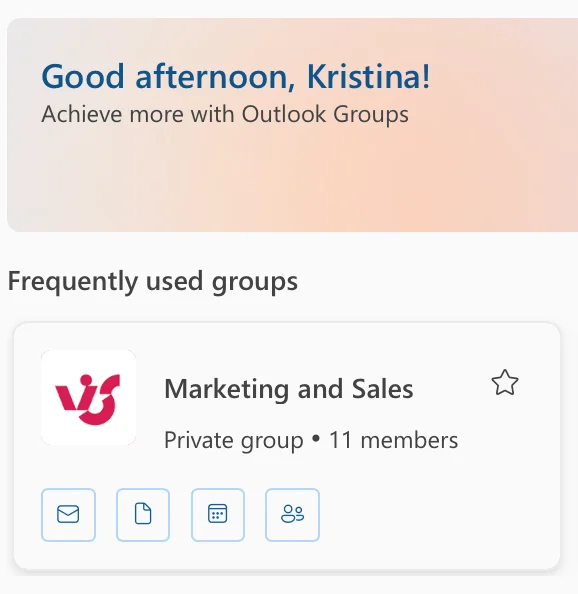
Pic.1. A Microsoft 365 Group in Outlook, showing the shared inbox, calendar, files and members.
What are Microsoft 365 Groups?
A Microsoft 365 Group is a membership service that gives a set of people a shared identity across Microsoft 365 — a shared inbox, calendar, SharePoint site, Planner and Teams — all managed together. Add someone to the group once, and they get access to every connected resource automatically. Remove them, and that access disappears everywhere at the same time.
That single sentence is the whole idea. A Microsoft 365 Group is not an app you open — it is the membership layer sitting underneath the apps you already use. When a project manager creates a team in Microsoft Teams, Microsoft 365 quietly creates a group behind it. When someone spins up a team site in SharePoint, same thing. The group is the connective tissue.
Groups are stored in Microsoft Entra ID (the identity service formerly called Azure Active Directory — Microsoft completed the rename in 2023, so any documentation still saying “Azure AD” is describing the same thing). Every group has owners, members and, optionally, guests from outside your organisation.
Two practical consequences follow from this design, and they explain most of what people find surprising about groups:
- Access is all-or-nothing. You cannot give someone the group’s calendar but not its files. Membership grants the whole set. If you need finer control, you need a different tool — a separate SharePoint permission group, or a second Microsoft 365 Group with a narrower membership.
- The group inherits the creator’s licensing, not the members’. If the person who creates the group only has an Exchange Online plan, the group gets a shared inbox and calendar but no document library and no Planner. This catches people out constantly.
Microsoft 365 Group vs security group vs distribution list vs shared mailbox
This is the single biggest source of confusion in Microsoft 365 administration, and it is worth getting right before you create anything. All four objects live in the same admin center, all four have members, and all four look similar in a list. They do fundamentally different jobs.
The short version: a distribution list forwards email. A security group grants permissions. A shared mailbox is a mailbox several people work out of. A Microsoft 365 Group does collaboration — and layers a shared workspace on top of the email address.
| Microsoft 365 Group | Security group | Mail-enabled security group | Distribution list | Shared mailbox | |
|---|---|---|---|---|---|
| Main purpose | Team collaboration | Assign permissions | Permissions + email | Send email to many people | Several people working one mailbox |
| Shared inbox | Yes (50 GB) | No | No | No | Yes — it is the mailbox |
| Shared calendar | Yes | No | No | No | Yes |
| SharePoint site & files | Yes | No | No | No | No |
| Planner, OneNote | Yes | No | No | No | No |
| Can back a Team | Yes | No | No | No | No |
| Can assign permissions | Yes (if security-enabled) | Yes — its whole job | Yes | No | Not applicable |
| Membership | Assigned or dynamic | Assigned or dynamic; can contain devices | Assigned only | Assigned only | Permission-based, not membership |
When to use which
- Use a Microsoft 365 Group when a defined set of people needs to work together on something — a project, a department, a client account, a recurring initiative.
- Use a security group when you only need to grant access to an application, a site or a policy. No mailbox, no clutter.
- Use a mail-enabled security group when you need both permissions and an email address. Note that these cannot use dynamic membership and are managed through Exchange, not Entra.
- Use a distribution list for pure broadcast — an announcements alias, an all-hands list. A distribution list is not a security principal, so you can never use it to grant access to anything.
- Use a shared mailbox for a functional address several people monitor: support@, invoices@, careers@. There is no supported way to convert a shared mailbox into a Microsoft 365 Group, or back, so choose deliberately.
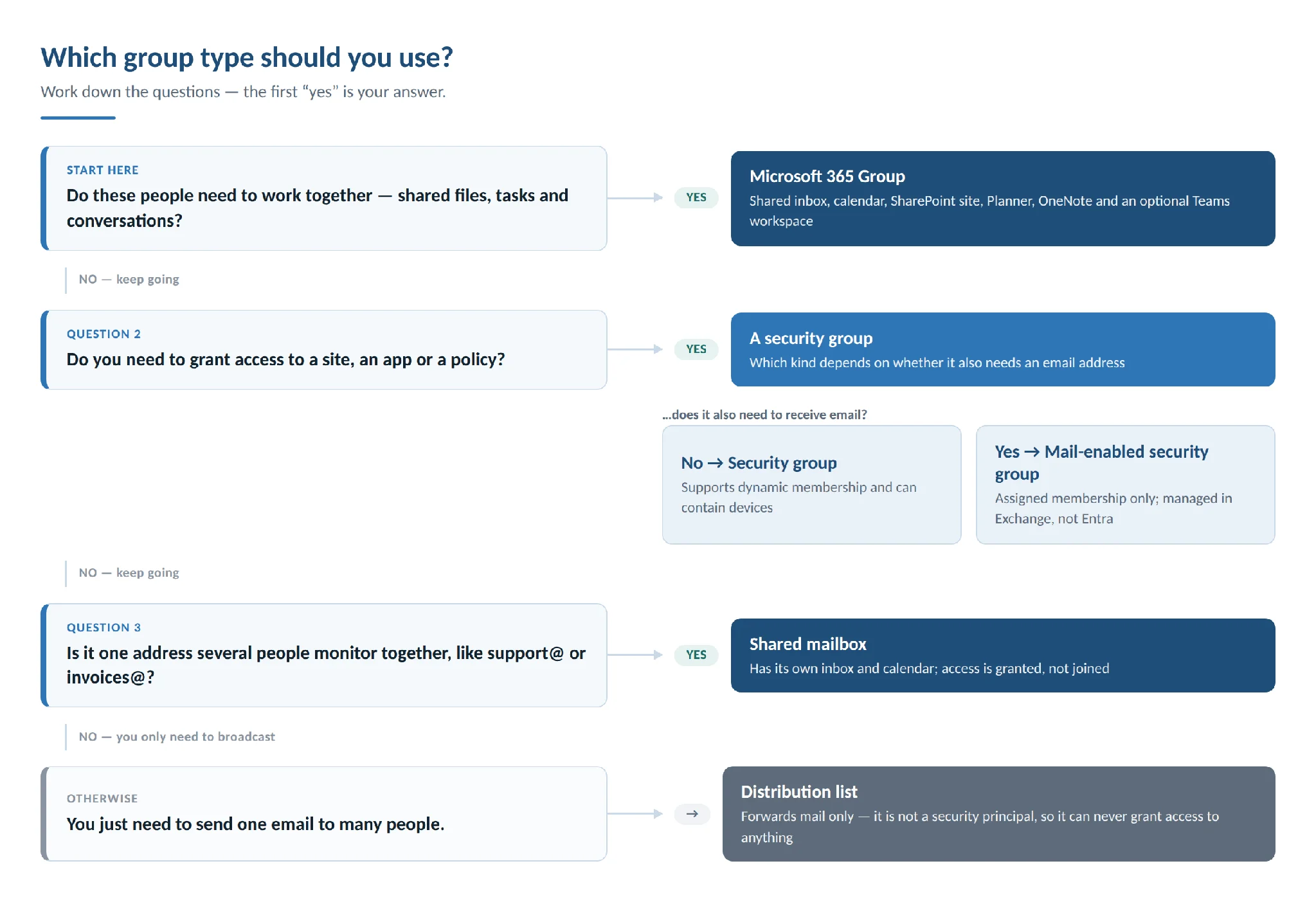
Pic.2. Choosing between a Microsoft 365 Group, a security group, a distribution list and a shared mailbox.
If what you actually want is a personal, ad-hoc list of email recipients rather than an organisation-wide object, that is a contact group — see our walkthrough on how to create a contact group in Outlook.
Upgrading a distribution list to a Microsoft 365 Group
Existing distribution lists can be upgraded, and the email address does not change — a genuinely useful migration path for organisations sitting on years of legacy lists. The workflow changed and is now admin-initiated: in the Exchange admin center, go to Recipients > Groups > Distribution list, select the list, choose Send upgrade request, and pick which owners to notify. The owner clicks Upgrade in the email they receive and the conversion completes in five to ten minutes.
Two warnings. The upgrade is permanent and cannot be reversed. And a long list of distribution lists are ineligible — nested lists, on-premises-managed lists, lists with more than 100 owners, lists with members but no owner, mail-enabled security groups, dynamic distribution groups, and lists whose alias contains special characters. Run Get-EligibleDistributionGroupForMigration in Exchange Online PowerShell before you plan anything at scale. Microsoft documents the full workflow in its guide to upgrading distribution lists to Microsoft 365 Groups.
What you get when you create a Microsoft 365 Group
Creating a group provisions a set of resources instantly. You do not configure them one by one; they arrive together.
Provisioned automatically:
- A shared Outlook inbox — a group mailbox with its own address, up to 50 GB, where conversations live outside anyone’s personal inbox. New members can read the full history from before they joined.
- A shared calendar — group events appear alongside everyone’s personal calendar, and any member can add to it.
- A SharePoint team site with a document library — a real site, with version history, co-authoring and 1 TB of storage plus 10 GB per licensed user.
- Microsoft Planner — a board for the group’s tasks, with buckets, assignments and due dates.
- A shared OneNote notebook — for meeting notes, decisions and the running context that never fits neatly into a document.
Added on demand:
- A Microsoft Teams workspace — created automatically if you start from Teams, or added later to an existing group.
- A Viva Engage community, if the group is created in Viva Engage.
- A Power BI workspace. (Project for the web roadmaps used to be added here too, until Project for the web retired on 1 August 2025.)
One quirk worth knowing: where the group was created determines whether its mailbox is visible. Groups created from the Microsoft 365 admin center, Outlook or SharePoint show up in Outlook’s folder pane. Groups created from Microsoft Teams have their mailbox hidden from Outlook clients by default — which is why a team you use daily may appear to have no group inbox at all. An admin can unhide it with the Set-UnifiedGroup -HiddenFromExchangeClientsEnabled cmdlet.
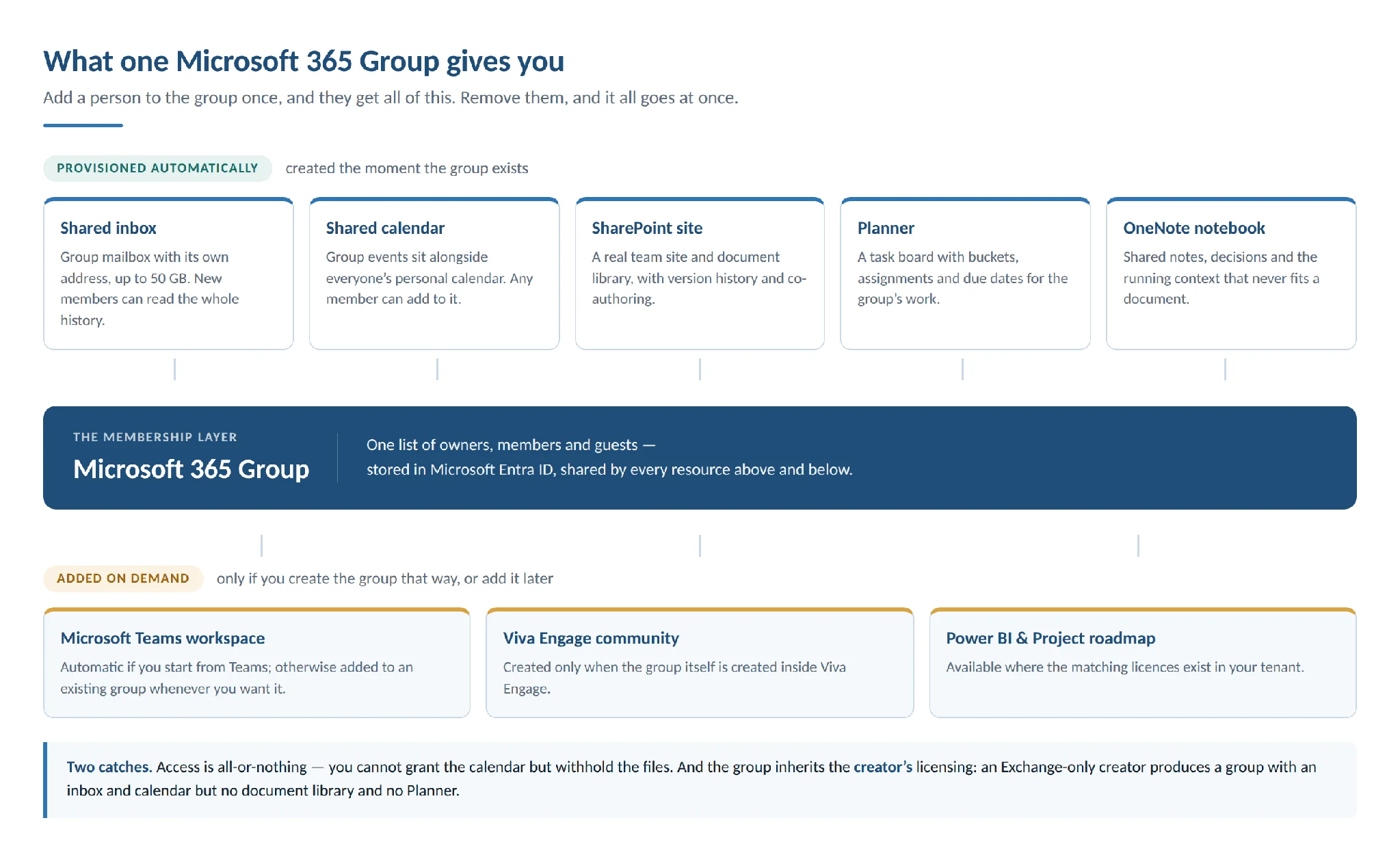
Pic.3. Everything one Microsoft 365 Group provisions, and what is added only on demand.
The group calendar is the piece most teams underuse. Every group gets one, it is shared by default, and it is the natural home for sprint ceremonies, editorial dates, shift rotas and launch milestones. We cover it in depth in our guide to creating and managing group calendars in Outlook, and if you are juggling several at once, managing multiple Microsoft 365 calendars covers the overlay approach.
How to create a Microsoft 365 Group
There are three routes, and which one you pick determines what the group looks like on day one. Admins should use the admin center; end users will usually go through Outlook or Teams.
Method 1: Microsoft 365 admin center
The most controlled route, and the one to use for anything organisation-wide. You need Global Administrator, User Administrator or Groups Administrator rights.
- Sign in to the Microsoft 365 admin center and expand Teams & groups > Active teams & groups.
- Select Add Microsoft 365 group.
- On the Basics page, enter a name and an optional description, then select Next.
- On the Owners page, choose at least one owner — ideally two — then select Next.
- On the Members page, add the initial members, then select Next.
- On the Settings page, set the group’s email address, choose Private or Public, and decide whether to add a Microsoft Teams workspace. Select Next.
- Review the summary and select Create group, then Close.
Privacy is worth pausing on: it can only be set at creation and cannot be changed through the Graph API afterwards. Groups in Outlook default to Private, meaning only members can see the content and joining requires owner approval. Public means anyone in your organisation can find and join it.
Method 2: Outlook on the web or new Outlook
- Select the Groups icon in the Outlook app bar, or Go to Groups from the folder list.
- On the ribbon, select New group.
- Enter a name, a description and the privacy setting.
- Select Create.
- Add members now, or select Not now and add them later.
If New group is missing from the ribbon, either the account has no Microsoft 365 subscription attached or an administrator has restricted who can create groups.
Method 3: Microsoft Teams
Creating a team creates a Microsoft 365 Group behind it, along with the SharePoint site, shared mailbox, calendar and OneNote notebook.
- In Teams, select the plus button above the teams list and choose New team.
- Enter a name and an optional description, and choose the team type.
- Set privacy to Private or Public, and apply a sensitivity label if your organisation uses them.
- Name the first channel and select Create.
- Add members, or skip and invite them later.
For teams already running work in Planner, our guide to Microsoft Teams Planner covers how the task board behaves once it is pinned into a channel.
Managing groups and membership
Owners, members and guests
Owners manage everything: membership, settings, the group name, description and picture, and the shared inbox. Only an owner can delete any message from the group inbox. Assign at least two — a group whose sole owner leaves the company becomes an orphan that only an admin can rescue.
Members get full access to every group resource but cannot change settings. By default, members can invite guests — a setting many organisations tighten. A member can delete a conversation from the group inbox only if they started it, and only from Outlook on the web.
Guests are people outside your organisation. Guest access for Microsoft 365 Groups is on by default at the tenant level. Guest invitations sent by members go to the group owner for approval before they take effect, and guests cannot be made group owners unless that default is changed. To adjust any of this, go to Settings > Org settings > Services > Microsoft 365 Groups in the admin center. Note that an organisation-level block overrides any per-group setting.
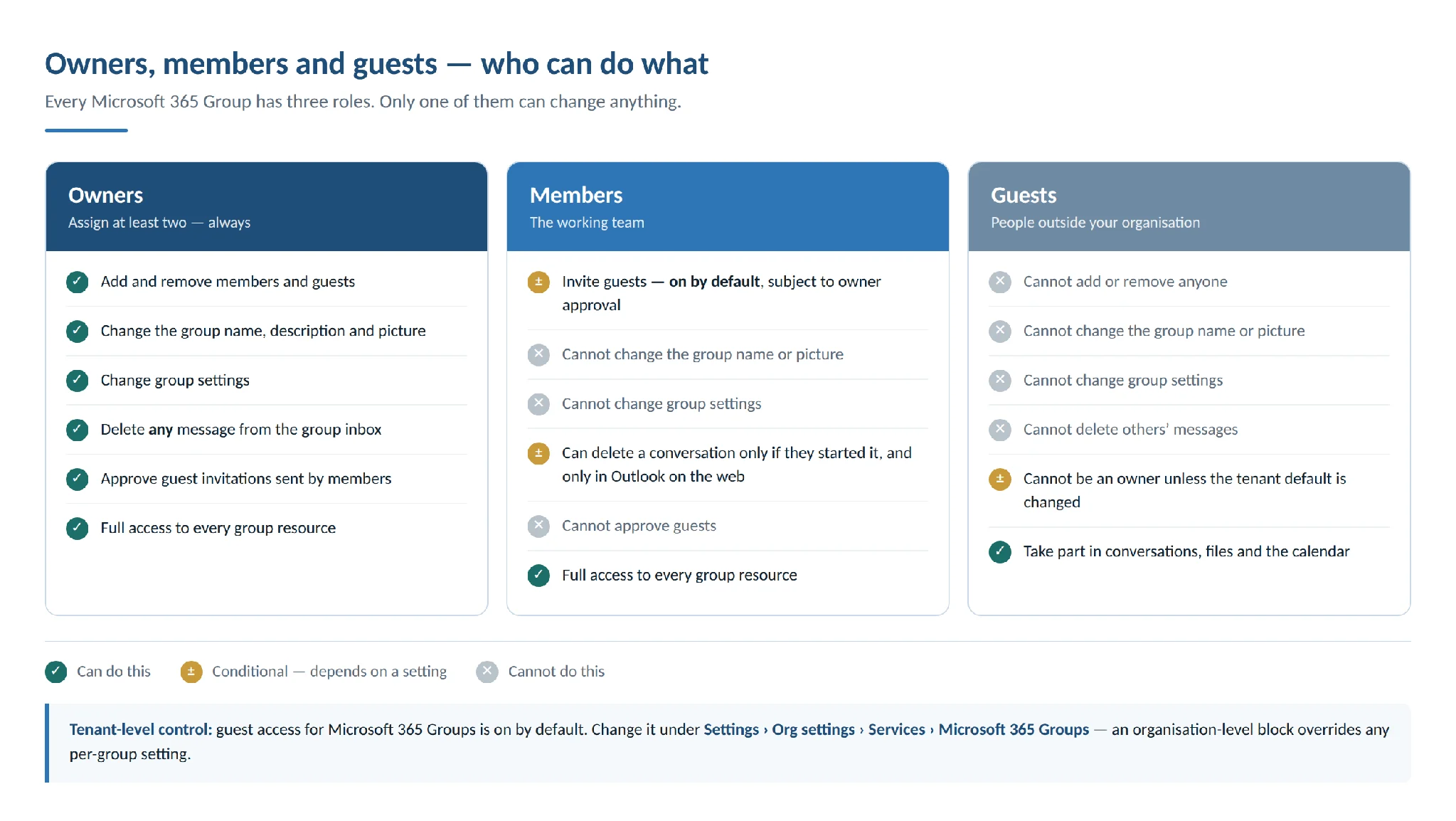
Pic.4. What owners, members and guests can and cannot do in a Microsoft 365 Group.
Expiration policy — the cure for group sprawl
Left alone, group counts only go up. The expiration policy is the standard fix: set a lifetime, and groups that show no activity are deleted automatically while active ones renew themselves silently.
- Requires Microsoft Entra ID P1 or P2 licences for the members of every group the policy covers.
- One policy per tenant. Lifetime is configurable, with a minimum of 30 days.
- Auto-renewal fires roughly 35 days before expiry on any real activity: viewing or editing a file in SharePoint, reading or writing a group message in Outlook, visiting a channel in Teams, viewing a post in Viva Engage.
- If nothing renews it, owners get warnings at 30 days, 15 days and 1 day before expiry. Deletion happens one day after the expiration date, and there is a 30-day window to restore the group.
- Scope it to All groups, to a Selected list of up to 500, or to None. Configure it in the Microsoft Entra admin center under Identity > Groups > All groups > Expiration.
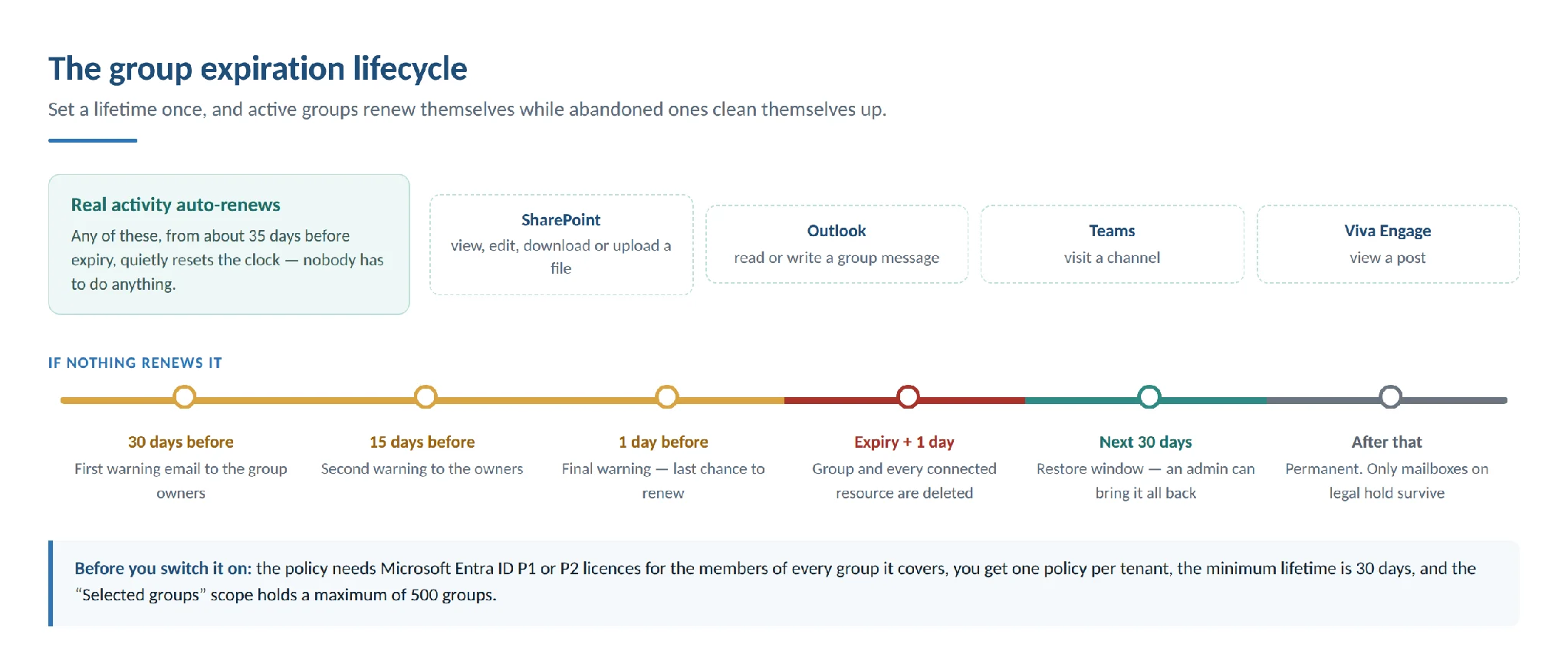
Pic.5. How the group expiration policy renews active groups and retires abandoned ones.
Naming policy
A naming policy enforces consistency across Outlook, Teams, SharePoint, Exchange, Planner and Viva Engage. It has two parts: a prefix-suffix rule, which can use fixed strings or user attributes such as [Department] (63 characters total including the group name), and a custom blocked-words list of up to 5,000 entries.
Two things trip people up. The licence requirement is Microsoft Entra ID P1 for every unique user who is a member of any Microsoft 365 Group, guests included — not just for the admin who sets it up. And blocked words are matched exactly, not as substrings, so blocking “HR” will not stop someone naming a group “HR-Confidential”.
Limits worth knowing
| Limit | Value |
|---|---|
| Owners per group | 100 |
| Groups a single user can create | 250 |
| Groups a user can own or belong to | 7,000 |
| Members per group | More than 1,000, but only 1,000 can access group conversations at once |
| Group mailbox size | 50 GB |
| File storage | 1 TB plus 10 GB per licensed user |
| Restore window after deletion | 30 days |
Do not confuse these with Teams limits, which are different: 25,000 members per team, 100 owners per team, 1,000 channels per team. A frequent error in articles on this topic is quoting one set of numbers for the other.
Best practices for Microsoft 365 Groups
- Always assign at least two owners. This is the single highest-value habit on the list. Ownerless groups are a recurring administrative headache and the fix is thirty seconds of work at creation.
- Decide public or private deliberately. You cannot change it later without recreating the group, and a private group is the safe default for anything involving client data, financials or personnel.
- Adopt a naming convention before you need one. Something like PRJ-Website-Redesign or HR-Recruitment makes the group list navigable at 200 groups. Retrofitting names across an existing estate is painful.
- Audit membership on a schedule. Quarterly is enough for most organisations. People change roles far more often than anyone updates group membership, and because access is all-or-nothing, a stale member has full access to everything.
- Turn on the expiration policy early. It is far easier to introduce when you have 50 groups than when you have 5,000.
- Restrict who can create groups if sprawl is already a problem. Limiting creation to a designated security group stops the long tail of duplicate and abandoned groups.
- Do not create a group for every conversation. Groups are for ongoing work with a stable membership. A one-off discussion belongs in a chat, and a broadcast belongs in a distribution list.
- Archive rather than delete when work finishes. Archiving preserves the files and conversation history for reference; deletion gives you 30 days and then it is gone.
Real-world use cases
Sales teams
One group per region or per major account. The SharePoint library holds pitch decks and contract templates so nobody rebuilds a deck from scratch; the group calendar tracks client meetings and renewal dates; Planner runs the pipeline as a board, with a bucket per stage; the shared inbox keeps client correspondence visible to whoever is covering.
HR and people operations
A private group for the HR team, with OneNote holding onboarding checklists, Planner tracking each open requisition through screening to offer, and SharePoint storing policy documents with version history — so there is exactly one current version of the expenses policy, and you can prove when it changed.
Project teams
The most natural fit. One group per project, created from Teams so the channel exists from day one. Planner holds the task breakdown, SharePoint holds deliverables, the group calendar holds milestones and stand-ups, and when the project ends the whole thing archives as a unit. Our guide to Office 365 project management goes deeper on structuring this, and Microsoft Planner covers the task board itself. If you are weighing Planner against other tools, we compare it in Microsoft Planner vs Trello and in our roundup of Microsoft Project alternatives.
Training and enablement
A public group works well here, because discoverability is the point. Course materials sit in SharePoint, session dates on the group calendar, collaborative notes in OneNote, and live sessions run through the Teams workspace. For broader internal communication that is published rather than collaborative, a SharePoint communication site is usually the better companion.
Departments and standing functions
Finance, Marketing, Engineering — long-lived groups whose membership follows the org chart. These are the best candidates for dynamic membership, where the group is defined by a rule against Entra ID attributes such as department or office, and membership maintains itself as people join, move and leave.
How Virto helps with Microsoft 365 Groups
Microsoft 365 Groups solve the membership problem well. Where teams tend to hit friction is visibility across groups: once you belong to eight of them, you have eight group calendars, and the native Outlook view gives you no single place to see them together.
The Virto Calendar App addresses exactly that. It overlays group calendars, personal calendars, SharePoint lists and Exchange calendars into a single colour-coded view inside Microsoft 365 or Teams, with its own permission controls — so a project manager sitting across six groups sees one calendar instead of six, without being granted access to anything they should not see.
Two more apps commonly pair with groups. Virto Alerts & Reminders sends notifications when documents in a group’s library change or a deadline approaches, which closes the gap between “the file was updated” and “anyone noticed”. Virto Kanban Board gives a group’s SharePoint lists a visual board with swimlanes and rules, for teams that need more structure than Planner offers.
All Virto products come with a 30-day free trial, with no commitment required to evaluate them.
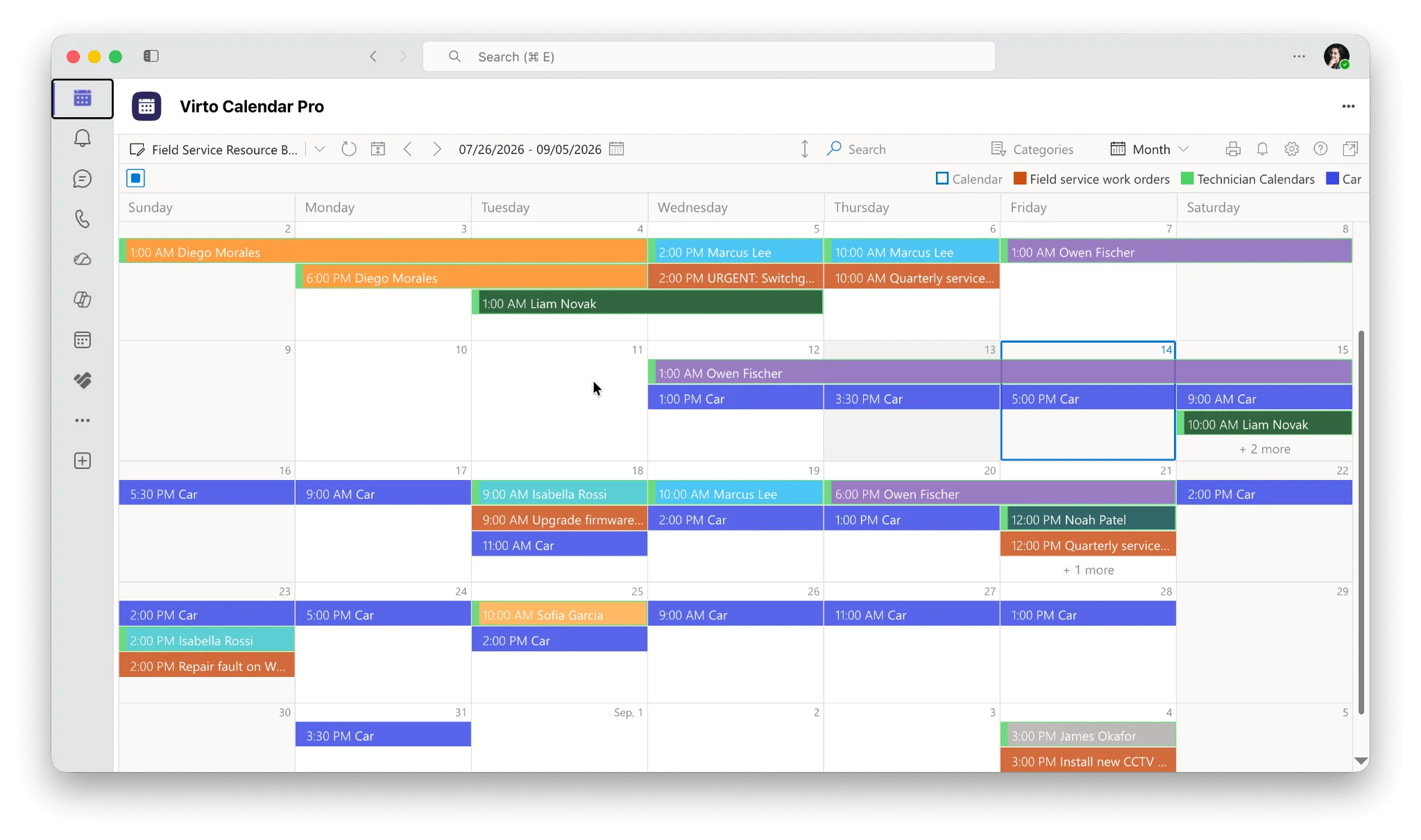
Pic.6. Virto Calendar App overlaying several Microsoft 365 group calendars in one colour-coded view.
Frequently asked questions
What is a Microsoft 365 group?
A Microsoft 365 Group is a membership service that gives a set of people a shared identity across Microsoft 365 — a shared inbox, calendar, SharePoint site, Planner and Teams — all managed together. Adding someone to the group grants access to every connected resource at once; removing them revokes it everywhere at once.
What is the difference between a Microsoft 365 group and a distribution list?
A distribution list only forwards email to its members. A Microsoft 365 Group adds a shared inbox, a calendar, a SharePoint document library, Planner and an optional Teams workspace on top of that email address. Distribution lists also cannot be used to grant permissions, because they are not security principals. Existing distribution lists can be upgraded to Microsoft 365 Groups, and the email address is preserved.
How do I create a Microsoft 365 group?
Admins create groups in the Microsoft 365 admin center under Teams & groups > Active teams & groups > Add Microsoft 365 group, stepping through name, owners, members and settings. End users can create one in Outlook by selecting the Groups icon and then New group, or by creating a team in Microsoft Teams, which provisions the underlying group automatically.
What is the difference between a Microsoft 365 group and a security group?
A security group exists to grant permissions to resources and has no mailbox, calendar or site of its own. A Microsoft 365 Group exists to enable collaboration and comes with all of those. Microsoft 365 Groups can be security-enabled and used for permissions too, with one notable exception: they are not supported for assigning permissions to Exchange shared mailboxes, where you need a mail-enabled security group.
Are Microsoft 365 Groups public or private by default?
Microsoft 365 Groups created in Outlook are Private by default, meaning only members can see the content and joining requires owner approval. Administrators choose explicitly when creating a group in the admin center, and the tenant-wide default can be changed with the Set-OrganizationConfig -DefaultGroupAccessType cmdlet. Privacy can only be set at creation, so it is worth deciding deliberately.
How many people can be in a Microsoft 365 group?
A group can hold more than 1,000 members, but only 1,000 can access group conversations at the same time. A group can have up to 100 owners, a single user can create up to 250 groups, and any user can own or belong to up to 7,000. Teams has separate, higher limits — 25,000 members per team.
What happens when I delete a Microsoft 365 group?
The group and all its connected resources — shared inbox, calendar, SharePoint site and files, Planner board and OneNote notebook — are soft-deleted and can be restored for 30 days. After that the deletion is permanent. Mailboxes on legal hold are the exception and survive permanent deletion.
Can external users join a Microsoft 365 group?
Yes. Guest access is enabled by default at the tenant level, and guests can be added to groups to participate in conversations, files and calendars. Guest invitations sent by ordinary members go to a group owner for approval, and guests cannot be group owners unless that default setting is changed.
Wrapping up
Microsoft 365 Groups reward a little upfront discipline. Get the group type right at the start, assign two owners, decide privacy deliberately, and set an expiration policy before the estate grows — and groups stay useful for years. Skip those four steps and you end up with a directory full of orphaned, half-remembered workspaces nobody wants to be the one to delete.
For the calendar side of group collaboration in particular — where most cross-group friction actually shows up — our guides to the Office 365 calendar and to managing multiple Microsoft 365 calendars pick up where this one leaves off.