Quick answer: how to automate AD user creation
Use PowerShell. Read a CSV of new hires with Import-Csv and pipe it to New-ADUser to create accounts in bulk, placing each one in the right OU and adding baseline security groups in the same pass. For recurring, approval-driven provisioning, put that script behind an identity-management tool or a request portal so HR and line managers can start the process without touching Active Directory.
That single sentence covers most of what teams need. The rest of this guide fills in the parts that decide whether it works on Monday morning: what a clean CSV contract looks like, how to make a script safe to re-run, when a script stops being the right answer, and how the account reaches Microsoft Entra ID, Microsoft 365 and AWS once it exists on-premises.
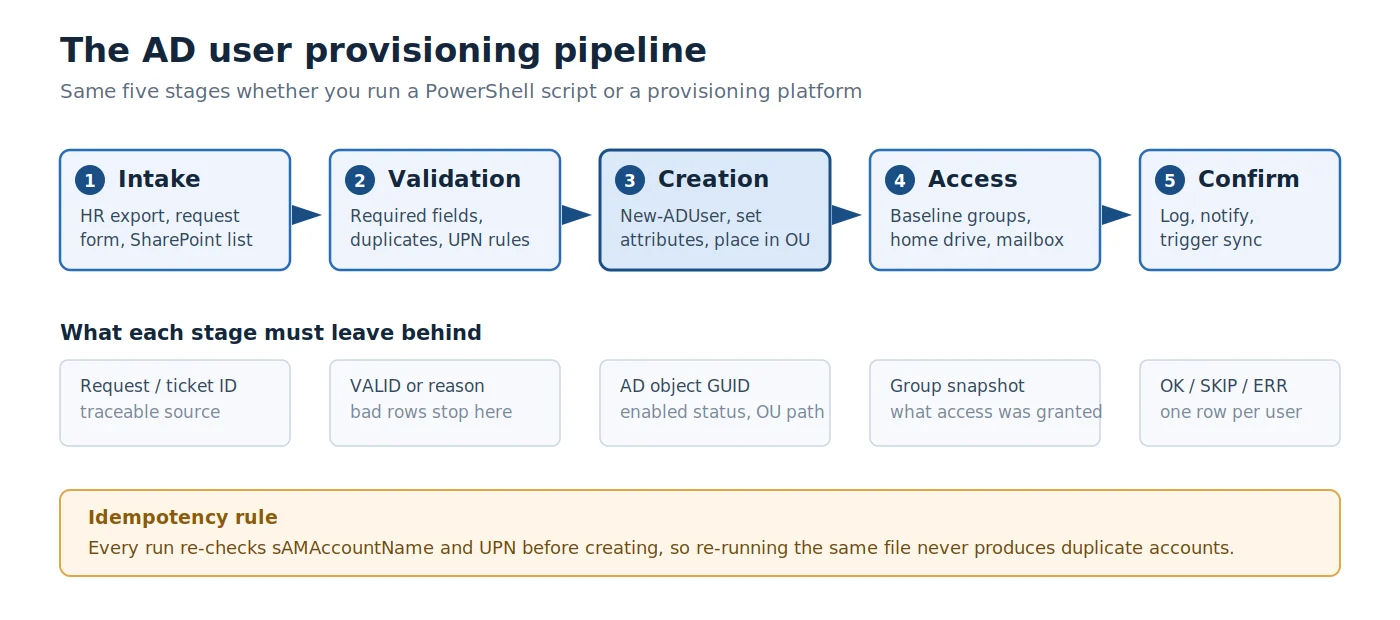
Pic.1. The AD user provisioning pipeline.
Why automate Active Directory user creation
Automating user creation in Active Directory means using scripts, utilities, or dedicated tools to add accounts quickly and consistently. Instead of opening Active Directory Users and Computers and typing each field by hand, an administrator defines the rules once — then a script or tool fills in the attributes, places the account in the correct OU, and assigns the right groups every time.
The case for it is straightforward once you measure the manual version. Creating one account by hand takes several minutes; at twenty hires a week that is hours of skilled administrator time spent on data entry. Worse, the errors are silent. A mistyped UPN suffix, a user dropped into the wrong OU, a missing VPN group — none of these throw an error, they just surface days later as a help-desk ticket or an audit finding.
Four things improve immediately:
- Time savings for IT. Per-user creation drops from minutes to seconds, and bulk intakes stop being all-day projects.
- Fewer errors. Predefined templates and validation rules catch typos, bad formats, and duplicate account names before anything reaches the directory.
- Faster onboarding. New hires get access when the HR record appears, not when an administrator has time to work through a queue.
- Better security and consistency. Uniform password policy, naming conventions, OU placement and group membership reduce permission drift — and give you something defensible at audit time.
What actually gets automated
Automation is not just about calling New-ADUser. It is about deciding which parts of provisioning the system will handle every single time. In most environments that breaks into a few repeatable buckets — attributes, placement, access, and password lifecycle. Make those choices explicit before you write a line of code:
- Core attributes: first and last name, display name, sAMAccountName, UPN, email, department, title, manager.
- Account placement: moving the user into the correct OU based on department, location, or role.
- Access and policy: adding the user to default security groups, applying GPO scopes, setting profile paths or home folders.
- Password handling: generating a compliant temporary password and forcing a change at first logon.
- Optional integrations: creating a mailbox, triggering directory sync, and logging the change for audit.
| Area | What it covers | Typical source of truth | Common tools/cmdlets |
|---|---|---|---|
| Core attributes | First/last name, display name, sAMAccountName, UPN, email, department, title, manager | HR export / request form | New-ADUser, Set-ADUser |
| Account placement | Put the user in the correct OU by department, location or role | Mapping rules | New-ADUser -Path, Move-ADObject |
| Access and policy | Default security groups, GPO scope, home/profile paths | Role templates | Add-ADGroupMember, GPO links |
| Password handling | Compliant temporary password, force change at first logon | Security policy | Secure string creation, account options |
| Optional integrations | Mailbox, directory sync, audit logging | Messaging / IdM systems | Exchange cmdlets, log export |
Fig.1. Automation scope at a glance.
Where to start if you automate nothing today
Do not try to automate the whole joiner–mover–leaver lifecycle in one project. Start with the highest-volume, lowest-variance step — usually the bulk creation of standard accounts from a known-good file — and expand outward once that run is boring and reliable.
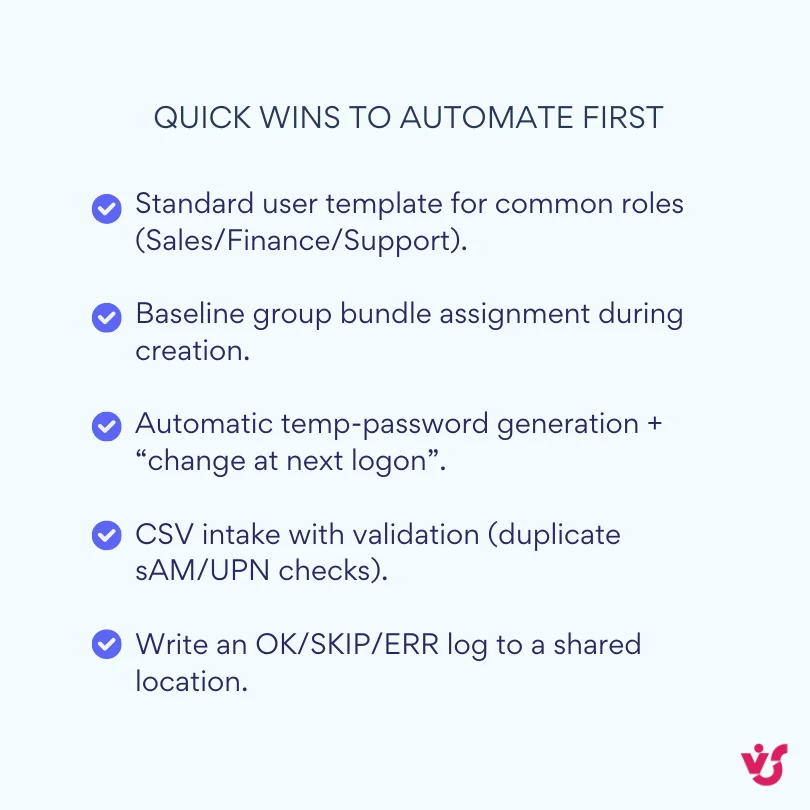
Pic.2. Quick wins to automate first.
Automate AD user creation with PowerShell
PowerShell is the most widely used way to automate user creation in Active Directory. It ships with Windows Server, reaches admin workstations through RSAT, speaks the native AD cmdlets, and handles templates, loops and error checking without any extra software.
Why PowerShell is the primary automation tool
- Built in and free. No licence, no installer, no procurement cycle. The Active Directory module is already on your domain controllers.
- Purpose-built cmdlets.
New-ADUser,Set-ADUser,Add-ADGroupMemberand dozens more cover the full account lifecycle. - Scriptable patterns. Read a CSV, validate fields, create users, add groups, and write logs in a single run.
- Good guardrails.
-WhatIf,-Confirm,Try/Catchand exit codes make the script safe to test and easy to schedule.
The two examples below show the shape of it: a single controlled create, then the same logic scaled to a file. Run both with -WhatIf first, then adjust the OU paths, UPN suffixes, group names and logging to match your standards.
Example 1: create a single user with New-ADUser
This example sets core attributes, generates a compliant temporary password, places the account in the right OU, enables it, and adds a baseline group. Run it in 64-bit PowerShell under an account with delegated rights to create users in the target OU.
# Run in 64-bit PowerShell with an account that has delegated rights to create users
Import-Module ActiveDirectory

$ou        = "OU=Sales,OU=Users,DC=contoso,DC=com"
$sam       = "jdoe"
$upnSuffix = "@contoso.com"

# Generate a temporary, compliant password
$plain = [System.Web.Security.Membership]::GeneratePassword(14,3)
$pwd   = ConvertTo-SecureString $plain -AsPlainText -Force

New-ADUser -Name "John Doe" `
    -GivenName "John" -Surname "Doe" `
    -SamAccountName $sam `
    -UserPrincipalName ($sam + $upnSuffix) `
    -DisplayName "John Doe" `
    -EmailAddress "john.doe@contoso.com" `
    -Department "Sales" -Title "Account Executive" `
    -AccountPassword $pwd -ChangePasswordAtLogon $true `
    -Enabled $true -Path $ou

# Baseline access
Add-ADGroupMember -Identity "GG_Sales_RW" -Members $sam

# Deliver the temporary password through a secure channel —
# never print it to the console, a transcript, or a log file
Two details are worth calling out. -ChangePasswordAtLogon $true is what turns a generated password into a genuinely temporary one. And the password itself never belongs in the log: hand it to the manager or service desk through whatever secure channel you already use for credentials.
Bulk create AD users from a CSV
Bulk onboarding is the same pattern at scale. Treat a CSV as the source of truth — one row per user — then validate required fields, check for duplicates, apply defaults, create and enable each account, add groups, and write a clear OK/SKIP/ERR log for every record.
Step 1: agree the CSV contract with HR
The CSV is a contract between IT and HR, not a convenience. Lock down the headers, formats and allowed values so every file you receive is predictable and machine-readable:
- Agree the fields you will receive: GivenName, Surname, SamAccountName, UPN, OU, Department, Title, Email, Groups.
- Make SamAccountName unique and reserve the format up front (
jdoe,j.doe) along with the duplicate rule (jdoe2). - Validate the UPN suffix against a list of allowed domains — an unverified suffix will break cloud sync later.
- For Groups, require approved names and verify each one exists before the run rather than mid-loop.
A sample file, headers first:
GivenName,Surname,SamAccountName,UPN,OU,Department,Title,Email,Groups
John,Doe,jdoe,jdoe@contoso.com,"OU=Sales,OU=Users,DC=contoso,DC=com",Sales,Account Executive,john.doe@contoso.com,"GG_Sales_RW;GG_VPN_Users"
Jane,Smith,jsmith,jsmith@contoso.com,"OU=Marketing,OU=Users,DC=contoso,DC=com",Marketing,Designer,jane.smith@contoso.com,"GG_Mktg_Read"
Note the quoting around the OU column. A distinguished name contains commas, so an unquoted OU silently shifts every column after it — the single most common reason a bulk import produces nonsense.
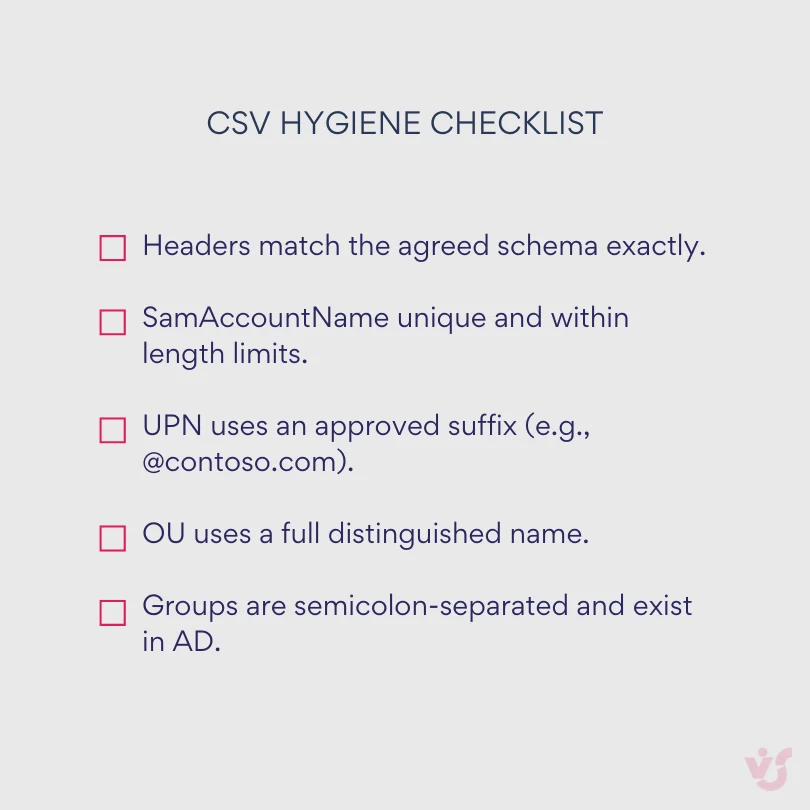
Pic.3. CSV hygiene checklist.
Step 2: the bulk creation script
This script imports the CSV, skips users that already exist, validates the UPN suffix, resolves group names, creates each account, assigns membership, and logs one line per row.
Import-Module ActiveDirectory
Set-StrictMode -Version Latest
$ErrorActionPreference = 'Stop'

$csvPath       = "C:\Secure\newhires.csv"
$defaultOU     = "OU=NewStarters,OU=Users,DC=contoso,DC=com"
$defaultGroups = @("GG_VPN_Users")
$upnSuffixes   = @("@contoso.com", "@emea.contoso.com") # accepted suffixes
$logPath       = "C:\Logs\ad_create_{0}.csv" -f (Get-Date -Format yyyyMMdd_HHmmss)

# Start log
"SamAccountName,Result,Message" | Out-File -FilePath $logPath -Encoding UTF8

# Helper: confirm every requested group actually exists
function Resolve-Groups($groupString) {
    $result = @()
    foreach ($g in ($groupString -split ';' | Where-Object { $_ -and $_.Trim() })) {
        $name = $g.Trim()
        $null = Get-ADGroup -Identity $name -ErrorAction Stop
        $result += $name
    }
    return $result
}

# Helper: create a secure temporary password
function New-TempPasswordSecure {
    $p = [System.Web.Security.Membership]::GeneratePassword(14,3)
    return ,(ConvertTo-SecureString $p -AsPlainText -Force),$p
}

# Process rows
$rows = Import-Csv -Path $csvPath

foreach ($r in $rows) {
    try {
        $sam = $r.SamAccountName.Trim()

        if (Get-ADUser -Filter "SamAccountName -eq '$sam'") {
            Add-Content $logPath "$sam,Skipped,User already exists"
            continue
        }

        # UPN
        $upn = if ($r.UPN) { $r.UPN.Trim() } else { "$sam@contoso.com" }
        if (-not ($upnSuffixes | Where-Object { $upn.ToLower().EndsWith($_) })) {
            throw "UPN suffix not allowed: $upn"
        }

        # OU
        $ou = if ($r.OU) { $r.OU.Trim() } else { $defaultOU }

        # Groups
        $groups = @()
        if ($r.Groups) { $groups += Resolve-Groups $r.Groups }
        $groups += $defaultGroups | Where-Object { $_ }
        $groups = $groups | Sort-Object -Unique

        # Temporary password
        $pwdSecure,$pwdPlain = New-TempPasswordSecure

        # Create the user
        New-ADUser -Name "$($r.GivenName) $($r.Surname)" `
            -GivenName $r.GivenName -Surname $r.Surname `
            -SamAccountName $sam -UserPrincipalName $upn `
            -DisplayName "$($r.GivenName) $($r.Surname)" `
            -EmailAddress $r.Email -Department $r.Department -Title $r.Title `
            -Path $ou -AccountPassword $pwdSecure -Enabled $true -ChangePasswordAtLogon $true

        # Group membership
        foreach ($g in $groups) { Add-ADGroupMember -Identity $g -Members $sam }

        # Log success — never log plain passwords; deliver them through a secure channel
        Add-Content $logPath "$sam,Success,Created in $ou; Groups: $(($groups -join '|'))"
    }
    catch {
        Add-Content $logPath "$($r.SamAccountName),Error,$($_.Exception.Message)"
    }
}

Write-Host "Done. See log: $logPath"
The Get-ADUser -Filter check at the top of the loop is what makes the script idempotent. Re-running the same file after fixing three bad rows will skip the accounts that already exist instead of failing halfway or creating duplicates — and that property matters far more in production than elegance.
Step 3: run it safely
Moving from the lab to production is mostly about privilege and secrets:
- Run in 64-bit PowerShell under an account with delegated rights to the target OUs and groups — not Domain Admin.
- For recurring onboarding, create a Task Scheduler task that runs daily or hourly under a service account, pointed at a secure folder containing the CSV.
- Keep secrets out of the script and the CSV. Use a vault such as Windows Credential Manager or the PowerShell SecretManagement module, or inject credentials at runtime.
- During testing, add
-WhatIfto the creation and group-membership cmdlets to simulate the run without touching the directory.
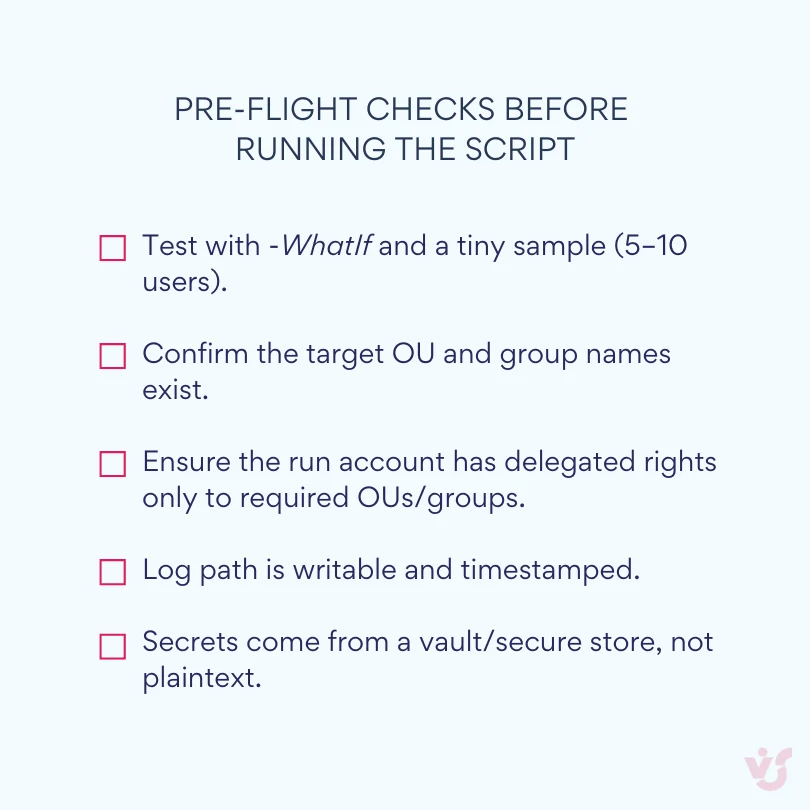
Pic.4. Pre-flight checks before running the script.
Step 4: verify the result
Never treat “the script finished” as “the accounts are correct”. Spot-check a few records, then read the log:
Get-ADUser jdoe -Properties * |
    Select-Object Name,Enabled,UserPrincipalName,EmailAddress,Department,DistinguishedName,MemberOf
Confirm the account is Enabled, sits in the expected OU, and carries the expected MemberOf groups. Then open the log and look specifically at the SKIP and ERR rows — those are the records a human still has to deal with. In a hybrid environment, check that the user appears in Microsoft Entra ID after the next sync cycle.
When a script is the right answer
Scripts earn their place when you need fine-grained control and fast iteration without waiting on a vendor roadmap:
- Flexibility. Any attribute set, naming rule, or branching logic; sources can be CSVs, APIs, or HR exports.
- Availability. No extra licences or installers — PowerShell and the AD module are already there.
- Control. Corporate standards for OUs, default groups and formats live in one file you can version alongside the rest of your infrastructure code.
They stop being the right answer at a predictable point: when people who should never see an AD console need to start the process, when approvals and audit trails become a requirement rather than a nice-to-have, or when the number of separate scripts starts to drift out of sync. That is where tools come in.
Active Directory user creation tools
PowerShell covers the mechanics of creating accounts. When you need business process around it — approvals, delegated portals, connectors and reporting — a specialized tool is the better fit.
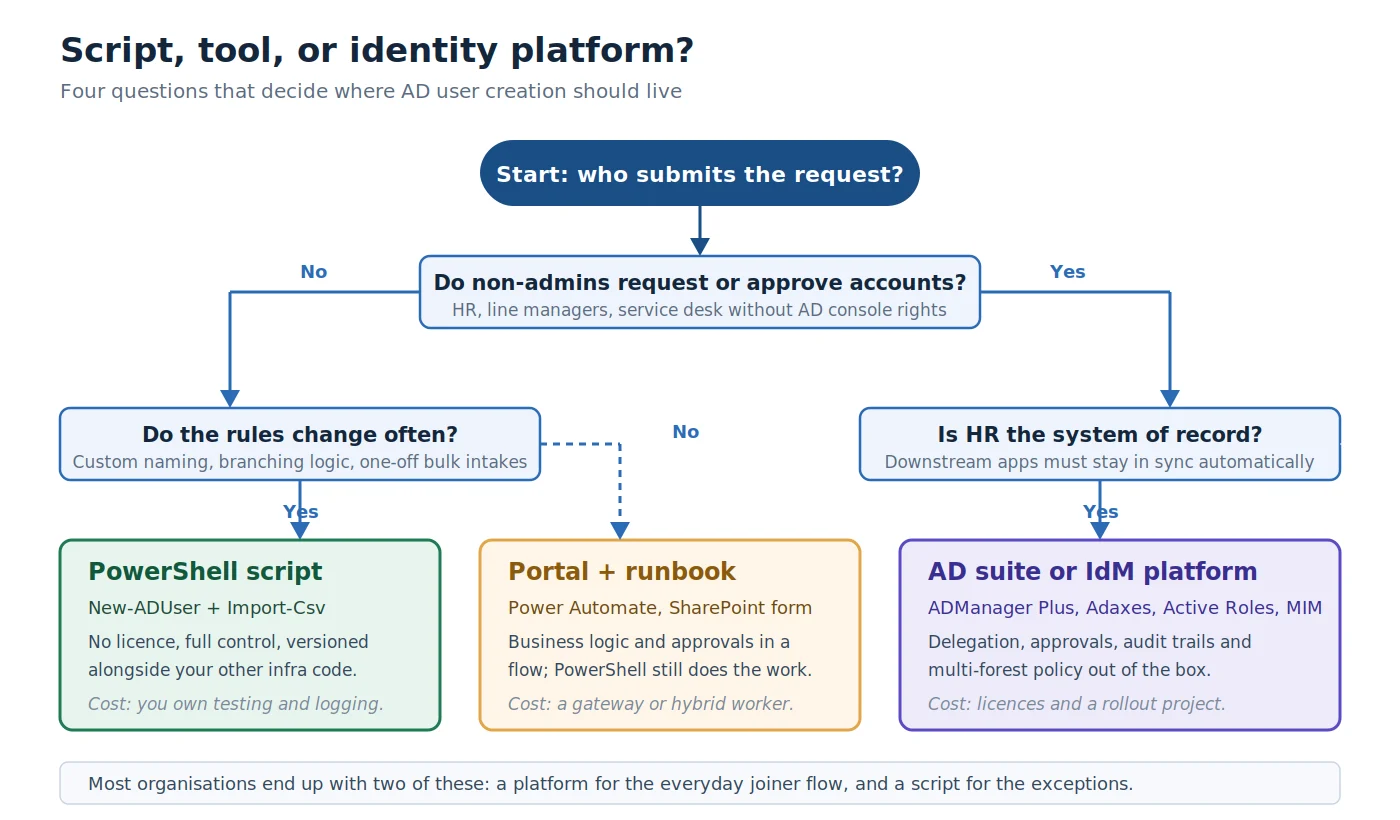
Pic.5. Choosing between a script, a portal-driven flow, and a full identity platform.
How tools differ from scripts
At a high level, these platforms trade code for configuration:
- Speed of launch. Visual designers, request forms and no-code rule builders assemble a process in hours. In a script, every condition and screen is written and tested by hand.
- Business logic out of the box. Multi-step approvals, conditional branches, SLAs and escalations are configured with clicks rather than coded.
- Integrations without API work. Connectors for Microsoft 365, email, and enterprise systems such as ServiceNow, SAP SuccessFactors, Workday and Jira remove most of the authentication and error-handling burden.
- Management and auditing. Centralized logs, role-based access, versioning and compliance reports come with the product. Script-only approaches need repositories, pipelines and custom telemetry to reach the same standard.
- Cost profile. Tools cost licence money; scripts cost engineering time in development, testing, documentation and long-term maintenance. Neither is free.
Power Automate
Power Automate is Microsoft’s low-code workflow service in Microsoft 365. It listens for triggers — a form submission, an email, a list change — and runs cloud or on-premises actions through connectors, gateways or runbooks.
- Good at: intake forms (Microsoft Forms, SharePoint, Power Apps), approvals, notifications, and orchestration.
- Typical pattern: request submitted → manager and IT approval → flow calls an Azure Automation runbook or an on-premises script via a gateway or Hybrid Runbook Worker → account created → confirmation email and log entry.
- Best for: standard joiner/mover/leaver flows where the heavy lifting stays in PowerShell but the business logic lives in a visual flow.
💡 Learn more:
- Official Microsoft Power Automate documentation
- On-premises data gateway — Power Automate | Microsoft Learn
- Learn to manage on-premises data gateways
ManageEngine ADManager Plus
A web-based Active Directory management and reporting suite that centralizes provisioning, group and OU changes, delegation and approval workflows.
- Capabilities: bulk creation with templates, role-based delegation, request/approval workflows, detailed reports, CSV imports, scheduled jobs.
- Best for: service desk teams and HR-driven onboarding where non-admins must request or approve accounts without touching AD consoles.
💡 Learn more: ADManager Plus — AD management and reporting
Adaxes (Softerra)
A directory management and automation platform for Active Directory and Microsoft 365, adding a web portal, a workflow and approval engine, and policy enforcement.
- Capabilities: advanced naming rules, automated lifecycle policies, approval workflows, self-service portal, fine-grained automation triggers.
- Best for: multi-domain environments with strict naming and OU policies and real self-service needs.
💡 Learn more: Adaxes — Active Directory management and automation
One Identity Active Roles
A delegated administration and policy enforcement platform for Active Directory and Entra ID, built around structured approvals, change control and auditing.
- Capabilities: delegated administration at scale, change control, policy enforcement, complex approval workflows, strong audit and compliance reporting.
- Best for: large or regulated environments with tight segregation-of-duties requirements.
💡 Learn more:
Microsoft Identity Manager and Entra ID provisioning
Microsoft’s own identity lifecycle solutions. MIM runs on-premises to synchronize directories and drive joiner/mover/leaver workflows; Entra ID provisioning extends lifecycle automation to cloud apps with standards-based connectors.
- Capabilities: identity lifecycle across systems, attribute synchronization, HR-driven provisioning into directories and applications.
- Best for: enterprises standardizing on Microsoft identity, where HR is the source of truth and many downstream systems must stay in sync.
💡 Learn more:
- Microsoft Identity Manager documentation
- What is automated app user provisioning in Microsoft Entra ID
System Center Orchestrator and ServiceNow
Two different angles on the same idea. Orchestrator runs datacenter runbooks that execute scripts and tasks on-premises; ServiceNow drives ticket-centric flows with approvals and catalog items. Both can trigger PowerShell or REST calls from a controlled, auditable process.
- Capabilities: ticket-driven orchestration, service catalogs, approvals, and runbooks that call PowerShell or REST.
- Best for: ITIL-aligned organizations where every action starts as a ticket and must stay traceable end to end.
💡 Learn more:
SharePoint and Power Apps as the front door
SharePoint and Power Apps can serve as the request layer for provisioning — forms, approval pages and dashboards that business users already know. The portal collects and validates the data; the back-end action runs through PowerShell, Azure Automation or a REST API. If you are new to that side of the platform, our guides to what SharePoint is and what it is used for and to SharePoint automation and workflows cover the groundwork.
- Capabilities: request forms, validation rules, approval pages and dashboards, with creation actions executed by runbooks or APIs.
- Best for: organizations that want a familiar portal for HR and managers, especially where an on-premises option is required.
💡 Learn more:
- Official Microsoft Power Apps documentation
- User Profile service overview — SharePoint Server | Microsoft Learn
Common pitfalls, whichever route you take
Most failures are the same four, regardless of tooling:
- Inconsistent HR attributes leading to mapping errors. Fix: validate at intake and maintain reference lists for departments, locations and group packages.
- No rollback and no single log of failures. Fix: log each step transactionally and write compensating actions — remove groups, disable the account — when a downstream step fails.
- Secrets embedded in flows or scripts. Fix: move credentials into a secure store or use managed identities.
- No idempotency, producing duplicate accounts. Fix: pre-check sAMAccountName and UPN before creation so any run is safe to repeat.
Hybrid AD and Entra ID: keeping one place of creation
Most organizations run a hybrid identity model. On-premises Active Directory stays the source of truth for user objects and security groups, while Microsoft 365, Azure and AWS deliver the applications. The goal is a single lifecycle: create the account once, let it synchronize, and have the right access and licences appear everywhere without a second manual step.
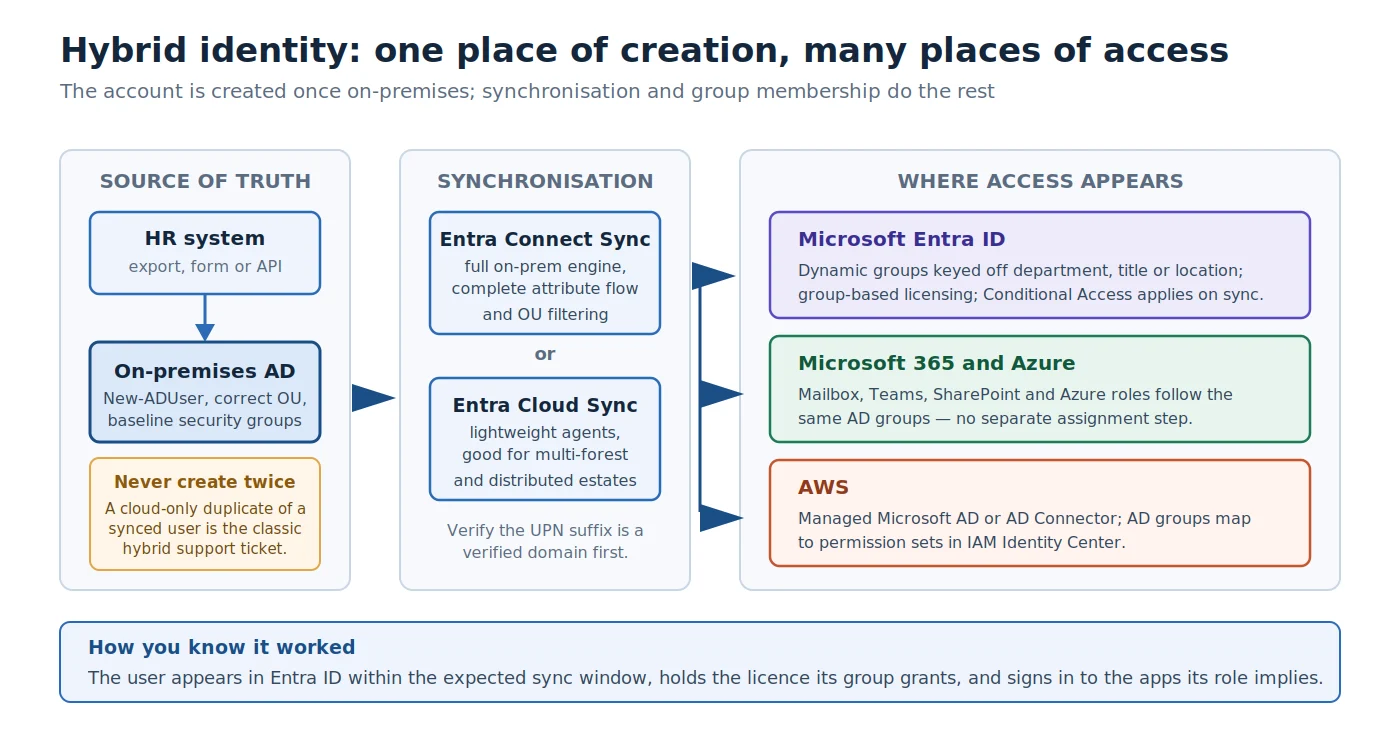
Pic.6. Hybrid identity — one place of creation, many places of access.
Choosing and scoping synchronization
For Microsoft Entra ID:
- Choose the sync technology. Microsoft Entra Connect Sync is the full on-premises engine with complete attribute flow and filtering. Cloud Sync uses lightweight agents and suits multi-forest or distributed environments. Both publish users and groups to Entra ID.
- Verify your domains. The UPN suffix you use (for example
@contoso.com) must be a verified domain in Entra ID, or the synced user will land with anonmicrosoft.comUPN. - Filter OUs. Scope synchronization to the OUs that hold production users; exclude test accounts and service accounts.
- Validate UPNs before creation. Block invalid characters and duplicates at intake — fixing them after sync is far more work.
For AWS:
- AWS Managed Microsoft AD is a managed directory in AWS. You can create and manage users there, or establish a trust with on-premises AD.
- AD Connector is a pass-through that relies on your on-premises AD for authentication — no password sync and no copy of the user in AWS.
- Plan where automation runs. With Managed AD you can automate inside AWS using runbooks, Lambda or Systems Manager. With AD Connector, keep automation on-premises and use group mapping for AWS access.
Policies to fix before you automate
Treat these as a contract between HR, IT and security, written down before any script runs:
- Naming and password standards. Codify sAMAccountName and UPN patterns, allowed suffixes, and password requirements.
- Attribute-to-access mapping. Define templates such as Department / Title / Location → OU + AD groups. Mirror them in Entra ID using dynamic groups and group-based licensing, or in AWS using group-to-permission-set mapping in IAM Identity Center. If groups are how access is granted, it is worth understanding how Microsoft 365 Groups work alongside your AD security groups.
- Security policies. Enforce MFA and Conditional Access in Azure; apply least-privilege roles and session policies in AWS.
The unified flow
- Intake: an HR export, service catalog form, or API call delivers the new-hire record.
- Validation: required attributes, unique sAMAccountName and UPN, allowed values for departments, locations and group bundles.
- Creation in AD: the script or tool creates the user in the correct OU, sets attributes, generates a temporary password, and enables the account.
- Baseline access: default AD groups matching the role are applied.
- Logging and notification: structured OK/SKIP/ERR logs are written and the requester or manager is notified.
- Cloud assignment: in Azure, group-based licensing and dynamic groups attach licences and Conditional Access automatically once the user syncs. In AWS, AD groups tie to permission sets in IAM Identity Center, monitored through CloudTrail and CloudWatch.
- Verification: confirm the user appears in Entra ID or AWS within the expected sync window and can reach the applications their role implies.
Control and audit
- Centralized logs. Capture per-user steps with timestamps and outcomes. Keep them searchable and exportable.
- Regular reviews. Compare HR org data against AD, Entra and AWS mappings, and adjust group bundles when roles change.
- A rollback plan. Document how to disable or remove an incorrect account and reverse its group and permission assignments — before you need it.
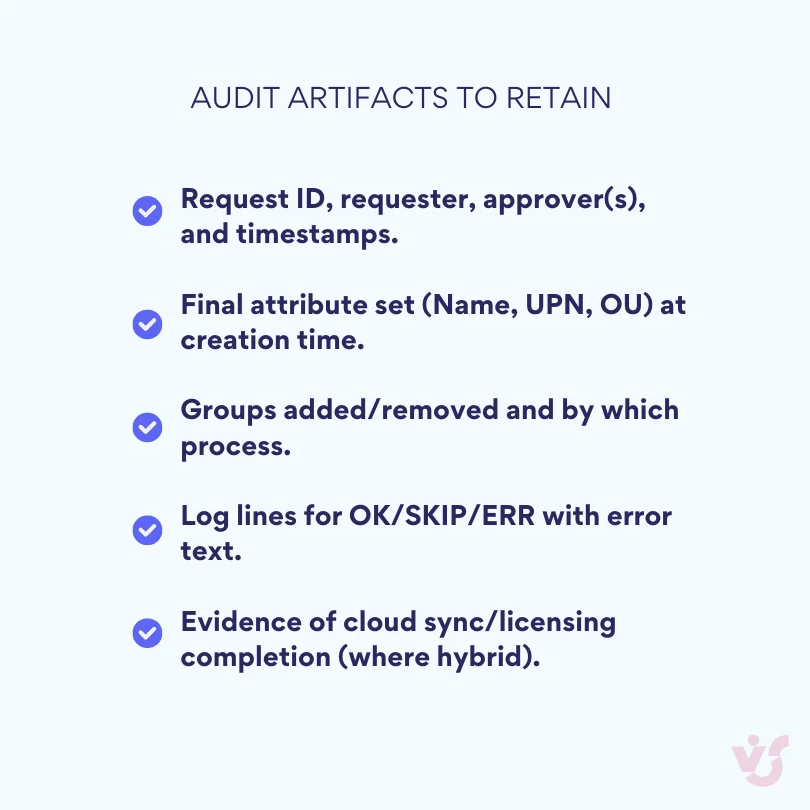
Pic.7. Audit artifacts to retain.
Best practices for AD user provisioning automation
Measure before you change anything
Capture where time is spent and where mistakes occur, so you can target the biggest wins and prove the improvement afterwards. Time the minutes spent per new hire, per transfer and per offboard, including approval waits and rework. Log where typos, wrong OUs and missing groups actually occur. Review HR exports for free-text fields that should be controlled lists.
Standardize the data model
- Naming rules. Set a clear format for sAMAccountName and UPN/email, and write down how you handle special characters and long names.
- One dictionary. Maintain a single controlled list for departments and job titles, stored somewhere your scripts and tools can read.
- Duplicate policy. Decide the format ahead of time (
jdoe2,j.doe2) and implement it in code so it is applied consistently. - Required fields. Make GivenName, Surname, UPN, OU, Department, Title and Email mandatory, and validate them at intake.
Assign permissions through roles, not individually
Groups are the backbone of predictable access. Define standard roles — Sales, Finance, Support — and list the AD groups each one grants. Add people to roles rather than granting rights one by one; keep the Department/Title/Location → OU + groups mapping in a data file so it can be updated without editing code. Audits become dramatically simpler when access is explainable in terms of role membership.
Test before production
- Point early runs at a test domain or a dedicated test OU.
- Import five to ten users first, then verify Enabled status, MemberOf and attribute formatting by hand.
- Validate email and UPN suffixes and uniqueness.
- Use
-WhatIffor dry runs wherever the cmdlet supports it. - Keep logs simple and readable: OK/SKIP/ERR, the OU used, groups assigned, and any error message — easy to open in Excel.
Strengthen security and governance
- Least privilege. Automation accounts get only the rights they need on the target OUs and groups.
- Secret handling. Credentials live in a vault or managed identity, never in scripts or CSV files, and are rotated on a schedule.
- Auditability. Centralize logs and retain them appropriately, including who requested, who approved, and what changed.
- Standards alignment. Apply password and MFA policy consistently, and use Conditional Access for cloud applications.
Operate it like a service
Once it is in production, track runs, failures and latency; alert on anomalies; version your scripts and templates; and review the HR-to-OU-and-group mapping quarterly, removing stale groups and entitlements as you go.
Quick checklist
- Naming and UPN rules are documented and enforced in code.
- Departments and titles come from one controlled dictionary.
- Role templates map to AD groups; onboarding adds users to roles, not to individual rights.
- Test runs happen in a safe OU with small samples first.
- Logs capture OK/SKIP/ERR with enough detail to troubleshoot.
- Secrets are stored securely and automation runs with least privilege.
- Reviews and audits are scheduled, and mappings stay aligned with HR.
A SharePoint front end for on-premises AD
If you run SharePoint on-premises, a portal your HR team and delegated admins already use can take a lot of routine account work out of the AD console — without giving anyone MMC access or a remote desktop session to a domain controller.
Virto Active Directory User & Password Manager for SharePoint On-Premises is the Virto app in this space. It lets delegated staff add, edit or copy AD users from simple forms inside SharePoint, gives end users self-service password changes with automated expiry reminders and policy checks, and keeps AD attributes reflected in SharePoint profiles so people cards and search stay current. Installers are published for SharePoint 2013, 2016, 2019 and Subscription Edition, and there is a 30-day free trial.
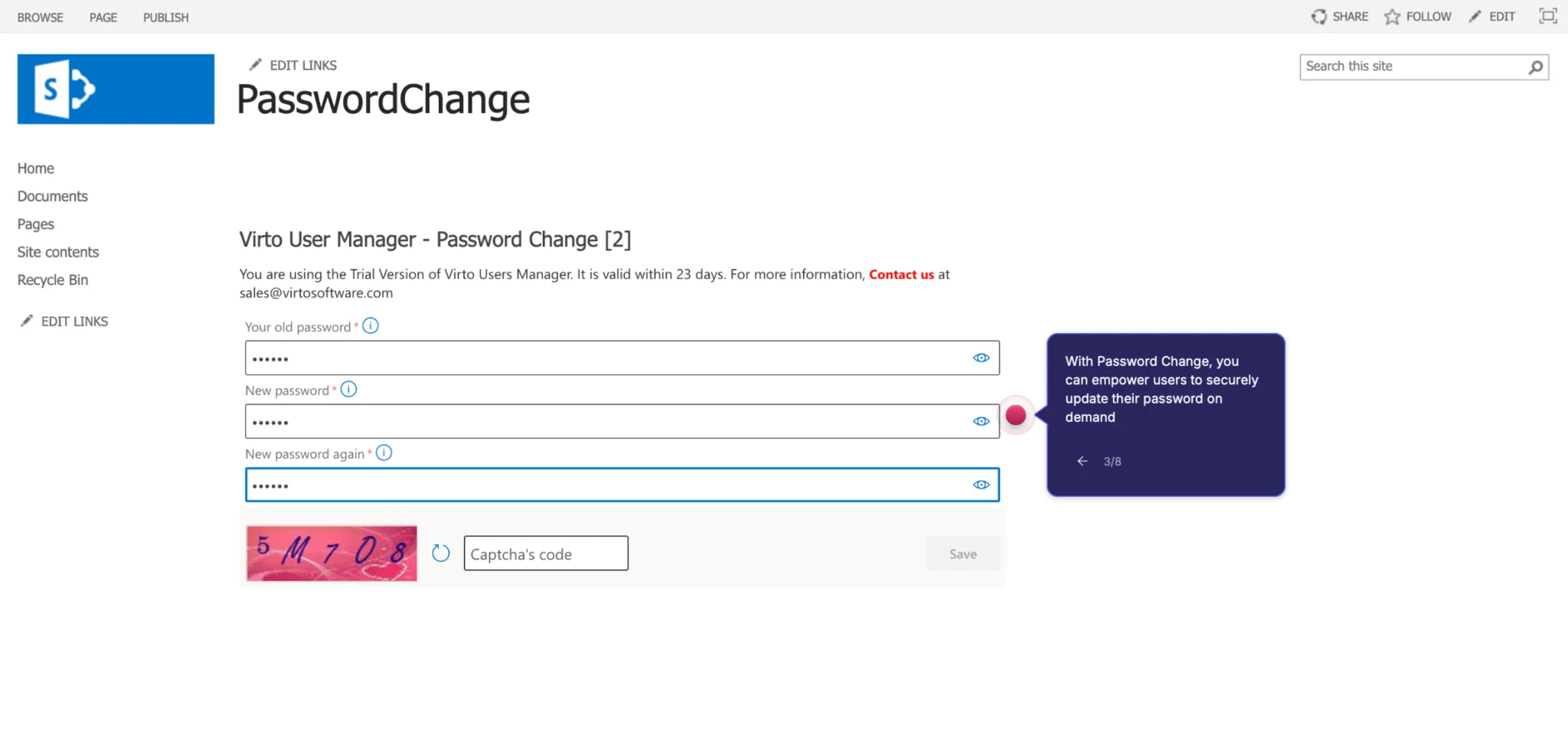
Pic.8. The Virto Active Directory User & Password Manager form in SharePoint On-Premises.
Where it fits in the flow described above is narrow and worth being precise about: it is the intake and everyday-maintenance layer, not a replacement for your provisioning logic.
- Intake and creation happen in SharePoint through the app’s forms, using the copy-user function to reuse a known-good template account.
- System-specific entitlements — mailbox, home folder, third-party applications — still run through your PowerShell script or runbook.
- Profile currency is handled on a schedule so SharePoint reflects AD changes without manual edits.
- Password self-service removes a large share of the routine tickets that otherwise land on the service desk.
Two related on-premises apps are worth knowing about if this is the pattern you are building: Virto Password Reset & Recovery for self-service password recovery, and Virto Workflow Automation, which adds more than 70 activities to SharePoint workflows for the approval and notification steps around provisioning. If your estate is cloud-first rather than on-premises, the Virto apps for Microsoft 365 cover the same collaboration ground on SharePoint Online and Teams. All Virto apps come with a 30-day free trial.
FAQ
How do I bulk create AD users in Active Directory?
Put the users in a CSV with one row each, then read it with Import-Csv and create the accounts with New-ADUser in a loop. Check for an existing sAMAccountName before each create so the run is safe to repeat, add baseline groups with Add-ADGroupMember, wrap the body in Try/Catch, and write an OK/SKIP/ERR log line per row. For recurring intakes, schedule the script in Task Scheduler under a delegated service account.
Which PowerShell cmdlet creates an Active Directory user?
New-ADUser, from the Active Directory module. It is available on domain controllers and on any workstation with RSAT installed. Set-ADUser modifies an existing account, Get-ADUser reads one, and Add-ADGroupMember handles group membership.
How do I import AD users from a CSV?
Import-Csv -Path C:\Secure\newhires.csv returns one object per row, with properties named after your headers. Pipe or loop those objects into New-ADUser, mapping each column to a parameter. Quote any column containing commas — distinguished names for OUs always do — and validate the UPN suffix and group names before the loop reaches the directory.
Do I need to be a Domain Admin to automate user creation?
No, and you should not be. Delegate rights to create and modify user objects on the specific OUs the automation targets, plus membership rights on the groups it assigns. A dedicated service account with that delegation is both safer and easier to audit than running provisioning as Domain Admin.
What is the difference between a script and a provisioning tool?
A script gives you complete control and costs nothing to licence, but you own the testing, logging, approval logic and long-term maintenance. A provisioning tool gives you approvals, delegation, self-service and audit trails out of the box, in exchange for licence cost and a rollout project. Most organizations end up running both: a platform for the standard joiner flow, and a script for the exceptions.
How do new accounts reach Microsoft 365 after they are created?
Through directory synchronization. Microsoft Entra Connect Sync or Cloud Sync publishes the on-premises user to Entra ID, where group-based licensing and dynamic groups attach licences and Conditional Access automatically. Create the account only on-premises — a manually created cloud account for a user who also exists in AD is the most common source of hybrid duplicates.
Conclusion
Automating user creation in Active Directory removes repetitive work, speeds up onboarding, and eliminates a category of quiet errors that only surface later. Whether you handle five hires a month or five hundred, the payoff arrives as soon as the process becomes repeatable.
There is no single right approach. Choose the one that matches your environment:
- PowerShell scripts suit smaller teams and bespoke rules where you want full control in code.
- Specialized tools make sense when you need approvals, dashboards, connectors and audit trails with less engineering effort.
- Hybrid integration is essential when on-premises AD remains the source of truth and cloud applications must be licensed and reachable immediately.
Whichever you pick, the fundamentals do not change: one place of creation, validated input, least-privilege execution, and a log you can hand to an auditor.
If you run SharePoint on-premises and want to see the portal layer in action, you can schedule a demo or start a 30-day free trial from the Virto SharePoint apps page.
Official Microsoft resources
- New-ADUser (ActiveDirectory) | Microsoft Learn
- Get-ADUser (ActiveDirectory) | Microsoft Learn
- Install and manage Remote Server Administration Tools | Microsoft Learn
- about_CommonParameters — PowerShell | Microsoft Learn
- about_Try_Catch_Finally — PowerShell | Microsoft Learn
- What is Microsoft Entra Connect and Connect Health | Microsoft Learn
- What is Microsoft Entra Cloud Sync | Microsoft Learn
- Assign or unassign licenses to a group | Microsoft Learn
- Manage rules for dynamic membership groups in Microsoft Entra ID
- What is automated app user provisioning in Microsoft Entra ID
- Microsoft Identity Manager documentation
- Official Microsoft Power Automate documentation
- On-premises data gateway — Power Automate | Microsoft Learn
- Official Microsoft Power Apps documentation
- User Profile service overview — SharePoint Server | Microsoft Learn
Related reading on VirtoSoftware
- What Is Microsoft SharePoint and What Is It Used For?
- SharePoint Automation & Workflows: Tools, Examples & How-To
- What Are Microsoft 365 Groups and How to Use Them
- SharePoint Extranet: Benefits, Setup & Examples
- Microsoft Teams Admin Center: Full Guide for Admins
- What Is an Admin Calendar and How to Manage It Effectively