


A SharePoint calendar overlay combines several calendars into one color-coded view, so a team can see meetings, deadlines, and events from multiple sources at a glance. It is the fastest way to give a department a single shared schedule instead of forcing people to check five separate calendars. This guide walks through what overlay is, how the native setup works, where it falls short in modern SharePoint Online, and how to overlay more than two calendars when the built-in tools run out of room.
What is SharePoint calendar overlay?
Calendar overlay is a feature that layers multiple calendars on top of one another in a single view, with each source shown in its own color. Instead of opening a project calendar, a team calendar, and a holiday calendar one by one, you see all of their events merged onto the same month, week, or day grid.
Overlay was originally a feature of the classic SharePoint calendar (a calendar-type list). It let you display a primary calendar plus additional calendars from the same site, each assigned a distinct color so events stayed visually separated. The goal has always been the same: one screen, many schedules, no tab-switching.
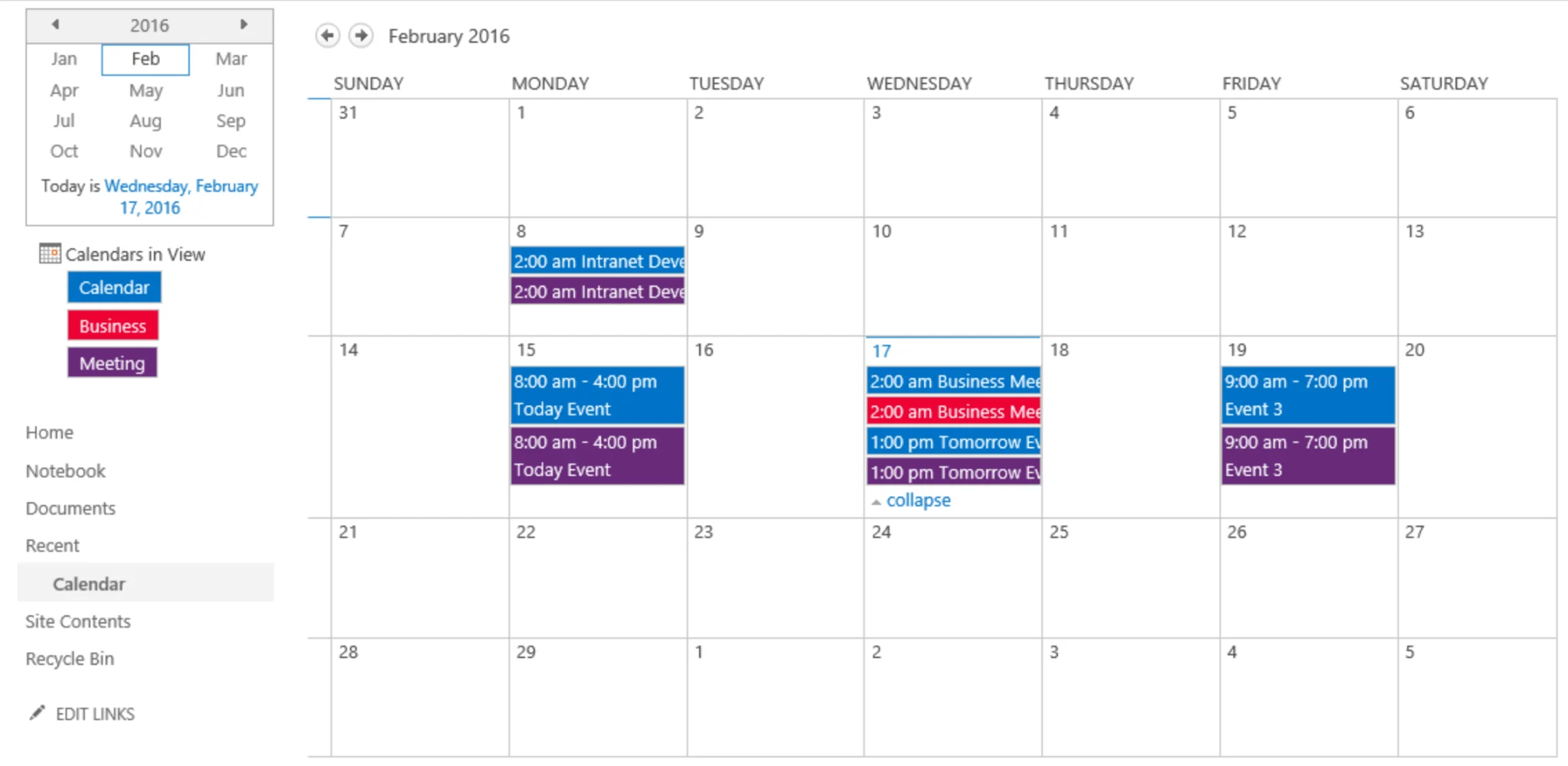
Example: three calendars overlaid in a single month view, each shown in its own color.
How to set up calendar overlay in SharePoint Online (native method)
To overlay calendars natively, you use the classic SharePoint calendar list and its Calendars Overlay settings. The steps below assume you have at least one calendar (events) list and edit rights on the site.
- Open the calendar list you want to use as the base calendar and switch to its Calendar view.
- On the ribbon, open the Calendar tab and select Calendars Overlay.
Important caveat for 2026: these overlay settings live on classic SharePoint pages. As organizations move to modern SharePoint Online, the classic overlay screen becomes harder to reach, and on fully modern sites it is unavailable. If your tenant has standardized on modern pages, plan around the limitations described next.
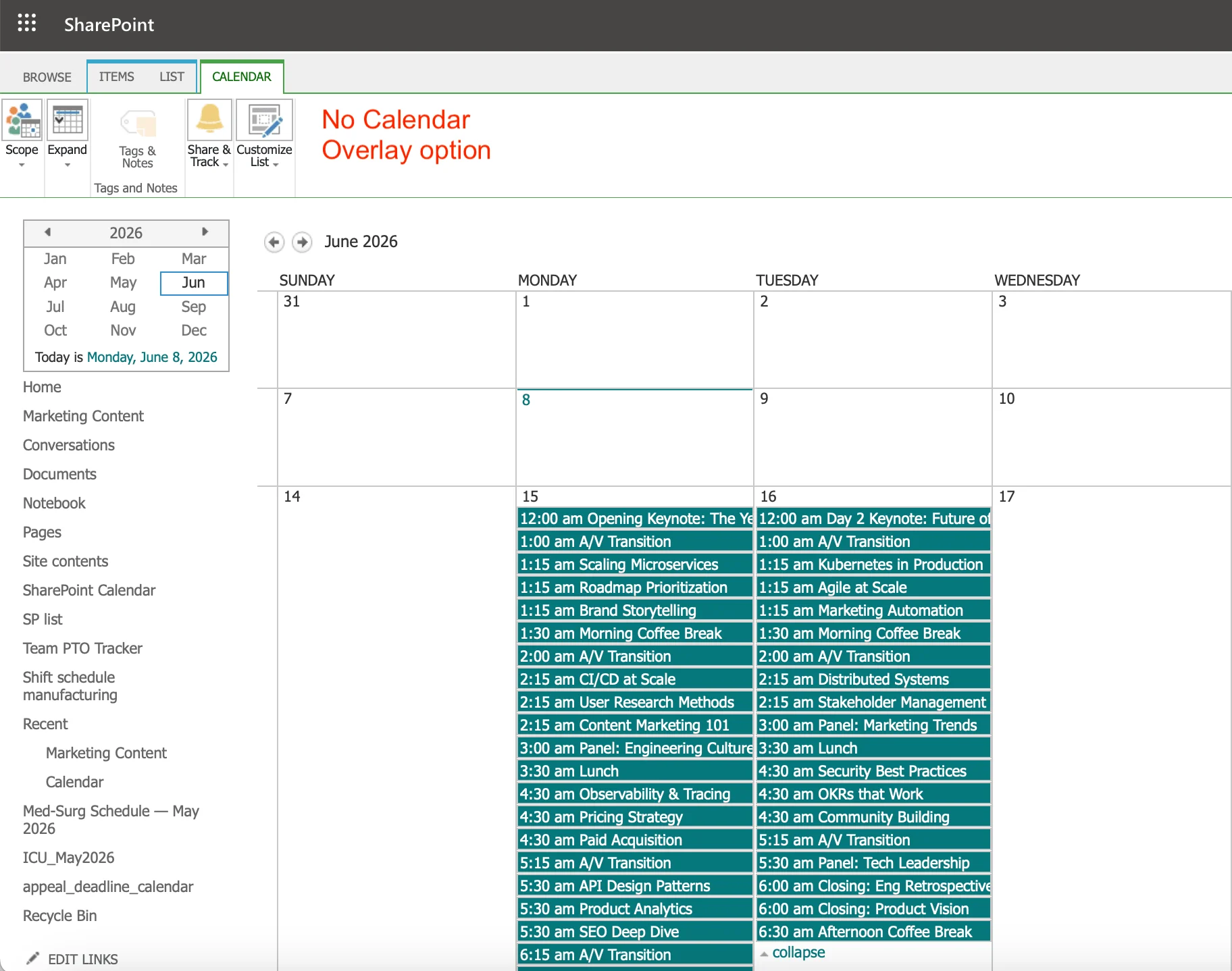
Classic SharePoint view in 2026: no calendar overlay option in settings.
- On the Calendar Overlay Settings page, choose New Calendar.
- Enter a name, pick the calendar type (SharePoint or Exchange), and provide the source URL for the calendar you want to add.
- Assign a color to the added calendar so its events are easy to distinguish, then click OK.
- Repeat to add more calendars, then return to the calendar view to see the merged result.
Limitations of the native SharePoint calendar overlay
The native overlay is useful for small, simple setups, but it carries hard limits that matter for any team with more than a couple of calendars:
- Maximum of 10 calendars. The classic overlay caps out at 10 sources, with no way to raise the limit.
- Same site collection only. You cannot pull in calendars from other site collections in the tenant.
- Classic pages only. The overlay settings page is inaccessible from modern SharePoint pages, and modern SharePoint Online has no native overlay replacement.
- Limited external sources. Overlays are built around SharePoint list calendars; Microsoft Planner, iCal feeds, and Google calendars are not supported.
- Restricted color coding. Colors are assigned per calendar, not per event category, so you cannot color-code by event type within a single source.
In short, the native overlay was designed for a classic-SharePoint world. On a modern team site that needs to combine SharePoint, Exchange, Planner, and external feeds, it runs out of room quickly. That is the point where most administrators start looking for a dedicated app.
How to overlay multiple calendars in SharePoint with more sources
To overlay more than two calendars on a modern SharePoint Online page, including Exchange and Planner, the practical route is a third-party web part such as the Virto Calendar App. It is a SharePoint Framework (SPFx) web part, so it drops onto modern pages directly and connects to multiple sources through Microsoft Graph.
Compared with the native overlay, it removes the constraints that matter most for enterprise teams:
- Multiple sources in one view: SharePoint lists, Exchange and Outlook calendars, Microsoft Planner, iCal feeds, and Google calendars overlaid together.
- Real monthly, weekly, and daily views on modern pages, not just an agenda list.
- Real-time Exchange sync through Microsoft Graph, so events are read live rather than copied into a list that drifts out of date.
- Per-category color coding and filtering, so a single source can be split visually by event type.
- Cross-site sources, removing the same-site-collection restriction of the native overlay.
Typical setup is: add the web part to a modern page, connect your first calendar source, then add each additional source (SharePoint list, Exchange, Planner, iCal, or Google), which overlay automatically. You then configure color rules and choose a default view before publishing.
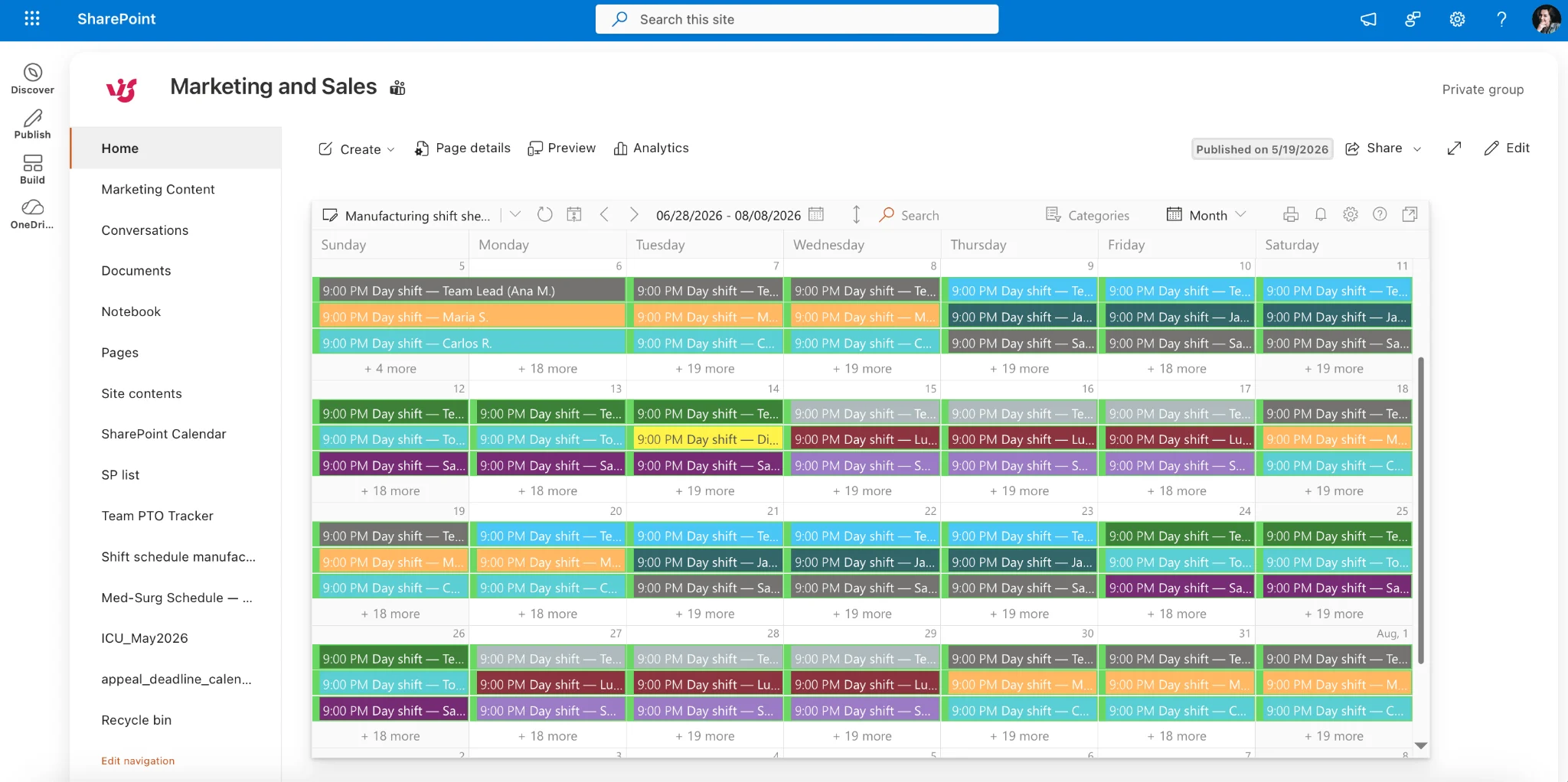
Virto Calendar App overlaying several sources in modern SharePoint interface.
Calendar overlay settings: color coding and filters
Effective overlay is mostly about color coding and filtering, so a busy combined view stays readable. A few practical settings to configure:
- Assign one color per source first so each calendar is instantly identifiable (for example, blue for the project calendar, green for holidays).
- Where supported, add per-category rules so event types within one calendar get their own color, such as red for deadlines and gray for tentative items.
- Set up source filters so viewers can toggle individual calendars on or off without changing the configuration.
- Choose a sensible default view; Month is the most common starting point for team coordination.
With the native overlay, color coding is limited to one color per calendar. Category-level color coding and richer filtering are where a dedicated app such as the Virto Calendar App adds the most day-to-day value.
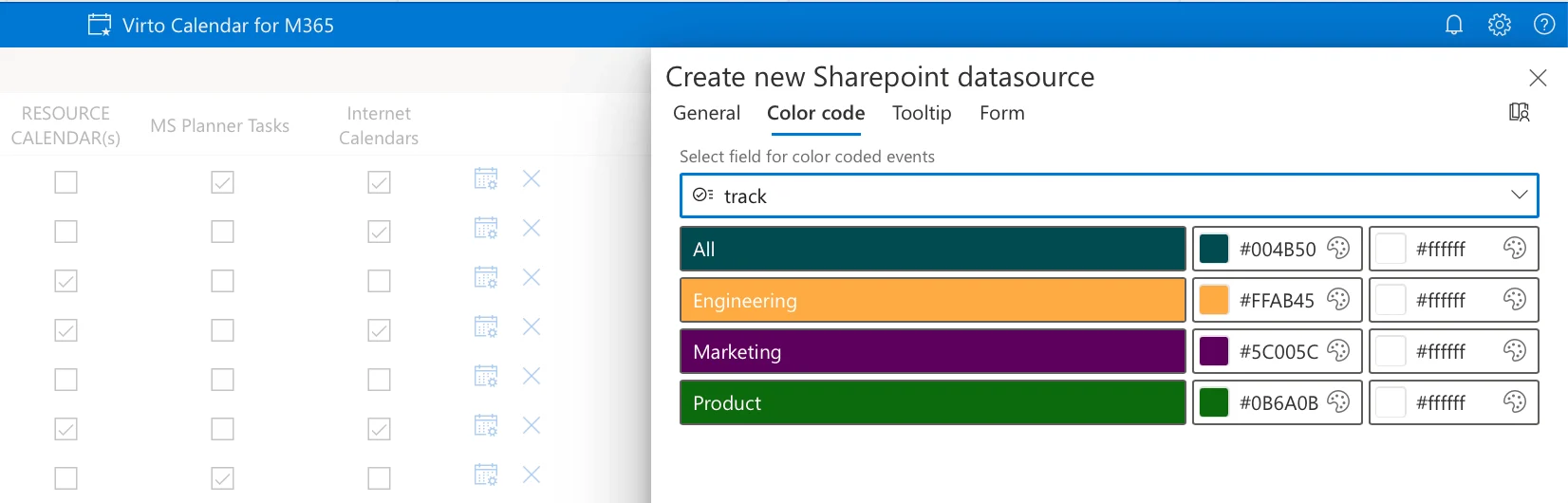
Color-coding and filter settings, assigning colors by source and by event category.
SharePoint calendar overlay vs Teams calendar overlay
SharePoint overlay and Teams calendar overlay solve related but different problems. SharePoint overlay is about publishing a shared, persistent calendar view on a team site or intranet page, where anyone with access sees the same combined schedule. It suits intranet landing pages, department hubs, and dashboards that stay up over time.
Teams, by contrast, centers on the channel and group calendar inside the collaboration workspace, which is convenient while people are already working in Teams but is not designed as a public, color-coded overlay of many independent sources. As a rule of thumb: use SharePoint overlay when the audience is broad and the view should live on a page; use the Teams calendar when scheduling happens inside an active channel. Many organizations surface the same SharePoint overlay inside Teams as a tab to get both.
Need to overlay more than two calendars — including Exchange, Planner, and external sources? The Virto Calendar App supports unlimited sources with per-category color coding and self-hosted deployment. Explore the Virto Calendar App