


Quick answer: what is the difference between a team site and a communication site in SharePoint? A team site is for a group to collaborate: its members share files, lists and plans, and everyone can edit. A communication site broadcasts news and information to a broad audience that mostly reads. Choose a team site for teamwork and a communication site for portals and announcements.
When you select Create site in SharePoint, the first thing it asks is which kind: team site or communication site. It looks like a small choice and it is not one, because the type cannot be changed afterwards. It decides who can edit by default, whether a Microsoft 365 group and a team in Teams stand behind the site, how navigation and pages are laid out, and how you hand out access.
This guide compares the two side by side, shows when each one is right, and explains how they work together in an intranet. It covers modern sites in SharePoint in Microsoft 365. For a closer look at one type on its own, see our guides to the SharePoint communication site and the SharePoint hub site, and for the full list of site types, Types of SharePoint sites.
In this article:
- Team site and communication site at a glance
- The differences in a comparison table
- Microsoft 365 group and Microsoft Teams
- Permissions and sharing
- Navigation, layout and templates
- When to use each, with examples
- How the two work together
- Can you change one into the other?
- Calendars and task boards on either site with Virto apps
- FAQ
Team site vs communication site at a glance
Both are modern SharePoint sites. They share the same page editor, the same web parts, the same document libraries and lists. What separates them is the relationship between the people who write and the people who read.
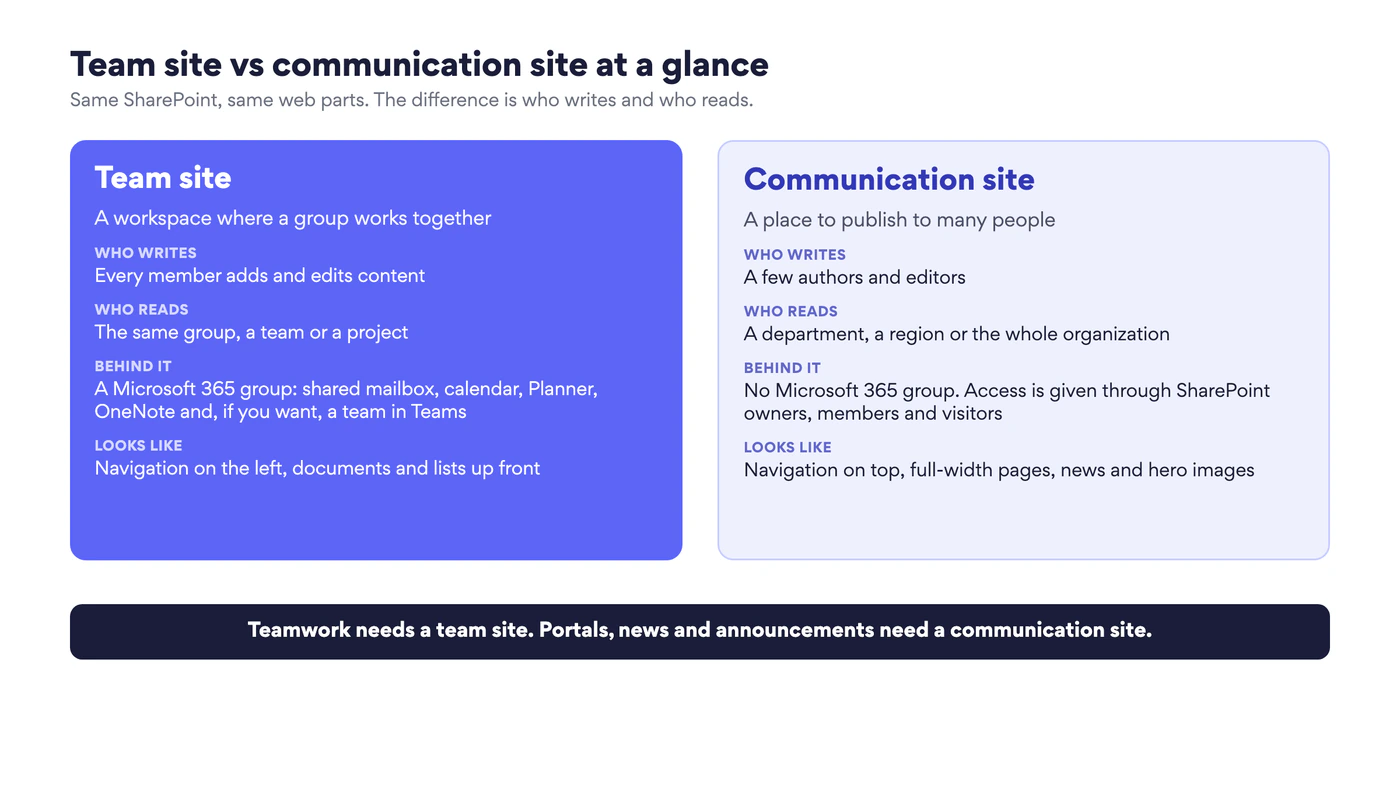
Fig. 1. Team site vs communication site at a glance: who writes, who reads, what stands behind the site
What is a SharePoint team site?
A team site is a workspace for people who produce something together: a project team, a department, a committee, the crew of an event. All members are content authors. They upload and co-author documents, keep lists, track tasks and post news for each other. By default a team site is connected to a Microsoft 365 group, which gives the same people a shared mailbox, a shared calendar, a OneNote notebook and Planner, and it can be connected to a team in Microsoft Teams.
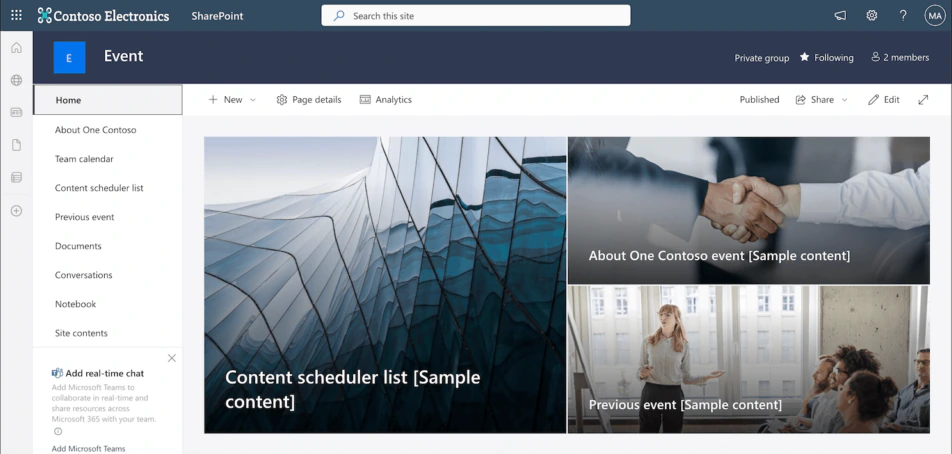
Pic. 1. A team site: navigation on the left, the group’s privacy label and its members in the header
What is a SharePoint communication site?
A communication site is a place to publish. A small number of authors create pages and news, and a much larger audience reads them: a department, a region or the whole organization. It is the building block of an intranet home page, an HR portal, a news centre, a policy library or a product showcase. A communication site has no Microsoft 365 group behind it. Access is given through the classic SharePoint groups of owners, members and visitors, and most people are visitors.

Pic. 2. A communication site: navigation across the top, a hero web part over the full width and a Site access button in place of a member list
The differences in one table
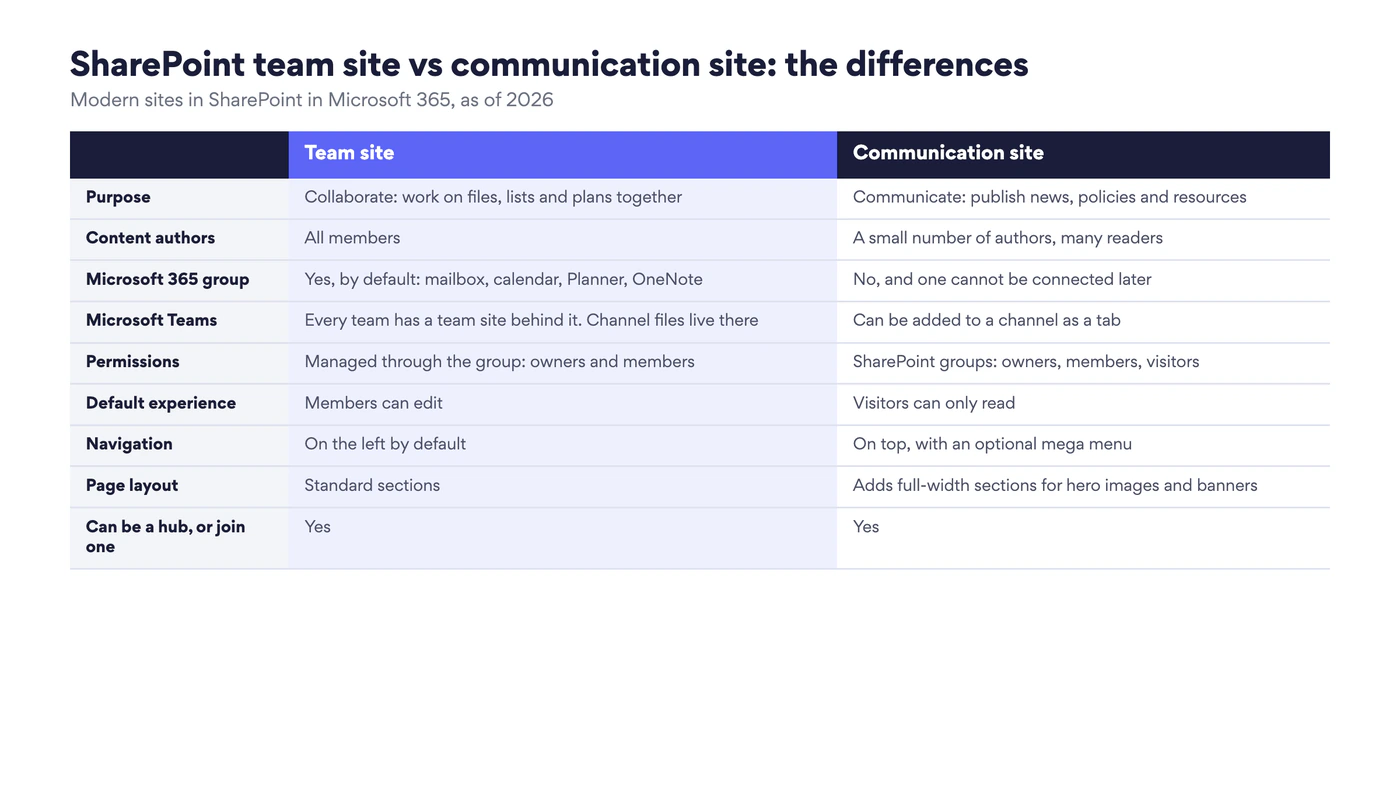
Fig. 2. SharePoint team site vs communication site: the differences that matter when you choose
| Team site | Communication site | |
|---|---|---|
| Purpose | Collaborate: work on files, lists and plans together | Communicate: publish news, policies and resources |
| Content authors | All members | A small number of authors, many readers |
| Microsoft 365 group | Yes, by default: mailbox, calendar, Planner, OneNote | No, and one cannot be connected later |
| Microsoft Teams | Every team has a team site behind it, and channel files live there | Pages can be added to a channel as a tab |
| Permissions | Managed through the group: owners and members | SharePoint groups: owners, members, visitors |
| Default experience | Members can edit | Visitors can only read |
| Navigation | On the left by default | On top, with an optional mega menu |
| Page layout | Standard sections | Adds full-width sections for hero images and banners |
| Templates from Microsoft | Project management, Event planning, IT help desk, Employee onboarding team and others | Standard communication, Department, Human resources, Organization home, Showcase and others |
| Can be a hub or join one | Yes | Yes |
Microsoft sums up the same split in its hub site planning guide with three verbs: team sites collaborate, communication sites communicate, hub sites connect.
Microsoft 365 group and Microsoft Teams
This is the difference with the longest reach. When you create a team site, SharePoint also creates a Microsoft 365 group with the same name and asks for a group email address. The group is the membership list for the site and for everything that comes with it: a shared mailbox and calendar in Outlook, a Planner plan, a OneNote notebook.
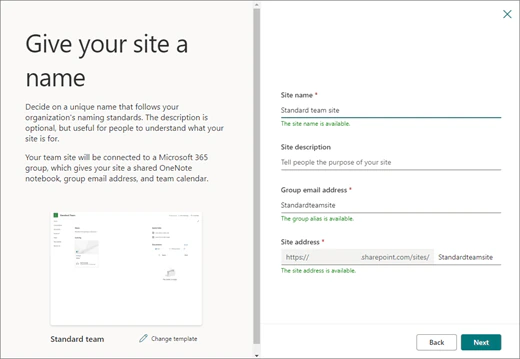
Pic. 3. Creating a team site: the group email address field shows that a Microsoft 365 group is created with it. Source: Microsoft Support
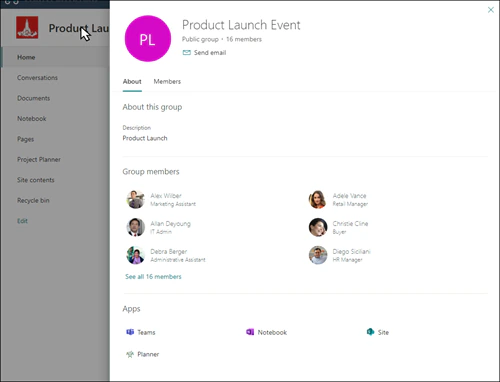
Pic. 4. The Microsoft 365 group card behind a team site: members and the group’s apps. Source: Microsoft Support
The link to Microsoft Teams runs through the same group. Every team in Teams has a team site behind it, and the files of each standard channel are folders in that site’s document library. Private and shared channels get their own small channel sites. Going the other way, the owner of a group-connected team site can add Teams to it, and a Teams icon then appears next to the site name.

Pic. 5. A team site connected to Microsoft Teams: the Teams icon next to the site name and the group’s privacy label on the right. Source: Microsoft Support
A communication site has none of this, by design. There is no group, no shared mailbox and no team, and Microsoft states that connecting a communication site to a Microsoft 365 group is not supported. You can still bring a communication site into Teams the light way: add one of its pages as a tab in a channel, so the team reads the HR portal or the news without leaving Teams.
One exception is worth knowing. An administrator can create a team site without a Microsoft 365 group from the SharePoint admin center. It looks like a team site and uses SharePoint groups for access, which suits cases where a mailbox and a Planner plan would only be clutter.
Permissions and sharing
Both site types end up with the same three levels, owners with full control, members who edit and visitors who read, but you reach them by different roads.
On a team site you manage people through the group. Settings → Site permissions → Add members offers two choices. Add members to group makes the person a group member, with edit rights on the site and access to the mailbox, the calendar, Planner and the team. Share site only gives access to the SharePoint site and nothing else, which is the right choice for a reader from another department.
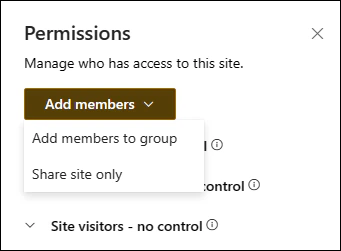
Pic. 6. Permissions on a team site: add someone to the group, or share the site only. Source: Microsoft Support
On a communication site there is one road. Settings → Site permissions → Share site lets you add people, security groups or Microsoft 365 groups and choose Read, Edit or Full control for each. Most organizations add a large group such as “Everyone except external users” as visitors and keep the list of editors short.
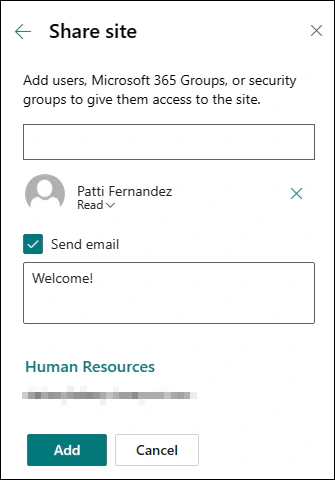
Pic. 7. Permissions on a communication site: Share site with a Read, Edit or Full control level per person or group. Source: Microsoft Support
Microsoft describes both models in Sharing and permissions in the SharePoint modern experience. For the levels themselves, inheritance and the mistakes to avoid, see our SharePoint permissions guide.
Navigation, layout and templates
Navigation
A team site puts navigation on the left, as a list of the places the team works in: Documents, Notebook, Pages, the plan, Site contents. A communication site puts it across the top, as a menu for visitors, and can turn it into a mega menu with several columns. Owners of a team site can switch it to horizontal navigation under Settings → Change the look → Navigation. A communication site has no left navigation.
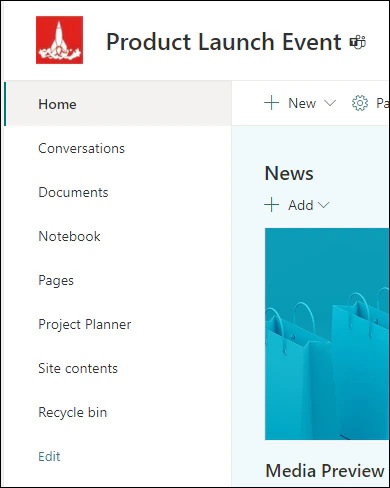
Pic. 8. Left-hand navigation on a team site. Source: Microsoft Support

Pic. 9. Horizontal navigation across the top, the standard on a communication site. Source: Microsoft Support
Page layout
The page editor and the web parts are the same on both. The visible difference is the full-width section, which exists only on communication sites: a hero web part or an image that runs from edge to edge, as in Pic. 2. With no left navigation taking space, communication site pages also read more like a website and less like a workspace.
Templates
After you choose the site type, SharePoint offers templates from Microsoft and from your organization. A template adds pages, web parts, lists and sample content. It does not change the type. The current sets, from Microsoft’s page Apply and customize SharePoint site templates:
| Communication site templates | Team site templates |
|---|---|
| Standard communication, Brand central, Crisis management, Department, Event, Human resources, Leadership connection, Learning central, New employee onboarding, Organization home, Showcase, Volunteer center, Blank | Standard team, Crisis communication team, Employee onboarding team, Event planning, IT help desk, Project management, Retail management team, Store collaboration, Training course, Training design team, and two Microsoft Syntex templates: Accounts payable and Contracts management |
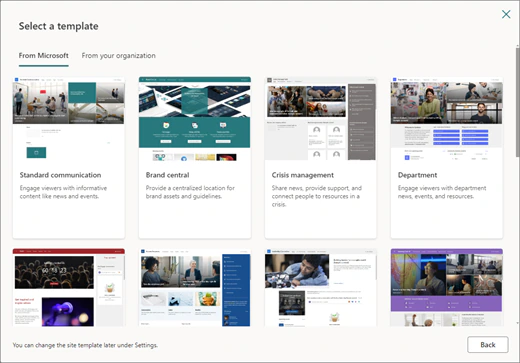
Pic. 10. The template gallery offered after you choose a communication site. Source: Microsoft Support
The pairs are telling. Onboarding appears on both lists: “New employee onboarding” is a communication site that tells every new hire what to expect, and “Employee onboarding team” is a team site where one team runs its own onboarding tasks. The subject is the same, and the relationship between writers and readers is different.
When to use a team site and when a communication site
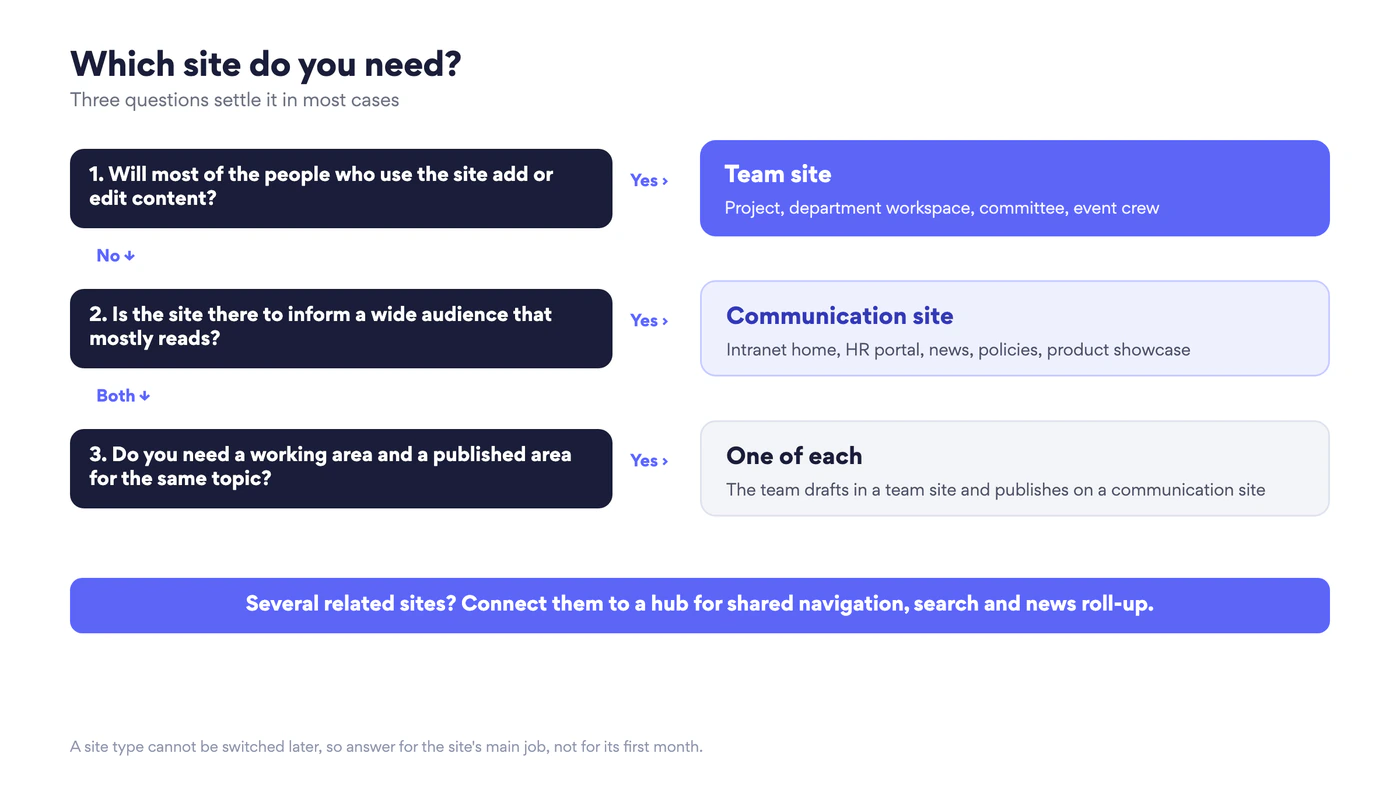
Fig. 3. Three questions that settle the choice in most cases
Choose a team site when
- most of the people who use the site will add or edit content,
- the audience is a defined group: a project, a department, a committee,
- you want a shared mailbox, calendar, Planner and a team in Teams for the same people,
- the content is work in progress: drafts, trackers, meeting notes.
Example: a product launch. Twelve people from marketing, sales and support work on a launch for four months. They co-author the plan and the press kit, keep a task list, meet every week and chat in Teams. A team site with a team gives them one membership list for all of it, and when the launch is over the site is archived with the group.
Example: the HR department’s own workspace. Case lists, drafts of policies, the interview schedule and the team calendar are for HR staff only. A private team site keeps them in one place with edit rights for every member.
Choose a communication site when
- a few people write and many read,
- the audience is wide or open-ended: all staff, a region, all managers,
- presentation matters: news, hero images, a clear top menu,
- the content is finished: approved policies, announcements, how-to pages.
Example: the company intranet home. News from leadership, links to tools, events and the people directory, read by everyone and edited by the communications team. This is what the root site of a new Microsoft 365 tenant already is: since 2019 Microsoft sets it up as a communication site. Our SharePoint intranet guide covers the build.
Example: the HR portal. Benefits, leave rules, onboarding information and forms, maintained by three HR editors and read by the whole company.
The signs you picked the wrong one
- A team site used as a portal: hundreds of people added as group members only so that they can read, a shared mailbox nobody wanted, and every reader able to edit the home page.
- A communication site used as a workspace: the list of people with Edit keeps growing, files are shared one by one, and the team keeps asking where their Planner and their channel are.
How team sites and communication sites work together
The question is rarely one or the other for a whole organization. A healthy intranet uses both: communication sites on the surface, where people read, and team sites underneath, where the work happens. A hub ties them together with shared navigation, a common look, a search scope across the family and news that rolls up to the hub’s home page. Either type can be registered as a hub by an administrator, and either type can be associated with one. Microsoft’s steps are in Create a hub site in SharePoint.
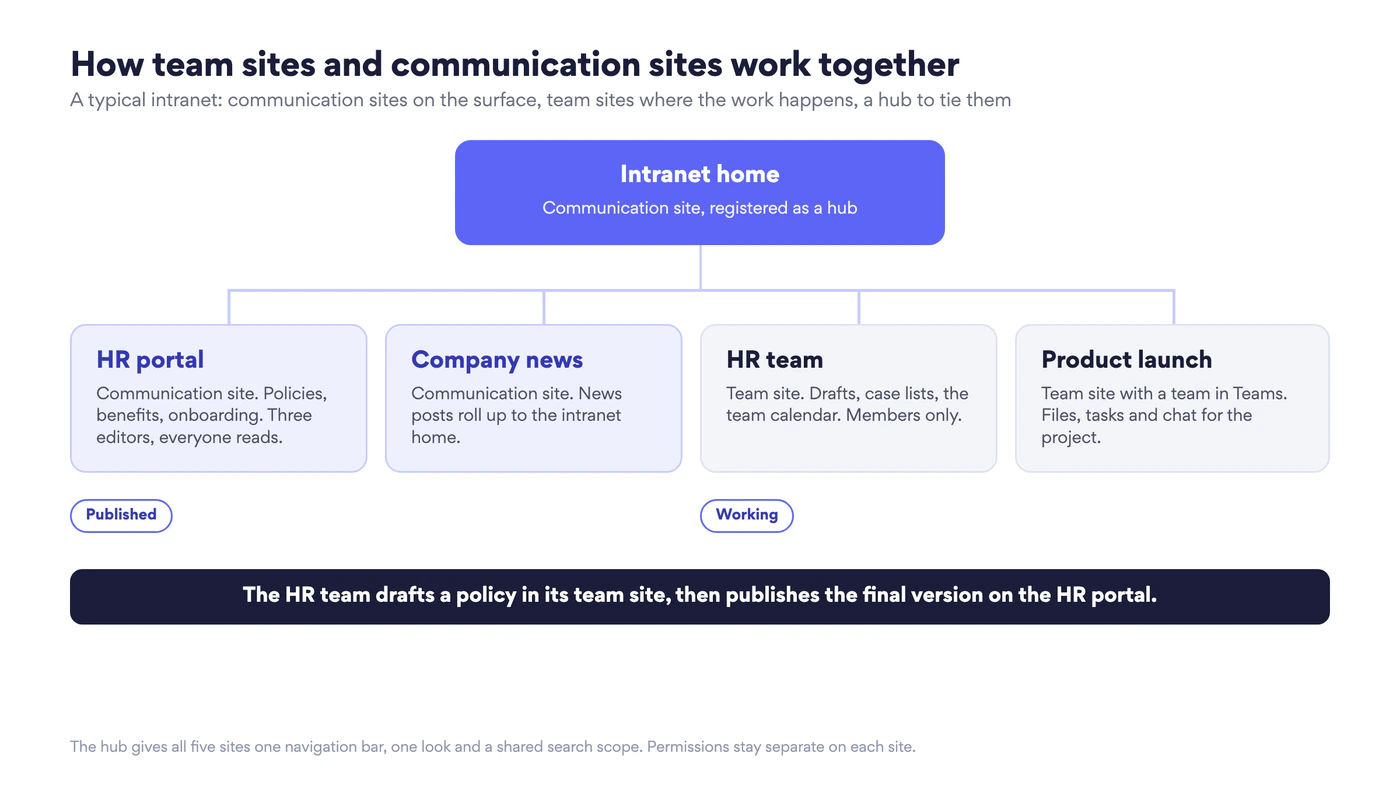
Fig. 4. A typical intranet: communication sites for what is published, team sites for the work, a hub to connect them
The HR pair in the picture is the pattern to copy. The HR team drafts and reviews a new leave policy in its team site, where only HR can see it. When the policy is approved, the final version is published as a page on the HR portal, the communication site the whole company reads. The draft history stays in the team site and the portal stays clean. A hub does not merge permissions: each site keeps its own access, so associating the HR team site with the hub does not open it to anyone.
This flat structure of separate sites joined by a hub has replaced the old tree of subsites. If your environment still relies on them, see our guide to SharePoint subsites.
Can you change a communication site to a team site, or the other way?
No. SharePoint has no command that converts a communication site into a team site or a team site into a communication site. The two are created from different base templates, and the Microsoft 365 group makes the gap wider: a communication site cannot be connected to a group.
Two things come close and are often mistaken for a conversion:
- Applying a template. Settings → Apply a site template changes pages, web parts and the look. It stays inside the site’s type.
- Modernizing a classic team site. An administrator can connect a classic team site to a new Microsoft 365 group, or turn on the communication site experience for a classic site such as an old root site. Both are one-way upgrades of classic sites and do not switch a modern site from one type to the other.
If the type is wrong, the way across is to build the right site and move.
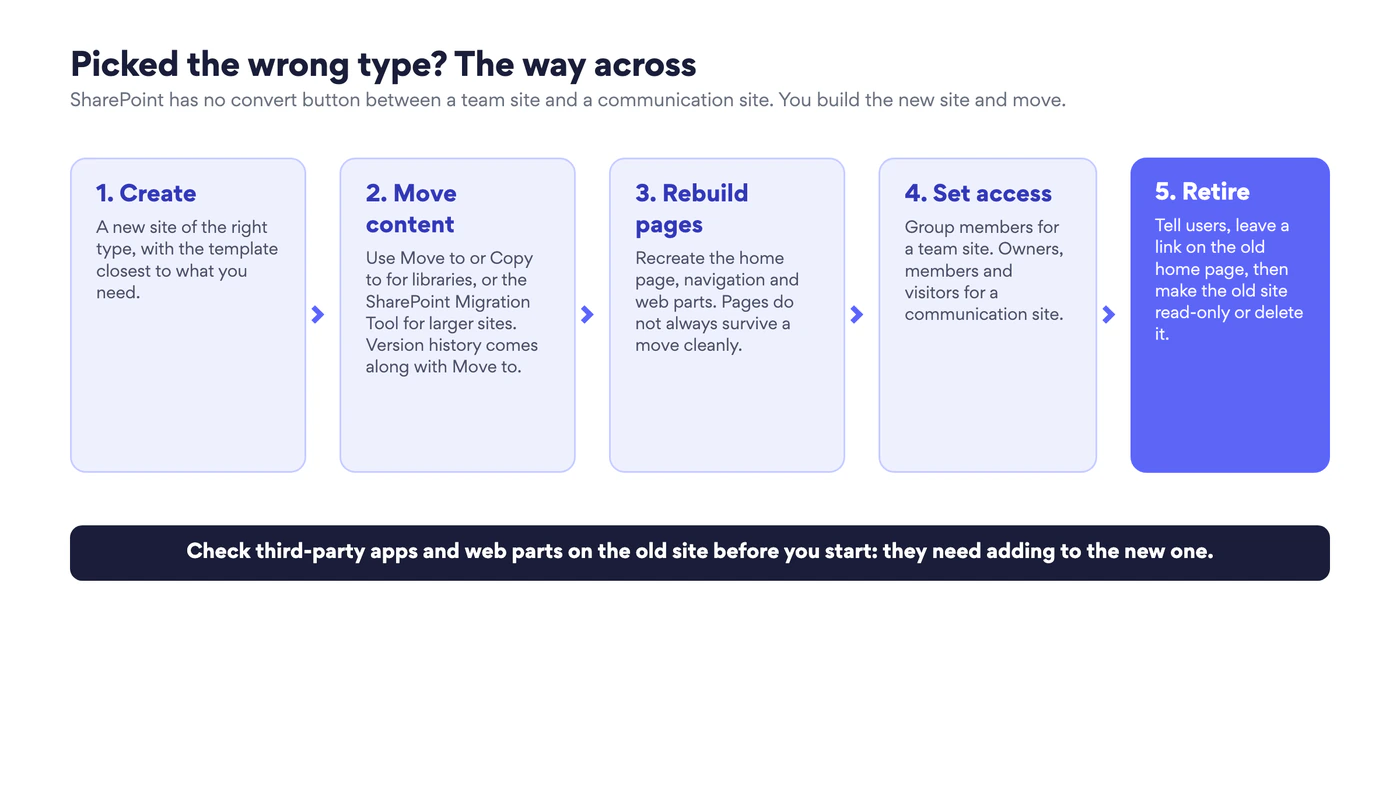
Fig. 5. Moving from the wrong site type to the right one in five steps
- Create a new site of the right type with the closest template. Microsoft’s instructions: create a team site, create a communication site.
- Move the content. In a library, select files or folders and use Move to, which keeps version history, or Copy to, which copies the latest version only. For large sites use the SharePoint Migration Tool or a migration product.
- Rebuild the pages. Recreate the home page, the navigation and the web parts on the new site.
- Set access. Group members for a team site. Owners, members and visitors for a communication site.
- Retire the old site. Tell users, leave a link to the new site on the old home page, then make the old site read-only or delete it.
Before you start, list the third-party apps and web parts the old site uses. They have to be added to the new site, and lists that feed them have to move with their columns intact. Our SharePoint content management guide has a checklist for libraries, metadata and clean-up that helps at this point.
Calendars and task boards on either site with Virto apps
Whichever type you choose, some needs are the same, and SharePoint covers them only in part. A team wants one calendar that shows its SharePoint events, its Outlook meetings and the project plan together. A department wants a task board that is more than a list view. VirtoSoftware builds apps for exactly these gaps, and they work on team sites and on communication sites alike, as a web part on a page or as a tab in Teams.
- Virto Calendar App overlays calendars from SharePoint lists, Exchange and Outlook, Microsoft 365 groups and internet calendars in one colour-coded view. On a team site it becomes the team calendar that includes the group’s Outlook calendar. On a communication site it becomes the company events calendar that everyone reads.
- Virto Kanban Board App turns a SharePoint list into a board with columns, swimlanes and limits for work in progress. It belongs on team sites, where the people who move the cards are the members who own the tasks.
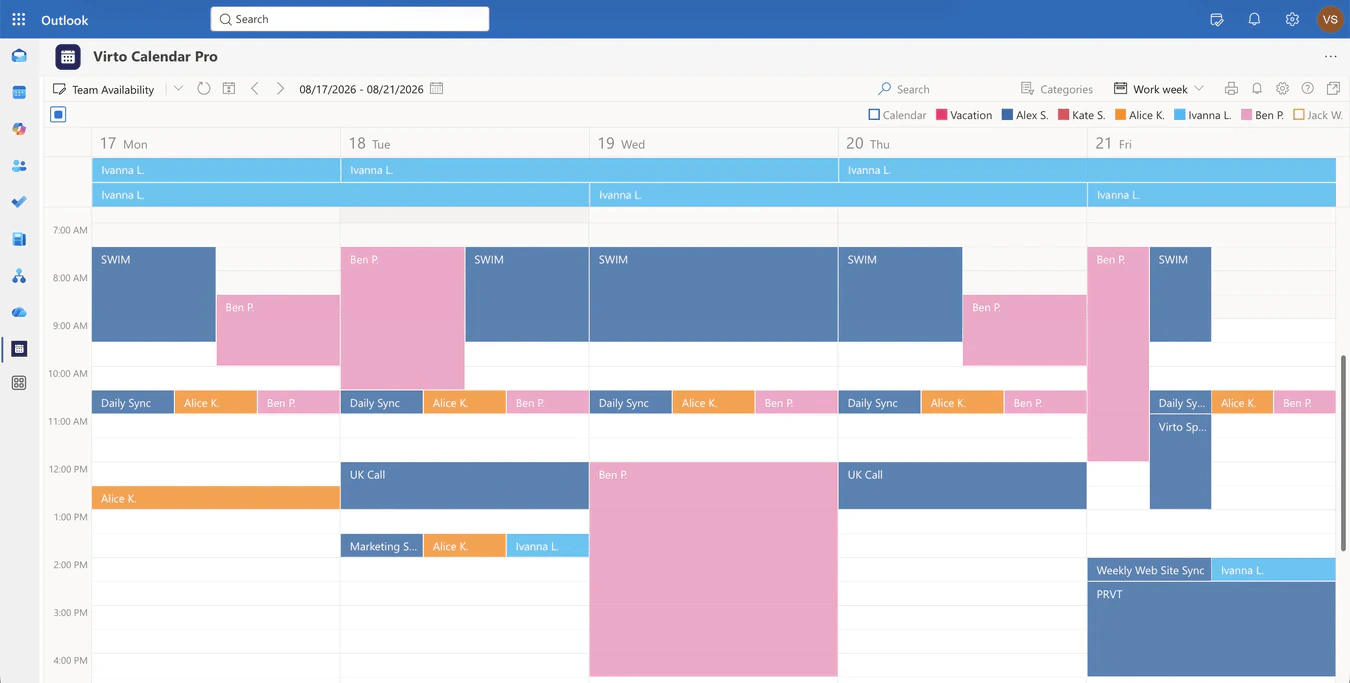
Pic. 11. Virto Calendar App
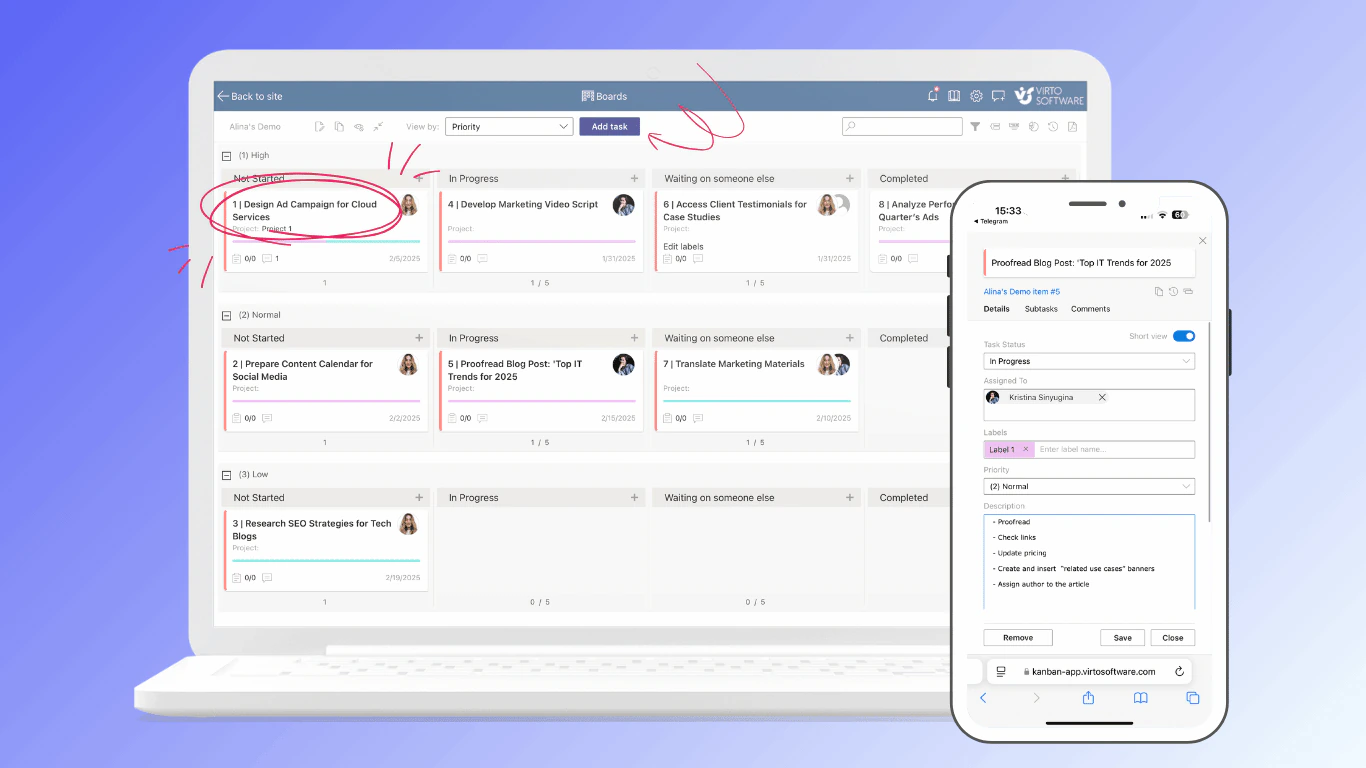
Pic. 12. Virto Kanban Board App: the team’s task list as a board, on the desktop and on a phone
Both apps install from Microsoft Marketplace and come with a 30-day free trial. The full range is on the Virto apps for Microsoft 365 page, and organizations that run SharePoint Server will find the on-premises web parts under Virto web parts for SharePoint.
FAQ
What is the difference between a team site and a communication site in SharePoint?
A team site is for a group to collaborate: all members edit, and a Microsoft 365 group with a mailbox, calendar, Planner and optionally a team in Teams stands behind it. A communication site is for publishing to a wide audience: a few authors write, most people only read, and there is no group behind it.
What are the two main types of SharePoint sites?
Team sites and communication sites. A hub site is not a third type: it is a team site or a communication site that an administrator has registered as a hub to connect related sites.
Can I convert a communication site to a team site?
No, and not the other way either. Create a new site of the right type, move the content with Move to or a migration tool, rebuild the pages and retire the old site.
Can a communication site be connected to Microsoft Teams?
Not as the site behind a team, because it has no Microsoft 365 group. You can add its pages, lists or libraries to a channel as tabs.
Which site type is best for an intranet?
Communication sites for the home page, news and department portals, registered as or associated with a hub. Team sites sit behind them for the departments’ own work.
Can external guests use these sites?
Both types can be shared with people outside the organization if the administrator allows external sharing for the site. On a team site a guest is usually added to the group. On a communication site a guest is added through Share site with the Read level.
Can a team site have navigation on top, like a communication site?
Yes. Under Settings → Change the look → Navigation a team site owner can switch to horizontal navigation. A communication site cannot switch to left navigation.
Conclusion
The choice between a SharePoint team site and a communication site comes down to one question: will the people who use the site mostly write or mostly read? Writers need a team site, with its Microsoft 365 group, its link to Teams and edit rights for every member. Readers need a communication site, with its top navigation, full-width pages and a short list of editors. Most organizations need both, joined by a hub, and it pays to decide before you select Create site, because the type stays with the site for life.
If you are new to the platform, start with How to use SharePoint. When your sites are in place, Virto Calendar App and Virto Kanban Board App add the shared calendar and the task board that both site types lack out of the box, each with a 30-day free trial.