


Quick answer: what is SharePoint provisioning? SharePoint provisioning is the process of creating and configuring sites consistently: from manual creation and site templates to PnP provisioning and automated, governed self-service. A provisioned site arrives with its libraries, lists, pages, navigation, permissions and policies already in place, so every team starts from the same standard.
Creating one SharePoint site by hand takes a few minutes. Creating the tenth one this month, with the same libraries, the same columns, the same permissions and the same naming, is where things go wrong. Names drift, a required column is forgotten, a site ends up with one owner who leaves the company half a year later. Nobody notices until an audit or a search result shows it.
Provisioning fixes that by moving the setup out of people’s heads and into a template. You describe the workspace once, and SharePoint, a script or a flow builds it the same way every time. This guide walks through the four methods available in 2026, shows how each works in practice, and then covers the part that decides whether provisioning stays healthy: governance.
In this article:
- What SharePoint provisioning is and what it covers
- The four provisioning methods: manual, site templates, PnP and automated
- How to choose a method
- Provisioning sites connected to Microsoft Teams
- What to put into a site template
- Governance best practices
- Provisioning in SharePoint Server (on-premises)
- Virto apps in provisioned workspaces
- Examples and FAQ
What is SharePoint provisioning?
SharePoint provisioning means creating a site and configuring everything a team needs to start working in it. The word covers both the act of creating the site and the setup that follows. In practice a provisioned workspace includes any combination of:
- The site itself: a team site or a communication site, with its name, URL, language and hub association
- Document libraries and lists: with content types, columns, views and default folders
- Pages: a home page, news setup and the web parts on them
- Navigation and branding: site navigation, hub navigation, theme and logo
- Permissions: owners, members, visitors and any role-based groups
- Policies: sensitivity label, external sharing setting and retention
The core idea is repeatability: define once, apply many times. That is true whether the site stands on its own, belongs to an intranet or serves as the file storage behind a Microsoft Teams team.
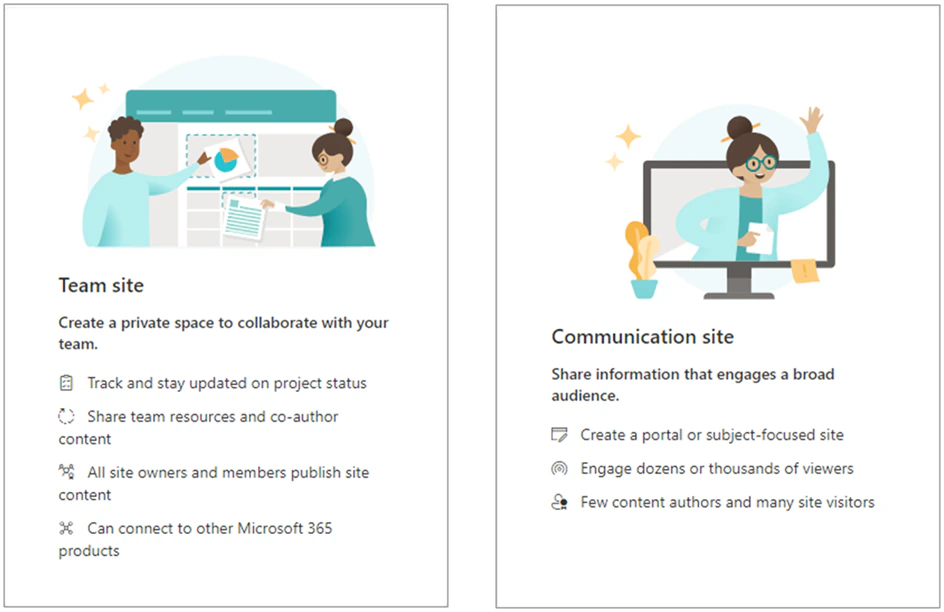
Pic. 1. Every provisioning method starts from one of two site types: a team site or a communication site. Source: Microsoft Support
If you are still deciding between the two, see SharePoint team site vs communication site and the overview of SharePoint site types. New to the platform altogether? Start with How to use SharePoint.
SharePoint provisioning methods at a glance
There are four ways to provision SharePoint sites. They are not competitors. Most organizations move through them in order as the number of site requests grows, and many keep using two or three side by side.
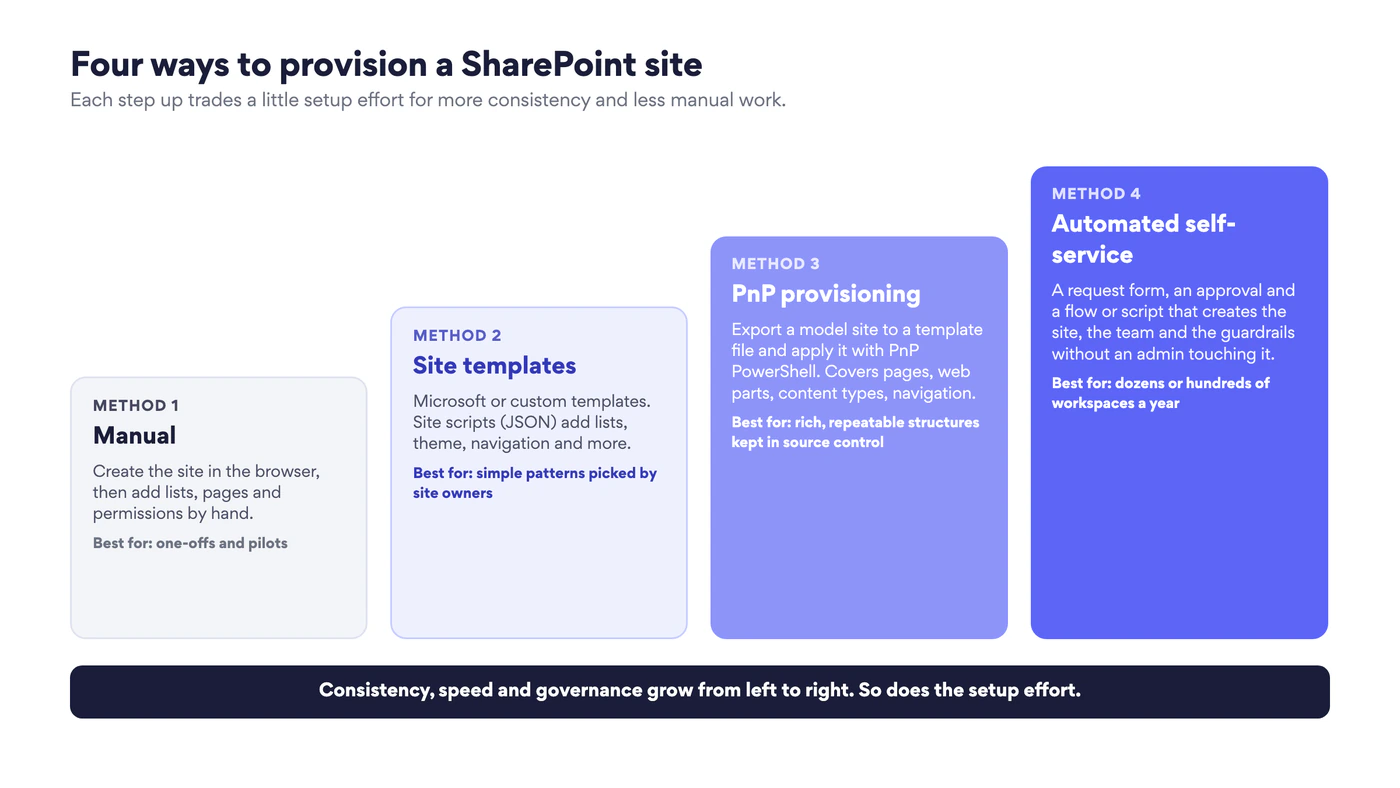
Fig. 1. The four SharePoint provisioning methods
| Method | How it works | Who runs it | Best for |
|---|---|---|---|
| Manual | Create the site in the browser and configure it by hand | Site owner or admin | One-off sites, pilots, discovering requirements |
| Site templates and site scripts | A template from Microsoft or from your organization applies a list of scripted actions | Site owner picks it; admin publishes it | Simple, frequent patterns in SharePoint Online |
| PnP provisioning | A model site is exported to a template file and applied with PnP PowerShell | Admin or developer | Rich structures with pages, web parts and content types |
| Automated self-service | A request form starts an approval and a flow or script that builds everything | Business user requests; automation builds | High volume, Teams-connected workspaces, strict governance |
Fig. 2. SharePoint provisioning methods compared
Method 1. Manual provisioning
Manual provisioning is what everybody starts with. A site owner or an administrator creates the site and then adds what the team needs.
- On the SharePoint start page select Create site, or in the SharePoint admin center go to Sites, then Active sites, then Create.
- Choose Team site or Communication site and pick a template.
- Enter the name, check the URL that SharePoint suggests, set the privacy and the language.
- Add owners and members.
- Build the rest by hand: libraries, columns, views, pages, navigation and permissions.
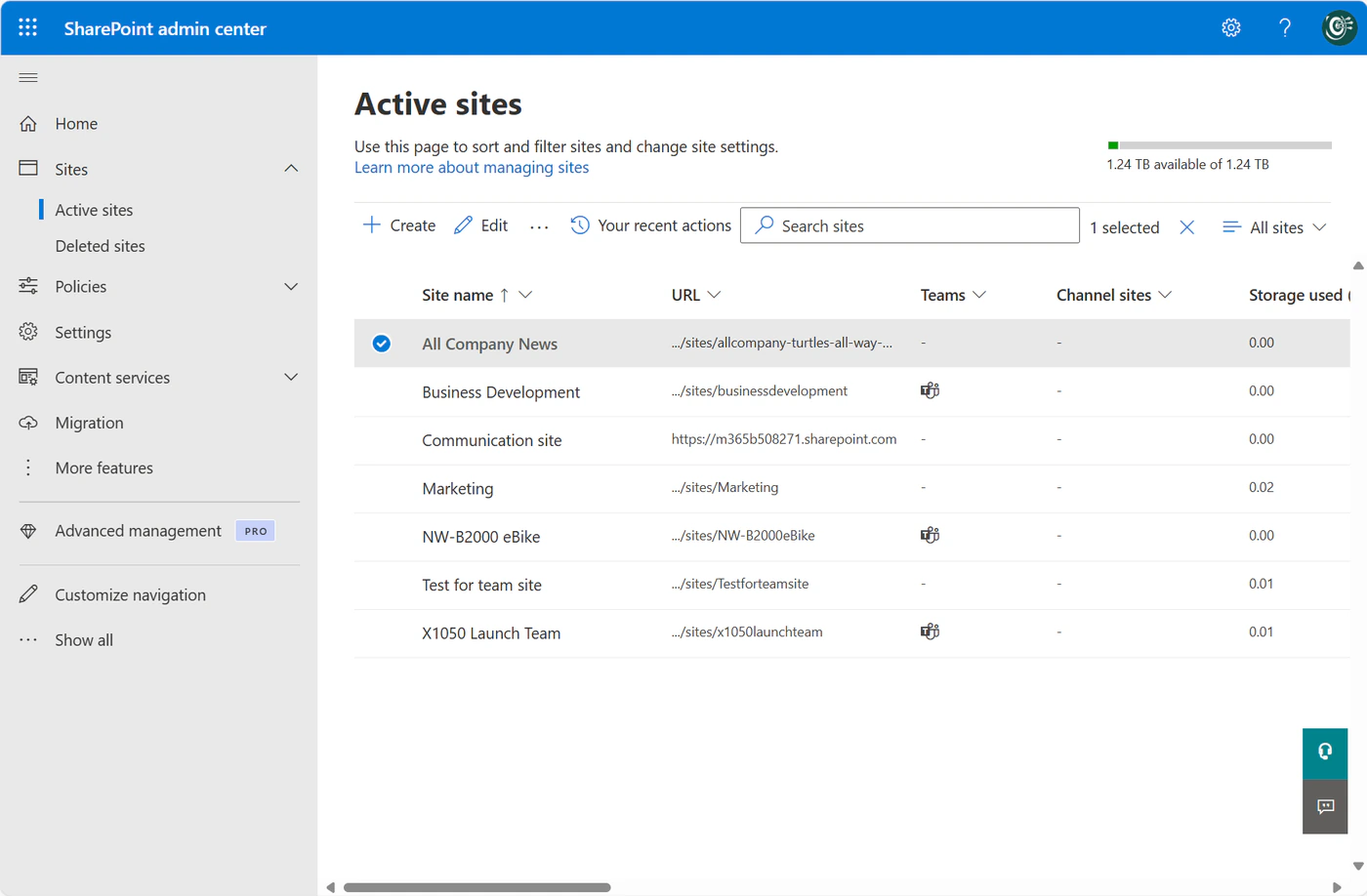
Pic. 2. Manual provisioning starts in the SharePoint admin center or on the SharePoint start page
Manual work is the right choice for a single site, for a pilot, or while you are still finding out what a team really needs. It is also how a good template begins: you build the model site by hand first. The trouble starts with volume.
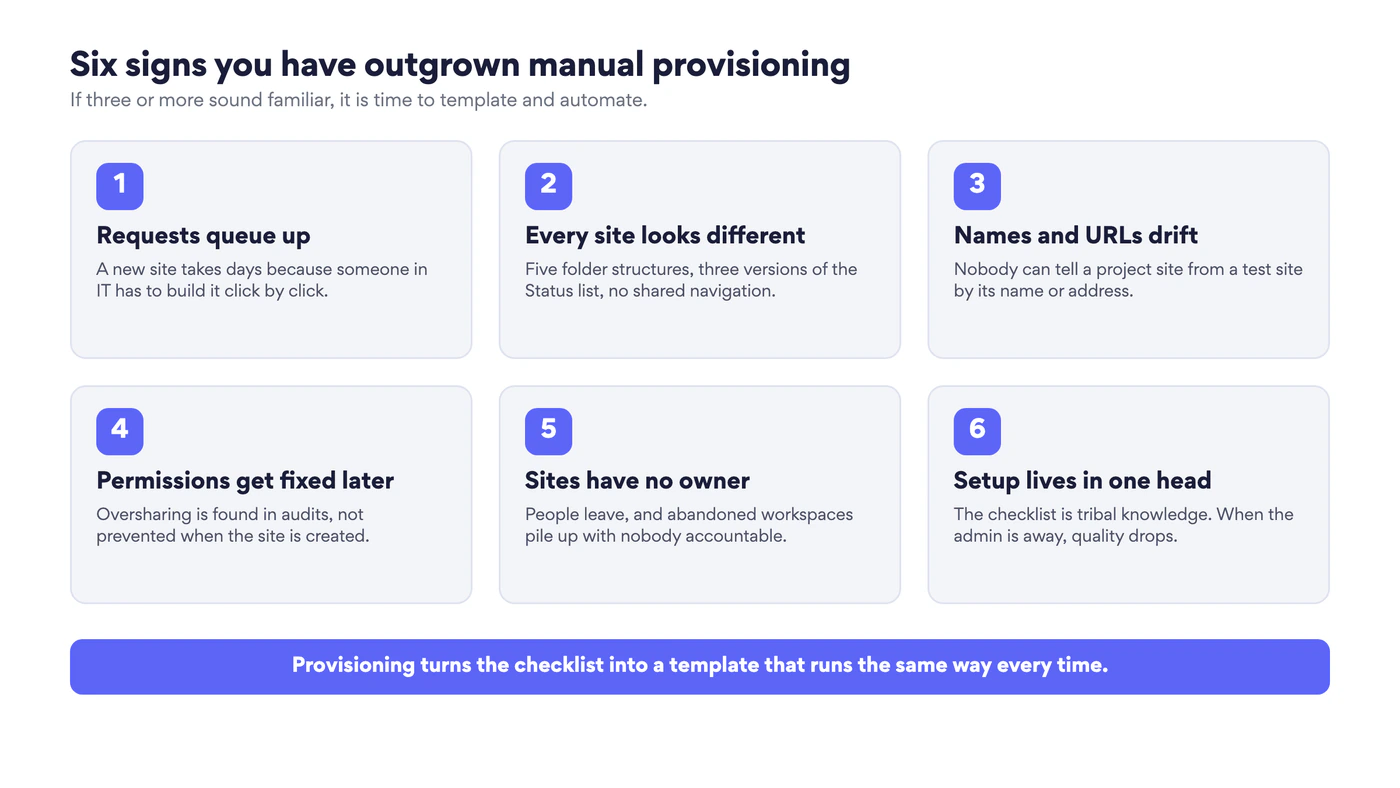
Fig. 3. Signs that manual provisioning has reached its limit
Method 2. Site templates and site scripts
Site templates are the provisioning tool built into SharePoint Online. There are two kinds. Microsoft ships a gallery of ready-made templates such as Project management, Event planning, Department or Crisis management. Your organization can add its own, which appear in the same gallery on the From your organization tab. (Older articles call them site designs. Microsoft renamed them to site templates, although the PowerShell cmdlets still say SiteDesign.)
A site owner applies a template in three clicks:
- Open Settings (the gear icon) on the site.
- Select Apply a site template.
- Pick a template, review the preview and select Use template.
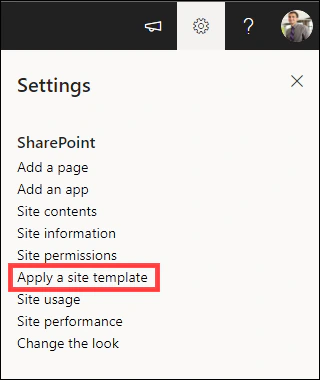
Pic. 3. Apply a site template in the Settings pane of a SharePoint site. Source: Microsoft Support
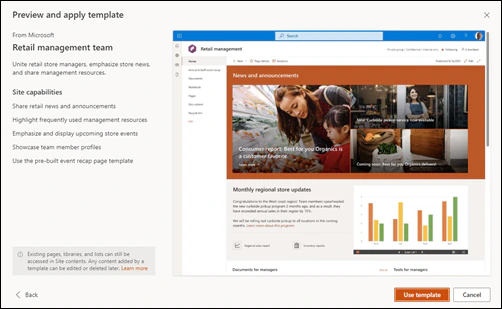
Pic. 4. The template preview lists what the template adds before you apply it. Source: Microsoft Support
A custom template is made of one or more site scripts. A site script is a JSON file with an ordered list of actions. Available actions include creating lists and libraries, adding site columns and content types, applying a theme, setting the logo, adding navigation links, adding users and groups to SharePoint roles, setting the external sharing capability, installing a solution from the app catalog and triggering a Power Automate flow.
A short example that applies a theme and creates a list:
{
  "$schema": "https://developer.microsoft.com/json-schemas/sp/site-design-script-actions.schema.json",
  "actions": [
    { "verb": "applyTheme", "themeName": "Contoso Explorers" },
    { "verb": "createSPList", "listName": "Customer Tracking", "templateType": 100,
      "subactions": [
        { "verb": "addSPField", "fieldType": "Text", "displayName": "Customer Name", "addToDefaultView": true }
      ]
    }
  ]
}
An administrator registers the script and the template with two cmdlets from the SharePoint Online Management Shell, Add-SPOSiteScript and Add-SPOSiteDesign. If you have not used the shell before, see our guide to the SharePoint Online Management Shell.
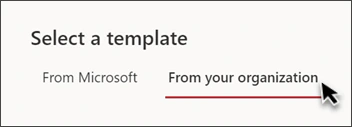
Pic. 5. Custom templates appear on the From your organization tab. Source: Microsoft Support
Things worth knowing before you rely on site templates:
- SharePoint Online only. Site templates and site scripts are not available in SharePoint Server.
- Limits. A script can hold up to 300 actions (or 100,000 characters) when it is applied through the interface or asynchronously, and 30 actions when applied synchronously with
Invoke-SPOSiteDesign. A tenant can hold 100 site scripts and 100 site templates. - Safe to re-run. Scripts are non-destructive. Running one again adds what is missing and leaves the rest alone, which makes templates a simple way to repair drift.
- Scoping. With
Grant-SPOSiteDesignRightsa template can be shown only to a specific group, so the finance template is not offered to everyone. - A default template. An organization template can be set as the default, so it is applied automatically to every new team site or communication site.
- What is missing. Site scripts do not create pages with web parts or copy content. That is where PnP comes in.
Method 3. PnP provisioning
The PnP provisioning engine is an open-source framework from the Microsoft 365 Platform Community (PnP stands for Patterns and Practices). It describes a site as a template file, XML or a packaged .pnp file, and can reproduce almost everything: lists and libraries, content types, pages with their web parts, navigation, themes, files and even several sites at once with a tenant template.
The usual workflow has three steps: build a model site by hand, export it, apply the template to every new site.
# 1. Export the model site
Connect-PnPOnline -Url https://contoso.sharepoint.com/sites/project-model -Interactive -ClientId <app-id>
Get-PnPSiteTemplate -Out project-template.pnp

# 2. Apply it to a new site
Connect-PnPOnline -Url https://contoso.sharepoint.com/sites/proj-emea-acme -Interactive -ClientId <app-id>
Invoke-PnPSiteTemplate -Path project-template.pnp
Requirements and caveats in 2026:
- PowerShell 7.4 or later. PnP PowerShell no longer runs on Windows PowerShell 5.1. It works on Windows, macOS and Linux.
- Your own Microsoft Entra app registration. The shared PnP Management Shell app was removed in September 2024, so each tenant registers its own app and passes its ID with
-ClientId. - Community support. The engine is open source and actively maintained, but Microsoft gives no SLA for it. Test templates in a non-production site first.
- The SharePoint Look Book. The one-click provisioning service that used to install Look Book designs is currently unavailable. The designs are still there: you download the
.pnpfile and apply it yourself withInvoke-PnPTenantTemplate, as described in Applying PnP templates to SharePoint sites.
Because a PnP template is a file, it belongs in source control. Version it, review changes to it, and you have an audit trail for how your workspaces are built.
Method 4. Automated, governed self-service
The fourth method puts a front door on the first three. Instead of asking IT for a site by email, a user fills in a form. An approval runs, automation builds the workspace from the template, applies the policies and tells the requester where to start. IT defines the pattern once and then watches a log instead of working a ticket queue.
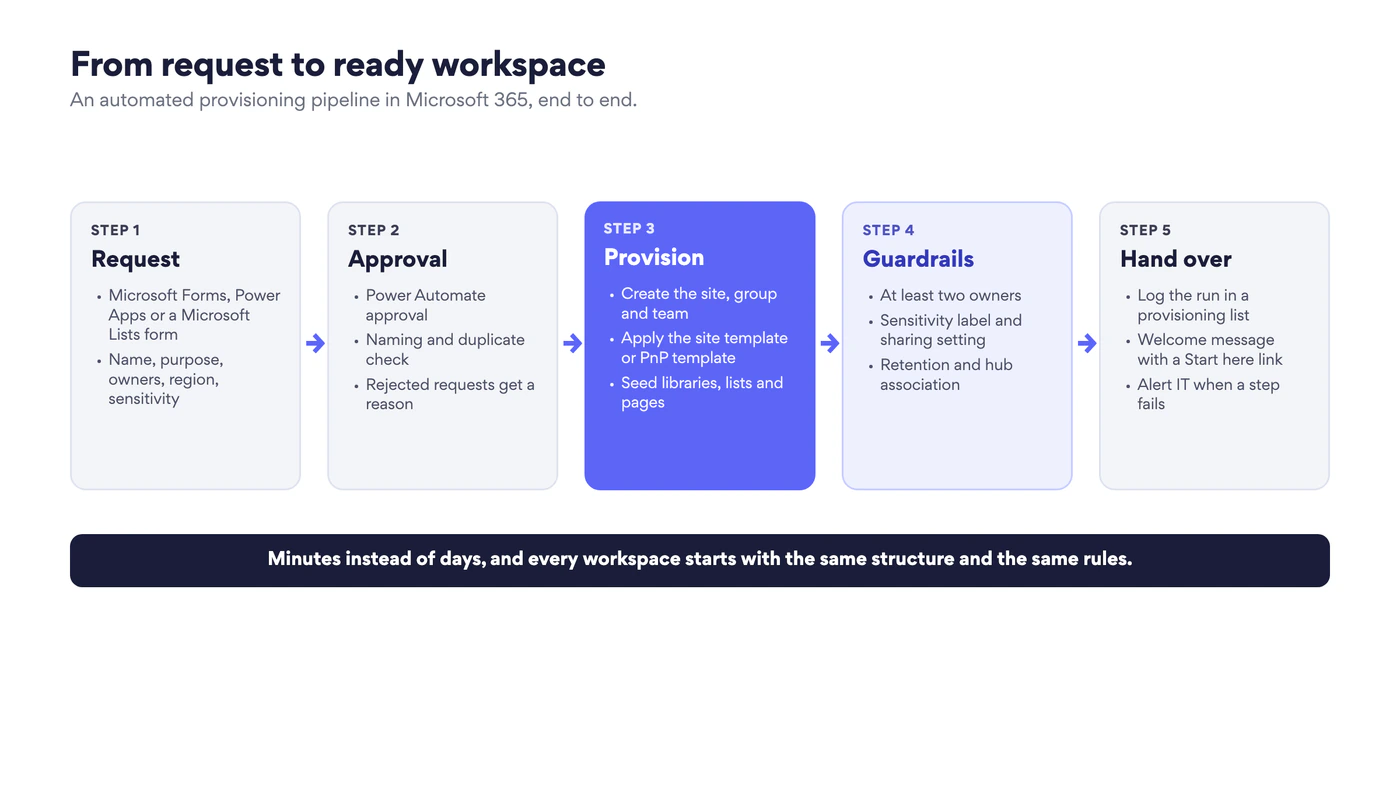
Fig. 4. An automated provisioning pipeline from request to ready workspace
The building blocks are all part of Microsoft 365 or Azure:
- Intake: Microsoft Forms, a Microsoft Lists form or a Power Apps app collects the name, purpose, owners, region and sensitivity.
- Approval and orchestration: Power Automate routes the request to an approver, checks the name against the convention and starts the build.
- Build: Microsoft Graph creates the Microsoft 365 group and the team. A site script or a PnP template configures the site. For PnP, the flow usually calls an Azure Function or an Azure Automation runbook that runs the PowerShell.
- Log and notify: each run is written to a list, the requester gets a welcome message, and IT is alerted when a step fails.
Site templates and PnP work together here. A site script can trigger a Power Automate flow, and the flow can hand the new site’s URL to an Azure Function that applies a PnP template. Microsoft documents this pattern step by step:
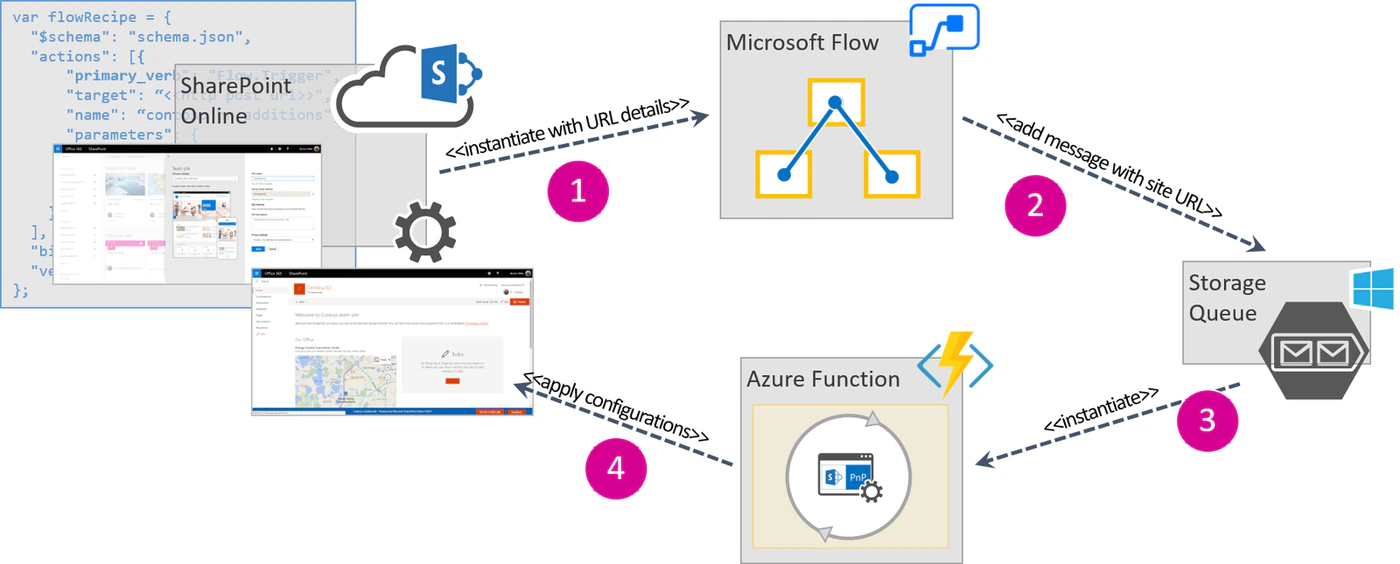
Fig. 5. A site template triggering PnP provisioning through Power Automate, a storage queue and an Azure Function. Source: Microsoft Learn
If your automation still depends on SharePoint Designer workflows, it needs rebuilding: SharePoint 2013 workflows were fully retired in SharePoint Online on April 2, 2026, and Power Automate is the replacement. For more ideas on what to automate after the site exists, see SharePoint automation.
Which provisioning method should you choose?
| Your situation | Start with |
|---|---|
| A handful of new sites a year, each different | Manual creation with a written checklist |
| The same simple pattern again and again: a few lists, a theme, navigation | A custom site template with site scripts |
| Rich sites with designed pages, web parts and content types | PnP provisioning |
| Many requests, Teams-connected workspaces, approval and naming rules | Automated self-service on top of site templates or PnP |
| SharePoint Server Subscription Edition, isolated network | PowerShell with CSOM or REST, plus PnP where it is supported |
Fig. 6. Choosing a provisioning method
Choose the lightest method that meets today’s need. Moving up later is easy, because the model site you built by hand becomes the PnP template, and the template becomes the build step of the automated pipeline.
Provisioning sites connected to Microsoft Teams
Every team in Microsoft Teams has a SharePoint team site behind it, and provisioning has to respect how Teams uses it. Membership comes from the Microsoft 365 group. Files in standard channels live in folders of the team site’s Documents library. Private and shared channels are different: each one gets its own SharePoint site with its own, narrower membership.
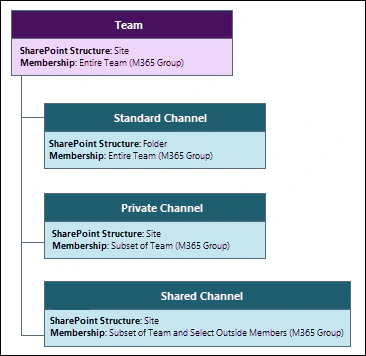
Fig. 7. How teams and channels map to SharePoint sites and folders. Source: Microsoft Learn
| Channel type | Where files live | What it means for provisioning |
|---|---|---|
| Standard | A folder in the team site’s Documents library | The main template covers it. Create the channel and the folder follows |
| Private | A separate site for the channel | Apply a lighter template to the channel site. Several site script actions are blocked there |
| Shared | A separate site for the channel | As for private channels, and review who outside the team gets access |
Fig. 8. Teams channel types and what they mean for provisioning
A Teams-aware pipeline therefore creates the group and the team first, then configures the team site, then handles channel sites separately, and finally pins the useful tabs: the document library, key lists, a planning board. Tasks inside Teams are handled by Planner, so a classic SharePoint task list rarely belongs in a modern template. The rules around who may create teams at all are covered in our Microsoft Teams governance guide.
What to put into a site template
A template that tries to predict everything is never finished. Start with a minimum viable template and extend it when a real request asks for more.
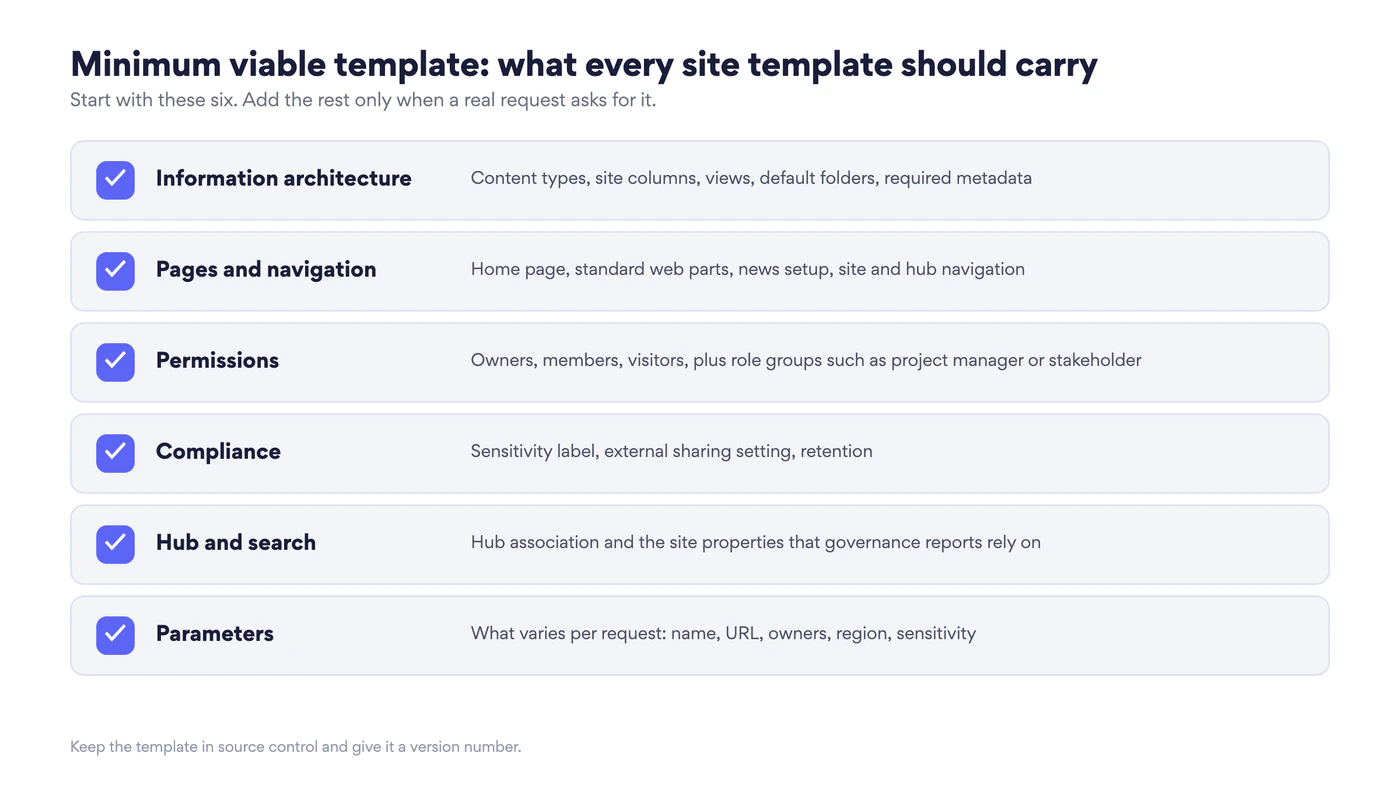
Fig. 9. Minimum viable template checklist
How the checklist plays out for the most common workspace patterns:
- Project workspace (team site). A documents library with phase folders and required metadata, lists for risks, issues and decisions, a milestone calendar, a status page, and role groups for the project manager, contributors and read-only stakeholders. Usually connected to a team and to the projects hub.
- Department or policy portal (communication site). Branded home page, news, a policies library with an approval step, contacts and FAQ pages, hub navigation. See SharePoint communication site and SharePoint hub sites.
- Client or partner workspace. The project pattern plus one library prepared for external sharing, with everything else closed. See SharePoint external sharing.
- Learning or adoption site. Microsoft 365 learning pathways and the SharePoint Success Site give you a ready training hub that you provision from the learning pathways administration page.
One thing to leave out: subsites. Modern SharePoint is flat, and a template should create separate sites joined by a hub rather than a tree of subsites. The reasoning is in Understanding SharePoint subsites and SharePoint classic vs modern.
SharePoint provisioning governance: best practices
Provisioning and governance are two halves of one job. A template is the cheapest moment to apply a rule, because nothing has to be corrected afterwards. The practices below are the ones that make the difference a year later, when the tenant holds several hundred sites.
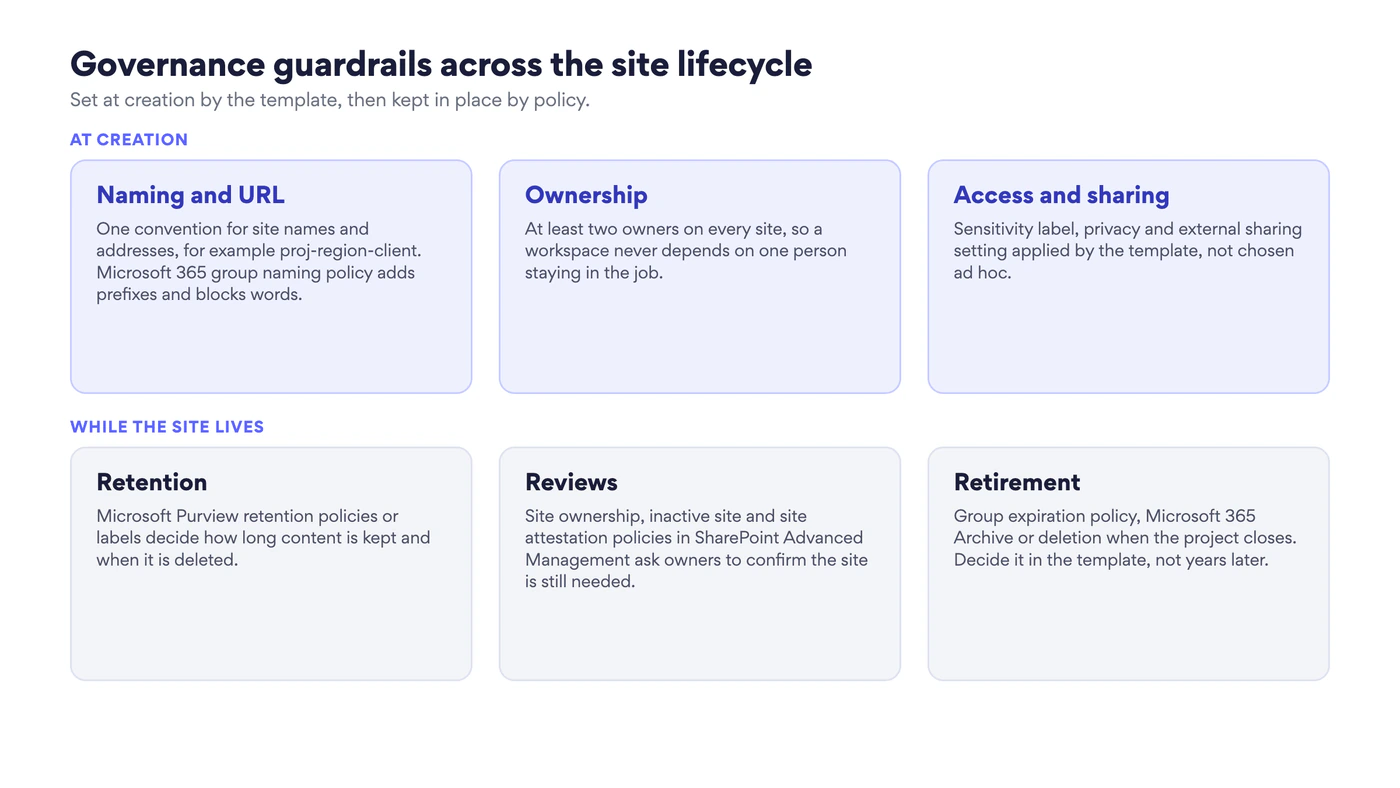
Fig. 10. Governance guardrails, from creation to retirement
- Decide who can create sites. Self-service creation can stay on, be limited to a group, or be replaced by your request form. What matters is that it is a decision, not a default nobody looked at.
- Fix the naming and URL convention first. For example proj-region-client. A URL is painful to change later, and a Microsoft 365 group naming policy in Microsoft Entra can add prefixes and block words automatically.
- Require at least two owners. Make it a mandatory field in the request form. A site ownership policy can then find sites that fall below the minimum.
- Apply sensitivity and sharing in the template. A sensitivity label on the site sets privacy and guest access in one step. Do not leave external sharing for owners to work out. Our SharePoint permissions guide explains the groups and levels a template should use.
- Attach retention from day one. A Microsoft Purview retention policy or label decides how long project content is kept, without anyone remembering to clean up.
- Associate every site with a hub. The hub gives navigation, search scope and a place in the structure. An orphan site is the first to be forgotten.
- Log every run. A provisioning list with requester, approver, template version, date and result is both your audit trail and your site directory.
- Version your templates. Keep them in source control, note what changed, and re-apply the current version to repair sites that have drifted.
- Plan the end of the site at the start. Group expiration, archiving with Microsoft 365 Archive or deletion: decide what happens when the project closes.
- Review regularly. Site lifecycle management in SharePoint Advanced Management runs three kinds of policy: site ownership, inactive sites and site attestation. They notify owners, collect answers and can set a site to read-only or archive it. SharePoint Advanced Management is an add-on and is included with Microsoft 365 Copilot licences.
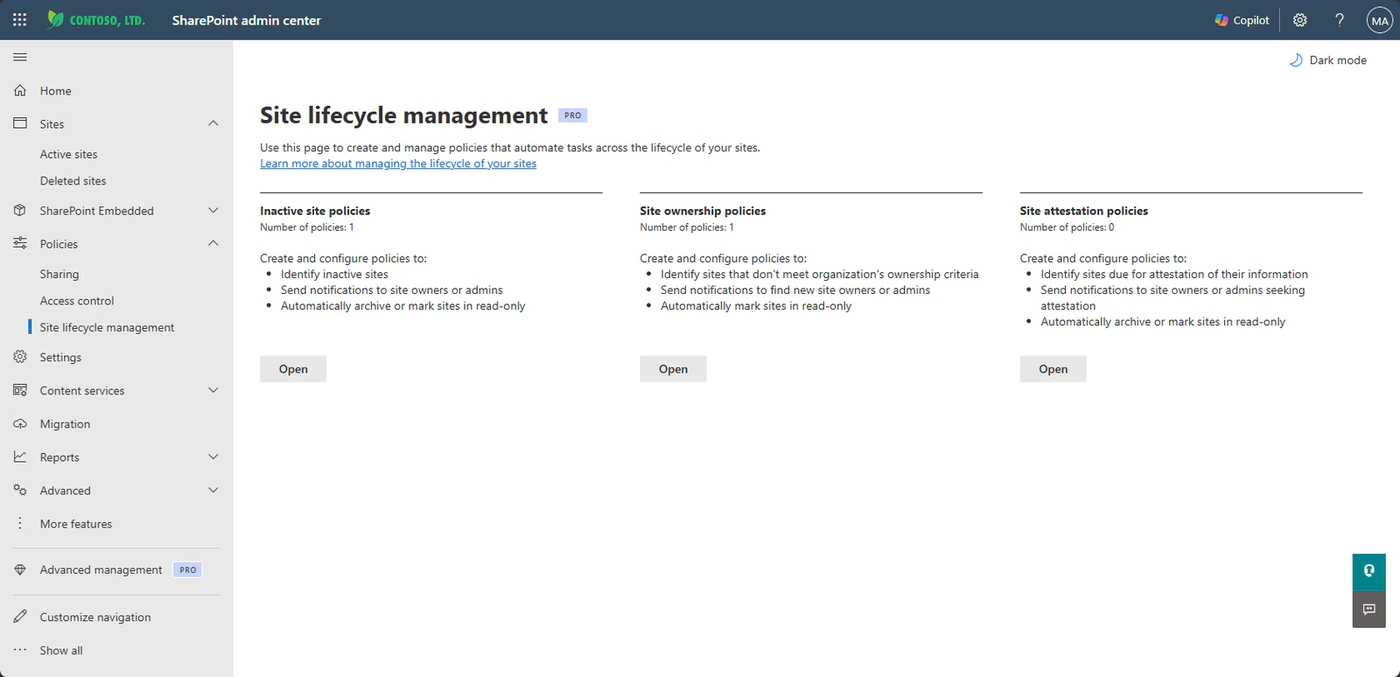
Pic. 6. Site lifecycle management policies in the SharePoint admin center. Source: Microsoft Learn
More on keeping a tenant tidy: SharePoint best practices and SharePoint content management.
Provisioning in SharePoint Server (on-premises)
Regulated industries, government and isolated networks still run SharePoint on their own servers, and they need consistent workspaces as much as anyone. In 2026 on-premises means SharePoint Server Subscription Edition: support for SharePoint Server 2016 and 2019 ended on July 14, 2026, and farms on those versions no longer receive security fixes.
What is different on-premises:
- No site templates or site scripts. They exist only in SharePoint Online.
- Scripts do the work. Provisioning relies on PowerShell with the server cmdlets, CSOM or REST, run by the farm team. Classic “save site as template” still exists for classic sites, but a script is easier to version and repeat.
- Power Automate stays in the cloud. It can reach on-premises data through the on-premises data gateway, but it does not create sites in a farm.
- Teams does not store files on-premises. Teams files live in SharePoint Online and OneDrive. If Teams is part of the plan, the workspace is hybrid.
- Classic workflows still run. SharePoint 2013 workflows were retired in SharePoint Online, not in SharePoint Server, so on-premises templates can still include them.
Governance is the same list as above, carried out with different tools: naming and URL standards, group and role mapping, a provisioning log, and a patching routine for the farm itself.
Virto apps in provisioned workspaces
A template decides how a site is structured. What people do in it every day, plan, track and get notified, is where VirtoSoftware apps come in. They can be part of the standard workspace, so a new project site arrives with its board and calendar already in place.
For SharePoint Online and Microsoft Teams:
- Virto Kanban Board App turns a SharePoint list into a visual board with swimlanes, colour coding, subtasks and WIP limits. Add it to the project template so every project starts with the same stages.
- Virto Calendar App overlays Microsoft 365, Outlook, SharePoint and internet calendars in one colour-coded view: milestones, releases and team availability on a single page.
- Virto Alerts & Reminder App sends alerts on changes in SharePoint lists and Microsoft 365 calendar events, plus date-based reminders, by email or into a Teams channel. It matters more now that Microsoft is removing classic SharePoint Alerts from SharePoint Online starting in July 2026. Details are in SharePoint Alerts retirement.
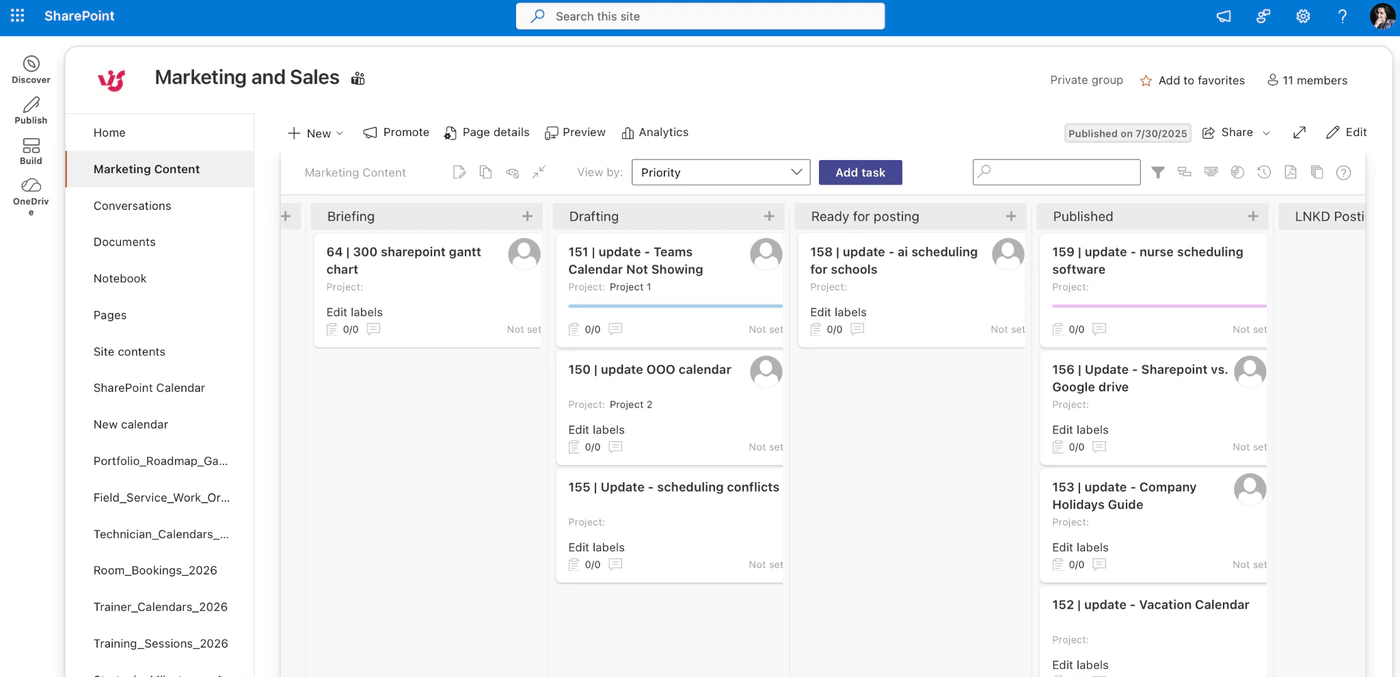
Pic. 7. Virto Kanban Board App on a SharePoint team site: the board is part of the workspace
For SharePoint Server (on-premises):
- Virto Workflow Automation adds 70+ no-code workflow activities, a workflow status monitor and a workflow scheduler. A provisioned site can start its approval and notification workflows from the first day.
- Virto Kanban Board Web Part puts a drag-and-drop task board on a site page and notifies people when a task changes.
- Virto Calendar Web Part overlays SharePoint lists, Outlook, Exchange, SQL, XML and iCal sources in one colour-coded calendar.
- Virto Notifications & Alerts Web Part sends alerts and reminders to any user or group by email or SMS, on the schedule you set.
All Virto apps come with a 30-day free trial, and each app lists its pricing on its product page. Browse the full catalogue of Virto apps for SharePoint, or see how teams combine them in our use cases.
SharePoint provisioning examples
IT and DevOps: a workspace for each new project
Request: a form in the service catalogue with product, service name and owners. Template: a hub-connected team site named dev-product-service, a documentation library with folders for architecture, runbooks and decisions, a backlog list with saved views, a release calendar and a Kanban board bound to the backlog. Guardrails: guest access off, internal sensitivity label, archive flow on project closure. Result: every squad starts with the same board and fields, and release governance exists from the first day.
Sales: one workspace per deal type
Request: the account owner selects the deal type (new customer, renewal, upsell) and the region. Template: a team site under the Sales hub, a collateral library with metadata for segment, product line and stage, a list that points to the current proposal and contract templates, and an approval flow for discounts. Guardrails: managers as owners, account executives as members, external sharing limited to a single Data Room library. Result: nobody rebuilds a structure, and leadership sees the same stages across all deals.
HR: a workspace for each opening
Request: a new requisition in the HR system posts to the provisioning queue. Template: a candidates library with a folder per candidate and metadata for stage and decision, a hiring stages list with reminders, an onboarding checklist and an interview calendar. Guardrails: tight default permissions, no external sharing, a retention label that deletes candidate data on schedule. Result: one process for every opening, with privacy rules applied by the template rather than by memory.
FAQ
What is the difference between a site template and a PnP template?
A site template is built into SharePoint Online. It runs a list of JSON actions and any site owner can apply it from the Settings pane. A PnP template is a file produced by the open-source PnP provisioning engine. It covers much more, including pages with web parts, and is applied with PnP PowerShell by an admin or by automation.
Can I automate site provisioning in SharePoint Online?
Yes. Use site templates for simple patterns and PnP templates for rich ones, and let Power Automate handle the request, the approval and the steps after creation. For PnP, the flow typically calls an Azure Function or an Azure Automation runbook.
Is the SharePoint Look Book still available?
The designs are, the one-click provisioning service is not. Download the .pnp file of a Look Book design and apply it with PnP PowerShell.
Do site templates work in SharePoint Server?
No. Site templates and site scripts are a SharePoint Online feature. On-premises provisioning is done with PowerShell, CSOM or REST.
Can I apply a template to a site that already exists?
Yes. A site owner can use Apply a site template on an existing site, and an admin can use Invoke-SPOSiteDesign or Invoke-PnPSiteTemplate. Both add what is missing and leave existing content in place.
Who should own SharePoint provisioning?
Usually the Microsoft 365 or collaboration team in IT, together with whoever owns information governance. IT maintains the templates and the pipeline, and the business owns the request form fields and the approval.
Conclusion
SharePoint provisioning turns site setup from a craft into a service. Start where you are: write down the checklist you follow by hand, turn the simple parts into a site template, move the rich parts into a PnP template, and put a request form and an approval in front when the volume justifies it. Apply naming, ownership, sharing and retention inside the template, review sites on a schedule, and the tenant you have in three years will look as orderly as the one you planned.
Want to see how boards, calendars and alerts fit into your standard workspaces? Explore Virto apps for SharePoint and start a 30-day free trial.
Official Microsoft resources
- SharePoint site template and site script overview
- Apply and customize SharePoint site templates
- Introducing the PnP provisioning engine
- Build a complete site template using the PnP provisioning engine
- PnP PowerShell documentation
- Manage Teams-connected sites and channel sites
- SharePoint site lifecycle management
- Provision the SharePoint Success Site