Quick answer: what are SharePoint permissions?
SharePoint permissions are the settings that control who can view or change SharePoint content. Access is assigned through permission levels — preset bundles of rights such as Full Control, Edit, Contribute and Read — granted to users and groups, and inherited from the site downwards to every list, library, folder and item until someone breaks that inheritance.
Permissions are the part of SharePoint that quietly decides whether your intranet is a well-run library or an open filing cabinet. Get them right and people find what they need and nothing they shouldn’t. Get them wrong and you end up with either a helpdesk queue full of “Access denied” tickets or, worse, a finance folder that half the company can read.
That second risk became much more visible in 2026. Microsoft 365 Copilot and SharePoint agents honour existing permissions exactly — they do not grant anyone new access — but they make content that was technically shared and practically buried one question away. Permissions that were merely untidy in 2023 are now the difference between a useful assistant and an accidental disclosure.
This guide covers the SharePoint Online permission model as it actually works today: the permission levels and what each one allows, how groups work on modern sites, how inheritance and unique permissions behave, the exact steps to view and change access, and the governance controls Microsoft added for the Copilot era. Where SharePoint Server on-premises differs, we say so.
What SharePoint permissions actually are
Four terms do most of the work, and mixing them up is the root of most permission confusion.
A permission is a single right — View Items, Edit Items, Manage Lists, Manage Permissions. There are dozens of them, and you almost never assign one directly.
A permission level is a named bundle of those rights. Read, Contribute, Edit, Design and Full Control are the ones you will use daily. This is what you actually pick from a dropdown.
A principal is who you grant it to — an individual user, a SharePoint group, a Microsoft Entra security group, or a Microsoft 365 group.
A scope is what you grant it on. Scopes nest: site collection → site → list or library → folder → item. Each level down inherits from the one above by default.

Fig. 1. SharePoint permission scopes, from site collection down to a single item
Put together, a permission assignment reads as one sentence: this principal has this permission level on this scope. “The Marketing Members group has Edit on the Campaign Assets library.” Every access question in SharePoint eventually resolves into that sentence — and every troubleshooting session is an attempt to find out which of the three parts is wrong.
SharePoint permission levels explained
Permission levels are defined at the site collection level. Any site inside that collection can use them. Ten levels ship out of the box, though a plain team site only shows a handful of them until you activate publishing features.
| Permission level | What a holder can do | Assigned by default to |
|---|---|---|
| Full Control | Everything — including managing permissions, creating subsites, deleting the site and adding apps. Cannot be customised or deleted. | Owners group |
| Design | Everything in Edit, plus create and change pages, apply themes, borders and style sheets, approve items and override list behaviours. | No group by default |
| Edit | Everything in Contribute, plus manage lists — add, edit and delete lists and libraries themselves, not just their contents. | Members group |
| Contribute | View, add, update and delete list items and documents. Cannot change list or library settings. | No group on modern team sites |
| Read | View pages and items, and download documents. No changes of any kind. | Visitors group |
| View Only | View pages, items and documents in the browser. Files with a server-side handler (Office documents) cannot be downloaded; file types without one, such as .png or video, still can. | Excel Services Viewers |
| Limited Access | Lets someone reach one specific item without giving them access to the rest of the site or library. SharePoint assigns this automatically and you cannot grant it directly. | Assigned automatically |
| Approve | Edit and approve pages, list items and documents. | Approvers (publishing sites) |
| Manage Hierarchy | Create sites, and edit pages, list items and documents. | Hierarchy Managers (publishing sites) |
| Restricted Read | View pages and documents, but not version history or permission information. | Restricted Readers |
Fig. 2. SharePoint permission levels and what each one grants
Two entries on that list deserve a closer look, because they are the ones people misread.
Edit vs Contribute — the difference that matters
This is the most common permission question in SharePoint, and the answer is a single right: Manage Lists.
Contribute lets someone work with content. They can add a document, edit it, delete it, add a list item, change it, remove it. What they cannot do is change the container — they cannot add or remove columns, create or delete views, rename the library or delete the list.
Edit is Contribute plus Manage Lists. An Edit holder can restructure the list itself. On a site where lists drive business processes — a request tracker with carefully built views, a library with metadata columns feeding a workflow — that is a significant power. Someone deleting a column because it looked unused takes the process with it.
Microsoft assigns Edit to the Members group by default, which means the standard team site hands every member the ability to restructure lists. If your site has lists that matter, changing the Members group down to Contribute is one of the highest-value five-minute changes you can make. Do it in Site permissions → Advanced permissions settings → Members group → Settings → Group Settings, or by editing the group’s permission level on the Permissions page.
Limited Access is not something you assign
When you share a single document with someone who has no other access to the site, SharePoint has a problem: to open that document, their browser needs to traverse the library and the site. So SharePoint silently grants Limited Access at those parent scopes. It confers no ability to see or open anything else — it exists purely to make the URL resolve.
You will see it appear in permission lists and reports, often attached to a group called Limited Access System Group. It is not a misconfiguration and you should not try to remove it. If you do remove it, users with legitimate item-level access may find they can no longer navigate to their own items.
Custom permission levels
You can copy any level except Full Control and Limited Access and adjust the rights inside it — Site settings → Site permissions → Permission Levels → Add a Permission Level, or copy an existing one from the bottom of its page. The classic use case is a level that allows adding items but not editing or deleting them, for a submissions library where records must not be altered after the fact.
Use these sparingly. Every custom level is one more thing a future administrator has to decode, and a level whose name does not describe its contents (“Contribute Plus”) is worse than no level at all. Name them for what they do: Add Only, Read Without Download.

Pic. 1. Managing permission levels on a SharePoint site
SharePoint groups: Owners, Members and Visitors
Assign permissions to groups, not to people. This is the single rule that keeps a permission model maintainable, and it is worth stating plainly: an individual grant is a promise that someone will remember to remove it when the person changes roles, and nobody ever does.
Every SharePoint site is created with three groups:
| Group | Default permission level | Who belongs in it |
|---|---|---|
| Owners | Full Control | Two or three accountable people. Never one — an ownerless site is a governance problem waiting to surface. |
| Members | Edit (consider Contribute) | The people who create and maintain content. |
| Visitors | Read | Everyone else who needs to see the content. The natural home for a large Entra security group. |
Fig. 3. Default SharePoint groups and their permission levels
Publishing-enabled sites add Approvers, Designers, Hierarchy Managers, Restricted Readers and a few others. Team sites do not use them.
The part that surprises people: modern sites are not all managed the same way
On a modern SharePoint Online tenant, the SharePoint groups above are not always where access is decided. It depends on the type of site.
Group-connected team sites. Every team site created in the modern experience is backed by a Microsoft 365 group. Group owners become site owners; group members become site members. Permissions flow from the group to SharePoint, never back — adding someone to the SharePoint Owners group does not make them an owner of the group, its mailbox or its Planner. Manage these sites through the group, not through SharePoint. One quirk to remember: Microsoft 365 groups have no view-only tier, so anyone who needs read-only access has to be added directly to the site’s Visitors group.
Teams-connected sites. If a team in Microsoft Teams sits on top of the site, do all permission management in Teams. Team owners become site owners, team members become site members.
Private and shared channel sites. Each private or shared channel creates its own separate SharePoint site. Permissions on these cannot be managed from SharePoint at all — the site permissions panel shows them read-only, and the only place to change them is the channel in Teams. This is by design, and it is the answer to the common “why is Advanced permissions settings missing?” question.
Communication sites. These are not connected to a Microsoft 365 group and do use the classic Owners / Members / Visitors model. Add individual users, Entra security groups or Microsoft 365 groups into those three SharePoint groups. Visitors is where a broad security group belongs — it is the simplest way to give a whole department read access.
Hub sites. Managed according to whatever the underlying site is. Note that the ability to associate a site with a hub is controlled by a SharePoint administrator in the admin center and cannot be delegated by the site owner.

Fig. 4. The three routes by which someone gets access to SharePoint content in 2026
The third route: sharing links
Groups and permission levels are only two of the three ways people get access. The third — and in most tenants the busiest — is the Share button.
There are three link types:
- Anyone with the link. Works without sign-in, can be forwarded freely, and the resulting access cannot be attributed to a person in audit logs. Not available in Teams shared channel sites. If you do nothing else after reading this article, check whether this link type is enabled in your tenant and whether it should be.
- People in your organization. Works for anyone signed into your tenant. Does not work for guests or external shared-channel participants.
- Specific people. Works only for the named recipients.
The default link type offered to users is configurable per site as well as tenant-wide (Active sites → the site → Settings → More sharing settings). Setting the default to Specific people on sites holding anything sensitive is a low-friction, high-value change: people accept the default far more often than they change it.
The important thing to understand is what a sharing link does structurally. Sharing an individual file or folder breaks permission inheritance on it. A user who shares one document has created a unique permission scope without ever opening a settings page. This is why real-world SharePoint sites drift into thousands of unique scopes that no administrator ever deliberately created.
Permission inheritance and unique permissions
By default, everything in a site collection inherits from the top. The root site sets the pattern; sites, lists, libraries, folders and items follow it. That is the state you want to preserve for as long as you possibly can.
Breaking inheritance copies the current groups, users and permission levels down to the child object and then cuts the link. From that moment the child has its own independent set of permissions — with one asymmetry worth knowing: removals propagate down regardless of inheritance status, but additions do not.
Restoring inheritance discards everything unique to the child and re-adopts the parent’s permissions. There is no merge and no undo. Anything you set up on that list is gone.
Where the model bites
There are hard limits, and large sites hit them:
- 50,000 unique permission scopes per list or library is the supported ceiling. Microsoft recommends staying under 5,000 for performance.
- A folder, library or list containing more than 100,000 items cannot have inheritance broken or restored at all. You can still break it on individual items inside.
- Every individually shared file adds a scope. Sharing a folder of 75,000 files adds exactly one.
That last point is the practical takeaway: when several files need to go to the same audience, put them in a folder and share the folder once. Sharing them one at a time creates one scope each and quietly degrades the library for everyone.
When to break inheritance — and when not to
Break it when a genuinely different audience needs a genuinely different level of access to a whole container: an HR library on a general team site, a contracts library only legal should read.
Do not break it for a single document, for a temporary situation, or because it seemed faster than creating a group. And do not break it at item level in a large list — item-level unique permissions are where SharePoint permission models go to die. If a list needs per-record security for many records, that is a signal the records belong in separate lists or separate sites.

Pic. 2. The “Stop Inheriting Permissions” option in the list permissions ribbon
How to edit permissions in SharePoint
At the site level
- Open the site and select the gear icon in the top right.
- Select Site permissions.
- The panel shows Site owners, Site members and Site visitors. Use Invite people to add someone, or select a group to change who is in it.
- For anything beyond that — creating groups, changing a group’s permission level, granting a level directly — select Advanced permissions settings at the bottom of the panel.
- On the Permissions page, use Grant Permissions to add a principal, Edit User Permissions to change one, and Remove User Permissions to revoke one.

Pic. 3. Opening “Site permissions” from the site settings menu

Pic. 4. Choosing “Advanced permissions settings” when the panel does not show the option you need

Pic. 5. Editing permissions for site members
On a group-connected team site, remember that adding someone here gives them the SharePoint site only — not the mailbox, calendar, Planner or team. If they should have all of it, add them to the Microsoft 365 group or the team instead. On a channel site, the panel is read-only; go to Teams.
Also on this panel: Change how members can share, which controls whether members can share the site and files or only site owners can, and whether access requests are accepted. Restricting sharing to owners on sensitive sites is worth doing.
At the list or library level
- Open the list or library. If you cannot find it, go to Settings → Site contents.
- Select the gear icon → List settings or Library settings (on newer libraries, Settings then More library settings).
- Under Permissions and Management, select Permissions for this list or Permissions for this document library.
- The page tells you whether the list is inheriting. To give it its own permissions, select Stop Inheriting Permissions and confirm.
- Once inheritance is broken, use Grant Permissions, Edit User Permissions and Remove User Permissions as at site level.
- To go back, select Delete unique permissions (or Manage Parent) — remembering that this discards everything unique to the list.
At the file or folder level
For a single item, skip the settings pages entirely. Select the file or folder, then ⋯ → Manage access. The panel separates Links (sharing links that exist, with the option to delete each one) from Direct access (people and groups with explicit permissions). Advanced settings takes you to the classic permissions page for that item if you need it.
Manage access is also where you undo oversharing fastest: deleting a link revokes it for everyone holding it, immediately.
Access requests
When someone without access opens a link, SharePoint can offer to send an access request to the site owners. Configure it at Advanced permissions settings → Access Request Settings. Turning it off entirely is tempting but usually counterproductive — an unrouted request becomes an email to whoever the user happens to know, and access gets granted informally.
What changed in 2026
The mechanics above have been stable for years. What changed is the consequence of getting them wrong, and the tooling Microsoft now provides.
| What changed | Why it matters |
|---|---|
| Copilot and agents surface what permissions allow | Copilot respects every permission boundary, but it removes obscurity as a defence. Content that was shared too broadly but never found is now returned in an answer. |
| Restricted Content Discovery (RCD) | A site-level switch that keeps a site out of organization-wide search and Copilot results without changing its permissions. Designed as breathing room while owners review access. Requires SharePoint Advanced Management and Copilot licensing. |
| Restricted Access Control (RAC) | Limits a whole site to the members of a named Microsoft 365 group or Entra security group. Anyone outside that group loses access even if they hold direct permissions or a link. |
| Data access governance (DAG) reports | In the SharePoint admin center under Reports → Data access governance: a permission state snapshot for every site, sharing-link activity, and “shared with Everyone except external users” reports. E5 tenants get the activity reports; the full set needs SharePoint Advanced Management. |
| Site access reviews | Delegates a DAG report to the site owners who can actually judge it, up to 100 sites at a time from the web view, more via PowerShell. |
| Content management assessment and SharePoint Admin Agent | Surface oversized audiences, EEEU usage, broken inheritance, ownerless and inactive sites in one place. |
| Restricted SharePoint Search is retiring | New enablement is blocked from 31 July 2026. It was always a stopgap; Restricted Content Discovery is the supported successor. |
| SharePoint Server 2016 and 2019 reached end of support on 14 July 2026 | On-premises farms still running those versions no longer receive security updates. SharePoint Server Subscription Edition continues. |
Fig. 5. What changed for SharePoint permissions in 2026
The single most valuable of these is the least glamorous: the “Everyone except external users” report. EEEU is the group that makes content visible to every internal account, and unresolved EEEU grants are consistently the largest source of accidental exposure in Copilot results. Finding them is a report; fixing them is an afternoon.

Fig. 6. A practical sequence for finding and fixing oversharing before it reaches Copilot
Troubleshooting: permissions granted, access still denied
A user has the permission level, and SharePoint still says no. Work through these in order — it is almost always one of the first three.
- Unique permissions somewhere in the path. The list, library, folder or item has broken inheritance and the user was never added to the child scope. Check the item itself, not just the site.
- The user is in a group that does not have access to this scope. Group membership grants nothing on a scope where the group was removed after inheritance was broken.
- Restricted Access Control is on. The user has permissions but is not in the group the site is restricted to. RAC overrides everything below it.
- Group membership has not propagated. Entra security group and Microsoft 365 group changes take time to reach SharePoint. Minutes usually; occasionally longer.
- A customised permission level is missing a right. Someone edited a level and removed something the scenario needs — commonly Open Items or View Application Pages.
- Limited-access user permission lockdown mode is active. A site collection feature that deliberately blocks Limited Access users from reaching individually shared items. It also greys out sharing options.
- Sensitivity label, DLP policy or Conditional Access. Increasingly the real cause. A label can restrict a document regardless of SharePoint permissions, and an authentication context can block a site from an unmanaged device.
- Content approval. The item exists but is unapproved, so readers cannot see it.
For the last few, the SharePoint permission model is not the place to look — check Purview and Entra.
SharePoint permissions best practices
Plan the audiences before you build the site. Who creates, who contributes, who only reads. Three answers, written down, prevent most later mess.
Use groups. Always. Individual grants are the debt you take on today and repay during an audit.
Prefer separate sites over broken inheritance. In the modern flat architecture, a new site is cheap and a unique permission scope is expensive. If content needs a different audience, give it a different site and connect them with a hub.
Move Members down to Contribute on any site whose lists carry structure worth protecting.
Fix ownerless sites. Every site needs at least two owners. Site lifecycle policies in SharePoint Advanced Management will chase this for you at scale.
Set the default sharing link deliberately. Specific people on sensitive sites, per site rather than only tenant-wide.
Audit on a schedule, not after an incident. Permission state snapshot quarterly; sharing-link and EEEU activity reports monthly. Both are in the admin center.
Review external sharing separately. External and guest access has its own settings and its own risks — see our SharePoint external sharing guide for the full picture.
Remove leavers promptly, and check for orphans. Accounts that retain permissions after departure are the classic finding in every access audit.
Do not confuse SharePoint permissions with Teams permissions. They interact but are not the same model; Microsoft Teams permissions has its own roles and its own admin surface.
Common mistakes to avoid
- Granting Full Control to solve a problem you have not diagnosed. It works, and it is almost never the right fix.
- Breaking inheritance at item level in a list that will grow.
- Nesting security groups deeply — it causes performance problems and is not recommended.
- Deleting a default SharePoint group. Delete only groups you created.
- Assuming a subsite is the answer. Modern guidance is flat: separate sites, joined by a hub.
- Treating “Anyone” links as harmless because the content seemed unimportant at the time.
Explore Our Use Cases for Secure Collaboration
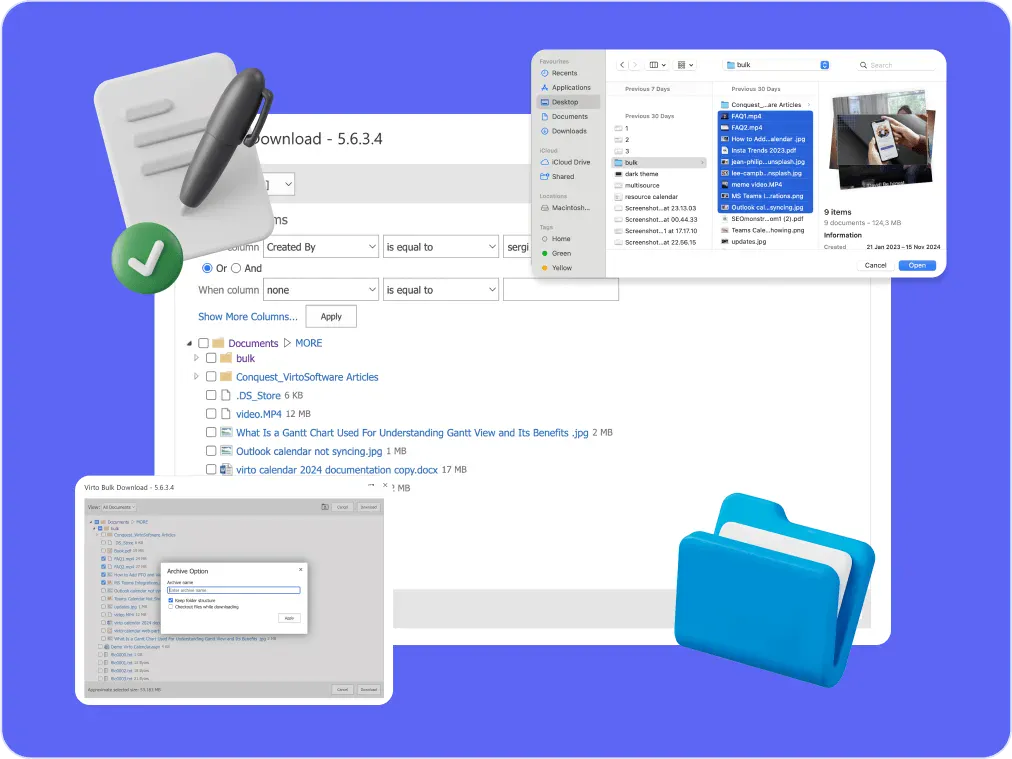
Multiple File Management
Built for high-compliance organizations: Virto Multiple File Operations On-Premises uploads, moves, copies, deletes and re-tags SharePoint files in bulk, under the permissions you already set—without scripting or IT help.
Learn more about Multiple File Management
Compliance Management Software
See every audit and filing date in one calendar, move remediation tasks across Kanban boards, and email owners before compliance deadlines, all in Microsoft 365.
Learn more about Compliance Management Software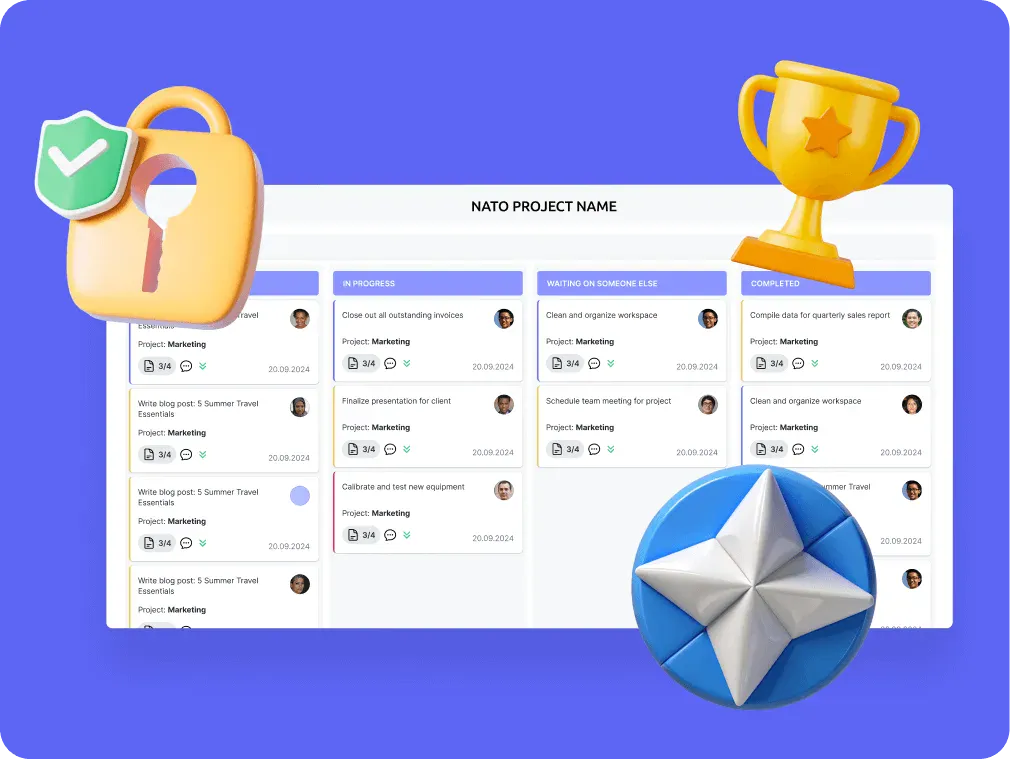
Secure Productivity for IGOs
Transform your secure project management, enhance mission coordination, and get your security and compliance features running like clockwork with VirtoSoftware's NATO-tested secure productivity solutions.
Learn more about Secure Productivity for IGOsReporting and auditing permissions
For a single site, the permissions page plus Check Permissions (on the Permissions page ribbon — enter a name and SharePoint tells you exactly what that person has and where it comes from) answers most questions.
At tenant scale, use the SharePoint admin center’s Data access governance reports first: the site permissions snapshot for a baseline, then sharing links and EEEU for ongoing drift. The SharePoint Online PowerShell module generates the same reports via Start-SPODataAccessGovernanceInsight if you want them scripted. Note that the first snapshot report takes up to five days regardless of tenant size, later ones complete within 24 hours, and each can be re-run every 30 days.
Purview’s audit log covers the events — who shared what with whom, and when — which is the complement to the permission snapshots. Third-party tools such as ShareGate and AvePoint remain useful for cross-tenant reporting and bulk remediation, but far less indispensable than they were before the DAG reports existed.
Metrics worth tracking over time: number of accounts with Full Control, number of unique permission scopes per site, count of active “Anyone” links, and the number of sites with EEEU grants. All four should trend downwards.
SharePoint Online vs SharePoint on-premises
The concepts are identical — permissions, levels, principals, scopes and inheritance work the same way in SharePoint Server. The differences are in what surrounds them.
| Aspect | SharePoint Online | SharePoint Server |
|---|---|---|
| Where access is decided | Often the Microsoft 365 group or Teams, not SharePoint groups | SharePoint groups and Active Directory |
| Identity | Microsoft Entra ID | Active Directory, plus your chosen auth providers |
| Governance tooling | DAG reports, RCD, RAC, site access reviews, Purview | PowerShell and third-party tools |
| External sharing | Built in, guest accounts, sharing links | Extranet configuration you build and maintain |
| Support status | Continuously updated | 2016 and 2019 out of support since 14 July 2026; Subscription Edition continues |
Fig. 7. Permission management in SharePoint Online compared with SharePoint Server
If you are running on-premises, Microsoft’s overview of site permissions in SharePoint Server is the reference to follow, and a supported version is the first prerequisite for any security conversation.
Managing permissions with Virto apps
Third-party web parts and apps sit inside the SharePoint permission model rather than beside it — or at least, well-built ones do. Before you install anything, the question worth asking a vendor is simple: does it read content as the signed-in user, respecting item-level permissions, or does it use an elevated service account?
Virto apps are built on SPFx and honour SharePoint permissions throughout. Here is how that plays out in the Virto Calendar App, followed by a general point on keeping permissions simple:
Virto Calendar App. The Virto Calendar App for Microsoft 365 overlays multiple SharePoint lists, Exchange calendars and external sources in one view. Each data source keeps its own permissions: a user sees the events they would see in the underlying list and nothing more, even when six calendars are layered in one view.

Pic. 6. Virto Calendar App
On top of that, the app has its own settings tab where you scope calendars to a site or site collection and assign calendar-manager and licence-manager roles. Site collection administrators keep their inherent rights, which the app cannot override — those are changed in SharePoint. The full detail is in the user permissions documentation.

Pic. 7. The “Permissions” tab in the Virto Calendar settings
Reducing how much you have to permission in the first place. A good deal of permission complexity exists because content sits in the wrong place — one library serving three audiences, so it gets three broken scopes. Tools that let people work with content in place, rather than copying it into new locations, keep the scope count down. That is worth more to a permission model than any reporting feature.
To be clear about what apps cannot do: no third-party app can grant, revoke or bypass a SharePoint permission that Microsoft’s model does not already allow, and none can substitute for Purview or SharePoint Advanced Management for tenant-wide governance. What they can do is avoid making the model worse.
The full catalogue is at Virto apps for Microsoft 365 and SharePoint Online and Virto SharePoint on-premises web parts. Every product comes with a 30-day free trial, and our team is happy to walk through a permission-sensitive deployment with you.
Explore Virto Apps for SharePoint Online



Frequently asked questions
What are SharePoint permission levels?
Preset bundles of rights — Full Control, Edit, Contribute, Read, Design, and a few specialised ones including Limited Access — assigned to users or groups to control what they can do. You pick a level rather than assembling individual rights.
How do I edit permissions in SharePoint?
For a site: gear icon → Site permissions → Advanced permissions settings → Grant or Edit User Permissions. For a list or library: List/Library settings → Permissions for this list → Stop Inheriting Permissions if needed, then edit. For one file: select it → ⋯ → Manage access.
What is broken permission inheritance?
When an item stops inheriting permissions from its parent site or library and gets its own unique set instead. Breaking inheritance copies the current permissions down and then cuts the link, so later changes at the parent no longer apply — except removals, which still propagate.
What is the difference between Edit and Contribute?
Contribute lets someone work with content — add, edit and delete items and documents. Edit adds the Manage Lists right on top, so an Edit holder can also change the structure of lists and libraries: columns, views, and the list itself.
Should I use SharePoint groups or Microsoft 365 groups?
On a group-connected team site or a Teams-connected site, manage access through the Microsoft 365 group or the team. On a communication site, use the SharePoint Owners / Members / Visitors groups. On a private or shared channel site, you have no choice — permissions are managed in Teams only.
How many unique permissions can a list have?
The supported limit is 50,000 unique permission scopes per list or library, but Microsoft recommends staying under 5,000 for performance. A folder or library with more than 100,000 items cannot have inheritance broken or restored at all.
Why does a user get “Access denied” when they have permissions?
Most often because a list, folder or item somewhere in the path has unique permissions they were never added to. Other causes: Restricted Access Control limiting the site to a group they are not in, group membership that has not propagated yet, a customised permission level missing a required right, or a sensitivity label or Conditional Access policy blocking access outside SharePoint entirely.
Does Copilot change who can see what in SharePoint?
No. Copilot and SharePoint agents respect existing permissions exactly and grant no new access. What changes is discoverability — content that was technically accessible but practically buried now surfaces in answers, which is why permission clean-up became urgent in 2026.
How do I find overshared content across my tenant?
Use the Data access governance reports in the SharePoint admin center under Reports → Data access governance. Start with the site permissions snapshot, then the sharing links and “Everyone except external users” activity reports. Site access reviews let you hand the results to site owners to act on.
Can I stop members from sharing files?
Yes. On the site: Site permissions → Change how members can share → Only site owners can share files, folders and the site. Tenant-wide external sharing is controlled in the SharePoint admin center under Policies → Sharing.
Conclusion
SharePoint permissions are not complicated so much as cumulative. The model itself is small — levels, principals, scopes, inheritance — and it has not changed in years. What grows is the sediment: a link shared here, inheritance broken there, an owner who left, a group that was convenient once. Left alone for a few years, that sediment is what makes a tenant feel unmanageable.
The good news is that 2026 gave administrators the visibility they were missing. You can now see, in a report, exactly how broadly each site is exposed and who is creating links, and hand that view to the people who can judge it. Combined with the old discipline — groups not individuals, inheritance not exceptions, separate sites not unique scopes — that is enough to keep a large tenant honest.
Start with the reports, fix the EEEU grants, then work down. And keep the model boring: boring permission models are the ones that still make sense to whoever inherits them.
Related guides
- SharePoint security: a complete guide
- SharePoint external sharing
- SharePoint best practices: structure, permissions and governance
- SharePoint provisioning: methods and governance best practices
- What is SharePoint and what is it used for?
- SharePoint document management
- Microsoft Teams permissions
- Microsoft Teams guest access
Sources
- Microsoft Learn — Understanding permission levels in SharePoint
- Microsoft Learn — Sharing and permissions in the SharePoint modern experience
- Microsoft Learn — Overview of site permissions in SharePoint Server
- Microsoft Support — Customize permissions for a SharePoint list or library